Project management: Difference between revisions
No edit summary Tag: Manual revert |
|||
| (10 intermediate revisions by the same user not shown) | |||
| Line 5: | Line 5: | ||
<center> | <center> | ||
<div class="toc" style="border-radius:5px;background-color:#ffffff;padding-left:8px;padding-right:8px;padding-bottom:8px;width:300px;"> | <div class="toc" style="border-radius:5px;background-color:#ffffff;padding-left:8px;padding-right:8px;padding-bottom:8px;width:300px;"> | ||
[[File:2023-04-22 Project management.png|300px]] | [[File:2023-04-22 Project management.png|300px|link=https://help.biolovision.net/images/4/41/2023-04-22_Project_management.png]] | ||
<div class="toc" style="border-radius:5px;padding-left:15px;text-align:left; font-size:12px;width:275px;"> | <div class="toc" style="border-radius:5px;padding-left:15px;text-align:left; font-size:12px;width:275px;"> | ||
'''Project management.''' | '''Project management.''' | ||
| Line 24: | Line 24: | ||
<center> | <center> | ||
<div class="toc" style="border-radius:5px;background-color:#ffffff;padding-left:8px;padding-right:8px;padding-bottom:8px;width:700px;"> | <div class="toc" style="border-radius:5px;background-color:#ffffff;padding-left:8px;padding-right:8px;padding-bottom:8px;width:700px;"> | ||
[[File:2023-04-27 List of owned projects.png|700px]] | [[File:2023-04-27 List of owned projects.png|700px|link=https://help.biolovision.net/images/b/b2/2023-04-27_List_of_owned_projects.png]] | ||
<div class="toc" style="border-radius:5px;padding-left:15px;text-align:left; font-size:12px;width:675px;"> | <div class="toc" style="border-radius:5px;padding-left:15px;text-align:left; font-size:12px;width:675px;"> | ||
'''List of owned projects.''' | '''List of owned projects.''' | ||
| Line 53: | Line 53: | ||
<center> | <center> | ||
<div class="toc" style="border-radius:5px;background-color:#ffffff;padding-left:8px;padding-right:8px;padding-bottom:8px;width:700px;"> | <div class="toc" style="border-radius:5px;background-color:#ffffff;padding-left:8px;padding-right:8px;padding-bottom:8px;width:700px;"> | ||
[[File:2023-04-27 Lit of external projects..png|700px]] | [[File:2023-04-27 Lit of external projects..png|700px|link=https://help.biolovision.net/images/a/a2/2023-04-27_Lit_of_external_projects..png]] | ||
<div class="toc" style="border-radius:5px;padding-left:15px;text-align:left; font-size:12px;width:675px;"> | <div class="toc" style="border-radius:5px;padding-left:15px;text-align:left; font-size:12px;width:675px;"> | ||
'''List of external projects.''' | '''List of external projects.''' | ||
| Line 89: | Line 89: | ||
<center> | <center> | ||
<div class="toc" style="border-radius:5px;background-color:#ffffff;padding-left:8px;padding-right:8px;padding-bottom:8px;width:700px;"> | <div class="toc" style="border-radius:5px;background-color:#ffffff;padding-left:8px;padding-right:8px;padding-bottom:8px;width:700px;"> | ||
[[File:2023-04-27 Admin project details.png|700px]] | [[File:2023-04-27 Admin project details.png|700px|link=https://help.biolovision.net/images/b/bf/2023-04-27_Admin_project_details.png]] | ||
<div class="toc" style="border-radius:5px;padding-left:15px;text-align:left; font-size:12px;width:675px;"> | <div class="toc" style="border-radius:5px;padding-left:15px;text-align:left; font-size:12px;width:675px;"> | ||
'''Admin project details.''' | '''Admin project details.''' | ||
| Line 124: | Line 124: | ||
<br/> | <br/> | ||
[[File:2023-04-27 Edit admin project.png|700px| | <center> | ||
<p style=" | <div class="toc" style="border-radius:5px;background-color:#ffffff;padding-left:8px;padding-right:8px;padding-bottom:8px;width:700px;"> | ||
[[File:2023-04-27 Edit admin project.png|700px|link=https://help.biolovision.net/images/e/ec/2023-04-27_Edit_admin_project.png]] | |||
<div class="toc" style="border-radius:5px;padding-left:15px;text-align:left; font-size:12px;width:675px;"> | |||
'''Editing admin projects.''' | |||
</div> | |||
<p style="color:black;font-size:12px;padding-left:5px;text-align:left;column-count:1;padding-right:5px;"> | |||
'''BACK:''' Go to previous screen without saving. <br/> | '''BACK:''' Go to previous screen without saving. <br/> | ||
'''MODIFY:''' Save changes. <br/> | '''MODIFY:''' Save changes. <br/> | ||
<br/> | |||
'''8. Code:''' Type / modify a project code. <br/> | |||
'''9. Family name:''' Select language from the tabs on top (a) and type / modify the family name (b) in the selected language. Repeat the process to include / modfiy titles in different languages.<br/> | |||
'''10. Descriptive:''' Select language from the tabs on top (a) and type / modify the description (b) in the selected language. Repeat the process to include / modify information in different languages.<br/> | |||
'''11. Start date:''' Change starting date of the project by selecting from the calendar. <br/> | |||
'''12. End date:''' Change the end date of the project by selecting from the calendar. <br/> | |||
'''13. Taxonomic group:''' Type the name of the taxonomic group the project refers to (a) and / or select from the expandable menu on the left (b). <br/> | |||
'''14. Entry mode:''' Select from the expandable menu how to enter data. Go to subsection NEW below to see options. <br/> | |||
'''15. Records hidden automatically:''' Check if records will be hidden automatically. Even if records are hidden automatically, administrators will always see them.<br/> | |||
'''16. Search allowed to everyone:''' <br/> | |||
'''17. Public project available to everyone:''' Check if all users can participate or if the project is restricted to certain users. <br/> | |||
'''18. Show this project in the NaturaList (+) menu:''' Indicates if the project will be an option in the NaturaList main menu. <br/> | |||
'''19. Radius of concentric circles:''' <br/> | |||
'''20. Number of concentric circles displayed:''' <br/> | |||
'''21. Mandant:''' <br/> | |||
'''22. Mandatary:''' <br/> | |||
</p> | |||
</div> | |||
</center> | |||
<br/> | |||
<br/> | <br/> | ||
| Line 152: | Line 160: | ||
<br/> | <br/> | ||
[[File:2023-04-27 Admin new project.png|700px| | <center> | ||
<p style=" | <div class="toc" style="border-radius:5px;background-color:#ffffff;padding-left:8px;padding-right:8px;padding-bottom:8px;width:700px;"> | ||
[[File:2023-04-27 Admin new project.png|700px|link=https://help.biolovision.net/images/1/18/2023-04-27_Admin_new_project.png]] | |||
<div class="toc" style="border-radius:5px;padding-left:15px;text-align:left; font-size:12px;width:675px;"> | |||
'''Admin new project.''' | |||
</div> | |||
<p style="color:black;font-size:12px;padding-left:5px;text-align:left;column-count:1;padding-right:5px;"> | |||
'''BACK:''' Go to previous screen without saving. <br/> | '''BACK:''' Go to previous screen without saving. <br/> | ||
'''ADD:''' Save changes and add a new project. <br/> | '''ADD:''' Save changes and add a new project. <br/> | ||
<br/> | |||
'''8. Code:''' Type a project code. <br/> | |||
'''9. Family name:''' Select language from the tabs on top (a) and type the family name (b) in the selected language. Repeat the process to add a title in different languages. <br/> | |||
'''10. Descriptive:''' Select language from the tabs on top (a) and type the description (b) in the selected language. Repeat the process to add description in different languages. <br/> | |||
'''11. Start date:''' Select from the calendar the starting date of project. <br/> | |||
'''12. End date:''' Select from the calendar the starting date of project. <br/> | |||
'''13. Taxonomic group:''' Type the name of the taxonomic group the project refers to (a) and / or select from the expandable menu on the left (b). <br/> | |||
'''14. Entry mode:''' Select from the expandable menu how to enter data. Choose from: <br/></p> | |||
<p style="color:black;font-size:12px;padding-left:50px;text-align:left;column-count:1;padding-right:5px;"> | |||
:::: | '''Form''' to fill in a form, or <br/> | ||
'''Casual record''' to enter it as a casual record, or <br/> | |||
'''both''' to select both options. <br/></p> | |||
:::'''15. Records hidden automatically:''' Check if records will be hidden automatically. Even if records are hidden automatically, administrators will always see them.<br/> | <p style="color:black;font-size:12px;padding-left:5px;text-align:left;column-count:1;padding-right:5px;"> | ||
'''15. Records hidden automatically:''' Check if records will be hidden automatically. Even if records are hidden automatically, administrators will always see them.<br/> | |||
'''16. Search allowed to everyone:''' <br/> | |||
'''17. Public project available to everyone:''' Check if all users can participate or if the project is restricted to certain users. <br/> | |||
'''18. Show this project in the NaturaList (+) menu:''' Check if the project will be an option in the NaturaList main menu. <br/> | |||
'''19. Radius of concentric circles:''' <br/> | |||
'''20. Number of concentric circles displayed:''' <br/> | |||
'''21. Mandant:''' <br/> | |||
'''22. Mandatory:''' <br/> | |||
</p> | |||
</div> | |||
</center> | |||
<br/> | |||
<br/> | <br/> | ||
Latest revision as of 15:30, 1 November 2024
Administration > Project management
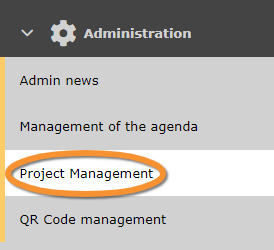
Project management.
Project code
List of existing project codes, both owned and external. Use arrows under titles to alternate between ascending and descending order (see image as an example).

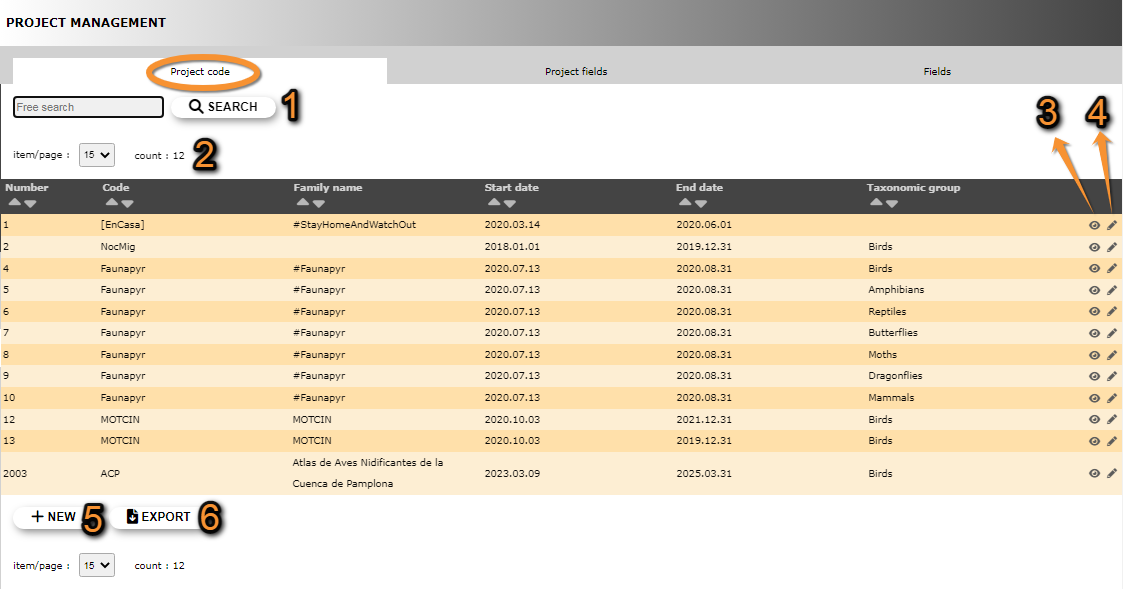
List of owned projects.
1. Search
2. Page search
3. Details
4. Edit
5. NEW
6. EXPORT
Number: Number designating the project.
Code: Project code.
Family name:
Project name: Project name.
Start date: Project starting date.
End date: Project ending date.
Taxonomic group: Taxonomic group the project refers to.

List of external projects.
Number: Number designating the project.
Code: Project code.
Family name:
Project name: Project name.
Start date: Project starting date.
End date: Project ending date.
Taxonomic group: Taxonomic group the project refers to.
- 1. Search
Reduce list by typing the name of a site, or part of it, and click SEACH. When a filter is applied, click on
DISPLAY ALL.

- 2. Page search
Select page number and/or number of items per page.
- 3. Details
Click to see details of selected species, including information in different languages and project settings.

Admin project details.
BACK: Go to previous screen without saving.
EDIT: Edit details. See edit subsection below.
7. Number: Project number.
8. Code: Project code.
9. Family name:
10. Descriptive:
11. Start date: Starting date of project.
12. End date: Ending date of project.
13. Taxonomic group: Taxonomic group the project refers to.
14. Entry mode: Indicates mode of entering data.
15. Records hidden automatically: Indicates if records will be hidden automatically. Even if records are hidden automatically, administrators will always see them.
16. Search allowed to everyone:
17. Public project available to everyone: Indicates if all users can participate or if the project is restricted to certain users.
18. Show this project in the NaturaList (+) menu: Indicates if the project will be an option in the NaturaList main menu.
19. Radius of concentric circles:
20. Number of concentric circles displayed:
21. Mandant:
22. Mandatary:
- 4. Edit
Modify project details.

Editing admin projects.
BACK: Go to previous screen without saving.
MODIFY: Save changes.
8. Code: Type / modify a project code.
9. Family name: Select language from the tabs on top (a) and type / modify the family name (b) in the selected language. Repeat the process to include / modfiy titles in different languages.
10. Descriptive: Select language from the tabs on top (a) and type / modify the description (b) in the selected language. Repeat the process to include / modify information in different languages.
11. Start date: Change starting date of the project by selecting from the calendar.
12. End date: Change the end date of the project by selecting from the calendar.
13. Taxonomic group: Type the name of the taxonomic group the project refers to (a) and / or select from the expandable menu on the left (b).
14. Entry mode: Select from the expandable menu how to enter data. Go to subsection NEW below to see options.
15. Records hidden automatically: Check if records will be hidden automatically. Even if records are hidden automatically, administrators will always see them.
16. Search allowed to everyone:
17. Public project available to everyone: Check if all users can participate or if the project is restricted to certain users.
18. Show this project in the NaturaList (+) menu: Indicates if the project will be an option in the NaturaList main menu.
19. Radius of concentric circles:
20. Number of concentric circles displayed:
21. Mandant:
22. Mandatary:
- 5. NEW
Create a new project.
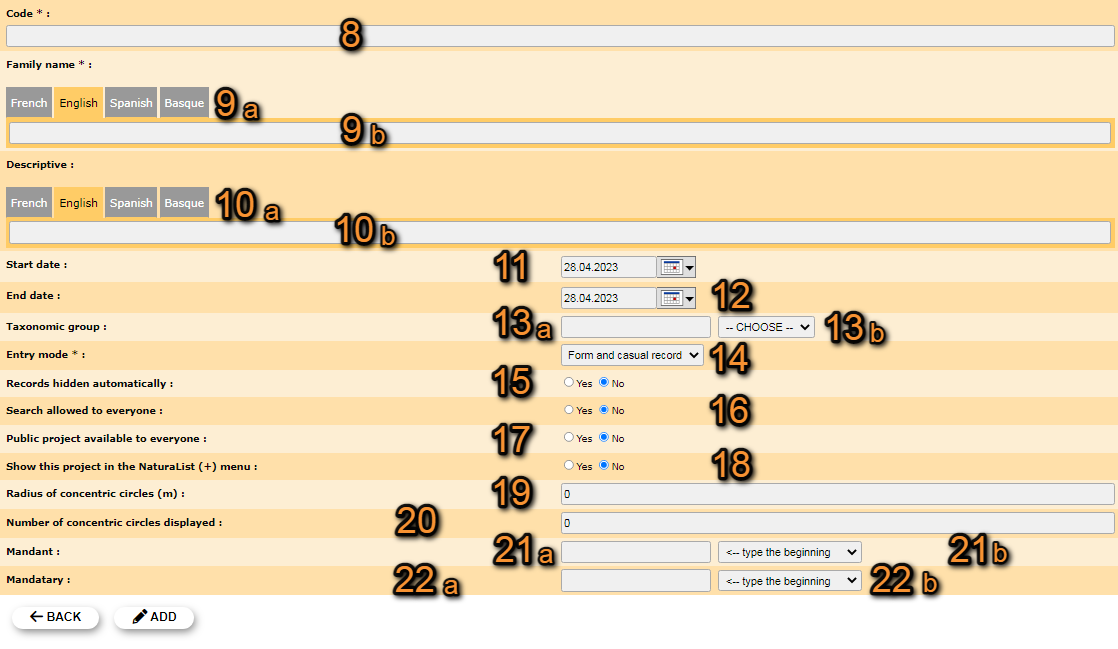
Admin new project.
BACK: Go to previous screen without saving.
ADD: Save changes and add a new project.
8. Code: Type a project code.
9. Family name: Select language from the tabs on top (a) and type the family name (b) in the selected language. Repeat the process to add a title in different languages.
10. Descriptive: Select language from the tabs on top (a) and type the description (b) in the selected language. Repeat the process to add description in different languages.
11. Start date: Select from the calendar the starting date of project.
12. End date: Select from the calendar the starting date of project.
13. Taxonomic group: Type the name of the taxonomic group the project refers to (a) and / or select from the expandable menu on the left (b).
14. Entry mode: Select from the expandable menu how to enter data. Choose from:
Form to fill in a form, or
Casual record to enter it as a casual record, or
both to select both options.
15. Records hidden automatically: Check if records will be hidden automatically. Even if records are hidden automatically, administrators will always see them.
16. Search allowed to everyone:
17. Public project available to everyone: Check if all users can participate or if the project is restricted to certain users.
18. Show this project in the NaturaList (+) menu: Check if the project will be an option in the NaturaList main menu.
19. Radius of concentric circles:
20. Number of concentric circles displayed:
21. Mandant:
22. Mandatory:
- 6. EXPORT
Export list of projects as a .txt file. The download will start immediately.
Project fields
Fields