Analysis: Difference between revisions
No edit summary |
No edit summary |
||
| Line 23: | Line 23: | ||
<center> | <center> | ||
<div class="toc" style="border-radius:5px;background-color:#ffffff;padding-left:8px;padding-right:8px; padding-bottom:8px;width: | <div class="toc" style="border-radius:5px;background-color:#ffffff;padding-left:8px;padding-right:8px; padding-bottom:8px;width:400px;"> | ||
[[File:Analyses (1).png| | [[File:Analyses (1).png|400px]] | ||
<div class="toc" style="border-radius:5px;padding-left:15px;text-align:left; font-size:12px;width: | <div class="toc" style="border-radius:5px;padding-left:15px;text-align:left; font-size:12px;width:375px;"> | ||
'''Example of data analysis.''' | '''Example of data analysis.''' | ||
</div> | </div> | ||
| Line 41: | Line 41: | ||
<span id="info"></span> | <span id="info"></span> | ||
<b>General information</b><br/> | <b>General information</b><br/> | ||
'''Period''' indicates the period of time the data displayed was recorded. | |||
Restrictions allow to apply filters: choose '''My observations''' to see only your own observations; choose '''New''' to see only new records of this species. Choose '''Display listing''' to see the same observations in a list, as in image [[:File:Display obervations for the species.png|Browsing records as a registered user from latest sightings. List]]. | |||
<br/> | <br/> | ||
<span id="map"></span> | <span id="map"></span> | ||
<b>Map</b><br/> | <b>Map</b><br/> | ||
Navigate the map as in wiki section [[Navigating the map|Web interface > Navigating the map]]. Dot colour refers to breeding status while dot size refers to number of observations per site (see correspondence at bottom of page). Colours on the graph correspond to those on the map.<br/> | |||
<br/> | |||
<br/> | <br/> | ||
| Line 55: | Line 69: | ||
<br/> | <br/> | ||
<center> | <center> | ||
Revision as of 14:29, 29 July 2025
Statistics are provided for some of the species.
Available species and during which periods of time depend on each country.
Go to Menu > Explore > Data and analyses and choose the species to see (see image below).

Select species to see.
See species information.
.png)
General information
Period indicates the period of time the data displayed was recorded.
Restrictions allow to apply filters: choose My observations to see only your own observations; choose New to see only new records of this species. Choose Display listing to see the same observations in a list, as in image Browsing records as a registered user from latest sightings. List.

Map
Navigate the map as in wiki section Web interface > Navigating the map. Dot colour refers to breeding status while dot size refers to number of observations per site (see correspondence at bottom of page). Colours on the graph correspond to those on the map.
Species information
Statistics
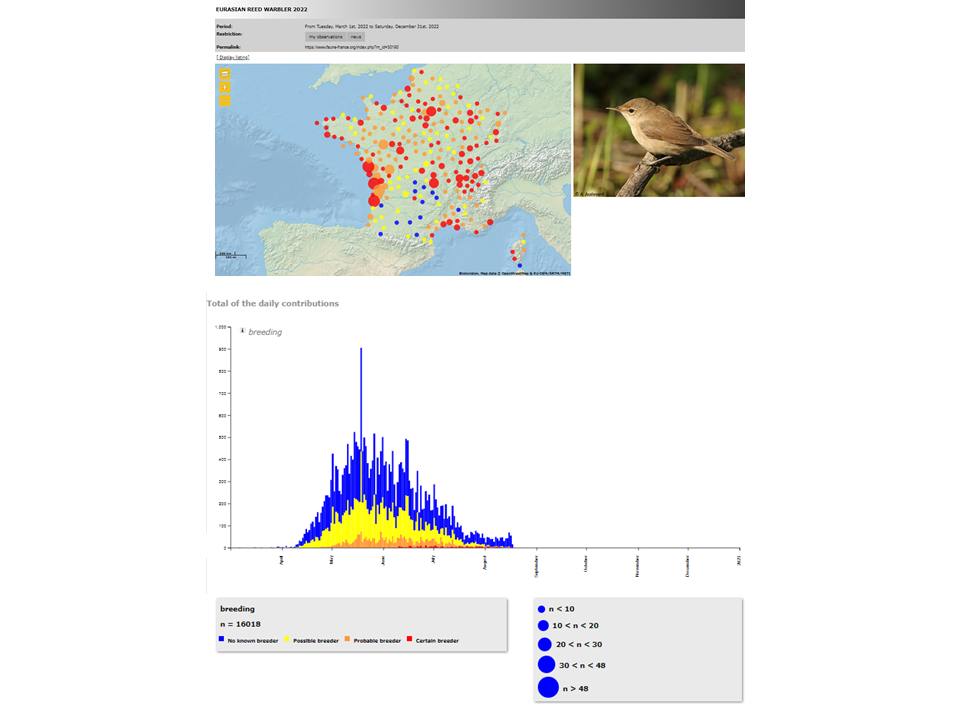
Example of data analyses.
Note: images and examples are drawn from the French portal Faune-France. The design and position of some tools may vary slightly from portal to portal. To see a list of portals go to wiki section Local portals and partners. |