QR Code management: Difference between revisions
| Line 492: | Line 492: | ||
1. Press <b>Choose from</b> and <br/> | 1. Press <b>Choose from</b> and <br/> | ||
2. Select the icon to upload from your computer. <br/> | 2. Select the icon to upload from your computer. <br/> | ||
The file name will be shown next to the button. <br/> | |||
3. Press <b>ADD</b> to upload the new icon. <br/> | 3. Press <b>ADD</b> to upload the new icon. <br/> | ||
| Line 499: | Line 500: | ||
<center> | <center> | ||
<div class="toc" style="border-radius:5px;background-color:#ffffff;padding-left:8px;padding-right:8px;padding-bottom:8px;width:600px;"> | <div class="toc" style="border-radius:5px;background-color:#ffffff;padding-left:8px;padding-right:8px;padding-bottom:8px;width:600px;"> | ||
[[File: | [[File:New advertising.png|600px|link=https://help.biolovision.net/images/c/c1/New_advertising.png]] | ||
<div class="toc" style="border-radius:5px;padding-left:15px;text-align:left; font-size:12px;width:575px;"> | <div class="toc" style="border-radius:5px;padding-left:15px;text-align:left; font-size:12px;width:575px;"> | ||
''' | '''Advertising. New.''' | ||
</div> | </div> | ||
</div> | </div> | ||
Revision as of 17:21, 27 August 2025
Administration > QR code management
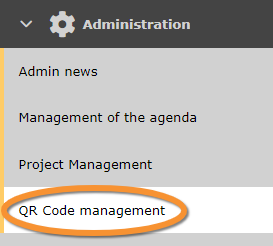
QR Code management.
Create a QR code to share observation of an area with other naturalists regardless if they are NaturaList users.
For creating a code, consider:
· Make sure there is internet where you intend to post the QR code. Ie. 3G/4G...
· Control its visibility: avoid reflection, create and print large enough, leave empty space around it, control the contrast...
· Say what the QR code is for.
· Download The naturaList logo to print it next to the QR code.
Places and QR code creation
See existing QR codes.
|
QR code creation menu 1.
1. Search
ID: Number automatically assigned to this QR entry. |


1. Search
Reduce list by typing the name of a site, user, or part of it, and click SEARCH.
When a filter is applied and you want to deactivate it, click on DISPLAY ALL to see the full list.
2. Page and items
Select page number and/or number of items per page. Count indicate the total of items found for the search.
3. Details
See details of the QR code and generate the code if necessary.
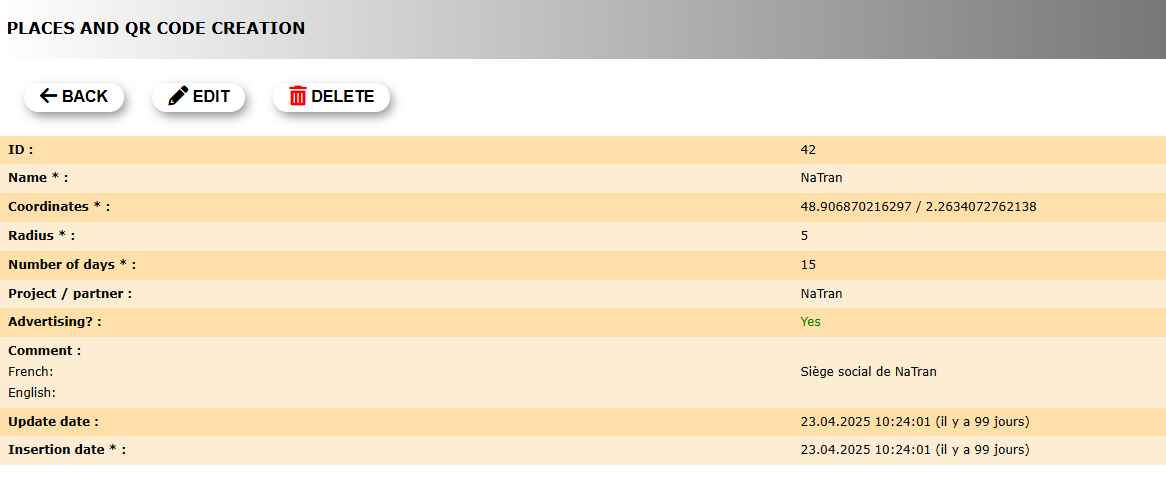
QR Code details.
ID: Automatically assigned number to identify this QR code.
Name: Name given to the QR code.
Coordinates: Coordinates at the center of the area the QR code applies to.
Radius: Radius from coordinates delimiting the area the QR code applies to.
Number of days: Number of last days the QR code covers.
Project /partner: Project or partner's icon to be displayed, if nay.
Advertising?:
Comment: Comment left by the creator, if any, in the languages chosen when created the QR code.
Update date: Date of last update.
Insertion date:
BACK: Go to previous screen without saving.
EDIT: Modify any of the fields.
DELETE: Delete QR code.
To generate a QR code:
1. Select size of QR code from the expandable menu.
2. Check the cell Transparent background? if interested.
3. Check guidelines if necessary.
4. Generate the code.
5. Download NaturaList code to place it next to your QR.
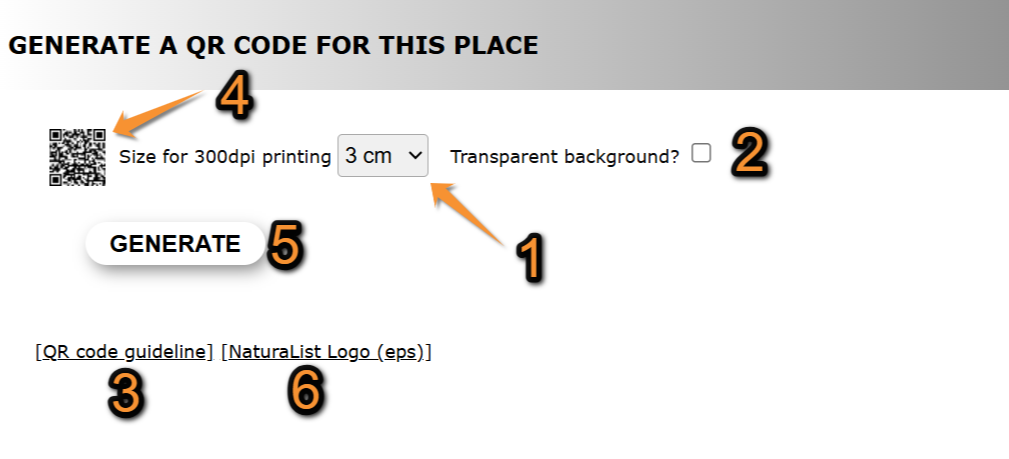
Generate QR code.
1. Choose size.
2. Choose transparency.
3. Check guidelines.
4. Generate the code.
5. Add NaturaList code.
4. Edit
Modify information of a QR code.
1. Modify if necessary site's basic details: Name and coordinates.
· Type new coordinates or select from the map below. See wiki section Web interface > Local portal > Navigating the map to know how to navigate the map if necessary.
2. Modify QR parameters for the site:
· Radius: Select from the expandable menu the radius from given coordinates delimiting the area the QR code applies to..
· Number of days: Select from the expandable menu the number of days the QR will be valid.
· Project / partner: Type the name, or part of the name, of the project or partner whose icon will be displayed when scanning the QR code on the left hand field, and select the project/partner name from the expandable menu on the right.
· Advertising?: Check if there is any advertising or partner.
· Comment: Leave a comment if appropriate. Select the name of the language from the taps and type a comment in the language selected (see image as an example).
3. When done, press ADD.
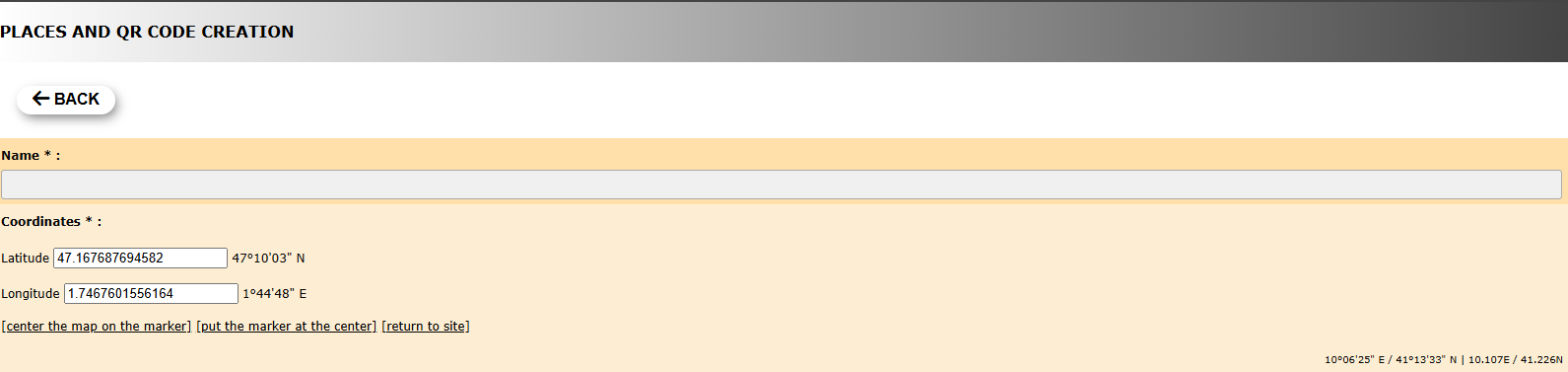
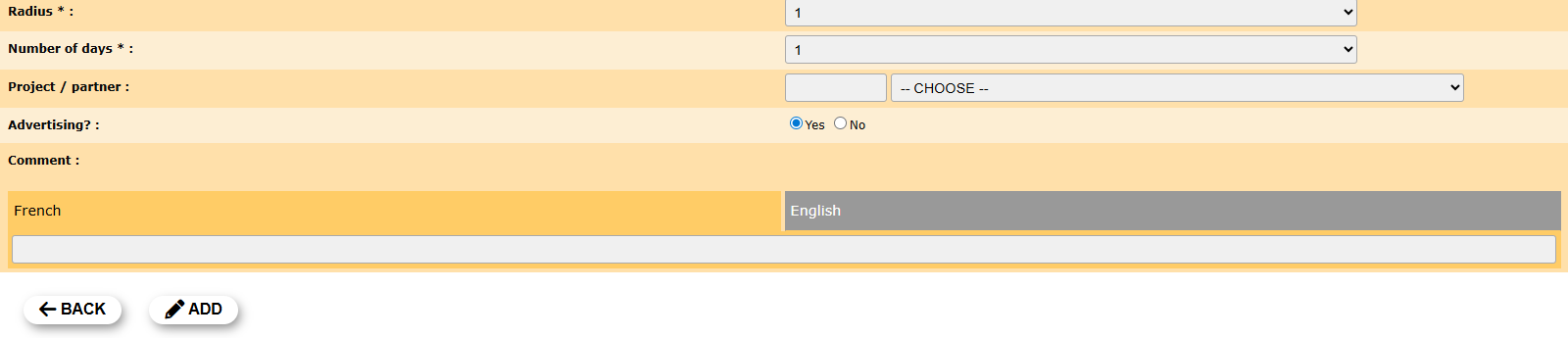
Create a new QR code.
5. Delete
Use  to delete the selected QR code.
See a summary of QR details and
· Press YES to definitely delete the QR code, or
· Press NO to cancel delete and keep the QR code.
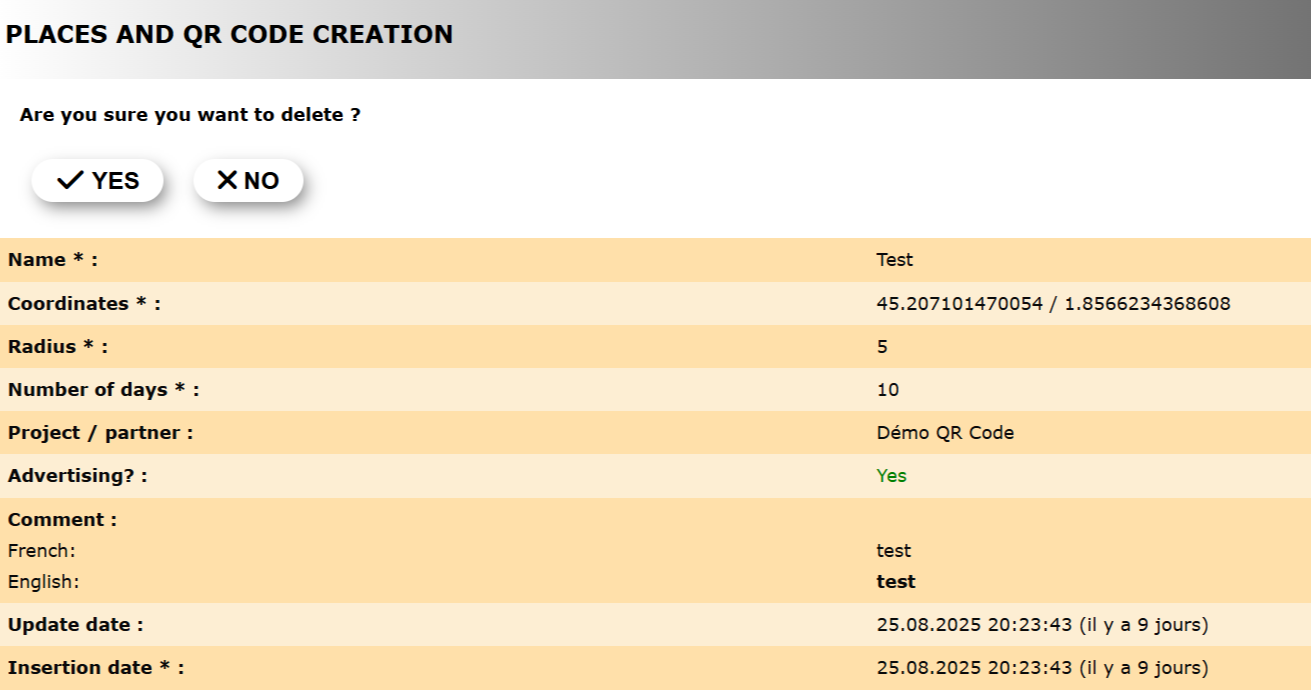
Delete QR code.
6. New
Create a new QR code.
1. Provide site's basic details: Name and coordinates.
· Type coordinates or select from the map below. See to know how to navigate the map if necessary.
2. Set QR parameters for the site:
· Radius: Select from the expandable menu the radius from given coordinates delimiting the area the QR code applies to..
· Number of days: Select from the expandable menu the number of days the QR will be valid.
· Project / partner: Type the name, or part of the name, of the project or partner whose icon will be displayed when scanning the QR code on the left hand field, and select the project/partner name from the expandable menu on the right.
· Advertising?: Check if there is any advertising or partner.
· Comment: Leave a comment if appropriate. Select the name of the language from the taps and type a comment in the language selected (see image as an example).
3. When done, press ADD.
Create a new QR code.
7. Export
Export details of existing QR codes on the local portal as a .txt file.
8. Export views
Export a /txt file summarising number of visits each QR code in the local portal had.
Downloading the .txt requires identification.
1. Select the year to download visits from the expandable menu.
2. Press EXPORT WIEVS
3. Enter the username and password you use to register in any ornitho portal or NaturaList application.

Export views of QR codes.
1. Select the year to visualise the data.
2. Start download.
QR code group
List or partners and projects participating in QR codes in this local portal.

1. Details
See details of the selected QR partner.
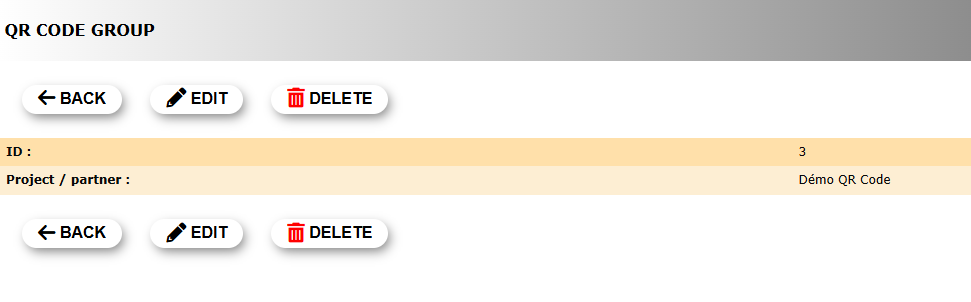
2. Edit
Modify name of partner or project.

QR Code group. Edit.
BACK: Go back to previous screen without saving.
MODIFY: Save changes.
3. Delete
Press to delete the selected partner or project.
· Press YES to definitely delete the project/partner, or
· Press NO to cancel delete and keep the project/partner.
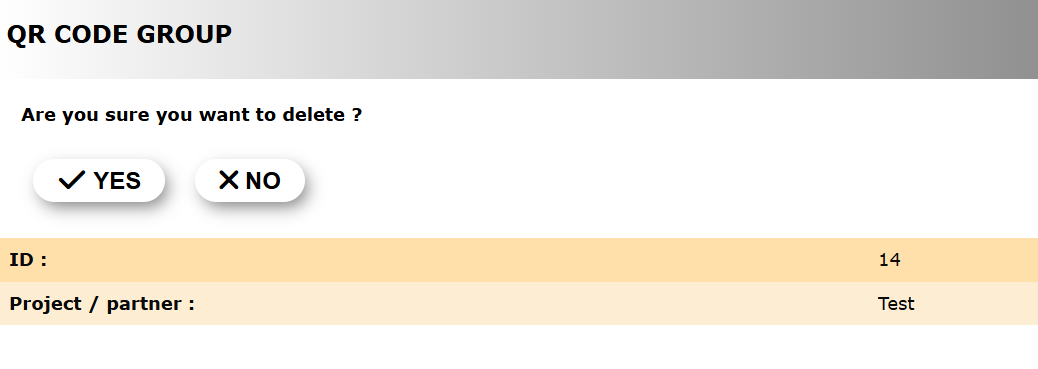
QR Code group. Delete.
4. New
Create a new Partner or project.
1. Type the name of partner or project involved.
2. Press ADD to save the new partner/project.
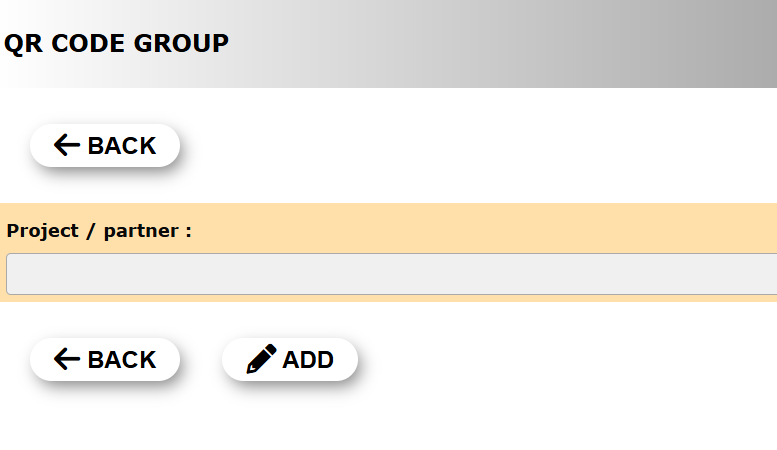
QR Code group. Delete.
BACK: Go to previous screen without saving.
ADD: Save new project/partner.
Advertising
List of advertising icons.

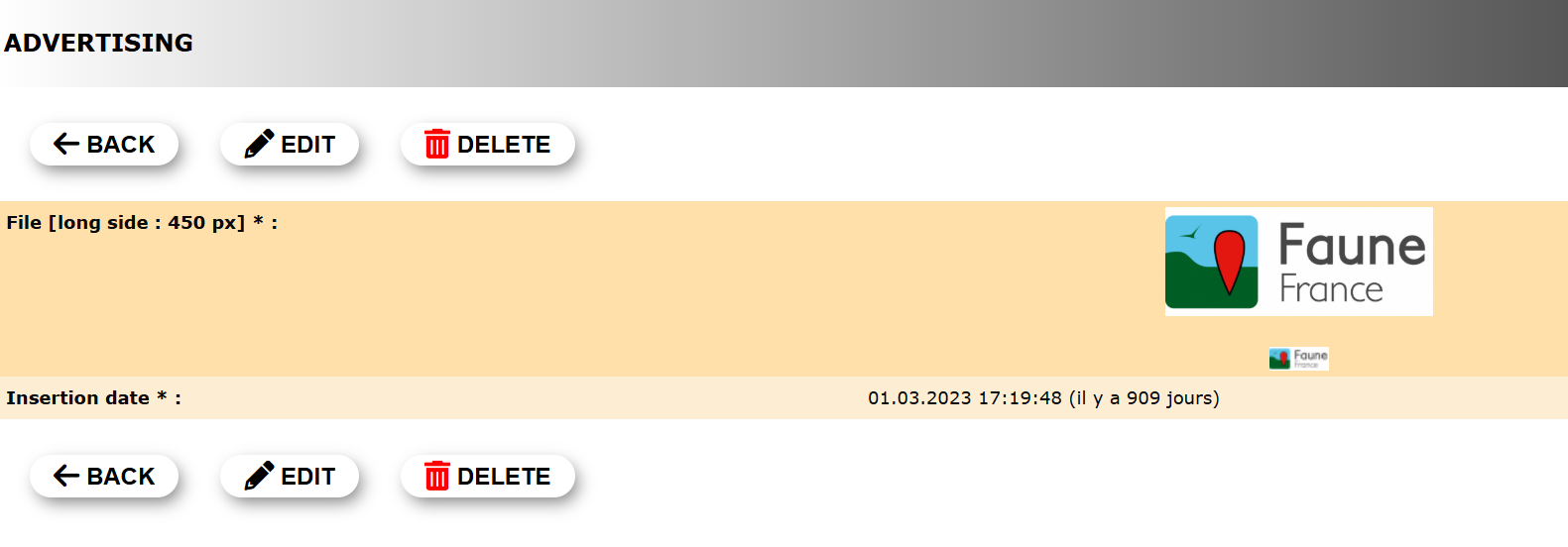
1. Details
See icon and insertion date of advertiser.


2. Edit
Modify advertiser icon.
1. Press Choose from and
2. Select the icon to upload from your computer.
3. Press MODIFY to change icon.
The new icon will appear directly on the main list.

Advertising. Edit.
BACK: Go to previous screen without saving.
MODIFY: Save changes.
3. Delete
Use to delete the selected icon.
See a summary of QR details and
· Press YES to definitely delete the icon, or
· Press NO to cancel delete and keep the icon.

Advertising. Delete.
4. New
Upload a new advertising icon.
1. Press Choose from and
2. Select the icon to upload from your computer.
The file name will be shown next to the button.
3. Press ADD to upload the new icon.
The new icon will appear directly on the main list.

Advertising. New.
Add advertising to places
Partner
Add partners to places