STOC Montagne: Difference between revisions
| Line 198: | Line 198: | ||
<br/> | <br/> | ||
See wiki section Web interface > Protocols > Preparation and data > Add observations > [[Protocols_web#Ending_the_protocol|Ending the protocol]] for more information. <br/> | |||
<br/> | |||
<br /> | |||
[[STOC Montagne#Add observations|[Top to Add observations]]] <br/> | [[STOC Montagne#Add observations|[Top to Add observations]]] <br/> | ||
Revision as of 12:46, 16 October 2025
STOC_MONTAGNE
Access your protocol from Menu > Take part > All my protocol > STOC Montagne.
For other options, visit wiki section Web interface > Local portal > Protocols > Accessing protocols.
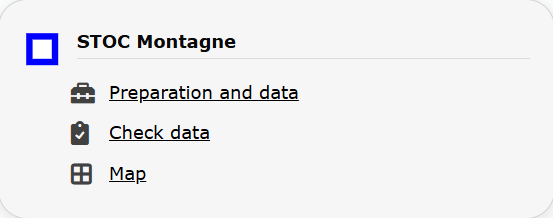
STOC Montagne. Menu.
35 STOC Montagne
-
35.1 Preparation and data
- 35.1.1 Add observations
- 35.1.1.1 Starting the protocol
35.1.1.2 Entering observations
35.1.1.3 Ending the protocol
-
35.1.2 Results
35.1.3 Display on map
35.1.4 Modify the protocol
35.1.5 Census results
35.1.6 Download map
- 35.2 Check data
35.3 Map
STOC_MONTAGNE Preparation and data

STOC Montagne. Preparation and data.
Lists all sites available to the current profile and allows downloading printable maps and seeing results.
35.1 STOC Montagne
-
35.1.1 Add observations
35.1.2 Results
35.1.3 Display on map
35.1.4 Modify the protocol
35.1.5 Census results
35.1.6 Download map
STOC_MONTAGNE Add observations
Click on Add observations (see image below) in the site you need to enter data to.

STOC Montagne. Add observations.
1: Click on add data for this census: opens the list of the points for the study site.
2: Choose point or transect to count.
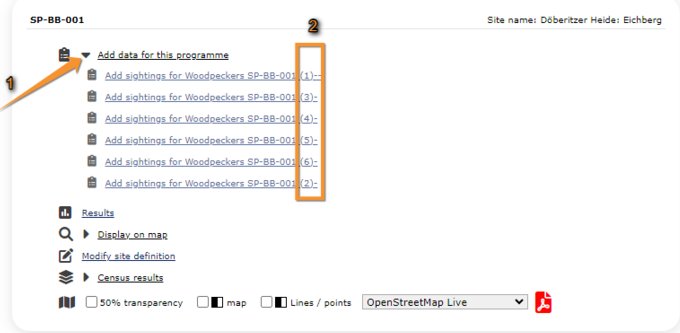
STOC Montagne. Entering data to a Protocol census.
1. Add data.
2. Select point or transect.
STOC_MONTAGNE Starting the protocol
Before entering observations, it is required to enter general parameters regarding the protocol. Parameters are protocol specific. Fields marked with an asterisk are mandatory.
If this is not the first point you enter, you will see a summary of the information already entered on top (see image below). Click COPY THE LAST ENTRY to copy information you entered on the previous point registered. Note date and time also duplicate and you may need to correct.
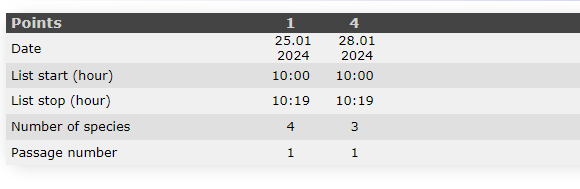
Summary of already entered points. Example.
See wiki section Web interface > Protocols > Preparation and data > Add observations > Starting the protocol for details on how to fill in the form.
When done, click one of the options.
NEXT: to continue entering observations.
ENTRY WITH LIST OF SPECIES ALREADY OBSERVED: to continue entering observations aided with a list of species already observed.
ENTRY WITH LIST OF THE MOST FREQUENT SPECIES: to continue entering observations aided a list of frequent species.
BLANK DAILY FORM:
NO SPECIES WERE SEEN (NEXT STEP SKIPPED): to indicate the census was done was no species were observed.
CENSUS NOT DONE: to indicate this point, transect or polygon was not surveyed.
STOC_MONTAGNE Entering observations
Enter observations as if entering a list. Interface differs depending on your choice on the previous screen.
See wiki section Web interface > Protocols > Preparation and data > Add observations > Entering observations for details.
Use the -/+ signs to open/close the additional information panel (see image below).

STOC Montagne. Additional information panel.
1. Open/close additional information panel
2. Enter additional information if necessary.
Comment: Type a comment if necessary. Choose between a public and a private panel on the tabs.
Time: Choose from the expandable menu the time of the observation.
Hidden data: Check if you want to keep the observation hidden.
The animal is dead or wounded: Check if the individual is dead or wounded.
Singing: Check the cell with a musical note to indicate the individual was singing.
STOC_MONTAGNE Ending the protocol
Click on
· I RECORDED ALL SPECIES OF THE PROGRAMME to indicate you only recorded the species of the protocol, or
· I RECORDED ALL SPECIES OF THE PROGRAME (=FULL OBSERVATION LIST) to indicate you recorded all species observed included or not on the protocol.


A green badge at the top will indicate your data has been saved. If there is some problem with your data, an error message will prevent you from continuing.


See wiki section Web interface > Protocols > Preparation and data > Add observations > Ending the protocol for more information.
[Top to Add observations]
[Top to Preparation and data]
[Back to STOC Montagne]
STOC_MONTAGNE Results

STOC Montagne. Results.
See some statistics about your surveys results.
Visit wiki section Web interface > Protocols > Preparation and data > Results for details.
STOC_MONTAGNE Display on map
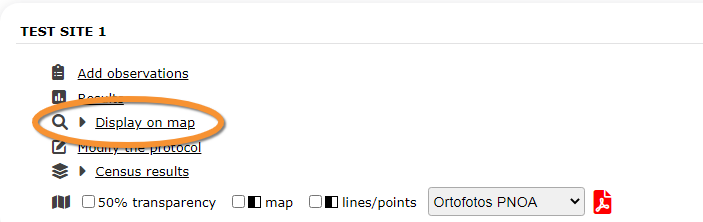
STOC Montagne. Display on map.
For the selected site, see the area to survey on a map. To know how to navigate the map, refer to wiki section Web interface > Navigating the map.
Visit wiki section Web interface > Protocols > Preparation and data > Display on map for details.
STOC_MONTAGNE Modify the protocol

STOC Montagne. Modify the protocol.
Modify the site to survey.
Visit wiki section Web interface > Protocols > Preparation and data > Modify the protocol for details.
STOC_MONTAGNE Census results

STOC Montagne. Census results.
Click on Census results to see all available years with data for this site (see image Protocol. Selecting year to visualise). Select the one to visualise.

Visit wiki section Web interface > Protocols > Preparation and data > Census protocol for details.
STOC_MONTAGNE Download map

STOC Montagne. Download map.
Download maps ready to print.
Visit wiki section Web interface > Protocols > Preparation and data > Download map for details.
[Top to Preparation and data]
[Back to STOC Montagne]
STOC_MONTAGNE Check data
STOC Montagne. Check data.
Calendar showing visits to different sites and number of species detected.
Visit wiki section Web interface > Protocols > Preparation and data > Check data for details.
STOC_MONTAGNE Map
STOC Montagne. Map.
Map and statistics for site.
Visit wiki section Web interface > Protocols > Preparation and data > Map for details.