Woodpeckers: Difference between revisions
| (15 intermediate revisions by the same user not shown) | |||
| Line 3: | Line 3: | ||
<br/> | <br/> | ||
Access your protocol | <center> | ||
<div class="toc" style="border-radius: 5px; padding: 25px; text-align: left; font-family: sans-serif; color: black; width: 600px; "> | |||
<!-- GREEN BOX (Tips): hsl(157, 74%, 80%) | |||
YELLOW BOX (Summaries): #ffffdb" | |||
BLUE BOX (Information): hsl(201, 100%, 89%) | |||
RED BOX (Warnings): hsl(0, 77%, 78%) --> | |||
<p> | |||
NOTE<br/> | |||
Names of sections may differ depending on the local portal. Images to describe this protocol have been taken from the German site [http://www.ornitho.de www.ornitho.de].<br/> | |||
</p> | |||
</div> | |||
</center> | |||
<br /> | |||
Access your protocol from Menu > Take part > All my protocol > Woodpeckers. <br/> | |||
For other options, visit wiki section Web interface > Local portal > Protocols > [[Protocols_web#Accessing_protocols|Accessing protocols]]. <br/> | |||
<br/> | <br/> | ||
| Line 19: | Line 36: | ||
<div class="toc" style="width:350px;"> <!-- La llargada s'ha de canviar aquí --> | <div class="toc" style="width:350px;"> <!-- La llargada s'ha de canviar aquí --> | ||
<div class="mw-collapsible mw-collapsed" data-expandtext="Show" data-collapsetext="Hide" style="width:300px;margin-bottom:0px;margin-top:0px;background-color:#f7f7f7;"> | <div class="mw-collapsible mw-collapsed" data-expandtext="Show" data-collapsetext="Hide" style="width:300px;margin-bottom:0px;margin-top:0px;background-color:#f7f7f7;"> | ||
''' | '''Woodpeckers''' | ||
<div class="mw-collapsible-content" style="width:350px;background-color:#f7f7f7;"> <!-- I també cal canviar la llargada aquí --> | <div class="mw-collapsible-content" style="width:350px;background-color:#f7f7f7;"> <!-- I també cal canviar la llargada aquí --> | ||
<ol> | <ol> | ||
1 [[Woodpeckers#Preparation_and_data|My sites and data]] <br /> | |||
<ol> | <ol>1.1 [[Woodpeckers#Add_observations|Add observations]]<br/> | ||
<ol> | <ol>1.1.1 [[Woodpeckers#Starting_the_protocol|Starting the protocol]]<br/> | ||
1.1.2 [[Woodpeckers#Entering_observations|Entering observations]]<br/> | |||
1.1.3 [[Woodpeckers#Ending_the_protocol|Ending the protocol]]<br/></ol></ol></ol> | |||
<ol><ol> | <ol><ol>1.2 [[Woodpeckers#Results|Results]]<br/> | ||
1.3 [[Woodpeckers#Display_on_map|Display on map]]<br/> | |||
1.4 [[Woodpeckers#Modify_the_protocol|Modify the protocol]]<br/> | |||
1.5 [[Woodpeckers#Census_results|Census results]]<br/> | |||
1.6 [[Woodpeckers#Download_map|Download map]]</ol></ol> | |||
<ol> | <ol> 2 [[Woodpeckers#Check_data|Check data]]<br/> | ||
3 [[Woodpeckers#Map|Map of my sites]]<br/> </ol> | |||
</div> | </div> | ||
</div> | </div> | ||
| Line 60: | Line 77: | ||
<div class="toc" style="width:350px;"> <!-- La llargada s'ha de canviar aquí --> | <div class="toc" style="width:350px;"> <!-- La llargada s'ha de canviar aquí --> | ||
<div class="mw-collapsible mw-collapsed" data-expandtext="Show" data-collapsetext="Hide" style="width:300px;margin-bottom:0px;margin-top:0px;background-color:#f7f7f7;"> | <div class="mw-collapsible mw-collapsed" data-expandtext="Show" data-collapsetext="Hide" style="width:300px;margin-bottom:0px;margin-top:0px;background-color:#f7f7f7;"> | ||
''' | '''1 My sites and data''' | ||
<div class="mw-collapsible-content" style="width:350px;background-color:#f7f7f7;"> <!-- I també cal canviar la llargada aquí --> | <div class="mw-collapsible-content" style="width:350px;background-color:#f7f7f7;"> <!-- I també cal canviar la llargada aquí --> | ||
<ol> | <ol> | ||
1.1 [[Woodpeckers#Add_observations|Add observations]]<br/> | |||
<ol> | <ol>1.1.1 [[Woodpeckers#Starting_the_protocol|Starting the protocol]]<br/> | ||
1.1.2 [[Woodpeckers#Entering_observations|Entering observations]]<br/> | |||
1.1.3 [[Woodpeckers#Ending_the_protocol|Ending the protocol]]<br/></ol></ol> | |||
<ol> | <ol>1.2 [[Woodpeckers#Results|Results]]<br/> | ||
1.3 [[Woodpeckers#Display_on_map|Display on map]]<br/> | |||
1.4 [[Woodpeckers#Modify_the_protocol|Modify the protocol]]<br/> | |||
1.5 [[Woodpeckers#Census_results|Census results]]<br/> | |||
1.6 [[Woodpeckers#Download_map|Download map]]</ol> | |||
</div> | </div> | ||
</div> | </div> | ||
| Line 105: | Line 122: | ||
[[File:Capture 2023-11-27 at 16.52.18.png|700px|link=https://help.biolovision.net/images/c/c9/Capture_2023-11-27_at_16.52.18.png]] | [[File:Capture 2023-11-27 at 16.52.18.png|700px|link=https://help.biolovision.net/images/c/c9/Capture_2023-11-27_at_16.52.18.png]] | ||
<div class="toc" style="border-radius:5px;width:685px;padding-left:15px;text-align:left; font-size:12px"> | <div class="toc" style="border-radius:5px;width:685px;padding-left:15px;text-align:left; font-size:12px"> | ||
''' | '''Entering data to a point. Example.''' | ||
</div> | </div> | ||
<p style="color:black;font-size:12px;padding-left:5px;text-align:left;column-count:1;padding-right:5px;"> | <p style="color:black;font-size:12px;padding-left:5px;text-align:left;column-count:1;padding-right:5px;"> | ||
| Line 167: | Line 184: | ||
<br/> | <br/> | ||
This protocol requires indicating the position of individuals observed. <br/> | |||
See Web interface > Local portals > Protocols > Preparation and data > Add observations > Entering observations > [[Protocols_web#Position_on_a_map|Position of individuals]] for more information. <br/> | |||
[[ | |||
<br/> | |||
<br/> | <br/> | ||
: | To enter observations: <br/> | ||
1. Position the observation on the map. Each sighting is indicated with a different point colour. <br/> | |||
2. Scroll down to modify data or enter details of observation. Note dot colours match those in the map above. <br/> | |||
<span style="color: #000000; margin-left: 15px;">Enter total number of individuals of each species if position is not registered. <br/> | |||
3. Open panel to enter additional information. <br/> | |||
<br/> | <br/> | ||
<center> | <center> | ||
<div class="toc" style="border-radius:5px;background-color:#ffffff | <div class="toc" style="border-radius:5px;background-color:#ffffff;padding-left:8px;padding-right:8px;width:700px;"> | ||
[[File: | [[File: Woodpeckers entering obs.png|700px|link=https://help.biolovision.net/images/0/07/Woodpeckers_entering_obs.png|Click image to enlarge]] | ||
<div class="toc" style="border-radius:5px | <div class="toc" style="border-radius:5px;padding-left:15px;text-align:left; font-size:12px;width:685px;"> | ||
'''Woodpeckers. Entering observations.''' | '''Woodpeckers. Entering observations.''' | ||
</div> | </div> | ||
<p style="color:black;font-size:12px;padding-left:5px;text-align:left;column-count:1;padding-right:5px;"> | <p style="color:black;font-size:12px;padding-left:5px;text-align:left;column-count:1;padding-right:5px;"> | ||
''' | '''1. Position:''' Click at sighting's position. Note active position highlighted in blue.<br/> | ||
'''2. Add information:''' Add, or modify, details. Add total number of individuals of each species if position has not been registered.<br/> | |||
'''3. Additional information:''' Open panel to add additional information. <br/> | |||
''' | |||
''' | |||
</p> | </p> | ||
</div> | </div> | ||
| Line 225: | Line 212: | ||
<br/> | <br/> | ||
[[Woodpeckers#Add observations|[Top to Add observations]]] <br/> | |||
[[Woodpeckers#Preparation and data|[Top to Preparation and data]]] <br/> | |||
[[#top|[Back to Woodpeckers protocol]]]<br/> | |||
<br/> | <br/> | ||
<span id="Ending the protocol"></span> | |||
< | |||
====WOODPECKER Ending the protocol==== | |||
<br/> | <br/> | ||
: | Click on [[Media:2023-10-19 RP all sp recorded .png|'''I RECORDED ALL SPECIES OF THE PROGRAME''']] to end the count. <br/> | ||
A | A [[Media:2023-11-13 green badge.png|green badge]] at the top will indicate your data has been saved. If there is some problem with your data, an [[Media:Error message.png|error message]] will prevent you from continuing. <br/> | ||
<br/> | <br/> | ||
See wiki section Web interface > Protocols > Preparation and data > Add observations > [[Protocols_web#Ending_the_protocol|Ending the protocol]] for more information. <br/> | |||
[[ | |||
<br/> | <br/> | ||
| Line 365: | Line 239: | ||
<p> | <p> | ||
In order to submit your data properly, [[Media:Woodies. Delete empty entries.png|delete all empty entries in the list]]. Otherwise, you will see an | In order to submit your data properly, [[Media:Woodies. Delete empty entries.png|delete all empty entries in the list]]. Otherwise, you will see an | ||
[[Media:Woodies. Error message.png|error message]] preventing you to continue. | [[Media:Woodies. Error message.png|error message]] preventing you to continue. | ||
</p> | </p> | ||
</center> | </center> | ||
| Line 380: | Line 253: | ||
<center> | <center> | ||
<div class="toc" style="border-radius:5px;background-color:#ffffff;width:600px;padding-left:8px;padding-right:8px;padding-bottom:8px;"> | <div class="toc" style="border-radius:5px;background-color:#ffffff;width:600px;padding-left:8px;padding-right:8px;padding-bottom:8px;"> | ||
[[File:2023-05-09 WBC results.png|600px]] | [[File:2023-05-09 WBC results.png|600px|link=https://help.biolovision.net/images/a/a8/2023-05-09_WBC_results.png]] | ||
<div class="toc" style="border-radius:5px;width:585px;padding-left:15px;text-align:left; font-size:12px"> | <div class="toc" style="border-radius:5px;width:585px;padding-left:15px;text-align:left; font-size:12px"> | ||
'''Woodpeckers. Results.''' | '''Woodpeckers. Results.''' | ||
| Line 402: | Line 275: | ||
<center> | <center> | ||
<div class="toc" style="border-radius:5px;background-color:#ffffff;width:600px;padding-left:8px;padding-right:8px;padding-bottom:8px;"> | <div class="toc" style="border-radius:5px;background-color:#ffffff;width:600px;padding-left:8px;padding-right:8px;padding-bottom:8px;"> | ||
[[File:2023-05-09 WBC Display on map.png|600px|link=https://help.biolovision.net/images/ | [[File:2023-05-09 WBC Display on map.png|600px|link=https://help.biolovision.net/images/f/fd/2023-05-09_WBC_Display_on_map.png]] | ||
<div class="toc" style="border-radius:5px;width:585px;padding-left:15px;text-align:left; font-size:12px"> | <div class="toc" style="border-radius:5px;width:585px;padding-left:15px;text-align:left; font-size:12px"> | ||
'''Woodpeckers. Display on map.''' | '''Woodpeckers. Display on map.''' | ||
| Line 490: | Line 363: | ||
<center> | <center> | ||
<div class="toc" style="border-radius:5px;background-color:#ffffff;width:400px;padding-left:8px;padding-right:8px;padding-bottom:8px;"> | <div class="toc" style="border-radius:5px;background-color:#ffffff;width:400px;padding-left:8px;padding-right:8px;padding-bottom:8px;"> | ||
[[File:Woodies. User Check data.png|400px]] | [[File:Woodies. User Check data.png|400px|link=https://help.biolovision.net/images/4/49/Woodies._User_Check_data.png]] | ||
<div class="toc" style="border-radius:5px;width:385px;padding-left:15px;text-align:left; font-size:12px"> | <div class="toc" style="border-radius:5px;width:385px;padding-left:15px;text-align:left; font-size:12px"> | ||
'''Woodpeckers. Check data.''' | '''Woodpeckers. Check data.''' | ||
| Line 512: | Line 385: | ||
<center> | <center> | ||
<div class="toc" style="border-radius:5px;background-color:#ffffff;width:400px;padding-left:8px;padding-right:8px;padding-bottom:8px;"> | <div class="toc" style="border-radius:5px;background-color:#ffffff;width:400px;padding-left:8px;padding-right:8px;padding-bottom:8px;"> | ||
[[File:Woodies. map of my sites.png|400px]] | [[File:Woodies. map of my sites.png|400px|link=https://help.biolovision.net/images/2/23/Woodies._map_of_my_sites.png]] | ||
<div class="toc" style="border-radius:5px;width:385px;padding-left:15px;text-align:left; font-size:12px"> | <div class="toc" style="border-radius:5px;width:385px;padding-left:15px;text-align:left; font-size:12px"> | ||
'''Woodpeckers. Map of my sites.''' | '''Woodpeckers. Map of my sites.''' | ||
Latest revision as of 19:03, 2 December 2025
WOODPECKER
NOTE
Names of sections may differ depending on the local portal. Images to describe this protocol have been taken from the German site www.ornitho.de.
Access your protocol from Menu > Take part > All my protocol > Woodpeckers.
For other options, visit wiki section Web interface > Local portal > Protocols > Accessing protocols.

Woodpeckers. Menu.
Woodpeckers
-
1 My sites and data
- 1.1 Add observations
- 1.1.1 Starting the protocol
1.1.2 Entering observations
1.1.3 Ending the protocol
- 1.2 Results
1.3 Display on map
1.4 Modify the protocol
1.5 Census results
1.6 Download map
WOODPECKER My sites and data

Woodpeckers. My sites anda data.
Lists all sites available to the current profile and allows entering observations, downloading printable maps and seeing results.
1 My sites and data
-
1.1 Add observations
- 1.1.1 Starting the protocol
1.1.2 Entering observations
1.1.3 Ending the protocol
- 1.2 Results
1.3 Display on map
1.4 Modify the protocol
1.5 Census results
1.6 Download map
WOODPECKER Add observations
Click on Add data (see image below) in the site you need to enter data to.

Woodpeckers. Add observations.
1: Click on add data for this census: opens the list of the points counts for that place.
2: Point number
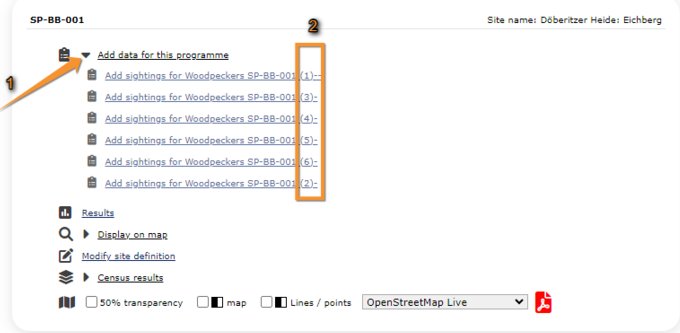
Entering data to a point. Example.
1. Add data.
2. Select point.
WOODPECKER Starting the protocol
Before entering observations, it is required to enter general parameters regarding the protocol. Parameters are protocol specific. Fields marked with an asterisk are mandatory.
If this is not the first point you enter, you will see a summary of the information already entered on top (see image below). Click COPY THE LAST ENTRY to copy information you entered on the previous point registered. Note date and time also duplicate and you may need to correct.
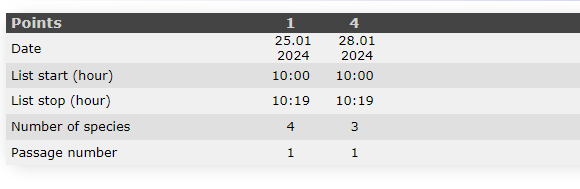
Summary of already entered points.
See wiki section Web interface > Protocols > Preparation and data > Add observations > Starting the protocol for details on how to fill in the form.
Check the cells for the species you used the playback for (see image below).
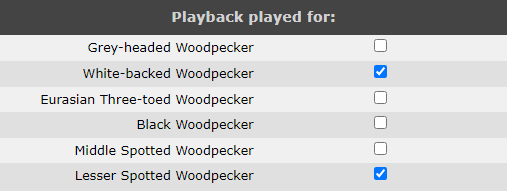
Woodpeckers. Playback.
When done,
Click BASIC LIST to start entering observations using a basic list.
Click EXTENDED LIST to start entering observations using an extended list.
Click NO BIRDS OF THE PROGRAMME SEEN to end protocol if your survey did not provide any data.
WOODPECKER Entering observations
This protocol requires indicating the position of individuals observed.
See Web interface > Local portals > Protocols > Preparation and data > Add observations > Entering observations > Position of individuals for more information.
To enter observations:
1. Position the observation on the map. Each sighting is indicated with a different point colour.
2. Scroll down to modify data or enter details of observation. Note dot colours match those in the map above.
Enter total number of individuals of each species if position is not registered.
3. Open panel to enter additional information.

Woodpeckers. Entering observations.
1. Position: Click at sighting's position. Note active position highlighted in blue.
2. Add information: Add, or modify, details. Add total number of individuals of each species if position has not been registered.
3. Additional information: Open panel to add additional information.
[Top to Add observations]
[Top to Preparation and data]
[Back to Woodpeckers protocol]
WOODPECKER Ending the protocol
Click on I RECORDED ALL SPECIES OF THE PROGRAME to end the count.
A green badge at the top will indicate your data has been saved. If there is some problem with your data, an error message will prevent you from continuing.


See wiki section Web interface > Protocols > Preparation and data > Add observations > Ending the protocol for more information.
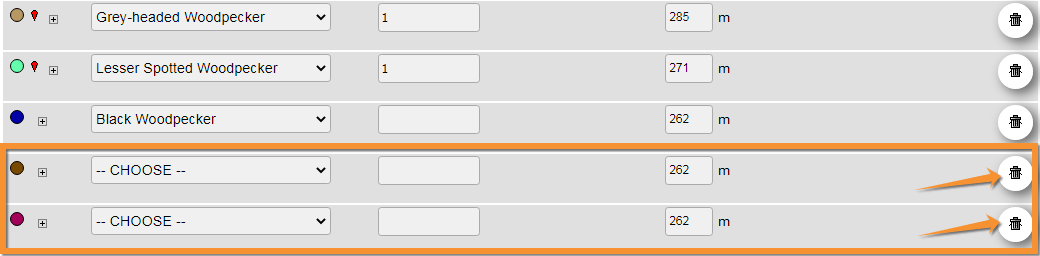
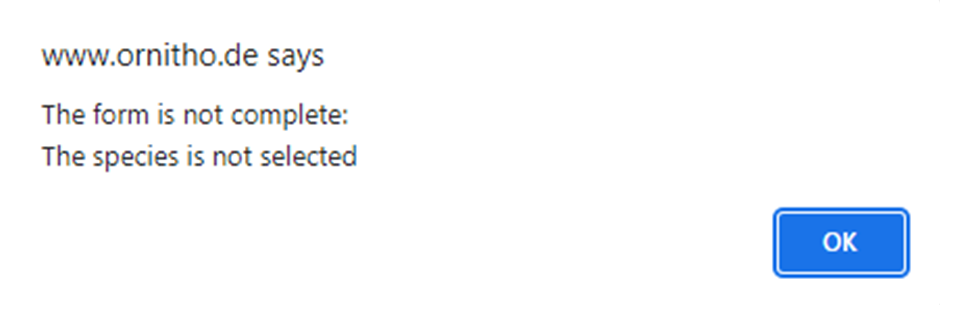
In order to submit your data properly, delete all empty entries in the list. Otherwise, you will see an error message preventing you to continue.
WOODPECKER Results

Woodpeckers. Results.
See some statistics about your surveys results.
Visit wiki section Web interface > Protocols > Preparation and data > Results for details.
WOODPECKER Display on map
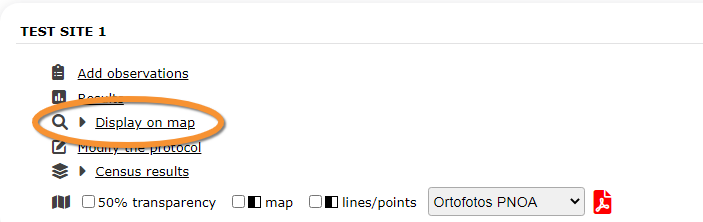
Woodpeckers. Display on map.
For the selected site, see the area to survey on a map. To know how to navigate the map, refer to wiki section Web interface > Navigating the map.
Visit wiki section Web interface > Protocols > Preparation and data > Display on map for details.
WOODPECKER Modify the protocol

Woodpeckers. Modify the protocol.
Modify the site to survey.
Visit wiki section Web interface > Protocols > Preparation and data > Modify the protocol for details.
WOODPECKER Census results

Woodpeckers. Census results.
Click on Census results to see all available years with data for this site (see image Protocol. Selecting year to visualise). Select the one to visualise.

Visit wiki section Web interface > Protocols > Preparation and data > Census results for details.
WOODPECKER Download map

Woodpeckers. Download map.
Download maps ready to print.
Visit wiki section Web interface > Protocols > Preparation and data > Download map for details.
WOODPECKER Check data

Woodpeckers. Check data.
Calendar showing visits to different sites and number of species detected.
Visit wiki section Web interface > Protocols > Preparation and data > Check data for details.
WOODPECKER Map of my sites

Woodpeckers. Map of my sites.
Map and statistics for site.
Visit wiki section Web interface > Protocols > Preparation and data > Map for details.