STOC ONF: Difference between revisions
| (9 intermediate revisions by the same user not shown) | |||
| Line 20: | Line 20: | ||
<div class="toc" style="width:350px;"> <!-- La llargada s'ha de canviar aquí --> | <div class="toc" style="width:350px;"> <!-- La llargada s'ha de canviar aquí --> | ||
<div class="mw-collapsible mw-collapsed" data-expandtext="Show" data-collapsetext="Hide" style="width:300px;margin-bottom:0px;margin-top:0px;background-color:#f7f7f7;"> | <div class="mw-collapsible mw-collapsed" data-expandtext="Show" data-collapsetext="Hide" style="width:300px;margin-bottom:0px;margin-top:0px;background-color:#f7f7f7;"> | ||
''' | '''STOC ONF''' | ||
<div class="mw-collapsible-content" style="width:350px;background-color:#f7f7f7;"> <!-- I també cal canviar la llargada aquí --> | <div class="mw-collapsible-content" style="width:350px;background-color:#f7f7f7;"> <!-- I també cal canviar la llargada aquí --> | ||
<ol> | <ol> | ||
1 [[STOC ONF#Selection of a study site|Selection of a study site]] <br/> | |||
2 [[STOC ONF#Preparation_and_data|Preparation and data]] <br /> | |||
<ol> | <ol>2.1 [[STOC ONF#Add_observations|Add observations]]<br/> | ||
<ol> | <ol>2.1.1 [[STOC ONF#Starting the protocol|Starting the protocol]] <br/> | ||
2.1.2 [[STOC ONF#Entering observations|Entering observations]] <br/> | |||
2.1.3 [[STOC ONF#Ending the protocol|Ending the protocol]] <br/> </ol></ol></ol> | |||
<ol><ol> | <ol><ol> | ||
2.2 [[STOC ONF#Results|Results]]<br/> | |||
2.3 [[STOC ONF#Display_on_map|Display on map]]<br/> | |||
2.4 [[STOC ONF#Modify_the_protocol|Modify the protocol]]<br/> | |||
2.5 [[STOC ONF#Census_results|Census results]]<br/> | |||
2.6 [[STOC ONF#Download_map|Download map]]</ol></ol> | |||
<ol> | <ol>3 [[STOC ONF#Check_data|Check data]]<br/> | ||
4 [[STOC ONF#Map|Map]]<br/> </ol> | |||
</div> | </div> | ||
</div> | </div> | ||
| Line 56: | Line 56: | ||
3. Select a place to create the protocol at and click on [[Media:Select point.png|"Create a protocoled census - STOC ONF"]], as explained in wiki section Administration > Protocol management > [[Protocol_management#create site|Site]]. <br/> | 3. Select a place to create the protocol at and click on [[Media:Select point.png|"Create a protocoled census - STOC ONF"]], as explained in wiki section Administration > Protocol management > [[Protocol_management#create site|Site]]. <br/> | ||
<span id="select square"></span> | <span id="select square"></span> | ||
4. Select one of the two squares created randomly by the system within an radius of 10 km from the selected point (see image below). You will receive an [[Media: email instructions.png|email with instructions]]. Either: <br/> | <span id="Validate"></span>4. Select one of the two squares created randomly by the system within an radius of 10 km from the selected point (see image below). You will receive an [[Media: email instructions.png|email with instructions]]. Either: <br/> | ||
:: Accept square, or <br/> | :: Accept square, or <br/> | ||
:: Reject square. <br/> | :: Reject square. <br/> | ||
<br/> | <br/> | ||
<span id="Random selection"></span> | |||
<center> | <center> | ||
<div class="toc" style="border-radius:5px;background-color:#ffffff;padding-left:8px;padding-right:8px; padding-bottom:8px;width:600px;"> | <div class="toc" style="border-radius:5px;background-color:#ffffff;padding-left:8px;padding-right:8px; padding-bottom:8px;width:600px;"> | ||
| Line 162: | Line 163: | ||
</div> | </div> | ||
<p style="color:black;font-size:12px;padding-left:30px;text-align:left;column-count:2;"> | <p style="color:black;font-size:12px;padding-left:30px;text-align:left;column-count:2;"> | ||
<b>1.</b> [[STOC | <b>1.</b> [[STOC ONF#Validate|Validate one of the draws of the map]] <br /> | ||
<b>2.</b> [[STOC | <b>2.</b> [[STOC ONF#Random selection|View draw on the map]] <br/> | ||
<b>3.</b> [[STOC | <b>3.</b> [[STOC ONF#drawing square|Start drawing the counting]] <br /> | ||
<b>4.</b> [[STOC | <b>4.</b> [[STOC ONF#download|Download map]] <br/> | ||
</p> | </p> | ||
</div> | </div> | ||
| Line 173: | Line 174: | ||
You may be asked: <br/> | You may be asked: <br/> | ||
<b> 1. Validate one of the draws of the map </b>: Go back to the drawing process and [[STOC | <b> 1. Validate one of the draws of the map </b>: Go back to the drawing process and [[STOC ONF#select square|select one of the squares]]. <br/> | ||
<b> 2. View draw on the map </b>: See a map with the study area and the [[Media:Random selection.png|two random squares]]. <br/> | <b> 2. View draw on the map </b>: See a map with the study area and the [[Media:Random selection.png|two random squares]]. <br/> | ||
<b> 3. Start drawing the counting </b>: Once selected the square, [[STOC | <b> 3. Start drawing the counting </b>: Once selected the square, [[STOC ONF#drawing square|design study points]]. <br/> | ||
<span id="download"></span><b> 4. Download map </b>: Download a pdf file with your study area (see examples below). Change base layer on the expandable menu. <br/> | <span id="download"></span><b> 4. Download map </b>: Download a pdf file with your study area (see examples below). Change base layer on the expandable menu. <br/> | ||
<br/> | <br/> | ||
| Line 227: | Line 228: | ||
<div class="toc" style="width:350px;"> <!-- La llargada s'ha de canviar aquí --> | <div class="toc" style="width:350px;"> <!-- La llargada s'ha de canviar aquí --> | ||
<div class="mw-collapsible mw-collapsed" data-expandtext="Show" data-collapsetext="Hide" style="width:300px;margin-bottom:0px;margin-top:0px;background-color:#f7f7f7;"> | <div class="mw-collapsible mw-collapsed" data-expandtext="Show" data-collapsetext="Hide" style="width:300px;margin-bottom:0px;margin-top:0px;background-color:#f7f7f7;"> | ||
''' | '''2 STOC ONF''' | ||
<div class="mw-collapsible-content" style="width:350px;background-color:#f7f7f7;"> <!-- I també cal canviar la llargada aquí --> | <div class="mw-collapsible-content" style="width:350px;background-color:#f7f7f7;"> <!-- I també cal canviar la llargada aquí --> | ||
<ol> | <ol> | ||
2.1 [[STOC ONF#Add observations|Add observations]]<br/> | |||
<ol> | <ol> 2.1.1 [[STOC ONF#Starting the protocol|Starting the protocol]] <br/> | ||
2.1.2 [[STOC ONF#Entering observations|Entering observations]] <br/> | |||
2.1.3 [[STOC ONF#Ending the protocol|Ending the protocol]] <br/> </ol></ol> | |||
<ol> | <ol>32.2 [[STOC ONF#Results|Results]]<br/> | ||
2.3 [[STOC ONF#Display_on_map|Display on map]]<br/> | |||
2.4 [[STOC ONF#Modify_the_protocol|Modify the protocol]]<br/> | |||
2.5 [[STOC ONF#Census_results|Census results]]<br/> | |||
2.6 [[STOC ONF#Download_map|Download map]]</ol> | |||
</div> | </div> | ||
</div> | </div> | ||
| Line 272: | Line 273: | ||
[[File:Capture 2023-11-27 at 16.52.18.png|700px|link=https://help.biolovision.net/images/c/c9/Capture_2023-11-27_at_16.52.18.png]] | [[File:Capture 2023-11-27 at 16.52.18.png|700px|link=https://help.biolovision.net/images/c/c9/Capture_2023-11-27_at_16.52.18.png]] | ||
<div class="toc" style="border-radius:5px;width:685px;padding-left:15px;text-align:left; font-size:12px"> | <div class="toc" style="border-radius:5px;width:685px;padding-left:15px;text-align:left; font-size:12px"> | ||
''' | '''Entering data to a point. Example.''' | ||
</div> | </div> | ||
<p style="color:black;font-size:12px;padding-left:5px;text-align:left;column-count:1;padding-right:5px;"> | <p style="color:black;font-size:12px;padding-left:5px;text-align:left;column-count:1;padding-right:5px;"> | ||
| Line 321: | Line 322: | ||
<br/> | <br/> | ||
This protocol requires indicating the position of individuals observed. <br/> | |||
See Web interface > Local portals > Protocols > Preparation and data > Add observations > Entering observations > [[Protocols_web#Distance_sampling|Distance of individuals]] for more information. <br/> | |||
<br/> | <br/> | ||
To enter observations: <br/> | |||
1. Type species name, or part of it, on the left field and select species name on the right, if a list is not provided. <br/> | |||
2. Type number of individuals in the corresponding distance range, or in transit. <br/> | |||
3. Select from the expandable menu the atlas code, when applicable. <br/> | |||
<br/> | <br/> | ||
<center> | <center> | ||
<div class="toc" style="border-radius:5px;background-color:#ffffff;padding-left:8px;padding-right | <div class="toc" style="border-radius:5px;background-color:#ffffff;padding-left:8px;padding-right:8px;width:600px;"> | ||
[[File: | [[File: SHOC entering obs.png|600px|link=https://help.biolovision.net/images/1/11/SHOC_entering_obs.png|Click image to enlarge]] | ||
<div class="toc" style="border-radius:5px;padding-left:15px;text-align:left; font-size:12px;width: | <div class="toc" style="border-radius:5px;padding-left:15px;text-align:left; font-size:12px;width:575px;"> | ||
'''STOC ONF. | '''STOC ONF. Entering observations.''' | ||
</div> | </div> | ||
<p style="color:black;font-size:12px;padding-left:5px;text-align:left;column-count:1;padding-right:5px;"> | <p style="color:black;font-size:12px;padding-left:5px;text-align:left;column-count:1;padding-right:5px;"> | ||
''' | '''1.''' Select species if not on a list. <br/> | ||
'''2.''' Type number of individuals in the corresponding distance class. <br/> | |||
''' | '''3.''' Enter atlas code. <br/> | ||
''' | |||
''' | |||
</p> | </p> | ||
</div> | </div> | ||
</center> | </center> | ||
<br/> | <br/> | ||
<br/> | |||
[[STOC ONF#Add observations|[Top to Add observations]]] <br/> | |||
[[STOC ONF#Preparation and data|[Top to Preparation and data]]] <br/> | |||
[[#top|[Back to STOC ONF protocol]]]<br/> | |||
<br/> | <br/> | ||
| Line 365: | Line 365: | ||
See wiki section Web interface > Protocols > Preparation and data > Add observations > [[Protocols_web#Ending_the_protocol|Ending the protocol]] for more information. <br/> | See wiki section Web interface > Protocols > Preparation and data > Add observations > [[Protocols_web#Ending_the_protocol|Ending the protocol]] for more information. <br/> | ||
<br/> | <br/> | ||
Before continuing, see some statistics about your STOC surveys: <br/> | |||
<br/> | |||
<center> | |||
<div class="toc" style="border-radius:5px;background-color:#ffffff;padding-left:8px;padding-right:8px;width:600px;"> | |||
[[File:SHOC graphs.png|600px|link=https://help.biolovision.net/images/b/b5/SHOC_graphs.png|Click image to enlarge]] | |||
<div class="toc" style="border-radius:5px;padding-left:15px;text-align:left; font-size:12px;width:575px;"> | |||
'''SHOC observations graphs.''' | |||
</div> | |||
<p style="color:black;font-size:12px;padding-left:5px;text-align:left;column-count:1;padding-right:5px;"> | |||
'''1. Number of species:''' Number of species recorded per visit and year. <br/> | |||
'''2. Total number:''' Number of total individuals recorded per visit and year. <br/> | |||
</p> | |||
</div> | |||
</center> | |||
<br/> | |||
<br/> | |||
<center> | |||
{| style="text-align:left; border:0px solid black; vertical-align:top;"| | |||
|- | |||
|style="padding: 30px"| | |||
<div class="toc" style="border-radius:5px;background-color:#ffffff;width:525px;padding-left:8px;padding-right:8px;padding-bottom:8px;"> | |||
[[File:SHOC last visit.png|525px|link=https://help.biolovision.net/images/3/32/SHOC_last_visit.png|Click image to enlarge]] | |||
<div class="toc" style="border-radius:5px;width:500px;padding-left:15px;text-align:left; font-size:12px"> | |||
'''SHOC. Last visit.''' | |||
</div> | |||
<p style="color:black;font-size:12px;padding-left:5px;text-align:left;column-count:1;padding-right:5px;"> | |||
'''1. Frequency of occurrence:''' frequency of species recorded during the last visit. <br/> | |||
'''2. Total numbers:''' Total number of individuals recorded during the last visit for the selected species. <br/> | |||
</p> | |||
</div> | |||
|style="padding: 30px"| | |||
<div class="toc" style="border-radius:5px;background-color:#ffffff;width:350px;padding-left:8px;padding-right:8px;padding-bottom:8px;"> | |||
[[File:SHOC all years.png|350px|link=https://help.biolovision.net/images/1/1d/SHOC_all_years.png|Click on image to enlarge]] | |||
<div class="toc" style="border-radius:5px;width:325px;padding-left:15px;text-align:left; font-size:12px"> | |||
'''SHOC. Species for all years.''' | |||
</div> | |||
<p style="color:black;font-size:12px;padding-left:5px;text-align:left;column-count:1;padding-right:5px;"> | |||
'''1. Average frequency of occurrence:''' Average frequency of occurrence for the selected species across all years of survey. <br/> | |||
'''2. Total numbers:''' Total number of individuals of the selected species recorded along all years of survey. <br/> | |||
</p> | |||
</div> | |||
|} | |||
</center> | |||
<center> | |||
{| style="text-align:left; border:0px solid black; vertical-align:top;"| | |||
|- | |||
|style="padding: 30px"| | |||
<div class="toc" style="border-radius:5px;background-color:#ffffff;width:435px;padding-left:8px;padding-right:8px;padding-bottom:8px;"> | |||
[[File:SHOC only on previous visits.png|435px|link=https://help.biolovision.net/images/3/34/SHOC_only_on_previous_visits.png|Click on image to enlarge]] | |||
<div class="toc" style="border-radius:5px;width:410px;padding-left:15px;text-align:left; font-size:12px"> | |||
'''SHOC. Species only reported during previous visits.''' | |||
</div> | |||
<p style="color:black;font-size:12px;padding-left:5px;text-align:left;column-count:1;padding-right:5px;"> | |||
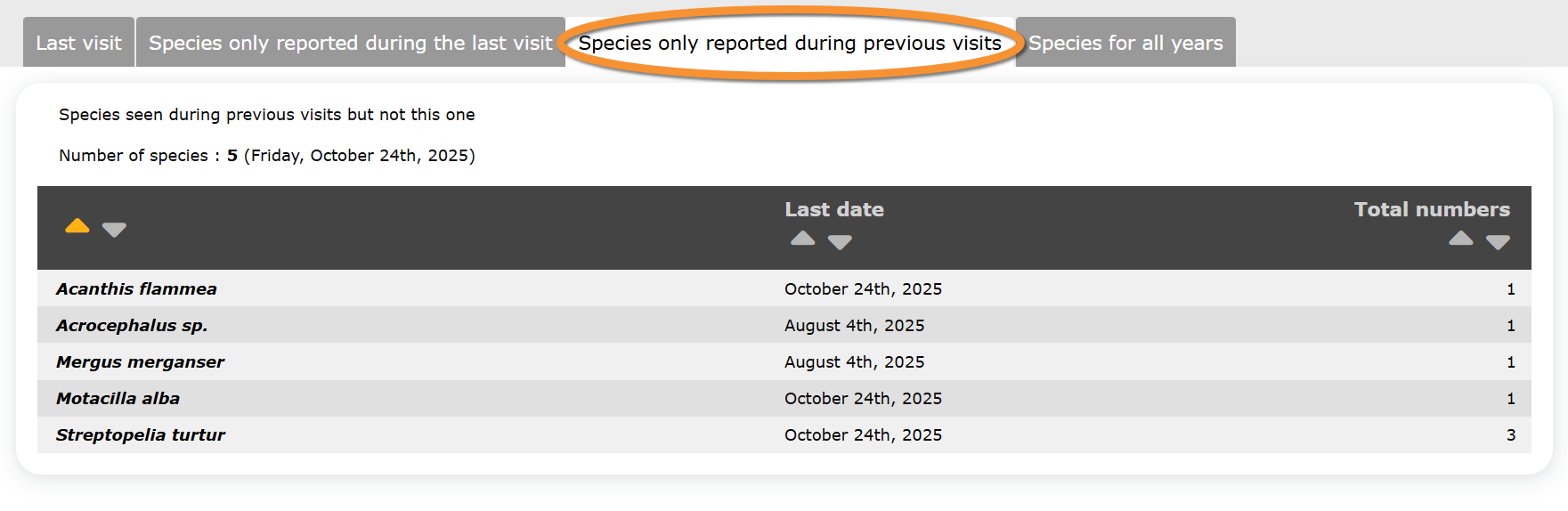
'''1. Last date:''' Last date in which the selected species was recorded. <br/> | |||
'''2. Total numbers:''' Total number of individuals recorded on the selected species. <br/> | |||
</p> | |||
</div> | |||
</div> | |||
|style="padding: 30px"| | |||
<div class="toc" style="border-radius:5px;background-color:#ffffff;width:450px;padding-left:8px;padding-right:8px;padding-bottom:8px;"> | |||
[[File:SHOC only on last visit.png|450px|link=https://help.biolovision.net/images/0/0d/SHOC_only_on_last_visit.png|Click on image to enlarge]] | |||
<div class="toc" style="border-radius:5px;width:425px;padding-left:15px;text-align:left; font-size:12px"> | |||
'''SHOC. Species only reported during the last visit.''' | |||
</div> | |||
<p style="color:black;font-size:12px;padding-left:5px;text-align:left;column-count:1;padding-right:5px;"> | |||
'''1. Frequency of occurrence:''' Frequency of the selected species during the last visit. <br/> | |||
'''2. Total numbers:''' Total number of individuals recorded during the last visit for the selected species. <br/> | |||
</p> | |||
</div> | |||
|} | |||
</center> | |||
<br/> | |||
<br/> | |||
<center> | |||
<div class="toc" style="border-radius: 5px; padding: 25px; text-align: left; font-family: sans-serif; color: black; width: 600px; background-color: hsl(201, 100%, 89%)"> | |||
<!-- GREEN BOX (Tips): hsl(157, 74%, 80%) | |||
YELLOW BOX (Summaries): #ffffdb" | |||
BLUE BOX (Information): hsl(201, 100%, 89%) | |||
RED BOX (Warnings): hsl(0, 77%, 78%) --> | |||
<p> | |||
Statistics only include your own observations on the selected protocol. Data from other observers are not included.<br/> | |||
</p> | |||
</div> | |||
</center> | |||
<br /> | |||
[[STOC ONF#Add observations|[Top to Add observations]]] <br/> | [[STOC ONF#Add observations|[Top to Add observations]]] <br/> | ||
Latest revision as of 17:26, 5 December 2025
STOC_ONF
Access your protocol from Menu > Take part > All my protocol > STOC ONF.
For other options, visit wiki section Web interface > Local portal > Protocols > Accessing protocols.
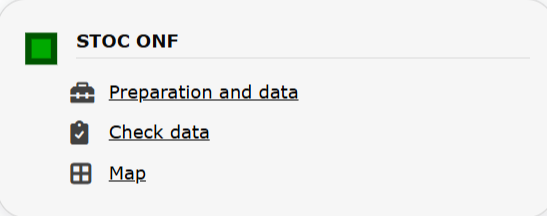
STOC ONF. Menu.
STOC ONF
-
1 Selection of a study site
2 Preparation and data
- 2.1 Add observations
- 2.1.1 Starting the protocol
2.1.2 Entering observations
2.1.3 Ending the protocol
-
2.2 Results
2.3 Display on map
2.4 Modify the protocol
2.5 Census results
2.6 Download map
- 3 Check data
4 Map
Selection of study site
Observers can be assigned a study site or can select one by themselves.
To select your study site:
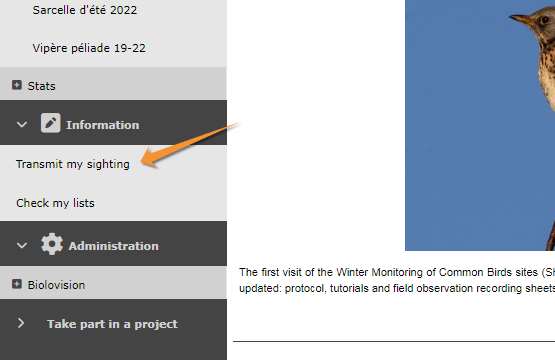
1. Go to Menu > Take part > Transmit my sighting, or
- Press Submit button on home page.
2. Scroll down to "by clicking on the map" and zoom in until you see the locations.
3. Select a place to create the protocol at and click on "Create a protocoled census - STOC ONF", as explained in wiki section Administration > Protocol management > Site.
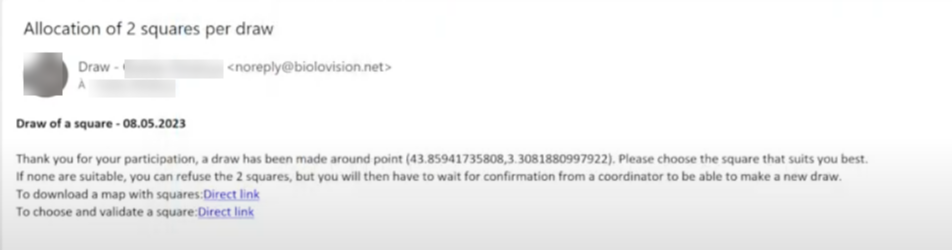
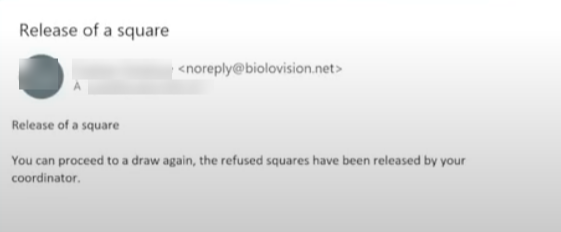
4. Select one of the two squares created randomly by the system within an radius of 10 km from the selected point (see image below). You will receive an email with instructions. Either:
- Accept square, or
- Reject square.
- Accept square, or

Randomly created survey squares.
1. Limit of a 10 km radius
2. Randomly created survey squares
NOTE
. Random squares are created only once. It is not possible to close and enter again to change the random selection.
. The observer should select one of the squares. If both squares are rejected, an explanation is required and needs to be validated by an administrator. Meanwhile, it is possible to create another study site at a different place.
Once a square is accepted,
3. Name the new survey site as explained in wiki section Administration > Protocol management > Site.
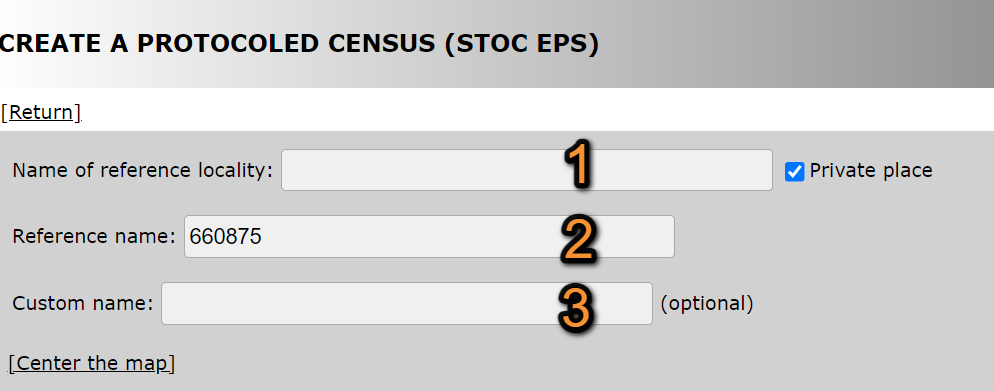
Name the new study area.
1. Name of reference locality: Location name under which all observations of the protocol will be associated to.
2. Reference name: Name/Code automatically assigned to the square.
3. Custom name: Additional name to the site if known. This name can be changed afterwards.
4. Start drawing your site. Visit wiki section Web interface > Geometry editor for more information on using the drawing tools. Remember you can also import a shapefile.
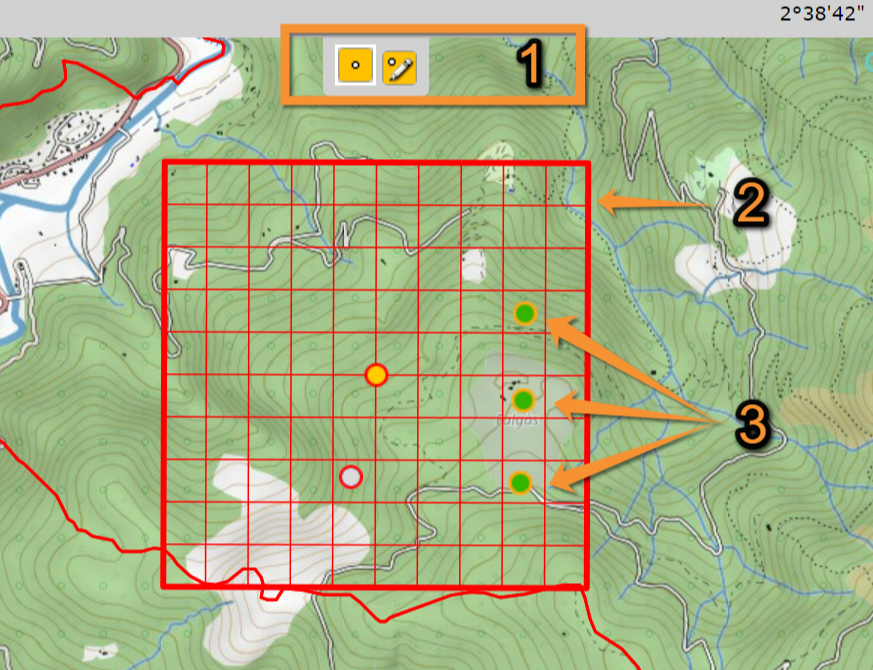
Drawing geometry.
1. Drawing tools
2. Study area
3. Survey points
5. When done, choose between:
- SAVE AND STAY: Save the site and remain on the page.
- SAVE AND CREATE A NEW: Save the site and create another.
- SAVE AND ADD A RECORD: Save the site and start entering data.
- SAVE AND STAY: Save the site and remain on the page.
[Top to selection of study site]
[Back to STOC ONF protocol]
STOC_ONF Preparation and data
Lists all sites available to the current profile and allows entering observations, downloading printable maps and seeing results.
If your site is not ready yet, you will be asked to complete before you can enter observations.

Preparing the study site.
1. Validate one of the draws of the map
2. View draw on the map
3. Start drawing the counting
4. Download map
You may be asked:
1. Validate one of the draws of the map : Go back to the drawing process and select one of the squares.
2. View draw on the map : See a map with the study area and the two random squares.
3. Start drawing the counting : Once selected the square, design study points.
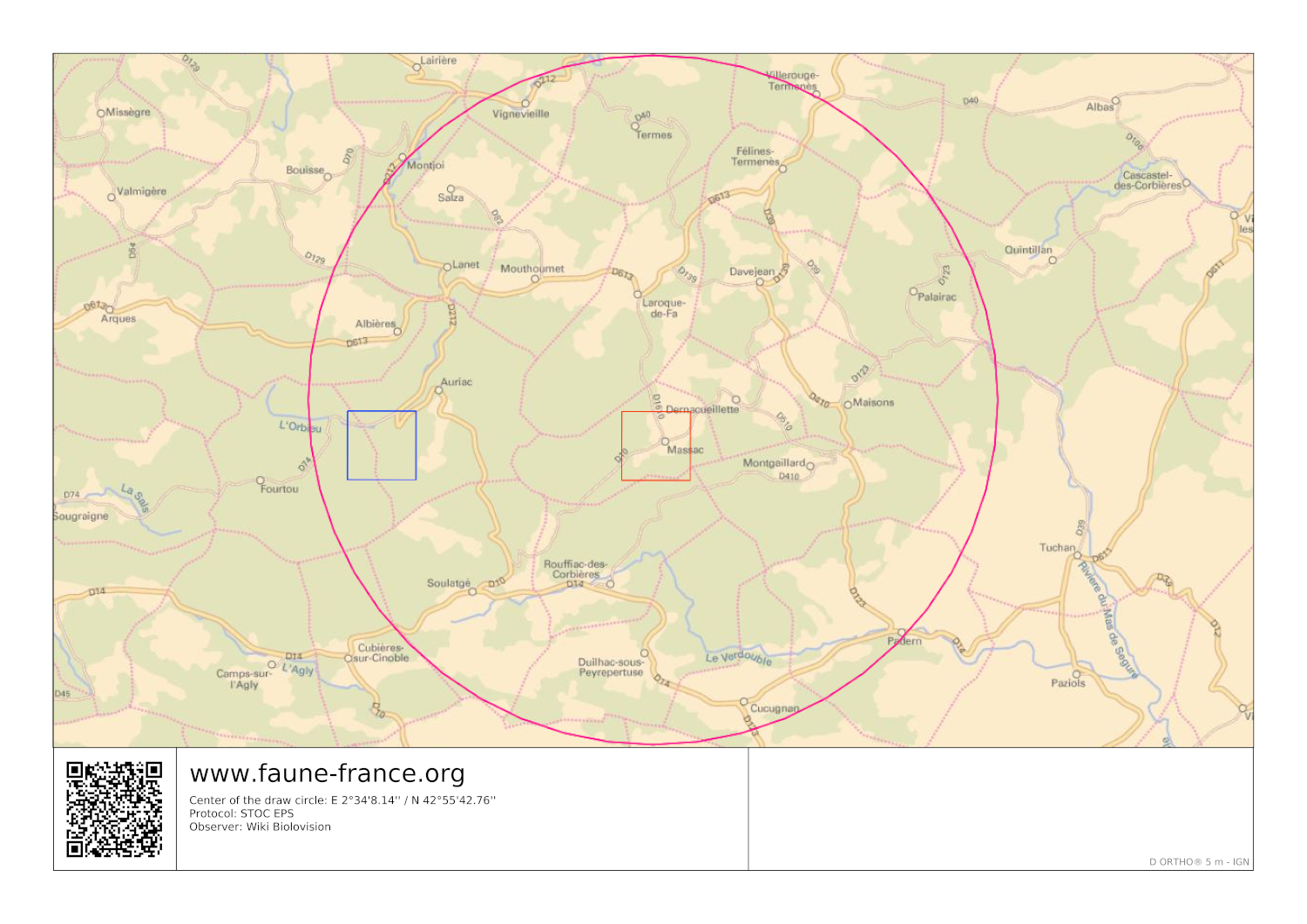
4. Download map : Download a pdf file with your study area (see examples below). Change base layer on the expandable menu.
|
Study area. |
Square 1. |
Square 2. |
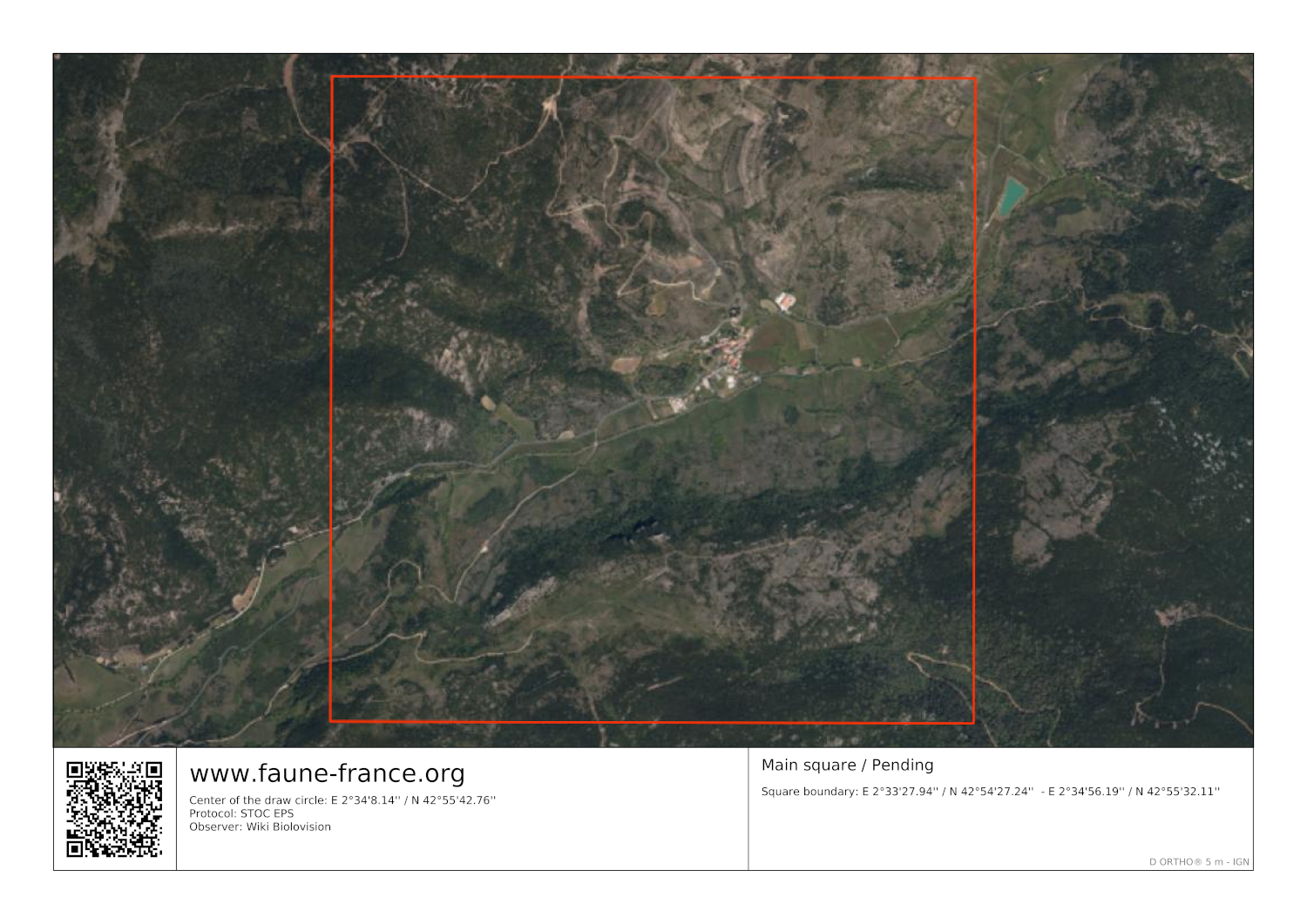
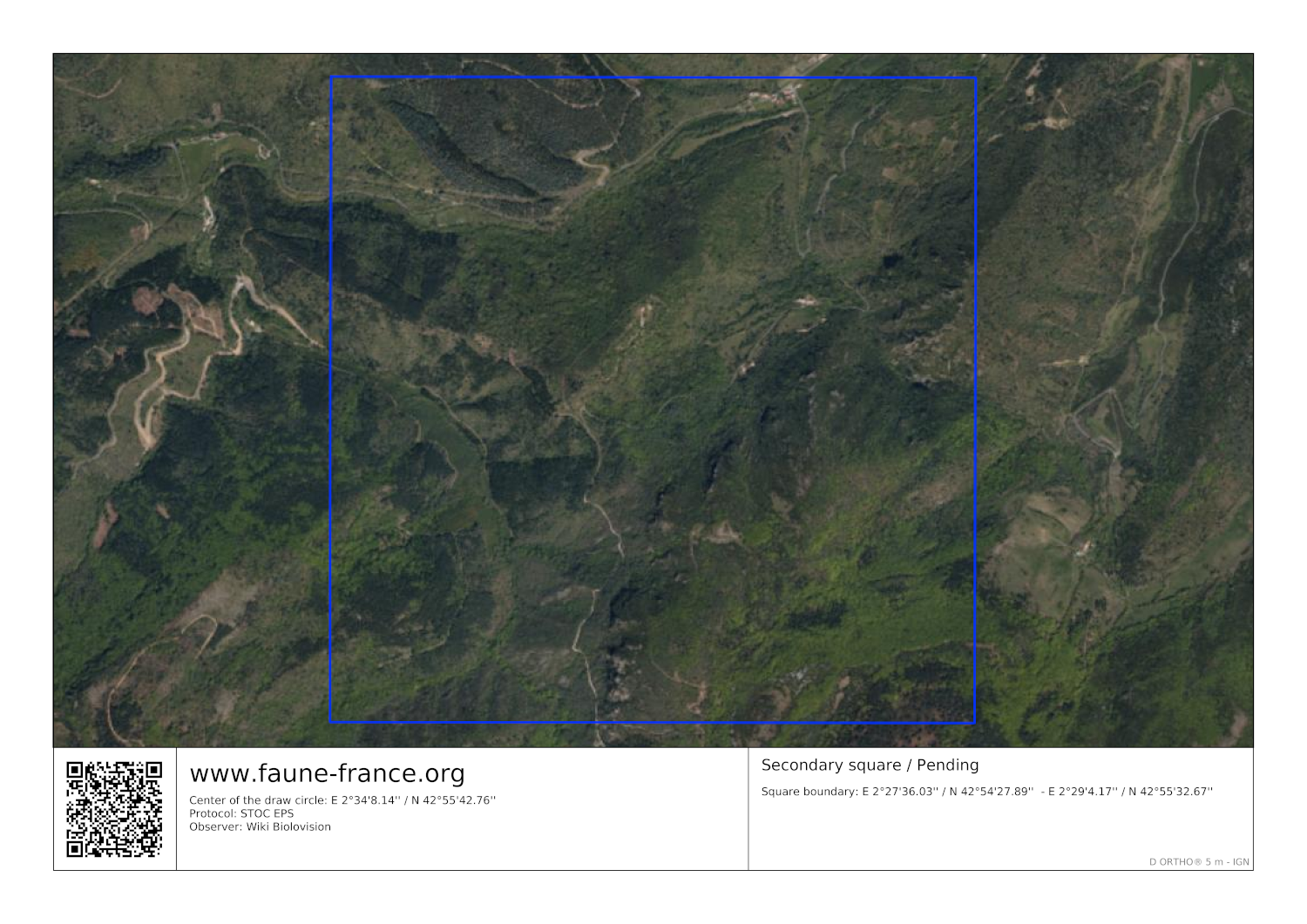
Once your site is ready, you will gain access to enter data and to usual functions:
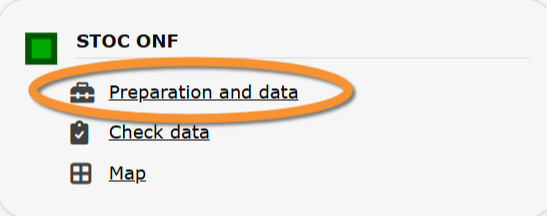
STOC ONF. Preparation and data.
2 STOC ONF
-
2.1 Add observations
- 2.1.1 Starting the protocol
2.1.2 Entering observations
2.1.3 Ending the protocol
- 32.2 Results
2.3 Display on map
2.4 Modify the protocol
2.5 Census results
2.6 Download map
STOC_ONF Add observations
Click on Add observations (see image below) in the site you need to enter data to.

STOC ONF. Add observations.
1: Click on add data for this census: opens the list of the points for the study site.
2: Choose point to count.
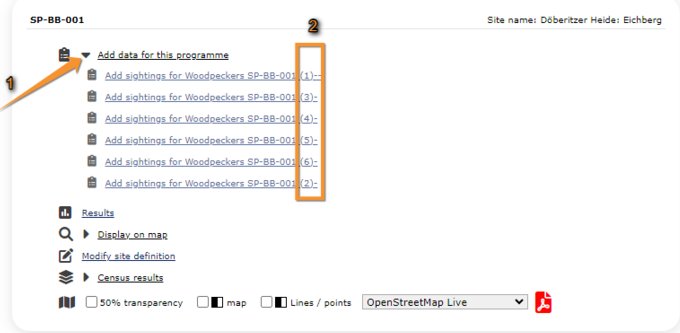
Entering data to a point. Example.
1. Add data.
2. Select point.
STOC_ONF Starting the protocol
Before entering observations, it is required to enter general parameters regarding the protocol. Parameters are protocol specific. Fields marked with an asterisk are mandatory.
If this is not the first point you enter, you will see a summary of the information already entered on top (see image below). Click COPY THE LAST ENTRY to copy information you entered on the previous point registered. Note date and time also duplicate and you may need to correct.
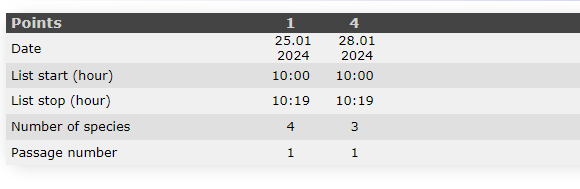
Summary of already entered points. Example.
See wiki section Web interface > Protocols > Preparation and data > Add observations > Starting the protocol for details on how to fill in the form.
When done, click one of the options.
NEXT: to continue entering observations.
ENTRY WITH LIST OF SPECIES ALREADY OBSERVED: to continue entering observations aided with a list of species already observed.
ENTRY WITH LIST OF THE MOST FREQUENT SPECIES: to continue entering observations aided a list of frequent species.
BLANK DAILY FORM:
NO SPECIES WERE SEEN (NEXT STEP SKIPPED): to indicate the census was done was no species were observed.
CENSUS NOT DONE: to indicate this point, transect or polygon was not surveyed.
STOC_ONF Entering observations
This protocol requires indicating the position of individuals observed.
See Web interface > Local portals > Protocols > Preparation and data > Add observations > Entering observations > Distance of individuals for more information.
To enter observations:
1. Type species name, or part of it, on the left field and select species name on the right, if a list is not provided.
2. Type number of individuals in the corresponding distance range, or in transit.
3. Select from the expandable menu the atlas code, when applicable.

STOC ONF. Entering observations.
1. Select species if not on a list.
2. Type number of individuals in the corresponding distance class.
3. Enter atlas code.
[Top to Add observations]
[Top to Preparation and data]
[Back to STOC ONF protocol]
STOC_ONF Ending the protocol
Click on I RECORDED ALL SPECIES OF THE PROGRAME (=FULL OBSERVATION LIST) to indicate you recorded all species observed included or not on the protocol.
A green badge at the top will indicate your data has been saved. If there is some problem with your data, an error message will prevent you from continuing.
See wiki section Web interface > Protocols > Preparation and data > Add observations > Ending the protocol for more information.
Before continuing, see some statistics about your STOC surveys:
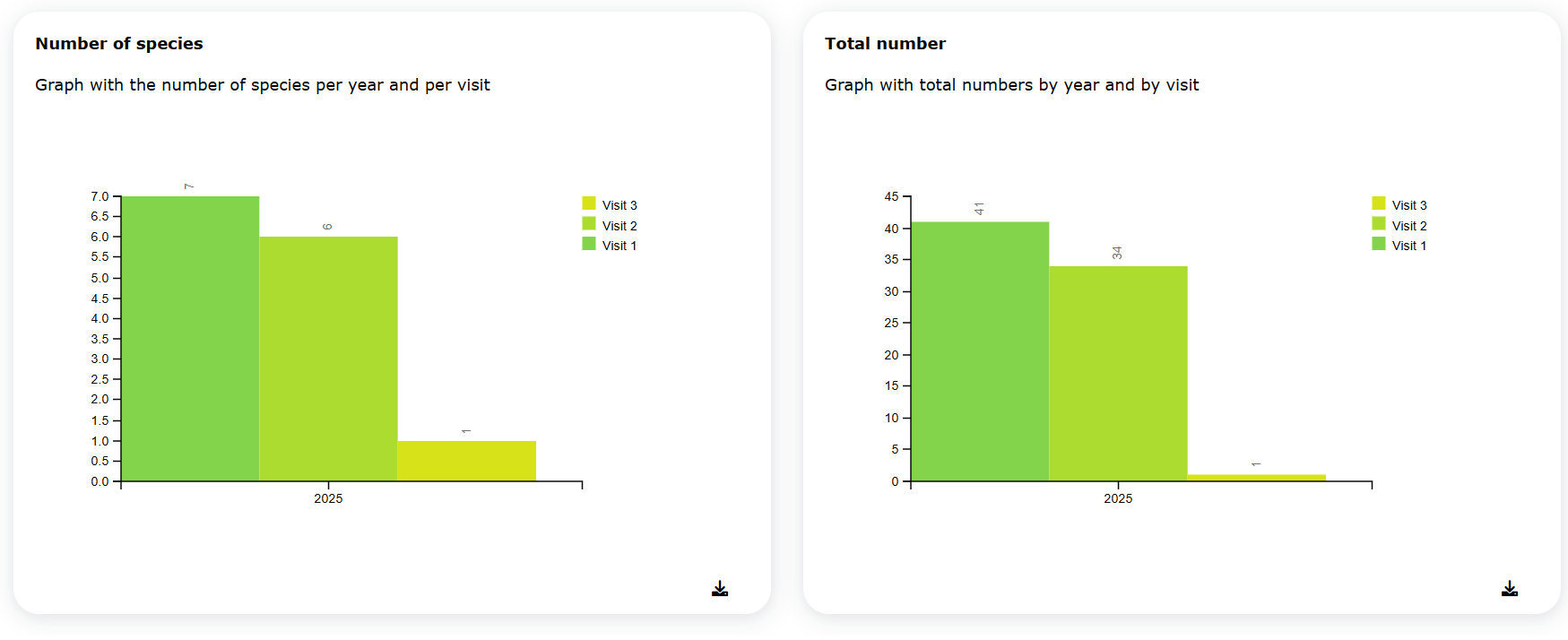
SHOC observations graphs.
1. Number of species: Number of species recorded per visit and year.
2. Total number: Number of total individuals recorded per visit and year.
|
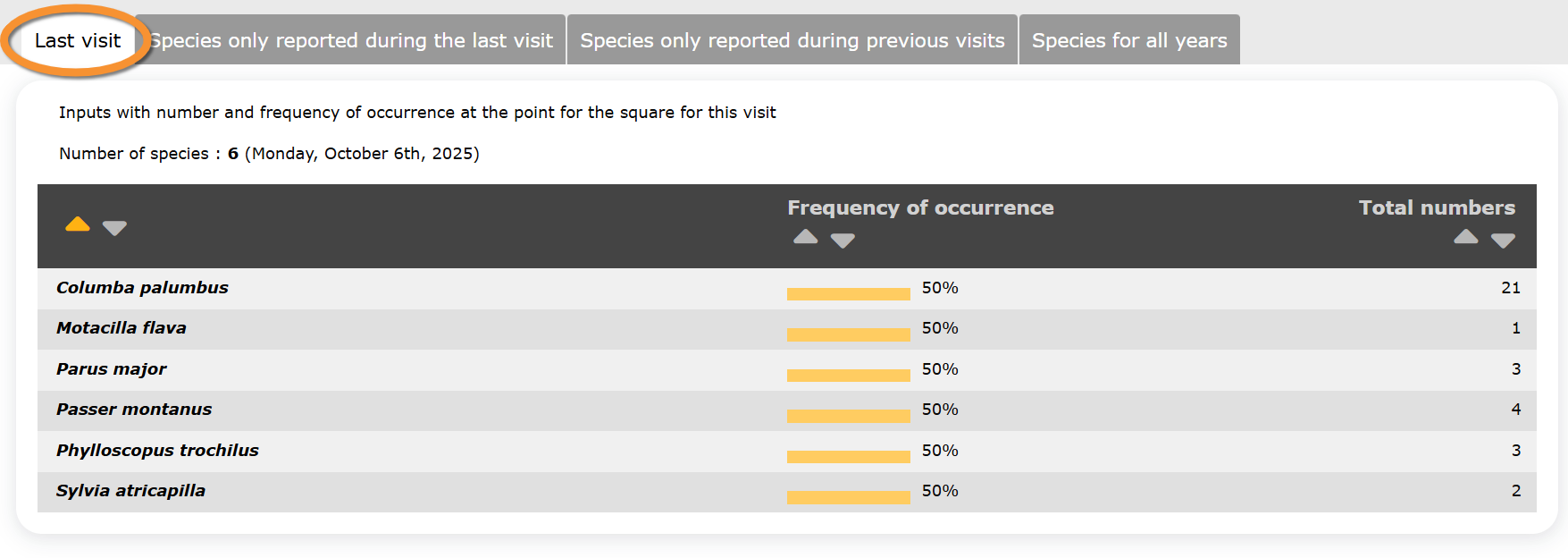
SHOC. Last visit.
1. Frequency of occurrence: frequency of species recorded during the last visit. |
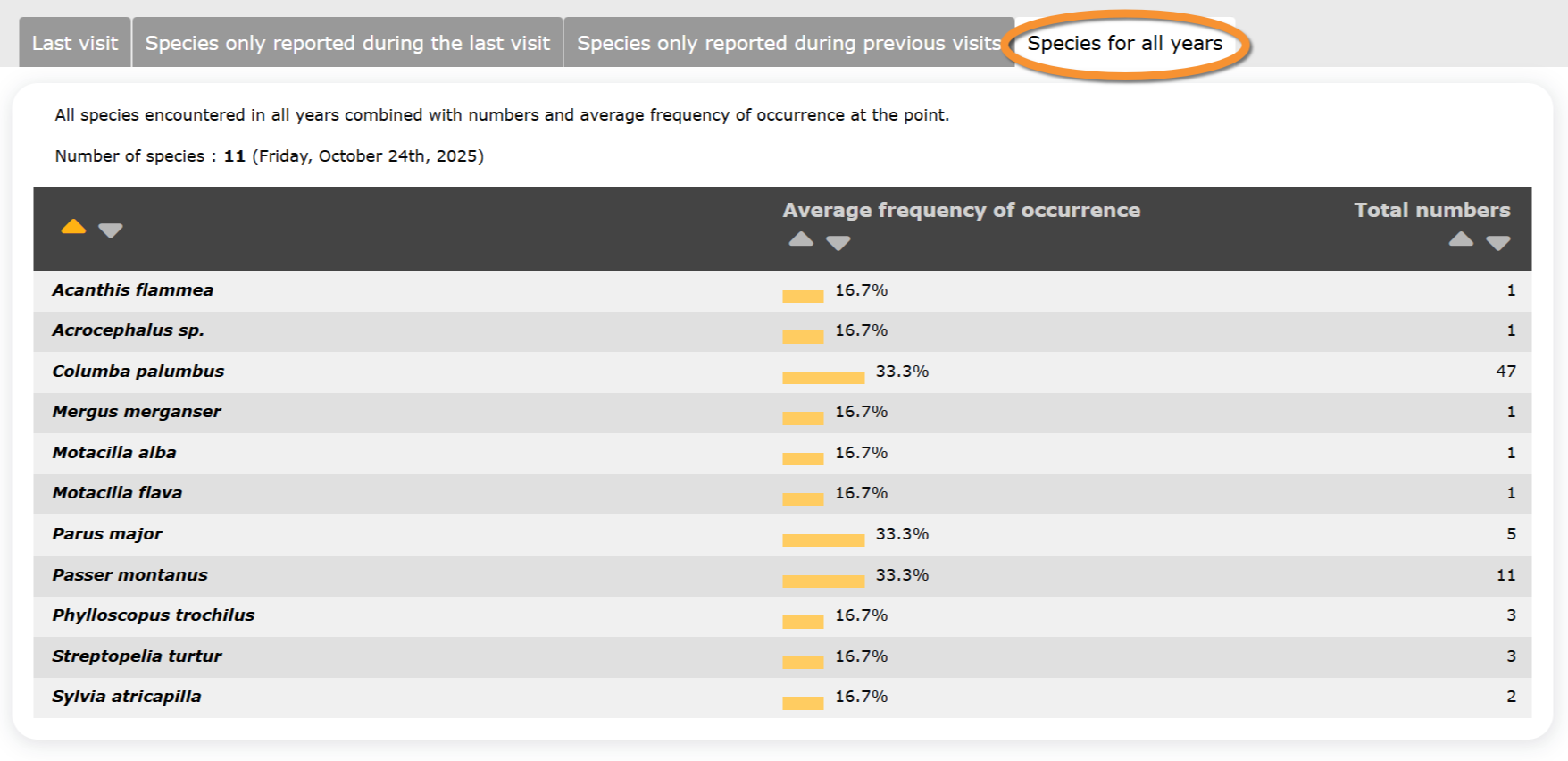
SHOC. Species for all years.
1. Average frequency of occurrence: Average frequency of occurrence for the selected species across all years of survey. |
|
SHOC. Species only reported during previous visits.
1. Last date: Last date in which the selected species was recorded. |
SHOC. Species only reported during the last visit.
1. Frequency of occurrence: Frequency of the selected species during the last visit. |









Statistics only include your own observations on the selected protocol. Data from other observers are not included.
[Top to Add observations]
[Top to Preparation and data]
[Back to STOC ONF]
STOC_ONF Results

STOC ONF. Results.
See some statistics about your surveys results.
Visit wiki section Web interface > Protocols > Preparation and data > Results for details.
STOC_ONF Display on map
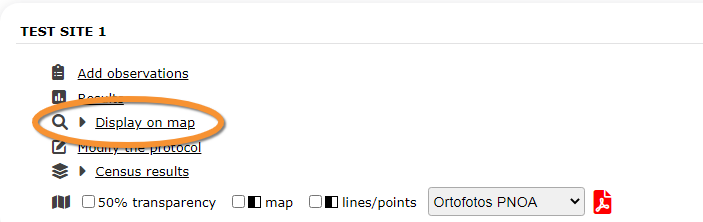
STOC ONF. Display on map.
For the selected site, see the area to survey on a map. To know how to navigate the map, refer to wiki section Web interface > Navigating the map.
Visit wiki section Web interface > Protocols > Preparation and data > Display on map for details.
STOC_ONF Modify the protocol

STOC ONF. Modify the protocol.
Modify the site to survey.
Visit wiki section Web interface > Protocols > Preparation and data > Modify the protocol for details.
STOC_ONF Census results

STOC ONF. Census results.
Click on Census results to see all available years with data for this site (see image Protocol. Selecting year to visualise). Select the one to visualise.

Visit wiki section Web interface > Protocols > Preparation and data > Census protocol for details.
STOC_ONF Download map

STOC ONF. Download map.
Download maps ready to print.
Visit wiki section Web interface > Protocols > Preparation and data > Download map for details.
[Top to Preparation and data]
[Back to STOC ONF]
STOC_ONF Check data
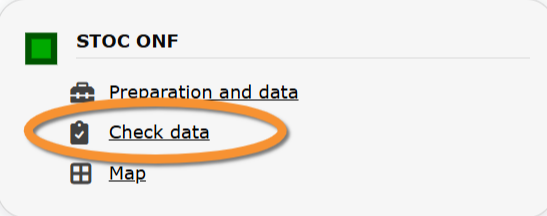
STOC ONF. Check data.
Calendar showing visits to different sites and number of species detected.
Visit wiki section Web interface > Protocols > Preparation and data > Check data for details.
STOC_ONF Map
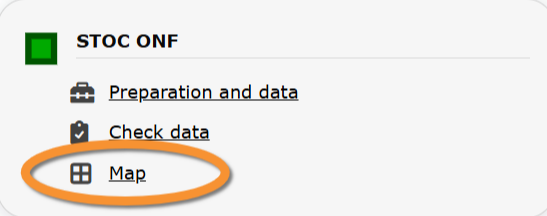
STOC ONF. Map.
Map and statistics for site.
Visit wiki section Web interface > Protocols > Preparation and data > Map for details.