Website administration: Difference between revisions
| Line 237: | Line 237: | ||
:::'''9. Title:''' Choose the language to add / modify the title in from the tabs on top (a) and type / modify the text (b). <br/> | :::'''9. Title:''' Choose the language to add / modify the title in from the tabs on top (a) and type / modify the text (b). <br/> | ||
:::'''10. URL:''' Choose the language to add / modify the link in from the tabs on top (a) and type / modify the link (b). <br/> | :::'''10. URL:''' Choose the language to add / modify the link in from the tabs on top (a) and type / modify the link (b). <br/> | ||
:::'''11. Image:''' Check '''Cochez pour effacer l'image''' to delete the existing image, if any; and/or click on '''Choose file'' to upload an image. The existing image is shown. <br/> | :::'''11. Image:''' Check '''Cochez pour effacer l'image''' to delete the existing image, if any; and/or click on '''Choose file''' to upload an image. The existing image is shown. <br/> | ||
:::'''12. Comment:''' Choose the language to add / modify a comment in from the tabs on top (a) and type / modify the comment (b). <br/> | :::'''12. Comment:''' Choose the language to add / modify a comment in from the tabs on top (a) and type / modify the comment (b). <br/> | ||
<br/> | <br/> | ||
Revision as of 11:20, 19 April 2023
Admin page content
Administration > Web site administration > Administration page content

List of additional information. Where they appear in the main menu can be determined in Content categories. Use arrows under titles to alternate between ascending and descending order (see image as an example).

Title: Name of sub-section in the language the website is selected.
Parent menu: Section on the menu under which the sub-section will show.
Protocol:
Appearance order: Order in which the sub-section will appear in relation to other sub-section under the same section.
Visible: Indicates if the sub-section will be visible to registered users.
See how sub-sections above will appear on the website in this example.
- 1. Search
Select page number and/or number of items per page.
- 2. Details
Click to see details of selected sub-section.

BACK to go to previous screen without saving,
EDIT to modify information (see section Edit below), or
DELETE to delete entry (you will be asked to confirm).
- Title: Name of entry in its different laguages.
- ADMIN_CONTENT_TEXT_CONTENT:
- Publisher:
- ADMIN_CONTENT_LIST_TEXT_UPDATE_DATE:
- Creation date:
- ADMIN_CONTENT_TEXT_UPDATER:
- Parent menu:
- Protocol:
- Appearence order:
- Visible:
- Title: Name of entry in its different laguages.
- 3. Edit
Modify / complete content or modify parameters of the selected sub-section.

BACK: Go to previous screen withoust saving.
MODIFY: Save changes.
- 6. Title: Select language from the tabs on top (a) and add or modify a title in the selected language (b). If title field is left blank in any of the languages, this sub-section will not appear in the menu when the site is visualised in the language without title.
- 7. ADMIN_CONTENT_TEXT_CONTENT: Select language from tabs on top (a) and type or modify the content for the selected language, as in a word file (b).
- 8. Parent menu: Select from the expandable menu under which section to show this sub-section.
- 9. Protocol:
- 10. Appearance order: Type number to indicate the order in which this sub-section will appear in relation to other sub-sections under the same section.
- 11. Visible: Indicate if the sub-section will be visible to registered users.
- 6. Title: Select language from the tabs on top (a) and add or modify a title in the selected language (b). If title field is left blank in any of the languages, this sub-section will not appear in the menu when the site is visualised in the language without title.
- 4. Delete
Delete the selected sub-section from the list. You will be asked to confirm.
- 5. NEW
Create a new sub-section.

BACK: Go to previous screen without saving.
ADD: Save new entry.
- 6. Title: Select language from the tabs on top (a) and type a title in the selected language (b). Repeat to enter titles in different languages. If title field is left blank in any of the languages, this sub-section will not appear in the menu when the site is visualised in the language without title.
- 7. ADMIN_CONTENT_TEXT_CONTENT: Select language from tabs on top (a) and type the content for the selected language, as in a word file (b). Repeat to enter information in different languages.
- 8. Parent menu: Select from the expandable menu under which section will appear this sub-section.
- 9. Protocol:
- 10. Appearance order: Type number to indicate the order in which this sub-seection will appear in relation to other sub-sections under the same section.
- 11. Visible: Indicate if the sub-section will be visible to registered users.
- 6. Title: Select language from the tabs on top (a) and type a title in the selected language (b). Repeat to enter titles in different languages. If title field is left blank in any of the languages, this sub-section will not appear in the menu when the site is visualised in the language without title.
Content categories
Administration > Web site administration > Content categories

List of sections in the main menu under which to organise subsections explained in Admin page content. Use arrows under titles to alternate between ascending and descending order (see image as an example).

Title of section: Title of additional section in the language the website is selected.
Parent menu: Section on the menu under which the additional section will show.
ADMIN_CONTENT_TEXT_IS_OPEN:
Appearance order: Order in which the section will appear in relation to other section under the same bigger section.
Visible: Indicates if the section will be visible to registered users.
See how sections above will appear on the website in this example.
- 1. Search
Select page number and/or number of items per page.
- 2. Details
Click to see details of selected section.

BACK to go to previous screen without saving,
EDIT to modify information (see section Edit below), or
DELETE to delete entry (you will be asked to confirm).
- Title:
- Publisher:
- ADMIN_CONTENT_LIST_TEXT_UPDATE_DATE:
- Creation date:
- ADMIN_CONTENT_TEXT_UPDATER:
- Parent menu:
- ADMIN_CONTENT_TEXT_IS_OPEN:
- Appearence order:
- Visible:
- Title:
- 3. Edit
Modify / complete content or modify parameters of the selected section.

BACK: Go to previous screen withoust saving.
MODIFY: Save changes.
- 6. Title: Select language from the tabs on top (a) and add or modify a title in the selected language (b). If title field is left blank in any of the languages, this sub-section will not appear in the menu when the site is visualised in the language without title.
- 7. Parent menu: Select from the expandable menu under which section to show this sub-section.
- 8. ADMIN_CONTENT_TEXT_IS_OPEN:
- 9. Appearance order: Type number to indicate the order in which this section will appear in relation to other sections under the same bigger section.
- 10. Visible: Indicate if the section will be visible to registered users.
- 6. Title: Select language from the tabs on top (a) and add or modify a title in the selected language (b). If title field is left blank in any of the languages, this sub-section will not appear in the menu when the site is visualised in the language without title.
- 4. Delete
Delete the selected section from the list. You will be asked to confirm.
- 5. NEW
Create a new section.

BACK: Go to previous screen without saving.
ADD: Save new entry.
- 6. Title: Select language from the tabs on top (a) and type a title in the selected language (b). Repeat to enter titles in different languages. If title field is left blank in any of the languages, this section will not appear in the menu when the site is visualised in the language without title.
- 7. Parent menu: Select from the expandable menu under which bigger section will appear this section.
- 8. ADMIN_CONTENT_TEXT_IS_OPEN:
- 9. Appearance order: Type number to indicate the order in which this section will appear in relation to other sections under the same bigger section.
- 11. Visible: Indicate if the section will be visible to registered users.
- 6. Title: Select language from the tabs on top (a) and type a title in the selected language (b). Repeat to enter titles in different languages. If title field is left blank in any of the languages, this section will not appear in the menu when the site is visualised in the language without title.
Admin links
Administration > Web site administration > Admin links

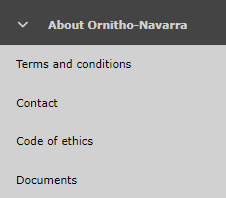
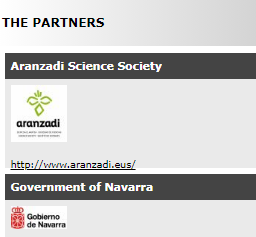
Add clickable links to any of the sections. Use arrows under titles to alternate between ascending and descending order (see image as an example).

Order: Order in which links will appear when on the same section.
Category: Section under which the link will appear.
Title: Title under whcih the link will appear.
URL: Electronic address of the site.
See how parameters above will appear in the website in this example.
- 1. Search
Reduce list by typing the name of a site, or part of it, and click SEACH. When a filter is applied, click on
DISPLAY ALL.
- 2. Search
Select page number and/or number of items per page.
- 3. Details
Click to see details of selected link, including name in different languages and comments if availale.

BACK: Go to previous screen without saving.
EDIT: Edit details. See edit subsection below.
DELETE: Delete entry. You will be asked to confirm.
- 4. Edit
Modify / complete any detail.

BACK: Go to previous screen without saving.
MODIFY: Save changes.
- 7. Category: Choose from the expandable menu under which section the link will appear.
- 8. Order: Type the position in which the link will appear in relation to other links on the same section.
- 9. Title: Choose the language to add / modify the title in from the tabs on top (a) and type / modify the text (b).
- 10. URL: Choose the language to add / modify the link in from the tabs on top (a) and type / modify the link (b).
- 11. Image: Check Cochez pour effacer l'image to delete the existing image, if any; and/or click on Choose file to upload an image. The existing image is shown.
- 12. Comment: Choose the language to add / modify a comment in from the tabs on top (a) and type / modify the comment (b).
- 7. Category: Choose from the expandable menu under which section the link will appear.
- 5. Delete
Delete link. You will be asked to confirm.
- 6. NEW
Create a new link.

BACK: Go to previous screen without saving.
ADD: Save the new link.
- 7. Category: Choose from the expandable menu under which section the link will appear.
- 8. Order: Type the position in which the link will appear in relation to other links on the same section.
- 9. Title: Choose the language to add a title in from the tabs on top (a) and type the text (b). Repeat the process to add the title in different languages.
- 10. URL: Choose the language to add a link in from the tabs on top (a) and type the link (b). Repeat the process to add the link in different languages.
- '11. Image: Click on Choose file to upload an image. When an image is uploaded, its name and format will appear nect to the buutton.
- 12. Comment: Choose the language to add a comment in from the tabs on top (a) and type the comment (b). Repeat the process to add a comment is different languages.
- 7. Category: Choose from the expandable menu under which section the link will appear.
Admin FAQs
Administration > Web site administration > Admin FAQs

Import / Export places

Sponsor management
Administration > Web site administration > Sponsor management

Restitutions polygons list
Administration > Web site administration > Restitutions polygons list