Corncrake points: Difference between revisions
| Line 129: | Line 129: | ||
To enter observations: <br/> | To enter observations: <br/> | ||
1. Select | 1. Select individual: male, female or other. <br/> | ||
2. Position the observation on the map. Each sighting is indicated with a different point colour. <br/> | 2. Position the observation on the map. Each sighting is indicated with a different point colour. <br/> | ||
3. Scroll down to modify data or enter details of observation. Note dot colours match those in the map above. <br/> | 3. Scroll down to modify data or enter details of observation. Note dot colours match those in the map above. <br/> | ||
Revision as of 18:44, 3 September 2026
CREX
Access your protocol from Menu > Take part > All my protocol > Corncrake.
For other options, visit wiki section Web interface > Local portal > Protocols > Accessing protocols.
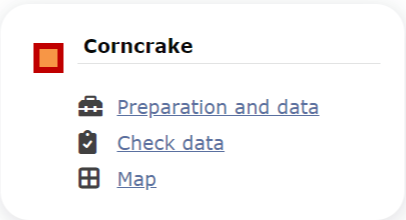
Corncrake. Menu.
Corncrake (points)
-
1 Preparation and data
- 1.1 Add observations
- 11.1.1 Starting the protocol
1.1.2 Entering observations
1.1.3 Ending the protocol
- 1.2 Results
1.3 Display on map
1.4 Modify the protocol
1.5 Census results
1.6 Download map
- 2 Check data
3 Map
CREX Preparation and data
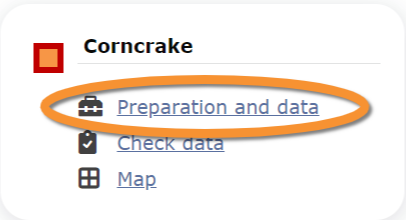
Corncrake. Preparation and data.
Lists all sites available to the current profile and allows entering observations, downloading printable maps and seeing results.
1 Preparation and data
-
1.1 Add observations
- 1.1.1 Starting the protocol
1.1.2 Entering observations
1.1.3 Ending the protocol
- 1.2 Results
1.3 Display on map
1.4 Modify the protocol
1.5 Census results
1.6 Download map
CREX Add observations
Click on Add observations (see image below) in the site you need to enter data to.

Corncrake. Add observations.
CREX Starting the protocol
Before entering observations, it is required to enter general parameters regarding the protocol. Parameters are protocol specific. Fields marked with an asterisk are mandatory.
See wiki section Web interface > Protocols > Preparation and data > Add observations > Starting the protocol for details.
When done,
Click NEXT to start entering observations.
Click NO CORNCRAKES SEEN/HEARD to end protocol if your survey did not provide any data.
[Top to Add observations]
[Top to Preparation and data]
[Back to Corncrake protocol (points)]
CREX Entering observations
This protocol requires indicating the position of individuals observed.
See Web interface > Local portals > Protocols > Preparation and data > Add observations > Entering observations > Position of individuals for more information.
To enter observations:
1. Select individual: male, female or other.
2. Position the observation on the map. Each sighting is indicated with a different point colour.
3. Scroll down to modify data or enter details of observation. Note dot colours match those in the map above.
4. Open panel to enter additional information.
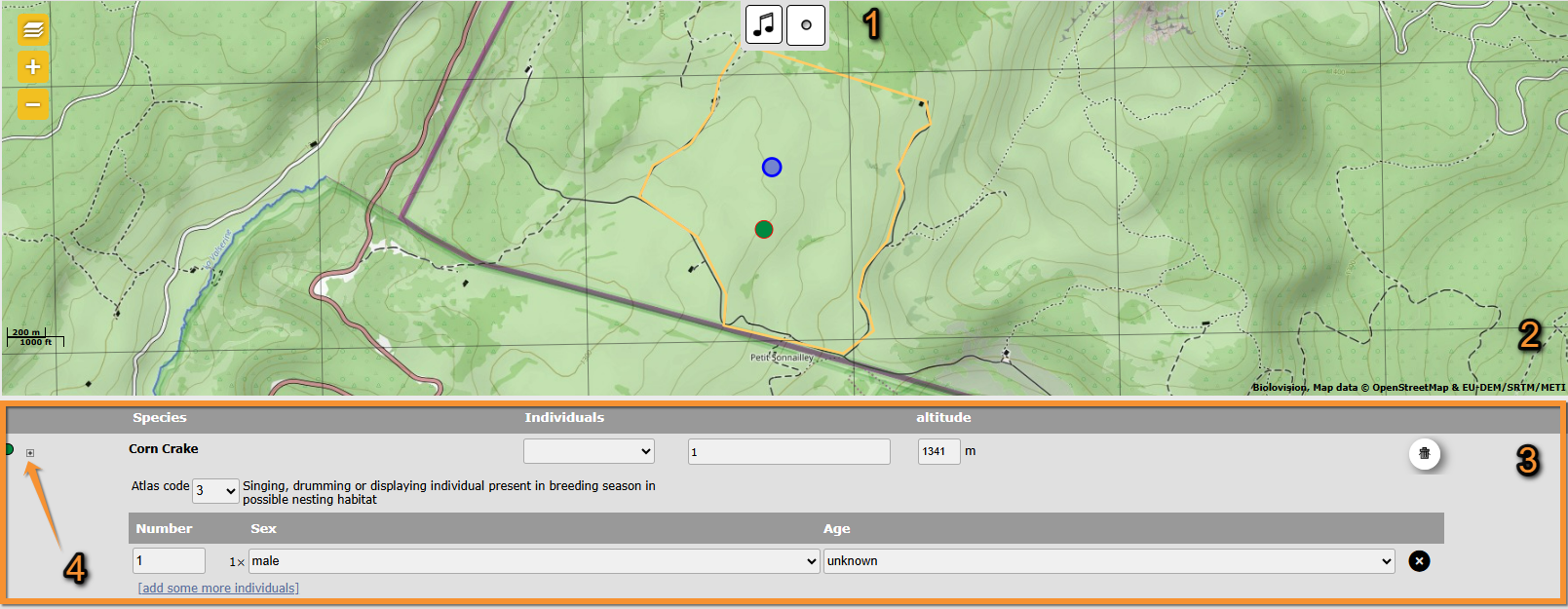
Corncrake. Entering observations.
1. Atlas code: Click on icons to select atlas code of observation.
2. Position: Click at sighting's position. Note active position highlighted in blue.
3. Add information: Add, or modify, details.
4. Additional information: Open panel to add additional information.
[Top to Add observations]
[Top to Preparation and data]
[Back to Corncrake protocol (points)]
CREX Ending the protocol
Click on I RECORDED ALL SPECIES OF THE PROGRAME to end the count.
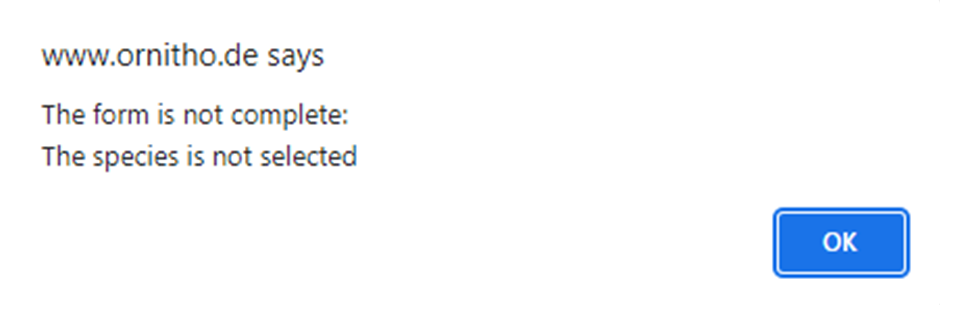
A green badge at the top will indicate your data has been saved. If there is some problem with your data, an error message will prevent you from continuing.


See wiki section Web interface > Protocols > Preparation and data > Add observations > Ending the protocol for more information.
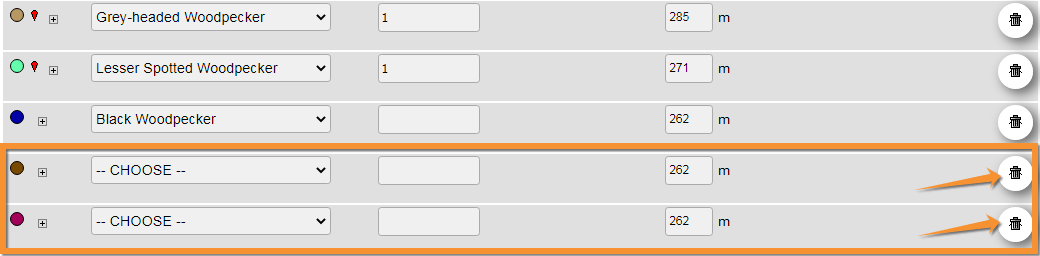
In order to submit your data properly, delete all empty entries in the list. Otherwise, you will see an error message preventing you to continue.
[Top to Add observations]
[Top to Preparation and data]
[Back to Corncrake protocol (points)]
CREX Results

Corncrake. Results.
See some statistics about your surveys results.
Visit wiki section Web interface > Protocols > Preparation and data > Results for details.
[Top to Preparation and data]
[Back to Corncrake protocol (points)]
CREX Display on map
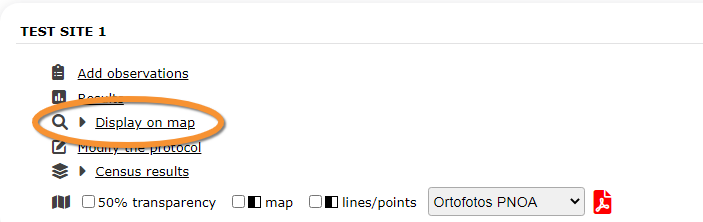
Corncrake. Display on map.
For the selected site, see the area to survey on a map. To know how to navigate the map, refer to wiki section Web interface > Navigating the map.
Visit wiki section Web interface > Protocols > Preparation and data > Display on map for details.
[Top to Preparation and data]
[Back to Corncrake protocol (points)]
CREX Modify the protocol

Corncrake. Modify the protocol.
Modify the site to survey.
Visit wiki section Web interface > Protocols > Preparation and data > Modify the protocol for details.
[Top to Preparation and data]
[Back to Corncrake protocol (points)]
CREX Census results

Corncrake. Census results.
Click on Census results to see all available years with data for this site (see image Protocol. Selecting year to visualise). Select the one to visualise.

Visit wiki section Web interface > Protocols > Preparation and data > Census protocol for details.
[Top to Preparation and data]
[Back to Corncrake protocol (points)]
CREX Download map

Corncrake. Download map.
Download maps ready to print.
Visit wiki section Web interface > Protocols > Preparation and data > Download map for details.
[Top to Preparation and data]
[Back to Corncrake protocol (points)]
CREX Check data
Corncrake. Check data.
Calendar showing visits to different sites and number of species detected.
Visit wiki section Web interface > Protocols > Preparation and data > Check data for details.
[Top to Check data]
[Back to Corncrake protocol (points)]
CREX Map

Corncrake. Map.
Map and statistics for site.
Visit wiki section Web interface > Protocols > Preparation and data > Map for details.
[Top to Map]
[Top to Corncrake protocol (points)]
[Back to Protocols]