Sound player: Difference between revisions
No edit summary |
No edit summary |
||
| Line 68: | Line 68: | ||
'''Sound player general view.''' | '''Sound player general view.''' | ||
</div> | </div> | ||
<p style="color:black;font-size:12px;padding-left: | <p style="color:black;font-size:12px;padding-left:30px;text-align:left;column-count:2;"> | ||
'''6.''' Full sonogram. <br/> | |||
'''7.''' Detailed sonogram. <br/> | |||
'''8.''' New playback window. <br/> | |||
'''A.''' Go to previous file.<br/> | '''A.''' Go to previous file.<br/> | ||
'''B.''' Go to next file.<br/> | '''B.''' Go to next file.<br/> | ||
| Line 78: | Line 81: | ||
<br/> | <br/> | ||
__TOC__ | |||
<br/> | |||
==='''6. Full sonogram'''=== | |||
The full length of the sonogram is represented. A yellow square indicates which part of it is currently represented in the detailed sonogram area (number 7 in image [[Media:2023-09-17 sound player general.png|Sound player general view]]). By default, it is 10 seconds.<br/> | The full length of the sonogram is represented. A yellow square indicates which part of it is currently represented in the detailed sonogram area (number 7 in image [[Media:2023-09-17 sound player general.png|Sound player general view]]). By default, it is 10 seconds.<br/> | ||
<br/> | <br/> | ||
<center> | <center> | ||
<div class="toc" style="border-radius:5px;background-color:#ffffff;width: | <div class="toc" style="border-radius:5px;background-color:#ffffff;width:600px;padding-left:8px;padding-right:8px;"> | ||
[[File:2023-09-17 detail full sonogram.png| | [[File:2023-09-17 detail full sonogram.png|600px]] | ||
<div class="toc" style="border-radius:5px;width: | <div class="toc" style="border-radius:5px;width:585px;padding-left:15px;text-align:left; font-size:12px;"> | ||
''' | '''Full sonogram.''' | ||
</div> | </div> | ||
<p style="color:black;font-size:12px;padding-left: | <p style="color:black;font-size:12px;padding-left:30px;text-align:left;column-count:2;"> | ||
''' | '''9.''' Active waveform <br/> | ||
''' | '''10.''' Resize <br/> | ||
''' | '''11.''' Move<br/> | ||
''' | '''12.''' Sound guide<br/> | ||
</p> | </p> | ||
</div> | </div> | ||
| Line 99: | Line 105: | ||
<br/> | <br/> | ||
:'''7. Detailed sonogram | :'''9. Active waveform''' <br/> | ||
The active waveform is highlighted in blue; otherwise, it is grey. <br/> | |||
<br/> | |||
:'''10. Resize''' <br/> | |||
Use blue arrows on the side to enlarge or decrease the size of the selected area. Note the image on the detailed area of the sonogram (number 7 in image [[Media:2023-09-17 sound player general.png|Sound player general view]]) changes accordingly.<br/> | |||
<br/> | |||
:'''11. Move''' <br/> | |||
Use the blue arrows at the bottom to move the selected area along the sonogram. Note the image on the detailed area of the sonogram changes accordingly.<br/> | |||
<br/> | |||
<center> | |||
<div class="wikitable" style="border-radius:5px; padding: 25px; text-align: left; font-family: sans-serif; color: black; width:600px; background-color:hsl(157, 74%, 80%)"> | |||
<!-- GREEN BOX (Tips): hsl(157, 74%, 80%) | |||
YELLOW BOX (Summaries): #ffffdb" | |||
BLUE BOX (Information): hsl(201, 100%, 89%) | |||
RED BOX (Warnings): hsl(0, 77%, 78%) --> | |||
<p> | |||
NOTE<br/> | |||
Blue icons [[Media:Blue resize.png|Resize]] and [[Media:Blue move.png|Move]] refer to the full sonogram. <br/> | |||
Red icons [[Media:Red resize.png|Resize]] and [[Media:Red move.png|Move]] refer to the active sonogram area (Detailed sonogram and New playback window below for details).<br/> | |||
</p> | |||
</td></tr></table> | |||
</center> | |||
<br /> | |||
:'''12. Sound guide''' <br/> | |||
Red line indicating which part of the recording is playing. It moves along the sonogram as the playing progresses. See a similar line also appears in the detailed sonogram area below (number 7 in image [[Media:2023-09-17 sound player general.png|Sound player general view]]) indicating which part is sounding. Move it along the sonogram with your mouse to start playing from a different point on the recording. <br/> | |||
<br/> | |||
==='''7. Detailed sonogram'''=== | |||
It is a representation of the highlighted area in the full sonogram (number 6 in image [[Media:2023-09-17 sound player general.png|Sound player general view]]). The red line indicates which bit of it is playing and it moves along the recording as it plays.<br/> | It is a representation of the highlighted area in the full sonogram (number 6 in image [[Media:2023-09-17 sound player general.png|Sound player general view]]). The red line indicates which bit of it is playing and it moves along the recording as it plays.<br/> | ||
<br/> | <br/> | ||
:''' | <center> | ||
<div class="toc" style="border-radius:5px;background-color:#ffffff;padding-left:8px;padding-right:8px;width:600px;"> | |||
[[File:Detailed sonogram.png|600px]] | |||
<div class="toc" style="border-radius:5px;padding-left:15px;text-align:left; font-size:12px;width:585px;"> | |||
'''Detailed sonogram.''' | |||
</div> | |||
<p style="color:black;font-size:12px;padding-left:30px;text-align:left;column-count:2;"> | |||
'''13.''' Play/Pause <br/> | |||
'''14.''' Continuous playing <br/> | |||
'''15.''' New playback window <br/> | |||
'''15.''' Clear all playback windows <br/> | |||
</p> | |||
</div> | |||
</center> | |||
<br/> | |||
<br/> | |||
:'''13. Play/Pause''' (full sonogram) <br/> | |||
Click Play/Stop button to start playing or stop it when needed. This function applies to the full sonogram.<br/> | Click Play/Stop button to start playing or stop it when needed. This function applies to the full sonogram.<br/> | ||
<br/> | <br/> | ||
:''' | :'''14. Continuous playing''' <br/> | ||
By default it is set on continuous playing (black icon). Click on the icon to play the recording only once ([[Media:2023-09-17 play only once.png|grey icon]]). <br/> | By default it is set on continuous playing (black icon). Click on the icon to play the recording only once ([[Media:2023-09-17 play only once.png|grey icon]]). <br/> | ||
<br/> | <br/> | ||
:''' | <center> | ||
<div class="wikitable" style="border-radius:5px; padding: 25px; text-align: left; font-family: sans-serif; color: black; width:600px; background-color:hsl(157, 74%, 80%)"> | |||
<!-- GREEN BOX (Tips): hsl(157, 74%, 80%) | |||
YELLOW BOX (Summaries): #ffffdb" | |||
BLUE BOX (Information): hsl(201, 100%, 89%) | |||
RED BOX (Warnings): hsl(0, 77%, 78%) --> | |||
<p> | |||
NOTE<br/> | |||
Icons [[Media:Play.png|Play/Pause]] and [[Media:Continuous.png|Continuous playing]] apply to the full sonogram. <br/> | |||
Red icons [[Media:Red play.png| Play/Stop]] and [[Media:Delete playback window.png|Delete]] apply to the new playback window. See below details of the New playback window.<br/> | |||
</p> | |||
</td></tr></table> | |||
</center> | |||
<br /> | |||
:'''15. New playback window''' <br/> | |||
Click to select a part of the sonogram to play. It will show a new red framed box on the detailed sonogram area. Note the the full sonogram at the top (number 6 in image [[Media:2023-09-17 sound player general.png|Sound player general view]]) also contains the red boxes. See underneath for more details. <br/> | |||
<br/> | |||
:'''16. Clear all playback windows''' <br/> | |||
Click [[Media:Clear playback windows.png|'''Clear all playback windows''']] to remove all red boxes from the detailed sonogram area. If there are no red boxes, the option is inactive, and then the recording can only be played in full, using the button described in point 8.<br/> | |||
<br/> | |||
==='''15. New playback window'''=== | |||
Click to select a part of the sonogram to play. This allows to focus on special frequencies when there is noise. It will immediately show a new red framed box on the detailed sonogram area (see image below). Note the the full sonogram at the top (number 6 in image [[Media:2023-09-17 sound player general.png|Sound player general view]]) also contains the red boxes.<br/> | Click to select a part of the sonogram to play. This allows to focus on special frequencies when there is noise. It will immediately show a new red framed box on the detailed sonogram area (see image below). Note the the full sonogram at the top (number 6 in image [[Media:2023-09-17 sound player general.png|Sound player general view]]) also contains the red boxes.<br/> | ||
<br/> | <br/> | ||
| Line 117: | Line 198: | ||
<center> | <center> | ||
<div class="toc" style="border-radius:5px;background-color:#ffffff;width:600px;padding-left:8px;padding-right:8px;padding-bottom:8px;"> | <div class="toc" style="border-radius:5px;background-color:#ffffff;width:600px;padding-left:8px;padding-right:8px;padding-bottom:8px;"> | ||
[[File: | [[File:New playback window.png|600px]] | ||
<div class="toc" style="border-radius:5px;width:585px;padding-left:15px;text-align:left; font-size:12px"> | <div class="toc" style="border-radius:5px;width:585px;padding-left:15px;text-align:left; font-size:12px"> | ||
''' | '''New playback window.''' | ||
</div> | </div> | ||
<p style="color:black;font-size:12px;padding-left:30px;text-align:left;column-count:2;"> | |||
'''17.''' Resize <br/> | |||
'''18.''' Move <br/> | |||
'''19.''' Play/Stop <br/> | |||
'''20.''' Delete <br/> | |||
</p> | |||
</div> | </div> | ||
</center> | </center> | ||
| Line 129: | Line 216: | ||
<br/> | <br/> | ||
:''' | :'''17. Resize''' <br/> | ||
Use red arrows on corners to enlarge or decrease the area you want to play. It works both up and down and to the sides, allowing selecting sounds higher or lower in the diagram or further to right or left. It is possible to adjust the red box also while the recording is playing.<br/> | Use red arrows on corners to enlarge or decrease the area you want to play. It works both up and down and to the sides, allowing selecting sounds higher or lower in the diagram or further to right or left. It is possible to adjust the red box also while the recording is playing.<br/> | ||
<br/> | |||
:''' | :'''18. Move''' <br/> | ||
Use red arrow at the middle top to move the red box to a different part of the detailed sonogram area. It is possible to move the red box also while the recording is playing.<br/> | Use red arrow at the middle top to move the red box to a different part of the detailed sonogram area. It is possible to move the red box also while the recording is playing.<br/> | ||
<br/> | |||
<center> | |||
<div class="wikitable" style="border-radius:5px; padding: 25px; text-align: left; font-family: sans-serif; color: black; width:600px; background-color:hsl(157, 74%, 80%)"> | |||
<!-- GREEN BOX (Tips): hsl(157, 74%, 80%) | |||
YELLOW BOX (Summaries): #ffffdb" | |||
BLUE BOX (Information): hsl(201, 100%, 89%) | |||
RED BOX (Warnings): hsl(0, 77%, 78%) --> | |||
<p> | |||
NOTE<br/> | |||
Blue icons [[Media:Blue resize.png|Resize]] and [[Media:Blue move.png|Move]] refer to the full sonogram. <br/> | |||
Red icons [[Media:Red resize.png|Resize]] and [[Media:Red move.png|Move]] refer to the active sonogram area (Detailed sonogram and New playback window below for details).<br/> | |||
</p> | |||
:''' | </td></tr></table> | ||
</center> | |||
<br /> | |||
:'''19. Play/Stop''' (selected part) <br/> | |||
Play/Stop the sound within the red box. Note when playing the recording through the red button, it will only reproduce the sounds represented within this box. If there are more than one box, you can decide which one to play. To play all sounds in the sonogram, use the general play button (number 8 in image [[Media:2023-09-17 sound player general.png|Sound player general view]]). <br/> | Play/Stop the sound within the red box. Note when playing the recording through the red button, it will only reproduce the sounds represented within this box. If there are more than one box, you can decide which one to play. To play all sounds in the sonogram, use the general play button (number 8 in image [[Media:2023-09-17 sound player general.png|Sound player general view]]). <br/> | ||
<br/> | |||
:''' | :'''20. Delete''' <br/> | ||
Delete red box. No area will be selected when there is no red box in the detailed sonogram area and the recording will play in full. This button will only remove the red box it applies to. All other red boxes will remain on the detailed sonogram area. To remove all boxes at once, use the Unselect button (number 11 on image [[Media:2023-09-17 sound player general.png|Sound player general view]]).<br/> | Delete red box. No area will be selected when there is no red box in the detailed sonogram area and the recording will play in full. This button will only remove the red box it applies to. All other red boxes will remain on the detailed sonogram area. To remove all boxes at once, use the Unselect button (number 11 on image [[Media:2023-09-17 sound player general.png|Sound player general view]]).<br/> | ||
<br/> | <br/> | ||
<center> | <center> | ||
<div class="wikitable" style="border-radius:5px; padding: 25px; text-align: left; font-family: sans-serif; color: black; width: | <div class="wikitable" style="border-radius:5px; padding: 25px; text-align: left; font-family: sans-serif; color: black; width:600px; background-color: hsl(157, 74%, 80%)"> | ||
<!-- GREEN BOX (Tips): hsl(157, 74%, 80%) | <!-- GREEN BOX (Tips): hsl(157, 74%, 80%) | ||
YELLOW BOX (Summaries): #ffffdb" | YELLOW BOX (Summaries): #ffffdb" | ||
| Line 155: | Line 258: | ||
<p> | <p> | ||
NOTE<br/> | NOTE<br/> | ||
Icons [[Media:Play.png|Play/Pause]] and [[Media:Continuous.png|Continuous playing]] apply to the full sonogram. <br/> | |||
Red icons [[Media:Red play.png| Play/Stop]] and [[Media:Delete playback window.png|Delete]] apply to the new playback window. See below details of the New playback window.<br/> | |||
</p> | </p> | ||
| Line 162: | Line 265: | ||
</center> | </center> | ||
<br /> | <br /> | ||
{{Examples from Faune-France}} | {{Examples from Faune-France}} | ||
Revision as of 14:36, 17 February 2024
Whenever a sound recording have been attached to a record, there is a sonogram associated to the record. It is possible to
- listen the full recording,
- select a part of the recording to listen,
- verify the recording, if you are a Validator.
Access recordings
- browsing records from latest sightings on the right hand column on the home page,
- browsing records from the last 5/15 days on the left hand column on the home page,
- consulting your own records at All my observations,
- using the Search engine,
- on the Gallery,
- on the verification panel (only available to Validators).
Click on a sonogram (see image Selecting a sonogram below) to open the sound player tool (see image Sound player general view). Note if the file is yours, you will be given additional options (see image Sound player general view. Own file).
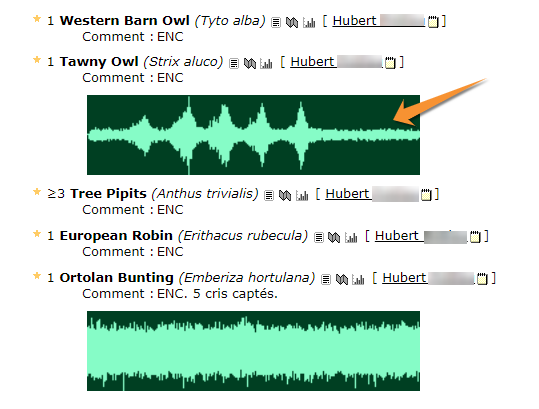



Selecting a sonogram.
- 1. Select file
All files attached to the record (images and sounds). Select any to visualise below. Note the yellow frame on the active file.

Sound player general view. Own file.
- 2. Hide/Unhide
Click to hide/unhide the sound file to the general public. It is only possible with your own records. If you are seeing someone else's records you will not see the icon.
- 3. Delete file
Click to delete the file. Only your own files can be deleted. If you are consulting someone else's records you will not see the icon.
- 4. Download
Click to download the sonogram. It is only possible to download your own records. If you are seeing someone else's records you will not see the icon.
- 5. Favourite
Click to save sound file to your favourites. When the tick is green, the record is saved. Click on a green tick to remove the sound file from your favourites. See your favourite sounds and images in Gallery. This function is available for all registered users.

Sound player general view.
6. Full sonogram.
7. Detailed sonogram.
8. New playback window.
A. Go to previous file.
B. Go to next file.
C. See associated record.
6. Full sonogram
The full length of the sonogram is represented. A yellow square indicates which part of it is currently represented in the detailed sonogram area (number 7 in image Sound player general view). By default, it is 10 seconds.

Full sonogram.
9. Active waveform
10. Resize
11. Move
12. Sound guide
- 9. Active waveform
The active waveform is highlighted in blue; otherwise, it is grey.
- 10. Resize
Use blue arrows on the side to enlarge or decrease the size of the selected area. Note the image on the detailed area of the sonogram (number 7 in image Sound player general view) changes accordingly.
- 11. Move
Use the blue arrows at the bottom to move the selected area along the sonogram. Note the image on the detailed area of the sonogram changes accordingly.


- 12. Sound guide
Red line indicating which part of the recording is playing. It moves along the sonogram as the playing progresses. See a similar line also appears in the detailed sonogram area below (number 7 in image Sound player general view) indicating which part is sounding. Move it along the sonogram with your mouse to start playing from a different point on the recording.
7. Detailed sonogram
It is a representation of the highlighted area in the full sonogram (number 6 in image Sound player general view). The red line indicates which bit of it is playing and it moves along the recording as it plays.

Detailed sonogram.
13. Play/Pause
14. Continuous playing
15. New playback window
15. Clear all playback windows
- 13. Play/Pause (full sonogram)
Click Play/Stop button to start playing or stop it when needed. This function applies to the full sonogram.
- 14. Continuous playing
By default it is set on continuous playing (black icon). Click on the icon to play the recording only once (grey icon).

NOTE
Icons Play/Pause and Continuous playing apply to the full sonogram.
Red icons Play/Stop and Delete apply to the new playback window. See below details of the New playback window.


- 15. New playback window
Click to select a part of the sonogram to play. It will show a new red framed box on the detailed sonogram area. Note the the full sonogram at the top (number 6 in image Sound player general view) also contains the red boxes. See underneath for more details.
- 16. Clear all playback windows
Click Clear all playback windows to remove all red boxes from the detailed sonogram area. If there are no red boxes, the option is inactive, and then the recording can only be played in full, using the button described in point 8.

15. New playback window
Click to select a part of the sonogram to play. This allows to focus on special frequencies when there is noise. It will immediately show a new red framed box on the detailed sonogram area (see image below). Note the the full sonogram at the top (number 6 in image Sound player general view) also contains the red boxes.

New playback window.
17. Resize
18. Move
19. Play/Stop
20. Delete
Click more than once to create several boxes.

- 17. Resize
Use red arrows on corners to enlarge or decrease the area you want to play. It works both up and down and to the sides, allowing selecting sounds higher or lower in the diagram or further to right or left. It is possible to adjust the red box also while the recording is playing.
- 18. Move
Use red arrow at the middle top to move the red box to a different part of the detailed sonogram area. It is possible to move the red box also while the recording is playing.
- 19. Play/Stop (selected part)
Play/Stop the sound within the red box. Note when playing the recording through the red button, it will only reproduce the sounds represented within this box. If there are more than one box, you can decide which one to play. To play all sounds in the sonogram, use the general play button (number 8 in image Sound player general view).
- 20. Delete
Delete red box. No area will be selected when there is no red box in the detailed sonogram area and the recording will play in full. This button will only remove the red box it applies to. All other red boxes will remain on the detailed sonogram area. To remove all boxes at once, use the Unselect button (number 11 on image Sound player general view).
NOTE
Icons Play/Pause and Continuous playing apply to the full sonogram.
Red icons Play/Stop and Delete apply to the new playback window. See below details of the New playback window.
Note: images and examples are drawn from the French portal Faune-France. The design and position of some tools may vary slightly from portal to portal. To see a list of portals go to wiki section Local portals and partners. |