|
|
| Line 63: |
Line 63: |
| :<b>Details</b><br/> | | :<b>Details</b><br/> |
|
| |
|
| <center>
| | See details about this sighting and its rarity report associated. <br/> |
| <div class="toc" style="border-radius:5px;background-color:#ffffff;padding-left:8px;padding-right:8px;padding-bottom:8px;width:600px;">
| |
| [[File:Ballot details.png|600px]]
| |
| <div class="toc" style="border-radius:5px;padding-left:15px;text-align:left; font-size:12px;width:575px;">
| |
| '''Ballot details.'''
| |
| </div>
| |
| <p style="color:black;font-size:12px;padding-left:5px;text-align:left;column-count:1;padding-right:5px;">
| |
| '''Return:''' Go to previous screen. <br/>
| |
| '''1. [[Rarity reports#Report|Report]]:''' <br/>
| |
| '''2. [[Rarity reports#Ballot|Ballot]]:''' Text 2. <br/>
| |
| '''3. [[Rarity reports#Discussion|Discussion]]:''' Text 1. <br/>
| |
| '''4. [[Rarity reports#Main information|Main information]]:''' Text 2. <br/>
| |
| '''5. [[Rarity reports#Other information|Other information]]:''' Text 1. <br/>
| |
| '''6. [[Rarity reports#Map|Map]]:''' Text 2. <br/>
| |
| '''7. [[Rarity reports#Media|Media]]:''' Text 1. <br/>
| |
| </p>
| |
| </div>
| |
| </center>
| |
| <br/>
| |
| <br/>
| |
| | |
| <span id="Report"></span>
| |
| :<b>Report</b><br/>
| |
| | |
| Create a downloadable report as a .pdf file with information about the species sighting. <br/>
| |
| <br/>
| |
| | |
| 1. Select from the expandable menu the map layer. <br/>
| |
| 2. Click <b>Generate report</b> to start download. <br/>
| |
| <br/>
| |
| | |
| If te report for this sighting has already been downloaded, the date and time of latest download is shown on the right. <br/>
| |
| <br/> | | <br/> |
|
| |
|
| <center>
| | See [[Rarity reports#Ballot details|Ballot details]] for more information. <br/> |
| <div class="toc" style="border-radius:5px;background-color:#ffffff;padding-left:8px;padding-right:8px; padding-bottom:8px;width:600px;">
| |
| [[File:Download report.png|600px|link=https://help.biolovision.net/images/1/1b/Download_report.png]] | |
| <div class="toc" style="border-radius:5px;padding-left:15px;text-align:left; font-size:12px;width:575px;">
| |
| '''Download report.'''
| |
| </div>
| |
| <p style="color:black;font-size:12px;padding-left:30px;text-align:left;column-count:2;">
| |
| <b>1.</b> Select map layer. <br />
| |
| <b>2.</b> Start download. <br/>
| |
| </p>
| |
| </div>
| |
| </center>
| |
| <br/> | | <br/> |
| <br/>
| |
|
| |
| <span id="Ballot"></span>
| |
| :<b>Ballot</b><br/>
| |
|
| |
| <span id="Discussion"></span>
| |
| :<b>Discussion</b><br/>
| |
|
| |
| <span id="Main information"></span>
| |
| :<b>Main information"><br/>
| |
|
| |
| <span id="Other information!></span>
| |
| :<b>Other information</b><br/>
| |
|
| |
| <span id="Map"></span>
| |
| :<b>Map</b><br/>
| |
|
| |
| <span id="Media"></span>
| |
| :<b>Media</b><br/>
| |
|
| |
|
| ==Ballot closed== | | ==Ballot closed== |
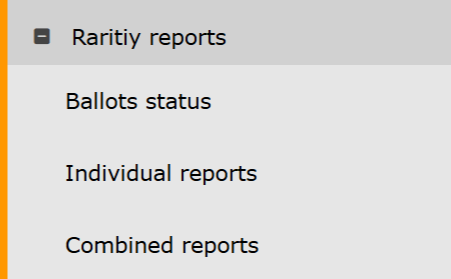
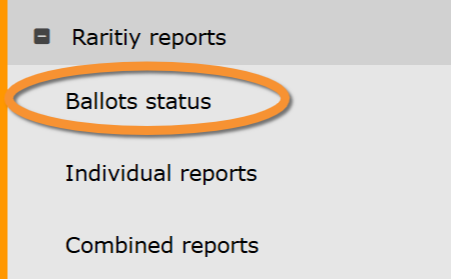
Ballots status
Rarity reports. Ballots status.
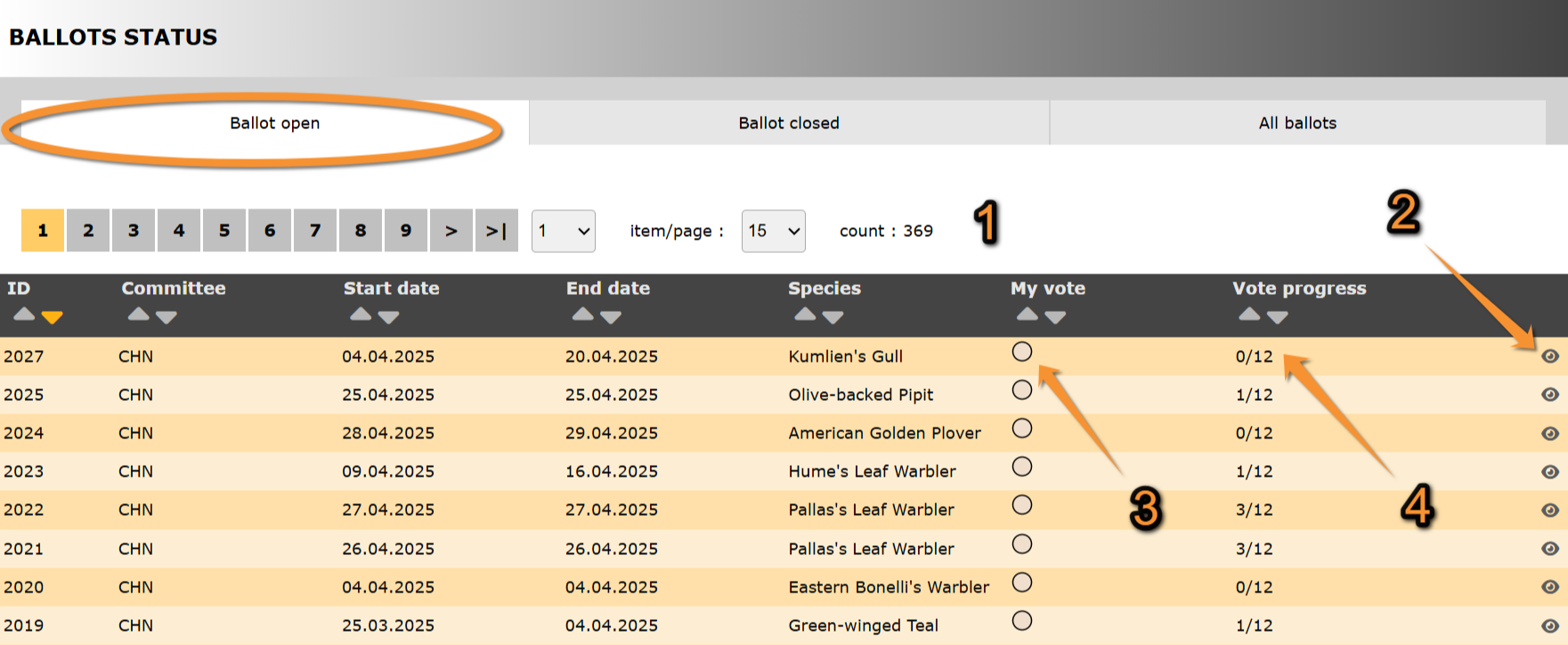
Ballot open
- Search
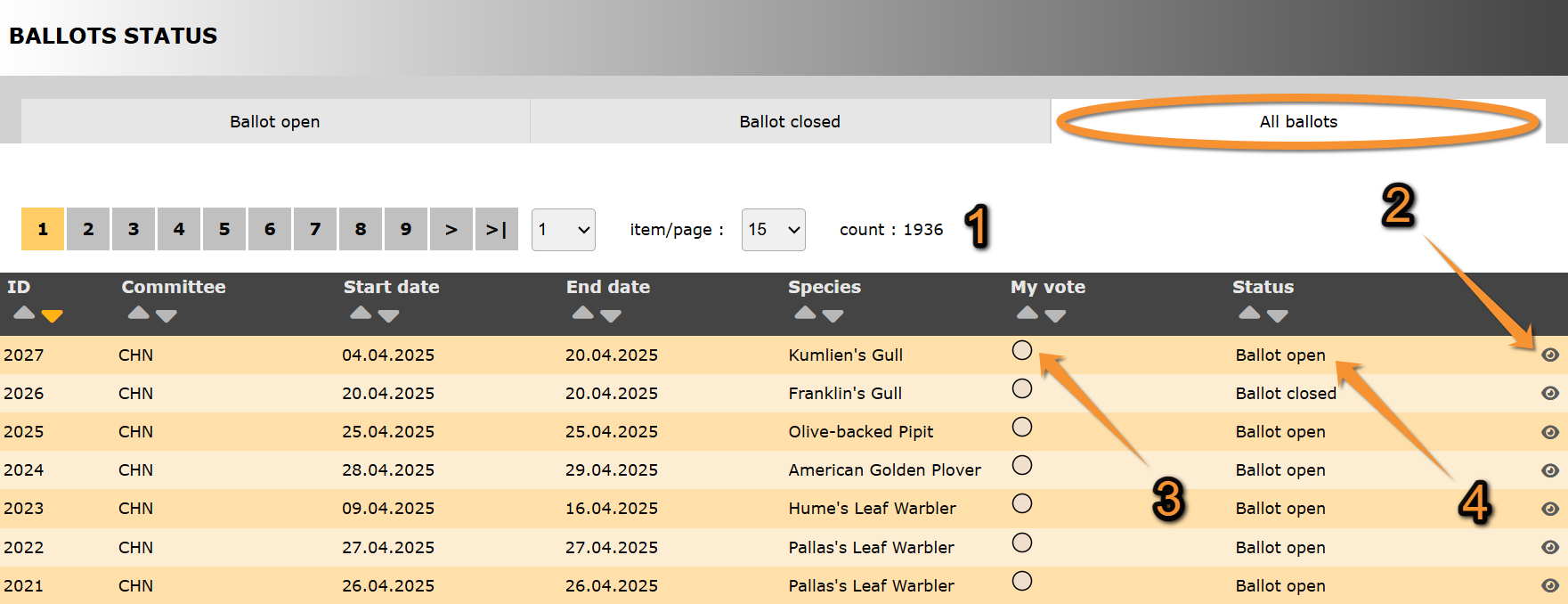
Select page number and/or number of items per page.
- Details
See details about this sighting and its rarity report associated.
See Ballot details for more information.
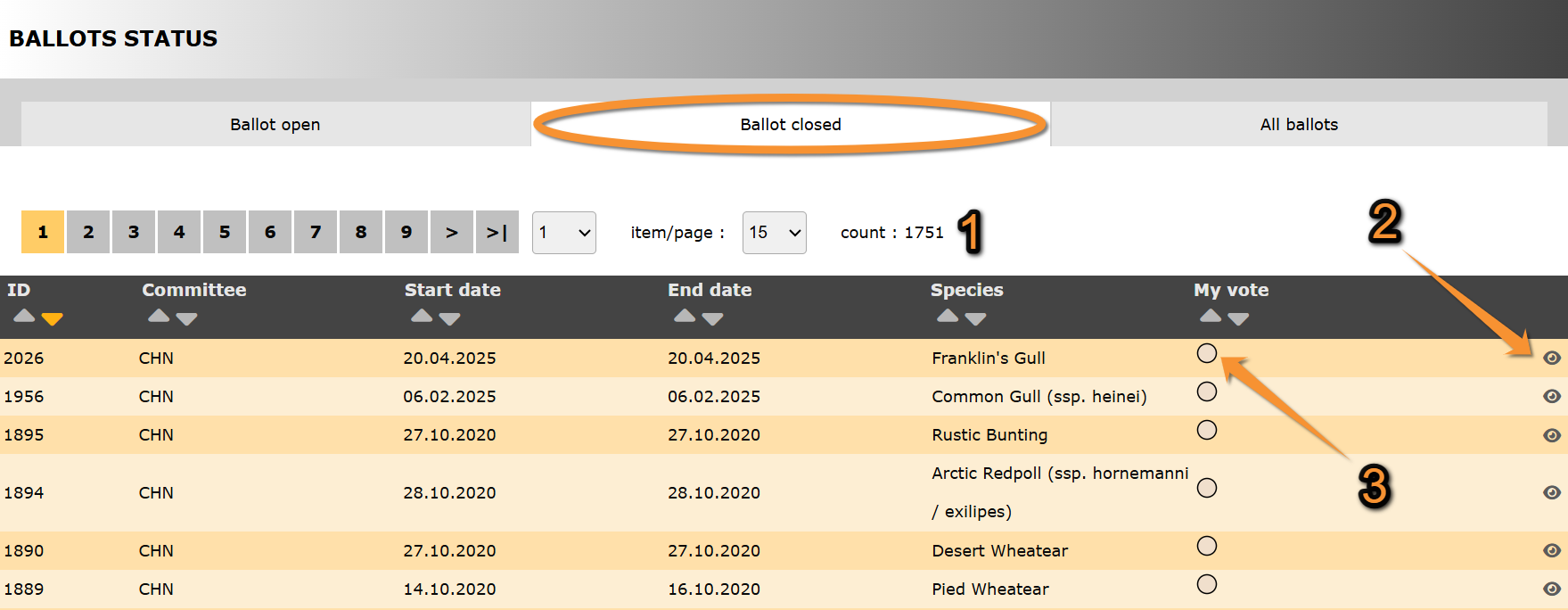
Ballot closed
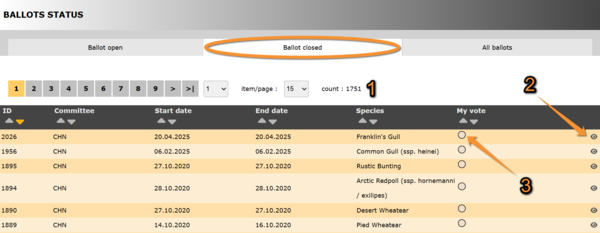
1. Search
2. Details
ID: Text 1.
Committee: Text 2.
Start date: Text 1.
End date: Text 2.
Species: Text 1.
3. My vote: Text 2.
- Search
Select page number and/or number of items per page.
- Details
- My vote
All ballots
- Search
Select page number and/or number of items per page.
- Details
- My vote
- Status
Indicates in which state are all ballots listed:
· Ballot open:
· Ballot closed:
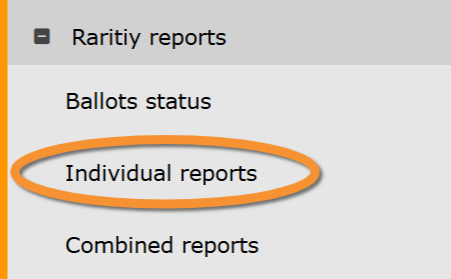
Individual reports
Rarity reports. Individual reports.
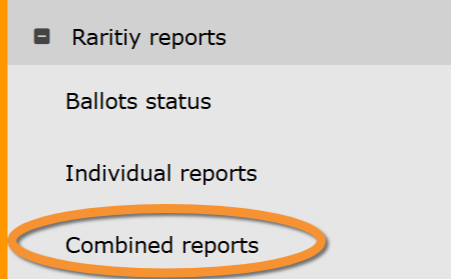
Combined reports
Rarity reports. Combined reports.