Free area tool: Difference between revisions
No edit summary |
No edit summary |
||
| Line 29: | Line 29: | ||
<br/> | <br/> | ||
<span style="color: #000000; margin-left: 25px;"><b>· </b>Search an area by typing a site name (after using the search tool, click on [[Media:2023-03-17 Diplay full list.png|'''DISPLAY ALL''']] to revert selection).<br/> | |||
< | <span style="color: #000000; margin-left: 25px;"><b>· </b>Click on a dot to select a site. When a dot contains more than one site clicking on it zooms in the area. Then click on the polygon to [[Media:2023-05-01 See site details.png|see site details]] (close window on he top right cross icon).<br/> | ||
<b> | <br/> | ||
</p><br/> | |||
Go to wiki section [[Navigating_the_map|Navigating the map]] to see how to navigate the map.<br/> | |||
<br/> | |||
<center> | |||
<div class="toc" style="border-radius:5px;background-color:#ffffff;padding-left:8px;padding-right:8px;width:600px;"> | |||
[[File:2023-05-01 Map with free area.png|600px]] | |||
<div class="toc" style="border-radius:5px;padding-left:15px;text-align:left; font-size:12px;width:575px;"> | |||
'''Map with free area.''' | |||
</div> | |||
<p style="color:black;font-size:12px;padding-left:5px;text-align:left;column-count:1;padding-right:5px;"> | |||
'''A.''' Search an area by typing a site name. <br/> | |||
'''4.''' Click on a dot to select a site. <br/> | |||
</p> | |||
</div> | |||
</center> | |||
<br/> | |||
<br/> | |||
* <b> List of free census: </b> If you know which site you would like to survey, select from a list. <br/> | * <b> List of free census: </b> If you know which site you would like to survey, select from a list. <br/> | ||
Revision as of 13:27, 25 July 2025
Choose a survey site to participate in more standardised studies.
Access tool through the main menu on the left hand column (see image below).

Accessing Free area tool.
1. Access Free area tool.
2. Select from the expandable menu the protocol in which you would like to participate.
3. See requirements for the selected protocol.
If interested, select an area to survey by clicking on a tab:
- Map with free area: Search a free site from a map.
· Search an area by typing a site name (after using the search tool, click on DISPLAY ALL to revert selection).
· Click on a dot to select a site. When a dot contains more than one site clicking on it zooms in the area. Then click on the polygon to see site details (close window on he top right cross icon).


Go to wiki section Navigating the map to see how to navigate the map.

Map with free area.
A. Search an area by typing a site name.
4. Click on a dot to select a site.
- List of free census: If you know which site you would like to survey, select from a list.

A. Search an area by typing a site name (after using the search tool, click on DISPLAY ALL to revert selection), or
B. Select page number and/or number of sites shown per page.
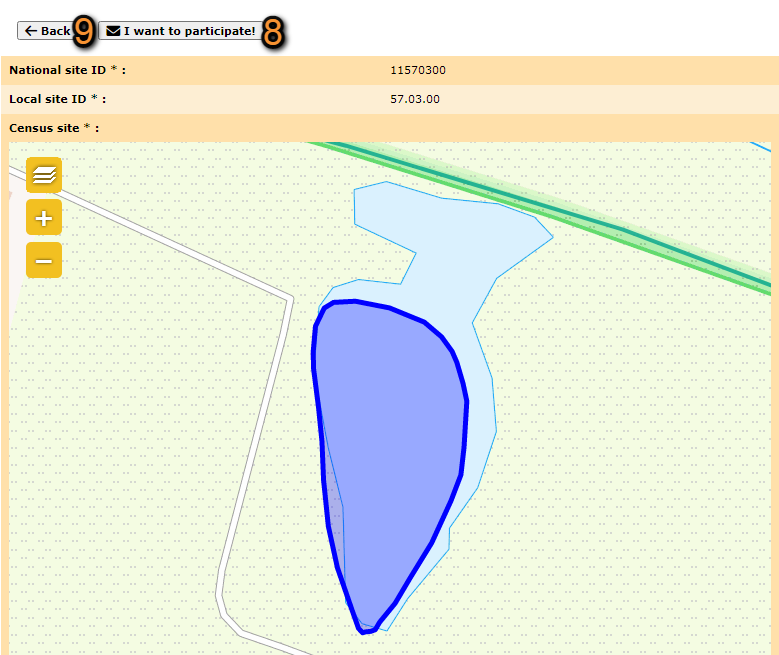
5. See details of selected site (image Site details from list), and email coordinator if interested (number 8 in image) or return to list (number 9 in image), or
6. E-mail coordinator directly.