SHOC Sites RNF (Admin)
SHOC_SITE_RNF
Access your protocol from Menu > Take part > All my protocol > SHOC Sites RNF
For other options, visit wiki section Administrators > Protocols > Accessing protocols.
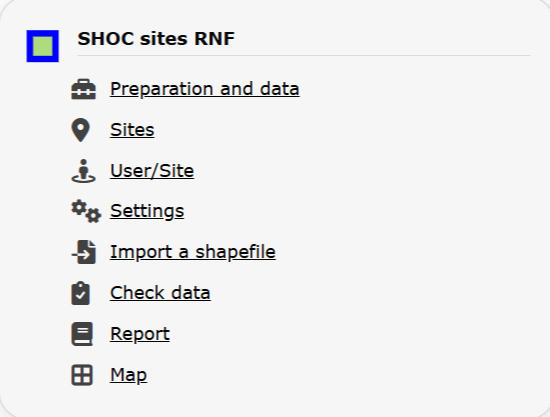
SHOC Sites RNF. Admin menu.
SHOC Sites RNF
-
1 Preparation and data
2 Sites
3 User/Site
4 Settings
5 Import a shapefile
6 Check Data
7 Report
8 Map
SHOC_SITE_RNF Preparation and data
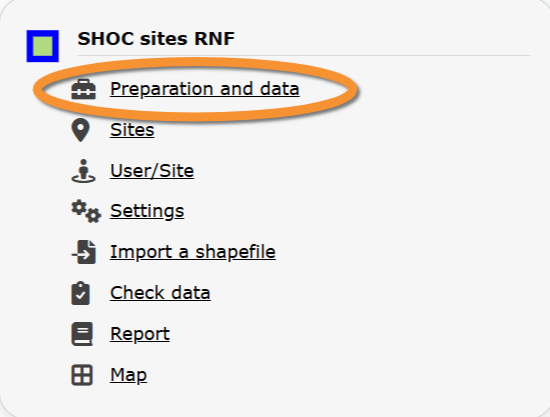
SHOC Sites RNF. Preparation and data.
Identical section to the one available to registered users with rights to the SHOC.
See wiki section Web interface > Protocols > SHOC Sites RNF > Preparation and data for more information.
[Top to Preparation and data]
[Back to SHOC Sites RNF protocol]
SHOC_SITE_RNF Sites
CREATE A NEW SITE:
1. Directly by Transmit my sightings map > Protocols > SHOC Sites RNF
or
through Menu > Administration > Protocol administration > SHOC Sites RNF > Sites > +NEW button
2. Select new site as if Submitting records
3. Choose Create a protocoled census -SHOC Sites RNF
4. Select one of the two random squares.
5. Name the new site
5. Draw transects or import shapefile
6. SAVE
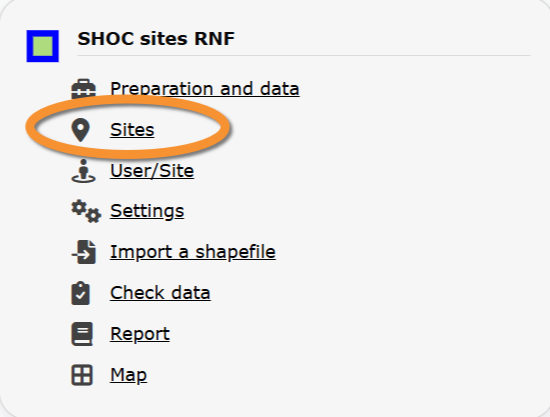
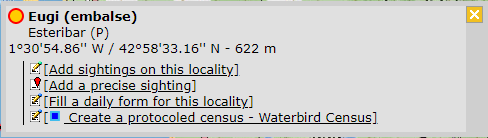



SHOC Sites RNF. Sites.
List of all existing sites allowing a SHOC protocol.
Visit wiki section Administration > Protocol management > Sites for more information.
Both users and administrators can create a new site. Visit wiki section Web interface > Local portal > Protocols > SHOC Sites RNF > Selection of study site.
[Top to Sites]
[Back to SHOC Sites RNF protocol]
SHOC_SITE_RNF User/Site
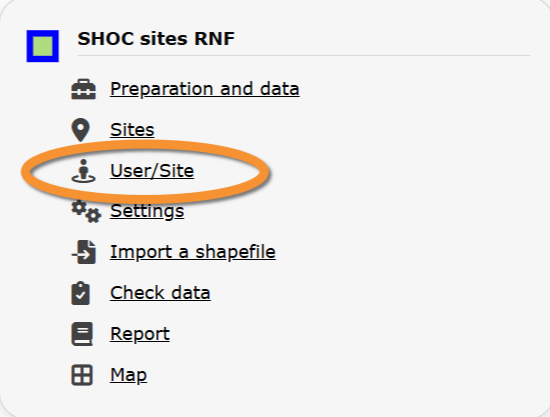
SHOC Sites RNF. User/Site.
From the menu, select User / Site to assign users to study sites.
Visit wiki section Administration > Protocol management > User/Site for more information.
[Top to User/Site]
[Back to SHOC Sites RNF protocol]
SHOC_SITE_RNF Settings
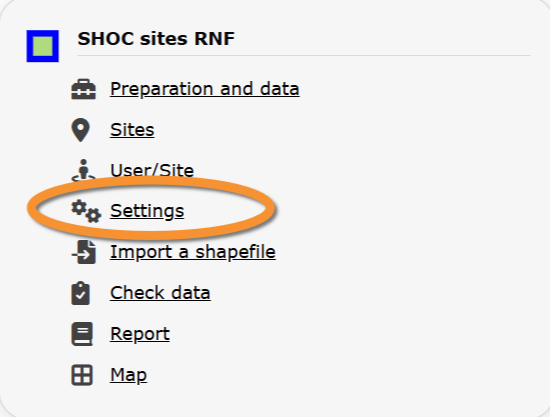
SHOC Sites RNF. Settings.
Set protocol parameters.
Visit wiki section Administration > Protocol management > Settings for details.
Parameters describing the protocol
Expand the table below to see all posible parameters and options available for the SHOC Sites RNF protocol. Use arrows on headers to alternate between ascending and descending alphabetical order.
| SHOC Sites RNF. Parameters. | ||||||||||
|---|---|---|---|---|---|---|---|---|---|---|
| Name | Description | Options | ||||||||
| Rain | Indicate if there is any rain. | No rain Weak rain |
||||||||
| Wind | Indicate if there is any wind. | No wind Weak wind |
||||||||
| Visibility | Indicate the approximate distance within which it is possible to identify species, or an overall description. | Good visibility Moderate visibility |
||||||||
| Cloud cover | Indicate if there are clouds. | 0-33% 33-66% |
||||||||
| Snow | Indicate the amount of snow. | No snow 0-1 cm |
||||||||
| Means of transport | ||||||||||
| Habitat | ||||||||||
[Top to Settings]
[Back to SHOC Sites RNF protocol]
SHOC_SITE_RNF Import a shapefile
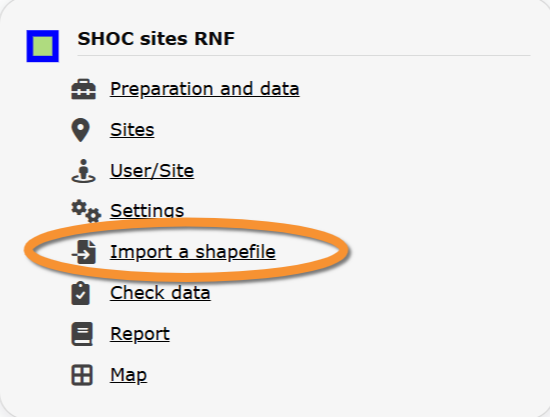
SHOC Sites RNF. Import a shapefile.
Import a shapefile with the study site and/or see all imports.
Visit wiki section Administration > Protocol management > Settings > Import a shapefile.
[Top to Import a shapefile]
[Back to SHOC Sites RNF protocol]
SHOC_SITE_RNF Check data
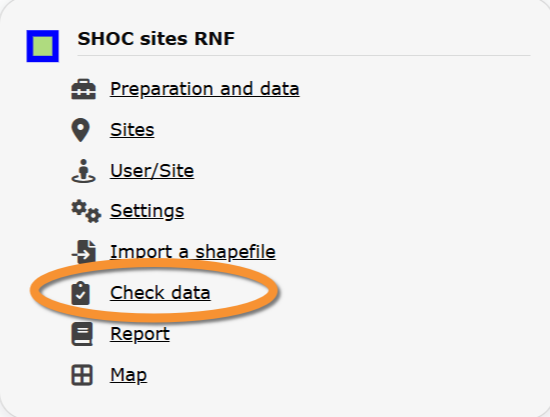
SHOC Sites RNF. Check data.
Visualise a summary of survey data.
Visit wiki section Administration > Protocol management > Check data for more information.
[Top to Check data]
[Back to SHOC Sites protocol]
SHOC_SITE_RNF Report
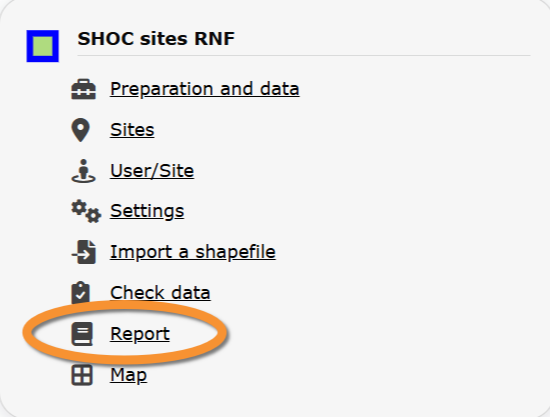
SHOC Sites RNF. Report.
Visualise pooled results from surveys.
Visit wiki section Administration > Protocol management > Report for more information.
[Top to Report]
[Back to SHOC Sites RNF protocol]
SHOC_SITE_RNF Map
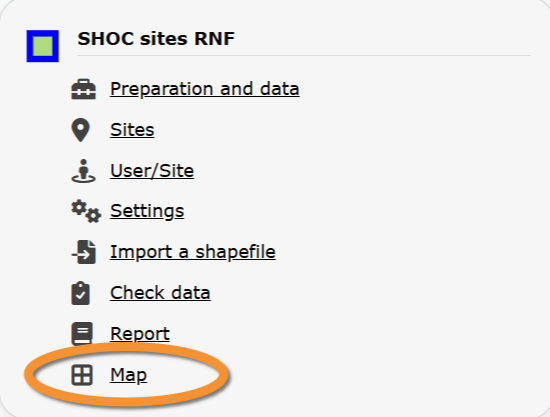
SHOC Sites RNF. Map.
Display the area map by polygon, and see its statistics.
Visit wiki section Administration > Protocol management > Map for more information.
[Top to Map]
[Top to SHOC Sites RNF protocol]
[Back to Protocols management]