Browsing records (data): Difference between revisions
No edit summary |
No edit summary |
||
| Line 13: | Line 13: | ||
<li>Log in to data.biolovision.net. </li><br/> | <li>Log in to data.biolovision.net. </li><br/> | ||
<li>Access consulting section at: Main menu > Consulting > Sightings > [[Media:Consulting menu.png|All my observations]]. </li><br/> | <li>Access consulting section at: Main menu > Consulting > Sightings > [[Media:Consulting menu.png|All my observations]]. </li><br/> | ||
<li>Select date of observation and taxonomic group to | <li>Select date of observation and taxonomic group to visualise. </li><br/> | ||
<li>Click on a species, taxonomic group or sighting to see the selected observation represented on the map. </li><br/> | <li>Click on a species, taxonomic group or sighting to see the selected observation represented on the map. </li><br/> | ||
<li>Export any data if necessary. </li><br/> | <li>Export any data if necessary. </li><br/> | ||
| Line 74: | Line 74: | ||
</div> | </div> | ||
<p style="color:black;font-size:12px;padding-left:5px;text-align:left;column-count:1;padding-right:5px;"> | <p style="color:black;font-size:12px;padding-left:5px;text-align:left;column-count:1;padding-right:5px;"> | ||
'''5. Select date:''' Change month by using the single arrows on right (move forward) and left (move backwards) of the given month (5a); change year by using double arrows on right (move forwards) and left (move backwards) of the given month (5b); and select the day by licking on it on the calendar (5c). <br/> | '''5. Select date:''' Change month by using the single arrows on right (move forward) and left (move backwards) of the given month (5a); change year by using double arrows on right (move forwards) and left (move backwards) of the given month (5b); and select the day by licking on it on the calendar (5c). The day with observation are in grey. <br/> | ||
'''6. Select taxonomic group:''' Select from the expandable menu the taxonomic group to show, or leave <b>'All taxonomic groups'</b> to see all groups. <br/> | '''6. Select taxonomic group:''' Select from the expandable menu the taxonomic group to show, or leave <b>'All taxonomic groups'</b> to see all groups. <br/> | ||
</p> | </p> | ||
Revision as of 14:51, 26 November 2024
Consulting your observations:
- Log in to data.biolovision.net.
- Access consulting section at: Main menu > Consulting > Sightings > All my observations.
- Select date of observation and taxonomic group to visualise.
- Click on a species, taxonomic group or sighting to see the selected observation represented on the map.
- Export any data if necessary.
See your submitted observations by going to the Main menu > Consulting > Sightings > All my sightings (see image below).
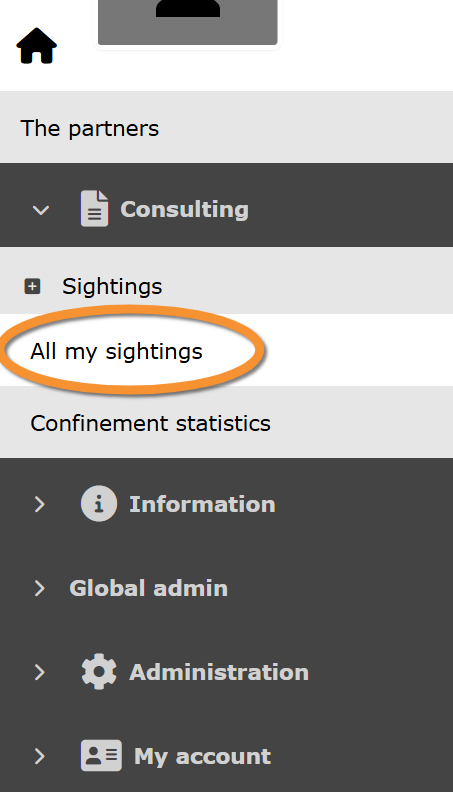
Consulting observations.
Information about your observations appear on the right part of your screen (see image below).


1. Search observations
Select searching criteria:
5. Select year, month and day to see observations on the selected date.
6. Select taxonomic group.
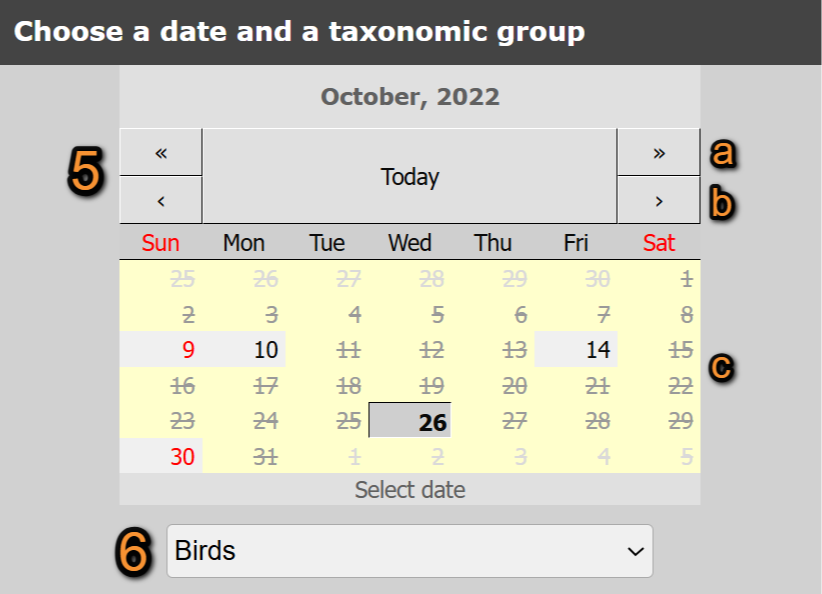
Consulting search criteria.
5. Select date: Change month by using the single arrows on right (move forward) and left (move backwards) of the given month (5a); change year by using double arrows on right (move forwards) and left (move backwards) of the given month (5b); and select the day by licking on it on the calendar (5c). The day with observation are in grey.
6. Select taxonomic group: Select from the expandable menu the taxonomic group to show, or leave 'All taxonomic groups' to see all groups.
2. Observations section
List of all observations recorded on the given date.
Click on the grey eye next to a species name, a taxonomic group or a sighting (number 9 on image below) to see the observation/s represented on the map (3. map section). When selecting a Taxonomic group, all species belonging to the group will be represented. When selecting a species, all entries of the selected species will be shown.
A yellow eye (number 10 in image below) indicates the observation/s currently represented on the map.
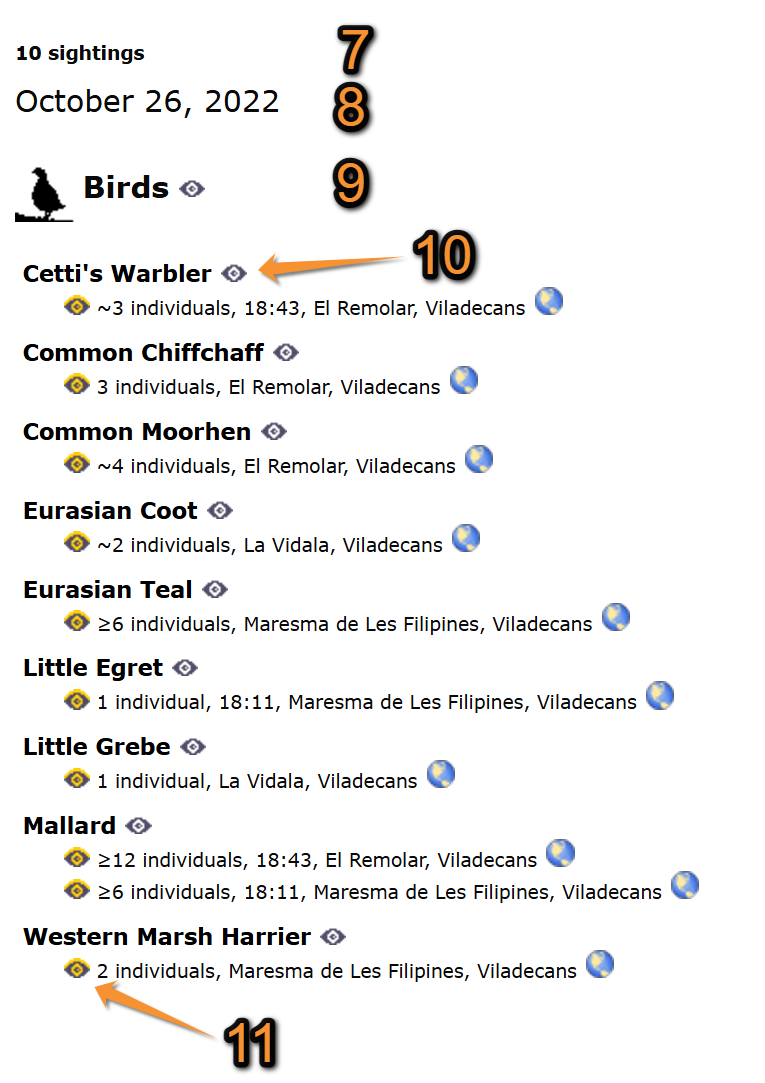
Consulting. Observations section.
7. Total number of observations at the selected date.
8. Selected date.
9. Selected taxonomic group.
10. Show on map.
11. Observations currently shown on map.
3. Map section
See the position submitted for any observation recorded. On the observation section, select which observation/s to represent.
Click on any dot to see its associated information. The active observation is represented by a yellow dot on the map, and by a yellow eye on the observation section. Inactive observations are represented by a blue dot on the map, and a grey eye on the observations section.
Visit wiki section Web interface > Local portals > Navigating the map to see how to move around the map.
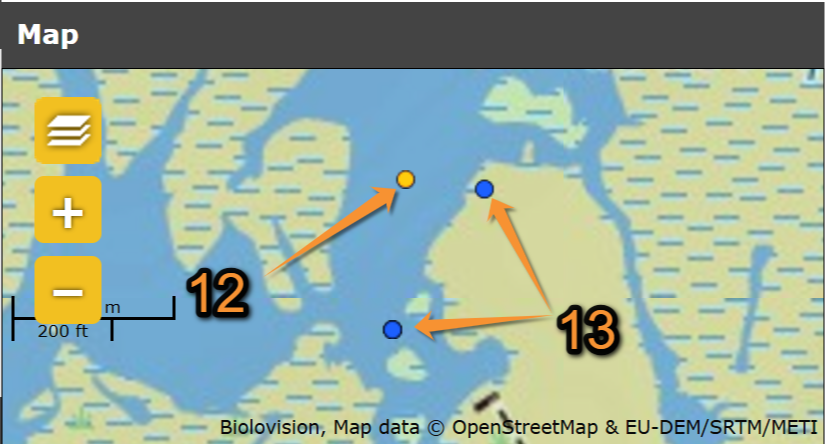
Consulting. Map section.
11. Active observation
12. Inactive observations
4. Export
Export your observations. Visit wiki section Web interface > data.biolovision.net > Export records for more information.