DDPS (NL): Difference between revisions
| Line 75: | Line 75: | ||
<br/> | <br/> | ||
This is an [[Glossary#Horizontal|horizontal protocol]], enter observations as if in a [[Entering_records#With_list_in_the_field| '''list in the field''']]. <br/> | |||
Visit wiki section Mobile interface > Protocols > Enter data > Entering records > [[Protocols#Horizontal protocols|Horizontal protocols]] for more information on horizontal protocols. <br/> | |||
[[ | |||
<br/> | |||
<br/> | <br/> | ||
Revision as of 05:25, 8 May 2025
VBS
17 DDPS territory maping
-
17.1 Start of list
17.2 Entering records
17.3 Ending the list
17.4 Editing records and/or protocols
17.5 Deleting records and/or protocols
17.6 Browsing records
|
|
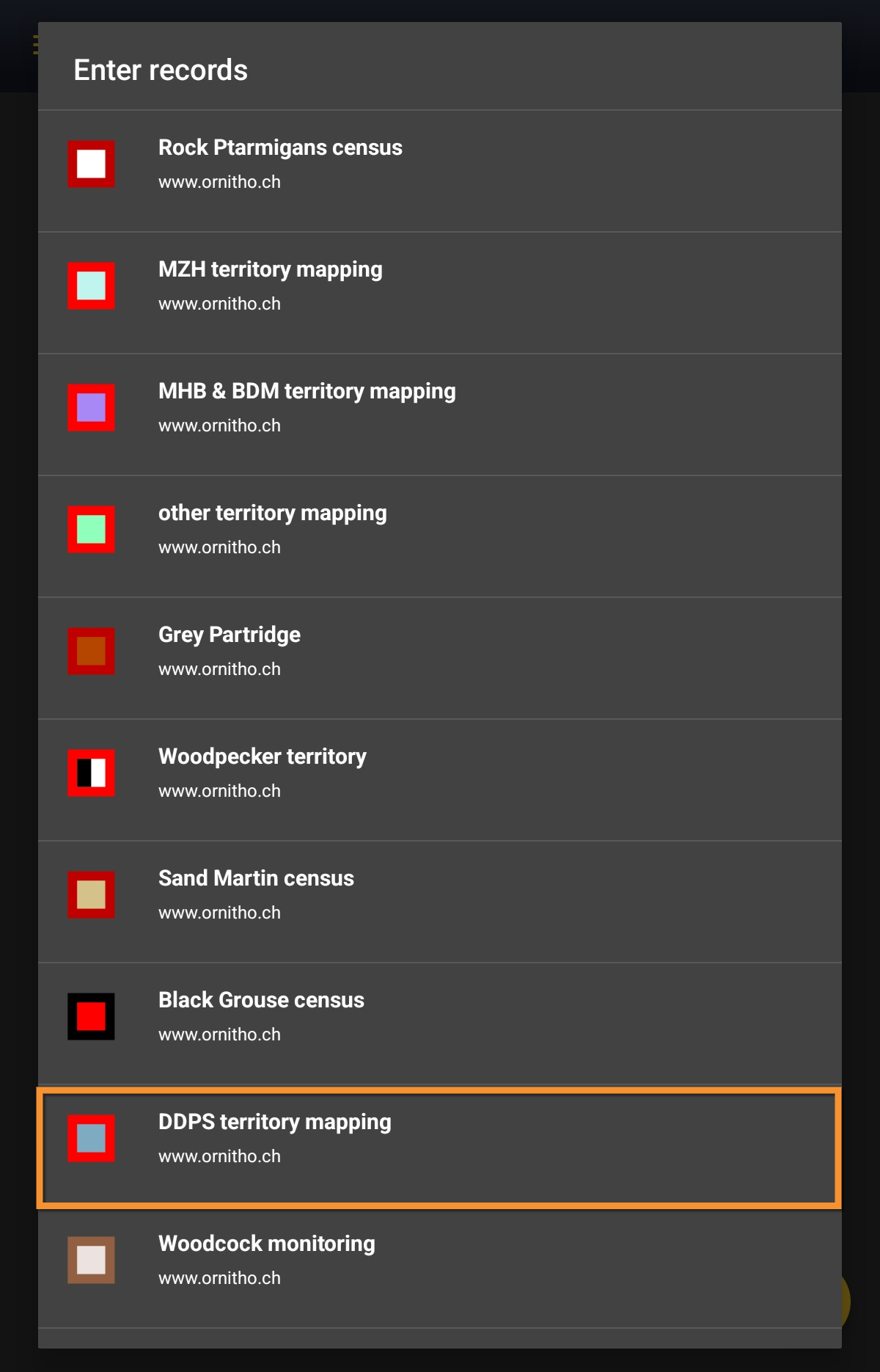
Open the menu as for Submitting records and choose DDPS territory mapping (see image below).

DDPS territory mapping. Menu.
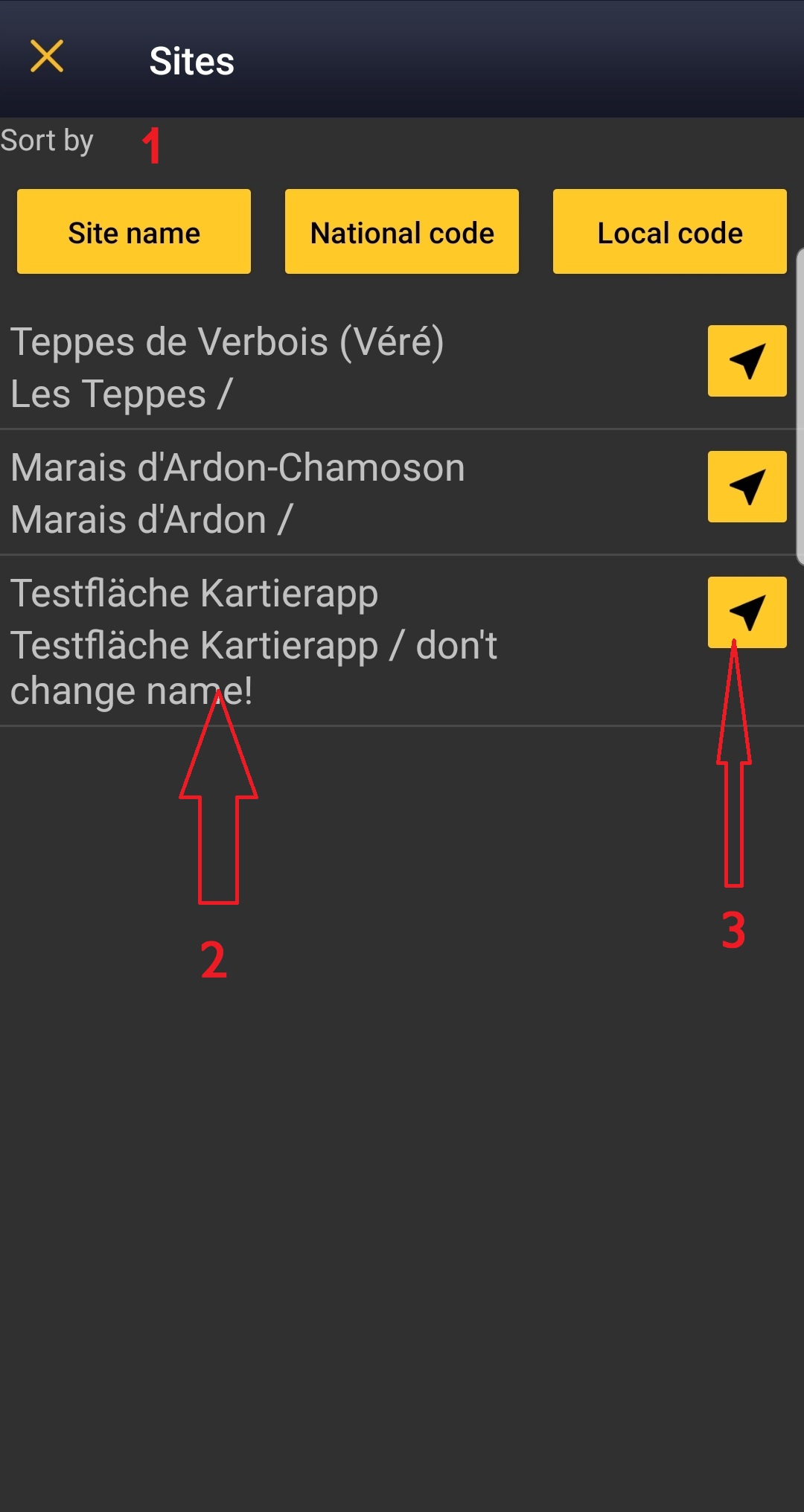
Choose the site you want to count at as explained in wiki section Mobile interface > Protocols > Enter data.
VBS Start of list
Enter general information before starting the count. Fields are protocol dependent and may change from country to country.
Visit wiki section Mobile interface > Protocols > Enter data > Start of list for details.
Click Next when done.
VBS Entering records
This is an horizontal protocol, enter observations as if in a list in the field.
Visit wiki section Mobile interface > Protocols > Enter data > Entering records > Horizontal protocols for more information on horizontal protocols.
- Place
Place your observation within the study area.
See wiki section Mobile interface > Protocols > Enter data > Entering observations > Place on how to interpret the map and place your observation.
- Species
Enter species and number of individuals.
See wiki section Mobile interface > Protocols > Enter data > Entering observations > Species on how to enter the species name. Use shortcuts if necessary.
Visit Mobile interface > Entering records > Directly in the field > Number of individuals if necessary.
- Plus
Enter additional information as if it where a detailed list.
See wiki section Mobile interface > Submitting records > Directly in the field > Step 4: Additional information on how to do it, if necessary.
When done, click Save. It will take you to the Place screen to continue entering observations.
VBS Ending the list
To finish the survey,
1. Stop recording,
2. Adjust time, if necessary,
3. Fill in/modify details, and
4. Choose type of list.
- Which species list did you count?:
- I recorded all species of the programe: You counted only the species of interest to the protocol, but you counted them all.
- All species where reported (=complete list): You counted all species seen from the point.
- I recorded all species of the programe: You counted only the species of interest to the protocol, but you counted them all.
Visit wiki section Mobile interface > Enter data > Ending the list for details, if necessary.
Remember to synchronise your data as soon as possible after entering to avoid loosing it.
VBS Editing records and/or protocols
To edit records within a protocol, or to edit the protocol's general parameters, visit wiki section Mobile interface > Editing records > Editing protocols.
VBS Deleting records and/or protocols
To delete records within a protocol, or to delete the whole protocol, visit wiki section Mobile interface > Editing records > Deleting protocols.
VBS Browsing records
See your protocoled records:
- Before synchronisation
- In the phone. See more details in wiki section Accessing your own records.
- Before synchronisation
- After synchronisation
- In Mine. See more details in wiki section Accessing records' details.
- After synchronisation
- In Under verification (only if any data of the protocol needs more information)
- In Under verification (only if any data of the protocol needs more information)
- In the local portal. Go to the corresponding local portal, Menu > Explore > All my observations.
- In the local portal. Go to the corresponding local portal, Menu > Explore > All my observations.