Website administration: Difference between revisions
m (→Logo positions) |
|||
| (103 intermediate revisions by 3 users not shown) | |||
| Line 1: | Line 1: | ||
<br/> | |||
Parameter functionalities for basic or mirror website, and define where to add and manage content. This part of the menu differs from account to account depending on the rights granted to user. All options are described below so you can find what you need even if you have not been granted full admin rights. <br/> | |||
<br/> | |||
Visit wiki section [[User_administration#Admin_users|Admin rights]] to know more about administration rights. <br/> | |||
<br/> | |||
<center> | |||
<div class="toc" style="border-radius:5px;background-color:#ffffff;padding-left:8px;padding-right:8px;padding-bottom:8px;width:300px;"> | |||
[[File:Web_admin_menu.png|300px|link=https://help.biolovision.net/images/d/d9/Web_admin_menu.png]] | |||
<div class="toc" style="border-radius:5px;padding-left:15px;text-align:left; font-size:12px;width:275px;"> | |||
'''Website administration.''' | |||
</div> | |||
</div> | |||
</center> | |||
<br/> | |||
<br/> | |||
=Admin text= | |||
<br/> | |||
Administration > Web site administration > Admin text <br/> | |||
<br/> | |||
<center> | |||
<div class="toc" style="border-radius:5px;background-color:#ffffff;padding-left:8px;padding-right:8px;padding-bottom:8px;width:700px;"> | |||
[[File:Admin_text_menu.png|700px|link=https://help.biolovision.net/images/2/2a/Admin_text_menu.png]] | |||
<div class="toc" style="border-radius:5px;padding-left:15px;text-align:left; font-size:12px;width:675px;"> | |||
'''Admin text. Menu.''' | |||
</div> | |||
</div> | |||
</center> | |||
<br/> | |||
<br/> | <br/> | ||
| Line 4: | Line 38: | ||
<br/> | <br/> | ||
Administration > Web site administration > Administration page content <br/> | Create your own pages of content and choose where to attribute them in your local portal or mirror portal. Content may be available in different languages, and can be displayed directly in the menu or linked to other pages not linked to the menu. It is possible to hide content until information is ready. <br/> | ||
<br/> | |||
Access on the web via Administration > Web site administration > Administration page content <br/> | |||
<br/> | <br/> | ||
[[File: | <center> | ||
<div class="toc" style="border-radius:5px;background-color:#ffffff;padding-left:8px;padding-right:8px;padding-bottom:8px;width:700px;"> | |||
[[File:Page content menu.png|700px|link=https://help.biolovision.net/images/d/d6/Page_content_menu.png]] | |||
<div class="toc" style="border-radius:5px;padding-left:15px;text-align:left; font-size:12px;width:675px;"> | |||
'''Admin page content. Menu.''' | |||
</div> | |||
</div> | |||
</center> | |||
<br/> | |||
<br/> | <br/> | ||
List of | List of already created content. The position of each piece of content in the main menu can be determined in Content categories. See wiki section [[Website_administration#Content_categories|Content categories]] to know more. <br/> | ||
<br/> | <br/> | ||
[[ | Use arrows under titles to alternate between ascending and descending order (see [[Media:2023-03-27 example arrows.png|image as an example]]).<br/> | ||
<br/> | <br/> | ||
''See how sub-sections above will appear on the website in [[Media:2023-04-18 Example page content.png|this example]].'' < | <center> | ||
</ | <div class="toc" style="border-radius:5px;background-color:#ffffff;padding-left:8px;padding-right:8px;width:800px;"> | ||
[[File:2023-04-18 Admin page content.png|800px|link=https://help.biolovision.net/images/f/f2/2023-04-18_Admin_page_content.png]] | |||
<div class="toc" style="border-radius:5px;padding-left:15px;text-align:left; font-size:12px;width:775px;"> | |||
'''Admin page content.''' | |||
</div> | |||
<p style="color:black;font-size:12px;padding-left:30px;text-align:left;column-count:2;"> | |||
<b>1.</b> [[Website administration#Page|Page and items]] <br/> | |||
<b>2.</b> [[Website administration#Details|Details]] <br /> | |||
<b>3.</b> [[Website administration#Edit|Edit]] <br/> | |||
<b>4.</b> [[Website administration#Delete|Delete]] <br/> | |||
<b>5.</b> [[Website administration#New|NEW]] <br/> | |||
</p> | |||
<br/> | |||
<p style="color:black;font-size:12px;padding-left:5px;text-align:left;column-count:1;padding-right:5px;"> | |||
'''Title:''' Title of page content in the language the website is selected.<br/> | |||
'''Parent menu:''' If any, section on the menu under which this content will be displayed.<br/> | |||
'''Protocol:''' If any, protocol the page content refers to. Only registered users with rights for this protocol will be able to see its content. <br/> | |||
'''Appearance order:''' Order in which the sub-section will be displayed in relation to other sub-sections under the same section.<br/> | |||
'''Visible:''' Indicates if the sub-section is visible to users.<br/> | |||
<br/> | |||
''See how sub-sections above will appear on the website in [[Media:2023-04-18 Example page content.png|this example]].'' | |||
</p> | |||
</div> | |||
</center> | |||
<br/> | |||
<br/> | |||
:'''1. | <span id="Page"></span> | ||
:'''1. Page and items''' <br/> | |||
Select page number and/or number of items per page.<br/> | Select page number and/or number of items per page.<br/> | ||
<br/> | <br/> | ||
<span id="Details"></span> | |||
:'''2. Details''' <br/> | :'''2. Details''' <br/> | ||
Click to see details of selected sub-section. <br/> | Click to see details of selected sub-section. <br/> | ||
<br/> | <br/> | ||
[[File:2023-04-19 Details page content.png| | <center> | ||
<p style=" | <div class="toc" style="border-radius:5px;background-color:#ffffff;padding-left:8px;padding-right:8px;width:800px;"> | ||
'''Title:''' Title of page in different | [[File:2023-04-19 Details page content.png|800px|link=https://help.biolovision.net/images/b/bb/2023-04-19_Details_page_content.png]] | ||
<div class="toc" style="border-radius:5px;padding-left:15px;text-align:left; font-size:12px;width:775px;"> | |||
'''Details page content.''' | |||
</div> | |||
<p style="color:black;font-size:12px;padding-left:5px;text-align:left;column-count:1;padding-right:5px;"> | |||
'''Title:''' Title of page content in different languages.<br/> | |||
'''ADMIN_CONTENT_TEXT_CONTENT:''' Page content in different languages. <br/> | '''ADMIN_CONTENT_TEXT_CONTENT:''' Page content in different languages. <br/> | ||
'''Publisher:''' Account that created the entry. <br/> | '''Publisher:''' Account that created the entry. <br/> | ||
| Line 41: | Line 112: | ||
'''Creation date:''' Date and time of content creation. <br/> | '''Creation date:''' Date and time of content creation. <br/> | ||
'''ADMIN_CONTENT_TEXT_UPDATER:''' Account that made the last update. <br/> | '''ADMIN_CONTENT_TEXT_UPDATER:''' Account that made the last update. <br/> | ||
'''Parent menu:''' | '''Parent menu:''' If any, section under which this content will be displayed on the website. <br/> | ||
'''Protocol:''' <br/> | '''Protocol:''' If any, protocol the content refers to. Only registered users with righs for this protocol will be able to see its content.<br/> | ||
''' | '''Appearance order:''' Order in which this content will appear in relation to other contents on the same section.<br/> | ||
'''Visible:''' Indicates if the content is visible to | '''Visible:''' Indicates if the content is visible to users. <br/> | ||
<br/> | <br/> | ||
'''BACK:''' Go to previous screen without saving. <br/> | '''BACK:''' Go to previous screen without saving. <br/> | ||
'''EDIT:''' Modify information (see sub-section '''Edit''' below). <br/> | '''EDIT:''' Modify information (see sub-section '''Edit''' below). <br/> | ||
'''DELETE:''' Delete entry. You will be asked to confirm. <br/> | '''DELETE:''' Delete entry. You will be asked to confirm. <br/> | ||
</p><br/> | </p> | ||
</div> | |||
</center> | |||
<br/> | |||
<br/> | |||
<span id="Edit"></span> | |||
:'''3. Edit''' <br/> | :'''3. Edit''' <br/> | ||
Modify / complete content or modify parameters of the selected sub-section. <br/> | Modify / complete content or modify parameters of the selected sub-section. <br/> | ||
<br/> | <br/> | ||
[[File:2023-04-17 Edit admin page content.png| | <center> | ||
<p style=" | <div class="toc" style="border-radius:5px;background-color:#ffffff;padding-left:8px;padding-right:8px;width:800px;"> | ||
'''BACK:''' Go to previous screen | [[File:2023-04-17 Edit admin page content.png|800px|link=https://help.biolovision.net/images/0/03/2023-04-17_Edit_admin_page_content.png]] | ||
<div class="toc" style="border-radius:5px;padding-left:15px;text-align:left; font-size:12px;width:775px;"> | |||
'''Edit admin page content.''' | |||
</div> | |||
<p style="color:black;font-size:12px;padding-left:5px;text-align:left;column-count:1;padding-right:5px;"> | |||
'''6. Title:''' Select language from the tabs on top (a) and add or modify a title in the selected language (b). If title field is left blank in any of the languages, this content will not appear in the menu when the site is visualised in a language without a title. <br/> | |||
'''7. ADMIN_CONTENT_TEXT_CONTENT:''' Select language from tabs on top (a) and type or modify the content for the selected language, as in a word file (b). <br/> | |||
'''8. Parent menu:''' Select from the expandable menu under which section to show this content. If none is selected, it will not be displayed in the menu.<br/> | |||
'''9. Protocol:''' When necessary, select a protocll to link the content to. Only registered users with rights for this protocol will see the information. <br/> | |||
'''10. Appearance order:''' Type number to indicate the order in which this sub-section will appear in relation to other sub-sections under the same section.<br/> | |||
'''11. Visible:''' Indicate if the sub-section is visible to registered users. <br/> | |||
<br/> | |||
'''BACK:''' Go to previous screen without saving. <br/> | |||
'''MODIFY:''' Save changes. <br/> | '''MODIFY:''' Save changes. <br/> | ||
</p | </p> | ||
</div> | |||
</center> | |||
<br/> | |||
<br/> | <br/> | ||
<span id="Delete"></span> | |||
:'''4. Delete''' <br/> | :'''4. Delete''' <br/> | ||
Delete the selected sub-section from the list. You will be asked to confirm.<br/> | Delete the selected sub-section from the list. You will be asked to confirm.<br/> | ||
<br/> | <br/> | ||
<span id="New"></span> | |||
:'''5. NEW''' <br/> | :'''5. NEW''' <br/> | ||
Create a new sub-section. <br/> | Create a new sub-section. <br/> | ||
<br/> | <br/> | ||
[[File:2023-04-17 New page content.png| | <center> | ||
<p style=" | <div class="toc" style="border-radius:5px;background-color:#ffffff;padding-left:8px;padding-right:8px;width:800px;"> | ||
[[File:2023-04-17 New page content.png|800px|link=https://help.biolovision.net/images/1/15/2023-04-17_New_page_content.png]] | |||
<div class="toc" style="border-radius:5px;padding-left:15px;text-align:left; font-size:12px;width:775px;"> | |||
'''New page content.''' | |||
</div> | |||
<p style="color:black;font-size:12px;padding-left:5px;text-align:left;column-count:1;padding-right:5px;"> | |||
'''6. Title:''' Select language from the tabs on top (a) and type a title in the selected language (b). Repeat to enter titles in different languages. If title field is left blank in any of the languages, this content will not appear in the menu when the site is visualised in a language without a title. <br/> | |||
'''7. ADMIN_CONTENT_TEXT_CONTENT:''' Select language from tabs on top (a) and type the content for the selected language, as in a word file (b). Repeat to enter information in different languages.<br/> | |||
'''8. Parent menu:''' Select from the expandable menu under which section this content will be displayed. If the field is left blank, this page content will not be displayed in the menu. <br/> | |||
'''9. Protocol:''' If the content relates to a protocol, select from the expandable menu the name of the protocol. Only users with rights for this protocol will access the information. <br/> | |||
'''10. Appearance order:''' Type number to indicate the order in which this sub-section will be displayed in relation to other sub-sections under the same section.<br/> | |||
'''11. Visible:''' Indicates if the sub-section is visible to users. Hide this section from users when the content is not ready for display. Contact Biolovision if you want to restrict who sees this content.<br/> | |||
<br/> | |||
'''BACK:''' Go to previous screen without saving. <br/> | '''BACK:''' Go to previous screen without saving. <br/> | ||
'''ADD:''' Save new entry. <br/> | '''ADD:''' Save new entry. <br/> | ||
</p><br/> | </p> | ||
</div> | |||
</center> | |||
<br/> | |||
<br/> | |||
<center> | |||
<div class="toc" style="border-radius: 5px; padding: 25px; text-align: left; font-family: sans-serif; color: black; width: 600px; background-color: #ffffdb"> | |||
<!-- GREEN BOX (Tips): hsl(157, 74%, 80%) | |||
YELLOW BOX (Summaries): #ffffdb" | |||
BLUE BOX (Information): hsl(201, 100%, 89%) | |||
RED BOX (Warnings): hsl(0, 77%, 78%) --> | |||
<p> | |||
<b> REMEMBER </b> when selecting an order numbers do not need to be correlated. Use very separated ones (ie. 1 and 100) if you are planning to add regularly new subsections between these two. It saves modifying the order of already existing subsections.<br/> | |||
</p> | |||
</div> | |||
</center> | |||
<br /> | |||
<br/> | |||
=Content categories= | =Content categories= | ||
| Line 98: | Line 206: | ||
<br/> | <br/> | ||
[[File:2023-04-15 Content categories.png|700px| | <center> | ||
<div class="toc" style="border-radius:5px;background-color:#ffffff;padding-left:8px;padding-right:8px;padding-bottom:8px;width:700px;"> | |||
[[File:2023-04-15 Content categories.png|700px|link=https://help.biolovision.net/images/2/26/2023-04-15_Content_categories.png]] | |||
<div class="toc" style="border-radius:5px;padding-left:15px;text-align:left; font-size:12px;width:675px;"> | |||
'''Admin content categories. Menu.''' | |||
</div> | |||
</div> | |||
</center> | |||
<br/> | |||
<br/> | <br/> | ||
| Line 104: | Line 220: | ||
<br/> | <br/> | ||
[[File:2023-04-18 content categories.png| | <center> | ||
<p style=" | <div class="toc" style="border-radius:5px;background-color:#ffffff;padding-left:8px;padding-right:8px;width:800px;"> | ||
[[File:2023-04-18 content categories.png|800px|link=https://help.biolovision.net/images/1/11/2023-04-18_content_categories.png]] | |||
<div class="toc" style="border-radius:5px;padding-left:15px;text-align:left; font-size:12px;width:775px;"> | |||
'''Content categories.''' | |||
</div> | |||
<p style="color:black;font-size:12px;padding-left:30px;text-align:left;column-count:2;"> | |||
<b>1.</b> [[Website administration#Page 2|Page and items]] <br/> | |||
<b>2.</b> [[Website administration#Details 2|Details]] <br /> | |||
<b>3.</b> [[Website administration#Edit 2|Edit]] <br/> | |||
<b>4.</b> [[Website administration#Delete 2|Delete]] <br/> | |||
<b>5.</b> [[Website administration#New 2|NEW]] <br/> | |||
</p> | |||
<br/> | |||
<p style="color:black;font-size:12px;padding-left:5px;text-align:left;column-count:1;padding-right:5px;"> | |||
'''Title of section:''' Title of additional section in the language the website is selected.<br/> | '''Title of section:''' Title of additional section in the language the website is selected.<br/> | ||
'''Parent menu:''' Section on the menu under which the additional section will show. <br/> | '''Parent menu:''' Section on the menu under which the additional section will show. <br/> | ||
| Line 112: | Line 241: | ||
'''Visible:''' Indicates if the section will be visible to registered users.<br/> | '''Visible:''' Indicates if the section will be visible to registered users.<br/> | ||
<br/> | <br/> | ||
''See how sections above will appear on the website in [[Media:2023-04-18 Example page content.png|this example]].'' <br/> | ''See how sections above will appear on the website in [[Media:2023-04-18 Example page content.png|this example]].'' <br/> | ||
</p><br/> | </p><br/> | ||
</p> | |||
</div> | |||
</center> | |||
<br/> | |||
<br/> | |||
<span id="Page 2"></span> | |||
:'''1. Search''' <br/> | :'''1. Search''' <br/> | ||
Select page number and/or number of items per page.<br/> | Select page number and/or number of items per page.<br/> | ||
<br/> | <br/> | ||
<span id="Details 2"></span> | |||
:'''2. Details''' <br/> | :'''2. Details''' <br/> | ||
Click to see details of selected section. <br/> | Click to see details of selected section. <br/> | ||
<br/> | <br/> | ||
[[File:2023-04-19 details content category.png| | <center> | ||
<p style=" | <div class="toc" style="border-radius:5px;background-color:#ffffff;padding-left:8px;padding-right:8px;width:800px;"> | ||
[[File:2023-04-19 details content category.png|800px|link=https://help.biolovision.net/images/6/66/2023-04-19_details_content_category.png]] | |||
<div class="toc" style="border-radius:5px;padding-left:15px;text-align:left; font-size:12px;width:775px;"> | |||
'''Details content category.''' | |||
</div> | |||
<p style="color:black;font-size:12px;padding-left:30px;text-align:left;column-count:2;"> | |||
<b>1.</b> [[Website administration#Page 2|Page and items]] <br/> | |||
<b>2.</b> [[Website administration#Details 2|Details]] <br /> | |||
<b>3.</b> [[Website administration#Edit 2|Edit]] <br/> | |||
<b>4.</b> [[Website administration#Delete 2|Delete]] <br/> | |||
<b>5.</b> [[Website administration#New 2|NEW]] <br/> | |||
</p> | |||
<br/> | |||
<p style="color:black;font-size:12px;padding-left:5px;text-align:left;column-count:1;padding-right:5px;"> | |||
'''Title:''' Title o category in different languages. <br/> | '''Title:''' Title o category in different languages. <br/> | ||
'''Publisher:''' Account that created the category. <br/> | '''Publisher:''' Account that created the category. <br/> | ||
| Line 136: | Line 284: | ||
'''Visible:''' Indicates if the category will be visible to registered users.<br/> | '''Visible:''' Indicates if the category will be visible to registered users.<br/> | ||
<br/> | <br/> | ||
'''BACK:''' Go to previous screen without saving. <br/> | '''BACK:''' Go to previous screen without saving. <br/> | ||
'''EDIT:''' Modify information (see section '''Edit''' below). <br/> | '''EDIT:''' Modify information (see section '''Edit''' below). <br/> | ||
'''DELETE:''' Delete entry. You will be asked to confirm. <br/> | '''DELETE:''' Delete entry. You will be asked to confirm. <br/> | ||
</p><br/> | </p> | ||
</div> | |||
</center> | |||
<br/> | |||
<br/> | |||
<span id="Edit 2"></span> | |||
:'''3. Edit''' <br/> | :'''3. Edit''' <br/> | ||
Modify / complete content or modify parameters of the selected section. <br/> | Modify / complete content or modify parameters of the selected section. <br/> | ||
<br/> | <br/> | ||
[[File:2023-04-18 Edit content categories.png| | <center> | ||
<p style=" | <div class="toc" style="border-radius:5px;background-color:#ffffff;padding-left:8px;padding-right:8px;width:800px;"> | ||
[[File:2023-04-18 Edit content categories.png|800px|link=https://help.biolovision.net/images/7/7a/2023-04-18_Edit_content_categories.png]] | |||
<div class="toc" style="border-radius:5px;padding-left:15px;text-align:left; font-size:12px;width:775px;"> | |||
'''Edit content categories.''' | |||
</div> | |||
<p style="color:black;font-size:12px;padding-left:5px;text-align:left;column-count:1;padding-right:5px;"> | |||
'''6. Title:''' Select language from the tabs on top (a) and add or modify a title in the selected language (b). If title field is left blank in any of the languages, this sub-section will not appear in the menu when the site is visualised in the language without title. <br/> | |||
'''7. Parent menu:''' Select from the expandable menu under which section to show this sub-section. <br/> | |||
'''8. ADMIN_CONTENT_TEXT_IS_OPEN:''' <br/> | |||
'''9. Appearance order:''' Type number to indicate the order in which this section will appear in relation to other sections under the same bigger section.<br/> | |||
'''10. Visible:''' Indicate if the section will be visible to registered users. <br/> | |||
<br/> | |||
'''BACK:''' Go to previous screen withoust saving. <br/> | '''BACK:''' Go to previous screen withoust saving. <br/> | ||
'''MODIFY:''' Save changes. <br/> | '''MODIFY:''' Save changes. <br/> | ||
</p | </p> | ||
</div> | |||
</center> | |||
<br/> | |||
<br/> | <br/> | ||
<span id="Delete 2"></span> | |||
:'''4. Delete''' <br/> | :'''4. Delete''' <br/> | ||
Delete the selected section from the list. You will be asked to confirm.<br/> | Delete the selected section from the list. You will be asked to confirm.<br/> | ||
<br/> | <br/> | ||
<span id="New 2"></span> | |||
:'''5. NEW''' <br/> | :'''5. NEW''' <br/> | ||
Create a new section. <br/> | Create a new section. <br/> | ||
<br/> | <br/> | ||
[[File:2023-04-18 New content category..png| | <center> | ||
<p style=" | <div class="toc" style="border-radius:5px;background-color:#ffffff;padding-left:8px;padding-right:8px;width:800px;"> | ||
[[File:2023-04-18 New content category..png|800px|link=https://help.biolovision.net/images/2/28/2023-04-18_New_content_category..png]] | |||
<div class="toc" style="border-radius:5px;padding-left:15px;text-align:left; font-size:12px;width:775px;"> | |||
'''New content category.''' | |||
</div> | |||
<p style="color:black;font-size:12px;padding-left:5px;text-align:left;column-count:1;padding-right:5px;"> | |||
'''6. Title:''' Select language from the tabs on top (a) and type a title in the selected language (b). Repeat to enter titles in different languages. If title field is left blank in any of the languages, this section will not appear in the menu when the site is visualised in the language without title. <br/> | |||
'''7. Parent menu:''' Select from the expandable menu under which bigger section will appear this section. <br/> | |||
'''8. ADMIN_CONTENT_TEXT_IS_OPEN:''' <br/> | |||
'''9. Appearance order:''' Type number to indicate the order in which this section will appear in relation to other sections under the same bigger section.<br/> | |||
'''11. Visible:''' Indicate if the section will be visible to registered users. <br/> | |||
<br/> | |||
'''BACK:''' Go to previous screen without saving. <br/> | '''BACK:''' Go to previous screen without saving. <br/> | ||
'''ADD:''' Save new entry. <br/> | '''ADD:''' Save new entry. <br/> | ||
</p | </p> | ||
</div> | |||
</center> | |||
<br/> | |||
<br/> | <br/> | ||
| Line 186: | Line 356: | ||
<br/> | <br/> | ||
[[File:2023-04-15 Admin links.png|700px| | <center> | ||
<div class="toc" style="border-radius:5px;background-color:#ffffff;padding-left:8px;padding-right:8px;padding-bottom:8px;width:700px;"> | |||
[[File:2023-04-15 Admin links.png|700px|link=https://help.biolovision.net/images/a/a5/2023-04-15_Admin_links.png]] | |||
<div class="toc" style="border-radius:5px;padding-left:15px;text-align:left; font-size:12px;width:675px;"> | |||
'''Admin links. Menu.''' | |||
</div> | |||
</div> | |||
</center> | |||
<br/> | |||
<br/> | <br/> | ||
| Line 192: | Line 370: | ||
<br/> | <br/> | ||
[[File:Admin links 2023-04-18 Admin links.png| | <center> | ||
<p style=" | <div class="toc" style="border-radius:5px;background-color:#ffffff;padding-left:8px;padding-right:8px;width:800px;"> | ||
[[File:Admin links 2023-04-18 Admin links.png|800px|link=https://help.biolovision.net/images/5/54/Admin_links_2023-04-18_Admin_links.png]] | |||
<div class="toc" style="border-radius:5px;padding-left:15px;text-align:left; font-size:12px;width:775px;"> | |||
'''Admin links.''' | |||
</div> | |||
<p style="color:black;font-size:12px;padding-left:30px;text-align:left;column-count:2;"> | |||
<b>1.</b> [[Website administration#Search 3|Search]] <br /> | |||
<b>2.</b> [[Website administration#Page 3|Page and items]] <br/> | |||
<b>3.</b> [[Website administration#Details 3|Details]] <br /> | |||
<b>4.</b> [[Website administration#Edit 3|Edit]] <br/> | |||
<b>5.</b> [[Website administration#Delete 3|Delete]] <br/> | |||
<b>6.</b> [[Website administration#New 3|New]] <br/> | |||
</p> | |||
<br/> | |||
<p style="color:black;font-size:12px;padding-left:5px;text-align:left;column-count:1;padding-right:5px;"> | |||
'''Order:''' Order in which links will appear when on the same section.<br/> | '''Order:''' Order in which links will appear when on the same section.<br/> | ||
'''Category:''' Section under which the link will appear. <br/> | '''Category:''' Section under which the link will appear. <br/> | ||
| Line 201: | Line 393: | ||
''See how parameters above will appear in the website in [[Media:2023-04-18 Example admin links.png|this example]].''<br/> | ''See how parameters above will appear in the website in [[Media:2023-04-18 Example admin links.png|this example]].''<br/> | ||
</p><br/> | </p><br/> | ||
</p> | |||
</div> | |||
</center> | |||
<br/> | |||
<br/> | |||
<span id="Search 3"></span> | |||
:'''1. Search''' <br/> | :'''1. Search''' <br/> | ||
Reduce list by typing the name of a site, or part of it, and click '''SEACH'''. When a filter is applied, click on | Reduce list by typing the name of a site, or part of it, and click '''SEACH'''. When a filter is applied, click on | ||
| Line 207: | Line 405: | ||
<br/> | <br/> | ||
<span id="Page 3"></span> | |||
:'''2. Search''' <br/> | :'''2. Search''' <br/> | ||
Select page number and/or number of items per page.<br/> | Select page number and/or number of items per page.<br/> | ||
<br/> | <br/> | ||
<span id="Details 3"></span> | |||
:'''3. Details''' <br/> | :'''3. Details''' <br/> | ||
Click to see details of selected link, including name in different languages and comments if availale. <br/> | Click to see details of selected link, including name in different languages and comments if availale. <br/> | ||
<br/> | <br/> | ||
[[File:2023-04-18 Details admin links.png| | <center> | ||
<p style=" | <div class="toc" style="border-radius:5px;background-color:#ffffff;padding-left:8px;padding-right:8px;width:800px;"> | ||
[[File:2023-04-18 Details admin links.png|800px|link=https://help.biolovision.net/images/d/dd/2023-04-18_Details_admin_links.png]] | |||
<div class="toc" style="border-radius:5px;padding-left:15px;text-align:left; font-size:12px;width:775px;"> | |||
'''Details admin links.''' | |||
</div> | |||
<p style="color:black;font-size:12px;padding-left:5px;text-align:left;column-count:1;padding-right:5px;"> | |||
'''BACK:''' Go to previous screen without saving.<br/> | '''BACK:''' Go to previous screen without saving.<br/> | ||
'''EDIT:''' Edit details. See edit subsection below. <br/> | '''EDIT:''' Edit details. See edit subsection below. <br/> | ||
'''DELETE:''' Delete entry. You will be asked to confirm. <br/> | '''DELETE:''' Delete entry. You will be asked to confirm. <br/> | ||
</p> | </p> | ||
</div> | |||
</center> | |||
<br/> | |||
<br/> | <br/> | ||
<span id="Edit 3"></span> | |||
:'''4. Edit''' <br/> | :'''4. Edit''' <br/> | ||
Modify / complete any detail. <br/> | Modify / complete any detail. <br/> | ||
<br/> | <br/> | ||
[[File:2023-04-18 Edit admin links.png| | <center> | ||
<p style=" | <div class="toc" style="border-radius:5px;background-color:#ffffff;padding-left:8px;padding-right:8px;width:800px;"> | ||
[[File:2023-04-18 Edit admin links.png|800px|link=https://help.biolovision.net/images/f/f0/2023-04-18_Edit_admin_links.png]] | |||
<div class="toc" style="border-radius:5px;padding-left:15px;text-align:left; font-size:12px;width:775px;"> | |||
'''Edit admin links.''' | |||
</div> | |||
<p style="color:black;font-size:12px;padding-left:5px;text-align:left;column-count:1;padding-right:5px;"> | |||
'''7. Category:''' Choose from the expandable menu under which section the link will appear. <br/> | |||
'''8. Order:''' Type the position in which the link will appear in relation to other links on the same section. <br/> | |||
'''9. Title:''' Choose the language to add / modify the title in from the tabs on top (a) and type / modify the text (b). <br/> | |||
'''10. URL:''' Choose the language to add / modify the link in from the tabs on top (a) and type / modify the link (b). <br/> | |||
'''11. Image:''' Check '''Cochez pour effacer l'image''' to delete the existing image, if any; and/or click on '''Choose file''' to upload an image. The existing image is shown. <br/> | |||
'''12. Comment:''' Choose the language to add / modify a comment in from the tabs on top (a) and type / modify the comment (b). <br/> | |||
<br/> | |||
'''BACK:''' Go to previous screen without saving. <br/> | '''BACK:''' Go to previous screen without saving. <br/> | ||
'''MODIFY:''' Save changes. <br/> | '''MODIFY:''' Save changes. <br/> | ||
</p | </p> | ||
</div> | |||
</center> | |||
<br/> | |||
<br/> | <br/> | ||
<span id="Delete 3"></span> | |||
:'''5. Delete''' <br/> | :'''5. Delete''' <br/> | ||
Delete link. You will be asked to confirm. <br/> | Delete link. You will be asked to confirm. <br/> | ||
<br/> | <br/> | ||
<span id="New 3"></span> | |||
:'''6. NEW''' <br/> | :'''6. NEW''' <br/> | ||
Create a new link. <br/> | Create a new link. <br/> | ||
<br/> | <br/> | ||
[[File:2023-04-18 new admin link.png| | <center> | ||
<p style=" | <div class="toc" style="border-radius:5px;background-color:#ffffff;padding-left:8px;padding-right:8px;width:800px;"> | ||
[[File:2023-04-18 new admin link.png|800px|link=https://help.biolovision.net/images/1/1d/2023-04-18_new_admin_link.png]] | |||
<div class="toc" style="border-radius:5px;padding-left:15px;text-align:left; font-size:12px;width:775px;"> | |||
'''New admin link.''' | |||
</div> | |||
<p style="color:black;font-size:12px;padding-left:5px;text-align:left;column-count:1;padding-right:5px;"> | |||
'''7. Category:''' Choose from the expandable menu under which section the link will appear. <br/> | |||
'''8. Order:''' Type the position in which the link will appear in relation to other links on the same section. <br/> | |||
'''9. Title:''' Choose the language to add a title in from the tabs on top (a) and type the text (b). Repeat the process to add the title in different languages. <br/> | |||
'''10. URL:''' Choose the language to add a link in from the tabs on top (a) and type the link (b). Repeat the process to add the link in different languages.<br/> | |||
'''11. Image:''' Click on '''Choose file''' to upload an image. When an image is uploaded, its name and format will appear next to the button. <br/> | |||
'''12. Comment:''' Choose the language to add a comment in from the tabs on top (a) and type the comment (b). Repeat the process to add a comment is different languages. <br/> | |||
<br/> | |||
'''BACK:''' Go to previous screen without saving. <br/> | '''BACK:''' Go to previous screen without saving. <br/> | ||
'''ADD:''' Save the new link. <br/> | '''ADD:''' Save the new link. <br/> | ||
</p | </p> | ||
</div> | |||
</center> | |||
<br/> | |||
<br/> | <br/> | ||
| Line 269: | Line 496: | ||
<br/> | <br/> | ||
[[File:2023-04-15 Admin FAQs.png|700px| | <center> | ||
<div class="toc" style="border-radius:5px;background-color:#ffffff;padding-left:8px;padding-right:8px;padding-bottom:8px;width:700px;"> | |||
[[File:2023-04-15 Admin FAQs.png|700px|link=https://help.biolovision.net/images/6/67/2023-04-15_Admin_FAQs.png]] | |||
<div class="toc" style="border-radius:5px;padding-left:15px;text-align:left; font-size:12px;width:675px;"> | |||
'''Admin FAQs. Menu.''' | |||
</div> | |||
</div> | |||
</center> | |||
<br/> | |||
<br/> | <br/> | ||
List of frequently asked questions. <br/> | List of frequently asked questions. Use arrows under titles to alternate between ascending and descending order (see [[Media:2023-03-27 example arrows.png|image as an example]]).<br/> | ||
<br/> | <br/> | ||
[[File:2023-04-19 Admin FAQs.png| | <center> | ||
<div class="toc" style="border-radius:5px;background-color:#ffffff;padding-left:8px;padding-right:8px;padding-bottom:8px;width:800px;"> | |||
[[File:2023-04-19 Admin FAQs.png|800px|link=https://help.biolovision.net/images/a/a2/2023-04-19_Admin_FAQs.png]] | |||
<div class="toc" style="border-radius:5px;padding-left:15px;text-align:left; font-size:12px;width:775px;"> | |||
'''Admin FAQs.''' | |||
</div> | |||
<p style="color:black;font-size:12px;padding-left:30px;text-align:left;column-count:2;"> | |||
<b>1.</b> [[Website administration#Page 6|Page and items]] <br /> | |||
<b>2.</b> [[Website administration#Details 6|Details]] <br/> | |||
<b>3.</b> [[Website administration#Edit 6|Edit]] <br /> | |||
<b>3.</b> [[Website administration#Delete 6|Delete]] <br /> | |||
<b>3.</b> [[Website administration#New 6|NEW]] <br /> | |||
</p> | |||
<br/> | |||
<p style="color:black;font-size:12px;padding-left:5px;text-align:left;column-count:1;padding-right:5px;"> | |||
'''ID:''' Question identification number. <br/> | |||
'''Display order:''' Order in which the question will be displayed in realation to other questions. <br/> | |||
'''Question:''' Question. <br/> | |||
'''Answer:''' Answer to the selected question.<br/> | |||
</p> | |||
</div> | |||
</center> | |||
<br/> | |||
<br/> | |||
<span id="Page 6"></span> | |||
:'''1. Page and items''' <br/> | |||
Select page number and/or number of items per page.<br/> | |||
<br/> | <br/> | ||
:'''1.''' | <span id="Details 6"></span> | ||
:'''2. Details''' <br/> | |||
Click to see details of selected question, including its answer and last update. <br/> | |||
<br/> | |||
<center> | |||
<div class="toc" style="border-radius:5px;background-color:#ffffff;padding-left:8px;padding-right:8px;width:700px;"> | |||
[[File:2023-04-19 Details admin FAQs.png|700px|link=https://help.biolovision.net/images/5/51/2023-04-19_Details_admin_FAQs.png]] | |||
<div class="toc" style="border-radius:5px;padding-left:15px;text-align:left; font-size:12px;width:675px;"> | |||
'''Details admin FAQs.''' | |||
</div> | |||
<p style="color:black;font-size:12px;padding-left:5px;text-align:left;column-count:1;padding-right:5px;"> | |||
'''ID:''' Question identification number.<br/> | |||
'''Question:''' Question.<br/> | |||
'''Answer:''' Answer to the question.<br/> | |||
'''Display order:''' Order in which the question will be displayed in realation to other questions.<br/> | |||
'''Last update:''' Date and time of last question update. <br/> | |||
<br/> | |||
'''BACK:''' Go to previous screen without saving. <br/> | |||
'''EDIT:''' Modify details. See sub-section edit below. <br/> | |||
'''DELETE:''' Delete question. You will be asked to confirm.<br/> | |||
</p> | |||
</div> | |||
</center> | |||
<br/> | |||
<br/> | |||
<span id="Edit 6"></span> | |||
:'''3. Edit''' <br/> | |||
Modify question or answer, or add it in a different language. <br/> | |||
<br/> | |||
<center> | |||
<div class="toc" style="border-radius:5px;background-color:#ffffff;padding-left:8px;padding-right:8px;width:700px;"> | |||
[[File:2023-04-19 Edit FAQs.png|700px|link=https://help.biolovision.net/images/5/55/2023-04-19_Edit_FAQs.png]] | |||
<div class="toc" style="border-radius:5px;padding-left:15px;text-align:left; font-size:12px;width:675px;"> | |||
'''Edit admin FAQs.''' | |||
</div> | |||
<p style="color:black;font-size:12px;padding-left:5px;text-align:left;column-count:1;padding-right:5px;"> | |||
'''6. Question:''' Select language from the tabs on top (a) and add or modify a question in the selected language (b). <br/> | |||
'''7. Answer:''' Select language from the tabs on top (a) and add or modify the answer in the selected language (b). <br/> | |||
'''8. Display order:''' Type the order in which this question will be displayed in relation to other questions. <br/> | |||
<br/> | |||
'''BACK:''' Go to previous screen without saving. <br/> | |||
'''MODIFY:''' Save changes. <br/> | |||
</p> | |||
</div> | |||
</center> | |||
<br/> | |||
<br/> | |||
<span id="Delete 6"></span> | |||
:'''4. Delete''' <br/> | |||
Delete entry. This will delete the question and its answer in all languages. You will be asked to confirm. <br/> | |||
<br/> | |||
<span id="New 6"></span> | |||
:'''5. NEW''' <br/> | |||
Create a new question. <br/> | |||
<br/> | |||
<center> | |||
<div class="toc" style="border-radius:5px;background-color:#ffffff;padding-left:8px;padding-right:8px;width:700px;"> | |||
[[File:2023-04-20 New FAQ.png|700px|link=https://help.biolovision.net/images/a/ad/2023-04-20_New_FAQ.png]] | |||
<div class="toc" style="border-radius:5px;padding-left:15px;text-align:left; font-size:12px;width:675px;"> | |||
'''New FAQ.''' | |||
</div> | |||
<p style="color:black;font-size:12px;padding-left:5px;text-align:left;column-count:1;padding-right:5px;"> | |||
'''6. Question:''' Select language from the tabs on top (a) and add or modify a question in the selected language (b). <br/> | |||
'''7. Answer:''' Select language from the tabs on top (a) and add or modify the answer in the selected language (b). <br/> | |||
'''8. Display order:''' Type the order in which this question will be displayed in relation to other questions. <br/> | |||
<br/> | |||
'''BACK:''' Go to previous screen without saving. <br/> | |||
'''ADD:''' Save changes and publish the new question. <br/> | |||
</p> | |||
</div> | |||
</center> | |||
<br/> | |||
<br/> | |||
=Import / Export places= | =Import / Export places= | ||
<br/> | <br/> | ||
Administration > Web site administration > Import/Export places <br/> | |||
<br/> | |||
<center> | |||
<div class="toc" style="border-radius:5px;background-color:#ffffff;padding-left:8px;padding-right:8px;padding-bottom:8px;width:700px;"> | |||
[[File:Capture 2023-04-15 Import-export places.png|700px|link=https://help.biolovision.net/images/c/c7/Capture_2023-04-15_Import-export_places.png]] | |||
<div class="toc" style="border-radius:5px;padding-left:15px;text-align:left; font-size:12px;width:675px;"> | |||
'''Admin import/export places. Menu.''' | |||
</div> | |||
</div> | |||
</center> | |||
<br/> | |||
<br/> | |||
[[File: | =Manage predefined answers= | ||
<br/> | |||
Administration > Web site administration > Manage predefined answers <br/> | |||
<br/> | |||
<center> | |||
<div class="toc" style="border-radius:5px;background-color:#ffffff;padding-left:8px;padding-right:8px;padding-bottom:8px;width:700px;"> | |||
[[File:Manage_answers_menu.png|700px|link=https://help.biolovision.net/images/6/68/Manage_answers_menu.png]] | |||
<div class="toc" style="border-radius:5px;padding-left:15px;text-align:left; font-size:12px;width:675px;"> | |||
'''Manage predefined answers. Menu.''' | |||
</div> | |||
</div> | |||
</center> | |||
<br/> | |||
<br/> | <br/> | ||
| Line 294: | Line 660: | ||
<br/> | <br/> | ||
[[File:2023-04-7 Sponsor management.png|700px| | <center> | ||
<div class="toc" style="border-radius:5px;background-color:#ffffff;padding-left:8px;padding-right:8px;padding-bottom:8px;width:700px;"> | |||
[[File:2023-04-7 Sponsor management.png|700px|link=https://help.biolovision.net/images/0/0e/2023-04-7_Sponsor_management.png]] | |||
<div class="toc" style="border-radius:5px;padding-left:15px;text-align:left; font-size:12px;width:675px;"> | |||
'''Sponsor management.''' | |||
</div> | |||
</div> | |||
</center> | |||
<br/> | |||
<br/> | |||
List of website sponsors and their logos. Use arrows under titles to alternate between ascending and descending order (see [[Media:2023-03-27 example arrows.png|image as an example]]).<br/> | |||
<br/> | |||
<center> | |||
<div class="toc" style="border-radius:5px;background-color:#ffffff;padding-left:8px;padding-right:8px;padding-bottom:8px;width:800px;"> | |||
[[File:2023-04-20 Sponsor management list.png|800px|link=https://help.biolovision.net/images/9/9a/2023-04-20_Sponsor_management_list.png]] | |||
<div class="toc" style="border-radius:5px;padding-left:15px;text-align:left; font-size:12px;width:775px;"> | |||
'''Sponsor management list.''' | |||
</div> | |||
<p style="color:black;font-size:12px;padding-left:30px;text-align:left;column-count:2;"> | |||
<b>1.</b> [[Website administration#Page 7|Page and items]] <br /> | |||
<b>2.</b> [[Website administration#Details 7|Details]] <br/> | |||
<b>3.</b> [[Website administration#Edit 7|Edit]] <br /> | |||
<b>4.</b> [[Website administration#Delete 7|Delete]] <br /> | |||
<b>5.</b> [[Website administration#New 7|NEW]] <br /> | |||
</p> | |||
<br/> | |||
<p style="color:black;font-size:12px;padding-left:5px;text-align:left;column-count:1;padding-right:5px;"> | |||
'''File:''' Sponsor logo. <br/> | |||
'''Position:''' Place where in the website the logo will be displayed. See subsection [[Website_administration#Logo_positions| Logo position]] below for more information.<br/> | |||
'''Language:''' Language the website should be in to display the logo. When the field is empty, the logo is displayed in all available languages.<br/> | |||
'''Weight:''' Order in which the logo will be displayed within the position in the website where it displays when their more than one logo in its position.<br/> | |||
'''Start date:''' Starting date logo display. <br/> | |||
'''End date:''' Ending date of logo display. <br/> | |||
</p> | |||
</div> | |||
</center> | |||
<br/> | |||
<br/> | |||
<span id="Page 7"></span> | |||
:'''1. Page and items''' <br/> | |||
Select page number and/or number of items per page.<br/> | |||
<br/> | |||
<span id="Details 7"></span> | |||
:'''2. Details''' <br/> | |||
Click to see details of selected sponsor. <br/> | |||
<br/> | |||
<center> | |||
<div class="toc" style="border-radius:5px;background-color:#ffffff;padding-left:8px;padding-right:8px;width:800px;"> | |||
[[File:2023-04-20 Sponsor management details.png|800px|link=https://help.biolovision.net/images/4/40/2023-04-20_Sponsor_management_details.png]] | |||
<div class="toc" style="border-radius:5px;padding-left:15px;text-align:left; font-size:12px;width:775px;"> | |||
'''Sponsor details.''' | |||
</div> | |||
<p style="color:black;font-size:12px;padding-left:5px;text-align:left;column-count:1;padding-right:5px;"> | |||
'''6. Name:''' Sponsor's name. <br/> | |||
'''7. Language:''' Language in which the website should be displayed to show the logo. If the field is blank, the logo will be displayed in all languages.<br/> | |||
'''8. Position:''' Place in the website where the logo will be displayed. See subsection [[Website_administration#Logo_positions| Logo position]] below for more information.<br/> | |||
'''9. File:''' Sponsor's logo. <br/> | |||
'''10. Start date:''' Starting date of logo display. <br/> | |||
'''11. End date:''' Ending date of logo display. <br/> | |||
'''12. Link:''' Link to sponsor's website. <br/> | |||
'''13. Weight:''' Indicates in which order you would like this logo to display within the selected position, when more than one logo are displayed on the same position. Lower names show first.<br/> | |||
<br/> | |||
'''BACK:''' Go to previous screen without saving. <br/> | |||
'''EDIT:''' Modify details. See sub-section Edit below. <br/> | |||
'''DELETE:''' Delete sponsor entry. You will be asked to confirm. <br/> | |||
</p> | |||
</div> | |||
</center> | |||
<br/> | |||
<br/> | |||
<span id="Edit 7"></span> | |||
:'''3. Edit''' <br/> | |||
Modify details. <br/> | |||
<br/> | |||
<center> | |||
<div class="toc" style="border-radius:5px;background-color:#ffffff;padding-left:8px;padding-right:8px;width:800px;"> | |||
[[File:2023-04-20 Edit sponsor.png|800px|link=https://help.biolovision.net/images/f/fe/2023-04-20_Edit_sponsor.png]] | |||
<div class="toc" style="border-radius:5px;padding-left:15px;text-align:left; font-size:12px;width:775px;"> | |||
'''Edit sponsor.''' | |||
</div> | |||
<p style="color:black;font-size:12px;padding-left:5px;text-align:left;column-count:1;padding-right:5px;"> | |||
'''6. Name:''' Modify the sponsor's name. <br/> | |||
'''7. Language:''' Change the language to display logo only in the site in the selected language. If no language is selected the logo will be visible in all languages.<br/> | |||
'''8. Position:''' Change the place in the website where the logo will be displayed by selecting from the expandable menu. See subsection [[Website_administration#Logo_positions| Logo position]] below for more information.<br/> | |||
'''9. File:''' Click on '''Choose file''' to upload a new logo for the new sponsor. Current uploaded logo is displayed on the section.<br/> | |||
'''10. Start date:''' Choose the starting date of logo display from the expandable calendar on the left, and the starting time of logo display from the expandable menu on the right. <br/> | |||
'''11. End date:''' Choose the ending date of logo display from the expandable calendar on the left, and the ending time of logo display from the expandable menu on the right. <br/> | |||
'''12. Link:''' Type a new link to sponsor's website. <br/> | |||
'''13. Weight:''' Change the number to indicate in which order you would like this logo to display within the selected position, when more than one logo are displayed on the same position. Lower names show first.<br/> | |||
<br/> | |||
'''BACK:''' Go to previous screen without saving. <br/> | |||
'''MODIFY:''' Add new sponsor to the website. <br/> | |||
</p> | |||
</div> | |||
</center> | |||
<br/> | |||
<br/> | |||
<span id="Delete 7"></span> | |||
:'''4. Delete''' <br/> | |||
Delete sponsor. Their logo will no longer be displayed on the website. You will be asked to confirm. <br/> | |||
<br/> | |||
<span id="New 7"></span> | |||
:'''5. NEW''' <br/> | |||
Announce a new sponsor. <br/> | |||
<br/> | |||
<center> | |||
<div class="toc" style="border-radius:5px;background-color:#ffffff;padding-left:8px;padding-right:8px;width:800px;"> | |||
[[File:2023-04-21 Add a new sponsor..png|800px|link=https://help.biolovision.net/images/e/ef/2023-04-21_Add_a_new_sponsor..png]] | |||
<div class="toc" style="border-radius:5px;padding-left:15px;text-align:left; font-size:12px;width:775px;"> | |||
'''Add a new sponsor.''' | |||
</div> | |||
<p style="color:black;font-size:12px;padding-left:5px;text-align:left;column-count:1;padding-right:5px;"> | |||
'''6. Name:''' Type the sponsor's name. <br/> | |||
'''7. Language:''' If necessary, select from the expandable menu the language in which the page will be displayed. If no language is selected, the logo will be displayed in all languages. <br/> | |||
'''8. Position:''' Select from the expandable menu the place in the website where the logo will be displayed. See subsection [[Website_administration#Logo_positions| Logo position]] below for more information.<br/> | |||
'''9. File:''' Click on '''Choose file''' to upload a logo for the new sponsor. It may require [[Website administration#sizes|several files]].<br/> | |||
'''10. Start date:''' Choose the starting date of logo display from the expandable calendar on the left, and the starting time of logo display from the expandable menu on the right. <br/> | |||
'''11. End date:''' Choose the ending date of logo display from the expandable calendar on the left, and the ending time of logo display from the expandable menu on the right. <br/> | |||
'''12. Link:''' Type a link to sponsor's website. <br/> | |||
'''13. Weight:''' Type a number to indicate in which order you would like this logo to display within the selected position, when more than one logo are displayed on the same position. Lower names show first.<br/> | |||
<br/> | |||
'''BACK:''' Go to previous screen without saving. <br/> | |||
'''ADD:''' Add new sponsor to the website. <br/> | |||
</p> | |||
</div> | |||
</center> | |||
<br/> | |||
<br/> | |||
===Logo positions=== | |||
<br/> | |||
Sponsor logos can be announced in different positions across the website (see images below). Some of these position may display more than one logo while others only hold one (see [[Website administration#logo table|table below]] to know more). A local site can display several logos at the same time.<br/> | |||
<br/> | |||
<center> | |||
<div class="toc" style="border-radius:5px;background-color:#ffffff;width:500px;padding-left:8px;padding-right:8px;padding-bottom:8px;"> | |||
[[File:2023-04-21 Sponsors logo positions.png|500px|link=https://help.biolovision.net/images/4/41/2023-04-21_Sponsors_logo_positions.png]]<br/> | |||
[[File:2023-04-21 Sponsors logo positions bottom..png|300px|center|link=https://help.biolovision.net/images/7/71/2023-04-21_Sponsors_logo_positions_bottom..png]] | |||
<div class="toc" style="border-radius:5px;width:475px;padding-left:15px;text-align:left; font-size:12px"> | |||
'''Sponsors logo positions.''' | |||
</div> | |||
</div> | |||
</center> | |||
<br/> | |||
<br/> | |||
<span id="logo table"></span> | |||
<center> | |||
<div style="border: 0px solid black; width: 60%; align: center;"> | |||
<table class="wikitable" style="border:1px solid black;" width="100%" align="center" ;> | |||
<tr style="padding: 25px; text-align: center; font-size: 16px; font-family: sans serif; "> | |||
<th></th> | |||
<th>Position</th> | |||
<th>Order<sup>1</sup></th> | |||
<th>Consecutive</th> | |||
</tr> | |||
<tr style="padding: 25px; text-align: center; font-family: sans-serif; color: black; background-color: white; border="> | |||
<td>1</td> | |||
<td>On the Top left corner</td> | |||
<td>YES</td> | |||
<td>NO</td> | |||
</tr> | |||
<tr style="padding: 25px; text-align: center; font-family: sans-serif; color: black; background-color: white;"> | |||
<td>2</td> | |||
<td>On the left under the menu</td> | |||
<td>NO</td> | |||
<td>Vertically</td> | |||
</tr> | |||
<tr style="padding: 25px; text-align: center; font-family: sans-serif; color: black; background-color: white;"> | |||
<td>3</td> | |||
<td>On the top right corner</td> | |||
<td>NO</td> | |||
<td>Horizontally</td> | |||
</tr> | |||
<tr style="padding: 25px; text-align: center; font-family: sans-serif; color: black; background-color: white;"> | |||
<td>4</td> | |||
<td>On the right column<sup>2,3</sup></td> | |||
<td>YES</td> | |||
<td>NO</td> | |||
</tr> | |||
<tr style="padding: 25px; text-align: center; font-family: sans-serif; color: black; background-color: white;"> | |||
<td>5</td> | |||
<td>At the bottom of the page</td> | |||
<td>NO</td> | |||
<td>Horizontally</td> | |||
</tr> | |||
</table> | |||
<p style="font-size: 12px; text-align: left;"> | |||
<sup>1</sup> If the order of the logo is not random within the indicated position, use '''Weight''' to choose in which position its logo will be displayed. Logo with lower weight value will be displayed before logos with higher weight values.<br/> | |||
<sup>2</sup> Logos in this position are only visible in the Home page.<br/> | |||
<sup>3</sup> Requires [[Website administration#sizes|several logos]] for responsive interface. <br/> | |||
</p> | |||
</div> | |||
</center> | |||
<br/> | |||
<br/> | |||
<span id="sizes"></span> | |||
<center> | |||
<div class="toc" style="border-radius: 5px; padding: 25px; text-align: left; font-family: sans-serif; color: black; width: 90%; background-color: white"> | |||
<b> Logos on the right column</b><br/> | |||
Responsive interfaces require uploading an images with three different sizes. <br/> | |||
See recommended sizes for images below, and examples of how they look like. Length and width are given in pixels.<br/> | |||
<span style="color: #000000; margin-left: 25px;"><b>· [[Media:Small.png|Small]]:</b> 680 px X 320 px, or 960 px X 320 px <br/> | |||
<span style="color: #000000; margin-left: 25px;"><b>· [[Media:Medium.png|Medium]]:</b> 960 px X 280 px, or 1600 px X 320 px <br/> | |||
<span style="color: #000000; margin-left: 25px;"><b>· [[Media:Large.png|Large]]:</b> 1640 px X 320 px, or 2600 px X 320 px <br/> | |||
<center> | |||
<div class="toc" style="border-radius:5px;background-color:#ffffff;padding-left:8px;padding-right:8px;padding-bottom:8px;width:600px;"> | |||
[[File:Ads size.png|600x600px]] | |||
<div class="toc" style="border-radius:5px;padding-left:15px;text-align:left; font-size:12px;width:575px;"> | |||
'''Recommended sizes for responsive interfaces.''' | |||
</div> | |||
<p style="color:black;font-size:12px;padding-left:30px;text-align:left;column-count:2;"> | |||
<b>a.</b> [[Media:Small.png|Small]] | |||
</p> | |||
<p style="color:black;font-size:12px;padding-left:30px;text-align:left;column-count:2;"> | |||
<b>b.</b> [[Media:Medium.png|Medium]] | |||
</p> | |||
<p style="color:black;font-size:12px;padding-left:30px;text-align:left;column-count:2;"> | |||
<b>c.</b> [[Media:Large.png|Large]] <br /> | |||
</p> | |||
<p style="color:black;font-size:12px;padding-left:5px;text-align:left;column-count:1;padding-right:5px;"> | |||
<span style="color: #000000; margin-left: 25px;"><b>· </b><i> Note all sizes are given in pixels. </i><br/> | |||
<span style="color: #000000; margin-left: 25px;"><b>· </b>Click on name to see example. | |||
</div> | |||
</center> | |||
<br/> | |||
<br/> | |||
</div> | |||
</center> | |||
<br /> | |||
==Audience== | |||
<br/> | <br/> | ||
| Line 303: | Line 921: | ||
<br/> | <br/> | ||
[[File:2023-04-17 Restitutions polygons list.png|700px| | <center> | ||
<div class="toc" style="border-radius:5px;background-color:#ffffff;padding-left:8px;padding-right:8px;padding-bottom:8px;width:700px;"> | |||
[[File:2023-04-17 Restitutions polygons list.png|700px|link=https://help.biolovision.net/images/4/41/2023-04-17_Restitutions_polygons_list.png]] | |||
<div class="toc" style="border-radius:5px;padding-left:15px;text-align:left; font-size:12px;width:675px;"> | |||
'''Restitutions polygons list.''' | |||
</div> | |||
</div> | |||
</center> | |||
<br/> | |||
<br/> | <br/> | ||
Latest revision as of 02:08, 26 November 2025
Parameter functionalities for basic or mirror website, and define where to add and manage content. This part of the menu differs from account to account depending on the rights granted to user. All options are described below so you can find what you need even if you have not been granted full admin rights.
Visit wiki section Admin rights to know more about administration rights.
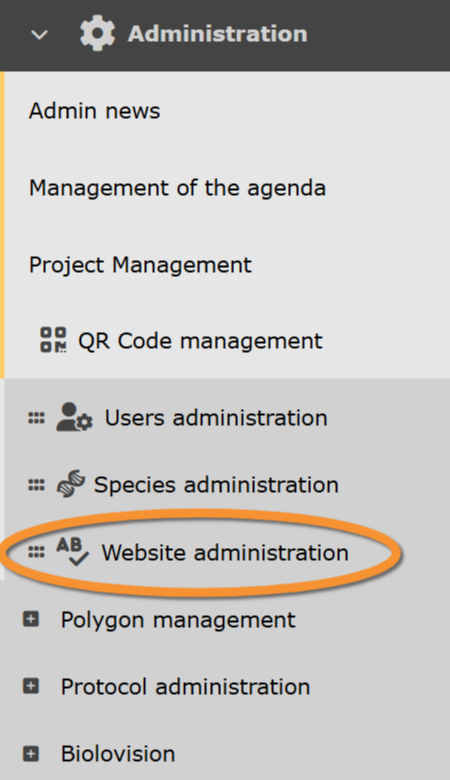
Website administration.
Admin text
Administration > Web site administration > Admin text
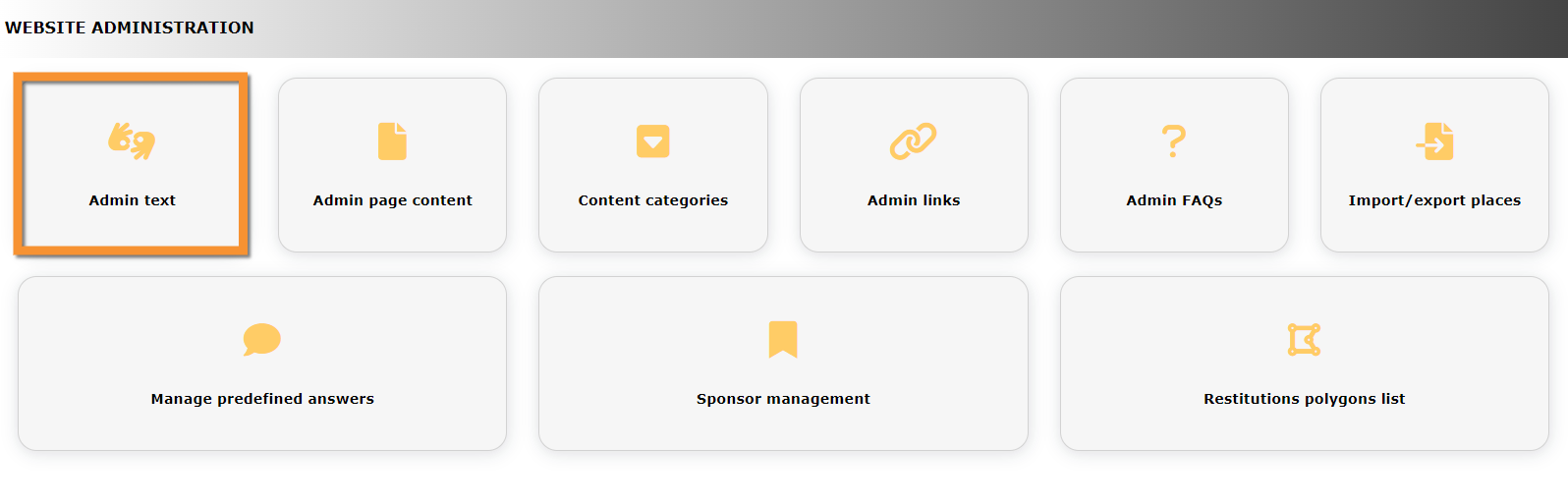
Admin text. Menu.
Admin page content
Create your own pages of content and choose where to attribute them in your local portal or mirror portal. Content may be available in different languages, and can be displayed directly in the menu or linked to other pages not linked to the menu. It is possible to hide content until information is ready.
Access on the web via Administration > Web site administration > Administration page content
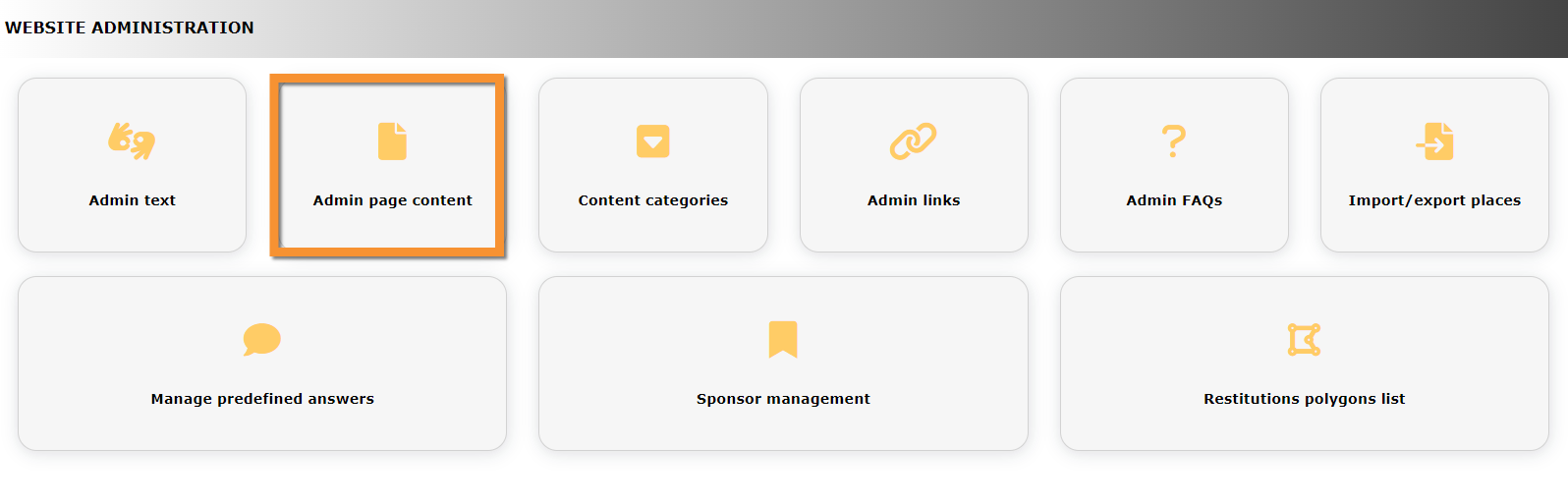
Admin page content. Menu.
List of already created content. The position of each piece of content in the main menu can be determined in Content categories. See wiki section Content categories to know more.
Use arrows under titles to alternate between ascending and descending order (see image as an example).
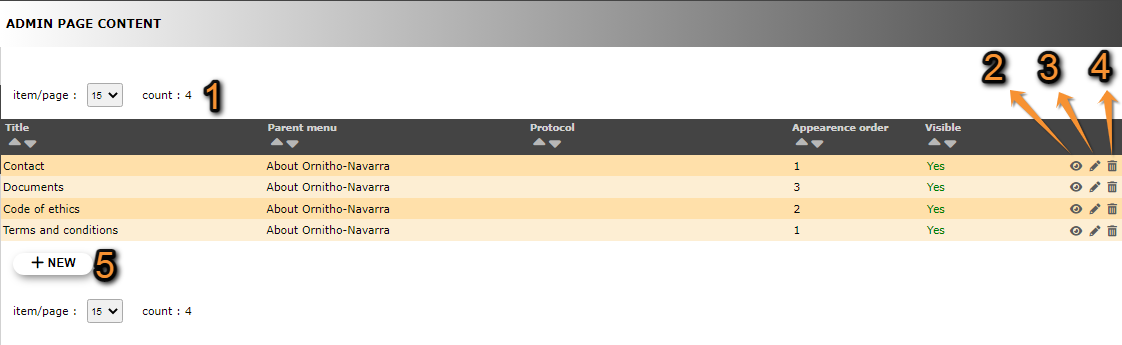
Admin page content.
1. Page and items
2. Details
3. Edit
4. Delete
5. NEW
Title: Title of page content in the language the website is selected.
Parent menu: If any, section on the menu under which this content will be displayed.
Protocol: If any, protocol the page content refers to. Only registered users with rights for this protocol will be able to see its content.
Appearance order: Order in which the sub-section will be displayed in relation to other sub-sections under the same section.
Visible: Indicates if the sub-section is visible to users.
See how sub-sections above will appear on the website in this example.
- 1. Page and items
Select page number and/or number of items per page.
- 2. Details
Click to see details of selected sub-section.

Details page content.
Title: Title of page content in different languages.
ADMIN_CONTENT_TEXT_CONTENT: Page content in different languages.
Publisher: Account that created the entry.
ADMIN_CONTENT_LIST_TEXT_UPDATE_DATE: Date and time of last update.
Creation date: Date and time of content creation.
ADMIN_CONTENT_TEXT_UPDATER: Account that made the last update.
Parent menu: If any, section under which this content will be displayed on the website.
Protocol: If any, protocol the content refers to. Only registered users with righs for this protocol will be able to see its content.
Appearance order: Order in which this content will appear in relation to other contents on the same section.
Visible: Indicates if the content is visible to users.
BACK: Go to previous screen without saving.
EDIT: Modify information (see sub-section Edit below).
DELETE: Delete entry. You will be asked to confirm.
- 3. Edit
Modify / complete content or modify parameters of the selected sub-section.
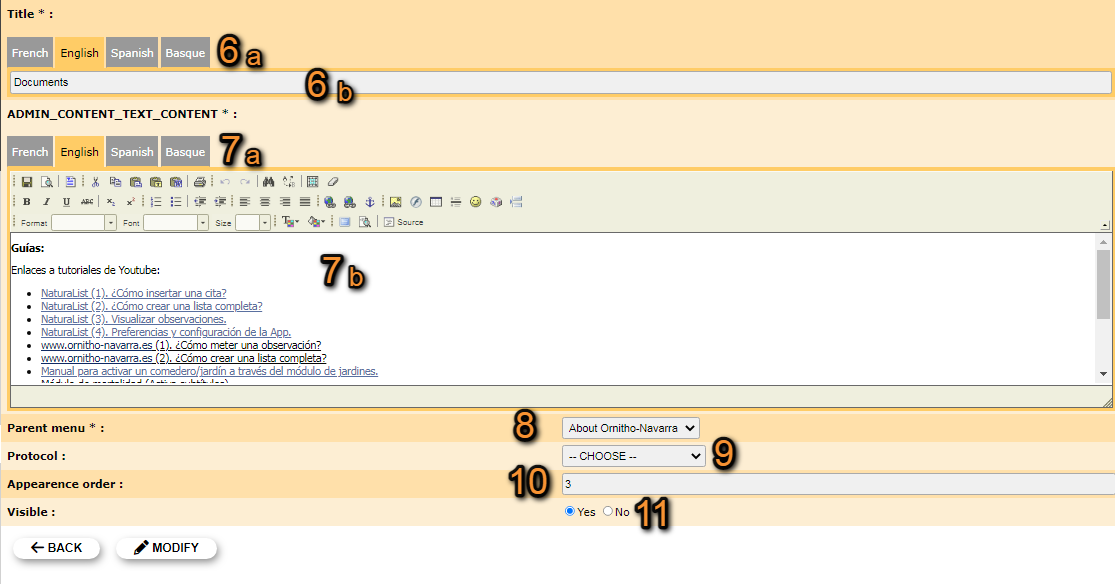
Edit admin page content.
6. Title: Select language from the tabs on top (a) and add or modify a title in the selected language (b). If title field is left blank in any of the languages, this content will not appear in the menu when the site is visualised in a language without a title.
7. ADMIN_CONTENT_TEXT_CONTENT: Select language from tabs on top (a) and type or modify the content for the selected language, as in a word file (b).
8. Parent menu: Select from the expandable menu under which section to show this content. If none is selected, it will not be displayed in the menu.
9. Protocol: When necessary, select a protocll to link the content to. Only registered users with rights for this protocol will see the information.
10. Appearance order: Type number to indicate the order in which this sub-section will appear in relation to other sub-sections under the same section.
11. Visible: Indicate if the sub-section is visible to registered users.
BACK: Go to previous screen without saving.
MODIFY: Save changes.
- 4. Delete
Delete the selected sub-section from the list. You will be asked to confirm.
- 5. NEW
Create a new sub-section.

New page content.
6. Title: Select language from the tabs on top (a) and type a title in the selected language (b). Repeat to enter titles in different languages. If title field is left blank in any of the languages, this content will not appear in the menu when the site is visualised in a language without a title.
7. ADMIN_CONTENT_TEXT_CONTENT: Select language from tabs on top (a) and type the content for the selected language, as in a word file (b). Repeat to enter information in different languages.
8. Parent menu: Select from the expandable menu under which section this content will be displayed. If the field is left blank, this page content will not be displayed in the menu.
9. Protocol: If the content relates to a protocol, select from the expandable menu the name of the protocol. Only users with rights for this protocol will access the information.
10. Appearance order: Type number to indicate the order in which this sub-section will be displayed in relation to other sub-sections under the same section.
11. Visible: Indicates if the sub-section is visible to users. Hide this section from users when the content is not ready for display. Contact Biolovision if you want to restrict who sees this content.
BACK: Go to previous screen without saving.
ADD: Save new entry.
REMEMBER when selecting an order numbers do not need to be correlated. Use very separated ones (ie. 1 and 100) if you are planning to add regularly new subsections between these two. It saves modifying the order of already existing subsections.
Content categories
Administration > Web site administration > Content categories

Admin content categories. Menu.
List of sections in the main menu under which to organise subsections explained in Admin page content. Use arrows under titles to alternate between ascending and descending order (see image as an example).
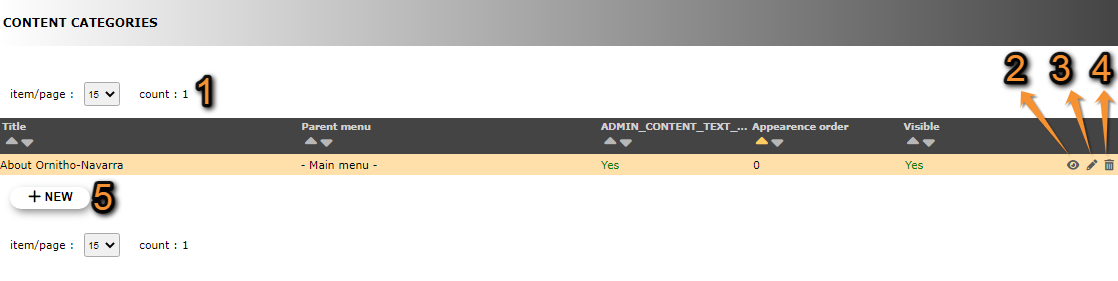
Content categories.
1. Page and items
2. Details
3. Edit
4. Delete
5. NEW
Title of section: Title of additional section in the language the website is selected.
Parent menu: Section on the menu under which the additional section will show.
ADMIN_CONTENT_TEXT_IS_OPEN:
Appearance order: Order in which the section will appear in relation to other section under the same bigger section.
Visible: Indicates if the section will be visible to registered users.
See how sections above will appear on the website in this example.
- 1. Search
Select page number and/or number of items per page.
- 2. Details
Click to see details of selected section.
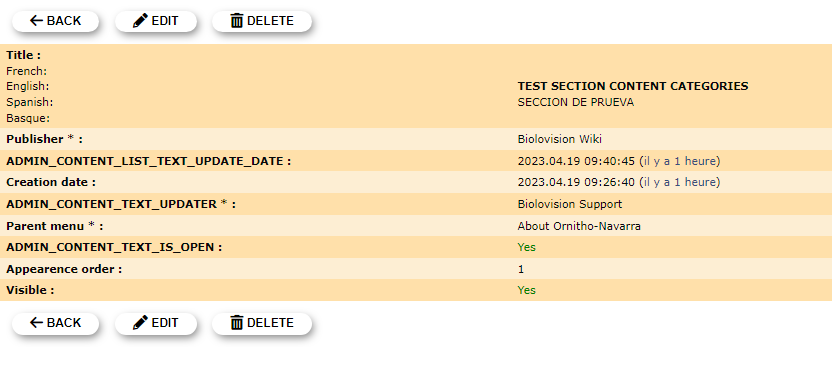
Details content category.
1. Page and items
2. Details
3. Edit
4. Delete
5. NEW
Title: Title o category in different languages.
Publisher: Account that created the category.
ADMIN_CONTENT_LIST_TEXT_UPDATE_DATE: Date and time of last update.
Creation date: Date and time of creation.
ADMIN_CONTENT_TEXT_UPDATER: Account that last updated the category.
Parent menu: Section under which the category will appear.
ADMIN_CONTENT_TEXT_IS_OPEN:
Appearence order: Order in which this category will appear in relation to other categories in the same section.
Visible: Indicates if the category will be visible to registered users.
BACK: Go to previous screen without saving.
EDIT: Modify information (see section Edit below).
DELETE: Delete entry. You will be asked to confirm.
- 3. Edit
Modify / complete content or modify parameters of the selected section.
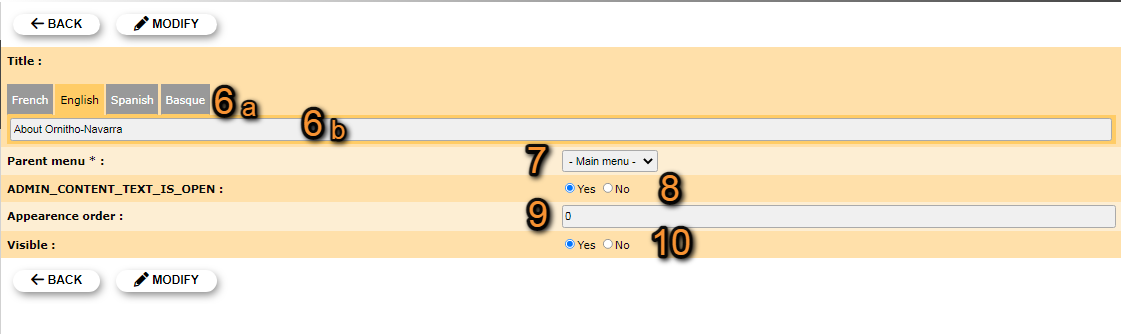
Edit content categories.
6. Title: Select language from the tabs on top (a) and add or modify a title in the selected language (b). If title field is left blank in any of the languages, this sub-section will not appear in the menu when the site is visualised in the language without title.
7. Parent menu: Select from the expandable menu under which section to show this sub-section.
8. ADMIN_CONTENT_TEXT_IS_OPEN:
9. Appearance order: Type number to indicate the order in which this section will appear in relation to other sections under the same bigger section.
10. Visible: Indicate if the section will be visible to registered users.
BACK: Go to previous screen withoust saving.
MODIFY: Save changes.
- 4. Delete
Delete the selected section from the list. You will be asked to confirm.
- 5. NEW
Create a new section.
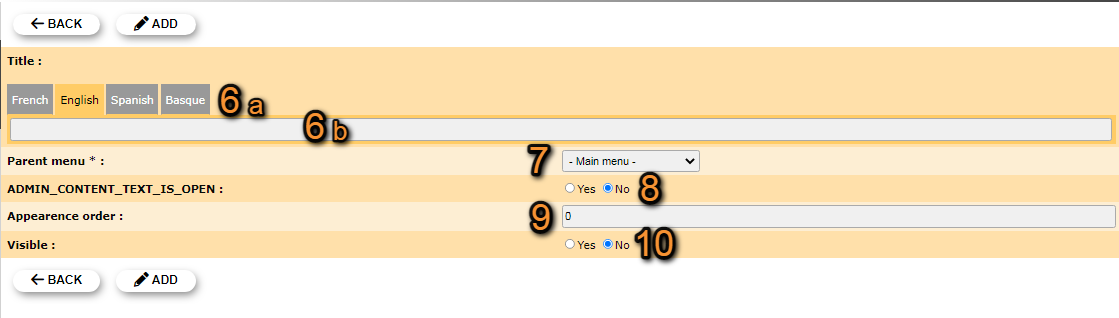
New content category.
6. Title: Select language from the tabs on top (a) and type a title in the selected language (b). Repeat to enter titles in different languages. If title field is left blank in any of the languages, this section will not appear in the menu when the site is visualised in the language without title.
7. Parent menu: Select from the expandable menu under which bigger section will appear this section.
8. ADMIN_CONTENT_TEXT_IS_OPEN:
9. Appearance order: Type number to indicate the order in which this section will appear in relation to other sections under the same bigger section.
11. Visible: Indicate if the section will be visible to registered users.
BACK: Go to previous screen without saving.
ADD: Save new entry.
Admin links
Administration > Web site administration > Admin links
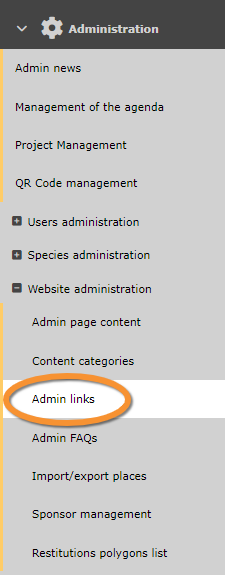
Admin links. Menu.
Add clickable links to any of the sections. Use arrows under titles to alternate between ascending and descending order (see image as an example).
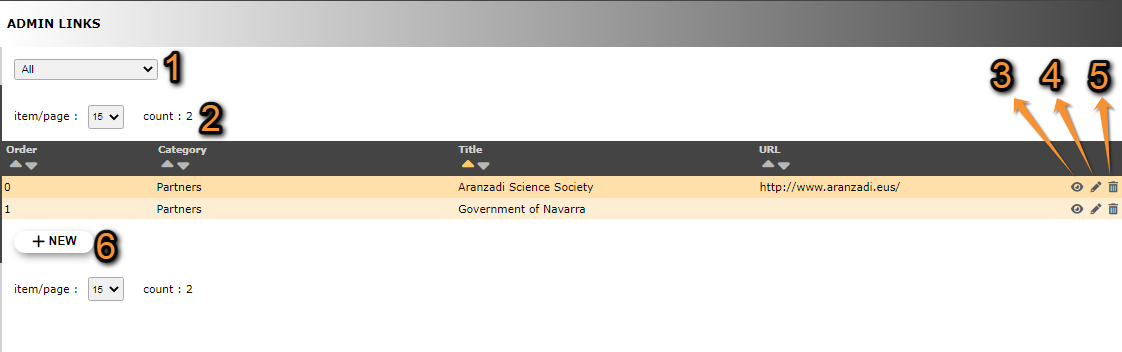
Admin links.
1. Search
2. Page and items
3. Details
4. Edit
5. Delete
6. New
Order: Order in which links will appear when on the same section.
Category: Section under which the link will appear.
Title: Title under whcih the link will appear.
URL: Electronic address of the site.
See how parameters above will appear in the website in this example.
- 1. Search
Reduce list by typing the name of a site, or part of it, and click SEACH. When a filter is applied, click on
DISPLAY ALL.
- 2. Search
Select page number and/or number of items per page.
- 3. Details
Click to see details of selected link, including name in different languages and comments if availale.
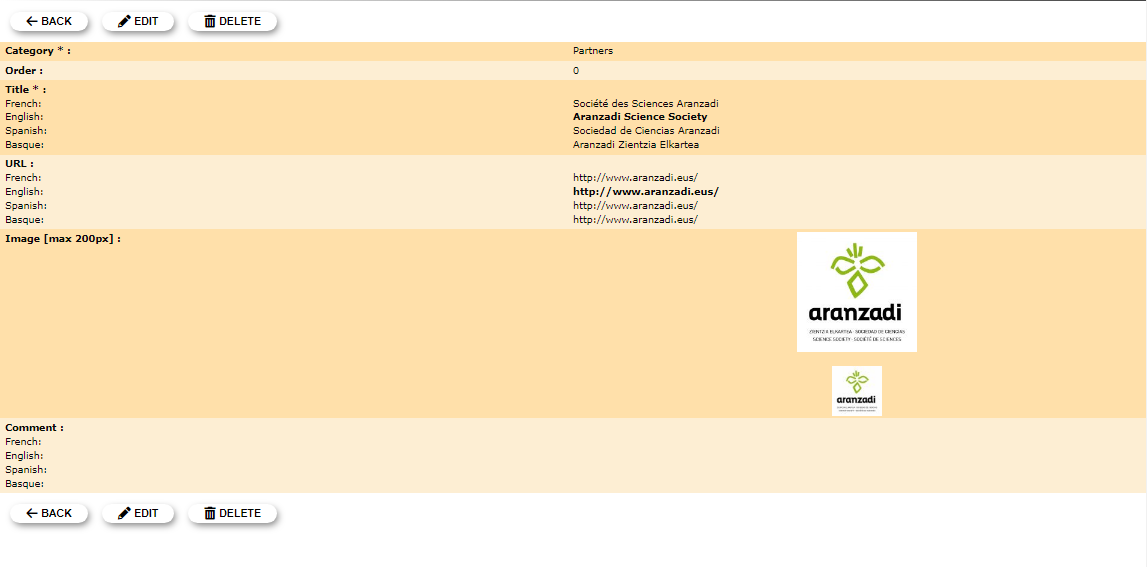
Details admin links.
BACK: Go to previous screen without saving.
EDIT: Edit details. See edit subsection below.
DELETE: Delete entry. You will be asked to confirm.
- 4. Edit
Modify / complete any detail.
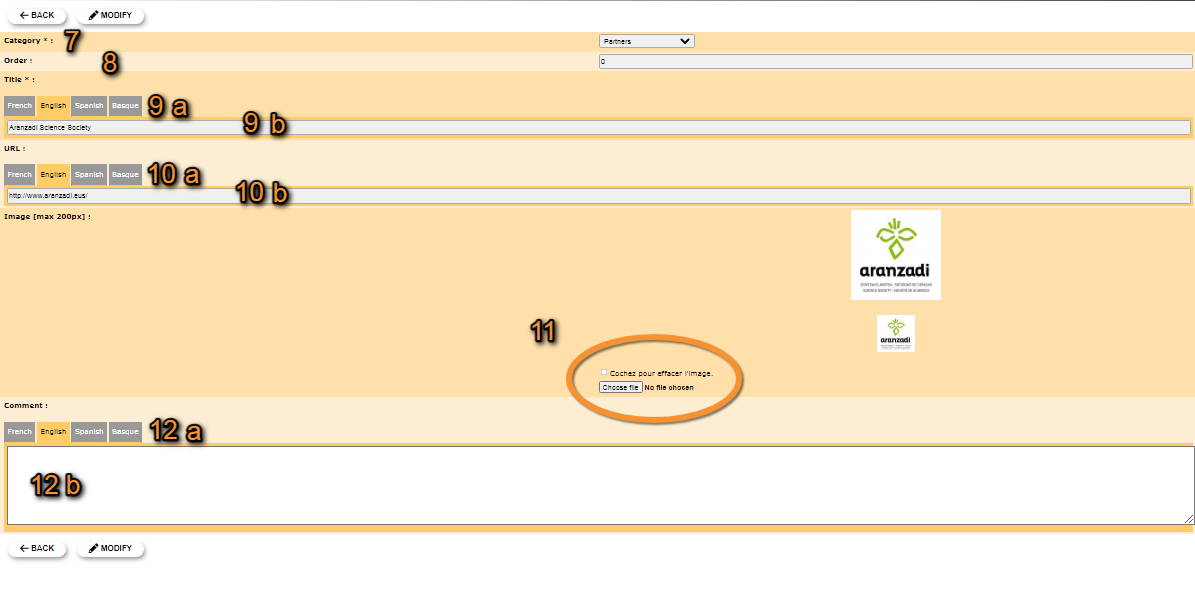
Edit admin links.
7. Category: Choose from the expandable menu under which section the link will appear.
8. Order: Type the position in which the link will appear in relation to other links on the same section.
9. Title: Choose the language to add / modify the title in from the tabs on top (a) and type / modify the text (b).
10. URL: Choose the language to add / modify the link in from the tabs on top (a) and type / modify the link (b).
11. Image: Check Cochez pour effacer l'image to delete the existing image, if any; and/or click on Choose file to upload an image. The existing image is shown.
12. Comment: Choose the language to add / modify a comment in from the tabs on top (a) and type / modify the comment (b).
BACK: Go to previous screen without saving.
MODIFY: Save changes.
- 5. Delete
Delete link. You will be asked to confirm.
- 6. NEW
Create a new link.
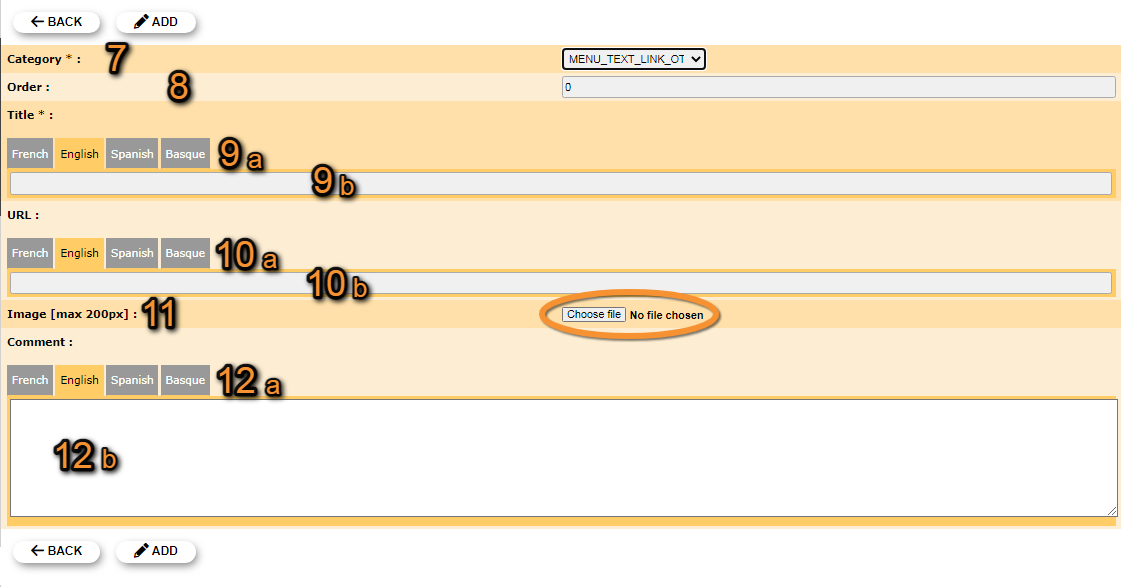
New admin link.
7. Category: Choose from the expandable menu under which section the link will appear.
8. Order: Type the position in which the link will appear in relation to other links on the same section.
9. Title: Choose the language to add a title in from the tabs on top (a) and type the text (b). Repeat the process to add the title in different languages.
10. URL: Choose the language to add a link in from the tabs on top (a) and type the link (b). Repeat the process to add the link in different languages.
11. Image: Click on Choose file to upload an image. When an image is uploaded, its name and format will appear next to the button.
12. Comment: Choose the language to add a comment in from the tabs on top (a) and type the comment (b). Repeat the process to add a comment is different languages.
BACK: Go to previous screen without saving.
ADD: Save the new link.
Admin FAQs
Administration > Web site administration > Admin FAQs
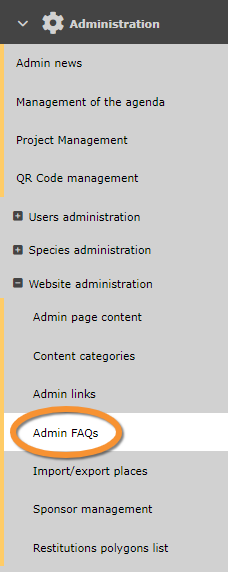
Admin FAQs. Menu.
List of frequently asked questions. Use arrows under titles to alternate between ascending and descending order (see image as an example).
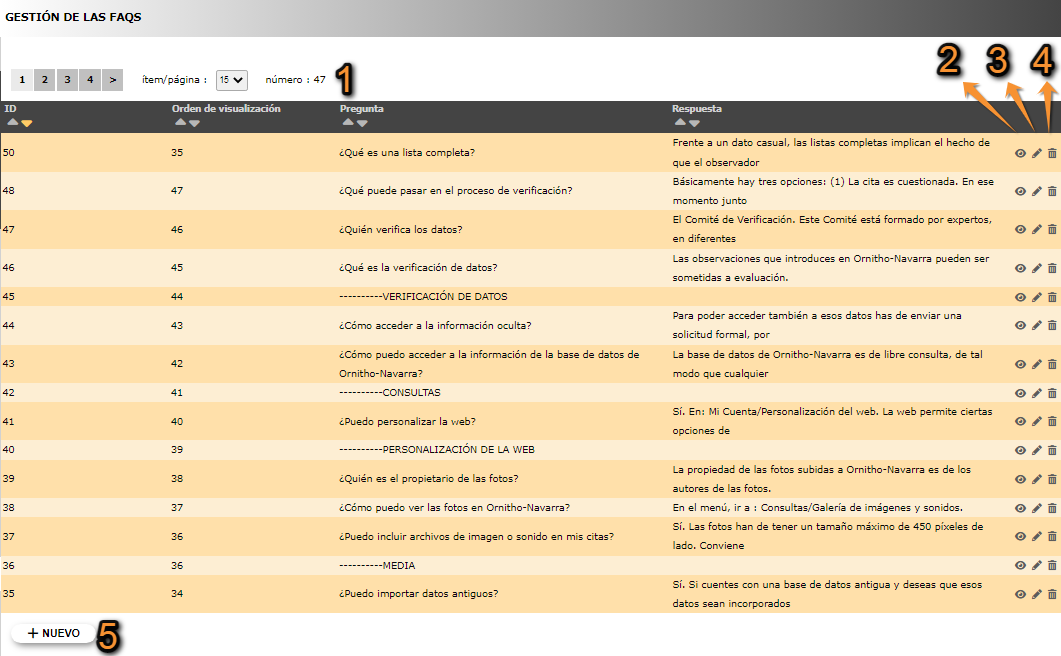
Admin FAQs.
1. Page and items
2. Details
3. Edit
3. Delete
3. NEW
ID: Question identification number.
Display order: Order in which the question will be displayed in realation to other questions.
Question: Question.
Answer: Answer to the selected question.
- 1. Page and items
Select page number and/or number of items per page.
- 2. Details
Click to see details of selected question, including its answer and last update.

Details admin FAQs.
ID: Question identification number.
Question: Question.
Answer: Answer to the question.
Display order: Order in which the question will be displayed in realation to other questions.
Last update: Date and time of last question update.
BACK: Go to previous screen without saving.
EDIT: Modify details. See sub-section edit below.
DELETE: Delete question. You will be asked to confirm.
- 3. Edit
Modify question or answer, or add it in a different language.

Edit admin FAQs.
6. Question: Select language from the tabs on top (a) and add or modify a question in the selected language (b).
7. Answer: Select language from the tabs on top (a) and add or modify the answer in the selected language (b).
8. Display order: Type the order in which this question will be displayed in relation to other questions.
BACK: Go to previous screen without saving.
MODIFY: Save changes.
- 4. Delete
Delete entry. This will delete the question and its answer in all languages. You will be asked to confirm.
- 5. NEW
Create a new question.

New FAQ.
6. Question: Select language from the tabs on top (a) and add or modify a question in the selected language (b).
7. Answer: Select language from the tabs on top (a) and add or modify the answer in the selected language (b).
8. Display order: Type the order in which this question will be displayed in relation to other questions.
BACK: Go to previous screen without saving.
ADD: Save changes and publish the new question.
Import / Export places
Administration > Web site administration > Import/Export places
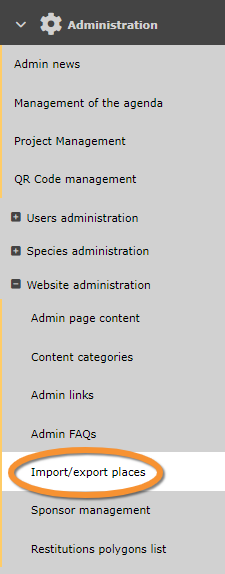
Admin import/export places. Menu.
Manage predefined answers
Administration > Web site administration > Manage predefined answers

Manage predefined answers. Menu.
Sponsor management
Administration > Web site administration > Sponsor management
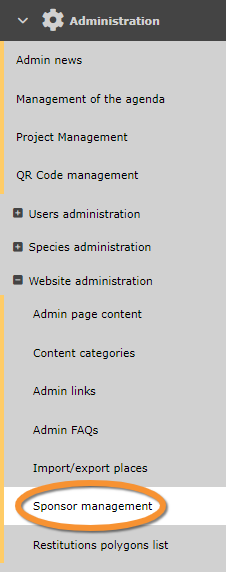
Sponsor management.
List of website sponsors and their logos. Use arrows under titles to alternate between ascending and descending order (see image as an example).
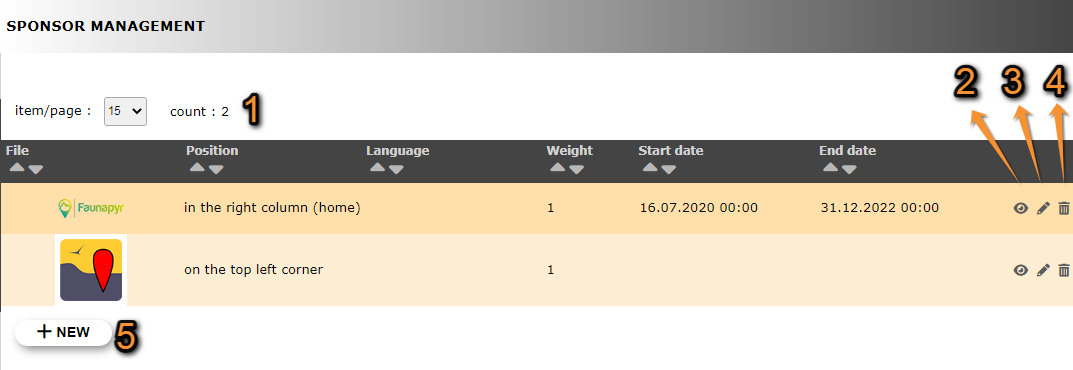
Sponsor management list.
1. Page and items
2. Details
3. Edit
4. Delete
5. NEW
File: Sponsor logo.
Position: Place where in the website the logo will be displayed. See subsection Logo position below for more information.
Language: Language the website should be in to display the logo. When the field is empty, the logo is displayed in all available languages.
Weight: Order in which the logo will be displayed within the position in the website where it displays when their more than one logo in its position.
Start date: Starting date logo display.
End date: Ending date of logo display.
- 1. Page and items
Select page number and/or number of items per page.
- 2. Details
Click to see details of selected sponsor.
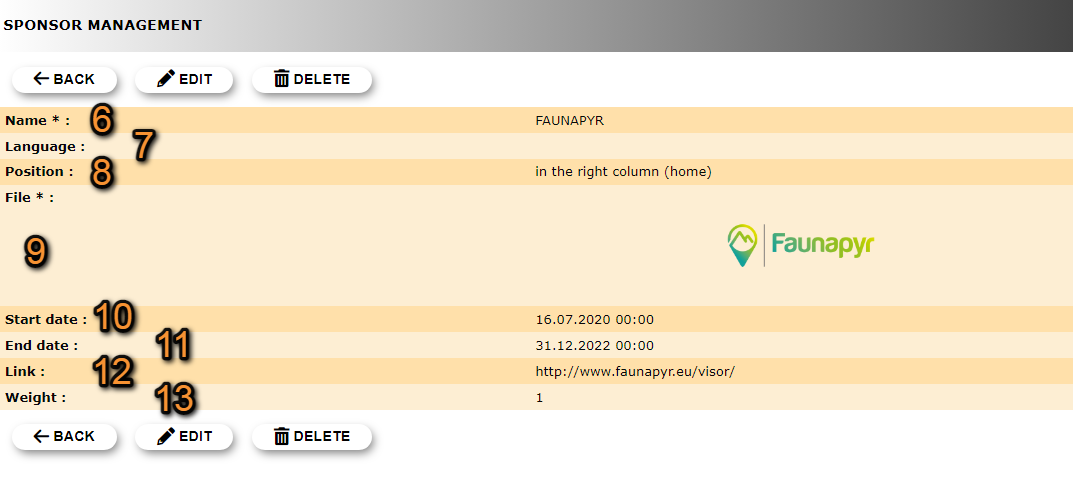
Sponsor details.
6. Name: Sponsor's name.
7. Language: Language in which the website should be displayed to show the logo. If the field is blank, the logo will be displayed in all languages.
8. Position: Place in the website where the logo will be displayed. See subsection Logo position below for more information.
9. File: Sponsor's logo.
10. Start date: Starting date of logo display.
11. End date: Ending date of logo display.
12. Link: Link to sponsor's website.
13. Weight: Indicates in which order you would like this logo to display within the selected position, when more than one logo are displayed on the same position. Lower names show first.
BACK: Go to previous screen without saving.
EDIT: Modify details. See sub-section Edit below.
DELETE: Delete sponsor entry. You will be asked to confirm.
- 3. Edit
Modify details.

Edit sponsor.
6. Name: Modify the sponsor's name.
7. Language: Change the language to display logo only in the site in the selected language. If no language is selected the logo will be visible in all languages.
8. Position: Change the place in the website where the logo will be displayed by selecting from the expandable menu. See subsection Logo position below for more information.
9. File: Click on Choose file to upload a new logo for the new sponsor. Current uploaded logo is displayed on the section.
10. Start date: Choose the starting date of logo display from the expandable calendar on the left, and the starting time of logo display from the expandable menu on the right.
11. End date: Choose the ending date of logo display from the expandable calendar on the left, and the ending time of logo display from the expandable menu on the right.
12. Link: Type a new link to sponsor's website.
13. Weight: Change the number to indicate in which order you would like this logo to display within the selected position, when more than one logo are displayed on the same position. Lower names show first.
BACK: Go to previous screen without saving.
MODIFY: Add new sponsor to the website.
- 4. Delete
Delete sponsor. Their logo will no longer be displayed on the website. You will be asked to confirm.
- 5. NEW
Announce a new sponsor.
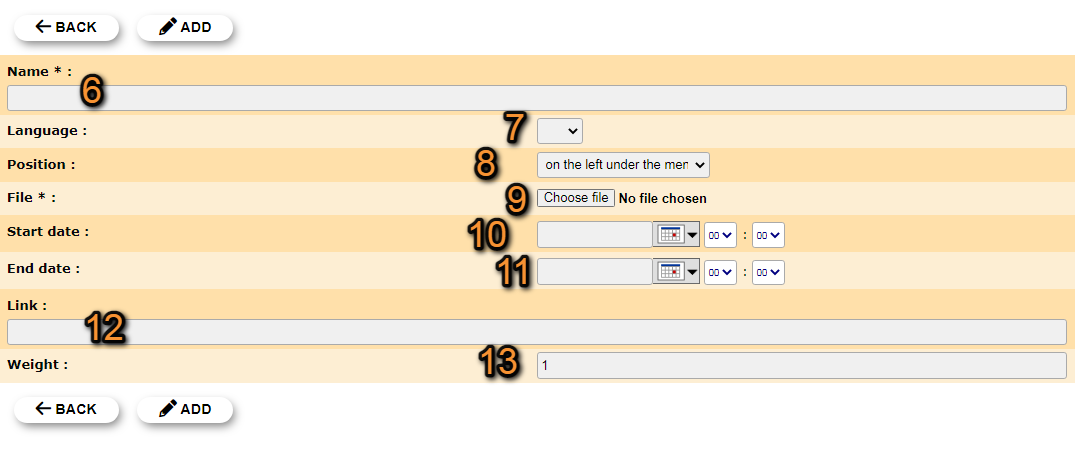
Add a new sponsor.
6. Name: Type the sponsor's name.
7. Language: If necessary, select from the expandable menu the language in which the page will be displayed. If no language is selected, the logo will be displayed in all languages.
8. Position: Select from the expandable menu the place in the website where the logo will be displayed. See subsection Logo position below for more information.
9. File: Click on Choose file to upload a logo for the new sponsor. It may require several files.
10. Start date: Choose the starting date of logo display from the expandable calendar on the left, and the starting time of logo display from the expandable menu on the right.
11. End date: Choose the ending date of logo display from the expandable calendar on the left, and the ending time of logo display from the expandable menu on the right.
12. Link: Type a link to sponsor's website.
13. Weight: Type a number to indicate in which order you would like this logo to display within the selected position, when more than one logo are displayed on the same position. Lower names show first.
BACK: Go to previous screen without saving.
ADD: Add new sponsor to the website.
Logo positions
Sponsor logos can be announced in different positions across the website (see images below). Some of these position may display more than one logo while others only hold one (see table below to know more). A local site can display several logos at the same time.

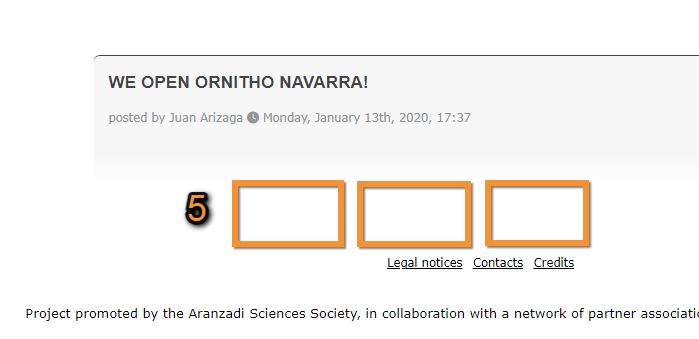
Sponsors logo positions.
| Position | Order1 | Consecutive | |
|---|---|---|---|
| 1 | On the Top left corner | YES | NO |
| 2 | On the left under the menu | NO | Vertically |
| 3 | On the top right corner | NO | Horizontally |
| 4 | On the right column2,3 | YES | NO |
| 5 | At the bottom of the page | NO | Horizontally |
1 If the order of the logo is not random within the indicated position, use Weight to choose in which position its logo will be displayed. Logo with lower weight value will be displayed before logos with higher weight values.
2 Logos in this position are only visible in the Home page.
3 Requires several logos for responsive interface.
Logos on the right column
Responsive interfaces require uploading an images with three different sizes.
See recommended sizes for images below, and examples of how they look like. Length and width are given in pixels.
· Small: 680 px X 320 px, or 960 px X 320 px
· Medium: 960 px X 280 px, or 1600 px X 320 px
· Large: 1640 px X 320 px, or 2600 px X 320 px


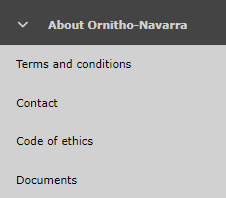


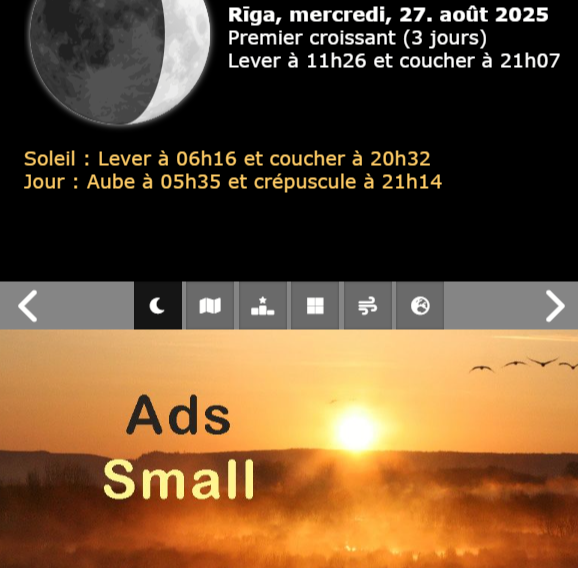
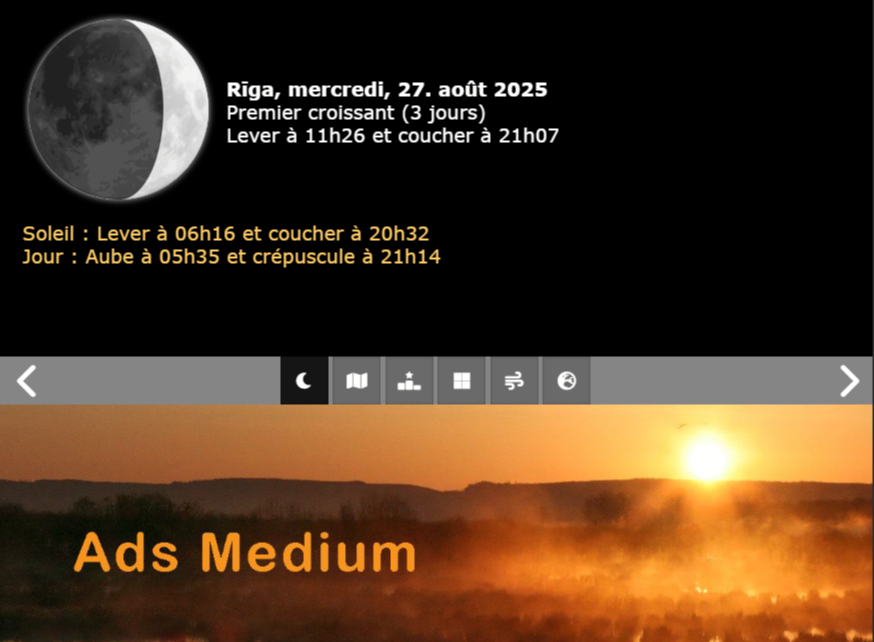

Audience
Restitutions polygons list
Administration > Web site administration > Restitutions polygons list
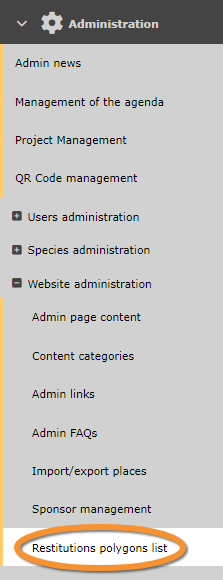
Restitutions polygons list.