Shortcuts: Difference between revisions
| (22 intermediate revisions by the same user not shown) | |||
| Line 34: | Line 34: | ||
==Create shortcuts== | ==Create shortcuts== | ||
<br/> | <br/> | ||
The process to create a shortcuts list differs on the first stages depending if it is the first list you create in the device you are using, or there are previously created lists. <br/> | The process to create a shortcuts list differs on the first stages depending <br/> | ||
<span style="color: #000000; margin-left: 25px;"><b>· </b>if it is [[Shortcuts#First|the first list]] you create in the device you are using, or <br/> | |||
<span style="color: #000000; margin-left: 25px;"><b>· </b>there are [[Shortcuts#Previous|previously created lists]]. <br/> | |||
<br/> | <br/> | ||
| Line 99: | Line 101: | ||
<span style="color: #000000; margin-left: 25px;"><b>· </b>[[Shortcuts#Modify_a_pre-defined_list|Add / delete shortcuts]] as needed.<br/> | <span style="color: #000000; margin-left: 25px;"><b>· </b>[[Shortcuts#Modify_a_pre-defined_list|Add / delete shortcuts]] as needed.<br/> | ||
</p> | </p> | ||
</div> | </div> | ||
</center> | </center> | ||
| Line 107: | Line 107: | ||
</div> | </div> | ||
</center> | </center> | ||
<br/> | <br/> | ||
<br/> | <br/> | ||
<!--T:15--> | <!--T:15--> | ||
<span id="First"></span> | |||
===First list=== | ===First list=== | ||
Create a shortcut for the first time: <br/> | |||
1. Click and hold on the species name from the expandable menu on the '''Species''' screen. <br/> | |||
2. Select the colour and the species code to assign to this species (see image [[Media:Creating a shortcut.png|Creating a shortcut]] below). <br/> | |||
<span style="color: #000000; margin-left: 25px;"><b>· </b>Slide the bar to select the colour of your choice. <br/> | |||
<span style="color: #000000; margin-left: 25px;"><b>· </b>The selected colour will define the species when representing it on the map, as in image [[Media:Shortcuts on a map.png|Shortcuts on a map]]. <br/> | |||
<span style="color: #000000; margin-left: 25px;"><b>· </b>A species code is proposed but can be changed to a maximum five digits. <br/> | |||
When done, click on '''Save'''. <br/> | |||
3. Name the species list (see image [[Media:Naming a shortcuts list.png|Naming a shortcuts list]]). <br/> | |||
<br/> | <br/> | ||
| Line 125: | Line 133: | ||
</div> | </div> | ||
<p style="color:black;font-size:12px;padding-left:5px;text-align:left;column-count:1;padding-right:5px;"> | <p style="color:black;font-size:12px;padding-left:5px;text-align:left;column-count:1;padding-right:5px;"> | ||
'''1. | '''1. Select species:''' Long click on the species to create a shortcut for. <br/> | ||
'''2. Assign code:''' | '''2. Assign code:''' Type code if given is not suitable. <br/> | ||
'''3. Select colour:''' | '''3. Select colour:''' Slide to desired colour. <br/> | ||
'''4. Finish:''' | '''4. Finish:''' Save created shortcuts. <br/> | ||
</p> | </p> | ||
</div> | </div> | ||
| Line 148: | Line 156: | ||
<!--T:19--> | <!--T:19--> | ||
Delete a shortcut by long clicking on it. A confirmation message will appear before deleting it (see image below). Click '''Yes''' to delete or '''Cancel''' to go back.<br/> | Delete a shortcut by long clicking on it. <br/> | ||
<span style="color: #000000; margin-left: 25px;"><b>· </b>A confirmation message will appear before deleting it (see image below). <br/> | |||
<span style="color: #000000; margin-left: 25px;"><b>· </b>Click '''Yes''' to delete or '''Cancel''' to go back.<br/> | |||
<br/> | <br/> | ||
| Line 164: | Line 174: | ||
<!--T:21--> | <!--T:21--> | ||
When | When list is created, shortcuts appear above the taxonomic group, and the active shortcut list is shown on the top bar (see image [[Media:Shortcuts.png|Shortcuts.]]). <br/> | ||
Click on the shortcut list to open a menu with all possibilities for the lists.<br/> | |||
<br/> | <br/> | ||
[[Shortcuts#Create_shortcuts|[Top to Create shortcuts]]] <br/> | |||
[[#top|[Top to Shortcuts]]] <br/> | |||
<br/> | |||
<span id="Previous"></span> | |||
===Additional lists=== | ===Additional lists=== | ||
Once a shortcuts list is created, the name of the list appears on the top bar. Click on the name to create a new list. It will open a menu with all the possibilities. Click '''[New]''' to create a new list (see image [[Media:Shortcuts lists. Menu.png|Shortcuts lists. Menu]]). Enter the name of the new list when prompted (see image [[Media:Naming a shortcuts list.png|Naming a shortcuts list]]) and | Once a shortcuts list is created, the name of the list appears on the top bar. <br/> | ||
1. Click on the name to create a new list. It will open a menu with all the possibilities. <br/> | |||
2. Click '''[New]''' to create a new list (see image [[Media:Shortcuts lists. Menu.png|Shortcuts lists. Menu]]). <br/> | |||
3. Enter the name of the new list when prompted (see image [[Media:Naming a shortcuts list.png|Naming a shortcuts list]]) and <br/> | |||
4. create shortcuts as described in [[Shortcuts#First_list| First list]] above. <br/> | |||
<br/> | |||
[[Shortcuts#Create_shortcuts|[Top to Create shortcuts]]] <br/> | |||
[[#top|[Top to Shortcuts]]] <br/> | |||
<br/> | <br/> | ||
| Line 175: | Line 201: | ||
<!--T:24--> | <!--T:24--> | ||
More than one shortcuts list may exist in a device. | More than one shortcuts list may exist in a device. The active one is shown on the top bar. <br/> | ||
To change the active list, <br/> | |||
<span style="color: #000000; margin-left: 25px;"><b>· </b>Click on the list name to open a menu with all saved lists on the device (see image below). The current list is highlighted in yellow. <br/> | |||
<span style="color: #000000; margin-left: 25px;"><b>· </b>Click on a different name list to change the active list. <br/> | |||
<br/> | <br/> | ||
| Line 203: | Line 232: | ||
<!--T:27--> | <!--T:27--> | ||
<p> | <p> | ||
If at least one shortcuts list already exists, all new shortcuts will be saved on the active list. <br/> | |||
Click on the active list to see all available lists and select the one you want to create the shortcuts at. <br/> | |||
If needed, open a new list. | If needed, open a new list. | ||
</p> | |||
<!--T:28--> | <!--T:28--> | ||
</div> | </div> | ||
</center> | </center> | ||
<br/> | |||
<br/> | |||
< | [[Shortcuts#Change shortcuts list|[Top to Change shortcuts list]]] <br/> | ||
<br/> | [[#top|[Top to Shortcuts]]] <br/> | ||
<br/> | <br/> | ||
==Rename a shortcut list== | ==Rename a shortcut list== | ||
<br/> | <br/> | ||
From the '''Species''' screen, click on the active shortcuts list on the top bar to open the shortcuts menu (see image [[Media:Shortcuts lists. Menu.png|Shortcuts lists. Menu]]). Click on '''[Rename]''' to change the active shortcuts list. Type the new name when prompted and click '''Save''' (see image below). | Chamge a list name: <br/> | ||
1. From the '''Species''' screen, click on the active shortcuts list on the top bar to open the shortcuts menu (see image [[Media:Shortcuts lists. Menu.png|Shortcuts lists. Menu]]). <br/> | |||
2. Click on '''[Rename]''' to change the active shortcuts list name. <br/> | |||
3. Type the new name when prompted and click '''Save''' (see image below). <br/> | |||
To rename other lists, [[Shortcuts#Change_shortcuts_list|change the active list]] first. <br/> | |||
<br/> | <br/> | ||
| Line 230: | Line 267: | ||
</center> | </center> | ||
<br/> | <br/> | ||
<br/> | |||
[[Shortcuts#Rename a shortcut list|[Top to Rename a shortcut list]]] <br/> | |||
[[#top|[Top to Shortcuts]]] <br/> | |||
<br/> | <br/> | ||
==Modify a pre-defined list== | ==Modify a pre-defined list== | ||
<br/> | <br/> | ||
Some protocols provide a pre-defined list. | Some protocols provide a pre-defined list. It can be modified, but cannot be overwritten. <br/> | ||
To personalise a given list <br/> | |||
1. open the pre-defined list, <br/> | |||
2. add or delete shortcuts as needed, <br/> | |||
3. click on '''[Save]''' at the top right menu (see image below) and rename the new list. <br/> | |||
The new list can be deleted and/or modified as needed.<br/> | |||
<br/> | <br/> | ||
| Line 314: | Line 361: | ||
</center> | </center> | ||
<br/> | <br/> | ||
<br/> | |||
[[Shortcuts#Modify_a_pre-defined_list|[Top to Modify a pre-defined list]]] <br/> | |||
[[#top|[Top to Shortcuts]]] <br/> | |||
<br/> | <br/> | ||
==Delete a shortcut list== | ==Delete a shortcut list== | ||
<br/> | <br/> | ||
Delete a shortcuts list by <br/> | |||
1. clicking on the active shortcuts list on the top bar to open the shortcuts menu (see image [[Media:Shortcuts lists. Menu.png|Shortcuts lists. Menu]]),<br/> | |||
2. selecting '''[Delete]''' to delete the active list and <br/> | |||
3. confirm when prompted (see image below).<br/> | |||
<br/> | <br/> | ||
| Line 331: | Line 385: | ||
</center> | </center> | ||
<br/> | <br/> | ||
<br/> | |||
[[Shortcuts#Delete_a_shortcut_list|[Top to Delete a shortcut list]]] <br/> | |||
[[#top|[Top to Shortcuts]]] <br/> | |||
<br/> | <br/> | ||
</translate> | </translate> | ||
Latest revision as of 15:33, 19 December 2025
When entering data on a Species screen you can
· choose the species name from the expandable list or
· use previously created shortcuts (see image below).
To use a shortcut click on the corresponding square and you will be taken directly to the Number of individuals screen.
Create your own shortcuts list or use the ones proposed in some of the protocols. You can create more than one list to adapt them to the area or habitats you visit. Use the arrow on the shortcuts section to hide or show available shortcuts.

Shortcuts.
1. List of shortcuts
2. Species shortcuts
3. Hide / Show shortcuts
Create shortcuts
The process to create a shortcuts list differs on the first stages depending
· if it is the first list you create in the device you are using, or
· there are previously created lists.
Creating the first shortcuts list:
1. Long click on species name.
2. Type species code of your choice, or ignore if you accept the proposed one.
3. Slide square to select the shortcut colour.
4. Click Save.
5. Type a name for the species list.
6. Click Save.
7. Continue entering your data and creating shortcuts as needed.
Creating further shortcuts lists:
1. Click on the list of shortcuts (number 1 in image Shortcuts).
2. Click on [New]*.
3. Type a name for the new list.
4. Click Save.
5. Long click on the species name.
6. Type your prefered code for the species.
7. Slide the square to the colour of your preference.
8. Click Save.

Save time by clicking on [Save] instead of [New] in step 2. This duplicates an already existing list.
· Select [Save].
· Select the list you want to duplicate and Save.
· Name the new list.
· Add / delete shortcuts as needed.
First list
Create a shortcut for the first time:
1. Click and hold on the species name from the expandable menu on the Species screen.
2. Select the colour and the species code to assign to this species (see image Creating a shortcut below).
· Slide the bar to select the colour of your choice.
· The selected colour will define the species when representing it on the map, as in image Shortcuts on a map.
· A species code is proposed but can be changed to a maximum five digits.
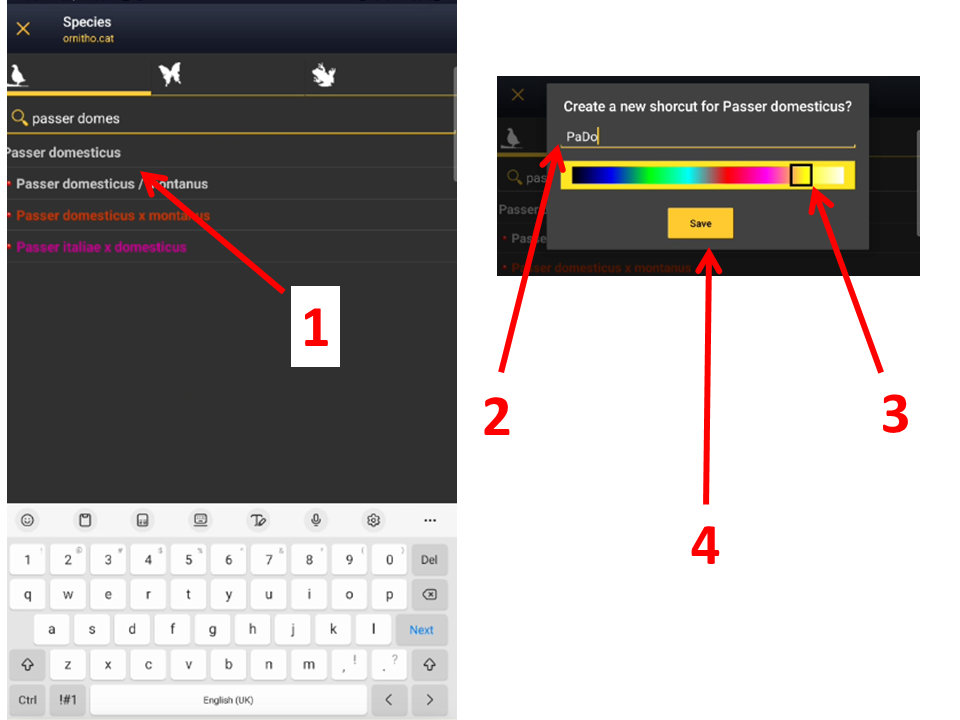

When done, click on Save.
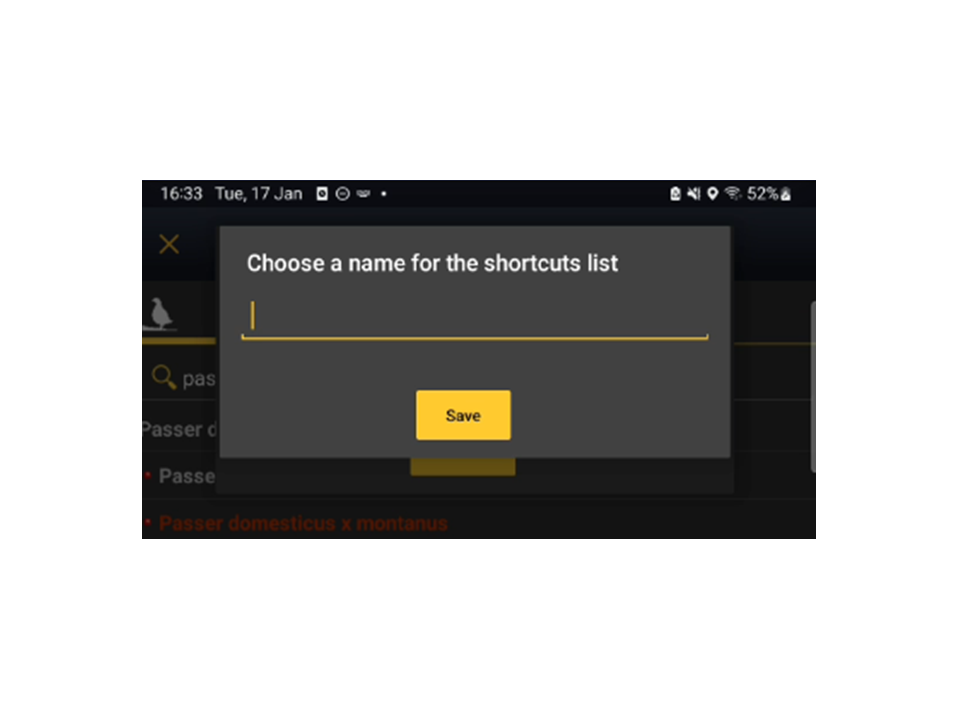
3. Name the species list (see image Naming a shortcuts list).

Creating a shortcut.
1. Select species: Long click on the species to create a shortcut for.
2. Assign code: Type code if given is not suitable.
3. Select colour: Slide to desired colour.
4. Finish: Save created shortcuts.

Naming a shortcuts list.
Delete a shortcut by long clicking on it.
· A confirmation message will appear before deleting it (see image below).
· Click Yes to delete or Cancel to go back.
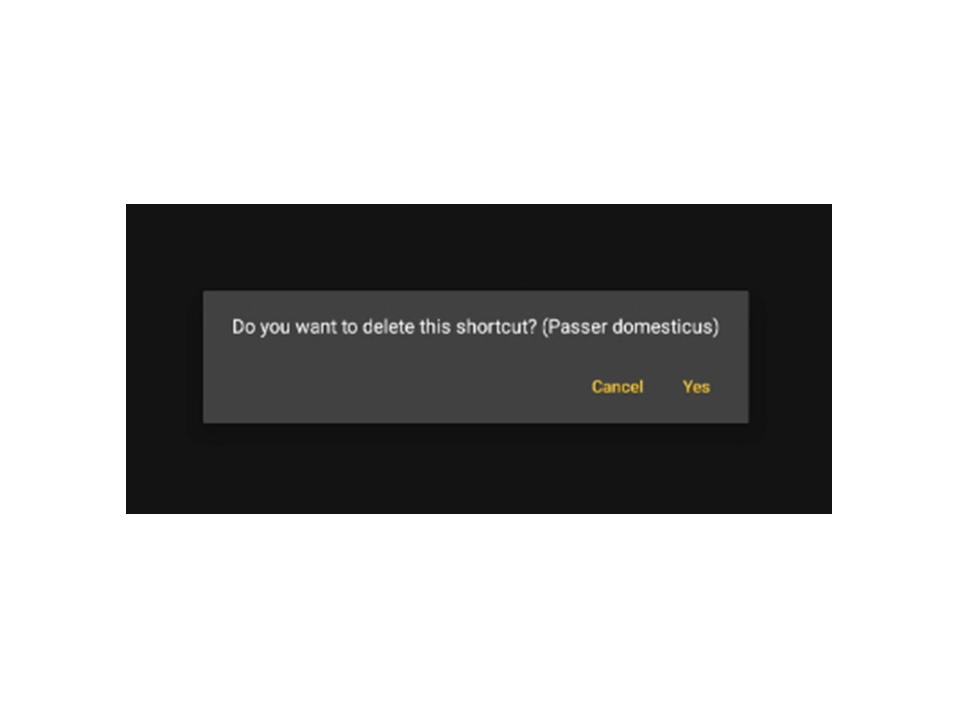
Deleting shortcuts.
When list is created, shortcuts appear above the taxonomic group, and the active shortcut list is shown on the top bar (see image Shortcuts.).
Click on the shortcut list to open a menu with all possibilities for the lists.
[Top to Create shortcuts]
[Top to Shortcuts]
Additional lists
Once a shortcuts list is created, the name of the list appears on the top bar.
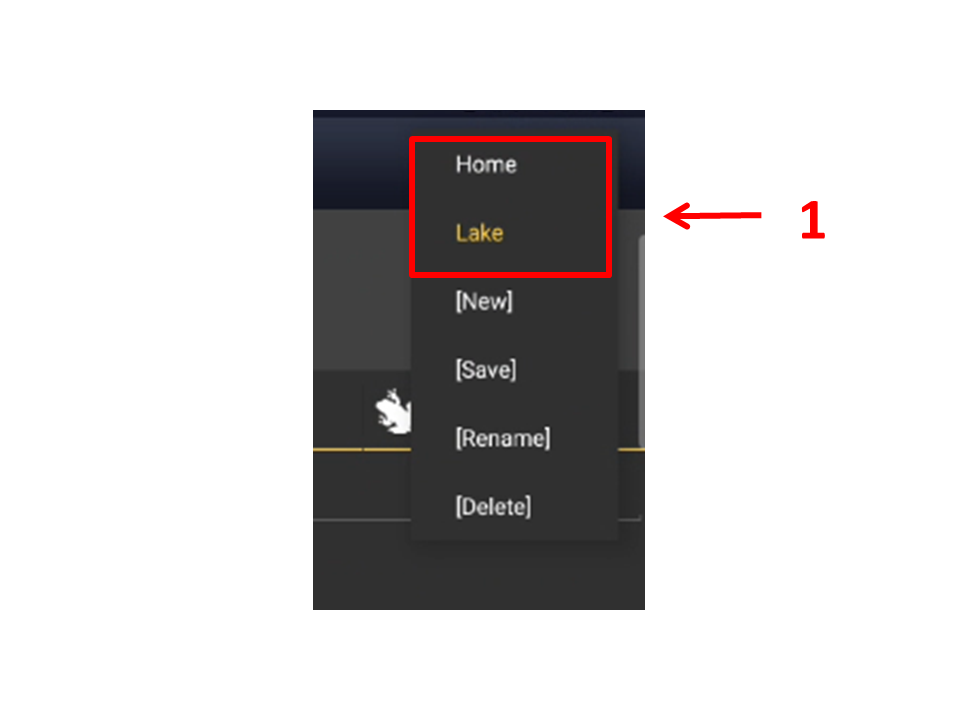
1. Click on the name to create a new list. It will open a menu with all the possibilities.
2. Click [New] to create a new list (see image Shortcuts lists. Menu).
3. Enter the name of the new list when prompted (see image Naming a shortcuts list) and
4. create shortcuts as described in First list above.
[Top to Create shortcuts]
[Top to Shortcuts]
Change shortcuts list
More than one shortcuts list may exist in a device. The active one is shown on the top bar.
To change the active list,
· Click on the list name to open a menu with all saved lists on the device (see image below). The current list is highlighted in yellow.
· Click on a different name list to change the active list.

Shortcuts lists. Menu.
1. Personal shortcut list
If at least one shortcuts list already exists, all new shortcuts will be saved on the active list.
Click on the active list to see all available lists and select the one you want to create the shortcuts at.
If needed, open a new list.
[Top to Change shortcuts list]
[Top to Shortcuts]
Rename a shortcut list
Chamge a list name:
1. From the Species screen, click on the active shortcuts list on the top bar to open the shortcuts menu (see image Shortcuts lists. Menu).
2. Click on [Rename] to change the active shortcuts list name.
3. Type the new name when prompted and click Save (see image below).
To rename other lists, change the active list first.
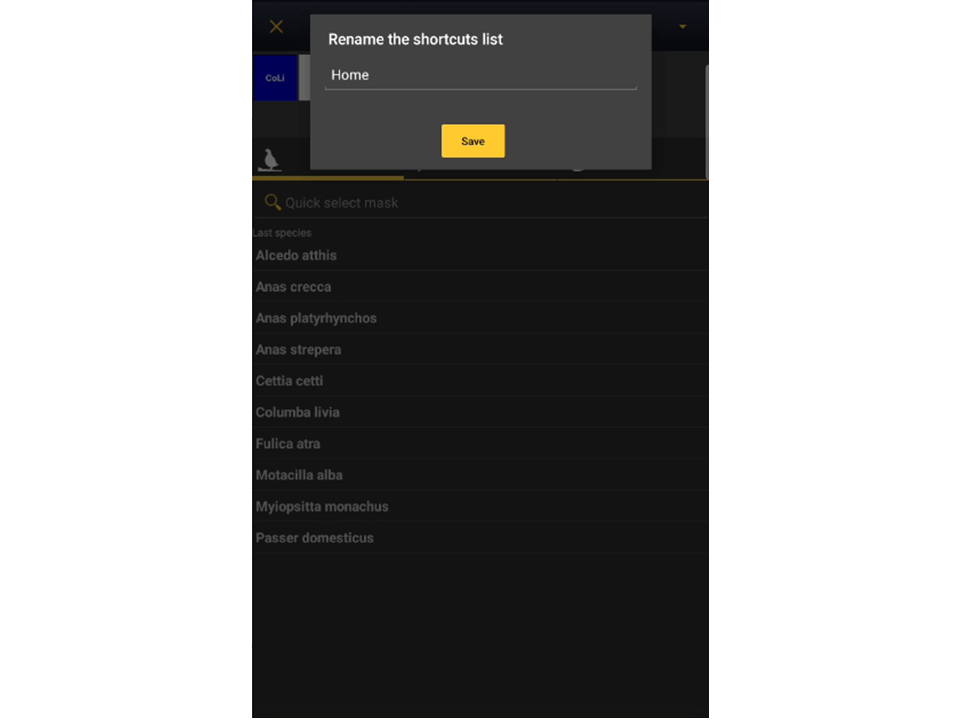
Renaming shortcuts list.
[Top to Rename a shortcut list]
[Top to Shortcuts]
Modify a pre-defined list
Some protocols provide a pre-defined list. It can be modified, but cannot be overwritten.
To personalise a given list
1. open the pre-defined list,
2. add or delete shortcuts as needed,
3. click on [Save] at the top right menu (see image below) and rename the new list.
The new list can be deleted and/or modified as needed.
Personalise a pre-defined list:
· Open the existing list.
· Add / delete shortcuts as needed.
· [Save] the result.
· Rename the new list.

Modifying a pre-determined shortcuts list.
ADD A SHORTCUT:
1. Long click on species name.
2. Type species code of your choice, or ignore if you accept the proposed one.
3. Slide square to select the shortcut colour.
4. Click Save.
DELETE A SHORTCUT:
1. Long click on shortcut to delete.
2. Confirm when prompted.
[Top to Modify a pre-defined list]
[Top to Shortcuts]
Delete a shortcut list
Delete a shortcuts list by
1. clicking on the active shortcuts list on the top bar to open the shortcuts menu (see image Shortcuts lists. Menu),
2. selecting [Delete] to delete the active list and
3. confirm when prompted (see image below).
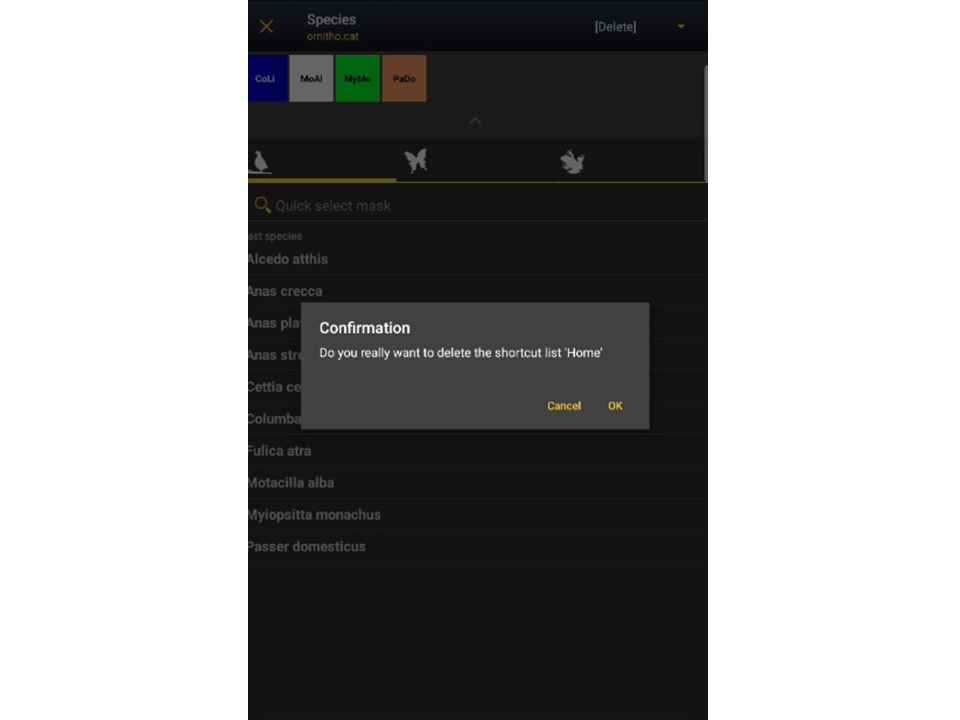
Deleting shortcuts list. Confirmation.