Protocols web: Difference between revisions
No edit summary |
|||
| Line 44: | Line 44: | ||
[[File:WBC protocol parameters.png|700px|thumb|center|Waterbird census protocol parameters.]]<br/> | [[File:WBC protocol parameters.png|700px|thumb|center|Waterbird census protocol parameters.]]<br/> | ||
'''1. Enter date | :'''1. Enter date''' <br/> | ||
'''2. | Choose from the expandable menu the date the survey took place.<br/> | ||
'''3. Ending time | <br/> | ||
'''4. Enter comments | |||
:'''2. Enter starting time''' <br/> | |||
Enter the time the census started.<br/> | |||
<br/> | |||
:'''3. Ending time''' <br/> | |||
Enter the time the census ended.<br/> | |||
<br/> | |||
:'''4. Enter comments'''<br/> | |||
Choose from the tabs and type:<br/> | |||
:::*'''Comment:''' if the comment will refer to a general observation, <br/> | :::*'''Comment:''' if the comment will refer to a general observation, <br/> | ||
:::*'''Additional observer:''' if you name other observer/s participating in the census, or<br/> | :::*'''Additional observer:''' if you name other observer/s participating in the census, or<br/> | ||
:::*'''Important changes:''' to note important changes from your previous visit, like noise, pollution or construction work.<br/> | :::*'''Important changes:''' to note important changes from your previous visit, like noise, pollution or construction work.<br/> | ||
'''5. Hide all records from the public | <br/> | ||
'''6. Parameters | |||
:'''5. Hide all records from the public'''<br/> | |||
Check if you do not want other users to see your records.<br/> | |||
<br/> | |||
:'''6. Parameters''' <br/> | |||
Enter parameters required for your polygon. Note fields and the order in which they appear may differ from country to country. You may not encounter all possible fields described underneath.<br/> | |||
<br/> | |||
:::'''Comment:''' You may enter a comment if you find it appropiate. <br /> | |||
<br /> | |||
:::'''Important changes:''' Indicate if there have been major changes since your last visit.<br/> | |||
<br /> | |||
:::'''Additional observer:''' Indicate if you are accompanied by someone whose observations are also recorded.<br /> | |||
<br /> | |||
:::'''Ice:''' Indicate the percentatge of water surface that is frozen.<br/> | |||
<br/> | |||
:::'''Snow coverage:''' Indicate the proportion of snow cover.<br/> | |||
<br/> | |||
:::'''Count type:''' Tick '''roost count''' if you are counting roosting birds, or '''during day''' otherwise. <br /> | |||
<br /> | |||
:::'''Count method:''' Indicate if you are surveying from the ground, the air, the water, a different way, or if it is unknown. <br /> | |||
<br /> | |||
:::'''Optical equipment:''' Indicate which equipment you are using for the survey, if any. Note you can only choose one option. <br /> | |||
<br /> | |||
:::'''Coverage:''' Indicate how much of the designated polygon is covered in the survey.<br/> | |||
<br /> | |||
:::'''Water level:''' Indicate the water level. <br /> | |||
<br /> | |||
:::'''Visibility:''' Indicate the approximate distance within which it is possible to identify species. <br /> | |||
<br /> | |||
:::'''Waves:''' Indicate how are the waves.<br/> | |||
<br /> | |||
:::'''Conditions in general:''' Choose how are surveying conditions overall regarding weather and disturbances, and indicate on next section the reason if surveying conditions are not good. <br /> | |||
<br /> | |||
:::'''Reason(s) for moderate / bad conditions''' <br /> | |||
If general conditions indicated above are noot good, open the expandable menu and choose the reason (see image below). Only one option is possible: choose the one that better adjusts to reality. <br /> | |||
<br /> | |||
[[File:Bad condicions.png|700px|thumb|center|Reasons for bad conditions.]] | |||
<br /> | |||
<br /> | |||
:::'''Count payed''' <br/> | |||
Indicate if the count is payed for or not.<br/> | |||
<br/> | |||
:::'''Number of persons on shore''' <br/> | |||
Enter number.<br/> | |||
<br/> | |||
:::'''Number of rowing boats''' <br/> | |||
Enter number.<br/> | |||
<br/> | |||
:::'''Number of motor boats''' <br/> | |||
Enter number<br/> | |||
<br/> | |||
:::'''Number of sailing boats''' <br/> | |||
Enter number<br/> | |||
<br/> | |||
:::'''Number of canoes/kayaks''' <br/> | |||
Enter number.<br/> | |||
<br/> | |||
:::'''Number of fishing boats''' <br/> | |||
Enter number. <br/> | |||
<br/> | |||
:::'''Number of sports divers''' <br/> | |||
Enter number.<br/> | |||
<br/> | |||
:::'''Number of surfers''' <br/> | |||
Enter number.<br/> | |||
<br/> | |||
:::'''Additional observers'''<br /> | |||
Indicate the name of other observers participating in the data collection. <br /> | |||
<br /> | |||
:::'''Important changes since last count?''' <br /> | |||
Indicate if there has been any major change since your previous count, for example, some disturbance like noise or construction. <br /> | |||
<br /> | |||
:::'''Record the trace''' <br /> | |||
Check if you want NaturaList to record your track. You will see a reminder to set your GPS on "High precision" and your power saving off for NaturaList. Go to Main menu > Preferences > GPS mode > Continuous (high reactivity) to set the right GPS mode (see wiki sectio [[Getting_started_NaturaList#GPS_Mode | Mobile interface > Getting started > Preferences > Location > GPS Mode]] on how to do it). <br/> | |||
<br/> | |||
::After synchronisation, visualise your track at the local portal by: | |||
::* Clicking on any species from the list as if for [[Edit_records#After_synchronisation|editing]], and selecting '''Go to website''' > '''Edit Place''' tab. See image [[Media:20220901WIKI my sightings on list.png|Example of records that belong to a list]]. <br/> | |||
::* Logging into the website and going to [[Editing_records|edit your own data]]. Click on any observation belonging to the list, and select the '''Edit place''' tab. See image [[Media:20220901WIKI my sightings on list.png|Example of records that belong to a list]].<br/> | |||
<br/> <br /> | |||
:::'''Hide all records from the public''' <br /> | |||
Check if you want to keep your records privately. This will not prevent administrators to see them and contact you if necessary, but other users of NaturaList will not see your records. Click '''OK ''' to continue and check if you wish not to see the reminder again. Check '''O not ask again and keep this choice for future entries''' if you want to set '''Record the trace''' as the default option (see image below). Click '''OK''' to continue without seting '''Record the trace''' as the default option.<br /> | |||
<br /> | |||
[[File:Record the trace as default.png|700px|thumb|center|Check to set '''Record the trace''' as the default option.]]<br/> | |||
<br/> | |||
<br/> | |||
:::'''No species were seen''' <br /> | |||
Check if your survey did not provide any data. Surveys with no species are also important results! It will mean you followed the established methodology, and therefore your survey is valid, but no birds were present. They can indicate major population changes and are of extreme importance for conservation purposes. <br /> | |||
<br /> | |||
<center> | |||
<table border="5" width="700px"> | |||
<tr> | |||
<td style="padding: 25px; text-align: left; font-family: sans-serif; color: black; background-color: hsl(201, 100%, 89%)"> | |||
<!-- GREEN BOX (Tips): hsl(157, 74%, 80%) | |||
YELLOW BOX (Summaries): #ffffdb" | |||
BLUE BOX (Information): hsl(201, 100%, 89%) | |||
RED BOX (Warnings): hsl(0, 77%, 78%) --> | |||
<p> | |||
<ul> | |||
"<i><b>My survey did not provide any data</b></i>" <br /> | |||
Surveys with no species are also important results! Please submit them. <br /> It will mean you followed the established methodology but no birds were present. It can be due to methodology, disturbance, pollution or other major population changes and may be of extreme importance for conservation purposes.<br /> | |||
</ul></p> | |||
</td></tr></table> | |||
</center> | |||
<br /> | |||
<br /> | |||
==Edit protocol== | ==Edit protocol== | ||
<br/> | <br/> | ||
Revision as of 12:07, 16 March 2023
Protocols are standardised ways of collecting data linked to a geometry (points, transects or polygons). The methodology to follow depends on the study's goal. A country administrator will grant you access if you meet certain criteria. Not all protocols are available in all countries. See which protocols are available in which country at.... and see which criteria at....
Too access your list of protocols, go to Menu > Take part > All my protocol. It lists all protocols you have access to in this local portal (see image below).
.png)
If you have access to protocols, you have access to it by Submit button or by the menu Take part, Transmit my sightings or Menu Take part All my protocols
Waterbird Protocol (web)
Access your protocol from Menu > Take part > All my protocol and search for the protocol you want to work at. You will be able to download the map to survey, enter data or edit the protocol.
Download map
.png)
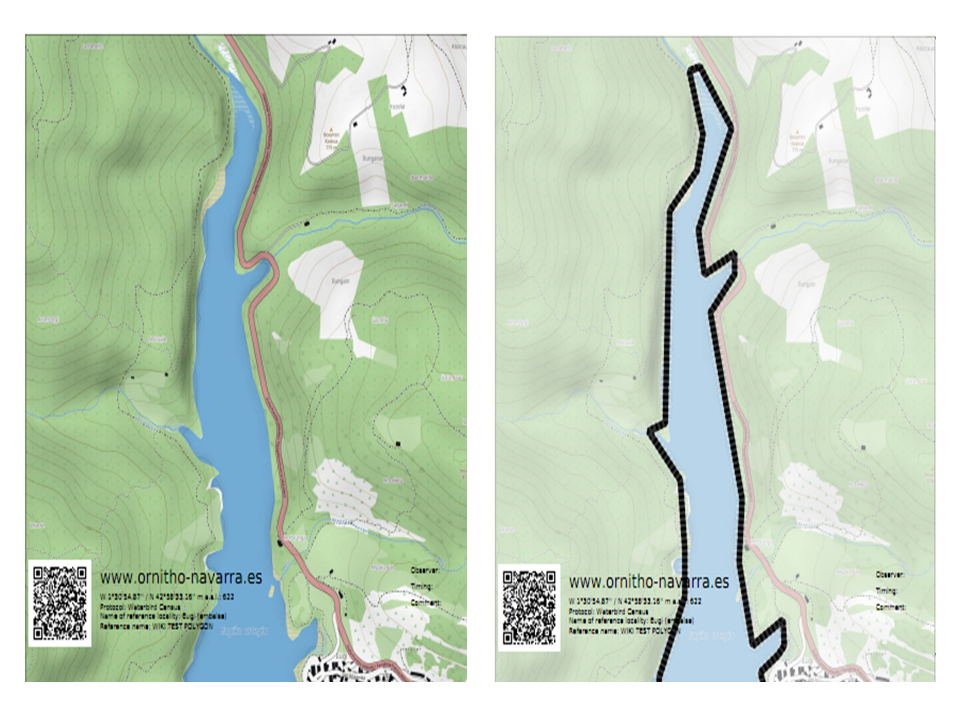
1. Check to print the map with 50% of transparency (see image Map compare: left normal, right 50% transparency as an example).
2. Check to print the map in black and white.
3.
4. Choose from the expandable menu the map layer you would like to print.
5. Click on pdf icon to download the map as a pdf.
Click on the magnifying icon (encircled) to display the polygon on a map on the screen (see example).
Add observations
Click on add observations (see image below) in the protocol you need to enter data.


A new panel will require you to enter general parameters regarding the protocol (see image below). Field marked with an asterisk are mandatory.

- 1. Enter date
Choose from the expandable menu the date the survey took place.
- 2. Enter starting time
Enter the time the census started.
- 3. Ending time
Enter the time the census ended.
- 4. Enter comments
Choose from the tabs and type:
- Comment: if the comment will refer to a general observation,
- Additional observer: if you name other observer/s participating in the census, or
- Important changes: to note important changes from your previous visit, like noise, pollution or construction work.
- Comment: if the comment will refer to a general observation,
- 5. Hide all records from the public
Check if you do not want other users to see your records.
- 6. Parameters
Enter parameters required for your polygon. Note fields and the order in which they appear may differ from country to country. You may not encounter all possible fields described underneath.
- Comment: You may enter a comment if you find it appropiate.
- Comment: You may enter a comment if you find it appropiate.
- Important changes: Indicate if there have been major changes since your last visit.
- Important changes: Indicate if there have been major changes since your last visit.
- Additional observer: Indicate if you are accompanied by someone whose observations are also recorded.
- Additional observer: Indicate if you are accompanied by someone whose observations are also recorded.
- Ice: Indicate the percentatge of water surface that is frozen.
- Ice: Indicate the percentatge of water surface that is frozen.
- Snow coverage: Indicate the proportion of snow cover.
- Snow coverage: Indicate the proportion of snow cover.
- Count type: Tick roost count if you are counting roosting birds, or during day otherwise.
- Count type: Tick roost count if you are counting roosting birds, or during day otherwise.
- Count method: Indicate if you are surveying from the ground, the air, the water, a different way, or if it is unknown.
- Count method: Indicate if you are surveying from the ground, the air, the water, a different way, or if it is unknown.
- Optical equipment: Indicate which equipment you are using for the survey, if any. Note you can only choose one option.
- Optical equipment: Indicate which equipment you are using for the survey, if any. Note you can only choose one option.
- Coverage: Indicate how much of the designated polygon is covered in the survey.
- Coverage: Indicate how much of the designated polygon is covered in the survey.
- Water level: Indicate the water level.
- Water level: Indicate the water level.
- Visibility: Indicate the approximate distance within which it is possible to identify species.
- Visibility: Indicate the approximate distance within which it is possible to identify species.
- Waves: Indicate how are the waves.
- Waves: Indicate how are the waves.
- Conditions in general: Choose how are surveying conditions overall regarding weather and disturbances, and indicate on next section the reason if surveying conditions are not good.
- Conditions in general: Choose how are surveying conditions overall regarding weather and disturbances, and indicate on next section the reason if surveying conditions are not good.
- Reason(s) for moderate / bad conditions
- Reason(s) for moderate / bad conditions
If general conditions indicated above are noot good, open the expandable menu and choose the reason (see image below). Only one option is possible: choose the one that better adjusts to reality.

- Count payed
- Count payed
Indicate if the count is payed for or not.
- Number of persons on shore
- Number of persons on shore
Enter number.
- Number of rowing boats
- Number of rowing boats
Enter number.
- Number of motor boats
- Number of motor boats
Enter number
- Number of sailing boats
- Number of sailing boats
Enter number
- Number of canoes/kayaks
- Number of canoes/kayaks
Enter number.
- Number of fishing boats
- Number of fishing boats
Enter number.
- Number of sports divers
- Number of sports divers
Enter number.
- Number of surfers
- Number of surfers
Enter number.
- Additional observers
- Additional observers
Indicate the name of other observers participating in the data collection.
- Important changes since last count?
- Important changes since last count?
Indicate if there has been any major change since your previous count, for example, some disturbance like noise or construction.
- Record the trace
- Record the trace
Check if you want NaturaList to record your track. You will see a reminder to set your GPS on "High precision" and your power saving off for NaturaList. Go to Main menu > Preferences > GPS mode > Continuous (high reactivity) to set the right GPS mode (see wiki sectio Mobile interface > Getting started > Preferences > Location > GPS Mode on how to do it).
- After synchronisation, visualise your track at the local portal by:
- Clicking on any species from the list as if for editing, and selecting Go to website > Edit Place tab. See image Example of records that belong to a list.
- Logging into the website and going to edit your own data. Click on any observation belonging to the list, and select the Edit place tab. See image Example of records that belong to a list.
- Clicking on any species from the list as if for editing, and selecting Go to website > Edit Place tab. See image Example of records that belong to a list.
- After synchronisation, visualise your track at the local portal by:
- Hide all records from the public
- Hide all records from the public
Check if you want to keep your records privately. This will not prevent administrators to see them and contact you if necessary, but other users of NaturaList will not see your records. Click OK to continue and check if you wish not to see the reminder again. Check O not ask again and keep this choice for future entries if you want to set Record the trace as the default option (see image below). Click OK to continue without seting Record the trace as the default option.



- No species were seen
- No species were seen
Check if your survey did not provide any data. Surveys with no species are also important results! It will mean you followed the established methodology, and therefore your survey is valid, but no birds were present. They can indicate major population changes and are of extreme importance for conservation purposes.
|
Surveys with no species are also important results! Please submit them. It will mean you followed the established methodology but no birds were present. It can be due to methodology, disturbance, pollution or other major population changes and may be of extreme importance for conservation purposes. |
Edit protocol