Protocol management: Difference between revisions
| Line 269: | Line 269: | ||
[[File:Waterbird census. Settings.png|700px|thumb|center|Waterbird census. Settings.]] | [[File:Waterbird census. Settings.png|700px|thumb|center|Waterbird census. Settings.]] | ||
<p style="margin-left:220px"> | <p style="margin-left:220px"> | ||
<b>Parameters:</b> Pieces of information associated to the protocol.<br/> | |||
<b>Active?:</b> Indicates if the user will be asked for the information.<br/> | |||
<b>Mandatory?:</b> Indicates if the information will be mandatory.<br/> | |||
<b>1.</b> Select page number and/or number of items per page.<br/> | <b>1.</b> Select page number and/or number of items per page.<br/> | ||
<b>2.</b> See details.<br/> | <b>2.</b> See details.<br/> | ||
| Line 286: | Line 289: | ||
:'''Additional observer''' <br /> | :'''Additional observer''' <br /> | ||
Space to indicate if the observer has been accompanied by someone whose observations were also recorded.<br /> | |||
<br /> | <br /> | ||
:'''Ice''' <br/> | :'''Ice''' <br/> | ||
Indicates the percentatge of water surface that is frozen. Options are:<br/> | |||
<br/> | <br/> | ||
:'''Snow coverage''' <br/> | :'''Snow coverage''' <br/> | ||
Indicates the proportion of snow cover. Options are:<br/> | |||
<br/> | <br/> | ||
:'''Count type''' <br /> | :'''Count type''' <br /> | ||
User should choose one the options:<br/> | |||
::: '''roost count''' if they are counting roosting birds, or <br/> | |||
::: '''during day''' otherwise. <br /> | |||
<br /> | <br /> | ||
:'''Count method''' <br /> | :'''Count method''' <br /> | ||
The user indicates how the survey took place. Only one option is possible. Options are:<br/> | |||
::: at ground <br/> | |||
::: on airplane <br/> | |||
::: on ship <br/> | |||
::: other <br/> | |||
::: unknown <br /> | |||
<br /> | <br /> | ||
:'''Optical equipment''' <br /> | :'''Optical equipment''' <br /> | ||
The user should indicate the equipment used for the survey. Only one option is possible. Options are: <br /> | |||
::: None <br/> | |||
::: Telescope <br/> | |||
::: Binoculars <br/> | |||
::: Unknown <br/> | |||
<br /> | <br /> | ||
:'''Coverage''' <br /> | :'''Coverage''' <br /> | ||
Serves to indicate how much of the designated polygon is covered in the survey. The user chooses between:<br/> | |||
::: Partly <br/> | |||
::: Complete <br/> | |||
::: Unknown <br/> | |||
<br /> | <br /> | ||
:'''Water level''' <br /> | :'''Water level''' <br /> | ||
Indicates the water level. Options are:<br /> | |||
::: Dry / Empty <br/> | |||
::: Low <br/> | |||
::: Normal <br/> | |||
::: High <br/> | |||
::: Unknown <br/> | |||
<br /> | <br /> | ||
:'''Visibility''' <br /> | :'''Visibility''' <br /> | ||
Approximate distance within which it is possible to identify species. Options are:<br /> | |||
::: 0-100 m <br/> | |||
::: 100-300 m <br/> | |||
::: 300-1000 m <br/> | |||
::: ≥ 1000 m <br/> | |||
::: Unknown <br/> | |||
<br /> | <br /> | ||
:'''Waves''' <br /> | :'''Waves''' <br /> | ||
Provides information about the waves. Options are: <br/> | |||
::: None <br/> | |||
::: Small <br/> | |||
::: Moderate <br/> | |||
::: With crests <br/> | |||
::: Unknown <br/> | |||
<br /> | <br /> | ||
:'''Conditions in general''' <br /> | :'''Conditions in general''' <br /> | ||
Choose how are surveying conditions overall regarding weather and disturbances, and indicate on next section the reason if surveying conditions are not good. <br /> | Choose how are surveying conditions overall regarding weather and disturbances, and indicate on next section the reason if surveying conditions are not good. Options are:<br /> | ||
::: Good / Normal <br/> | |||
:: Moderate <br/> | |||
::: Bad / heavely influenced <br/> | |||
:: Unknwon <br/> | |||
<br /> | <br /> | ||
:'''Reason(s) for moderate / bad conditions''' <br /> | :'''Reason(s) for moderate / bad conditions''' <br /> | ||
If general conditions indicated above | If general conditions indicated above were noot good, | ||
clicking the yellow field to open an expandable menu and choose the reason (see image below). Only one option is possible: choose the one that better adjusts to reality. <br /> | |||
::: Fog <br/> | |||
::: Rain <br/> | |||
::: Wind <br/> | |||
::: Hnting <br/> | |||
:: Fishing <br/> | |||
:: Sport <br/> | |||
::: Mixed (weather) <br/> | |||
::: Mixed (human) <br/> | |||
::: Others <br/> | |||
<br /> | <br /> | ||
:'''Count payed''' <br/> | :'''Count payed''' <br/> | ||
The user can indicate if the count is payed for or not. Options are '''Yes''' and '''No'''.<br/> | |||
<br/> | <br/> | ||
:'''Number of persons on shore''' <br/> | :'''Number of persons on shore''' <br/> | ||
The user can type the number of number of persons on shore.<br/> | |||
<br/> | <br/> | ||
:'''Number of rowing boats''' <br/> | :'''Number of rowing boats''' <br/> | ||
The user can type the number of rowing boats.<br/> | |||
<br/> | <br/> | ||
:'''Number of motor boats''' <br/> | :'''Number of motor boats''' <br/> | ||
The user can type the number of motor boats. <br/> | |||
<br/> | <br/> | ||
:'''Number of sailing boats''' <br/> | :'''Number of sailing boats''' <br/> | ||
The user can type the number of sailing boats. <br/> | |||
<br/> | <br/> | ||
:'''Number of canoes/kayaks''' <br/> | :'''Number of canoes/kayaks''' <br/> | ||
The user can type the number of canoes/kayaks.<br/> | |||
<br/> | <br/> | ||
:'''Number of fishing boats''' <br/> | :'''Number of fishing boats''' <br/> | ||
The user can type the number of fishing boats. <br/> | |||
<br/> | <br/> | ||
:'''Number of sports divers''' <br/> | :'''Number of sports divers''' <br/> | ||
The user can type the number of sports divers.<br/> | |||
<br/> | <br/> | ||
:'''Number of surfers''' <br/> | :'''Number of surfers''' <br/> | ||
The user can type the number of surfers.<br/> | |||
<br/> | <br/> | ||
Revision as of 23:32, 21 March 2023
Territory mapping
Waterbird census
To access the adminstration of a protocol you need the Protocol administrator right. Only an Admin of the Local portal can provide you such access, under certain conditions.
If you are an administrator, go to the administration section on the left hand column (see image Administration), and scroll down to Protocol administration. Open panel and select Protocol administration (see image Protocol administration).


Sites
|
CREATE A NEW SITE:
2. Select new site as if Submitting records 3. Choose Create a protocoled census -Waterbird census 4. Name the new site 5. Draw polygon or import shapefile 6. SAVE |

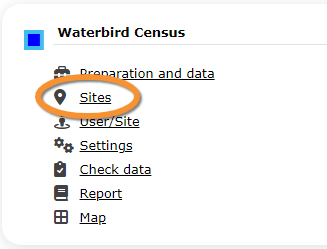
From the Waterbird census menu, select Sites to see a list with all existing sites. Use arrows under titles to alternate between ascending and descending order.

Reference name: Name given to the study site.
Custom name:
Reference locality: Pre-determined site use to enter observations.
Municipality: Municipality the locality belongs to.
Altitude: Altitude associated to the locality.
- 1. Search
Reduce list by typing the name of a site, or part of it, and click SEACH. When a filter is applied, Click on
DISPLAY ALL.
- 2. Search
Select page number and/or number of items per page.
- 3. Edit
Click to see details of selected site.
- 4. Edit
Click to edit details of selected site.
- 5. New site
Create a new site.
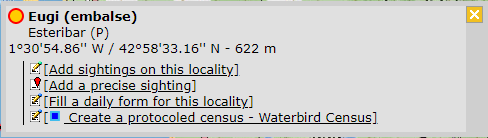
- 1. Click + NEW under the list (see image). Select the site as if entering an observation (see wiki section Web interface > Submitting records if necessary) and choose the new option: Create a protocoled census - Waterbird census (see image below).
- 1. Click + NEW under the list (see image). Select the site as if entering an observation (see wiki section Web interface > Submitting records if necessary) and choose the new option: Create a protocoled census - Waterbird census (see image below).

.
- 2. Enter a name for the new site.
- 2. Enter a name for the new site.

Name of reference locality: Name assigned automatically.
Reference number: Type a name for the new site.
Custom name:
- 3. Either:
- Draw polygon as explained in ... or,
- Draw polygon as explained in ... or,
- 3. Either:
- Import shapefile:
- Import shapefile:

1. Choose datum and
2. upload the file.
3. When done, click IMPORT.
- After a new polygon is created, it is possible to export it as a shapefile to use in the future. Click on the file icon under the Polygon section (see image below, encircled).
- After a new polygon is created, it is possible to export it as a shapefile to use in the future. Click on the file icon under the Polygon section (see image below, encircled).

- 4. When the new site is ready,
- SAVE AND STAY to save the site and continue making changes, or
- SAVE AND ADD A RECORD to save and start entering observations.
- SAVE AND STAY to save the site and continue making changes, or
- 4. When the new site is ready,
- The new site is now created and saved (indicated at the top of the page). You have now the option to delete the newly created site if necessary (see image Deleting a newly created site). Otherwise, go anywhere in the page or start the whole process to create other sites without loosing the new one.
- The new site is now created and saved (indicated at the top of the page). You have now the option to delete the newly created site if necessary (see image Deleting a newly created site). Otherwise, go anywhere in the page or start the whole process to create other sites without loosing the new one.
User/Site

Access to sites
List of observers allowed to conduct Waterbird census protocols and the site/s they are assigned to. Use arrows on columns to alternate between ascending and descending order.

User name: Name and email address of observer.
Reference name: Name of the Waterbird census site.
- 1. Search
Reduce list by typing the name of a site, or part of it, and click SEACH. When a filter is applied, Click on DISPLAY ALL.
- 2. Search
Select page number and/or number of items per page.
- 3. Details
See details of observers and their assigned site.

User name: Observer name and email address.
Reference name: Name of site the observer has right to survey for the Waterbird census protocol.
Custom name:
8. BACK: Go back to main list.
9. EDIT: See Edit subsection below.
10. DELETE: Revoque observer's right to survey this site for the Waterbird census protocol.
- 4. Edit
Modify the user assigned to this site, or the site assigned to this user.

11. Modify observer assigned to this site. Start typing the name of the new observer (a) and choose from the
expandable panel (b).
12. Modify site assigned to the observer. Start typing the name of the new site (a) and choose from the
expandable panel (b).
13. BACK: Go to preious screen without saving changes.
14. MODIFY: Save changes.
- 5. Delete
Revoque the user's right to survey this site for the Waterbird census protocol.
- 6. EXPORT
Export list as a .txt file.
- 7. + NEW
Grant rights to observer to conduct Waterbird census surveys to dessignated sites.
11. Select observer to grant access to a certain site. Start typing the name of the new observer (a) and choose
from the expandable panel (b).
12. Select site to be assigned to the observer. Start typing the name of the new site (a) and choose from the
expandable panel (b).
13. BACK: Go to preious screen without saving changes.
14. ADD: Save new addition.
Administration users rights
List of users and administrators with acces to the Waterbird census protocol. Use arrows on columns to alternate between ascending and descending order.

- 1. Search
Reduce list by typing the name of a site, or part of it, and click SEACH. When a filter is applied, click on DISPLAY ALL.
- 2. Search
Select page number and/or number of items per page.
- 3. Details
See the rights granted to the selected observer.

Number: File number.
User name: Name of the user receiving the right.
Right granted: Right the selected user is granted.
8. BACK: Go back to main list.
9. EDIT: See Edit subsection below.
10. DELETE: Revoque observer's right to survey this site for the Waterbird census protocol.
- 4. Edit
Modify the rights granted to an observer.

11. Modify observer assigned to this site. Start typing the name of the new observer (a) and choose from the
expandable panel (b).
12. Modify site assigned to the observer. Start typing the name of the new site (a) and choose from the
expandable panel (b).
13. BACK: Go to previous screen without saving changes.
14. MODIFY: Save changes.
- 5. Delete
Revoque the user's right to survey this site for the Waterbird census protocol.
- 6. + NEW
Add a new right to an observer.

11. Select observer to grant access to a certain site. Start typing the name of the new observer (a) and choose
from the expandable panel (b).
12. Select site to be assigned to the observer. Start typing the name of the new site (a) and choose from the
expandable panel (b).
13. BACK: Go to preious screen without saving changes.
15. ADD: Save new addition.
- 7. Protocol administrators
List of administrators of Waterbird census protocol and their email addresses.
Settings
Set parameters to the protocol.

Species list
Parameters discribing the protocol
List of all parameters describing the protocol and their current status.




Parameters: Pieces of information associated to the protocol.
Active?: Indicates if the user will be asked for the information.
Mandatory?: Indicates if the information will be mandatory.
1. Select page number and/or number of items per page.
2. See details.
3. Edit details.
- Comment
Allows user to enter a comment if necessary.
- Important changes
Allows indicating if there have been major changes since last visit.
- Additional observer
Space to indicate if the observer has been accompanied by someone whose observations were also recorded.
- Ice
Indicates the percentatge of water surface that is frozen. Options are:
- Snow coverage
Indicates the proportion of snow cover. Options are:
- Count type
User should choose one the options:
- roost count if they are counting roosting birds, or
- during day otherwise.
- roost count if they are counting roosting birds, or
- Count method
The user indicates how the survey took place. Only one option is possible. Options are:
- at ground
- on airplane
- on ship
- other
- unknown
- at ground
- Optical equipment
The user should indicate the equipment used for the survey. Only one option is possible. Options are:
- None
- Telescope
- Binoculars
- Unknown
- None
- Coverage
Serves to indicate how much of the designated polygon is covered in the survey. The user chooses between:
- Partly
- Complete
- Unknown
- Partly
- Water level
Indicates the water level. Options are:
- Dry / Empty
- Low
- Normal
- High
- Unknown
- Dry / Empty
- Visibility
Approximate distance within which it is possible to identify species. Options are:
- 0-100 m
- 100-300 m
- 300-1000 m
- ≥ 1000 m
- Unknown
- 0-100 m
- Waves
Provides information about the waves. Options are:
- None
- Small
- Moderate
- With crests
- Unknown
- None
- Conditions in general
Choose how are surveying conditions overall regarding weather and disturbances, and indicate on next section the reason if surveying conditions are not good. Options are:
- Good / Normal
- Good / Normal
- Moderate
- Bad / heavely influenced
- Bad / heavely influenced
- Unknwon
- Reason(s) for moderate / bad conditions
If general conditions indicated above were noot good,
clicking the yellow field to open an expandable menu and choose the reason (see image below). Only one option is possible: choose the one that better adjusts to reality.
- Fog
- Rain
- Wind
- Hnting
- Fog
- Fishing
- Sport
- Mixed (weather)
- Mixed (human)
- Others
- Mixed (weather)
- Count payed
The user can indicate if the count is payed for or not. Options are Yes and No.
- Number of persons on shore
The user can type the number of number of persons on shore.
- Number of rowing boats
The user can type the number of rowing boats.
- Number of motor boats
The user can type the number of motor boats.
- Number of sailing boats
The user can type the number of sailing boats.
- Number of canoes/kayaks
The user can type the number of canoes/kayaks.
- Number of fishing boats
The user can type the number of fishing boats.
- Number of sports divers
The user can type the number of sports divers.
- Number of surfers
The user can type the number of surfers.
- Additional observers
Indicate the name of other observers participating in the data collection.
- Important changes since last count?
Indicate if there has been any major change since your previous count, for example, some disturbance like noise or construction.
- Record the trace
Parameters
Check data
Report
Map