Species administation: Difference between revisions
| (81 intermediate revisions by the same user not shown) | |||
| Line 1: | Line 1: | ||
<br/> | <br/> | ||
<center> | |||
<div class="toc" style="border-radius:5px;background-color:#ffffff;padding-left:8px;padding-right:8px;padding-bottom:8px;width:300px;"> | |||
[[File:Species_administration_menu.png|300px|link=https://help.biolovision.net/images/8/81/Species_administration_menu.png]] | |||
<div class="toc" style="border-radius:5px;padding-left:15px;text-align:left; font-size:12px;width:275px;"> | |||
'''Species administration.''' | |||
</div> | |||
</div> | |||
</center> | |||
<br/> | |||
<br/> | |||
=Species sheets= | =Species sheets= | ||
| Line 9: | Line 18: | ||
<br/> | <br/> | ||
[[File:2023-04-13 Species sheets.png|700px| | <center> | ||
<div class="toc" style="border-radius:5px;background-color:#ffffff;padding-left:8px;padding-right:8px;padding-bottom:8px;width:700px;"> | |||
[[File:2023-04-13 Species sheets.png|700px|link=https://help.biolovision.net/images/c/c2/2023-04-13_Species_sheets.png]] | |||
<div class="toc" style="border-radius:5px;padding-left:15px;text-align:left; font-size:12px;width:675px;"> | |||
'''Species sheets.''' | |||
</div> | |||
</div> | |||
</center> | |||
<br/> | |||
<br/> | |||
[[Species_administation#Species_sheets|[Top to Species sheet]]] <br/> | |||
[[#top|[Back to Species administration]]] <br/> | |||
<br/> | <br/> | ||
| Line 18: | Line 39: | ||
<br/> | <br/> | ||
[[File:2023-04-12 administration species lists.png|700px| | <center> | ||
<div class="toc" style="border-radius:5px;background-color:#ffffff;padding-left:8px;padding-right:8px;padding-bottom:8px;width:700px;"> | |||
[[File:2023-04-12 administration species lists.png|700px|link=https://help.biolovision.net/images/a/a2/2023-04-12_administration_species_lists.png]] | |||
<div class="toc" style="border-radius:5px;padding-left:15px;text-align:left; font-size:12px;width:675px;"> | |||
'''Admin species list.''' | |||
</div> | |||
</div> | |||
</center> | |||
<br/> | |||
<br/> | <br/> | ||
Choose taxonomic group (image below, 1) and type of list to work on (image below, 2): <br/> | <span id="group"></span> | ||
:'''Species:''' List of all species in the system. <br/> | 1. Choose a taxonomic group (see image below, 1) and, <br/> | ||
:'''Hidden species:''' List of species automatically hidden at least part of the year.<br/> | <span id="list"></span> | ||
:''' | 2. type of list to work on (see image below, 2): <br/> | ||
:'''MENU_TEXT_BIRD_RCL:''' <br/> | :[[Species administration#Species|'''Species:''']] List of all species in the system. <br/> | ||
:'''MENU_TEXT_BIRD_RC:''' <br/> | :[[Species administration#Hidden species|'''Hidden species:''']] List of species automatically hidden at least part of the year.<br/> | ||
:'''MENU_TEXT_BIRD_RCE:''' <br/> | :[[Species administration#Automatic filter|'''Automatic filter:''']] <br/> | ||
:'''Colonial species:''' List of all colonial species in the active list for the country the site represents. <br/> | :[[Species administration#RCL|'''MENU_TEXT_BIRD_RCL:''']] <br/> | ||
:'''Managing | :[[Species administration#RC|'''MENU_TEXT_BIRD_RC:''']] <br/> | ||
:'''Managing species groups:''' <br/> | :[[Species administration#RCE|'''MENU_TEXT_BIRD_RCE:''']] <br/> | ||
:'''Regionalisation rarity level:''' <br/> | :[[Species administration#Colonial species|'''Colonial species:''']] List of all colonial species in the active list for the country the site represents. <br/> | ||
:[[Species administration#Managing synonyms|'''Managing synonyms:''']] <br/> | |||
:[[Species administration#Species groups|'''Managing species groups:''']] <br/> | |||
:[[Species administration#Regionalisation|'''Regionalisation rarity level:''']] <br/> | |||
<br/> | <br/> | ||
[[File:2023-04-13 Choosing list on admin species list.png| | <center> | ||
<div class="toc" style="border-radius:5px;background-color:#ffffff;padding-left:8px;padding-right:8px;padding-bottom:8px;width:600px;"> | |||
[[File:2023-04-13 Choosing list on admin species list.png|600px|link=https://help.biolovision.net/images/5/53/2023-04-13_Choosing_list_on_admin_species_list.png]] | |||
<div class="toc" style="border-radius:5px;padding-left:15px;text-align:left; font-size:12px;width:575px;"> | |||
'''Choosing list on admin species list.''' | |||
</div> | |||
<p style="color:black;font-size:12px;padding-left:30px;text-align:left;column-count:2;"> | |||
<b>1.</b> [[Species administration#group|Choose taxonomic group]]<br /> | |||
<b>2.</b> [[Species administration#list|Choose type of list]] <br/> | |||
</p> | |||
</div> | |||
</center> | |||
<br/> | |||
<br/> | <br/> | ||
<span id="Species"></span> | |||
==Species== | ==Species== | ||
<br/> | <br/> | ||
| Line 42: | Line 87: | ||
<br/> | <br/> | ||
[[File:2023-04-12 species admin list .png|700px| | <center> | ||
<p style=" | <div class="toc" style="border-radius:5px;background-color:#ffffff;padding-left:8px;padding-right:8px;width:700px;"> | ||
[[File:2023-04-12 species admin list .png|700px|link=https://help.biolovision.net/images/4/4e/2023-04-12_species_admin_list_.png]] | |||
<div class="toc" style="border-radius:5px;padding-left:15px;text-align:left; font-size:12px;width:675px;"> | |||
'''Species list.''' | |||
</div> | |||
<p style="color:black;font-size:12px;padding-left:30px;text-align:left;column-count:2;"> | |||
<b>1.</b> [[Species administration#Search 1|Search]] <br /> | |||
<b>2.</b> [[Species administration#Page 1|Page and items]] <br/> | |||
<b>3.</b> [[Species administration#Details 1|Details]] <br /> | |||
<b>4.</b> [[Species administration#Edit 1|Edit]] <br/> | |||
<b>5.</b> [[Species administration#Export 1|EXPORT]] <br/> | |||
</p> | |||
<br/> | |||
<p style="color:black;font-size:12px;padding-left:5px;text-align:left;column-count:1;padding-right:5px;"> | |||
'''Number:''' Entry number. <br/> | '''Number:''' Entry number. <br/> | ||
'''Sys:''' <br/> | '''Sys:''' <br/> | ||
| Line 52: | Line 110: | ||
'''Category:''' <br/> | '''Category:''' <br/> | ||
'''Rarity:''' Indicates the rarity level for this species in this territory.<br/> | '''Rarity:''' Indicates the rarity level for this species in this territory.<br/> | ||
</p><br/> | </p> | ||
</div> | |||
</center> | |||
<br/> | |||
<br/> | |||
<span id="Search 1"></span> | |||
<span id="Search 1"></span> | |||
:'''1. Search''' <br/> | :'''1. Search''' <br/> | ||
Reduce list by typing the name of a site, or part of it, and click '''SEACH'''. When a filter is applied, click on | Reduce list by typing the name of a site, or part of it, and click '''SEACH'''. When a filter is applied, click on | ||
| Line 59: | Line 123: | ||
<br/> | <br/> | ||
:'''2. | <span id="Page 1"></span> | ||
:'''2. Page and items''' <br/> | |||
Select page number and/or number of items per page.<br/> | Select page number and/or number of items per page.<br/> | ||
<br/> | <br/> | ||
<span id="Details 1"></span> | |||
:'''3. Details''' <br/> | :'''3. Details''' <br/> | ||
Click to see details of selected species. These include the species name in different languages and rarity level. See also the start and end date of automatic atlas code when available. <br/> | Click to see details of selected species. These include the species name in different languages and rarity level. See also the start and end date of automatic atlas code when available. <br/> | ||
<br/> | <br/> | ||
[[File:2023-04-13 Edit admin species list.png| | <center> | ||
<p style=" | <div class="toc" style="border-radius:5px;background-color:#ffffff;padding-left:8px;padding-right:8px;width:600px;"> | ||
[[File:2023-04-13 Edit admin species list.png|600px|link=https://help.biolovision.net/images/8/8f/2023-04-13_Edit_admin_species_list.png]] | |||
<div class="toc" style="border-radius:5px;padding-left:15px;text-align:left; font-size:12px;width:575px;"> | |||
'''Details admin species list.''' | |||
</div> | |||
<p style="color:black;font-size:12px;padding-left:5px;text-align:left;column-count:1;padding-right:5px;"> | |||
'''BACK:''' Go to previous screen without saving.<br/> | '''BACK:''' Go to previous screen without saving.<br/> | ||
'''EDIT:''' Edit details. See edit subsection below. <br/> | '''EDIT:''' Edit details. See edit subsection below. <br/> | ||
</p> | </p> | ||
</div> | |||
</center> | |||
<br/> | |||
<br/> | <br/> | ||
<span id="Edit 1"></span> | |||
:'''4. Edit''' <br/> | :'''4. Edit''' <br/> | ||
Modify / complete any species detail. <br/> | Modify / complete any species detail. <br/> | ||
<br/> | <br/> | ||
[[File:2023-04-13 Modify admin species list.png| | <center> | ||
<p style=" | <div class="toc" style="border-radius:5px;background-color:#ffffff;padding-left:8px;padding-right:8px;width:600px;"> | ||
'''BACK:''' Go to previous screen without saving. <br/> | [[File:2023-04-13 Modify admin species list.png|600px|link=https://help.biolovision.net/images/8/82/2023-04-13_Modify_admin_species_list.png]] | ||
<div class="toc" style="border-radius:5px;padding-left:15px;text-align:left; font-size:12px;width:575px;"> | |||
'''Editing admin species list.''' | |||
</div> | |||
<p style="color:black;font-size:12px;padding-left:5px;text-align:left;column-count:1;padding-right:5px;"> | |||
'''BACK:''' Go to previous screen without saving.<br/> | |||
'''MODIFY:''' Save changes. <br/> | '''MODIFY:''' Save changes. <br/> | ||
</p><br/> | </p> | ||
</div> | |||
</center> | |||
<br/> | |||
<br/> | |||
For questions or additions please contact [http://support@biolovision.net Biolovision HelpDesk]. <br/> | For questions or additions please contact [http://support@biolovision.net Biolovision HelpDesk]. <br/> | ||
<br/> | <br/> | ||
<span id="Export 1"></span> | |||
:'''5. EXPORT''' <br/> | :'''5. EXPORT''' <br/> | ||
Download list as a .txt file. <br/> | Download list as a .txt file. <br/> | ||
<br/> | <br/> | ||
[[Species_administation#Species|[Top to Species]]] <br/> | |||
[[Species_administation#Species_list|[Top to Species list]]] <br/> | |||
[[#top|[Back to Species administration]]] <br/> | |||
<br/> | |||
<span id="Hidden species></span> | |||
==Hidden species== | ==Hidden species== | ||
| Line 97: | Line 189: | ||
<br/> | <br/> | ||
[[File:2023-04-13 admin hidden species.png| | <center> | ||
<p style=" | <div class="toc" style="border-radius:5px;background-color:#ffffff;padding-left:8px;padding-right:8px;padding-bottom:8px;width:600px;"> | ||
[[File:2023-04-13 admin hidden species.png|600px|link=https://help.biolovision.net/images/b/b9/2023-04-13_admin_hidden_species.png]] | |||
<div class="toc" style="border-radius:5px;padding-left:15px;text-align:left; font-size:12px;width:575px;"> | |||
'''Admin hidden species.''' | |||
</div> | |||
<p style="color:black;font-size:12px;padding-left:30px;text-align:left;column-count:3;"> | |||
<b>1.</b> [[Species administration#Search 2|Search]] <br /> | |||
<b>2.</b> [[Species administration#Page 2|Page and items]] <br/> | |||
<b>3.</b> [[Species administration#Details 2|Details]] <br /> | |||
<b>4.</b> [[Species administration#Edit 2|Edit]] <br /> | |||
<b>5.</b> [[Species administration#Delete 2|Details]] <br /> | |||
<b>6.</b> [[Species administration#New 2|NEW]] <br /> | |||
<b>7.</b> [[Species administration#Export 2|EXPORT]] <br /> | |||
</p> | |||
<br/> | |||
<p style="color:black;font-size:12px;padding-left:5px;text-align:left;column-count:1;padding-right:5px;"> | |||
'''Species:''' Name of hidden species. <br/> | '''Species:''' Name of hidden species. <br/> | ||
'''Season:''' Starting date from which the species will be hidden.<br/> | '''Season:''' Starting date from which the species will be hidden.<br/> | ||
'''End:''' Ending date from which the species will be hidden.<br/> | '''End:''' Ending date from which the species will be hidden.<br/> | ||
'''Minimum atlas code:''' Minimum atlas code to hide the species.<br/> | '''Minimum atlas code:''' Minimum atlas code to hide the species.<br/> | ||
</p><br/> | </p> | ||
</div> | |||
</center> | |||
<br/> | |||
<br/> | |||
<span id="Search 2"> | |||
:'''1. Search''' <br/> | :'''1. Search''' <br/> | ||
Reduce list by typing the name of a site, or part of it, and click '''SEACH'''. When a filter is applied, click on | Reduce list by typing the name of a site, or part of it, and click '''SEACH'''. When a filter is applied, click on | ||
| Line 110: | Line 222: | ||
<br/> | <br/> | ||
:'''2. | <span id="Page 2"></span> | ||
:'''2. Page and items''' <br/> | |||
Select page number and/or number of items per page.<br/> | Select page number and/or number of items per page.<br/> | ||
<br/> | <br/> | ||
<span id="Details"></span> | |||
:'''3. Details''' <br/> | :'''3. Details''' <br/> | ||
Click to see details of selected species, including comments when | Click to see details of selected species, including comments when available. <br/> | ||
<br/> | <br/> | ||
[[File:2023-04-13 Details admin hidden species.png| | <center> | ||
<p style=" | <div class="toc" style="border-radius:5px;background-color:#ffffff;padding-left:8px;padding-right:8px;width:600px;"> | ||
[[File:2023-04-13 Details admin hidden species.png|600px|link=https://help.biolovision.net/images/d/dd/2023-04-13_Details_admin_hidden_species.png]] | |||
<div class="toc" style="border-radius:5px;padding-left:15px;text-align:left; font-size:12px;width:575px;"> | |||
'''Details admin hidden species.''' | |||
</div> | |||
<p style="color:black;font-size:12px;padding-left:5px;text-align:left;column-count:1;padding-right:5px;"> | |||
'''BACK:''' Go to previous screen. <br/> | '''BACK:''' Go to previous screen. <br/> | ||
'''EDIT:''' Edit details. See subsection Edit below.<br/> | '''EDIT:''' Edit details. See subsection Edit below.<br/> | ||
'''DELETE:''' Make the species always visible.<br/> | '''DELETE:''' Make the species always visible.<br/> | ||
</p><br/><br/> | </p> | ||
</div> | |||
</center> | |||
<br/> | |||
<br/> | |||
<span id="Edit 2"></span> | |||
:'''4. Edit''' <br/> | :'''4. Edit''' <br/> | ||
Modify species to hide, dates to hide it or atlas requirements for hiding it. <br/> | Modify species to hide, dates to hide it or atlas requirements for hiding it. <br/> | ||
<br/> | <br/> | ||
[[File:2023-04-13 edit hidden species.png| | <center> | ||
<p style=" | <div class="toc" style="border-radius:5px;background-color:#ffffff;padding-left:8px;padding-right:8px;padding-bottom:8px;width:600px;"> | ||
[[File:2023-04-13 edit hidden species.png|600px|link=https://help.biolovision.net/images/e/ed/2023-04-13_edit_hidden_species.png]] | |||
<div class="toc" style="border-radius:5px;padding-left:15px;text-align:left; font-size:12px;width:575px;"> | |||
'''Edit Admin hidden species''' | |||
</div> | |||
<p style="color:black;font-size:12px;padding-left:5px;text-align:left;column-count:1;padding-right:5px;"> | |||
'''Species:''' Modify species by typing the name, or part of it, on the left field (8a) and selecting from the expandable menu on the right (8b). <br/> | |||
'''Season:''' Select from the expandable menu the starting day (left) and month (right) to hide the species. <br/> | |||
'''End:''' Select from the expandable menu the ending day (left) and month (right) to hide the species. <br/> | |||
'''Minimum atlas code:''' Atlas code from which the species will be hidden. <br/> | |||
'''Comment:''' Add / modify a comment if necessary. <br/> | |||
<br/> | |||
'''BACK:''' Go to previous screen without saving. <br/> | '''BACK:''' Go to previous screen without saving. <br/> | ||
'''MODIFY:''' Save changes. <br/> | '''MODIFY:''' Save changes. <br/> | ||
</p | </p> | ||
</div> | |||
</center> | |||
<br/> | |||
<br/> | <br/> | ||
<span id="Delete 2"></span> | |||
:'''5. Delete''' <br/> | :'''5. Delete''' <br/> | ||
Delete the selected species from the list. This species will no longer be hidden. <br/> | Delete the selected species from the list. This species will no longer be hidden. <br/> | ||
<br/> | <br/> | ||
<span id="New 2"></span> | |||
:'''6. NEW''' <br/> | :'''6. NEW''' <br/> | ||
Hide a species from the public during certain dates and/or under certain breeding status. <br/> | |||
<br/> | |||
<center> | |||
<div class="toc" style="border-radius:5px;background-color:#ffffff;padding-left:8px;padding-right:8px;padding-bottom:8px;width:600px;"> | |||
[[File:2023-04-13 Hide a species.png|600px|link=https://help.biolovision.net/images/f/fb/2023-04-13_Hide_a_species.png]] | |||
<div class="toc" style="border-radius:5px;padding-left:15px;text-align:left; font-size:12px;width:575px;"> | |||
'''Hiding a species from the public.''' | |||
</div> | |||
<p style="color:black;font-size:12px;padding-left:5px;text-align:left;column-count:1;padding-right:5px;"> | |||
'''Species:''' Type the name of the species to hide, or part of it, on the left field (8a) and select from the expandable menu on the right (8b). <br/> | |||
'''Season:''' Select from the expandable menu the starting day (left) and month (right) to hide the species. <br/> | |||
'''End:''' Select from the expandable menu the ending day (left) and month (right) to hide the species. <br/> | |||
'''Minimum atlas code:''' Select from the expandable menu the atlas code from which the species will be hidden. <br/> | |||
'''Comment:''' Add a comment if necessary. <br/> | |||
<br/> | |||
'''BACK:''' Go to previous screen with saving. <br/> | |||
'''ADD:''' Add the species to the list. <br/> | |||
</p> | |||
</div> | |||
</center> | |||
<br/> | |||
<br/> | |||
<span id="Export 2"></span> | |||
:'''7.EXPORT''' <br/> | |||
Download the list as a .txt file.<br/> | |||
<br/> | <br/> | ||
[[Species_administation#Hidden_species|[Top to Hidden species]]] <br/> | |||
[[Species_administation#Species_list|[Top to Species list]]] <br/> | |||
[[#top|[Back to Species administration]]] <br/> | |||
<br/> | |||
<span id="Automatic filter></span> | |||
==Automatic filter== | |||
<br/> | <br/> | ||
[[Species_administation#Automatic filter|[Top to Automatic filter]]] <br/> | |||
[[Species_administation#Species_list|[Top to Species list]]] <br/> | |||
[[#top|[Back to Species administration]]] <br/> | |||
<br/> | <br/> | ||
<span id="RCL"></span> | |||
==MENU_TEXT_BIRD_RCL== | ==MENU_TEXT_BIRD_RCL== | ||
<br/> | <br/> | ||
<span id="RC"></span> | |||
==MENU_TEXT_BIRD_RC== | ==MENU_TEXT_BIRD_RC== | ||
<br/> | <br/> | ||
<span id="RCE"></span> | |||
==MENU_TEXT_BIRD_RCE== | ==MENU_TEXT_BIRD_RCE== | ||
<br/> | <br/> | ||
<span id="Colonial species"></span> | |||
==Colonial species== | ==Colonial species== | ||
<br/> | <br/> | ||
List of all colonial species in the active list for the country the site represents. <br/> | List of all colonial species in the active list for the country the site represents. Use arrows under titles to alternate between ascending and descending order (see [[Media:2023-03-27 example arrows.png|image as an example]]).<br/> | ||
<br/> | |||
==Managing | <center> | ||
<div class="toc" style="border-radius:5px;background-color:#ffffff;padding-left:8px;padding-right:8px;padding-bottom:8px;width:600px;"> | |||
[[File:2023-04-14 Admin colonial species.png|600px|link=https://help.biolovision.net/images/f/f8/2023-04-14_Admin_colonial_species.png]] | |||
<div class="toc" style="border-radius:5px;padding-left:15px;text-align:left; font-size:12px;width:575px;"> | |||
'''Admin colonial species.''' | |||
</div> | |||
<p style="color:black;font-size:12px;padding-left:30px;text-align:left;column-count:3;"> | |||
<b>1.</b> [[Species administration#Search 4|Search]] <br /> | |||
<b>2.</b> [[Species administration#Page 4|Page and items]] <br/> | |||
<b>3.</b> [[Species administration#Details 4|Details]] <br /> | |||
<b>4.</b> [[Species administration#Edit 4|Edit]] <br/> | |||
<b>5.</b> [[Species administration#Delete 4|Delete]] <br/> | |||
<b>6.</b> [[Species administration#New 4|New]] <br/> | |||
<b>7.</b> [[Species administration#Export 4|EXPORT]] <br/> | |||
</p> | |||
<br/> | |||
<p style="color:black;font-size:12px;padding-left:5px;text-align:left;column-count:1;padding-right:5px;"> | |||
'''Species:''' Name oof the colonial species. <br/> | |||
'''Detailed form:''' Indicates if it is necessary to fill in the Colonial species form if the species is detected. <br/> | |||
'''Colonial species module trigger:''' <br/> | |||
</p> | |||
</div> | |||
</center> | |||
<br/> | |||
<br/> | |||
<span id="Search 3"></span> | |||
:'''1. Search''' <br/> | |||
Reduce list by typing the name of a site, or part of it, and click '''SEACH'''. When a filter is applied, click on | |||
[[Media:2023-03-17 Diplay full list.png|'''DISPLAY ALL''']]. <br/> | |||
<br/> | |||
<span id="Page 3"></span> | |||
:'''2. Page and items''' <br/> | |||
Select page number and/or number of items per page.<br/> | |||
<br/> | |||
<span id="Details 3"></span> | |||
:'''3. Details''' <br/> | |||
Click to see details of selected species. <br/> | |||
<br/> | |||
<center> | |||
<div class="toc" style="border-radius:5px;background-color:#ffffff;padding-left:8px;padding-right:8px;width:600px;"> | |||
[[File:2023-04-14 Admin colonial species details.png|600px|link=https://help.biolovision.net/images/1/1e/2023-04-14_Admin_colonial_species_details.png]] | |||
<div class="toc" style="border-radius:5px;padding-left:15px;text-align:left; font-size:12px;width:575px;"> | |||
'''Admin colonial species details.''' | |||
</div> | |||
<p style="color:black;font-size:12px;padding-left:5px;text-align:left;column-count:1;padding-right:5px;"> | |||
'''BACK:''' Go to previous screen without saving.<br/> | |||
'''EDIT:''' Edit details. See edit subsection below. <br/> | |||
'''DELETE:''' Remove selected species from the list. <br/> | |||
</p> | |||
</div> | |||
</center> | |||
<br/> | |||
<br/> | |||
<span id="Edit 3"></span> | |||
:'''4. Edit''' <br/> | |||
Modify / complete any species detail. <br/> | |||
<br/> | |||
<center> | |||
<div class="toc" style="border-radius:5px;background-color:#ffffff;padding-left:8px;padding-right:8px;width:600px;"> | |||
[[File:Capture 2023-04-14 Edit admin colonial species.png|600px|link=https://help.biolovision.net/images/c/c2/Capture_2023-04-14_Edit_admin_colonial_species.png]] | |||
<div class="toc" style="border-radius:5px;padding-left:15px;text-align:left; font-size:12px;width:575px;"> | |||
'''Editing colonial species list.''' | |||
</div> | |||
<p style="color:black;font-size:12px;padding-left:5px;text-align:left;column-count:1;padding-right:5px;"> | |||
'''8. Species:''' Change the species by typing its name, or part of it, in the left field (a) and select from the expandable menu in the right field (b).<br/> | |||
'''9. Detailed form:''' Indicate if it will be necessary to open a detailed form for these species.<br/> | |||
'''10. Colonial species module trigger:''' <br/> | |||
<br/> | |||
'''BACK:''' Go to previous screen without saving. <br/> | |||
'''MODIFY:''' Save changes. <br/> | |||
</p> | |||
</div> | |||
</center> | |||
<br/> | |||
<br/> | |||
<span id="Delete 3"></span> | |||
:'''5. Delete''' <br/> | |||
Delete the selected species from the list. You will be asked to confirm. <br/> | |||
<br/> | |||
<span id="New 3"></span> | |||
:'''6. NEW''' <br/> | |||
Include a new species as a colonial breeding species. <br/> | |||
<br/> | |||
<center> | |||
<div class="toc" style="border-radius:5px;background-color:#ffffff;padding-left:8px;padding-right:8px;width:600px;"> | |||
[[File:2023-04-14 Admin new colonial species.png|600px|link=https://help.biolovision.net/images/7/78/2023-04-14_Admin_new_colonial_species.png]] | |||
<div class="toc" style="border-radius:5px;padding-left:15px;text-align:left; font-size:12px;width:575px;"> | |||
'''Admin New colonial species.''' | |||
</div> | |||
<p style="color:black;font-size:12px;padding-left:5px;text-align:left;column-count:1;padding-right:5px;"> | |||
'''8. Species:''' Type the new species name, or part of it, in the left field (a) and select from the expandable menu in the right field (b).<br/> | |||
'''9. Detailed form:''' Indicate if it will be necessary to open a detailed form for these species.<br/> | |||
'''10. Colonial species module trigger:''' <br/> | |||
<br/> | |||
'''BACK:''' Go to previous screen without saving. <br/> | |||
'''ADD:''' Save new species to the list. <br/> | |||
</p> | |||
</div> | |||
</center> | |||
<br/> | |||
<br/> | |||
<span id"Export 3"></span> | |||
:'''7. EXPORT''' <br/> | |||
Download list as a .txt file. <br/> | |||
<br/> | |||
[[Species_administation#Colonial_species|[Top to Colonial species]]] <br/> | |||
[[Species_administation#Species_list|[Top to Species list]]] <br/> | |||
[[#top|[Back to Species administration]]] <br/> | |||
<br/> | |||
==Managing synonyms== | |||
<br/> | |||
[[Species_administation#Managing_synonyms|[Top to Managing synonyms]]] <br/> | |||
[[Species_administation#Species_list|[Top to Species list]]] <br/> | |||
[[#top|[Back to Species administration]]] <br/> | |||
<br/> | <br/> | ||
==Managing species groups== | ==Managing species groups== | ||
<br/> | |||
Indicates under which group to consider hybrids, subespecies and difficult to identify species. Use arrows under titles to alternate between ascending and descending order (see [[Media:2023-03-27 example arrows.png|image as an example]]).<br/> | |||
<br/> | |||
<center> | |||
<div class="toc" style="border-radius:5px;background-color:#ffffff;padding-left:8px;padding-right:8px;padding-bottom:8px;width:600px;"> | |||
[[File:Capture 2023-04-14 Managing species groups.png|600px|link=https://help.biolovision.net/images/1/15/Capture_2023-04-14_Managing_species_groups.png]] | |||
<div class="toc" style="border-radius:5px;padding-left:15px;text-align:left; font-size:12px;width:575px;"> | |||
'''Managing species groups.''' | |||
</div> | |||
<p style="color:black;font-size:12px;padding-left:30px;text-align:left;column-count:3;"> | |||
<b>1.</b> [[Species administration#Search 5|Search]] <br /> | |||
<b>2.</b> [[Species administration#Page 5|Page and items]] <br/> | |||
<b>3.</b> [[Species administration#Details 5|Details]] <br /> | |||
<b>4.</b> [[Species administration#Edit 5|Edit]] <br /> | |||
<b>5.</b> [[Species administration#Delete 5|Delete]] <br /> | |||
<b>6.</b> [[Species administration#New 5|NEW]] <br /> | |||
<b>7.</b> [[Species administration#Export 5|EXPORT]] <br /> | |||
</p> | |||
<br/> | |||
<p style="color:black;font-size:12px;padding-left:5px;text-align:left;column-count:1;padding-right:5px;"> | |||
'''Child taxa:''' Name on the list when selecting species to enter. <br/> | |||
'''Type:''' Grouping criteria. <br/> | |||
'''Parent taxa:''' Group under which the species will be considered / analysed. <br/> | |||
</p> | |||
</div> | |||
</center> | |||
<br/> | |||
<br/> | |||
<span id="Search 5"></span> | |||
:'''1. Search''' <br/> | |||
Reduce list by typing the name of a site, or part of it, and click '''SEACH'''. When a filter is applied, click on | |||
[[Media:2023-03-17 Diplay full list.png|'''DISPLAY ALL''']]. <br/> | |||
<br/> | |||
<span id="Page 5"></span> | |||
:'''2. Page and items''' <br/> | |||
Select page number and/or number of items per page.<br/> | |||
<br/> | |||
<span id="Details 5"></span> | |||
:'''3. Details''' <br/> | |||
Click to see details of selected species. <br/> | |||
<br/> | |||
<center> | |||
<div class="toc" style="border-radius:5px;background-color:#ffffff;padding-left:8px;padding-right:8px;padding-bottom:8px;width:600px;"> | |||
[[File:2023-04-14 Edit managing species groups.png|600px|link=https://help.biolovision.net/images/9/91/2023-04-14_Edit_managing_species_groups.png]] | |||
<div class="toc" style="border-radius:5px;padding-left:15px;text-align:left; font-size:12px;width:575px;"> | |||
'''Details managing species groups.''' | |||
</div> | |||
<p style="color:black;font-size:12px;padding-left:5px;text-align:left;column-count:1;padding-right:5px;"> | |||
'''BACK:''' Go to previous screen without saving.<br/> | |||
'''EDIT:''' Edit details. See edit subsection below. <br/> | |||
'''DELETE:''' Delete entry from the list. <br/> | |||
</p> | |||
</div> | |||
</center> | |||
<br/> | |||
<br/> | |||
<span id="Edit 5"></span> | |||
:'''4. Edit''' <br/> | |||
Modify the species group the selected entry belongs to. <br/> | |||
<br/> | |||
<center> | |||
<div class="toc" style="border-radius:5px;background-color:#ffffff;padding-left:8px;padding-right:8px;padding-bottom:8px;width:600px;"> | |||
[[File:Capture 2023-04-14 Editing managing species groups.png|600px|link=https://help.biolovision.net/images/6/68/Capture_2023-04-14_Editing_managing_species_groups.png]] | |||
<div class="toc" style="border-radius:5px;padding-left:15px;text-align:left; font-size:12px;width:575px;"> | |||
'''Editing managing species groups.''' | |||
</div> | |||
<p style="color:black;font-size:12px;padding-left:5px;text-align:left;column-count:1;padding-right:5px;"> | |||
'''8. Child taxa:''' Type the species name, or part of it, in the left field (a) and select from the expandable menu on the right field (b).<br/> | |||
'''9. Type:''' Select the grouping criteria from the expandable menu. <br/> | |||
'''10. Parental taxa:''' Type the species name, or part of it, in the left field (a) and select from the expandable menu on the right field (b). <br/> | |||
</p> | |||
<br/> | |||
<p style="color:black;font-size:12px;padding-left:5px;text-align:left;column-count:1;padding-right:5px;"> | |||
'''BACK:''' Go to previous screen without saving. <br/> | |||
'''MODIFY:''' Save changes. <br/> | |||
</p> | |||
</div> | |||
</center> | |||
<br/> | |||
<br/> | |||
<span id="Delete 5"></span> | |||
:'''5. Delete''' <br/> | |||
Delete entry. You will be asked to confirm. <br/> | |||
<br/> | |||
<span id="New 5"></span> | |||
:'''6. NEW''' <br/> | |||
Add a species, subspecies or genus to an existing group. <br/> | |||
<center> | |||
<div class="toc" style="border-radius:5px;background-color:#ffffff;padding-left:8px;padding-right:8px;padding-bottom:8px;width:600px;"> | |||
[[File:Capture 2023-04-15 Managing species group new species.png|600px|link=https://help.biolovision.net/images/f/fd/Capture_2023-04-15_Managing_species_group_new_species.png]] | |||
<div class="toc" style="border-radius:5px;padding-left:15px;text-align:left; font-size:12px;width:575px;"> | |||
'''Managing species groups. Adding new species.''' | |||
</div> | |||
<p style="color:black;font-size:12px;padding-left:5px;text-align:left;column-count:1;padding-right:5px;"> | |||
'''8. Child taxa:''' Type the species name, or part of it, in the left field (a) and select from the expandable menu on the right field (b).<br/> | |||
'''9. Type:''' Select the grouping criteria from the expandable menu. <br/> | |||
'''10. Parental taxa:''' Type the species name, or part of it, in the left field (a) and select from the expandable menu on the right field (b). <br/> | |||
</p> | |||
<br/> | |||
<p style="color:black;font-size:12px;padding-left:5px;text-align:left;column-count:1;padding-right:5px;"> | |||
'''BACK:''' Go to previous screen without saving. <br/> | |||
'''ADD:''' Save new species to the assigned group. <br/> | |||
</p> | |||
</div> | |||
</center> | |||
<br/> | |||
<br/> | |||
<span id="Export 5"></span> | |||
:'''7. EXPORT''' <br/> | |||
Download list as a .txt file. <br/> | |||
<br/> | |||
[[Species_administation#Managing_species_groups|[Top to Managing species groups]]] <br/> | |||
[[Species_administation#Species_list|[Top to Species list]]] <br/> | |||
[[#top|[Back to Species administration]]] <br/> | |||
<br/> | <br/> | ||
==Regionalisation rarity level== | ==Regionalisation rarity level== | ||
<br/> | |||
[[Species_administation#Regionalisation_rarity_level|[Top to Regionalisation rarity level]]] <br/> | |||
[[Species_administation#Species_list|[Top to Species list]]] <br/> | |||
[[#top|[Back to Species administration]]] <br/> | |||
<br/> | <br/> | ||
| Line 193: | Line 618: | ||
<br/> | <br/> | ||
[[File:2023-04-13 Admin species maps.png|700px| | <center> | ||
<div class="toc" style="border-radius:5px;background-color:#ffffff;padding-left:8px;padding-right:8px;padding-bottom:8px;width:700px;"> | |||
[[File:2023-04-13 Admin species maps.png|700px|link=https://help.biolovision.net/images/2/24/2023-04-13_Admin_species_maps.png]] | |||
<div class="toc" style="border-radius:5px;padding-left:15px;text-align:left; font-size:12px;width:675px;"> | |||
'''Admin species maps.''' | |||
</div> | |||
</div> | |||
</center> | |||
<br/> | |||
<br/> | |||
[[Species_administation#Admin species maps|[Top to Admin species maps]]] <br/> | |||
[[#top|[Back to Species administration]]] <br/> | |||
<br/> | <br/> | ||
| Line 202: | Line 639: | ||
<br/> | <br/> | ||
[[File:2023-04-13 Species for form.png|700px| | <center> | ||
<div class="toc" style="border-radius:5px;background-color:#ffffff;padding-left:8px;padding-right:8px;padding-bottom:8px;width:700px;"> | |||
[[File:2023-04-13 Species for form.png|700px|link=https://help.biolovision.net/images/1/16/2023-04-13_Species_for_form.png]] | |||
<div class="toc" style="border-radius:5px;padding-left:15px;text-align:left; font-size:12px;width:675px;"> | |||
'''Species for form.''' | |||
</div> | |||
</div> | |||
</center> | |||
<br/> | |||
<br/> | |||
[[Species_administation#Species for form|[Top to Species for form]]] <br/> | |||
[[#top|[Back to Species administration]]] <br/> | |||
<br/> | <br/> | ||
| Line 211: | Line 660: | ||
<br/> | <br/> | ||
[[File:2023-04-13 Fenología (cabecera).png|700px| | <center> | ||
<div class="toc" style="border-radius:5px;background-color:#ffffff;padding-left:8px;padding-right:8px;padding-bottom:8px;width:700px;"> | |||
[[File:2023-04-13 Fenología (cabecera).png|700px|link=https://help.biolovision.net/images/3/37/2023-04-13_Fenolog%C3%ADa_%28cabecera%29.png]] | |||
<div class="toc" style="border-radius:5px;padding-left:15px;text-align:left; font-size:12px;width:675px;"> | |||
'''Fenología (cabecera)''' | |||
</div> | |||
</div> | |||
</center> | |||
<br/> | |||
<br/> | |||
[[Species_administation#Fenología (cabecera)|[Top to Fenología (cabecera)]]] <br/> | |||
[[#top|[Back to Species administration]]] <br/> | |||
<br/> | <br/> | ||
Latest revision as of 17:53, 29 January 2026

Species administration.
Species sheets
Menu > Administration > Species administration > Species sheets

Species sheets.
[Top to Species sheet]
[Back to Species administration]
Species list
Menu > Administration > Species administration > Species list

Admin species list.
1. Choose a taxonomic group (see image below, 1) and,
2. type of list to work on (see image below, 2):
- Species: List of all species in the system.
- Hidden species: List of species automatically hidden at least part of the year.
- Automatic filter:
- MENU_TEXT_BIRD_RCL:
- MENU_TEXT_BIRD_RC:
- MENU_TEXT_BIRD_RCE:
- Colonial species: List of all colonial species in the active list for the country the site represents.
- Managing synonyms:
- Managing species groups:
- Regionalisation rarity level:

Species
Create a country specific list. The NaturaList application will be synchronised to this list, depending on the taxonomic group or the country observations take place at. Use arrows under titles to alternate between ascending and descending order (see image as an example).

Species list.
1. Search
2. Page and items
3. Details
4. Edit
5. EXPORT
Number: Entry number.
Sys:
Latin / Family name: Name of species or group of species.
Available: Indicates if this species/group will be part of the list for this territory for all users.
Change the list you are using in NaturaList by going to Menu > Preferences > Species list
Advanced: Indicates if this species will be part of the list for this territory for users with special access rights.
Category:
Rarity: Indicates the rarity level for this species in this territory.
- 1. Search
Reduce list by typing the name of a site, or part of it, and click SEACH. When a filter is applied, click on
DISPLAY ALL.
- 2. Page and items
Select page number and/or number of items per page.
- 3. Details
Click to see details of selected species. These include the species name in different languages and rarity level. See also the start and end date of automatic atlas code when available.

Details admin species list.
BACK: Go to previous screen without saving.
EDIT: Edit details. See edit subsection below.
- 4. Edit
Modify / complete any species detail.

Editing admin species list.
BACK: Go to previous screen without saving.
MODIFY: Save changes.
For questions or additions please contact Biolovision HelpDesk.
- 5. EXPORT
Download list as a .txt file.
[Top to Species]
[Top to Species list]
[Back to Species administration]
Hidden species
List of species automatically hidden at least part of the year. Use arrows under titles to alternate between ascending and descending order (see image as an example).

Admin hidden species.
1. Search
2. Page and items
3. Details
4. Edit
5. Details
6. NEW
7. EXPORT
Species: Name of hidden species.
Season: Starting date from which the species will be hidden.
End: Ending date from which the species will be hidden.
Minimum atlas code: Minimum atlas code to hide the species.
- 1. Search
Reduce list by typing the name of a site, or part of it, and click SEACH. When a filter is applied, click on
DISPLAY ALL.
- 2. Page and items
Select page number and/or number of items per page.
- 3. Details
Click to see details of selected species, including comments when available.

Details admin hidden species.
BACK: Go to previous screen.
EDIT: Edit details. See subsection Edit below.
DELETE: Make the species always visible.
- 4. Edit
Modify species to hide, dates to hide it or atlas requirements for hiding it.

Edit Admin hidden species
Species: Modify species by typing the name, or part of it, on the left field (8a) and selecting from the expandable menu on the right (8b).
Season: Select from the expandable menu the starting day (left) and month (right) to hide the species.
End: Select from the expandable menu the ending day (left) and month (right) to hide the species.
Minimum atlas code: Atlas code from which the species will be hidden.
Comment: Add / modify a comment if necessary.
BACK: Go to previous screen without saving.
MODIFY: Save changes.
- 5. Delete
Delete the selected species from the list. This species will no longer be hidden.
- 6. NEW
Hide a species from the public during certain dates and/or under certain breeding status.

Hiding a species from the public.
Species: Type the name of the species to hide, or part of it, on the left field (8a) and select from the expandable menu on the right (8b).
Season: Select from the expandable menu the starting day (left) and month (right) to hide the species.
End: Select from the expandable menu the ending day (left) and month (right) to hide the species.
Minimum atlas code: Select from the expandable menu the atlas code from which the species will be hidden.
Comment: Add a comment if necessary.
BACK: Go to previous screen with saving.
ADD: Add the species to the list.
- 7.EXPORT
Download the list as a .txt file.
[Top to Hidden species]
[Top to Species list]
[Back to Species administration]
Automatic filter
[Top to Automatic filter]
[Top to Species list]
[Back to Species administration]
MENU_TEXT_BIRD_RCL
MENU_TEXT_BIRD_RC
MENU_TEXT_BIRD_RCE
Colonial species
List of all colonial species in the active list for the country the site represents. Use arrows under titles to alternate between ascending and descending order (see image as an example).
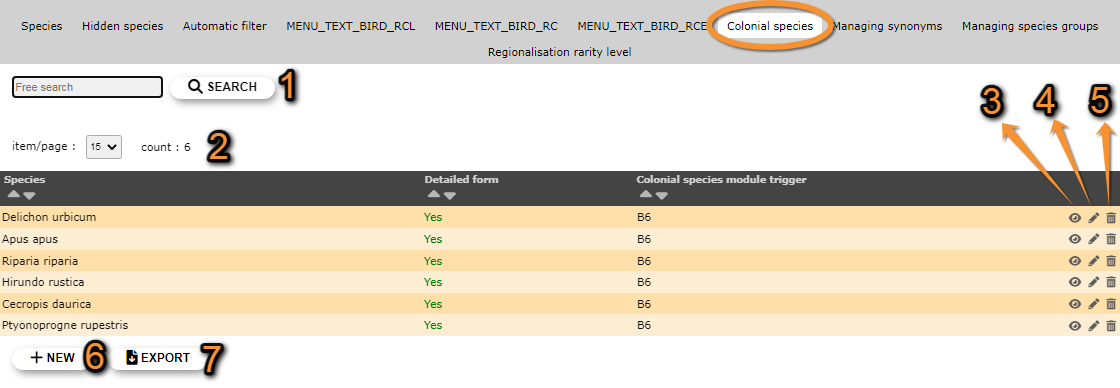
- 1. Search
Reduce list by typing the name of a site, or part of it, and click SEACH. When a filter is applied, click on
DISPLAY ALL.
- 2. Page and items
Select page number and/or number of items per page.
- 3. Details
Click to see details of selected species.

Admin colonial species details.
BACK: Go to previous screen without saving.
EDIT: Edit details. See edit subsection below.
DELETE: Remove selected species from the list.
- 4. Edit
Modify / complete any species detail.

Editing colonial species list.
8. Species: Change the species by typing its name, or part of it, in the left field (a) and select from the expandable menu in the right field (b).
9. Detailed form: Indicate if it will be necessary to open a detailed form for these species.
10. Colonial species module trigger:
BACK: Go to previous screen without saving.
MODIFY: Save changes.
- 5. Delete
Delete the selected species from the list. You will be asked to confirm.
- 6. NEW
Include a new species as a colonial breeding species.
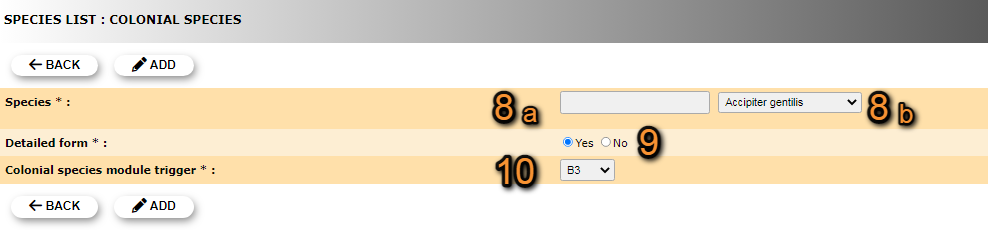
Admin New colonial species.
8. Species: Type the new species name, or part of it, in the left field (a) and select from the expandable menu in the right field (b).
9. Detailed form: Indicate if it will be necessary to open a detailed form for these species.
10. Colonial species module trigger:
BACK: Go to previous screen without saving.
ADD: Save new species to the list.
- 7. EXPORT
Download list as a .txt file.
[Top to Colonial species]
[Top to Species list]
[Back to Species administration]
Managing synonyms
[Top to Managing synonyms]
[Top to Species list]
[Back to Species administration]
Managing species groups
Indicates under which group to consider hybrids, subespecies and difficult to identify species. Use arrows under titles to alternate between ascending and descending order (see image as an example).
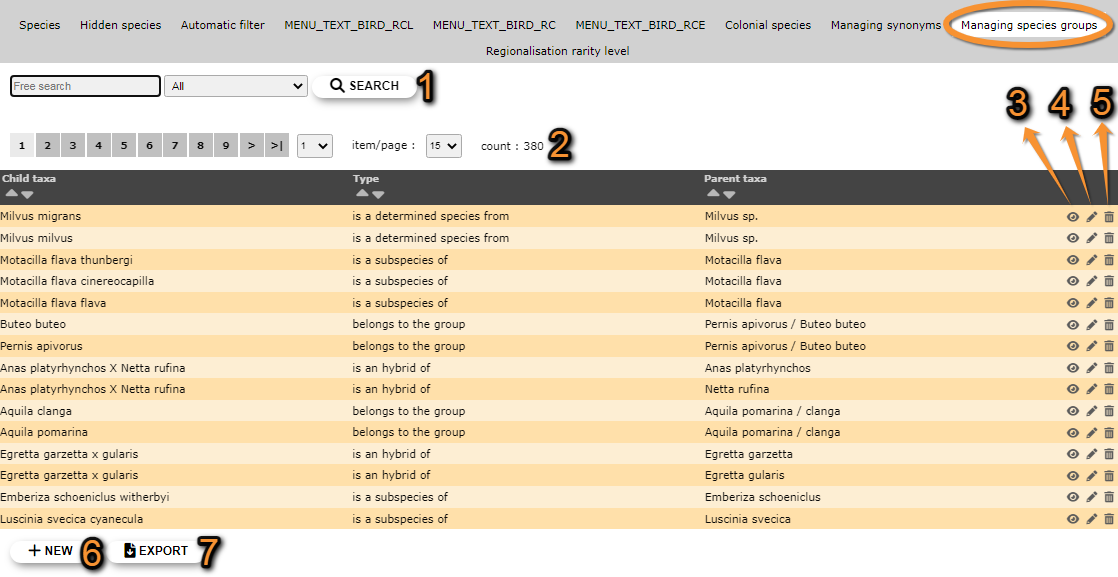


- 1. Search
Reduce list by typing the name of a site, or part of it, and click SEACH. When a filter is applied, click on
DISPLAY ALL.
- 2. Page and items
Select page number and/or number of items per page.
- 3. Details
Click to see details of selected species.

Details managing species groups.
BACK: Go to previous screen without saving.
EDIT: Edit details. See edit subsection below.
DELETE: Delete entry from the list.
- 4. Edit
Modify the species group the selected entry belongs to.
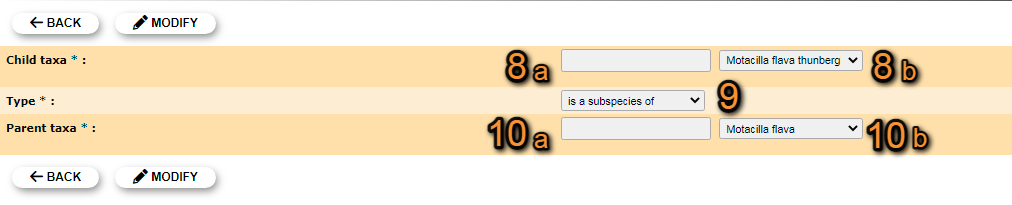
Editing managing species groups.
8. Child taxa: Type the species name, or part of it, in the left field (a) and select from the expandable menu on the right field (b).
9. Type: Select the grouping criteria from the expandable menu.
10. Parental taxa: Type the species name, or part of it, in the left field (a) and select from the expandable menu on the right field (b).
BACK: Go to previous screen without saving.
MODIFY: Save changes.
- 5. Delete
Delete entry. You will be asked to confirm.
- 6. NEW
Add a species, subspecies or genus to an existing group.

Managing species groups. Adding new species.
8. Child taxa: Type the species name, or part of it, in the left field (a) and select from the expandable menu on the right field (b).
9. Type: Select the grouping criteria from the expandable menu.
10. Parental taxa: Type the species name, or part of it, in the left field (a) and select from the expandable menu on the right field (b).
BACK: Go to previous screen without saving.
ADD: Save new species to the assigned group.
- 7. EXPORT
Download list as a .txt file.
[Top to Managing species groups]
[Top to Species list]
[Back to Species administration]
Regionalisation rarity level
[Top to Regionalisation rarity level]
[Top to Species list]
[Back to Species administration]
Admin species maps
Menu > Administration > Species administration > Admin species maps

Admin species maps.
[Top to Admin species maps]
[Back to Species administration]
Species for form
Menu > Administration > Species administration > Species for form
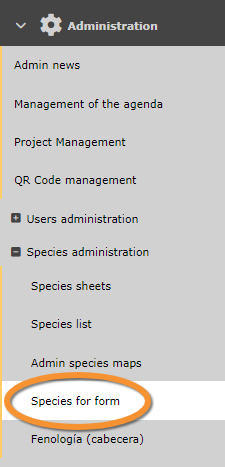
Species for form.
[Top to Species for form]
[Back to Species administration]
Fenología (cabecera)
Menu > Administration > Species administration > Fenología (Cabecera)

Fenología (cabecera)
[Top to Fenología (cabecera)]
[Back to Species administration]