User administration: Difference between revisions
| Line 843: | Line 843: | ||
</center> | </center> | ||
<br/> | <br/> | ||
<br/> | |||
<span id="Admin"></span> | |||
<b>Admin rights</b><br/> | |||
<span style="color: #000000; margin-left: 25px;"><b>· </b>Allows all rights. Grant with moderation. <br/> | |||
<span style="color: #000000; margin-left: 25px;"><b>· </b>The beneficiary automatically appears at 'System administrator' on Useful information > Users access rights > [[Media:Access system admin.png|System administrators]].<br/> | |||
<br/> | |||
<span id="Admin birds"></span> | |||
<b>Admin birds</b><br/> | |||
<br/> | |||
<span id="Admin content"></span> | |||
<b>Content page admin rights</b><br/> | |||
<span style="color: #000000; margin-left: 25px;"><b>· </b>Allows creating a page on the site. <br/> | |||
<span style="color: #000000; margin-left: 25px;"><b>· </b>It gives access to sections [[Website_administration#Admin_page_content|Admin page content]] and [[Website_administration#Content_categories|Content categories *]]. <br/> | |||
<span style="color: #000000; margin-left: 25px;"><b>· </b>When done, select if you want it visible or not (See wiki section Administration > Website administration > Admin page content > [[Website administration#Edit|Edit]]). It may be useful if it is not created at once and / or partners need to review it before publication. <br/> | |||
<span style="color: #000000; margin-left: 25px;"><b>· </b>Seeing a page that is not yet visible requires [[Users administration rights#Temp pages|Access to pages in construction]]. <br/> | |||
<span style="color: #000000; margin-left: 25px;"><b>· </b>* In ornitho.de, ornitho.at and ornitho.it Content page admin right does not give access to Content categories. It requires [[Users administration rights#Temp pages|Access to pages in construction]]. <br/> | |||
<br/> | |||
<span id="Admin hidden"></span> | |||
<b>Right to request verification of a sighting</b><br/> | |||
<span style="color: #000000; margin-left: 25px;"><b>· </b>Grants the right to mark an observation requiring more information and to add comments to the observation. <br/> | |||
<span style="color: #000000; margin-left: 25px;"><b>· </b>The right does not allow modifying the observation. <br/> | |||
<span style="color: #000000; margin-left: 25px;"><b>· </b>The beneficiary automatically appears at 'Rights to request verification of a sighting' on Useful information > Users access rights > [[Media:Access verification.png|Rights to request verification of a sighting]].<br/> | |||
<br/> | |||
<span id="Admin hidden place"></span> | |||
<b>Visualisation / Admin of hidden localities</b><br/> | |||
<span style="color: #000000; margin-left: 25px;"><b>· </b>Allows to activate/deactivate a locality. <br/> | |||
<span style="color: #000000; margin-left: 25px;"><b>· </b>A deactivated locality does not accept observations; it needs to be activated beforehand. <br/> | |||
<span style="color: #000000; margin-left: 25px;"><b>· </b>This right requires the right [[Users administration rights#Admin site|Places management rights]] beforehand to work. <br/> | |||
<br/> | |||
<span id="Admin langu"></span> | |||
<b>Admin languages</b><br/> | |||
<span style="color: #000000; margin-left: 25px;"><b>· </b>Allows changing the texts on the site. <br/> | |||
<span style="color: #000000; margin-left: 25px;"><b>· </b>The right gives access to [[Admin text]]. <br/> | |||
<span style="color: #000000; margin-left: 25px;"><b>· </b>It is independent on the languages of the site. <br/> | |||
<br/> | |||
<span id="Admin links"></span> | |||
<b>Links admin rights</b><br/> | |||
<br/> | |||
<span id="Admin news"></span> | |||
<b>News admin rights</b><br/> | |||
<span style="color: #000000; margin-left: 25px;"><b>· </b>Allows posting notes on the newsboard. <br/> | |||
<br/> | |||
<span id="Admin obs"></span> | |||
<b>Sightings management rights</b><br/> | |||
<span style="color: #000000; margin-left: 25px;"><b>· </b>Allows modifying, deleting and / or exporting other's observations. <br/> | |||
<span style="color: #000000; margin-left: 25px;"><b>· </b>It does not include seeing hidden data. <br/> | |||
<span style="color: #000000; margin-left: 25px;"><b>· </b>Seeing hidden data requires [[Users administration rights#Admin obs hidden|Right to see hidden records]].<br/> <br/> | |||
<p style="font-color:red;">It also allows you to access the precise location of observations and modify the CHR/CHN status. It also adds the ability to search CHR/CHN data in the "Other Restrictions" tab of the search.<br/> | |||
This right also allows, when forms are installed on your site, access to sorting by form in the multi-criteria search (box: "Limit to data transmitted by forms" (the box on the right allows you to enter the form number if you know it). In the near future, Gaëtan will also allow reviewers to have this option.<br/> | |||
This right also allows you to search data associated with a project (for all active projects on the platform).<br/> | |||
</p> | |||
<br/> | |||
<span id="Admin obs hidden"></span> | |||
<b>Right to see hidden records</b><br/> | |||
<span style="color: #000000; margin-left: 25px;"><b>· </b>Allows to see hidden observations. <br/> | |||
<br/> | |||
<span id="Admin obs hidden comment"></span> | |||
<b>Right to see hidden comments</b><br/> | |||
<span style="color: #000000; margin-left: 25px;"><b>· </b>Allows seeing hidden comments. <br/> | |||
<br/> | |||
<span id="Admin hidden place"></span> | |||
<b></b><br/> | |||
<br/> | |||
<span id="Admin schedule"></span> | |||
<b>Schedule news admin right</b><br/> | |||
<br/> | |||
<span id="Admin site"></span> | |||
<b>Places management rights</b><br/> | |||
<span style="color: #000000; margin-left: 25px;"><b>· </b>Allows to modify a place: change name, change elevation and move place. <br/> | |||
<span style="color: #000000; margin-left: 25px;"><b>· </b>The beneficiary automatically appears at 'Users allowed to manage localities' on Useful information > Users access rights > [[Media:Access manage localities.png|Users allowed to manage localities]]. <br/> | |||
<br/> | |||
<span id="Admin user right admin user"></span> | |||
<b>ADMIN_USER_RIGHT_ADMIN_USER</b><br/> | |||
<br/> | |||
<span id="Advanced"></span> | |||
<b>Access for data entry for restricted species</b><br/> | |||
<span style="color: #000000; margin-left: 25px;"><b>· </b>Allows summiting observations of [[Species_partially_hidden|restricted species]]. <br/> | |||
<br/> | |||
<span id="Api access other user"></span> | |||
<b>Right to access all user account using the API</b><br/> | |||
<br/> | |||
<span id="Atlas"></span> | |||
<b></b><br/> | |||
<br/> | |||
<span id="Atlas admin"></span> | |||
<b>Atlas administration</b><br/> | |||
<br/> | |||
<span id="Atlas api file upload"></span> | |||
<b>Upload atlas documents with API</b><br/> | |||
<br/> | |||
<span id="Confirm obs"></span> | |||
<b>Confirmation rights</b><br/> | |||
<br/> | |||
<span id="Delete public validation"></span> | |||
<b>Remove right to community validation</b><br/> | |||
<br/> | |||
<span id="Display last stoc form"></span> | |||
<b>Access to protocol features under development</b><br/> | |||
<br/> | |||
<span id="Export"></span> | |||
<b>Export rights</b><br/> | |||
<span style="color: #000000; margin-left: 25px;"><b>· </b>Allows exporting all data, independently of observer. <br/> | |||
<br/> | |||
<span id="Export entity"></span> | |||
<b>Right to export for entity</b><br/> | |||
<br/> | |||
<span id="Free areas"></span> | |||
<b>Access to free site management tool</b><br/> | |||
<span style="color: #000000; margin-left: 25px;"><b>· </b>Opens access to the [[Free_area_tool|Free area tool]] to users. <br/> | |||
<br/> | |||
<span id="Full search"></span> | |||
<b>Right to use the search engine</b><br/> | |||
<span style="color: #000000; margin-left: 25px;"><b>· </b>Allows full access to the [[Browsing_records#Search_engine|search engine]], independently of the number of submitted records. <br/> | |||
<br/> | |||
<span id="Full stat"></span> | |||
<b>Access to see complete statistics</b><br/> | |||
<span style="color: #000000; margin-left: 25px;"><b>· </b>Allows seeing the first 80 entries of observers' list instead of the first 5. <br/> | |||
<br/> | |||
<span id="Fusion site"></span> | |||
<b>Fusion site/Right to lump several localities</b><br/> | |||
<br/> | |||
<span id="Import"></span> | |||
<b>Import rights</b><br/> | |||
<br/> | |||
<span id="Merge list"></span> | |||
<b>Access to the list merge tool</b><br/> | |||
<br/> | |||
<span id="Observation selection"></span> | |||
<b>Access to the “Like” module for observations</b><br/> | |||
<br/> | |||
<span id="Observer"></span> | |||
<b>ADMIN_USER_RIGHT_OBSERVER</b><br/> | |||
<br/> | |||
<span id="Observer import"></span> | |||
<b>Right to import self records (Excel)</b><br/> | |||
<br/> | |||
<span id="People search"></span> | |||
<b>Right to filter by user</b><br/> | |||
<br/> | |||
<span id="Polygon data draw"></span> | |||
<b></b><br/> | |||
<br/> | |||
<span id="Polygon display excluded species"></span> | |||
<b></b><br/> | |||
<br/> | |||
<span id="Precise"></span> | |||
<b>High-precision timekeeping access</b><br/> | |||
<span style="color: #000000; margin-left: 25px;"><b>· </b>Allows the user to transmit observations with precise location by default. <br/> | |||
<span style="color: #000000; margin-left: 25px;"><b>· </b>It not granted, the user can decide in "Website customisation" if they want to send data with precise location or not. <br/> | |||
<br/> | |||
<span id="Private place"></span> | |||
<b>Right to see private places</b><br/> | |||
<br/> | |||
<span id="Project"></span> | |||
<b>Access to projects</b><br/> | |||
<span style="color: #000000; margin-left: 25px;"><b>· </b>Allows entering observations to a specific [[Projects_web|project]]. <br/> | |||
<br/> | |||
<span id="Project admin"></span> | |||
<b>Project administrators</b><br/> | |||
<br/> | |||
<span id="Proto"></span> | |||
<b>Access to protocols</b><br/> | |||
<span style="color: #000000; margin-left: 25px;"><b>· </b>Allows entering data to a specific [[Protocols_web|protocol]]. <br/> | |||
<br/> | |||
<span id="Proto admin"></span> | |||
<b>Protocol administrator</b><br/> | |||
<span style="color: #000000; margin-left: 25px;"><b>· </b>Gives rights to [[Protocol_management#Administration_users_rights|assign users to protocols]] and to define [[Protocol management#Parameters admin|protocol parameters]]. <br/> | |||
<span style="color: #000000; margin-left: 25px;"><b>· </b>Gives access to Protocols > [[Protocol management#Settings|Settings]].<br/> | |||
<span style="color: #000000; margin-left: 25px;"><b>· </b>Only grants rights to the protocols assigned. <br/> | |||
<br/> | |||
<span id="Proto manage"></span> | |||
<b>Protocol manager</b><br/> | |||
<span style="color: #000000; margin-left: 25px;"><b>· </b>Gives rights to [[Protocol_management#Administration_users_rights|assign users to protocols]]. <br/> | |||
<span style="color: #000000; margin-left: 25px;"><b>· </b>It does not allow setting [[Protocol management#Parameters admin|protocol parameters]].<br/> | |||
<span style="color: #000000; margin-left: 25px;"><b>· </b>Only grants rights to the protocols assigned. <br/> | |||
<br/> | |||
<span id="Qrcode"></span> | |||
<b>QR code administrator</b><br/> | |||
<br/> | |||
<span id="Rarities committee"></span> | |||
<b>Rarity committee member</b><br/> | |||
<br/> | |||
<span id="Rarities committee admin"></span> | |||
<b>Rarity committee secretary</b><br/> | |||
<br/> | |||
<span id="Skip random selection"></span> | |||
<b>Allow to skip random square selection</b><br/> | |||
<br/> | |||
<span id="Telemetric obs"></span> | |||
<b>Access to telemetry data entry</b><br/> | |||
<br/> | |||
<span id="Temp pages"></span> | |||
<b>Access to pages in construction</b><br/> | |||
<span style="color: #000000; margin-left: 25px;"><b>· </b>Allows seeing pages not visible to other users. <br/> | |||
<span style="color: #000000; margin-left: 25px;"><b>· </b>It may be useful when several partners need to review the page before it is published. <br/> | |||
<span style="color: #000000; margin-left: 25px;"><b>· </b>Creating content requires [[Users administration rights#Admin content|Content page admin rights]].<br/> | |||
<span style="color: #000000; margin-left: 25px;"><b>· </b>In ornitho.de, ornitho.at and onrnitho.it it gives access to [[Website_administration#Content_categories|Content categories]]. All other portals get access to Content categories with [[Users administration rights#Admin content|Content page admin rights]]. <br/> | |||
<br/> | |||
<span id="User with"></span> | |||
<b>Access for data entry for restricted taxonomic groups</b><br/> | |||
<span style="color: #000000; margin-left: 25px;"><b>· </b>Allows user to enter data for one or more taxonomic groups when they are [[Species_partially_hidden|restricted]]. <br/> | |||
<span style="color: #000000; margin-left: 25px;"><b>· </b>Requires a right for each taxonomic group. <br/> | |||
<br/> | |||
<span id="User with add site"></span> | |||
<b>Right to add new places</b><br/> | |||
<span style="color: #000000; margin-left: 25px;"><b>· </b>Allows creating new places. <br/> | |||
<span style="color: #000000; margin-left: 25px;"><b>· </b>It does not allow to modify or merge places. <br/> | |||
<span style="color: #000000; margin-left: 25px;"><b>· </b>Modifying a place requires [[Users administration rights#Admin site|Places management rights]].<br/> | |||
<span style="color: #000000; margin-left: 25px;"><b>· </b>Merging places requires [[Users administration rights#Fusion site|Fusion site/Right to lump several localities]]. <br/> | |||
<br/> | |||
<span id="User with add site object"></span> | |||
<b>Create a new object</b><br/> | |||
<br/> | |||
<span id="User with can try responsive"></span> | |||
<b>Right to access responsive interface</b><br/> | |||
<br/> | |||
<span id="User with change specie other taxo"></span> | |||
<b>ADMIN_USER_RIGHT_USER_WITH_CHANGE_SPECIE_OTHER_TAXO</b><br/> | |||
<br/> | |||
<span id="User with google map"></span> | |||
<b>Allow the use of GoogleMap layers</b><br/> | |||
<br/> | |||
<span id="User with rarities committee report"></span> | |||
<b>Test user for rarity committee</b><br/> | |||
<br/> | |||
<span id="Excluded species on maps"></span> | |||
<b>Right to see excluded species from summary maps</b><br/> | |||
<br/> | |||
<span id="Polygon data draw"></span> | |||
<b>Right to draw polygons for the asynchron cache</b><br/> | |||
<br/> | |||
<span id="GUID"></span> | |||
<b>Access to GUID/UUID</b><br/> | |||
<br/> | |||
<span id="Advanced atlas"></span> | |||
<b>Access to advanced atlas functions</b><br/> | |||
<br/> | <br/> | ||
Revision as of 16:06, 30 July 2025
See all personal information about users registered in the system and modify it if necessary.
Grant or revoque rights to specific users.
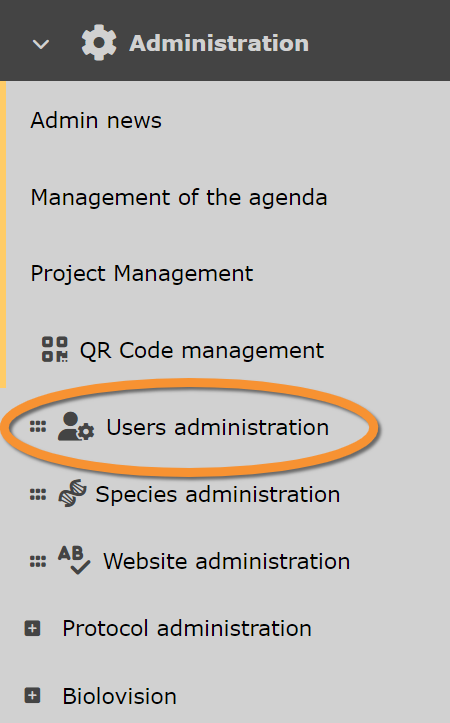
Users administration.
Admin users
Main Menu > Administration > Users administration > Admin users.

Admin users.
Observers
List of all users ever registered in that web site and/or logged in. Use arrows under titles to alternate between ascending and descending order (see image as an example).
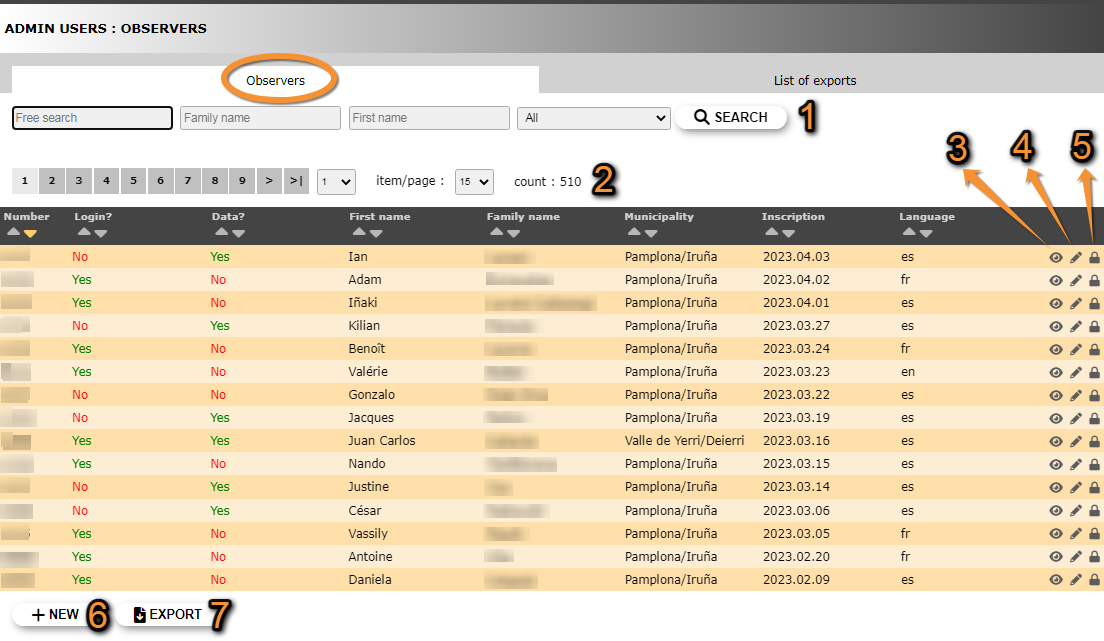
Users admin. Observers.
1. Search
2. Page and items
3. Details
4. Edit
5. Admin user rights
6. NEW
7. EXPORT
Number: register number.
Log in: has the member ever logged in?.
Data: has the member ever transmitted observations? Can send observations via NaturaList and never log into the web.
First name: observer's given name/s.
Family name: observer's family name/s.
Municipality: the observer will receive maps and news around this location.
Inscription: date the observer registered or first logged in.
Language: observer's default language of the site.
- 1. Search
Reduce list by typing one of the selecting criteri, or part of it, and click SEACH. NOTE it is possible to apply more than one filter (ie. Select all observers registerred as Mary that have submitted at least one record). When any filter is applied, click on DISPLAY ALL to see the whole list. Use arrows on columns to alternate between ascending and descending order (see image as an example).

Searching observers.
1a. Type any word, or part of it, to conduct a free search.
1b. Type a family name, or part of it, to select observers registered with this family name.
1c. Type a firt name, or part of it, to select observers registered with this name.
1d. Select from the expandable menu one of the available criteria:
with any right: observers that have been granted at least one right.
with access to archives: observers that have been granted access to archives.
without access to archives: observers that are not granted access to archives.
with records: observers that have submitted at least one observation.
without records: observers that have never submitted observations.
- 2. Page and items
Select page number and/or number of items per page.
- 3. Details
See data associated to this user. Access the same details by clicking on the observer's name. Details include personal information as entered in the registration form, as well as data on registration data and last log in. See image below as an example.

Admin users. Observer details.
BACK: Go back to previous screen.
4. EDIT: Edit details.
5. ADMIN USER RIGHT: Rights granted to this user.
Addtional information:

Additional information.
8.
9. Some portals require users to submit a minimum number of observations before they can access certain functions.
- 4. Edit
Modify user's personal data, including email address and password. When done, click MODIFY to save changes.

Modifying user's personal data.
BACK: Go to previous screen without saving.
MODIFY: Click to save changes.
- 5. Admin user rights
Invisible users
Some registered users are not visible and administrators cannot grant them rights.
This happens when:
1. The administrator have rights on a local mirror site and the user's address is not within the territory covered by this site, or
2. The user has not submitted any data yet.
Solve it by:
1. asking the user to submit any data on this mirror website, or
2. changing the municipality the user is registered at in the mirror website
List of rights granted to this user, and any possible restrictions to the right:
· Restrictions related to geography: The right applies only at one, or few, geographical places like sites, municipalities, or cantons. In the image below, the user can only export data of the species Paratettix meridionalis in the municipality of Pamplona/Iruña. It is represented by a blue line.
Users with no geographical restriction is marked with a globe icon  .
.
· Restrictions related to taxonomic groups: The right applies only for one, or few taxonomic groups or species. In the image below, the user can only export data of the species Paratettix meridionalis, and can ask for verification details only for birds. It is represented by a green line.
· Restrictions related to protocols: The right applies only to one or few protocols, projects or to the rarity committee. In the image below, the user has administration rights only for the Waterbird census protocol, and no other protocol. It is represented by an orange line.
· Unrestricted right: Some users may not have any restriction to a right. It is marked by a warning symbol  .
.

- 10. Edit
- 10. Edit
- Change restrictions for this user to this right.

Finish editing.
1. BACK: Go to previous screen without saving.
2. MODIFY: Click to save changes.
- 12. NEW
- 12. NEW
- Grant a new right to this user. Choose right from the expandable menu. If the selected right accepts restrictions, they will open underneath. Select specific options to which the user will have rights to (see examples in the image below). Do not select anythig to grant unrstricted rights. This will be indicated by a warning mark on the main list (see image Admin users rights and restrictions.
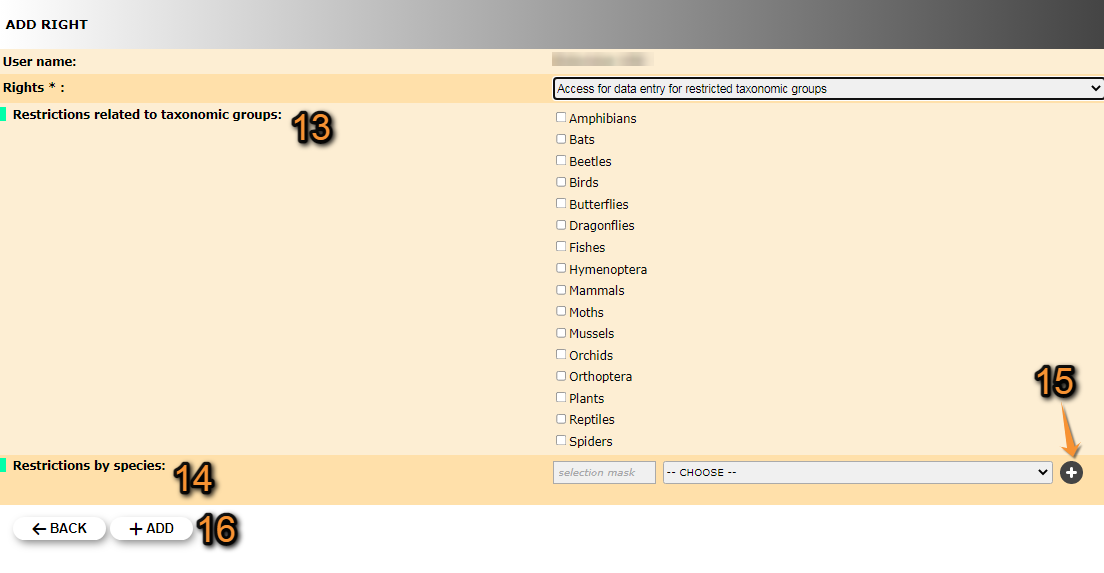
Granting rights to users. Example.
13. Tick those taxonomic groups the user will have right to.
14. Start typing the name on the left field, and select from the expandable panel on the right. The user will have rights only on the selected species. When done, click + (number 15), and repeat the process to add other species.
15. Adds a restriction.
16. +ADD: Click Add to save, or BACK to go to previous screen without saving.
Underneath the list of users, some statistics are displayed.
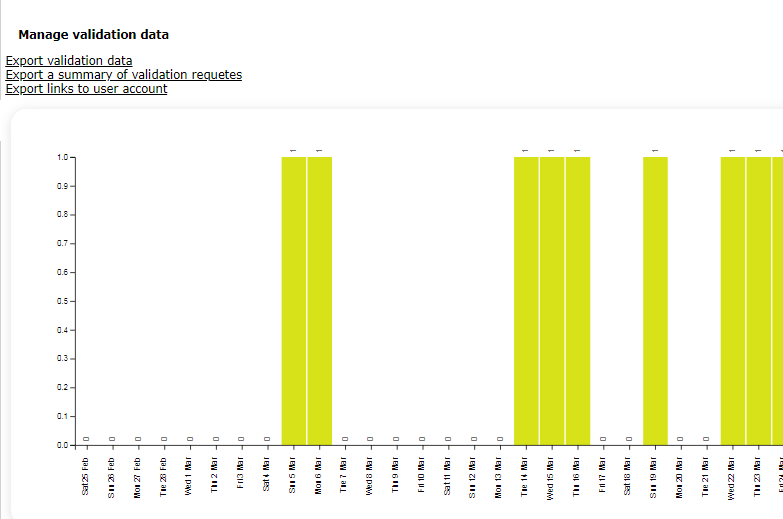
Statistics.
List of exports
Admin users rights
Main Menu > Administration > Users administration > Admin users rights.

Admin users rights.
List of all possible rights. Use arrows under titles to alternate between ascending and descending order (see image as an example).
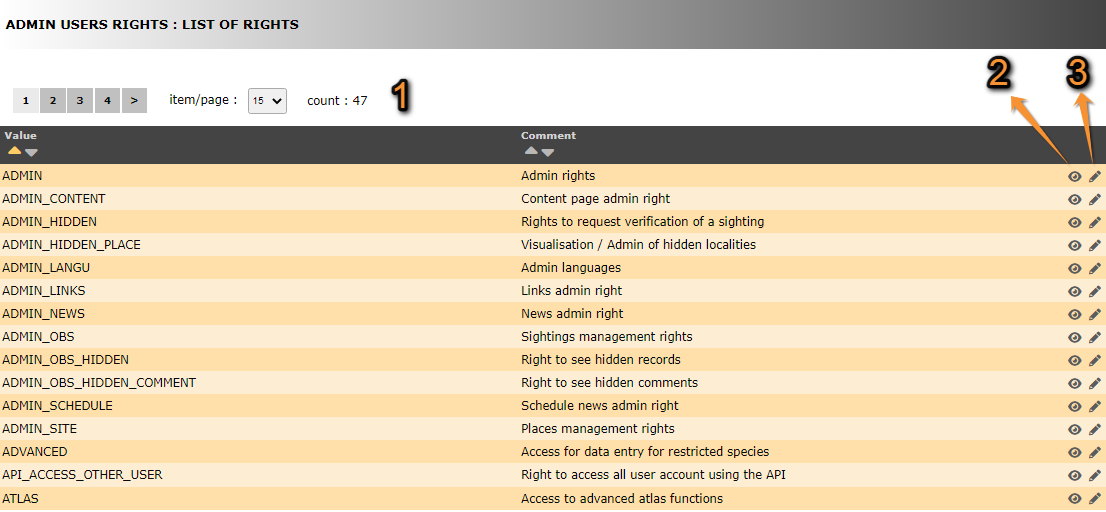
- 1. Search
Select page number and/or number of items per page.
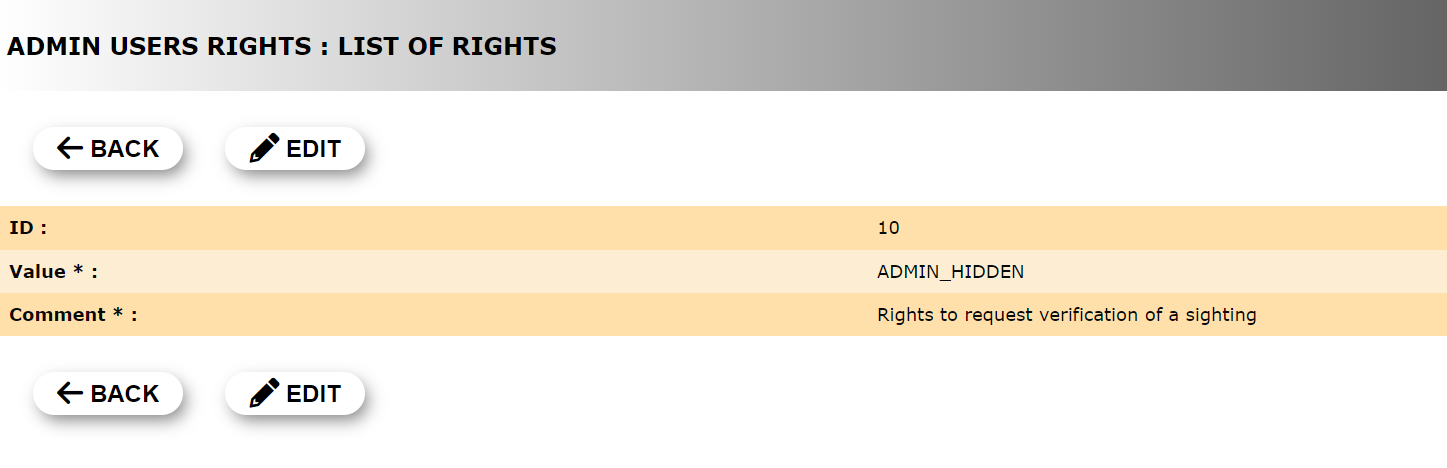
- 2. Details
Click to see details of selected right.
User's rights. Details.
1. BACK: Go to previous page without saving.
2. EDIT: Modify details. See next sub section Edit for more information.
- 3. Edit
Click to modify user's rights.

User's rights. Edit.
1. BACK: Go to previous page without saving.
2. MODIFY: Save changes.
List of rights
Summary table users' rights
| Theme | Code | Name | Restriction |
|---|---|---|---|
| Backoffice | ADMIN | Admin rights | · Mirror site · Taxa |
| ADMIN_BIRDS | [[User administration#Admin birds|]] | · Taxa | |
| Backoffice | ADMIN_CONTENT | Content page admin rights | · Mirror site |
| Sightings | ADMIN_HIDDEN | Rights to request verification of a sighting | · Taxa |
| Places | ADMIN_HIDDEN_PLACE | Visualisation / Admin of hidden localities | n/a |
| Backoffice | ADMIN_LANGU | Admin languages | n/a |
| Backoffice | ADMIN_LINKS | Links admin rights | · Mirror site |
| Backoffice | ADMIN_NEWS | News admin rights | · Mirror site · Taxa |
| Sightings | ADMIN_OBS | Sightings management rights | · Location1 · Taxa2 |
| Sightings | ADMIN_OBS_HIDDEN | Right to see hidden records | · Location1 · Taxa2 |
| Sightings | ADMIN_OBS_HIDDEN_COMMENT | Right to see hidden comments | n/a |
| ADMIN_OBS_HIDDEN_PLACE | [[User administration#Admin obs hidden place|]] | ||
| Backoffice | ADMIN_SCHEDULE | Schedule news admin right | · Mirror site |
| Places | ADMIN_SITE | Places management rights | n/a |
| Backoffice | ADMIN_USER_RIGHT_ADMIN_USER | [[User administration#Admin user right admin user|]] | · Taxa |
| Sightings | ADVANCED | Access for data entry for restricted species | · Taxa2 |
| Tools | API_ACCESS_OTHER_USER | Right to access all user account using the API | n/a |
| ATLAS | [[User administration#Atlas|]] | ||
| Tools | ATLAS_ADMIN | Atlas administrator | n/a |
| Tools | ATLAS_API_FILE_UPLOAD | Upload atlas documents with API | n/a |
| Sightings | CONFIRM_OBS | Confirmation rights | · Taxa |
| Tests | DELETE_PUBLIC_VALIDATION | Remove the right to community validation | n/a |
| Tests | DISPLAY_LAST_STOC_FORM | Access to protocol features under development | n/a |
| Sightings | EXPORT | Export rights | · Location1 · Taxa2 |
| Sightings | EXPORT_ENTITY | Right to export for entity | n/a |
| Tools | FREE_AREAS | Access to the free site management tool | n/a |
| Sightings | FULL_SEARCH | Right to use the search engine, despite the quota | n/a |
| Tests | FULL_STAT | Access to the complete stats | n/a |
| Places | FUSION_SITE | Right to lump several localities | n/a |
| Sightings | IMPORT | Import rights | n/a |
| Tools | MERGE_LIST | Access to the list merge tool | n/a |
| Sightings | OBSERVATION_SELECTION | Access to the “Like” module for observations | n/a |
| OBSERVER | ADMIN_USER_RIGHT_OBSERVER | ||
| Sightings | OBSERVER_IMPORT | Right to import self records (Excel) | n/a |
| Sightings | PEOPLE_SEARCH | Right to filter by user | n/a |
| POLYGON_DATA_DRAW | [[User administration#Polygon data draw|]] | ||
| POLYGON_DISPLAY_EXCLUDED_SPECIES | [[User administration#Polygon display ex sp|]] | ||
| PRECISE | [[User administration#Precise|]] | ||
| Places | PRIVATE PLACE | Right to see private places | n/a |
| Protocol/Project/Rarities committee | PROJECT | Access to projects | · Project |
| Protocol/Project/Rarities committee | PROJECT_ADMIN | Project administrators | · Project |
| Protocol/Project/Rarities committee | PROTO | Access to protocols | · Protocol |
| Protocol/Project/Rarities committee | PROTO_ADMIN | Protocol administrator | · Location1 · Taxa |
| Protocol/Project/Rarities committee | PROTO_MANAGE | Protocol manager | · Location1 · Protocol |
| Tools | QRCODE | QR code administrator | n/a |
| Protocol/Project/Rarities committee | RARITIES_COMMITTEE | Rarity committee member | · Committee3 |
| Protocol/Project/Rarities committee | RARITIES_COMMITTEE_ADMIN | Rarity committee secretary | · Committee3 |
| Protocol/Project/Rarities committee | SKIP_RANDOM_SELECTION | Allow to skip random square selection | n/a |
| Tools | TELEMETRIC_OBS | Access to telemetry data entry | n/a |
| Tests | TEMP_PAGES | Access to pages in construction | n/a |
| Sightings | USER_WITH | Access for data entry for restricted taxonomic groups | · Taxa2 |
| Places | USER_WITH_ADD_SITE | Right to add new places | n/a |
| Places | USER_WITH_ADD_SITE_OBJECT | Create a new object | n/a |
| Tests | USER_WITH_CAN_TRY_RESPONSIVE | Right to access the responsive interface | n/a |
| Sightings | USER_WITH_CHANGE_SPECIE_OTHER_TAXO | ADMIN_USER_RIGHT_USER_WITH_CHANGE_SPECIE_OTHER_TAXO | n/a |
| Other | USER_WITH_GOOGLE_MAP | Allow the use of GoogleMap layers | n/a |
| Tests | USER_WITH_RARITIES_COMMITTEE_REPORT | Test user for rarity committee | n/a |
| Sightings | ADMIN_USER_RIGHT_POLYGON_DISPLAY_EXCLUDED_SPECIES | Right to see excluded species from summary maps | n/a |
| Tools | ADMIN_USER_RIGHT_POLYGON_DATA_DRAW | Right to draw polygons for the asynchron cache | n/a |
| Tools | ADMIN_USER_RIGHT_GUID | Access to GUID/UUID | n/a |
| Tools | ADMIN_USER_RIGHT_ATLAS | Access to advanced atlas functions | n/a |
1Includes country, county, department, canton, province, municipality, place, etc.
2Includes species.
3Homologation committee.
4This right interacts with other rights. See detailed description below.
Admin rights
· Allows all rights. Grant with moderation.
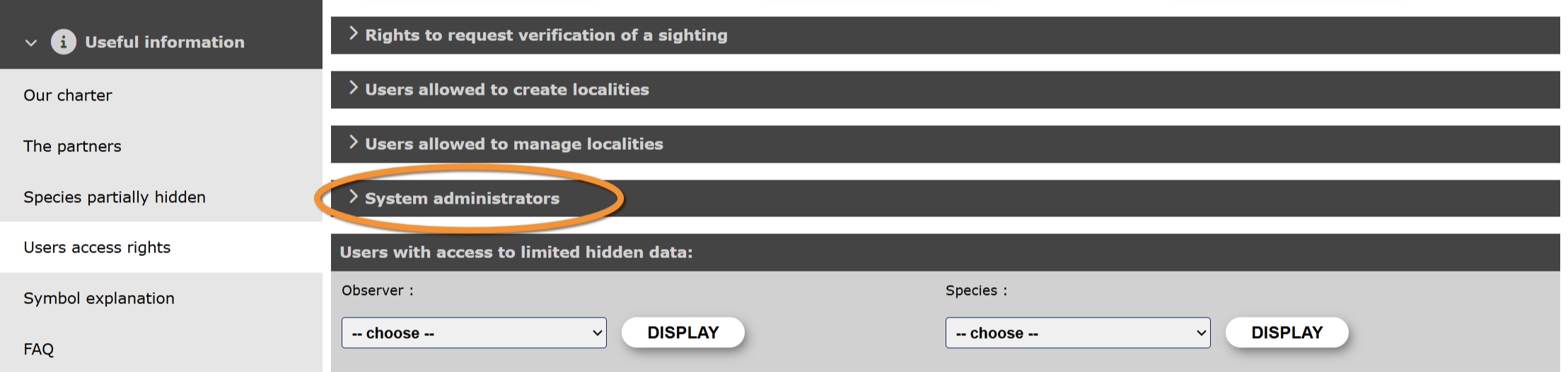
· The beneficiary automatically appears at 'System administrator' on Useful information > Users access rights > System administrators.
Admin birds
Content page admin rights
· Allows creating a page on the site.
· It gives access to sections Admin page content and Content categories *.
· When done, select if you want it visible or not (See wiki section Administration > Website administration > Admin page content > Edit). It may be useful if it is not created at once and / or partners need to review it before publication.
· Seeing a page that is not yet visible requires Access to pages in construction.
· * In ornitho.de, ornitho.at and ornitho.it Content page admin right does not give access to Content categories. It requires Access to pages in construction.
Right to request verification of a sighting
· Grants the right to mark an observation requiring more information and to add comments to the observation.
· The right does not allow modifying the observation.
· The beneficiary automatically appears at 'Rights to request verification of a sighting' on Useful information > Users access rights > Rights to request verification of a sighting.
Visualisation / Admin of hidden localities
· Allows to activate/deactivate a locality.
· A deactivated locality does not accept observations; it needs to be activated beforehand.
· This right requires the right Places management rights beforehand to work.
Admin languages
· Allows changing the texts on the site.
· The right gives access to Admin text.
· It is independent on the languages of the site.
Links admin rights
News admin rights
· Allows posting notes on the newsboard.
Sightings management rights
· Allows modifying, deleting and / or exporting other's observations.
· It does not include seeing hidden data.
· Seeing hidden data requires Right to see hidden records.
It also allows you to access the precise location of observations and modify the CHR/CHN status. It also adds the ability to search CHR/CHN data in the "Other Restrictions" tab of the search.
This right also allows, when forms are installed on your site, access to sorting by form in the multi-criteria search (box: "Limit to data transmitted by forms" (the box on the right allows you to enter the form number if you know it). In the near future, Gaëtan will also allow reviewers to have this option.
This right also allows you to search data associated with a project (for all active projects on the platform).
Right to see hidden records
· Allows to see hidden observations.
Right to see hidden comments
· Allows seeing hidden comments.
Schedule news admin right
Places management rights
· Allows to modify a place: change name, change elevation and move place.
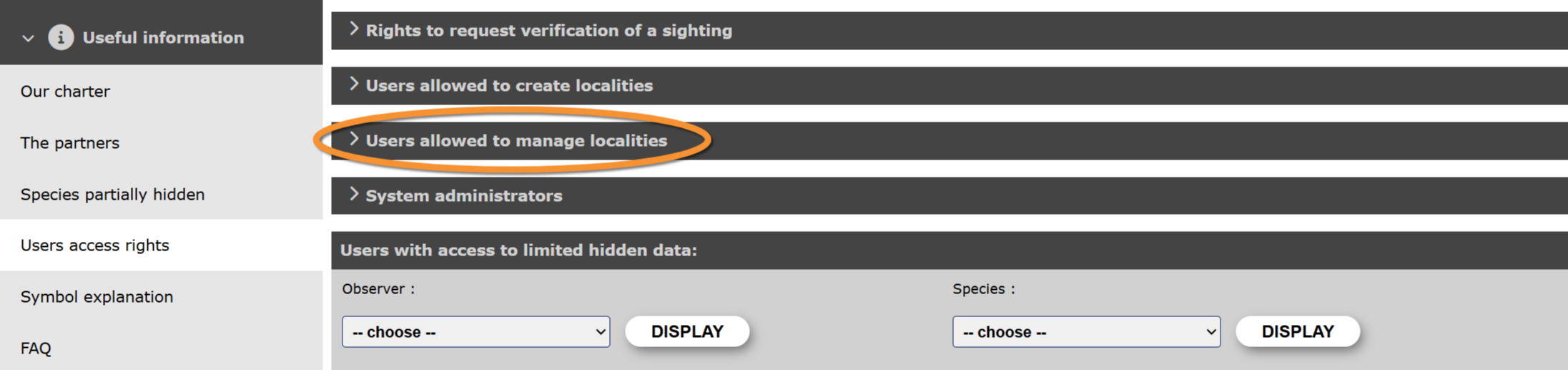
· The beneficiary automatically appears at 'Users allowed to manage localities' on Useful information > Users access rights > Users allowed to manage localities.
ADMIN_USER_RIGHT_ADMIN_USER
Access for data entry for restricted species
· Allows summiting observations of restricted species.
Right to access all user account using the API
Atlas administration
Upload atlas documents with API
Confirmation rights
Remove right to community validation
Access to protocol features under development
Export rights
· Allows exporting all data, independently of observer.
Right to export for entity
Access to free site management tool
· Opens access to the Free area tool to users.
Right to use the search engine
· Allows full access to the search engine, independently of the number of submitted records.
Access to see complete statistics
· Allows seeing the first 80 entries of observers' list instead of the first 5.
Fusion site/Right to lump several localities
Import rights
Access to the list merge tool
Access to the “Like” module for observations
ADMIN_USER_RIGHT_OBSERVER
Right to import self records (Excel)
Right to filter by user
High-precision timekeeping access
· Allows the user to transmit observations with precise location by default.
· It not granted, the user can decide in "Website customisation" if they want to send data with precise location or not.
Right to see private places
Access to projects
· Allows entering observations to a specific project.
Project administrators
Access to protocols
· Allows entering data to a specific protocol.
Protocol administrator
· Gives rights to assign users to protocols and to define protocol parameters.
· Gives access to Protocols > Settings.
· Only grants rights to the protocols assigned.
Protocol manager
· Gives rights to assign users to protocols.
· It does not allow setting protocol parameters.
· Only grants rights to the protocols assigned.
QR code administrator
Rarity committee member
Rarity committee secretary
Allow to skip random square selection
Access to telemetry data entry
Access to pages in construction
· Allows seeing pages not visible to other users.
· It may be useful when several partners need to review the page before it is published.
· Creating content requires Content page admin rights.
· In ornitho.de, ornitho.at and onrnitho.it it gives access to Content categories. All other portals get access to Content categories with Content page admin rights.
Access for data entry for restricted taxonomic groups
· Allows user to enter data for one or more taxonomic groups when they are restricted.
· Requires a right for each taxonomic group.
Right to add new places
· Allows creating new places.
· It does not allow to modify or merge places.
· Modifying a place requires Places management rights.
· Merging places requires Fusion site/Right to lump several localities.
Create a new object
Right to access responsive interface
ADMIN_USER_RIGHT_USER_WITH_CHANGE_SPECIE_OTHER_TAXO
Allow the use of GoogleMap layers
Test user for rarity committee
Right to see excluded species from summary maps
Right to draw polygons for the asynchron cache
Access to GUID/UUID
Access to advanced atlas functions
Who's online?
Main Menu > Administration > Users administration > Who's online?.

Who's online?
List of all opened sessions. Gives information on users and conection details.

- 1. User's details
User name and prefered language.

Information on online users.
3. Click on icon to access observer details. See image Admin users. Observer details as an example. Edit if necessay as explained in wiki section Administration > User's administration > Admin users > Observers > 3. Details.
4. Access the list of observations submitted by the user.
- 2. Connection details
Numbers under the name (blured in the image), indicate the internet provider and IP address for the current session.
Admin of committees
Main Menu > Administration > Users administration > Admin of committees.

Admin of committees.
Committees list
List of existing committees associated to this local portal. Use arrows under titles to alternate between ascending and descending order (see image as an example).

List of committees.
1. Page and items
2. Page and items
3. Edit
4. Delete
5. NEW
Committee name: Name given to the committee in the selected language.
Position: In which position the committee will show on the list.
Visible: Indicates if the committee will be visible or not.
- 1. Page and items
Select page number and/or number of items per page.
- 2. Details
Click to see details of the selected committee, including its name the different languages.

Committee details.
BACK: Go to previous screen.
EDIT: See edit subsection below.
DELETE: Delete the selected committee. You will be asked to confirm.
- 3. Edit
Modify details of committee, or add name in a new language.
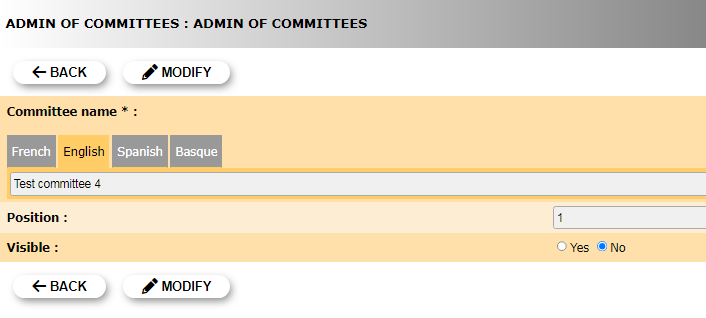
Edit committee.
Committee name: Select the tab language and add / modify committee name in the selected language.
Position: Type the position in which this committee will appear in the public list.
Visible: Indicate if the committee will be visible or not.
BACK: Go to previous screen without saving.
MODIFY: Save changes.
- 4. Delete
Delete the selected committee. You will be asked to confirm.
- 5. NEW
Create a new committee.

Creating a new committee.
6. Language: Select language in which you want to name the committee. You may choose more than one language.
7. Name: Type a name for the new committee in the selected language. If you need to add a new languege repeat step 6.
8. Position: Type the position in which the new committee will show in the list.
9. Visible?: Indicate if the committee will be visible to users.
BACK: Go back without saving.
ADD: Save the new committee.
Members list
List of all members belong to any committee. Use arrows under titles to alternate between ascending and descending order (see image as an example).
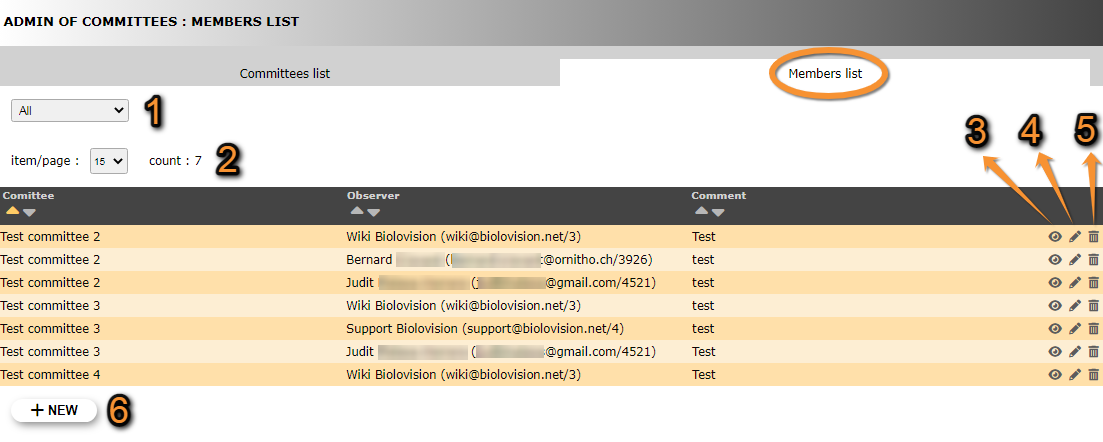




- 1. Search
Reduce list by selecting a committee from the expandable menu, and clicking SEACH. When a filter is applied, click on DISPLAY ALL to see the full list.
- 2. Page and items
Select page number and/or number of items per page.
- 3. Details
See details of observers and their assigned committee, as well as some comment if available.
- 4. Edit
Modify the user assigned to a committee, or the committee a ser belongs to. Add or edit a comment if necessary.
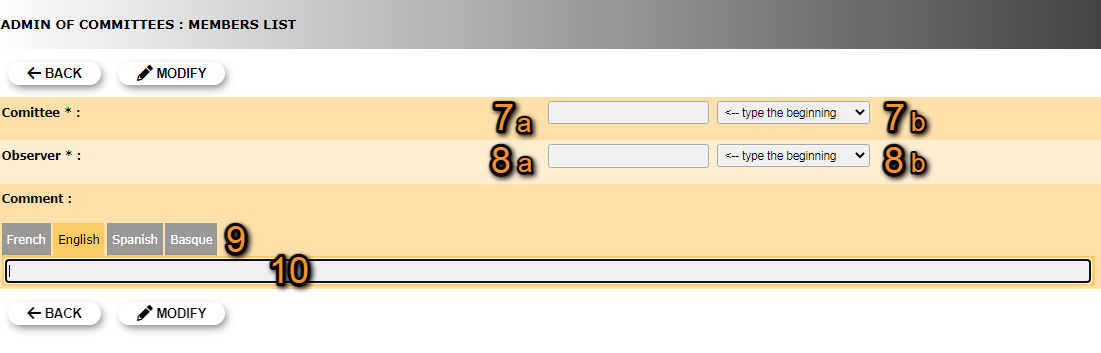
Editing Committee's members list.
7. Modify committee: Start typing the name of the committee (a) and select from the expandable menu (b).
8. Modify observer: Start typing the name of the obsever (a) and select from the expandable menu (b).
9. Select language: Select a language to leave a comment. The comment will only be visible if the page language is that of the comment. You can leave a comment in different languages.
10. Leave comment: Type comment if necessary. If needed, repeat from 9 to leave a comment in multiple languages.
BACK: Go to previous screen without saving changes.
MODIFY: Save changes.
- 5. Delete
Delete the user assigned to a committee. You will be asked to confirm.
- 6. NEW
Assign a new user to an existing committee.
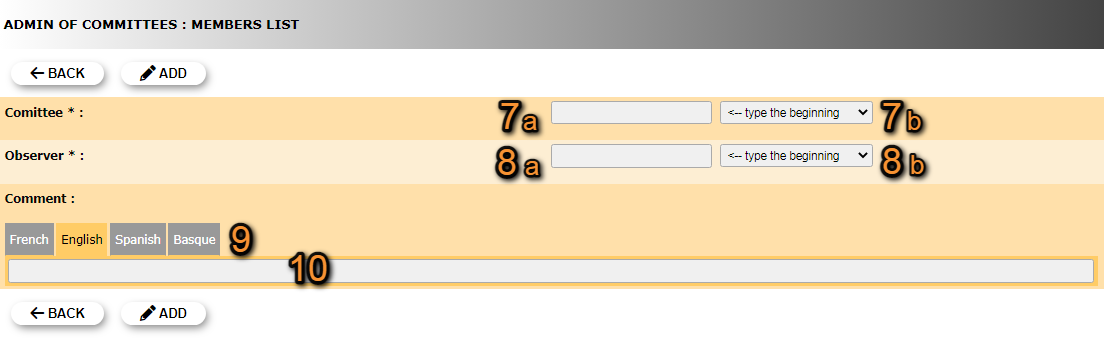
Committee's members list. New.
7. Select committee: Start typing the name of an existing committee (a) and select from the expandable menu (b).
8. Select observer: Start typing the name of the obsever (a) and select from the expandable menu (b).
9. Select language: Select a language to leave a comment. The comment will only be visible if the page language is that of the comment. You can leave a comment in different languages.
10. Leave comment: Type comment if necessary. If needed, repeat from 9 to leave a comment in multiple languages.
BACK: Go to previous screen without saving.
MODIFY: Save changes.