Exporting your data: Difference between revisions
No edit summary |
No edit summary |
||
| Line 1: | Line 1: | ||
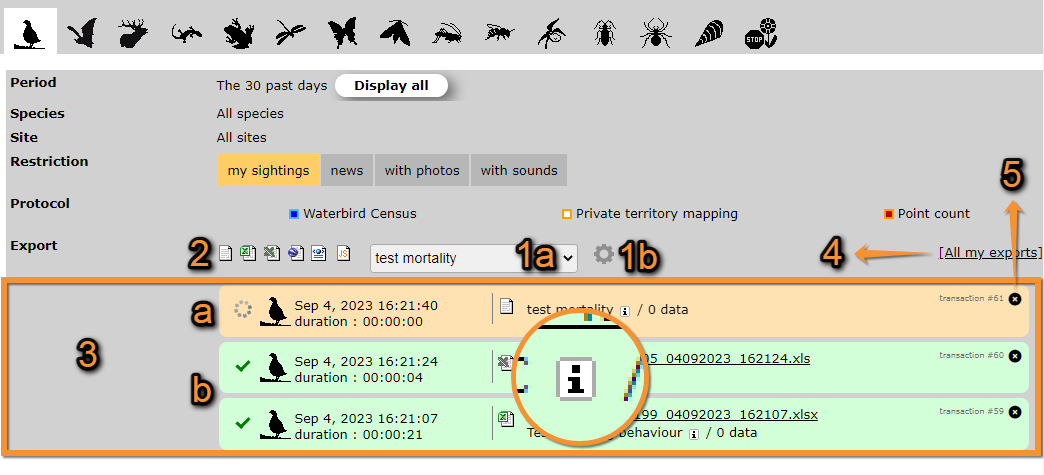
You can export your records in different formats. To access, go to '''Explore'''> '''All my observations''' | You can export your records in different formats. To access, go to '''Explore'''> '''All my observations'''(see image [[Media:Export observations (1).png|Exporting your data]]). Click on the format (for example, BASIC) and then on the extension (for example, Excel). Place mouse pointer on the extension icons to see which extension corresponds to each icon. Once you click on the extension, the file is created automatically in the format you selected. Create your own templates using the wheel next to the format expandable list. See your exports in '''All my exports''' (see image [[Media:20220906WIKI create file to export.png|Exporting your data, creating files]]).<br /> | ||
<br /> | <br /> | ||
| Line 5: | Line 5: | ||
<br/> | <br/> | ||
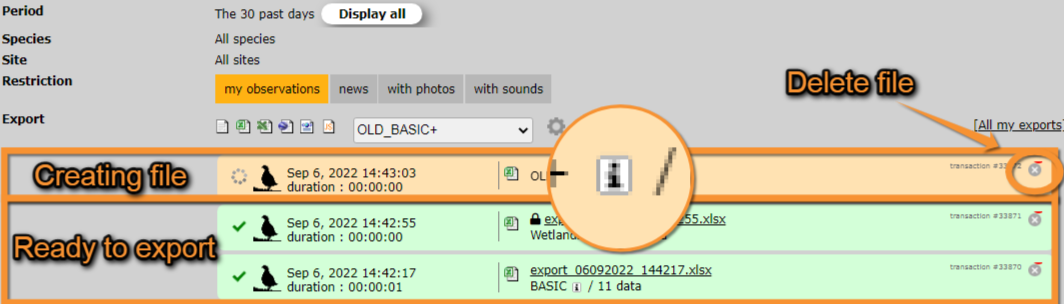
The file shows in orange while being | The file shows in orange while being created and turns green when is ready to download. To donwload, click on the file name. Place mouse pointer on the "i" icon when the file is ready in order to see the characteristics for each format type. To delete any file click on the X on the top left corner of the file area (see image [[Media:20220906WIKI files ready to export.png|Exporting your data, files ready to export]]). <br /> | ||
<br /> | <br /> | ||
Revision as of 19:51, 20 February 2023
You can export your records in different formats. To access, go to Explore> All my observations(see image Exporting your data). Click on the format (for example, BASIC) and then on the extension (for example, Excel). Place mouse pointer on the extension icons to see which extension corresponds to each icon. Once you click on the extension, the file is created automatically in the format you selected. Create your own templates using the wheel next to the format expandable list. See your exports in All my exports (see image Exporting your data, creating files).


The file shows in orange while being created and turns green when is ready to download. To donwload, click on the file name. Place mouse pointer on the "i" icon when the file is ready in order to see the characteristics for each format type. To delete any file click on the X on the top left corner of the file area (see image Exporting your data, files ready to export).

Note: images and examples are drawn from the French portal Faune-France. The design and position of some tools may vary slightly from portal to portal. To see a list of portals go to wiki section Local portals and partners. |