Template:Step 2/3: Precise site choice: Difference between revisions
Created page with "If accessed from '''By choosing a municipality > Display''' it returns a list with all possible sites for this municipality, and all options for each of them (see image Step 2/3: Precise site choice).<br /> If accessed from '''By clicking on the map''', it returns on the same map a menu with all possible actions to this location (see image :Media:Choosing_by_clickig_on_the_map_complete.png|Choose location by clicking on..." |
No edit summary |
||
| Line 1: | Line 1: | ||
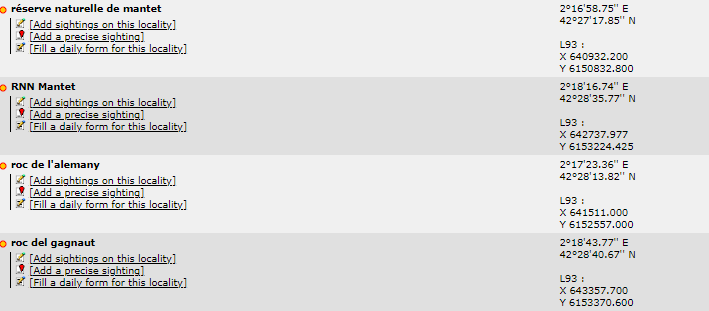
If accessed from '''By choosing a municipality > Display''' it returns a list with all possible sites for this municipality, and all options for each of them (see image [[:Media:Step 2 3 by typing a municipality.png|Step 2/3: Precise site choice]]).<br /> | If accessed from '''By choosing a municipality > Display''' it returns a list with all possible sites for this municipality, and all options for each of them (see image [[:Media:Step 2 3 by typing a municipality.png|Step 2/3: Precise site choice]]).<br /> | ||
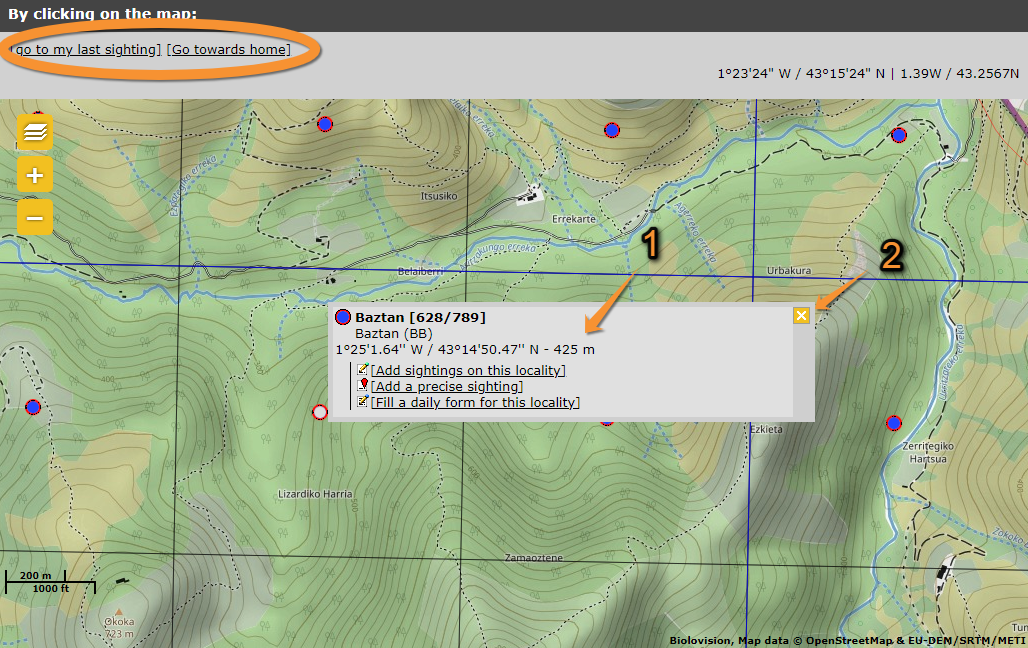
If accessed from '''By clicking on the map''', it returns on the same map a menu with all possible actions | If accessed from '''By clicking on the map''', it returns on the same map a menu with all possible actions at this location (see image [[:Media:Choosing_by_clickig_on_the_map_complete.png|Choose location by clicking on the map]]). | ||
<br /> | <br /> | ||
[[File:Step 2 3 by typing a municipality.png|thumb|700x550px|center|Step 2/3: Precise site choice.]] | [[File:Step 2 3 by typing a municipality.png|thumb|700x550px|center|Step 2/3: Precise site choice.]] | ||
<br /> | <br /> | ||
===Add sightings on this locality=== | ===Add sightings on this locality=== | ||
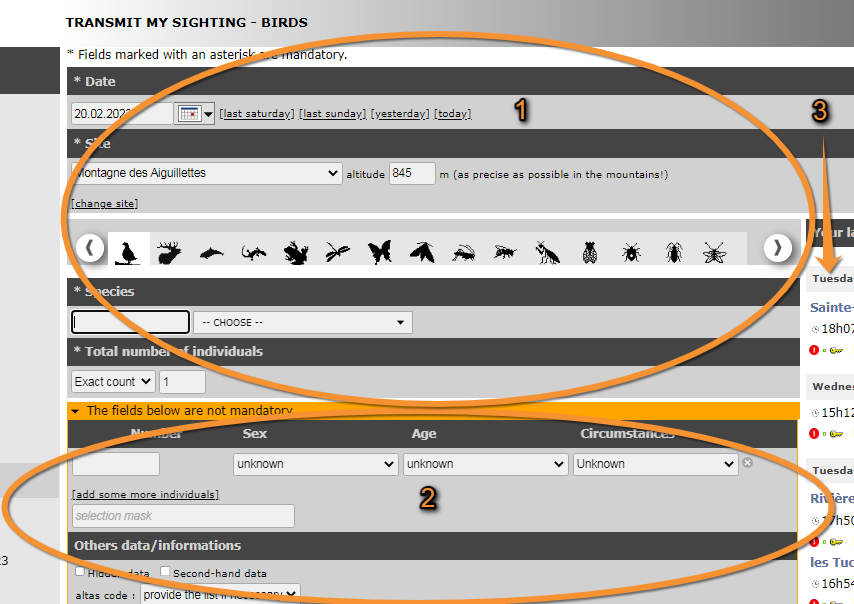
It will take you to [[ | It will take you to [[If accessed from add sightings on this locality or add precise location| Web interface > Submitting records > Step 3/3: Transmit my sighting > If accessed from '''add sightings on location''' or '''Add precise location''' ]], image [[Media:10092022WIKI Transmit my sightings simple. General (1).png|Step 3/3: Transmit my sightings. General]]. <br /> | ||
<br /> | <br /> | ||
===Add a precise sighting=== | ===Add a precise sighting=== | ||
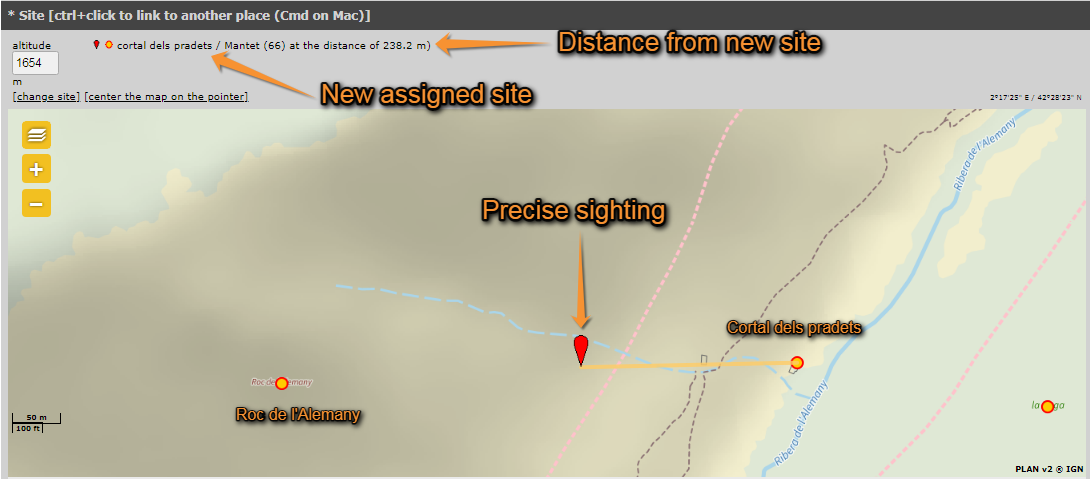
It still takes | It still takes you to [[Step 3/3: Transmit my sighting| Web interface > Submitting records > Step 3/3: Transmit my sighting]] but adds a section at the top in which to click the position of the individual (see image [[:Media:Add a precise sighting complete (3).png|Add a precise site on the map]]. Note how your observation gets associated to a new precise location –yellow line on the map). The system associates this record automatically with the closest location and will show the observation linked to that site. If you want to change to which point it gets associated to, hold CTRL and click on the new predetermined site. Exact coordinates will only be visible for you and for the administrators. Adding a precise sighting is especially useful when you know the exact point of the observation but cannot work out to which predetermined location it belongs to; or for studies that require exact positions, for example when mapping nests or territories. The predetermined altitude for the new locaion is shown on the field at the top left corner. Change altitude of observation if necessary. Expand/Collapse the map using the arrow at the bottom. | ||
<br /> | <br /> | ||
[[File:Add a precise sighting complete (3).png|thumb|700x550px|center|Add a precise site on the map.]] | [[File:Add a precise sighting complete (3).png|thumb|700x550px|center|Add a precise site on the map.]] | ||
<br /> | <br /> | ||
Both '''Add Sightings to this location''' and '''Add a precise sighting''' are most useful for partial lists and occasional recordings of some species. To make | ---- | ||
<br/> | |||
Both '''Add Sightings to this location''' and '''Add a precise sighting''' are most useful for partial lists and occasional recordings of some species. To make lists with more scientific value, see next subsection '''Fill a daily form for this locality'''.<br /> | |||
---- | |||
<br /> | <br /> | ||
===Fill a daily form for this locality=== | ===Fill a daily form for this locality=== | ||
It will take you to [[Step 3/3: Transmit my sighting| Web interface > Submitting records > Step 3/3: Transmit my sighting > '''If accessed from a list (fill a daily form)''' ]] | It will take you to [[Step 3/3: Transmit my sighting| Web interface > Submitting records > Step 3/3: Transmit my sighting > '''If accessed from a list (fill a daily form)''' ]]. <br /> | ||
This is the preferred option to record lists of observations. It requires more detailed information than if using '''add sightings on this location''' or '''add a precise sighting''', but while it takes longer to submit, it also has more scientific value. You will be asked to enter date and time, number of individuals, breeding status, among others. Introducing an atlas code | This is the preferred option to record lists of observations. It requires more detailed information than if using '''add sightings on this location''' or '''add a precise sighting''', but while it takes longer to submit, it also has more scientific value. You will be asked to enter date and time, number of individuals, breeding status, among others. Introducing an atlas code may be mandatory if entering observations through that option.<br /> | ||
Latest revision as of 09:55, 13 September 2022
If accessed from By choosing a municipality > Display it returns a list with all possible sites for this municipality, and all options for each of them (see image Step 2/3: Precise site choice).
If accessed from By clicking on the map, it returns on the same map a menu with all possible actions at this location (see image Choose location by clicking on the map).

Add sightings on this locality
It will take you to Web interface > Submitting records > Step 3/3: Transmit my sighting > If accessed from add sightings on location or Add precise location , image Step 3/3: Transmit my sightings. General.
Add a precise sighting
It still takes you to Web interface > Submitting records > Step 3/3: Transmit my sighting but adds a section at the top in which to click the position of the individual (see image Add a precise site on the map. Note how your observation gets associated to a new precise location –yellow line on the map). The system associates this record automatically with the closest location and will show the observation linked to that site. If you want to change to which point it gets associated to, hold CTRL and click on the new predetermined site. Exact coordinates will only be visible for you and for the administrators. Adding a precise sighting is especially useful when you know the exact point of the observation but cannot work out to which predetermined location it belongs to; or for studies that require exact positions, for example when mapping nests or territories. The predetermined altitude for the new locaion is shown on the field at the top left corner. Change altitude of observation if necessary. Expand/Collapse the map using the arrow at the bottom.
.png)
Both Add Sightings to this location and Add a precise sighting are most useful for partial lists and occasional recordings of some species. To make lists with more scientific value, see next subsection Fill a daily form for this locality.
Fill a daily form for this locality
It will take you to Web interface > Submitting records > Step 3/3: Transmit my sighting > If accessed from a list (fill a daily form) .
This is the preferred option to record lists of observations. It requires more detailed information than if using add sightings on this location or add a precise sighting, but while it takes longer to submit, it also has more scientific value. You will be asked to enter date and time, number of individuals, breeding status, among others. Introducing an atlas code may be mandatory if entering observations through that option.