Statistics
See some statistics about observations submitted.
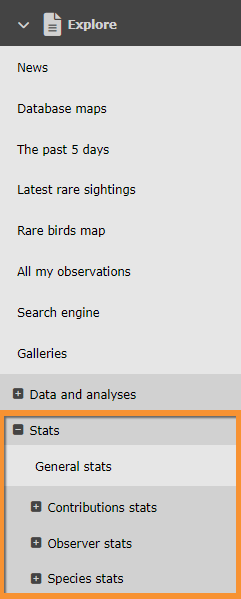
Access statistics on the left hand column under Explore tab (see image Statistics).
NOTE: unregistered users can only access General stats. To register, see wiki section Web interface > Getting started > Registration.

Statistics.
General stats
See general statistics such number of contributions or species recorded; or
see list statistics.

General stats
General stats.
Select from the tabs above which period of time you wish to see statistics for:
· Overall,
· This year, or
· This month.
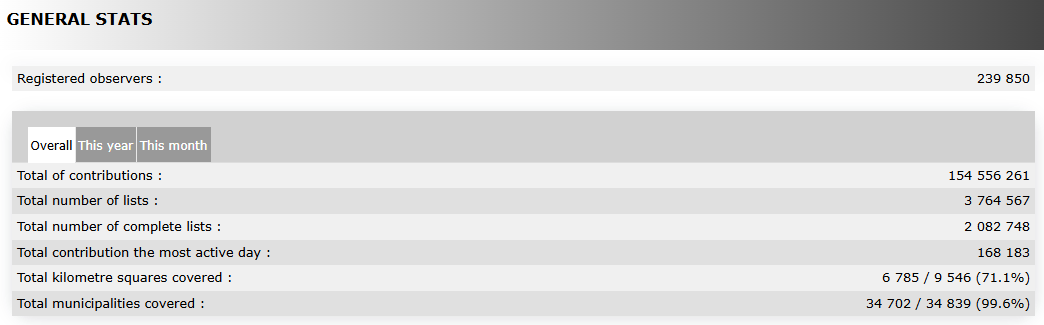
See general numbers on the upper part.
Move the pointer on labels to see the description of this example.
|
General data. Example. Registered observers Timeframe Total of contributions Total number of lists Total number of complete lists Total contributions the most active day Total squares kilometres covered Total municipalities covered |
See statistics by taxonomic group or species.
Move the pointer on labels to see the description of this example.
|
Breakdown by taxonomic group. Example. Birds Butterflies Mammals Dragonflies Moths Orthoptera
1. Relative numbers |

|
Distribution of species by taxonomic group. Example. Moths Beetles Spiders Birds True bugs Hymenoptera
1. Relative numbers |

[Top to General stats]
[Back to Statistics]
Lists statistics

Lists stats.
Indicates which proportion of lists include the selected species.
1. Select between:
· Species presence to see the proportion of lists that registered the selected species on a specified geographical area.
· Presence comparison by area to compare the presence of selected species between two geographical areas.
· Presence comparison by year to compare the presence of selected species between two years.
2. Show the graph.
- Species presence
- Species presence
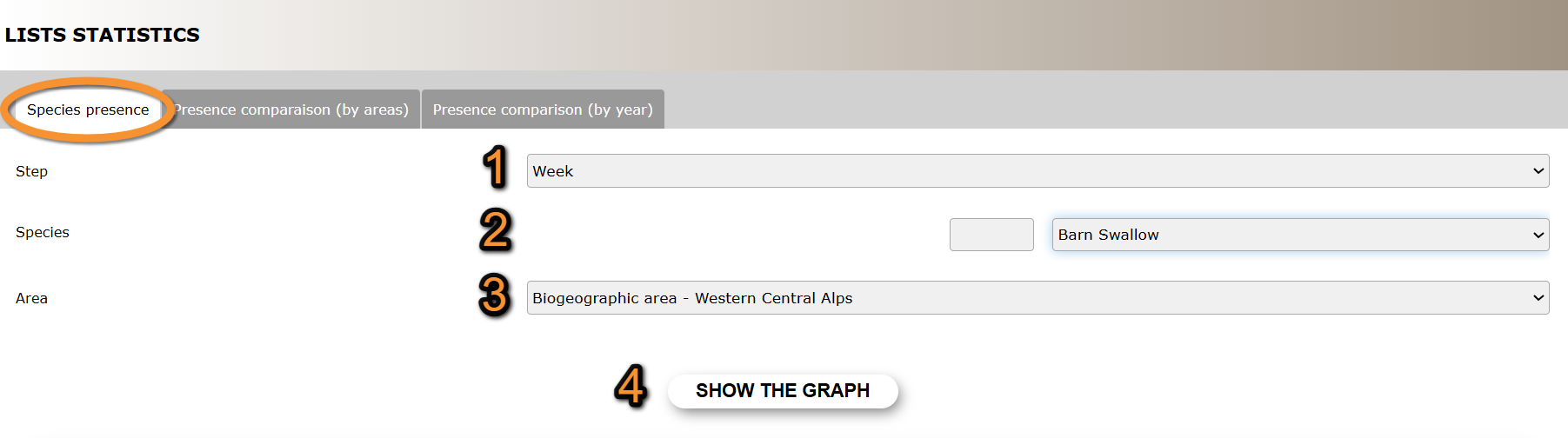
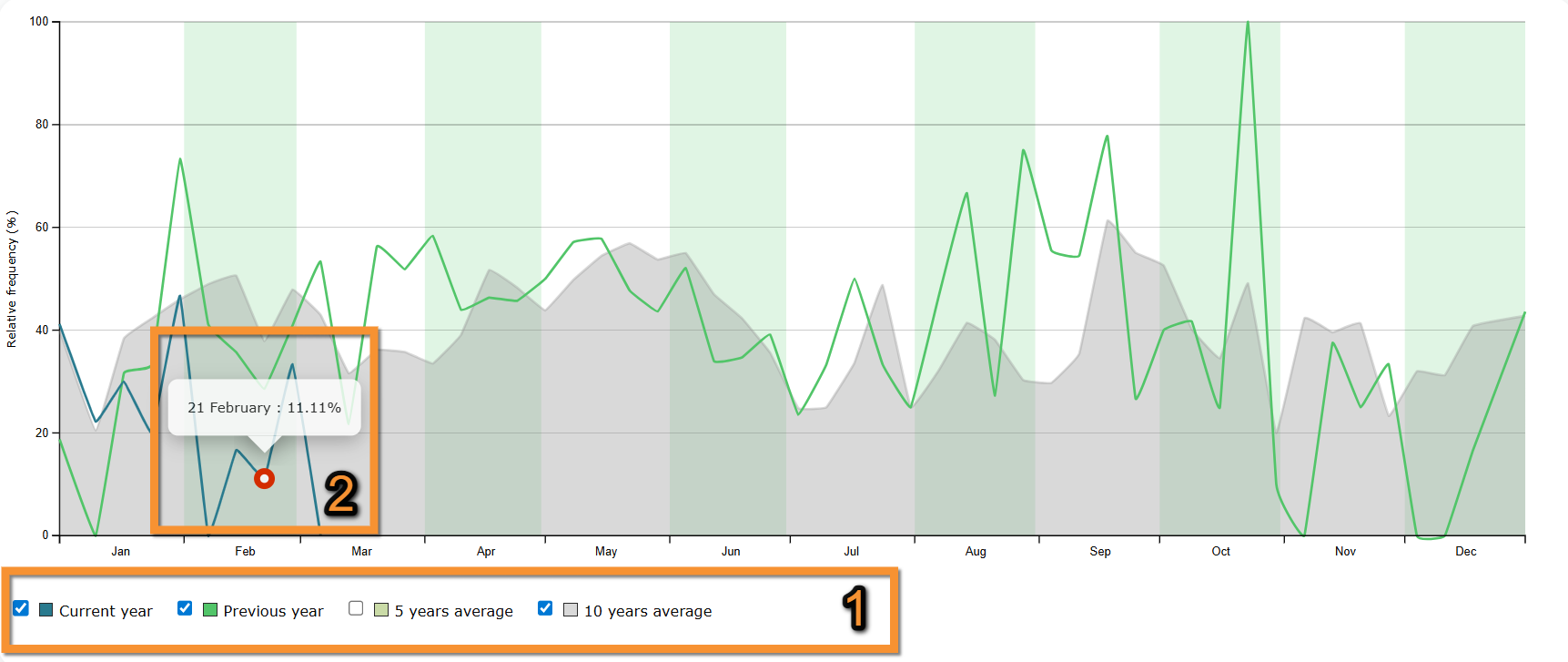
Percentage of submitted lists at the geographical area selected that contains at least one observation of the selected species.
Species presence.
1. Step: Select from the expandable menu to see data grouped by week or not grouped (day).
2. Species: Select specie. Type name of species, or part of it, on the left hand field, and/or select from the expandable menu on the right.
3. Area: Select from the expandable menu the geographical area to visualise.
4. Show the graph: See results.
Move the pointer on the image to see the description of this example.
|
Species presence. Results.
1. Check/Uncheck to select times to show. Legend Date September data |
- Presence comparison (by area)
- Presence comparison (by area)
Percentage of submitted lists in the two selected geographical areas that contain the selected species.
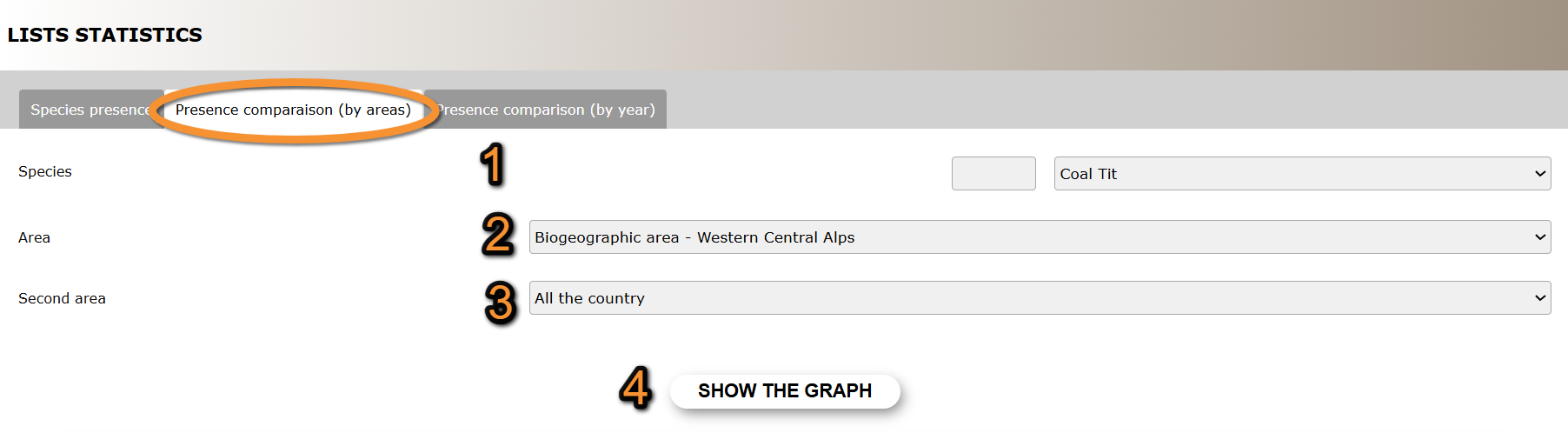
Presence comparison (by area).
1. Species: Select specie. Type name of species, or part of it, on the left hand field, and/or select from the expandable menu on the right.
2. Area: Select from the expandable menu one of the geographical areas to compare.
3. Second area: Select from the expandable menu the other geographical area to compare.
4. Show the graph: See results.
Move the pointer on the image to see the description of this example.
|
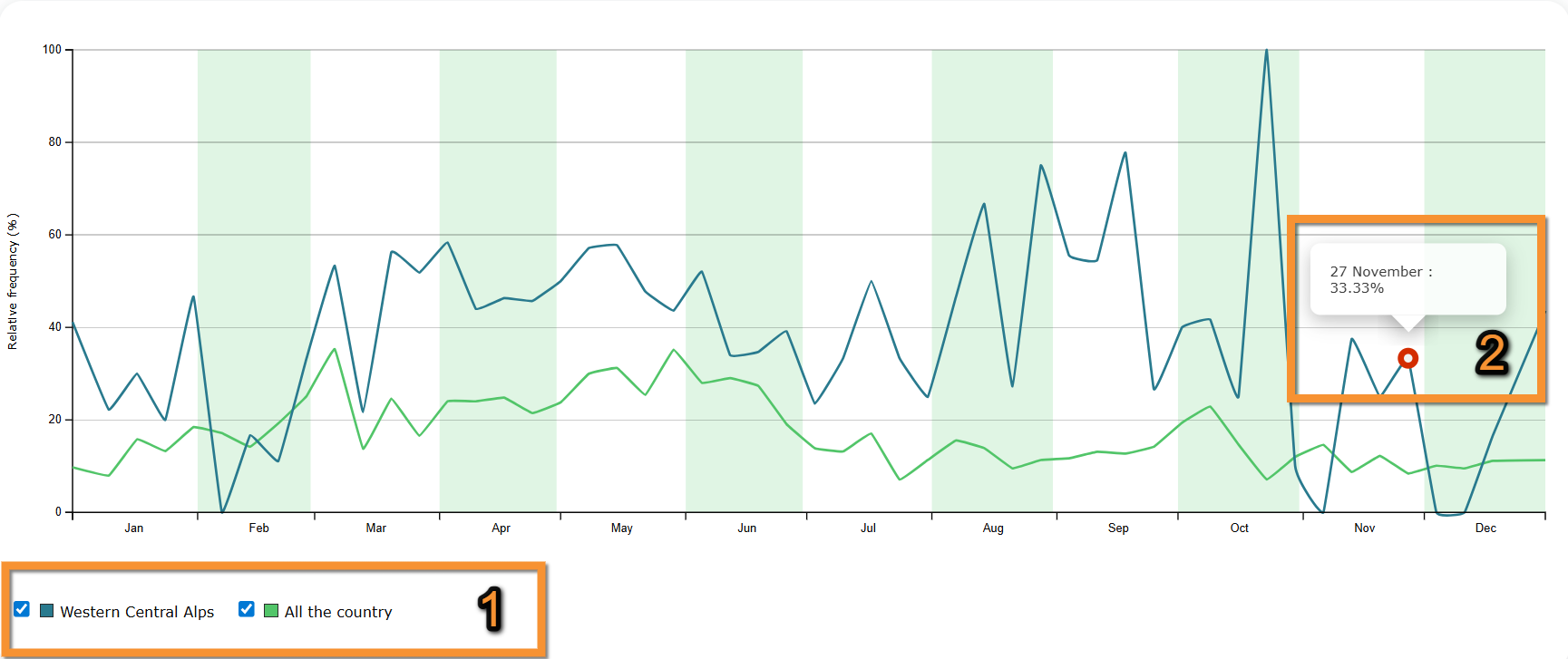
Presence comparison (by area). Results.
1. Check/Uncheck to select times to show. Legend Date May data |
- Presence comparison (by year)
- Presence comparison (by year)
Percentage of submitted lists in the selected geographical area that contain the selected species in two selected years.
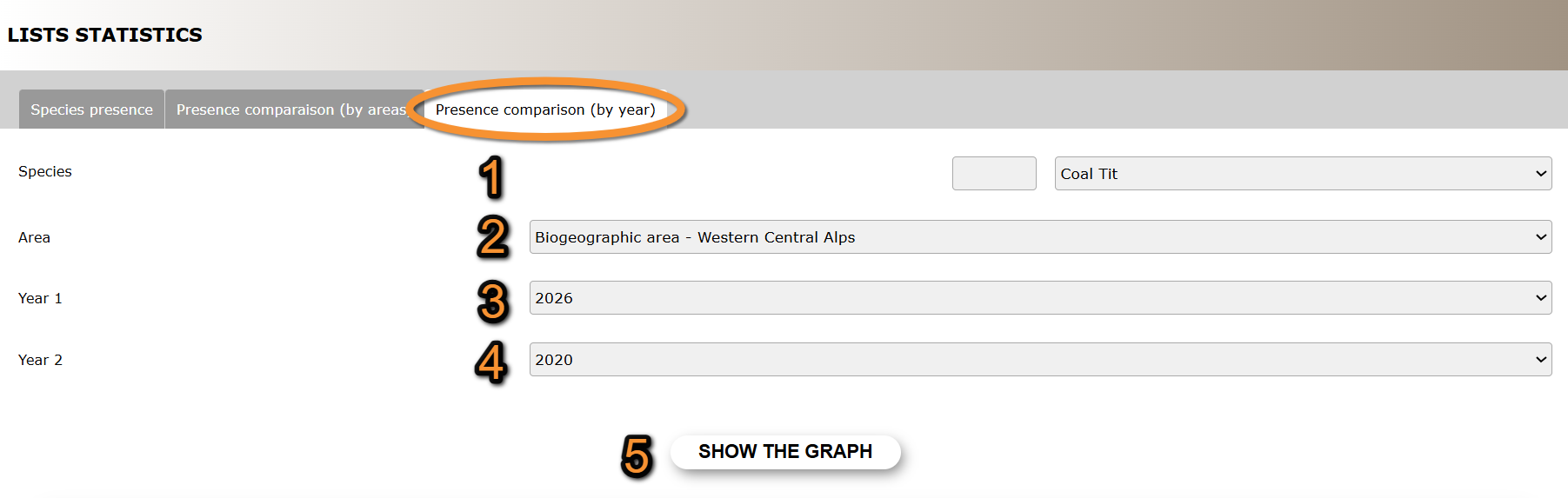
Presence comparison (by year).
1. Species: Select specie. Type name of species, or part of it, on the left hand field, and/or select from the expandable menu on the right.
2. Area: Select from the expandable menu the geographical area to visualise.
3. Year 1: Select from the expandable menu one of the years to compare.
4. Year 2: Select from the expandable menu the other year to compare.
5. Show the graph: See results.
Move the pointer on the image to see the description of this example.
|
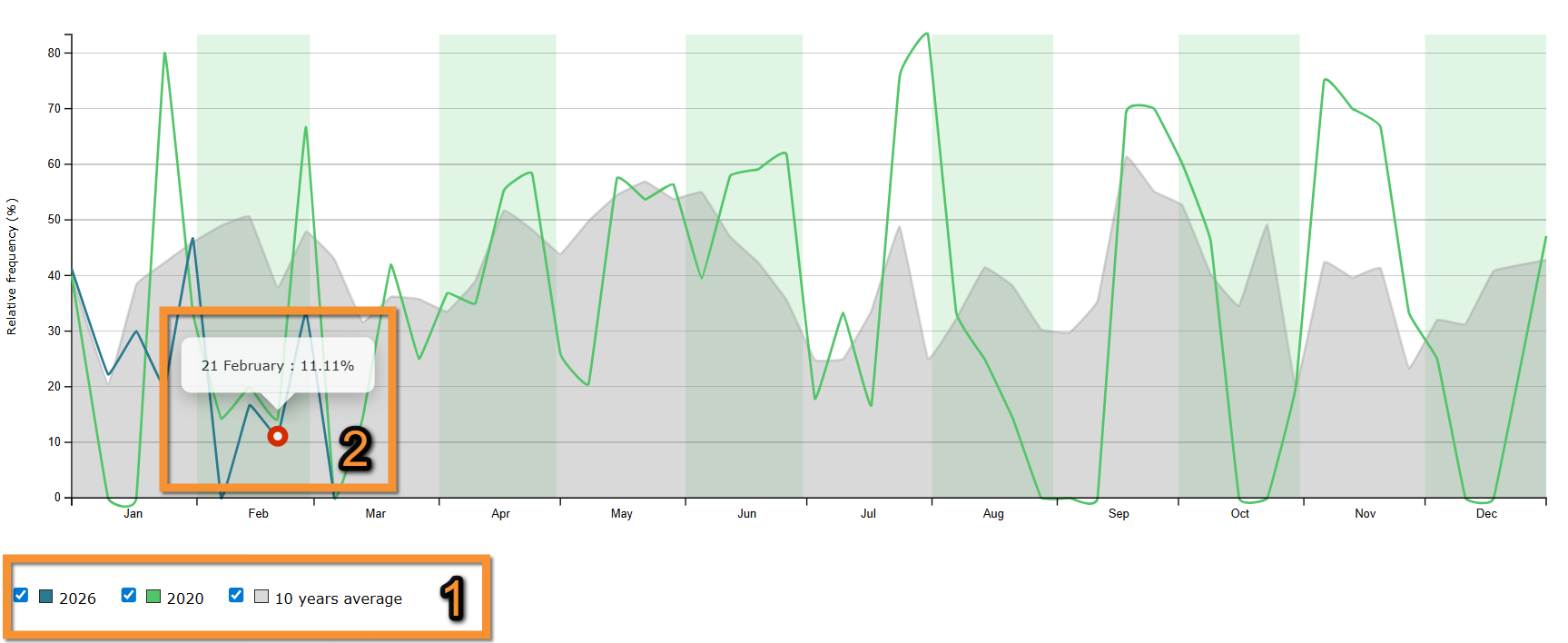
Presence comparison (by year). Results.
1. Check/Uncheck to select times to show. Legend Date September data |
[Top to List statistics]
[Back to Statistics]
Contribution statistics
See distribution across time nad/or geographical areas.
Choose between
· Temporal distribution,
· Distribution by county/Distribution,
· Info about lists, or
· Stats by municipality.
Note options are country dependant and not all options may be available in your local portal.

Temporal distribution
Temporal distribution. Menu.
See statistics for number of records, number of observers, number of lists or number of species across time.
1. Choose from the expandable menu on the top right the geographical regions to want to see.
By default, all country will show.
2. Choose from the tabs on top which area to visualise:
· Number of records.
· Number of contributors.
· Number of lists.
· Number of species.
3. Choose timeframe on tabs:
· Daily, to see the last 30 days;
· Monthly, to see the last 15 months;
· Yearly, to see all years since 2000.
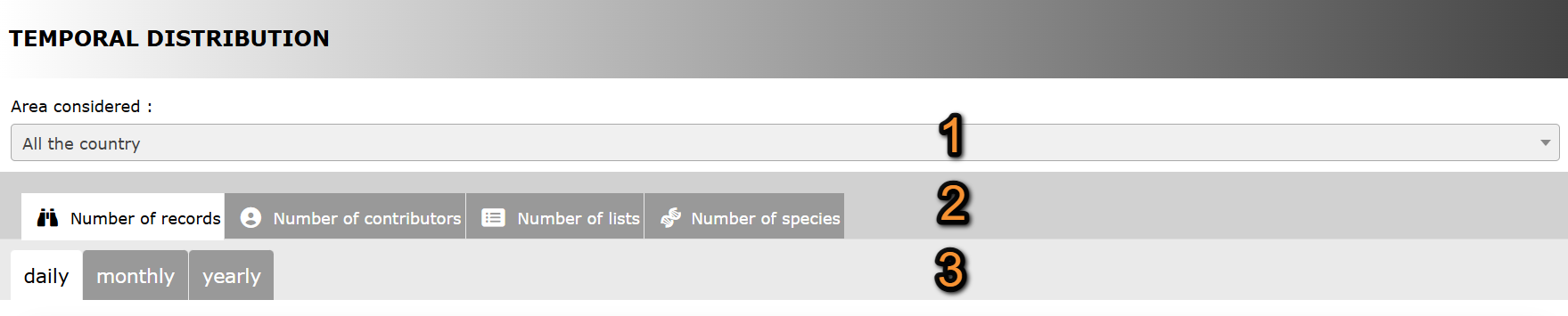
Temporal distribution. Selecting data.
1. Geographical area
2. Type of data
3. Timeframe
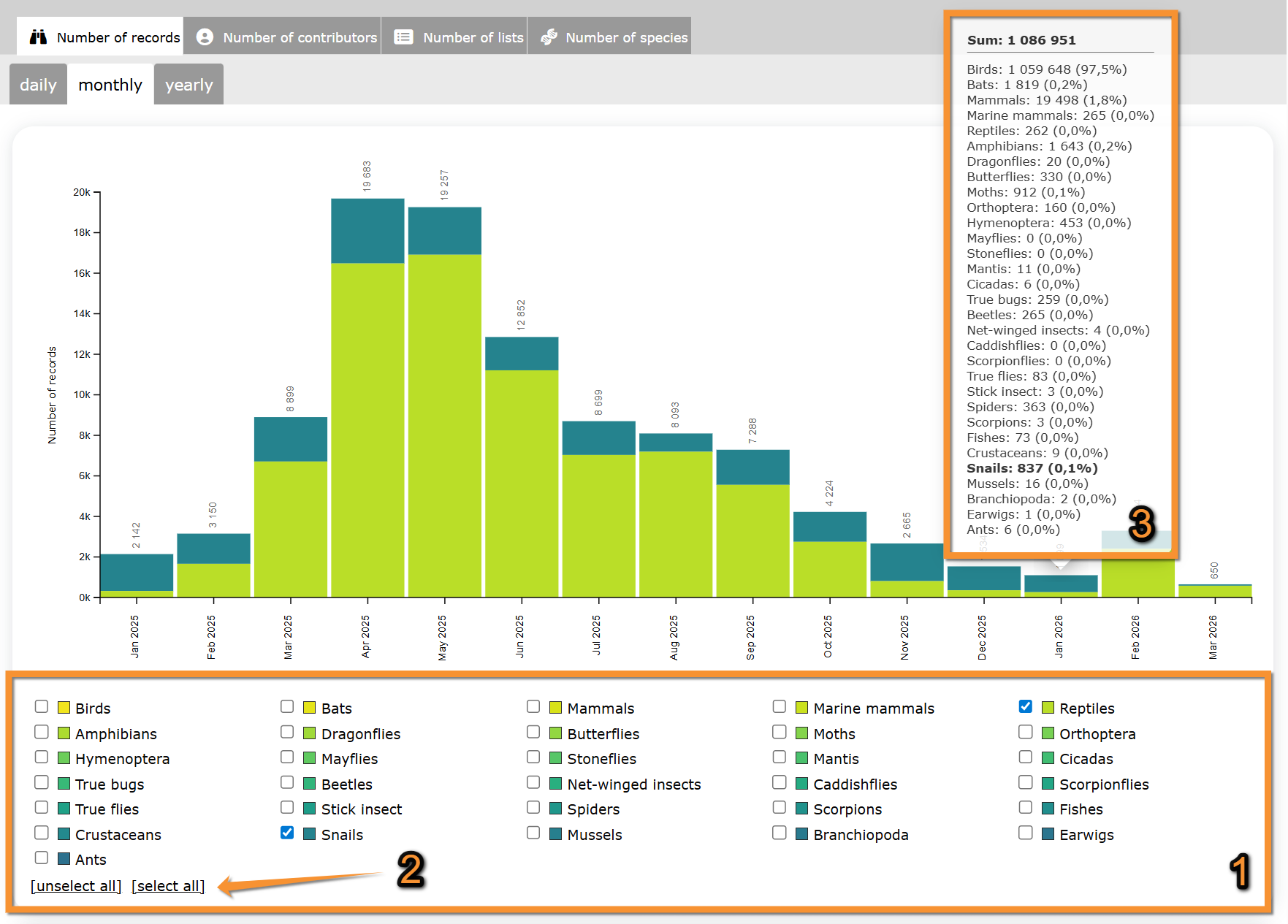
When available, apply further filters by checking/unchecking them below the graph.
Move the pointer on web graphic to see details on species in each column.
Move the pointer on the image to see the description of this example.
|
General data. Example.
1. Apply filters. Filters Results Details |
[Top to Temporal distribution]
[Top to Contribution statistics]
[Back to Statistics]
Distribution by county
Distribution by county. Menu.
See data organized by area.
1. Choose taxonomic group to visualise.
Move pointer over icons to see meaning.
2. Choose from the expandable menu type of distribution to display.
Note available areas are dependent on local portal and may differ from country to country.
3. Choose timeframe to visualise from the tabs on top:
· Daily, to see the last 30 days;
· Monthly, to see the last 15 months;
· Yearly, to see all years since 2000.
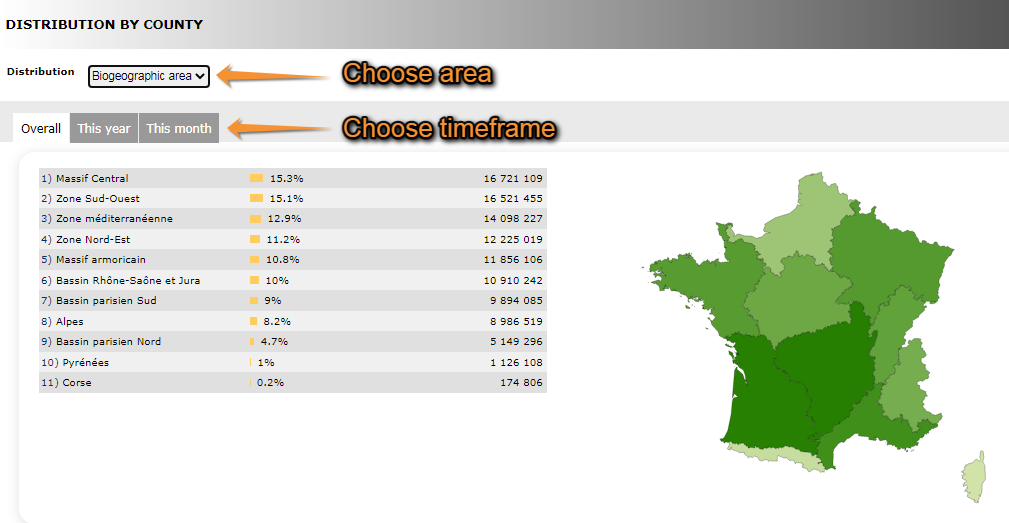
Distribution by county.
1. Choose taxonomic group
2. Choose area
3. Choose timeframe
Move the pointer on the image to see the description of this example.
|
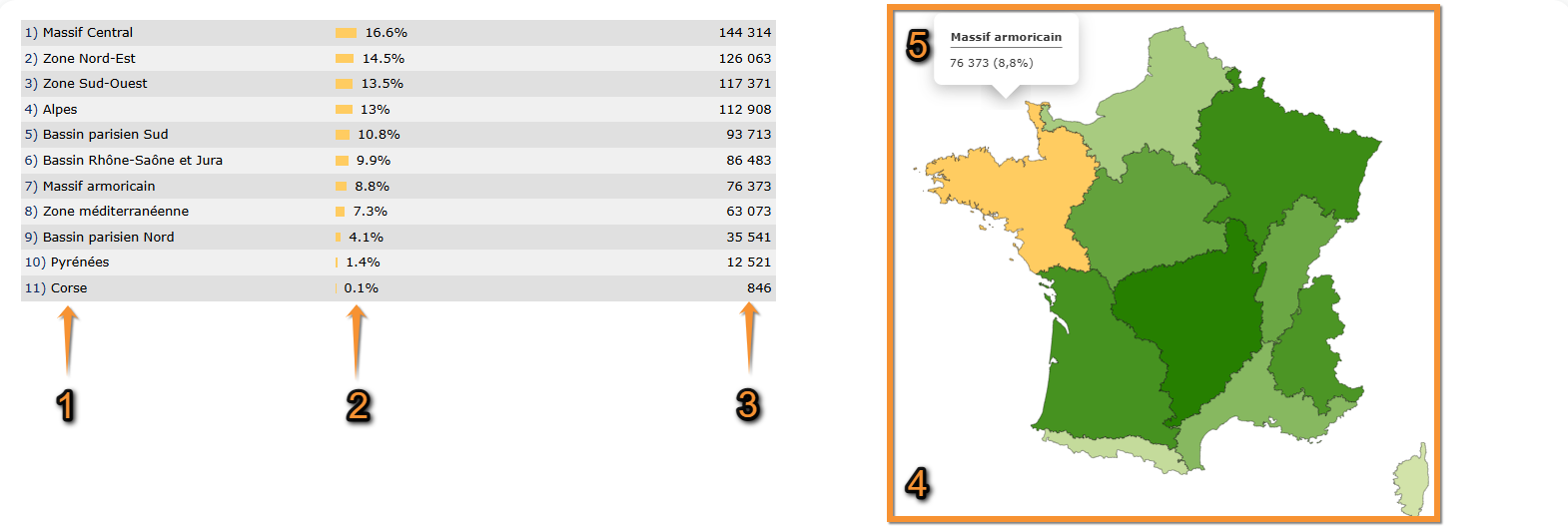
Distribution by county. Results.
1. List of areas selected Massif Central Corse |
[Top to Distribution by county]
[Top to Contribution statistics]
[Back to Statisticds]
Info about lists

Info about lists. Menu.
See:
· Number of complete lists per month/year,
· Distribution of complete lists by cantons, and/or
· The most active observers for lists.
Number of complete lists per month/year
See the number of complete lists per month since the beginning of Biolovision.
Notice darker colour indicates a higher number of complete lists submitted.
Place pointer on a cell in the web graph to see number of complete lists for that month and year.
Move the pointer on the image to see the description of this example.
|
Number of complete lists.
1. Move pointer on a cell to see number of complete lists. July 2015
|

Distribution of complete lists by cantons
See amount of complete lists submitted per area.
Select timeframe:
· This year, or
· overall.
Note the darker the colour, the more records were submitted for this area.

Distribution of complete lists by cantons.
The most active observers for lists
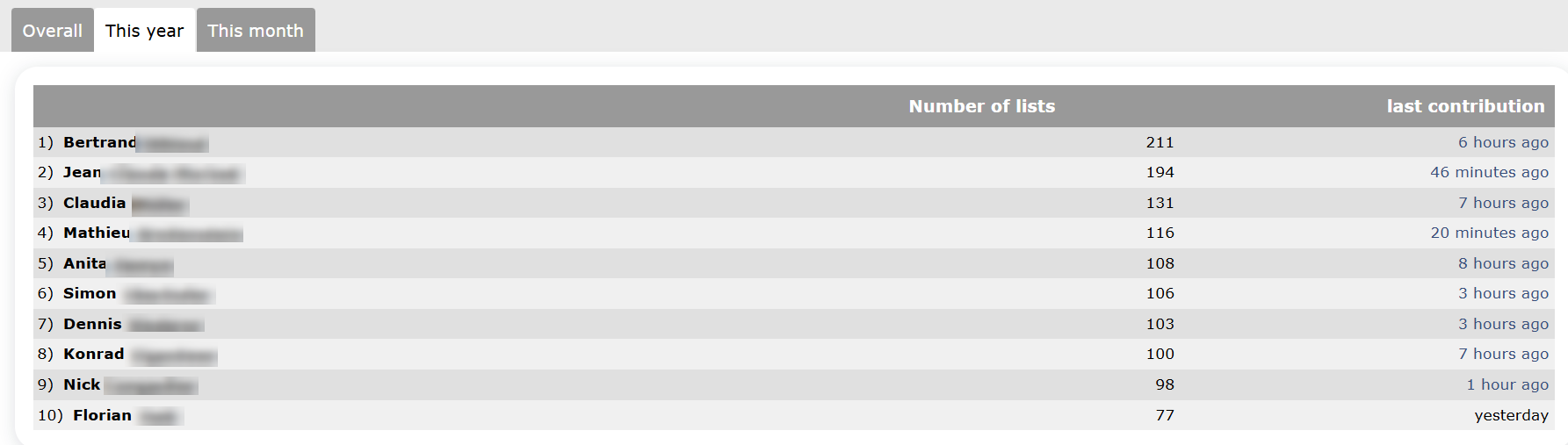
See number of lists submitted for the most active observers during the selected period of time; and the time of the last contribution.
Select timeframe:
· Overall,
· this year, or
· this month.
Move the pointer on the image to see the description of this example.
|
The most active observers for lists. Observer 1 Observer 2 Observer 3 Observer 4 Observer 5 Observer 6 Observer 7 Observer 8 Observer 9 Observer 10 |
[Top to Info about lists]
[Top to Contribution statistics]
[Back to Statistics]
Stats by municipality
Stats by municipality. Menu.
See data submitted grouped by municipality.
1. Choose taxonomic group on top,
2. choose year to visualise, and
3. choose geographical region.
Place the pointer on a region or a taxonomic group to see its correspondence.
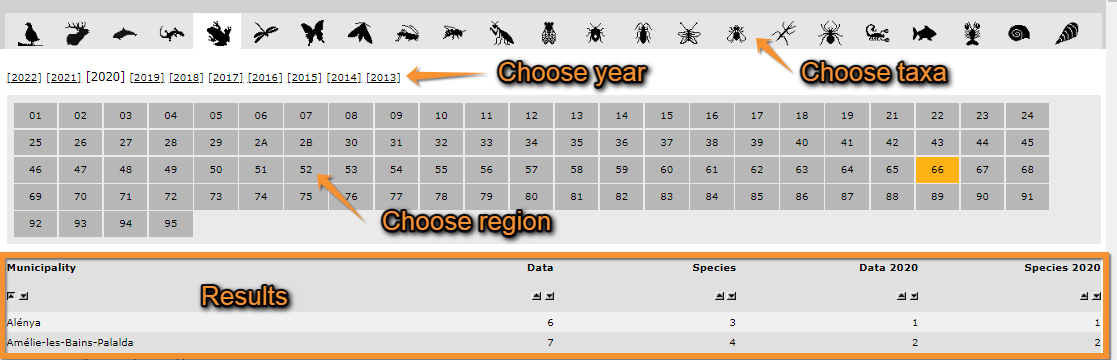
Stats by municipality.
1. Choose taxonomic group
2. Choose year
3. Choose geographical area
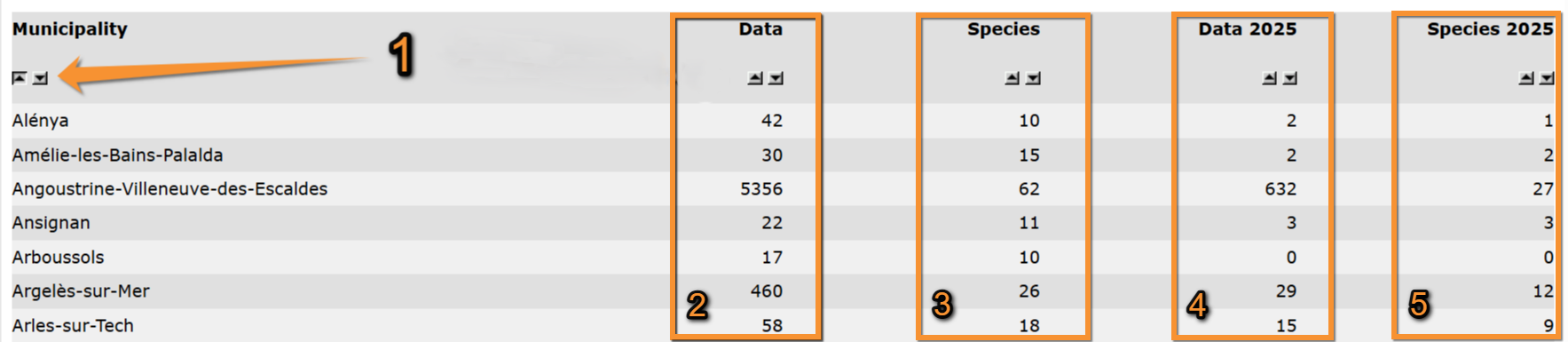
See a list of municipalities within the geographical area selected with number of records for the selected year and taxonomic group.
Use  to alternate between ascending and descending order.
Move the pointer on the image to see the description of this example.
|
Municipality stats. Results.
1. Change order Alénya Amélie-les-Bains-Palalda Angoustrine-Villeneuve-des-Escaldes Asignan Arboussols Argèlers-sur-Mer Arles-sur-Tech |
[Top to Stats by municipality]
[Top to Contribution statistics]
[Back to Statistics]
Observer stats
See statistics about observers.
Choose between
· General info,
· Info about lists|info about lists, or
· Distribution by country.

General info
General info. Menu.
See
· your contribution (yellow) in relation to others' (grey) to the local portal,
· the ten most active observers to the local portal and their contributions, and
· your position within all contributors to the local portal.
1. Choose taxonomic group to visualise.
2. Choose timeframe to visualise.
Your statistics of use of local portal

Your statistics of use of local portal
The most active observers
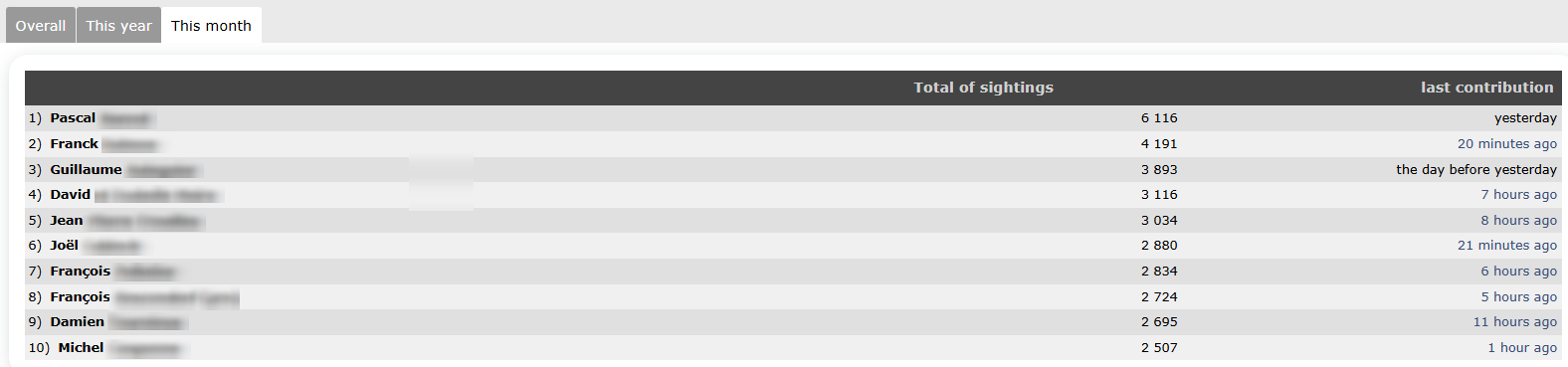
The most active observers
Underneath you have the list of the most active observers and the date of their last record submitted. Choose the timeframe from the tabs on top.
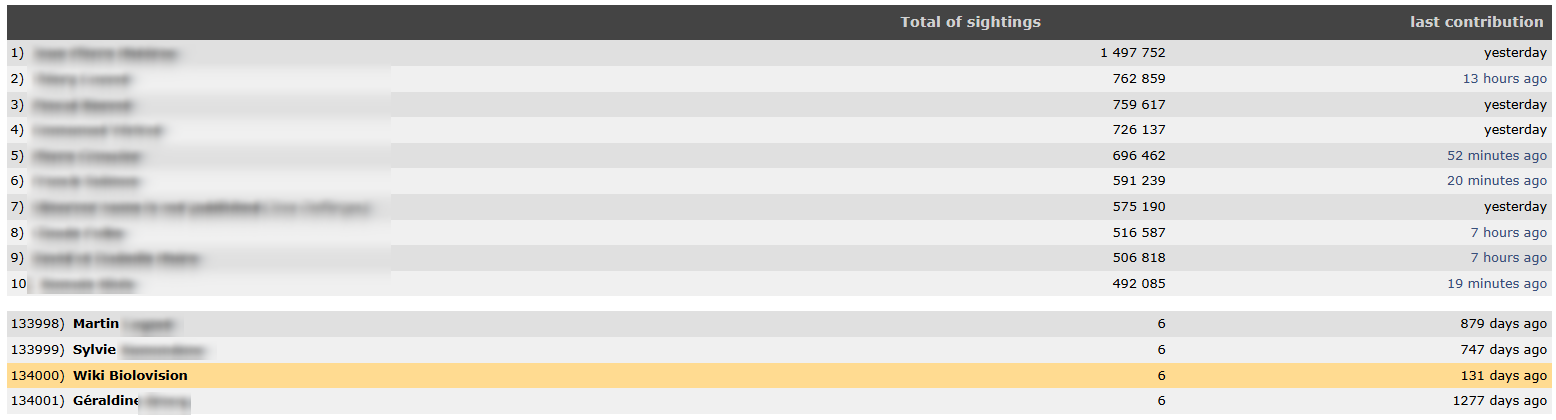
Your position
Info about lists
Info about lists. menu.
At the top, it returns a graph showing the number of complete lists submitted per month during the last 6 years. Colour gradation represents the number of lists: dark blue the highest, to light green the lowest. Place mouse pointer on top of any square to see exact number in each month.
At the bottom, it returns a list of the most active observer according to number of lists submitted, and the moment of their last contribution. Choose between all records, this year's records or this month's records from the tabs on top.
Distribution by county
Distribution by country. Menu.
At the top it shows a graph representing the number of observer in different participating countries. Below, you can see the distribution of observers by biogeographic area, region or county. Choose the area from the expandable menu. Choose the timeframe from tabs: all time, this year, this month.
Species stats
Statistics referring to species, for example, numbers and distribution.

Global info
Global info. Menu.
List of the 50 most observed species per taxa.
1. Choose the taxonomic group from the horizontal bar on top. Place mouse pointer on silhouettes to see which group they represent. Use arrows if necessary to see all options.
2. Choose time frame from tabs:
· All data: all data hold in the system,
· this year: only data from the current year, or
· this month: only data from the current month.
The list returns absolute numbers (total number of observations per species, on the right) and relative numbers (percentage of observations this represents from the total, on the left).

Global info.
1. Select taxonomic group
2. Select time frame
3. Absolute numbers
4. Relative numbers
Info by species
Info by species. Menu.
Information relative to the selected species.
1. Select from the expandable menu the geographical area you want to see the data about.
2. Choose the taxonomic group you are interested in. Use arrows if necessary to see all options. Place mouse pointer on silhouettes to see which taxonomic group they represent.
3. Type a species. Type the beginning of the species name on the left and choose from the expandable menu on the right. Click Display when done.

Selecting geographical area and taxonomic group.
BACK: Go to previous screen.
1. Area considered: Select from the expandable menu the geographical area you want to see statistics from.
2. Taxonomic group: Select the taxonomic group you want to see the statistics from. Use arrows if necessary to see all options. Move pointer over icons to see which group they represent.
3. Species: Select the species you want to see statistics from. Type the species name, or part of it on the left (a) and select from the expandable menu (b). When done, click DISPLAY to show (c).
4. Use tabs to select which type of information you want to see for the selected species.

Species available information.
1. General information
2. Observations
3. Group size and altitude
4. Distribution
1. Info
Shows general information about the species, like names in different languages, conservation status or picture (see image below as an example).

Info by species. Info tab.
2. Stats
Some numbers and graphs about the selected species.
1. Choose time frame from the tabs:
· All data: all data hold in the system,
· this year: only data from the current year, or
· this month: only data from the current month.
2. Summary statistics for the selected time frame. Note number of records in a complete list gives you the records in a complete list relative to the total number of records.
For example in image below (encircled), there have been 4039 sightings of European Robin to date during the current month. 935 of those, were recorded as part of a complete list, which represents 23.1% of all records this month.

Info by species. Stats.
1. Time frame
2. Summary area
3. Graphs area
3. Graphs area.
Graphs shown are independent of the time frame selected above.
- Annual relative frequency of species. Percentage of complete lists containing the species, per week.
- Colours represent frequency: dark blue for higher number of records and light green for lower. Place mouse pointer on top to see detailed data for the selected week. Click on Show more for further details.
- Annual relative frequency of species. Percentage of complete lists containing the species, per week.

Annual relative frequency of species
- Relative weekly frequency of the species. Percentage of complete lists containing the species, per week.
- Compare the data from different years by checking/unchecking cells underneath. Place mouse pointer on top to see detailed data for a specific date. Click on Show more for more information.
- Relative weekly frequency of the species. Percentage of complete lists containing the species, per week.

Relative weekly frequency of species.
- Records grouped by week. Number of data per week.
- The vertical line marks the current date. Compare the data from different years by checking/unchecking cells underneath.
- Records grouped by week. Number of data per week.

Records grouped by week.
3. Ecology
Graphs show group size and altitude distribution.
- Group size distribution. Frequency in which each group size is reported. Click on Show more for more information.
- In the example below, 76% of the time the species is recorded, it was recorded as a single individual.
- In the example below, 76% of the time the species is recorded, it was recorded as a single individual.
- Group size distribution. Frequency in which each group size is reported. Click on Show more for more information.

Group size distribution.
- Altitude distribution. Percentage of observations a different altitudes. Click on Show more for more information.
- Altitude distribution. Percentage of observations a different altitudes. Click on Show more for more information.

Group size distribution.
4. Map
Geographical distribution of the selected species.
1. Choose geographical area from the expandable menu. Options differ from country to country. Visit Web interface > Local portal > Various > Glossary for definitions of all possible areas.
2. Select time frame from tabs:
· All data: all data hold in the system,
· this year: only data from the current year, or
· this month: only data from the current month.
3. See results:
· Table returns relative (3a) and absolute (3b) number of records for each region,
· Map (3c) represents abundance by region. Colour intensity indicates abundance: the darker the colour, the higher number of records.

Info by species. Map.
1. Geographical area
2. Time frame
3. Results
NOTE the results obtained at the Geographical distribution section may look the same as those obtained at Info by species > Map. However,
Geographical distribution represents number of species per region, while
Info by species > Map represents number of records of a previously selected species, per region.
Geographical distribution
Geographical distribution. Menu.
Number of species per geographical area.
1. Choose geographical area from the expandable menu. Options differ from country to country. Visit Web interface > Local portal > Various > Glossary for definitions of all possible areas.
2. Select time frame from tabs:
· All data: all data hold in the system,
· this year: only data from the current year, or
· this month: only data from the current month.
3. See results:
· Table returns relative (3a) and absolute (3b) number of species for each region,
· Map (3c) represents number of species by region. Colour intensity indicates abundance: the darker the colour, the higher number of records.

Info y species. Geographical distribution.
1. Geographical area
2. Time frame
3. Results
NOTE the results obtained at the Geographical distribution section may look the same as those obtained at Info by species > Map. However,
Geographical distribution represents number of species per region, while
Info by species > Map represents number of records of a previously selected species, per region.
Confinement statistics
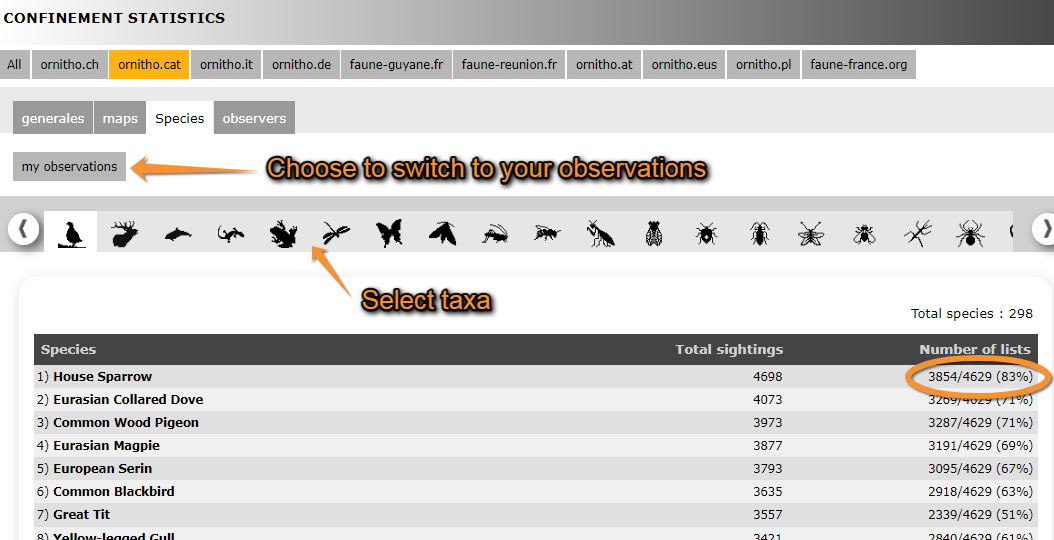
Returns observations done from home during the confinement of 2020. Data goes from 14th March to 15th May and compiles all ornitho portals. Choose the portal from the tabs on top (see image Confinement stats: Generales, summary).
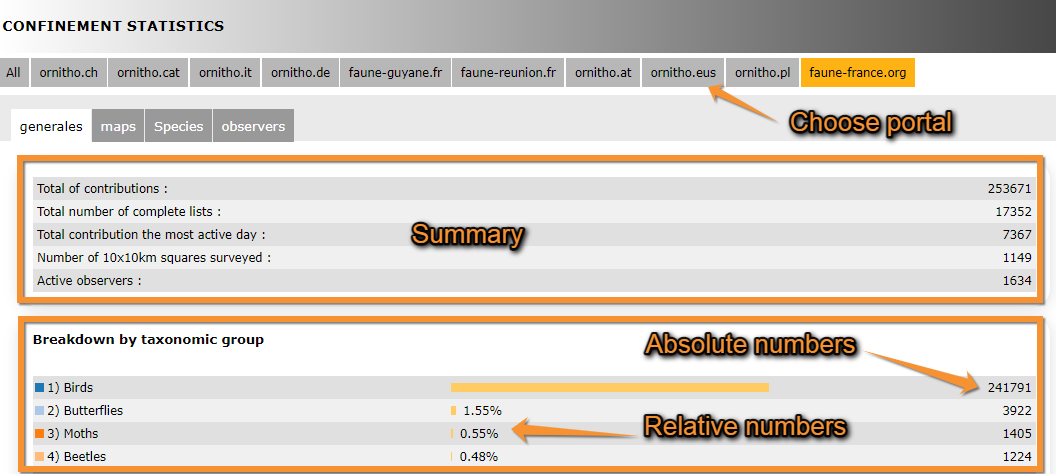
Generales
Tap on Generales tab to see general statistics for the choosen portal. On the top area it summarises the number of contributions, area covered and number of observers, for example. Underneath it returns number of contributions per taxonomic group, both in relative and absolute values (see image Confinement stats: Generales, summary).

Underneath, observations are represented on a graph.
Map
It shows a map with the observations for the selected species. Choose the species to visualise from the expandable menu on top (see image Confinement stats: Map). Size of point on map represents the number of observations. To navigate the map, see wiki section Web interface > Navigating the map.
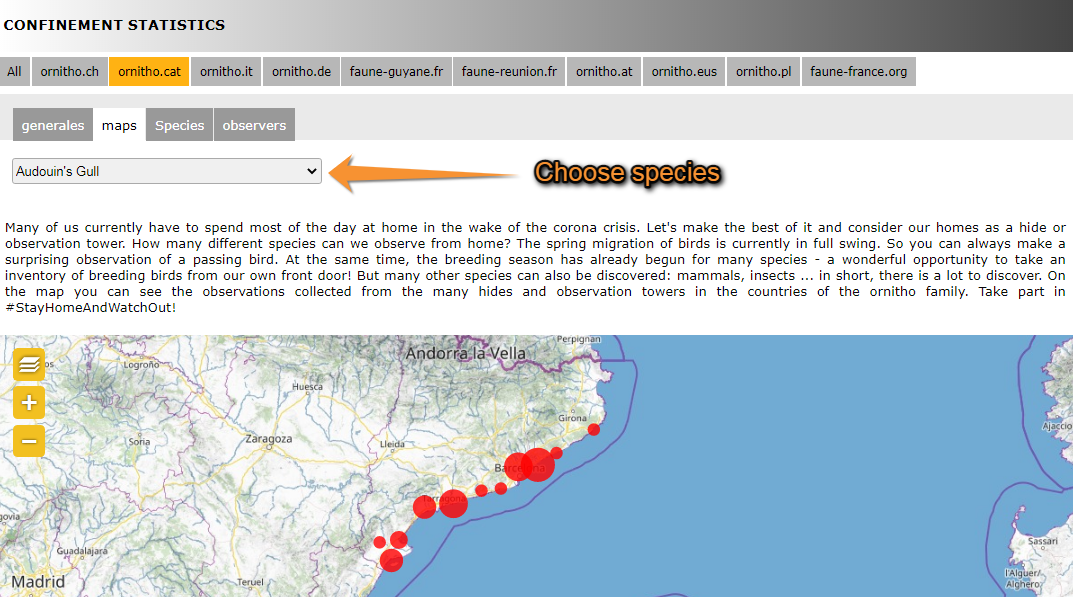
.png)
Species
Returns a list of all species recorded and its numbers in descending order (see image Confinement stats: Species). Choose the taxonomic group you want to visualise from the expandable menu. The returning list indicates the number of records for each species, and the number of lists including the species both in aboslute and relative numbers. In the given example (see image Confinement stats: Species), House Sparrows were recorded a total of 4698 times in tht ornitho.cat portal, 3845 of these records were part of one of the 4629 total lists recorded. Therefore, House Sparrows were recorded in 83 % of lists submitted. Go to wiki section Web interface > Codes and symbols to see correspondence of colour codes to rarity level (image Symbols for rarity level in Fauna-France). See your own observations by clicking on the button above the list (see image Confinement stats: Species).


Observers
A graph on top represents the number of active observers during each day of confinement. Underneath, observers are listed along with their corresponding number of records, lists and hours of observation. Those contributing higher number of lists are on top. On the example below (see image Confinement stats: Observers), the observer contributing the most lists, their name hidden, recorded a total of 3975 observations of 65 different species belonging to 348 lists during over 6h of observation.
.png)
Confinement stats: Observers.
Note: images and examples are drawn from the French portal Faune-France. The design and position of some tools may vary slightly from portal to portal. To see a list of portals go to wiki section Local portals and partners. |