Sharing records: Difference between revisions
| (42 intermediate revisions by the same user not shown) | |||
| Line 1: | Line 1: | ||
Forward an observation to your friends or contacts using different communication systems like whatsapp, gmail, Bluetooth, QR, etc. <br/> | Forward an observation to your friends or contacts <br/> | ||
<span style="color: #000000; margin-left: 25px;"><b>· </b>using different [[Sharing records#Send|communication systems]] like whatsapp, gmail, Bluetooth, QR, etc., or <br/> | |||
<span style="color: #000000; margin-left: 25px;"><b>· </b>creating a [[Sharing records#Share|QR code directly on NaturaList]]. <br/> | |||
<br/> | <br/> | ||
===Share from | <div class="toc" style="width:350px;"> <!-- La llargada s'ha de canviar aquí --> | ||
<div class="mw-collapsible mw-collapsed" data-expandtext="Show" data-collapsetext="Hide" style="width:300px;margin-bottom:0px;margin-top:0px;background-color:#f7f7f7;"> | |||
'''Contents''' | |||
<div class="mw-collapsible-content" style="width:350px;background-color:#f7f7f7;"> <!-- I també cal canviar la llargada aquí --> | |||
<ol> | |||
1. [[Sharing records#Send|Share using external applications]] <br /> | |||
2. [[Sharing records#Share|Share directly from NaturaList]]<br/> | |||
<ol>2.1 [[Sharing records#Receive|Receive observations from a friend]]<br/> </ol></ol> | |||
</div> | |||
</div> | |||
</div> | |||
<br/> | |||
<span id="Send"></span> | |||
===Share using external applications=== | |||
<br/> | |||
Share observations from your phone using external applications. <br/> | |||
<br/> | <br/> | ||
<center> | <center> | ||
<div class="toc" style="border-radius:5px; | <div class="toc" style="border-radius: 5px; padding: 25px; text-align: left; font-family: sans-serif; color: black; width: 400px; background-color: #ffffdb"> | ||
[[ | <!-- GREEN BOX (Tips): hsl(157, 74%, 80%) | ||
YELLOW BOX (Summaries): #ffffdb | |||
BLUE BOX (Information): hsl(201, 100%, 89%) | |||
</ | RED BOX (Warnings): hsl(0, 77%, 78%) --> | ||
<p> | |||
To share your records:<br/> | |||
:1. [[Search_observations|Browse records]]. <br/> | |||
:2. Open menu on an observation. <br/> | |||
:3. [[Media:Share observation menu.png|Select "Select observation"]]. <br/> | |||
:4. [[Media:Share observation.png|Select application]] to share observation. <br/> | |||
</p> | |||
</div> | </div> | ||
</center> | </center> | ||
<br/> | <br /> | ||
Open an observation's menu as if [[Search_observations|Browsing records]] and select '''share observation''' (see left image below). A panel will open with all available possibilities for you (see right image below as an example). Sharing options depends on the applications available in your phone. Note each of them may require different settings. <br/> | |||
<br/> | <br/> | ||
<center> | <center> | ||
<div class="toc" style="border-radius:5px;background-color:#ffffff;padding-left:8px;padding-right:8px;padding-bottom:8px | {| style="text-align:left; border:0px solid black; vertical-align:top;"| | ||
[[File:Share observation.png| | |- | ||
<div class="toc" style="border-radius:5px;padding-left:15px;text-align:left; font-size:12px | |style="padding: 40px"| | ||
''' | <div class="toc" style="border-radius:5px;background-color:#ffffff;width:300px;padding-left:8px;padding-right:8px;padding-bottom:8px;"> | ||
[[File:Share observation menu.png|300px|link=https://help.biolovision.net/images/a/a9/Share_observation_menu.png]] | |||
<div class="toc" style="border-radius:5px;width:275px;padding-left:15px;text-align:left; font-size:12px"> | |||
'''Sharing a record.''' | |||
</div> | </div> | ||
</div> | </div> | ||
|style="padding: 40px"| | |||
<div class="toc" style="border-radius:5px;background-color:#ffffff;width:300px;padding-left:8px;padding-right:8px;padding-bottom:8px;"> | |||
[[File:Share observation.png|300px|link=https://help.biolovision.net/images/b/b8/Share_observation.png]] | |||
<div class="toc" style="border-radius:5px;width:275px;padding-left:15px;text-align:left; font-size:12px"> | |||
'''Example on applications available to share observations.''' | |||
</div> | |||
</div> | |||
|} | |||
</center> | </center> | ||
<br/> | <br/> | ||
<br/> | <br/> | ||
===Share from | <span id="Share"></span> | ||
===Share directly from NaturaList=== | |||
<br/> | <br/> | ||
| Line 36: | Line 79: | ||
<center> | <center> | ||
<div class="toc" style="border-radius: 5px; padding: 25px; text-align: left; font-family: sans-serif; color: black; width: | <div class="toc" style="border-radius: 5px; padding: 25px; text-align: left; font-family: sans-serif; color: black; width: 400px; background-color: #ffffdb"> | ||
<!-- GREEN BOX (Tips): hsl(157, 74%, 80%) | <!-- GREEN BOX (Tips): hsl(157, 74%, 80%) | ||
YELLOW BOX (Summaries): #ffffdb | YELLOW BOX (Summaries): #ffffdb | ||
| Line 45: | Line 88: | ||
To share your records:<br/> | To share your records:<br/> | ||
:1. [[Entering_records#Synchronisation|Synchronise]] your records. <br/> | :1. [[Entering_records#Synchronisation|Synchronise]] your records. <br/> | ||
:2. Enter menu as for entering observation. <br/> | :2. [[Media:Enter menu.png|Enter menu]] as for entering observation. <br/> | ||
:3. Select Share function. <br/> | :3. Select [[Media:Share records.png|Share function]]. <br/> | ||
:4. Choose range of time to visualise. <br/> | :4. Choose [[Media:Dates range.png|range of time]] to visualise. <br/> | ||
:5. Select observations to share. <br/> | :5. [[Media:Select obs.png|Select observations]] to share. <br/> | ||
:6. Create QR code. <br/> | :6. Create [[Media:Receive obs.png|QR code to share]]. <br/> | ||
</p> | </p> | ||
| Line 57: | Line 100: | ||
<center> | <center> | ||
<div class="toc" style="border-radius: 5px; padding: 25px; text-align: left; font-family: sans-serif; color: black; width: | <div class="toc" style="border-radius: 5px; padding: 25px; text-align: left; font-family: sans-serif; color: black; width: 800px; background-color: hsl(201, 100%, 89%)"> | ||
<!-- GREEN BOX (Tips): hsl(157, 74%, 80%) | <!-- GREEN BOX (Tips): hsl(157, 74%, 80%) | ||
YELLOW BOX (Summaries): #ffffdb" | YELLOW BOX (Summaries): #ffffdb" | ||
| Line 64: | Line 107: | ||
<p> | <p> | ||
<b> | <b>NOTES</b><br/> | ||
Only synchronised observations can be shared in this way. Observations on your phone will have to be [[Entering_records#Synchronisation|synchronised]] first.<br/> | <span style="color: #000000; margin-left: 25px;"><b>· </b>Only synchronised observations can be shared in this way. Observations on your phone will have to be [[Entering_records#Synchronisation|synchronised]] first.<br/> | ||
<span style="color: #000000; margin-left: 25px;"><b>· </b>Both sender and receiver need to have NaturaList installed on the device used, and an active account. | |||
</p> | </p> | ||
| Line 75: | Line 119: | ||
To share, <br/> | To share, <br/> | ||
:1. Open the menu from the [[File:Plus icon.png|frameless|20px|link=https://help.biolovision.net/images/6/69/Plus_icon.png]] button at the bottom right corner, [[Media:Enter menu.png|as if entering records]]. <br/> | :1. Open the menu from the [[File:Plus icon.png|frameless|20px|link=https://help.biolovision.net/images/6/69/Plus_icon.png]] button at the bottom right corner, [[Media:Enter menu.png|as if entering records]]. <br/> | ||
:2. Select the icon to share observations. Use [[File:Info icon.png|frameless|20px|link=https://help.biolovision.net/images/5/58/Info_icon.png]] to [[Media:Share description.png|see description]] if needed. <br/> | |||
<br/> | |||
<div class="toc" style="border-radius:5px;background-color:#ffffff;padding-left:8px;padding-right:8px;padding-bottom:8px;width:500px;margin: 0 auto;"> | |||
[[File:Share receive obs.png|500px|link=https://help.biolovision.net/images/c/c4/Share_receive_obs.png]] | |||
<div class="toc" style="border-radius:5px;padding-left:15px;text-align:left; font-size:12px;width:475px;"> | |||
'''Share observations from main menu.''' | |||
</div> | |||
<p style="color:black;font-size:12px;padding-left:30px;text-align:left;column-count:1; padding-right:5px;"> | |||
{| style="padding-left:24px; border:0px solid black; text-align:left; width:250px;"> | |||
|- | |||
| <b>1. </b>|| <b>[[File:Share records.png|frameless|center|30px|link=https://help.biolovision.net/images/9/94/Share_records.png]]</b>|| [[Sharing records#Share|Share your records]]. <br/> | |||
|- | |||
| <b>2. </b>|| <b>[[File:Receive records.png|frameless|center|30px|link=https://help.biolovision.net/images/6/6b/Receive_records.png]]</b>|| [[Sharing records#Receive|Receive records]]. <br/> | |||
|} | |||
</p> | |||
</div> | |||
<br/> | |||
<br/> | |||
</div> | |||
<br/> | |||
<br/> | |||
:3. Open [[File:Calendar icon.png|frameless|20px|link=https://help.biolovision.net/images/1/14/Calendar_icon.png]] calendar on the [[Media:Modify dates.png|top right corner]] to select or modify the range of dates between which you wish to visualise your records. Scroll Day/Month/Year to change. Press ok when done. <br/> | |||
<br/> | |||
<span style="color: #000000; margin-left: 25px;"><b>· </b>By default, it starts with the current date. <br/> | |||
<span style="color: #000000; margin-left: 25px;"><b>· </b>There is no time limitation, but there is a limitation of 1000 records in each share. <br/> | |||
<br/> | |||
<center> | |||
<div class="toc" style="border-radius:5px;background-color:#ffffff;padding-left:8px;padding-right:8px;padding-bottom:8px;width:400px;"> | |||
[[File:Dates range.png|400px|link=https://help.biolovision.net/images/d/d7/Dates_range.png]] | |||
<div class="toc" style="border-radius:5px;padding-left:15px;text-align:left; font-size:12px;width:375px;"> | |||
'''Select dates range.''' | |||
</div> | |||
</div> | |||
</center> | |||
<br/> | |||
<br/> | |||
:4. Check and uncheck cells to indicate which observations you want to share. Check date cell to select/unselect all observations on that date, or select individually. <br/> | |||
<br/> | <br/> | ||
:2. Select the icon to | <center> | ||
<div class="toc" style="border-radius:5px;background-color:#ffffff;padding-left:8px;padding-right:8px;padding-bottom:8px;width:400px;"> | |||
[[File:Select obs.png|400px|link=https://help.biolovision.net/images/9/9d/Select_obs.png]] | |||
<div class="toc" style="border-radius:5px;padding-left:15px;text-align:left; font-size:12px;width:375px;"> | |||
'''Select which observations to share.''' | |||
</div> | |||
</div> | |||
</center> | |||
<br/> | |||
<br/> | |||
:5. Press [[File:Import records.png|frameless|20px|link=https://help.biolovision.net/images/9/96/Import_records.png]] to create the QR code. Show that code to your [[Sharing records#Receive|friend to scan]]. <br/> | |||
<br/> | |||
<span id="Receive"></span> | |||
====Receive observations from a friend==== | |||
<br/> | |||
Scan your peer's QR code to download their observations on your phone. <br/> | |||
<br/> | |||
<center> | |||
<div class="toc" style="border-radius: 5px; padding: 25px; text-align: left; font-family: sans-serif; color: black; width: 400px; background-color: #ffffdb"> | |||
<!-- GREEN BOX (Tips): hsl(157, 74%, 80%) | |||
YELLOW BOX (Summaries): #ffffdb | |||
BLUE BOX (Information): hsl(201, 100%, 89%) | |||
RED BOX (Warnings): hsl(0, 77%, 78%) --> | |||
<p> | |||
To share your records:<br/> | |||
:1. [[Media:Enter menu.png|Enter menu]] as for entering observation. <br/> | |||
:2. Select [[Media:Receive records.png|Receive function]]. <br/> | |||
:3. [[Media:Receive obs.png|Scan]] your friend's QR code. <br/> | |||
</p> | |||
</div> | |||
</center> | |||
<br /> | |||
To receive, <br/> | |||
:1. Open the menu from the [[File:Plus icon.png|frameless|20px|link=https://help.biolovision.net/images/6/69/Plus_icon.png]] button at the bottom right corner, [[Media:Enter menu.png|as if entering records]]. <br/> | |||
:2. Select the icon to receive observations. Use [[File:Info icon.png|frameless|20px|link=https://help.biolovision.net/images/5/58/Info_icon.png]] to [[Media:Share description.png|see description]] if needed. <br/> | |||
<br/> | <br/> | ||
| Line 88: | Line 217: | ||
{| style="padding-left:24px; border:0px solid black; text-align:left; width:250px;"> | {| style="padding-left:24px; border:0px solid black; text-align:left; width:250px;"> | ||
|- | |- | ||
| <b>1. </b>|| <b>[[File:Share records.png|frameless|center|30px|link=https://help.biolovision.net/images/9/94/Share_records.png]]</b>|| [[ | | <b>1. </b>|| <b>[[File:Share records.png|frameless|center|30px|link=https://help.biolovision.net/images/9/94/Share_records.png]]</b>|| [[Sharing records#Share|Share your records]]. <br/> | ||
|- | |- | ||
| <b>2. </b>|| <b>[[File:Receive records.png|frameless|center|30px|link=https://help.biolovision.net/images/6/6b/Receive_records.png]]</b>|| [[ | | <b>2. </b>|| <b>[[File:Receive records.png|frameless|center|30px|link=https://help.biolovision.net/images/6/6b/Receive_records.png]]</b>|| [[Sharing records#Receive|Receive records]]. <br/> | ||
|} | |} | ||
</p> | </p> | ||
| Line 101: | Line 230: | ||
<br/> | <br/> | ||
:3. | :3. Scan your friend's QR code to directly download their observations on your phone. <br/> | ||
<br/> | <br/> | ||
<center> | |||
<div class="toc" style="border-radius:5px;background-color:#ffffff;padding-left:8px;padding-right:8px;padding-bottom:8px;width:300px;"> | |||
[[File:Receive obs.png|300px|link=https://help.biolovision.net/images/b/b5/Receive_obs.png]] | |||
<div class="toc" style="border-radius:5px;padding-left:15px;text-align:left; font-size:12px;width:275px;"> | |||
'''Scan observations.''' | |||
</div> | |||
</div> | |||
</center> | |||
<br/> | |||
<br/> | |||
:4. Uncheck records that you do not want to import. <br/> | |||
: | :5. Press [[File:Import records.png|frameless|20px|link=https://help.biolovision.net/images/9/96/Import_records.png]] to load selected records on your device. <br/> | ||
<br/> | <br/> | ||
: | <center> | ||
<div class="toc" style="border-radius:5px;background-color:#ffffff;padding-left:8px;padding-right:8px;padding-bottom:8px;width:300px;"> | |||
[[File:Import records 2.png|300px|link=https://help.biolovision.net/images/f/fe/Import_records_2.png]] | |||
<div class="toc" style="border-radius:5px;padding-left:15px;text-align:left; font-size:12px;width:275px;"> | |||
'''Select records to import.''' | |||
</div> | |||
</div> | |||
</center> | |||
<br/> | <br/> | ||
<br/> | |||
<center> | |||
<div class="toc" style="border-radius: 5px; padding: 25px; text-align: left; font-family: sans-serif; color: black; width: 600px; background-color: hsl(201, 100%, 89%)"> | |||
<!-- GREEN BOX (Tips): hsl(157, 74%, 80%) | |||
YELLOW BOX (Summaries): #ffffdb | |||
BLUE BOX (Information): hsl(201, 100%, 89%) | |||
RED BOX (Warnings): hsl(0, 77%, 78%) --> | |||
<p> | |||
To scan the QR code:<br/> | |||
<span style="color: #000000; margin-left: 25px;"><b>· </b>Open NaturaList and select [[File:Receive records.png|frameless|30px|link=https://help.biolovision.net/images/6/6b/Receive_records.png]], or <br/> | |||
<span style="color: #000000; margin-left: 25px;"><b>· </b>Use any QR reader and it will automatically detect NaturaList, if it is installed on the device. <br/> | |||
</p> | |||
</div> | |||
</center> | |||
<br /> | |||
Latest revision as of 12:50, 13 June 2025
Forward an observation to your friends or contacts
· using different communication systems like whatsapp, gmail, Bluetooth, QR, etc., or
· creating a QR code directly on NaturaList.
Share observations from your phone using external applications.
To share your records:
- 1. Browse records.
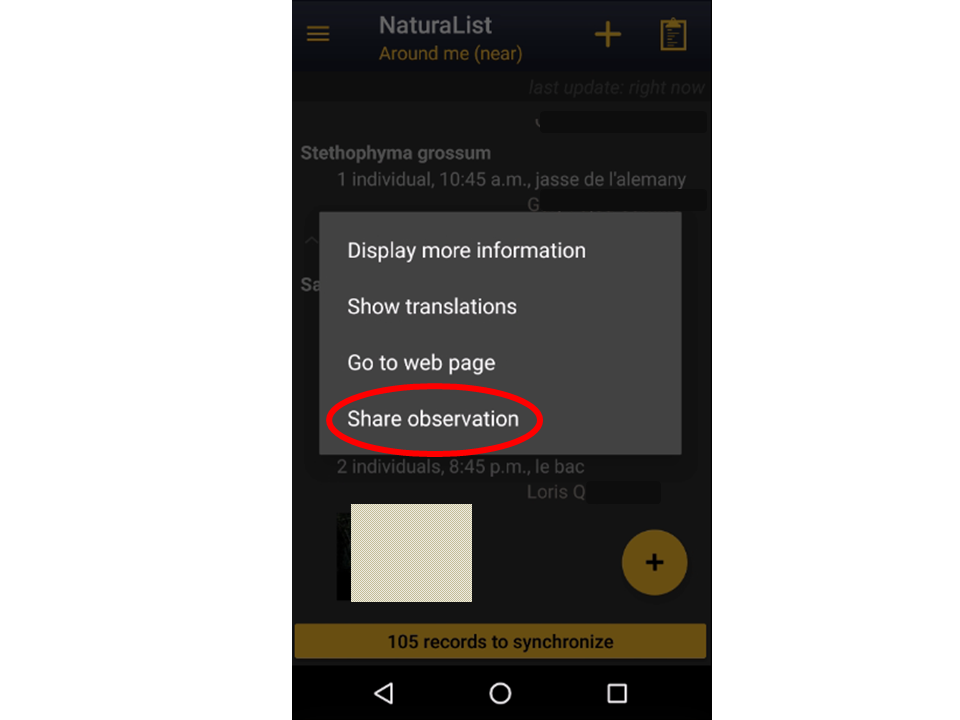
- 2. Open menu on an observation.
- 3. Select "Select observation".
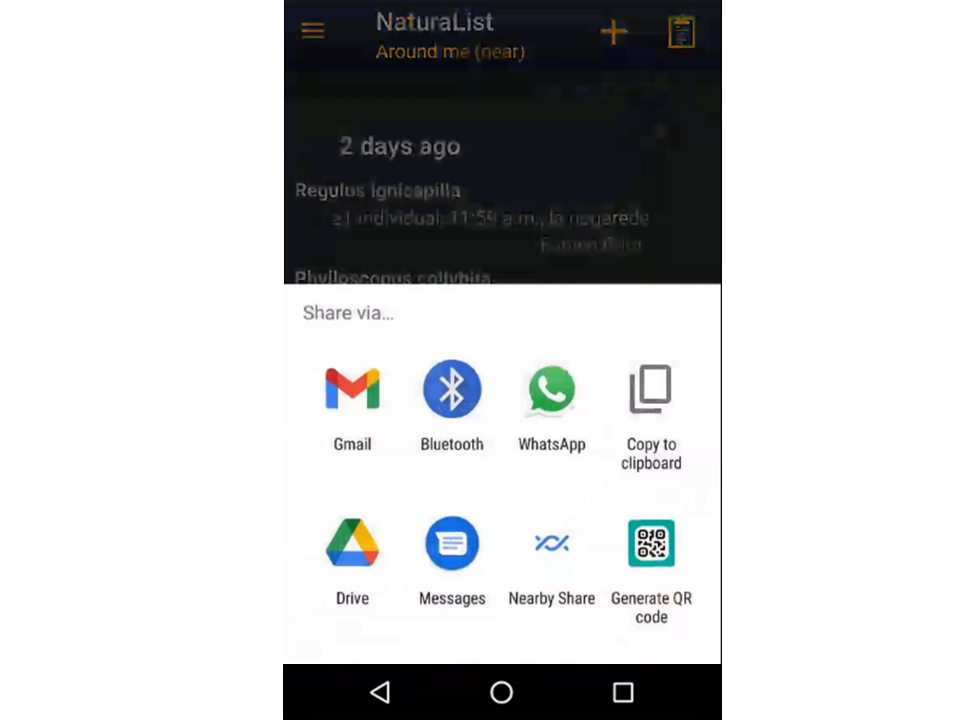
- 4. Select application to share observation.
Open an observation's menu as if Browsing records and select share observation (see left image below). A panel will open with all available possibilities for you (see right image below as an example). Sharing options depends on the applications available in your phone. Note each of them may require different settings.
|
Sharing a record. |
Example on applications available to share observations. |
Share your synchronised observations with your friends and peers, or see theirs.
To share your records:
- 1. Synchronise your records.
- 2. Enter menu as for entering observation.
- 3. Select Share function.
- 4. Choose range of time to visualise.
- 5. Select observations to share.
- 6. Create QR code to share.
NOTES
· Only synchronised observations can be shared in this way. Observations on your phone will have to be synchronised first.
· Both sender and receiver need to have NaturaList installed on the device used, and an active account.
To share,
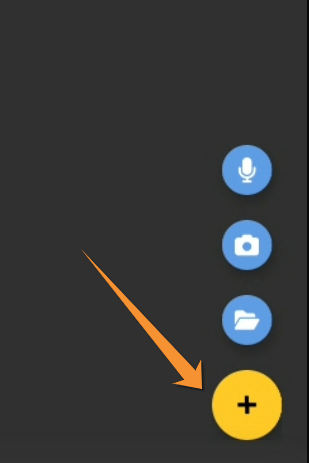
- 1. Open the menu from the
 button at the bottom right corner, as if entering records.

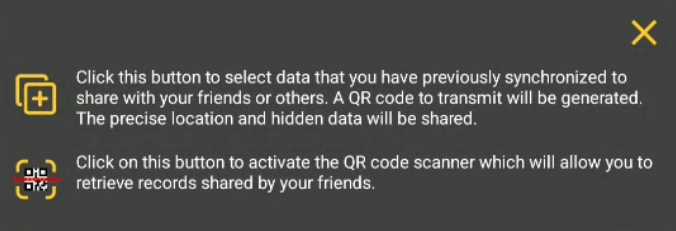
- 2. Select the icon to share observations. Use
 to see description if needed.

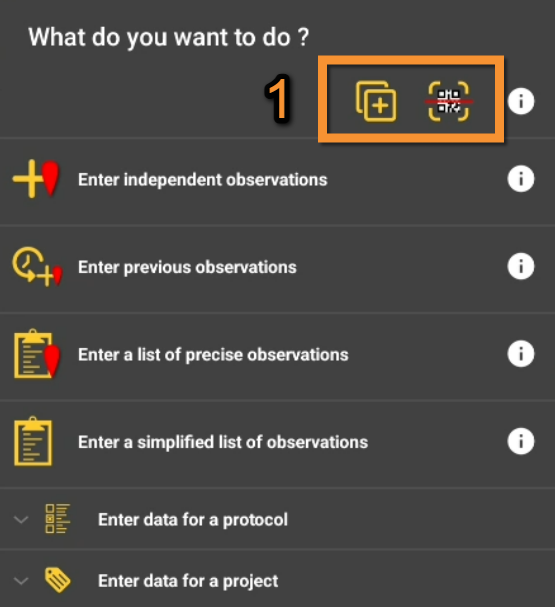

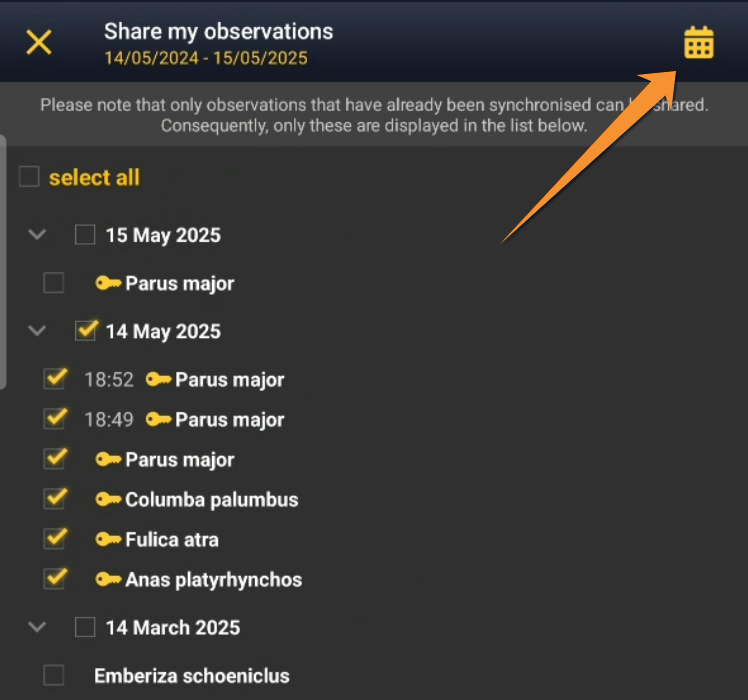
- 3. Open
 calendar on the top right corner to select or modify the range of dates between which you wish to visualise your records. Scroll Day/Month/Year to change. Press ok when done.

· By default, it starts with the current date.
· There is no time limitation, but there is a limitation of 1000 records in each share.

Select dates range.
- 4. Check and uncheck cells to indicate which observations you want to share. Check date cell to select/unselect all observations on that date, or select individually.
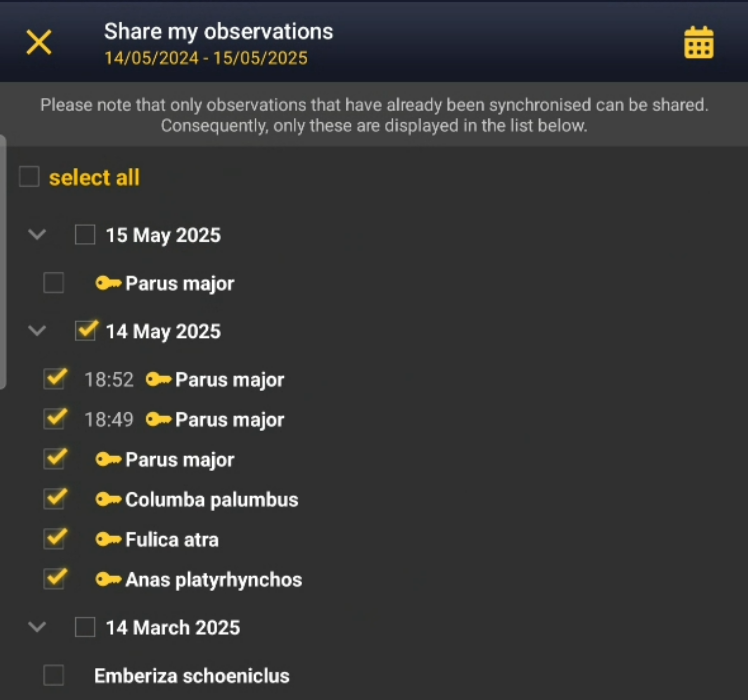
Select which observations to share.
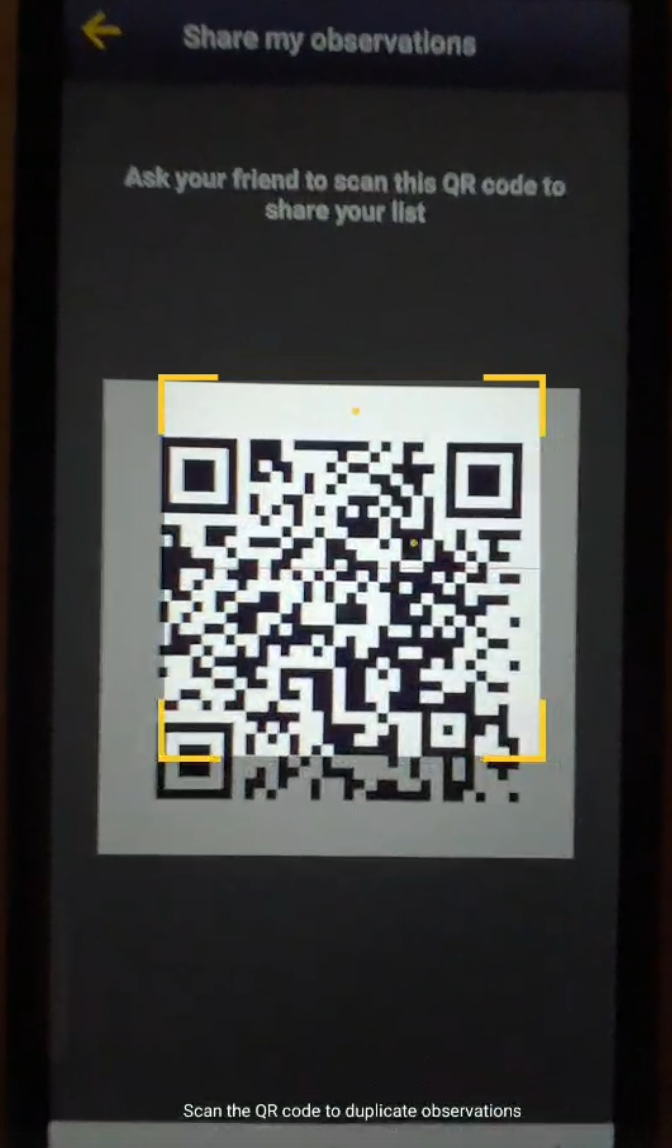
- 5. Press
 to create the QR code. Show that code to your friend to scan.






Receive observations from a friend
Scan your peer's QR code to download their observations on your phone.
To share your records:
- 1. Enter menu as for entering observation.
- 2. Select Receive function.
- 3. Scan your friend's QR code.

To receive,
- 1. Open the menu from the button at the bottom right corner, as if entering records.
- 2. Select the icon to receive observations. Use to see description if needed.
- 3. Scan your friend's QR code to directly download their observations on your phone.

Scan observations.
- 4. Uncheck records that you do not want to import.
- 5. Press to load selected records on your device.
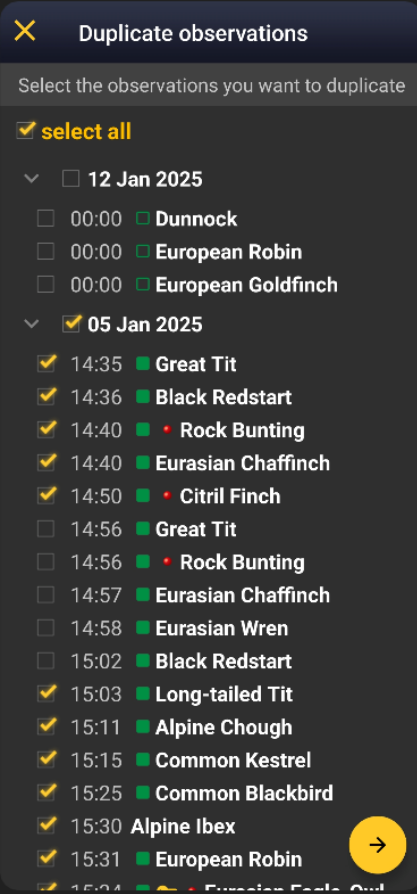
Select records to import.
To scan the QR code:
· Open NaturaList and select  , or
, or
· Use any QR reader and it will automatically detect NaturaList, if it is installed on the device.