Woodpeckers (Admin): Difference between revisions
No edit summary |
|||
| (9 intermediate revisions by the same user not shown) | |||
| Line 1: | Line 1: | ||
WOODPECKER | WOODPECKER | ||
<br/> | <br/> | ||
<br/> | |||
<center> | |||
<div class="toc" style="border-radius: 5px; padding: 25px; text-align: left; font-family: sans-serif; color: black; width: 600px; "> | |||
<!-- GREEN BOX (Tips): hsl(157, 74%, 80%) | |||
YELLOW BOX (Summaries): #ffffdb" | |||
BLUE BOX (Information): hsl(201, 100%, 89%) | |||
RED BOX (Warnings): hsl(0, 77%, 78%) --> | |||
<p> | |||
NOTE<br/> | |||
Names of sections may differ depending on the local portal. Images to describe this protocol have been taken from the German site [http://www.ornitho.de www.ornitho.de].<br/> | |||
</p> | |||
</div> | |||
</center> | |||
<br /> | |||
Access your protocol from Menu > Take part > All my protocol > Woodpeckers. <br/> | |||
For other options, visit wiki section Administrators > Protocols > [[Protocols_web#Accessing_protocols|Accessing protocols]]. <br/> | |||
<br/> | <br/> | ||
| Line 16: | Line 36: | ||
<div class="toc" style="width:300px;"> <!-- La llargada s'ha de canviar aquí --> | <div class="toc" style="width:300px;"> <!-- La llargada s'ha de canviar aquí --> | ||
<div class="mw-collapsible mw-collapsed" data-expandtext="Show" data-collapsetext="Hide" style="width:250px;margin-bottom:0px;margin-top:0px;background-color:#f7f7f7;"> | <div class="mw-collapsible mw-collapsed" data-expandtext="Show" data-collapsetext="Hide" style="width:250px;margin-bottom:0px;margin-top:0px;background-color:#f7f7f7;"> | ||
''' | '''Woodpeckers''' | ||
<div class="mw-collapsible-content" style="width:300px;background-color:#f7f7f7;"> <!-- I també cal canviar la llargada aquí --> | <div class="mw-collapsible-content" style="width:300px;background-color:#f7f7f7;"> <!-- I també cal canviar la llargada aquí --> | ||
<ol> | <ol> | ||
1 [[Woodpeckers (Admin)#Preparation_and_data| My sites and data]] <br /> | |||
2 [[Woodpeckers (Admin)#Sites| Sites]]<br /> | |||
3 [[Woodpeckers (Admin)#User/Site| User/Site]]<br /> | |||
4 [[Woodpeckers (Admin)#Settings| Settings]] <br /> | |||
5 [[Woodpeckers (Admin)#Import shapefile| Import a shapefile]] <br /> | |||
6 [[Woodpeckers (Admin)#Check_data| Check Data]]<br /> | |||
7 [[Woodpeckers (Admin)#Report| Summarize data]]<br /> | |||
8 [[Woodpeckers (Admin)#Map| Map of my sites]]<br /> </ol> | |||
</div> | </div> | ||
</div> | </div> | ||
| Line 47: | Line 68: | ||
<br/> | <br/> | ||
Identical section to the one available to registered users with rights to the | Identical section to the one available to registered users with rights to the Woodpeckers protocol. See wiki section Web interface > Protocols > Woodpeckers > [[Woodpeckers#Preparation_and_data|My sites and data]] for more information. <br/> | ||
<br/> | <br/> | ||
| Line 56: | Line 77: | ||
<center> | <center> | ||
<div class="toc" style="width: 760px; border-radius: | <div class="toc" style="width: 760px; border-radius: 5px; padding: 25px; text-align: left; font-family: sans-serif; color: black; background-color: #ffffdb"> | ||
<!-- GREEN BOX (Tips): hsl(157, 74%, 80%) | |||
YELLOW BOX (Summaries): #ffffdb" | |||
BLUE BOX (Information): hsl(201, 100%, 89%) | |||
RED BOX (Warnings): hsl(0, 77%, 78%) --> | |||
<!--T:20--> | <!--T:20--> | ||
<p><b> CREATE A NEW SITE:</b><br /> | <p><b> CREATE A NEW SITE:</b><br /> | ||
1. Directly by <b>Transmit my sightings</b> map <br/>or <br/>through Menu > Administration > Protocol administration > Woodpeckers > [[Media:Admin WBC Sites.png|Sites]]> +NEW button <br /> | 1. Directly by <b>Transmit my sightings</b> map <br/>or <br/>through Menu > Administration > Protocol administration > Woodpeckers > [[Media:Admin WBC Sites.png|Sites]]> +NEW button <br /> | ||
2. Select new site as if [[Submitting_records|Submitting records]]<br/> | 2. Select new site as if [[Submitting_records|Submitting records]]<br/> | ||
| Line 66: | Line 91: | ||
5. [[Geometry_editor#Drawing_a_point|Draw points]] or [[Media:2023-03-14 Importing a plygon shapefile.png|import shapefile]]<br/> | 5. [[Geometry_editor#Drawing_a_point|Draw points]] or [[Media:2023-03-14 Importing a plygon shapefile.png|import shapefile]]<br/> | ||
6. '''SAVE''' | 6. '''SAVE''' | ||
</p> | </p> | ||
</div> | </div> | ||
| Line 209: | Line 233: | ||
</center> | </center> | ||
<br/><br/> | <br/><br/> | ||
<span id="Import shapefile></span> | |||
==WOODPECKER Import a shapefile== | |||
<br/> | |||
<center> | |||
<div class="toc" style="border-radius:5px;background-color:#ffffff;padding-left:8px;padding-right:8px;padding-bottom:8px;width:300px;"> | |||
[[File:Woodies._Admin_import_a_shapefile.png|300px]] | |||
<div class="toc" style="border-radius:5px;padding-left:15px;text-align:left; font-size:12px;width:285px;"> | |||
'''Woodpeckers. Import a shapefile.''' | |||
</div> | |||
</div> | |||
</center> | |||
<br/> | |||
<br/> | |||
Import a shapefile with the study site and/or see all imports. <br/> | |||
Visit wiki section Administration > Protocol management > Settings > [[Protocol_management#Import_a_shapefile_settings|Import a shapefile]]. <br/> | |||
<br/> | |||
<span id="Check data"></span> | <span id="Check data"></span> | ||
Latest revision as of 16:55, 28 October 2025
WOODPECKER
NOTE
Names of sections may differ depending on the local portal. Images to describe this protocol have been taken from the German site www.ornitho.de.
Access your protocol from Menu > Take part > All my protocol > Woodpeckers.
For other options, visit wiki section Administrators > Protocols > Accessing protocols.

Woodpeckers. Admin menu.
Woodpeckers
WOODPECKER My sites and data

Woodpeckers. Admin sites and data.
Identical section to the one available to registered users with rights to the Woodpeckers protocol. See wiki section Web interface > Protocols > Woodpeckers > My sites and data for more information.
WOODPECKER Sites
CREATE A NEW SITE:
1. Directly by Transmit my sightings map
or
through Menu > Administration > Protocol administration > Woodpeckers > Sites> +NEW button
2. Select new site as if Submitting records
3. Choose Create a protocoled census -Woodpeckers
4. Name the new site
5. Draw points or import shapefile
6. SAVE
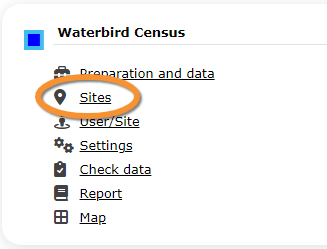
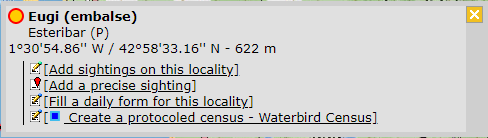


Woodpeckers. Admin sites.
List of all existing sites allowing Woodpeckers' studies.
Visit wiki section Administration > Protocol management > Sites for more information.
This protocol requires 5 points:

Image title.
1. Draw point
2. Edit point
3. Locality the study area will belong to
4. Active point, either newly created or ready to edit
5. Survey area around the point. Click on any point to hide its survey area.
WOODPECKER User/Site

Woodpeckers. Admin User/Site.
From the Woodpecker menu, select User / Site to assign users to study sites.
Visit wiki section Administration > Protocol management > User/Site for more information.
WOODPECKER Settings

Woodpeckers. Admin Settings.
Set protocol parameters.
Visit wiki section Administration > Protocol management > Settings for details.
Parameters describing the protocol
Expand the table below to see all posible parameters and options available for the Woodpeckers protocol. Use arrows on headers to alternate between ascending and descending alphabetical order.
| Woodpeckers protocol. Parameters. | ||||||||||
|---|---|---|---|---|---|---|---|---|---|---|
| Name | Description | Options | ||||||||
| Conditions in general | The user chooses overall surveying conditions regarding weather and disturbances. | Good / normal Moderate Bad / heavily influenced Unknown |
||||||||
| Conditions (notes) | The user can leave a note regarding overall surveying conditions. | empty field | ||||||||
| Additional observers | The user is asked to indicate if they are accompanied by someone whose observations are also recorded. | empty field | ||||||||
| Important changes since last count? | The user is asked to indicate if there have been major changes since your last visit. | empty field | ||||||||
| Coverage | The user is asked to indicate how much of the designated area is covered in the survey. | Complete Partly Unknown |
||||||||
| Coverage (notes) | The user can leave a comment regarding the coverage. | empty field | ||||||||
WOODPECKER Import a shapefile

Woodpeckers. Import a shapefile.
Import a shapefile with the study site and/or see all imports.
Visit wiki section Administration > Protocol management > Settings > Import a shapefile.
WOODPECKER Check data

Woodpeckers. Admin Check data.
Visualise a summary of survey data.
Visit wiki section Administration > Protocol management > Check data for more information.
WOODPECKER Summarize data

Woodpeckers. Admin Summarize data.
Visualise pooled results from surveys.
Visit wiki section Administration > Protocol management > Summarize data for more information.
WOODPECKER Map of my sites

Woodpeckers. Admin Map of my sites.
Display the area map by polygon, and see its statistics.
Visit wiki section Administration > Protocol management > Map of my sites for more information.