Deleting records: Difference between revisions
No edit summary |
No edit summary |
||
| (31 intermediate revisions by 2 users not shown) | |||
| Line 1: | Line 1: | ||
<languages/> | |||
<translate> | |||
<!--T:17--> | |||
<br/> | <br/> | ||
Only you and administrators have the right to delete your records. <br/> | Only you and administrators have the right to delete your records. <br/> | ||
You cannot delete any other record than yours unless you have the appropriate right. <br/> | |||
<br/> | <br/> | ||
It can be done from any part of the website where you can see your data (for example, Last 2, 5 or 15 days, Latest rare sightings, All my sightings, Search engine, Protocols, and so on). <br/> | |||
<br/> | <br/> | ||
<!--T:18--> | |||
<center> | |||
<div class="toc" style="border-radius: 5px; padding: 25px; text-align: left; font-family: sans-serif; color: black; width: 600px; background-color: hsl(201, 100%, 89%);"> | |||
<!--T:19--> | |||
<p> | |||
<ul> | |||
<b>NOTE</b><br/> | |||
Depending the local portal you are using, the bin icon may be deactivated if the data has been already exported. If it is the case, you will not see the bin icon, and the editing icon becomes red [[File: No edit icon.png|frameless|50px|link=]]. <br/> | |||
<br/> | |||
To delete such data you need to contact your local administrator. | |||
</ul></p> | |||
<!--T:20--> | |||
</div> | |||
</center> | |||
<br /> | |||
__TOC__ | |||
==Deleting a single record== | |||
<br/> | <br/> | ||
<!--T:21--> | |||
< | <span style="color: #000000; margin-left: 25px;"><b>· </b> click [[File: Delete record icon.png|frameless|50px|link=]] next to the observation to delete it. <br/> | ||
<span style="color: #000000; margin-left: 25px;"><b>· </b> confirm before deleting the entry: select '''confirm''' to delete the entry, or '''cancel''' to keep it. <br/> | |||
<br/> | <br/> | ||
==Deleting single records from list of records or the full list== | |||
<br/> | <br/> | ||
<span style="color: #000000; margin-left: 25px;"><b>· </b> click [[File: Delete list icon.png|frameless|50px|link=]] next to the observation to delete the full list the record belongs to. <br /> | |||
<!--T:22--> | |||
<span style="color: #000000; margin-left: 25px;"><b>· </b> confirm before deleting the entry: select '''confirm''' to delete the entry, or '''cancel''' to keep it. <br/> | |||
<br/> | <br/> | ||
<center> | |||
<div class="toc" style="border-radius: 5px; padding: 25px; text-align: left; font-family: sans-serif; color: black; width: 400px; background-color: hsl(0, 77%, 78%)"> | |||
<!-- GREEN BOX (Tips): hsl(157, 74%, 80%) | |||
YELLOW BOX (Summaries): #ffffdb" | |||
BLUE BOX (Information): hsl(201, 100%, 89%) | |||
RED BOX (Warnings): hsl(0, 77%, 78%) --> | |||
<p> | |||
IMPORTANT<br/> | |||
Using [[File: Delete list icon.png|frameless|50px|link=]] to delete a record will delete the full list.<br/> | |||
If clicked by mistake, click cancel when asked to confirm. <br/> | |||
</p> | |||
</div> | |||
</center> | |||
<br /> | |||
<!--T:23--> | |||
<center> | |||
<div class="toc" style="border-radius:5px;background-color:#ffffff;width:600px;padding-left:8px;padding-right:8px;"> | |||
[[File: List of observations.png|600px|link=https://help.biolovision.net/images/e/e6/List_of_observations.png]] | |||
<div class="toc" style="border-radius:5px;width:585px;padding-left:15px;text-align:left; font-size:12px;"> | |||
'''Bin to delete data in "All my observations". Example.''' | |||
</div> | |||
<p style="color:black;font-size:12px;padding-left:5px;text-align:left;column-count:1;padding-right:5px;"> | |||
<center> | |||
<table style="width:70%; border:1;"> | |||
<tr style="padding: 25px; text-align: left; font-family: sans-serif; color: black; background-color: white"> | |||
<td> | |||
[[File: Delete record icon.png|frameless|50px|link=]] </td> | |||
<td>Delete a single record</td> | |||
</tr> | |||
<tr style="padding: 25px; text-align: left; font-family: sans-serif; color: black; background-color: white"> | |||
<td> | |||
[[File: Delete list icon.png|frameless|50px|link=]] </td> | |||
<td>Delete full list</td> | |||
</tr> | |||
<tr style="padding: 25px; text-align: left; font-family: sans-serif; color: black; background-color: white"> | |||
<td> | |||
[[File: No edit icon.png|frameless|50px|link=]] | |||
</td> | |||
<td>Impossible to edit the record. Please contact your local administrator if necessary.</td> | |||
</tr> | |||
</table> | |||
</center> | |||
</p> | |||
</div> | |||
</center> | |||
<br/> | |||
<br/> | <br/> | ||
==Deleting records from editing records/seeing details== | |||
<br/> | |||
<!--T:13--> | |||
Delete records from the editing panel (see image below) while [[Editing records|editing a record]]. <br/> | |||
<br/> | |||
<!--T:25--> | |||
<span style="color: #000000; margin-left: 25px;"><b>· </b> click on the delete icon: <br/> | |||
<span style="color: #000000; margin-left: 45px;"> [[File: Delete record icon.png|fremeless|25px|link=]] to delete a single record, <br/> | |||
<span style="color: #000000; margin-left: 45px;"> [[File: Delete list icon.png|frameless|50px|link=]] to delete the full list. <br/> | |||
<br/> | |||
<!--T:27--> | |||
See wiki section [[Editing records]] for more details about editing data.<br /> | See wiki section [[Editing records]] for more details about editing data.<br /> | ||
<br /> | <br /> | ||
<!--T:26--> | |||
<center> | |||
<div class="toc" style="border-radius:5px;background-color:#ffffff;width:600px;padding-left:8px;padding-right:8px;padding-bottom:8px;"> | |||
[[File:Sighting detail bin.png|600px|link=|link=https://help.biolovision.net/images/d/d2/Sighting_detail_bin.png]] | |||
<div class="toc" style="border-radius:5px;width:585px;padding-left:15px;text-align:left; font-size:12px"> | |||
'''Bin in sightings details.''' | |||
</div> | |||
</div> | |||
</center> | |||
<br/> | |||
<br/> | |||
<center> | |||
<div class="toc" style="border-radius: 5px; padding: 25px; text-align: left; font-family: sans-serif; color: black; width: 400px; background-color: hsl(0, 77%, 78%)"> | |||
<!-- GREEN BOX (Tips): hsl(157, 74%, 80%) | |||
YELLOW BOX (Summaries): #ffffdb" | |||
BLUE BOX (Information): hsl(201, 100%, 89%) | |||
RED BOX (Warnings): hsl(0, 77%, 78%) --> | |||
<p> | |||
IMPORTANT<br/> | |||
Using [[File: Delete list icon.png|frameless|50px|link=]] to delete a record will delete the full list.<br/> | |||
If clicked by mistake, click cancel when asked to confirm. <br/> | |||
</p> | |||
</div> | |||
</center> | |||
<br /> | |||
[[#top|[Top to Deleting records]]] <br/> | |||
<br/> | |||
<!--T:28--> | |||
{{Examples from Faune-France}} | {{Examples from Faune-France}} | ||
</translate> | |||
Latest revision as of 19:13, 19 February 2026
Only you and administrators have the right to delete your records.
You cannot delete any other record than yours unless you have the appropriate right.
It can be done from any part of the website where you can see your data (for example, Last 2, 5 or 15 days, Latest rare sightings, All my sightings, Search engine, Protocols, and so on).
-
NOTE
Depending the local portal you are using, the bin icon may be deactivated if the data has been already exported. If it is the case, you will not see the bin icon, and the editing icon becomes red
 .
. To delete such data you need to contact your local administrator.
Deleting a single record
· click  next to the observation to delete it.
· confirm before deleting the entry: select confirm to delete the entry, or cancel to keep it.
Deleting single records from list of records or the full list
· click  next to the observation to delete the full list the record belongs to.
· confirm before deleting the entry: select confirm to delete the entry, or cancel to keep it.
IMPORTANT
Using to delete a record will delete the full list.
If clicked by mistake, click cancel when asked to confirm.
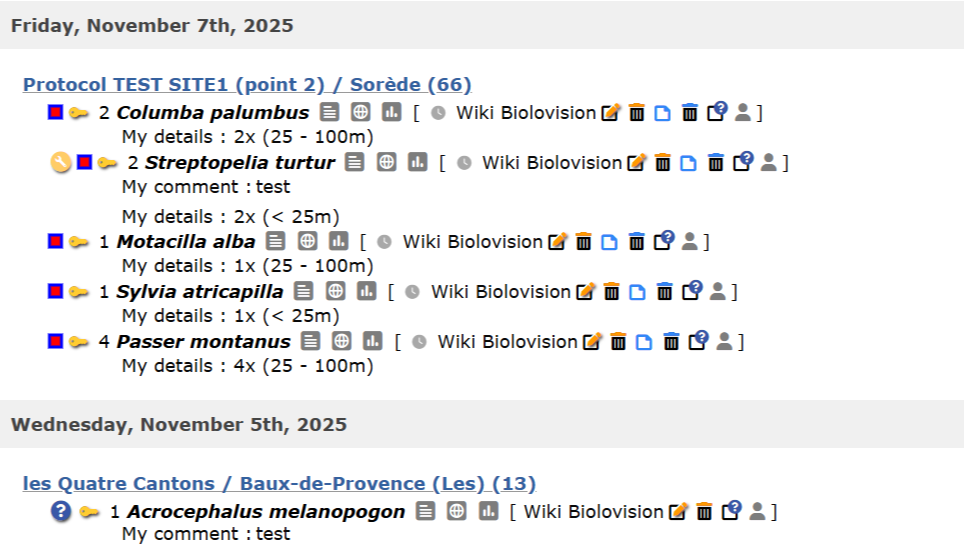
Bin to delete data in "All my observations". Example.
|
|
Delete a single record |
|
|
Delete full list |
|
|
Impossible to edit the record. Please contact your local administrator if necessary. |
Deleting records from editing records/seeing details
Delete records from the editing panel (see image below) while editing a record.
· click on the delete icon:
to delete a single record,
to delete the full list.
See wiki section Editing records for more details about editing data.
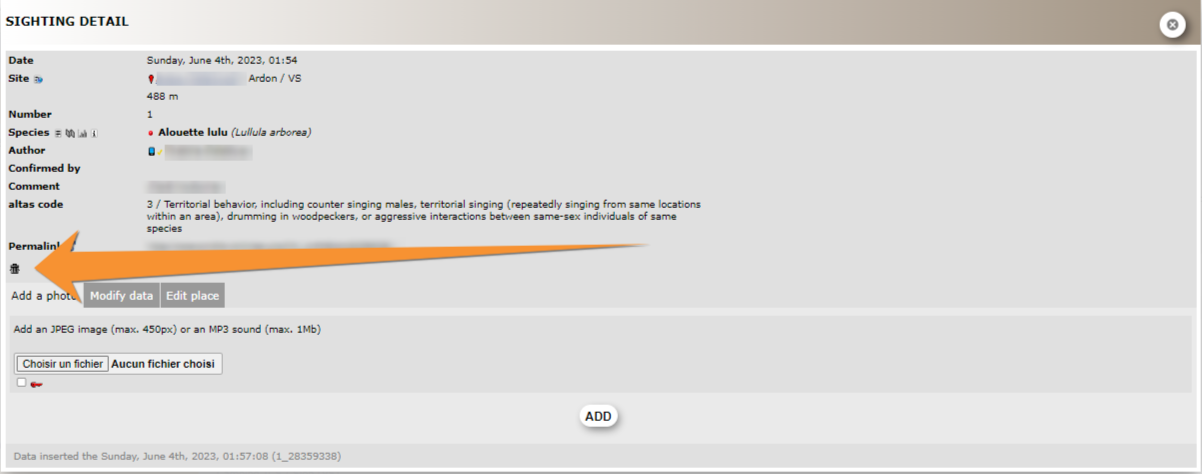
Bin in sightings details.
IMPORTANT
Using to delete a record will delete the full list.
If clicked by mistake, click cancel when asked to confirm.
Note: images and examples are drawn from the French portal Faune-France. The design and position of some tools may vary slightly from portal to portal. To see a list of portals go to wiki section Local portals and partners. |