Getting started NaturaList/es: Difference between revisions
(Created page with "<br /> 700px|thumb|center|Formulario de inscripción. Nombre.<br /> 700px|thumb|center|Formulario de inscripción. Dirección.<br /> 700px|thumb|center|Formulario de inscripción. Contacto.<br /> <br /> Marca las casillas correspondientes para utilizar la aplicación como usuario anónimo o como usuario visible, e indica quién puede ver tu direcció...") |
(Created page with "=Preferencias= '''Personalización de NaturaList'''<br /> <br />") |
||
| Line 238: | Line 238: | ||
Cuando se te pida, permite a NaturaList acceder a:<br /> | Cuando se te pida, permite a NaturaList acceder a:<br /> | ||
*tu posición: permite que el GPS te localize en el mapa con precisión para entrar o consultar datos a tu alrededor, y <br /> | |||
* | *fotos, media y documentos: permite que NaturaList tome fotos y las asocie a tu registro cuando sea relevante y se lo pidas, o para reproducir cantos en algunos protocolos. <br /> | ||
* | |||
<br /> | <br /> | ||
Antes de usar la aplicación puedes ver un pequeño tutorial (imagen [[Media:20221104Tutorial.png|Mini tutorial]]).<br /> | |||
<br /> | <br /> | ||
[[File:20221104Tutorial.png|700px|thumb|center| | [[File:20221104Tutorial.png|700px|thumb|center|Mini tutorial.]]<br /> | ||
<br /> | <br /> | ||
=Preferencias= | |||
'''Personalización de NaturaList'''<br /> | |||
''' | |||
<br /> | <br /> | ||
<table style="border-style: solid; border-color: black"> | <table style="border-style: solid; border-color: black"> | ||
<tr> | <tr> | ||
<td style="padding: 20px; text-align: left; font-family: sans-serif; color: black; background-color: #f0f0f0"> | <td style="padding: 20px; text-align: left; font-family: sans-serif; color: black; background-color: #f0f0f0"> | ||
<p style="font-size:10px"> | <p style="font-size:10px"> | ||
<ul> | <ul> | ||
<p style="font-size:13px">4 | <p style="font-size:13px">4 Preferencias | ||
<p style="margin-left: 30px;font-size:13px">4.1 [[Getting_started_NaturaList#Species| | <p style="margin-left: 30px;font-size:13px">4.1 [[Getting_started_NaturaList#Species|Especies]]</p> | ||
<p style="margin-left: 55px;font-size:13px">4.1.1 [[Getting_started_NaturaList#Choice_of_species| | <p style="margin-left: 55px;font-size:13px">4.1.1 [[Getting_started_NaturaList#Choice_of_species|Lista de especies]]</p> | ||
<p style="margin-left: 55px;font-size:13px">4.1.2 [[Getting_started_NaturaList#Language_of_the_species| | <p style="margin-left: 55px;font-size:13px">4.1.2 [[Getting_started_NaturaList#Language_of_the_species|Idioma de entrada]]</p> | ||
<p style="margin-left: 55px;font-size:13px">4.1.3 [[Getting_started_NaturaList#Position_of_taxonomic_groups| | <p style="margin-left: 55px;font-size:13px">4.1.3 [[Getting_started_NaturaList#Position_of_taxonomic_groups|Posición de los grupos taxonómicos]]</p> | ||
<p style="margin-left: 30px;font-size:13px">4.2 [[Getting_started_NaturaList#Location| | <p style="margin-left: 30px;font-size:13px">4.2 [[Getting_started_NaturaList#Location|Ubicación]]</p> | ||
<p style="margin-left: 55px;font-size:13px">4.2.1 [[Getting_started_NaturaList#Cartographic_layer| | <p style="margin-left: 55px;font-size:13px">4.2.1 [[Getting_started_NaturaList#Cartographic_layer|Capa cartográfica]]</p> | ||
<p style="margin-left: 55px;font-size:13px">4.2.2 [[Getting_started_NaturaList#Offline_map| | <p style="margin-left: 55px;font-size:13px">4.2.2 [[Getting_started_NaturaList#Offline_map|Mapa fuera de línea]]</p> | ||
<p style="margin-left: 55px;font-size:13px">4.2.3 [[Getting_started_NaturaList#GPS_Mode|GPS | <p style="margin-left: 55px;font-size:13px">4.2.3 [[Getting_started_NaturaList#GPS_Mode|Modo GPS]]</p> | ||
<p style="margin-left: 30px;font-size:13px">4.3 [[Getting_started_NaturaList#Personalisation| | <p style="margin-left: 30px;font-size:13px">4.3 [[Getting_started_NaturaList#Personalisation|Personalización]]</p> | ||
<p style="margin-left: 55px;font-size:13px">4.3.1 [[Getting_started_NaturaList#Starting_the_application| | <p style="margin-left: 55px;font-size:13px">4.3.1 [[Getting_started_NaturaList#Starting_the_application|Configuración de inicio de la aplicación]]</p> | ||
<p style="margin-left: 55px;font-size:13px">4.3.2 [[Getting_started_NaturaList#Atlas_list_code| | <p style="margin-left: 55px;font-size:13px">4.3.2 [[Getting_started_NaturaList#Atlas_list_code|Código atlas de referencia]]</p> | ||
<p style="margin-left: 55px;font-size:13px">4.3.3 [[Getting_started_NaturaList#Hide_record| | <p style="margin-left: 55px;font-size:13px">4.3.3 [[Getting_started_NaturaList#Hide_record|Ocultar observaciones automáticamente]]</p> | ||
<p style="margin-left: 55px;font-size:13px">4.3.4 [[Getting_started_NaturaList#Display_of_species| | <p style="margin-left: 55px;font-size:13px">4.3.4 [[Getting_started_NaturaList#Display_of_species|Modo de selección]]</p> | ||
<p style="margin-left: 55px;font-size:13px">4.3.5 [[Getting_started_NaturaList#Time_span_for_species_suggestion| | <p style="margin-left: 55px;font-size:13px">4.3.5 [[Getting_started_NaturaList#Time_span_for_species_suggestion|Intervalo temporal para la especie sugerida]]</p> | ||
<p style="margin-left: 55px;font-size:13px">4.3.6 [[Getting_started_NaturaList#Breeding_evidence_on_the_map| | <p style="margin-left: 55px;font-size:13px">4.3.6 [[Getting_started_NaturaList#Breeding_evidence_on_the_map|Evidencia de cría en el mapa]]</p> | ||
<p style="margin-left: 30px;font-size:13px">4.4 [[Getting_started_NaturaList#My_account| | <p style="margin-left: 30px;font-size:13px">4.4 [[Getting_started_NaturaList#My_account|Mi cuenta]]</p> | ||
<p style="margin-left: 30px;font-size:13px">4.5 [[Getting_started_NaturaList#About| | <p style="margin-left: 30px;font-size:13px">4.5 [[Getting_started_NaturaList#About|Acerca de]]</p> | ||
</ul></p> | </ul></p> | ||
</td></tr></table> | </td></tr></table> | ||
<br /> | <br /> | ||
<center> | <center> | ||
<table border="5" width="700px"> | <table border="5" width="700px"> | ||
<tr> | <tr> | ||
<td style="padding: 25px; text-align: left; font-family: sans-serif; color: black; background-color: hsl(201, 100%, 89%)"> | <td style="padding: 25px; text-align: left; font-family: sans-serif; color: black; background-color: hsl(201, 100%, 89%)"> | ||
<p> | <p> | ||
<ul> | <ul> | ||
* | *Utiliza la aplicación con los parámetros por defecto, o<br /> | ||
*define | *define tus parámetros de preferencia en Menú > '''Preferencias'''.<br /> | ||
<p style="margin-left: 50px"> | <p style="margin-left: 50px">Para definir los parámetros, por favor asegúrate de que dispones de una buena conexión.</p> | ||
</ul></p> | </ul></p> | ||
</td></tr></table> | </td></tr></table> | ||
</center> | </center> | ||
<br /> | <br /> | ||
Empieza a utilizar la aplicación con los parámetros por defecto o personalízalos. | |||
<div lang="en" dir="ltr" class="mw-content-ltr"> | <div lang="en" dir="ltr" class="mw-content-ltr"> | ||
Revision as of 14:59, 23 December 2022
NaturaList es una aplicación móbil que permite consultar y compartir observaciones de biodiversidad de todo el mundo de manera informal, como si fuera una libreta de campo, a través de listas o de protocolos estandarizados para la recogida de datos.
Para acceder a las funciones de NaturaList, es necesario estar inscrito e iniciar sesión.
Los usuarios no inscritos pueden ver las observaciones "A mi alrededor" de los últimos días.
La applicación está disponible en varios idiomas. Consulta la lista de idiomas en la sección wiki Varios > Idiomas disponibles.
La mayoría de las funciones están disponibles para Android y para iOS. Algunas de las herramientas más avanzadas, como los protocolos, solo están actualmente disponibles para Android. La aplicación NaturaList está realcionada con data.biolovision.net y las páginas de ornitho existentes (imagen Flujo de datos entre las diferentes herramientas). Estas páginas ofrecen todas las funciones para utilizar, copiar y compartir tus datos después de sincronizarlos. Consulta qué puedes hacer con cada una de las herramientas en la tabla siguiente. Para ver la lista de páginas locales, visita la sección wiki Varios > Entidades colaboradoras.
| Funciones para usuarios inscritos | NaturaList Android | Naturalist iOS | Data.biolovision.net | Páginas locales |
|---|---|---|---|---|
| Enviar observaciones casuales | SÍ | SÍ | NO | SÍ6 |
| Envia una lista de observaciones | SÍ | SÍ | NO | SÍ6 |
| Envia observaciones a posteriori | SÍ | SÍ | NO | SÍ6 |
| Proyectos | SÍ | NO | NO | SÍ6 |
| Protocolos | SÍ1 | NO | NO | SÍ1,6 |
| Muestra observaciones (incluyendo rarezas) | SÍ | SÍ | NO | SÍ2,6 |
| Mapas sin conexión | SÍ | NO | NO | NO |
| Funciona sin conexión | SÍ3 | SÍ4 | NO | NO |
| Coparte la posición de tu observación y envíala a googlemaps | SÍ | SÍ | NO | NO |
| Estadísticas y información adicional | NO | NO | SÍ, parcialmente | SÍ6 |
| Traducción de las especies | SÍ | SÍ | NO | NO |
| Descarga tus datos | NO | NO | SÍ | SÍ6 |
| Uso mundial | SÍ | SÍ | SÍ | NO |
| Editar/eliminar tus datos | SÍ5 | SÍ5 | NO | SÍ6 |
| Muestra tus datos en un mapa | NO | NO | SÍ | SÍ6 |
| Have extended possibilities for languages for species | SÍ | SÍ | SÍ | SÍ7 |
1 Solo para los usuarios con derechos especiales. Paa saber más sobre los usuarios con derechos especiales ves a la sección wiki Interfaz web > Páginas locales > Administración.
2 Mediante búsqueda específica o automáticamente durante los últimos 5 días.
3 Excepto para datos sincronizados, descarga de mapas y para ver lo que hay a tu alrededor.
4 Excepto para datos sincronizados y para ver lo que hay a tu alrededor.
5 Antes de sincronizar.
6 Solo observaciones dentro del territorio que cubre la página correspondiente.
7 Solo idiomas disponibles localmente.
Descarga la aplicación
Android
|
RECUERDA:
|
Para descargar la aplicación, ves a Google Play en tu teléfono. Busca NaturaList e instálala (imagen Descarga NaturaList).

Alternativamente, escanea el código QR para descargar la applicación:

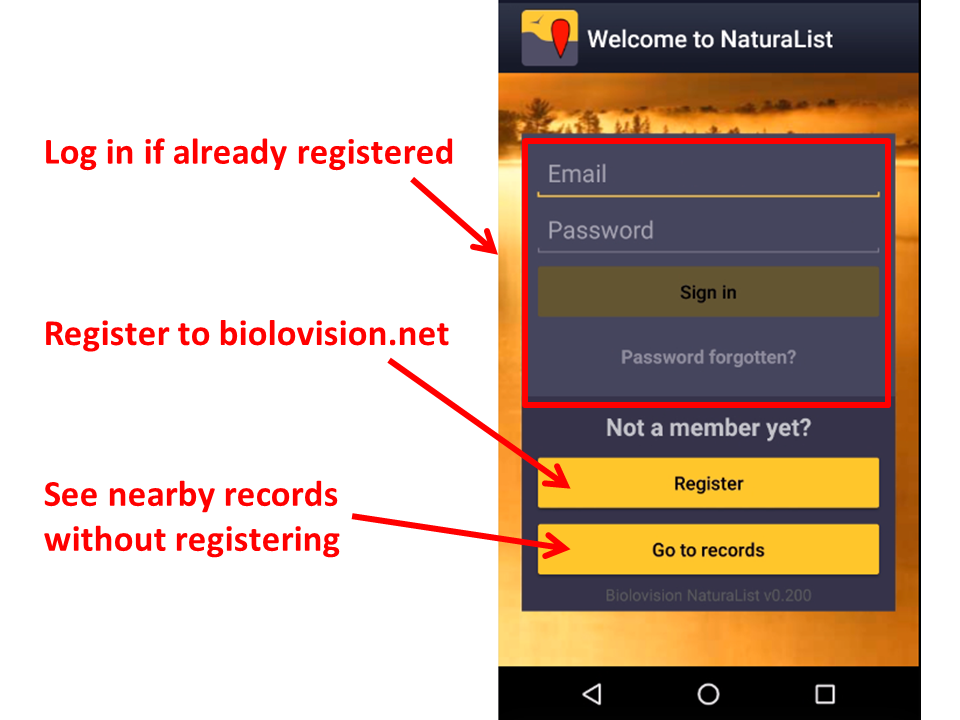
Una vez instalada, abre la aplicación para iniciar sesión si eres un usuario inscrito, o para inscribirte si aún no lo has hecho (imagen Logging in).

iOS
Registrarse
Los usuarios no inscritos pueden consultar observaciones cercanas. Clica en Ir a observaciones para ver las últimas observaciones en tu zona (imagen Inscribirse). Si quieres acceder a otras herramientas, necesitas inscribirte.
Si nunca has creado una cuenta en ninguna de nuestras plataformas y quieres hacerlo
- clica en Inscribirse (imagen Iniciar sesión), y
- rellena el formulario de inscripción (ver images siguientes). Los campos marcados con un asterisco son obligatorios. Por favor, introduce tu nombre real y año de nacimiento para identificarte si hubiera más de un observador con el mismo nombre. Por favor, introduce el país para mostrar automáticamente los parámetros ajustados a tu zona: la cartografia, los códigos del atlas y los protocolos cuando, y si, fuera necesario. Necesitamos tus detalles de contacto para que un administrador se pueda poner en contacto contigo si fuera necesaria más información sobre alguna de tus observaciones.


Marca las casillas correspondientes para utilizar la aplicación como usuario anónimo o como usuario visible, e indica quién puede ver tu dirección de correo electrónico.
Los usuarios anónimos pueden utilizar todas las funciones de la aplicación pero sus observaciones no se publican con su nombre sino como anónimas. La dirección de correo electrónico de un usuario anónimo no es pública y por lo tanto, otros usuarios inscritos no podran escribirle. Observa que los administradors aun así pueden contactarte si se necesitara más información sobre alguna de tus observaciones.
Un usuario visible también puede acceder a todas las funciones d ela aplicación pero las obseraciones enviadas se publican con su nombre. En este caso, tanto los otros usuarios inscritos como los administradores pueden conactar con el observador en referencia a alguna de sus observaciones. Marca la casilla si no quieres que otros usuarios inscritos puedean contactarte. Los administradores siempre podran seguir haciéndolo.
Para saber más sobre administradores, ves a la sección wiki Interfaz local > Página local > Administración.
Iniciar sesión
Abre la aplicación e introduce tus credenciales. Tu nombre de usuario es la dirección de correo electrónico con la que estas incrita. Si olvidaste tu contraseña, clica en ¿Has olvidado tu clave de acceso? y revisa tu bandeja de entrada. En pocos minutes se enviará una nueva contraseña a la dirección de correo electrónico con la que estás inscrito. Recuerda que podría encontrarse en tu bandeja de correo no deseado. Recomendamos que cambies tu contraseña por otra que te sea más fácil de recordar (pero que no sea más sencilla) y la mantengas en secreto. Cambia tu contraseña en data.biolovision.net o en cualquiera de nuestras páginas locales. Ves a la sección wiki [[Interfaz local > Páginas locales > Mi cuenta]].
La primera vez que inicies sesión lee y acepta (si estás de acuerdo) nuestros términos y condiciones (imagen Términos y condiciones.). Siempre podrás volver a ellos a través de Menú > Herramientas > Términos y condiciones.

Cuando se te pida, permite a NaturaList acceder a:
- tu posición: permite que el GPS te localize en el mapa con precisión para entrar o consultar datos a tu alrededor, y
- fotos, media y documentos: permite que NaturaList tome fotos y las asocie a tu registro cuando sea relevante y se lo pidas, o para reproducir cantos en algunos protocolos.
Antes de usar la aplicación puedes ver un pequeño tutorial (imagen Mini tutorial).

Preferencias
Personalización de NaturaList
|
4 Preferencias 4.1 Especies 4.1.1 Lista de especies 4.1.2 Idioma de entrada 4.1.3 Posición de los grupos taxonómicos 4.2 Ubicación 4.2.1 Capa cartográfica 4.2.2 Mapa fuera de línea 4.2.3 Modo GPS 4.3 Personalización 4.3.1 Configuración de inicio de la aplicación 4.3.2 Código atlas de referencia 4.3.3 Ocultar observaciones automáticamente 4.3.4 Modo de selección 4.3.5 Intervalo temporal para la especie sugerida 4.3.6 Evidencia de cría en el mapa 4.4 Mi cuenta 4.5 Acerca de |
|
Para definir los parámetros, por favor asegúrate de que dispones de una buena conexión. |
Empieza a utilizar la aplicación con los parámetros por defecto o personalízalos.
To start, go to the menu icon on the top hand side corner, and to Preferences (see image Preferences.).

Species
Choose the taxonomic group you want to enter and/or see, and the language to display species' names.

Choice of species
|
|
|
When selecting a species list, you will access certain protocols and map layers specific for that list. |
Allows choosing which taxonomic groups to see on the phone, both for browsing records and for sharing observations. You can also choose the list of species for that area. Depending on the country selected list, you may have special access to some specific tools linked to protocols or some cartographic layer.
As it needs the list from the website, allow synchronization (see image below).

For the taxonomic group you want to see on your device choose between (see image Choose species list:
Species list from a website to import a list of species from one of the local portals, or
Species list from a bio-geographical area to import the list according to a biogeographical area.
See the differences between both options:
| Gives access to: | Website list | Biogeographical area |
|---|---|---|
| all species in a biogeographial area | NO | YES |
| Propose specifically species present in a country | YES | NO |
| national maps (if available) | YES | NO |
| basic Openstreetmap layer | YES | YES |
| country or local specific project codes or features | YES1 | NO |
| country or local specific protocols tools | YES1 | NO |
1 Only for Android
To disable (hide) an already active taxonomic group, choose Disable/reset (see image below).

Language of the species
|
|
Choose a taxonomic group from the active ones and select the language in which you want to see or introduce records.
Please note not all species are translated in all languages, except for the scientific name which includes all species in our system. The number of species translated for each of the local languages is shown in parenthesis (see image Language of species). If you need a species to be added, contact your local administrator or if not existing support@biolovision.net, indicating its taxonomic group and scientific name.

Position of taxonomic groups
|
|
Choose the order in which you want the different active taxonomic groups to be displayed when entering data. Use up and down arrows to change the order, or right click and drag name. When done, close window from the cross on the top right hand corner. (See image below).

|
|

Select your preferences to visualise maps, download maps and optimise battery by re-arranging GPS parameters.
Cartographic layer
|
|
Choose from the list the cartographic layer that will appear by default. While entering data, you can always choose another one from those available according to the species list of your choice (see image for example).
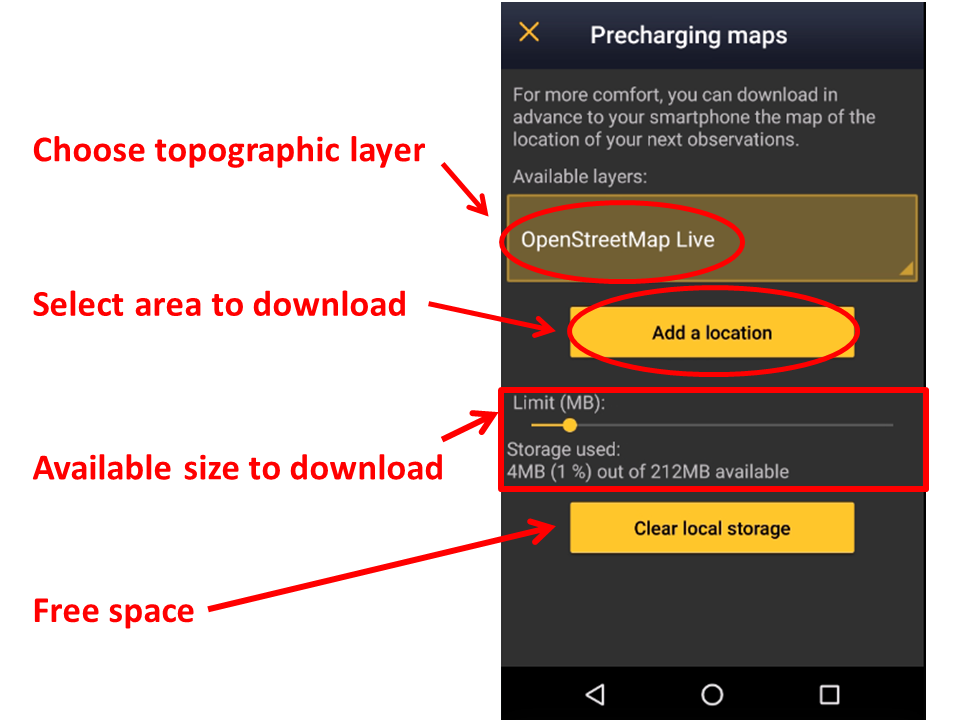
Offline map
|
|
Download maps in advance for using offline when the network is poor or you have no mobile data in the field or abroad, for example.
1: Click on the Available layers to open an expandable menu with all possible layers.
Slide bar to determine how much of your phone’s memory you want to dedicate to downloaded maps, and see underneath which percentage of the assigned amount is already occupied (see image Offline maps). Note the maximum possible amount is 2GB (due to European legislation regarding maps) and does not take into account how much space is available in your phone (go to your phone settings to find out).
2: Click on Add a location to choose the piece of map to download.
Choose by selecting a place’s name or the area directly in the map. Zoom in and out with the plus and minus buttons to adjust the exact area to download. Choose the maximum zoom you want to allow. This will determine the size of the map and the precision of it: the more zoom allowed, the more detailed the map but the more space it will take in your phone’s memory (See image Adding a location to download).
3: Click on download.
|
|
To remove maps and free storage space if you no longer need previously downloaded maps click on Clear local storage.
|
The Clear local storage function deletes all maps. |


GPS Mode
|
Menu > Preferences > GPS mode. |
|
To save phone’s battery, choose GPS on demand. |
Choose how and when you want the GPS on. This will have an impact in your phone’s battery.
Continuous (high reactivity): GPS locates you constantly and quickly, but it uses a lot of battery. May be useful when surveying from a car (passengers only!), bike or similar.
Continuous (uses less battery): GPS is always active but takes a bit to locate you. It uses less battery than previous option. It can be useful when surveying on foot and it is the option by default.
On request (save battery): GPS on only when manually requested. If few request save battery better than the other 2 options
Personalisation
Here you can choose the way you display the information you need or how things are organized to make you gain efficiency when using the application.

Starting the application
|
Menu > Preferences > Starting the application. |
Choose which data to display on main screen when opening the application (see image...). To see all possibilities and their differences, go to wiki section .
Atlas list code
Atlas codes differ from country to country. Choose which coding you want to use. If you selected biogeographical area when retrieving a species list (wiki section Choice of species; image Choose species list), the associated atlas code will be that of the EBCC.
|
When data are transferred to a local portal (synchronised) a code adaptation/translation is automatically done to fit with the corresponding locally used atlas codes. |
Hide record
Allows choosing if some or all of your records will be hidden from other users (see image Hide record . Although NaturaList is about sharing data, you can opt out under certain circumstances. Note even if you hide records to other users, administrators can still see them. Check who can see your records when hidden by logging in into each of the local portals. Likewise, some records will be automatically hidden for conservation purposes even when you choose not to. To see which records and when will be hidden, go to wiki section Web interface > Local portals > Species partially hidden.
Don’t hide automatically: All records will be public both to users and to administrators, except those of conservation concern.
Hide automatically: All records will be hidden from general users, but administrators will still see them.
Hide common species: Other users’ won’t see your records for the most common species, but will still see the rare ones. To see which is a common species and a rare one, go to ....

When a record is hidden, a key logo appears next to the name. See Web interface > Local portals > Codes and symbols to see logo.
|
|

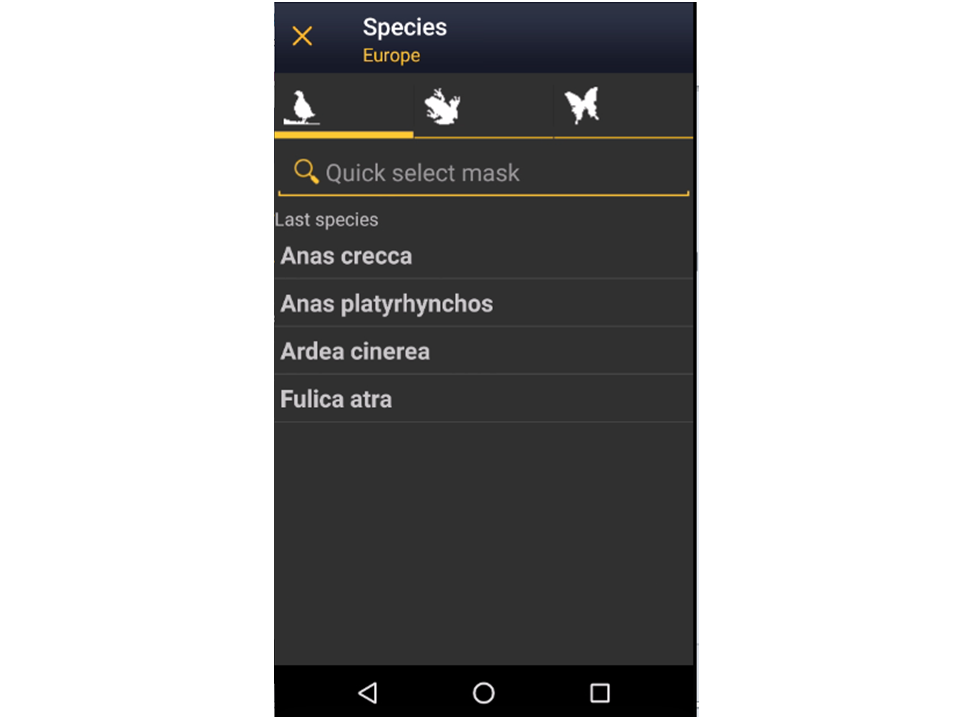
When entering the observations, indicate how you want to see the species to choose from.
By group, family, species: first choose the taxonomic group, then the family and finally the species (see top images below).
Species: choose a taxonomic group from the top bar and a species from the list. Start typing the name of the species to narrow the options (see bottom image below).


Time span for species suggestion
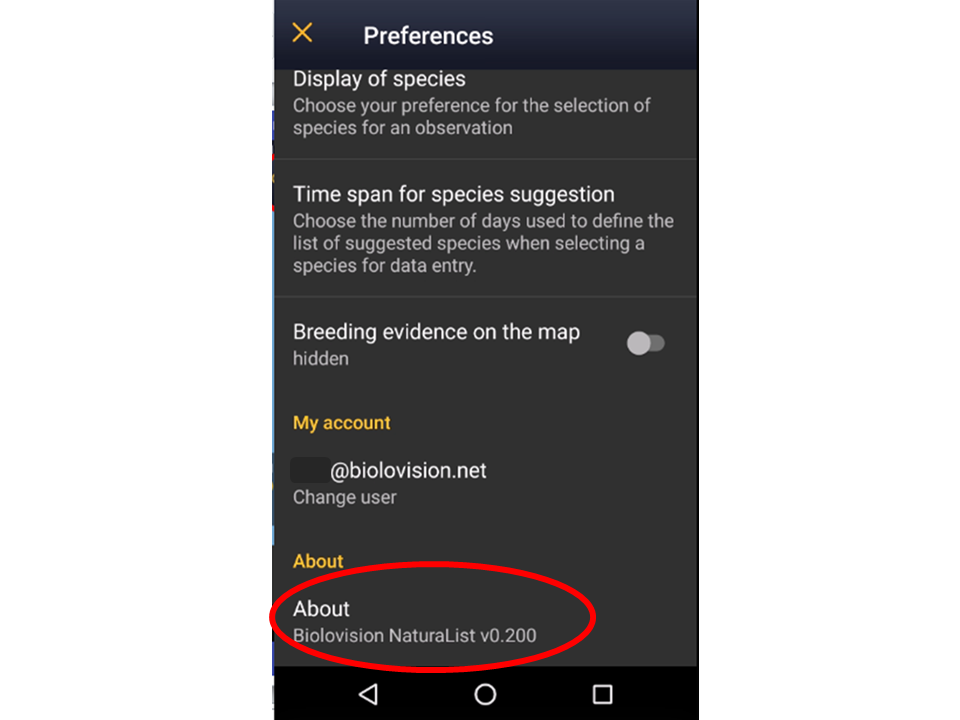
Select how often you want the memory of species renewed. Whenever you enter a species, the phone suggests you the last names you entered to accelerate the process (see image List of last species entered). Select a long time span if you often see the same species or a short one if you tend to move between very different environments. Time span is given in days (from the example below, bottom image, 5 days -image Species' time span).


Breeding evidence on the map
Click to select/unselect if you want to see breeding evidence displayed on your maps (see image). This function is useful for maps diplayed while entering lists or protocols.

If activated, the corresponding icon shows darker than when diactivated on the species map, and the atlas code appears in brakets next to the species code (see image). This function is only available for with list in the field.

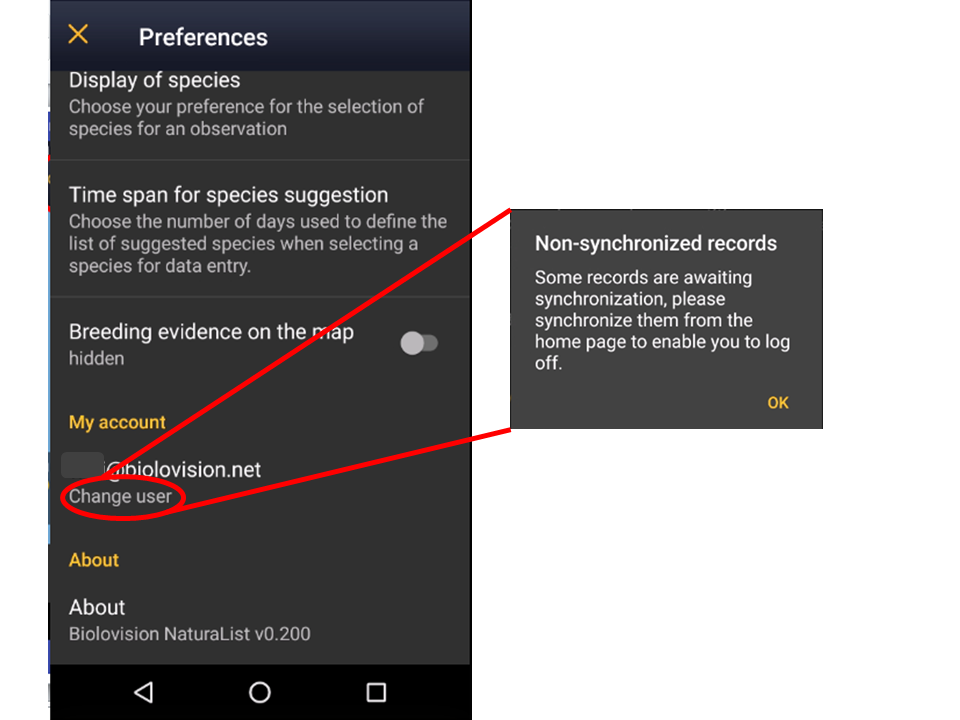
My account
You will see the email address you are logged from. Click on Change user (see image My account) to change the user if you are using more than an account or if different users share a device. You will be prompted to synchronise data before chnaging the user.

About
It indicates the version of Naturalist you are using (see image About). You will need it if you ever contact support.