Admin news: Difference between revisions
| (47 intermediate revisions by the same user not shown) | |||
| Line 12: | Line 12: | ||
<!--T:4--> | <!--T:4--> | ||
[[File:2023-04-22 Admin news.png| | <center> | ||
<div class="toc" style="border-radius:5px;background-color:#ffffff;padding-left:8px;padding-right:8px;padding-bottom:8px;width:300px;"> | |||
[[File:2023-04-22 Admin news.png|300px|link=https://help.biolovision.net/images/9/95/2023-04-22_Admin_news.png]] | |||
<div class="toc" style="border-radius:5px;padding-left:15px;text-align:left; font-size:12px;width:275px;"> | |||
'''Admin news.''' | |||
</div> | |||
</div> | |||
</center> | |||
<br/> | |||
<br/> | <br/> | ||
| Line 19: | Line 27: | ||
<!--T:6--> | <!--T:6--> | ||
=Admin news= | =Admin news tab= | ||
<br/> | <br/> | ||
| Line 27: | Line 35: | ||
<!--T:8--> | <!--T:8--> | ||
[[File:2023-04-25 Admin news list.png|700px| | <center> | ||
<p style=" | <div class="toc" style="border-radius:5px;background-color:#ffffff;padding-left:8px;padding-right:8px;padding-bottom:8px;width:700px;"> | ||
[[File:2023-04-25 Admin news list.png|700px|link=https://help.biolovision.net/images/f/f7/2023-04-25_Admin_news_list.png]] | |||
<div class="toc" style="border-radius:5px;padding-left:15px;text-align:left; font-size:12px;width:685px;"> | |||
'''Admin news list.''' | |||
</div> | |||
<p style="color:black;font-size:12px;padding-left:30px;text-align:left;column-count:3;"> | |||
<b>1.</b> [[Admin news#Search 1|Search]] <br /> | |||
<b>2.</b> [[Admin news#Page search 1|Page search]] <br/> | |||
<b>3.</b> [[Admin news#Details 1|Details]] <br /> | |||
<b>4.</b> [[Admin news#Edit 1|Edit]] <br/> | |||
<b>5.</b> [[Admin news#Delete 1|Delete]] <br/> | |||
<b>6.</b> [[Admin news#New 1|NEW]] <br/> | |||
</p> | |||
<br/> | |||
<p style="color:black;font-size:12px;padding-left:5px;text-align:left;column-count:1;padding-right:5px;"> | |||
'''Number:''' Number associated to other news entry.<br/> | |||
'''News type:''' Type of news. Refer to sub section '6. NEW' below for more information.<br/> | '''News type:''' Type of news. Refer to sub section '6. NEW' below for more information.<br/> | ||
'''Taxonomic group:''' Taxonomic group the piece of news refers to.<br/> | '''Taxonomic group:''' Taxonomic group the piece of news refers to.<br/> | ||
| Line 35: | Line 57: | ||
'''News date:''' Date and time from when the new will become active<br/> | '''News date:''' Date and time from when the new will become active<br/> | ||
'''Title:''' Piece of news' title. <br/> | '''Title:''' Piece of news' title. <br/> | ||
</p><br/> | </p> | ||
</div> | |||
</center> | |||
<br/> | |||
<br/> | |||
<!--T:9--> | <!--T:9--> | ||
<span id="Search 1"></span> | |||
:'''1. Search''' <br/> | :'''1. Search''' <br/> | ||
Reduce list by typing a relevant word on the blank menu, and clicking '''SEARCH'''. When a filter is applied, click on [[Media:2023-03-17 Diplay full list.png|'''DISPLAY ALL''']] to see the full list.<br/> | Reduce list by typing a relevant word on the blank menu, and clicking '''SEARCH'''. When a filter is applied, click on [[Media:2023-03-17 Diplay full list.png|'''DISPLAY ALL''']] to see the full list.<br/> | ||
| Line 43: | Line 70: | ||
<!--T:10--> | <!--T:10--> | ||
<span id="Page search 1"></span> | |||
:'''2. Page Search''' <br/> | :'''2. Page Search''' <br/> | ||
Select page number and/or number of items per page. <br/> | Select page number and/or number of items per page. <br/> | ||
| Line 48: | Line 76: | ||
<!--T:11--> | <!--T:11--> | ||
<span id="Details 1"></span> | |||
:'''3. Details''' <br/> | :'''3. Details''' <br/> | ||
See details of the selected piece of news.<br/> | See details of the selected piece of news.<br/> | ||
| Line 53: | Line 82: | ||
<!--T:12--> | <!--T:12--> | ||
<span id="Edit 1"></span> | |||
:'''4. Edit''' <br/> | :'''4. Edit''' <br/> | ||
Modify details. <br/> | Modify details. <br/> | ||
| Line 58: | Line 88: | ||
<!--T:13--> | <!--T:13--> | ||
[[File:2023-04-25 Modify news 1.png|700px| | <center> | ||
<p style=" | <div class="toc" style="border-radius:5px;background-color:#ffffff;padding-left:8px;padding-right:8px;padding-bottom:8px;width:700px;"> | ||
[[File:2023-04-25 Modify news 1.png|700px|link=https://help.biolovision.net/images/a/ac/2023-04-25_Modify_news_1.png]] | |||
<div class="toc" style="border-radius:5px;padding-left:15px;text-align:left; font-size:12px;width:685px;"> | |||
'''Modify news 1.''' | |||
</div> | |||
<p style="color:black;font-size:12px;padding-left:30px;text-align:left;column-count:3;"> | |||
<b>7.</b> [[Admin news#News type 2|Nes type]] <br /> | |||
<b>8.</b> [[Admin news#Taxonomic group 2|Taxonomic group]] <br/> | |||
<b>9.</b> [[Admin news#Protocol 2|Protocol]] <br /> | |||
<b>10.</b> [[Admin news#News date 2|News date]] <br /> | |||
</p> | |||
<br/> | |||
<p style="color:black;font-size:12px;padding-left:5px;text-align:left;column-count:1;padding-right:5px;"> | |||
'''BACK:''' Go to previous screen without saving. <br/> | '''BACK:''' Go to previous screen without saving. <br/> | ||
'''MODIFY:''' Save changes. <br/> | '''MODIFY:''' Save changes. <br/> | ||
</p><br/> | </p> | ||
</div> | |||
</center> | |||
<br/> | |||
<br/> | |||
<!--T:14--> | <!--T:14--> | ||
:::'''7. News type | <span id="News type 2"></span> | ||
:::'''8. Taxonomic group | :::'''7. News type'''<br/> | ||
:::'''9. Protocol | ::Select from the expandable menu the type of news this entry refers to. Refer to sub section '6. NEW' below for more information. <br/> | ||
<span id="Taxonomic group 2"></span> | |||
:::'''10. News date | :::'''8. Taxonomic group''' <br/> | ||
::When applicable, type the taxonomic group the piece of news refers to, or part of it, in the left field (a) and select from the expandable menu in the right field (b).<br/> | |||
<span id="Protocol 2"></span> | |||
:::'''9. Protocol''' <br/> | |||
::When applicable, type the name of the protocol the piece of news refers to, or part of it, in the left field (a) and select from the expandable menu in the right field (b). | |||
::When specified, only registered people for the concerned protocol will see the news. | |||
<span id="News date"></span> | |||
:::'''10. News date 2''' <br/> | |||
::Date and time from when the news is active. If a date is in the future, then the news will be visible from that date and hour.<br /> | |||
<br/> | <br/> | ||
<!--T:15--> | <!--T:15--> | ||
[[File:2023-04-25 Modify news 2.png|700px| | <center> | ||
<p style=" | <div class="toc" style="border-radius:5px;background-color:#ffffff;padding-left:8px;padding-right:8px;padding-bottom:8px;width:700px;"> | ||
[[File:2023-04-25 Modify news 2.png|700px|link=https://help.biolovision.net/images/7/7c/2023-04-25_Modify_news_2.png]] | |||
<div class="toc" style="border-radius:5px;padding-left:15px;text-align:left; font-size:12px;width:685px;"> | |||
'''Modify news 2.''' | |||
</div> | |||
<p style="color:black;font-size:12px;padding-left:30px;text-align:left;column-count:3;"> | |||
<b>11.</b> [[Admin news#Title 3|Title]] <br /> | |||
<b>12.</b> [[Admin news#Message 3|Message]] <br/> | |||
<b>13.</b> [[Admin news#Header 3|Header]] <br /> | |||
</p> | |||
<br/> | |||
<p style="color:black;font-size:12px;padding-left:5px;text-align:left;column-count:1;padding-right:5px;"> | |||
'''BACK:''' Go to previous screen without saving. <br/> | '''BACK:''' Go to previous screen without saving. <br/> | ||
'''MODIFY:''' Save changes. <br/> | '''MODIFY:''' Save changes. <br/> | ||
</p><br/> | </p> | ||
</div> | |||
</center> | |||
<br/> | |||
<br/> | |||
<!--T:16--> | <!--T:16--> | ||
:::'''11. Title | <span id="Title 3"></span> | ||
:::'''12. Message | :::'''11. Title''' <br/> | ||
:::'''13. Header | ::Select the language from the tabs on top (a) and type / modify the title in the selected language (b). Repeat the process to add / modify titles in different languages, if needed.<br/> | ||
<span id="Message 3"></span> | |||
:::'''12. Message''' <br/> | |||
::Select the language from the tabs on top (a) and type / modify new's content in the selected language (b). Repeat the process to add / modify content in different languages. <br/> | |||
<span id="Header 3"></span> | |||
:::'''13. Header''' <br/> | |||
::Select the language from the tabs on top (a) and type/ modify a header in the selected language (b). Repeat the process to add / modify a header in different languages. <br/> | |||
<br/> | <br/> | ||
<!--T:17--> | <!--T:17--> | ||
[[File:2023-04-25 Modify news 3.png|700px| | <center> | ||
<p style=" | <div class="toc" style="border-radius:5px;background-color:#ffffff;padding-left:8px;padding-right:8px;padding-bottom:8px;width:700px;"> | ||
[[File:2023-04-25 Modify news 3.png|700px|link=https://help.biolovision.net/images/0/01/2023-04-25_Modify_news_3.png]] | |||
<div class="toc" style="border-radius:5px;padding-left:15px;text-align:left; font-size:12px;width:685px;"> | |||
'''Modify news 3.''' | |||
</div> | |||
<p style="color:black;font-size:12px;padding-left:30px;text-align:left;column-count:3;"> | |||
<b>14.</b> [[Admin news#Information source 4|Information source]] <br /> | |||
<b>15.</b> [[Admin news#Link 4|Link]] <br/> | |||
<b>16.</b> [[Admin news#Text in link 4|Text to put in the link]] <br /> | |||
<b>17.</b> [[Admin news#File name 4|File name]] <br /> | |||
<b>18.</b> [[Admin news#Text in file 4|Text to put in the file]] <br /> | |||
<b>19.</b> [[Admin news#Image 4|Image]] <br /> | |||
<b>20.</b> [[Admin news#Open 4|Open in a new page]] <br /> | |||
</p> | |||
<br/> | |||
<p style="color:black;font-size:12px;padding-left:5px;text-align:left;column-count:1;padding-right:5px;"> | |||
'''BACK:''' Go to previous screen without saving. <br/> | '''BACK:''' Go to previous screen without saving. <br/> | ||
'''MODIFY:''' Save changes. <br/> | '''MODIFY:''' Save changes. <br/> | ||
</p><br/> | </p> | ||
</div> | |||
</center> | |||
<br/> | |||
<br/> | |||
<!--T:18--> | <!--T:18--> | ||
:::'''14. Information source | <span id="Information source 4"></span> | ||
:::'''15. Link | :::'''14. Information source''' <br/> | ||
:::'''16. Text to put in the link | ::Optional, allows you to mention the source of the news information. Describe with a text where the information comes from, if you write an url, it will stay as a text and not become clickable. This will appear small at the end of the news. <br /> | ||
:::'''17. File name | <span id="Link 4"></span> | ||
:::'''18. Text to put in the file | :::'''15. Link''' <br/> | ||
:::'''19. Image | ::If necessary, add a link you want to appear at the bottom of the news just before document (if any).<br /> | ||
:::'''20. Open in a new page | <span id="Text in link 4"></span> | ||
:::'''16. Text to put in the link''' <br/> | |||
::If there is a link, indicate / modify the link's text. <br/> | |||
<span id="File name 4"></span> | |||
:::'''17. File name''' <br/> | |||
::Update / delete / change a file associated to the piece of news. Only one document per news. Click on '''Choose file''' to update a file, and check '''Check to delete the image''' to delete it. Current uploaded file is indicated next to the button. <br/> | |||
<span id="Text in file"></span> | |||
:::'''18. Text to put in the file 4''' <br/> | |||
::If there is a file, type / modify the text under which the file will be displayed. <br/> | |||
<span id="Image 4"></span> | |||
:::'''19. Image''' <br/> | |||
::Upload / delete / change an image to the piece of news. Only one image per news! Click on '''Choose file''' to update an image, and check '''Check to delete the image''' to delete it. Current uploaded image is indicated next to the button. <br/> | |||
<span id="Open 4"></span> | |||
:::'''20. Open in a new page''' <br/> | |||
::Indicate if this piece of news should be opened in a new window.<br/> | |||
<br/> | <br/> | ||
<!--T:19--> | <!--T:19--> | ||
<span id="Delete 1"></span> | |||
:'''5. Delete''' <br/> | :'''5. Delete''' <br/> | ||
Delete selected piece of news. You will be asked to confirm. <br/> | Delete selected piece of news. You will be asked to confirm. <br/> | ||
| Line 108: | Line 217: | ||
<!--T:20--> | <!--T:20--> | ||
<span id="NEW 1"></span> | |||
:'''6. NEW''' <br/> | :'''6. NEW''' <br/> | ||
Add a new piece of news to the homepage. <br/> | Add a new piece of news to the homepage. <br/> | ||
| Line 113: | Line 223: | ||
<!--T:21--> | <!--T:21--> | ||
[[File:2023-04-25 Add news 1..png|700px| | <center> | ||
<p style=" | <div class="toc" style="border-radius:5px;background-color:#ffffff;padding-left:8px;padding-right:8px;padding-bottom:8px;width:700px;"> | ||
[[File:2023-04-25 Add news 1..png|700px|link=https://help.biolovision.net/images/3/32/2023-04-25_Add_news_1..png]] | |||
<div class="toc" style="border-radius:5px;padding-left:15px;text-align:left; font-size:12px;width:685px;"> | |||
'''Adding news 1.''' | |||
</div> | |||
<p style="color:black;font-size:12px;padding-left:30px;text-align:left;column-count:3;"> | |||
<b>7.</b> [[Admin news#News type 5|News type]] <br /> | |||
<b>8.</b> [[Admin news#Taxonomic group 5|Taxonomic group]] <br /> | |||
<b>9.</b> [[Admin news#Protocol 5|Protocol]] <br/> | |||
<b>10.</b> [[Admin news#News date 5|News date]] <br /> | |||
</p> | |||
<br/> | |||
<p style="color:black;font-size:12px;padding-left:5px;text-align:left;column-count:1;padding-right:5px;"> | |||
'''BACK:''' Go to previous screen without saving. <br/> | '''BACK:''' Go to previous screen without saving. <br/> | ||
'''ADD:''' Add piece of news to the homepage. <br/> | '''ADD:''' Add piece of news to the homepage. <br/> | ||
</p><br/> | </p> | ||
</div> | |||
</center> | |||
<br/> | |||
<br/> | |||
<!--T:22--> | <!--T:22--> | ||
:::'''7. News type | <span id="Nes type 5"></span> | ||
:::'''7. News type''' <br/> | |||
::NOTA: Actually (10.2023) the small icon is no longer displayed for the news type on responsive local portals.<br/> | |||
<br/> | |||
::Select from the expandable menu the type of news this entry refers to. <br/> | |||
:: | ::Select from: <br /> | ||
:: | <span style="color: #000000; margin-left: 50px;"><b>· </b>'''Avinews:''' News related (initially to birds) to taxonomic group. <br /> | ||
:: | <span style="color: #000000; margin-left: 50px;"><b>· </b>'''Technews:''' News related to technical aspects.<br /> | ||
:: | <span style="color: #000000; margin-left: 50px;"><b>· </b>'''Tipnews:''' News related for tips. <br/> | ||
:::'''8. Taxonomic group | <span style="color: #000000; margin-left: 50px;"><b>· </b>'''Atlasnews:''' News related to atlas work.<br /> | ||
:::'''9. Protocol | <span id="Taxonomic group 2"></span> | ||
:::'''8. Taxonomic group 5''' <br/> | |||
:::'''10. News date | ::When applicable, type the taxonomic group the piece of news refers to, or part of it, in the left field (a) and select from the expandable menu in the right field (b).<br /> | ||
<span id="Protocol 2"></span> | |||
:::'''9. Protocol 5''' <br/> | |||
::When applicable, type the name of the protocol the piece of news refers to, or part of it, in the left field (a) and select from the expandable menu in the right field (b).<br/> | |||
::If you select a protocol, then only registered user for the protocol will see it. <br /> | |||
<span id="News date 5"></span> | |||
:::'''10. News date''' <br/> | |||
::Choose the date and hour the new shall appear on the homepage.<br /> | |||
<br/> | <br/> | ||
<!--T:23--> | <!--T:23--> | ||
[[File:2023-04-25 Add news 2..png|700px| | <center> | ||
<p style=" | <div class="toc" style="border-radius:5px;background-color:#ffffff;padding-left:8px;padding-right:8px;padding-bottom:8px;width:700px;"> | ||
[[File:2023-04-25 Add news 2..png|700px|link=https://help.biolovision.net/images/f/f0/2023-04-25_Add_news_2..png]] | |||
<div class="toc" style="border-radius:5px;padding-left:15px;text-align:left; font-size:12px;width:685px;"> | |||
'''Adding news 2.''' | |||
</div> | |||
<p style="color:black;font-size:12px;padding-left:30px;text-align:left;column-count:3;"> | |||
<b>11.</b> [[Admin news#Title 6|Title]] <br /> | |||
<b>12.</b> [[Admin news#Message 6|Message]] <br /> | |||
<b>13.</b> [[Admin news#Header 6|Header]] <br/> | |||
</p> | |||
<br/> | |||
<p style="color:black;font-size:12px;padding-left:5px;text-align:left;column-count:1;padding-right:5px;"> | |||
'''BACK:''' Go to previous screen without saving. <br/> | '''BACK:''' Go to previous screen without saving. <br/> | ||
'''ADD:''' Add piece of news to the homepage. <br/> | '''ADD:''' Add piece of news to the homepage. <br/> | ||
</p><br/> | </p> | ||
</div> | |||
</center> | |||
<br/> | |||
<br/> | |||
<!--T:24--> | <!--T:24--> | ||
:::'''11. Title | <span id="Title 6"></span> | ||
:::'''11. Title''' <br/> | |||
::Select the language from the tabs on top (a) and type the title in the selected language (b). If you need the news to appear for other languages, repeat the process to add titles in different languages. | |||
:::The news will only appear in the chosen language.<br /> | :::The news will only appear in the chosen language.<br /> | ||
:::'''12. Message | <span id="Message 6"></span> | ||
:::'''13. Header | :::'''12. Message''' <br/> | ||
::Select the language from the tabs on top (a) and type news content in the selected language (b). Repeat the process to add content in different languages. The news will only appear in the chosen language.<br /> | |||
<span id="Header 6"></span> | |||
:::'''13. Header''' <br/> | |||
::Select the language from the tabs on top (a) and type a header in the selected language (b). Repeat the process to add a header in different languages. The news will only appear in the chosen language.<br /> | |||
<br/> | <br/> | ||
<!--T:25--> | <!--T:25--> | ||
[[File:2023-04-25 Add news 3.png|700px| | <center> | ||
<p style=" | <div class="toc" style="border-radius:5px;background-color:#ffffff;padding-left:8px;padding-right:8px;padding-bottom:8px;width:700px;"> | ||
[[File:2023-04-25 Add news 3.png|700px|link=https://help.biolovision.net/images/5/57/2023-04-25_Add_news_3.png]] | |||
<div class="toc" style="border-radius:5px;padding-left:15px;text-align:left; font-size:12px;width:685px;"> | |||
'''Adding news 3.''' | |||
</div> | |||
<p style="color:black;font-size:12px;padding-left:30px;text-align:left;column-count:3;"> | |||
<b>14.</b> [[Admin news#Information source 7|Information source]] <br /> | |||
<b>15.</b> [[Admin news#Link 7|Link]] <br /> | |||
<b>16.</b> [[Admin news#Text in link 7|Text to put in the link]] <br/> | |||
<b>17.</b> [[Admin news#File name 7|File name]] <br/> | |||
<b>18.</b> [[Admin news#Text in file 7|Text to put in the file]] <br/> | |||
<b>19.</b> [[Admin news#Image 7|Image]] <br/> | |||
<b>20.</b> [[Admin news#Open 7|Open in a new page]] <br/> | |||
</p> | |||
<br/> | |||
<p style="color:black;font-size:12px;padding-left:5px;text-align:left;column-count:1;padding-right:5px;"> | |||
'''BACK:''' Go to previous screen without saving. <br/> | '''BACK:''' Go to previous screen without saving. <br/> | ||
'''ADD:''' Add piece of news to the homepage. <br/> | '''ADD:''' Add piece of news to the homepage. <br/> | ||
</p><br/> | </p> | ||
</div> | |||
</center> | |||
<br/> | |||
<br/> | |||
<!--T:26--> | <!--T:26--> | ||
:::'''14. Information source | <span id="Information source 7"></span> | ||
:::'''15. Link | :::'''14. Information source''' <br/> | ||
:::'''16. Text to put in the link | ::If necessary, type the source of the news information. <br/> | ||
:::'''17. File name | <span id="Link 7"></span> | ||
:::'''18. Text to put in the file | :::'''15. Link''' <br/> | ||
:::'''19. Image | ::If necessary, add a link to news source.<br/> | ||
:::'''20. Open in a new page | <span id="Text in link 7"></span> | ||
:::'''16. Text to put in the link''' <br/> | |||
::If there is a link, indicate / modify the link's text. <br/> | |||
<span id="File name 7"></span> | |||
:::'''17. File name''' <br/> | |||
::Click on '''Choose file''' to upload a file. Only one per news. Uploaded file is indicated next to the button. <br/> | |||
<span id="Text in file 7"></span> | |||
:::'''18. Text to put in the file''' <br/> | |||
::If there is a file, type the text under which the file will be displayed. <br/> | |||
<span id="Image 7"></span> | |||
:::'''19. Image''' <br/> | |||
::Click on '''Choose file''' to update an image. Only one per news. Uploaded image is indicated next to the button. <br/> | |||
<span id="Open 7"></span> | |||
:::'''20. Open in a new page''' <br/> | |||
::Indicate if this piece of news will be opened in a new window.<br/> | |||
<br/> | |||
[[Admin news#Admin news tab|[Top to Admin news tab]]] <br/> | |||
[[#top|[Back to Admin news]]] <br/> | |||
<br/> | <br/> | ||
=News slideshow admin tab= | |||
=News slideshow admin= | |||
<br/> | <br/> | ||
| Line 175: | Line 365: | ||
<!--T:29--> | <!--T:29--> | ||
[[File:2023-04-22 Slideshow admin.png|700px| | <center> | ||
<p style=" | <div class="toc" style="border-radius:5px;background-color:#ffffff;padding-left:8px;padding-right:8px;padding-bottom:8px;width:700px;"> | ||
'''News | [[File:2023-04-22 Slideshow admin.png|700px|link=https://help.biolovision.net/images/b/b5/2023-04-22_Slideshow_admin.png]] | ||
''' | <div class="toc" style="border-radius:5px;padding-left:15px;text-align:left; font-size:12px;width:685px;"> | ||
''' | '''Slideshow admin.''' | ||
''' | </div> | ||
'''Title:''' | <p style="color:black;font-size:12px;padding-left:30px;text-align:left;column-count:3;"> | ||
</p><br/> | <b>1.</b> [[Admin news#Search 8|Search]] <br /> | ||
<b>2.</b> [[Admin news#Page search 8|Page search]] <br/> | |||
<b>3.</b> [[Admin news#Details 8|Details]] <br /> | |||
<b>4.</b> [[Admin news#Edit 8|Edit]] <br/> | |||
<b>5.</b> [[Admin news#Delete 8|Delete]] <br/> | |||
<b>6.</b> [[Admin news#New 8|NEW]] <br/> | |||
</p> | |||
<br/> | |||
<p style="color:black;font-size:12px;padding-left:5px;text-align:left;column-count:1;padding-right:5px;"> | |||
'''Number:''' Number associated to other news entry.<br/> | |||
'''News type:''' Type of news. Refer to sub section '6. NEW' below for more information.<br/> | |||
'''Taxonomic group:''' Taxonomic group the piece of news refers to.<br/> | |||
'''Protocol:''' Name of the protocol the piece of news refers to.<br/> | |||
'''News date:''' Date and time from when the new will become active<br/> | |||
'''Title:''' Piece of news' title. <br/> | |||
</p> | |||
</div> | |||
</center> | |||
<br/> | |||
<br/> | |||
<!--T:30--> | <!--T:30--> | ||
<span id="Search 8"></span> | |||
:'''1. Search''' <br/> | :'''1. Search''' <br/> | ||
Reduce list by typing a relevant word on the blank menu, and clicking '''SEARCH'''. When a filter is applied, click on [[Media:2023-03-17 Diplay full list.png|'''DISPLAY ALL''']] to see the full list.<br/> | Reduce list by typing a relevant word on the blank menu, and clicking '''SEARCH'''. When a filter is applied, click on [[Media:2023-03-17 Diplay full list.png|'''DISPLAY ALL''']] to see the full list.<br/> | ||
| Line 190: | Line 400: | ||
<!--T:31--> | <!--T:31--> | ||
:'''2. | <span id="Page search 8"></span> | ||
:'''2. Page search''' <br/> | |||
Select page number and/or number of items per page. <br/> | Select page number and/or number of items per page. <br/> | ||
<br/> | <br/> | ||
<!--T:32--> | <!--T:32--> | ||
<span id="Details 8"></span> | |||
:'''3. Details''' <br/> | :'''3. Details''' <br/> | ||
See details of image.<br/> | See details of image.<br/> | ||
| Line 200: | Line 412: | ||
<!--T:33--> | <!--T:33--> | ||
[[File:2023-04-22 Details slideshow admin..png|700px| | <center> | ||
<p style=" | <div class="toc" style="border-radius:5px;background-color:#ffffff;padding-left:8px;padding-right:8px;padding-bottom:8px;width:700px;"> | ||
[[File:2023-04-22 Details slideshow admin..png|700px|link=https://help.biolovision.net/images/7/77/2023-04-22_Details_slideshow_admin..png]] | |||
<div class="toc" style="border-radius:5px;padding-left:15px;text-align:left; font-size:12px;width:685px;"> | |||
'''Details slideshow admin.''' | |||
</div> | |||
<p style="color:black;font-size:12px;padding-left:30px;text-align:left;column-count:3;"> | |||
<b>7.</b> [[Admin news#ID 9|ID]] <br /> | |||
<b>8.</b> [[Admin news#Active 9|Active?]] <br/> | |||
<b>9.</b> [[Admin news#Images 9|Images]] <br /> | |||
<b>10.</b> [[Admin news#Title 9|Title]] <br/> | |||
<b>11.</b> [[Admin news#Button 9|Button?]] <br/> | |||
<b>12.</b> [[Admin news#News number 9|News number]] <br/> | |||
<b>13.</b> [[Admin news#Use external link 9|Use an external link]] <br/> | |||
<b>14.</b> [[Admin news#External link 9|External link]] <br/> | |||
</p> | |||
<br/> | |||
<p style="color:black;font-size:12px;padding-left:5px;text-align:left;column-count:1;padding-right:5px;"> | |||
'''BACK:''' Go to previous screen without saving. <br/> | '''BACK:''' Go to previous screen without saving. <br/> | ||
'''EDIT:''' Edit details. See subsection '''Edit''' below. <br/> | '''EDIT:''' Edit details. See subsection '''Edit''' below. <br/> | ||
'''DELETE:''' Delete image. You will be asked to confirm. <br/> | '''DELETE:''' Delete image. You will be asked to confirm. <br/> | ||
</p><br/> | </p> | ||
</div> | |||
</center> | |||
<br/> | |||
<br/> | |||
<!--T:34--> | <!--T:34--> | ||
:::'''7. ID | <span id="ID 9"></span> | ||
:::'''8. Active?''' Indicates if the image will be displayed in the slideshow in the homepage. <br/> | :::'''7. ID''' <br/> | ||
:::'''9. Images | ::Number identifying each image. It is assigned automatically.<br/> | ||
:::'''10. Title | <span id="Active 9"></span> | ||
:::'''11. Button?''' Indicates if there is a clickable button associated to the image redirecting to the news section.<br/> | :::'''8. Active?''' <br/> | ||
:::'''12. News number | ::Indicates if the image will be displayed in the slideshow in the homepage. <br/> | ||
:::'''13. Use an external link | <span id="Images 9"></span> | ||
:::'''14. External link | :::'''9. Images''' <br/> | ||
::See image uploaded for this entry. <br/> | |||
<span id="Title 9"></span> | |||
:::'''10. Title'''<br/> | |||
::See image titles (or other short related text) in different languages when available. <br/> | |||
<span id="Button 9"></span> | |||
:::'''11. Button?''' <br/> | |||
::Indicates if there is a clickable button associated to the image redirecting to the news section.<br/> | |||
<span id="News number 9"></span> | |||
:::'''12. News number''' <br/> | |||
::Piece of news the image is associated to. If the button option is active, clicking on it will redirect to this specific piece of news. If none is indicated, the button will redirect to the general news section. <br/> | |||
<span id="Use external link 9"></span> | |||
:::'''13. Use an external link''' <br/> | |||
::Indicates if there is a clickable button associated to the image redirecting to the external site indicated in the next field.<br/> | |||
<span id="External link 9"></span> | |||
:::'''14. External link''' <br/> | |||
::Address to which the button will redirect. If none is specified, even if the button to an external site is activated, it will redirect to the site's news section. If an external address is specified but the button is inactive, the image will not include a link. <br/> | |||
<br/> | <br/> | ||
<!--T:35--> | <!--T:35--> | ||
<span id="Edit 8"></span> | |||
:'''4. Edit''' <br/> | :'''4. Edit''' <br/> | ||
Modify the selected image <br/> | Modify the selected image <br/> | ||
| Line 224: | Line 473: | ||
<!--T:36--> | <!--T:36--> | ||
[[File:2023-04-22 Edit slideshow admin.png|700px| | <center> | ||
<p style=" | <div class="toc" style="border-radius:5px;background-color:#ffffff;padding-left:8px;padding-right:8px;padding-bottom:8px;width:700px;"> | ||
[[File:2023-04-22 Edit slideshow admin.png|700px|link=https://help.biolovision.net/images/9/97/2023-04-22_Edit_slideshow_admin.png]] | |||
<div class="toc" style="border-radius:5px;padding-left:15px;text-align:left; font-size:12px;width:685px;"> | |||
'''Edit slideshow admin.''' | |||
</div> | |||
<p style="color:black;font-size:12px;padding-left:30px;text-align:left;column-count:3;"> | |||
<b>8.</b> [[Admin news#Active 10|Active?]] <br/> | |||
<b>9.</b> [[Admin news#Images 10|Images]] <br /> | |||
<b>10.</b> [[Admin news#Title 10|Title]] <br/> | |||
<b>11.</b> [[Admin news#Button 10|Button?]] <br/> | |||
<b>12.</b> [[Admin news#News number 10|News number]] <br/> | |||
<b>13.</b> [[Admin news#Use external link 10|Use an external link]] <br/> | |||
<b>14.</b> [[Admin news#External link 10|External link]] <br/> | |||
<b>15.</b> [[Admin news#Order 10|Order]] <br /> | |||
</p> | |||
<br/> | |||
<p style="color:black;font-size:12px;padding-left:5px;text-align:left;column-count:1;padding-right:5px;"> | |||
'''BACK:''' Go to previous screen without saving. <br/> | '''BACK:''' Go to previous screen without saving. <br/> | ||
'''MODIFY:''' Save changes. <br/> | '''MODIFY:''' Save changes. <br/> | ||
</p><br/> | </p> | ||
</div> | |||
</center> | |||
<br/> | |||
<br/> | |||
<!--T:37--> | <!--T:37--> | ||
:::'''8. Active?''' Show/hide the selected image in the homepage. <br/> | <span id="Active 10"></span> | ||
:::'''15. Order | :::'''8. Active?''' <br/> | ||
:::'''9. Images | ::Show/hide the selected image in the homepage. <br/> | ||
:::'''10. Title | <span id="Order 10"></span> | ||
:::'''11. Button?''' Indicate if there will be a clickable internal link in the image. By default, the link will redirect to the news page. If the field '''Title''' is empty, no link will be displayed. See [[Media:Slideshow More info button.png|image]] as an example on how it looks like.<br/> | :::'''15. Order''' <br/> | ||
:::'''12. News number | ::Modify the order in which it will be displayed in relation to other images. <br/> | ||
:::'''13. Use an external link | <span id="Images 10"></span> | ||
:::'''14. External link | :::'''9. Images''' <br/> | ||
::Change the image attached to this entry. Click on '''Choose file''' to select the image to upload. Image name will display next to the button. Ideal size 1000x384px<br/> | |||
<span id="Title 10"></span> | |||
:::'''10. Title''' <br/> | |||
::Select a language from the tabs above to add or change a title (or other related short text) or change in (a) and type or modify the title (b). See [[Media:Slideshow More info button.png|image]] as an example on how it looks like.<br/> | |||
<span id="Button 10"></span> | |||
:::'''11. Button?''' <br/> | |||
::Indicate if there will be a clickable internal link in the image. By default, the link will redirect to the news page. If the field '''Title''' is empty, no link will be displayed. See [[Media:Slideshow More info button.png|image]] as an example on how it looks like.<br/> | |||
<span id="News number 10"></span> | |||
:::'''12. News number''' <br/> | |||
::Select/modify from the expandable menu the piece of news you want to associate the image to. If the button option is active, it will redirect to this specific piece of news and not to the general news page. If the previous option is inactive, the image will not include a link even if a piece of news is selected in this section.<br/> | |||
<span id="Use external link 10"></span> | |||
:::'''13. Use an external link''' <br/> | |||
::Indicate if there will be a clickable external link in the image. If the field '''Title''' is empty, no link will be displayed. See [[Media:Slideshow More info button.png|image]] as an example on how it looks like.<br/> | |||
<span id="External link 10"></span> | |||
:::'''14. External link''' <br/> | |||
::Type/modify address of the external link. If the field is empty, the button will redirect to the internal news' site. If the button is inactive no link will be displayed in the image even if an external address is specified here.<br/> | |||
<br/> | <br/> | ||
<!--T:38--> | <!--T:38--> | ||
<span id="Delete 8"></span> | |||
'''5. Delete''' <br/> | '''5. Delete''' <br/> | ||
Delete selected image from slideshow on homepage. You will be asked to confirm. <br/> | Delete selected image from slideshow on homepage. You will be asked to confirm. <br/> | ||
| Line 247: | Line 533: | ||
<!--T:39--> | <!--T:39--> | ||
<span id="New 8"></span> | |||
'''6. NEW''' <br/> | '''6. NEW''' <br/> | ||
Add a new image to homepage slideshow. <br/> | Add a new image to homepage slideshow. <br/> | ||
| Line 252: | Line 539: | ||
<!--T:40--> | <!--T:40--> | ||
[[File:2023-04-22 New slideshow image.png|700px| | <center> | ||
<p style=" | <div class="toc" style="border-radius:5px;background-color:#ffffff;padding-left:8px;padding-right:8px;padding-bottom:8px;width:700px;"> | ||
[[File:2023-04-22 New slideshow image.png|700px|link=https://help.biolovision.net/images/2/2b/2023-04-22_New_slideshow_image.png]] | |||
<div class="toc" style="border-radius:5px;padding-left:15px;text-align:left; font-size:12px;width:685px;"> | |||
'''Adding a new slideshow image.''' | |||
</div> | |||
<p style="color:black;font-size:12px;padding-left:30px;text-align:left;column-count:3;"> | |||
<b>8.</b> [[Admin news#Active 11|Active?]] <br/> | |||
<b>9.</b> [[Admin news#Images 11|Images]] <br /> | |||
<b>10.</b> [[Admin news#Title 11|Title]] <br/> | |||
<b>11.</b> [[Admin news#Button 11|Button?]] <br/> | |||
<b>12.</b> [[Admin news#News number 11|News number]] <br/> | |||
<b>13.</b> [[Admin news#Use external link 11|Use an external link]] <br/> | |||
<b>14.</b> [[Admin news#External link 11|Title]] <br/> | |||
<b>15.</b> [[Admin news#Order 11|Order]] <br /> | |||
</p> | |||
<br/> | |||
<p style="color:black;font-size:12px;padding-left:5px;text-align:left;column-count:1;padding-right:5px;"> | |||
'''BACK:''' Go to previous screen without saving. <br/> | '''BACK:''' Go to previous screen without saving. <br/> | ||
'''ADD:''' Save changes and add new image to slideshow. <br/> | '''ADD:''' Save changes and add new image to slideshow. <br/> | ||
</p><br/> | </p> | ||
</div> | |||
</center> | |||
<br/> | |||
<br/> | |||
<!--T:41--> | <!--T:41--> | ||
:::'''15. Order | <span id="Order 11"></span> | ||
:::'''9. Images | :::'''15. Order''' <br/> | ||
:::'''8. Active?''' Indicate if the image will be displayed in the homepage. <br/> | ::Type order in which it will be displayed in relation to other images. <br/> | ||
:::'''10. Title | <span id="Images 11"></span> | ||
:::'''9. Images''' <br/> | |||
::Upload image by clicking on '''Choose file''' to select the image to upload. Image name will display next to the button.<br/> | |||
<span id="Active 11"></span> | |||
:::'''8. Active?''' <br/> | |||
::Indicate if the image will be displayed in the homepage. <br/> | |||
<span id="Title 11"></span> | |||
:::'''10. Title''' <br/> | |||
::Select a language from the tabs above to add a title in the selected language (a) and type title (b). You may repeat the process to add a title in different languages. This field could be used to add a short description or other related information. See image below on how it will look like. <br/> | |||
<br/> | <br/> | ||
<!--T:42--> | <!--T:42--> | ||
[[File:2023-08-29 slideshow with title.png|500px| | <center> | ||
<div class="toc" style="border-radius:5px;background-color:#ffffff;padding-left:8px;padding-right:8px;padding-bottom:8px;width:500px;"> | |||
[[File:2023-08-29 slideshow with title.png|500px|link=https://help.biolovision.net/images/9/9e/2023-08-29_slideshow_with_title.png]] | |||
<div class="toc" style="border-radius:5px;padding-left:15px;text-align:left; font-size:12px;width:485px;"> | |||
'''Image in slideshow when only a title has been added.''' | |||
</div> | |||
</div> | |||
</center> | |||
<br/> | |||
<br/> | |||
<!--T:43--> | <!--T:43--> | ||
| Line 273: | Line 597: | ||
<!--T:44--> | <!--T:44--> | ||
[[File:2023-08-29 slideshow empty.png|500px| | <center> | ||
<div class="toc" style="border-radius:5px;background-color:#ffffff;padding-left:8px;padding-right:8px;padding-bottom:8px;width:500px;"> | |||
[[File:2023-08-29 slideshow empty.png|500px|link=https://help.biolovision.net/images/0/02/2023-08-29_slideshow_empty.png]] | |||
<div class="toc" style="border-radius:5px;padding-left:15px;text-align:left; font-size:12px;width:485px;"> | |||
'''Image when neither a title nor a link have been provided.''' | |||
</div> | |||
</div> | |||
</center> | |||
<br/> | |||
<br/> | |||
<!--T:45--> | <!--T:45--> | ||
:::'''11. Button?''' Indicate if the image will include a clickable internal link. The button will state "MORE INFORMATIONS" (see image below) and by default, the link will redirect to the news page unless the news number is indicated in the next field. A link will not show if the field Title is not filled.<br/> | <span id="Button 11"></span> | ||
:::'''11. Button?''' <br/> | |||
::Indicate if the image will include a clickable internal link. The button will state "MORE INFORMATIONS" (see image below) and by default, the link will redirect to the news page unless the news number is indicated in the next field. A link will not show if the field Title is not filled.<br/> | |||
<br/> | <br/> | ||
<!--T:46--> | <!--T:46--> | ||
[[File:2023-08-29.png|500px| | <center> | ||
<div class="toc" style="border-radius:5px;background-color:#ffffff;padding-left:8px;padding-right:8px;padding-bottom:8px;width:500px;"> | |||
[[File:2023-08-29.png|500px|link=https://help.biolovision.net/images/4/4b/2023-08-29.png]] | |||
<div class="toc" style="border-radius:5px;padding-left:15px;text-align:left; font-size:12px;width:485px;"> | |||
'''Image in slideshow when both a title and a link have been added.''' | |||
</div> | |||
</div> | |||
</center> | |||
<br/> | |||
<br/> | |||
<!--T:47--> | <!--T:47--> | ||
:::'''12. News number | <span id="News number 11"></span> | ||
:::'''13. Use an external link | :::'''12. News number''' <br/> | ||
:::'''14. External link | ::Select from the expandable menu the piece of news the image will be associated with. Note it will only link if the previous button option is active. <br/> | ||
<span id="Use external link 11"></span> | |||
:::'''13. Use an external link''' <br/> | |||
::Indicate if the image will include a clickable link to an external site. The button will state "MORE INFORMATIONS" (see image above as an example) and will redirect to the site indicated in the next link. If none is indicated, it will redirect to the current site's news section. A link will not show if the field '''Title''' is not filled. ::If both '''Button?''' and '''External link''' fields are active, the image will show both links with the same title.<br/> | |||
<span id="External link 11"></span> | |||
:::'''14. External link''' <br/> | |||
::Type the address of the external link. It will only redirect if the previous field is active. If no address is specified, even if the button to an external link is active, it will redirect to the site's news section.<br/> | |||
<br/> | <br/> | ||
<!-- | <br/> | ||
< | <div class="conteneinfo" style="width:1000px"> <!-- ajustar la mida --> | ||
<div class="conteneinfoima" style="min-width: 43px;max-width: 43px;"> <!-- no canviar les mides --> | |||
< | </div> | ||
< | <div class="conteneinfotext"> | ||
< | <hr class="conteneinfolinia"> | ||
<span style="color: #000000; margin-left: 25px;"><b>· </b> Fill in the field <b>Title</b> to add a short text to the image ([[Media:2023-08-29 slideshow with title.png|Image in slideshow when only a title has been added.]])<br/> | |||
<span style="color: #000000; margin-left: 25px;"><b>· </b> Fill in both field <b>Title</b> and <b>Button?</b> or <b>External link</b> to add both a text and a link to the image ([[Media:2023-08-29.png|Image in slideshow when both a title and a link have been added.]])<br/> | |||
<span style="color: #000000; margin-left: 25px;"><b>· </b> Leave the field <b>Title</b> blank to not show any special feature in the image ([[Media:2023-08-29 slideshow empty.png|Image when neither a title nor a link have been provided.]])<br/> | |||
</div> | |||
</div> | |||
<br /> | |||
[[Admin news#News_slideshow_admin tab|[Top to News slideshow admin tab]]] <br/> | |||
[[#top|[Back to Admin news]]] <br/> | |||
</translate> | </translate> | ||
Latest revision as of 18:35, 27 August 2026
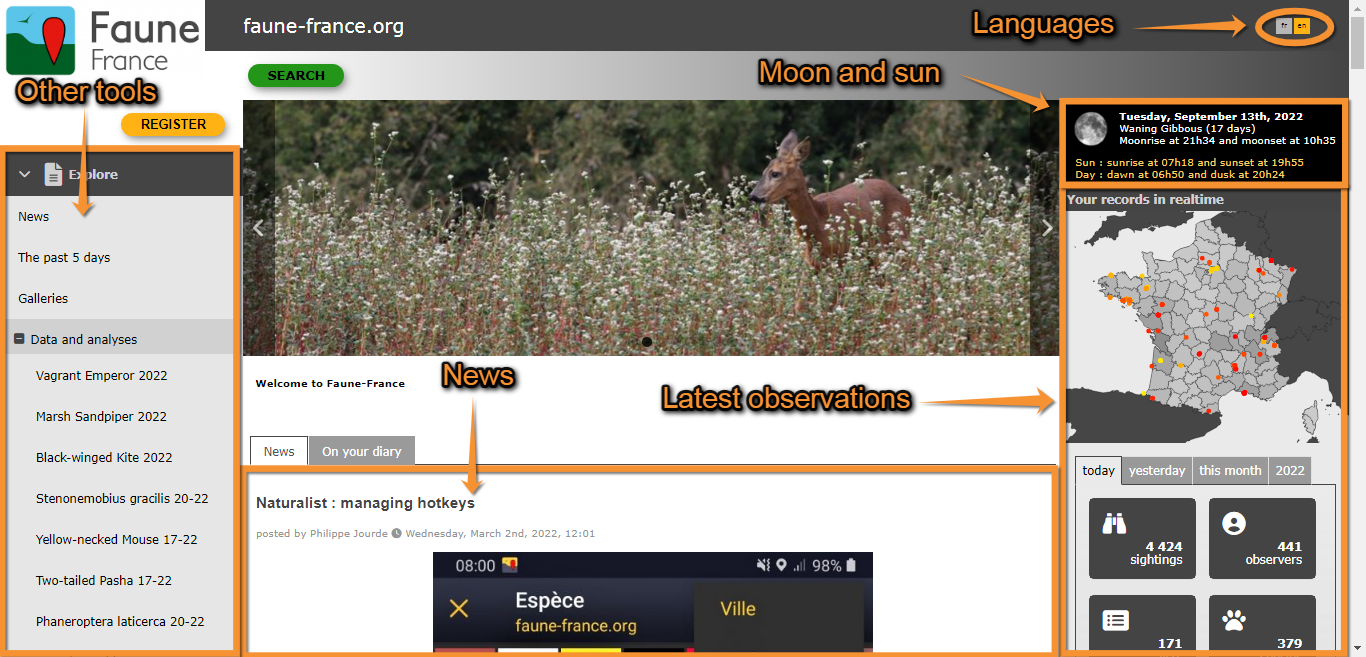
News appear by default on the home screen of users, both registered and unregistered (see image Example of main interface as shown in Faune-France portal). With the corresponding rights, one can post and modify news and the slideshow on top. Access:
Administration > Admin news

Admin news.
Admin news tab
List of news entries displayed on the homepage. Use arrows under titles to alternate between ascending and descending order (see image as an example).
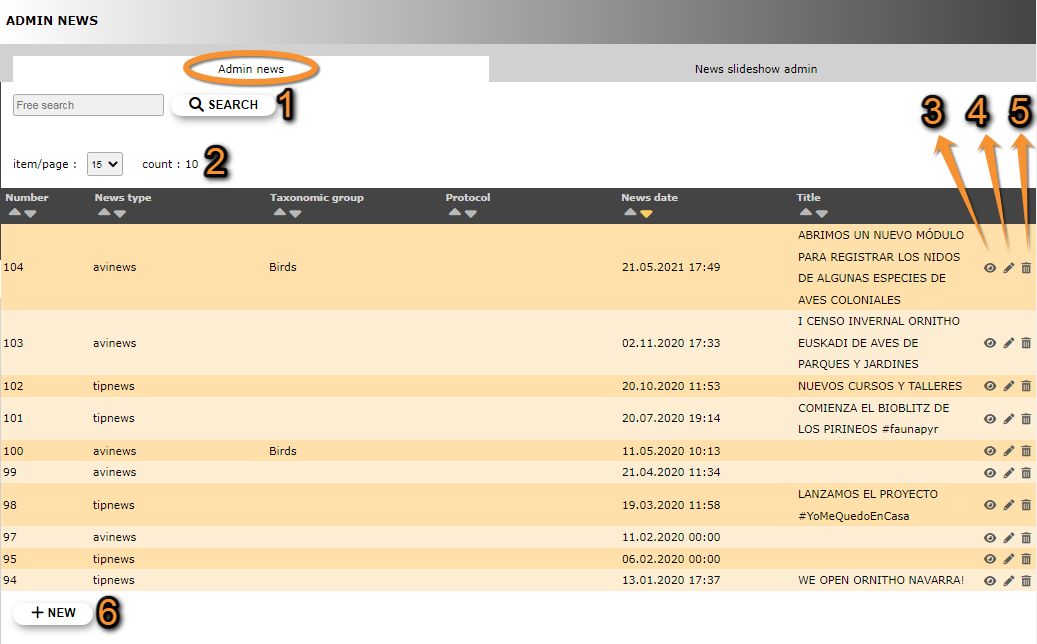
Admin news list.
1. Search
2. Page search
3. Details
4. Edit
5. Delete
6. NEW
Number: Number associated to other news entry.
News type: Type of news. Refer to sub section '6. NEW' below for more information.
Taxonomic group: Taxonomic group the piece of news refers to.
Protocol: Name of the protocol the piece of news refers to.
News date: Date and time from when the new will become active
Title: Piece of news' title.
- 1. Search
Reduce list by typing a relevant word on the blank menu, and clicking SEARCH. When a filter is applied, click on DISPLAY ALL to see the full list.
- 2. Page Search
Select page number and/or number of items per page.
- 3. Details
See details of the selected piece of news.
- 4. Edit
Modify details.

Modify news 1.
7. Nes type
8. Taxonomic group
9. Protocol
10. News date
BACK: Go to previous screen without saving.
MODIFY: Save changes.
- 7. News type
- 7. News type
- Select from the expandable menu the type of news this entry refers to. Refer to sub section '6. NEW' below for more information.
- 8. Taxonomic group
- 8. Taxonomic group
- When applicable, type the taxonomic group the piece of news refers to, or part of it, in the left field (a) and select from the expandable menu in the right field (b).
- 9. Protocol
- 9. Protocol
- When applicable, type the name of the protocol the piece of news refers to, or part of it, in the left field (a) and select from the expandable menu in the right field (b).
- When specified, only registered people for the concerned protocol will see the news.
- 10. News date 2
- 10. News date 2
- Date and time from when the news is active. If a date is in the future, then the news will be visible from that date and hour.
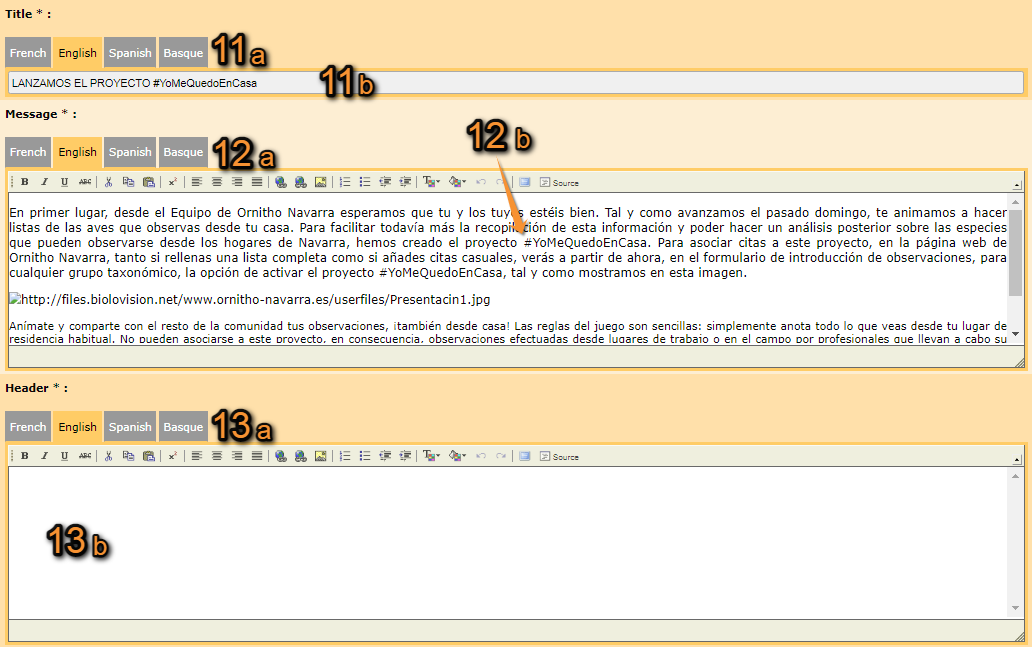
- 11. Title
- 11. Title
- Select the language from the tabs on top (a) and type / modify the title in the selected language (b). Repeat the process to add / modify titles in different languages, if needed.
- 12. Message
- 12. Message
- Select the language from the tabs on top (a) and type / modify new's content in the selected language (b). Repeat the process to add / modify content in different languages.
- 13. Header
- 13. Header
- Select the language from the tabs on top (a) and type/ modify a header in the selected language (b). Repeat the process to add / modify a header in different languages.
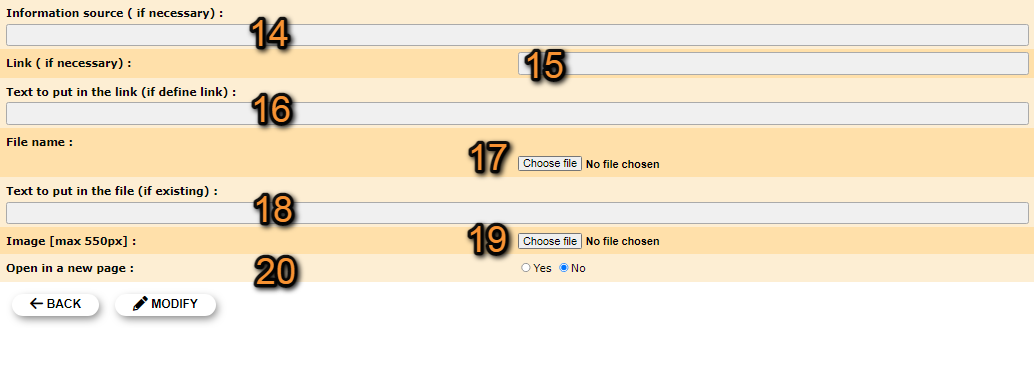
Modify news 3.
14. Information source
15. Link
16. Text to put in the link
17. File name
18. Text to put in the file
19. Image
20. Open in a new page
BACK: Go to previous screen without saving.
MODIFY: Save changes.
- 14. Information source
- 14. Information source
- Optional, allows you to mention the source of the news information. Describe with a text where the information comes from, if you write an url, it will stay as a text and not become clickable. This will appear small at the end of the news.
- 15. Link
- 15. Link
- If necessary, add a link you want to appear at the bottom of the news just before document (if any).
- 16. Text to put in the link
- 16. Text to put in the link
- If there is a link, indicate / modify the link's text.
- 17. File name
- 17. File name
- Update / delete / change a file associated to the piece of news. Only one document per news. Click on Choose file to update a file, and check Check to delete the image to delete it. Current uploaded file is indicated next to the button.
- 18. Text to put in the file 4
- 18. Text to put in the file 4
- If there is a file, type / modify the text under which the file will be displayed.
- 19. Image
- 19. Image
- Upload / delete / change an image to the piece of news. Only one image per news! Click on Choose file to update an image, and check Check to delete the image to delete it. Current uploaded image is indicated next to the button.
- 20. Open in a new page
- 20. Open in a new page
- Indicate if this piece of news should be opened in a new window.
- 5. Delete
Delete selected piece of news. You will be asked to confirm.
- 6. NEW
Add a new piece of news to the homepage.

Adding news 1.
7. News type
8. Taxonomic group
9. Protocol
10. News date
BACK: Go to previous screen without saving.
ADD: Add piece of news to the homepage.
- 7. News type
- 7. News type
- NOTA: Actually (10.2023) the small icon is no longer displayed for the news type on responsive local portals.
- Select from the expandable menu the type of news this entry refers to.
- Select from:
- Select from the expandable menu the type of news this entry refers to.
· Avinews: News related (initially to birds) to taxonomic group.
· Technews: News related to technical aspects.
· Tipnews: News related for tips.
· Atlasnews: News related to atlas work.
- 8. Taxonomic group 5
- 8. Taxonomic group 5
- When applicable, type the taxonomic group the piece of news refers to, or part of it, in the left field (a) and select from the expandable menu in the right field (b).
- 9. Protocol 5
- 9. Protocol 5
- When applicable, type the name of the protocol the piece of news refers to, or part of it, in the left field (a) and select from the expandable menu in the right field (b).
- If you select a protocol, then only registered user for the protocol will see it.
- 10. News date
- 10. News date
- Choose the date and hour the new shall appear on the homepage.
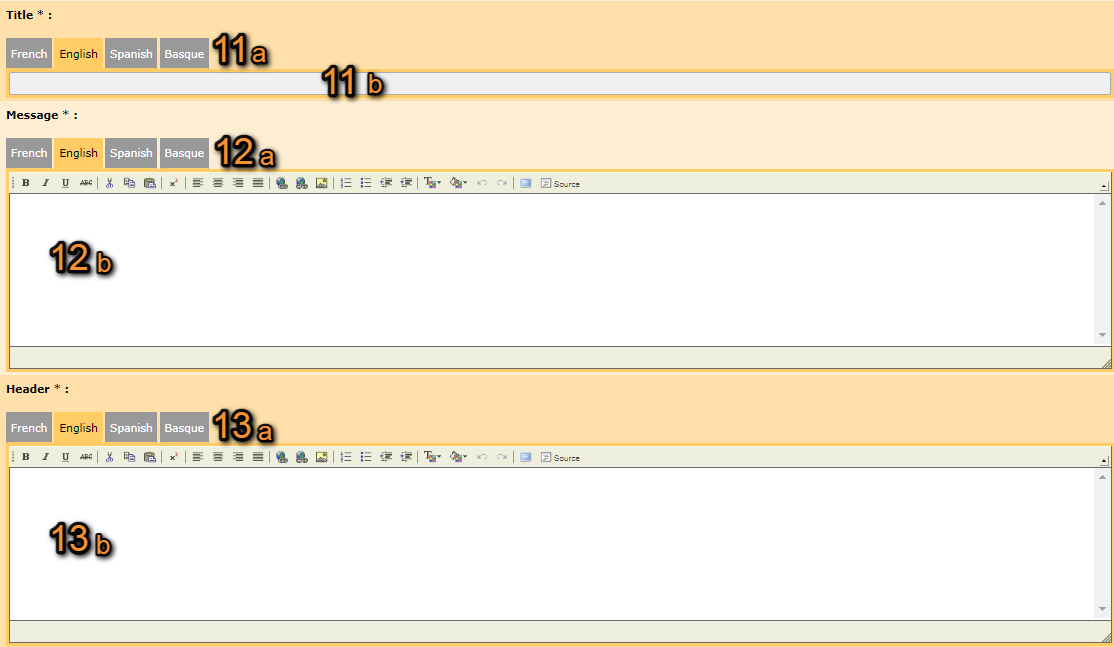


- 11. Title
- 11. Title
- Select the language from the tabs on top (a) and type the title in the selected language (b). If you need the news to appear for other languages, repeat the process to add titles in different languages.
- The news will only appear in the chosen language.
- The news will only appear in the chosen language.
- 12. Message
- 12. Message
- Select the language from the tabs on top (a) and type news content in the selected language (b). Repeat the process to add content in different languages. The news will only appear in the chosen language.
- 13. Header
- 13. Header
- Select the language from the tabs on top (a) and type a header in the selected language (b). Repeat the process to add a header in different languages. The news will only appear in the chosen language.

Adding news 3.
14. Information source
15. Link
16. Text to put in the link
17. File name
18. Text to put in the file
19. Image
20. Open in a new page
BACK: Go to previous screen without saving.
ADD: Add piece of news to the homepage.
- 14. Information source
- 14. Information source
- If necessary, type the source of the news information.
- 15. Link
- 15. Link
- If necessary, add a link to news source.
- 16. Text to put in the link
- 16. Text to put in the link
- If there is a link, indicate / modify the link's text.
- 17. File name
- 17. File name
- Click on Choose file to upload a file. Only one per news. Uploaded file is indicated next to the button.
- 18. Text to put in the file
- 18. Text to put in the file
- If there is a file, type the text under which the file will be displayed.
- 19. Image
- 19. Image
- Click on Choose file to update an image. Only one per news. Uploaded image is indicated next to the button.
- 20. Open in a new page
- 20. Open in a new page
- Indicate if this piece of news will be opened in a new window.
[Top to Admin news tab]
[Back to Admin news]
News slideshow admin tab
List of images displayed at the top of homepage as a slideshow. Use arrows under titles to alternate between ascending and descending order (see image as an example).
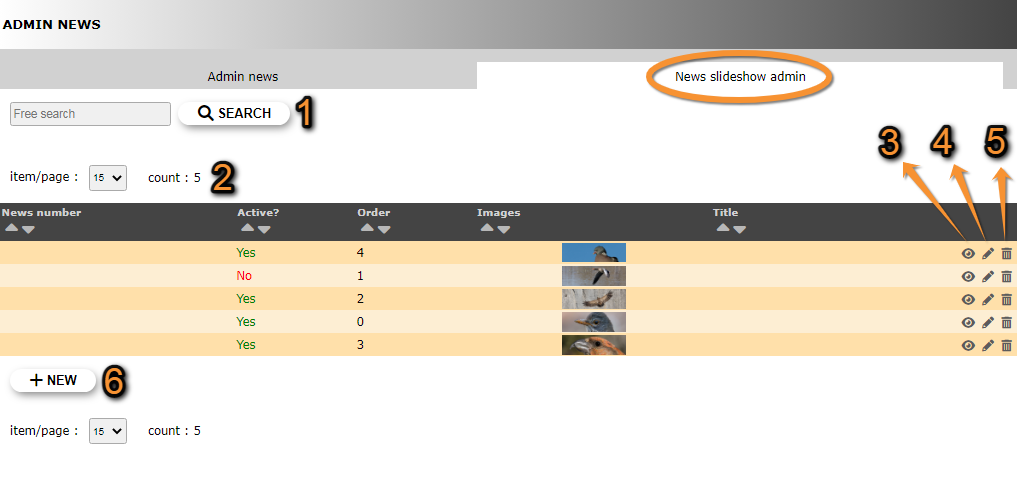
Slideshow admin.
1. Search
2. Page search
3. Details
4. Edit
5. Delete
6. NEW
Number: Number associated to other news entry.
News type: Type of news. Refer to sub section '6. NEW' below for more information.
Taxonomic group: Taxonomic group the piece of news refers to.
Protocol: Name of the protocol the piece of news refers to.
News date: Date and time from when the new will become active
Title: Piece of news' title.
- 1. Search
Reduce list by typing a relevant word on the blank menu, and clicking SEARCH. When a filter is applied, click on DISPLAY ALL to see the full list.
- 2. Page search
Select page number and/or number of items per page.
- 3. Details
See details of image.
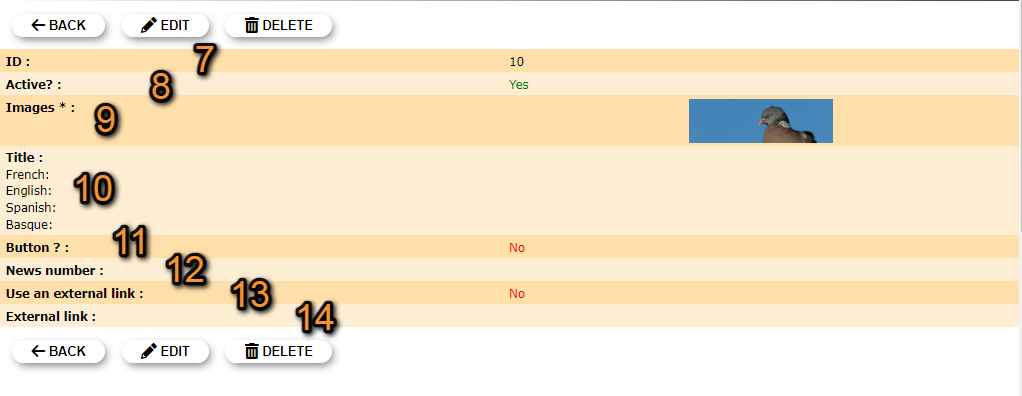
Details slideshow admin.
7. ID
8. Active?
9. Images
10. Title
11. Button?
12. News number
13. Use an external link
14. External link
BACK: Go to previous screen without saving.
EDIT: Edit details. See subsection Edit below.
DELETE: Delete image. You will be asked to confirm.
- 7. ID
- 7. ID
- Number identifying each image. It is assigned automatically.
- 8. Active?
- 8. Active?
- Indicates if the image will be displayed in the slideshow in the homepage.
- 9. Images
- 9. Images
- See image uploaded for this entry.
- 10. Title
- 10. Title
- See image titles (or other short related text) in different languages when available.
- 11. Button?
- 11. Button?
- Indicates if there is a clickable button associated to the image redirecting to the news section.
- 12. News number
- 12. News number
- Piece of news the image is associated to. If the button option is active, clicking on it will redirect to this specific piece of news. If none is indicated, the button will redirect to the general news section.
- 13. Use an external link
- 13. Use an external link
- Indicates if there is a clickable button associated to the image redirecting to the external site indicated in the next field.
- 14. External link
- 14. External link
- Address to which the button will redirect. If none is specified, even if the button to an external site is activated, it will redirect to the site's news section. If an external address is specified but the button is inactive, the image will not include a link.
- 4. Edit
Modify the selected image
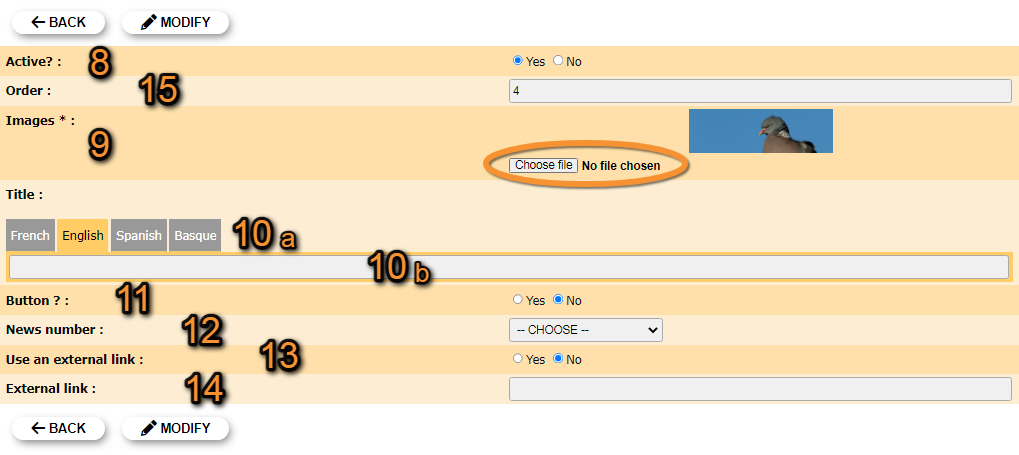
Edit slideshow admin.
8. Active?
9. Images
10. Title
11. Button?
12. News number
13. Use an external link
14. External link
15. Order
BACK: Go to previous screen without saving.
MODIFY: Save changes.
- 8. Active?
- 8. Active?
- Show/hide the selected image in the homepage.
- 15. Order
- 15. Order
- Modify the order in which it will be displayed in relation to other images.
- 9. Images
- 9. Images
- Change the image attached to this entry. Click on Choose file to select the image to upload. Image name will display next to the button. Ideal size 1000x384px
- 10. Title
- 10. Title
- Select a language from the tabs above to add or change a title (or other related short text) or change in (a) and type or modify the title (b). See image as an example on how it looks like.

- 11. Button?
- 11. Button?
- Indicate if there will be a clickable internal link in the image. By default, the link will redirect to the news page. If the field Title is empty, no link will be displayed. See image as an example on how it looks like.
- 12. News number
- 12. News number
- Select/modify from the expandable menu the piece of news you want to associate the image to. If the button option is active, it will redirect to this specific piece of news and not to the general news page. If the previous option is inactive, the image will not include a link even if a piece of news is selected in this section.
- 13. Use an external link
- 13. Use an external link
- Indicate if there will be a clickable external link in the image. If the field Title is empty, no link will be displayed. See image as an example on how it looks like.
- 14. External link
- 14. External link
- Type/modify address of the external link. If the field is empty, the button will redirect to the internal news' site. If the button is inactive no link will be displayed in the image even if an external address is specified here.
5. Delete
Delete selected image from slideshow on homepage. You will be asked to confirm.
6. NEW
Add a new image to homepage slideshow.

Adding a new slideshow image.
8. Active?
9. Images
10. Title
11. Button?
12. News number
13. Use an external link
14. Title
15. Order
BACK: Go to previous screen without saving.
ADD: Save changes and add new image to slideshow.
- 15. Order
- 15. Order
- Type order in which it will be displayed in relation to other images.
- 9. Images
- 9. Images
- Upload image by clicking on Choose file to select the image to upload. Image name will display next to the button.
- 8. Active?
- 8. Active?
- Indicate if the image will be displayed in the homepage.
- 10. Title
- 10. Title
- Select a language from the tabs above to add a title in the selected language (a) and type title (b). You may repeat the process to add a title in different languages. This field could be used to add a short description or other related information. See image below on how it will look like.
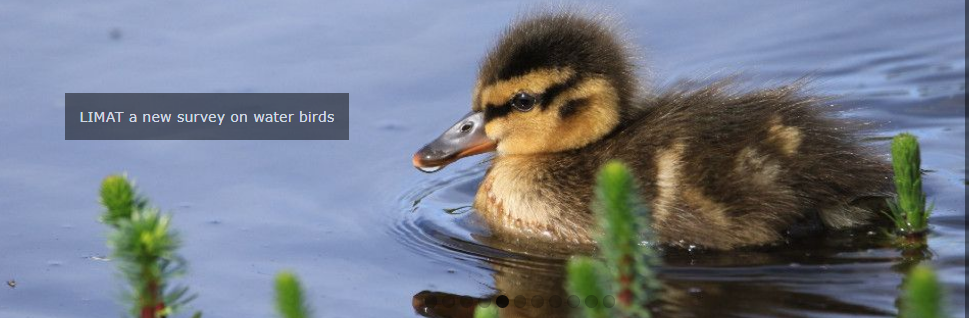
Image in slideshow when only a title has been added.
- If the field is empty, the image will not show any additional text even if a link is added. See example below.
- If the field is empty, the image will not show any additional text even if a link is added. See example below.

Image when neither a title nor a link have been provided.
- 11. Button?
- 11. Button?
- Indicate if the image will include a clickable internal link. The button will state "MORE INFORMATIONS" (see image below) and by default, the link will redirect to the news page unless the news number is indicated in the next field. A link will not show if the field Title is not filled.

Image in slideshow when both a title and a link have been added.
- 12. News number
- 12. News number
- Select from the expandable menu the piece of news the image will be associated with. Note it will only link if the previous button option is active.
- 13. Use an external link
- 13. Use an external link
- Indicate if the image will include a clickable link to an external site. The button will state "MORE INFORMATIONS" (see image above as an example) and will redirect to the site indicated in the next link. If none is indicated, it will redirect to the current site's news section. A link will not show if the field Title is not filled. ::If both Button? and External link fields are active, the image will show both links with the same title.
- 14. External link
- 14. External link
- Type the address of the external link. It will only redirect if the previous field is active. If no address is specified, even if the button to an external link is active, it will redirect to the site's news section.
· Fill in the field Title to add a short text to the image (Image in slideshow when only a title has been added.)
· Fill in both field Title and Button? or External link to add both a text and a link to the image (Image in slideshow when both a title and a link have been added.)
· Leave the field Title blank to not show any special feature in the image (Image when neither a title nor a link have been provided.)



[Top to News slideshow admin tab]
[Back to Admin news]