Editing records: Difference between revisions
| (18 intermediate revisions by the same user not shown) | |||
| Line 18: | Line 18: | ||
<center> | <center> | ||
<div class="toc" style="border-radius:5px;background-color:#ffffff;width:400px;padding-left:8px;padding-right:8px;padding-bottom:8px;"> | <div class="toc" style="border-radius:5px;background-color:#ffffff;width:400px;padding-left:8px;padding-right:8px;padding-bottom:8px;"> | ||
[[File:Edit record on latest sightings.png|400px]] | [[File:Edit record on latest sightings.png|400px|link=https://help.biolovision.net/images/1/1d/Edit_record_on_latest_sightings.png]] | ||
<div class="toc" style="border-radius:5px;width:385px;padding-left:15px;text-align:left; font-size:12px"> | <div class="toc" style="border-radius:5px;width:385px;padding-left:15px;text-align:left; font-size:12px"> | ||
'''Editing records from latest sightings list.''' | '''Editing records from latest sightings list.''' | ||
| Line 38: | Line 38: | ||
<center> | <center> | ||
<div class="toc" style="border-radius:5px;background-color:#ffffff;width:600px;padding-left:8px;padding-right:8px;padding-bottom:8px;"> | <div class="toc" style="border-radius:5px;background-color:#ffffff;width:600px;padding-left:8px;padding-right:8px;padding-bottom:8px;"> | ||
[[File:20220901WIKI Editing records general.png|600px]] | [[File:20220901WIKI Editing records general.png|600px|link=https://help.biolovision.net/images/5/56/20220901WIKI_Editing_records_general.png]] | ||
<div class="toc" style="border-radius:5px;width:585px;padding-left:15px;text-align:left; font-size:12px"> | <div class="toc" style="border-radius:5px;width:585px;padding-left:15px;text-align:left; font-size:12px"> | ||
'''Editing records from the right hand column.''' | '''Editing records from the right hand column.''' | ||
| Line 54: | Line 54: | ||
===Picture and sound=== | ===Picture and sound=== | ||
Here you can add a picture or a sound file as in wiki section [[Step 3/3: Transmit my sighting| | Here you can add a picture or a sound file as in wiki section Web interface > Submitting records > [[Step 3/3: Transmit my sighting|Step 3/3: Transmit my sighting]], and in image [[Media:Transmitting observations non mandatory.png|Transmitting sightings, non mandatory fields]]. You can also delete all records by clicking the dustbin on the bottom left. Once the picture uploaded, click '''Add''' at the bottom of the form. See image [[Media:Edit picture.png|Editing a simple record. Add a photo]].<br /> | ||
<br /> | <br /> | ||
===Data=== | ===Data=== | ||
Choose tab '''Modify data''' and edit date, species, count, comments and/or additional information, except pictures and sounds, as in wiki section | Choose tab '''Modify data''' and edit date, species, count, comments and/or additional information, except pictures and sounds, as in wiki section Step 3/3: Transmit my sighting|Web interface > Submitting records > [[Step 3/3: Transmit my sighting]]. Modify as needed and click '''Update''' at the bottom. See image [[Media:Edit data.png|Editing a simple record. Modify data]].<br /> | ||
<br /> | <br /> | ||
===Site=== | ===Site=== | ||
Select '''Edit place''' and navigate the map as in wiki section | Select '''Edit place''' and navigate the map as in wiki section Web interface > Submitting records > Step 1/3: Approximate choice of a site > [[Step 1/3: Approximate choice of a site| '''By clicking on the map''']]; and wiki section Web interface > Submitting records > Step 2/3: Precise site choice >[[Step 2/3: Precise site choice| '''Add a precise sighting''']]. Click on the map at the exact position of the sighting. This record may automatically be linked to a new predetermined site. See image [[Media:Edit site.png|Editing a simple record. Edit place]]. <br /> | ||
<br /> | <br /> | ||
[[Editing records#Modify a simple record|[Top to Modify a simple record]]] <br/> | |||
[[Editing records#From the right hand column: Your last sightings|[Top to From the right hand column: Your last sightings]]] <br/> | |||
[[#top|[Back to Editing records]]] <br/> | |||
<br/> | |||
==Modify a record from a list== | ==Modify a record from a list== | ||
| Line 72: | Line 77: | ||
<center> | <center> | ||
<div class="toc" style="border-radius:5px;background-color:#ffffff;width: | <div class="toc" style="border-radius:5px;background-color:#ffffff;width:600px;padding-left:8px;padding-right:8px; padding-bottom:8px;"> | ||
[[File:20220901WIKI my sightings on list.png| | [[File:20220901WIKI my sightings on list.png|600px|link=https://help.biolovision.net/images/d/d2/20220901WIKI_my_sightings_on_list.png]] | ||
<div class="toc" style="border-radius:5px;width: | <div class="toc" style="border-radius:5px;width:585px;padding-left:15px;text-align:left; font-size:12px;"> | ||
'''Example of records that belong to a list.''' | '''Example of records that belong to a list.''' | ||
</div> | </div> | ||
| Line 90: | Line 95: | ||
<center> | <center> | ||
<div class="toc" style="border-radius:5px;background-color:#ffffff;width: | <div class="toc" style="border-radius:5px;background-color:#ffffff;width:700px;padding-left:8px;padding-right:8px;padding-bottom:8px;"> | ||
[[File:20220109WIKI modify list.png| | [[File:20220109WIKI modify list.png|700px|link=https://help.biolovision.net/images/3/39/20220109WIKI_modify_list.png]] | ||
<div class="toc" style="border-radius:5px;width: | <div class="toc" style="border-radius:5px;width:685px;padding-left:15px;text-align:left; font-size:12px"> | ||
'''Editing a list.''' | '''Editing a list.''' | ||
</div> | </div> | ||
| Line 113: | Line 118: | ||
<center> | <center> | ||
<div class="toc" style="border-radius:5px;background-color:#ffffff;width:600px;padding-left:8px;padding-right:8px; padding-bottom:8px;"> | <div class="toc" style="border-radius:5px;background-color:#ffffff;width:600px;padding-left:8px;padding-right:8px; padding-bottom:8px;"> | ||
[[File:Capture 2023-03-03 at 14.13.13.png|600px]] | [[File:Capture 2023-03-03 at 14.13.13.png|600px|link=https://help.biolovision.net/images/a/ab/Capture_2023-03-03_at_14.13.13.png]] | ||
<div class="toc" style="border-radius:5px;width:585px;padding-left:15px;text-align:left; font-size:12px;"> | <div class="toc" style="border-radius:5px;width:585px;padding-left:15px;text-align:left; font-size:12px;"> | ||
'''Track along with current position of observation.''' | '''Track along with current position of observation.''' | ||
| Line 124: | Line 129: | ||
</center> | </center> | ||
<br/> | <br/> | ||
<br/> | |||
[[Editing records#Modify a record from a list|[Top to Modify a record from a list]]] <br/> | |||
[[Editing records#From the right hand column: Your last sightings|[Top to From the right hand column: Your last sightings]]] <br/> | |||
[[#top|[Back to Editing records]]] <br/> | |||
<br/> | <br/> | ||
| Line 129: | Line 139: | ||
<br/> | <br/> | ||
Modify your observations from [[Media:Edit from list on left column.png|'''All my observations''']]. <br/> | |||
<br /> | <br/> | ||
Place pointer on icons to see their meaning: <br/> | |||
: [[File: Edit record icon.png|fremeless|25px|link=]] Edit records <br/> | |||
: [[File: Delete record icon.png|frameless|50px|link=]] Delete record <br/> | |||
: [[File: Delete list icon.png|frameless|50px|link=]] Delete full list <br/> | |||
: To edit a list, click [[File: Edit record icon.png|fremeless|25px|link=]] to access [[Editing records#Modify_a_record_from_a_list|the full form]]. <br/> | |||
<br/> | |||
<center> | <center> | ||
<div class="toc" style="border-radius:5px;background-color:#ffffff;width:600px;padding-left:8px;padding-right:8px;padding-bottom:8px;"> | <div class="toc" style="border-radius:5px;background-color:#ffffff;width:600px;padding-left:8px;padding-right:8px;padding-bottom:8px;"> | ||
[[File:Edit from list on left column.png|600px]] | [[File:Edit from list on left column.png|600px|link=https://help.biolovision.net/images/4/42/Edit_from_list_on_left_column.png|Click image to enlarge]] | ||
<div class="toc" style="border-radius:5px;width:585px;padding-left:15px;text-align:left; font-size:12px"> | <div class="toc" style="border-radius:5px;width:585px;padding-left:15px;text-align:left; font-size:12px"> | ||
'''Editing records from "all my observations".''' | '''Editing records from "all my observations".''' | ||
| Line 141: | Line 158: | ||
</center> | </center> | ||
<br/> | <br/> | ||
<br/> | |||
[[Editing records#From the left hand column: All my observations|[Top to From the left hand column: All my observations]]] <br/> | |||
[[#top|[Back to Editing records]]] <br/> | |||
<br/> | <br/> | ||
{{Examples from Faune-France}} | {{Examples from Faune-France}} | ||
Latest revision as of 15:20, 19 February 2026
You can edit or delete the records you have submitted each time you have the edit button  or the dustbin button
  located next to it.
Access your data as usual: in the right hand column (your last sightings during entering data) or from the left hand column: (All my sightings) or with the search engine.
If only the red logo  is shown and the bin is no more present, it means you can no longer edit all the fields of your record due to the fact that the record has been exported and you need to contact your local administrator to edit some part or delete it.
From the right hand column: Your last sightings
On the right hand column as you enter those following the add sightings on this locality or add a precise sighting path (see wiki section Web interface > Submitting records > Step 3/3: Transmit my sighting). The list shows your last 30 submitted observations, by site and date. To edit a record click on the pencil and paper icon, to delete use the dustbin icon (see image Editing records from latest sightings list). When editing a record, you get a short summary of the observation and three tabs from which to modify the data: picture and sound, data and site (see image Editing a simple record. Add a photo).


Editing records from latest sightings list.
1. Edit record
2. Delete record
Modify a simple record
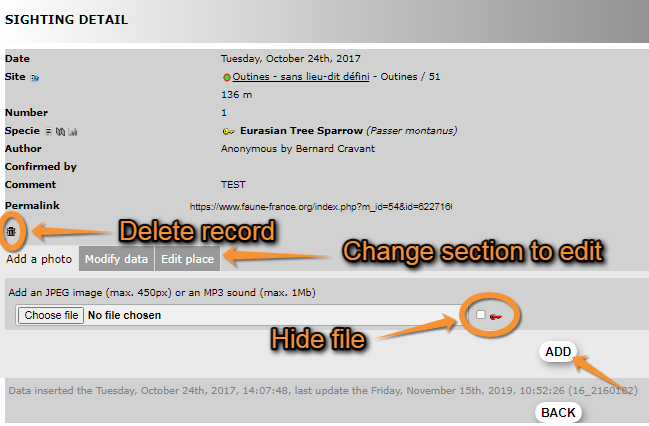
After a short summary to the record, you can modify the data by using the three tabs. Choose tabs to access the sections you need to modify. To delete the record, press on the dustbin icon (see image Editing records from the right hand column).


Editing records from the right hand column.
1. Choose section to modify
2. Delete record
3. Add changes
4. Go to previous page
Picture and sound
Here you can add a picture or a sound file as in wiki section Web interface > Submitting records > Step 3/3: Transmit my sighting, and in image Transmitting sightings, non mandatory fields. You can also delete all records by clicking the dustbin on the bottom left. Once the picture uploaded, click Add at the bottom of the form. See image Editing a simple record. Add a photo.
Data
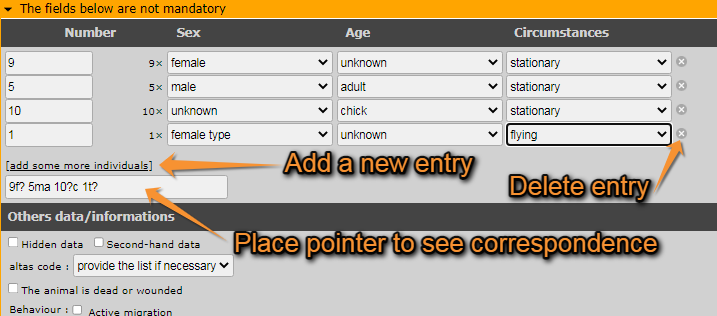
Choose tab Modify data and edit date, species, count, comments and/or additional information, except pictures and sounds, as in wiki section Step 3/3: Transmit my sighting|Web interface > Submitting records > Step 3/3: Transmit my sighting. Modify as needed and click Update at the bottom. See image Editing a simple record. Modify data.

Site
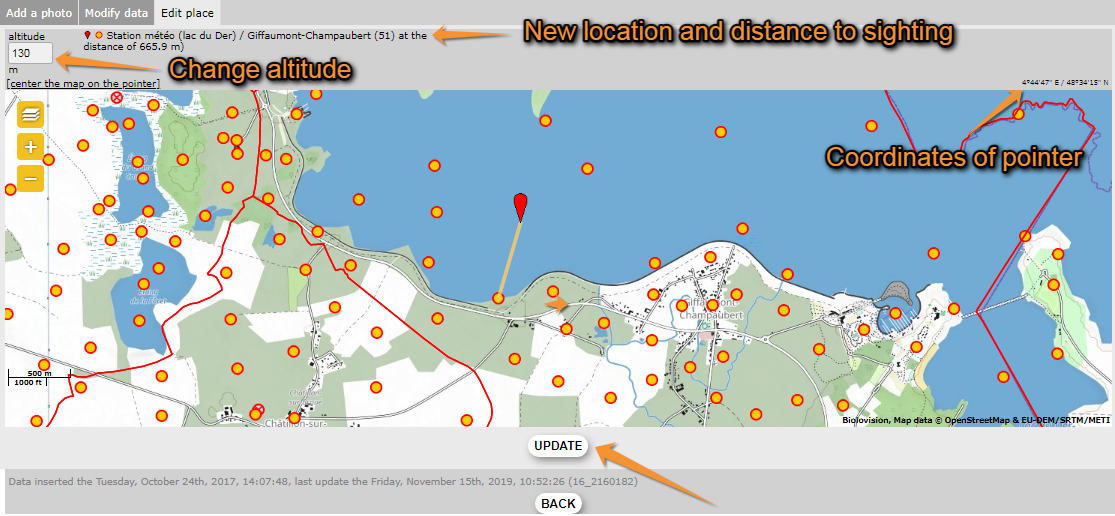
Select Edit place and navigate the map as in wiki section Web interface > Submitting records > Step 1/3: Approximate choice of a site > By clicking on the map; and wiki section Web interface > Submitting records > Step 2/3: Precise site choice > Add a precise sighting. Click on the map at the exact position of the sighting. This record may automatically be linked to a new predetermined site. See image Editing a simple record. Edit place.
[Top to Modify a simple record]
[Top to From the right hand column: Your last sightings]
[Back to Editing records]
Modify a record from a list
Records belonging to a list are marked with a green square, full when the list is complete (1) or hollow when it is a partial list (2) (see image below).

Example of records that belong to a list.
1. Full square: complete list.
2. Hollow square: partial list.
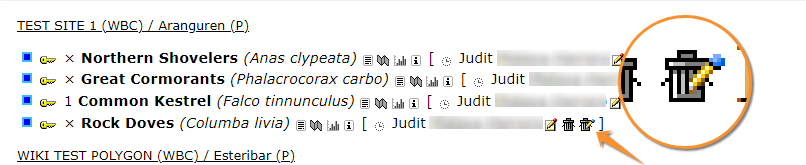
If a record belongs to a list, there are further options at the bottom of the summary. Click the dustbin with a pen to delete the full list, or click the pen with plus sign (+) to add a new record to the list. There is also one more tab allowing you to modify details of the full list: Modify the form (see image Editing a list). Any changes you make under the Modify the form or Edit place tabs will apply to the whole list.
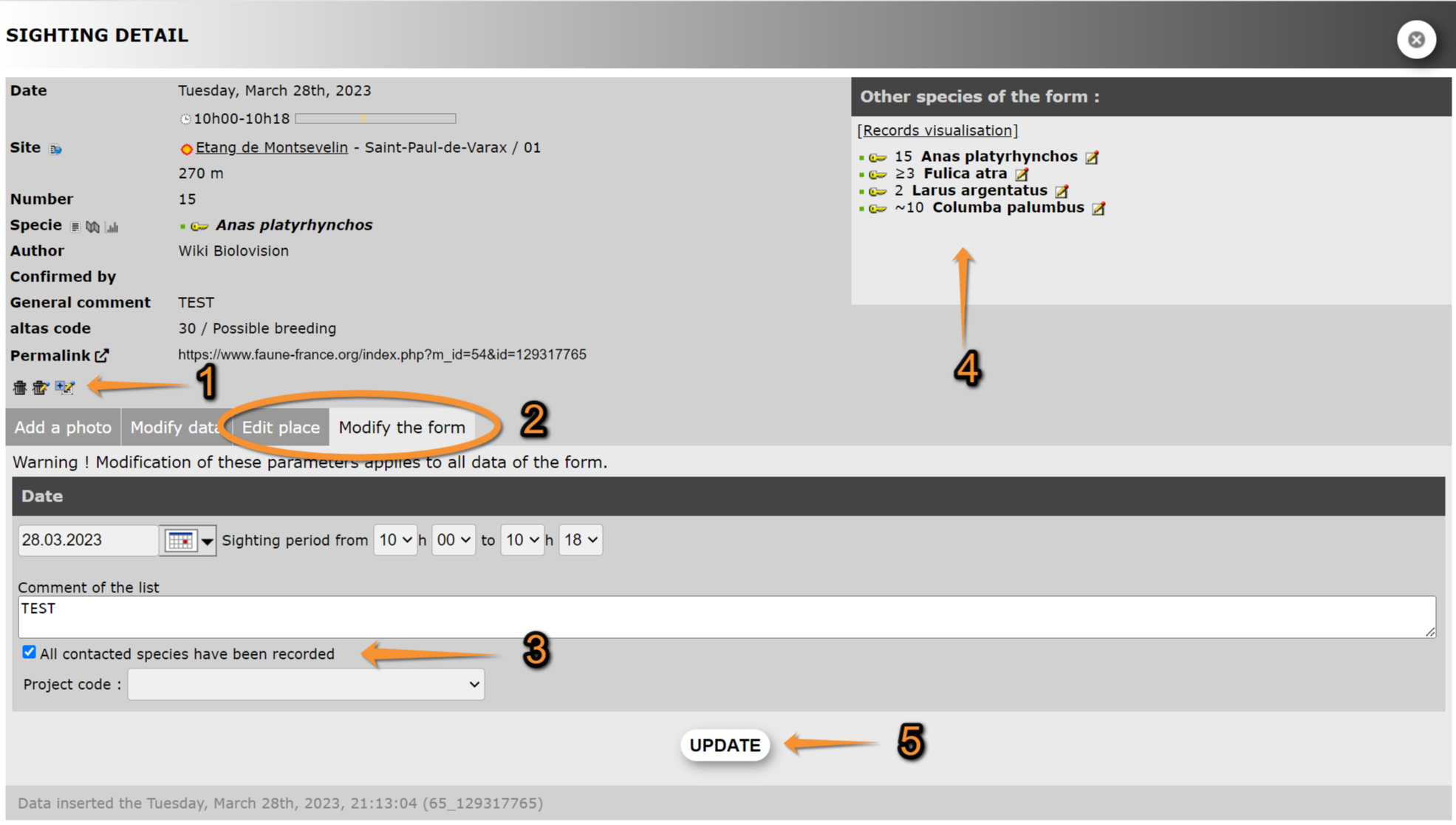

Editing a list.
1. Delete record, delete list, add a record to the list
2. Tabs applying to the whole list
3. Alternate complete and partial list
4. Your current list
5. Save changes
Edit place
When editing the location of a record belonging to a list, and if you recorded the trace while entering your observations through NaturaList. In the Edit place tab, along with the current position of your selected observation, you will see the track you followed.
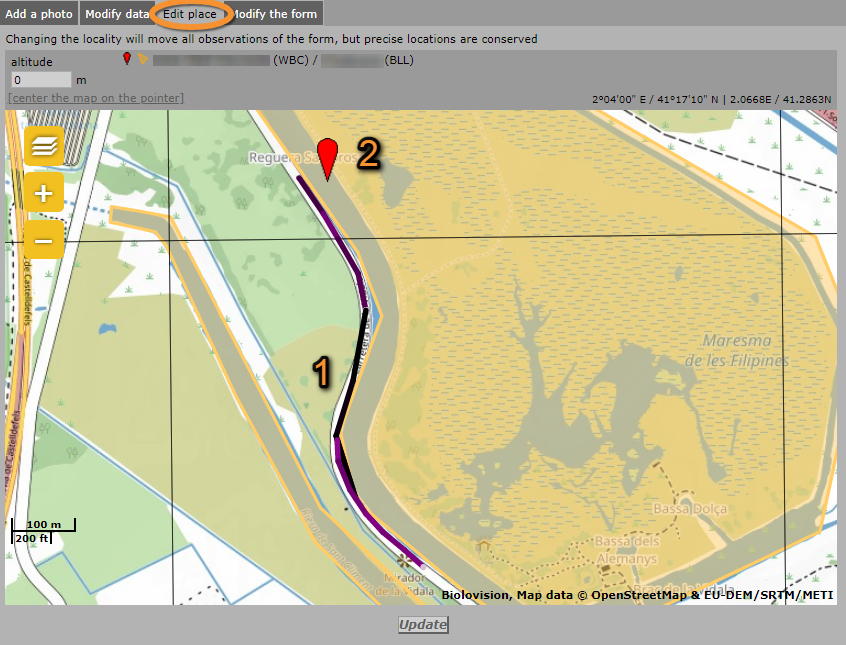
Track along with current position of observation.
1. Recorded track. The colour intensity indicates the speed: the darker, the faster.
2. Current observation.
[Top to Modify a record from a list]
[Top to From the right hand column: Your last sightings]
[Back to Editing records]
From the left hand column: All my observations
Modify your observations from All my observations.
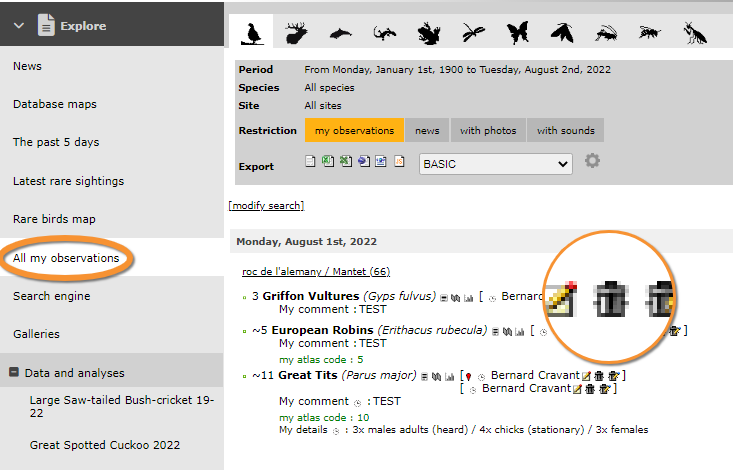
Place pointer on icons to see their meaning:
 Edit records
  Delete record
  Delete full list
 - To edit a list, click to access the full form.

Editing records from "all my observations".
[Top to From the left hand column: All my observations]
[Back to Editing records]
Note: images and examples are drawn from the French portal Faune-France. The design and position of some tools may vary slightly from portal to portal. To see a list of portals go to wiki section Local portals and partners. |