Search observations: Difference between revisions
| (18 intermediate revisions by the same user not shown) | |||
| Line 120: | Line 120: | ||
<center> | <center> | ||
<div class="toc" style="border-radius:5px;background-color:#ffffff;padding-left:8px;padding-right:8px;padding-bottom:8px;width: | <div class="toc" style="border-radius:5px;background-color:#ffffff;padding-left:8px;padding-right:8px;padding-bottom:8px;width:350px;"> | ||
[[File:Menu NL gif.gif | [[File:Menu NL gif.gif|link=https://help.biolovision.net/images/2/2f/Menu_NL_gif.gif]] | ||
<div class="toc" style="border-radius:5px;padding-left:15px;text-align:left; font-size:12px;width: | <div class="toc" style="border-radius:5px;padding-left:15px;text-align:left; font-size:12px;width:325px;"> | ||
'''Accessing browsing menu.''' | '''Accessing browsing menu.''' | ||
</div> | </div> | ||
| Line 417: | Line 417: | ||
<br/> | <br/> | ||
<span id="Info 1"></span> | |||
===Display more information=== | ===Display more information=== | ||
<br /> | <br /> | ||
| Line 501: | Line 502: | ||
<br/> | <br/> | ||
[[Search_observations#Info 1|[Top to Display more information]]] <br/> | |||
[[Search_observations#Accessing_your_own_records|[Top to Accessing your own records]]] <br/> | |||
[[Search_observations#Accessing_records'_details|[Top to Accessing records' details]]] <br/> | |||
[[#top|[Back to Browsing records]]] <br/> | |||
<br/> | |||
<span id="Translations 1"></span> | |||
===Show translations=== | ===Show translations=== | ||
<br /> | <br /> | ||
| Line 519: | Line 527: | ||
<br/> | <br/> | ||
[[Search_observations#Translations 1|[Top to Show translations]]] <br/> | |||
[[Search_observations#Accessing_your_own_records|[Top to Accessing your own records]]] <br/> | |||
[[Search_observations#Accessing_records'_details|[Top to Accessing records' details]]] <br/> | |||
[[#top|[Back to Browsing records]]] <br/> | |||
<br/> | |||
<span id="Web 1"></span> | |||
===Go to web page=== | ===Go to web page=== | ||
<br/> | <br/> | ||
| Line 545: | Line 560: | ||
<br/> | <br/> | ||
[[Search_observations# | [[Search_observations#Web 1|[Top to Go to web page]]] <br/> | ||
[[Search_observations#Accessing_your_own_records|[Top to Accessing your own records]]] <br/> | [[Search_observations#Accessing_your_own_records|[Top to Accessing your own records]]] <br/> | ||
[[Search_observations#Accessing_records'_details|[Top to Accessing records' details]]] <br/> | [[Search_observations#Accessing_records'_details|[Top to Accessing records' details]]] <br/> | ||
| Line 567: | Line 582: | ||
===Display more information=== | ===Display more information=== | ||
<br /> | <br /> | ||
As in | As in Mobile interface > Browsing records > Browsing own records > [[Search_observations#Display_more_information|Display more information]].<br /> | ||
<br /> | <br /> | ||
===Show translations=== | ===Show translations=== | ||
<br /> | <br /> | ||
As in | As in Mobile interface > Browsing records > Browsing own records > [[Search_observations#Display_more_information|Show translations]]. <br /> | ||
<br /> | <br /> | ||
<span id="Web 2"></span> | |||
===Go to webpage=== | ===Go to webpage=== | ||
<br /> | <br /> | ||
| Line 590: | Line 606: | ||
</center> | </center> | ||
<br/> | <br/> | ||
<br/> | |||
[[Search_observations#Web 2|[Top to Go to web page]]] <br/> | |||
[[Search_observations#Accessing_your_own_records|[Top to Accessing your own records]]] <br/> | |||
[[Search_observations#Accessing_others'_details|[Top to Accessing others' details]]] <br/> | |||
[[#top|[Back to Browsing records]]] <br/> | |||
<br/> | <br/> | ||
| Line 595: | Line 617: | ||
<br/> | <br/> | ||
See wiki section Mobile interface > [[Sharing_records|Sharing records]] for details.<br/> | See wiki section Mobile interface > [[Sharing_records|Sharing records]] for details.<br/> | ||
<br/> | |||
[[Search_observations#Accessing_your_own_records|[Top to Accessing your own records]]] <br/> | |||
[[Search_observations#Accessing_others'_details|[Top to Accessing others' details]]] <br/> | |||
[[#top|[Back to Browsing records]]] <br/> | |||
<br/> | <br/> | ||
Latest revision as of 21:51, 13 January 2026
Records are grouped in five different ways:
· In the phone
· Mine
· Under verification
· Around me (near)
· Around me (rare)
These groups can be displayed on your home screen or can be searched for through the menu.
Select which group to show on your home screen on Menu > Preferences > Personalisation > Starting the application. By default, it displays records "In the phone" (your own unsynchronised records).

Sets of observations to be displayed.
The table below shows differences between the groups.
| Data stored in the phone | Data stored on the web | Edit/Delete function | I can see my observations | I can see others' observations | Area displayed1 | Timeframe or amount of data displayed | |
|---|---|---|---|---|---|---|---|
| In the phone | YES2,6 | NO | YES2,6 | YES3,2 | NO | No limit | No limit |
| Mine | NO | YES5,6 | YES4,6 | YES5 | NO | No limit | 200 |
| Under verification | NO | YES5,6 | YES4,6 | YES5 | NO | No limit | No limit |
| Around me (near) | NO | YES5 | YES4,6 | YES5 | YES5 | 4 km | Limited to 15 days ago |
| Around me (rare) | NO | YES5 | YES4,6 | YES5 | YES5 | 120 km | Limited to 5 days ago |
1 Area considered around your current position.
2 Only in NaturaList.
3 Only data not synchronised.
4 Only on the web, if a local portal exists.
5 Only synchronised data.
6 Only your data.
On starting the application
At starting the application some records will show automatically on the main screen. By default, it will be the records In the phone (your unsynchronised records).
Change which records you see at starting on Menu > Preferences > Personalisation > Starting the application. See the table above to see the differences between the options.
Through the menu
Go to Menu on the top left corner to see different records (see image).

Accessing browsing menu.
2 Through the menu
-
2.1 In the phone
2.2 Mine
2.3 Under verification
2.4 Around me (near)
2.5 Around me (rare)
In the phone
Synchronising your data frequently keeps it safely stored in the system. If your device crash, you may permanently lose your data. When synchronised, it is always possible to recover it even if it is temporarily unavailable.
Sightings recorded with NaturaList in the device you are currently using and pending synchronization.
· All the taxonomic groups entered are shown without limit of time or location.
· Data "In the phone" is not visible to other users.
· Data "In the phone" has not backup. It is only in your phone.
You may synchronize data before any logout or changes that may lead to lose those unsynchronized data. A warning message will appear if this happens:
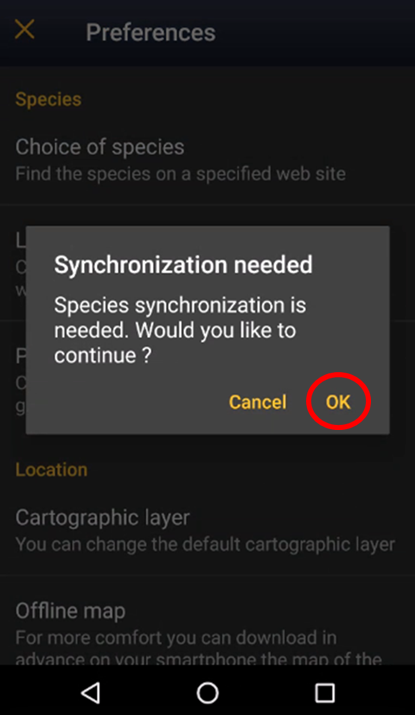
Non-synchronized records: Whenever you request an action that may risk loosing your unsynchronised records, you will be prompted to synchronise them (see image Synchronisation of species as an example).

Browsing In the phone.
See wiki section Various > Symbols cheatsheet for correspondence of colours and symbols within the application.
[Top to In the phone]
[Top to Through the menu]
[Back to Browsing records]
Mine
Records already synchronised for the current user.
· These records are submitted to and visible at the local portal, if available. Otherwise, to data.biolovision.net.
· These records are safely stored in the local portal, if available, or in data.biolovision.net otherwise.
· There is no limit of taxa or geographical area to display, but the amount of data displayed is limited. To access other records you entered, go to the local portal or data.biolovision.net.

Browsing Mine.
See wiki section Various > Symbols cheatsheet for correspondence of colours and symbols within the application.
[Top to In the phone]
[Top to Mine]
[Back to Browsing records]
Under verification
List of all synchronised records needing verification.
A record needing verification is an exceptional one, and therefore more information and confirmation is required. If a local portal exists for the area your observation takes place, automatic and manual filters will be applied to decide which records need to be verified. However, if your observation takes place in an area not covered by any local portal, your records will not be verified.
Observations that need checking are indicated with:
- · a blue dot with an interrogation mark,
- · a yellow dot with a wrench, or
- · a red mark with an exclamation mark.
If besides, a warning icon is shown, your observation requires an homologation report in order to be validated and shared with the community.
If you do not provide further information, observations in this section will remain here for your own use, but will not be visible to other users.
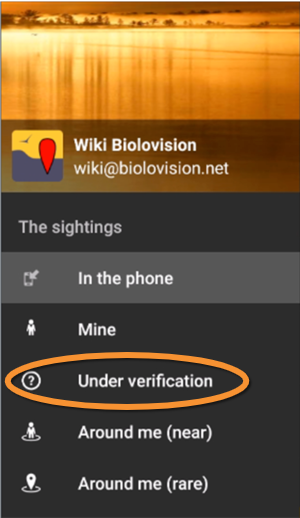
Browsing Under verification.
See wiki section Various > Symbols cheatsheet for correspondence of colours and symbols within the application.
[Top to In the phone]
[Top to Under verification]
[Back to Browsing records]
Around me (near)
Public observations from all users of NaturaList occurring during the last 15 days in a radius of 4km approximately
(depending on where you are on the globe) from your last GPS position recorded.
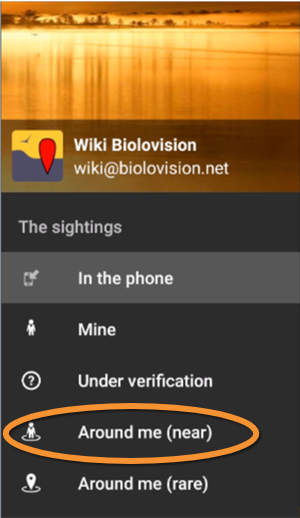
Browsing Around me (near).
See wiki section Various > Symbols cheatsheet for correspondence of colours and symbols within the application.
[Top to Around me (near)]
[Top to Through the menu]
[Back to Browsing records]
Around me (rare)
Rare public observations occurring during the last 5 days in a radius of 120 km approximately (depending on where you are on the globe) around your last GPS recorded position (see image).

Browsing Around me (rare).
See wiki section Various > Symbols cheatsheet for correspondence of colours and symbols within the application.
[Top to Around me (rare)]
[Top to Through the menu]
[Back to Browsing records]
Accessing records' details
Observations are organized by, in order:
· date,
· species,
· time of observation.
Click on any single record to access more information about this record (see image below).
A panel will open with all possible options for the selected record. Options differs depending on
· own or other observations,
· observations are synchronized or not, or
· record is part of a list or stands alone.
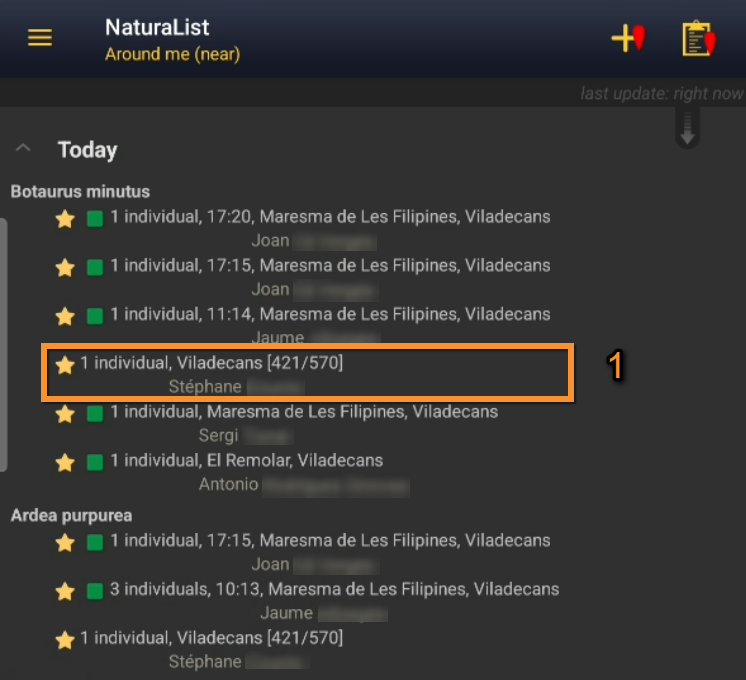
Browsing records.
1. Click to see records.
3 Accessing records' details
-
3.1 Accessing your own records
-
3.1.1 Display more information
3.1.2 Show translations
3.1.3 Go to web page
-
3.2 Accessing others' records
-
3.2.1 Display more information
3.2.2 Show translations
3.2.3 Go to webpage
Accessing your own records
Click on any record to access more information.
A panel will open with all possible options for the selected record. Options differs depending on
· observations are synchronized or not, or
· record is part of a list or stands alone.
When you choose "Add a sighting to the list" the other records of the list can be displayed on the map, if the hide/unhide summary button is activated (number 7 on image Map summary of species).
|
Own unsynchronised records. |
Own unsynchronised records on a list. |
Own synchronised records. |
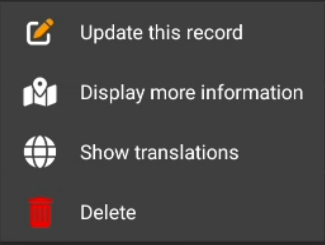
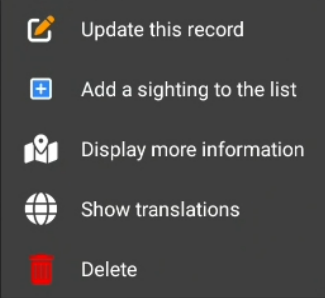
- · Update this record: See wiki section Mobile interface > Editing records > Editing records > Before synchronisation > Update this record for more details.
- · Add a sighting to the list: See wiki section Mobile interface > Editing records > Editing lists > Add individuals to a list for more details.
- · Share observation: See wiki section Mobile interface > Sharing records for details.
- · Update this record: See wiki section Mobile interface > Editing records > Editing records > Before synchronisation > Update this record for more details.
Display more information
Map with the position of the record and a summary of all information recorded.
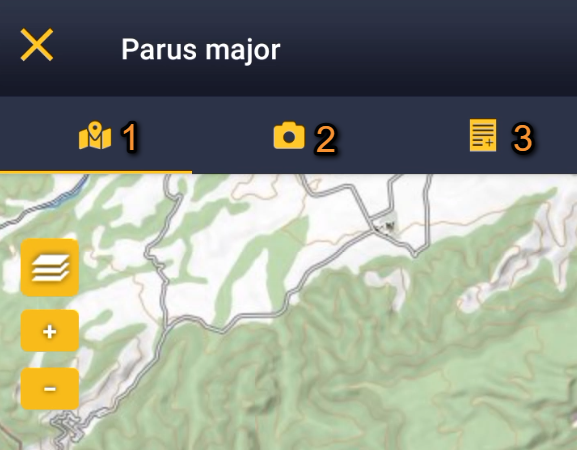

- Map tab
Select the map tab to see the location of the observation (see image below).
· Click  to see your own position as a yellow face. See Mobile interface > Navigating the map to know how to move through the map.
· Click Go to this location to navigate to the location on google maps. This function requires good internet connexion and GPS signal.
· At the bottom of the screen you get a summary of basic information such as the species name, date and time of the observation, and the distance to your position if you used .
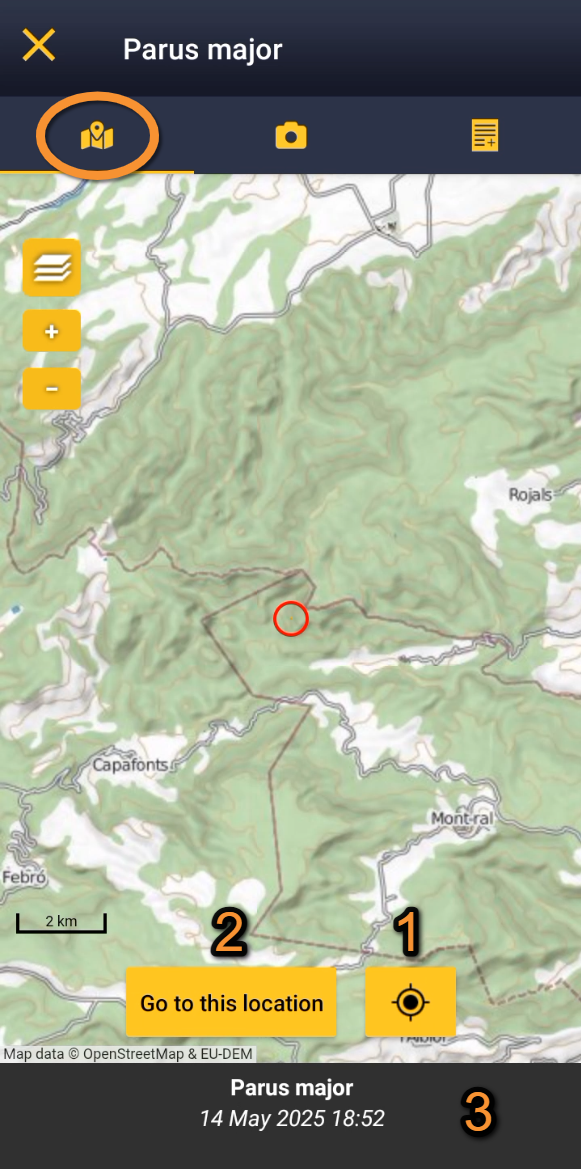
Browsing own records. Map tab.
1. Your location.
2. Navigate to observation.
3. Additional details.
- Picture tab
Go to the picture tab to see attached pictures for this record.
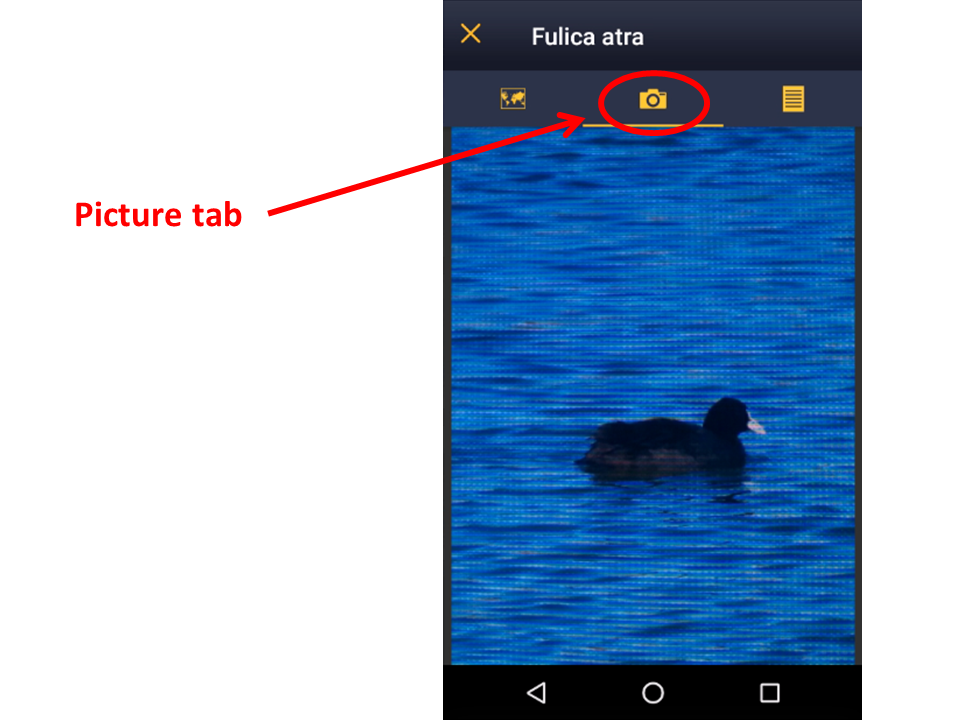
Picture tab.
- Information tab
Click on the list icon on the top right corner to change to the information tab (see image). It displays a summary of all information entered, species, date, numbers, and any additional information included.
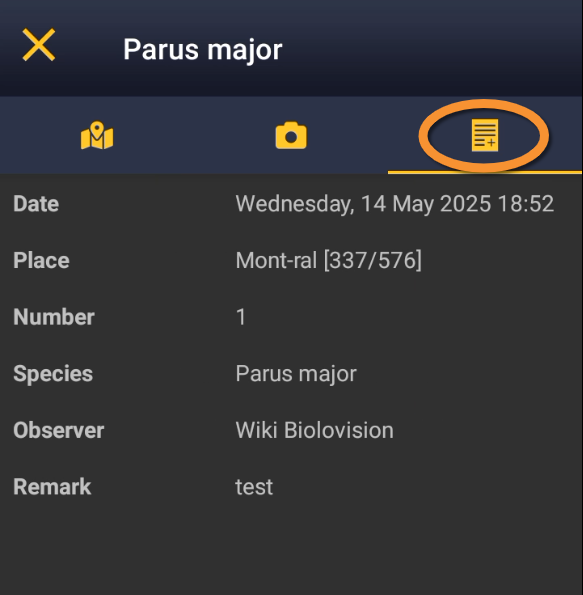
Browsing your own records. Information tab.
[Top to Display more information]
[Top to Accessing your own records]
[Top to Accessing records' details]
[Back to Browsing records]
Show translations
Click to see the name of the selected species in different languages (see an example below).
See available languages at Mobile interface > Languages.

Show translations.
[Top to Show translations]
[Top to Accessing your own records]
[Top to Accessing records' details]
[Back to Browsing records]
Go to web page
Option only available for synchronised records and allows accessing your own records on the local website.
· If you have an open session to the local portal in the device you are using: click on Go to web page to access the selected record directly. The web site will open in a new browser.

· If you do not currently have an open session in the device you are using: clicking on Go to website will open the website in a new browser but it will require logging in.
Go to homepage and log in. Remember your details are the same you used in NaturaList. If you leave the session open and click on Go to web page from NaturaList, you will access the selected record on the website. Otherwise, you can search the record in the website by going to Menu > Explore > All my observations.

'Go to web page' when not logged in.
See wiki section Web interface > Browsing records > As a registered user > From Explore tab > All my observations to know more about this section of the website.
[Top to Go to web page]
[Top to Accessing your own records]
[Top to Accessing records' details]
[Back to Browsing records]
Accessing others' records
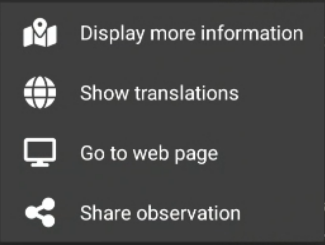
Browsing others' records. Menu.
Display more information
As in Mobile interface > Browsing records > Browsing own records > Display more information.
Show translations
As in Mobile interface > Browsing records > Browsing own records > Show translations.
Go to webpage
Access the same record through the local portal it is in.
Note a new window will open in your browser (see image). You will have to be logged in in the corresponding browser to access the stored information. Use the same log in details as for NaturaList.

Browsing others' records through local portal.
[Top to Go to web page]
[Top to Accessing your own records]
[Top to Accessing others' details]
[Back to Browsing records]
Share observation
See wiki section Mobile interface > Sharing records for details.
[Top to Accessing your own records]
[Top to Accessing others' details]
[Back to Browsing records]