Introduction: Difference between revisions
API introduction |
|||
| (45 intermediate revisions by 3 users not shown) | |||
| Line 1: | Line 1: | ||
<br/> | |||
All data submitted to a [[Local portals and partners|local portal]] or recorded through the App [[Main Page#Mobile interface|NaturaList]] and synchronised, is stored at [https://data.biolovision.net/ https://data.biolovision.net]. <br/> | |||
<br/> | |||
== | It serves as worldwide unique portal and: <br /> | ||
<span style="color: #000000; margin-left: 25px;"><b>· </b>Stores observations in areas not covered by any local portal <br/> | |||
<span style="color: #000000; margin-left: 25px;"><b>· </b>Stores observations for all taxonomic groups independently of the taxonomic groups opened on each local portal<br/> | |||
<br/> | |||
At the moment one cannot edit observations or see other's data. Sounds and images are stored although it is not currently possible to see them. | |||
Registered users can: <br /> | |||
# | <span style="color: #000000; margin-left: 25px;"><b>· </b>[[Browsing records (data)|See own data]] <br /> | ||
# | <span style="color: #000000; margin-left: 25px;"><b>· </b>[[Export records|Export own data]] <br /> | ||
# | <span style="color: #000000; margin-left: 25px;"><b>· </b>Share own data <br /> | ||
# | <span style="color: #000000; margin-left: 25px;"><b>· </b>[[Ephemeris|Calculate ephemerides]] <br /> | ||
# | <span style="color: #000000; margin-left: 25px;"><b>· </b>See some statistics <br /> | ||
<span style="color: #000000; margin-left: 25px;"><b>· </b>[[Introduction#Observations|See data submissions worldwide in real time]] <br /> | |||
# | <br/> | ||
# | |||
__TOC__ | |||
=Main interface= | |||
<br/> | |||
<center> | |||
<div class="toc" style="border-radius:5px;background-color:#ffffff;padding-left:8px;padding-right:8px; padding-bottom:8px;width:800px;"> | |||
[[File:Main interface.png|800px|link=https://help.biolovision.net/images/c/c1/Main_interface.png]] | |||
<div class="toc" style="border-radius:5px;padding-left:15px;text-align:left; font-size:12px;width:775px;"> | |||
'''Main interface.''' | |||
</div> | |||
<p style="color:black;font-size:12px;padding-left:30px;text-align:left;column-count:3;"> | |||
<b>a.</b> [[Introduction#Registration|Registration]] <br /> | |||
<b>b.</b> [[Introduction#Languages|Languages]]<br/> | |||
<b>c.</b> [[Introduction#Main menu|Main menu]] <br /> | |||
<b>d.</b> [[Introduction#Observations|Real time observations]] <br/> | |||
<b>e.</b> [[Introduction#Ephemerides|Ephemerides]] <br/> | |||
</p> | |||
</div> | |||
</center> | |||
<br/> | |||
<br/> | |||
<span id="Registration"></span> | |||
:::'''Registration''' <br/> | |||
Click on '''REGISTER''' to register or log in. <br/> | |||
<br/> | |||
[[ | See subsection [[Introduction#Registration|Registration]] below to see how to Access the site. <br/> | ||
<br/> | |||
<span id="Languages"></span> | |||
:::'''Languages''' <br/> | |||
Select the language to see the web site by clicking on its icon. The selected language is highlighted in yellow. <br/> | |||
<br/> | |||
If you are a registered user, your choice will be automatically saved for your next visit. <br/> | |||
<br/> | |||
See wiki section Various > [[Available_languages|Available languages]] for more information on website language and for correspondence of language codes. <br/> | |||
<br/> | |||
:::'''Main menu''' <br/> | |||
All functions available to you on this site will be displayed in the main menu. More functions are available to registered users. <br/> | |||
<br/> | |||
<span id="table"></span> | |||
<center> | |||
<div style="width:70%; border:0px;"> | |||
<table border="1" width="100%" class="wikitable sortable"> | |||
<tr style="padding: 25px; text-align: center; font-family: sans serif; "> | |||
<th>Functions</th> | |||
<th>Unregistered user</th> | |||
<th>Registered user</th> | |||
</tr> | |||
<tr style="padding: 25px; text-align: center; font-family: sans-serif; "> | |||
<td>See sun and moon information at registered location</td> | |||
<td style="color:red">NO</td> | |||
<td style="color:green">YES</td> | |||
</tr> | |||
<tr style="padding: 25px; text-align: center; font-family: sans-serif; "> | |||
<td>See latest records</td> | |||
<td style="color:green">YES</td> | |||
<td style="color:green">YES</td> | |||
</tr> | |||
<tr style="padding: 25px; text-align: center; font-family: sans-serif;"> | |||
<td>[[Customise website|Customise the website]]</td> | |||
<td style="color:red">NO</td> | |||
<td style="color:green">YES</td> | |||
</tr> | |||
<tr style="padding: 25px; text-align: center; font-family: sans-serif; "> | |||
<td>[[Browsing records|Access additional information for a record]]</td> | |||
<td style="color:red">NO</td> | |||
<td style="color:red">NO</td> | |||
</tr> | |||
<tr style="padding: 25px; text-align: center; font-family: sans-serif; "> | |||
<td>[[Browsing records|See own observations on a map]]</td> | |||
<td style="color:red">NO</td> | |||
<td style="color:green">YES</td> | |||
</tr> | |||
<tr style="padding: 25px; text-align: center; font-family: sans-serif; "> | |||
<td>[[Browsing records|Access statistics for some species]]</td> | |||
<td style="color:red">NO</td> | |||
<td style="color:green">YES</td> | |||
</tr> | |||
[[ | <tr style="padding: 25px; text-align: center; font-family: sans-serif; "> | ||
<td>[[Entering_records|Submit observations]]</td> | |||
<td style="color:red">NO</td> | |||
<td style="color:green">YES<sup>1</sup></td> | |||
</tr> | |||
<tr style="padding: 25px; text-align: center; font-family: sans-serif; "> | |||
<td>[[Editing records| Edit own observations]]</td> | |||
<td style="color:red">NO</td> | |||
<td style="color:red">NO</td> | |||
</tr> | |||
<tr style="padding: 25px; text-align: center; font-family: sans-serif; "> | |||
<td>See others' observations</td> | |||
<td style="color:red">NO</td> | |||
<td style="color:red">NO</td> | |||
</tr> | |||
=== | <tr style="padding: 25px; text-align: center; font-family: sans-serif; "> | ||
<td>[[Exporting your data|Export your own records]]</td> | |||
<td style="color:red">NO</td> | |||
<td style="color:green">YES</td> | |||
</tr> | |||
<tr style="padding: 25px; text-align: center; font-family: sans-serif; "> | |||
<td>Export others' records</td> | |||
<td style="color:red">NO</td> | |||
<td style="color:red">NO</td> | |||
</tr> | |||
<tr style="padding: 25px; text-align: center; font-family: sans-serif;"> | |||
<td>See own profile</td> | |||
<td style="color:red">NO</td> | |||
<td style="color:green">YES</td> | |||
</tr> | |||
<tr style="padding: 25px; text-align: center; font-family: sans-serif;"> | |||
<td>[[Ephemeris|Calculate ephemerides]]</td> | |||
<td style="color:red">NO</td> | |||
<td style="color:green">YES</td> | |||
</tr> | |||
= | </table> | ||
<p style="text-align:left; margin-left:5px;"><sup>1</sup>Submit observations through NaturaList application when no local portal exists. </p> | |||
</div> | |||
</center> | |||
<br/> | |||
<br/> | |||
<span id="Observations"></span> | |||
:::'''Real time observations''' <br/> | |||
The dashboard shows real time observations both for registered and unregistered users. <br/> | |||
<br/> | |||
<center> | |||
<div class="toc" style="border-radius:5px;background-color:#ffffff;padding-left:8px;padding-right:8px; padding-bottom:8px;width:700px;"> | |||
[[File:Real time.png|700px|link=https://help.biolovision.net/images/f/f2/Real_time.png]] | |||
<div class="toc" style="border-radius:5px;padding-left:15px;text-align:left; font-size:12px;width:675px;"> | |||
'''Real time observations.''' | |||
</div> | |||
<p style="color:black;font-size:12px;padding-left:5px;text-align:left;column-count:1;padding-right:5px;"> | |||
<b>a. [[Introduction#Ephemerides|Ephemerides]]: </b> Moon and sun information. See sub section below. <br /> | |||
<b>b. Map area: </b> Location of observations submitted to any of the Biolovision sites (including NturaList). Dots appear as observations are submitted (in yellow, the last submission).<br /> | |||
<b>c. Observations area: </b> Observations as they are submitted to any of the Biolovision sites (including NaturaList) -in yellow the latest submission. Information limited to number of observations, date, time and local portal where they are submitted. <br/> | |||
</p> | |||
</div> | |||
</center> | |||
<br/> | |||
<br/> | |||
<span id="Ephemerides"></span> | |||
:::'''Ephemerides''' <br/> | |||
General information about the date, time, sun and moon rise and sun and moon set. The data refers to the location you are registered at, or at a representative location determined by the system, if you are not registered. <br/> | |||
<br/> | |||
[[ | Find further details at Main menu > Tools > [[Ephemeris|Calculating ephemerides]]. <br/> | ||
<br/> | |||
[[Introduction#Main_interface|[Top to Main interface]]] <br/> | |||
[[#top|[Back to Introduction]]] <br/> | |||
<br/> | |||
=Register= | |||
<br/> | |||
<br/> | |||
<div class="contenetip" style="width:700px"> | |||
<div class="contenetipima" style="min-width: 43px;max-width: 43px;"> | |||
</div> | |||
<div class="contenetiptext"> | |||
<hr class="contenetiplinia"> | |||
<b>REMEMBER:</b><br /><br /> | |||
Your USERNAME = EMAIL ADDRESS<br /><br /> | |||
UNIQUE LOGIN!: <br /> | |||
Same credentials (User name + password) to log in any of the [[Local portals and partners#Local portals|Local portals]], [[Main_Page#Mobile_interface|Naturalist]] and [[Main_Page#data.biolovision.net|data.biolovision.net]]<br /> | |||
</div> | |||
</div> | |||
<br /> | |||
Registered users have more functions than unregistered ones. Go to [[Introduction#table|table above]] to see differences.<br/> | |||
<br/> | |||
Use your credentials from any Biolovision site (including NaturaList) also in data.biolovision.net. Or open a new account if you have never registered in any Biolovision site. <br/> | |||
<br/> | |||
See sub section: <br/> | |||
<span style="color: #000000; margin-left: 25px;"><b>· </b>[[Introduction#Log in|Log in]] if you already have an account, or <br/> | |||
<span style="color: #000000; margin-left: 25px;"><b>· </b>[[Introduction#Open an account|Open an account]] to open a new account. <br/> | |||
<br/> | |||
==Open an account== | |||
<br/> | |||
If you have never registered to any Biolovision site (including NaturaList), visit wiki section Main interface > Local portal > Getting started > [[Getting started#Registration|Registration]] to learn how to open an account. <br/> | |||
<br/> | |||
==Log in== | |||
<br/> | |||
If you have previously opened an account at a Biolovision site (including NaturaList), use the same credentials on data.biolovision.net. <br/> | |||
<br/> | |||
See wiki section Web interface > Local portal > Getting started > [[Getting started#Logging in|Logging in]] for more information if necessary. <br/> | |||
<br/> | |||
If you forgot your password, see wiki section Web interface > Local portal > Getting started> [[Getting started#Requesting a new password|Requesting a new password]] to obtain a new one. <br/> | |||
<br/> | |||
==Delete account== | |||
<br/> | |||
If you no longer want to participate, visit wiki section Web interface > Local portal > Getting started > [[Getting started#deleting your account|Deleting your account]] to know how to delete the account. <br/> | |||
<br/> | |||
[[Introduction#Register|[Top to Register]]] <br/> | |||
[[#top|[Back to Introduction]]] <br/> | |||
<br/> | |||
Latest revision as of 16:42, 17 July 2026
All data submitted to a local portal or recorded through the App NaturaList and synchronised, is stored at https://data.biolovision.net.
It serves as worldwide unique portal and:
· Stores observations in areas not covered by any local portal
· Stores observations for all taxonomic groups independently of the taxonomic groups opened on each local portal
At the moment one cannot edit observations or see other's data. Sounds and images are stored although it is not currently possible to see them.
Registered users can:
· See own data
· Export own data
· Share own data
· Calculate ephemerides
· See some statistics
· See data submissions worldwide in real time
Main interface
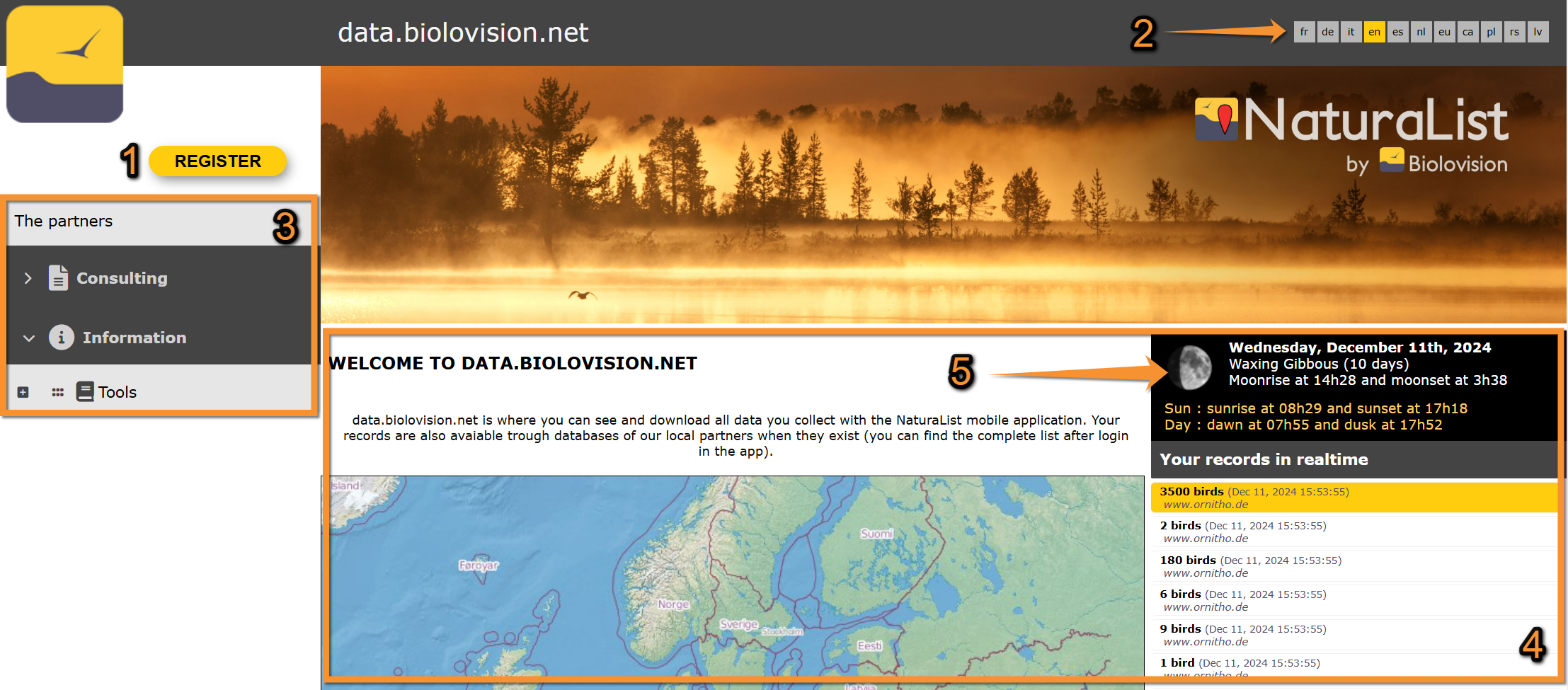
- Registration
- Registration
Click on REGISTER to register or log in.
See subsection Registration below to see how to Access the site.
- Languages
- Languages
Select the language to see the web site by clicking on its icon. The selected language is highlighted in yellow.
If you are a registered user, your choice will be automatically saved for your next visit.
See wiki section Various > Available languages for more information on website language and for correspondence of language codes.
- Main menu
- Main menu
All functions available to you on this site will be displayed in the main menu. More functions are available to registered users.
| Functions | Unregistered user | Registered user |
|---|---|---|
| See sun and moon information at registered location | NO | YES |
| See latest records | YES | YES |
| Customise the website | NO | YES |
| Access additional information for a record | NO | NO |
| See own observations on a map | NO | YES |
| Access statistics for some species | NO | YES |
| Submit observations | NO | YES1 |
| Edit own observations | NO | NO |
| See others' observations | NO | NO |
| Export your own records | NO | YES |
| Export others' records | NO | NO |
| See own profile | NO | YES |
| Calculate ephemerides | NO | YES |
1Submit observations through NaturaList application when no local portal exists.
- Real time observations
- Real time observations
The dashboard shows real time observations both for registered and unregistered users.
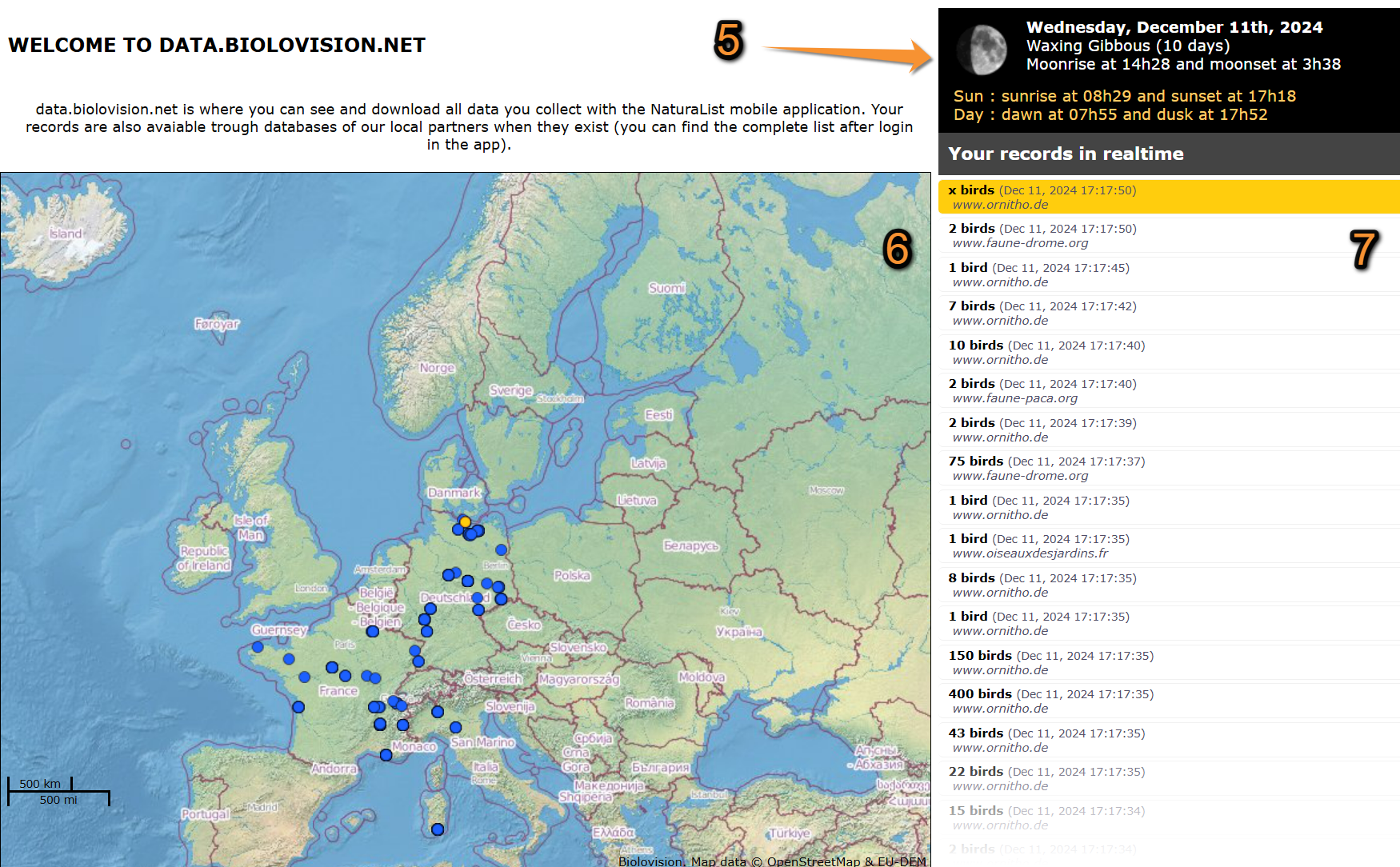
Real time observations.
a. Ephemerides: Moon and sun information. See sub section below.
b. Map area: Location of observations submitted to any of the Biolovision sites (including NturaList). Dots appear as observations are submitted (in yellow, the last submission).
c. Observations area: Observations as they are submitted to any of the Biolovision sites (including NaturaList) -in yellow the latest submission. Information limited to number of observations, date, time and local portal where they are submitted.
- Ephemerides
- Ephemerides
General information about the date, time, sun and moon rise and sun and moon set. The data refers to the location you are registered at, or at a representative location determined by the system, if you are not registered.
Find further details at Main menu > Tools > Calculating ephemerides.
[Top to Main interface]
[Back to Introduction]
Register
REMEMBER:
Your USERNAME = EMAIL ADDRESS
UNIQUE LOGIN!:
Same credentials (User name + password) to log in any of the Local portals, Naturalist and data.biolovision.net
Registered users have more functions than unregistered ones. Go to table above to see differences.
Use your credentials from any Biolovision site (including NaturaList) also in data.biolovision.net. Or open a new account if you have never registered in any Biolovision site.
See sub section:
· Log in if you already have an account, or
· Open an account to open a new account.
Open an account
If you have never registered to any Biolovision site (including NaturaList), visit wiki section Main interface > Local portal > Getting started > Registration to learn how to open an account.
Log in
If you have previously opened an account at a Biolovision site (including NaturaList), use the same credentials on data.biolovision.net.
See wiki section Web interface > Local portal > Getting started > Logging in for more information if necessary.
If you forgot your password, see wiki section Web interface > Local portal > Getting started> Requesting a new password to obtain a new one.
Delete account
If you no longer want to participate, visit wiki section Web interface > Local portal > Getting started > Deleting your account to know how to delete the account.