Entering records: Difference between revisions
No edit summary |
|||
| Line 1: | Line 1: | ||
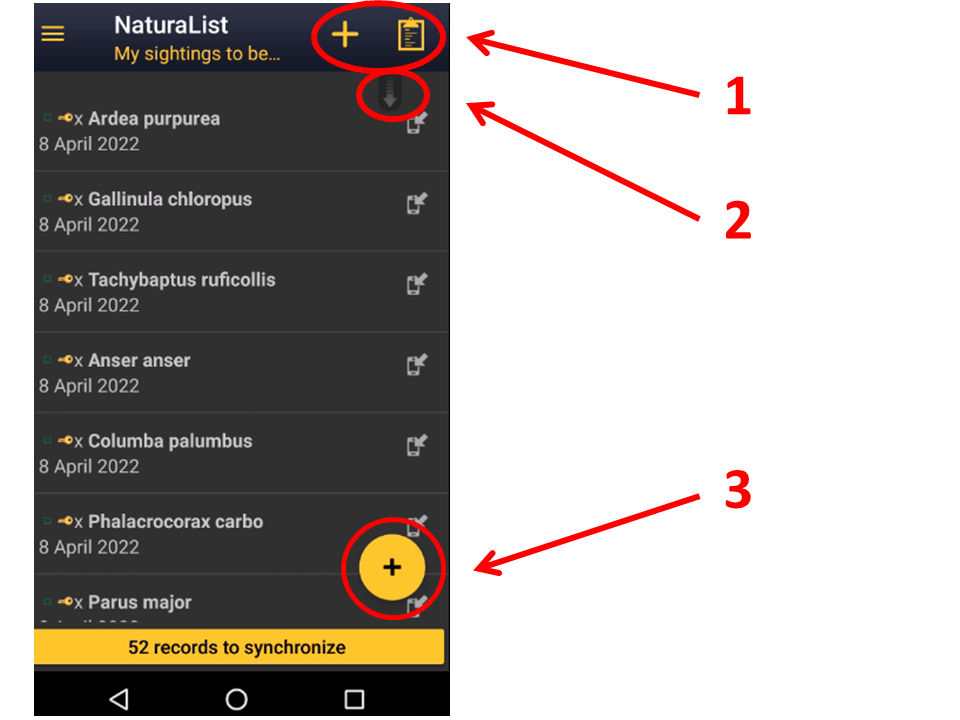
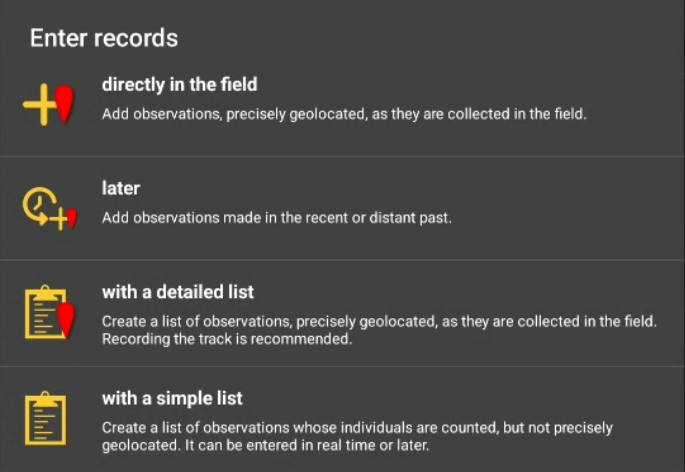
To | To enter your observations, click on the '''+''' sign at the bottom left corner (see image [[Media:Enter records.png|Submitting records]]). A menu will open with all possible options linked to your account (see image [[Media:Submitting records Menu.png|Different options to submit records]]). Use the shortcuts on the top right corner for a direct access to [[Entering_records#Directly_in_the_field_(+)|'''directly in the field''']] and '''with list in the field'''. Scroll down the refresh arrow to refresh records. It is especially useful when browsing records '''near me'''. <br /> | ||
<br> | <br> | ||
[[File:Enter records.png|700px|thumb|center|Submitting records.]]<br/> | [[File:Enter records.png|700px|thumb|center|Submitting records.]]<br /> | ||
<br/> | <br /> | ||
[[File:Submitting records Menu.png|700px|thumb|center|Different options to submit records.]]<br/> | [[File:Submitting records Menu.png|700px|thumb|center|Different options to submit records.]]<br /> | ||
<br/> | <br /> | ||
<center> | <center> | ||
| Line 26: | Line 26: | ||
</td></tr></table> | </td></tr></table> | ||
</center> | </center> | ||
<br/> | <br /> | ||
<br/> | <br /> | ||
__TOC__ | __TOC__ | ||
<br/> | |||
<br /> | |||
=Directly in the field (+)= | =Directly in the field (+)= | ||
Use this option to enter casual observations in real time. You can access it from the main menu or from the shortcut the top right corner of the screen (see image [[Media:Casual obs in real time.png|Directly in the field]]).<br/> | Use this option to enter casual observations in real time. You can access it from the main menu or from the shortcut the top right corner of the screen (see image [[Media:Casual obs in real time.png|Directly in the field]]).<br /> | ||
<br/> | <br /> | ||
[[File:Casual obs in real time.png|700px|thumb|center|Directly in the field.]]<br/> | [[File:Casual obs in real time.png|700px|thumb|center|Directly in the field.]]<br /> | ||
<br/> | <br /> | ||
===Place=== | ===Place=== | ||
<br/> | <br /> | ||
<center> | <center> | ||
| Line 54: | Line 55: | ||
<ul> | <ul> | ||
<b>REMEMBER:</b><br /> | <b>REMEMBER:</b><br /> | ||
Smiley = Observer's position<br/> | Smiley = Observer's position<br /> | ||
Red marker = Data position | Red marker = Data position | ||
</ul></p> | </ul></p> | ||
| Line 60: | Line 61: | ||
</td></tr></table> | </td></tr></table> | ||
</center> | </center> | ||
<br/> | <br /> | ||
<br/> | <br /> | ||
Indicate the position of the observed individual by moving the map to match the red marker. To know how to navigate the map, see wiki section [[Navigating the map NaturaList|Mobile interface > Navigating the map]]. Use tha "'''aim'''" icon to activate the GPS and wait for the yellow smiley before continuing. When done, click on '''Next'''. <br/> | Indicate the position of the observed individual by moving the map to match the red marker. To know how to navigate the map, see wiki section [[Navigating the map NaturaList|Mobile interface > Navigating the map]]. Use tha "'''aim'''" icon to activate the GPS and wait for the yellow smiley before continuing. When done, click on '''Next'''. <br /> | ||
<br/> | <br /> | ||
Use the "'''list'''" icon on the left to see a list of all your previous records (see image below).<br/> | Use the "'''list'''" icon on the left to see a list of all your previous records (see image below).<br /> | ||
<br/> | <br /> | ||
[[File:20221112Location.png|700px|thumb|center|Location.]]<br/> | [[File:20221112Location.png|700px|thumb|center|Location.]]<br /> | ||
<br/> | <br /> | ||
===Species=== | ===Species=== | ||
There are two different ways to enter the species according to your preferences. Set your preferences by going to [[Getting_started_NaturaList#Display_of_species|Menu > Preferences > Personalisation > Display of species]] (see image [[Media:20221105Display of species.png|Display of species]]).<br/> | There are two different ways to enter the species according to your preferences. Set your preferences by going to [[Getting_started_NaturaList#Display_of_species|Menu > Preferences > Personalisation > Display of species]] (see image [[Media:20221105Display of species.png|Display of species]]).<br /> | ||
<br/> | <br /> | ||
* '''Choose by search:''' Choose the taxonomic group from the top horizontal panel and start typing the species name. A list will appear underneath from which to choose the correct species. See image [[Media:20221105Display of species by species.png|Display of species by species]]. | *'''Choose by search:''' Choose the taxonomic group from the top horizontal panel and start typing the species name. A list will appear underneath from which to choose the correct species. See image [[Media:20221105Display of species by species.png|Display of species by species]].<br /> | ||
<br/> | |||
*'''Choose by group, family, species:''' Start by selecting the taxonomic group, then the family and finally the species. See image [[Media:20221105Display of species by group.png|Display of species by group, family, species]].<br/> | <br /> | ||
<br/> | |||
*'''Choose by group, family, species:''' Start by selecting the taxonomic group, then the family and finally the species. See image [[Media:20221105Display of species by group.png|Display of species by group, family, species]].<br /> | |||
<br /> | |||
Note the species' names will show in the language you selected in '''Preferences'''. To change it, go to [[Getting_started_NaturaList#Language_of_the_species|Menu> Preferences > Species > Language of the species]].<br/> | Note the species' names will show in the language you selected in '''Preferences'''. To change it, go to [[Getting_started_NaturaList#Language_of_the_species|Menu> Preferences > Species > Language of the species]].<br /> | ||
<br/> | <br /> | ||
===Number of individuals=== | ===Number of individuals=== | ||
Enter the number of individuals first and choose the accuracy of the count. Choose between '''Not counted''', approximate number, exact number or minimum number (see image [[Media:20221115 Enter count.png|Entering number of individuals]]). If you did not count the individuals, for example for very common species, there is no need to introduce any number.<br/> | Enter the number of individuals first and choose the accuracy of the count. Choose between '''Not counted''', approximate number, exact number or minimum number (see image [[Media:20221115 Enter count.png|Entering number of individuals]]). If you did not count the individuals, for example for very common species, there is no need to introduce any number.<br /> | ||
<br/> | <br /> | ||
[[File:20221115 Enter count.png|700px|thumb|center|Entering number of individuals.]]<br/> | [[File:20221115 Enter count.png|700px|thumb|center|Entering number of individuals.]]<br /> | ||
<br/> | <br /> | ||
<center> | <center> | ||
<table border="5" width="700px"> | <table border="5" width="700px"> | ||
<tr> | <tr> | ||
<td style="padding: 25px; text-align: left; font-family: sans-serif; color: black; background-color: hsl(0, 77%, 78%)> | <td style="padding: 25px; text-align: left; font-family: sans-serif; color: black; background-color: hsl(0, 77%, 78%)"> | ||
<!-- GREEN BOX (Tips): hsl(157, 74%, 80%) | <!-- GREEN BOX (Tips): hsl(157, 74%, 80%) | ||
YELLOW BOX (Summaries): #ffffdb" | YELLOW BOX (Summaries): #ffffdb" | ||
| Line 108: | Line 111: | ||
</td></tr></table> | </td></tr></table> | ||
</center> | </center> | ||
<br/> | <br /> | ||
<br/> | <br /> | ||
If you need to add new individuals as you count them, click on '''Start a counter''' and keep adding or subtracting individuals (see image [[Media:20221115Add ind in obs2.png|Start a counter]]) until all are counted or you need to move to another species. Click '''Close''' to end the count and continue entering the observation. <br/> | If you need to add new individuals as you count them, click on '''Start a counter''' and keep adding or subtracting individuals (see image [[Media:20221115Add ind in obs2.png|Start a counter]]) until all are counted or you need to move to another species. Click '''Close''' to end the count and continue entering the observation. <br /> | ||
<br/> | <br /> | ||
[[File:20221115Add ind in obs2.png|700px|thumb|center|Start a counter.]]<br/> | [[File:20221115Add ind in obs2.png|700px|thumb|center|Start a counter.]]<br /> | ||
<br/> | <br /> | ||
<center> | <center> | ||
<table border="5" width="700px"> | <table border="5" width="700px"> | ||
<tr> | <tr> | ||
<td style="padding: 25px; text-align: left; font-family: sans-serif; color: black; background-color: hsl(157, 74%, 80%)> | <td style="padding: 25px; text-align: left; font-family: sans-serif; color: black; background-color: hsl(157, 74%, 80%)"> | ||
<!-- GREEN BOX (Tips): hsl(157, 74%, 80%) | <!-- GREEN BOX (Tips): hsl(157, 74%, 80%) | ||
YELLOW BOX (Summaries): #ffffdb" | YELLOW BOX (Summaries): #ffffdb" | ||
| Line 133: | Line 136: | ||
</td></tr></table> | </td></tr></table> | ||
</center> | </center> | ||
<br/> | <br /> | ||
<br/> | <br /> | ||
===Additional information=== | ===Additional information=== | ||
<br/> | <br /> | ||
Add more information about this record. Icons will appear in yellow when they contain any information or are activated. <br/> | Add more information about this record. Icons will appear in yellow when they contain any information or are activated. <br /> | ||
<br/> | <br /> | ||
[[File:Add information menu.png|700px|thumb|center|Additional information.]]<br/> | [[File:Add information menu.png|700px|thumb|center|Additional information.]]<br /> | ||
<br/> | <br /> | ||
====<i>Comments</i>==== | ====<i>Comments</i>==== | ||
<br/> | <br /> | ||
[[File:Add info comments.png|700px|thumb|center|Additional information. Comments.]]<br/> | [[File:Add info comments.png|700px|thumb|center|Additional information. Comments.]]<br /> | ||
<br/> | <br /> | ||
Leave a comment in the top section if you want it to be public and associated to your record. Any registered user will see it. Use the lower section if you want to keep your comment private. Note administrators will still see it. To learn more about administrators, go to wiki section [[Administration|Local portals > Administration]]. Click '''Validate''' when done.<br/> | Leave a comment in the top section if you want it to be public and associated to your record. Any registered user will see it. Use the lower section if you want to keep your comment private. Note administrators will still see it. To learn more about administrators, go to wiki section [[Administration|Local portals > Administration]]. Click '''Validate''' when done.<br /> | ||
<br/> | <br /> | ||
[[File:Comment.png|700px|thumb|center|Adding comments.]]<br/> | [[File:Comment.png|700px|thumb|center|Adding comments.]]<br /> | ||
<br/> | <br /> | ||
<center> | <center> | ||
| Line 166: | Line 169: | ||
<p> | <p> | ||
<ul> | <ul> | ||
<b> Validate</b> only validates the comments.<br/> | <b> Validate</b> only validates the comments.<br /> | ||
To validate your record you will have to <b>Save</b> later.<br /> | To validate your record you will have to <b>Save</b> later.<br /> | ||
</ul></p> | </ul></p> | ||
| Line 176: | Line 179: | ||
====<i>Details (Age and sex)</i>==== | ====<i>Details (Age and sex)</i>==== | ||
<br/> | <br /> | ||
[[File:Add info details.png|700px|thumb|center|Additional information. Details.]]<br/> | [[File:Add info details.png|700px|thumb|center|Additional information. Details.]]<br /> | ||
<br/> | <br /> | ||
According the taxonomic group you are entering, fields for details differ. Examples and explanation below apply only to birds.<br/> | According the taxonomic group you are entering, fields for details differ. Examples and explanation below apply only to birds.<br /> | ||
<br/> | <br /> | ||
Enter number of individuals per each sex and age class. Type number or use +1 -1 quick keys to quickly change the number. Key '''Max''' will count all individuals entered for this species. As you enter, a list will show at the bottom. Scroll up and down from the right hand bar to see all entries, or click on cross to delete any entry if necessary (see image below). When done, click '''Add''' to enter a new class or '''finish''' to end. <br/> | Enter number of individuals per each sex and age class. Type number or use +1 -1 quick keys to quickly change the number. Key '''Max''' will count all individuals entered for this species. As you enter, a list will show at the bottom. Scroll up and down from the right hand bar to see all entries, or click on cross to delete any entry if necessary (see image below). When done, click '''Add''' to enter a new class or '''finish''' to end. <br /> | ||
<br/> | <br /> | ||
[[File:Age and sex.png|700px|thumb|center|Adding age and sex to a record.]]<br/> | [[File:Age and sex.png|700px|thumb|center|Adding age and sex to a record.]]<br /> | ||
<br/> | <br /> | ||
[[File:Add info details other taxa.png|700px|thumb|center|Examples of '''Details''' for non-avian taxonomic groups. Orchids (left), Odonata (right).]]<br/> | [[File:Add info details other taxa.png|700px|thumb|center|Examples of '''Details''' for non-avian taxonomic groups. Orchids (left), Odonata (right).]]<br /> | ||
<br/> | <br /> | ||
====<i>Atlas code</i>==== | ====<i>Atlas code</i>==== | ||
<br/> | <br /> | ||
[[File:Add info atlas code.png|700px|thumb|center|Additinal information. Atlas code.]]<br/> | [[File:Add info atlas code.png|700px|thumb|center|Additinal information. Atlas code.]]<br /> | ||
<br/> | <br /> | ||
Select an atlas code, or no code. Available atlas codes will depend on the country you chose on '''Preferences''' and for your information it is displayed at the bottom of the screen (see image below). <br/> | Select an atlas code, or no code. Available atlas codes will depend on the country you chose on '''Preferences''' and for your information it is displayed at the bottom of the screen (see image below). <br /> | ||
<br/> | <br /> | ||
<center> | <center> | ||
| Line 219: | Line 222: | ||
<br /> | <br /> | ||
Go to Menu > Preferences > Atlas code to change the code you use.<br/> | Go to Menu > Preferences > Atlas code to change the code you use.<br /> | ||
<br/> | <br /> | ||
[[File:Atlas code.png|700px|thumb|center|Adding an atlas code.]]<br/> | [[File:Atlas code.png|700px|thumb|center|Adding an atlas code.]]<br /> | ||
<br/> | <br /> | ||
====<i>Hidden record</i>==== | ====<i>Hidden record</i>==== | ||
<br/> | <br /> | ||
[[File:Add info hidden record.png|700px|thumb|center|Additional information. Hidden record.]]<br/> | [[File:Add info hidden record.png|700px|thumb|center|Additional information. Hidden record.]]<br /> | ||
<br/> | <br /> | ||
Select/unselect as needed. A yellow key indicates the record will be hidden. Default option depends on your ‘’’Preferences’’’. Go to Menu > Preferences > Hide record to change it. Note some records are automatically hidden depending on the country or region your observation takes place. Observations in countries not covered by any local partner are never automatically hidden. However, any user can hide records if they consider doing so will help protect the individuals, species or habitat. Hidden records will be hidden from other users, but administrators will still see them. To see which records will automatically be hidden, go to [[Species_partially_hidden| Web interface > Local portals > Species partially hidden]]. To learn more about administrators, go to [[Administration| Web interface > Local portals > Administration]].<br/> | Select/unselect as needed. A yellow key indicates the record will be hidden. Default option depends on your ‘’’Preferences’’’. Go to Menu > Preferences > Hide record to change it. Note some records are automatically hidden depending on the country or region your observation takes place. Observations in countries not covered by any local partner are never automatically hidden. However, any user can hide records if they consider doing so will help protect the individuals, species or habitat. Hidden records will be hidden from other users, but administrators will still see them. To see which records will automatically be hidden, go to [[Species_partially_hidden| Web interface > Local portals > Species partially hidden]]. To learn more about administrators, go to [[Administration| Web interface > Local portals > Administration]].<br /> | ||
<br/> | <br /> | ||
====<i>Picture</i>==== | ====<i>Picture</i>==== | ||
<br/> | <br /> | ||
[[File:Add info picture.png|700px|thumb|center|Additional information. picture.]]<br/> | [[File:Add info picture.png|700px|thumb|center|Additional information. picture.]]<br /> | ||
<br/> | <br /> | ||
Add a picture associated to your record. When accessing, it displays all images already attached to this record. To add a new picture, click on the top right hand corner '''+''' sign. If no pictures are already attached, you are taken directly to the menu (see image below). <br/> | Add a picture associated to your record. When accessing, it displays all images already attached to this record. To add a new picture, click on the top right hand corner '''+''' sign. If no pictures are already attached, you are taken directly to the menu (see image below). <br /> | ||
<br/> | <br /> | ||
[[File:Pictures menu.png|700px|thumb|center|Adding a picture. Menu.]]<br/> | [[File:Pictures menu.png|700px|thumb|center|Adding a picture. Menu.]]<br /> | ||
<br/> | <br /> | ||
Choose between | Choose between | ||
[[File:Take a picture.png|700px|thumb|center|Taking a picture to upload.]]<br/> | *'''Enter pictures from gallery''', if you have already taken them and they are stored on your phone's gallery. Pictures must be taken with your phone or inserted afterward through a local portal. If no local portal exist, it is not currently possible to add a picture through data.biolovision.net. <br /> | ||
<br/> | *'''Take a picture''' then. If you do, do not forget to accept to upload it (see image below). <br /> | ||
<br /> | |||
[[File:Take a picture.png|700px|thumb|center|Taking a picture to upload.]]<br /> | |||
<br /> | |||
You can see the images as they are attached. Hide/unhide by clicking on the corresponding key or delete by clicking on the cross (see image below). You will also be able to edit at a later stage. When done, add another picture or '''Validate''' to move to other sections. <br/> | You can see the images as they are attached. Hide/unhide by clicking on the corresponding key or delete by clicking on the cross (see image below). You will also be able to edit at a later stage. When done, add another picture or '''Validate''' to move to other sections. <br /> | ||
<br/> | <br /> | ||
[[File:Pictures.png|700px|thumb|center|Hidding a picture.]] <br/> | [[File:Pictures.png|700px|thumb|center|Hidding a picture.]] <br /> | ||
<br/> | <br /> | ||
<center> | <center> | ||
| Line 270: | Line 275: | ||
<p> | <p> | ||
<ul> | <ul> | ||
*Use the key icon to hide the image while keeping the record visible.<br/> | *Use the key icon to hide the image while keeping the record visible.<br /> | ||
*If you hide the record, the image is automatically hidden.<br /> | *If you hide the record, the image is automatically hidden.<br /> | ||
</ul></p> | </ul></p> | ||
| Line 280: | Line 285: | ||
====<i>Mortality / injuries</i>==== | ====<i>Mortality / injuries</i>==== | ||
<br/> | <br /> | ||
[[File:Add info injuries.png|700px|thumb|center|Additional information. Mortality / injuries.]]<br/> | [[File:Add info injuries.png|700px|thumb|center|Additional information. Mortality / injuries.]]<br /> | ||
<br/> | <br /> | ||
Indicate if your observation corresponds to an injured or dead individual, and select the cause if known. Scroll down '''All causes''' to see all options (see image [[Media:Enter injury.png|Selecting cause of injury 1]]). Click on the category to open a panel with all possible causes and enter details (see bottom image [[Media:Cause of injury.png|Selecting cause of injury 2]]). When done, click '''Validate'''. For quick selection, there are the icons for the most common causes on top (see image [[Media:Enter injury.png|Selecting cause of injury 1]]). When you finish entering the cause of death or injury click '''Save''' or if necessary, '''Delete'''. The entry can be modified later. <br/> | Indicate if your observation corresponds to an injured or dead individual, and select the cause if known. Scroll down '''All causes''' to see all options (see image [[Media:Enter injury.png|Selecting cause of injury 1]]). Click on the category to open a panel with all possible causes and enter details (see bottom image [[Media:Cause of injury.png|Selecting cause of injury 2]]). When done, click '''Validate'''. For quick selection, there are the icons for the most common causes on top (see image [[Media:Enter injury.png|Selecting cause of injury 1]]). When you finish entering the cause of death or injury click '''Save''' or if necessary, '''Delete'''. The entry can be modified later. <br /> | ||
<br/> | <br /> | ||
[[File:Enter injury.png|700px|thumb|center|Selecting cause of injury 1.]]<br/> | [[File:Enter injury.png|700px|thumb|center|Selecting cause of injury 1.]]<br /> | ||
[[File:Cause of injury.png|700px|thumb|center|Selecting cause of injury 2.]]<br/> | [[File:Cause of injury.png|700px|thumb|center|Selecting cause of injury 2.]]<br /> | ||
<br/> | <br /> | ||
===Ending the record=== | ===Ending the record=== | ||
<br/> | <br /> | ||
When you finish entering an observation, click '''Save''' and you will be taken to your list of observations pending synchronisation. Click on any of the records to see details and/or edit (see edit records LINK). A green line shows on top to prove data is saved, then automatically disappears (see image below). <br/> | When you finish entering an observation, click '''Save''' and you will be taken to your list of observations pending synchronisation. Click on any of the records to see details and/or edit (see edit records LINK). A green line shows on top to prove data is saved, then automatically disappears (see image below). <br /> | ||
<br/> | <br /> | ||
[[File:Record saved.png|700px|thumb|center|Records saved.]]<br/> | [[File:Record saved.png|700px|thumb|center|Records saved.]]<br /> | ||
<br/> | <br /> | ||
=Later= | =Later= | ||
<br/> | <br /> | ||
Enter casual observations after they occur. <br/> | Enter casual observations after they occur. <br /> | ||
<br/> | <br /> | ||
[[File:Enter records later.png|700px|thumb|center|Later.]]<br/> | [[File:Enter records later.png|700px|thumb|center|Later.]]<br /> | ||
<br/> | <br /> | ||
===Date / Time=== | ===Date / Time=== | ||
<br/> | <br /> | ||
<center> | <center> | ||
<table border="5" width="700px"> | <table border="5" width="700px"> | ||
<tr> | <tr> | ||
<td style="padding: 25px; text-align: left; font-family: sans-serif; color: black; background-color:hsl(157, 74%, 80%)> | <td style="padding: 25px; text-align: left; font-family: sans-serif; color: black; background-color:hsl(157, 74%, 80%)"> | ||
<!-- GREEN BOX (Tips): hsl(157, 74%, 80%) | <!-- GREEN BOX (Tips): hsl(157, 74%, 80%) | ||
YELLOW BOX (Summaries): #ffffdb" | YELLOW BOX (Summaries): #ffffdb" | ||
| Line 322: | Line 327: | ||
<ul> | <ul> | ||
*Entering date is copulsory.<br /> | *Entering date is copulsory.<br /> | ||
*Entering time is not. Check the corresponding box to open the option to enter time (image [[Media:Later obs.png|Entering date and time]]).<br/> | *Entering time is not. Check the corresponding box to open the option to enter time (image [[Media:Later obs.png|Entering date and time]]).<br /> | ||
</ul></p> | </ul></p> | ||
| Line 330: | Line 335: | ||
<br /> | <br /> | ||
Since you may be entering your observation after it occurred, entering a time is optional. Check '''Enter time''' to enter the time or leave it uncheck if you do not want to enter a time. Click on the date button to modify date and when date and time (optional) are correct, click '''Save''' to move to next step.<br/> | Since you may be entering your observation after it occurred, entering a time is optional. Check '''Enter time''' to enter the time or leave it uncheck if you do not want to enter a time. Click on the date button to modify date and when date and time (optional) are correct, click '''Save''' to move to next step.<br /> | ||
<br/> | <br /> | ||
[[File:Later obs.png|700px|thumb|center|Entering date and time.]]<br/> | [[File:Later obs.png|700px|thumb|center|Entering date and time.]]<br /> | ||
<br/> | <br /> | ||
'''Enter date:''' Click on the default (current) date button to open a clickable calendar and choose the appropriate day. <br/> | '''Enter date:''' Click on the default (current) date button to open a clickable calendar and choose the appropriate day. <br /> | ||
<br/> | <br /> | ||
'''Enter time:''' | '''Enter time:''' <br /> | ||
<br/> | |||
[[File:Enter time.png|700px|thumb|center|Entering time.]]<br/> | :*Tick '''Enter time'''. <br /> | ||
<br/> | :*Click on the default (current) time to open a clickable clock (see image [[Media:Later obs.png|Entering date and time]]). <br /> | ||
:*Select first the hour, then the minutes, and finally the seconds. Or click on the corresponding part of the digital clock on top to indicate if you are adjusting hour, minutes or seconds. The parameter you are adjusting at the time shows in bold in the digital clock (see image below). Exact seconds may be important for some taxa, for protocols, or in lists. <br /> | |||
:*Click '''OK''' to save and continue. <br /> | |||
<br /> | |||
[[File:Enter time.png|700px|thumb|center|Entering time.]]<br /> | |||
<br /> | |||
===Place=== | ===Place=== | ||
<br/> | <br /> | ||
Set red marker at the location where the observation took place (as described in wiki section [[Entering_records#Place| Mobile interface > Submitting records > Directly in the field > Place]]). <br/> | Set red marker at the location where the observation took place (as described in wiki section [[Entering_records#Place| Mobile interface > Submitting records > Directly in the field > Place]]). <br /> | ||
<br/> | <br /> | ||
<center> | <center> | ||
<table border="5" width="700px"> | <table border="5" width="700px"> | ||
<tr> | <tr> | ||
<td style="padding: 25px; text-align: left; font-family: sans-serif; color: black; background-color: hsl(201, 100%, 89%)> | <td style="padding: 25px; text-align: left; font-family: sans-serif; color: black; background-color: hsl(201, 100%, 89%)"> | ||
<!-- GREEN BOX (Tips): hsl(157, 74%, 80%) | <!-- GREEN BOX (Tips): hsl(157, 74%, 80%) | ||
YELLOW BOX (Summaries): #ffffdb" | YELLOW BOX (Summaries): #ffffdb" | ||
| Line 365: | Line 372: | ||
<p> | <p> | ||
<ul> | <ul> | ||
Yellow smiley and red marker may not match in this case as the observation is entered <i>a posteriori</i>.<br/> | Yellow smiley and red marker may not match in this case as the observation is entered <i>a posteriori</i>.<br /> | ||
<br/> | <br /> | ||
To learn how to navigate the map, see wiki section [[Navigating_the_map_NaturaList| Mobile interface > Navigating the map]]. | To learn how to navigate the map, see wiki section [[Navigating_the_map_NaturaList| Mobile interface > Navigating the map]]. | ||
</ul></p> | </ul></p> | ||
| Line 376: | Line 383: | ||
===Species=== | ===Species=== | ||
<br/> | <br /> | ||
Enter species as described in wiki section [[Entering_records#Species | Mobile interface > Submitting records > Directly in the field > Species]].<br/> | Enter species as described in wiki section [[Entering_records#Species | Mobile interface > Submitting records > Directly in the field > Species]].<br /> | ||
<br/> | <br /> | ||
===Number of individuals=== | ===Number of individuals=== | ||
<br/> | <br /> | ||
Enter the number of individuals as described in wiki section [[Entering_records#Number_of_individuals | Mobile interface > Submitting records > Directly in the field > Number of individuals]]. Note in this option one cannot '''Start a count''' as in other options. <br/> | Enter the number of individuals as described in wiki section [[Entering_records#Number_of_individuals | Mobile interface > Submitting records > Directly in the field > Number of individuals]]. Note in this option one cannot '''Start a count''' as in other options. <br /> | ||
<br/> | <br /> | ||
===Additional information=== | ===Additional information=== | ||
<br/> | <br /> | ||
Enter any other additional information as described in wiki section [[Entering_records#Additional_information | Mobile interface > Submitting records > Directly in the field > Additional information]].<br/> | Enter any other additional information as described in wiki section [[Entering_records#Additional_information | Mobile interface > Submitting records > Directly in the field > Additional information]].<br /> | ||
<br/> | <br /> | ||
<center> | <center> | ||
| Line 401: | Line 408: | ||
<p> | <p> | ||
<ul> | <ul> | ||
<b> COMPARISON BETWEEN "DIRECTLY IN THE FIELD" AND "LATER" </b><br/> | <b> COMPARISON BETWEEN "DIRECTLY IN THE FIELD" AND "LATER" </b><br /> | ||
<br/> | <br /> | ||
Entering observations directly in the field is faster as date and time are already selected for you. Selecting a location is also faster if using the aim icon: you are already into position! <br/> | Entering observations directly in the field is faster as date and time are already selected for you. Selecting a location is also faster if using the aim icon: you are already into position! <br /> | ||
<br/> | <br /> | ||
Entering observations later is useful when observations are taken in other support, like a paper notebook, especially on rainy days, when phone’s battery is low, or for any other reason you prefer not to use your device inn the field. <br/> | Entering observations later is useful when observations are taken in other support, like a paper notebook, especially on rainy days, when phone’s battery is low, or for any other reason you prefer not to use your device inn the field. <br /> | ||
</ul></p> | </ul></p> | ||
| Line 414: | Line 421: | ||
=With list in the field= | =With list in the field= | ||
<br/> | <br /> | ||
Select this option to create a list in the field in real time. You can access it from the menu or from the quick key at the top right corner of the screen (see image below).<br/> | Select this option to create a list in the field in real time. You can access it from the menu or from the quick key at the top right corner of the screen (see image below).<br /> | ||
<br/> | <br /> | ||
[[File:With list in the field.png|700px|thumb|center|With list in the field.]]<br/> | [[File:With list in the field.png|700px|thumb|center|With list in the field.]]<br /> | ||
<br/> | <br /> | ||
===Starting a list=== | ===Starting a list=== | ||
<br/> | <br /> | ||
Select '''Record the trace''' if you want to record your tack. As reminded when selecting, this function requires your phone's GPS at high precision. Go to Main menu > Preferences > GPS mode > Continuous (high reactivity) to set the right GPS mode (see wiki sectio [[Getting_started_NaturaList#GPS_Mode | Mobile interface > Getting started > Preferences > Location > GPS Mode]] on how to do it). <br/> | Select '''Record the trace''' if you want to record your tack. As reminded when selecting, this function requires your phone's GPS at high precision. Go to Main menu > Preferences > GPS mode > Continuous (high reactivity) to set the right GPS mode (see wiki sectio [[Getting_started_NaturaList#GPS_Mode | Mobile interface > Getting started > Preferences > Location > GPS Mode]] on how to do it). <br /> | ||
<br/> | <br /> | ||
Select '''Hide all records from the public''' if you want it to be the default option while creating this list. If in my preferences you chose to [[Getting_started_NaturaList#Hide_record | hide records]], all lists are hidden automatically (see image [[Media:20221105Hide records.png|Hide record]]). You can change it later for individual observations. [[Administration | Administrators]] will still have access to your records once submitted. <br/> | Select '''Hide all records from the public''' if you want it to be the default option while creating this list. If in my preferences you chose to [[Getting_started_NaturaList#Hide_record | hide records]], all lists are hidden automatically (see image [[Media:20221105Hide records.png|Hide record]]). You can change it later for individual observations. [[Administration | Administrators]] will still have access to your records once submitted. <br /> | ||
<br/> | <br /> | ||
Leave a comment about this list if appropriate and click '''Next''' to continue. You can still comment individually for each record. <br/> | Leave a comment about this list if appropriate and click '''Next''' to continue. You can still comment individually for each record. <br /> | ||
<br/> | <br /> | ||
[[File:Start list in the field.png|700px|thumb|center|Starting a list in the field.]] <br/> | [[File:Start list in the field.png|700px|thumb|center|Starting a list in the field.]] <br /> | ||
<br/> | <br /> | ||
Note from that moment an intermittent red dot will appear at the top of your screen indicating the list is running. All records you enter are considered to be part of this list. The taxonomic group of the first record you enter will determine the taxonomic group of the list. If you enter a new taxonomic group, you will be warned and it will still be recorded though not as part of the list. You can see for how long the list is running along with the red dot. Use the keys on the right of the screen to pause or stop the list (see image below). Pause the list to enter other records alongside it, either from the same or different taxa. For example, you may want to enter other species while following a protocolled survey for owls. <br/> | Note from that moment an intermittent red dot will appear at the top of your screen indicating the list is running. All records you enter are considered to be part of this list. The taxonomic group of the first record you enter will determine the taxonomic group of the list. If you enter a new taxonomic group, you will be warned and it will still be recorded though not as part of the list. You can see for how long the list is running along with the red dot. Use the keys on the right of the screen to pause or stop the list (see image below). Pause the list to enter other records alongside it, either from the same or different taxa. For example, you may want to enter other species while following a protocolled survey for owls. <br /> | ||
<br/> | <br /> | ||
[[File:Recording list.png|700px|thumb|center|Recording a list in the field.]]<br/> | [[File:Recording list.png|700px|thumb|center|Recording a list in the field.]]<br /> | ||
<br/> | <br /> | ||
<center> | <center> | ||
| Line 452: | Line 459: | ||
<p> | <p> | ||
<ul> | <ul> | ||
<b> PAUSE :</b> Enter other species from the same or different taxa but do not include them on the ongoing list. The time continues running.<br/> | <b> PAUSE :</b> Enter other species from the same or different taxa but do not include them on the ongoing list. The time continues running.<br /> | ||
<br/> | <br /> | ||
<b>STOP:</b> End the list. The time will stop running.<br/> | <b>STOP:</b> End the list. The time will stop running.<br /> | ||
</ul></p> | </ul></p> | ||
| Line 463: | Line 470: | ||
===Place=== | ===Place=== | ||
<br/> | <br /> | ||
PLace red marker at the observation's position by moving the map. By clicking on the aim icon (see image), the marker will automatically position at your GPS location and center it. Note, "with list in the field" requires you to indicate the exact position of the observation. Therefore, usig the "aim" icon is useful to know where you are and for observations that are on your same spot, for example plants or some insects. Click '''Next''' when done. <br/> | PLace red marker at the observation's position by moving the map. By clicking on the aim icon (see image), the marker will automatically position at your GPS location and center it. Note, "with list in the field" requires you to indicate the exact position of the observation. Therefore, usig the "aim" icon is useful to know where you are and for observations that are on your same spot, for example plants or some insects. Click '''Next''' when done. <br /> | ||
<br/> | <br /> | ||
To know how to naviate the map, go to wiki section [[Navigating_the_map_NaturaList | How to navigate the map]]. <br/> | To know how to naviate the map, go to wiki section [[Navigating_the_map_NaturaList | How to navigate the map]]. <br /> | ||
<br/> | <br /> | ||
[[File:Location on list.png|700px|thumb|center|Selecting location on a list.]]<br/> | [[File:Location on list.png|700px|thumb|center|Selecting location on a list.]]<br /> | ||
<br/> | <br /> | ||
===Species=== | ===Species=== | ||
<br/> | <br /> | ||
Enter species as described in wiki section [[Entering_records#Species | Mobile interface > Submitting records > Directly in the field > Species]].<br/> | Enter species as described in wiki section [[Entering_records#Species | Mobile interface > Submitting records > Directly in the field > Species]].<br /> | ||
<br/> | <br /> | ||
===Additional information=== | ===Additional information=== | ||
<br/> | <br /> | ||
Enter any other additional information as described in wiki section [[Entering_records#Additional_information | Mobile interface > Submitting records > Directly in the field > Additional information]].<br/> | Enter any other additional information as described in wiki section [[Entering_records#Additional_information | Mobile interface > Submitting records > Directly in the field > Additional information]].<br /> | ||
<br/> | <br /> | ||
===Ending the list=== | ===Ending the list=== | ||
<br/> | <br /> | ||
Click the stop button on the top to end the list and confirm (see image). <br/> | Click the stop button on the top to end the list and confirm (see image). <br /> | ||
<br/> | <br /> | ||
[[File:End list in the field.png|700px|thumb|center|Ending list in the field.]]<br/> | [[File:End list in the field.png|700px|thumb|center|Ending list in the field.]]<br /> | ||
<br/> | <br /> | ||
Adjust starting time and ending time if necessary, for example if you forgot to stop the list when you finished recording. Otherwise, since it is a real time list, starting and ending time will be automatically detected by starting and ending the list Add any comment if necessary, and indicate if it a complete list (all present species were recorded) or a partial list (not all present species were recorded) (see image below). <br/> | Adjust starting time and ending time if necessary, for example if you forgot to stop the list when you finished recording. Otherwise, since it is a real time list, starting and ending time will be automatically detected by starting and ending the list Add any comment if necessary, and indicate if it a complete list (all present species were recorded) or a partial list (not all present species were recorded) (see image below). <br /> | ||
<br/> | <br /> | ||
[[File:Full vs. partial list in the field.png|700px|thumb|center|Adjusting list time.]] <br/> | [[File:Full vs. partial list in the field.png|700px|thumb|center|Adjusting list time.]] <br /> | ||
<br/> | <br /> | ||
=With list later= | =With list later= | ||
<br/> | <br /> | ||
Allows creating lists that took place in the past.<br/> | Allows creating lists that took place in the past.<br /> | ||
<br/> | <br /> | ||
[[File:List in the past.png|700px|thumb|center|With list in the past.]] <br/> | [[File:List in the past.png|700px|thumb|center|With list in the past.]] <br /> | ||
<br/> | <br /> | ||
===Date / Time=== | ===Date / Time=== | ||
<br/> | <br /> | ||
By default the app shows the current date and time, which can be used as such to record a real time list. If your observations happened in the past, click on the date to modify it by selecting from the expandable calendar, as in…. Click on the time to select the starting time of the list. Select from the expandable clock as in [[Entering_records#Date_/_Time|Mobile interface > Submitting records > Later > Date / Time]]. <br/> | By default the app shows the current date and time, which can be used as such to record a real time list. If your observations happened in the past, click on the date to modify it by selecting from the expandable calendar, as in…. Click on the time to select the starting time of the list. Select from the expandable clock as in [[Entering_records#Date_/_Time|Mobile interface > Submitting records > Later > Date / Time]]. <br /> | ||
<br/> | <br /> | ||
Add a comment if necessary and indicate if you want to hide the records from the public. Administrators will still see them once they are synchronised. When done, click '''Next'''. <br/> | Add a comment if necessary and indicate if you want to hide the records from the public. Administrators will still see them once they are synchronised. When done, click '''Next'''. <br /> | ||
<br/> | <br /> | ||
===Place=== | ===Place=== | ||
<br/> | <br /> | ||
Select the position as in [[Entering_records#Later| Mobile interface > Submitting records > Later > Date / Time]] and click '''Next'''. <br/> | Select the position as in [[Entering_records#Later| Mobile interface > Submitting records > Later > Date / Time]] and click '''Next'''. <br /> | ||
<br/> | <br /> | ||
<center> | <center> | ||
<table border="5" width="700px"> | <table border="5" width="700px"> | ||
<tr> | <tr> | ||
<td style="padding: 25px; text-align: left; font-family: sans-serif; color: black; background-color:hsl(201, 100%, 89%)> | <td style="padding: 25px; text-align: left; font-family: sans-serif; color: black; background-color:hsl(201, 100%, 89%)"> | ||
<!-- GREEN BOX (Tips): hsl(157, 74%, 80%) | <!-- GREEN BOX (Tips): hsl(157, 74%, 80%) | ||
YELLOW BOX (Summaries): #ffffdb" | YELLOW BOX (Summaries): #ffffdb" | ||
| Line 529: | Line 536: | ||
<p> | <p> | ||
<ul> | <ul> | ||
<b> NOTE:</b><br/> | <b> NOTE:</b><br /> | ||
*For a list later the place will be the same for all the sightings, so the first time you select a place will be the position for all the data.<br/> | |||
*For a list later the place will be the same for all the sightings, so the first time you select a place will be the position for all the data.<br /> | |||
*If you are covering a big area or different ecosystems, consider doing so in separate lists. | *If you are covering a big area or different ecosystems, consider doing so in separate lists. | ||
</ul></p> | </ul></p> | ||
| Line 536: | Line 544: | ||
</td></tr></table> | </td></tr></table> | ||
</center> | </center> | ||
<br/> | <br /> | ||
<br/> | <br /> | ||
===Species=== | ===Species=== | ||
<br/> | <br /> | ||
Enter species as described in wiki section [[Entering_records#Species| Mobile interface > Submitting records > Directly in the field > Species]].<br/> | Enter species as described in wiki section [[Entering_records#Species| Mobile interface > Submitting records > Directly in the field > Species]].<br /> | ||
<br/> | <br /> | ||
===Additional information=== | ===Additional information=== | ||
<br/> | <br /> | ||
You will not be prompted to enter additional information. However, you can add it after entering a record in the list or after finishing the list (see edit records to edit when the list is finished). <br/> | You will not be prompted to enter additional information. However, you can add it after entering a record in the list or after finishing the list (see edit records to edit when the list is finished). <br /> | ||
<br/> | <br /> | ||
While creating the list, click on a species name after each record (see image below) to modify the number if necessary and the precision count. When a precision count is selected, you access the additional information menu. See wiki section [[Entering_records#Additional_information| Mobile interface > Submitting records > Directly in the field > Additional information]] to navigate all sections in the menu. <br/> | While creating the list, click on a species name after each record (see image below) to modify the number if necessary and the precision count. When a precision count is selected, you access the additional information menu. See wiki section [[Entering_records#Additional_information| Mobile interface > Submitting records > Directly in the field > Additional information]] to navigate all sections in the menu. <br /> | ||
<br/> | <br /> | ||
If only the number of individuals need to be modified, use the plus and minor signs on the left of the species name to modify the count (see image below). The new number os saved automatically. <br/> | If only the number of individuals need to be modified, use the plus and minor signs on the left of the species name to modify the count (see image below). The new number os saved automatically. <br /> | ||
<br/> | <br /> | ||
Use the cross on the right of the species name to delete the record.<br/> | Use the cross on the right of the species name to delete the record.<br /> | ||
<br/> | <br /> | ||
[[File:Add info in list later.png|700px|thumb|center|Entering additional information in '''list later'''.]]<br/> | [[File:Add info in list later.png|700px|thumb|center|Entering additional information in '''list later'''.]]<br /> | ||
<br/> | <br /> | ||
===Ending the list=== | ===Ending the list=== | ||
<br/> | <br /> | ||
When all records are entered, click on the "stop" icon at the top right corner to finish the list, and confirm (see image). <br/> | When all records are entered, click on the "stop" icon at the top right corner to finish the list, and confirm (see image). <br /> | ||
<br/> | <br /> | ||
[[File:End list later.png|700px|thumb|center|Ending ''with list later'''.]] <br/> | [[File:End list later.png|700px|thumb|center|Ending ''with list later'''.]] <br /> | ||
<br/> | <br /> | ||
Click on the time button to open an expandable clock and introduce ending time as in [[Entering_records#Ending_the_list| Mobile interface > Submitting records > With list in the field > Ending the list]]. Adjust starting time if necessary. Finally, indicate if you recorded all individual present or only part of them (see image). <br/> | Click on the time button to open an expandable clock and introduce ending time as in [[Entering_records#Ending_the_list| Mobile interface > Submitting records > With list in the field > Ending the list]]. Adjust starting time if necessary. Finally, indicate if you recorded all individual present or only part of them (see image). <br /> | ||
<br/> | <br /> | ||
[[File:End list later time.png|700px|thumb|center|Entering ending time to '''with list later'''.]] <br/> | [[File:End list later time.png|700px|thumb|center|Entering ending time to '''with list later'''.]] <br /> | ||
<br/> | <br /> | ||
<center> | <center> | ||
| Line 586: | Line 594: | ||
<p> | <p> | ||
<ul> | <ul> | ||
<b> COMPARISON BETWEEN "WITH LIST IN THE FIELD" AND "WITH LIST LATER"</b><br/> | <b> COMPARISON BETWEEN "WITH LIST IN THE FIELD" AND "WITH LIST LATER"</b><br /> | ||
<br/> | <br /> | ||
<b>With list in the field</b> pre selects date and time for you but requires you enter the position for each record. If the position of the observation is your current position, use the aim icon to be faster. It also allows entering additional information for each record within each entry.<br/> | <b>With list in the field</b> pre selects date and time for you but requires you enter the position for each record. If the position of the observation is your current position, use the aim icon to be faster. It also allows entering additional information for each record within each entry.<br /> | ||
<br/> | <br /> | ||
<b>With list later</b> can also be used in the field. In this case, you need to select date as well as starting and ending time. However, you will not be prompted to enter the position for each observation and the additional information menu will not be automatically displayed for each record. This saves time and reduces the chances of missing some individuals.<br/> | <b>With list later</b> can also be used in the field. In this case, you need to select date as well as starting and ending time. However, you will not be prompted to enter the position for each observation and the additional information menu will not be automatically displayed for each record. This saves time and reduces the chances of missing some individuals.<br /> | ||
<br/> | <br /> | ||
Use "With list later" also in the field in real time if you do not need to get exact positions for each individual or add detailed information (as age, sex, pictures or atlas codes) for most of them. <br/> | Use "With list later" also in the field in real time if you do not need to get exact positions for each individual or add detailed information (as age, sex, pictures or atlas codes) for most of them. <br /> | ||
</ul></p> | </ul></p> | ||
</td></tr></table> | </td></tr></table> | ||
</center> | </center> | ||
<br/> | <br /> | ||
<br/> | <br /> | ||
=Synchronisation= | =Synchronisation= | ||
<br/> | <br /> | ||
Once your finish entering your records and add or amend any information, consider synchronizing them. When synchronising, your records become public to other users and available to administrators for verification and planning conservation. If you selected to '''hide your records from the public''', those won’t be visible to other users, but administrators will still see them, verify them and use them for conservation purposes. <br/> | Once your finish entering your records and add or amend any information, consider synchronizing them. When synchronising, your records become public to other users and available to administrators for verification and planning conservation. If you selected to '''hide your records from the public''', those won’t be visible to other users, but administrators will still see them, verify them and use them for conservation purposes. <br /> | ||
<br/> | <br /> | ||
To synchronise, click on the reminder at the bottom of the screen, both in your list of observations and on the starting screen and confirm (see image below). Once your records are synchronised, you can no longer modify them in NaturaList, but you can do so from your local portal. See a list of local portals at wiki setion [[Local portals and partners| Various > Local portals and partners]]. Go to wiki section [[Editing_records| Web interface > Editing records]] for more information on how to edit records on the web site. <br/> | To synchronise, click on the reminder at the bottom of the screen, both in your list of observations and on the starting screen and confirm (see image below). Once your records are synchronised, you can no longer modify them in NaturaList, but you can do so from your local portal. See a list of local portals at wiki setion [[Local portals and partners| Various > Local portals and partners]]. Go to wiki section [[Editing_records| Web interface > Editing records]] for more information on how to edit records on the web site. <br /> | ||
<br/> | <br /> | ||
[[File:Synchronisation.png|700px|thumb|center|Synchronisation.]] <br/> | [[File:Synchronisation.png|700px|thumb|center|Synchronisation.]] <br /> | ||
<br/> | <br /> | ||
<center> | <center> | ||
| Line 622: | Line 630: | ||
<p> | <p> | ||
<ul> | <ul> | ||
<b> Why to synchronise:</b><br/> | <b> Why to synchronise:</b><br /> | ||
* Share your observations with fellow naturalists. <br/> | |||
* Participate in conservation initiatives. <br/> | *Share your observations with fellow naturalists. <br /> | ||
* Back up your records online (otherwise you may lose them if your phone crash). <br/> | *Participate in conservation initiatives. <br /> | ||
* Confirm dubious records. <br/> | *Back up your records online (otherwise you may lose them if your phone crash). <br /> | ||
*Confirm dubious records. <br /> | |||
</ul></p> | </ul></p> | ||
</td></tr></table> | </td></tr></table> | ||
</center> | </center> | ||
<br/> | <br /> | ||
<br/> | <br /> | ||
Revision as of 12:01, 30 November 2022
To enter your observations, click on the + sign at the bottom left corner (see image Submitting records). A menu will open with all possible options linked to your account (see image Different options to submit records). Use the shortcuts on the top right corner for a direct access to directly in the field and with list in the field. Scroll down the refresh arrow to refresh records. It is especially useful when browsing records near me.


|
If you are not yet familiarised with the application, enter records as directly in the field. This is the easier option. As you familiarise with the application, move to other options. Lists are the more useful way to enter data for conservation purposes. |
Directly in the field (+)
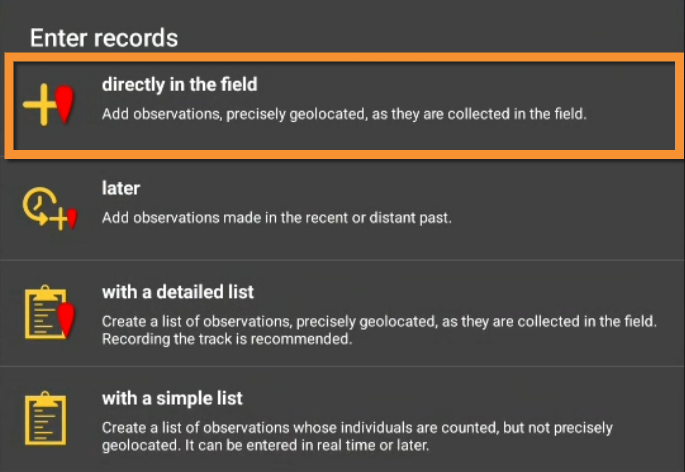
Use this option to enter casual observations in real time. You can access it from the main menu or from the shortcut the top right corner of the screen (see image Directly in the field).

Place
|
Smiley = Observer's position Red marker = Data position |
Indicate the position of the observed individual by moving the map to match the red marker. To know how to navigate the map, see wiki section Mobile interface > Navigating the map. Use tha "aim" icon to activate the GPS and wait for the yellow smiley before continuing. When done, click on Next.
Use the "list" icon on the left to see a list of all your previous records (see image below).

Species
There are two different ways to enter the species according to your preferences. Set your preferences by going to Menu > Preferences > Personalisation > Display of species (see image Display of species).

- Choose by search: Choose the taxonomic group from the top horizontal panel and start typing the species name. A list will appear underneath from which to choose the correct species. See image Display of species by species.

- Choose by group, family, species: Start by selecting the taxonomic group, then the family and finally the species. See image Display of species by group, family, species.

Note the species' names will show in the language you selected in Preferences. To change it, go to Menu> Preferences > Species > Language of the species.
Number of individuals
Enter the number of individuals first and choose the accuracy of the count. Choose between Not counted, approximate number, exact number or minimum number (see image Entering number of individuals). If you did not count the individuals, for example for very common species, there is no need to introduce any number.


|
|
If you need to add new individuals as you count them, click on Start a counter and keep adding or subtracting individuals (see image Start a counter) until all are counted or you need to move to another species. Click Close to end the count and continue entering the observation.


|
|
Additional information
Add more information about this record. Icons will appear in yellow when they contain any information or are activated.

Comments

Leave a comment in the top section if you want it to be public and associated to your record. Any registered user will see it. Use the lower section if you want to keep your comment private. Note administrators will still see it. To learn more about administrators, go to wiki section Local portals > Administration. Click Validate when done.

|
To validate your record you will have to Save later. |
Details (Age and sex)

According the taxonomic group you are entering, fields for details differ. Examples and explanation below apply only to birds.
Enter number of individuals per each sex and age class. Type number or use +1 -1 quick keys to quickly change the number. Key Max will count all individuals entered for this species. As you enter, a list will show at the bottom. Scroll up and down from the right hand bar to see all entries, or click on cross to delete any entry if necessary (see image below). When done, click Add to enter a new class or finish to end.


Atlas code

Select an atlas code, or no code. Available atlas codes will depend on the country you chose on Preferences and for your information it is displayed at the bottom of the screen (see image below).
|
|
Go to Menu > Preferences > Atlas code to change the code you use.

Hidden record

Select/unselect as needed. A yellow key indicates the record will be hidden. Default option depends on your ‘’’Preferences’’’. Go to Menu > Preferences > Hide record to change it. Note some records are automatically hidden depending on the country or region your observation takes place. Observations in countries not covered by any local partner are never automatically hidden. However, any user can hide records if they consider doing so will help protect the individuals, species or habitat. Hidden records will be hidden from other users, but administrators will still see them. To see which records will automatically be hidden, go to Web interface > Local portals > Species partially hidden. To learn more about administrators, go to Web interface > Local portals > Administration.
Picture

Add a picture associated to your record. When accessing, it displays all images already attached to this record. To add a new picture, click on the top right hand corner + sign. If no pictures are already attached, you are taken directly to the menu (see image below).

Choose between
- Enter pictures from gallery, if you have already taken them and they are stored on your phone's gallery. Pictures must be taken with your phone or inserted afterward through a local portal. If no local portal exist, it is not currently possible to add a picture through data.biolovision.net.
- Take a picture then. If you do, do not forget to accept to upload it (see image below).

You can see the images as they are attached. Hide/unhide by clicking on the corresponding key or delete by clicking on the cross (see image below). You will also be able to edit at a later stage. When done, add another picture or Validate to move to other sections.

|
|
Mortality / injuries

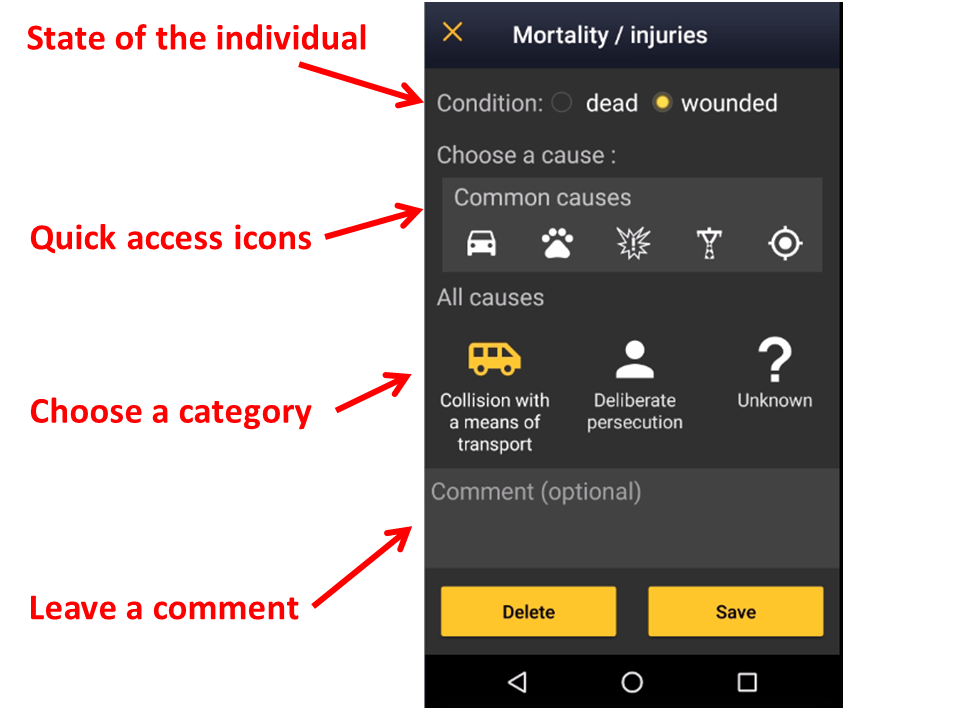
Indicate if your observation corresponds to an injured or dead individual, and select the cause if known. Scroll down All causes to see all options (see image Selecting cause of injury 1). Click on the category to open a panel with all possible causes and enter details (see bottom image Selecting cause of injury 2). When done, click Validate. For quick selection, there are the icons for the most common causes on top (see image Selecting cause of injury 1). When you finish entering the cause of death or injury click Save or if necessary, Delete. The entry can be modified later.


Ending the record
When you finish entering an observation, click Save and you will be taken to your list of observations pending synchronisation. Click on any of the records to see details and/or edit (see edit records LINK). A green line shows on top to prove data is saved, then automatically disappears (see image below).

Later
Enter casual observations after they occur.

Date / Time
|
|

Since you may be entering your observation after it occurred, entering a time is optional. Check Enter time to enter the time or leave it uncheck if you do not want to enter a time. Click on the date button to modify date and when date and time (optional) are correct, click Save to move to next step.

Enter date: Click on the default (current) date button to open a clickable calendar and choose the appropriate day.
Enter time:
- Tick Enter time.
- Click on the default (current) time to open a clickable clock (see image Entering date and time).
- Select first the hour, then the minutes, and finally the seconds. Or click on the corresponding part of the digital clock on top to indicate if you are adjusting hour, minutes or seconds. The parameter you are adjusting at the time shows in bold in the digital clock (see image below). Exact seconds may be important for some taxa, for protocols, or in lists.
- Click OK to save and continue.
- Tick Enter time.

Place
Set red marker at the location where the observation took place (as described in wiki section Mobile interface > Submitting records > Directly in the field > Place).
|
To learn how to navigate the map, see wiki section Mobile interface > Navigating the map. |
Species
Enter species as described in wiki section Mobile interface > Submitting records > Directly in the field > Species.
Number of individuals
Enter the number of individuals as described in wiki section Mobile interface > Submitting records > Directly in the field > Number of individuals. Note in this option one cannot Start a count as in other options.
Additional information
Enter any other additional information as described in wiki section Mobile interface > Submitting records > Directly in the field > Additional information.
|
Entering observations directly in the field is faster as date and time are already selected for you. Selecting a location is also faster if using the aim icon: you are already into position! Entering observations later is useful when observations are taken in other support, like a paper notebook, especially on rainy days, when phone’s battery is low, or for any other reason you prefer not to use your device inn the field. |
With list in the field
Select this option to create a list in the field in real time. You can access it from the menu or from the quick key at the top right corner of the screen (see image below).

Starting a list
Select Record the trace if you want to record your tack. As reminded when selecting, this function requires your phone's GPS at high precision. Go to Main menu > Preferences > GPS mode > Continuous (high reactivity) to set the right GPS mode (see wiki sectio Mobile interface > Getting started > Preferences > Location > GPS Mode on how to do it).
Select Hide all records from the public if you want it to be the default option while creating this list. If in my preferences you chose to hide records, all lists are hidden automatically (see image Hide record). You can change it later for individual observations. Administrators will still have access to your records once submitted.

Leave a comment about this list if appropriate and click Next to continue. You can still comment individually for each record.

Note from that moment an intermittent red dot will appear at the top of your screen indicating the list is running. All records you enter are considered to be part of this list. The taxonomic group of the first record you enter will determine the taxonomic group of the list. If you enter a new taxonomic group, you will be warned and it will still be recorded though not as part of the list. You can see for how long the list is running along with the red dot. Use the keys on the right of the screen to pause or stop the list (see image below). Pause the list to enter other records alongside it, either from the same or different taxa. For example, you may want to enter other species while following a protocolled survey for owls.

|
STOP: End the list. The time will stop running. |
Place
PLace red marker at the observation's position by moving the map. By clicking on the aim icon (see image), the marker will automatically position at your GPS location and center it. Note, "with list in the field" requires you to indicate the exact position of the observation. Therefore, usig the "aim" icon is useful to know where you are and for observations that are on your same spot, for example plants or some insects. Click Next when done.
To know how to naviate the map, go to wiki section How to navigate the map.

Species
Enter species as described in wiki section Mobile interface > Submitting records > Directly in the field > Species.
Additional information
Enter any other additional information as described in wiki section Mobile interface > Submitting records > Directly in the field > Additional information.
Ending the list
Click the stop button on the top to end the list and confirm (see image).

Adjust starting time and ending time if necessary, for example if you forgot to stop the list when you finished recording. Otherwise, since it is a real time list, starting and ending time will be automatically detected by starting and ending the list Add any comment if necessary, and indicate if it a complete list (all present species were recorded) or a partial list (not all present species were recorded) (see image below).

With list later
Allows creating lists that took place in the past.

Date / Time
By default the app shows the current date and time, which can be used as such to record a real time list. If your observations happened in the past, click on the date to modify it by selecting from the expandable calendar, as in…. Click on the time to select the starting time of the list. Select from the expandable clock as in Mobile interface > Submitting records > Later > Date / Time.
Add a comment if necessary and indicate if you want to hide the records from the public. Administrators will still see them once they are synchronised. When done, click Next.
Place
Select the position as in Mobile interface > Submitting records > Later > Date / Time and click Next.
|
|
Species
Enter species as described in wiki section Mobile interface > Submitting records > Directly in the field > Species.
Additional information
You will not be prompted to enter additional information. However, you can add it after entering a record in the list or after finishing the list (see edit records to edit when the list is finished).
While creating the list, click on a species name after each record (see image below) to modify the number if necessary and the precision count. When a precision count is selected, you access the additional information menu. See wiki section Mobile interface > Submitting records > Directly in the field > Additional information to navigate all sections in the menu.
If only the number of individuals need to be modified, use the plus and minor signs on the left of the species name to modify the count (see image below). The new number os saved automatically.
Use the cross on the right of the species name to delete the record.

Ending the list
When all records are entered, click on the "stop" icon at the top right corner to finish the list, and confirm (see image).

Click on the time button to open an expandable clock and introduce ending time as in Mobile interface > Submitting records > With list in the field > Ending the list. Adjust starting time if necessary. Finally, indicate if you recorded all individual present or only part of them (see image).

|
With list in the field pre selects date and time for you but requires you enter the position for each record. If the position of the observation is your current position, use the aim icon to be faster. It also allows entering additional information for each record within each entry. With list later can also be used in the field. In this case, you need to select date as well as starting and ending time. However, you will not be prompted to enter the position for each observation and the additional information menu will not be automatically displayed for each record. This saves time and reduces the chances of missing some individuals. Use "With list later" also in the field in real time if you do not need to get exact positions for each individual or add detailed information (as age, sex, pictures or atlas codes) for most of them. |
Synchronisation
Once your finish entering your records and add or amend any information, consider synchronizing them. When synchronising, your records become public to other users and available to administrators for verification and planning conservation. If you selected to hide your records from the public, those won’t be visible to other users, but administrators will still see them, verify them and use them for conservation purposes.
To synchronise, click on the reminder at the bottom of the screen, both in your list of observations and on the starting screen and confirm (see image below). Once your records are synchronised, you can no longer modify them in NaturaList, but you can do so from your local portal. See a list of local portals at wiki setion Various > Local portals and partners. Go to wiki section Web interface > Editing records for more information on how to edit records on the web site.

|
|