Protocols: Difference between revisions
No edit summary |
|||
| Line 78: | Line 78: | ||
[[File:Keyboard for mapping.png|700px|thumb|center|Keyboard configuration for mapping.]]<br /> | [[File:Keyboard for mapping.png|700px|thumb|center|Keyboard configuration for mapping.]]<br /> | ||
<br /> | <br /> | ||
</translate> | |||
= | ==Enter data== | ||
<br /> | <br/> | ||
<table style="border-style: solid; border-color: black"> | <table style="border-style: solid; border-color: black"> | ||
<tr> | <tr> | ||
<td style="padding: 20px; text-align: left; font-family: sans-serif; color: black; background-color: #f0f0f0"> | <td style="padding: 20px; text-align: left; font-family: sans-serif; color: black; background-color: #f0f0f0"> | ||
<p style="font-size:10px"> | <p style="font-size:10px"> | ||
<ul> | <ul> | ||
| Line 98: | Line 97: | ||
<p style="margin-left: 30px;font-size:13px">2.6 [[Protocols#Browsing_records|Browsing records]]</p> | <p style="margin-left: 30px;font-size:13px">2.6 [[Protocols#Browsing_records|Browsing records]]</p> | ||
</ul></p> | </ul></p> | ||
</td></tr></table> | </td></tr></table> | ||
<br /> | <br /> | ||
Open the menu as for [[Entering_records|'''Submitting records''']] and choose '''Waterbird census''' (see image below). <br /> | Open the menu as for [[Entering_records|'''Submitting records''']] and choose '''Waterbird census''' (see image below). <br /> | ||
[[File:Protocols menu.png|700px|thumb|center|Protocols. Main menu.]]<br /> | [[File:Protocols menu.png|700px|thumb|center|Protocols. Main menu.]]<br /> | ||
<br /> | <br /> | ||
If you are registered for only one site, you will access directly to the next step: [[Protocols#Start of list|'''Start of list''']].<br/> | If you are registered for only one site, you will access directly to the next step: [[Protocols#Start of list|'''Start of list''']].<br/> | ||
If you have more than one site to survey, it will list all your protocol sites (see image below).<br/> | If you have more than one site to survey, it will list all your protocol sites (see image below).<br/> | ||
<br/> | <br/> | ||
[[File:Choice of a protocol site.jpg|center|thumb|Selecting the protocol site.]]<br/> | [[File:Choice of a protocol site.jpg|center|thumb|Selecting the protocol site.]]<br/> | ||
'''1.''' Sort your protocol site by '''Site name''', '''National code''' or '''Local code'''.<br/> | '''1.''' Sort your protocol site by '''Site name''', '''National code''' or '''Local code'''.<br/> | ||
<br/> | <br/> | ||
'''2.''' Click on the name to go directly to the next step '''[[Protocols#Start of list|Start of list]].''' <br/> | '''2.''' Click on the name to go directly to the next step '''[[Protocols#Start of list|Start of list]].''' <br/> | ||
<br/> | <br/> | ||
'''3.''' Click on the arrow to get directions to your protocol location. It will open google maps on a new window.<br /> | '''3.''' Click on the arrow to get directions to your protocol location. It will open google maps on a new window.<br /> | ||
<br/> | <br/> | ||
<br/> | <br/> | ||
<center> | <center> | ||
<table border="5" width="900px"> | <table border="5" width="900px"> | ||
| Line 144: | Line 132: | ||
RED BOX (Warnings): hsl(0, 77%, 78%) --> | RED BOX (Warnings): hsl(0, 77%, 78%) --> | ||
<p><b>NOTE:<br /></b> | <p><b>NOTE:<br /></b> | ||
The species list you selected in the device shall be the one of the local portal that grants you access to the protocol. <br /> | The species list you selected in the device shall be the one of the local portal that grants you access to the protocol. <br /> | ||
| Line 152: | Line 139: | ||
</p> | </p> | ||
</td></tr></table> | </td></tr></table> | ||
</center> | </center> | ||
<br /><br /> | <br /><br /> | ||
==Start of list== | ==Start of list== | ||
<br /> | <br /> | ||
| Line 164: | Line 148: | ||
<br /> | <br /> | ||
[[File:Start of list.png|700px|thumb|center|Waterbird census. Start of list.]]<br /> | [[File:Start of list.png|700px|thumb|center|Waterbird census. Start of list.]]<br /> | ||
<br /> | <br /> | ||
:'''Comment''' <br /> | :'''Comment''' <br /> | ||
You may enter a comment if you find it appropiate. <br /> | You may enter a comment if you find it appropiate. <br /> | ||
<br /> | <br /> | ||
:'''Important changes''' <br /> | :'''Important changes''' <br /> | ||
Indicate if there have been major changes since your last visit.<br/> | Indicate if there have been major changes since your last visit.<br/> | ||
<br /> | <br /> | ||
:'''Additional observer''' <br /> | :'''Additional observer''' <br /> | ||
Indicate if you are accompanied by someone whose observations are also recorded.<br /> | Indicate if you are accompanied by someone whose observations are also recorded.<br /> | ||
<br /> | <br /> | ||
:'''Ice''' <br/> | :'''Ice''' <br/> | ||
Indicate the percentatge of water surface that is frozen.<br/> | Indicate the percentatge of water surface that is frozen.<br/> | ||
<br/> | <br/> | ||
:'''Snow coverage''' <br/> | :'''Snow coverage''' <br/> | ||
Indicate the proportion of snow cover.<br/> | Indicate the proportion of snow cover.<br/> | ||
<br/> | <br/> | ||
:'''Count type''' <br /> | :'''Count type''' <br /> | ||
Tick '''roost count''' if you are counting roosting birds, or '''during day''' otherwise. <br /> | Tick '''roost count''' if you are counting roosting birds, or '''during day''' otherwise. <br /> | ||
<br /> | <br /> | ||
:'''Count method''' <br /> | :'''Count method''' <br /> | ||
Indicate if you are surveying from the ground, the air, the water, a different way, or if it is unknown. <br /> | Indicate if you are surveying from the ground, the air, the water, a different way, or if it is unknown. <br /> | ||
<br /> | <br /> | ||
:'''Optical equipment''' <br /> | :'''Optical equipment''' <br /> | ||
Indicate which equipment you are using for the survey, if any. Note you can only choose one option. <br /> | Indicate which equipment you are using for the survey, if any. Note you can only choose one option. <br /> | ||
<br /> | <br /> | ||
:'''Coverage''' <br /> | :'''Coverage''' <br /> | ||
Indicate how much of the designated polygon is covered in the survey.<br/> | Indicate how much of the designated polygon is covered in the survey.<br/> | ||
<br /> | <br /> | ||
:'''Water level''' <br /> | :'''Water level''' <br /> | ||
Indicate the water level. <br /> | Indicate the water level. <br /> | ||
<br /> | <br /> | ||
:'''Visibility''' <br /> | :'''Visibility''' <br /> | ||
Indicate the approximate distance within which it is possible to identify species. <br /> | Indicate the approximate distance within which it is possible to identify species. <br /> | ||
<br /> | <br /> | ||
:'''Waves''' <br /> | :'''Waves''' <br /> | ||
Indicate how are the waves.<br/> | Indicate how are the waves.<br/> | ||
<br /> | <br /> | ||
:'''Conditions in general''' <br /> | :'''Conditions in general''' <br /> | ||
Choose how are surveying conditions overall regarding weather and disturbances, and indicate on next section the reason if surveying conditions are not good. <br /> | Choose how are surveying conditions overall regarding weather and disturbances, and indicate on next section the reason if surveying conditions are not good. <br /> | ||
<br /> | <br /> | ||
:'''Reason(s) for moderate / bad conditions''' <br /> | :'''Reason(s) for moderate / bad conditions''' <br /> | ||
If general conditions indicated above are noot good, click the yellow field to open an expandable menu and choose the reason (see image below). Only one option is possible: choose the one that better adjusts to reality. <br /> | If general conditions indicated above are noot good, click the yellow field to open an expandable menu and choose the reason (see image below). Only one option is possible: choose the one that better adjusts to reality. <br /> | ||
<br /> | <br /> | ||
[[File:Bad conditions.png|700px|thumb|center|Possible reasons for bad surveying conditions.]]<br /> | [[File:Bad conditions.png|700px|thumb|center|Possible reasons for bad surveying conditions.]]<br /> | ||
<br /> | <br /> | ||
:'''Count payed''' <br/> | :'''Count payed''' <br/> | ||
Indicate if the count is payed for or not.<br/> | Indicate if the count is payed for or not.<br/> | ||
<br/> | <br/> | ||
:'''Number of persons on shore''' <br/> | :'''Number of persons on shore''' <br/> | ||
Enter number.<br/> | Enter number.<br/> | ||
<br/> | <br/> | ||
:'''Number of rowing boats''' <br/> | :'''Number of rowing boats''' <br/> | ||
Enter number.<br/> | Enter number.<br/> | ||
<br/> | <br/> | ||
:'''Number of motor boats''' <br/> | :'''Number of motor boats''' <br/> | ||
Enter number<br/> | Enter number<br/> | ||
<br/> | <br/> | ||
:'''Number of sailing boats''' <br/> | :'''Number of sailing boats''' <br/> | ||
Enter number<br/> | Enter number<br/> | ||
<br/> | <br/> | ||
:'''Number of canoes/kayaks''' <br/> | :'''Number of canoes/kayaks''' <br/> | ||
Enter number.<br/> | Enter number.<br/> | ||
<br/> | <br/> | ||
:'''Number of fishing boats''' <br/> | :'''Number of fishing boats''' <br/> | ||
Enter number. <br/> | Enter number. <br/> | ||
<br/> | <br/> | ||
:'''Number of sports divers''' <br/> | :'''Number of sports divers''' <br/> | ||
Enter number.<br/> | Enter number.<br/> | ||
<br/> | <br/> | ||
:'''Number of surfers''' <br/> | :'''Number of surfers''' <br/> | ||
Enter number.<br/> | Enter number.<br/> | ||
<br/> | <br/> | ||
:'''Additional observers'''<br /> | :'''Additional observers'''<br /> | ||
Indicate the name of other observers participating in the data collection. <br /> | Indicate the name of other observers participating in the data collection. <br /> | ||
<br /> | <br /> | ||
:'''Important changes since last count?''' <br /> | :'''Important changes since last count?''' <br /> | ||
Indicate if there has been any major change since your previous count, for example, some disturbance like noise or construction. <br /> | Indicate if there has been any major change since your previous count, for example, some disturbance like noise or construction. <br /> | ||
<br /> | <br /> | ||
:'''Record the trace''' <br /> | :'''Record the trace''' <br /> | ||
Check if you want NaturaList to record your track. You will see a reminder to set your GPS on "High precision" and your power saving off for NaturaList. Go to Main menu > Preferences > GPS mode > Continuous (high reactivity) to set the right GPS mode (see wiki sectio [[Getting_started_NaturaList#GPS_Mode | Mobile interface > Getting started > Preferences > Location > GPS Mode]] on how to do it). <br/> | Check if you want NaturaList to record your track. You will see a reminder to set your GPS on "High precision" and your power saving off for NaturaList. Go to Main menu > Preferences > GPS mode > Continuous (high reactivity) to set the right GPS mode (see wiki sectio [[Getting_started_NaturaList#GPS_Mode | Mobile interface > Getting started > Preferences > Location > GPS Mode]] on how to do it). <br/> | ||
<br/> | <br/> | ||
Click '''OK ''' to continue and check if you wish not to see the reminder again. Check '''Do not ask again and keep this choice for future entries''' if you want to set '''Record the trace''' as the default option (see image below). Click '''OK''' to continue without setting '''Record the trace''' as the default option.<br /> | Click '''OK ''' to continue and check if you wish not to see the reminder again. Check '''Do not ask again and keep this choice for future entries''' if you want to set '''Record the trace''' as the default option (see image below). Click '''OK''' to continue without setting '''Record the trace''' as the default option.<br /> | ||
<br /> | <br /> | ||
[[File:Record the trace as default.png|700px|thumb|center|Check to set '''Record the trace''' as the default option.]]<br/> | [[File:Record the trace as default.png|700px|thumb|center|Check to set '''Record the trace''' as the default option.]]<br/> | ||
<br/> | <br/> | ||
::After synchronisation, visualise your track at the local portal by: | ::After synchronisation, visualise your track at the local portal by: | ||
::* Clicking on any species from the list as if for [[Edit_records#After_synchronisation|editing]], and selecting '''Go to website''' > '''Edit Place''' tab. See image [[Media:20220901WIKI my sightings on list.png|Example of records that belong to a list]]. <br/> | ::* Clicking on any species from the list as if for [[Edit_records#After_synchronisation|editing]], and selecting '''Go to website''' > '''Edit Place''' tab. See image [[Media:20220901WIKI my sightings on list.png|Example of records that belong to a list]]. <br/> | ||
| Line 369: | Line 295: | ||
<br/> <br /> | <br/> <br /> | ||
:'''Hide all records from the public''' <br /> | :'''Hide all records from the public''' <br /> | ||
Check if you want to keep your records privately. This will not prevent administrators to see them and contact you if necessary, but other users of NaturaList will not see your records. | Check if you want to keep your records privately. This will not prevent administrators to see them and contact you if necessary, but other users of NaturaList will not see your records. | ||
<br/> | <br/> | ||
<br/> | <br/> | ||
:'''No species were seen''' <br /> | :'''No species were seen''' <br /> | ||
Check if your survey did not provide any data. Surveys with no species are also important results! It will mean you followed the established methodology, and therefore your survey is valid, but no birds were present. They can indicate major population changes and are of extreme importance for conservation purposes. <br /> | Check if your survey did not provide any data. Surveys with no species are also important results! It will mean you followed the established methodology, and therefore your survey is valid, but no birds were present. They can indicate major population changes and are of extreme importance for conservation purposes. <br /> | ||
<br /> | <br /> | ||
<center> | <center> | ||
<table border="5" width="700px"> | <table border="5" width="700px"> | ||
| Line 394: | Line 315: | ||
RED BOX (Warnings): hsl(0, 77%, 78%) --> | RED BOX (Warnings): hsl(0, 77%, 78%) --> | ||
<p> | <p> | ||
<ul> | <ul> | ||
| Line 401: | Line 321: | ||
</ul></p> | </ul></p> | ||
</td></tr></table> | </td></tr></table> | ||
</center> | </center> | ||
| Line 407: | Line 326: | ||
<br /> | <br /> | ||
-------------------------------------- | -------------------------------------- | ||
<br /> | <br /> | ||
| Line 414: | Line 332: | ||
<br /> | <br /> | ||
==Entering records== | ==Entering records== | ||
<br /> | <br /> | ||
Enter observations as if in a [[Entering_records#With_list_in_the_field| '''list in the field''']]. <br/> | Enter observations as if in a [[Entering_records#With_list_in_the_field| '''list in the field''']]. <br/> | ||
<br/> | <br/> | ||
::'''Place'''<br/> | ::'''Place'''<br/> | ||
<br/> | <br/> | ||
It opens a map with your polygon to survey (see image below). Place the red marker where the individual, or group of individuals, are observed. | It opens a map with your polygon to survey (see image below). Place the red marker where the individual, or group of individuals, are observed. | ||
Note only observations within the delimited polygon can be recorded. If you have other observations that you would like to report, pause the ongoing protocol (pause icon on top bar, see image) and enter data as you are used to (all the options as explained in the wiki Mobile interface> [[Entering records|Naturalist for Android > Submitting records]]). <br /> | Note only observations within the delimited polygon can be recorded. If you have other observations that you would like to report, pause the ongoing protocol (pause icon on top bar, see image) and enter data as you are used to (all the options as explained in the wiki Mobile interface> [[Entering records|Naturalist for Android > Submitting records]]). <br /> | ||
<br /> | <br /> | ||
[[File:Place.png|center|thumb|700x700px|Waterbird survey. Place.]] | [[File:Place.png|center|thumb|700x700px|Waterbird survey. Place.]] | ||
<p style="margin-left: 220px; font-size: 13px"> '''1.''' Pause<br/> | <p style="margin-left: 220px; font-size: 13px"> '''1.''' Pause<br/> | ||
| Line 441: | Line 353: | ||
'''5.''' Polygon (notice the thin yellow line delimiting the polygon to survey)</p><br/><br/> | '''5.''' Polygon (notice the thin yellow line delimiting the polygon to survey)</p><br/><br/> | ||
After entering the first record, activate/deactivate (active when orange, inactive when yellow) the summary icon to see species name and associated information from already entered records (see image below). Click on the notebook icon at the bottom to see a list of all records on the ongoing protocol. Know more about the summary of species in a map at wiki section Mobile interface > Navigating the map > [[Navigating_the_map_NaturaList#Understanding a summary of observations| Understanding a summary of observations]]. <br /> | After entering the first record, activate/deactivate (active when orange, inactive when yellow) the summary icon to see species name and associated information from already entered records (see image below). Click on the notebook icon at the bottom to see a list of all records on the ongoing protocol. Know more about the summary of species in a map at wiki section Mobile interface > Navigating the map > [[Navigating_the_map_NaturaList#Understanding a summary of observations| Understanding a summary of observations]]. <br /> | ||
<br/> | <br/> | ||
| Line 447: | Line 358: | ||
<br/> | <br/> | ||
To see how to navigate the map, see wiki section [[Navigating_the_map_NaturaList| Navigating the map]]. | To see how to navigate the map, see wiki section [[Navigating_the_map_NaturaList| Navigating the map]]. | ||
<br/> | <br/> | ||
<br/> | <br/> | ||
<center> | <center> | ||
<table border="5" width="700px"> | <table border="5" width="700px"> | ||
| Line 462: | Line 371: | ||
RED BOX (Warnings): hsl(0, 77%, 78%) --> | RED BOX (Warnings): hsl(0, 77%, 78%) --> | ||
<p> | <p> | ||
<ul> | <ul> | ||
| Line 468: | Line 376: | ||
</ul></p> | </ul></p> | ||
</td></tr></table> | </td></tr></table> | ||
</center> | </center> | ||
| Line 474: | Line 381: | ||
<br/> | <br/> | ||
::'''Species'''<br/> | ::'''Species'''<br/> | ||
<br/> | <br/> | ||
Enter species ''''by search'''' or using protocol shortcuts when available, as explained in wiki section Mobile interface > Entering records > Directly in the field > [[Entering_records#Step_2:_Species| Step 2: Species]]. <br/> | Enter species ''''by search'''' or using protocol shortcuts when available, as explained in wiki section Mobile interface > Entering records > Directly in the field > [[Entering_records#Step_2:_Species| Step 2: Species]]. <br/> | ||
<br/> | <br/> | ||
| Line 484: | Line 389: | ||
<br/> | <br/> | ||
::'''Number of individuals'''<br/> | ::'''Number of individuals'''<br/> | ||
<br/> | <br/> | ||
See Mobile interface > Entering records > Directly in the field > [[Entering_records#Number_of_individuals| Number of individuals]] if necessary.<br/> | See Mobile interface > Entering records > Directly in the field > [[Entering_records#Number_of_individuals| Number of individuals]] if necessary.<br/> | ||
<br/> | <br/> | ||
<center> | <center> | ||
<table border="5" width="700px"> | <table border="5" width="700px"> | ||
| Line 503: | Line 404: | ||
RED BOX (Warnings): hsl(0, 77%, 78%) --> | RED BOX (Warnings): hsl(0, 77%, 78%) --> | ||
<p> | <p> | ||
<ul> | <ul> | ||
| Line 509: | Line 409: | ||
</ul></p> | </ul></p> | ||
</td></tr></table> | </td></tr></table> | ||
</center> | </center> | ||
| Line 515: | Line 414: | ||
<br/> | <br/> | ||
::'''Plus'''<br/> | ::'''Plus'''<br/> | ||
<br/> | <br/> | ||
Enter additional information as if it where a [[Entering_records#With_list_in_the_field|list in the field]]. <br/> | Enter additional information as if it where a [[Entering_records#With_list_in_the_field|list in the field]]. <br/> | ||
See wiki section Mobile interface > Submitting records > Directly in the field > [[Entering_records#Step_4_(non_mandatory_fields):_Additional_information| Step 4: Additional information]] on how to do it, if necessary.<br/> | See wiki section Mobile interface > Submitting records > Directly in the field > [[Entering_records#Step_4_(non_mandatory_fields):_Additional_information| Step 4: Additional information]] on how to do it, if necessary.<br/> | ||
<br/> | <br/> | ||
---- | ---- | ||
When done, click '''Save'''. It will take you to the '''Place''' screen to continue entering observations.<br/> | When done, click '''Save'''. It will take you to the '''Place''' screen to continue entering observations.<br/> | ||
| Line 532: | Line 427: | ||
<br/> | <br/> | ||
==Ending the list== | ==Ending the list== | ||
<br/> | <br/> | ||
To finish the survey, click the stop icon at the top right corner of the '''Place''' screen (see image [[Media:Ending the list.png|End the list]]). You will be prompted to confirm (see image [[Media:Ending the list confirmation.png|Ending the list. Confirmation]]).<br/> <br/> | To finish the survey, click the stop icon at the top right corner of the '''Place''' screen (see image [[Media:Ending the list.png|End the list]]). You will be prompted to confirm (see image [[Media:Ending the list confirmation.png|Ending the list. Confirmation]]).<br/> <br/> | ||
[[File:Ending the list.png|700px|thumb|center|End the list.]]<br/> | [[File:Ending the list.png|700px|thumb|center|End the list.]]<br/> | ||
<br/> | <br/> | ||
[[File:Ending the list confirmation.png|700px|thumb|center|Ending the list. Confirmation.]]<br/> | [[File:Ending the list confirmation.png|700px|thumb|center|Ending the list. Confirmation.]]<br/> | ||
<br/> | <br/> | ||
Adjust time, if necessary, and add or modify a comment. Finally, indicate which type of list you recorded (see image below).<br/> | Adjust time, if necessary, and add or modify a comment. Finally, indicate which type of list you recorded (see image below).<br/> | ||
<br/> | <br/> | ||
[[File:Ending list adjustements.png|700px|thumb|center|Ending the list. Final adjustements.]]<br/> | [[File:Ending list adjustements.png|700px|thumb|center|Ending the list. Final adjustements.]]<br/> | ||
<br/> | <br/> | ||
'''Time:''' Adjust starting or ending time by clicking on the time button. See wiki section [[Entering_records#Date_/_Time| Mobile interface > Submitting records > Later > Date/Time]] to know how to modify the clock. <br/> | '''Time:''' Adjust starting or ending time by clicking on the time button. See wiki section [[Entering_records#Date_/_Time| Mobile interface > Submitting records > Later > Date/Time]] to know how to modify the clock. <br/> | ||
<br/> | <br/> | ||
'''Comment:''' Add or modify a comment if necessary. <br/> | '''Comment:''' Add or modify a comment if necessary. <br/> | ||
<br/> | <br/> | ||
'''Which species list did you count?:''' <br/> | '''Which species list did you count?:''' <br/> | ||
:'''Restricted list:''' You counted only the species of interest to the protocol (i.e. ducks).<br/> | :'''Restricted list:''' You counted only the species of interest to the protocol (i.e. ducks).<br/> | ||
| Line 568: | Line 455: | ||
<br/> | <br/> | ||
If the list took more than 30 minutes, you may be prompted to confirm before the list can be saved. <br/> | If the list took more than 30 minutes, you may be prompted to confirm before the list can be saved. <br/> | ||
<br/> | <br/> | ||
Remember to synchronise your data as soon as possible after entering to avoid loosing it.<br/> | Remember to synchronise your data as soon as possible after entering to avoid loosing it.<br/> | ||
<br/> | <br/> | ||
==Editing records and/or protocols== | ==Editing records and/or protocols== | ||
<br/> | <br/> | ||
To edit records within a protocol, or to edit the protocol's general parameters, visit wiki section Mobile interface > Editing records > [[Edit_records#Editing_Protocols| Editing protocols]]. <br/> | To edit records within a protocol, or to edit the protocol's general parameters, visit wiki section Mobile interface > Editing records > [[Edit_records#Editing_Protocols| Editing protocols]]. <br/> | ||
<br/> | <br/> | ||
==Deleting records and/or protocols== | ==Deleting records and/or protocols== | ||
<br/> | <br/> | ||
To delete records within a protocol, or to delete the whole protocol, visit wiki section Mobile interface > Editing records > [[Edit_records#Deleting_protocols| Deleting protocols]]. <br/> | To delete records within a protocol, or to delete the whole protocol, visit wiki section Mobile interface > Editing records > [[Edit_records#Deleting_protocols| Deleting protocols]]. <br/> | ||
<br/> | <br/> | ||
==Browsing records== | ==Browsing records== | ||
<br/> | <br/> | ||
See your protocoled records: <br/> | See your protocoled records: <br/> | ||
<br/> | <br/> | ||
| Line 603: | Line 482: | ||
<br/> | <br/> | ||
:* After synchronisation<br/> | :* After synchronisation<br/> | ||
:: In [[Search_observations#Mine|<b>Mine</b>]]. See more details in wiki section [[Search_observations#Accessing_records'_details|Accesssing records' details]].<br/> | :: In [[Search_observations#Mine|<b>Mine</b>]]. See more details in wiki section [[Search_observations#Accessing_records'_details|Accesssing records' details]].<br/> | ||
:: In [[Search_observations#Under_verification|<b>Under verification</b>]] (only if any data of the protocol needs more information)<br/> | :: In [[Search_observations#Under_verification|<b>Under verification</b>]] (only if any data of the protocol needs more information)<br/> | ||
:: In the local portal. Go to the corresponding local portal, Menu > Explore > [[Browsing_records#All_my_observations| All my observations]].<br/> | :: In the local portal. Go to the corresponding local portal, Menu > Explore > [[Browsing_records#All_my_observations| All my observations]].<br/> | ||
<br/> | <br/> | ||
</ | =Waterbird census= | ||
<br /> | |||
<table style="border-style: solid; border-color: black"> | |||
<tr> | |||
<td style="padding: 20px; text-align: left; font-family: sans-serif; color: black; background-color: #f0f0f0"> | |||
<p style="font-size:10px"> | |||
<ul> | |||
<p style="font-size:13px">2 Waterbird census | |||
<p style="margin-left: 30px;font-size:13px">2.1 [[Protocols#Start_of_list|Start of list]]</p> | |||
<p style="margin-left: 30px;font-size:13px">2.2 [[Protocols#Entering_records|Entering records]]</p> | |||
<p style="margin-left: 30px;font-size:13px">2.3 [[Protocols#Ending_the_list|Ending the list]]</p> | |||
<p style="margin-left: 30px;font-size:13px">2.4 [[Protocols#Editing_records_and/or_protocols|Editing records and/or protocols]]</p> | |||
<p style="margin-left: 30px;font-size:13px">2.5 [[Protocols#Deleting_records_and/or_protocols|Deleting records and/or protocols]]</p> | |||
<p style="margin-left: 30px;font-size:13px">2.6 [[Protocols#Browsing_records|Browsing records]]</p> | |||
</ul></p> | |||
</td></tr></table> | |||
<br /> | |||
Open the menu as for [[Entering_records|'''Submitting records''']] and choose '''Waterbird census''' (see image below). <br /> | |||
[[File:Protocols menu.png|700px|thumb|center|Protocols. Main menu.]]<br /> | |||
<br /> | |||
If you are registered for only one site, you will access directly to the next step: [[Protocols#Start of list|'''Start of list''']].<br/> | |||
If you have more than one site to survey, it will list all your protocol sites (see image below).<br/> | |||
<br/> | <br/> | ||
[[File:Choice of a protocol site.jpg|center|thumb|Selecting the protocol site.]]<br/> | |||
'''1.''' Sort your protocol site by '''Site name''', '''National code''' or '''Local code'''.<br/> | |||
<br/> | <br/> | ||
[[ | '''2.''' Click on the name to go directly to the next step '''[[Protocols#Start of list|Start of list]].''' <br/> | ||
<br/> | <br/> | ||
'''3.''' Click on the arrow to get directions to your protocol location. It will open google maps on a new window.<br /> | |||
<br/> | |||
<br/> | <br/> | ||
<center> | |||
<table border="5" width="900px"> | |||
<tr> | |||
<td style="padding: 25px; text-align: left; font-family: sans-serif; color: black; background-color: hsl(201, 100%, 89%)"> | |||
<!-- GREEN BOX (Tips): hsl(157, 74%, 80%) | |||
YELLOW BOX (Summaries): #ffffdb" | |||
BLUE BOX (Information): hsl(201, 100%, 89%) | |||
RED BOX (Warnings): hsl(0, 77%, 78%) --> | |||
<p><b>NOTE:<br /></b> | |||
The species list you selected in the device shall be the one of the local portal that grants you access to the protocol. <br /> | |||
From the example above (image [[Media:Protocols menu.png|Protocols. Main menu]]), the current list of species on the device corresponds to the local partner giving access to Waterbird census (appears in white and is clickable), but not to the local partner giving access to the Territory mapping (appears in grey and is not clickable). To access non active protocols, change the list of species.<br /> | |||
<br /> | |||
To change the list of species go to <br />Menu > Preferences > Species > Choice of species <br />(wiki section Mobile interface > Getting started > Preferences > Species > [[Getting_started_NaturaList#Choice_of_species| Choice of species]]).<br /> | |||
</p> | |||
</td></tr></table> | |||
</center> | |||
<br /><br /> | |||
==Start of list== | ==Start of list== | ||
<br /> | |||
Enter general information before starting the protocol (see image). Fields marked with an asterisk are mandatory. Fields available may differ from one country to another. All available fields for all countries are listed below.<br /> | |||
<br /> | |||
[[File:Start of list.png|700px|thumb|center|Waterbird census. Start of list.]]<br /> | |||
<br /> | |||
:'''Comment''' <br /> | |||
You may enter a comment if you find it appropiate. <br /> | |||
<br /> | |||
:'''Important changes''' <br /> | |||
Indicate if there have been major changes since your last visit.<br/> | |||
<br /> | |||
:'''Additional observer''' <br /> | |||
Indicate if you are accompanied by someone whose observations are also recorded.<br /> | |||
<br /> | |||
:'''Ice''' <br/> | |||
Indicate the percentatge of water surface that is frozen.<br/> | |||
<br/> | |||
:'''Snow coverage''' <br/> | |||
Indicate the proportion of snow cover.<br/> | |||
<br/> | |||
:'''Count type''' <br /> | |||
Tick '''roost count''' if you are counting roosting birds, or '''during day''' otherwise. <br /> | |||
<br /> | |||
:'''Count method''' <br /> | |||
Indicate if you are surveying from the ground, the air, the water, a different way, or if it is unknown. <br /> | |||
<br /> | |||
:'''Optical equipment''' <br /> | |||
Indicate which equipment you are using for the survey, if any. Note you can only choose one option. <br /> | |||
<br /> | |||
:'''Coverage''' <br /> | |||
Indicate how much of the designated polygon is covered in the survey.<br/> | |||
<br /> | |||
:'''Water level''' <br /> | |||
Indicate the water level. <br /> | |||
<br /> | |||
:'''Visibility''' <br /> | |||
Indicate the approximate distance within which it is possible to identify species. <br /> | |||
<br /> | |||
:'''Waves''' <br /> | |||
Indicate how are the waves.<br/> | |||
<br /> | |||
:'''Conditions in general''' <br /> | |||
Choose how are surveying conditions overall regarding weather and disturbances, and indicate on next section the reason if surveying conditions are not good. <br /> | |||
<br /> | |||
:'''Reason(s) for moderate / bad conditions''' <br /> | |||
If general conditions indicated above are noot good, click the yellow field to open an expandable menu and choose the reason (see image below). Only one option is possible: choose the one that better adjusts to reality. <br /> | |||
<br /> | |||
[[File:Bad conditions.png|700px|thumb|center|Possible reasons for bad surveying conditions.]]<br /> | |||
<br /> | |||
:'''Count payed''' <br/> | |||
Indicate if the count is payed for or not.<br/> | |||
<br/> | |||
:'''Number of persons on shore''' <br/> | |||
Enter number.<br/> | |||
<br/> | |||
:'''Number of rowing boats''' <br/> | |||
Enter number.<br/> | |||
<br/> | |||
:'''Number of motor boats''' <br/> | |||
Enter number<br/> | |||
<br/> | |||
:'''Number of sailing boats''' <br/> | |||
Enter number<br/> | |||
<br/> | |||
:'''Number of canoes/kayaks''' <br/> | |||
Enter number.<br/> | |||
<br/> | |||
:'''Number of fishing boats''' <br/> | |||
Enter number. <br/> | |||
<br/> | |||
:'''Number of sports divers''' <br/> | |||
Enter number.<br/> | |||
<br/> | |||
:'''Number of surfers''' <br/> | |||
Enter number.<br/> | |||
<br/> | |||
:'''Additional observers'''<br /> | |||
Indicate the name of other observers participating in the data collection. <br /> | |||
<br /> | |||
:'''Important changes since last count?''' <br /> | |||
Indicate if there has been any major change since your previous count, for example, some disturbance like noise or construction. <br /> | |||
<br /> | |||
:'''Record the trace''' <br /> | |||
Check if you want NaturaList to record your track. You will see a reminder to set your GPS on "High precision" and your power saving off for NaturaList. Go to Main menu > Preferences > GPS mode > Continuous (high reactivity) to set the right GPS mode (see wiki sectio [[Getting_started_NaturaList#GPS_Mode | Mobile interface > Getting started > Preferences > Location > GPS Mode]] on how to do it). <br/> | |||
<br/> | |||
Click '''OK ''' to continue and check if you wish not to see the reminder again. Check '''Do not ask again and keep this choice for future entries''' if you want to set '''Record the trace''' as the default option (see image below). Click '''OK''' to continue without setting '''Record the trace''' as the default option.<br /> | |||
<br /> | |||
[[File:Record the trace as default.png|700px|thumb|center|Check to set '''Record the trace''' as the default option.]]<br/> | |||
<br/> | |||
::After synchronisation, visualise your track at the local portal by: | |||
::* Clicking on any species from the list as if for [[Edit_records#After_synchronisation|editing]], and selecting '''Go to website''' > '''Edit Place''' tab. See image [[Media:20220901WIKI my sightings on list.png|Example of records that belong to a list]]. <br/> | |||
::* Logging into the website and going to [[Editing_records|edit your own data]]. Click on any observation belonging to the list, and select the '''Edit place''' tab. See image [[Media:20220901WIKI my sightings on list.png|Example of records that belong to a list]].<br/> | |||
<br/> <br /> | |||
:'''Hide all records from the public''' <br /> | |||
Check if you want to keep your records privately. This will not prevent administrators to see them and contact you if necessary, but other users of NaturaList will not see your records. | |||
<br/> | |||
<br/> | |||
:'''No species were seen''' <br /> | |||
Check if your survey did not provide any data. Surveys with no species are also important results! It will mean you followed the established methodology, and therefore your survey is valid, but no birds were present. They can indicate major population changes and are of extreme importance for conservation purposes. <br /> | |||
<br /> | |||
<center> | |||
<table border="5" width="700px"> | |||
<tr> | |||
<td style="padding: 25px; text-align: left; font-family: sans-serif; color: black; background-color: hsl(201, 100%, 89%)"> | |||
<!-- GREEN BOX (Tips): hsl(157, 74%, 80%) | |||
YELLOW BOX (Summaries): #ffffdb" | |||
BLUE BOX (Information): hsl(201, 100%, 89%) | |||
RED BOX (Warnings): hsl(0, 77%, 78%) --> | |||
<p> | |||
<ul> | |||
"<i><b>My survey did not provide any data</b></i>" <br /> | |||
Surveys with no species are also important results! Please submit them. <br /> It will mean you followed the established methodology but no birds were present. It can be due to methodology, disturbance, pollution or other major population changes and may be of extreme importance for conservation purposes.<br /> | |||
</ul></p> | |||
</td></tr></table> | |||
</center> | |||
<br /> | |||
<br /> | |||
-------------------------------------- | |||
<br /> | |||
Click '''Validate''' when done. <br /> | |||
<br /> | |||
<br /> | |||
==Entering records== | |||
<br /> | |||
Enter observations as if in a [[Entering_records#With_list_in_the_field| '''list in the field''']]. <br/> | |||
<br/> | <br/> | ||
::'''Place'''<br/> | |||
<br/> | |||
It opens a map with your polygon to survey (see image below). Place the red marker where the individual, or group of individuals, are observed. | |||
Note only observations within the delimited polygon can be recorded. If you have other observations that you would like to report, pause the ongoing protocol (pause icon on top bar, see image) and enter data as you are used to (all the options as explained in the wiki Mobile interface> [[Entering records|Naturalist for Android > Submitting records]]). <br /> | |||
<br /> | |||
[[File:Place.png|center|thumb|700x700px|Waterbird survey. Place.]] | |||
<p style="margin-left: 220px; font-size: 13px"> '''1.''' Pause<br/> | |||
'''2.''' Observation<br/> | |||
'''3.''' Observer<br/> | |||
'''4.''' Hide / unhide summary<br/> | |||
'''5.''' Polygon (notice the thin yellow line delimiting the polygon to survey)</p><br/><br/> | |||
After entering the first record, activate/deactivate (active when orange, inactive when yellow) the summary icon to see species name and associated information from already entered records (see image below). Click on the notebook icon at the bottom to see a list of all records on the ongoing protocol. Know more about the summary of species in a map at wiki section Mobile interface > Navigating the map > [[Navigating_the_map_NaturaList#Understanding a summary of observations| Understanding a summary of observations]]. <br /> | |||
<br/> | |||
[[File:Summary of observation.png|center|thumb|700x700px|Waterbird survey. Summary of observations.]]<br/> | |||
<br/> | <br/> | ||
[[ | To see how to navigate the map, see wiki section [[Navigating_the_map_NaturaList| Navigating the map]]. | ||
<br/> | |||
<br/> | <br/> | ||
:: | <center> | ||
<table border="5" width="700px"> | |||
<tr> | |||
<td style="padding: 25px; text-align: left; font-family: sans-serif; color: black; background-color:hsl(157, 74%, 80%)"> | |||
<!-- GREEN BOX (Tips): hsl(157, 74%, 80%) | |||
YELLOW BOX (Summaries): #ffffdb" | |||
BLUE BOX (Information): hsl(201, 100%, 89%) | |||
RED BOX (Warnings): hsl(0, 77%, 78%) --> | |||
<p> | |||
<ul> | |||
The Red Marker indicates the position of your observation. The Smiley indicates your position. When the smiley gets yellow, the GPS has detected your position. Check how accurate the reading is on the top left corner (image [[Media:Navigating the map.png|Navigating the map]]). Always check your position on the map. Please place the red marker at your observation, not at your position. Be as accurate as possible.<br /> | |||
</ul></p> | |||
</td></tr></table> | |||
</center> | |||
<br/> | |||
<br/> | <br/> | ||
::''' | ::'''Species'''<br/> | ||
<br/> | <br/> | ||
Enter species ''''by search'''' or using protocol shortcuts when available, as explained in wiki section Mobile interface > Entering records > Directly in the field > [[Entering_records#Step_2:_Species| Step 2: Species]]. <br/> | |||
<br/> | |||
See wiki section Mobile interface > [[Shortcuts|Shortcuts]] to learn more about shortcuts and how to create them.<br/> | |||
<br/> | <br/> | ||
::'''Number of individuals'''<br/> | |||
<br/> | <br/> | ||
See Mobile interface > Entering records > Directly in the field > [[Entering_records#Number_of_individuals| Number of individuals]] if necessary.<br/> | |||
<br/> | |||
<center> | |||
<table border="5" width="700px"> | |||
<tr> | |||
<td style="padding: 25px; text-align: left; font-family: sans-serif; color: black; background-color:hsl(157, 74%, 80%)"> | |||
<!-- GREEN BOX (Tips): hsl(157, 74%, 80%) | |||
YELLOW BOX (Summaries): #ffffdb" | |||
BLUE BOX (Information): hsl(201, 100%, 89%) | |||
RED BOX (Warnings): hsl(0, 77%, 78%) --> | |||
<p> | |||
<ul> | |||
Entering records using a <b>counter</b> could be useful for abundant species that are not grouped.<br /> | |||
</ul></p> | |||
</td></tr></table> | |||
</center> | |||
<br/> | |||
<br/> | |||
::'''Plus'''<br/> | |||
<br/> | |||
Enter additional information as if it where a [[Entering_records#With_list_in_the_field|list in the field]]. <br/> | |||
See wiki section Mobile interface > Submitting records > Directly in the field > [[Entering_records#Step_4_(non_mandatory_fields):_Additional_information| Step 4: Additional information]] on how to do it, if necessary.<br/> | |||
<br/> | |||
---- | |||
When done, click '''Save'''. It will take you to the '''Place''' screen to continue entering observations.<br/> | |||
<br/> | |||
<br/> | |||
==Ending the list== | |||
<br/> | |||
To finish the survey, click the stop icon at the top right corner of the '''Place''' screen (see image [[Media:Ending the list.png|End the list]]). You will be prompted to confirm (see image [[Media:Ending the list confirmation.png|Ending the list. Confirmation]]).<br/> <br/> | |||
[[File:Ending the list.png|700px|thumb|center|End the list.]]<br/> | |||
<br/> | |||
[[File:Ending the list confirmation.png|700px|thumb|center|Ending the list. Confirmation.]]<br/> | |||
<br/> | |||
Adjust time, if necessary, and add or modify a comment. Finally, indicate which type of list you recorded (see image below).<br/> | |||
<br/> | |||
[[File:Ending list adjustements.png|700px|thumb|center|Ending the list. Final adjustements.]]<br/> | |||
<br/> | |||
'''Time:''' Adjust starting or ending time by clicking on the time button. See wiki section [[Entering_records#Date_/_Time| Mobile interface > Submitting records > Later > Date/Time]] to know how to modify the clock. <br/> | |||
<br/> | |||
'''Comment:''' Add or modify a comment if necessary. <br/> | |||
<br/> | |||
'''Which species list did you count?:''' <br/> | |||
:'''Restricted list:''' You counted only the species of interest to the protocol (i.e. ducks).<br/> | |||
:'''Extended list:''' You counted other water-related species besides those required by the protocol (i.e. ducks, herons and kingfishers).<br/> | |||
:'''All species where reported (=complete list):''' You counted all species seen within the polygon (i.e. ducks, herons, kingfishers and passerines).<br/> | |||
<br/> | |||
If the list took more than 30 minutes, you may be prompted to confirm before the list can be saved. <br/> | |||
<br/> | |||
Remember to synchronise your data as soon as possible after entering to avoid loosing it.<br/> | |||
<br/> | |||
==Editing records and/or protocols== | |||
<br/> | |||
To edit records within a protocol, or to edit the protocol's general parameters, visit wiki section Mobile interface > Editing records > [[Edit_records#Editing_Protocols| Editing protocols]]. <br/> | |||
<br/> | |||
==Deleting records and/or protocols== | |||
<br/> | |||
To delete records within a protocol, or to delete the whole protocol, visit wiki section Mobile interface > Editing records > [[Edit_records#Deleting_protocols| Deleting protocols]]. <br/> | |||
<br/> | |||
==Browsing records== | |||
<br/> | |||
See your protocoled records: <br/> | |||
<br/> | |||
:* Before synchronisation <br/> | |||
:: [[Search_observations#In_the_phone|<b>In the phone</b>]]. See more details in wiki section [[Search_observations#Accessing_records'_details|Accesssing records' details]].<br/> | |||
<br/> | |||
:* After synchronisation<br/> | |||
:: In [[Search_observations#Mine|<b>Mine</b>]]. See more details in wiki section [[Search_observations#Accessing_records'_details|Accesssing records' details]].<br/> | |||
:: In [[Search_observations#Under_verification|<b>Under verification</b>]] (only if any data of the protocol needs more information)<br/> | |||
:: In the local portal. Go to the corresponding local portal, Menu > Explore > [[Browsing_records#All_my_observations| All my observations]].<br/> | |||
<br/> | |||
=Private territory mapping= | |||
<br/> | |||
Revision as of 19:14, 29 May 2023
Protocols are standardised ways of collecting data. The methodology to follow depends on each study. Protocols are only available when a Local Portal supports them. Note not all partners support the same protocols.
To access a protocol, an administrator needs to give you access, and the coordinator of the protocol will give you guidelines on how to conduct the survey. You will be responsible to survey the site assigned to you following the protocol guidelines. However, not all partners give you access automatically to the protocol in NaturaList. While you will always have access to protcols assigned to you through local portals, an administrator will have to grant you access to it through NaturaList in some occasions.

Access the protocol as if entering non protocoled observations (+ icon at the bottom right corner, se right image). You will have as many entries as the number of protocoled census you are registered for. The ones in white are the ones activated for the species list you choose. The ones in grey are linked to another species list and are not activated until you modify it (see image Protocols. Main menu as an example). Click on the protocol you need.

Protocol settings
Before starting to enter data in a protocol, you may have to set some parameters:
- List of species
- Menu > Preferences > Species > Choice of species.
- List of species
- Parameters specific to certain protocols.
- Menu > Preferences > Protocols (see image below).
- Parameters specific to certain protocols.

List of species
The list of species selected in your device has to be the one from the country the protocol takes place. If your protocol involves more than one taxonomic group, select the appropriate species list for all taxa involved.
For example, if counting birds in Germany under the Waterbird census protocol, your list for birds should be that of Germany. If your protocol involves birds and mammals in France, you should select the french species list for both birds and mammals.
To select the appropriate list go to Menu > Tools > Preferences > Species > Choice of species.
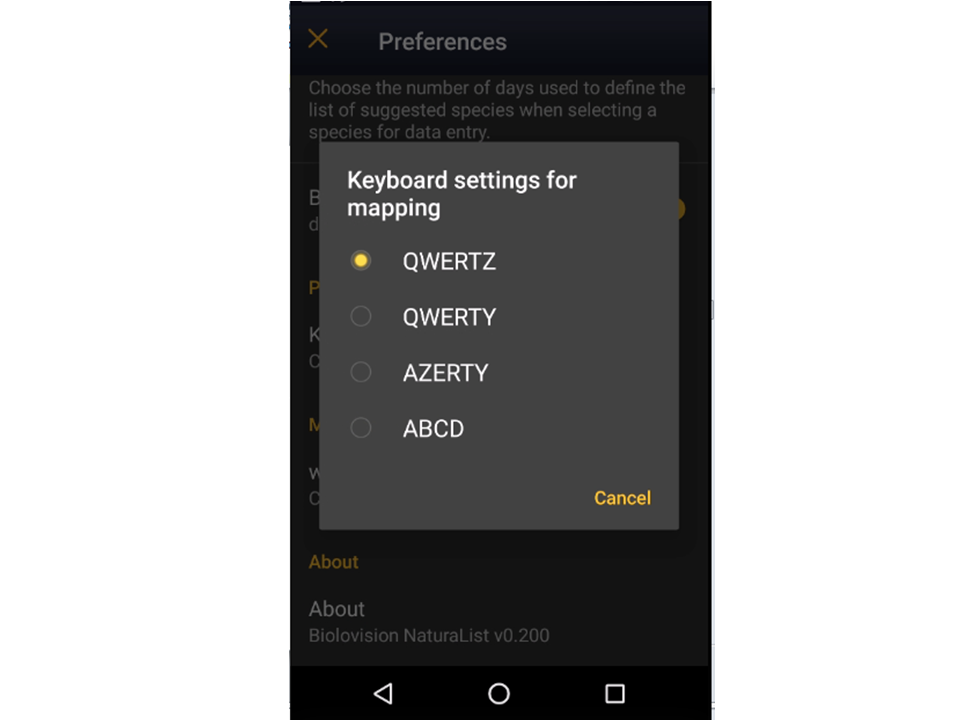
Keyboard settings for mapping
This section will only appear in Menu > Preferences > Protocols if you have access to country-specific protocols using a tablet interface with cartography:

-
Breeding Waterbirds
CBBM in Protected areas
Common Breeding Bird Survey
Grey Partridge
Meadow Birds
Reed Breeding Species Census
Semi-Common Territorial Species census
Shorebirds, Anatidae, Grebes and Coots breeding
Private Territory Mapping
Choose one of the options to select the configuration of your keyboard (see image Keyboard configuration for mapping).

Enter data
|
2 Waterbird census 2.1 Start of list 2.2 Entering records 2.3 Ending the list 2.4 Editing records and/or protocols 2.5 Deleting records and/or protocols 2.6 Browsing records |
Open the menu as for Submitting records and choose Waterbird census (see image below).

If you are registered for only one site, you will access directly to the next step: Start of list.
If you have more than one site to survey, it will list all your protocol sites (see image below).

1. Sort your protocol site by Site name, National code or Local code.
2. Click on the name to go directly to the next step Start of list.
3. Click on the arrow to get directions to your protocol location. It will open google maps on a new window.
|
NOTE: |
Start of list
Enter general information before starting the protocol (see image). Fields marked with an asterisk are mandatory. Fields available may differ from one country to another. All available fields for all countries are listed below.

- Comment
You may enter a comment if you find it appropiate.
- Important changes
Indicate if there have been major changes since your last visit.
- Additional observer
Indicate if you are accompanied by someone whose observations are also recorded.
- Ice
Indicate the percentatge of water surface that is frozen.
- Snow coverage
Indicate the proportion of snow cover.
- Count type
Tick roost count if you are counting roosting birds, or during day otherwise.
- Count method
Indicate if you are surveying from the ground, the air, the water, a different way, or if it is unknown.
- Optical equipment
Indicate which equipment you are using for the survey, if any. Note you can only choose one option.
- Coverage
Indicate how much of the designated polygon is covered in the survey.
- Water level
Indicate the water level.
- Visibility
Indicate the approximate distance within which it is possible to identify species.
- Waves
Indicate how are the waves.
- Conditions in general
Choose how are surveying conditions overall regarding weather and disturbances, and indicate on next section the reason if surveying conditions are not good.
- Reason(s) for moderate / bad conditions
If general conditions indicated above are noot good, click the yellow field to open an expandable menu and choose the reason (see image below). Only one option is possible: choose the one that better adjusts to reality.

- Count payed
Indicate if the count is payed for or not.
- Number of persons on shore
Enter number.
- Number of rowing boats
Enter number.
- Number of motor boats
Enter number
- Number of sailing boats
Enter number
- Number of canoes/kayaks
Enter number.
- Number of fishing boats
Enter number.
- Number of sports divers
Enter number.
- Number of surfers
Enter number.
- Additional observers
Indicate the name of other observers participating in the data collection.
- Important changes since last count?
Indicate if there has been any major change since your previous count, for example, some disturbance like noise or construction.
- Record the trace
Check if you want NaturaList to record your track. You will see a reminder to set your GPS on "High precision" and your power saving off for NaturaList. Go to Main menu > Preferences > GPS mode > Continuous (high reactivity) to set the right GPS mode (see wiki sectio Mobile interface > Getting started > Preferences > Location > GPS Mode on how to do it).
Click OK to continue and check if you wish not to see the reminder again. Check Do not ask again and keep this choice for future entries if you want to set Record the trace as the default option (see image below). Click OK to continue without setting Record the trace as the default option.

- After synchronisation, visualise your track at the local portal by:
- Clicking on any species from the list as if for editing, and selecting Go to website > Edit Place tab. See image Example of records that belong to a list.
- Logging into the website and going to edit your own data. Click on any observation belonging to the list, and select the Edit place tab. See image Example of records that belong to a list.
- Clicking on any species from the list as if for editing, and selecting Go to website > Edit Place tab. See image Example of records that belong to a list.
- After synchronisation, visualise your track at the local portal by:

- Hide all records from the public
Check if you want to keep your records privately. This will not prevent administrators to see them and contact you if necessary, but other users of NaturaList will not see your records.
- No species were seen
Check if your survey did not provide any data. Surveys with no species are also important results! It will mean you followed the established methodology, and therefore your survey is valid, but no birds were present. They can indicate major population changes and are of extreme importance for conservation purposes.
|
Surveys with no species are also important results! Please submit them. It will mean you followed the established methodology but no birds were present. It can be due to methodology, disturbance, pollution or other major population changes and may be of extreme importance for conservation purposes. |
Click Validate when done.
Entering records
Enter observations as if in a list in the field.
- Place
- Place
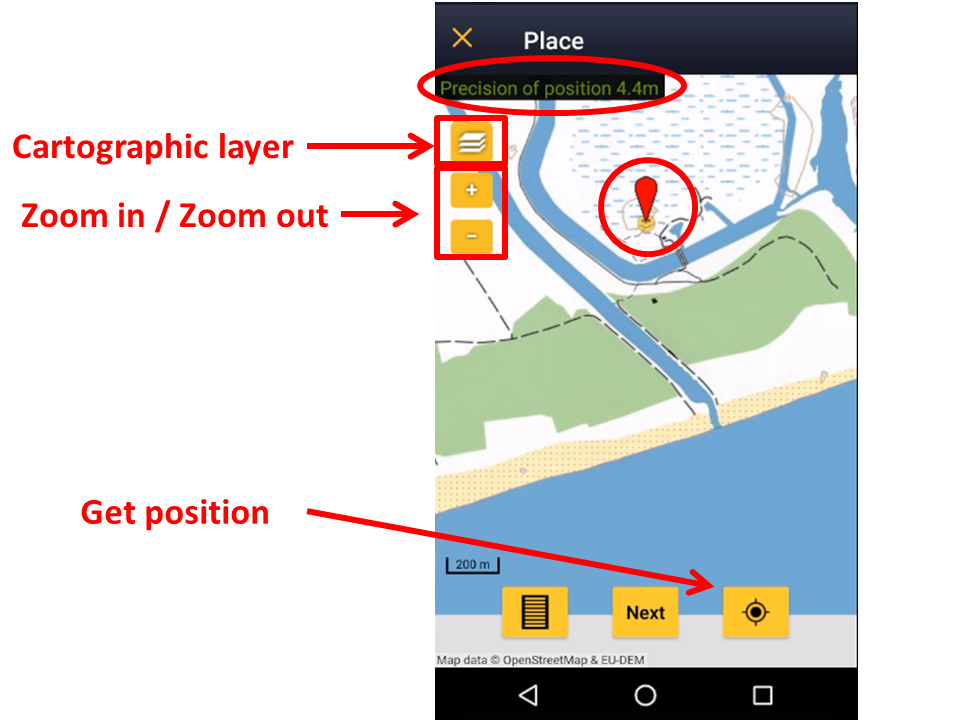
It opens a map with your polygon to survey (see image below). Place the red marker where the individual, or group of individuals, are observed.
Note only observations within the delimited polygon can be recorded. If you have other observations that you would like to report, pause the ongoing protocol (pause icon on top bar, see image) and enter data as you are used to (all the options as explained in the wiki Mobile interface> Naturalist for Android > Submitting records).

1. Pause
2. Observation
3. Observer
4. Hide / unhide summary
5. Polygon (notice the thin yellow line delimiting the polygon to survey)
After entering the first record, activate/deactivate (active when orange, inactive when yellow) the summary icon to see species name and associated information from already entered records (see image below). Click on the notebook icon at the bottom to see a list of all records on the ongoing protocol. Know more about the summary of species in a map at wiki section Mobile interface > Navigating the map > Understanding a summary of observations.

To see how to navigate the map, see wiki section Navigating the map.
|
|
- Species
- Species
Enter species 'by search' or using protocol shortcuts when available, as explained in wiki section Mobile interface > Entering records > Directly in the field > Step 2: Species.
See wiki section Mobile interface > Shortcuts to learn more about shortcuts and how to create them.
- Number of individuals
- Number of individuals
See Mobile interface > Entering records > Directly in the field > Number of individuals if necessary.
|
|
- Plus
- Plus
Enter additional information as if it where a list in the field.
See wiki section Mobile interface > Submitting records > Directly in the field > Step 4: Additional information on how to do it, if necessary.
When done, click Save. It will take you to the Place screen to continue entering observations.
Ending the list
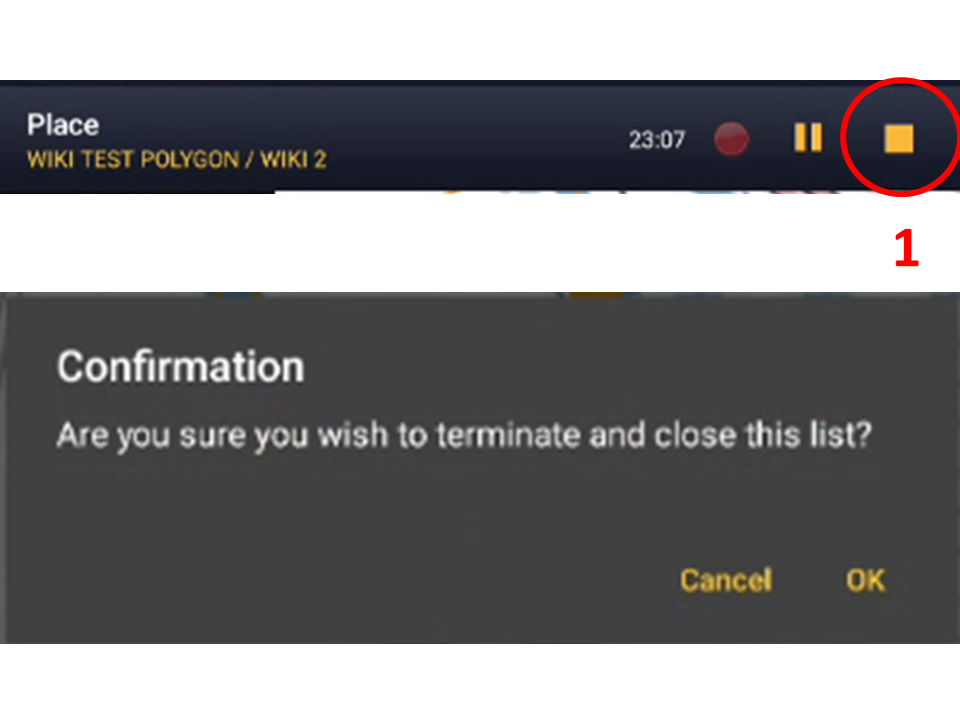
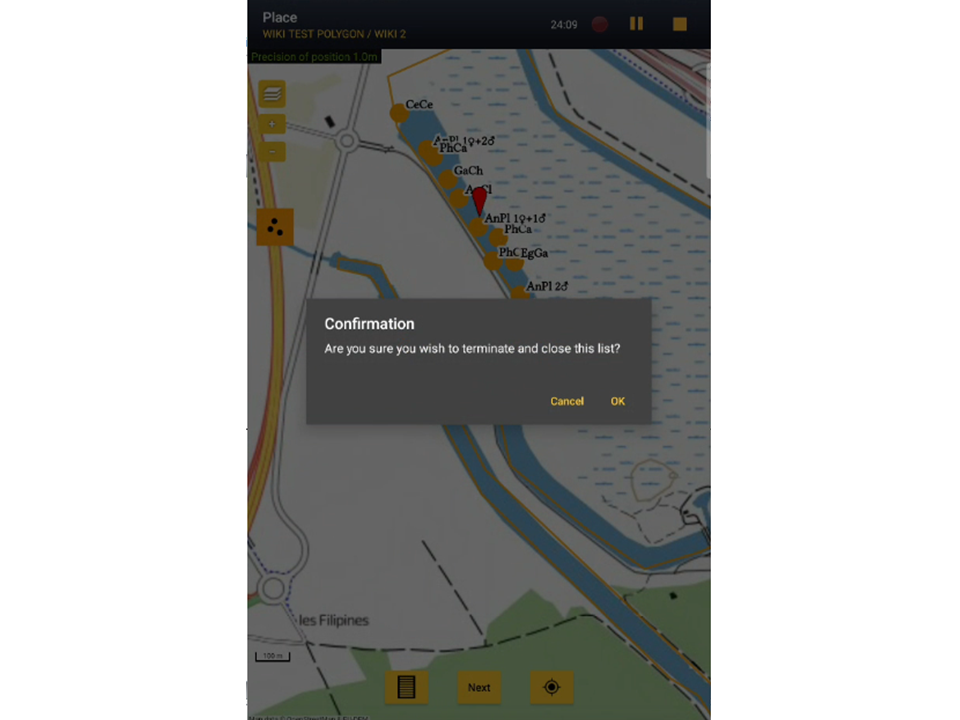
To finish the survey, click the stop icon at the top right corner of the Place screen (see image End the list). You will be prompted to confirm (see image Ending the list. Confirmation).


Adjust time, if necessary, and add or modify a comment. Finally, indicate which type of list you recorded (see image below).

Time: Adjust starting or ending time by clicking on the time button. See wiki section Mobile interface > Submitting records > Later > Date/Time to know how to modify the clock.
Comment: Add or modify a comment if necessary.
Which species list did you count?:
- Restricted list: You counted only the species of interest to the protocol (i.e. ducks).
- Extended list: You counted other water-related species besides those required by the protocol (i.e. ducks, herons and kingfishers).
- All species where reported (=complete list): You counted all species seen within the polygon (i.e. ducks, herons, kingfishers and passerines).
If the list took more than 30 minutes, you may be prompted to confirm before the list can be saved.
Remember to synchronise your data as soon as possible after entering to avoid loosing it.
Editing records and/or protocols
To edit records within a protocol, or to edit the protocol's general parameters, visit wiki section Mobile interface > Editing records > Editing protocols.
Deleting records and/or protocols
To delete records within a protocol, or to delete the whole protocol, visit wiki section Mobile interface > Editing records > Deleting protocols.
Browsing records
See your protocoled records:
- Before synchronisation
- In the phone. See more details in wiki section Accesssing records' details.
- Before synchronisation
- After synchronisation
- In Mine. See more details in wiki section Accesssing records' details.
- After synchronisation
- In Under verification (only if any data of the protocol needs more information)
- In Under verification (only if any data of the protocol needs more information)
- In the local portal. Go to the corresponding local portal, Menu > Explore > All my observations.
- In the local portal. Go to the corresponding local portal, Menu > Explore > All my observations.
Waterbird census
|
2 Waterbird census 2.1 Start of list 2.2 Entering records 2.3 Ending the list 2.4 Editing records and/or protocols 2.5 Deleting records and/or protocols 2.6 Browsing records |
Open the menu as for Submitting records and choose Waterbird census (see image below).
If you are registered for only one site, you will access directly to the next step: Start of list.
If you have more than one site to survey, it will list all your protocol sites (see image below).
1. Sort your protocol site by Site name, National code or Local code.
2. Click on the name to go directly to the next step Start of list.
3. Click on the arrow to get directions to your protocol location. It will open google maps on a new window.
|
NOTE: |
Start of list
Enter general information before starting the protocol (see image). Fields marked with an asterisk are mandatory. Fields available may differ from one country to another. All available fields for all countries are listed below.
- Comment
You may enter a comment if you find it appropiate.
- Important changes
Indicate if there have been major changes since your last visit.
- Additional observer
Indicate if you are accompanied by someone whose observations are also recorded.
- Ice
Indicate the percentatge of water surface that is frozen.
- Snow coverage
Indicate the proportion of snow cover.
- Count type
Tick roost count if you are counting roosting birds, or during day otherwise.
- Count method
Indicate if you are surveying from the ground, the air, the water, a different way, or if it is unknown.
- Optical equipment
Indicate which equipment you are using for the survey, if any. Note you can only choose one option.
- Coverage
Indicate how much of the designated polygon is covered in the survey.
- Water level
Indicate the water level.
- Visibility
Indicate the approximate distance within which it is possible to identify species.
- Waves
Indicate how are the waves.
- Conditions in general
Choose how are surveying conditions overall regarding weather and disturbances, and indicate on next section the reason if surveying conditions are not good.
- Reason(s) for moderate / bad conditions
If general conditions indicated above are noot good, click the yellow field to open an expandable menu and choose the reason (see image below). Only one option is possible: choose the one that better adjusts to reality.
- Count payed
Indicate if the count is payed for or not.
- Number of persons on shore
Enter number.
- Number of rowing boats
Enter number.
- Number of motor boats
Enter number
- Number of sailing boats
Enter number
- Number of canoes/kayaks
Enter number.
- Number of fishing boats
Enter number.
- Number of sports divers
Enter number.
- Number of surfers
Enter number.
- Additional observers
Indicate the name of other observers participating in the data collection.
- Important changes since last count?
Indicate if there has been any major change since your previous count, for example, some disturbance like noise or construction.
- Record the trace
Check if you want NaturaList to record your track. You will see a reminder to set your GPS on "High precision" and your power saving off for NaturaList. Go to Main menu > Preferences > GPS mode > Continuous (high reactivity) to set the right GPS mode (see wiki sectio Mobile interface > Getting started > Preferences > Location > GPS Mode on how to do it).
Click OK to continue and check if you wish not to see the reminder again. Check Do not ask again and keep this choice for future entries if you want to set Record the trace as the default option (see image below). Click OK to continue without setting Record the trace as the default option.
- After synchronisation, visualise your track at the local portal by:
- Clicking on any species from the list as if for editing, and selecting Go to website > Edit Place tab. See image Example of records that belong to a list.
- Logging into the website and going to edit your own data. Click on any observation belonging to the list, and select the Edit place tab. See image Example of records that belong to a list.
- Clicking on any species from the list as if for editing, and selecting Go to website > Edit Place tab. See image Example of records that belong to a list.
- After synchronisation, visualise your track at the local portal by:
- Hide all records from the public
Check if you want to keep your records privately. This will not prevent administrators to see them and contact you if necessary, but other users of NaturaList will not see your records.
- No species were seen
Check if your survey did not provide any data. Surveys with no species are also important results! It will mean you followed the established methodology, and therefore your survey is valid, but no birds were present. They can indicate major population changes and are of extreme importance for conservation purposes.
|
Surveys with no species are also important results! Please submit them. It will mean you followed the established methodology but no birds were present. It can be due to methodology, disturbance, pollution or other major population changes and may be of extreme importance for conservation purposes. |
Click Validate when done.
Entering records
Enter observations as if in a list in the field.
- Place
- Place
It opens a map with your polygon to survey (see image below). Place the red marker where the individual, or group of individuals, are observed.
Note only observations within the delimited polygon can be recorded. If you have other observations that you would like to report, pause the ongoing protocol (pause icon on top bar, see image) and enter data as you are used to (all the options as explained in the wiki Mobile interface> Naturalist for Android > Submitting records).
1. Pause
2. Observation
3. Observer
4. Hide / unhide summary
5. Polygon (notice the thin yellow line delimiting the polygon to survey)
After entering the first record, activate/deactivate (active when orange, inactive when yellow) the summary icon to see species name and associated information from already entered records (see image below). Click on the notebook icon at the bottom to see a list of all records on the ongoing protocol. Know more about the summary of species in a map at wiki section Mobile interface > Navigating the map > Understanding a summary of observations.
To see how to navigate the map, see wiki section Navigating the map.
|
|
- Species
- Species
Enter species 'by search' or using protocol shortcuts when available, as explained in wiki section Mobile interface > Entering records > Directly in the field > Step 2: Species.
See wiki section Mobile interface > Shortcuts to learn more about shortcuts and how to create them.
- Number of individuals
- Number of individuals
See Mobile interface > Entering records > Directly in the field > Number of individuals if necessary.
|
|
- Plus
- Plus
Enter additional information as if it where a list in the field.
See wiki section Mobile interface > Submitting records > Directly in the field > Step 4: Additional information on how to do it, if necessary.
When done, click Save. It will take you to the Place screen to continue entering observations.
Ending the list
To finish the survey, click the stop icon at the top right corner of the Place screen (see image End the list). You will be prompted to confirm (see image Ending the list. Confirmation).
Adjust time, if necessary, and add or modify a comment. Finally, indicate which type of list you recorded (see image below).
Time: Adjust starting or ending time by clicking on the time button. See wiki section Mobile interface > Submitting records > Later > Date/Time to know how to modify the clock.
Comment: Add or modify a comment if necessary.
Which species list did you count?:
- Restricted list: You counted only the species of interest to the protocol (i.e. ducks).
- Extended list: You counted other water-related species besides those required by the protocol (i.e. ducks, herons and kingfishers).
- All species where reported (=complete list): You counted all species seen within the polygon (i.e. ducks, herons, kingfishers and passerines).
If the list took more than 30 minutes, you may be prompted to confirm before the list can be saved.
Remember to synchronise your data as soon as possible after entering to avoid loosing it.
Editing records and/or protocols
To edit records within a protocol, or to edit the protocol's general parameters, visit wiki section Mobile interface > Editing records > Editing protocols.
Deleting records and/or protocols
To delete records within a protocol, or to delete the whole protocol, visit wiki section Mobile interface > Editing records > Deleting protocols.
Browsing records
See your protocoled records:
- Before synchronisation
- In the phone. See more details in wiki section Accesssing records' details.
- Before synchronisation
- After synchronisation
- In Mine. See more details in wiki section Accesssing records' details.
- After synchronisation
- In Under verification (only if any data of the protocol needs more information)
- In Under verification (only if any data of the protocol needs more information)
- In the local portal. Go to the corresponding local portal, Menu > Explore > All my observations.
- In the local portal. Go to the corresponding local portal, Menu > Explore > All my observations.
Private territory mapping