Protocols/es: Difference between revisions
Updating to match new version of source page |
No edit summary |
||
| Line 39: | Line 39: | ||
</div> | </div> | ||
| |||
| |||
==Configuración de protocolos== | ==Configuración de protocolos== | ||
Revision as of 21:48, 8 January 2024
Los protocolos son formas estandarizadas de recogida de datos. La metodología a seguir depende de cada estudio. Los protocolos solo están disponibles cuando un socio local los ofrece. Ten presente que no todos los socios ofrecen los mismos protocolos.
Para acceder a los protocolos, un administrador tiene que darte acceso, y el coordinador del protocolo te dará las intrucciones para que puedas hacer el censo. Tu responsabilidad es censar en el lugar asignado siguiendo las instrucciones del protocolo. Sin embargo, no todos los socios te dan acceso al protocolo en NaturaList directamente. Mientras que siempre tendrás acceso a los protocolos que se te han asignado en la página local, a veces hace falta que un administrador te de aceso al protocolo en NaturaList.

Accede al protocolo como si fueras a intriducir observaciones sin protocolo (icono + en la esquina inferior derecha de la imagen, ver imagen de la derecha). Verás tantas entradas como el número de protocolos a los que se te haya dado acceso. Los que aparecen en blanco son los que están activos según la lista de especies elegida. Los que aparecen el gris están asociados a otra lista de especies, inactiva mientras no la modifiques (ver imagen Protocolos. Menú principal como ejemplo). Clica sobre el protocolo que necesitas.
|
Configuración de protocolos
Antes de empezara entrar observaciones al protocolo, quizás debas definir algunos parámetros:

Lista de especies
La lista de especies seleccionada en tu dispositivo tiene que ser la misma que la lista de especies del país dónde tiene lugar el censo en tu protocolo. Cuando tu protocolo implica más de un grupo taxonómico, selecciona la lista de especies apropiada para cada uno de los grupos taxonómicos implicados. Por ejemplo, si cuentas pájaros en Alemania bajo el Censo de aves acuáticas, tu lista de especies deberia ser la lista alemana. Si tu protocolo incluye pájaros y mamíferos en Francia, debes seleccionar al lista de especies de Francia tanto para pájaros como para mamíferos. Para seleccionar la lista apropiada ves a Menú > Herramientas > Preferenciass > Especies > Lista de especies. Configuración del teclado para mapas
Esta sección solo aparecerá en Menú > Preferencias > Protocolos si tienes acceso a un protocolo con cartografía desde una tablet:
CBBM in Protected areas Common Breeding Bird Survey Grey Partridge Meadow Birds Reed Breeding Species Census Semi-Common Territorial Species census Shorebirds, Anatidae, Grebes and Coots breeding Mapeo de territorios
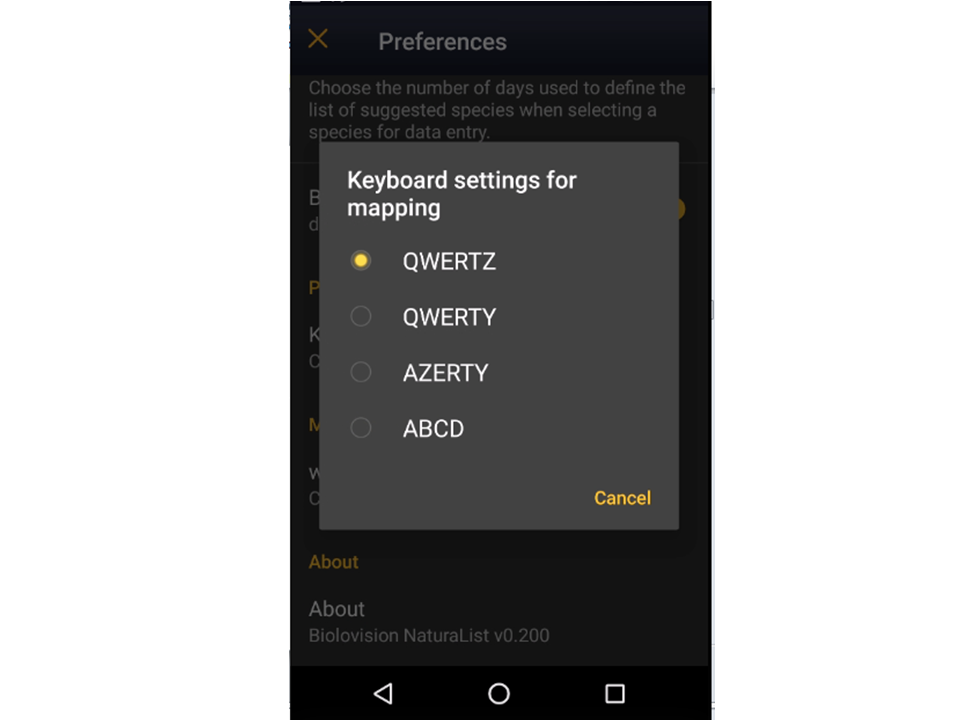
Elige una de las acciones para seleccionar la configuración de tu teclado (ver imagen Keyboard configuration for mapping). 
Enter data
2 Enter data
Open the menu as for Submitting records and choose Waterbird census (see image below). 
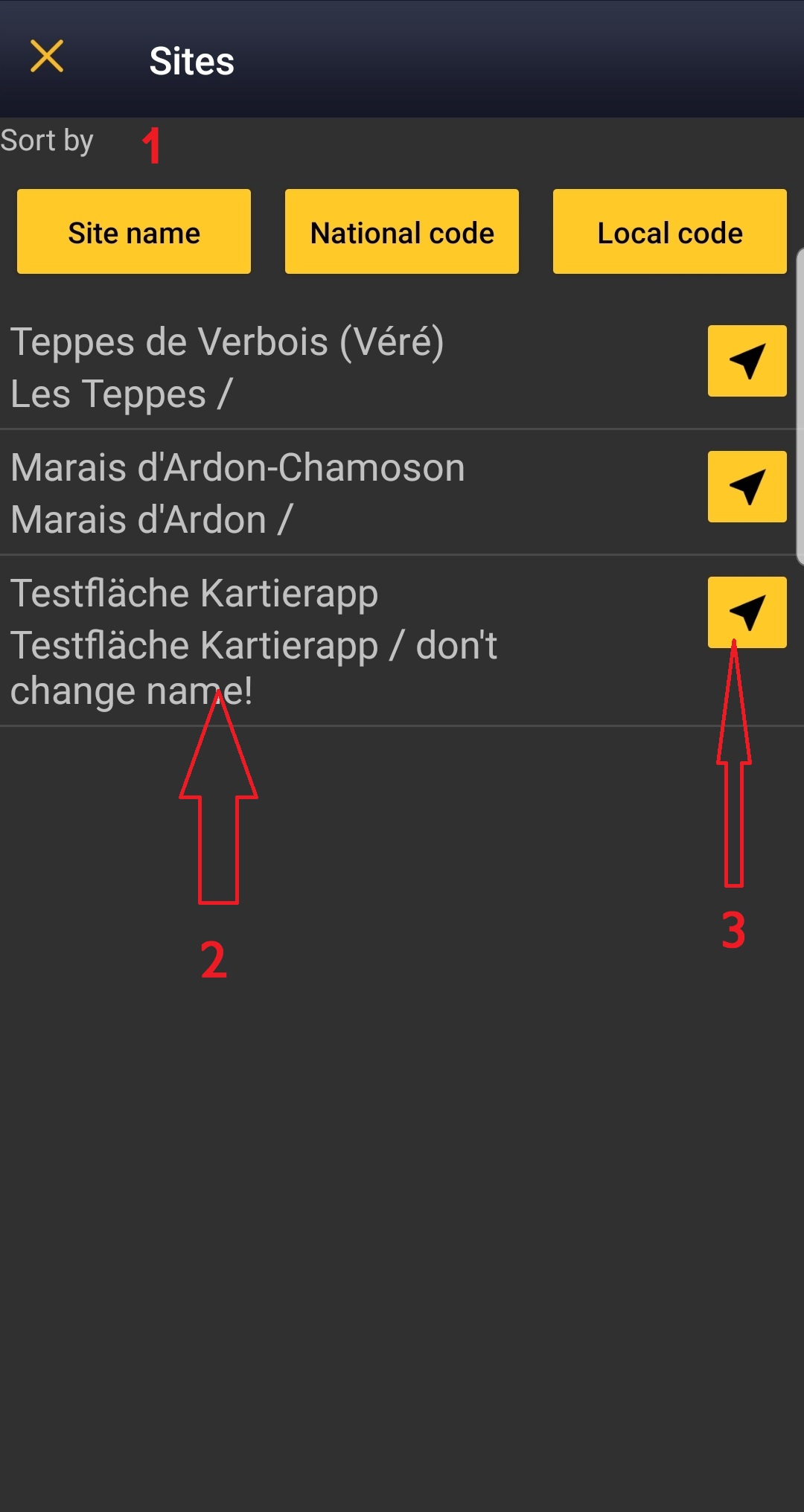
If you are registered for only one site, you will access directly to the next step: Start of list.  1. Sort your protocol site by Site name, National code or Local code. 2. Click on the name to go directly to the next step Start of list. 3. Click on the arrow to get directions to your protocol location. It will open google maps on a new window.
Start of list

You may enter a comment if you find it appropiate.
Check if you want NaturaList to record your track. You will see a reminder to set your GPS on "High precision" and your power saving off for NaturaList. Go to Main menu > Preferences > Location > GPS mode > Continuous (high reactivity) to set the right GPS mode (see wiki section Mobile interface > Getting started > Preferences > Location > GPS Mode on how to do it). Click OK to continue and check if you wish not to see the reminder again. Check Do not ask again and keep this choice for future entries if you want to set Record the trace as the default option (see image below). Click OK to continue without setting Record the trace as the default option. 
Check if you want to keep your records privately. This will not prevent administrators to see them and contact you if necessary, but other users of NaturaList will not see your records.
Check if your survey did not provide any data. Surveys with no species are also important results! It will mean you followed the established methodology, and therefore your survey is valid, but no birds were present. They can indicate major population changes and are of extreme importance for conservation purposes.
Click Next when done. Entering records
Enter observations as if with a detailed list. Place
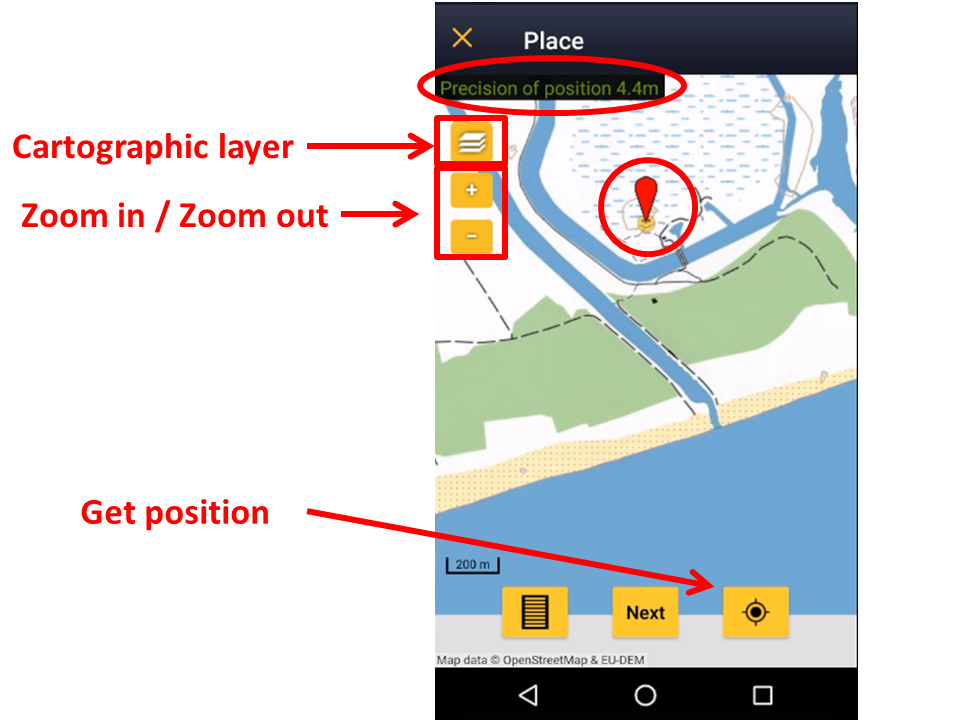
It opens a map with your position (yellow smiley in the image below). Place the red marker where the individual, or group of individuals, are observed. If you have other observations that you would like to report, pause the ongoing protocol (pause icon on top bar, see image) and enter data as you are used to (all the options as explained in the wiki Mobile interface> Naturalist for Android > Submitting records). 
1. Pause After entering the first record, activate/deactivate (active when orange, inactive when yellow) the summary icon to see species name and associated information from already entered records (see image below). Click on the notebook icon at the bottom to see a list of all records on the ongoing protocol. Know more about the summary of species in a map at wiki section Mobile interface > Navigating the map > Understanding a summary of observations. 
To see how to navigate the map, see wiki section Navigating the map.
Species
Enter species 'by search' or using protocol shortcuts when available, as explained in wiki section Mobile interface > Entering records > Directly in the field > Step 2: Species.
Enter number of individuals and precision count. Visit Mobile interface > Entering records > Directly in the field > Number of individuals if necessary.
Plus
Enter additional information as if with a detailed list. See wiki section Mobile interface > Submitting records > Directly in the field > Step 4: Additional information on how to do it, if necessary. When done, click Save. It will take you to the Place screen to continue entering observations. Ending the list
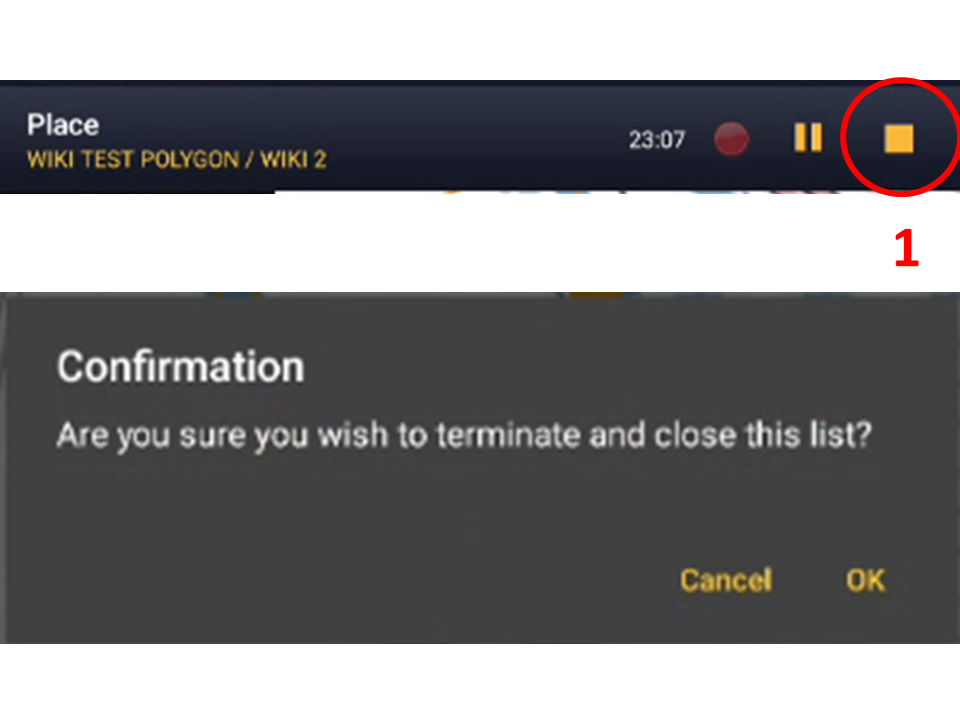
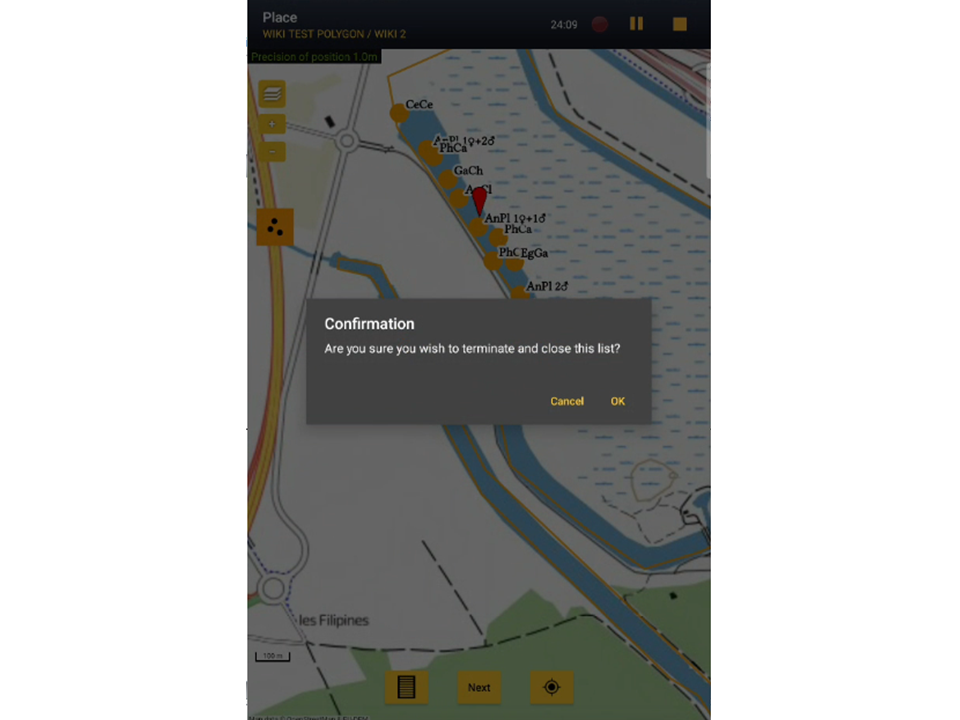
1. Stop recording: click the stop icon at the top right corner of the Place screen. You will be prompted to confirm (see image below). 
1.Stop recording 2. Adjust time: If necessary, adjust starting or ending time by clicking on the time button. See wiki section Mobile interface > Submitting records > Later > Date/Time to know how to modify the clock. 3. Fill in / modify details: Add or modify a comment if necessary, or enter additional information when requested. 4. Choose type of list: Indicate which type of list you recorded. Visit Various > Glossary to know he meaning of each of them, if necessary. 
2. Adjust tiime Remember to synchronise your data as soon as possible after entering to avoid loosing it. Editing records and/or protocols
To edit records within a protocol, or to edit the protocol's general parameters, visit wiki section Mobile interface > Editing records > Editing protocols. Deleting records and/or protocols
To delete records within a protocol, or to delete the whole protocol, visit wiki section Mobile interface > Editing records > Deleting protocols. Browsing records
See your protocolled records:
Waterbird censusWATERBIRD
3 Waterbird census
Open the menu as for Submitting records and choose Waterbird census (see image below). 
Choose the site you want to count at as explained in wiki section Mobile interface > Protocols > Enter data. WATERBIRD Start of list
Enter general information before starting the protocol (see image). Fields marked with an asterisk are mandatory. Fields available may differ from one country to another. Visit wiki section Web interface > Protocols > Preparation and data > Add observations > Starting the protocol for a list of all possible fields. 
You may enter a comment if you find it appropiate.
Indicate if there have been major changes since your last visit.
Indicate if you are accompanied by someone whose observations are also recorded.
Indicate the percentatge of water surface that is frozen.
Indicate the proportion of snow cover.
Tick roost count if you are counting roosting birds, or during day otherwise.
Indicate if you are surveying from the ground, the air, the water, a different way, or if it is unknown.
Indicate which equipment you are using for the survey, if any. Note you can only choose one option.
Indicate how much of the designated polygon is covered in the survey.
Indicate the water level.
Indicate the approximate distance within which it is possible to identify species.
Indicate how are the waves.
Choose how are surveying conditions overall regarding weather and disturbances, and indicate on next section the reason if surveying conditions are not good.
If general conditions indicated above are noot good, click the yellow field to open an expandable menu and choose the reason (see image below). Only one option is possible: choose the one that better adjusts to reality. 
Indicate if the count is payed for or not.
Enter number.
Enter number.
Enter number
Enter number
Enter number.
Enter number.
Enter number.
Enter number.
Indicate the name of other observers participating in the data collection.
Indicate if there has been any major change since your previous count, for example, some disturbance like noise or construction.
Check if you want NaturaList to record your track.
Check if you want to keep your records privately.
Check if your survey did not provide any data. Surveys with no species are also important results! Click Next when done. WATERBIRD Entering records
Enter observations as if with a detailed list.
Place your observation within the study area. See wiki section Mobile interface > Protocols > Enter data > Entering observations > Place on how to interpret the map and place your observation.
Enter species 'by search' or using protocol shortcuts when available, as explained in wiki section Mobile interface > Entering records > Directly in the field > Step 2: Species.
Enter number of individuals and precision count. Using the counter function may easy collecting your data. Visit Mobile interface > Entering records > Directly in the field > Number of individuals if necessary.
Enter additional information as if it where a with a detailed list. See wiki section Mobile interface > Submitting records > With a detailed list > Step 4: Additional information on how to do it, if necessary. When done, click Save. It will take you to the Place screen to continue entering observations.
WATERBIRD Ending the list
To finish the survey,
Visit wiki section Mobile interface > Enter data > Ending the list for details, if necessary. Remember to synchronise your data as soon as possible after entering to avoid loosing it. WATERBIRD Editing records and/or protocols
To edit records within a protocol, or to edit the protocol's general parameters, visit wiki section Mobile interface > Editing records > Editing protocols. WATERBIRD Deleting records and/or protocols
To delete records within a protocol, or to delete the whole protocol, visit wiki section Mobile interface > Editing records > Deleting protocols. WATERBIRD Browsing records
See your protocoled records:
[Top to Protocols] Private territory mappingOTHER_MAPPING
4 Private territory mapping
4.2 Entering records
4.2.2 Species 4.2.3 Additional information
Open the menu as for Submitting records and choose Private territory mapping (see image below). 
Choose the site you want to count at as explained in wiki section Mobile interface > Protocols > Enter data. OTHER MAPPING Start of list
Enter general information before starting the count. Fields are protocol dependent and may change from country to country. Visit wiki section Mobile interface > Protocols > Enter data > Start of list for details. Click Next when done. OTHER MAPPING Entering records
Screen layout will automatically become horizontal if using a tablet, which the map section on the right, and the species section on the left (see image below). OTHER MAPPING Place

See wiki section Mobile interface > Protocols > Enter data > Entering observations > Place to read and interpret the map. OTHER MAPPING Species

See wiki section Mobile interface > Protocols > Enter data > Entering observations > Species to enter the species name. OTHER MAPPING Additional information
Enter number of individuals and atlas code. 


To see how it will show in the web site, visit Web interface > Local portals > Protocols > Private territory mapping > Census results > Observations section.

To see how it will show in the web site, visit Web interface > Local portals > Protocols > Private territory mapping > Census results > Observations section. OTHER MAPPING Ending the list
To finish the survey,
Visit wiki section Mobile interface > Enter data > Ending the list for details, if necessary. Remember to synchronise your data as soon as possible after entering to avoid loosing it. OTHER MAPPING Editing records and/or protocols
To edit records within a protocol, or to edit the protocol's general parameters, visit wiki section Mobile interface > Editing records > Editing protocols. OTHER MAPPING Deleting records and/or protocols
To delete records within a protocol, or to delete the whole protocol, visit wiki section Mobile interface > Editing records > Deleting protocols. OTHER MAPPING Browsing records
See your protocoled records:
[Top to Protocols] Point countPOINT_COUNT
5 Point count
Open the menu as for Submitting records and choose Point count (see image below). 
Choose the site you want to count at as explained in wiki section Mobile interface > Protocols > Enter data. POINT_COUNT Start of list
Enter general information before starting the count. Fields are protocol dependent and may change from country to country. Visit wiki section Mobile interface > Protocols > Enter data > Start of list for details. Click Next when done. POINT_COUNT Entering records
Enter observations as if in a with a detailed list.
Place your observation within the study area. See wiki section Mobile interface > Protocols > Enter data > Entering observations > Place on how to interpret the map and place your observation.
Enter species and number of individuals. See wiki section Mobile interface > Protocols > Enter data > Entering observations > Species on how to enter the species name. Use shortcuts if necessary. Visit Mobile interface > Entering records > Directly in the field > Number of individuals if necessary.
Enter additional information as if it where a with a detailed list. See wiki section Mobile interface > Submitting records > Directly in the field > Step 4: Additional information on how to do it, if necessary. When done, click Save. It will take you to the Place screen to continue entering observations.
POINT_COUNT Ending the list
To finish the survey,
Visit wiki section Mobile interface > Enter data > Ending the list for details, if necessary. Remember to synchronise your data as soon as possible after entering to avoid loosing it. POINT_COUNT Editing records and/or protocols
To edit records within a protocol, or to edit the protocol's general parameters, visit wiki section Mobile interface > Editing records > Editing protocols. POINT_COUNT Deleting records and/or protocols
To delete records within a protocol, or to delete the whole protocol, visit wiki section Mobile interface > Editing records > Deleting protocols. POINT_COUNT Browsing records
See your protocoled records:
[Top to Protocols] WoodpeckersWOODPECKER
6 Woodpeckers
6.2 Entering records
Choose a protocolOpen the menu as for Submitting records and choose Woodpeckers (see image below). 
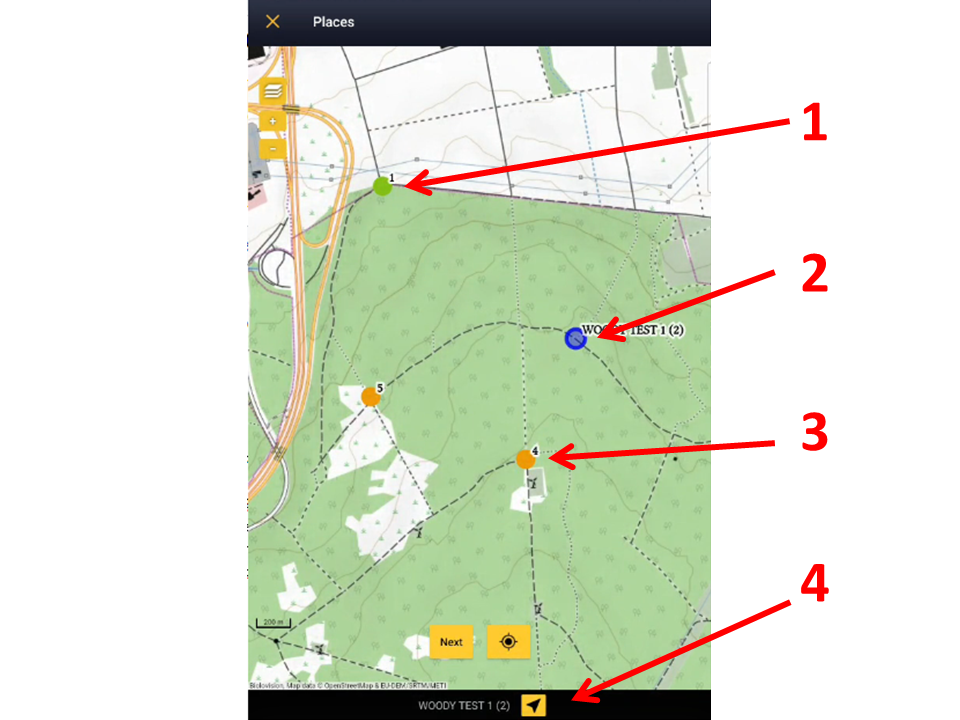
Choose siteChoose the site you want to count at as explained in wiki section Mobile interface > Protocols > Enter data. Choose a pointWithin the protocol, choose the point at which you want to count. A blue dot indicates the one actually activated. By default it will be point 1 and continue in ascending order. Click on any dot to change it. Use googlemaps to get directions to the active point (see image below, number 3). If this is not the first point of the protocol, take off where you left it by either entering as previously described, or by clicking on the yellow reminder at the top (see image ). 
1. Inactive point already surveyed.
WOODPECKER Start of list
Enter general information before starting the count. Fields are protocol dependent and may change from country to country. Visit wiki section Mobile interface > Protocols > Enter data > Start of list for details. Click Next when done. WOODPECKER Entering records
Enter observations as if in a with a detailed list. WOODPECKER PlaceSee wiki section Mobile interface > Protocols > Enter data > Entering observations > Place on how to interpret the map and place your observation. 
5. Your position.

10. Play the call of selected species. WOODPECKER SpeciesSee wiki section Mobile interface > Protocols > Enter data > Entering observations > Species on how to enter the species name. Use shortcuts if necessary. WOODPECKER PlusEnter additional information as if it where a with a detailed list. See wiki section Mobile interface > Submitting records > Directly in the field > Step 4: Additional information on how to do it, if necessary.

13. Habitat: Click on the yellow panel to open a clickable menu and select habitat. When done, click Save. It will take you to the Place screen to continue entering observations.
WOODPECKER Ending the list
To finish the survey, click the stop icon at the top right corner of the Place screen (see image End the list). You will be prompted to confirm (see image Ending the list. Confirmation). Fill in details, if asked. Be aware that required information is protocol dependent and may change from country to country. Note this information applies to the last point you surveyed at. To continue entering observations to other points, go back to step Start of list and repeat the process to all points. A yellow notification will appear on top of the main screen, a reminder of an unfinished protocol. Access subsequent points by either clicking on the "+" symbol at the bottom left, or on the reminder at the top. 
After the second point survey, it will be possible to copy survey details from previous points, except for playback use: 

15. Calls used during the survey at this point (in yellow). Click on any of them to mark as used/unused if necessary.

WOODPECKER Editing records and/or protocols
To edit records within a protocol, or to edit the protocol's general parameters, visit wiki section Mobile interface > Editing records > Editing protocols. WOODPECKER Deleting records and/or protocols
To delete records within a protocol, or to delete the whole protocol, visit wiki section Mobile interface > Editing records > Deleting protocols. WOODPECKER Browsing records
See your protocoled records:
[Top to Protocols] Rock Ptarmigans censusLAGOPUS_MOTA
7 Rock Ptarmigans census

Choose the site you want to count at as explained in wiki section Mobile interface > Protocols > Enter data. LAGOPUS_MOTA Start of list
Enter general information before starting the count. Fields are protocol dependent and may change from country to country. Visit wiki section Mobile interface > Protocols > Enter data > Start of list for details. Click Next when done. LAGOPUS_MOTA Entering records
Enter observations as if with a detailed list.
Place your observation within the study area. See wiki section Mobile interface > Protocols > Enter data > Entering observations > Place on how to interpret the map and place your observation.
Enter number of individuals and precision count. Using the counter function may easy collecting your data. Visit Mobile interface > Entering records > Directly in the field > Number of individuals if necessary.
Enter additional information as if it where a with a detailed list. See wiki section Mobile interface > Submitting records > With a detailed list > Step 4: Additional information on how to do it, if necessary. When done, click Save. It will take you to the Place screen to continue entering observations.
LAGOPUS_MOTA Ending the list
To finish the survey, Visit wiki section Mobile interface > Enter data > Ending the list for details, if necessary. Remember to synchronise your data as soon as possible after entering to avoid loosing it. LAGOPUS_MOTA Editing records and/or protocols
To edit records within a protocol, or to edit the protocol's general parameters, visit wiki section Mobile interface > Editing records > Editing protocols. LAGOPUS_MOTA Deleting records and/or protocols
To delete records within a protocol, or to delete the whole protocol, visit wiki section Mobile interface > Editing records > Deleting protocols. LAGOPUS_MOTA Browsing records
See your protocoled records:
[Top to Protocols] Black Grouse censusTETRAO_TETRIX
8 Black Grouse census
Open the menu as for Submitting records and choose Point count (see image below). 
Choose the site you want to count at as explained in wiki section Mobile interface > Protocols > Enter data. TETRAO_TETRIX Start of list
Enter general information before starting the count. Fields are protocol dependent and may change from country to country. Visit wiki section Mobile interface > Protocols > Enter data > Start of list for details. Click Next when done. TETRAO_TETRIX Entering records
Enter observations as if in a with a detailed list.
Place your observation within the study area. See wiki section Mobile interface > Protocols > Enter data > Entering observations > Place on how to interpret the map and place your observation.
Enter number of individuals and precision count. Using the counter function may easy collecting your data. Visit Mobile interface > Entering records > With a detailed list > Number of individuals if necessary.
Enter additional information as if it where a with a detailed list. See wiki section Mobile interface > Submitting records > With a detailed list > Step 4: Additional information on how to do it, if necessary. When done, click Save. It will take you to the Place screen to continue entering observations.
TETRAO_TETRIX Ending the list
To finish the survey, Visit wiki section Mobile interface > Enter data > Ending the list for details, if necessary. Remember to synchronise your data as soon as possible after entering to avoid loosing it. TETRAO_TETRIX Editing records and/or protocols
To edit records within a protocol, or to edit the protocol's general parameters, visit wiki section Mobile interface > Editing records > Editing protocols. TETRAO_TETRIX Deleting records and/or protocols
To delete records within a protocol, or to delete the whole protocol, visit wiki section Mobile interface > Editing records > Deleting protocols. TETRAO_TETRIX Browsing records
See your protocoled records:
[Top to Protocols] Woodcock monitoringWOODCOCK
9 Woodcock monitoring
Open the menu as for Submitting records and choose Point count (see image below).
Choose the site you want to count at as explained in wiki section Mobile interface > Protocols > Enter data. WOODCOCK Start of list
Enter general information before starting the count. Fields are protocol dependent and may change from country to country. Visit wiki section Mobile interface > Protocols > Enter data > Start of list for details. Click Next when done. WOODCOCK Entering records
Enter observations as if in a with a detailed list.
Place your observation within the study area. See wiki section Mobile interface > Protocols > Enter data > Entering observations > Place on how to interpret the map and place your observation.
Enter number of individuals and precision count. Using the counter function may easy collecting your data. Visit Mobile interface > Entering records > With a detailed list > Number of individuals if necessary.
Enter additional information as if it where a with a detailed list. See wiki section Mobile interface > Submitting records > With a detailed list > Step 4: Additional information on how to do it, if necessary. When done, click Save. It will take you to the Place screen to continue entering observations.
WOODCOCK Ending the list
To finish the survey, Visit wiki section Mobile interface > Enter data > Ending the list for details, if necessary. Remember to synchronise your data as soon as possible after entering to avoid loosing it. WOODCOCK Editing records and/or protocols
To edit records within a protocol, or to edit the protocol's general parameters, visit wiki section Mobile interface > Editing records > Editing protocols. WOODCOCK Deleting records and/or protocols
To delete records within a protocol, or to delete the whole protocol, visit wiki section Mobile interface > Editing records > Deleting protocols. WOODCOCK Browsing records
See your protocoled records:
|