Protocols/fr: Difference between revisions
Created page with "center|thumb|700x700px|Recensement des oiseaux d'eau. Lieu. <p style="margin-left: 220px; font-size: 13px"> '''1.''' Pause<br/> '''2.''' Observation<br/> '''3.''' Observateur<br/> '''4.''' Cacher / Montrer le résumé<br/> '''5.''' Polygone (Remarquez la fine ligne jaune qui délimite le polygone à étudier.)</p><br/><br/>" |
Updating to match new version of source page |
||
| (12 intermediate revisions by 2 users not shown) | |||
| Line 1: | Line 1: | ||
__NOTOC__ | |||
<languages/> | <languages/> | ||
<br/> | <br/> | ||
Les protocoles sont des méthodes standardisées de collecte de données. La méthodologie à suivre dépend de chaque étude. Les protocoles ne sont disponibles que lorsqu'un portail local les soutient. Notez que tous les partenaires ne partagent pas les mêmes protocoles.<br/> | Les protocoles sont des méthodes standardisées de collecte de données. La méthodologie à suivre dépend de chaque étude. Les protocoles ne sont disponibles que lorsqu'un portail local les soutient. Notez que tous les partenaires ne partagent pas les mêmes protocoles.<br/> | ||
| Line 12: | Line 13: | ||
<br/> | <br/> | ||
==Paramètres de protocole== | <table style="border-style: solid; border-color: black"> | ||
<tr> | |||
<td style="padding: 20px; text-align: left; font-family: sans-serif; color: black; background-color: #f0f0f0"> | |||
<div class="mw-translate-fuzzy"> | |||
<p style="font-size:10px"> | |||
<ul> | |||
<p style="font-size:13px">1 [[Protocols#Protocol_settings|Paramètres du protocole]]</p> | |||
<p style="margin-left: 30px;font-size:13px">1.1 [[Protocols#List_of_species|Liste d'espèces]]</p> | |||
<p style="margin-left: 30px;font-size:13px">1.2 [[Protocols#Keyboard_settings_for_mapping|Paramètres du clavier pour la cartographie]]</p> | |||
<p style="font-size:13px">2 [[Protocols#Enter_data|Enter data]]</p> | |||
<p style="margin-left: 30px;font-size:13px">2.1 [[Protocols#Start_of_list|Début de la liste]]</p> | |||
<p style="margin-left: 30px;font-size:13px">2.2 [[Protocols#Entering_records|Entrer des données]]</p> | |||
<p style="margin-left: 30px;font-size:13px">2.3 [[Protocols#Ending_the_list|Finir la liste]]</p> | |||
<p style="margin-left: 30px;font-size:13px">2.4 [[Protocols#Editing_records_and/or_protocols|Édition de données et/ou de protocoles]]</p> | |||
<p style="margin-left: 30px;font-size:13px">2.5 [[Protocols#Deleting_records_and/or_protocols|Suppression d'enregistrements et/ou de protocoles]]</p> | |||
<p style="margin-left: 30px;font-size:13px">2.6 [[Protocols#Browsing_records|Consultation des données]]</p> | |||
<br/> | |||
<p style="font-size:13px">3 [[Protocols#Waterbird_census|Recensement des oiseaux d'eau]]</p> | |||
<p style="font-size:13px">4 [[Protocols#Private_territory_mapping|Cartographie de territoire privé]]</p> | |||
<p style="font-size:13px">5 [[Protocols#Point_count|Comptage ponctuel]]</p><p style="margin-left: 30px;font-size:13px"></p> | |||
<p style="font-size:13px">6 [[Protocols#Woodpeckers|Pics]]</p> | |||
</div> | |||
</ul></p> | |||
</td></tr></table> | |||
<br /> | |||
==Paramètres du protocole== | |||
<br/> | <br/> | ||
| Line 28: | Line 58: | ||
<br /> | <br /> | ||
==Liste d'espèces== | |||
<br/> | <br/> | ||
La liste d'espèces sélectionnée dans votre dispositif doit être celle du pays où se déroule le protocole. Si votre protocole implique plus d'un groupe taxonomique, sélectionnez | La liste d'espèces sélectionnée dans votre dispositif doit être celle du pays où se déroule le protocole. Si votre protocole implique plus d'un groupe taxonomique, sélectionnez les liste d'espèces appropriées pour tous les taxons impliqués. <br/> | ||
<br/> | <br/> | ||
Si vous comptez par exemple les oiseaux en Allemagne dans le cadre du protocole de recensement des oiseaux d'eau, votre liste d'oiseaux doit être celle de l'Allemagne. Si votre protocole concerne les oiseaux et les mammifères en France, vous devez sélectionner | Si vous comptez par exemple les oiseaux en Allemagne dans le cadre du protocole de recensement des oiseaux d'eau, votre liste d'oiseaux doit être celle de l'Allemagne. Si votre protocole concerne les oiseaux et les mammifères en France, vous devez sélectionner les listes des espèces françaises pour les oiseaux et les mammifères. <br/> | ||
<br/> | <br/> | ||
| Line 40: | Line 70: | ||
<br/> | <br/> | ||
==Paramètres du clavier pour la cartographie== | |||
<br /> | <br /> | ||
| Line 53: | Line 83: | ||
Recensement des espèces territoriales semi-communes<br/> | Recensement des espèces territoriales semi-communes<br/> | ||
Oiseaux de rivage, Anatidés, Grèbes et Foulques nicheurs<br/> | Oiseaux de rivage, Anatidés, Grèbes et Foulques nicheurs<br/> | ||
Cartographie des territoires<br/> | Cartographie des territoires privés<br/> | ||
</ul> | </ul> | ||
<br/> | <br/> | ||
| Line 63: | Line 93: | ||
<br /> | <br /> | ||
= | =Enter data= | ||
<br/> | |||
<div class="toc" style="width:300px;"> <!-- La llargada s'ha de canviar aquí --> | |||
<div class="mw-collapsible mw-collapsed" data-expandtext="Show" data-collapsetext="Hide" style="width:250px;margin-bottom:0px;margin-top:0px;background-color:#f7f7f7;"> | |||
'''2 Enter data''' | |||
<div class="mw-collapsible-content" style="width:300px;background-color:#f7f7f7;"> <!-- I també cal canviar la llargada aquí --> | |||
<ol> | |||
2.1 [[Protocols#Start_of_list|Start of list]] <br /> | |||
2.2 [[Protocols#Entering_records|Entering records]]<br /> | |||
2.3 [[Protocols#Ending_the_list|Ending the list]]<br /> | |||
2.4 [[Protocols#Editing_records_and/or_protocols|Editing records and/or protocols]] <br /> | |||
2.5 [[Protocols#Deleting_records_and/or_protocols|Deleting records and/or protocols]]<br /> | |||
2.6 [[Protocols#Browsing_records|Browsing records]]<br /> </ol> | |||
</div> | |||
</div> | |||
</div> | |||
<br/> | |||
Open the menu as for [[Entering_records|'''Submitting records''']] and choose '''Waterbird census''' (see image below). <br /> | |||
<br/> | |||
[[File:Protocols menu.png|700px|thumb|center|Protocols. Main menu.]]<br /> | |||
<br /> | |||
If you are registered for only one site, you will access directly to the next step: [[Protocols#Start of list|'''Start of list''']].<br/> | |||
If you have more than one site to survey, it will list all your protocol sites (see image below).<br/> | |||
<br/> | |||
[[File:Choice of a protocol site.jpg|center|thumb|Selecting the protocol site.]]<br/> | |||
'''1.''' Sort your protocol site by '''Site name''', '''National code''' or '''Local code'''.<br/> | |||
<br/> | |||
'''2.''' Click on the name to go directly to the next step '''[[Protocols#Start of list|Start of list]].''' <br/> | |||
<br/> | |||
'''3.''' Click on the arrow to get directions to your protocol location. It will open google maps on a new window.<br /> | |||
<br/> | |||
<br/> | |||
<center> | |||
<table class="toc" width="700px" style="border:1px solid black"> | |||
<tr> | |||
<td style="padding: 25px; text-align: left; font-family: sans-serif; color: black; background-color: hsl(201, 100%, 89%)"> | |||
<!-- GREEN BOX (Tips): hsl(157, 74%, 80%) | |||
YELLOW BOX (Summaries): #ffffdb" | |||
BLUE BOX (Information): hsl(201, 100%, 89%) | |||
RED BOX (Warnings): hsl(0, 77%, 78%) --> | |||
<p><b>NOTE:<br /></b> | |||
The species list you selected in the device shall be the one of the local portal that grants you access to the protocol. <br /> | |||
From the example above (image [[Media:Protocols menu.png|Protocols. Main menu]]), the current list of species on the device corresponds to the local partner giving access to Waterbird census (appears in white and is clickable), but not to the local partner giving access to the Territory mapping (appears in grey and is not clickable). To access non active protocols, change the list of species.<br /> | |||
<br /> | |||
To change the list of species go to <br />Menu > Preferences > Species > Choice of species <br />(wiki section Mobile interface > Getting started > Preferences > Species > [[Getting_started_NaturaList#Choice_of_species| Choice of species]]).<br /> | |||
</p> | |||
</td></tr></table> | |||
</center> | |||
<br /><br /> | |||
==Start of list== | |||
<br /> | |||
Enter general information before starting the protocol (see image). Fields marked with an asterisk are mandatory. Fields available are protocol dependent and may differ from one country to another, even within the same protocol. Visit wiki section Web interface > Protocols > Preparation and data > Add observations > [[Protocols_web#Starting_the_protocol|Starting the protocol]] for a list of all possible fields. <br /> | |||
<br /> | |||
[[File:PC Starting the list.png|700px|thumb|center|Starting the list.]]<br /> | |||
<br /> | |||
:'''Comment''' <br /> | |||
You may enter a comment if you find it appropiate. <br /> | |||
<br /> | |||
:'''Record the trace''' <br /> | |||
Check if you want NaturaList to record your track. You will see a reminder to set your GPS on "High precision" and your power saving off for NaturaList. Go to Main menu > Preferences > Location > GPS mode > Continuous (high reactivity) to set the right GPS mode (see wiki section Mobile interface > Getting started > Preferences > Location > [[Getting_started_NaturaList#GPS_Mode | GPS Mode]] on how to do it). <br/> | |||
<br/> | |||
Click '''OK ''' to continue and check if you wish not to see the reminder again. Check '''Do not ask again and keep this choice for future entries''' if you want to set '''Record the trace''' as the default option (see image below). Click '''OK''' to continue without setting '''Record the trace''' as the default option.<br /> | |||
<br /> | |||
[[File:Record the trace as default.png|700px|thumb|center|Check to set '''Record the trace''' as the default option.]]<br/> | |||
<br/> | |||
::After synchronisation, visualise your track at the local portal by: | |||
::* Clicking on any species from the list as if for [[Edit_records#After_synchronisation|editing]], and selecting '''Go to website''' > '''Edit Place''' tab. See image [[Media:20220901WIKI my sightings on list.png|Example of records that belong to a list]]. <br/> | |||
::* Logging into the website and going to [[Editing_records|edit your own data]]. Click on any observation belonging to the list, and select the '''Edit place''' tab. See image [[Media:20220901WIKI my sightings on list.png|Example of records that belong to a list]].<br/> | |||
<br/> | |||
::Download your trace after synchronisation as described in Web interface > Export your data > [[Exporting_your_data#Exporting_your_trace|Exporting your trace]]. <br/> | |||
<br/> | |||
:'''Hide all records from the public''' <br /> | |||
Check if you want to keep your records privately. This will not prevent administrators to see them and contact you if necessary, but other users of NaturaList will not see your records. | |||
<br/> | |||
<br/> | |||
:'''No species were seen''' <br /> | |||
Check if your survey did not provide any data. Surveys with no species are also important results! It will mean you followed the established methodology, and therefore your survey is valid, but no birds were present. They can indicate major population changes and are of extreme importance for conservation purposes. <br /> | |||
<br /> | <br /> | ||
<table style="border | <center> | ||
<table class="toc" width="700px" style="border:1px solid black"> | |||
<tr> | <tr> | ||
<td style="padding: | <td style="padding: 25px; text-align: left; font-family: sans-serif; color: black; background-color: hsl(201, 100%, 89%)"> | ||
<!-- GREEN BOX (Tips): hsl(157, 74%, 80%) | |||
YELLOW BOX (Summaries): #ffffdb" | |||
BLUE BOX (Information): hsl(201, 100%, 89%) | |||
RED BOX (Warnings): hsl(0, 77%, 78%) --> | |||
<p | <p> | ||
<ul> | <ul> | ||
< | "<i><b>My survey did not provide any data</b></i>" <br /> | ||
< | Surveys with no species are also important results! Please submit them. <br /> It will mean you followed the established methodology but no birds were present. It can be due to meteorology, disturbance, pollution or other major population changes and may be of extreme importance for conservation purposes.<br /> | ||
</ul></p> | </ul></p> | ||
</td></tr></table> | </td></tr></table> | ||
</center> | |||
<br /> | |||
<br /> | <br /> | ||
---- | |||
Click '''Next''' when done. <br/> | |||
<br/> | |||
==Entering records== | |||
<br /> | |||
Enter observations as if [[Entering_records#With_list_in_the_field| with a detailed list]]. <br/> | |||
<br/> | |||
===Place=== | |||
<br/> | |||
[[ | It opens a map with your position (yellow smiley in the image below). Place the red marker where the individual, or group of individuals, are observed. If you have other observations that you would like to report, pause the ongoing protocol (pause icon on top bar, see image) and enter data as you are used to (all the options as explained in the wiki Mobile interface> [[Entering records|Naturalist for Android > Submitting records]]). <br /> | ||
<br /> | <br /> | ||
[[File:Place.png|center|thumb|700x700px|Protocol. Place.]] | |||
<p style="margin-left: 220px; font-size: 13px"> | |||
'''1.''' Pause<br/> | |||
'''2.''' Observation<br/> | |||
'''3.''' Observer<br/> | |||
'''4.''' Hide / unhide summary<br/> | |||
</p><br/> | |||
After entering the first record, activate/deactivate (active when orange, inactive when yellow) the summary icon to see species name and associated information from already entered records (see image below). Click on the notebook icon at the bottom to see a list of all records on the ongoing protocol. Know more about the summary of species in a map at wiki section Mobile interface > Navigating the map > [[Navigating_the_map_NaturaList#Understanding a summary of observations| Understanding a summary of observations]]. <br /> | |||
<br/> | |||
[[File:Summary of observation.png|center|thumb|700x700px|Protocol. Summary of observations.]]<br/> | |||
<br/> | <br/> | ||
[[ | To see how to navigate the map, see wiki section [[Navigating_the_map_NaturaList| Navigating the map]]. | ||
<br/> | |||
<br/> | |||
<center> | |||
<table class="toc" width="700px" style="border:1px solid black"> | |||
<tr> | |||
<td style="padding: 25px; text-align: left; font-family: sans-serif; color: black; background-color:hsl(157, 74%, 80%)"> | |||
<!-- GREEN BOX (Tips): hsl(157, 74%, 80%) | |||
YELLOW BOX (Summaries): #ffffdb" | |||
BLUE BOX (Information): hsl(201, 100%, 89%) | |||
RED BOX (Warnings): hsl(0, 77%, 78%) --> | |||
<p> | |||
<ul> | |||
The Red Marker indicates the position of your observation. The Smiley indicates your position. When the smiley gets yellow, the GPS has detected your position. Check how accurate the reading is on the top left corner (image [[Media:Navigating the map.png|Navigating the map]]). Always check your position on the map. Please place the red marker at your observation, not at your position. Be as accurate as possible.<br /> | |||
</ul></p> | |||
</td></tr></table> | |||
</center> | |||
<br/> | |||
<br/> | |||
===Species=== | |||
<br/> | <br/> | ||
'' | Enter species ''''by search'''' or using protocol shortcuts when available, as explained in wiki section Mobile interface > Entering records > Directly in the field > [[Entering_records#Step_2:_Species| Step 2: Species]]. <br/> | ||
<br/> | |||
See wiki section Mobile interface > [[Shortcuts|Shortcuts]] to learn more about shortcuts and how to create them.<br/> | |||
<br/> | <br/> | ||
''' | :'''Number of individuals'''<br/> | ||
<br/> | <br/> | ||
Enter number of individuals and precision count. <br/> | |||
<br/> | <br/> | ||
Visit Mobile interface > Entering records > Directly in the field > [[Entering_records#Number_of_individuals| Number of individuals]] if necessary.<br/> | |||
<br/> | |||
<center> | <center> | ||
<table | <table class="toc" width="700px" style="border:1px solid black"> | ||
<tr> | <tr> | ||
<td style="padding: 25px; text-align: left; font-family: sans-serif; color: black; background-color: hsl( | <td style="padding: 25px; text-align: left; font-family: sans-serif; color: black; background-color:hsl(157, 74%, 80%)"> | ||
<!-- GREEN BOX (Tips): hsl(157, 74%, 80%) | <!-- GREEN BOX (Tips): hsl(157, 74%, 80%) | ||
YELLOW BOX (Summaries): #ffffdb" | YELLOW BOX (Summaries): #ffffdb" | ||
| Line 116: | Line 295: | ||
RED BOX (Warnings): hsl(0, 77%, 78%) --> | RED BOX (Warnings): hsl(0, 77%, 78%) --> | ||
<p>< | <p> | ||
<ul> | |||
Entering records using a <b>counter</b> could be useful for abundant species that are not grouped.<br /> | |||
< | </ul></p> | ||
</p> | |||
</td></tr></table> | </td></tr></table> | ||
</center> | </center> | ||
<br /><br /> | <br/> | ||
<br/> | |||
===Plus=== | |||
<br/> | |||
Enter additional information as if [[Entering_records#With_a_detailed_list|with a detailed list]]. <br/> | |||
<br/> | |||
See wiki section Mobile interface > Submitting records > Directly in the field > [[Entering_records#Step_4_(non_mandatory_fields):_Additional_information| Step 4: Additional information]] on how to do it, if necessary.<br/> | |||
<br/> | |||
---- | |||
When done, click '''Save'''. It will take you to the '''Place''' screen to continue entering observations.<br/> | |||
<br/> | |||
<br/> | |||
==Ending the list== | |||
<br/> | |||
To finish the survey, <br/> | |||
'''1. Stop recording:''' click the stop icon at the top right corner of the '''Place''' screen. You will be prompted to confirm (see image below).<br/> <br/> | |||
[[File:Ending the list.png|700px|thumb|center|Ending the list.]] | |||
<p style="margin-right:220px;margin-left:220px"> | |||
'''1.Stop recording'''<br/> | |||
</p><br/> | |||
'''2. Adjust time:''' If necessary, adjust starting or ending time by clicking on the time button. See wiki section [[Entering_records#Date_/_Time| Mobile interface > Submitting records > Later > Date/Time]] to know how to modify the clock. <br/> | |||
<br/> | |||
'''3. Fill in / modify details:''' Add or modify a comment if necessary, or enter additional information when requested. <br/> | |||
<br/> | |||
'''4. Choose type of list:''' Indicate which type of list you recorded. Visit Various > [[Glossary]] to know he meaning of each of them, if necessary.<br/> | |||
<br/> | |||
[[File:Ending list adjustements.png|700px|thumb|center|Ending the list. Final adjustments.]] | |||
<p style="margin-right:220px;margin-left:220px"> | |||
'''2. Adjust tiime'''<br/> | |||
'''3. Fill in/modify details'''<br/> | |||
'''4. Choose type of list'''<br/> | |||
</p><br/> | |||
Remember to [[Entering_records#Synchronisation|synchronise]] your data as soon as possible after entering to avoid loosing it.<br/> | |||
<br/> | |||
==Editing records and/or protocols== | |||
<br/> | |||
To edit records within a protocol, or to edit the protocol's general parameters, visit wiki section Mobile interface > Editing records > [[Edit_records#Editing_Protocols| Editing protocols]]. <br/> | |||
<br/> | |||
==Deleting records and/or protocols== | |||
<br/> | |||
To delete records within a protocol, or to delete the whole protocol, visit wiki section Mobile interface > Editing records > [[Edit_records#Deleting_protocols| Deleting protocols]]. <br/> | |||
<br/> | |||
==Browsing records== | |||
<br/> | |||
See your protocolled records: <br/> | |||
<br/> | |||
:* Before synchronisation <br/> | |||
:: [[Search_observations#In_the_phone|<b>In the phone</b>]]. See more details in wiki section [[Search_observations#Accessing_your_own_records|Accessing your own records]].<br/> | |||
<br/> | |||
:* After synchronisation<br/> | |||
:: In [[Search_observations#Mine|<b>Mine</b>]]. See more details in wiki section [[Search_observations#Accessing_your_own_records|Accessing your own records]].<br/> | |||
:: In [[Search_observations#Under_verification|<b>Under verification</b>]] (only if any data of the protocol needs more information)<br/> | |||
:: In the local portal. Go to the corresponding local portal, Menu > Explore > [[Browsing_records#All_my_observations| All my observations]].<br/> | |||
<br/> | |||
[[#top|[Top]]]<br/> | |||
<br/> | |||
== | <span id="Waterbird_census_NL"></span> | ||
=Waterbird census= | |||
WATERBIRD | |||
<br /> | <br /> | ||
<br/> | |||
<div class="toc" style="width:300px;"> <!-- La llargada s'ha de canviar aquí --> | |||
<div class="mw-collapsible mw-collapsed" data-expandtext="Show" data-collapsetext="Hide" style="width:250px;margin-bottom:0px;margin-top:0px;background-color:#f7f7f7;"> | |||
'''3 Waterbird census''' | |||
<div class="mw-collapsible-content" style="width:300px;background-color:#f7f7f7;"> <!-- I també cal canviar la llargada aquí --> | |||
<ol> | |||
3.1 [[Protocols#WATERBIRD_Start_of_list|Start of list]] <br /> | |||
3.2 [[Protocols#WATERBIRD_Entering_records|Entering records]]<br /> | |||
3.3 [[Protocols#WATERBIRD_Ending_the_list|Ending the list]]<br /> | |||
3.4 [[Protocols#WATERBIRD_Editing_records_and/or_protocols|Editing records and/or protocols]] <br /> | |||
3.5 [[Protocols#WATERBIRD_Deleting_records_and/or_protocols|Deleting records and/or protocols]]<br /> | |||
3.6 [[Protocols#WATERBIRD_Browsing_records|Browsing records]]<br /> </ol> | |||
</div> | |||
</div> | |||
</div> | |||
<br/> | |||
Open the menu as for [[Entering_records|'''Submitting records''']] and choose '''Waterbird census''' (see image below). <br /> | |||
<br/> | |||
[[File:WBC Menu.png|700px|thumb|center|Waterbird census protocol. Menu.]]<br /> | |||
<br /> | <br /> | ||
[[ | Choose the site you want to count at as explained in wiki section Mobile interface > Protocols > [[Protocols#Enter_data|Enter data]]. <br/> | ||
<br/> | |||
==WATERBIRD Start of list== | |||
<br /> | <br /> | ||
Enter general information before starting the protocol (see image). Fields marked with an asterisk are mandatory. Fields available may differ from one country to another. Visit wiki section Web interface > Protocols > Preparation and data > Add observations > [[Protocols_web#Starting_the_protocol|Starting the protocol]] for a list of all possible fields. <br /> | |||
<br /> | |||
[[File:Start of list.png|700px|thumb|center|Waterbird census. Start of list.]]<br /> | |||
<br /> | <br /> | ||
:''' | :'''Comment''' <br /> | ||
You may enter a comment if you find it appropiate. <br /> | |||
<br /> | <br /> | ||
:''' | :'''Important changes''' <br /> | ||
Indicate if there have been major changes since your last visit.<br/> | |||
<br /> | <br /> | ||
:''' | :'''Additional observer''' <br /> | ||
Indicate if you are accompanied by someone whose observations are also recorded.<br /> | |||
<br /> | |||
:'''Ice''' <br/> | |||
Indicate the percentatge of water surface that is frozen.<br/> | |||
<br/> | <br/> | ||
:''' | :'''Snow coverage''' <br/> | ||
Indicate the proportion of snow cover.<br/> | |||
<br/> | <br/> | ||
:''' | :'''Count type''' <br /> | ||
Tick '''roost count''' if you are counting roosting birds, or '''during day''' otherwise. <br /> | |||
<br /> | <br /> | ||
:''' | :'''Count method''' <br /> | ||
Indicate if you are surveying from the ground, the air, the water, a different way, or if it is unknown. <br /> | |||
<br /> | |||
:''' | :'''Optical equipment''' <br /> | ||
Indicate which equipment you are using for the survey, if any. Note you can only choose one option. <br /> | |||
<br /> | <br /> | ||
:''' | :'''Coverage''' <br /> | ||
Indicate how much of the designated polygon is covered in the survey.<br/> | |||
<br /> | <br /> | ||
:''' | :'''Water level''' <br /> | ||
Indicate the water level. <br /> | |||
<br /> | <br /> | ||
:''' | :'''Visibility''' <br /> | ||
Indicate the approximate distance within which it is possible to identify species. <br /> | |||
<br /> | <br /> | ||
:''' | :'''Waves''' <br /> | ||
Indicate how are the waves.<br/> | |||
<br /> | <br /> | ||
:''' | :'''Conditions in general''' <br /> | ||
Choose how are surveying conditions overall regarding weather and disturbances, and indicate on next section the reason if surveying conditions are not good. <br /> | |||
<br /> | <br /> | ||
:''' | :'''Reason(s) for moderate / bad conditions''' <br /> | ||
If general conditions indicated above are noot good, click the yellow field to open an expandable menu and choose the reason (see image below). Only one option is possible: choose the one that better adjusts to reality. <br /> | |||
<br /> | <br /> | ||
[[File:Bad conditions.png|700px|thumb|center| | [[File:Bad conditions.png|700px|thumb|center|Possible reasons for bad surveying conditions.]]<br /> | ||
<br /> | <br /> | ||
:''' | :'''Count payed''' <br/> | ||
Indicate if the count is payed for or not.<br/> | |||
<br/> | <br/> | ||
:''' | :'''Number of persons on shore''' <br/> | ||
Enter number.<br/> | |||
<br/> | <br/> | ||
:''' | :'''Number of rowing boats''' <br/> | ||
Enter number.<br/> | |||
<br/> | <br/> | ||
:''' | :'''Number of motor boats''' <br/> | ||
Enter number<br/> | |||
<br/> | <br/> | ||
:''' | :'''Number of sailing boats''' <br/> | ||
Enter number<br/> | |||
<br/> | <br/> | ||
:''' | :'''Number of canoes/kayaks''' <br/> | ||
Enter number.<br/> | |||
<br/> | <br/> | ||
:''' | :'''Number of fishing boats''' <br/> | ||
Enter number. <br/> | |||
<br/> | <br/> | ||
:''' | :'''Number of sports divers''' <br/> | ||
Enter number.<br/> | |||
<br/> | <br/> | ||
:''' | :'''Number of surfers''' <br/> | ||
Enter number.<br/> | |||
<br/> | <br/> | ||
:''' | :'''Additional observers'''<br /> | ||
Indicate the name of other observers participating in the data collection. <br /> | |||
<br /> | <br /> | ||
:'''Important changes since last count?''' <br /> | |||
Indicate if there has been any major change since your previous count, for example, some disturbance like noise or construction. <br /> | |||
<br /> | <br /> | ||
:''' | :'''Record the trace''' <br /> | ||
Check if you want NaturaList to record your track. <br/> | |||
Visit wiki section Mobile interface > Protocols > Enter data > [[Protocols#Start_of_list|Start of list]] for more information.<br/> | |||
<br/> | <br/> | ||
:'''Hide all records from the public''' <br /> | |||
Check if you want to keep your records privately.<br/> | |||
<br/> | |||
:'''No species were seen''' <br /> | |||
Check if your survey did not provide any data. Surveys with no species are also important results! <br/> | |||
<br/> | |||
---- | |||
Click '''Next''' when done. <br/> | |||
<br/> | |||
==WATERBIRD Entering records== | |||
<br /> | <br /> | ||
[[ | Enter observations as if [[Entering_records#With_a_detailed_list| '''with a detailed list''']]. <br/> | ||
<br/> | |||
:'''Place'''<br/> | |||
Place your observation within the study area. <br/> | |||
<br/> | |||
See wiki section Mobile interface > Protocols > Enter data > Entering observations > [[Protocols#Place|Place]] on how to interpret the map and place your observation.<br/> | |||
<br/> | |||
:'''Species'''<br/> | |||
Enter species ''''by search'''' or using protocol shortcuts when available, as explained in wiki section Mobile interface > Entering records > Directly in the field > [[Entering_records#Step_2:_Species| Step 2: Species]]. <br/> | |||
<br/> | |||
See wiki section Mobile interface > [[Shortcuts|Shortcuts]] to learn more about shortcuts and how to create them.<br/> | |||
<br/> | |||
::'''Number of individuals'''<br/> | |||
Enter number of individuals and precision count. Using the [[Media:20221115Add ind in obs2.png|counter]] function may easy collecting your data.<br/> | |||
<br/> | |||
Visit Mobile interface > Entering records > Directly in the field > [[Entering_records#Number_of_individuals| Number of individuals]] if necessary.<br/> | |||
<br/> | |||
:'''Plus'''<br/> | |||
Enter additional information as if it where a [[Entering_records#With_a_detailed_list| '''with a detailed list''']]. <br/> | |||
<br/> | |||
See wiki section Mobile interface > Submitting records > With a detailed list > [[Entering_records#Step_4_(non_mandatory_fields):_Additional_information| Step 4: Additional information]] on how to do it, if necessary.<br/> | |||
<br/> | |||
---- | |||
When done, click '''Save'''. It will take you to the '''Place''' screen to continue entering observations. | |||
<br/> | |||
<br/> | |||
==WATERBIRD Ending the list== | |||
<br/> | |||
To finish the survey, <br/> | |||
<br/> | |||
1. Stop recording, <br/> | |||
2. Adjust time, if necessary, <br/> | |||
3. Fill in/modify details, and <br/> | |||
4. Choose type of list.<br/> | |||
<br/> | |||
:'''Which species list did you count?:''' <br/> | |||
::'''Restricted list:''' You counted only the species of interest to the protocol (i.e. ducks).<br/> | |||
::'''Extended list:''' You counted other water-related species besides those required by the protocol (i.e. ducks, herons and kingfishers).<br/> | |||
::'''All species where reported (=complete list):''' You counted all species seen within the polygon (i.e. ducks, herons, kingfishers and passerines).<br/> | |||
<br/> | |||
Visit wiki section Mobile interface > Enter data > [[Protocols#Ending_the_list|Ending the list]] for details, if necessary.<br/> | |||
<br/> | |||
Remember to [[Entering_records#Synchronisation|synchronise]] your data as soon as possible after entering to avoid loosing it.<br/> | |||
<br/> | |||
==WATERBIRD Editing records and/or protocols== | |||
<br/> | |||
To edit records within a protocol, or to edit the protocol's general parameters, visit wiki section Mobile interface > Editing records > [[Edit_records#Editing_Protocols| Editing protocols]]. <br/> | |||
<br/> | |||
==WATERBIRD Deleting records and/or protocols== | |||
<br/> | |||
To delete records within a protocol, or to delete the whole protocol, visit wiki section Mobile interface > Editing records > [[Edit_records#Deleting_protocols| Deleting protocols]]. <br/> | |||
<br/> | |||
==WATERBIRD Browsing records== | |||
<br/> | |||
See your protocoled records: <br/> | |||
<br/> | |||
:* Before synchronisation <br/> | |||
:: [[Search_observations#In_the_phone|<b>In the phone</b>]]. See more details in wiki section [[Search_observations#Accessing_records'_details|Accesssing records' details]].<br/> | |||
<br/> | |||
:* After synchronisation<br/> | |||
:: In [[Search_observations#Mine|<b>Mine</b>]]. See more details in wiki section [[Search_observations#Accessing_records'_details|Accesssing records' details]].<br/> | |||
:: In [[Search_observations#Under_verification|<b>Under verification</b>]] (only if any data of the protocol needs more information)<br/> | |||
:: In the local portal. Go to the corresponding local portal, Menu > Explore > [[Browsing_records#All_my_observations| All my observations]].<br/> | |||
<br/> | |||
[[#top|[Top to Protocols]]]<br/> | |||
[[Protocols#Waterbird_census|[Top to Waterbird census]]]<br/> | |||
<br/> | |||
=Private territory mapping= | |||
OTHER_MAPPING | |||
<br/> | |||
<br/> | |||
<div class="toc" style="width:300px;"> <!-- La llargada s'ha de canviar aquí --> | |||
<div class="mw-collapsible mw-collapsed" data-expandtext="Show" data-collapsetext="Hide" style="width:250px;margin-bottom:0px;margin-top:0px;background-color:#f7f7f7;"> | |||
'''4 Private territory mapping''' | |||
<div class="mw-collapsible-content" style="width:300px;background-color:#f7f7f7;"> <!-- I també cal canviar la llargada aquí --> | |||
<ol> | |||
4.1 [[Protocols#OTHER_MAPPING_Start_of_list|Start of list]] <br /> | |||
4.2 [[Protocols#OTHER_MAPPING_Entering_records|Entering records]]<br /> | |||
<ol> 4.2.1 [[Protocols#OTHER_MAPPING Place|Place]]<br/> | |||
4.2.2 [[Protocols#OTHER_MAPPING Species|Species]]<br/> | |||
4.2.3 [[Protocols#OTHER_MAPPING Additional information|Additional information]]<br/></ol></ol> | |||
<ol> | |||
4.3 [[Protocols#OTHER_MAPPING_Ending_the_list|Ending the list]]<br /> | |||
4.4 [[Protocols#OTHER_MAPPING_Editing_records_and/or_protocols|Editing records and/or protocols]] <br /> | |||
4.5 [[Protocols#OTHER_MAPPING_Deleting_records_and/or_protocols|Deleting records and/or protocols]]<br /> | |||
4.6 [[Protocols#OTHER_MAPPING_Browsing_records|Browsing records]]<br /> </ol> | |||
</div> | |||
</div> | |||
</div> | |||
<br/> | |||
Open the menu as for [[Entering_records|'''Submitting records''']] and choose '''Private territory mapping''' (see image below). <br /> | |||
<br/> | |||
[[File:29032023 Selecting protocol.png|700px|center|thumb|Territory mapping.]]<br/> | |||
<br/> | |||
Choose the site you want to count at as explained in wiki section Mobile interface > Protocols > [[Protocols#Enter_data|Enter data]]. <br/> | |||
<br/> | |||
==OTHER MAPPING Start of list== | |||
<br/> | |||
Enter general information before starting the count. Fields are protocol dependent and may change from country to country. <br/> | |||
<br/> | |||
Visit wiki section Mobile interface > Protocols > Enter data > [[Protocols#Start_of_list|Start of list]] for details.<br/> | |||
<br/> | |||
---- | |||
Click '''Next''' when done. <br/> | |||
<br/> | |||
==OTHER MAPPING Entering records== | |||
<br/> | |||
Screen layout will automatically become horizontal if using a tablet, which the map section on the right, and the species section on the left (see image below).<br/> | |||
Enter observations as if in a [[Entering_records#With_list_in_the_field| '''list in the field''']]. <br/> | |||
<br/> | |||
===OTHER MAPPING Place=== | |||
<br/> | <br/> | ||
[[File:TM Place.png|700px|thumb|center|Territory mapping.]]<br/> | |||
<br/> | |||
:: | :::'''1. Enlarge:''' click to enlarge image. I will hide/unhide general information about your phone on the top line. <br/> | ||
:::'''2. Unlock:''' click on lock icon to unlock screen and be able to enter species. The screens locks automatically to prevent entering unreal data while in the field.<br/> | |||
:: | <br/> | ||
See wiki section Mobile interface > Protocols > Enter data > Entering observations > [[Protocols#Place|Place]] to read and interpret the map. <br/> | |||
<br/> | |||
===OTHER MAPPING Species=== | |||
<br/> | <br/> | ||
[[File:TM Species.png|700px|thumb|center|Territory mapping. Species.]]<br/> | |||
<br/> | |||
:::'''3. Shortcuts:''' Use [[Shortcuts|shortcuts]] if available or create new ones to ease entering species.<br/> | |||
<br/> | |||
See wiki section Mobile interface > Protocols > Enter data > Entering observations > [[Protocols#Species|Species]] to enter the species name. <br/> | |||
<br/> | |||
===OTHER MAPPING Additional information=== | |||
<br/> | |||
Enter number of individuals and atlas code. <br/> | |||
<br/> | |||
[[File:TM Plus.png|700px|thumb|center|Territory mapping. Additional information.]]<br/> | |||
<br/> | |||
:::'''4. Species:''' Registered species. <br/> | |||
<br/> | |||
:::'''5. Edit:''' Click to go to previous screen and change species name. <br/> | |||
<br/> | |||
:::'''6. Counter:''' Type number of individuls or use quick keys to add or substract individuals. See wiki section ... to know how to use a counter, if necessary.<br/> | |||
<br/> | |||
:::'''7. Atlas code:''' Click on an icon to indicate the main behaviour for individuals registered in this entry.<br/> | |||
<br/> | |||
[[File:TM Add info.png|700px|thumb|center|Territory mapping. Atlas code.]]<br/> | |||
<br/> | <br/> | ||
: | <center> | ||
<table style="width:70%; border:1"> | |||
<tr style="padding: 25px; text-align: left; font-family: sans-serif; color: black; background-color: white"> | |||
<td> | |||
[[File:TM singing.png|frameless|center|100px]] | |||
</td> | |||
<td style="text-align:left">Singing, drumming or displaying male present in breeding season in possible nesting habitat. </td> | |||
</tr> | |||
<tr style="padding: 25px; text-align: left; font-family: sans-serif; color: black; background-color: white"> | |||
<td> | |||
[[File:TM breed hab.png|frameless|center|100px]] | |||
</td> | |||
<td>Unidentified individual in breeding season in possible nesting habitat.</td> | |||
</tr> | |||
<tr style="padding: 25px; text-align: left; font-family: sans-serif; color: black; background-color: white"> | |||
<td> | |||
[[File:TM male.png|frameless|center|100px]]</td> | |||
<td>Male in breeding season in possible nesting habitat.</td> | |||
</tr> | |||
<tr style="padding: 25px; text-align: left; font-family: sans-serif; color: black; background-color: white"> | |||
<td> | |||
[[File:TM female.png|frameless|center|100px]] | |||
</td> | |||
<td>Female in breeding season in possible nesting habitat.</td> | |||
</tr> | |||
<tr style="padding: 25px; text-align: left; font-family: sans-serif; color: black; background-color: white"> | |||
<td> | |||
[[File:TM pair.png|frameless|center|100px]] | |||
</td> | |||
<td>Pair observed in suitable nesting habitat in breeding season.</td> | |||
</tr> | |||
<tr style="padding: 25px; text-align: left; font-family: sans-serif; color: black; background-color: white"> | |||
<td> | |||
[[File:TM alarm calls.png|frameless|center|100px]] | |||
</td> | |||
<td>Agitated behaviour or anxiety calls from adults, indicating a nest or young nearby.</td> | |||
</tr> | |||
<tr style="padding: 25px; text-align: left; font-family: sans-serif; color: black; background-color: white"> | |||
<td> | |||
[[File:TM pulli.png|frameless|center|100px]] | |||
</td> | |||
<td>Recently fledged young (nidicolous species) or downy young (nidifugous species) observed. </td> | |||
</tr> | |||
<tr style="padding: 25px; text-align: left; font-family: sans-serif; color: black; background-color: white"> | |||
<td> | |||
[[File:TM nest building.png|frameless|center|100px]] | |||
</td> | |||
<td>Nest-building or excavating of nest-hole observed.</td> | |||
</tr> | |||
<tr style="padding: 25px; text-align: left; font-family: sans-serif; color: black; background-color: white"> | |||
<td> | |||
[[File:TM food.png|frameless|center|100px]] | |||
</td> | |||
<td>Adult carrying faecal sac or food.</td> | |||
</tr> | |||
<tr style="padding: 25px; text-align: left; font-family: sans-serif; color: black; background-color: white"> | |||
<td> | |||
[[File:TM nest.png|frameless|center|100px]] | |||
</td> | |||
<td>Nest containing eggs or young.</td> | |||
</tr> | |||
<tr style="padding: 25px; text-align: left; font-family: sans-serif; color: black; background-color: white"> | |||
<td> | |||
[[File:TN no code.png|frameless|center|100px]] | |||
</td> | |||
<td>No atlas code.</td> | |||
</tr> | |||
<tr style="padding: 25px; text-align: left; font-family: sans-serif; color: black; background-color: white"> | |||
<td> | |||
[[File:Flight direction NL.jpg|frameless|center|50px]] | |||
</td> | |||
<td>Flying direction. Press, hold and drag to indicate flying direction. If the individual is moving around without a clear direction, press icon but do not indicate flight direction. It will be represented with concentric circles (ie. single male in image below).This information can be combined with others in the list (see example below), but should be introduced first.</td> | |||
</tr> | |||
</table> | |||
</center> | |||
<br/> | |||
[[File:NL flight direction .jpg|thumb|center|500px|Example of Private Territory Mapping with information on flight direction.]] | |||
<br /> | |||
<br /> | <br /> | ||
To see how it will show in the web site, visit Web interface > Local portals > Protocols > Private territory mapping > Census results > [[Protocols_web#PTM_Observations_section| Observations section]]. | |||
<br/> | |||
<br/> | |||
:::'''Relationship between individuals:''' When two similar individuals are recorded nearby (ie. two singing males of the same species), click on both records to open relationship options (see image below). <br/> | |||
<br/> | |||
[[File:PTM relationship.jpg|700px|thumb|center|Private territory mapping. Relationship between individuals.]]<br/> | |||
<center> | |||
<table style="width:70%; border:1"> | |||
<tr style="padding: 25px; text-align: left; font-family: sans-serif; color: black; background-color: white"> | |||
<td> | |||
[[File:Same individual icon.jpg|100px|frameless|center]] | |||
</td> | |||
<td style="text-align:left">Both sightings correspond to the same individual. It is probably the same territory. It is reflected as a green line in the map.</td> | |||
</tr> | |||
<tr style="padding: 25px; text-align: left; font-family: sans-serif; color: black; background-color: white"> | |||
<td> | |||
[[File:Maybe same indv icon.jpg|100px|frameless|center]] | |||
</td> | |||
<td>It is unknown if both records correspond to the same individual/s. It is reflected as an orange line in the map.</td> | |||
</tr> | |||
<tr style="padding: 25px; text-align: left; font-family: sans-serif; color: black; background-color: white"> | |||
<td> | |||
[[File:Diff indv icon.jpg|100px|frameless|center]] | |||
</td> | |||
<td>Both records correspond to different individuals. It may define two different territories. It is reflected as a blue line in the map.</td> | |||
</tr> | |||
</table> | |||
</center> | |||
<br/> | |||
:::Click <br/> | |||
::::'''Save''' to save and continue entering data, or <br/> | |||
::::'''X''' to close panel and continue entering data without indicating relationship. <br/> | |||
<br/> | |||
To see how it will show in the web site, visit Web interface > Local portals > Protocols > Private territory mapping > Census results > [[Protocols_web#PTM_Observations_section| Observations section]]. | |||
==OTHER MAPPING Ending the list== | |||
<br/> | |||
To finish the survey, <br/> | |||
<br/> | |||
1. Stop recording, <br/> | |||
2. Adjust time, if necessary, <br/> | |||
3. Fill in/modify details, and <br/> | |||
4. Choose type of list.<br/> | |||
<br/> | |||
:'''Which species list did you count?:''' <br/> | |||
::'''I recorded all species of the programme:''' You counted only the species of interest to the protocol, but you counted them all.<br/> | |||
::'''All species where reported (=complete list):''' You counted all species seen within the polygon.<br/> | |||
<br/> | |||
Visit wiki section Mobile interface > Enter data > [[Protocols#Ending_the_list|Ending the list]] for details, if necessary.<br/> | |||
<br/> | |||
Remember to [[Entering_records#Synchronisation|synchronise]] your data as soon as possible after entering to avoid loosing it.<br/> | |||
<br/> | |||
==OTHER MAPPING Editing records and/or protocols== | |||
<br/> | |||
To edit records within a protocol, or to edit the protocol's general parameters, visit wiki section Mobile interface > Editing records > [[Edit_records#Editing_Protocols| Editing protocols]]. <br/> | |||
<br/> | |||
==OTHER MAPPING Deleting records and/or protocols== | |||
<br/> | |||
To delete records within a protocol, or to delete the whole protocol, visit wiki section Mobile interface > Editing records > [[Edit_records#Deleting_protocols| Deleting protocols]]. <br/> | |||
<br/> | |||
==OTHER MAPPING Browsing records== | |||
<br/> | |||
See your protocoled records: <br/> | |||
<br/> | |||
:* Before synchronisation <br/> | |||
:: [[Search_observations#In_the_phone|<b>In the phone</b>]]. See more details in wiki section [[Search_observations#Accessing_your_own_records|Accessing your own records]].<br/> | |||
<br/> | |||
:* After synchronisation<br/> | |||
:: In [[Search_observations#Mine|<b>Mine</b>]]. See more details in wiki section [[Search_observations#Accessing_records'_details|Accesssing records' details]].<br/> | |||
:: In [[Search_observations#Under_verification|<b>Under verification</b>]] (only if any data of the protocol needs more information)<br/> | |||
:: In the local portal. Go to the corresponding local portal, Menu > Explore > [[Browsing_records#All_my_observations| All my observations]].<br/> | |||
<br/> | |||
[[#top|[Top to Protocols]]]<br/> | |||
[[Protocols#Private_territory_mapping|[Top to Private territory mapping]]]<br/> | |||
<br/> | |||
=Point count= | |||
POINT_COUNT | |||
<br/> | |||
<br/> | |||
<div class="toc" style="width:300px;"> <!-- La llargada s'ha de canviar aquí --> | |||
<div class="mw-collapsible mw-collapsed" data-expandtext="Show" data-collapsetext="Hide" style="width:250px;margin-bottom:0px;margin-top:0px;background-color:#f7f7f7;"> | |||
'''5 Point count''' | |||
<div class="mw-collapsible-content" style="width:300px;background-color:#f7f7f7;"> <!-- I també cal canviar la llargada aquí --> | |||
<ol> | |||
5.1 [[Protocols#POINT_COUNT_Start_of_list|Start of list]] <br /> | |||
5.2 [[Protocols#POINT_COUNT_Entering_records|Entering records]]<br /> | |||
5.3 [[Protocols#POINT_COUNT_Ending_the_list|Ending the list]]<br /> | |||
5.4 [[Protocols#POINT_COUNT_Editing_records_and/or_protocols|Editing records and/or protocols]] <br /> | |||
5.5 [[Protocols#POINT_COUNT_Deleting_records_and/or_protocols|Deleting records and/or protocols]]<br /> | |||
5.6 [[Protocols#POINT_COUNT_Browsing_records|Browsing records]]<br /> </ol> | |||
</div> | |||
</div> | |||
</div> | |||
<br/> | |||
Open the menu as for [[Entering_records|'''Submitting records''']] and choose '''Point count''' (see image below). <br /> | |||
<br/> | |||
[[File:PC Menu.png|700px|thumb|center|Point count. Menu.]]<br/> | |||
<br/> | |||
Choose the site you want to count at as explained in wiki section Mobile interface > Protocols > [[Protocols#Enter_data|Enter data]]. <br/> | |||
<br/> | |||
==POINT_COUNT Start of list== | |||
<br/> | |||
Enter general information before starting the count. Fields are protocol dependent and may change from country to country. <br/> | |||
<br/> | |||
Visit wiki section Mobile interface > Protocols > Enter data > [[Protocols#Start_of_list|Start of list]] for details.<br/> | |||
<br/> | |||
---- | |||
Click '''Next''' when done. <br/> | |||
<br/> | |||
==POINT_COUNT Entering records== | |||
<br/> | |||
Enter observations as if in a [[Entering_records#With_a_detailed_list| '''with a detailed list''']]. <br/> | |||
<br/> | |||
:'''Place'''<br/> | |||
Place your observation within the study area. <br/> | |||
<br/> | |||
See wiki section Mobile interface > Protocols > Enter data > Entering observations > [[Protocols#Place|Place]] on how to interpret the map and place your observation.<br/> | |||
<br/> | |||
:'''Species'''<br/> | |||
Enter species and number of individuals. <br/> | |||
<br/> | |||
See wiki section Mobile interface > Protocols > Enter data > Entering observations > [[Protocols#Species|Species]] on how to enter the species name. Use [[Shortcuts|shortcuts]] if necessary.<br/> | |||
<br/> | |||
Visit Mobile interface > Entering records > Directly in the field > [[Entering_records#Number_of_individuals| Number of individuals]] if necessary.<br/> | |||
<br/> | |||
:'''Plus'''<br/> | |||
Enter additional information as if it where a [[Entering_records#With_a_detailed_list| '''with a detailed list''']]. <br/> | |||
<br/> | |||
See wiki section Mobile interface > Submitting records > Directly in the field > [[Entering_records#Step_4_(non_mandatory_fields):_Additional_information| Step 4: Additional information]] on how to do it, if necessary.<br/> | |||
<br/> | |||
---- | |||
When done, click '''Save'''. It will take you to the '''Place''' screen to continue entering observations. | |||
<br/> | |||
<br/> | |||
==POINT_COUNT Ending the list== | |||
<br/> | |||
To finish the survey, <br/> | |||
<br/> | |||
1. Stop recording, <br/> | |||
2. Adjust time, if necessary, <br/> | |||
3. Fill in/modify details, and <br/> | |||
4. Choose type of list.<br/> | |||
<br/> | |||
:'''Which species list did you count?:''' <br/> | |||
::'''I recorded all species of the programme:''' You counted only the species of interest to the protocol, but you counted them all.<br/> | |||
::'''All species where reported (=complete list):''' You counted all species seen from the point.<br/> | |||
<br/> | |||
Visit wiki section Mobile interface > Enter data > [[Protocols#Ending_the_list|Ending the list]] for details, if necessary.<br/> | |||
<br/> | |||
Remember to [[Entering_records#Synchronisation|synchronise]] your data as soon as possible after entering to avoid loosing it.<br/> | |||
<br/> | |||
==POINT_COUNT Editing records and/or protocols== | |||
<br/> | |||
To edit records within a protocol, or to edit the protocol's general parameters, visit wiki section Mobile interface > Editing records > [[Edit_records#Editing_Protocols| Editing protocols]]. <br/> | |||
<br/> | |||
==POINT_COUNT Deleting records and/or protocols== | |||
<br/> | |||
To delete records within a protocol, or to delete the whole protocol, visit wiki section Mobile interface > Editing records > [[Edit_records#Deleting_protocols| Deleting protocols]]. <br/> | |||
<br/> | |||
==POINT_COUNT Browsing records== | |||
<br/> | |||
See your protocoled records: <br/> | |||
<br/> | |||
:* Before synchronisation <br/> | |||
:: [[Search_observations#In_the_phone|<b>In the phone</b>]]. See more details in wiki section [[Search_observations#Accessing_your_own_records|Accessing your own records]].<br/> | |||
<br/> | |||
:* After synchronisation<br/> | |||
:: In [[Search_observations#Mine|<b>Mine</b>]]. See more details in wiki section [[Search_observations#Accessing_records'_details|Accesssing records' details]].<br/> | |||
:: In [[Search_observations#Under_verification|<b>Under verification</b>]] (only if any data of the protocol needs more information)<br/> | |||
:: In the local portal. Go to the corresponding local portal, Menu > Explore > [[Browsing_records#All_my_observations| All my observations]].<br/> | |||
<br/> | |||
[[#top|[Top to Protocols]]]<br/> | |||
[[Protocols#Point_count|[Top to Point count]]]<br/> | |||
<br/> | |||
=Woodpeckers= | |||
WOODPECKER | |||
<br/> | |||
<br/> | |||
<div class="toc" style="width:300px;"> <!-- La llargada s'ha de canviar aquí --> | |||
<div class="mw-collapsible mw-collapsed" data-expandtext="Show" data-collapsetext="Hide" style="width:250px;margin-bottom:0px;margin-top:0px;background-color:#f7f7f7;"> | |||
'''6 Woodpeckers''' | |||
<div class="mw-collapsible-content" style="width:300px;background-color:#f7f7f7;"> <!-- I també cal canviar la llargada aquí --> | |||
<ol> | |||
6.1 [[Protocols#WOODPECKER_Start_of_list|Start of list]] <br /> | |||
6.2 [[Protocols#WOODPECKER_Entering_records|Entering records]]<br /> | |||
<ol> 4.2.1 [[Protocols#WOODPECKER Place|Place]]<br/> | |||
4.2.2 [[Protocols#WOODPECKER Species|Species]]<br/> | |||
4.2.3 [[Protocols#WOODPECKER Plus|Plus]]<br/></ol></ol> | |||
<ol> | |||
6.3 [[Protocols#WOODPECKER_Ending_the_list|Ending the list]]<br /> | |||
6.4 [[Protocols#WOODPECKER_Editing_records_and/or_protocols|Editing records and/or protocols]] <br /> | |||
6.5 [[Protocols#WOODPECKER_Deleting_records_and/or_protocols|Deleting records and/or protocols]]<br /> | |||
6.6 [[Protocols#WOODPECKER_Browsing_records|Browsing records]]<br /> </ol> | |||
</div> | |||
</div> | |||
</div> | |||
<br/> | |||
<center> | <center> | ||
<table | <table class="toc" width="500px" style="border:1px solid black"> | ||
<tr> | <tr> | ||
<td style="padding: 25px; text-align: left; font-family: sans-serif; color: black; background-color: | <td style="padding: 25px; text-align: left; font-family: sans-serif; color: black; background-color: #ffffdb"> | ||
<!-- GREEN BOX (Tips): hsl(157, 74%, 80%) | <!-- GREEN BOX (Tips): hsl(157, 74%, 80%) | ||
YELLOW BOX (Summaries): #ffffdb" | YELLOW BOX (Summaries): #ffffdb" | ||
| Line 302: | Line 1,130: | ||
<p> | <p> | ||
<ul> | <ul> | ||
* Enter [[Media:WP Start of list.png|Woodpeckers protocol]]. <br/> | |||
* Choose [[Media:Choice of a protocol site.jpg|the site]] to survey, if more than one. <br/> | |||
* Choose [[Media:Place 1.png|the point]] to count at. <br/> | |||
</ul></p> | </ul></p> | ||
| Line 311: | Line 1,140: | ||
<br /> | <br /> | ||
-------------------- | ====Choose a protocol==== | ||
Open the menu as for [[Entering_records|'''Submitting records''']] and choose '''Woodpeckers''' (see image below). <br /> | |||
<br/> | |||
[[File:WP Start of list.png|700px|thumb|center|Woodpeckers. Starting the list.]]<br/> | |||
<br/> | |||
====Choose site==== | |||
Choose the site you want to count at as explained in wiki section Mobile interface > Protocols > [[Protocols#Enter_data|Enter data]]. <br/> | |||
<br/> | |||
====Choose a point==== | |||
Within the protocol, choose the point at which you want to count. A blue dot indicates the one actually activated. By default it will be point 1 and continue in ascending order. Click on any dot to change it. Use googlemaps to get directions to the active point (see image below, number 3). If this is not the first point of the protocol, take off where you left it by either entering as previously described, or by clicking on the yellow reminder at the top (see image ).<br/> | |||
<br/> | |||
[[File:Place 1.png|700px|thumb|center|Woodpeckers. Selecting survey point.]]<br/> | |||
<p style="margin-left:220px;margin-right:220px"> | |||
'''1.''' Inactive point already surveyed. <br/> | |||
'''2.''' Active point ready to start survey. <br/> | |||
'''3.''' Inactive points points in the survey. <br/> | |||
'''4.''' Get directions to active point.<br/> | |||
</p><br/> | |||
<br/> | |||
==WOODPECKER Start of list== | |||
<br/> | |||
Enter general information before starting the count. Fields are protocol dependent and may change from country to country. <br/> | |||
<br/> | |||
Visit wiki section Mobile interface > Protocols > Enter data > [[Protocols#Start_of_list|Start of list]] for details.<br/> | |||
<br/> | |||
---- | |||
Click '''Next''' when done. <br/> | |||
<br/> | |||
==WOODPECKER Entering records== | |||
<br/> | |||
Enter observations as if in a [[Entering_records#With_a_detailed_list| '''with a detailed list''']]. <br/> | |||
<br/> | |||
===WOODPECKER Place=== | |||
See wiki section Mobile interface > Protocols > Enter data > Entering observations > [[Protocols#Place|Place]] on how to interpret the map and place your observation.<br/> | |||
<br/> | |||
[[File:Count limits.png|700px|thumb|center|Woodpeckers. Count limits.]] | |||
<p style="margin-left:220px;margin-right:220px"> | |||
<b>5.</b> Your position. <br/> | |||
'''6.''' Your observation. <br/> | |||
'''7.''' Outer count limit of 300 m radius. <br/> | |||
'''8.''' Inner count limit of 150 m radius. <br/> | |||
'''9.''' Open playback tool.<br/> | |||
</p><br/> | |||
<br/> | |||
[[File:Playback.png|700px|thumb|center|Using the playback tool.]] | |||
<p style="margin-left:220px;margin-right:220px"> | |||
<b>10.</b> Play the call of selected species. <br/> | |||
<b>11.</b> Indicates the playback is on. It plays continuously until stopped. It is not possible to enter observations while the playback is playing. Click on icon to stop it.<br/> | |||
<b>12.</b> Close playback tool.<br/> | |||
</p><br/> | |||
===WOODPECKER Species=== | |||
See wiki section Mobile interface > Protocols > Enter data > Entering observations > [[Protocols#Species|Species]] on how to enter the species name. Use [[Shortcuts|shortcuts]] if necessary.<br/> | |||
<br/> | |||
===WOODPECKER Plus=== | |||
Enter additional information as if it where a [[Entering_records#With_a_detailed_list| '''with a detailed list''']]. <br/> | |||
<br/> | |||
See wiki section Mobile interface > Submitting records > Directly in the field > [[Entering_records#Step_4_(non_mandatory_fields):_Additional_information| Step 4: Additional information]] on how to do it, if necessary.<br/> | |||
<br/> | |||
<table style="width:90%; border:1"> | |||
<tr style="padding: 25px; text-align: left; font-family: sans-serif; color: black; background-color: white"> | |||
<td style="text-align:right> | |||
[[File:2023-09-26 icon more details.png]] | |||
</td> | |||
<td style="text-align:left> Click on <b>More details</b> to open a special panel (see image below). </td> | |||
</tr> | |||
<table/> | |||
<br/> | |||
[[File:More details.png|300px|thumb|center|Woodpeckers. More details.]]<br /> | |||
<p style="margin-left:220px;margin-right:220px"> | |||
<b>13. Habitat: </b> Click on the yellow panel to open a clickable menu and select habitat.<br /> | |||
<b>14. Specifications: </b> Click on the yellow panel to open a clickable menu and select additional information (ie. behaviour, migration direction, health...).<br /> | |||
<b>SAVE</b> Click save when done.<br /> | |||
<br /> | <br /> | ||
<br /> | <br /> | ||
---- | |||
When done, click '''Save'''. It will take you to the '''Place''' screen to continue entering observations. | |||
<br /> | |||
<br /> | |||
==WOODPECKER Ending the list== | |||
<br /> | <br /> | ||
To finish the survey, click the stop icon at the top right corner of the '''Place''' screen (see image [[Media:Ending the list.png|End the list]]). You will be prompted to confirm (see image [[Media:Ending the list confirmation.png|Ending the list. Confirmation]]).<br /> | |||
<br /> | <br /> | ||
Fill in details, if asked. Be aware that required information is protocol dependent and may change from country to country. <br /> | |||
<br /> | |||
Note this information applies to the last point you surveyed at. To continue entering observations to other points, go back to step [[Protocols#WP_Start_ of_list|Start of list]] and repeat the process to all points. A yellow notification will appear on top of the main screen, a reminder of an unfinished protocol. Access subsequent points by either clicking on the "+" symbol at the bottom left, or on the reminder at the top.<br/> | |||
<br/> | |||
[[File:WP Next point.png|700px|thumb|center|Woodpeckers. Entering observations in subsequent points.]]<br/> | |||
<br/> | |||
After the second point survey, it will be possible to copy survey details from previous points, except for playback use: <br/> | |||
<br/> | |||
[[File:Copy previous survey time.png|700px|thumb|center|Woodpeckers. Copy characteristics.]]<br/> | |||
<br/> | |||
[[File:Playback use.png|700px|thumb|center|End of list. Playback use.]] | |||
<p style="margin-left:220px;margin-right:220px"> | |||
<b>15.</b> Calls used during the survey at this point (in yellow). Click on any of them to mark as used/unused if necessary.<br/> | |||
</p><br/> | |||
<br/> | <br/> | ||
: | [[File:Type of list.png|700px|thumb|center|Ending the list. Type of list.]]<br/> | ||
<br/> | <br/> | ||
:<b>Restricted list:</b> You only recorded <br/> | |||
:::*Lesser Spotted Woodpecker<br/> | |||
:::*Middle Spotted Woodpecker <br/> | |||
:::*Gray Woodpecker <br/> | |||
:::*Black Woodpecker <br/> | |||
:::*Three-toed Woodpecker<br/> | |||
:::*White-backed Wodpecker.<br/> | |||
<br/> | |||
:<b>Extended list:</b> Besides the above, you also recorded<br/> | |||
:::*Green Woodpecker <br/> | |||
:::*Stock Dove<br/> | |||
<br/> | |||
==WOODPECKER Editing records and/or protocols== | |||
<br /> | <br /> | ||
[[ | To edit records within a protocol, or to edit the protocol's general parameters, visit wiki section Mobile interface > Editing records > [[Edit_records#Editing_Protocols| Editing protocols]]. <br/> | ||
< | <br/> | ||
==WOODPECKER Deleting records and/or protocols== | |||
<br /> | |||
To delete records within a protocol, or to delete the whole protocol, visit wiki section Mobile interface > Editing records > [[Edit_records#Deleting_protocols| Deleting protocols]]. <br/> | |||
<br/> | |||
==WOODPECKER Browsing records== | |||
<br /> | |||
See your protocoled records: <br/> | |||
<br/> | |||
:* Before synchronisation <br/> | |||
:: [[Search_observations#In_the_phone|<b>In the phone</b>]]. See more details in wiki section [[Search_observations#Accessing_your_own_records|Accessing your own records]].<br/> | |||
<br/> | |||
:* After synchronisation<br/> | |||
:: In [[Search_observations#Mine|<b>Mine</b>]]. See more details in wiki section [[Search_observations#Accessing_records'_details|Accesssing records' details]].<br/> | |||
:: In [[Search_observations#Under_verification|<b>Under verification</b>]] (only if any data of the protocol needs more information)<br/> | |||
:: In the local portal. Go to the corresponding local portal, Menu > Explore > [[Browsing_records#All_my_observations| All my observations]].<br/> | |||
<br/> | |||
[[#top|[Top to Protocols]]]<br /> | |||
[[Protocols#Woodpeckers|[Top to Woodpeckers]]]<br /> | |||
<br /> | |||
=Rock Ptarmigans census= | |||
LAGOPUS_MOTA | |||
<br/> | |||
<br/> | |||
<div class="toc" style="width:350px;"> <!-- La llargada s'ha de canviar aquí --> | |||
<div class="mw-collapsible mw-collapsed" data-expandtext="Show" data-collapsetext="Hide" style="width:300px;margin-bottom:0px;margin-top:0px;background-color:#f7f7f7;"> | |||
'''7 Rock Ptarmigans census''' | |||
<div class="mw-collapsible-content" style="width:350px;background-color:#f7f7f7;"> <!-- I també cal canviar la llargada aquí --> | |||
<ol> | |||
7.1 [[Protocols#LAGOPUS_MOTA_Start_of_list|Start of list]] <br /> | |||
7.2 [[Protocols#LAGOPUS_MOTA_Entering_records|Entering records]]<br /> | |||
7.3 [[Protocols#LAGOPUS_MOTA_Ending_the_list|Ending the list]]<br /> | |||
7.4 [[Protocols#LAGOPUS_MOTA_Editing_records_and/or_protocols|Editing records and/or protocols]] <br /> | |||
7.5 [[Protocols#LAGOPUS_MOTA_Deleting_records_and/or_protocols|Deleting records and/or protocols]]<br /> | |||
7.6 [[Protocols#LAGOPUS_MOTA_Browsing_records|Browsing records]]<br /> </ol> | |||
</div> | |||
</div> | |||
</div> | |||
<br/> | |||
<!-- taula wiki per centrar el quadre groc --> | |||
{| style="width: 1000px; margin: 0 auto; border:0px solid black;" | |||
|- | |||
| style="width: 250px" | | |||
| | |||
<table class="toc" width="500px" style="border:1px solid black"> | |||
<tr> | |||
<td style="padding: 25px; text-align: left; font-family: sans-serif; color: black; background-color: #ffffdb"> | |||
<!-- GREEN BOX (Tips): hsl(157, 74%, 80%) | |||
YELLOW BOX (Summaries): #ffffdb" | |||
BLUE BOX (Information): hsl(201, 100%, 89%) | |||
RED BOX (Warnings): hsl(0, 77%, 78%) --> | |||
<p> | |||
<ul> | |||
* Enter [[Media:Choose protocol.png|Rock Ptarmigans census]]. <br/> | |||
* Choose [[Media:Choice of a protocol site.jpg|the site]] to survey, if more than one. <br/> | |||
</ul></p> | |||
</td></tr></table> | |||
|- | |||
|} | |||
</center> | |||
<br /> | |||
<br /> | |||
Open the menu as for [[Entering_records|'''Submitting records''']] and choose '''Point count''' (see image below). <br /> | |||
<br/> | |||
[[File:Choose protocol.png|700px|center|Rock Ptarmigans census. Choosing protocol.]]<br/> | |||
<br/> | |||
Choose the site you want to count at as explained in wiki section Mobile interface > Protocols > [[Protocols#Enter_data|Enter data]]. <br/> | |||
<br/> | |||
==LAGOPUS_MOTA Start of list== | |||
<br/> | |||
Enter general information before starting the count. Fields are protocol dependent and may change from country to country. <br/> | |||
<br/> | |||
Visit wiki section Mobile interface > Protocols > Enter data > [[Protocols#Start_of_list|Start of list]] for details.<br/> | |||
<br/> | |||
---- | |||
Click '''Next''' when done. <br/> | |||
<br/> | |||
==LAGOPUS_MOTA Entering records== | |||
<br/> | |||
Enter observations as if [[Entering_records#With_a_detailed_list| '''with a detailed list''']]. <br/> | |||
<br/> | |||
:'''Place'''<br/> | |||
Place your observation within the study area. <br/> | |||
<br/> | |||
See wiki section Mobile interface > Protocols > Enter data > Entering observations > [[Protocols#Place|Place]] on how to interpret the map and place your observation.<br/> | |||
<br/> | |||
:'''Number of individuals'''<br/> | |||
Enter number of individuals and precision count. Using the [[Media:20221115Add ind in obs2.png|counter]] function may easy collecting your data.<br/> | |||
<br/> | |||
Visit Mobile interface > Entering records > Directly in the field > [[Entering_records#Number_of_individuals| Number of individuals]] if necessary.<br/> | |||
<br/> | |||
:'''Plus'''<br/> | |||
Enter additional information as if it where a [[Entering_records#With_a_detailed_list| '''with a detailed list''']]. <br/> | |||
<br/> | |||
See wiki section Mobile interface > Submitting records > With a detailed list > [[Entering_records#Step_4_(non_mandatory_fields):_Additional_information| Step 4: Additional information]] on how to do it, if necessary.<br/> | |||
<br/> | |||
---- | |||
When done, click '''Save'''. It will take you to the '''Place''' screen to continue entering observations. | |||
<br/> | |||
<br/> | |||
==LAGOPUS_MOTA Ending the list== | |||
<br/> | |||
To finish the survey, <br/> | |||
<br/> | |||
1. Stop recording, <br/> | |||
2. Adjust time, if necessary, <br/> | |||
3. Fill in/modify details, and <br/> | |||
4. Choose type of list.<br/> | |||
<br/> | |||
Visit wiki section Mobile interface > Enter data > [[Protocols#Ending_the_list|Ending the list]] for details, if necessary.<br/> | |||
<br/> | |||
Remember to [[Entering_records#Synchronisation|synchronise]] your data as soon as possible after entering to avoid loosing it.<br/> | |||
<br/> | |||
==LAGOPUS_MOTA Editing records and/or protocols== | |||
<br /> | |||
To edit records within a protocol, or to edit the protocol's general parameters, visit wiki section Mobile interface > Editing records > [[Edit_records#Editing_Protocols| Editing protocols]]. <br/> | |||
<br/> | |||
==LAGOPUS_MOTA Deleting records and/or protocols== | |||
<br /> | |||
To delete records within a protocol, or to delete the whole protocol, visit wiki section Mobile interface > Editing records > [[Edit_records#Deleting_protocols| Deleting protocols]]. <br/> | |||
<br/> | |||
==LAGOPUS_MOTA Browsing records== | |||
<br /> | |||
See your protocoled records: <br/> | |||
<br/> | <br/> | ||
[[ | :* Before synchronisation <br/> | ||
:: [[Search_observations#In_the_phone|<b>In the phone</b>]]. See more details in wiki section [[Search_observations#Accessing_your_own_records|Accessing your own records]].<br/> | |||
<br/> | <br/> | ||
:* After synchronisation<br/> | |||
:: In [[Search_observations#Mine|<b>Mine</b>]]. See more details in wiki section [[Search_observations#Accessing_records'_details|Accesssing records' details]].<br/> | |||
:: In [[Search_observations#Under_verification|<b>Under verification</b>]] (only if any data of the protocol needs more information)<br/> | |||
:: In the local portal. Go to the corresponding local portal, Menu > Explore > [[Browsing_records#All_my_observations| All my observations]].<br/> | |||
<br/> | |||
[[#top|[Top to Protocols]]]<br /> | |||
[[Protocols#Rock Ptarmigans census|[Top to Rock Ptarmigan census]]]<br /> | |||
<br /> | |||
=Black Grouse census= | |||
TETRAO_TETRIX | |||
<br/> | <br/> | ||
<br/> | |||
<div class="toc" style="width:300px;"> <!-- La llargada s'ha de canviar aquí --> | |||
<div class="mw-collapsible mw-collapsed" data-expandtext="Show" data-collapsetext="Hide" style="width:250px;margin-bottom:0px;margin-top:0px;background-color:#f7f7f7;"> | |||
'''8 Black Grouse census''' | |||
<div class="mw-collapsible-content" style="width:300px;background-color:#f7f7f7;"> <!-- I també cal canviar la llargada aquí --> | |||
<ol> | |||
8.1 [[Protocols#TETRAO_TETRIX_Start_of_list|Start of list]] <br /> | |||
8.2 [[Protocols#TETRAO_TETRIX_Entering_records|Entering records]]<br /> | |||
8.3 [[Protocols#TETRAO_TETRIX_Ending_the_list|Ending the list]]<br /> | |||
8.4 [[Protocols#TETRAO_TETRIX_Editing_records_and/or_protocols|Editing records and/or protocols]] <br /> | |||
8.5 [[Protocols#TETRAO_TETRIX_Deleting_records_and/or_protocols|Deleting records and/or protocols]]<br /> | |||
8.6 [[Protocols#TETRAO_TETRIX_Browsing_records|Browsing records]]<br /> </ol> | |||
</div> | |||
</div> | |||
</div> | |||
<br/> | <br/> | ||
<center> | <center> | ||
<table | <table class="toc" width="500px" style="border:1px solid black"> | ||
<tr> | <tr> | ||
<td style="padding: 25px; text-align: left; font-family: sans-serif; color: black; background-color: | <td style="padding: 25px; text-align: left; font-family: sans-serif; color: black; background-color: #ffffdb"> | ||
<!-- GREEN BOX (Tips): hsl(157, 74%, 80%) | <!-- GREEN BOX (Tips): hsl(157, 74%, 80%) | ||
YELLOW BOX (Summaries): #ffffdb" | YELLOW BOX (Summaries): #ffffdb" | ||
| Line 358: | Line 1,510: | ||
<p> | <p> | ||
<ul> | <ul> | ||
* Enter [[Media:BG Choose protocol.png|Black Grouse census]]. <br/> | |||
* Choose [[Media:Choice of a protocol site.jpg|the site]] to survey, if more than one. <br/> | |||
</ul></p> | </ul></p> | ||
</td></tr></table> | </td></tr></table> | ||
</center> | </center> | ||
<br /> | |||
<br /> | |||
Open the menu as for [[Entering_records|'''Submitting records''']] and choose '''Point count''' (see image below). <br /> | |||
<br/> | |||
[[File:BG Choose protocol.png|700px|center|Black Grouse census. Choosing protocol.]]<br/> | |||
<br/> | |||
Choose the site you want to count at as explained in wiki section Mobile interface > Protocols > [[Protocols#Enter_data|Enter data]]. <br/> | |||
<br/> | |||
==TETRAO_TETRIX Start of list== | |||
<br/> | |||
Enter general information before starting the count. Fields are protocol dependent and may change from country to country. <br/> | |||
<br/> | |||
Visit wiki section Mobile interface > Protocols > Enter data > [[Protocols#Start_of_list|Start of list]] for details.<br/> | |||
<br/> | |||
---- | |||
Click '''Next''' when done. <br/> | |||
<br/> | |||
==TETRAO_TETRIX Entering records== | |||
<br/> | |||
Enter observations as if in a [[Entering_records#With_a_detailed_list| '''with a detailed list''']]. <br/> | |||
<br/> | |||
:'''Place'''<br/> | |||
Place your observation within the study area. <br/> | |||
<br/> | |||
See wiki section Mobile interface > Protocols > Enter data > Entering observations > [[Protocols#Place|Place]] on how to interpret the map and place your observation.<br/> | |||
<br/> | <br/> | ||
:'''Number of individuals'''<br/> | |||
Enter number of individuals and precision count. Using the [[Media:20221115Add ind in obs2.png|counter]] function may easy collecting your data.<br/> | |||
<br/> | |||
Visit Mobile interface > Entering records > With a detailed list > [[Entering_records#Number_of_individuals| Number of individuals]] if necessary.<br/> | |||
<br/> | |||
:'''Plus'''<br/> | |||
Enter additional information as if it where a [[Entering_records#With_a_detailed_list| '''with a detailed list''']]. <br/> | |||
<br/> | |||
See wiki section Mobile interface > Submitting records > With a detailed list > [[Entering_records#Step_4_(non_mandatory_fields):_Additional_information| Step 4: Additional information]] on how to do it, if necessary.<br/> | |||
<br/> | |||
---- | |||
When done, click '''Save'''. It will take you to the '''Place''' screen to continue entering observations. | |||
<br/> | |||
<br/> | |||
==TETRAO_TETRIX Ending the list== | |||
<br/> | |||
To finish the survey, <br/> | |||
<br/> | |||
1. Stop recording, <br/> | |||
2. Adjust time, if necessary, <br/> | |||
3. Fill in/modify details, and <br/> | |||
4. Choose type of list.<br/> | |||
<br/> | |||
Visit wiki section Mobile interface > Enter data > [[Protocols#Ending_the_list|Ending the list]] for details, if necessary.<br/> | |||
<br/> | |||
Remember to [[Entering_records#Synchronisation|synchronise]] your data as soon as possible after entering to avoid loosing it.<br/> | |||
<br/> | |||
==TETRAO_TETRIX Editing records and/or protocols== | |||
<br /> | |||
To edit records within a protocol, or to edit the protocol's general parameters, visit wiki section Mobile interface > Editing records > [[Edit_records#Editing_Protocols| Editing protocols]]. <br/> | |||
<br/> | <br/> | ||
==TETRAO_TETRIX Deleting records and/or protocols== | |||
<br /> | |||
To delete records within a protocol, or to delete the whole protocol, visit wiki section Mobile interface > Editing records > [[Edit_records#Deleting_protocols| Deleting protocols]]. <br/> | |||
<br/> | <br/> | ||
==TETRAO_TETRIX Browsing records== | |||
<br /> | |||
See your protocoled records: <br/> | |||
<br/> | <br/> | ||
See wiki section | :* Before synchronisation <br/> | ||
:: [[Search_observations#In_the_phone|<b>In the phone</b>]]. See more details in wiki section [[Search_observations#Accessing_your_own_records|Accessing your own records]].<br/> | |||
<br/> | <br/> | ||
:* After synchronisation<br/> | |||
:: In [[Search_observations#Mine|<b>Mine</b>]]. See more details in wiki section [[Search_observations#Accessing_records'_details|Accesssing records' details]].<br/> | |||
:: In [[Search_observations#Under_verification|<b>Under verification</b>]] (only if any data of the protocol needs more information)<br/> | |||
:: | :: In the local portal. Go to the corresponding local portal, Menu > Explore > [[Browsing_records#All_my_observations| All my observations]].<br/> | ||
<br/> | <br/> | ||
< | [[#top|[Top to Protocols]]]<br /> | ||
[[Protocols#Black Grouse census|[Top to Black Grouse census]]]<br /> | |||
<br /> | |||
=Woodcock monitoring= | |||
WOODCOCK | |||
<br/> | |||
<br/> | <br/> | ||
<div class="toc" style="width:300px;"> <!-- La llargada s'ha de canviar aquí --> | |||
<div class="mw-collapsible mw-collapsed" data-expandtext="Show" data-collapsetext="Hide" style="width:250px;margin-bottom:0px;margin-top:0px;background-color:#f7f7f7;"> | |||
'''9 Woodcock monitoring''' | |||
<div class="mw-collapsible-content" style="width:300px;background-color:#f7f7f7;"> <!-- I també cal canviar la llargada aquí --> | |||
<ol> | |||
9.1 [[Protocols#WOODCOCK_Start_of_list|Start of list]] <br /> | |||
9.2 [[Protocols#WOODCOCK_Entering_records|Entering records]]<br /> | |||
9.3 [[Protocols#WOODCOCK_Ending_the_list|Ending the list]]<br /> | |||
9.4 [[Protocols#WOODCOCK_Editing_records_and/or_protocols|Editing records and/or protocols]] <br /> | |||
9.5 [[Protocols#WOODCOCK_Deleting_records_and/or_protocols|Deleting records and/or protocols]]<br /> | |||
9.6 [[Protocols#WOODCOCK_Browsing_records|Browsing records]]<br /> </ol> | |||
</div> | |||
</div> | |||
</div> | </div> | ||
<br/> | |||
<center> | <center> | ||
<table | <table class="toc" width="500px" style="border:1px solid black"> | ||
<tr> | <tr> | ||
<td style="padding: 25px; text-align: left; font-family: sans-serif; color: black; background-color: | <td style="padding: 25px; text-align: left; font-family: sans-serif; color: black; background-color: #ffffdb"> | ||
<!-- GREEN BOX (Tips): hsl(157, 74%, 80%) | <!-- GREEN BOX (Tips): hsl(157, 74%, 80%) | ||
YELLOW BOX (Summaries): #ffffdb" | YELLOW BOX (Summaries): #ffffdb" | ||
BLUE BOX (Information): hsl(201, 100%, 89%) | BLUE BOX (Information): hsl(201, 100%, 89%) | ||
RED BOX (Warnings): hsl(0, 77%, 78%) --> | RED BOX (Warnings): hsl(0, 77%, 78%) --> | ||
<p> | <p> | ||
<ul> | <ul> | ||
* Enter [[Media:Choose protocol.png|Rock Ptarmigans census]]. <br/> | |||
* Choose [[Media:Choice of a protocol site.jpg|the site]] to survey, if more than one. <br/> | |||
</ul></p> | </ul></p> | ||
</td></tr></table> | </td></tr></table> | ||
</center> | </center> | ||
<br /> | |||
<br /> | |||
Open the menu as for [[Entering_records|'''Submitting records''']] and choose '''Point count''' (see image below). <br /> | |||
<br/> | <br/> | ||
[[File:Choose protocol.png|700px|center|Rock Ptarmigans census. Choosing protocol.]]<br/> | |||
<br/> | |||
Choose the site you want to count at as explained in wiki section Mobile interface > Protocols > [[Protocols#Enter_data|Enter data]]. <br/> | |||
<br/> | <br/> | ||
==WOODCOCK Start of list== | |||
<br/> | <br/> | ||
Enter general information before starting the count. Fields are protocol dependent and may change from country to country. <br/> | |||
Enter | <br/> | ||
</ | |||
Visit wiki section Mobile interface > Protocols > Enter data > [[Protocols#Start_of_list|Start of list]] for details.<br/> | |||
<br/> | <br/> | ||
---- | ---- | ||
Click '''Next''' when done. <br/> | |||
<br/> | |||
==WOODCOCK Entering records== | |||
<br/> | <br/> | ||
Enter observations as if in a [[Entering_records#With_a_detailed_list| '''with a detailed list''']]. <br/> | |||
<br/> | <br/> | ||
< | :'''Place'''<br/> | ||
Place your observation within the study area. <br/> | |||
<br/> | <br/> | ||
See wiki section Mobile interface > Protocols > Enter data > Entering observations > [[Protocols#Place|Place]] on how to interpret the map and place your observation.<br/> | |||
[[ | |||
<br/> | <br/> | ||
< | :'''Number of individuals'''<br/> | ||
[[ | Enter number of individuals and precision count. Using the [[Media:20221115Add ind in obs2.png|counter]] function may easy collecting your data.<br/> | ||
<br/> | <br/> | ||
< | Visit Mobile interface > Entering records > With a detailed list > [[Entering_records#Number_of_individuals| Number of individuals]] if necessary.<br/> | ||
<br/> | |||
:'''Plus'''<br/> | |||
Enter additional information as if it where a [[Entering_records#With_a_detailed_list| '''with a detailed list''']]. <br/> | |||
<br/> | <br/> | ||
See wiki section Mobile interface > Submitting records > With a detailed list > [[Entering_records#Step_4_(non_mandatory_fields):_Additional_information| Step 4: Additional information]] on how to do it, if necessary.<br/> | |||
[[ | |||
<br/> | <br/> | ||
---- | |||
''' | When done, click '''Save'''. It will take you to the '''Place''' screen to continue entering observations. | ||
<br/> | |||
<br/> | <br/> | ||
==WOODCOCK Ending the list== | |||
<br/> | <br/> | ||
< | To finish the survey, <br/> | ||
<br/> | |||
1. Stop recording, <br/> | |||
2. Adjust time, if necessary, <br/> | |||
3. Fill in/modify details, and <br/> | |||
4. Choose type of list.<br/> | |||
<br/> | <br/> | ||
Visit wiki section Mobile interface > Enter data > [[Protocols#Ending_the_list|Ending the list]] for details, if necessary.<br/> | |||
<br/> | <br/> | ||
Remember to [[Entering_records#Synchronisation|synchronise]] your data as soon as possible after entering to avoid loosing it.<br/> | |||
Remember to synchronise your data as soon as possible after entering to avoid loosing it.<br/> | |||
<br/> | <br/> | ||
==WOODCOCK Editing records and/or protocols== | |||
==Editing records and/or protocols== | |||
<br/> | <br/> | ||
To edit records within a protocol, or to edit the protocol's general parameters, visit wiki section Mobile interface > Editing records > [[Edit_records#Editing_Protocols| Editing protocols]]. <br/> | To edit records within a protocol, or to edit the protocol's general parameters, visit wiki section Mobile interface > Editing records > [[Edit_records#Editing_Protocols| Editing protocols]]. <br/> | ||
<br/> | <br/> | ||
==WOODCOCK Deleting records and/or protocols== | |||
==Deleting records and/or protocols== | |||
<br/> | <br/> | ||
To delete records within a protocol, or to delete the whole protocol, visit wiki section Mobile interface > Editing records > [[Edit_records#Deleting_protocols| Deleting protocols]]. <br/> | To delete records within a protocol, or to delete the whole protocol, visit wiki section Mobile interface > Editing records > [[Edit_records#Deleting_protocols| Deleting protocols]]. <br/> | ||
<br/> | <br/> | ||
==WOODCOCK Browsing records== | |||
==Browsing records== | |||
<br/> | <br/> | ||
See your protocoled records: <br/> | See your protocoled records: <br/> | ||
<br/> | <br/> | ||
:* Before synchronisation <br/> | :* Before synchronisation <br/> | ||
:: [[Search_observations#In_the_phone|<b>In the phone</b>]]. See more details in wiki section [[Search_observations# | :: [[Search_observations#In_the_phone|<b>In the phone</b>]]. See more details in wiki section [[Search_observations#Accessing_your_own_records|Accessing your own records]].<br/> | ||
<br/> | <br/> | ||
:* After synchronisation<br/> | :* After synchronisation<br/> | ||
:: In [[Search_observations#Mine|<b>Mine</b>]]. See more details in wiki section [[Search_observations#Accessing_records'_details|Accesssing records' details]].<br/> | :: In [[Search_observations#Mine|<b>Mine</b>]]. See more details in wiki section [[Search_observations#Accessing_records'_details|Accesssing records' details]].<br/> | ||
:: In [[Search_observations#Under_verification|<b>Under verification</b>]] (only if any data of the protocol needs more information)<br/> | :: In [[Search_observations#Under_verification|<b>Under verification</b>]] (only if any data of the protocol needs more information)<br/> | ||
:: In the local portal. Go to the corresponding local portal, Menu > Explore > [[Browsing_records#All_my_observations| All my observations]].<br/> | :: In the local portal. Go to the corresponding local portal, Menu > Explore > [[Browsing_records#All_my_observations| All my observations]].<br/> | ||
<br/> | <br/> | ||
</ | |||
[[#top|[Top to Protocols]]]<br /> | |||
[[Protocols#Woodcock monitoring|[Top to Woodcock monitoring]]]<br /> | |||
<br /> | |||
Latest revision as of 15:16, 22 January 2024
Les protocoles sont des méthodes standardisées de collecte de données. La méthodologie à suivre dépend de chaque étude. Les protocoles ne sont disponibles que lorsqu'un portail local les soutient. Notez que tous les partenaires ne partagent pas les mêmes protocoles.
Pour accéder à un protocole, un administrateur doit vous donner l'accès, et le coordinateur du protocole vous donnera des directives sur la manière de mener le relevé. Vous serez responsable de l'étude du site qui vous a été attribué en suivant les lignes directrices du protocole. Cependant, tous les partenaires ne vous donnent pas automatiquement accès au protocole dans NaturaList. Vous aurez toujours accès aux protocoles qui vous sont assignés via les portails locaux, mais dans certains cas, un administrateur devra vous accorder l'accès au protocole via NaturaList.

Accédez au protocole comme si vous entriez des observations non protocolées (icône + dans le coin inférieur droit, voir l'image de droite). Vous aurez autant d'entrées que le nombre de recensements protocolés auxquels vous êtes inscrit. Les entrées en blanc sont celles qui sont activées pour la Liste des espèces choisies. Les protocoles en gris sont liés à une autre liste d'espèces et ne sont pas activés tant que vous ne la modifiez pas (voir l'image Protocole. Menu principal à titre d'exemple). Cliquez sur le protocole dont vous avez besoin.
Paramètres du protocole
Avant de commencer à saisir des données dans un protocole, vous devrez peut-être définir certains paramètres :
- Liste d'espèces
- Liste d'espèces
- : Menu > Préférences > Espèces > Choix des espèces.
- Paramètres spécifiques à certains protocoles
: : Menu > Préférences > Espèces > Mise en route de NaturaList#Choix des espèces.
- Paramètres spécifiques à certains protocoles
- : Menu > Préférences > Protocoles (voir image ci-dessous).

Liste d'espèces
La liste d'espèces sélectionnée dans votre dispositif doit être celle du pays où se déroule le protocole. Si votre protocole implique plus d'un groupe taxonomique, sélectionnez les liste d'espèces appropriées pour tous les taxons impliqués.
Si vous comptez par exemple les oiseaux en Allemagne dans le cadre du protocole de recensement des oiseaux d'eau, votre liste d'oiseaux doit être celle de l'Allemagne. Si votre protocole concerne les oiseaux et les mammifères en France, vous devez sélectionner les listes des espèces françaises pour les oiseaux et les mammifères.
Pour sélectionner la liste appropriée, allez dans Menu > Outils > Préférences > Espèces > Choix des espèces.
Paramètres du clavier pour la cartographie
Cette section n'apparaîtra que dans le Menu > Préférences> Protocoles si vous avez accès à des protocoles spécifiques à un pays en utilisant une interface tablette avec cartographie:
-
Oiseaux d'eau nicheurs
CBBM en zones protégées
Etude sur les oiseaux nicheurs communs
Perdrix grise
Oiseaux des prés
Recensement des espèces nicheuses en roselières
Recensement des espèces territoriales semi-communes
Oiseaux de rivage, Anatidés, Grèbes et Foulques nicheurs
Cartographie des territoires privés
Choisissez l'une des options pour sélectionner la configuration de votre clavier (voir image Configuration du clavier pour la cartographie).

Enter data
2 Enter data
Open the menu as for Submitting records and choose Waterbird census (see image below).

If you are registered for only one site, you will access directly to the next step: Start of list.
If you have more than one site to survey, it will list all your protocol sites (see image below).

1. Sort your protocol site by Site name, National code or Local code.
2. Click on the name to go directly to the next step Start of list.
3. Click on the arrow to get directions to your protocol location. It will open google maps on a new window.
|
NOTE: |
Start of list
Enter general information before starting the protocol (see image). Fields marked with an asterisk are mandatory. Fields available are protocol dependent and may differ from one country to another, even within the same protocol. Visit wiki section Web interface > Protocols > Preparation and data > Add observations > Starting the protocol for a list of all possible fields.

- Comment
You may enter a comment if you find it appropiate.
- Record the trace
Check if you want NaturaList to record your track. You will see a reminder to set your GPS on "High precision" and your power saving off for NaturaList. Go to Main menu > Preferences > Location > GPS mode > Continuous (high reactivity) to set the right GPS mode (see wiki section Mobile interface > Getting started > Preferences > Location > GPS Mode on how to do it).
Click OK to continue and check if you wish not to see the reminder again. Check Do not ask again and keep this choice for future entries if you want to set Record the trace as the default option (see image below). Click OK to continue without setting Record the trace as the default option.

- After synchronisation, visualise your track at the local portal by:
- Clicking on any species from the list as if for editing, and selecting Go to website > Edit Place tab. See image Example of records that belong to a list.
- Logging into the website and going to edit your own data. Click on any observation belonging to the list, and select the Edit place tab. See image Example of records that belong to a list.
- Clicking on any species from the list as if for editing, and selecting Go to website > Edit Place tab. See image Example of records that belong to a list.
- After synchronisation, visualise your track at the local portal by:
- Download your trace after synchronisation as described in Web interface > Export your data > Exporting your trace.
- Download your trace after synchronisation as described in Web interface > Export your data > Exporting your trace.
- Hide all records from the public
Check if you want to keep your records privately. This will not prevent administrators to see them and contact you if necessary, but other users of NaturaList will not see your records.
- No species were seen
Check if your survey did not provide any data. Surveys with no species are also important results! It will mean you followed the established methodology, and therefore your survey is valid, but no birds were present. They can indicate major population changes and are of extreme importance for conservation purposes.
|
Surveys with no species are also important results! Please submit them. It will mean you followed the established methodology but no birds were present. It can be due to meteorology, disturbance, pollution or other major population changes and may be of extreme importance for conservation purposes. |
Click Next when done.
Entering records
Enter observations as if with a detailed list.
Place
It opens a map with your position (yellow smiley in the image below). Place the red marker where the individual, or group of individuals, are observed. If you have other observations that you would like to report, pause the ongoing protocol (pause icon on top bar, see image) and enter data as you are used to (all the options as explained in the wiki Mobile interface> Naturalist for Android > Submitting records).

1. Pause
2. Observation
3. Observer
4. Hide / unhide summary
After entering the first record, activate/deactivate (active when orange, inactive when yellow) the summary icon to see species name and associated information from already entered records (see image below). Click on the notebook icon at the bottom to see a list of all records on the ongoing protocol. Know more about the summary of species in a map at wiki section Mobile interface > Navigating the map > Understanding a summary of observations.

To see how to navigate the map, see wiki section Navigating the map.
|
|
Species
Enter species 'by search' or using protocol shortcuts when available, as explained in wiki section Mobile interface > Entering records > Directly in the field > Step 2: Species.
See wiki section Mobile interface > Shortcuts to learn more about shortcuts and how to create them.
- Number of individuals
Enter number of individuals and precision count.
Visit Mobile interface > Entering records > Directly in the field > Number of individuals if necessary.
|
|
Plus
Enter additional information as if with a detailed list.
See wiki section Mobile interface > Submitting records > Directly in the field > Step 4: Additional information on how to do it, if necessary.
When done, click Save. It will take you to the Place screen to continue entering observations.
Ending the list
To finish the survey,
1. Stop recording: click the stop icon at the top right corner of the Place screen. You will be prompted to confirm (see image below).

1.Stop recording
2. Adjust time: If necessary, adjust starting or ending time by clicking on the time button. See wiki section Mobile interface > Submitting records > Later > Date/Time to know how to modify the clock.
3. Fill in / modify details: Add or modify a comment if necessary, or enter additional information when requested.
4. Choose type of list: Indicate which type of list you recorded. Visit Various > Glossary to know he meaning of each of them, if necessary.

2. Adjust tiime
3. Fill in/modify details
4. Choose type of list
Remember to synchronise your data as soon as possible after entering to avoid loosing it.
Editing records and/or protocols
To edit records within a protocol, or to edit the protocol's general parameters, visit wiki section Mobile interface > Editing records > Editing protocols.
Deleting records and/or protocols
To delete records within a protocol, or to delete the whole protocol, visit wiki section Mobile interface > Editing records > Deleting protocols.
Browsing records
See your protocolled records:
- Before synchronisation
- In the phone. See more details in wiki section Accessing your own records.
- Before synchronisation
- After synchronisation
- In Mine. See more details in wiki section Accessing your own records.
- After synchronisation
- In Under verification (only if any data of the protocol needs more information)
- In Under verification (only if any data of the protocol needs more information)
- In the local portal. Go to the corresponding local portal, Menu > Explore > All my observations.
- In the local portal. Go to the corresponding local portal, Menu > Explore > All my observations.
Waterbird census
WATERBIRD
3 Waterbird census
Open the menu as for Submitting records and choose Waterbird census (see image below).

Choose the site you want to count at as explained in wiki section Mobile interface > Protocols > Enter data.
WATERBIRD Start of list
Enter general information before starting the protocol (see image). Fields marked with an asterisk are mandatory. Fields available may differ from one country to another. Visit wiki section Web interface > Protocols > Preparation and data > Add observations > Starting the protocol for a list of all possible fields.

- Comment
You may enter a comment if you find it appropiate.
- Important changes
Indicate if there have been major changes since your last visit.
- Additional observer
Indicate if you are accompanied by someone whose observations are also recorded.
- Ice
Indicate the percentatge of water surface that is frozen.
- Snow coverage
Indicate the proportion of snow cover.
- Count type
Tick roost count if you are counting roosting birds, or during day otherwise.
- Count method
Indicate if you are surveying from the ground, the air, the water, a different way, or if it is unknown.
- Optical equipment
Indicate which equipment you are using for the survey, if any. Note you can only choose one option.
- Coverage
Indicate how much of the designated polygon is covered in the survey.
- Water level
Indicate the water level.
- Visibility
Indicate the approximate distance within which it is possible to identify species.
- Waves
Indicate how are the waves.
- Conditions in general
Choose how are surveying conditions overall regarding weather and disturbances, and indicate on next section the reason if surveying conditions are not good.
- Reason(s) for moderate / bad conditions
If general conditions indicated above are noot good, click the yellow field to open an expandable menu and choose the reason (see image below). Only one option is possible: choose the one that better adjusts to reality.

- Count payed
Indicate if the count is payed for or not.
- Number of persons on shore
Enter number.
- Number of rowing boats
Enter number.
- Number of motor boats
Enter number
- Number of sailing boats
Enter number
- Number of canoes/kayaks
Enter number.
- Number of fishing boats
Enter number.
- Number of sports divers
Enter number.
- Number of surfers
Enter number.
- Additional observers
Indicate the name of other observers participating in the data collection.
- Important changes since last count?
Indicate if there has been any major change since your previous count, for example, some disturbance like noise or construction.
- Record the trace
Check if you want NaturaList to record your track.
Visit wiki section Mobile interface > Protocols > Enter data > Start of list for more information.
- Hide all records from the public
Check if you want to keep your records privately.
- No species were seen
Check if your survey did not provide any data. Surveys with no species are also important results!
Click Next when done.
WATERBIRD Entering records
Enter observations as if with a detailed list.
- Place
Place your observation within the study area.
See wiki section Mobile interface > Protocols > Enter data > Entering observations > Place on how to interpret the map and place your observation.
- Species
Enter species 'by search' or using protocol shortcuts when available, as explained in wiki section Mobile interface > Entering records > Directly in the field > Step 2: Species.
See wiki section Mobile interface > Shortcuts to learn more about shortcuts and how to create them.
- Number of individuals
- Number of individuals
Enter number of individuals and precision count. Using the counter function may easy collecting your data.
Visit Mobile interface > Entering records > Directly in the field > Number of individuals if necessary.
- Plus
Enter additional information as if it where a with a detailed list.
See wiki section Mobile interface > Submitting records > With a detailed list > Step 4: Additional information on how to do it, if necessary.
When done, click Save. It will take you to the Place screen to continue entering observations.
WATERBIRD Ending the list
To finish the survey,
1. Stop recording,
2. Adjust time, if necessary,
3. Fill in/modify details, and
4. Choose type of list.
- Which species list did you count?:
- Restricted list: You counted only the species of interest to the protocol (i.e. ducks).
- Extended list: You counted other water-related species besides those required by the protocol (i.e. ducks, herons and kingfishers).
- All species where reported (=complete list): You counted all species seen within the polygon (i.e. ducks, herons, kingfishers and passerines).
- Restricted list: You counted only the species of interest to the protocol (i.e. ducks).
Visit wiki section Mobile interface > Enter data > Ending the list for details, if necessary.
Remember to synchronise your data as soon as possible after entering to avoid loosing it.
WATERBIRD Editing records and/or protocols
To edit records within a protocol, or to edit the protocol's general parameters, visit wiki section Mobile interface > Editing records > Editing protocols.
WATERBIRD Deleting records and/or protocols
To delete records within a protocol, or to delete the whole protocol, visit wiki section Mobile interface > Editing records > Deleting protocols.
WATERBIRD Browsing records
See your protocoled records:
- Before synchronisation
- In the phone. See more details in wiki section Accesssing records' details.
- Before synchronisation
- After synchronisation
- In Mine. See more details in wiki section Accesssing records' details.
- After synchronisation
- In Under verification (only if any data of the protocol needs more information)
- In Under verification (only if any data of the protocol needs more information)
- In the local portal. Go to the corresponding local portal, Menu > Explore > All my observations.
- In the local portal. Go to the corresponding local portal, Menu > Explore > All my observations.
[Top to Protocols]
[Top to Waterbird census]
Private territory mapping
OTHER_MAPPING
4 Private territory mapping
-
4.1 Start of list
4.2 Entering records
- 4.2.1 Place
4.2.2 Species
4.2.3 Additional information
Open the menu as for Submitting records and choose Private territory mapping (see image below).

Choose the site you want to count at as explained in wiki section Mobile interface > Protocols > Enter data.
OTHER MAPPING Start of list
Enter general information before starting the count. Fields are protocol dependent and may change from country to country.
Visit wiki section Mobile interface > Protocols > Enter data > Start of list for details.
Click Next when done.
OTHER MAPPING Entering records
Screen layout will automatically become horizontal if using a tablet, which the map section on the right, and the species section on the left (see image below).
Enter observations as if in a list in the field.
OTHER MAPPING Place

- 1. Enlarge: click to enlarge image. I will hide/unhide general information about your phone on the top line.
- 2. Unlock: click on lock icon to unlock screen and be able to enter species. The screens locks automatically to prevent entering unreal data while in the field.
- 1. Enlarge: click to enlarge image. I will hide/unhide general information about your phone on the top line.
See wiki section Mobile interface > Protocols > Enter data > Entering observations > Place to read and interpret the map.
OTHER MAPPING Species

- 3. Shortcuts: Use shortcuts if available or create new ones to ease entering species.
- 3. Shortcuts: Use shortcuts if available or create new ones to ease entering species.
See wiki section Mobile interface > Protocols > Enter data > Entering observations > Species to enter the species name.
OTHER MAPPING Additional information
Enter number of individuals and atlas code.

- 4. Species: Registered species.
- 4. Species: Registered species.
- 5. Edit: Click to go to previous screen and change species name.
- 5. Edit: Click to go to previous screen and change species name.
- 6. Counter: Type number of individuls or use quick keys to add or substract individuals. See wiki section ... to know how to use a counter, if necessary.
- 6. Counter: Type number of individuls or use quick keys to add or substract individuals. See wiki section ... to know how to use a counter, if necessary.
- 7. Atlas code: Click on an icon to indicate the main behaviour for individuals registered in this entry.
- 7. Atlas code: Click on an icon to indicate the main behaviour for individuals registered in this entry.

 |
Singing, drumming or displaying male present in breeding season in possible nesting habitat. |
 |
Unidentified individual in breeding season in possible nesting habitat. |
 |
Male in breeding season in possible nesting habitat. |
 |
Female in breeding season in possible nesting habitat. |
 |
Pair observed in suitable nesting habitat in breeding season. |
 |
Agitated behaviour or anxiety calls from adults, indicating a nest or young nearby. |
 |
Recently fledged young (nidicolous species) or downy young (nidifugous species) observed. |
 |
Nest-building or excavating of nest-hole observed. |
 |
Adult carrying faecal sac or food. |
 |
Nest containing eggs or young. |
 |
No atlas code. |
 |
Flying direction. Press, hold and drag to indicate flying direction. If the individual is moving around without a clear direction, press icon but do not indicate flight direction. It will be represented with concentric circles (ie. single male in image below).This information can be combined with others in the list (see example below), but should be introduced first. |

To see how it will show in the web site, visit Web interface > Local portals > Protocols > Private territory mapping > Census results > Observations section.
- Relationship between individuals: When two similar individuals are recorded nearby (ie. two singing males of the same species), click on both records to open relationship options (see image below).
- Relationship between individuals: When two similar individuals are recorded nearby (ie. two singing males of the same species), click on both records to open relationship options (see image below).

 |
Both sightings correspond to the same individual. It is probably the same territory. It is reflected as a green line in the map. |
 |
It is unknown if both records correspond to the same individual/s. It is reflected as an orange line in the map. |
 |
Both records correspond to different individuals. It may define two different territories. It is reflected as a blue line in the map. |
- Click
- Save to save and continue entering data, or
- X to close panel and continue entering data without indicating relationship.
- Save to save and continue entering data, or
- Click
To see how it will show in the web site, visit Web interface > Local portals > Protocols > Private territory mapping > Census results > Observations section.
OTHER MAPPING Ending the list
To finish the survey,
1. Stop recording,
2. Adjust time, if necessary,
3. Fill in/modify details, and
4. Choose type of list.
- Which species list did you count?:
- I recorded all species of the programme: You counted only the species of interest to the protocol, but you counted them all.
- All species where reported (=complete list): You counted all species seen within the polygon.
- I recorded all species of the programme: You counted only the species of interest to the protocol, but you counted them all.
Visit wiki section Mobile interface > Enter data > Ending the list for details, if necessary.
Remember to synchronise your data as soon as possible after entering to avoid loosing it.
OTHER MAPPING Editing records and/or protocols
To edit records within a protocol, or to edit the protocol's general parameters, visit wiki section Mobile interface > Editing records > Editing protocols.
OTHER MAPPING Deleting records and/or protocols
To delete records within a protocol, or to delete the whole protocol, visit wiki section Mobile interface > Editing records > Deleting protocols.
OTHER MAPPING Browsing records
See your protocoled records:
- Before synchronisation
- In the phone. See more details in wiki section Accessing your own records.
- Before synchronisation
- After synchronisation
- In Mine. See more details in wiki section Accesssing records' details.
- After synchronisation
- In Under verification (only if any data of the protocol needs more information)
- In Under verification (only if any data of the protocol needs more information)
- In the local portal. Go to the corresponding local portal, Menu > Explore > All my observations.
- In the local portal. Go to the corresponding local portal, Menu > Explore > All my observations.
[Top to Protocols]
[Top to Private territory mapping]
Point count
POINT_COUNT
5 Point count
Open the menu as for Submitting records and choose Point count (see image below).

Choose the site you want to count at as explained in wiki section Mobile interface > Protocols > Enter data.
POINT_COUNT Start of list
Enter general information before starting the count. Fields are protocol dependent and may change from country to country.
Visit wiki section Mobile interface > Protocols > Enter data > Start of list for details.
Click Next when done.
POINT_COUNT Entering records
Enter observations as if in a with a detailed list.
- Place
Place your observation within the study area.
See wiki section Mobile interface > Protocols > Enter data > Entering observations > Place on how to interpret the map and place your observation.
- Species
Enter species and number of individuals.
See wiki section Mobile interface > Protocols > Enter data > Entering observations > Species on how to enter the species name. Use shortcuts if necessary.
Visit Mobile interface > Entering records > Directly in the field > Number of individuals if necessary.
- Plus
Enter additional information as if it where a with a detailed list.
See wiki section Mobile interface > Submitting records > Directly in the field > Step 4: Additional information on how to do it, if necessary.
When done, click Save. It will take you to the Place screen to continue entering observations.
POINT_COUNT Ending the list
To finish the survey,
1. Stop recording,
2. Adjust time, if necessary,
3. Fill in/modify details, and
4. Choose type of list.
- Which species list did you count?:
- I recorded all species of the programme: You counted only the species of interest to the protocol, but you counted them all.
- All species where reported (=complete list): You counted all species seen from the point.
- I recorded all species of the programme: You counted only the species of interest to the protocol, but you counted them all.
Visit wiki section Mobile interface > Enter data > Ending the list for details, if necessary.
Remember to synchronise your data as soon as possible after entering to avoid loosing it.
POINT_COUNT Editing records and/or protocols
To edit records within a protocol, or to edit the protocol's general parameters, visit wiki section Mobile interface > Editing records > Editing protocols.
POINT_COUNT Deleting records and/or protocols
To delete records within a protocol, or to delete the whole protocol, visit wiki section Mobile interface > Editing records > Deleting protocols.
POINT_COUNT Browsing records
See your protocoled records:
- Before synchronisation
- In the phone. See more details in wiki section Accessing your own records.
- Before synchronisation
- After synchronisation
- In Mine. See more details in wiki section Accesssing records' details.
- After synchronisation
- In Under verification (only if any data of the protocol needs more information)
- In Under verification (only if any data of the protocol needs more information)
- In the local portal. Go to the corresponding local portal, Menu > Explore > All my observations.
- In the local portal. Go to the corresponding local portal, Menu > Explore > All my observations.
[Top to Protocols]
[Top to Point count]
Woodpeckers
WOODPECKER
6 Woodpeckers
-
6.1 Start of list
6.2 Entering records
|
|
Choose a protocol
Open the menu as for Submitting records and choose Woodpeckers (see image below).

Choose site
Choose the site you want to count at as explained in wiki section Mobile interface > Protocols > Enter data.
Choose a point
Within the protocol, choose the point at which you want to count. A blue dot indicates the one actually activated. By default it will be point 1 and continue in ascending order. Click on any dot to change it. Use googlemaps to get directions to the active point (see image below, number 3). If this is not the first point of the protocol, take off where you left it by either entering as previously described, or by clicking on the yellow reminder at the top (see image ).

1. Inactive point already surveyed.
2. Active point ready to start survey.
3. Inactive points points in the survey.
4. Get directions to active point.
WOODPECKER Start of list
Enter general information before starting the count. Fields are protocol dependent and may change from country to country.
Visit wiki section Mobile interface > Protocols > Enter data > Start of list for details.
Click Next when done.
WOODPECKER Entering records
Enter observations as if in a with a detailed list.
WOODPECKER Place
See wiki section Mobile interface > Protocols > Enter data > Entering observations > Place on how to interpret the map and place your observation.

5. Your position.
6. Your observation.
7. Outer count limit of 300 m radius.
8. Inner count limit of 150 m radius.
9. Open playback tool.

10. Play the call of selected species.
11. Indicates the playback is on. It plays continuously until stopped. It is not possible to enter observations while the playback is playing. Click on icon to stop it.
12. Close playback tool.
WOODPECKER Species
See wiki section Mobile interface > Protocols > Enter data > Entering observations > Species on how to enter the species name. Use shortcuts if necessary.
WOODPECKER Plus
Enter additional information as if it where a with a detailed list.
See wiki section Mobile interface > Submitting records > Directly in the field > Step 4: Additional information on how to do it, if necessary.
|
|
Click on More details to open a special panel (see image below). |


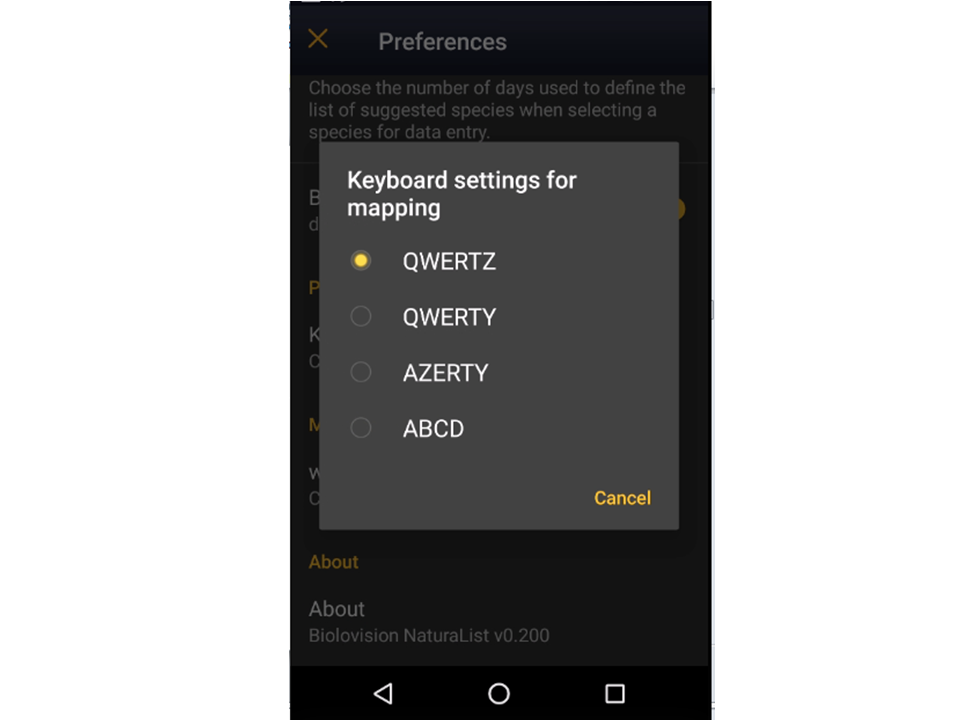


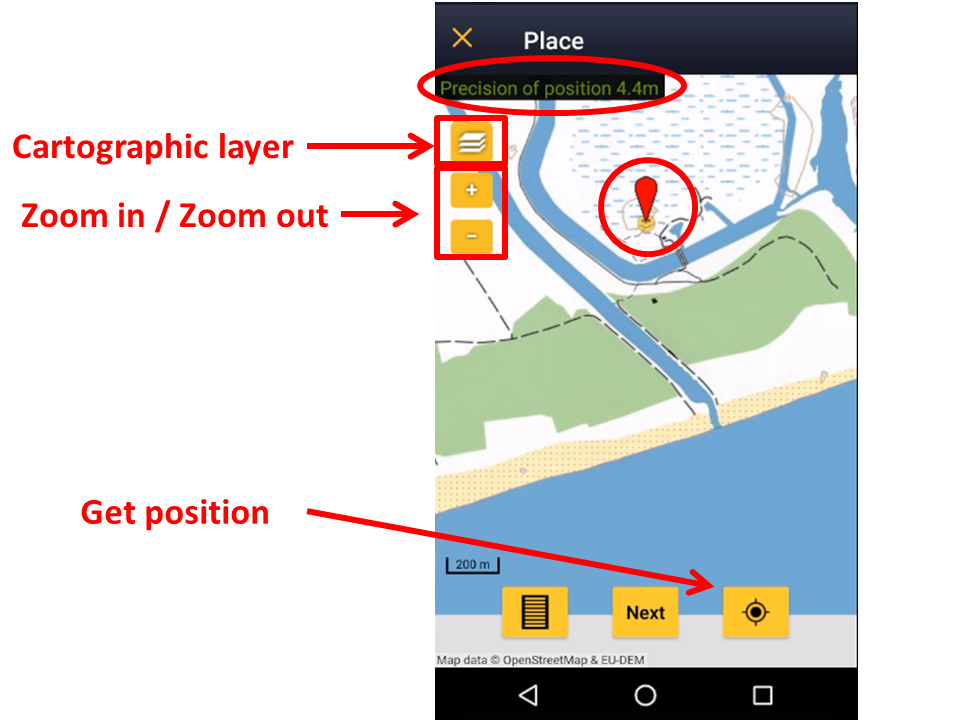


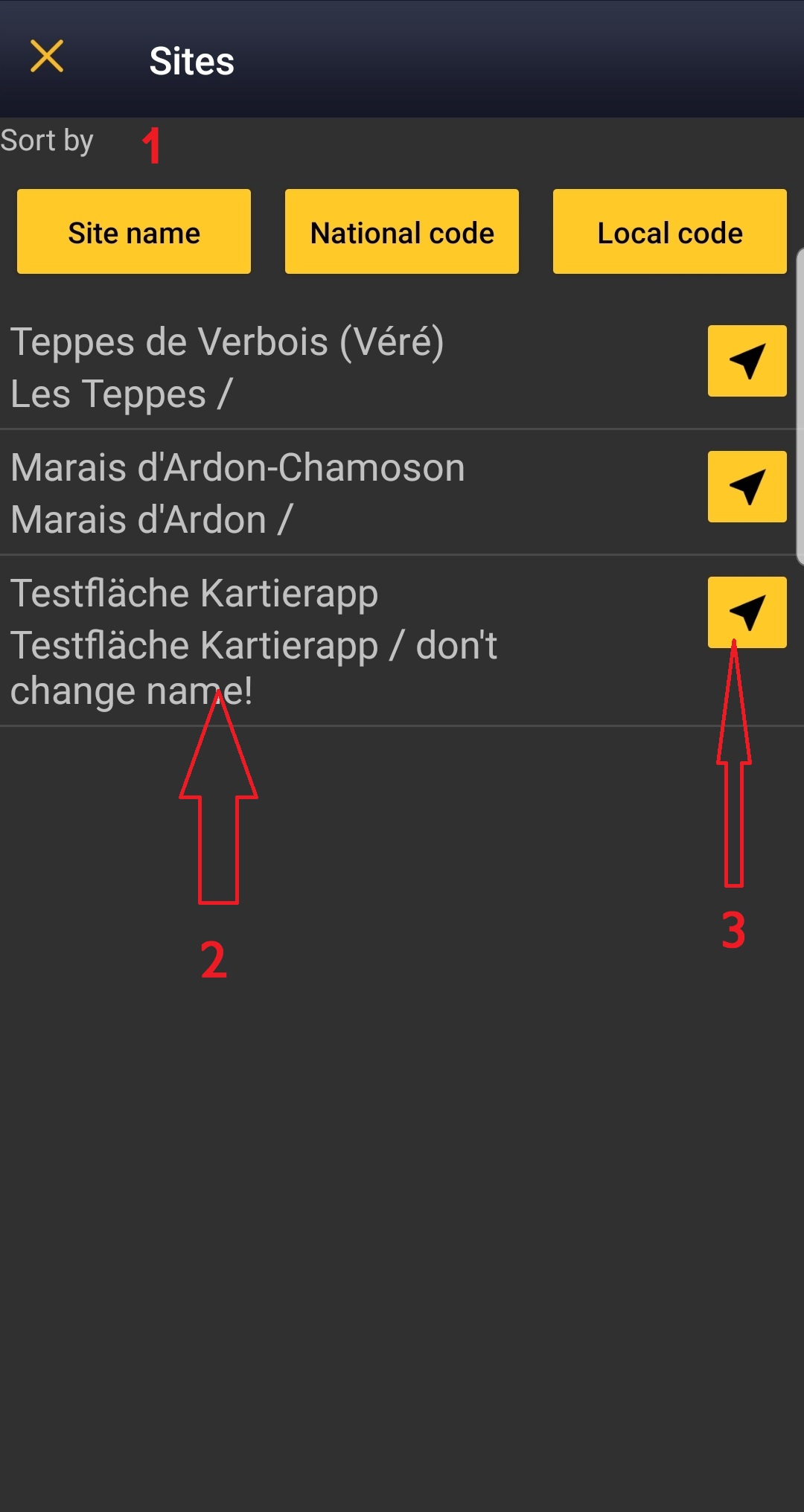
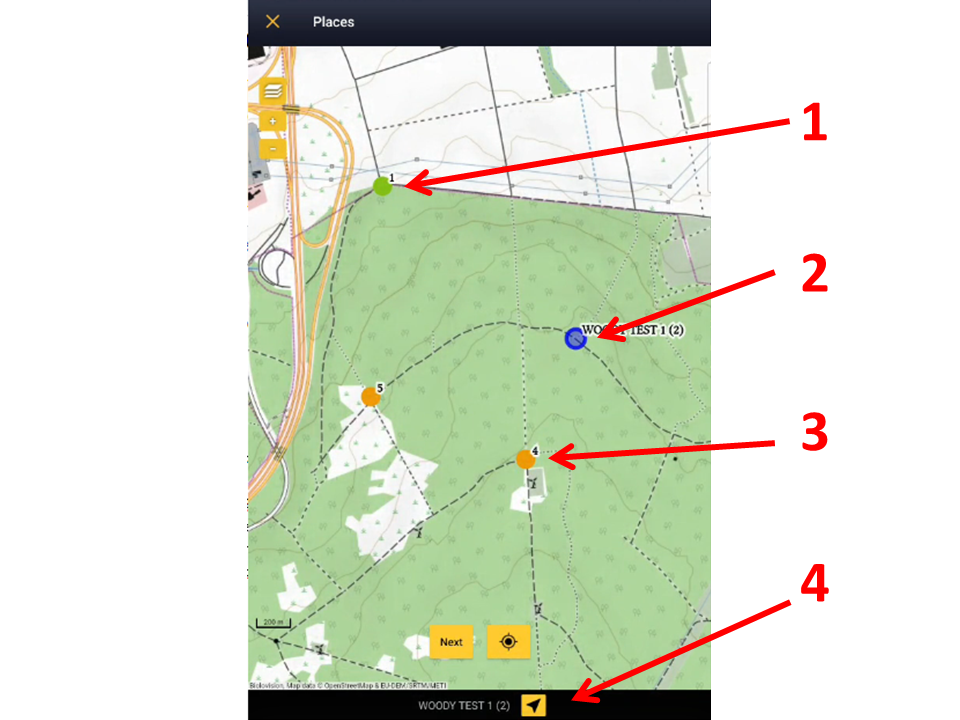

13. Habitat: Click on the yellow panel to open a clickable menu and select habitat.
14. Specifications: Click on the yellow panel to open a clickable menu and select additional information (ie. behaviour, migration direction, health...).
SAVE Click save when done.
When done, click Save. It will take you to the Place screen to continue entering observations.
WOODPECKER Ending the list
To finish the survey, click the stop icon at the top right corner of the Place screen (see image End the list). You will be prompted to confirm (see image Ending the list. Confirmation).
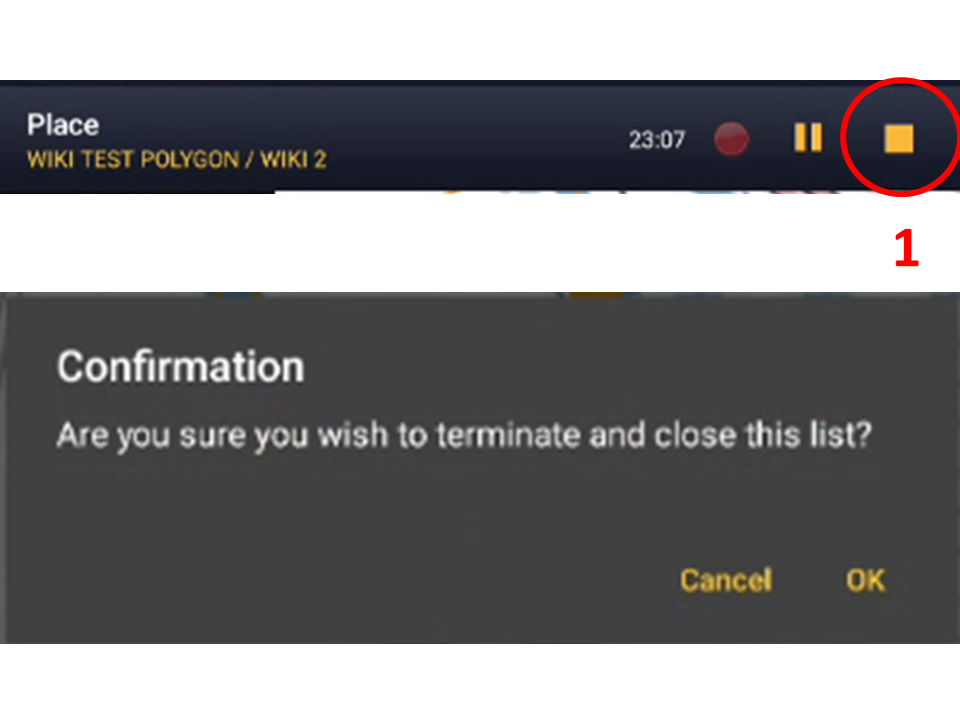
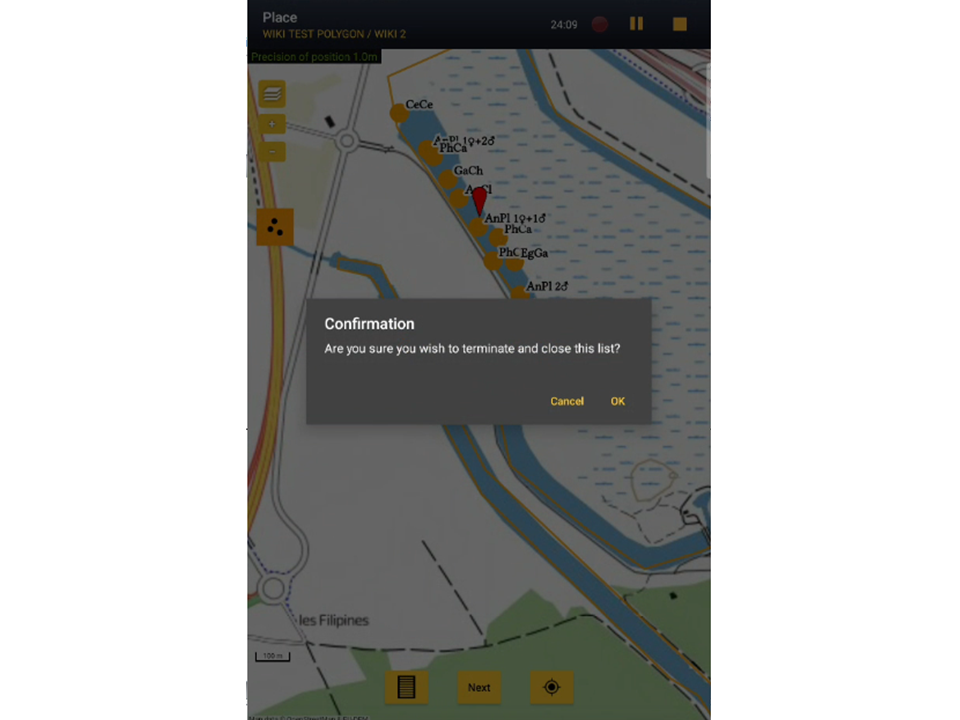
Fill in details, if asked. Be aware that required information is protocol dependent and may change from country to country.
Note this information applies to the last point you surveyed at. To continue entering observations to other points, go back to step Start of list and repeat the process to all points. A yellow notification will appear on top of the main screen, a reminder of an unfinished protocol. Access subsequent points by either clicking on the "+" symbol at the bottom left, or on the reminder at the top.

After the second point survey, it will be possible to copy survey details from previous points, except for playback use:


15. Calls used during the survey at this point (in yellow). Click on any of them to mark as used/unused if necessary.

- Restricted list: You only recorded
- Lesser Spotted Woodpecker
- Middle Spotted Woodpecker
- Gray Woodpecker
- Black Woodpecker
- Three-toed Woodpecker
- White-backed Wodpecker.
- Lesser Spotted Woodpecker
- Extended list: Besides the above, you also recorded
- Green Woodpecker
- Stock Dove
- Green Woodpecker
WOODPECKER Editing records and/or protocols
To edit records within a protocol, or to edit the protocol's general parameters, visit wiki section Mobile interface > Editing records > Editing protocols.
WOODPECKER Deleting records and/or protocols
To delete records within a protocol, or to delete the whole protocol, visit wiki section Mobile interface > Editing records > Deleting protocols.
WOODPECKER Browsing records
See your protocoled records:
- Before synchronisation
- In the phone. See more details in wiki section Accessing your own records.
- Before synchronisation
- After synchronisation
- In Mine. See more details in wiki section Accesssing records' details.
- After synchronisation
- In Under verification (only if any data of the protocol needs more information)
- In Under verification (only if any data of the protocol needs more information)
- In the local portal. Go to the corresponding local portal, Menu > Explore > All my observations.
- In the local portal. Go to the corresponding local portal, Menu > Explore > All my observations.
[Top to Protocols]
[Top to Woodpeckers]
Rock Ptarmigans census
LAGOPUS_MOTA
7 Rock Ptarmigans census
|

Open the menu as for Submitting records and choose Point count (see image below).

Choose the site you want to count at as explained in wiki section Mobile interface > Protocols > Enter data.
LAGOPUS_MOTA Start of list
Enter general information before starting the count. Fields are protocol dependent and may change from country to country.
Visit wiki section Mobile interface > Protocols > Enter data > Start of list for details.
Click Next when done.
LAGOPUS_MOTA Entering records
Enter observations as if with a detailed list.
- Place
Place your observation within the study area.
See wiki section Mobile interface > Protocols > Enter data > Entering observations > Place on how to interpret the map and place your observation.
- Number of individuals
Enter number of individuals and precision count. Using the counter function may easy collecting your data.
Visit Mobile interface > Entering records > Directly in the field > Number of individuals if necessary.
- Plus
Enter additional information as if it where a with a detailed list.
See wiki section Mobile interface > Submitting records > With a detailed list > Step 4: Additional information on how to do it, if necessary.
When done, click Save. It will take you to the Place screen to continue entering observations.
LAGOPUS_MOTA Ending the list
To finish the survey,
1. Stop recording,
2. Adjust time, if necessary,
3. Fill in/modify details, and
4. Choose type of list.
Visit wiki section Mobile interface > Enter data > Ending the list for details, if necessary.
Remember to synchronise your data as soon as possible after entering to avoid loosing it.
LAGOPUS_MOTA Editing records and/or protocols
To edit records within a protocol, or to edit the protocol's general parameters, visit wiki section Mobile interface > Editing records > Editing protocols.
LAGOPUS_MOTA Deleting records and/or protocols
To delete records within a protocol, or to delete the whole protocol, visit wiki section Mobile interface > Editing records > Deleting protocols.
LAGOPUS_MOTA Browsing records
See your protocoled records:
- Before synchronisation
- In the phone. See more details in wiki section Accessing your own records.
- Before synchronisation
- After synchronisation
- In Mine. See more details in wiki section Accesssing records' details.
- After synchronisation
- In Under verification (only if any data of the protocol needs more information)
- In Under verification (only if any data of the protocol needs more information)
- In the local portal. Go to the corresponding local portal, Menu > Explore > All my observations.
- In the local portal. Go to the corresponding local portal, Menu > Explore > All my observations.
[Top to Protocols]
[Top to Rock Ptarmigan census]
Black Grouse census
TETRAO_TETRIX
8 Black Grouse census
|
|

Open the menu as for Submitting records and choose Point count (see image below).

Choose the site you want to count at as explained in wiki section Mobile interface > Protocols > Enter data.
TETRAO_TETRIX Start of list
Enter general information before starting the count. Fields are protocol dependent and may change from country to country.
Visit wiki section Mobile interface > Protocols > Enter data > Start of list for details.
Click Next when done.
TETRAO_TETRIX Entering records
Enter observations as if in a with a detailed list.
- Place
Place your observation within the study area.
See wiki section Mobile interface > Protocols > Enter data > Entering observations > Place on how to interpret the map and place your observation.
- Number of individuals
Enter number of individuals and precision count. Using the counter function may easy collecting your data.
Visit Mobile interface > Entering records > With a detailed list > Number of individuals if necessary.
- Plus
Enter additional information as if it where a with a detailed list.
See wiki section Mobile interface > Submitting records > With a detailed list > Step 4: Additional information on how to do it, if necessary.
When done, click Save. It will take you to the Place screen to continue entering observations.
TETRAO_TETRIX Ending the list
To finish the survey,
1. Stop recording,
2. Adjust time, if necessary,
3. Fill in/modify details, and
4. Choose type of list.
Visit wiki section Mobile interface > Enter data > Ending the list for details, if necessary.
Remember to synchronise your data as soon as possible after entering to avoid loosing it.
TETRAO_TETRIX Editing records and/or protocols
To edit records within a protocol, or to edit the protocol's general parameters, visit wiki section Mobile interface > Editing records > Editing protocols.
TETRAO_TETRIX Deleting records and/or protocols
To delete records within a protocol, or to delete the whole protocol, visit wiki section Mobile interface > Editing records > Deleting protocols.
TETRAO_TETRIX Browsing records
See your protocoled records:
- Before synchronisation
- In the phone. See more details in wiki section Accessing your own records.
- Before synchronisation
- After synchronisation
- In Mine. See more details in wiki section Accesssing records' details.
- After synchronisation
- In Under verification (only if any data of the protocol needs more information)
- In Under verification (only if any data of the protocol needs more information)
- In the local portal. Go to the corresponding local portal, Menu > Explore > All my observations.
- In the local portal. Go to the corresponding local portal, Menu > Explore > All my observations.
[Top to Protocols]
[Top to Black Grouse census]
Woodcock monitoring
WOODCOCK
9 Woodcock monitoring
|
|
Open the menu as for Submitting records and choose Point count (see image below).
Choose the site you want to count at as explained in wiki section Mobile interface > Protocols > Enter data.
WOODCOCK Start of list
Enter general information before starting the count. Fields are protocol dependent and may change from country to country.
Visit wiki section Mobile interface > Protocols > Enter data > Start of list for details.
Click Next when done.
WOODCOCK Entering records
Enter observations as if in a with a detailed list.
- Place
Place your observation within the study area.
See wiki section Mobile interface > Protocols > Enter data > Entering observations > Place on how to interpret the map and place your observation.
- Number of individuals
Enter number of individuals and precision count. Using the counter function may easy collecting your data.
Visit Mobile interface > Entering records > With a detailed list > Number of individuals if necessary.
- Plus
Enter additional information as if it where a with a detailed list.
See wiki section Mobile interface > Submitting records > With a detailed list > Step 4: Additional information on how to do it, if necessary.
When done, click Save. It will take you to the Place screen to continue entering observations.
WOODCOCK Ending the list
To finish the survey,
1. Stop recording,
2. Adjust time, if necessary,
3. Fill in/modify details, and
4. Choose type of list.
Visit wiki section Mobile interface > Enter data > Ending the list for details, if necessary.
Remember to synchronise your data as soon as possible after entering to avoid loosing it.
WOODCOCK Editing records and/or protocols
To edit records within a protocol, or to edit the protocol's general parameters, visit wiki section Mobile interface > Editing records > Editing protocols.
WOODCOCK Deleting records and/or protocols
To delete records within a protocol, or to delete the whole protocol, visit wiki section Mobile interface > Editing records > Deleting protocols.
WOODCOCK Browsing records
See your protocoled records:
- Before synchronisation
- In the phone. See more details in wiki section Accessing your own records.
- Before synchronisation
- After synchronisation
- In Mine. See more details in wiki section Accesssing records' details.
- After synchronisation
- In Under verification (only if any data of the protocol needs more information)
- In Under verification (only if any data of the protocol needs more information)
- In the local portal. Go to the corresponding local portal, Menu > Explore > All my observations.
- In the local portal. Go to the corresponding local portal, Menu > Explore > All my observations.