Data validation: Difference between revisions
| Line 77: | Line 77: | ||
Validators can assign a validation level to an observation and request further details. <br/> | Validators can assign a validation level to an observation and request further details. <br/> | ||
Depending on the local portal, | Depending on the local portal, it can also include indicating the [[Data validation#validity level|validity level]]. <br/> | ||
<br/> | |||
====Validation level==== | |||
[[Glossary#Validator|avlidators]] can assign a colour dot to observations. See meaning of dots in subsection [[Data validation#Automatic|Automatic validation]] below. <br/> | |||
<br/> | <br/> | ||
| Line 134: | Line 138: | ||
5. Send the request. <br/> | 5. Send the request. <br/> | ||
<br/> | <br/> | ||
====Validity level==== | |||
When available, besides all the above validators can also assign a validity level to the observation. Levels available differ from country to country. <br/> | |||
<br/> | |||
<center> | |||
<div class="toc" style="border-radius:5px;background-color:#ffffff;padding-left:8px;padding-right:8px;width:600px;"> | |||
[[File:Validity level.png|600px|link=https://help.biolovision.net/images/a/aa/Validity_level.png|Click image to enlarge]] | |||
<div class="toc" style="border-radius:5px;padding-left:15px;text-align:left; font-size:12px;width:575px;"> | |||
'''Validity level.''' | |||
</div> | |||
</div> | |||
</center> | |||
<br/> | |||
<br/> | |||
Available levels are country dependant, but may include:<br/> | |||
<br/> | |||
<center> | |||
<table class="wikitable" style="border:1px solid black;" width="75%" align="center" ;> | |||
<tr style="padding: 25px; text-align: center; font-size: 16px; font-family: sans serif; "> | |||
<th>Name</th> | |||
<th>Description</th> | |||
</tr> | |||
<tr style="padding: 25px; text-align: center; font-size: 16px; font-family: sans serif; "> | |||
<td style="text-align: center"></td> | |||
<td style="text-align:left"></td> | |||
</tr> | |||
</table> | |||
</center> | |||
<br/> | |||
<br/> | |||
Revision as of 22:42, 12 November 2025
Errors may occur when typing or identifying species. On occasions, exceptional observations may take place. To ensure the quality of the data in our systems, validation filters are applied when observers submit data. These, search for exceptional data in areas covered by a local portal, and may ask observers to provide more details in order to validate or reject the observation:
Different validation systems exist:
· Public validation
· Automatic validation
· Manual validation
Public validation
Users can flag any observation they consider unusual. It can be done from:
· Search engine,
· The past 5 days, or
· Gallery.
Public validation process is different for registers users and for validators.
Public validation for registered users
When a registered user marks and observation,
· Validators are notified and can then review the observation as usual (see subsection manual validation below).
· A yellow dot  appears next to the observation prompting the observer to provide further information. It will only be visible to the observer and validators, but not to the general public or the user flagging it.
· The observer cannot see who flagged the observation.
· The user flagging the observation does not have a follow up. They can only see further changes if accessing the validation history.
1. Select  to open the panel.
2. Select the reason for your flagging on the expandable menu.
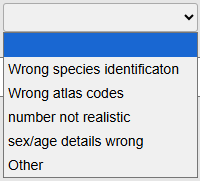
Reasons for flagging.
3. Leave a comment to justify your flagging, if necessary.
4. SEND THE REQUEST.

Public validation panel.
1. Open panel.
2. Select reason for flagging.
3. Leave a comment if necessary.
4. Sens request.
Public validation for validators
Validators can assign a validation level to an observation and request further details.
Depending on the local portal, it can also include indicating the validity level.
Validation level
avlidators can assign a colour dot to observations. See meaning of dots in subsection Automatic validation below.
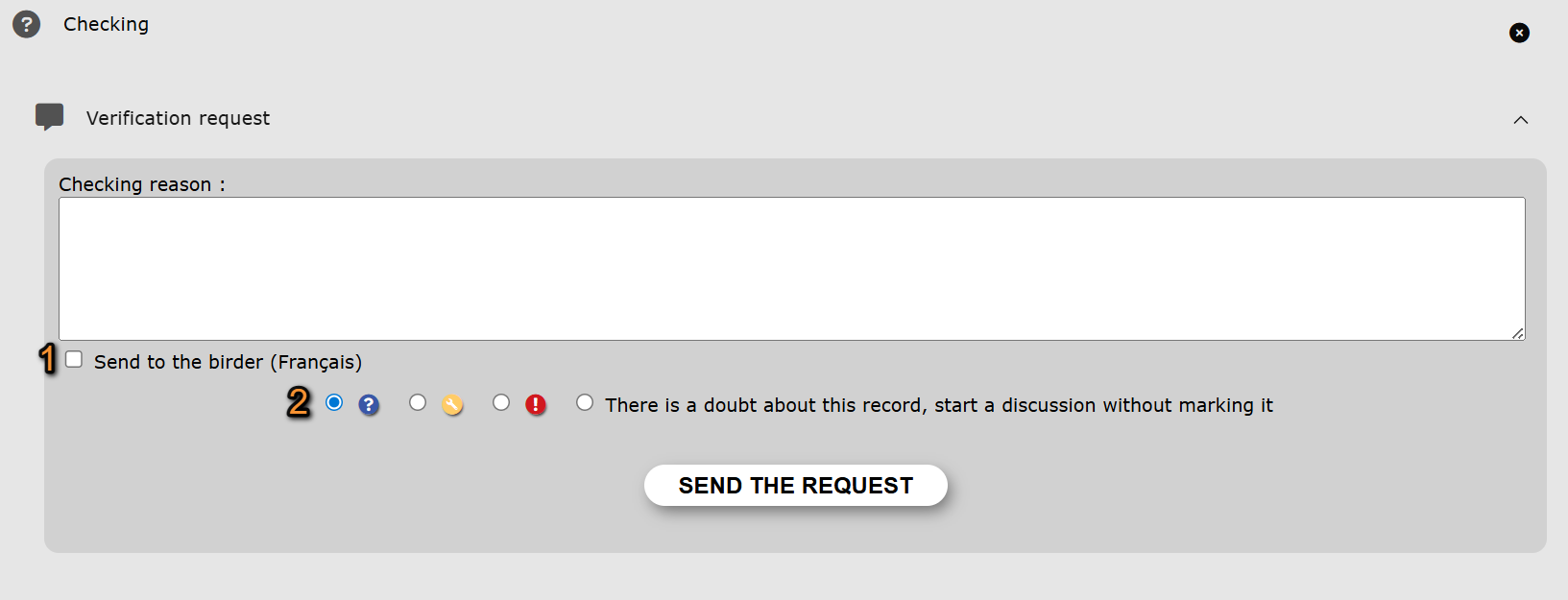
Public validation panel for validators.
1. Select to open the panel.
2. Indicate the reason for flagging the observation.
3. Send a message to the observer.
· The language of the template is determined by the observer's predetermined language on the local portal and is indicated next to the cell.
· The template's name is given in the validator's predetermined language in the local portal.
· Observer name and other information like species, site and date of of the sighting are automatically uploaded when using a template.


Send message to observer.
1. Use a template to inform the observer.
2. Select a template to use.
3. Personalise the message.
4. Add the message to the flagging.
4. Select the level of validation. If in doubt, consider opening a discussion by checking the cell.

Validation level.
5. Send the request.
Validity level
When available, besides all the above validators can also assign a validity level to the observation. Levels available differ from country to country.
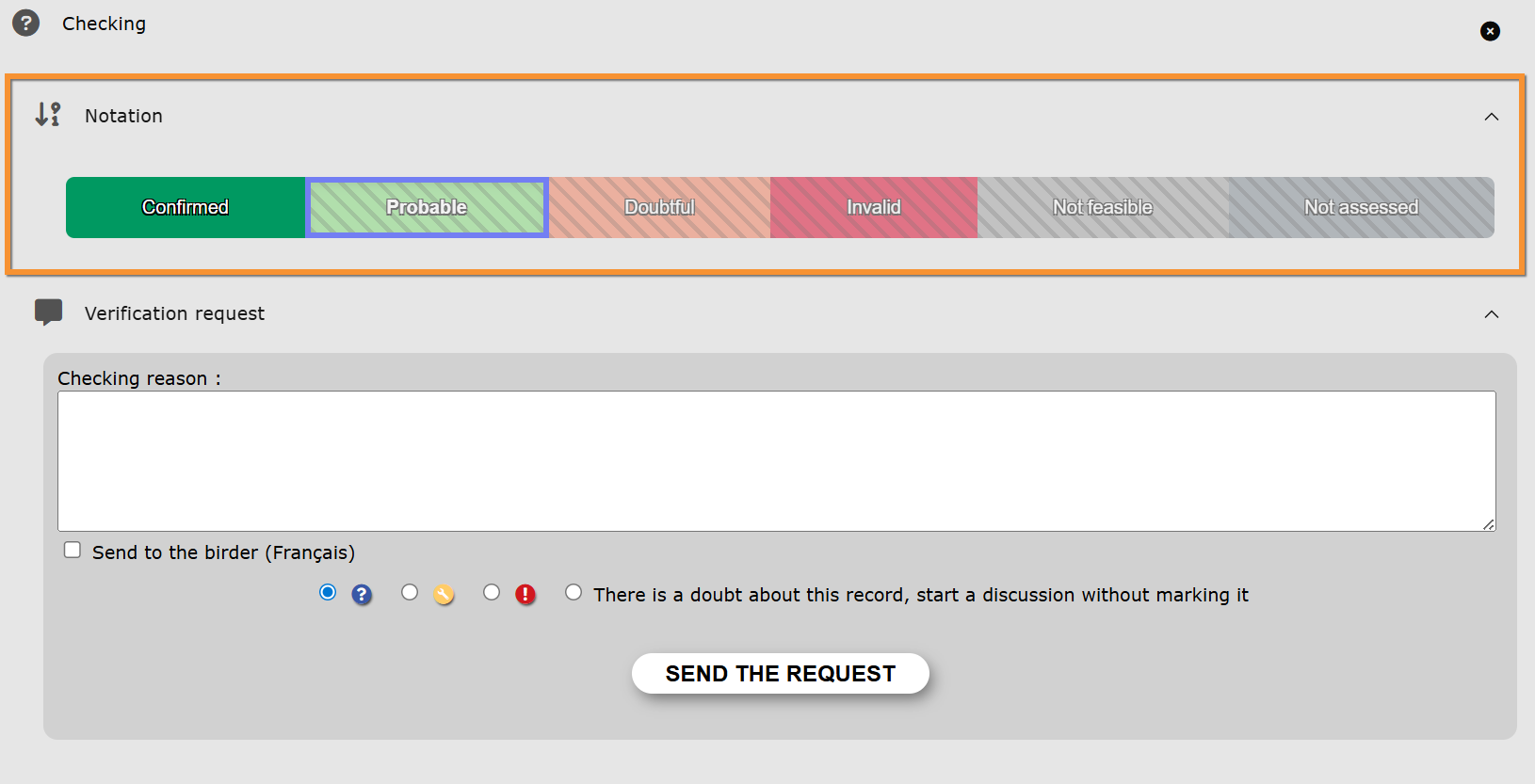
Validity level.
Available levels are country dependant, but may include:
| Name | Description |
|---|---|
Automatic validation
Filter locally set by administrators of the Local portal covering the area the observation takes place at. When an observation falls outside the parameters determined by the local administrators, a yellow or blue mark is automatically displayed next to the observation (see table below for meaning of markings). The observer then receives an automatic e-mail to inform them.
 informs caution to other users. There is possibly a mistake in the data (ie. wrong species, or the species is not particularly rare but is often seen at a different altitude or environment).
the observation is probably correct but details need to be confirmed (ie. the species is in the right place, but the number of individuals is uncommon, or the hour the observation took place seems unusual).
 the observation has 'been rejected. It means that even if your observation is right, you did not provide enough proof to validate it and it cannot be included in the statistics.
Manual validation
The yellow or blue mark indicating the observation is either incorrect or requires more information, can be displayed manually by an authorised validator. The observer can receive either an automatic or a personalised e-mail informing them.
If you see a marking next to any of your observations, please do check the spam folder if you did not receive an email informing you -your email provider may have filtered the message. Reply to the email and/or correct as requested. Validators will see your corrections and decide if your data is accepted or rejected.
Please, consider the valuable work of validators and stay polite. To become a validator or know more about it, please refer to the local portal the data are linked to.
NOTE:
- When data is submitted through NaturaList, filters apply at synchronisation.
- Data submitted from areas with no local partner is not validated.
| Public filter | Automatic filter | Manual filter | Visible to other users | Action needed | |
|---|---|---|---|---|---|
|
n/a3 | YES | YES | YES | YES |
|
YES | YES | YES | NO1 | YES |
|
n/a3 | NO | YES | NO1 | NO |
 |
n/a | YES | YES | YES | YES2 |
1 Visible to observer and administrators.
2 Opens Rarity Committee Module.
3 Only available to validators.
After verification, an observation may be:
· Accepted: a green tick appears next to the dot indicating the record has been accepted.
· Rejected: the yellow or blue marking associated to an observation becomes red. The observation remains at the observer’s list of observations but is invisible to other users.
Homologation by the Rarity Committee
Besides the usual validating process, some exceptional observations may be sent to the local rarities committee for homologation. When this is the case, a module will open asking for additional details. See more about the Rarity Committee Module at Web interface > Modules > Rarity Committee Module.
A Rarity Committee is an independent group of ornithologist evaluating if uncommon observations could be considered for scientific purposes. They are normally concerned about the area and time of the year the observation takes place, and data of first breeding.
See all rarity committees in Europe at www.aerc.eu.