Data validation: Difference between revisions
| (11 intermediate revisions by the same user not shown) | |||
| Line 38: | Line 38: | ||
<br/> | <br/> | ||
To flag an observation: <br/> | |||
1. Select <br/> | 1. Select <br/> | ||
<span style="color: #000000; margin-left: 25px;"><b>· </b>[[File: Mark record icon.png|frameless|100px|link=]] to open the panel from browsing records, or <br/> | <span style="color: #000000; margin-left: 25px;"><b>· </b>[[File: Mark record icon.png|frameless|100px|link=]] to open the panel from browsing records, or <br/> | ||
| Line 93: | Line 94: | ||
<br/> | <br/> | ||
==== | ====Verification history==== | ||
Validation history is only available to <br/> | |||
<span style="color: #000000; margin-left: 25px;"><b>· </b>the observer, and <br/> | |||
<span style="color: #000000; margin-left: 25px;"><b>· </b>validators and administrators. <br/> | |||
<br/> | |||
If an observation has previously been reported, click on [[File: Mark record icon.png|frameless|100px|link=]] (or [[File: Panel_from_gallery.png|frameless|25px|link=]] from Gallery) to open the validation history. <br/> | |||
<br/> | |||
The orange badge (see image below) contains information, from left to right: <br/> | |||
<span style="color: #000000; margin-left: 25px;"><b>· </b>Date and time of flagging. <br/> | |||
<span style="color: #000000; margin-left: 25px;"><b>· </b>Name of reporter. <br/> | |||
<span style="color: #000000; margin-left: 25px;"><b>· </b>Comments left. <br/> | |||
<br/> | <br/> | ||
<center> | <center> | ||
<div class="toc" style="border-radius:5px;background-color:#ffffff;padding-left:8px;padding-right:8px;padding-bottom:8px;width:600px;"> | <div class="toc" style="border-radius:5px;background-color:#ffffff;padding-left:8px;padding-right:8px;padding-bottom:8px;width:600px;"> | ||
[[File: | [[File:Observers history.png|600px|link=https://help.biolovision.net/images/b/b9/Observers_history.png|Click image to enlarge]] | ||
<div class="toc" style="border-radius:5px;padding-left:15px;text-align:left; font-size:12px;width:575px;"> | <div class="toc" style="border-radius:5px;padding-left:15px;text-align:left; font-size:12px;width:575px;"> | ||
''' | '''Validation history. Observer's view. Example.''' | ||
</div> | </div> | ||
</div> | </div> | ||
| Line 110: | Line 120: | ||
<br/> | <br/> | ||
<br/> | <br/> | ||
| Line 153: | Line 158: | ||
<div class="toc" style="border-radius:5px;background-color:#ffffff;padding-left:8px;padding-right:8px;width:800px;"> | <div class="toc" style="border-radius:5px;background-color:#ffffff;padding-left:8px;padding-right:8px;width:800px;"> | ||
[[File:Message observer.png|800px|link=https://help.biolovision.net/images/3/33/Message_observer.png|Click image to enlarge]] | [[File:Message observer.png|800px|link=https://help.biolovision.net/images/3/33/Message_observer.png|Click image to enlarge]] | ||
<div class="toc" style="border-radius:5px;padding-left:15px;text-align:left; font-size:12px;width: | <div class="toc" style="border-radius:5px;padding-left:15px;text-align:left; font-size:12px;width:775px;"> | ||
'''Send message to observer.''' | '''Send message to observer.''' | ||
</div> | </div> | ||
| Line 244: | Line 249: | ||
<br/> | <br/> | ||
====Verification history==== | |||
If an observation has been flagged, administrators and validators can see details of all the validation process and outcome, when reached. <br/> | |||
<br/> | |||
<center> | |||
<div class="toc" style="border-radius:5px;background-color:#ffffff;padding-left:8px;padding-right:8px;padding-bottom:8px;width:600px;"> | |||
[[File: Verification history.png|600px|link=https://help.biolovision.net/images/b/bc/Verification_history.png|Click image to enlarge]] | |||
<div class="toc" style="border-radius:5px;padding-left:15px;text-align:left; font-size:12px;width:575px;"> | |||
'''Verification history.''' | |||
</div> | |||
<p style="color:black;font-size:12px;padding-left:5px;text-align:left;.column-count:1;padding-right:5px;"> | |||
'''1.''' Date and time of comment. <br/> | |||
'''2.''' Author of comment. <br/> | |||
'''3.''' Comment or activity. <br/> | |||
</p> | |||
</div> | |||
</center> | |||
<br/> | |||
<br/> | |||
If the observation needs the intervention of a Rarity Committee, it will also appear underneath, together with its resolution if reached. <br/> | |||
<br/> | |||
<center> | |||
<div class="toc" style="border-radius:5px;background-color:#ffffff;padding-left:8px;padding-right:8px;padding-bottom:8px;width:600px;"> | |||
[[File: Rarities committee window.png|600px|link=https://help.biolovision.net/images/b/b5/Rarities_committee_window.png|Click image to enlarge]] | |||
<div class="toc" style="border-radius:5px;padding-left:15px;text-align:left; font-size:12px;width:575px;"> | |||
'''Rarities Committee section.''' | |||
</div> | |||
</div> | |||
</center> | |||
<br/> | |||
<br/> | |||
Latest revision as of 14:46, 26 November 2025
Errors may occur when typing or identifying species. On occasions, exceptional observations may take place. To ensure the quality of the data in our systems, validation filters are applied when observers submit data. These search for exceptional data in areas covered by a local portal, and may ask observers to provide more details in order to validate or reject the observation:
Different validation systems exist:
· Public validation
· Automatic validation
· Manual validation
Public validation
Users can flag any observation they consider unusual. It can be done from:
· Search engine,
· The past 5 days, or
· Gallery.
Public validation process is different for registers users and for validators.
Public validation for registered users
When a registered user marks and observation,
· Validators are notified and can then review the observation as usual (see subsection manual validation below).
· A yellow dot  appears next to the observation prompting the observer to provide further information. It will only be visible to the observer, administrators and validators, but not to the general public or the user flagging it.
· The observer cannot see who flagged the observation.
· The user flagging the observation does not have a follow up.
To flag an observation:
1. Select
·  to open the panel from browsing records, or
·  to open panel from the gallery.
2. Select the reason for your flagging on the expandable menu.

Reasons for flagging.
3. Leave a comment to justify your flagging, if necessary.
4. SEND THE REQUEST.

Public validation panel.
1. Open panel.
2. Select reason for flagging.
3. Leave a comment if necessary.
4. Sens request.
Bulk validation
If on the same list there is more than one observation of the same species, it is possible to flag them all at the same time.
If given the option, check the cell of observation/s the flagging refers to.
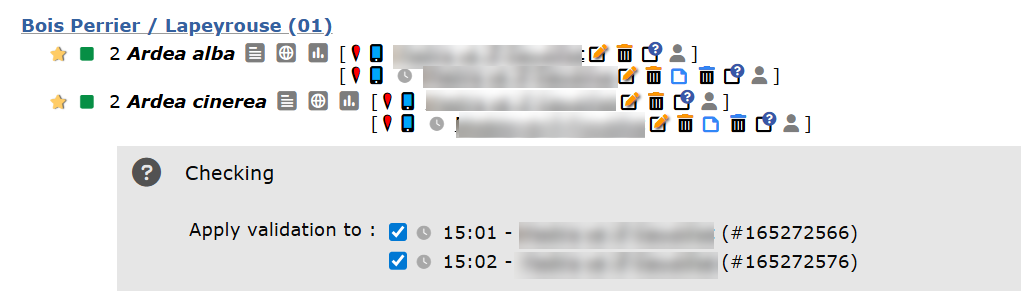
Bulk messaging.
Verification history
Validation history is only available to
· the observer, and
· validators and administrators.
If an observation has previously been reported, click on (or from Gallery) to open the validation history.
The orange badge (see image below) contains information, from left to right:
· Date and time of flagging.
· Name of reporter.
· Comments left.

Validation history. Observer's view. Example.
Public validation for validators
Validators can assign a validation level to an observation and request further details.
Depending on the local portal, it can also include indicating the validity level.
Validation level
avlidators can assign a colour dot to observations. See meaning of dots in subsection Automatic validation below.
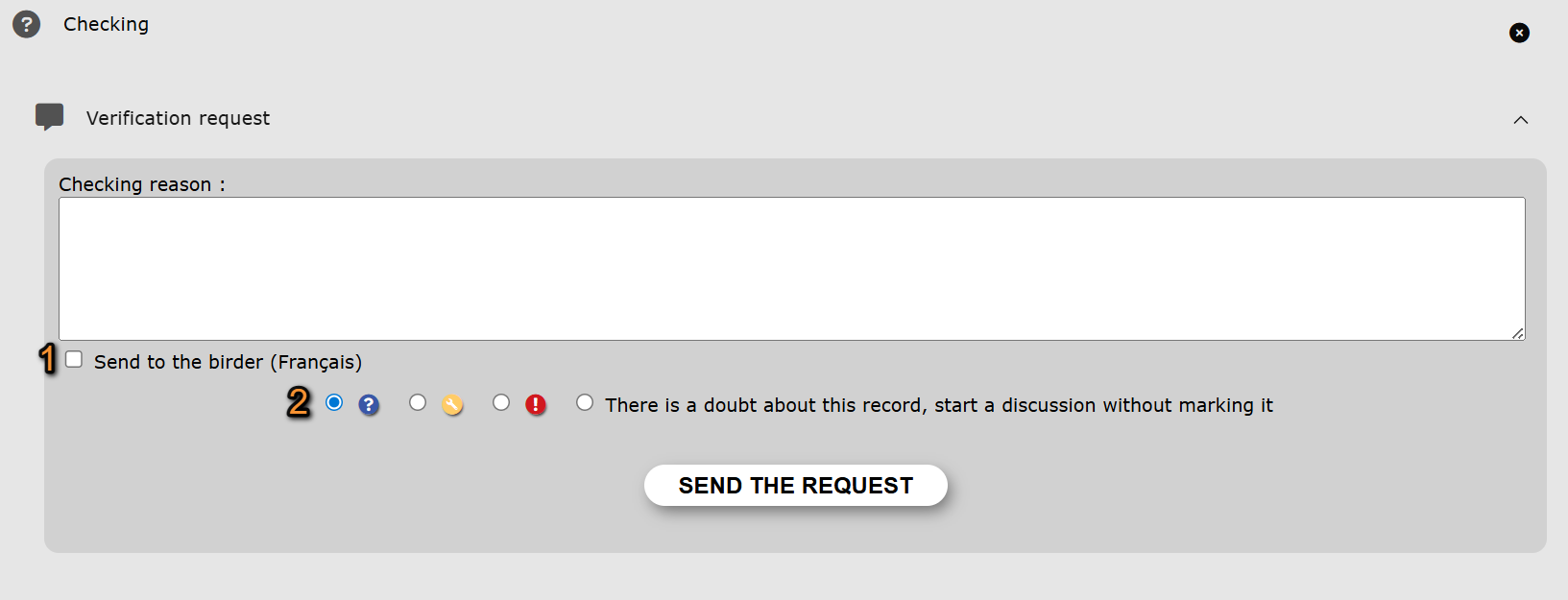
Public validation panel for validators.
1. Select to open the panel.
2. Indicate the reason for flagging the observation.
3. Send a message to the observer.
· The language of the template is determined by the observer's predetermined language on the local portal and is indicated next to the cell.
· The template's name is given in the validator's predetermined language in the local portal.
· Observer name and other information like species, site and date of of the sighting are automatically uploaded when using a template.


Send message to observer.
1. Use a template to inform the observer.
2. Select a template to use.
3. Personalise the message.
4. Add the message to the flagging.
4. Select the level of validation. If in doubt, consider opening a discussion by checking the cell.

Validation level.
5. Send the request.
Validity level
When available, besides all the above validators can also assign a validity level to the observation according to the SINP criteria.
· Hover over each option to see description.
· By default, all records are considered 'Probable'. It can be changed manually.
· Levels available differ from country to country.
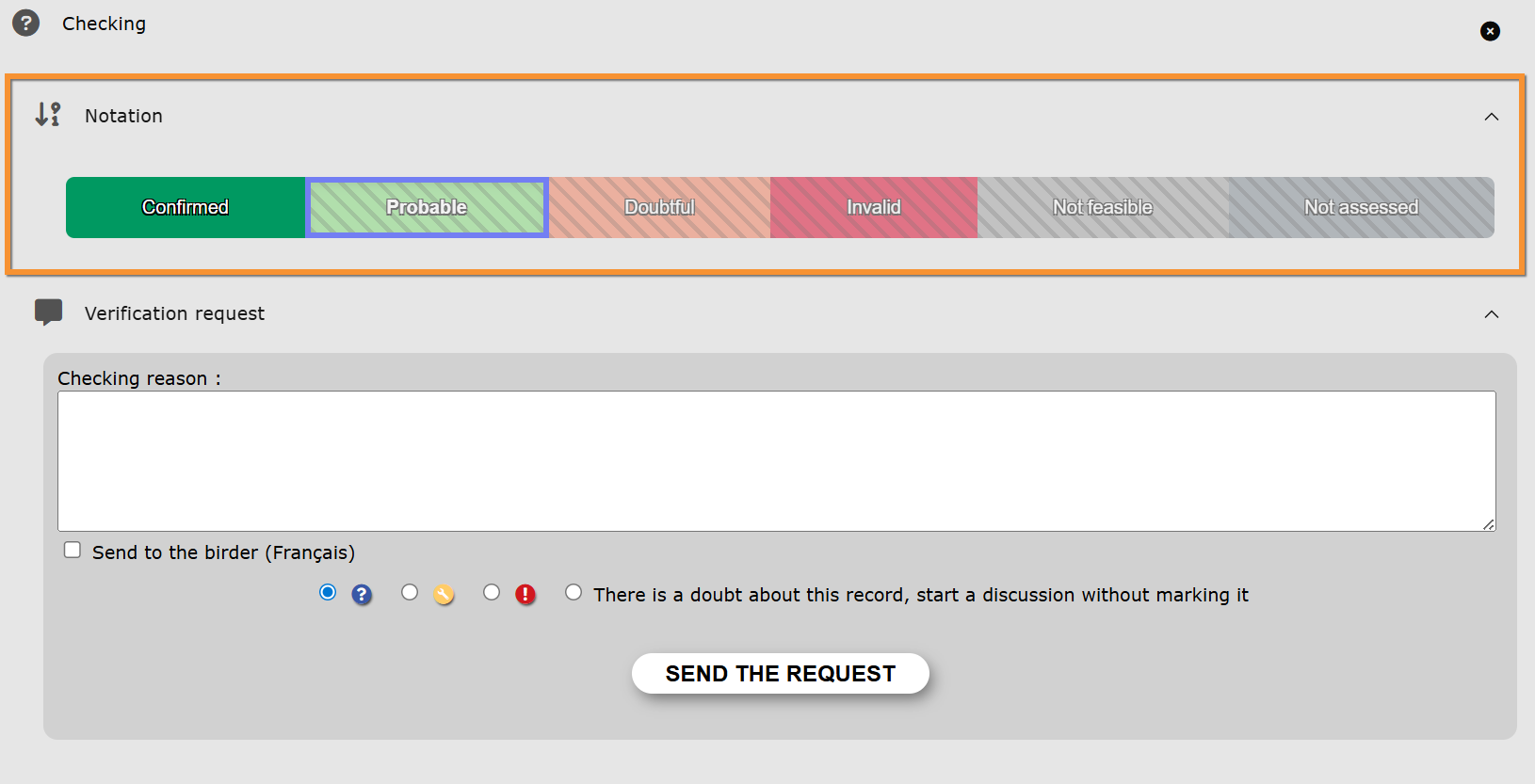
Validity level.
Available levels are country dependant, but may include:
 |
Confirmed-very likely: The data is accurate. There is not significant doubt as to the accuracy of the observation or the determination of the taxon. Validation has been carried out notably on the basis of evidence of observation confirming the producer/'s determination, or after verification with the observer and/or determiner. |
 |
Probable: The data has a good level of reliability. It is plausible and credible. There is no reason to doubt the accuracy of the data, but there are not sufficient additional elements available or (notably the presence of proof or the possibility of going back to the source data) to allow a higher level of certainty to be assigned. |
 |
Doubtful: The data is implausible or surprising, but there is insufficient evidence of an obvious error. The data is considered doubtful. |
 |
Invalid: The data has been invalidated (obvious/confirmed error) or is too unreliable. It is considered too improbable (aberrant, particularly with regar to the known range, biotic and abiotic parameters of the taxon/'s ecological niche, evidence reveals a determination error). It is considered invalid. |
 |
Not feasible: The data has undergone the entire validation process, but the operator (human or machine) has been unable to decide on the level of reliability. In particular: insufficient knowledge of the taxon and/or insufficient information on the observation. |
 |
Not rated: Initial or temporary level. The data has not been submitted to the validation operation, or the operation has not yet been completed (validation in progress). It is therefore not evaluated at a precise time defined by the validation date. |
Verification history
If an observation has been flagged, administrators and validators can see details of all the validation process and outcome, when reached.

Verification history.
1. Date and time of comment.
2. Author of comment.
3. Comment or activity.
If the observation needs the intervention of a Rarity Committee, it will also appear underneath, together with its resolution if reached.

Rarities Committee section.
Automatic validation
Filter locally set by administrators of the Local portal covering the area the observation takes place at. When an observation falls outside the parameters determined by the local administrators, a yellow or blue mark is automatically displayed next to the observation (see table below for meaning of markings). The observer then receives an automatic e-mail to inform them.
 informs caution to other users. There is possibly a mistake in the data (ie. wrong species, or the species is not particularly rare but is often seen at a different altitude or environment).
 the observation is probably correct but details need to be confirmed (ie. the species is in the right place, but the number of individuals is uncommon, or the hour the observation took place seems unusual).
 the observation has 'been rejected. It means that even if your observation is right, you did not provide enough proof to validate it and it cannot be included in the statistics.
Manual validation
The yellow or blue mark indicating the observation is either incorrect or requires more information, can be displayed manually by an authorised validator. The observer can receive either an automatic or a personalised e-mail informing them.
If you see a marking next to any of your observations, please do check the spam folder if you did not receive an email informing you -your email provider may have filtered the message. Reply to the email and/or correct as requested. Validators will see your corrections and decide if your data is accepted or rejected.
Please, consider the valuable work of validators and stay polite. To become a validator or know more about it, please refer to the local portal the data are linked to.
NOTE:
- When data is submitted through NaturaList, filters apply at synchronisation.
- Data submitted from areas with no local partner is not validated.
| Public filter | Automatic filter | Manual filter | Visible to other users | Action needed | |
|---|---|---|---|---|---|
|
n/a3 | YES | YES | YES | YES |
|
YES | YES | YES | NO1 | YES |
|
n/a3 | NO | YES | NO1 | NO |
 |
n/a | YES | YES | YES | YES2 |
1 Visible to observer and administrators.
2 Opens Rarity Committee Module.
3 Only available to validators.
After verification, an observation may be:
· Accepted: a green tick appears next to the dot indicating the record has been accepted.
· Rejected: the yellow or blue marking associated to an observation becomes red. The observation remains at the observer’s list of observations but is invisible to other users.
Homologation by the Rarity Committee
Besides the usual validating process, some exceptional observations may be sent to the local rarities committee for homologation. When this is the case, a module will open asking for additional details. See more about the Rarity Committee Module at Web interface > Modules > Rarity Committee Module.
A Rarity Committee is an independent group of ornithologist evaluating if uncommon observations could be considered for scientific purposes. They are normally concerned about the area and time of the year the observation takes place, and data of first breeding.
See all rarity committees in Europe at www.aerc.eu.