Entering records: Difference between revisions
No edit summary |
|||
| (420 intermediate revisions by 2 users not shown) | |||
| Line 15: | Line 15: | ||
<p> | <p> | ||
<b>TIP FOR BEGINNERS:</b><br /> | <b>TIP FOR BEGINNERS:</b><br /> | ||
If you are not yet familiarised with the application, enter records as [[Entering_records#Directly_in_the_field_(+)|''' | If you are not yet familiarised with the application, enter records as [[Entering_records#Directly_in_the_field_(+)|'''independent observations''']]. This is the easier option. | ||
As you familiarise with the application, move to other options. Lists are the more useful way to enter data for conservation purposes. | As you familiarise with the application, move to other options. Lists are the more useful way to enter data for conservation purposes. | ||
</p> | </p> | ||
| Line 44: | Line 44: | ||
<!--T:7--> | <!--T:7--> | ||
To enter | To enter observations, <br/> | ||
< | <span style="color: #000000; margin-left: 25px;"><b>1. </b> choose one of the [[Entering records#quick|quick access keys]], <br/> | ||
<span style="color: #000000; margin-left: 25px;"><b>2. </b> [[Entering records#file|attach a sound or image file]] to an observation, or <br/> | |||
<span style="color: #000000; margin-left: 25px;"><b>3. </b> open the [[Entering records#full|full menu]] to see all options associated to your account.<br/> | |||
<br/> | |||
[[ | |||
</ | |||
< | |||
< | |||
[[ | |||
<br /> | |||
<br /> | |||
<!--T:10--> | <!--T:10--> | ||
| Line 83: | Line 54: | ||
<!--T:11--> | <!--T:11--> | ||
<div class="toc" style="width: | <div class="toc" style="width:550px;"> <!-- La llargada s'ha de canviar aquí --> | ||
<div class="mw-collapsible mw-collapsed" data-expandtext="Show" data-collapsetext="Hide" style="width: | <div class="mw-collapsible mw-collapsed" data-expandtext="Show" data-collapsetext="Hide" style="width:475px;margin-bottom:0px;margin-top:0px;"> | ||
'''Contents''' | '''Contents''' | ||
<div class="mw-collapsible-content" style="width: | <div class="mw-collapsible-content" style="width:550px;margin-bottom:0px;margin-top:0px;"> <!-- I també cal canviar la llargada aquí --> | ||
<ol> | |||
1 [[Entering records#How to|How to enter data]] <br/> | |||
<ol>1.1 [[Entering records#quick|Quick access keys]] <br/> | |||
1.2 [[Entering records#file|Attach a sound or image file]] <br/> | |||
1.3 [[Entering records#full|Full menu]] <br/> | |||
<ol> | <ol> | ||
1 [[Entering_records#Directly_in_the_field_(+)| | 1.3.1 [[Entering_records#Directly_in_the_field_(+)|Enter independent observations]] <br /> | ||
<ol>1.1 [[Entering_records#Step_1:_Place|Step 1: Place]] <br /> | <ol>1.3.1.1 [[Entering_records#Step_1:_Place|Step 1: Place]] <br /> | ||
1.2 [[Entering_records#Step_2:_Species|Step 2: Species]]<br /> | 1.3.1.2 [[Entering_records#Step_2:_Species|Step 2: Species]]<br /> | ||
1.3 [[Entering_records#Step_3:_Number_of_individuals|Step 3: Number of individuals]]<br /> | 1.3.1.3 [[Entering_records#Step_3:_Number_of_individuals|Step 3: Number of individuals]]<br /> | ||
1.4 [[Entering_records#Step_4_(non_mandatory_fields):_Additional_information|Step 4 (non mandatory fields): Additional information]]<br/> | 1.3.1.4 [[Entering_records#Step_4_(non_mandatory_fields):_Additional_information|Step 4 (non mandatory fields): Additional information]]<br/> | ||
1.3.1.5 [[Entering_records#Step_5_(last_step):_Ending_the_record|Step 5: Ending the record]]<br /> </ol></ol> | |||
<ol> | <ol> | ||
2 [[Entering_records#Later| | 1.3.2 [[Entering_records#Later|Enter previous observations]]<br/> | ||
<ol> 2.1 [[Entering_records#Step_1:_Date_/_Time|Step 1: Date / Time]] <br /> | <ol> 1.3.2.1 [[Entering_records#Step_1:_Date_/_Time|Step 1: Date / Time]] <br /> | ||
2.2 [[Entering_records#Step_2:_Place|Step 2: Place]]<br /> | 1.3.2.2 [[Entering_records#Step_2:_Place|Step 2: Place]]<br /> | ||
2.3 [[Entering_records#Step_3:_Species|Step 3: Species]]<br /> | 1.3.2.3 [[Entering_records#Step_3:_Species|Step 3: Species]]<br /> | ||
2.4 [[Entering_records#Step_4:_Number_of_individuals|Step 4: Number of individuals]]<br/> | 1.3.2.4 [[Entering_records#Step_4:_Number_of_individuals|Step 4: Number of individuals]]<br/> | ||
2.5 [[Entering_records#Step_5_(non_mandatory):_Additional_information|Step 5 (non-mandatory): Additional information]]<br/> | 1.3.2.5 [[Entering_records#Step_5_(non_mandatory):_Additional_information|Step 5 (non-mandatory): Additional information]]<br/> | ||
2.6 [[Entering_records#Step_6_(last_step):_Ending_the_record|Step 6 (last step): Ending the records]]<br/> </ol></ol> | 1.3.2.6 [[Entering_records#Step_6_(last_step):_Ending_the_record|Step 6 (last step): Ending the records]]<br/> </ol></ol> | ||
<ol> | <ol> | ||
3 [[Entering_records#With a detailed list | | 1.3.3 [[Entering_records#With a detailed list |Enter a list of precise observations]]<br/> | ||
<ol> 3.1 [[Entering_records#Step_1:_Starting_a_list|Step 1: Starting a list]] <br /> | <ol> 1.3.3.1 [[Entering_records#Step_1:_Starting_a_list|Step 1: Starting a list]] <br /> | ||
3.2 [[Entering_records#Step_2:_Place_2|Step 2: Place]]<br /> | 1.3.3.2 [[Entering_records#Step_2:_Place_2|Step 2: Place]]<br /> | ||
3.3 [[Entering_records#Step_3:_Species_2|Step 3: Species]]<br /> | 1.3.3.3 [[Entering_records#Step_3:_Species_2|Step 3: Species]]<br /> | ||
3.4 [[Entering_records#Step_4:_Species_2|Step 4: Number of individuals]]<br /> | 1.3.3.4 [[Entering_records#Step_4:_Species_2|Step 4: Number of individuals]]<br /> | ||
3.5 [[Entering_records#Step_5:_Additional_information|Step 5: Additional information]]<br/> | 1.3.3.5 [[Entering_records#Step_5:_Additional_information|Step 5: Additional information]]<br/> | ||
3.6 [[Entering_records#Ending_the_list|Ending the list]]<br/></ol></ol> | 1.3.3.6 [[Entering_records#Ending_the_list|Ending the list]]<br/></ol></ol> | ||
<ol> | <ol> | ||
4 [[Entering_records#With a simple list| | 1.3.4 [[Entering_records#With a simple list|Enter a simplified list of observations]]<br/> | ||
<ol> 4.1 [[Entering_records#Step_1:_Date_/_Time_2|Step 1: Date / Time]] <br /> | <ol> 1.3.4.1 [[Entering_records#Step_1:_Date_/_Time_2|Step 1: Date / Time]] <br /> | ||
4.2 [[Entering_records#Step_2:_Place_3|Step 2: Place]]<br /> | 1.3.4.2 [[Entering_records#Step_2:_Place_3|Step 2: Place]]<br /> | ||
4.3 [[Entering_records#Step_3:_Species_3|Step 3: Species]]<br /> | 1.3.4.3 [[Entering_records#Step_3:_Species_3|Step 3: Species]]<br /> | ||
4.4 [[Entering_records#Additional_information|Additional information]]<br/> | 1.3.4.4 [[Entering_records#Additional_information|Additional information]]<br/> | ||
4.5 [[Entering_records#Step_4:_Ending_the_list|Step 4: Ending the list]] <br/> </ol></ol> | 1.3.4.5 [[Entering_records#Step_4:_Ending_the_list|Step 4: Ending the list]] <br/> </ol></ol></ol></ol> | ||
<ol> | <ol> | ||
2 [[Entering_records#Synchronisation|Synchronisation]]<br/> | |||
3 [[Entering_records#Create an object|Create an object]]<br/> | |||
4 [[Entering_records#Additional information panel |Additional information panel]]<br/></ol> | |||
</div> | </div> | ||
</div> | </div> | ||
</div> | </div> | ||
<br/> | |||
< | <span id="how to"></span> | ||
<br /> | =How to enter data= | ||
<br/> | |||
< | Start entering observations by, <br/> | ||
= | <span style="color: #000000; margin-left: 25px;"><b>1. </b> clicking one of the [[Entering records#quick|quick access keys]], <br/> | ||
<span style="color: #000000; margin-left: 25px;"><b>2. </b> [[Entering records#file|attaching a sound or image file]] to an observation, or <br/> | |||
<br /> | <span style="color: #000000; margin-left: 25px;"><b>3. </b> selecting from the [[Entering records#full|full menu]].<br/> | ||
<br/> | |||
< | If you are starting with NaturaList, we recommend you start [[Entering_records#Directly_in_the_field_(+)|entering independent observations]] within the [[Entering records#full|Main menu]]. | ||
< | |||
<div class="toc" style="border-radius:5px;background-color:#ffffff;padding-left:8px;padding-right:8px;padding-bottom:8px;width:600px;"> | |||
[[File: | <span id="quick"></span> | ||
===1. Quick access keys=== | |||
<br/> | |||
Use one of the icons on the top right corner to quickly access one of the following modules to enter data: <br/> | |||
<br/> | |||
<span style="color: #000000; margin-left: 25px;"><b>· </b> [[File:Independent obs icon.png|frameless|20px|link=https://help.biolovision.net/images/8/8c/Independent_obs_icon.png]]</b> [[Entering_records#Directly_in_the_field_(+)|'''Enter independent observations''']].<br/> | |||
<span style="color: #000000; margin-left: 25px;"><b>· </b> <b>[[File:Precise list icon.png|frameless|20px|link=https://help.biolovision.net/images/f/fc/Precise_list_icon.png]]</b> [[Entering_records#With_a_detailed_list|'''Enter a list of precise observations''']].<br/> | |||
<br/> | |||
<div class="toc" style="border-radius:5px;background-color:#ffffff;padding-left:8px;padding-right:8px; padding-bottom:8px;width:600px;margin: 0 auto;"> | |||
[[File:Quick access keys.png|600px|link=https://help.biolovision.net/images/1/17/Quick_access_keys.png]] | |||
<div class="toc" style="border-radius:5px;padding-left:15px;text-align:left; font-size:12px;width:585px;"> | <div class="toc" style="border-radius:5px;padding-left:15px;text-align:left; font-size:12px;width:585px;"> | ||
''' | '''Quick access keys.''' | ||
</div> | </div> | ||
<p style="color:black;font-size:12px;padding-left:5px;text-align:left;column-count:1;padding-right:5px;"> | |||
'''1.''' Quick access keys <br /> | |||
{| style="padding-left:24px;border:0px solid black;text-align:left;width:400px;"> | |||
|- | |||
| <b>. </b>|| <b>[[File:Independent obs icon.png|frameless|20px|link=https://help.biolovision.net/images/8/8c/Independent_obs_icon.png]]</b>|| [[Entering_records#Directly_in_the_field_(+)|'''Enter independent observations''']]. <br/> | |||
|- | |||
| <b>. </b>|| <b>[[File:Precise list icon.png|frameless|20px|link=https://help.biolovision.net/images/f/fc/Precise_list_icon.png]]</b>|| [[Entering_records#With_a_detailed_list|'''Enter a list of precise observations''']]. <br/> | |||
|} | |||
'''2.''' Refresh: Scroll down the arrow to refresh records. It is especially useful when browsing records [[Search_observations#Around_me_(near)|'''Around me''']]. <br /> | |||
</p> | |||
</div> | </div> | ||
<br /> | <br /> | ||
<br /> | |||
To enter your observations, click on the '''+''' sign at the bottom right corner (3) (see image [[Media:Enter records.png|Submitting records]]). A menu will open with all possible options linked to your account (see image [[Media:Submitting records Menu.png|Different options to submit records]]). We will present here the basic functions, advanced tools will be described under [[Protocols| Protocols]] and [[Projects| Projects]]. <br /> | |||
<br> | |||
<span id="file"></span> | |||
===2. Attach a sound or image file=== | |||
<br/> | |||
< | Enter observations associated to an existing sound or image file. Either: <br/> | ||
< | <br/> | ||
< | |||
<span style="color: #000000; margin-left: 25px;"><b>· </b> [[File:Sound icon.png|frameless|20px|link=https://help.biolovision.net/images/c/c6/Sound_icon.png]] [[Entering_records#Sound|Record a sound]]<br/> | |||
<span style="color: #000000; margin-left: 25px;"><b>· </b> [[File:Image icon.png|frameless|20px|link=https://help.biolovision.net/images/f/f0/Image_icon.png]] [[Entering_records#Image|Take a picture]]<br/> | |||
< | <span style="color: #000000; margin-left: 25px;"><b>· </b> [[File:Gallery icon.png|frameless|20px|link=https://help.biolovision.net/images/a/a9/Gallery_icon.png]] [[Entering records#Upload|Load a sound or image file]].<br/> | ||
<!--T:8--> | |||
<div class="toc" style="border-radius:5px;background-color:#ffffff;padding-left:8px;padding-right:8px; padding-bottom:8px;width:300px;margin: 0 auto;"> | |||
[[File:Attach file.png|300px|link=https://help.biolovision.net/images/a/a0/Attach_file.png]] | |||
<div class="toc" style="border-radius:5px;padding-left:15px;text-align:left; font-size:12px;width:285px;"> | |||
'''Attach a file to an observation.''' | |||
< | |||
</div> | </div> | ||
<p style="color:black;font-size:12px;padding-left:5px;text-align:left;column-count:1;padding-right:5px;"> | |||
{| style="padding-left:10px;border:0px solid black;text-align:left"> | |||
|- | |||
| <b>1. </b>|| <b>[[File:Sound icon.png|frameless|20px|link=https://help.biolovision.net/images/c/c6/Sound_icon.png]]</b>|| [[Entering_records#Sound|Record a sound]]. <br/> | |||
|- | |||
| <b>2. </b>|| <b>[[File:Image icon.png|frameless|20px|link=https://help.biolovision.net/images/f/f0/Image_icon.png]]</b>|| [[Entering_records#Image|Take a picture]]. <br/> | |||
|- | |||
| <b>3. </b>|| <b>[[File:Gallery icon.png|frameless|20px|link=https://help.biolovision.net/images/a/a9/Gallery_icon.png]]</b>|| [[Entering records#Upload|Load file]]. <br/> | |||
|} | |||
</p> | |||
</div> | </div> | ||
<br /> | |||
<br /> | |||
When selecting a file, all compatible files open. All information associated to the file is loaded automatically, date, GPS position, and species if using Swaroski's AX Visio. You are taken directly to the [[Entering_records#Additional_information_panel|Additional information panel]], unless previous data needs to be entered (ie. Species). <br/> | |||
<br/> | |||
<span id="full"></span> | |||
===3. Full menu=== | |||
<br/> | <br/> | ||
< | Click on [[File:Plus icon.png|frameless|20px|link=https://help.biolovision.net/images/6/69/Plus_icon.png]] to open [[Media:Submitting records Menu.png|all options to enter records]]. <br/> | ||
Click on [[File:Info icon.png|frameless|20px|link=https://help.biolovision.net/images/5/58/Info_icon.png]] to know the [[Media:Menu info.png|differences between options]]. <br/> | |||
<br /> | For specific functions, [[Media: Specific functions.png|open the panel first]] to access all protocols or projects you have access to. Use arrow Use grey arrow to open/close panel. The right will be granted to you by a local portal administrator under certain conditions. <br/> | ||
<br/> | |||
<!--T: | <!--T:9--> | ||
<center> | <center> | ||
<div class="toc" style="border-radius: 5px; | <div class="toc" style="border-radius:5px;background-color:#ffffff;padding-left:8px;padding-right:8px; padding-bottom:8px;width:500px;"> | ||
[[File:Submitting records Menu.png|500px|link=https://help.biolovision.net/images/7/76/Submitting_records_Menu.png]] | |||
<div class="toc" style="border-radius:5px;padding-left:15px;text-align:left; font-size:12px;width:485px;"> | |||
'''Basic options to submit records.'''<br/> | |||
</div> | |||
< | |||
</ | |||
</div> | </div> | ||
</center> | </center> | ||
| Line 205: | Line 205: | ||
<br /> | <br /> | ||
< | [[Entering records#How to enter data|[Top to How to enter data]]] <br/> | ||
[[#top|[Back to Entering records]]] <br/> | |||
<br/> | |||
<span id="Directly in the field (+)"></span> | |||
=Enter independent observations= | |||
<br/> | <br/> | ||
Enter casual observations in real time. <br/> | |||
Access it from the [[Media:Submitting records Menu.png|main menu]] or from the shortcut on the [[Media:Quick access.png|top right corner]] of the screen.<br /> | |||
<br /> | <br /> | ||
<!--T: | <!--T:14--> | ||
<center> | <center> | ||
<div class="toc" style="border-radius:5px;background-color:#ffffff;padding-left:8px;padding-right:8px;width: | <div class="toc" style="border-radius:5px;background-color:#ffffff;padding-left:8px;padding-right:8px;padding-bottom:8px;width:400px;"> | ||
[[File: | [[File:Casual obs in real time.png|400px|link=https://help.biolovision.net/images/f/f9/Casual_obs_in_real_time.png]] | ||
<div class="toc" style="border-radius:5px;padding-left:15px;text-align:left; font-size:12px;width: | <div class="toc" style="border-radius:5px;padding-left:15px;text-align:left; font-size:12px;width:385px;"> | ||
''' | '''Enter independent observations.'''<br/> | ||
</div> | </div> | ||
</div> | </div> | ||
</center> | </center> | ||
<br /> | <br /> | ||
<!--T: | <!--T:15--> | ||
===Step 2: Species | <div class="toc" style="width:400px;"> <!-- La llargada s'ha de canviar aquí --> | ||
<div class="mw-collapsible mw-collapsed" data-expandtext="Show" data-collapsetext="Hide" style="width:350px;margin-bottom:0px;margin-top:0px;background-color:#f7f7f7;"> | |||
'''1 Enter independent observations''' | |||
<div class="mw-collapsible-content" style="width:400px;background-color:#f7f7f7;"> <!-- I també cal canviar la llargada aquí --> | |||
<ol> | |||
1.1 [[Entering_records#Step_1:_Place|Step 1: Place]] <br /> | |||
1.2 [[Entering_records#Step_2:_Species|Step 2: Species]]<br /> | |||
1.3 [[Entering_records#Step_3:_Number_of_individuals|Step 3: Number of individuals]]<br /> | |||
1.4 [[Entering_records#Step_4_(non_mandatory_fields):_Additional_information|Step 4 (non mandatory fields): Additional information]]<br/> | |||
1.5 [[Entering_records#Step_5_(last_step):_Ending_the_record|Step 5: Ending the record]]<br /> </ol> | |||
</div> | |||
</div> | |||
</div> | |||
<br/> | <br/> | ||
<!--T: | <!--T:16--> | ||
===Step 1: Place=== | |||
<br/> | <br /> | ||
<!--T: | <!--T:17--> | ||
<center> | |||
<div class="toc" style="border-radius: 5px; padding: 25px; text-align: left; font-family: sans-serif; color: black; width: 300px; background-color: hsl(0, 77%, 78%)"> | |||
<!-- GREEN BOX (Tips): hsl(157, 74%, 80%) | |||
YELLOW BOX (Summaries): #ffffdb" | |||
BLUE BOX (Information): hsl(201, 100%, 89%) | |||
RED BOX (Warnings): hsl(0, 77%, 78%) --> | |||
<!--T: | <!--T:18--> | ||
<p> | |||
<b>REMEMBER:</b><br /> | |||
< | Smiley = Observer's position<br /> | ||
Red marker = Data position | |||
< | </p> | ||
<!--T: | <!--T:19--> | ||
</div> | |||
<br/> | </center> | ||
<br /> | |||
<br /> | |||
<!--T: | <!--T:20--> | ||
Indicate the position of the observed individual by moving the map to match the red marker. <br/> | |||
<br/> | <br/> | ||
To know how to navigate the map, see wiki section Mobile interface > [[Navigating the map NaturaList|Navigating the map]]. A grey smiley indicates the GPS did not detect your position. Use [[File:Aim icon.png|frameless|20px|link=https://help.biolovision.net/images/2/23/Aim_icon.png]] to activate the GPS on demand and wait for the yellow smiley before continuing. Your GPS precision is indicated on the top left of the map when the smiley is yellow. When done, click on '''Next'''. <br /> | |||
<br /> | |||
Note: You can use [[File:List icon.png|frameless|20px|link=https://help.biolovision.net/images/a/ac/List_icon.png]] on the left to see a list of all your previous records (see image below).<br /> | |||
<br /> | |||
<!--T: | <!--T:21--> | ||
<center> | |||
{| style="text-align:left; border:0px solid black; vertical-align:top;"| | |||
|- | |||
|style="padding: 20px"| | |||
<div class="toc" style="border-radius:5px;background-color:#ffffff;width:400px;padding-left:8px;padding-right:8px;padding-bottom:8px;"> | |||
[[File:Location 1.png|400px|link=https://help.biolovision.net/images/e/e1/Location_1.png]] | |||
<div class="toc" style="border-radius:5px;width:375px;padding-left:15px;text-align:left; font-size:12px"> | |||
'''Location 1.''' | |||
</div> | |||
<p style="color:black;font-size:12px;padding-left:5px;text-align:left;column-count:1;padding-right:5px;"> | |||
'''1.''' GPS precision <br/> | |||
'''2.''' Position of observation <br/> | |||
</p> | |||
</div> | |||
< | |style="padding: 20px"| | ||
<div class="toc" style="border-radius:5px;background-color:#ffffff;width:400px;padding-left:8px;padding-right:8px;padding-bottom:8px;"> | |||
[[File:Location 2.png|400px|link=https://help.biolovision.net/images/d/d8/Location_2.png]] | |||
<div class="toc" style="border-radius:5px;width:375px;padding-left:15px;text-align:left; font-size:12px"> | |||
'''Location 3.''' | |||
</div> | |||
<p style="color:black;font-size:12px;padding-left:5px;text-align:left;column-count:1;padding-right:5px;"> | |||
'''3.''' List of past observations <br/> | |||
'''4.''' Continue to next screen <br/> | |||
'''5.''' Get your position <br/> | |||
</p> | |||
</div> | |||
< | |} | ||
</center> | |||
<br/> | |||
<br/> | |||
< | [[Entering records#Step_1:_Place|[Top to Step 1: Place]]] <br/> | ||
[[Entering_records#Directly_in_the_field_(+)|[Back to Enter independent observations]]] <br/> | |||
<br/> | |||
< | ===Step 2: Species=== | ||
<br/> | |||
<!--T: | <!--T:23--> | ||
According to the parameters selected in preferences, there are different possibilities to enter the species name:<br/> | |||
<br/> | |||
<!--T: | <!--T:24--> | ||
<span style="color: #000000; margin-left: 25px;"><b>· </b>'''Choose by search:''' Choose the taxonomic group from the top horizontal panel and start typing the species name. A list will appear underneath from which to choose the correct species. See image [[Media:20221105Display of species by species.png|Display of species by species]], or wiki section Mobile interface > Getting started > Personalisation > [[Getting_started_NaturaList#Display_of_species|Display of species]].<br /> | |||
<!--T: | <!--T:25--> | ||
<span style="color: #000000; margin-left: 25px;"><b>· </b>'''Choose by group, family, species:''' Start by selecting the taxonomic group, then the family and finally the species. See image [[Media:Sp selection.gif|Display of species by group, family, species]], or wiki section Mobile interface > Getting started > Personalisation > [[Getting_started_NaturaList#Display_of_species|Display of species]].<br /> | |||
<!--T: | <!--T:26--> | ||
<!-- | <span style="color: #000000; margin-left: 25px;"><b>· </b>'''Shortcuts:''' Use the shortcuts on top (see image [[Media:Shortcuts.png|Shortcuts]]) to enter the species faster, or create new shortcuts if needed. Visit wiki section Mobile interface > [[Shortcuts|Shortcuts]] to know more about shortcuts and how to create them. <br/> | ||
Note: | <br/> | ||
<!--T:27--> | |||
Note: you can modify your preferences by going to Menu > Preferences > Personalisation > [[Getting_started_NaturaList#Display_of_species|Display of species]] (see image [[Media:20221105Display of species.png|Display of species]]).<br /> | |||
<br/> | |||
< | [[Entering records#Step_2:_Species|[Top to Step 2: Species]]] <br/> | ||
[[Entering_records#Directly_in_the_field_(+)|[Back to Enter independent observations]]] <br/> | |||
<br /> | <br/> | ||
===Step 3: Number of individuals=== | |||
<br/> | |||
<br /> | |||
<!--T: | <!--T:29--> | ||
Enter the number of individuals first and choose the accuracy of the count. | |||
< | |||
<!--T:30--> | |||
Choose between: | |||
<!--T: | <!--T:31--> | ||
Not counted (an x will appear) no need to enter a number | |||
<!--T: | <!--T:32--> | ||
1: approximate number of individuals | |||
<!--T: | <!--T:33--> | ||
2: exact number of individuals | |||
<!--T: | <!--T:34--> | ||
3: equal or minimum number of individuals | |||
<!--T:35--> | |||
< | (see image below). | ||
<!--T: | <!--T:36--> | ||
If you did not see any individual and you want to signal it, enter exact number 0 (0 and click =). | |||
<!--T: | <!--T:37--> | ||
< | <!-- | ||
Note: For nature conservation purposes, it is better you enter an estimate or a minimum number rather than entering "not counted". --> | |||
<!--T: | <!--T:38--> | ||
< | <!--Some partners may prefer having an estimation rather than a Not counted data. If you want to know more, contact your local administrator for details.--><br /> | ||
<br /> | |||
<br /> | <br /> | ||
<!--T: | <!--T:39--> | ||
<center> | |||
<div class="toc" style="border-radius:5px;background-color:#ffffff;padding-left:8px;padding-right:8px;width:500px;"> | |||
[[File:20221115 Enter count.png|500px|link=https://help.biolovision.net/images/5/51/20221115_Enter_count.png]] | |||
< | <div class="toc" style="border-radius:5px;padding-left:15px;text-align:left; font-size:12px;width:485px;"> | ||
'''Entering number of individuals.'''<br/> | |||
<div class="toc" style=" | |||
</div> | </div> | ||
<p style="color:black;font-size:12px;padding-left:30px;text-align:left;column-count:2;"> | |||
'''1.''' Approximate number <br /> | |||
'''2.''' Exact number <br /> | |||
'''3.''' Minimum number <br /> | |||
'''4.''' [[Entering records#counter|Start a counter]] <br/> | |||
</p> | |||
</div> | </div> | ||
</ | </center> | ||
<br /> | |||
<br /> | <br /> | ||
<!--T: | <!--T:40--> | ||
<center> | <center> | ||
<div class="toc" style="border-radius:5px; | <div class="toc" style="border-radius: 5px; padding: 25px; text-align: left; font-family: sans-serif; color: black; width: 600px; background-color: #ffffdb"> | ||
<!-- GREEN BOX (Tips): hsl(157, 74%, 80%) | |||
< | YELLOW BOX (Summaries): #ffffdb" | ||
''' | BLUE BOX (Information): hsl(201, 100%, 89%) | ||
</ | RED BOX (Warnings): hsl(0, 77%, 78%) --> | ||
</ | |||
<!--T:41--> | |||
<p> | |||
Enter '''FIRST''' the number of individuals and then the count precision. Once you enter the count precision, you are taken to the next screen and will have to use the back button to modify.<br /> | |||
</p> | |||
<!--T:42--> | |||
</table> | |||
</center> | </center> | ||
<br /> | <br /> | ||
<br/> | <br /> | ||
<!--T:43--> | |||
<span id="counter"></span> | |||
To add new individuals as you count them, click on '''Start a counter''' and keep adding or subtracting individuals (see image below) until all are counted or you need to move to another species. Click '''Close''' to end the count and continue entering the observation. <br /> | |||
<!--T: | |||
= | |||
<br /> | <br /> | ||
<!--T: | <!--T:44--> | ||
<center> | <center> | ||
<div class="toc" style="border-radius:5px;background-color:#ffffff;padding-left:8px;padding-right:8px;padding-bottom:8px;width: | <div class="toc" style="border-radius:5px;background-color:#ffffff;padding-left:8px;padding-right:8px;padding-bottom:8px;width:500px;"> | ||
[[File: | [[File:20221115Add ind in obs2.png|500px|link=https://help.biolovision.net/images/9/90/20221115Add_ind_in_obs2.png]]<br /> | ||
<div class="toc" style="border-radius:5px;padding-left:15px;text-align:left; font-size:12px;width: | <div class="toc" style="border-radius:5px;padding-left:15px;text-align:left; font-size:12px;width:485px;"> | ||
''' | '''Start a counter.''' | ||
</div> | </div> | ||
<p style="color:black;font-size:12px;padding-left:30px;text-align:left;column-count:2;"> | |||
<b>1.</b> Current count <br /> | |||
<b>2.</b> Add individuals <br/> | |||
<b>3.</b> Subtract individuals <br /> | |||
</p> | |||
</div> | </div> | ||
</center> | </center> | ||
<br/> | <br/> | ||
<br/> | <br/> | ||
<!--T: | <!--T:45--> | ||
<center> | <center> | ||
< | <div class="toc" style="border-radius: 5px; padding: 25px; text-align: left; font-family: sans-serif; color: black; width: 400px; background-color: hsl(157, 74%, 80%) "> | ||
<!-- GREEN BOX (Tips): hsl(157, 74%, 80%) | <!-- GREEN BOX (Tips): hsl(157, 74%, 80%) | ||
YELLOW BOX (Summaries): #ffffdb" | YELLOW BOX (Summaries): #ffffdb" | ||
| Line 454: | Line 444: | ||
RED BOX (Warnings): hsl(0, 77%, 78%) --> | RED BOX (Warnings): hsl(0, 77%, 78%) --> | ||
<!--T: | <!--T:46--> | ||
<p> | <p> | ||
'''Start a counter''' can be very useful when counting flocks.<br /> | |||
</p> | |||
<!--T:47--> | |||
</table> | |||
<!--T: | |||
</center> | </center> | ||
<br /> | <br /> | ||
<br /> | <br /> | ||
[[Entering records#Step_3:_Number_of_individuals|[Top to Step 3: Number of individuals]]] <br/> | |||
[[ | [[Entering_records#Directly_in_the_field_(+)|[Back to Enter independent observations]]] <br/> | ||
[[Entering_records#Directly_in_the_field_(+)|[Back to | |||
<br/> | <br/> | ||
=== | ===Step 4 (non mandatory fields): Additional information=== | ||
<br /> | <br /> | ||
Add more information or modify existing one on this record. <br/> | |||
<br/> | |||
<br /> | |||
Click on any icon to enter (or modify) information in the selected icon, and click '''Save''' when done to continue entering records. <br/> | |||
If you do not need to add or amend information, click '''Save''' directly to skip this section. <br/> | |||
<br /> | <br/> | ||
<!--T: | <!--T:50--> | ||
<center> | <center> | ||
<div style=" | <div class="toc" style="border-radius:5px;background-color:#ffffff;padding-left:8px;padding-right:8px;padding-bottom:8px;width:300px;"> | ||
[[File:Add | [[File:Add information menu.png|300px|link=https://help.biolovision.net/images/a/a9/Add_information_menu.png]] | ||
< | <div class="toc" style="border-radius:5px;padding-left:15px;text-align:left; font-size:12px;width:285px;"> | ||
''' | '''Additional information panel.'''<br/> | ||
</ | </div> | ||
</div> | </div> | ||
</center> | </center> | ||
<br /> | <br /> | ||
<br/> | <br/> | ||
<center> | <center> | ||
<div | <div class="toc" style="border-radius: 5px; padding: 25px; text-align: left; font-family: sans-serif; color: black; width: 500px; background-color: hsl(201, 100%, 89%)"> | ||
<!-- GREEN BOX (Tips): hsl(157, 74%, 80%) | <!-- GREEN BOX (Tips): hsl(157, 74%, 80%) | ||
YELLOW BOX (Summaries): #ffffdb" | YELLOW BOX (Summaries): #ffffdb" | ||
| Line 536: | Line 488: | ||
RED BOX (Warnings): hsl(0, 77%, 78%) --> | RED BOX (Warnings): hsl(0, 77%, 78%) --> | ||
<p> | <p> | ||
< | <b>NOTE</b><br/> | ||
[[Media:Map icon.png|YELLOW ICON]] = the module contains information about the record.<br/> | |||
</ | [[Media:Media.png|WHITE ICON]] = the module does not contain information about the icon. <br/> | ||
</p> | |||
</div> | |||
</ | |||
</center> | </center> | ||
<br /> | <br /> | ||
Sections available depend on the type of list, or [[Protocols#web|protocol]], and on the country. Visit wiki section Mobile interface > Submitting records > [[Entering records#Additional information panel|Additional information panel]] for full details on all available modules. <br/> | |||
[[ | <br/> | ||
<br /> | |||
[[Entering records#Step_4_(non_mandatory_fields):_Additional_information|[Top to Step 4 (non mandatory fields): Additional information]]] <br/> | |||
[[ | [[Entering_records#Directly_in_the_field_(+)|[Back to Enter independent observations]]] <br/> | ||
[[Entering_records#Directly_in_the_field_(+)|[Back to | |||
<br/> | <br/> | ||
=== | ===Step 5 (last step): Ending the record=== | ||
<br /> | <br /> | ||
<!--T: | <!--T:113--> | ||
To end entering an observation, click '''Save'''. <br/> | |||
A green line on top will appear for some seconds to indicate the data is saved. You will be taken to [[Entering records#Step 1: Place|Step 1: Place]] to enter new records. <br/> | |||
To access the list of data already entered, click on [[File:List icon.png|frameless|20px|link=]]. Click on any of the records to see details and/or edit (see [[Edit_records| Editing records]]).<br /><br /> | |||
<!--T:114--> | |||
<center> | <center> | ||
<div style=" | <div class="toc" style="border-radius:5px;background-color:#ffffff;padding-left:8px;padding-right:8px;width:300px;"> | ||
[[File: | [[File:Record saved.png|300px|link=https://help.biolovision.net/images/a/a2/Record_saved.png]] | ||
<p style=" | <div class="toc" style="border-radius:5px;padding-left:15px;text-align:left; font-size:12px;width:275px;"> | ||
''' | '''Records saved.''' | ||
</div> | |||
<p style="color:black;font-size:12px;padding-left:5px;text-align:left;column-count:1;padding-right:5px;"> | |||
'''1.''' Record saved <br/> | |||
'''2.''' List of already entered records <br/> | |||
</p> | </p> | ||
</div> | </div> | ||
</center> | </center> | ||
<br /> | <br/> | ||
<br/> | <br/> | ||
< | [[Entering records#Step_5_(last_step):_Ending_the_record|[Top to Step 5: Ending the record]]] <br/> | ||
[[Entering_records#Directly_in_the_field_(+)|[Top to Enter independent observations]]] <br/> | |||
[[#top|[Back to Entering records]]] <br/> | |||
<br/> | |||
< | <span id="Later"></span> | ||
=Enter previous observations= | |||
<br /> | |||
Enter casual observations after they occur. <br /> | |||
< | |||
<br /> | <br /> | ||
<!--T: | <!--T:116--> | ||
<center> | <center> | ||
<div class="toc" style="border-radius:5px;background-color:#ffffff;padding-left:8px;padding-right:8px;padding-bottom:8px;width:400px;"> | <div class="toc" style="border-radius:5px;background-color:#ffffff;padding-left:8px;padding-right:8px;padding-bottom:8px;width:400px;"> | ||
[[File: | [[File:Enter records later.png|400px|link=https://help.biolovision.net/images/8/80/Enter_records_later.png]] | ||
<div class="toc" style="border-radius:5px;padding-left:15px;text-align:left; font-size:12px;width:385px;"> | <div class="toc" style="border-radius:5px;padding-left:15px;text-align:left; font-size:12px;width:385px;"> | ||
''' | '''Enter previous observations.''' | ||
</div> | </div> | ||
</div> | </div> | ||
| Line 616: | Line 554: | ||
<br/> | <br/> | ||
<!--T:117--> | |||
<center> | |||
<div class="toc" style="border-radius: 5px; padding: 25px; text-align: left; font-family: sans-serif; color: black; width: 650px; background-color: #ffffdb"> | |||
<!-- GREEN BOX (Tips): hsl(157, 74%, 80%) | |||
YELLOW BOX (Summaries): #ffffdb" | |||
BLUE BOX (Information): hsl(201, 100%, 89%) | |||
RED BOX (Warnings): hsl(0, 77%, 78%) --> | |||
<!--T:118--> | |||
< | <p> | ||
<b> COMPARISON BETWEEN "INDEPENDENT OBSERVATIONS" AND "PREVIOUS OBSERVATIONS" </b><br /> | |||
<br /> | |||
Entering independent observations is faster as date and time are already selected for you. Selecting a location is also faster if using the aim icon: you are already correctly positioned! <br /> | |||
<br /> | |||
Entering previous observations is useful when observations are noted on another support, such as a paper notebook, on rainy days, when the phone’s battery is low, or for any other reason you prefer not to use your device in the field. <br /> | |||
</p> | |||
< | <!--T:119--> | ||
</div> | </div> | ||
</center> | </center> | ||
<br /> | <br /> | ||
<br/> | <br/> | ||
<!--T: | <!--T:120--> | ||
< | <div class="toc" style="width:350px;"> <!-- La llargada s'ha de canviar aquí --> | ||
<div class="mw-collapsible mw-collapsed" data-expandtext="Show" data-collapsetext="Hide" style="width:300px;margin-bottom:0px;margin-top:0px;background-color:#f7f7f7;"> | |||
'''2 Enter previous observations''' | |||
<div class="mw-collapsible-content" style="width:350px;background-color:#f7f7f7;"> <!-- I també cal canviar la llargada aquí --> | |||
<ol> | |||
<!-- | 2.1 [[Entering_records#Step_1:_Date_/_Time|Step 1: Date / Time]] <br /> | ||
2.2 [[Entering_records#Step_2:_Place|Step 2: Place]]<br /> | |||
<div class=" | 2.3 [[Entering_records#Step_3:_Species|Step 3: Species]]<br /> | ||
2.4 [[Entering_records#Step_4:_Number_of_individuals|Step 4: Number of individuals]]<br/> | |||
<div class=" | 2.5 [[Entering_records#Step_5_(non_mandatory):_Additional_information|Step 5 (non-mandatory): Additional information]]<br/> | ||
2.6 [[Entering_records#Step_6_(last_step):_Ending_the_record|Step 6 (last step): Ending the records]]<br/> </ol> | |||
</div> | |||
</div> | </div> | ||
</div> | </div> | ||
<br/> | <br/> | ||
<!--T: | <!--T:121--> | ||
===Step 1: Date / Time=== | |||
<br/> | <br /> | ||
<!--T: | <!--T:122--> | ||
<center> | |||
<div class="toc" style="border-radius: 5px; padding: 15px; text-align: left; font-family: sans-serif; color: black; width: 760px; background-color: hsl(157, 74%, 80%) "> | |||
<!-- GREEN BOX (Tips): hsl(157, 74%, 80%) | |||
YELLOW BOX (Summaries): #ffffdb" | |||
BLUE BOX (Information): hsl(201, 100%, 89%) | |||
RED BOX (Warnings): hsl(0, 77%, 78%) --> | |||
<!--T:123--> | |||
<p> | |||
<span style="color: #000000; margin-left: 25px;"><b>· </b> Entering a date is compulsory.<br /> | |||
<span style="color: #000000; margin-left: 25px;"><b>· </b> Entering time is not. Check the corresponding box to open the option to enter time (image [[Media:Later obs.png|Entering date and time]]). | |||
</p> | |||
</div> | |||
</center> | |||
<!--T:124--> | |||
<br /> | |||
<br /> | |||
<!--T:125--> | |||
Since observations may be entered after they occurred, entering a time is optional. <br/> | |||
<br/> | <br/> | ||
<span style="color: #000000; margin-left: 25px;"><b>· </b> | |||
Check '''Enter time''' to enter the time or leave it unchecked if you do not want to enter a time. Click on the date button to modify date, and on time button to modify time. <br/> | |||
<span style="color: #000000; margin-left: 25px;"><b>· </b> | |||
When date and time (optional) are correct, click '''Save''' to move to next step.<br /> | |||
<br /> | |||
<!--T: | <!--T:126--> | ||
<center> | <center> | ||
<div class="toc" style="border-radius:5px;background-color:#ffffff;padding-left:8px;padding-right | <div class="toc" style="border-radius:5px;background-color:#ffffff;padding-left:8px;padding-right:8px;width:500px;"> | ||
[[File: | [[File:Later obs.png|500px|link=https://help.biolovision.net/images/9/90/Later_obs.png]] | ||
<div class="toc" style="border-radius:5px;padding-left:15px;text-align:left; font-size:12px;width: | <div class="toc" style="border-radius:5px;padding-left:15px;text-align:left; font-size:12px;width:475px;"> | ||
''' | '''Entering date and time.''' | ||
</div> | </div> | ||
<p style="color:black;font-size:12px;padding-left:5px;text-align:left;column-count:1;padding-right:5px;"> | <p style="color:black;font-size:12px;padding-left:5px;text-align:left;column-count:1;padding-right:5px;"> | ||
'''1. | '''1.''' Check to enter time <br/> | ||
'''2. | '''2.''' [[Entering records#Modify_date|Modify date]] <br/> | ||
'''3. | '''3.''' [[Entering records#Modify_time|Modify time]] <br/> | ||
</p> | </p> | ||
</div> | </div> | ||
| Line 700: | Line 644: | ||
<br/> | <br/> | ||
<span id=" | <!--T:127--> | ||
<span id="Modify_date"></span> | |||
'''Enter date:''' | |||
<br/> | <br/> | ||
<center> | Click on the default (current) date button to open a clickable calendar and choose the appropriate day. Use arrows to change month. <br /> | ||
<div class="toc" style="border-radius:5px;background-color:#ffffff;padding-left:8px;padding-right:8px;padding-bottom:8px | Click OK when done to close the calendar. <br/> | ||
[[File: | <br /> | ||
<div class="toc" style="border-radius:5px;padding-left:15px;text-align:left; font-size:12px;width: | |||
''' | <!--T:128--> | ||
<span id="Modify_time"></span> | |||
'''Enter time:''' <br /> | |||
<!--T:129--> | |||
<span style="color: #000000; margin-left: 25px;"><b>· </b> Tick '''Enter time'''. <br /> | |||
<span style="color: #000000; margin-left: 25px;"><b>· </b> Click on the default (current) time to open a clickable clock. <br /> | |||
<span style="color: #000000; margin-left: 25px;"><b>· </b> Select first the hour, then the minutes, and finally the seconds. Or click on the corresponding part of the digital clock on top to indicate if you are adjusting hour, minutes or seconds. The parameter you are adjusting shows in bold in the digital clock (see image below). Exact seconds may be important for some taxa, for protocols, or in lists. <br /> | |||
<span style="color: #000000; margin-left: 25px;"><b>· </b> Click '''OK''' to save and continue. <br /> | |||
<br/> | |||
<center> | |||
{| style="text-align:left; border:0px solid black; vertical-align:top;"| | |||
|- | |||
|style="padding: 30px"| | |||
<div class="toc" style="border-radius:5px;background-color:#ffffff;width:200px;padding-left:8px;padding-right:8px;padding-bottom:8px;"> | |||
[[File:Calendar app.png|200px|link=https://help.biolovision.net/images/6/68/Calendar_app.png]] | |||
<div class="toc" style="border-radius:5px;width:175px;padding-left:15px;text-align:left; font-size:12px"> | |||
'''Enter date.''' | |||
</div> | |||
<p style="color:black;font-size:12px;padding-left:5px;text-align:left;column-count:1;padding-right:5px;"> | |||
'''1.''' Change month <br/> | |||
</p> | |||
</div> | |||
|style="padding: 30px"| | |||
<div class="toc" style="border-radius:5px;background-color:#ffffff;width:275px;padding-left:8px;padding-right:8px;padding-bottom:8px;"> | |||
[[File:Clock app.png|275px|link=https://help.biolovision.net/images/7/73/Clock_app.png]] | |||
<div class="toc" style="border-radius:5px;width:250px;padding-left:15px;text-align:left; font-size:12px"> | |||
'''Enter time.''' | |||
</div> | </div> | ||
<p style="color:black;font-size:12px;padding-left:5px;text-align:left;column-count:1;padding-right:5px;"> | <p style="color:black;font-size:12px;padding-left:5px;text-align:left;column-count:1;padding-right:5px;"> | ||
''' | '''1.''' As an example, hour is highlighted in bold. <br/> | ||
</p> | </p> | ||
</div> | </div> | ||
|} | |||
</center> | </center> | ||
<br/> | <br/> | ||
<br/> | <br/> | ||
[[Entering records#Step_1:_Date_/_Time|[Top to Step 1: Date / Time]]] <br/> | |||
: | [[Entering_records#Later|[Back to Enter previous observations]]] <br/> | ||
<br/> | <br/> | ||
===Step 2: Place=== | |||
<br /> | |||
Place the red marker on the location where the observation took place (as described in wiki section Mobile interface > Submitting records > Enter independent observations > [[Entering_records#Step_1:_Place| Step 1: Place]]). <br /> | |||
<br /> | |||
<br/> | |||
<!--T:133--> | |||
<!--T: | |||
<center> | <center> | ||
<div class="toc" style="border-radius: 5px; padding: 25px; text-align: left; font-family: sans-serif; color: black; width: 600px; background-color: hsl( | <div class="toc" style="border-radius: 5px; padding: 25px; text-align: left; font-family: sans-serif; color: black; width: 600px; background-color: hsl(201, 100%, 89%)"> | ||
<!-- GREEN BOX (Tips): hsl(157, 74%, 80%) | <!-- GREEN BOX (Tips): hsl(157, 74%, 80%) | ||
YELLOW BOX (Summaries): #ffffdb" | YELLOW BOX (Summaries): #ffffdb" | ||
| Line 739: | Line 711: | ||
RED BOX (Warnings): hsl(0, 77%, 78%) --> | RED BOX (Warnings): hsl(0, 77%, 78%) --> | ||
<!--T: | <!--T:134--> | ||
<p> | <p> | ||
< | Yellow smiley and red marker may not match in this case as the observation is entered <i>a posteriori</i>.<br /> | ||
<br /> | |||
To learn how to navigate the map, see wiki section [[Navigating_the_map_NaturaList| Mobile interface > Navigating the map]]. | |||
</p> | </p> | ||
<!--T: | <!--T:135--> | ||
</div> | </div> | ||
</center> | </center> | ||
<br /> | <br /> | ||
<br/> | <br /> | ||
<!--T:136--> | |||
===Step 3: Species=== | |||
<br /> | |||
Enter species as described in wiki section Mobile interface > Submitting records > Enter independent observations > [[Entering_records#Step_2:_Species | Step 2: Species]].<br /> | |||
<br /> | |||
===Step 4: Number of individuals=== | |||
<br /> | |||
Enter the number of individuals as described in wiki section Mobile interface > Submitting records > Enter independent observations > [[Entering_records#Step_3:_Number_of_individuals | Step 3: Number of individuals]]. Note in this option one cannot '''Start a count''' as in other options. <br /> | |||
<br/> | <br /> | ||
<br/> | |||
===Step 5 (non mandatory): Additional information=== | |||
< | <br /> | ||
Enter any other additional information as described in wiki section Mobile interface > Submitting records > Enter independent observations [[Entering_records#Step_4_(non_mandatory_fields):_Additional_information| Step 4: Additional information]].<br /> | |||
[[ | <br /> | ||
< | |||
<!--T:139--> | |||
</ | ===Step 6 (last step): Ending the record=== | ||
< | <br /> | ||
When you finish entering an observation, click '''Save''' and you will be taken to [[Entering records#Step 1: Date / Time|Step 1: Date/Time]] to allow you to enter other data later. A green line shows on top to prove data is saved, then automatically disappears. | |||
<br/> | <br/> | ||
<br/> | <br/> | ||
< | [[Entering_records#Later|[Top to Enter previous observations]]] <br/> | ||
[[#top|[Back to Entering records]]] <br/> | |||
<br/> | <br/> | ||
< | <span id="With a detailed list"></span> | ||
=Enter a list of precise observations= | |||
<br /> | |||
Select this option to create a list in the field in real time. You can access it from the menu or from the quick key at the top right corner of the screen.<br /> | |||
<br /> | <br /> | ||
<!--T: | <!--T:142--> | ||
<center> | <center> | ||
<div class="toc" style="border-radius:5px;background-color:#ffffff;padding-left:8px;padding-right:8px; padding-bottom:8px;width: | <div class="toc" style="border-radius:5px;background-color:#ffffff;padding-left:8px;padding-right:8px;padding-bottom:8px;width:400px;"> | ||
[[File: | [[File:With list in the field.png|400px|link=https://help.biolovision.net/images/4/4f/With_list_in_the_field.png]] | ||
<div class="toc" style="border-radius:5px;padding-left:15px;text-align:left; font-size:12px;width: | <div class="toc" style="border-radius:5px;padding-left:15px;text-align:left; font-size:12px;width:385px;"> | ||
''' | '''Enter a list of precise observations.''' | ||
</div | </div> | ||
</div> | </div> | ||
</center> | </center> | ||
| Line 802: | Line 770: | ||
<br/> | <br/> | ||
<!--T: | <!--T:143--> | ||
< | <div class="toc" style="width:400px;"> <!-- La llargada s'ha de canviar aquí --> | ||
<div class=" | <div class="mw-collapsible mw-collapsed" data-expandtext="Show" data-collapsetext="Hide" style="width:350px;margin-bottom:0px;margin-top:0px;background-color:#f7f7f7;"> | ||
<!-- | '''3 Enter a list of precise observations''' | ||
<div class="mw-collapsible-content" style="width:400px;background-color:#f7f7f7;"> <!-- I també cal canviar la llargada aquí --> | |||
<ol> | |||
3.1 [[Entering_records#Step_1:_Starting_a_list|Step 1: Starting a list]] <br /> | |||
3.2 [[Entering_records#Step_2:_Place_2|Step 2: Place]]<br /> | |||
3.3 [[Entering_records#Step_3:_Species_2|Step 3: Species]]<br /> | |||
3.4 [[Entering_records#Step_4:_Number of individuals_2|Step 4: Number of individuals]]<br /> | |||
3.5 [[Entering_records#Step_5:_Additional_information|Step 5: Additional information]]<br/> | |||
3.6 [[Entering_records#Ending_the_list|Ending the list]]<br/></ol> | |||
</div> | |||
</div> | |||
</div> | |||
<br/> | |||
===Step 1: Starting a list=== <!--T:144--> | |||
<!--T: | <!--T:145--> | ||
The 3 options below are optional. To go directly to the list, click '''Next'''.<br/> | |||
<br/> | |||
<!--T: | <!--T:146--> | ||
:'''1.''' Enter a comment about this list if appropriate. You can still comment individually every record.<br/> | |||
<br/> | |||
<br /> | |||
<br /> | |||
<!--T: | <!--T:147--> | ||
:'''2.''' Select '''Record the trace''' if you want to record your track. The default option is set in Main menu > Preferences > Personalization > [[Getting_started_NaturaList#Keeping_the_trace|Keeping the trace]]. Visit wiki section Mobile interface > Getting started > Preferences > Personalization > [[Getting_started_NaturaList#Keeping_the_trace|Keeping the trace]] to know more.<br/> | |||
<br/> | |||
<!--T:148--> | |||
:'''3.''' Select '''Hide all records from the public''' if you want it to be the default option while creating this list. You can change it later for individual observations you want to share anyway. [[Main_Page#Administration | Administrators]] will still have access to your records once submitted. Note: If in '''[[Getting started NaturaList#Preferences|Preferences]]''' you chose to[[Getting_started_NaturaList#Hide_record | hide records]], all your records, including lists are hidden automatically. <br/> | |||
<br/> | <br/> | ||
<!--T:149--> | |||
:'''4.''' Click '''Next''' to start entering your data.<br /> | |||
<br /> | |||
<!--T:150--> | |||
<center> | <center> | ||
<div class="toc" style="border-radius:5px;background-color:#ffffff;padding-left:8px;padding-right | <div class="toc" style="border-radius:5px;background-color:#ffffff;padding-left:8px;padding-right:8px;width:400px;"> | ||
[[File: | [[File:Start list in the field.png|400px|link=https://help.biolovision.net/images/0/0e/Start_list_in_the_field.png]] | ||
<div class="toc" style="border-radius:5px;padding-left:15px;text-align:left; font-size:12px;width: | <div class="toc" style="border-radius:5px;padding-left:15px;text-align:left; font-size:12px;width:375px;"> | ||
''' | '''Starting a list of precise location.''' | ||
</div> | </div> | ||
<p style="color:black;font-size:12px;padding-left: | <p style="color:black;font-size:12px;padding-left:5px;text-align:left;column-count:1;padding-right:5px;"> | ||
< | '''1.''' Type a comment if necessary. <br/> | ||
'''2.''' Check to [[Getting_started_NaturaList#Keeping_the_trace|Record the track]].<br/> | |||
'''3.''' Check to [[Getting_started_NaturaList#Hide_record|Hide your records from the public]].<br/> | |||
</p> | </p> | ||
</div> | </div> | ||
| Line 844: | Line 826: | ||
<br/> | <br/> | ||
<!--T:151--> | |||
When you click <b>Next</b> <br/> | |||
<span style="color: #000000; margin-left: 25px;"><b>· </b> an intermittent red dot will appear at the top of your screen indicating the list is running. <br/> | |||
<br/> | <span style="color: #000000; margin-left: 25px;"><b>· </b>All records you enter are considered to be part of this list. <br/> | ||
<span style="color: #000000; margin-left: 25px;"><b>· </b>The taxonomic group of the first record you enter will determine the taxonomic group of the list. If you enter a new taxonomic group, you will be warned and it will still be recorded though not as part of the list. <br/> | |||
<span style="color: #000000; margin-left: 25px;"><b>· </b>You can see for how long the list is running along with the red dot. <br/> | |||
<span style="color: #000000; margin-left: 25px;"><b>· </b>Use the keys on the right of the screen to pause or stop the list (see image below). Pause the list to enter other records alongside it, either from the same or different taxa.<br /> | |||
<br /> | |||
<!--T:152--> | |||
<center> | <center> | ||
<div class="toc" style="border-radius:5px;background-color:#ffffff;padding-left:8px;padding-right | <div class="toc" style="border-radius:5px;background-color:#ffffff;padding-left:8px;padding-right:8px;width:600px;"> | ||
[[File: | [[File:Real pause.png|600px|link=https://help.biolovision.net/images/f/f8/Real_pause.png]] | ||
<div class="toc" style="border-radius:5px;padding-left:15px;text-align:left; font-size:12px;width: | <div class="toc" style="border-radius:5px;padding-left:15px;text-align:left; font-size:12px;width:585px;"> | ||
''' | '''Recording a list in the field.''' | ||
</div> | </div> | ||
<p style="color:black;font-size:12px;padding-left:5px;text-align:left;column-count:1;padding-right:5px;"> | <p style="color:black;font-size:12px;padding-left:5px;text-align:left;column-count:1;padding-right:5px;"> | ||
'''1. Time:''' Time since the list started.<br/> | |||
'''2. Recording:''' Indicates the time is running. <br/> | |||
'''3. Break:''' Pause the list to enter observations that do not belong to the list. The time continues running. <br/> | |||
'''4. Stop:''' End the list. <br/> | |||
'''5. Pause:''' Pause the protocol. The time stops. <br/> | |||
</p> | </p> | ||
</div> | </div> | ||
| Line 865: | Line 854: | ||
<br/> | <br/> | ||
<!--T:153--> | |||
< | <center> | ||
<div class="toc" style="border-radius: 5px; padding: 25px; text-align: left; font-family: sans-serif; color: black; width: 600px; background-color: #ffffdb"> | |||
<!-- GREEN BOX (Tips): hsl(157, 74%, 80%) | |||
YELLOW BOX (Summaries): #ffffdb" | |||
BLUE BOX (Information): hsl(201, 100%, 89%) | |||
RED BOX (Warnings): hsl(0, 77%, 78%) --> | |||
<!--T:154--> | |||
<p> | |||
<b> BREAK:</b> Enter other species from the same or different taxa but do not include them on the ongoing list. The time continues running.<br /> | |||
<br /> | <br /> | ||
<b>STOP:</b> End the list. The time will stop running.<br /> | |||
</p> | |||
<!--T: | <!--T:155--> | ||
</div> | </div> | ||
</center> | </center> | ||
<br/> | <br /> | ||
<br /> | |||
[[Entering records#Step_1:_Starting_a_list|[Top to Step 1: Starting a list]]] <br/> | |||
[[Entering_records#With a detailed list|[Back to Enter a list of precise observations]]] <br/> | |||
<br/> | <br/> | ||
===Step 2: Place=== | |||
<br /> | <br /> | ||
<span style="color: #000000; margin-left: 25px;"><b>· </b>Place red marker at the observation's position by moving the map. See Mobile interface > [[Navigating_the_map_NaturaList|Navigating the map]] to know more about the map.<br/> | |||
<span style="color: #000000; margin-left: 25px;"><b>· </b>Click [[File:Aim icon.png|frameless|30px]], to automatically place the marker at your GPS location and center it. <br/> | |||
<span style="color: #000000; margin-left: 25px;"><b>· </b>"A list of precise observations" requires you to indicate the exact position of the observation. Therefore, using [[File:Aim icon.png|frameless|30px]] is useful to know where you are and for observations that are on your same spot, for example plants or some insects. | |||
<!--T:158--> | |||
Click '''Next''' when done. | |||
<!--T: | <!--T:159--> | ||
<center> | Note: [[File:Summary yellow.png|frameless|20px]] shows/hides other records on the list. It is possible to select a record to modify or delete it.<br /> | ||
<div style=" | <br /> | ||
[[File: | |||
<p style=" | <!--T:161--> | ||
''' | <center> | ||
<div class="toc" style="border-radius:5px;background-color:#ffffff;padding-left:8px;padding-right:8px;width:400px;"> | |||
[[File:Location on list.png|400px|link=https://help.biolovision.net/images/6/66/Location_on_list.png]] | |||
<div class="toc" style="border-radius:5px;padding-left:15px;text-align:left; font-size:12px;width:375px;"> | |||
'''Selecting location on a list.''' | |||
</div> | |||
<p style="color:black;font-size:12px;padding-left:5px;text-align:left;column-count:1;padding-right:5px;"> | |||
'''1.''' Show / hide [[Navigating_the_map_NaturaList#Understanding_a_summary_of_observations|summary of observations]]. <br/> | |||
'''2.''' Select own position. <br/> | |||
</p> | </p> | ||
</div> | </div> | ||
</center> | </center> | ||
<br /> | <br/> | ||
<br/> | <br/> | ||
[[Entering records#Step_2:_Place_2|[Top to Step 2: Place]]] <br/> | |||
[[ | [[Entering_records#With a detailed list|[Back to Enter a list of precise observations]]] <br/> | ||
[[Entering_records# | |||
<br/> | <br/> | ||
====< | ===Step 3: Species=== | ||
<br /> | |||
Enter species as described in wiki section Mobile interface > Submitting records > Enter independent observations > [[Entering_records#Step_2:_Species | Step 2: Species]].<br /> | |||
<br /> | |||
<!--T:163--> | |||
===Step 4: Number of individuals=== | |||
<br/> | |||
Enter number of individuals as described in wiki section Mobile interface > Submitting records > Enter independent observations > [[Entering_records#Step_3:_Number_of_individuals|Number of individuals]]. <br/> | |||
<br/> | <br/> | ||
[[ | ===Step 5: Additional information=== | ||
[[Entering_records# | <br /> | ||
[[ | Enter any other additional information as described in wiki section Mobile interface > Submitting records > Enter independent observations > [[Entering records#Step 4 (non mandatory fields): Additional information|Step 4 (non mandatory fields): Additional information]].<br /> | ||
<br /> | |||
[[Entering_records#With a detailed list|[Top to Enter a list of precise observations]]] <br/> | |||
[[#top|[Back to Entering records]]] <br/> | |||
<br/> | <br/> | ||
====< | ===Ending the list=== | ||
<br/> | <br /> | ||
Click the stop button on top to end the list and confirm (see image). <br /> | |||
<br /> | |||
<!--T: | <!--T:165--> | ||
<center> | <center> | ||
<div style=" | <div class="toc" style="border-radius:5px;background-color:#ffffff;padding-left:8px;padding-right:8px;width:400px;"> | ||
[[File: | [[File:End list in the field.png|400px|link=https://help.biolovision.net/images/0/09/End_list_in_the_field.png]] | ||
<p style=" | <div class="toc" style="border-radius:5px;padding-left:15px;text-align:left; font-size:12px;width:375px;"> | ||
''' | '''Ending list in the field.''' | ||
</div> | |||
<p style="color:black;font-size:12px;padding-left:5px;text-align:left;column-count:1;padding-right:5px;"> | |||
'''1.''' Stop recording. See [[Entering records#break|difference between break and stop]] for more information.<br/> | |||
'''2.''' Confirm ending the list. <br/> | |||
</p> | </p> | ||
</div> | </div> | ||
</center> | </center> | ||
<br /> | <br/> | ||
<br/> | <br/> | ||
<!--T: | <!--T:166--> | ||
<span style="color: #000000; margin-left: 25px;"><b>· </b>Adjust starting time and ending time if necessary, for example if you forgot to stop the list when you finished recording (see image below). Otherwise, starting and ending time will be automatically detected. <br/> | |||
<br/> | <span style="color: #000000; margin-left: 25px;"><b>· </b>Add any comment if necessary, and <br/> | ||
<span style="color: #000000; margin-left: 25px;"><b>· </b>indicate if is a <br/> | |||
:<span style="color: #000000; margin-left: 25px;"><b>· </b>'''partial list''' (not all species detected were recorded) or <br/> | |||
:<span style="color: #000000; margin-left: 25px;"><b>· </b>'''complete list''' (all species seen or heard were recorded). A complete list does not refer to species present but to species detected. <br /> | |||
<br /> | |||
<!--T: | <!--T:167--> | ||
<center> | <center> | ||
<div style=" | <div class="toc" style="border-radius:5px;background-color:#ffffff;padding-left:8px;padding-right:8px;width:400px;"> | ||
[[File: | [[File:Full vs. partial list in the field.png|400px|link=https://help.biolovision.net/images/b/bd/Full_vs._partial_list_in_the_field.png]] | ||
<p style=" | <div class="toc" style="border-radius:5px;padding-left:15px;text-align:left; font-size:12px;width:375px;"> | ||
''' | '''Adjusting list time.''' | ||
</div> | |||
<p style="color:black;font-size:12px;padding-left:5px;text-align:left;column-count:1;padding-right:5px;"> | |||
'''1.''' Adjust time <br/> | |||
'''2.''' Leave acomment <br/> | |||
'''3.''' Select type of list: <br/> | |||
<span style="color: #000000; margin-left: 25px;"><b>· 4a</b> Partial list. <br/> | |||
<span style="color: #000000; margin-left: 25px;"><b>· 4b</b> Complete list. <br/> | |||
</p> | </p> | ||
</div> | </div> | ||
</center> | </center> | ||
<br/> | <br/> | ||
<br/> | <br/> | ||
If you are granted the necessary rights, you may be asked if your list belongs to a project or a protocol. If this is the case, select the project or protocol code from the expandable menu. <br/> | |||
<br/> | <br/> | ||
<center> | <center> | ||
<div style=" | <div class="toc" style="border-radius:5px;background-color:#ffffff;padding-left:8px;padding-right:8px;padding-bottom:8px;width:400px;"> | ||
[[File: | [[File:Enter_code.png|400px|link=https://help.biolovision.net/images/6/6b/Enter_code.png]] | ||
< | <div class="toc" style="border-radius:5px;padding-left:15px;text-align:left; font-size:12px;width:375px;"> | ||
''' | '''Enter code or protocol. Example.''' | ||
</ | </div> | ||
</div> | </div> | ||
</center> | </center> | ||
<br/> | |||
<br/> | |||
<!--T:168--> | |||
When displaying data, observations belonging to a partial list are represented with a hollow green square, and those belonging to a complete list are indicate by a full green square. See wiki section Various > [[Symbols_cheatsheet|Symbols cheatsheet]] for more information. <br /> | |||
<br /> | <br /> | ||
[[Entering records#Ending the list|[Top to ending the list]]] <br/> | |||
[[Entering_records#With a detailed list|[Top to Enter a list of precise observations]]] <br/> | |||
[[#top|[Back to Entering records]]] <br/> | |||
<br/> | <br/> | ||
< | <span id="With a simple list"></span> | ||
=Enter a simplified list of observations= | |||
<br /> | <br /> | ||
Allows creating simplified lists in real time or that took place in the past. | |||
< | <span style="color: #000000; margin-left: 25px;"><b>· </b>May not enter a precise location for each record, but enter records <br/> | ||
::<span style="color: #000000; margin-left: 25px;"><b>· </b>at your position (real time) or <br/> | |||
::<span style="color: #000000; margin-left: 25px;"><b>· </b>at one point (observation entered in the past). <br/> | |||
<span style="color: #000000; margin-left: 25px;"><b>· </b>the record gets a new precision marker called “unprecise”.<br /> | |||
< | <br /> | ||
<br/> | |||
<!--T:170--> | |||
<center> | <center> | ||
<div class="toc" style="border-radius:5px;background-color:#ffffff;padding-left:8px;padding-right:8px;padding-bottom:8px;width: | <div class="toc" style="border-radius:5px;background-color:#ffffff;padding-left:8px;padding-right:8px;padding-bottom:8px;width:400px;"> | ||
[[File: | [[File:List_in_the_past.png|400px|link=https://help.biolovision.net/images/2/25/List_in_the_past.png]] | ||
<div class="toc" style="border-radius:5px;padding-left:15px;text-align:left; font-size:12px;width: | <div class="toc" style="border-radius:5px;padding-left:15px;text-align:left; font-size:12px;width:385px;"> | ||
''' | '''Enter a simplified list of observations.''' | ||
</div> | </div> | ||
</div> | </div> | ||
</center> | </center> | ||
<br/> | <br/> | ||
<br/> | <br/> | ||
<!--T:171--> | |||
< | <div class="toc" style="width:400px;"> <!-- La llargada s'ha de canviar aquí --> | ||
<div class="mw-collapsible mw-collapsed" data-expandtext="Show" data-collapsetext="Hide" style="width:350px;margin-bottom:0px;margin-top:0px;background-color:#f7f7f7;"> | |||
< | '''4 Enter a simplified list of observations''' | ||
<div class=" | <div class="mw-collapsible-content" style="width:400px;background-color:#f7f7f7;"> <!-- I també cal canviar la llargada aquí --> | ||
<ol> | |||
<div class=" | 4.1 [[Entering_records#Step_1:_Date_/_Time_2|Step 1: Date / Time]] <br /> | ||
4.2 [[Entering_records#Step_2:_Place_3|Step 2: Place]]<br /> | |||
4.3 [[Entering_records#Step_3:_Species_3|Step 3: Species]]<br /> | |||
4.4 [[Entering_records#Additional_information_2|Additional information]]<br/> | |||
4.5 [[Entering_records#Step_4:_Ending_the_list|Step 4: Ending the list]] <br/> </ol> | |||
</div> | |||
</div> | </div> | ||
</div> | </div> | ||
<br/> | <br/> | ||
<!--T:172--> | |||
===Step 1: Date / Time=== | |||
<br /> | |||
By default the app shows the current date and time, which can be used as such to record a real time list. <br/> | |||
<br/> | <br/> | ||
If your observations happened in the past, <br/> | |||
<span style="color: #000000; margin-left: 25px;"><b>· </b> click on the date to modify it by selecting from the expandable calendar <br/> | |||
<span style="color: #000000; margin-left: 25px;"><b>· </b> click on the time to select the starting time of the list and select from the expandable clock as in Mobile interface > Submitting records > Enter previous observations > [[Entering_records#Step_1:_Date_/_Time| Step 1: Date / Time]]. <br /> | |||
<br /> | |||
< | <!--T:173--> | ||
< | Add a comment if necessary and indicate if you want to hide the records from the public and/or record your trace. Administrators will still see them once they are synchronised. <br/> | ||
< | Visit wiki section Mobile interface > Getting started > Preferences > Personalization > [[Getting_started_NaturaList#Keeping_the_trace|Keeping the trace]] to know more about recording your trace. <br /> | ||
<br /> | |||
When done, click '''Next'''.<br/> | |||
<br/> | <br/> | ||
<!--T:174--> | |||
<center> | <center> | ||
<div class="toc" style="border-radius: 5px; padding: 25px; text-align: left; font-family: sans-serif; color: black; width: 600px; background-color: hsl(201, 100%, 89%)"> | |||
<!-- GREEN BOX (Tips): hsl(157, 74%, 80%) | |||
<div class="toc" style="border-radius: 5px; padding: 25px; text-align: left; font-family: sans-serif; color: black; width: | |||
<!-- GREEN BOX (Tips): hsl(157, 74%, 80%) | |||
YELLOW BOX (Summaries): #ffffdb" | YELLOW BOX (Summaries): #ffffdb" | ||
BLUE BOX (Information): hsl(201, 100%, 89%) | BLUE BOX (Information): hsl(201, 100%, 89%) | ||
RED BOX (Warnings): hsl(0, 77%, 78%) --> | RED BOX (Warnings): hsl(0, 77%, 78%) --> | ||
<!--T:175--> | |||
<p> | <p> | ||
<b> | <b>NOTE</b><br/> | ||
< | |||
</ | <!--T:176--> | ||
If you change the time within 5 minutes of the given time, or do not change it at all, your list is considered a real time list and you have the option to record the trace. You will not be able to indicate the position of your observation, and it will be automatically considered to be the same as the position of your GPS.<br /> | |||
<br/> | |||
<!--T:177--> | |||
If you change the time more than 5 minutes of the real time, your list is not considered a real time list and the option to record the trace gets unresponsive. You will be able to select the position of your observations on a map, as explained in next sub section [[Entering_records#Step_2:_Place_3|Place]].<br/> | |||
<!--T:178--> | |||
</div> | </div> | ||
</center> | </center> | ||
<br /> | <br /> | ||
< | [[Entering records#Step_1:_Date_/_Time_2|[Top to Step 1: Date / Time]]] <br/> | ||
[[Entering_records#With a simple list|[Back to Enter a simplified list of observations]]] <br/> | |||
<br/> | <br/> | ||
< | ===Step 2: Place=== | ||
< | <br /> | ||
Option only available if you are entering a list after it occurred. That is, if you changed the time in the previous screen more than 5 minutes from the real one.<br/> | |||
<br/> | |||
< | <!--T:180--> | ||
Select the position as in Mobile interface > Submitting records > Enter previous observations > [[Entering_records#Step_1:_Date_/_Time| Step 1: Date / Time]]. <br/> | |||
[[ | <br/> | ||
</ | |||
Click '''Next''' when done. <br /> | |||
<br /> | |||
</ | |||
< | <!--T:181--> | ||
< | <center> | ||
<div class="toc" style="border-radius: 5px; padding: 25px; text-align: left; font-family: sans-serif; color: black; width: 600px; background-color: hsl(201, 100%, 89%)"> | |||
<!-- GREEN BOX (Tips): hsl(157, 74%, 80%) | |||
YELLOW BOX (Summaries): #ffffdb" | |||
BLUE BOX (Information): hsl(201, 100%, 89%) | |||
RED BOX (Warnings): hsl(0, 77%, 78%) --> | |||
< | <!--T:182--> | ||
<p> | |||
<b> NOTE:</b><br /> | |||
< | |||
< | |||
</ | |||
< | <!--T:183--> | ||
< | <span style="color: #000000; margin-left: 25px;"><b>· </b>For a list entered later than it occurred the location will be the same for all the sightings, so the first time you select a place will be the position for all the following data you insert.<br /> | ||
<span style="color: #000000; margin-left: 25px;"><b>· </b>If you are covering a big area or different ecosystems, consider doing so in separate lists. | |||
</ | |||
< | |||
</ | |||
< | <!--T:184--> | ||
< | </table> | ||
</center> | |||
</ | <br /> | ||
< | <br/> | ||
</ | |||
[[Entering records#Step_2:_Place 3|[Top to Step 2: Place]]] <br/> | |||
< | [[Entering_records#With a simple list|[Back to Enter a simplified list of observations]]] <br/> | ||
[[ | <br/> | ||
</ | |||
===Step 3: Species=== | |||
< | <br /> | ||
[[ | Enter species as described in wiki section Mobile interface > Submitting records > Enter independent observations > [[Entering_records#Step_2:_Species|Species]].<br /> | ||
<br /> | |||
</ | |||
< | <!--T:186--> | ||
For a real time list, it is now possible to enter the same species several times separately. All records are kept with their time and location (see image below). <br/> | |||
<br/ | |||
<br/> | <br/> | ||
<center> | <center> | ||
< | <div class="toc" style="border-radius:5px;background-color:#ffffff;padding-left:8px;padding-right:8px;width:500px;"> | ||
[[File:Enter_sp_in_simpler_list.png|500px|link=https://help.biolovision.net/images/0/08/Enter_sp_in_simpler_list.png]] | |||
< | <div class="toc" style="border-radius:5px;padding-left:15px;text-align:left; font-size:12px;width:485px;"> | ||
'''Entering species Enter a simplified list of observations.''' | |||
</div> | |||
</ | <p style="color:black;font-size:12px;padding-left:5px;text-align:left;column-count:1;padding-right:5px;"> | ||
< | '''1. Species list:''' Repeated species are saved separately. <br/> | ||
</ | '''2. Sort list:''' Click on the clock (left) to sort the list chronologically, or on the letters (right) to do so alphabetically. <br/> | ||
'''3. [[Entering_records#GPS precision|Location and number of species]]:''' GPS precision (left) and the number of species already entered (right). Click on the map to see your location. <br/> | |||
</ | '''4. Additional information:''' Click the dots to open the additional information panel. <br/> | ||
</p> | |||
</div> | |||
</center> | </center> | ||
<br/> | <br/> | ||
<br/> | |||
For a real or delayed list, you can also use symbols '''+''' and '''-''' to enter number of individuals (see image below). The location is the same for all individuals. <br /> | |||
<br /> | |||
<center> | <center> | ||
<div class="toc" style="border-radius:5px;background-color:#ffffff;padding-left:8px;padding-right | <div class="toc" style="border-radius:5px;background-color:#ffffff;padding-left:8px;padding-right:8px;width:600px;"> | ||
[[File: | [[File:Plus_minus_indv.png|600px|link=https://help.biolovision.net/images/f/f8/Plus_minus_indv.png]] | ||
<div class="toc" style="border-radius:5px;padding-left:15px;text-align:left; font-size:12px;width: | <div class="toc" style="border-radius:5px;padding-left:15px;text-align:left; font-size:12px;width:585px;"> | ||
''' | '''Adding/Subtracting individuals.''' | ||
</div> | </div> | ||
<p style="color:black;font-size:12px;padding-left:5px;text-align:left;column-count:1;padding-right:5px;"> | |||
'''1. Add individuals:''' Click on '''+''' to add individuals to the count. <br/> | |||
'''2. Subtract individuals:''' Click on '''-''' to subtract individuals to the count. <br/> | |||
</p> | |||
</div> | </div> | ||
</center> | </center> | ||
| Line 1,194: | Line 1,173: | ||
<br/> | <br/> | ||
< | ===Additional information=== | ||
<br/> | <br /> | ||
You will not be prompted to enter additional information. However, you can add it after entering a record in the list or after finishing the list (see [[Edit_records | Editing records]] for more information). <br /> | |||
<br /> | |||
<!--T:187--> | |||
While creating the list, click on a species name and select '''Edit record''' to access the additional information menu. <br/> | |||
See wiki section Mobile interface > Submitting records > [[Entering_records#Additional_information_panel|Additional information panel]] to navigate all sections in the menu. <br /> | |||
<br /> | |||
<!--T:188--> | |||
If only the number of individuals needs to be modified, use the plus and minus signs on the left of the species name to modify the count (see image below). The new number is saved automatically. <br /> | |||
<br /> | |||
< | <!--T:189--> | ||
<br/> | Click on the species name and select '''Delete''' to delete the record.<br /> | ||
<br /> | |||
<!--T:190--> | |||
<center> | <center> | ||
<div class="toc" style="border-radius:5px;background-color:#ffffff;padding-left:8px;padding-right | <div class="toc" style="border-radius:5px;background-color:#ffffff;padding-left:8px;padding-right:8px;width:600px;"> | ||
[[File: | [[File:Add_info_in_list_later.png |600px|link=https://help.biolovision.net/images/c/cf/Add_info_in_list_later.png]] | ||
<div class="toc" style="border-radius:5px;padding-left:15px;text-align:left; font-size:12px;width: | <div class="toc" style="border-radius:5px;padding-left:15px;text-align:left; font-size:12px;width:585px;"> | ||
''' | '''Entering additional information in '''with simple later'''.''' | ||
</div> | </div> | ||
<p style="color:black;font-size:12px;padding-left:5px;text-align:left;column-count:1;padding-right:5px;"> | |||
'''1. Edit record:''' Enter additional information.<br/> | |||
'''2. Display more information:''' See location and summary of observation. <br/> | |||
'''3. Delete:''' Delete entry. <br /> | |||
</p> | |||
</div> | </div> | ||
</center> | </center> | ||
| Line 1,211: | Line 1,208: | ||
<br/> | <br/> | ||
<!--T:191--> | |||
<span id="GPS precision"></span> | |||
If your list occurs in real time, the screen will also show GPS precision (on the top left corner, in green or red) and the number of species already entered (top right corner, see image below). <br/> | |||
If besides, you are in Africa, it will indicate in the middle the atlas grid number of the African atlas. <br/> | |||
<br/> | |||
<!--T:192--> | |||
<center> | <center> | ||
< | <div class="toc" style="border-radius:5px;background-color:#ffffff;padding-left:8px;padding-right:8px;width:600px;"> | ||
[[File:Gps precision.png|600px|link=https://help.biolovision.net/images/a/ac/Gps_precision.png]] | |||
<div class="toc" style="border-radius:5px;padding-left:15px;text-align:left; font-size:12px;width:585px;"> | |||
'''A real time simple list.''' | |||
</div> | |||
<p style="color:black;font-size:12px;padding-left:30px;text-align:left;column-count:2;"> | |||
'''1.''' GPS precision. Click on the map to see location. <br/> | |||
'''2.''' Number of species already entered <br/> | |||
</p> | |||
</div> | |||
</center> | |||
<br/> | |||
<br/> | |||
===Step 4: Ending the list=== | |||
< | <br /> | ||
When all records are entered, <br/> | |||
</ | 1. click on the "stop" icon at the top right corner to finish the list, and [[Media:Confirm end of list.png|confirm]]. <br /> | ||
<br /> | |||
</ | |||
< | <!--T:194--> | ||
<center> | |||
[[File: | <div class="toc" style="border-radius:5px;background-color:#ffffff;padding-left:8px;padding-right:8px; padding-bottom:8px;width:400px;"> | ||
[[File:End list later.png|400px|link=https://help.biolovision.net/images/d/d5/End_list_later.png]] | |||
<div class="toc" style="border-radius:5px;padding-left:15px;text-align:left; font-size:12px;width:385px;"> | |||
'''Ending ''Enter a simplified list of observations 1.''' | |||
</div> | |||
< | <p style="color:black;font-size:12px;padding-left:30px;text-align:left;column-count:2;"> | ||
< | <b>1a.</b> End list <br /> | ||
<b>1b.</b> Confirm <br/> | |||
</ | </p> | ||
< | </div> | ||
</ | |||
</ | |||
</center> | </center> | ||
<br/> | <br/> | ||
<br/> | <br/> | ||
< | <span id="break"></span> | ||
<center> | |||
<div class="toc" style="border-radius: 5px; padding: 25px; text-align: left; font-family: sans-serif; color: black; width: 600px; background-color: hsl(201, 100%, 89%)"> | |||
<!-- GREEN BOX (Tips): hsl(157, 74%, 80%) | |||
YELLOW BOX (Summaries): #ffffdb" | |||
BLUE BOX (Information): hsl(201, 100%, 89%) | |||
RED BOX (Warnings): hsl(0, 77%, 78%) --> | |||
<p> | |||
<b> | <b>BREAK:</b> Temporarily stop the timer to, for example, enter additional observations. Re-start the list by clicking on the [[Media:Continue list.png|white badge]].<br/> | ||
<b>STOP:</b> Stop the timer and close the list. <br/> | |||
<br/> | <br/> | ||
<center> | <center> | ||
< | <div class="toc" style="border-radius:5px;background-color:#ffffff;padding-left:8px;padding-right:8px; padding-bottom:8px;width:400px;"> | ||
[[File:Pause vs Stop.png|400px|link=https://help.biolovision.net/images/9/96/Pause_vs_Stop.png]] | |||
<div class="toc" style="border-radius:5px;padding-left:15px;text-align:left; font-size:12px;width:385px;"> | |||
'''Ending ''Enter a simplified list of observations 1.''''' | |||
[[File: | </div> | ||
< | <p style="color:black;font-size:12px;padding-left:30px;text-align:left;column-count:2;"> | ||
<b>1.</b> Break <br /> | |||
</ | <b>2.</b> Stop <br/> | ||
</p> | |||
</ | </div> | ||
</center> | </center> | ||
<br/> | <br/> | ||
< | </p> | ||
</div> | </div> | ||
</center> | </center> | ||
<br /> | <br /> | ||
<!--T: | <!--T:195--> | ||
2. Click on the time button to open an expandable clock and introduce ending time if necessary as explained in wiki section Mobile interface > Submitting records > Enter a list of precise observations >[[Entering_records#Ending_the_list| Ending the list]]. <br/> | |||
3. Adjust starting time if necessary. <br/> | |||
4. Enter/ Modify a comment if necessary. <br/> | |||
< | 5. Enter any other required information. It may vary from country to country. <br/> | ||
6. Finally, indicate if you recorded all species present or only part of them (see image). <br /> | |||
<br /> | <br /> | ||
<!--T: | <!--T:196--> | ||
<center> | <center> | ||
<div class="toc" style="border-radius:5px;background-color:#ffffff;padding-left:8px;padding-right:8px;padding-bottom:8px;width: | <div class="toc" style="border-radius:5px;background-color:#ffffff;padding-left:8px;padding-right:8px; padding-bottom:8px;width:400px;"> | ||
[[File: | [[File:End list later time.png|400px|link=https://help.biolovision.net/images/e/e4/End_list_later_time.png]] | ||
<div class="toc" style="border-radius:5px;padding-left:15px;text-align:left; font-size:12px;width: | <div class="toc" style="border-radius:5px;padding-left:15px;text-align:left; font-size:12px;width:385px;"> | ||
''' | '''Ending ''Enter a simplified list of observations 2.''' | ||
</div> | </div> | ||
<p style="color:black;font-size:12px;padding-left:5px;text-align:left;column-count:1;padding-right:5px;"> | |||
<b>2/3.</b> Adjust starting (left) and ending (right) time <br/> | |||
<b>4/5.</b> Enter/Modify Comments or other information required <br /> | |||
<b>6.</b> Select type of list<br/> | |||
</p> | |||
</div> | </div> | ||
</center> | </center> | ||
| Line 1,303: | Line 1,308: | ||
<br/> | <br/> | ||
<!--T: | <!--T:197--> | ||
<center> | <center> | ||
< | <div class="toc" style="border-radius: 5px; padding: 25px; text-align: left; font-family: sans-serif; color: black; width: 700px; background-color: #ffffdb"> | ||
<!-- GREEN BOX (Tips): hsl(157, 74%, 80%) | <!-- GREEN BOX (Tips): hsl(157, 74%, 80%) | ||
YELLOW BOX (Summaries): #ffffdb" | YELLOW BOX (Summaries): #ffffdb" | ||
| Line 1,313: | Line 1,316: | ||
RED BOX (Warnings): hsl(0, 77%, 78%) --> | RED BOX (Warnings): hsl(0, 77%, 78%) --> | ||
<!--T: | <!--T:198--> | ||
<p> | <p> | ||
<b> COMPARISON BETWEEN "A LIST OF PRECISE OBSERVATIONS" AND "A SIMPLIFIED LIST OF OBSERVATIONS"</b><br /> | |||
<b> COMPARISON BETWEEN " | <br /> | ||
<b>A list of precise observations</b> preselects date and time for you but requires you to enter the position for each record. If the position of the observation is your current position, use [[File:Aim icon.png|frameless|30px]] to be faster. It also allows entering additional information for each record within each entry.<br /> | |||
<br /> | <br /> | ||
<b>A simplified list of observations</b> can also be used in the field. In this case, you need to select date as well as starting and ending time. However, you will not be prompted to enter the position for each observation and the additional information menu will not be automatically displayed for each record. This saves time and reduces the chances of missing some individuals.<br /> | |||
<br /> | <br /> | ||
Use "a simplified list of observations" also in the field in real time if you do not need to get exact positions for each individual or add detailed information (as age, sex, pictures or atlas codes) for most of them. <br /> | |||
</p> | |||
<!--T: | <!--T:199--> | ||
</center> | </center> | ||
<br /> | <br /> | ||
<br/> | <br/> | ||
<!--T: | <!--T:200--> | ||
[[Entering_records#With a simple list|[Top to Enter a simplified list of observations]]] <br/> | |||
[[#top|[Back to Entering records]]] <br/> | |||
<br/> | <br/> | ||
=Synchronisation= | |||
<br /> | <br /> | ||
<!--T: | <!--T:201--> | ||
< | Once records are entered and modified if necessary, synchronize them. <br/> | ||
<br/> | |||
< | |||
< | When synchronising: <br/> | ||
< | <span style="color: #000000; margin-left: 25px;"><b>· </b>records become public<sup>*</sup>, <br/> | ||
< | <span style="color: #000000; margin-left: 25px;"><b>· </b>validators can verify records, <br/> | ||
* | <span style="color: #000000; margin-left: 25px;"><b>· </b>administrators can use records for planning conservation. <br/> | ||
<br/> | |||
</ | <sup>*</sup>If records were [[Media:20221105Hide records.png|'''hidden from the public''']], they will not be visible to other users, but administrators will still see them, verify them and use them for conservation purposes. <br /> | ||
< | |||
</ | |||
</ | |||
<br /> | |||
<br /> | <br /> | ||
<!--T: | <!--T:202--> | ||
To synchronise, <br/> | |||
<br /> | <span style="color: #000000; margin-left: 25px;"><b>· </b>click on the reminder at the bottom of the screen <br/> | ||
<span style="color: #000000; margin-left: 25px;"><b>· </b>and confirm (see image below). <br/> | |||
<br/> | |||
<!--T: | <!--T:203--> | ||
[[ | Once your records are synchronised, you can no longer modify them in NaturaList, but you can do so from your local portal. <br/> | ||
<br /> | See a list of local portals in the wiki section Various > [[Local portals and partners|Local portals and partners]]. <br/> | ||
Go to wiki section Web interface > [[Editing_records|Editing records]] for more information on how to edit records on the web site. <br /> | |||
If no local portal exists for the site (for example in Africa or outside Europe), go to [https://data.biolovision.net https:data.biolovision.net] to make changes. <br/> | |||
<br/> | |||
<!--T: | <!--T:205--> | ||
<center> | |||
< | <div class="toc" style="border-radius:5px;background-color:#ffffff;padding-left:8px;padding-right:8px; padding-bottom:8px;width:300px;"> | ||
[[File:Synchronisation.png|300px|link=https://help.biolovision.net/images/9/9f/Synchronisation.png]] | |||
< | <div class="toc" style="border-radius:5px;padding-left:15px;text-align:left; font-size:12px;width:285px;"> | ||
''' | '''Synchronisation.''' | ||
</div> | |||
< | <p style="color:black;font-size:12px;padding-left:30px;text-align:left;column-count:2;"> | ||
<b>1.</b> Synchronise<br /> | |||
<b>2.</b> Confirm <br/> | |||
</p> | |||
</div> | |||
</center> | |||
<br/> | |||
<br/> | |||
<!--T: | <!--T:206--> | ||
<center> | <center> | ||
< | <div class="toc" style="border-radius: 5px; padding: 25px; text-align: left; font-family: sans-serif; color: black; width: 600px; background-color: #ffffdb"> | ||
<!-- GREEN BOX (Tips): hsl(157, 74%, 80%) | <!-- GREEN BOX (Tips): hsl(157, 74%, 80%) | ||
YELLOW BOX (Summaries): #ffffdb" | YELLOW BOX (Summaries): #ffffdb" | ||
| Line 1,417: | Line 1,389: | ||
RED BOX (Warnings): hsl(0, 77%, 78%) --> | RED BOX (Warnings): hsl(0, 77%, 78%) --> | ||
<!--T: | <!--T:207--> | ||
<p> | <p> | ||
< | <b> Why to synchronise:</b><br /> | ||
<br /> | <!--T:208--> | ||
<span style="color: #000000; margin-left: 25px;"><b>· </b>Share your observations with fellow naturalists. <br /> | |||
</ | <span style="color: #000000; margin-left: 25px;"><b>· </b>Participate in conservation initiatives. <br /> | ||
<span style="color: #000000; margin-left: 25px;"><b>· </b>Back up your records online (otherwise you may loose them if your phone crashes). <br /> | |||
<span style="color: #000000; margin-left: 25px;"><b>· </b>Confirm dubious records. <br /> | |||
</p> | |||
<!--T: | <!--T:209--> | ||
</td></tr></table> | </td></tr></table> | ||
</center> | </center> | ||
| Line 1,431: | Line 1,406: | ||
<br /> | <br /> | ||
[[Entering_records#Synchronisation|[Top to Synchronisation]]] <br/> | |||
[[#top|[Back to Entering records]]] <br/> | |||
<br /> | <br/> | ||
<br /> | |||
< | =Create an object= | ||
<br/> | |||
<!--T:211--> | |||
<br /> | Record a nest, a burrow, a birdhouse, or similar object encountered on the field, and attach it to an observation. <br/> | ||
This function is only available to users with special rights. <br/> | |||
<br /> | <br/> | ||
< | For detailed information, visit the wiki section Mobile interface > [[Create_an_object|Create an object]]. <br/> | ||
<br/> | |||
=== | <!--T:212--> | ||
====Create an object==== | |||
<!--T: | <!--T:213--> | ||
Access it as if entering data, and click '''Create object''' (see image below). <br/> | |||
<br/> | |||
<br/> | |||
<!--T: | <!--T:214--> | ||
<center> | |||
<center> | |||
<div class="toc" style="border-radius:5px;background-color:#ffffff;padding-left:8px;padding-right:8px;padding-bottom:8px;width:600px;"> | <div class="toc" style="border-radius:5px;background-color:#ffffff;padding-left:8px;padding-right:8px;padding-bottom:8px;width:600px;"> | ||
[[File: | [[File:Create object in the menu.jpg|600px|link=https://help.biolovision.net/images/3/3e/Create_object_in_the_menu.jpg]] | ||
<div class="toc" style="border-radius:5px;padding-left:15px;text-align:left; font-size:12px;width:585px;"> | <div class="toc" style="border-radius:5px;padding-left:15px;text-align:left; font-size:12px;width:585px;"> | ||
''' | '''Create an object. Main menu.''' | ||
</div> | </div> | ||
</div> | </div> | ||
| Line 1,481: | Line 1,441: | ||
<br/> | <br/> | ||
<!--T: | <!--T:215--> | ||
Visit wiki section Mobile interface > Create an object > [[Create_an_object#Create_object|Create object]] to know how to create an object. <br/> | |||
<br/> | <br/> | ||
=== | ====Attach objects to observations==== | ||
<!--T: | <!--T:217--> | ||
Objects can be associated to observations either before or after synchronisation.<br/> | |||
<br/> | <br/> | ||
<!--T: | <!--T:218--> | ||
:''' | <center> | ||
{| style="text-align:left; border:0px solid black; vertical-align:top;"| | |||
|- | |||
|style="padding: 10px"| | |||
<div class="toc" style="border-radius:5px;background-color:#ffffff;padding-left:8px;padding-right:8px;padding-bottom:8px;width:400px;"> | |||
[[File:Add object bf sync.png|400px|link=https://help.biolovision.net/images/b/ba/Add_object_bf_sync.png]] | |||
<div class="toc" style="border-radius:5px;padding-left:15px;text-align:left; font-size:12px;width:385px;"> | |||
'''Attach an object to an observation (before synchronisation).''' | |||
</div> | |||
</div> | |||
|style="padding: 10px"| | |||
<div class="toc" style="border-radius:5px;background-color:#ffffff;padding-left:8px;padding-right:8px;padding-bottom:8px;width:400px;"> | |||
[[File:Add object af sync.png|400px|link=https://help.biolovision.net/images/5/5c/Add_object_af_sync.png]] | |||
<div class="toc" style="border-radius:5px;padding-left:15px;text-align:left; font-size:12px;width:385px;"> | |||
'''Attach an object to an observation (after synchronisation).''' | |||
</div> | |||
</div> | |||
|} | |||
</center> | |||
<br/> | |||
<br/> | <br/> | ||
<!--T: | <!--T:219--> | ||
Visit wiki section Mobile interface > Create an object > [[Create_an_object#Attach_objects_to_observations|Attach objects to observations]] to know how to associate an object to an observation, for example, a nest. <br/> | |||
<br/> | <br/> | ||
====Browse created objects==== | |||
<!--T: | <!--T:221--> | ||
Objects can be seen in NaturaList and on the local portal. <br/> | |||
<br /> | <br/> | ||
<!--T: | <!--T:222--> | ||
<center> | <center> | ||
<div class="toc" style="border-radius:5px;background-color:#ffffff;padding-left:8px;padding-right:8px;width: | <div class="toc" style="border-radius:5px;background-color:#ffffff;padding-left:8px;padding-right:8px;padding-bottom:8px;width:400px;"> | ||
[[File: | [[File:Object_to_synchronise.png|400px|link=https://help.biolovision.net/images/e/e9/Object_to_synchronise.png]] | ||
<div class="toc" style="border-radius:5px;padding-left:15px;text-align:left; font-size:12px;width: | <div class="toc" style="border-radius:5px;padding-left:15px;text-align:left; font-size:12px;width:385px;"> | ||
''' | '''List of created objects.''' | ||
</div> | </div> | ||
<p style="color:black;font-size:12px;padding-left:5px;text-align:left;column-count:1;padding-right:5px;"> | <p style="color:black;font-size:12px;padding-left:5px;text-align:left;column-count:1;padding-right:5px;"> | ||
<b>1.</b> Object pending synchronisation. <br /> | |||
<br/> | |||
<i>Synchronised objects do not show any icon</i> | |||
</p> | </p> | ||
</div> | </div> | ||
| Line 1,546: | Line 1,504: | ||
<br/> | <br/> | ||
<!--T: | <!--T:223--> | ||
<center> | <center> | ||
< | <div class="toc" style="border-radius:5px;background-color:#ffffff;padding-left:8px;padding-right:8px;width:600px;"> | ||
[[File:Object_associated_to_an_obs.png|600px|link=https://help.biolovision.net/images/1/11/Object_associated_to_an_obs.png]] | |||
< | <div class="toc" style="border-radius:5px;padding-left:15px;text-align:left; font-size:12px;width:585px;"> | ||
< | '''Browsing object in the local portal.''' | ||
</div> | |||
<p style="color:black;font-size:12px;padding-left:5px;text-align:left;column-count:1;padding-right:5px;"> | |||
'''1.''' Access object <br/> | |||
'''2.''' Access associated observation <br/> | |||
</p> | </p> | ||
</div> | |||
</center> | </center> | ||
<br/> | |||
<br/> | |||
<!--T: | <!--T:224--> | ||
<br /> | Visit wiki section Mobile interface > Create an object > [[Create_an_object#Browsing_objects|Browse objects]] to see your created objects. <br/> | ||
<br /> | <br/> | ||
=== | ====Edit objects==== | ||
<!--T: | <!--T:228--> | ||
Visit wiki section Mobile interface > Create an object > [[Create_an_object#Edit_objects|Edit objects]] to modify your objects. <br/> | |||
<br/> | |||
====Delete objects==== | |||
<!--T:230--> | |||
Delete your objects directly from NaturaList. <br/> | |||
<br/> | |||
<!--T: | <!--T:231--> | ||
<center> | <center> | ||
<div style=" | <div class="toc" style="border-radius:5px;background-color:#ffffff;padding-left:8px;padding-right:8px;padding-bottom:8px;width:400px;"> | ||
[[File: | [[File:Delete object.png|400px|link=https://help.biolovision.net/images/d/d4/Delete_object.png]] | ||
< | <div class="toc" style="border-radius:5px;padding-left:15px;text-align:left; font-size:12px;width:385px;"> | ||
'''Deleting an object.''' | |||
</div> | |||
''' | |||
</ | |||
</div> | </div> | ||
</center> | </center> | ||
<br/> | <br/> | ||
<br/> | <br/> | ||
<!--T:232--> | |||
Visit wiki section Mobile interface > Create an object > [[Create_an_object#Delete_objects|Delete objects]] to delete your objects. <br/> | |||
<br/> | |||
<br /> | |||
<!--T: | <!--T:233--> | ||
[[Entering_records#Create_an_object|[Top to Create an object]]]<br/> | |||
[[#top|[Back to Entering records]]]<br/> | |||
<br/> | |||
</translate> | |||
< | |||
=Additional information panel= | |||
<br/> | |||
<br /> | |||
Modules allowing to enter additional information to the recorded observation. <br/> | |||
<br/> | |||
<br /> | |||
< | Depending on the list or the protocol used, the additional information panel (see image below) may be opened automatically while entering observations (ie. Enter independent observations) or may require the user to access it as if editing the record (ie. Enter a simplified list of observations). <br/> | ||
Not all modules are available in all countries and lists/protocols. <br/> | |||
<br/> | |||
<center> | |||
<div class="toc" style="border-radius:5px;background-color:#ffffff;padding-left:8px;padding-right:8px;padding-bottom:8px;width:400px;"> | |||
[[File:Screenshot_2024-05-13_170003.png|400px|link=https://help.biolovision.net/images/a/aa/Screenshot_2024-05-13_170003.png]] | |||
<div class="toc" style="border-radius:5px;padding-left:15px;text-align:left; font-size:12px;width:385px;"> | |||
'''Additional information panel. Example.''' | |||
</div> | |||
</div> | |||
</center> | |||
<br/> | |||
<br/> | |||
< | Expand the table below to see all available modules in the Additional information panel. <br/> | ||
Yellow icons indicate the module has some information in it (ie. Time or Map in the list below), while white icons indicate the module does not contain any information yet. <br/> | |||
<br /> | <br/> | ||
< | <span id="Add info table"></span> | ||
<center> | |||
<table class="wikitable mw-collapsible mw-collapsed" style="border:1px solid black;" width="1100px" align="center" ; background-color: #ddd;}> | |||
<th colspan="11" style="background-color:white;">''' Additional information modules '''</th> | |||
<tr style="padding: 25px; text-align: center; font-size: 16px; font-family: sans serif; "> | |||
<th width="120px">Icon</th> | |||
<th width="880px">Description</th> | |||
</tr> | |||
= | <tr style="padding: 25px; text-align: left; font-family: sans-serif; color: black; background-color: white"> | ||
<br /> | <td style="background-color: #303030;"> | ||
[[File:Atlas_code icon.png|frameless|center|100px|link=https://help.biolovision.net/images/6/62/Atlas_code_icon.png]] | |||
</td> | |||
<td style="text-align:left">[[Entering_records#Atlas_code|<b>Atlas code</b>]]<br/>Add a code to indicate breeding stage. </td> | |||
</tr> | |||
<tr style="padding: 25px; text-align: left; font-family: sans-serif; color: black; background-color: white"> | |||
< | <td style="background-color: #303030;"> | ||
[[File:Colony.png|frameless|center|100px|link=https://help.biolovision.net/images/d/dd/Colony.png]]<br/> | |||
</td> | |||
<td style="text-align:left">[[Entering records#Colony|<b>Colony</b>]]<br/>Add information about a colony if the individual observed is a colony breeder. <br/> </td> | |||
</tr> | |||
< | <tr style="padding: 25px; text-align: left; font-family: sans-serif; color: black; background-color: white"> | ||
< | <td style="background-color: #303030;"> | ||
[[File:Comments.png|frameless|center|100px|link=https://help.biolovision.net/images/d/da/Comments.png]] | |||
[[File: | </td> | ||
< | <td style="text-align:left">[[Entering_records#Comments|<b>Comments</b>]]<br/>Add a comment about the observation, and hide or show it to the public. </td> | ||
</tr> | |||
< | |||
</ | |||
</ | |||
< | |||
< | |||
< | <tr style="padding: 25px; text-align: left; font-family: sans-serif; color: black; background-color: white"> | ||
<td style="background-color: #303030;"> | |||
[[File:Detail.png|frameless|center|100px|link=https://help.biolovision.net/images/8/8b/Detail.png]] | |||
</td> | |||
< | <td style="text-align:left">[[Entering_records#Details_(Age_and_sex)|<b>Detail</b>]]<br/>Indicate the age and sex of individuals observed. </td> | ||
</tr> | |||
</ | |||
</ | |||
< | |||
< | <tr style="padding: 25px; text-align: left; font-family: sans-serif; color: black; background-color: white"> | ||
== | <td style="background-color: #303030;"> | ||
[[File:Direction.png|frameless|center|100px|link=https://help.biolovision.net/images/b/b0/Direction.png]] | |||
</td> | |||
<td style="text-align:left">[[Entering_records#Direction|<b>Direction</b>]]<br/>Indicate flight direction of individuals recorded. </td> | |||
</tr> | |||
< | |||
< | <tr style="padding: 25px; text-align: left; font-family: sans-serif; color: black; background-color: white"> | ||
<td style="background-color: #303030;"> | |||
[[File:Extra protocol icon.png|frameless|center|100px|link=https://help.biolovision.net/images/2/2f/Extra_protocol_icon.png]] | |||
< | </td> | ||
<td style="text-align:left">[[Entering_records#Extra_protocol|<b>Extra protocol</b>]]<br/>Add information about nests. </td> | |||
</tr> | |||
<tr style="padding: 25px; text-align: left; font-family: sans-serif; color: black; background-color: white"> | |||
< | <td style="background-color: #303030;"> | ||
[[File:Hidden record.png|frameless|center|100px|link=https://help.biolovision.net/images/7/78/Hidden_record.png]] | |||
</td> | |||
<td style="text-align:left">[[Entering_records#Hidden_record|<b>Hidden record</b>]]<br/>Choose to hide or show your observation to the public. It is independent from the comment: you can hide the comment and still show the observation.</td> | |||
</tr> | |||
< | <tr style="padding: 25px; text-align: left; font-family: sans-serif; color: black; background-color: white"> | ||
<td style="background-color: #303030;"> | |||
[[File:Map icon.png|frameless|center|100px|link=https://help.biolovision.net/images/3/30/Map_icon.png]] | |||
< | </td> | ||
<td style="text-align:left">[[Entering_records#Map|<b>Map</b>]]<br/>See the observation's location. </td> | |||
</tr> | |||
< | <tr style="padding: 25px; text-align: left; font-family: sans-serif; color: black; background-color: white"> | ||
< | <td style="background-color: #303030;"> | ||
<b> | [[File:Media.png|frameless|center|100px|link=https://help.biolovision.net/images/3/35/Media.png]] | ||
</td> | |||
<td style="text-align:left">[[Entering_records#Media|<b>Media</b>]]<br/>Attach an image or a sound to your record. </td> | |||
</tr> | |||
< | <tr style="padding: 25px; text-align: left; font-family: sans-serif; color: black; background-color: white"> | ||
<td style="background-color: #303030;"> | |||
< | [[File:More details icon.png|frameless|center|100px|link=https://help.biolovision.net/images/5/59/More_details_icon.png]] | ||
</td> | |||
<td style="text-align:left">[[Entering records#More details|<b>More details</b>]]<br/>Indicate nesting habitat and additional information such as behaviour, migration and individual's health. </td> | |||
</tr> | |||
< | <tr style="padding: 25px; text-align: left; font-family: sans-serif; color: black; background-color: white"> | ||
<td style="background-color: #303030;"> | |||
[[File:Mortality.png|frameless|center|100px|link=https://help.biolovision.net/images/4/47/Mortality.png]] | |||
</td> | |||
<td style="text-align:left">[[Entering_records#Mortality_/_injuries|<b>Mortality</b>]]<br/>Add information about injuries or deaths.</td> | |||
</tr> | |||
< | <tr style="padding: 25px; text-align: left; font-family: sans-serif; color: black; background-color: white"> | ||
</ | <td style="background-color: #303030;"> | ||
</ | [[File:Number ind.png|frameless|center|100px|link=https://help.biolovision.net/images/9/92/Number_ind.png]] | ||
< | </td> | ||
<td style="text-align:left">[[Entering_records#Step_3:_Number_of_individuals|<b>Number of individuals</b>]]<br/>Enter or modify the number of individuals and the count precision</td> | |||
</tr> | |||
< | <tr style="padding: 25px; text-align: left; font-family: sans-serif; color: black; background-color: white"> | ||
<td style="background-color: #303030;"> | |||
[[File:Offspring.png|frameless|center|100px|link=https://help.biolovision.net/images/c/c3/Offspring.png]] | |||
</td> | |||
<td style="text-align:left">[[Entering records#Offspring|<b>Offspring</b>]]<br/>Enter the number of eggs in the nest </td> | |||
</tr> | |||
=== | <tr style="padding: 25px; text-align: left; font-family: sans-serif; color: black; background-color: white"> | ||
< | <td style="background-color: #303030;"> | ||
[[File:protocol icon.png|frameless|center|100px|link=https://help.biolovision.net/images/0/03/Protocol_icon.png]] | |||
< | </td> | ||
<td style="text-align:left">[[Entering_records#Protocol|<b>Protocol</b>]]<br/> </td> | |||
</tr> | |||
< | <tr style="padding: 25px; text-align: left; font-family: sans-serif; color: black; background-color: white"> | ||
<td style="background-color: #303030;"> | |||
< | [[File:Ring_icon.png|frameless|center|100px|link=https://help.biolovision.net/images/2/25/Ring_icon.png]] | ||
</td> | |||
<td style="text-align:left">[[Entering_records#Ring|<b>Ring</b>]]<br/>Enter ring details if the individual/s of your observation is/are ringed. </td> | |||
</tr> | |||
Click | <tr style="padding: 25px; text-align: left; font-family: sans-serif; color: black; background-color: white"> | ||
< | <td style="background-color: #303030;"> | ||
[[File:Vocalisations.png|frameless|center|100px|https://help.biolovision.net/images/8/8a/Vocalisations.png]] | |||
</td> | |||
<td style="text-align:left">[[Entering_records#Singing|<b>Singing/Hearing contact</b>]]<br/>|Click to indicate if you heard vocalisations. Yellow icons indicates there were, white icons indicate there were not. </td> | |||
</tr> | |||
< | <tr style="padding: 25px; text-align: left; font-family: sans-serif; color: black; background-color: white"> | ||
<center> | <td style="background-color: #303030;"> | ||
< | [[File:Species icon.png|frameless|center|100px|link=https://help.biolovision.net/images/4/4e/Species_icon.png]] | ||
< | </td> | ||
<td style="text-align:left">[[Entering_records#Step_2:_Species|<b>Species</b>]]<br/>Change species name. </td> | |||
</tr> | |||
<tr style="padding: 25px; text-align: left; font-family: sans-serif; color: black; background-color: white"> | |||
<td style="background-color: #303030;"> | |||
[[File:Species list.png|frameless|center|100px|link=https://help.biolovision.net/images/3/30/Species_list.png]] | |||
</td> | |||
<td style="text-align:left">[[Entering_records#Step_4:_Ending_the_list|<b>Species list</b>]]<br/>Change general information about the list the record belongs to. Click on the clock to change starting and/or ending time, enter/modify the comment, and/or check '''All species were recorded''' if all species were recorded. </td> | |||
</tr> | |||
<tr style="padding: 25px; text-align: left; font-family: sans-serif; color: black; background-color: white"> | |||
<td style="background-color: #303030;"> | |||
[[File:Study code.png|frameless|center|100px|link=https://help.biolovision.net/images/8/80/Study_code.png]] | |||
</td> | |||
<td style="text-align:left">[[Entering_records#Study code|<b>Study code</b>]]<br/>Select study code if your observation belong to any of the listed studies. </td> | |||
</tr> | |||
< | <tr style="padding: 25px; text-align: left; font-family: sans-serif; color: black; background-color: white"> | ||
< | <td style="background-color: #303030;"> | ||
<b> | [[File:Time.png|frameless|center|100px|link=https://help.biolovision.net/images/0/08/Time.png]] | ||
</td> | |||
<td style="text-align:left">[[Entering_records#Step_1:_Date_/_Time|<b>Time</b>]]<br/>Change time by clicking on the given time. Check '''Do not enter''' to hide record's time. </td> | |||
</tr> | |||
< | <tr style="padding: 25px; text-align: left; font-family: sans-serif; color: black; background-color: white"> | ||
<td style="background-color: #303030;"> | |||
[[File:.png|frameless|center|100px]] | |||
</td> | |||
<td style="text-align:left"> <b> | |||
<b/><br/> | |||
</td> | |||
</tr> | |||
</table> | </table> | ||
</center> | </center> | ||
< | <br/> | ||
<br/> | |||
=== | <div class="toc" style="width:400px;"> <!-- La llargada s'ha de canviar aquí --> | ||
<br /> | <div class="mw-collapsible mw-collapsed" data-expandtext="Show" data-collapsetext="Hide" style="width:350px;margin-bottom:0px;margin-top:0px;background-color:#f7f7f7;"> | ||
'''1.4 Additional information''' | |||
<div class="mw-collapsible-content" style="width:400px;background-color:#f7f7f7;"> <!-- I també cal canviar la llargada aquí --> | |||
<ol> 1 [[Entering_records#Atlas_code|Atlas code]]<br/> | |||
2 [[Entering_records#Colony|Colony]] <br/> | |||
3 [[Entering_records#Comments|Comments]] <br/> | |||
4 [[Entering_records#Details_(Age_and_sex)|Details (Age and Sex)]]<br/> | |||
5 [[Entering_records#Direction|Direction]]<br/> | |||
6 [[Entering_records#Extra_protocol|Extra protocol]]<br/> | |||
7 [[Entering_records#Hidden_record|Hidden record]]<br/> | |||
8 [[Entering_records#Map|Map]]<br/> | |||
9 [[Entering_records#Media|Media]]<br/> | |||
10 [[Entering_records#More details|More details]]<br/> | |||
11 [[Entering_records#Mortality_/_injuries|Mortality / injuries]]<br/> | |||
12 [[Entering_records#Number of individuals|Number of individuals]] <br/> | |||
13 [[Entering_records#Offspring|Offspring]]<br/> | |||
14 [[Entering_records#Protocol|Protocol]]<br/> | |||
15 [[Entering_records#Ring|Ring]]<br/> | |||
16 [[Entering_records#Singing|Singing/Hearing contact]]<br/> | |||
17 [[Entering_records#Species|Species]]<br/> | |||
18 [[Entering_records#Species list|Species list]]<br/> | |||
19 [[Entering_records#Study code|Study code]]<br/> | |||
20 [[Entering_records#Time|Time]]<br/> | |||
<br/> | |||
[[Entering_records#icons|Additional information on mapping protocols]]</ol> | |||
</div> | |||
</div> | |||
</div> | |||
<br/> | |||
<br/> | |||
===Atlas code=== | |||
<br /> | <br /> | ||
<!--T: | <!--T:66--> | ||
<center> | <center> | ||
<div class="toc" style="border-radius:5px;background-color:#ffffff;padding-left:8px;padding-right:8px;width: | <div class="toc" style="border-radius:5px;background-color:#ffffff;padding-left:8px;padding-right:8px;padding-bottom:8px;width:400px;"> | ||
[[File: | [[File:Add info atlas code.png|400px|link=https://help.biolovision.net/images/4/4f/Add_info_atlas_code.png]] | ||
<div class="toc" style="border-radius:5px;padding-left:15px;text-align:left; font-size:12px;width: | <div class="toc" style="border-radius:5px;padding-left:15px;text-align:left; font-size:12px;width:385px;"> | ||
''' | '''Additional information. Atlas code.''' | ||
</div> | </div> | ||
</div> | </div> | ||
</center> | </center> | ||
| Line 1,793: | Line 1,796: | ||
<br/> | <br/> | ||
<!--T:67--> | |||
Select an atlas code, or no code. <br/> | |||
Available atlas codes will depend on the country you chose in [[Getting_started_NaturaList#Atlas_list_code|'''Preferences''']]. <br/> | |||
For information the coding system used is indicated at the bottom of the screen (see image below). <br /> | |||
<br /> | <br /> | ||
<!--T:68--> | |||
<center> | <center> | ||
<div class="toc" style="border-radius:5px;background-color:#ffffff;padding-left:8px;padding-right:8px;width: | <div class="toc" style="border-radius: 5px; padding: 25px; text-align: left; font-family: sans-serif; color: black; width: 600px; background-color: hsl(201, 100%, 89%)"> | ||
[[File: | <!-- GREEN BOX (Tips): hsl(157, 74%, 80%) | ||
<div class="toc" style="border-radius:5px;padding-left:15px;text-align:left; font-size:12px;width: | YELLOW BOX (Summaries): #ffffdb" | ||
'''Adding | BLUE BOX (Information): hsl(201, 100%, 89%) | ||
RED BOX (Warnings): hsl(0, 77%, 78%) --> | |||
<!--T:69--> | |||
<p> | |||
During the breeding season some countries may ask automatically to enter an atlas code. It is highly encouraged you do so (very useful, for example, for breeding atlas) but it is not compulsory.<br/> | |||
</p> | |||
<!--T:70--> | |||
</div> | |||
</center> | |||
<br /> | |||
<!--T:71--> | |||
Go to [[Getting_started_NaturaList#Atlas_list_code|Menu > Preferences > Atlas code]] to change the code you use.<br /> | |||
<br /> | |||
<!--T:72--> | |||
<center> | |||
<div class="toc" style="border-radius:5px;background-color:#ffffff;padding-left:8px;padding-right:8px;padding-bottom:8px;width:300px;"> | |||
[[File:Atlas code.png|300px|link=https://help.biolovision.net/images/2/2e/Atlas_code.png]] | |||
<div class="toc" style="border-radius:5px;padding-left:15px;text-align:left; font-size:12px;width:285px;"> | |||
'''Adding an atlas code''' | |||
</div> | </div> | ||
<p style="color:black;font-size:12px;padding-left:5px;text-align:left;column-count:1;padding-right:5px;"> | <p style="color:black;font-size:12px;padding-left:5px;text-align:left;column-count:1;padding-right:5px;"> | ||
'''1. | '''1.''' Coding system in use <br/> | ||
</p> | </p> | ||
</div> | </div> | ||
| Line 1,813: | Line 1,840: | ||
<br/> | <br/> | ||
<!--T:73--> | |||
<br /> | [[Entering_records#Atlas code|[Top to Atlas code]]]<br/> | ||
[[Entering_records#Additional_information panel|[Top to Additional information panel]]]<br/> | |||
<br /> | <br/> | ||
===Colony=== | |||
<br/> | |||
Enter information about the breeding colony. <br/. | |||
<br/> | |||
<br /> | |||
< | The Colony module may open on the additional information panel if: <br/> | ||
<span style="color: #000000; margin-left: 25px;"><b>· </b>a colony breeding individual is recorded, <br/> | |||
<br /> | <span style="color: #000000; margin-left: 25px;"><b>· </b>the observation occurs during breeding season, and <br/> | ||
<span style="color: #000000; margin-left: 25px;"><b>· </b>an atlas code indicating breeding has been selected for this sighting. <br/> | |||
<br/> | |||
< | 1. Enter number of pairs observed. <br/> | ||
Modify number of individuals if necessary (see image below). <br/> | |||
<br /> | <br/> | ||
<center> | <center> | ||
<div class="toc" style="border-radius:5px;background-color:#ffffff;padding-left:8px;padding-right:8px;width: | <div class="toc" style="border-radius:5px;background-color:#ffffff;padding-left:8px;padding-right:8px;padding-bottom:8px;width:400px;"> | ||
[[File: | [[File:colony num indv.png|400px|link=https://help.biolovision.net/images/e/ef/Colony_num_indv.png]] | ||
<div class="toc" style="border-radius:5px;padding-left:15px;text-align:left; font-size:12px;width: | <div class="toc" style="border-radius:5px;padding-left:15px;text-align:left; font-size:12px;width:375px;"> | ||
''' | '''Colony module. Number of individuals.''' | ||
</div> | </div> | ||
<p style="color:black;font-size:12px;padding-left:5px;text-align:left;column-count:1;padding-right:5px;"> | <p style="color:black;font-size:12px;padding-left:5px;text-align:left;column-count:1;padding-right:5px;"> | ||
'''1. | '''1.''' Modify number of individuals. <br/> | ||
</p> | </p> | ||
</div> | </div> | ||
| Line 1,848: | Line 1,875: | ||
<br/> | <br/> | ||
< | 2. Enter nest information according to nest nature (see image below): <br/> | ||
<span | <span style="color: #000000; margin-left: 25px;"><b>· </b>Natural nests <br/> | ||
<span style="color: #000000; margin-left: 25px;"><b>· </b>Artificial nests <br/> | |||
<br/> | <br/> | ||
<center> | <center> | ||
<div class="toc" style="border-radius:5px;background-color:#ffffff;padding-left:8px;padding-right:8px; | {| style="text-align:left; border:0px solid black; vertical-align:top;"| | ||
[[File: | |- | ||
<div class="toc" style="border-radius:5px;padding-left:15px;text-align:left; font-size:12px;width: | |style="padding: 10px"| | ||
''' | <div class="toc" style="border-radius:5px;background-color:#ffffff;width:351px;padding-left:8px;padding-right:8px;padding-bottom:8px;"> | ||
[[File:natural nests 2.png|351px|link=https://help.biolovision.net/images/d/d4/Natural_nests_2.png]] | |||
<div class="toc" style="border-radius:5px;width:326px;padding-left:15px;text-align:left; font-size:12px"> | |||
'''Natural nests.''' | |||
</div> | |||
</div> | |||
|style="padding: 10px"| | |||
<div class="toc" style="border-radius:5px;background-color:#ffffff;width:350px;padding-left:8px;padding-right:8px;padding-bottom:8px;"> | |||
[[File:Artificial nests 2.png|350px|link=https://help.biolovision.net/images/9/93/Artificial_nests_2.png]] | |||
<div class="toc" style="border-radius:5px;width:325px;padding-left:15px;text-align:left; font-size:12px"> | |||
'''Artificial nests.''' | |||
</div> | </div> | ||
<p style="color:black;font-size:12px;padding-left: | <p style="color:black;font-size:12px;padding-left:5px;text-align:left;column-count:1;padding-right:5px;"> | ||
'''1.''' | '''1. Minimum:''' Check to indicate they may be more nests than recorded. <br/> | ||
</p> | </p> | ||
</div> | </div> | ||
|} | |||
</center> | </center> | ||
<br/> | <br/> | ||
<br/> | <br/> | ||
<!--T:51--> | |||
<br /> | [[Entering_records#Colony|[Top to Colony]]]<br/> | ||
[[Entering_records#Additional_information panel|[Back to Additional information panel]]]<br/> | |||
<br/> | |||
===Comments=== | |||
<br /> | <br /> | ||
<!--T: | <!--T:52--> | ||
<center> | <center> | ||
<div class="toc" style="border-radius:5px;background-color:#ffffff;padding-left:8px;padding-right:8px; padding-bottom:8px;width:400px;"> | <div class="toc" style="border-radius:5px;background-color:#ffffff;padding-left:8px;padding-right:8px;padding-bottom:8px;width:400px;"> | ||
[[File: | [[File:Add info comments.png|400px|link=https://help.biolovision.net/images/7/76/Add_info_comments.png]] | ||
<div class="toc" style="border-radius:5px;padding-left:15px;text-align:left; font-size:12px;width:385px;"> | <div class="toc" style="border-radius:5px;padding-left:15px;text-align:left; font-size:12px;width:385px;"> | ||
''' | '''Additional information. Comments.'''<br/> | ||
</div> | </div> | ||
</div> | </div> | ||
</center> | </center><br /> | ||
<br/> | |||
<br/> | <br/> | ||
<!--T: | <!--T:53--> | ||
Leave a comment, if necessary. <br/> | |||
It can be public or private: <br/> | |||
<span style="color: #000000; margin-left: 25px;"><b>· </b>Use the top section to make it public and associated to your record. Any registered user will see it. <br/> | |||
<span style="color: #000000; margin-left: 25px;"><b>· </b>Use the lower section if you want to keep your comment private. Note administrators will still see it. | |||
<!--T:54--> | |||
To learn more about administrators, go to wiki section Local portals > [[Main_Page#Administration|Administration]]. | |||
<!--T:55--> | |||
Click '''Save''' when done.<br /> | |||
<br /> | <br /> | ||
<!--T: | <!--T:56--> | ||
<center> | <center> | ||
<div class="toc" style="border-radius:5px;background-color:#ffffff;padding-left:8px;padding-right:8px; padding-bottom:8px;width: | <div class="toc" style="border-radius:5px;background-color:#ffffff;padding-left:8px;padding-right:8px;padding-bottom:8px;width:600px;"> | ||
[[File: | [[File:Comment.png|600px|link=https://help.biolovision.net/images/d/db/Comment.png]] | ||
<div class="toc" style="border-radius:5px;padding-left:15px;text-align:left; font-size:12px;width: | <div class="toc" style="border-radius:5px;padding-left:15px;text-align:left; font-size:12px;width:585px;"> | ||
''' | '''Adding comments.'''<br/> | ||
</div> | </div> | ||
<p style="color:black;font-size:12px;padding-left: | <p style="color:black;font-size:12px;padding-left:30px;text-align:left;column-count:2;"> | ||
'''1.''' Type a public comment <br/> | |||
'''2.''' Type a private comment <br/> | |||
'''3.''' Finish and continue <br/> | |||
</p> | </p> | ||
</div> | </div> | ||
</center> | </center> | ||
<br/> | <br /> | ||
<br/> | <br/> | ||
<!--T: | <!--T:57--> | ||
<center> | <center> | ||
<div class="toc" style="border-radius: 5px; padding: 25px; text-align: left; font-family: sans-serif; color: black; width: | <div class="toc" style="border-radius: 5px; padding: 25px; text-align: left; font-family: sans-serif; color: black; width: 600px; background-color: hsl(201, 100%, 89%)"> | ||
<!-- GREEN BOX (Tips): hsl(157, 74%, 80%) | <!-- GREEN BOX (Tips): hsl(157, 74%, 80%) | ||
YELLOW BOX (Summaries): #ffffdb" | YELLOW BOX (Summaries): #ffffdb" | ||
| Line 1,927: | Line 1,966: | ||
RED BOX (Warnings): hsl(0, 77%, 78%) --> | RED BOX (Warnings): hsl(0, 77%, 78%) --> | ||
<!--T: | <!--T:58--> | ||
<p> | <p> | ||
<b> | <b> Validate</b> only validates the comments.<br /> | ||
To validate your record you will have to <b>Save</b> later.<br /> | |||
< | |||
</p> | </p> | ||
<!--T: | <!--T:59--> | ||
</div> | |||
</center> | </center> | ||
<br /> | <br /> | ||
<!--T: | <!--T:60--> | ||
[[Entering_records# | [[Entering_records#Comments|[Top to Comments]]]<br/> | ||
[[# | [[Entering_records#Additional_information panel|[Back to Additional information panel]]]<br/> | ||
<br/> | <br/> | ||
= | ===Detail (Age and sex)=== | ||
<br /> | <br /> | ||
< | <center> | ||
<div class="toc" style="border-radius:5px;background-color:#ffffff;padding-left:8px;padding-right:8px;padding-bottom:8px;width:500px;"> | |||
<br /> | [[File:Add info details.png|500px|link=https://help.biolovision.net/images/d/dc/Add_info_details.png]] | ||
<div class="toc" style="border-radius:5px;padding-left:15px;text-align:left; font-size:12px;width:485px;"> | |||
'''Additional information. Details.''' | |||
</div> | |||
</div> | |||
</center> | |||
<br/> | |||
<br/> | |||
<!--T: | <!--T:61--> | ||
Enter number of individuals per sex and age class. <br/> | |||
<br/> | |||
According to the taxonomic group you are entering, fields for details differ, see image below. <br/> | |||
<br /> | <br /> | ||
<!--T: | <!--T:62--> | ||
For birds: <br/> | |||
<span style="color: #000000; margin-left: 25px;"><b>· </b>Type number or use +1 -1 quick keys to quickly change the number. <br/> | |||
::Key '''Max''' will count all individuals entered for this species. <br/> | |||
<span style="color: #000000; margin-left: 25px;"><b>· </b>Select age and sex for each class. <br/> | |||
::As data is entered, a list will appear at the bottom. | |||
<span style="color: #000000; margin-left: 25px;"><b>· </b>Scroll up and down from the right hand bar to see all entries. <br/> | |||
<span style="color: #000000; margin-left: 25px;"><b>· </b>Select [[File:bin.png|frameless|15px|link=https://help.biolovision.net/images/f/ff/Bin.png]] to delete any entry if necessary (see image below). <br/> | |||
<br/> | <br/> | ||
When done, click '''Add''' to enter a new class or '''finish''' to end. <br /> | |||
<br /> | |||
<!--T: | <!--T:63--> | ||
<center> | <center> | ||
<div class="toc" style="border-radius:5px;background-color:#ffffff;padding-left:8px;padding-right:8px; padding-bottom:8px | {| style="text-align:left; border:0px solid black; vertical-align:top;"| | ||
[[File: | |- | ||
<div class="toc" style="border-radius:5px;padding-left:15px;text-align:left; font-size:12px;width: | |style="padding: 60px"| | ||
''' | <div class="toc" style="border-radius:5px;background-color:#ffffff;width:300px;padding-left:8px;padding-right:8px;padding-bottom:8px;"> | ||
[[File:Age and sex.png|300px|link=https://help.biolovision.net/images/3/35/Age_and_sex.png]] | |||
<div class="toc" style="border-radius:5px;padding-left:15px;text-align:left; font-size:12px;width:275px;"> | |||
'''Adding age and sex to a record.''' | |||
</div> | </div> | ||
<p style="color:black;font-size:12px;padding-left:30px;text-align:left;column-count:2;"> | <p style="color:black;font-size:12px;padding-left:30px;text-align:left;column-count:2;"> | ||
<b>1.</b> | <b>1.</b> Quick access <br /> | ||
<b>2.</b> | <b>2.</b> Delete <br/> | ||
</p> | </p> | ||
</div> | </div> | ||
<!--T:64--> | |||
|style="padding: 60px"| | |||
<div class="toc" style="border-radius:5px;background-color:#ffffff;width:675px;padding-left:8px;padding-right:8px;padding-bottom:8px;"> | |||
[[File:Add info details other taxa.png|675px|link=https://help.biolovision.net/images/2/2c/Add_info_details_other_taxa.png]] | |||
<div class="toc" style="border-radius:5px;padding-left:15px;text-align:left; font-size:12px;width:650px;"> | |||
'''Examples of ''Details'' for non-avian taxonomic groups. Orchids (left), Odonata (right).''' | |||
</div> | |||
</div> | |||
|} | |||
</center> | </center> | ||
<br/> | <br/> | ||
<!--T:65--> | |||
[[Entering_records#Details|[Top to Details]]]<br/> | |||
[[Entering_records#Additional_information panel|[Back to Additional information panel]]]<br/> | |||
<br/> | |||
===Direction=== | |||
<br/> | <br/> | ||
<!--T: | <!--T:105--> | ||
<center> | <center> | ||
<div class="toc" style="border-radius: 5px; | <div class="toc" style="border-radius:5px;background-color:#ffffff;padding-left:8px;padding-right:8px;padding-bottom:8px;width:300px;"> | ||
< | [[File:Direction module.png|300px|link=https://help.biolovision.net/images/d/df/Direction_module.png]] | ||
<div class="toc" style="border-radius:5px;padding-left:15px;text-align:left; font-size:12px;width:285px;"> | |||
'''Additional information. Direction.''' | |||
</div> | |||
</div> | |||
</center> | |||
<br/> | |||
<br/> | |||
<!--T: | <!--T:106--> | ||
Click on the compass to indicate flight direction. <br/> | |||
< | <i>In the example below, the user clicked on SE.</i><br/> | ||
<br/> | |||
<!--T: | <!--T:107--> | ||
</ | <center> | ||
<div class="toc" style="border-radius:5px;background-color:#ffffff;padding-left:8px;padding-right:8px;padding-bottom:8px;width:300px;"> | |||
[[File:Orientation.png|300px|link=https://help.biolovision.net/images/8/80/Orientation.png]] | |||
<div class="toc" style="border-radius:5px;padding-left:15px;text-align:left; font-size:12px;width:285px;"> | |||
'''Additional information. Selecting direction.'''<br/> | |||
</div> | |||
</div> | |||
</center> | </center> | ||
<br /> | <br /> | ||
<br/> | <br/> | ||
<!--T: | <!--T:108--> | ||
[[Entering_records#Direction|[Top to Direction]]]<br/> | |||
[[Entering_records#Additional_information panel|[Back to Additional information panel]]]<br/> | |||
<br/> | <br/> | ||
===Extra protocol=== | |||
==== | |||
<br/> | <br/> | ||
<center> | <center> | ||
<div class="toc" style="border-radius:5px;background-color:#ffffff;padding-left:8px;padding-right:8px;padding-bottom:8px;width: | <div class="toc" style="border-radius:5px;background-color:#ffffff;padding-left:8px;padding-right:8px;padding-bottom:8px;width:400px;"> | ||
[[File: | [[File:Extra protocol.png|400px|link=https://help.biolovision.net/images/c/c3/Extra_protocol.png]] | ||
<div class="toc" style="border-radius:5px;padding-left:15px;text-align:left; font-size:12px;width: | <div class="toc" style="border-radius:5px;padding-left:15px;text-align:left; font-size:12px;width:385px;"> | ||
''' | '''Additional information. Extra protocol.'''<br/> | ||
</div> | </div> | ||
</div> | </div> | ||
</center> | </center> | ||
<br /> | |||
<br/> | <br/> | ||
Introduce required information about nests (see image below as an example). <br/> | |||
<br/> | <br/> | ||
< | This section will only appear if you are entering data into a protocol that requieres nest information. Information required may vary depending on the protocol, and may include: <br/> | ||
<span style="color: #000000; margin-left: 25px;"><b>· </b> '''Intact nests:''' Type number of intact nests. <br/> | |||
<span style="color: #000000; margin-left: 25px;"><b>· </b> '''Nest location:''' Click on the yellow band to see options (see image [[Media:Nest location.png|Nest location]]) and choose the most appropriate. <br/> | |||
<span style="color: #000000; margin-left: 25px;"><b>· </b> '''Number of nests occupied by other species:''' Type number of nests occupied by other species. <br/> | |||
<span style="color: #000000; margin-left: 25px;"><b>· </b> '''Occupied nests:''' Type number of occupied nests. <br/> | |||
<span style="color: #000000; margin-left: 25px;"><b>· </b> '''Potencial breeding pairs:''' Type number of pairs that may be breeding. <br/> | |||
<span style="color: #000000; margin-left: 25px;"><b>· </b> '''Suspected nests:''' Type number of suspected nests. <br/> | |||
<br/> | <br/> | ||
<!-- | <center> | ||
<div class="toc" style="border-radius: 5px; padding: 25px; text-align: left; font-family: sans-serif; color: black; width: 400px; background-color: hsl(201, 100%, 89%)"> | |||
<!-- GREEN BOX (Tips): hsl(157, 74%, 80%) | |||
YELLOW BOX (Summaries): #ffffdb" | |||
BLUE BOX (Information): hsl(201, 100%, 89%) | |||
RED BOX (Warnings): hsl(0, 77%, 78%) --> | |||
< | <p> | ||
Remember fields marked with an asterisk are mandatory.<br/> | |||
< | </p> | ||
</div> | </div> | ||
</center> | |||
<br /> | |||
<center> | |||
<div class="toc" style="border-radius:5px;background-color:#ffffff;padding-left:8px;padding-right:8px;padding-bottom:8px;width: | <div class="toc" style="border-radius:5px;background-color:#ffffff;padding-left:8px;padding-right:8px;padding-bottom:8px;width:500px;"> | ||
[[File: | [[File:Rook._Extra_protocol_(1).png|500px|link=https://help.biolovision.net/images/2/27/Rook._Extra_protocol_%281%29.png]] | ||
<div class="toc" style="border-radius:5px;padding-left:15px;text-align:left; font-size:12px;width: | <div class="toc" style="border-radius:5px;padding-left:15px;text-align:left; font-size:12px;width:485px;"> | ||
''' | '''Extra protocol. Example.''' | ||
</div> | </div> | ||
</div> | </div> | ||
</center> | </center> | ||
<br/> | <br/> | ||
<br/> | <br/> | ||
[[Entering_records#Extra protocol|[Top to Extra protocol]]]<br/> | |||
< | [[Entering_records#Additional_information panel|[Back to Additional information panel]]]<br/> | ||
<br/> | <br/> | ||
===Hidden record=== | |||
=== | <br /> | ||
<!--T: | <!--T:74--> | ||
<center> | <center> | ||
<div class="toc" style="border-radius:5px;background-color:#ffffff;padding-left:8px;padding-right:8px;padding-bottom:8px;width:400px;"> | <div class="toc" style="border-radius:5px;background-color:#ffffff;padding-left:8px;padding-right:8px;padding-bottom:8px;width:400px;"> | ||
[[File: | [[File:Add info hidden record.png|400px|link=https://help.biolovision.net/images/8/84/Add_info_hidden_record.png]] | ||
<div class="toc" style="border-radius:5px;padding-left:15px;text-align:left; font-size:12px;width:385px;"> | <div class="toc" style="border-radius:5px;padding-left:15px;text-align:left; font-size:12px;width:385px;"> | ||
''' | '''Additional information. Hidden record.'''<br/> | ||
</div> | </div> | ||
</div> | </div> | ||
</center> | </center> | ||
<br/> | <br /> | ||
<br/> | |||
<!--T:75--> | |||
Select/unselect as needed. <br/> | |||
<br/> | |||
<!--T:76--> | |||
Remember: <br/> | |||
<span style="color: #000000; margin-left: 25px;"><b>· </b> A yellow key indicates the record will be hidden to other users, except administrators. <br/> | |||
<span style="color: #000000; margin-left: 25px;"><b>· </b> Default option depends on your ‘’’Preferences’’’. Go to Menu > Preferences > Hide record to change it. <br/> | |||
<span style="color: #000000; margin-left: 25px;"><b>· </b> Note some records are automatically hidden depending on the country or region your observation takes place in. Observations in countries not covered by any local partner are never automatically hidden. However, any user can hide records if they consider doing so will help protect the individuals, species or habitat. <br/> | |||
<br/> | |||
To see which records will automatically be hidden locally, go to Web interface > Local portals > [[Species_partially_hidden|Species partially hidden]]. <br/> | |||
<!--T:80--> | |||
To learn more about administrators, go to Web interface > Local portals > [[Main_Page#Administration|Administration]].<br /> | |||
<br /> | |||
<!--T:81--> | |||
[[Entering_records#Hidden_record|[Top to Hidden record]]]<br/> | |||
[[Entering_records#Additional_information panel|[Back to Additional information panel]]]<br/> | |||
<br/> | |||
===Map=== | |||
<br/> | <br/> | ||
<center> | <center> | ||
<div class="toc" style="border-radius:5px;background-color:#ffffff;padding-left:8px;padding-right:8px;width: | <div class="toc" style="border-radius:5px;background-color:#ffffff;padding-left:8px;padding-right:8px;padding-bottom:8px;width:400px;"> | ||
[[File: | [[File:Add_info_map.png|400px|link=https://help.biolovision.net/images/9/9b/Add_info_map.png]] | ||
<div class="toc" style="border-radius:5px;padding-left:15px;text-align:left; font-size:12px;width: | <div class="toc" style="border-radius:5px;padding-left:15px;text-align:left; font-size:12px;width:385px;"> | ||
''' | '''Additional information. Map.''' | ||
</div> | </div> | ||
</div> | </div> | ||
</center> | </center> | ||
| Line 2,120: | Line 2,193: | ||
<br/> | <br/> | ||
Click to see your observation's position. <br/> | |||
<br/> | <br/> | ||
< | Click <br/> | ||
= | <span style="color: #000000; margin-left: 25px;"><b>· </b> <b>Next</b> to Continue, or <br/> | ||
<span style="color: #000000; margin-left: 25px;"><b>· </b> "aim icon" to see your position (see image below). <br/> | |||
<br/> | |||
Visit wiki section Mobile Interface > [[Navigating_the_map_NaturaList|Navigating the map]] to interpret the map if necessary.<br/> | |||
<br/> | |||
<center> | |||
< | <div class="toc" style="border-radius:5px;background-color:#ffffff;padding-left:8px;padding-right:8px;padding-bottom:8px;width:400px;"> | ||
[[File:Go to map.png|400px|link=https://help.biolovision.net/images/8/8c/Go_to_map.png]] | |||
<br/> | <div class="toc" style="border-radius:5px;padding-left:15px;text-align:left; font-size:12px;width:385px;"> | ||
'''<i>Map</i>''' | |||
< | </div> | ||
<p style="color:black;font-size:12px;padding-left:30px;text-align:left;column-count:2;"> | |||
<b>1.</b> Continue <br /> | |||
< | <b>2.</b> Show your position <br/> | ||
</p> | |||
<br/> | </div> | ||
</center> | |||
< | <br/> | ||
<center> | <br/> | ||
<div class="toc" style="border-radius:5px;background-color:#ffffff;padding-left:8px;padding-right:8px;padding-bottom:8px;width:400px;"> | |||
[[File: | [[Entering_records#Map|[Top to Map]]]<br/> | ||
<div class="toc" style="border-radius:5px;padding-left:15px;text-align:left; font-size:12px;width:385px;"> | [[Entering_records#Additional_information panel|[Back to Additional information panel]]]<br/> | ||
''' | <br/> | ||
</div> | |||
< | ===Media=== | ||
<br /> | |||
<center> | |||
<div class="toc" style="border-radius: 5px; padding: 25px; text-align: left; font-family: sans-serif; color: black; width: 700px; background-color: hsl(201, 100%, 89%)"> | |||
<!-- GREEN BOX (Tips): hsl(157, 74%, 80%) | |||
YELLOW BOX (Summaries): #ffffdb" | |||
BLUE BOX (Information): hsl(201, 100%, 89%) | |||
RED BOX (Warnings): hsl(0, 77%, 78%) --> | |||
<p> | |||
<b>REMEMBER</b><br/> | |||
Adding images already on your phone [[Entering_records_from_the_gallery|directly from the gallery]] will automatically upload some basic information: <br/> | |||
: Date <br/> | |||
: Time <br/> | |||
: Position <br/> | |||
If the photograph was taken through [https://www.swarovskioptik.com/gb/en/hunting/products/binoculars/ax-visio AX Visio], all basic information will be uploaded automatically:<br /> | |||
: Date <br/> | |||
: Time <br/> | |||
: Species <br/> | |||
: Number <br/> | |||
: Position <br/> | |||
In both cases it is possible to edit afterwards.<br/> | |||
</p> | |||
</div> | |||
</center> | |||
<br /> | |||
<br/> | |||
<!--T:82--> | |||
Attach an image or a sound to your observation, either before or after entering a sighting, from: <br/> | |||
<span style="color: #000000; margin-left: 25px;"><b>· </b> the [[Entering records#Add info|Additional information panel]], or <br/> | |||
<span style="color: #000000; margin-left: 25px;"><b>· </b> the [[Entering records#main|main screen]]. <br/> | |||
<br/> | |||
<!--T:83--> | |||
<span id="Add info"></span> | |||
To use the '''Additional information menu''', enter the observation first, and<br/> | |||
1. choose <b>Media</b> on the additional information panel (see image below) <br/> | |||
<br/> | |||
<!--T:84--> | |||
<center> | |||
<div class="toc" style="border-radius:5px;background-color:#ffffff;padding-left:8px;padding-right:8px;padding-bottom:8px;width:400px;"> | |||
[[File:Add info picture.png|400px|link=https://help.biolovision.net/images/2/27/Add_info_picture.png]] | |||
<div class="toc" style="border-radius:5px;padding-left:15px;text-align:left; font-size:12px;width:385px;"> | |||
'''Attaching media from the Additional information panel.''' | |||
</div> | |||
</div> | |||
</center> | |||
<br/> | |||
<br/> | |||
<!--T:85--> | |||
It displays all images already attached to this record (see [[Media:Example.png|image]] as an example).<br/> | |||
<br/> | |||
<!--T:86--> | |||
2. choose between <br/> | |||
<span style="color: #000000; margin-left: 25px;"><b>· </b> [[Entering records#Upload|'''Upload a file''']], if you have already taken them and they are stored on your phone's gallery. Pictures must be taken with your phone or inserted afterwards through a local portal. If no local portal exist, it is not currently possible to add a picture through data.biolovision.net. <br /> | |||
<span style="color: #000000; margin-left: 25px;"><b>· </b> [[Entering records#Image|'''Add a photo''']] then. If you do, do not forget to accept to upload it. <br /> | |||
<span style="color: #000000; margin-left: 25px;"><b>· </b> [[Entering records#Sound|'''Record a sound''']] at the moment. <br/> | |||
<br/> | |||
<!--T:87--> | |||
<center> | |||
<div class="toc" style="border-radius:5px;background-color:#ffffff;padding-left:8px;padding-right:8px;padding-bottom:8px;width:400px;"> | |||
[[File:Select file.png|400px|link=https://help.biolovision.net/images/3/30/Select_file.png]] | |||
<div class="toc" style="border-radius:5px;padding-left:15px;text-align:left; font-size:12px;width:385px;"> | |||
'''Media. Select file.''' | |||
</div> | |||
<p style="color:black;font-size:12px;padding-left:5px;text-align:left;column-count:1;padding-right:5px;"> | |||
'''1. Upload a file:''' Click to upload a file already in your phone. <br/> | |||
'''2. Add a photo:''' Click to take the picture to attach. <br/> | |||
'''3. Record a sound:''' Click on the microphone icon (or open the three dot menu if not displayed and on '''Record a sound''' to record the sound to attach). <br/> | |||
</p> | |||
</div> | |||
</center> | |||
<br/> | |||
<br/> | |||
<span id="main"></span> | |||
To use '''quick access keys''', <br/> | |||
<span style="color: #000000; margin-left: 25px;"><b>· </b> take the picture or record the sound before entering the observation, or <br/> | |||
<span style="color: #000000; margin-left: 25px;"><b>· </b> select an file to upload a sound or an image file. <br/> | |||
<br/> | |||
<center> | |||
<div class="toc" style="border-radius:5px;background-color:#ffffff;padding-left:8px;padding-right:8px;padding-bottom:8px;width:300px;"> | |||
[[File:Attach file media.png|300px|link=https://help.biolovision.net/images/1/1f/Attach_file_media.png]] | |||
<div class="toc" style="border-radius:5px;padding-left:15px;text-align:left; font-size:12px;width:285px;"> | |||
'''Media. Quick access.''' | |||
</div> | |||
<p style="color:black;font-size:12px;padding-left:5px;text-align:left;column-count:1;padding-right:5px;"> | |||
'''2. Add a photo:''' Click to take the picture to attach. <br/> | |||
'''3. Record a sound:''' Click to open the recorder. <br/> | |||
'''4. Upload a file:''' Click to select a sound or image file in which to add an observation. <br/> | |||
</p> | |||
</div> | |||
</center> | |||
<br/> | |||
<br/> | |||
<span id="Upload"></span> | |||
:::<b>Upload a file</b> <br/> | |||
<br/> | |||
Direct access to the gallery in your phone. Choose the image or sound to attach to the observation the same way you would select any other file to attach to any platform (e-mail, whatsapp...). Some considerations must be taken into account: <br/> | |||
<span style="color: #000000; margin-left: 25px;"><b>· </b> The date of the observation must match the date the file was created, if you are attaching a file to the observation you are recording. Some internal adjustments correct for differences in time zone.<br/> | |||
<span style="color: #000000; margin-left: 25px;"><b>· </b> If you are attaching an observation to an already existing fiel, all information from the file (date, time...) will be automatically recorded onto the observation. <br/> | |||
<span style="color: #000000; margin-left: 25px;"><b>· </b> Pictures are automatically resized to 3072 pixels on the longest side before being uploaded.<br/> | |||
<span style="color: #000000; margin-left: 25px;"><b>· </b> Sound files must be maximum 16 MB to upload. <br/> | |||
<span style="color: #000000; margin-left: 25px;"><b>· </b> Use the <b>share</b> function (instead of <b>open</b>) to upload more than one file at once. File information (date, time, GPS position...) of the first one will be considered the observation's information. <br/> | |||
<br/> | |||
<!--T:88--> | |||
<center> | |||
<div class="toc" style="border-radius: 5px; padding: 25px; text-align: left; font-family: sans-serif; color: black; width: 600px; background-color: hsl(157, 74%, 80%)"> | |||
<!-- GREEN BOX (Tips): hsl(157, 74%, 80%) | |||
YELLOW BOX (Summaries): #ffffdb" | |||
BLUE BOX (Information): hsl(201, 100%, 89%) | |||
RED BOX (Warnings): hsl(0, 77%, 78%) --> | |||
<!--T:89--> | |||
<p> | |||
<b>NOTE</b>:<br /> | |||
<span style="color: #000000; margin-left: 25px;"><b>· </b> The date of the observation must match the date the file was created. <br /> | |||
<span style="color: #000000; margin-left: 25px;"><b>· </b> Pictures will be automatically resized to a maximum size of 3072 pixels before being sent.<br/> | |||
<span style="color: #000000; margin-left: 25px;"><b>· </b> Sound files should be maximum 16 MB to upload.<br /> | |||
</p> | |||
<!--T:90--> | |||
</div> | |||
</center> | |||
<br /> | |||
<br/> | |||
<center> | |||
<div class="toc" style="border-radius: 5px; padding: 25px; text-align: left; font-family: sans-serif; color: black; width:350px; background-color: hsl(201, 100%, 89%)"> | |||
<!-- GREEN BOX (Tips): hsl(157, 74%, 80%) | |||
YELLOW BOX (Summaries): #ffffdb" | |||
BLUE BOX (Information): hsl(201, 100%, 89%) | |||
RED BOX (Warnings): hsl(0, 77%, 78%) --> | |||
<p> | |||
It is also possible to attach a file by <br/> | |||
<span style="color: #000000; margin-left: 25px;"><b>· </b>Open the phone's gallery, <br/> | |||
<span style="color: #000000; margin-left: 25px;"><b>· </b>click on <b>Open with</b>, or <b>Share</b> and <br/> | |||
<span style="color: #000000; margin-left: 25px;"><b>· </b>select NaturaList. <br/> | |||
</p> | |||
</div> | |||
</center> | |||
<br /> | |||
<!--T:91--> | |||
<span id="Image"></span> | |||
:::<b>Add a photo</b> <br/> | |||
<br/> | |||
Direct access to the camera in your device. Take a picture normally and select: <br/> | |||
<span style="color: #000000; margin-left: 25px;"><b>· </b> <b>Retry</b> to repeat it, or <br/> | |||
<span style="color: #000000; margin-left: 25px;"><b>· </b> <b>OK</b> to upload. <br/> | |||
<br/> | |||
<!--T:92--> | |||
<center> | |||
<div class="toc" style="border-radius:5px;background-color:#ffffff;padding-left:8px;padding-right:8px;padding-bottom:8px;width:600px;"> | |||
[[File:Take a picture.png|600px|link=https://help.biolovision.net/images/b/b1/Take_a_picture.png]] | |||
<div class="toc" style="border-radius:5px;padding-left:15px;text-align:left; font-size:12px;width:585px;"> | |||
'''Taking a picture to upload.''' | |||
</div> | |||
<p style="color:black;font-size:12px;padding-left:5px;text-align:left;column-count:1;padding-right:5px;"> | |||
<b>1. Retry:</b> Repeat the photo. <br /> | |||
<b>2. OK</b> Upload the photo. <br/> | |||
</p> | |||
</div> | |||
</center> | |||
<br/> | |||
<br/> | |||
<!--T:93--> | |||
See the images as they are attached. <br/> | |||
<br/> | |||
<!--T:94--> | |||
Hide/show the picture only, not the data, to other users by clicking on the corresponding key or delete by clicking on the bin (see image below). <br/> | |||
You will be able to edit it at a later stage. <br/> | |||
When done, add another picture or close "Media" to access other sections or entering the observation. <br /> | |||
<br /> | |||
<!--T:95--> | |||
<center> | |||
<div class="toc" style="border-radius:5px;background-color:#ffffff;padding-left:8px;padding-right:8px; padding-bottom:8px;width:500px;"> | |||
[[File:Hidding image.png|500px|link=https://help.biolovision.net/images/e/e7/Hidding_image.png]] | |||
<div class="toc" style="border-radius:5px;padding-left:15px;text-align:left; font-size:12px;width:485px;"> | |||
'''Hiding a picture.''' | |||
</div> | |||
<p style="color:black;font-size:12px;padding-left:30px;text-align:left;column-count:2;"> | |||
<b>1.</b> Hide/Show <br /> | |||
<b>2.</b> Delete <br/> | |||
</p> | |||
</div> | |||
</center> | |||
<br/> | |||
<br/> | |||
<!--T:96--> | |||
<center> | |||
<div class="toc" style="border-radius: 5px; padding: 25px; text-align: left; font-family: sans-serif; color: black; width: 500px; background-color: hsl(201, 100%, 89%)"> | |||
<!-- GREEN BOX (Tips): hsl(157, 74%, 80%) | |||
YELLOW BOX (Summaries): #ffffdb" | |||
BLUE BOX (Information): hsl(201, 100%, 89%) | |||
RED BOX (Warnings): hsl(0, 77%, 78%) --> | |||
<!--T:97--> | |||
<p> | |||
<ul> | |||
*Use the key icon to hide the image while keeping the record visible.<br /> | |||
*If you hide the record, the image is automatically hidden.<br /> | |||
</ul></p> | |||
<!--T:98--> | |||
</div> | |||
</center> | |||
<br /> | |||
<br /> | |||
<!--T:99--> | |||
<span id="Sound"></span> | |||
:::<b>Record a sound</b> <br/> | |||
Press the microphone icon to start recording the sound. It will start recording immediately and the waveform is shown in real time. <br/> | |||
<br/> | |||
<center> | |||
<div class="toc" style="border-radius:5px;background-color:#ffffff;padding-left:8px;padding-right:8px; padding-bottom:8px;width:400px;"> | |||
[[File:Stop recording (9).png|400px|link=https://help.biolovision.net/images/0/07/Stop_recording_%289%29.png]] | |||
<div class="toc" style="border-radius:5px;padding-left:15px;text-align:left; font-size:12px;width:385px;"> | |||
'''Recording in real time.''' | |||
</div> | |||
<p style="color:black;font-size:12px;padding-left:30px;text-align:left;column-count:2;"> | |||
<b>1.</b> Stop recording. <br /> | |||
</p> | |||
</div> | |||
</center> | |||
<br/> | |||
<br/> | |||
Press stop to stop recording, and: <br/> | |||
<span style="color: #000000; margin-left: 25px;"><b>· </b> Crop the waveform, if necessary, after stooping the recording (it is only possible to crop the time axis), or <br/> | |||
<span style="color: #000000; margin-left: 25px;"><b>· </b> <b>Validate</b> to access other sections or to enter the observation. <br/> | |||
<br/> | |||
<center> | |||
<div class="toc" style="border-radius:5px;background-color:#ffffff;padding-left:8px;padding-right:8px; padding-bottom:8px;width:400px;"> | |||
[[File:Validate recording.png|400px|link=https://help.biolovision.net/images/b/b8/Validate_recording.png]] | |||
<div class="toc" style="border-radius:5px;padding-left:15px;text-align:left; font-size:12px;width:385px;"> | |||
'''Validate recording.''' | |||
</div> | |||
<p style="color:black;font-size:12px;padding-left:5px;text-align:left;column-count:1;padding-right:5px;"> | |||
<b>1. Crop</b>: Use arrows to cut along the time axis. <br /> | |||
<b>2. Play</b>: Play recording. <br/> | |||
<b>3. Validate</b>: Upload recording. <br /> | |||
</p> | |||
</div> | |||
</center> | |||
<br/> | |||
<br/> | |||
It is not currently possible to playback. <br/> | |||
<br/> | |||
[[Entering_records#Media|[Top to Media]]]<br/> | |||
[[Entering_records#Additional_information panel|[Back to Additional information panel]]]<br/> | |||
<br/> | |||
===More details=== | |||
<br/> | |||
<center> | |||
<div class="toc" style="border-radius:5px;background-color:#ffffff;padding-left:8px;padding-right:8px;padding-bottom:8px;width:500px;"> | |||
[[File:More details menu.png|500px|link=https://help.biolovision.net/images/a/a1/More_details_menu.png]] | |||
<div class="toc" style="border-radius:5px;padding-left:15px;text-align:left; font-size:12px;width:475px;"> | |||
'''Additional information. More details.''' | |||
</div> | |||
</div> | |||
</center> | |||
<br/> | |||
<br/> | |||
Indicate nesting habitat and additional information such as behaviour, migration and individual's health (see image as [[Media:Example_specifications.png|an example]]). <br/> | |||
<br/> | |||
Open the expandable menu and indicate the most appropriate option to each field, if necessary. <br/> | |||
<br/> | |||
<center> | |||
<div class="toc" style="border-radius:5px;background-color:#ffffff;padding-left:8px;padding-right:8px;padding-bottom:8px;width:500px;"> | |||
[[File:More details.png|500px|link=https://help.biolovision.net/images/f/ff/More_details.png]] | |||
<div class="toc" style="border-radius:5px;padding-left:15px;text-align:left; font-size:12px;width:475px;"> | |||
'''Filling information.''' | |||
</div> | |||
<p style="color:black;font-size:12px;padding-left:5px;text-align:left;column-count:1;padding-right:5px;"> | |||
<b>1. Habitat: </b> Click on the yellow panel to open a clickable menu and select habitat.<br /> | |||
<b>2. Specifications: </b> Click on the yellow panel to open a clickable menu and select additional information (ie. behaviour, migration direction, health...).<br /> | |||
<b>SAVE</b> Click save when done.<br /> | |||
</p> | |||
</div> | |||
</center> | |||
<br/> | |||
<br/> | |||
[[Entering records#More details|[More details]]] <br/> | |||
[[Entering_records#Additional_information panel|[Back to Additional information panel]]]<br/> | |||
<br/> | |||
===Mortality / injuries=== | |||
<br /> | |||
<!--T:100--> | |||
<center> | |||
<div class="toc" style="border-radius:5px;background-color:#ffffff;padding-left:8px;padding-right:8px;padding-bottom:8px;width:400px;"> | |||
[[File:Add info injuries.png|400px|link=https://help.biolovision.net/images/7/7b/Add_info_injuries.png]] | |||
<div class="toc" style="border-radius:5px;padding-left:15px;text-align:left; font-size:12px;width:385px;"> | |||
'''Additional information. Mortality / injuries.''' | |||
</div> | |||
</div> | |||
</center> | |||
<br/> | |||
<br/> | |||
<!--T:101--> | |||
Indicate if your observation corresponds to an injured or dead individual, and select the cause if known. <br/> | |||
<br/> | |||
Scroll down '''All causes''' to see all options (see image [[Media:Enter injury.png|Cause of injury]]). <br/> | |||
Click on the category to open a panel with all possible causes and enter details (see bottom image [[Media:Cause of injury.png|Selecting cause of injury]]). <br/> | |||
When done, click '''Validate'''. <br/> | |||
<br/> | |||
For quick selection, the icons of the most common causes are on top (see image [[Media:Enter injury.png|Cause of injury]]). <br/>When done, click '''Save''' or.<br/> | |||
'''Delete''' if necessary. <br/> | |||
The entry can be modified later. <br /> | |||
<br /> | |||
<!--T:102--> | |||
<center> | |||
{| style="text-align:left; border:0px solid black; vertical-align:top;"| | |||
|- | |||
|style="padding: 20px"| | |||
<div class="toc" style="border-radius:5px;background-color:#ffffff;width:300px;padding-left:8px;padding-right:8px;padding-bottom:8px;"> | |||
[[File:Enter injury.png|300px|link=https://help.biolovision.net/images/4/4a/Enter_injury.png]] | |||
<div class="toc" style="border-radius:5px;padding-left:15px;text-align:left; font-size:12px;width:275px;"> | |||
'''Cause of injury.''' | |||
</div> | |||
<p style="color:black;font-size:12px;padding-left:5px;text-align:left;column-count:1;padding-right:5px;"> | |||
'''1.''' State of the individual <br/> | |||
'''2.''' Quick access icons <br/> | |||
'''3.''' Choose a category <br/> | |||
'''4.''' Leave a comment <br/> | |||
</p> | |||
</div> | |||
<!--T:64--> | |||
|style="padding: 5px"| | |||
<div class="toc" style="border-radius:5px;background-color:#ffffff;width:318px;padding-left:8px;padding-right:8px;padding-bottom:8px;"> | |||
[[File:Cause of injury.png|318px|link=https://help.biolovision.net/images/0/0e/Cause_of_injury.png]] | |||
<div class="toc" style="border-radius:5px;padding-left:15px;text-align:left; font-size:12px;width:293px;"> | |||
'''Selecting cause of injury 1.''' | |||
</div> | |||
</div> | |||
|style="padding: 5px"| | |||
<div class="toc" style="border-radius:5px;background-color:#ffffff;width:322px;padding-left:8px;padding-right:8px;padding-bottom:8px;"> | |||
[[File:Transport_injuries.png|322px|link=https://help.biolovision.net/images/7/72/Transport_injuries.png]] | |||
<div class="toc" style="border-radius:5px;padding-left:15px;text-align:left; font-size:12px;width:297px;"> | |||
'''Selecting cause of injury 2.''' | |||
</div> | |||
</div> | |||
<!--T:103--> | |||
|} | |||
</center> | |||
<br/> | |||
<br/> | |||
<!--T:104--> | |||
[[Entering_records#Mortality_/_injuries|[Top to Mortality / injuries]]]<br/> | |||
[[Entering_records#Additional_information panel|[Back to Additional information panel]]]<br/> | |||
<br/> | |||
===Number of individuals=== | |||
<br/> | |||
<center> | |||
<div class="toc" style="border-radius:5px;background-color:#ffffff;padding-left:8px;padding-right:8px;width:500px;"> | |||
[[File:Add info n indv.png|500px|link=https://help.biolovision.net/images/b/b8/Add_info_n_indv.png]] | |||
<div class="toc" style="border-radius:5px;padding-left:15px;text-align:left; font-size:12px;width:485px;"> | |||
'''Additional information. Number of individuals.'''<br/> | |||
</div> | |||
</div> | |||
</center> | |||
<br /> | |||
<br /> | |||
Modify number of individuals recorded in the present entry. <br/> | |||
<br/> | |||
Visit wiki section Mobile interface > Submitting records > Enter independent observations > [[Entering_records#Step_3%3A_Number_of_individuals|Number of individuals]] for more information. <br/> | |||
<br/> | |||
<center> | |||
<div class="toc" style="border-radius:5px;background-color:#ffffff;padding-left:8px;padding-right:8px;width:500px;"> | |||
[[File:20221115 Enter count.png|500px|link=https://help.biolovision.net/images/5/51/20221115_Enter_count.png]] | |||
<div class="toc" style="border-radius:5px;padding-left:15px;text-align:left; font-size:12px;width:485px;"> | |||
'''Entering number of individuals.'''<br/> | |||
</div> | |||
<p style="color:black;font-size:12px;padding-left:30px;text-align:left;column-count:2;"> | |||
'''1.''' Approximate number <br /> | |||
'''2.''' Exact number <br /> | |||
'''3.''' Minimum number <br /> | |||
'''4.''' [[Entering records#counter|Start a counter]] <br/> | |||
</p> | |||
</div> | |||
</center> | |||
<br /> | |||
<br /> | |||
[[Entering_records#Number of individuals|[Top to Number of individuals]]]<br/> | |||
[[Entering_records#Additional_information panel|[Back to Additional information panel]]]<br/> | |||
<br/> | |||
===Offspring=== | |||
<br/> | |||
<center> | |||
<div class="toc" style="border-radius:5px;background-color:#ffffff;padding-left:8px;padding-right:8px;padding-bottom:8px;width:500px;"> | |||
[[File:Offspring menu.png|500px|link=https://help.biolovision.net/images/5/5c/Offspring_menu.png]] | |||
<div class="toc" style="border-radius:5px;padding-left:15px;text-align:left; font-size:12px;width:475px;"> | |||
'''Additional information. Offspring.''' | |||
</div> | |||
</div> | |||
</center> | |||
<br/> | |||
<br/> | |||
1. Indicate size and status of each of the chicks on the nest, | |||
2. Type number of eggs on the nest, and <br/> | |||
3. Choose, <br/> | |||
:'''Save''' to save information, or <br/> | |||
:'''Delete''' delete offspring information. <br/> | |||
<br/> | |||
<center> | |||
<div class="toc" style="border-radius:5px;background-color:#ffffff;padding-left:8px;padding-right:8px;padding-bottom:8px;width:300px;"> | |||
[[File:Offspring information.png|300px|link=https://help.biolovision.net/images/a/a3/Offspring_information.png]] | |||
<div class="toc" style="border-radius:5px;padding-left:15px;text-align:left; font-size:12px;width:275px;"> | |||
'''Offspring information. Example.''' | |||
</div> | |||
<p style="color:black;font-size:12px;padding-left:5px;text-align:left;column-count:1;padding-right:5px;"> | |||
'''1. Offspring:''' Click on chick size and chick status for each of the chicks. Option selected is highlighted in yellow. <br/> | |||
'''2. Clutch:''' Type number of eggs. <br/> | |||
</p> | |||
</div> | |||
</center> | |||
<br/> | |||
<br/> | |||
[[Entering_records#Offspring|[Top to Offspring]]]<br/> | |||
[[Entering_records#Additional_information panel|[Back to Additional information panel]]]<br/> | |||
<br/> | |||
===Protocol=== | |||
<br/> | |||
[[Entering_records#Protocol|[Top to Protocol]]]<br/> | |||
[[Entering_records#Additional_information panel|[Back to Additional information panel]]]<br/> | |||
<br/> | |||
===Ring=== | |||
<br/> | |||
<!--T:109--> | |||
<center> | |||
<div class="toc" style="border-radius:5px;background-color:#ffffff;padding-left:8px;padding-right:8px;padding-bottom:8px;width:400px;"> | |||
[[File:Ring module.png|400px|link=https://help.biolovision.net/images/7/70/Ring_module.png]] | |||
<div class="toc" style="border-radius:5px;padding-left:15px;text-align:left; font-size:12px;width:385px;"> | |||
'''Additional information. Ring.''' | |||
</div> | |||
</div> | |||
</center> | |||
<br/> | |||
<br/> | |||
<!--T:110--> | |||
:'''1.''' Select the type of marking by checking the corresponding cell, and <br/> | |||
:'''2.''' type the inscription on the ring. <br/> | |||
:'''3.''' Select <br/> | |||
:::'''Save''' to save information, or <br/> | |||
:::'''Delete''' to delete ring. <br/> | |||
<br/> | |||
<!--T:111--> | |||
<center> | |||
<div class="toc" style="border-radius:5px;background-color:#ffffff;padding-left:8px;padding-right:8px;padding-bottom:8px;width:400px;"> | |||
[[File:Ring.png|400px|link=https://help.biolovision.net/images/2/25/Ring.png]] | |||
<div class="toc" style="border-radius:5px;padding-left:15px;text-align:left; font-size:12px;width:385px;"> | |||
'''Additional information. Recording ring.''' | |||
</div> | |||
<p style="color:black;font-size:12px;padding-left:5px;text-align:left;column-count:1;padding-right:5px;"> | |||
'''1. Type of marking:''' Check to indicate the type of marking you are reporting. More than once can be selected at once. <br/> | |||
'''2. Inscription:''' Type the inscription of the ring and indicate any other important information (ie. colour, reading direction...). <br/> | |||
</p> | |||
</div> | |||
</center> | |||
<br/> | |||
<br/> | |||
<!--T:112--> | |||
[[Entering_records#Ring|[Top to Ring]]]<br/> | |||
[[Entering_records#Additional_information panel|[Back to Additional information panel]]]<br/> | |||
<br/> | |||
<span id="Singing"></span> | |||
===Singing/Hearing contact=== | |||
<br/> | |||
<center> | |||
<div class="toc" style="border-radius:5px;background-color:#ffffff;padding-left:8px;padding-right:8px;padding-bottom:8px;width:400px;"> | |||
[[File:Singing.png|400px|link=https://help.biolovision.net/images/8/87/Singing.png]] | |||
<div class="toc" style="border-radius:5px;padding-left:15px;text-align:left; font-size:12px;width:385px;"> | |||
'''Additional information. Singing/Hearing contact.''' | |||
</div> | |||
</div> | |||
</center> | |||
<br/> | |||
<br/> | |||
Select/unselect as needed. <br/> | |||
A yellow singing symbol indicates there was some vocalisations, while a white symbol indicates no vocalisations. <br/> | |||
<br/> | |||
[[Entering_records#Singing|[Top to Singing]]]<br/> | |||
[[Entering_records#Additional_information panel|[Back to Additional information panel]]]<br/> | |||
<br/> | |||
===Species=== | |||
<br/> | |||
<center> | |||
<div class="toc" style="border-radius:5px;background-color:#ffffff;padding-left:8px;padding-right:8px;width:400px;"> | |||
[[File:add info sp.png|400px|link=https://help.biolovision.net/images/d/d7/Add_info_sp.png]] | |||
<div class="toc" style="border-radius:5px;padding-left:15px;text-align:left; font-size:12px;width:385px;"> | |||
'''Additional information. Species.''' | |||
</div> | |||
</div> | |||
</center> | |||
<br/> | |||
<br/> | |||
Modify species name. <br/> | |||
<br/> | |||
Visit wiki section Mobile interface > Submitting records > Enter independent observations > [[Entering_records#Step_2:_Species|Species]] for more information. <br/> | |||
<br/> | |||
[[Entering_records#Species|[Top to Species]]]<br/> | |||
[[Entering_records#Additional_information panel|[Back to Additional information panel]]]<br/> | |||
<br/> | |||
===Species list=== | |||
<br/> | |||
<center> | |||
<div class="toc" style="border-radius:5px;background-color:#ffffff;padding-left:8px;padding-right:8px;width:400px;"> | |||
[[File:add info sp list.png|400px|link=https://help.biolovision.net/images/0/04/Add_info_sp_list.png]] | |||
<div class="toc" style="border-radius:5px;padding-left:15px;text-align:left; font-size:12px;width:385px;"> | |||
'''Additional information. Species list.''' | |||
</div> | |||
</div> | |||
</center> | |||
<br/> | |||
<br/> | |||
Modify list parameters like time, comments or type of list. <br/> | |||
<br/> | |||
Visit wiki section Mobile interface > Submitting records > Enter a simplified list of observations > [[Entering_records#Step_4:_Ending_the_list|Ending the list]] for more information. <br/> | |||
<br/> | |||
[[Entering_records#Species list|[Top to Species list]]]<br/> | |||
[[Entering_records#Additional_information panel|[Back to Additional information panel]]]<br/> | |||
<br/> | |||
===Study code=== | |||
<br/> | |||
<center> | |||
<div class="toc" style="border-radius:5px;background-color:#ffffff;padding-left:8px;padding-right:8px;width:400px;"> | |||
[[File:add info study code.png|400px|link=https://help.biolovision.net/images/7/73/Add_info_study_code.png]] | |||
<div class="toc" style="border-radius:5px;padding-left:15px;text-align:left; font-size:12px;width:385px;"> | |||
'''Additional information. Study code.''' | |||
</div> | |||
</div> | |||
</center> | |||
<br/> | |||
<br/> | |||
Choose from the expandable menu the project you are collecting data to, if any. Leave blank if your data does not belong to any project. <br/> | |||
<br/> | |||
[[Entering_records#Study code|[Top to Study code]]]<br/> | |||
[[Entering_records#Additional_information panel|[Back to Additional information panel]]]<br/> | |||
<br/> | |||
===Time=== | |||
<br/> | |||
<center> | |||
<div class="toc" style="border-radius:5px;background-color:#ffffff;padding-left:8px;padding-right:8px;width:400px;"> | |||
[[File:add info time.png|400px|link=https://help.biolovision.net/images/9/95/Add_info_time.png]] | |||
<div class="toc" style="border-radius:5px;padding-left:15px;text-align:left; font-size:12px;width:385px;"> | |||
'''Additional information. Time.''' | |||
</div> | |||
</div> | |||
</center> | |||
<br/> | |||
<br/> | |||
Modify ending time, if necessary. <br/> | |||
<br/> | |||
Visit wiki section Mobile interface > Submitting records > Enter previous observations > [[Entering_records#Step_1:_Date_/_Time|Date and time]] to see how to modify a given time. <br/> | |||
<br/> | |||
[[Entering_records#Time|[Top to Time]]]<br/> | |||
[[Entering_records#Additional_information panel|[Back to Additional information panel]]]<br/> | |||
<br/> | |||
<span id="icons"></span> | |||
==Entering additional information on mapping protocols== | |||
<br/> | |||
Some protocols may give you the option to enter additional information with icons when entering species and number of species (see image below).<br/> | |||
Icons on white background represent different categories in atlas codes. These categories may have different code numbers in each country. <br/> | |||
Icons on blue background represent different modules. <br/> | |||
<br/> | |||
<center> | |||
<div class="toc" style="border-radius:5px;background-color:#ffffff;padding-left:8px;padding-right:8px;padding-bottom:8px;width:400px;"> | |||
[[File:Add info with icons.png|400px|link=https://help.biolovision.net/images/a/a5/Add_info_with_icons.png]] | |||
<div class="toc" style="border-radius:5px;padding-left:15px;text-align:left; font-size:12px;width:385px;"> | |||
'''Entering additional information with icons. Example.''' | |||
</div> | |||
</div> | |||
</center> | |||
<br/> | |||
<br/> | |||
<center> | |||
<div class="toc" style="border-radius: 5px; padding: 25px; text-align: left; font-family: sans-serif; color: black; width: 400px; background-color: hsl(157, 74%, 80%) "> | |||
<!-- GREEN BOX (Tips): hsl(157, 74%, 80%) | |||
YELLOW BOX (Summaries): #ffffdb" | |||
BLUE BOX (Information): hsl(201, 100%, 89%) | |||
RED BOX (Warnings): hsl(0, 77%, 78%) --> | |||
<p> | |||
<b>White background icons</b> = Atlas codes <br/> | |||
<b>Blue background icons</b> = Any other additional information fields <br/> | |||
</p> | |||
</div> | |||
</center> | |||
<br /> | |||
<b>Atlas codes</b> | |||
<br/> | |||
<center> | |||
<table style="width:70%; border:1;"> | |||
<tr style="padding: 25px; text-align: left; font-family: sans-serif; color: black; background-color: white"> | |||
<td> | |||
[[File:TM singing.png|frameless|center|100px|link=https://help.biolovision.net/images/5/52/TM_singing.png]] | |||
</td> | |||
<td style="text-align:left">Singing, drumming or displaying male present in breeding season in possible nesting habitat. </td> | |||
</tr> | |||
<tr style="padding: 25px; text-align: left; font-family: sans-serif; color: black; background-color: white"> | |||
<td> | |||
[[File:TM breed hab.png|frameless|center|100px|link=https://help.biolovision.net/images/c/c0/TM_breed_hab.png]] | |||
</td> | |||
<td>Unidentified individual in breeding season in possible nesting habitat.</td> | |||
</tr> | |||
<tr style="padding: 25px; text-align: left; font-family: sans-serif; color: black; background-color: white"> | |||
<td> | |||
[[File:TM male.png|frameless|center|100px|link=https://help.biolovision.net/images/4/4e/TM_male.png]]</td> | |||
<td>Male in breeding season in possible nesting habitat.</td> | |||
</tr> | |||
<tr style="padding: 25px; text-align: left; font-family: sans-serif; color: black; background-color: white"> | |||
<td> | |||
[[File:TM female.png|frameless|center|100px|link=https://help.biolovision.net/images/8/82/TM_female.png]] | |||
</td> | |||
<td>Female in breeding season in possible nesting habitat.</td> | |||
</tr> | |||
<tr style="padding: 25px; text-align: left; font-family: sans-serif; color: black; background-color: white"> | |||
<td> | |||
[[File:TM pair.png|frameless|center|100px|link=https://help.biolovision.net/images/4/4f/TM_pair.png]] | |||
</td> | |||
<td>Pair observed in suitable nesting habitat in breeding season.</td> | |||
</tr> | |||
<tr style="padding: 25px; text-align: left; font-family: sans-serif; color: black; background-color: white"> | |||
<td> | |||
[[File:TM alarm calls.png|frameless|center|100px|link=https://help.biolovision.net/images/7/7e/TM_alarm_calls.png]] | |||
</td> | |||
<td>Agitated behaviour or anxiety calls from adults, indicating a nest or young nearby.</td> | |||
</tr> | |||
<tr style="padding: 25px; text-align: left; font-family: sans-serif; color: black; background-color: white"> | |||
<td> | |||
[[File:TM pulli.png|frameless|center|100px|link=https://help.biolovision.net/images/0/03/TM_pulli.png]] | |||
</td> | |||
<td>Recently fledged young (nidicolous species) or downy young (nidifugous species) observed. </td> | |||
</tr> | |||
<tr style="padding: 25px; text-align: left; font-family: sans-serif; color: black; background-color: white"> | |||
<td> | |||
[[File:TM nest building.png|frameless|center|100px|link=https://help.biolovision.net/images/6/65/TM_nest_building.png]] | |||
</td> | |||
<td>Nest-building or excavating of nest-hole observed.</td> | |||
</tr> | |||
<tr style="padding: 25px; text-align: left; font-family: sans-serif; color: black; background-color: white"> | |||
<td> | |||
[[File:TM food.png|frameless|center|100px|link=https://help.biolovision.net/images/1/19/TM_food.png]] | |||
</td> | |||
<td>Adult carrying faecal sac or food.</td> | |||
</tr> | |||
<tr style="padding: 25px; text-align: left; font-family: sans-serif; color: black; background-color: white"> | |||
<td> | |||
[[File:TM nest.png|frameless|center|100px|link=https://help.biolovision.net/images/4/4d/TM_nest.png]] | |||
</td> | |||
<td>Nest containing eggs or young.</td> | |||
</tr> | |||
<tr style="padding: 25px; text-align: left; font-family: sans-serif; color: black; background-color: white"> | |||
<td> | |||
[[File:TN no code.png|frameless|center|100px|link=https://help.biolovision.net/images/f/fe/TN_no_code.png]] | |||
</td> | |||
<td>No atlas code.</td> | |||
</tr> | |||
</table> | |||
</center> | |||
<br/> | |||
<br/> | |||
<b>Flight direction</b> | |||
<br/> | |||
<center> | |||
<table style="width:70%; border:1"> | |||
<tr style="padding: 25px; text-align: left; font-family: sans-serif; color: black; background-color: white"> | |||
<td> | |||
[[File:Flight direction NL.jpg|frameless|center|50px|link=https://help.biolovision.net/images/b/b3/Flight_direction_NL.jpg]] | |||
</td> | |||
<td style="padding-left: 25px;">Flying direction. Press, hold and drag to indicate flying direction. If the individual is moving around without a clear direction, press icon but do not indicate flight direction. It will be represented with concentric circles (ie. single male in image below).This information can be combined with others in the list (see example below), but should be introduced first.</td> | |||
</tr> | |||
</table> | |||
</center> | |||
<br/> | |||
<center> | |||
<div class="toc" style="border-radius:5px;background-color:#ffffff;padding-left:8px;padding-right:8px;padding-bottom:8px;width:400px;"> | |||
[[File:NL flight direction .jpg|400px|link=https://help.biolovision.net/images/1/10/NL_flight_direction_.jpg]] | |||
<div class="toc" style="border-radius:5px;padding-left:15px;text-align:left; font-size:12px;width:385px;"> | |||
'''Example of information on flight direction.''' | |||
</div> | |||
</div> | |||
</center> | |||
<br/> | |||
<br/> | |||
<b>Relationship between individuals</b><br/> | |||
<br/> | |||
<p style="margin-left:100px;margin-right:100px;">When two similar individuals are recorded nearby (ie. two singing males of the same species), click on both records to open relationship options (see image below). </p><br/> | |||
<br/> | |||
<center> | |||
<div class="toc" style="border-radius:5px;background-color:#ffffff;padding-left:8px;padding-right:8px;padding-bottom:8px;width:500px;"> | |||
[[File:PTM relationship.jpg|500px|link=https://help.biolovision.net/images/4/4c/PTM_relationship.jpg]] | |||
<div class="toc" style="border-radius:5px;padding-left:15px;text-align:left; font-size:12px;width:485px;"> | |||
'''Relationship between individuals. Example.''' | |||
</div> | |||
</div> | |||
</center> | |||
<br/> | |||
<br/> | |||
<center> | |||
<table style="width:70%; border:1"> | |||
<tr style="padding: 25px; text-align: left; font-family: sans-serif; color: black; background-color: white"> | |||
<td> | |||
[[File:Same individual icon.jpg|100px|frameless|center|link=https://help.biolovision.net/images/c/cc/Same_individual_icon.jpg]] | |||
</td> | |||
<td style="text-align:left">Both sightings correspond to the same individual. It is probably the same territory. It is reflected as a green line in the map.</td> | |||
</tr> | |||
<tr style="padding: 25px; text-align: left; font-family: sans-serif; color: black; background-color: white"> | |||
<td> | |||
[[File:Maybe same indv icon.jpg|100px|frameless|center|link=https://help.biolovision.net/images/5/5b/Maybe_same_indv_icon.jpg]] | |||
</td> | |||
<td>It is unknown if both records correspond to the same individual/s. It is reflected as an orange line in the map.</td> | |||
</tr> | |||
<tr style="padding: 25px; text-align: left; font-family: sans-serif; color: black; background-color: white"> | |||
<td> | |||
[[File:Diff indv icon.jpg|100px|frameless|center|link=https://help.biolovision.net/images/9/91/Diff_indv_icon.jpg]] | |||
</td> | |||
<td>Both records correspond to different individuals. It may define two different territories. It is reflected as a blue line in the map.</td> | |||
</tr> | |||
</table> | |||
</center> | |||
<br/> | |||
<p style="margin-left:100px;margin-right:100px;">Click <br/> | |||
::::::'''Save''' to save and continue entering data, or <br/> | |||
::::::'''X''' to close panel and continue entering data without indicating relationship. </p><br/> | |||
<br/> | |||
<p style="margin-left:100px;margin-right:100px;">To see how it will show in the web site, visit Web interface > Local portals > Protocols > Private territory mapping > Census results > [[Protocols_web#PTM_Observations_section| Observations section]]. </p><br/> | |||
<br/> | |||
<b>Comments</b> | |||
<br/> | |||
<center> | |||
<table style="width:70%; border:1"> | |||
<tr style="padding: 25px; text-align: left; font-family: sans-serif; color: black; background-color: white"> | |||
<td> | |||
[[File:Comments_icon_NL.png|center|50px|link=https://help.biolovision.net/images/9/90/Comments_icon_NL.png]] | |||
</td> | |||
<td style="padding-left: 25px;">Comment.Type a comment, or a hidden comment in the corresponding fields and click '''Save'''. Visit wiki subsection Mobile interface > Submitting records > Enter independent observations > Additional information > [[Entering_records#Comments|<i>Comments</i>]] for more information.</td> | |||
</tr> | |||
</table> | |||
</center> | </center> | ||
<br/> | <br/> | ||
<br/> | <br/> | ||
< | [[Entering_records#icons|[Top to Entering additional information on mapping protocols]]]<br/> | ||
[[Entering_records#Additional_information panel|[Back to Additional information panel]]]<br/> | |||
<br/> | <br/> | ||
Latest revision as of 18:50, 12 January 2026
TIP FOR BEGINNERS:
If you are not yet familiarised with the application, enter records as independent observations. This is the easier option.
As you familiarise with the application, move to other options. Lists are the more useful way to enter data for conservation purposes.
Basics steps for entering data:
1:Choose the way you want to enter data > 2:choose place > 3:select species > 4:select number> 5:skip or fill in the non mandatory fields > 6:save > 7: enter next data
To enter observations,
1. choose one of the quick access keys,
2. attach a sound or image file to an observation, or
3. open the full menu to see all options associated to your account.
Contents
-
1 How to enter data
- 1.1 Quick access keys
1.2 Attach a sound or image file
1.3 Full menu
-
1.3.1 Enter independent observations
- 1.3.1.1 Step 1: Place
1.3.1.2 Step 2: Species
1.3.1.3 Step 3: Number of individuals
1.3.1.4 Step 4 (non mandatory fields): Additional information
1.3.1.5 Step 5: Ending the record
-
1.3.2 Enter previous observations
- 1.3.2.1 Step 1: Date / Time
1.3.2.2 Step 2: Place
1.3.2.3 Step 3: Species
1.3.2.4 Step 4: Number of individuals
1.3.2.5 Step 5 (non-mandatory): Additional information
1.3.2.6 Step 6 (last step): Ending the records
-
1.3.3 Enter a list of precise observations
- 1.3.3.1 Step 1: Starting a list
1.3.3.2 Step 2: Place
1.3.3.3 Step 3: Species
1.3.3.4 Step 4: Number of individuals
1.3.3.5 Step 5: Additional information
1.3.3.6 Ending the list
-
1.3.4 Enter a simplified list of observations
- 1.3.4.1 Step 1: Date / Time
1.3.4.2 Step 2: Place
1.3.4.3 Step 3: Species
1.3.4.4 Additional information
1.3.4.5 Step 4: Ending the list
How to enter data
Start entering observations by,
1. clicking one of the quick access keys,
2. attaching a sound or image file to an observation, or
3. selecting from the full menu.
If you are starting with NaturaList, we recommend you start entering independent observations within the Main menu.
1. Quick access keys
Use one of the icons on the top right corner to quickly access one of the following modules to enter data:
·  Enter independent observations.
·  Enter a list of precise observations.
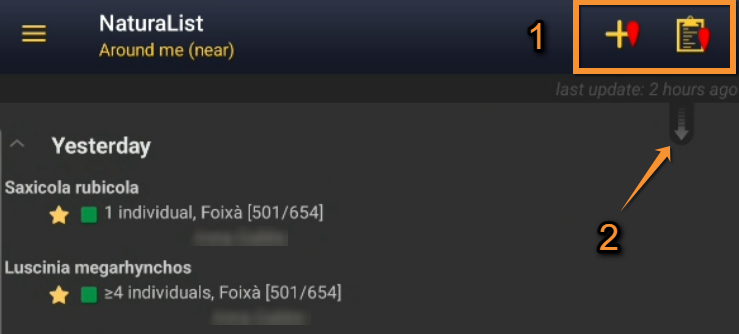
Quick access keys.
1. Quick access keys
| . | |
Enter independent observations. |
| . | |
Enter a list of precise observations. |
2. Refresh: Scroll down the arrow to refresh records. It is especially useful when browsing records Around me.
To enter your observations, click on the + sign at the bottom right corner (3) (see image Submitting records). A menu will open with all possible options linked to your account (see image Different options to submit records). We will present here the basic functions, advanced tools will be described under Protocols and Projects.
2. Attach a sound or image file
Enter observations associated to an existing sound or image file. Either:
·  Record a sound
·  Take a picture
·  Load a sound or image file.
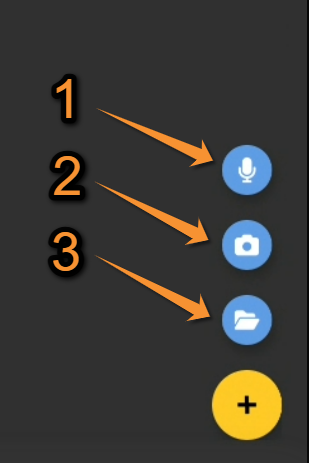
When selecting a file, all compatible files open. All information associated to the file is loaded automatically, date, GPS position, and species if using Swaroski's AX Visio. You are taken directly to the Additional information panel, unless previous data needs to be entered (ie. Species).
Click on  to open all options to enter records.
Click on  to know the differences between options.
For specific functions, open the panel first to access all protocols or projects you have access to. Use arrow Use grey arrow to open/close panel. The right will be granted to you by a local portal administrator under certain conditions.
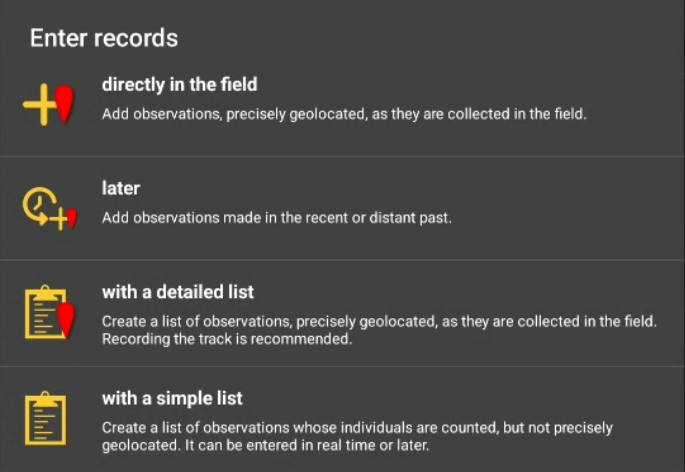
Basic options to submit records.
[Top to How to enter data]
[Back to Entering records]
Enter independent observations
Enter casual observations in real time.
Access it from the main menu or from the shortcut on the top right corner of the screen.
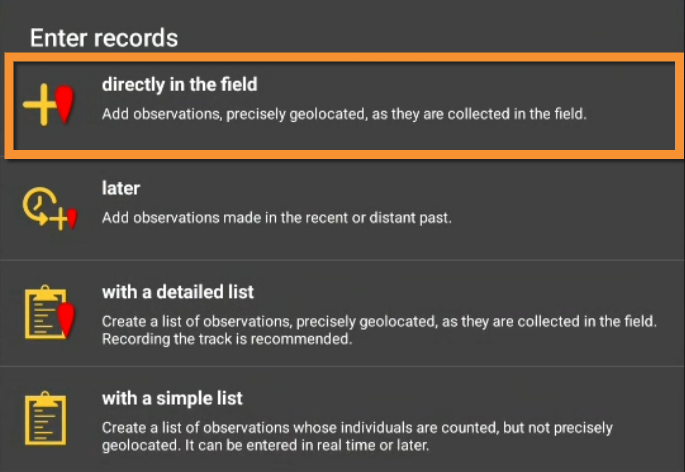
Enter independent observations.
1 Enter independent observations
Step 1: Place
REMEMBER:
Smiley = Observer's position
Red marker = Data position
Indicate the position of the observed individual by moving the map to match the red marker.
To know how to navigate the map, see wiki section Mobile interface > Navigating the map. A grey smiley indicates the GPS did not detect your position. Use  to activate the GPS on demand and wait for the yellow smiley before continuing. Your GPS precision is indicated on the top left of the map when the smiley is yellow. When done, click on Next.
Note: You can use  on the left to see a list of all your previous records (see image below).
|
Location 1.
1. GPS precision |
Location 3.
3. List of past observations |
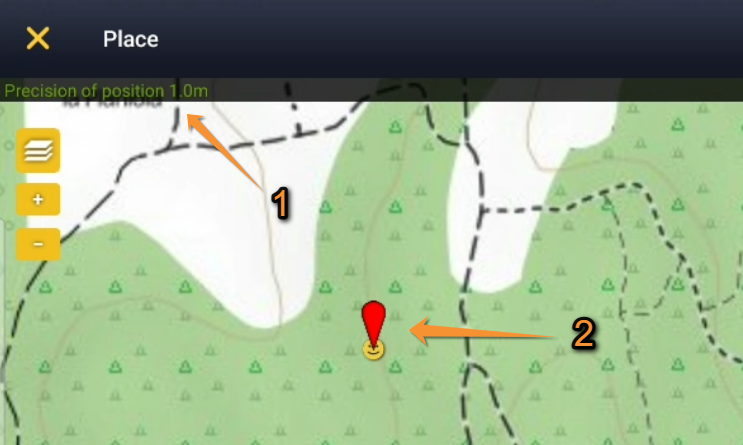
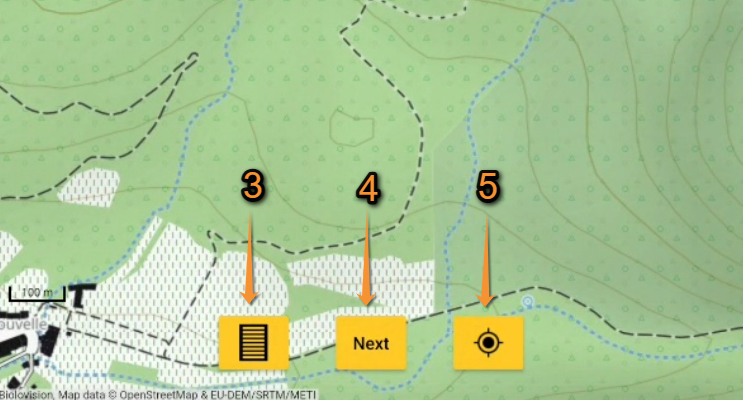
[Top to Step 1: Place]
[Back to Enter independent observations]
Step 2: Species
According to the parameters selected in preferences, there are different possibilities to enter the species name:
· Choose by search: Choose the taxonomic group from the top horizontal panel and start typing the species name. A list will appear underneath from which to choose the correct species. See image Display of species by species, or wiki section Mobile interface > Getting started > Personalisation > Display of species.
· Choose by group, family, species: Start by selecting the taxonomic group, then the family and finally the species. See image Display of species by group, family, species, or wiki section Mobile interface > Getting started > Personalisation > Display of species.
· Shortcuts: Use the shortcuts on top (see image Shortcuts) to enter the species faster, or create new shortcuts if needed. Visit wiki section Mobile interface > Shortcuts to know more about shortcuts and how to create them.
Note: you can modify your preferences by going to Menu > Preferences > Personalisation > Display of species (see image Display of species).
[Top to Step 2: Species]
[Back to Enter independent observations]
Step 3: Number of individuals
Enter the number of individuals first and choose the accuracy of the count.
Choose between:
Not counted (an x will appear) no need to enter a number
1: approximate number of individuals
2: exact number of individuals
3: equal or minimum number of individuals
(see image below).
If you did not see any individual and you want to signal it, enter exact number 0 (0 and click =).

Entering number of individuals.
1. Approximate number
2. Exact number
3. Minimum number
4. Start a counter
Enter FIRST the number of individuals and then the count precision. Once you enter the count precision, you are taken to the next screen and will have to use the back button to modify.
To add new individuals as you count them, click on Start a counter and keep adding or subtracting individuals (see image below) until all are counted or you need to move to another species. Click Close to end the count and continue entering the observation.

Start a counter.
1. Current count
2. Add individuals
3. Subtract individuals
Start a counter can be very useful when counting flocks.
[Top to Step 3: Number of individuals]
[Back to Enter independent observations]
Step 4 (non mandatory fields): Additional information
Add more information or modify existing one on this record.
Click on any icon to enter (or modify) information in the selected icon, and click Save when done to continue entering records.
If you do not need to add or amend information, click Save directly to skip this section.
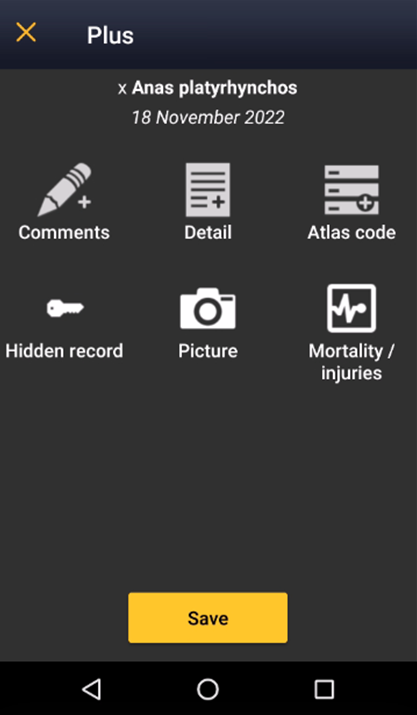
Additional information panel.
NOTE
YELLOW ICON = the module contains information about the record.
WHITE ICON = the module does not contain information about the icon.
Sections available depend on the type of list, or protocol, and on the country. Visit wiki section Mobile interface > Submitting records > Additional information panel for full details on all available modules.
[Top to Step 4 (non mandatory fields): Additional information]
[Back to Enter independent observations]
Step 5 (last step): Ending the record
To end entering an observation, click Save.
A green line on top will appear for some seconds to indicate the data is saved. You will be taken to Step 1: Place to enter new records.
To access the list of data already entered, click on  . Click on any of the records to see details and/or edit (see Editing records).
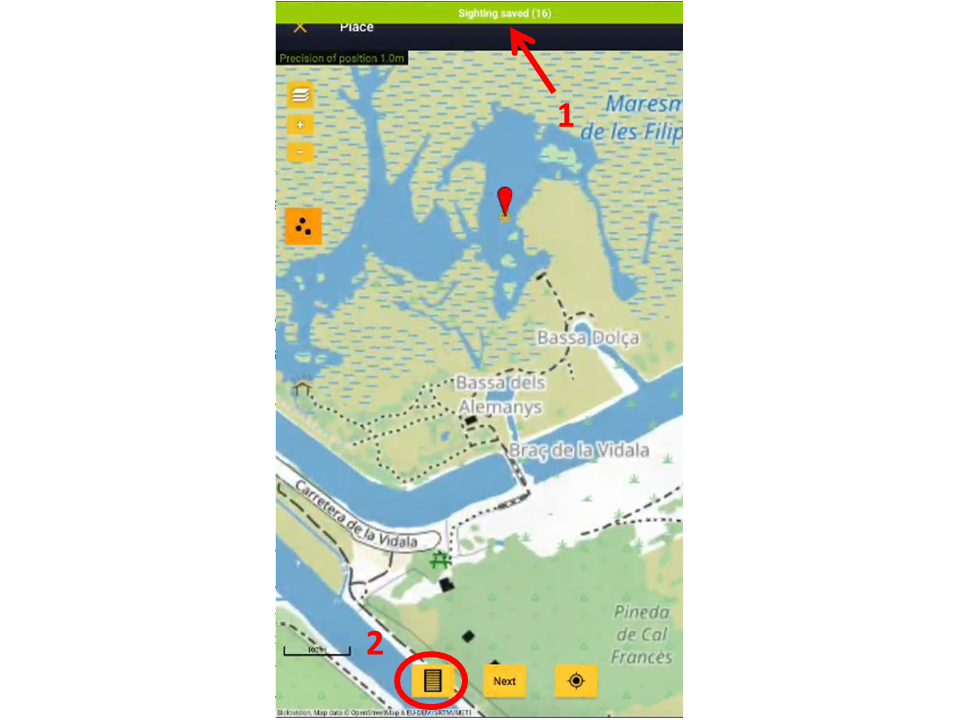
Records saved.
1. Record saved
2. List of already entered records
[Top to Step 5: Ending the record]
[Top to Enter independent observations]
[Back to Entering records]
Enter previous observations
Enter casual observations after they occur.
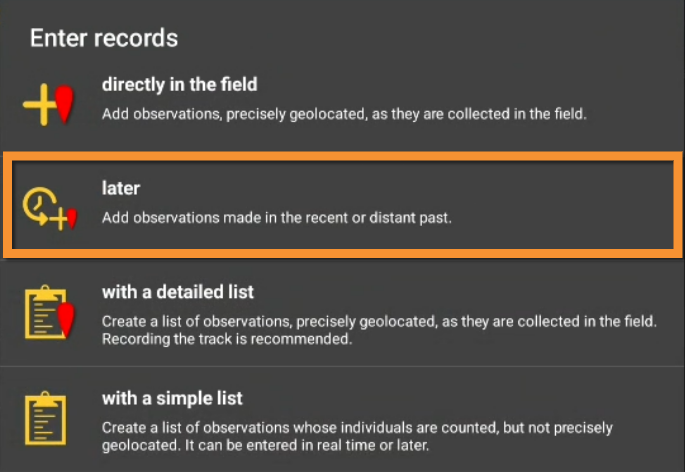
Enter previous observations.
COMPARISON BETWEEN "INDEPENDENT OBSERVATIONS" AND "PREVIOUS OBSERVATIONS"
Entering independent observations is faster as date and time are already selected for you. Selecting a location is also faster if using the aim icon: you are already correctly positioned!
Entering previous observations is useful when observations are noted on another support, such as a paper notebook, on rainy days, when the phone’s battery is low, or for any other reason you prefer not to use your device in the field.
2 Enter previous observations
Step 1: Date / Time
· Entering a date is compulsory.
· Entering time is not. Check the corresponding box to open the option to enter time (image Entering date and time).
Since observations may be entered after they occurred, entering a time is optional.
·
Check Enter time to enter the time or leave it unchecked if you do not want to enter a time. Click on the date button to modify date, and on time button to modify time.
·
When date and time (optional) are correct, click Save to move to next step.

Enter date:
Click on the default (current) date button to open a clickable calendar and choose the appropriate day. Use arrows to change month.
Click OK when done to close the calendar.
Enter time:
· Tick Enter time.
· Click on the default (current) time to open a clickable clock.
· Select first the hour, then the minutes, and finally the seconds. Or click on the corresponding part of the digital clock on top to indicate if you are adjusting hour, minutes or seconds. The parameter you are adjusting shows in bold in the digital clock (see image below). Exact seconds may be important for some taxa, for protocols, or in lists.
· Click OK to save and continue.
|
Enter date.
1. Change month |
Enter time.
1. As an example, hour is highlighted in bold. |
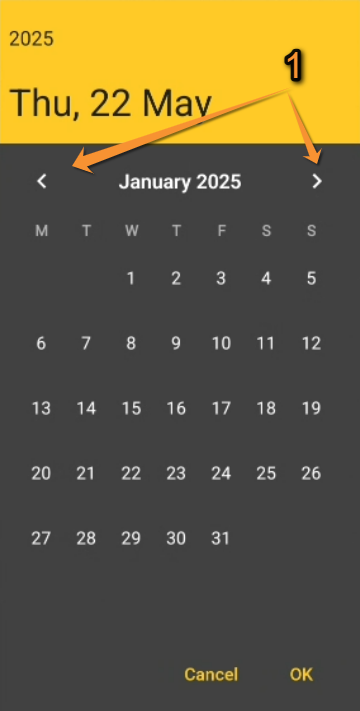

[Top to Step 1: Date / Time]
[Back to Enter previous observations]
Step 2: Place
Place the red marker on the location where the observation took place (as described in wiki section Mobile interface > Submitting records > Enter independent observations > Step 1: Place).
Yellow smiley and red marker may not match in this case as the observation is entered a posteriori.
To learn how to navigate the map, see wiki section Mobile interface > Navigating the map.
Step 3: Species
Enter species as described in wiki section Mobile interface > Submitting records > Enter independent observations > Step 2: Species.
Step 4: Number of individuals
Enter the number of individuals as described in wiki section Mobile interface > Submitting records > Enter independent observations > Step 3: Number of individuals. Note in this option one cannot Start a count as in other options.
Step 5 (non mandatory): Additional information
Enter any other additional information as described in wiki section Mobile interface > Submitting records > Enter independent observations Step 4: Additional information.
Step 6 (last step): Ending the record
When you finish entering an observation, click Save and you will be taken to Step 1: Date/Time to allow you to enter other data later. A green line shows on top to prove data is saved, then automatically disappears.
[Top to Enter previous observations]
[Back to Entering records]
Enter a list of precise observations
Select this option to create a list in the field in real time. You can access it from the menu or from the quick key at the top right corner of the screen.
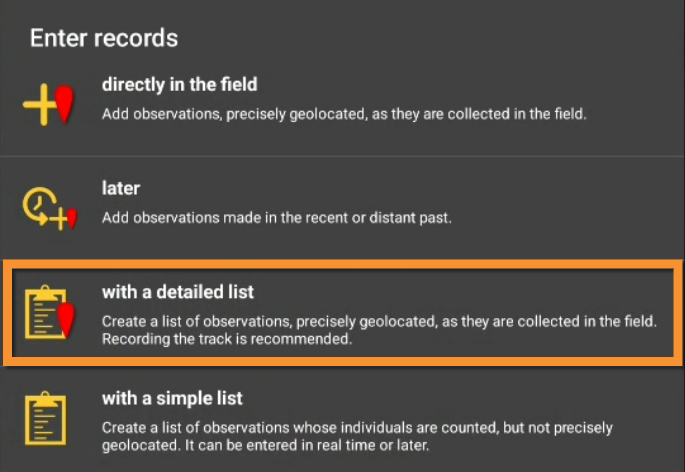
Enter a list of precise observations.
3 Enter a list of precise observations
Step 1: Starting a list
The 3 options below are optional. To go directly to the list, click Next.
- 1. Enter a comment about this list if appropriate. You can still comment individually every record.
- 2. Select Record the trace if you want to record your track. The default option is set in Main menu > Preferences > Personalization > Keeping the trace. Visit wiki section Mobile interface > Getting started > Preferences > Personalization > Keeping the trace to know more.
- 3. Select Hide all records from the public if you want it to be the default option while creating this list. You can change it later for individual observations you want to share anyway. Administrators will still have access to your records once submitted. Note: If in Preferences you chose to hide records, all your records, including lists are hidden automatically.
- 4. Click Next to start entering your data.
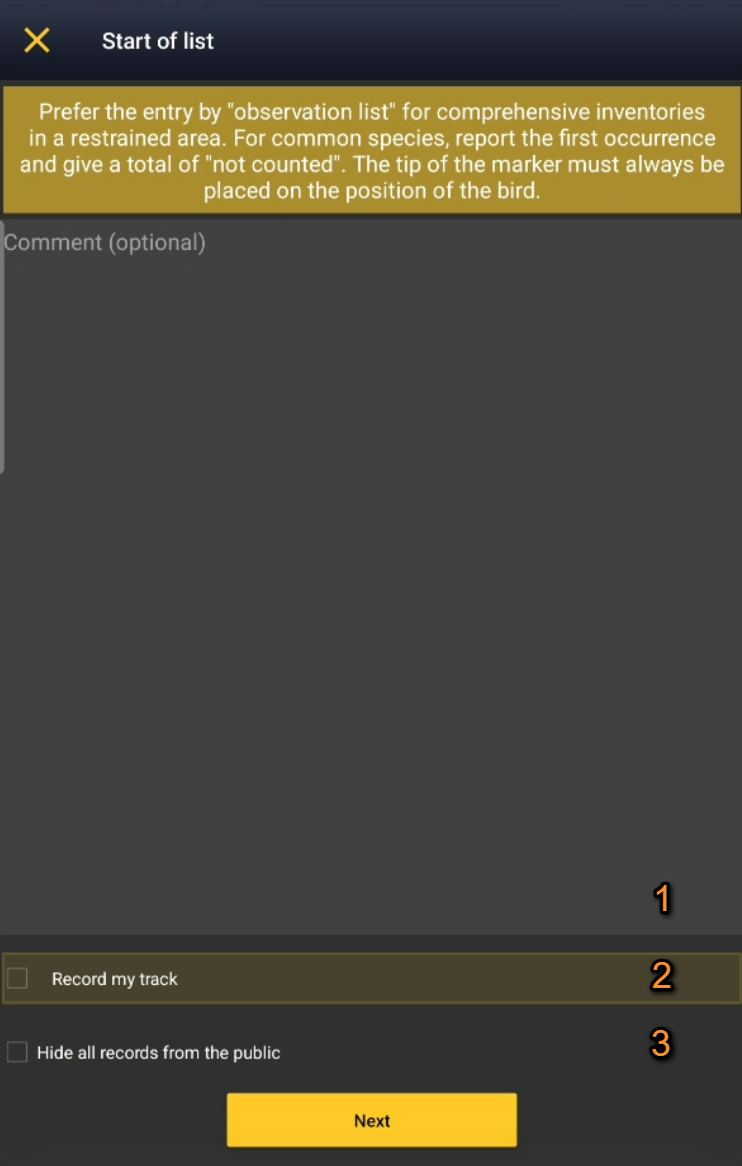
Starting a list of precise location.
1. Type a comment if necessary.
2. Check to Record the track.
3. Check to Hide your records from the public.
When you click Next
· an intermittent red dot will appear at the top of your screen indicating the list is running.
· All records you enter are considered to be part of this list.
· The taxonomic group of the first record you enter will determine the taxonomic group of the list. If you enter a new taxonomic group, you will be warned and it will still be recorded though not as part of the list.
· You can see for how long the list is running along with the red dot.
· Use the keys on the right of the screen to pause or stop the list (see image below). Pause the list to enter other records alongside it, either from the same or different taxa.
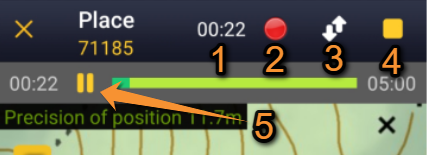
Recording a list in the field.
1. Time: Time since the list started.
2. Recording: Indicates the time is running.
3. Break: Pause the list to enter observations that do not belong to the list. The time continues running.
4. Stop: End the list.
5. Pause: Pause the protocol. The time stops.
BREAK: Enter other species from the same or different taxa but do not include them on the ongoing list. The time continues running.
STOP: End the list. The time will stop running.
[Top to Step 1: Starting a list]
[Back to Enter a list of precise observations]
Step 2: Place
· Place red marker at the observation's position by moving the map. See Mobile interface > Navigating the map to know more about the map.
· Click  , to automatically place the marker at your GPS location and center it.
· "A list of precise observations" requires you to indicate the exact position of the observation. Therefore, using is useful to know where you are and for observations that are on your same spot, for example plants or some insects.
Click Next when done.
Note:  shows/hides other records on the list. It is possible to select a record to modify or delete it.
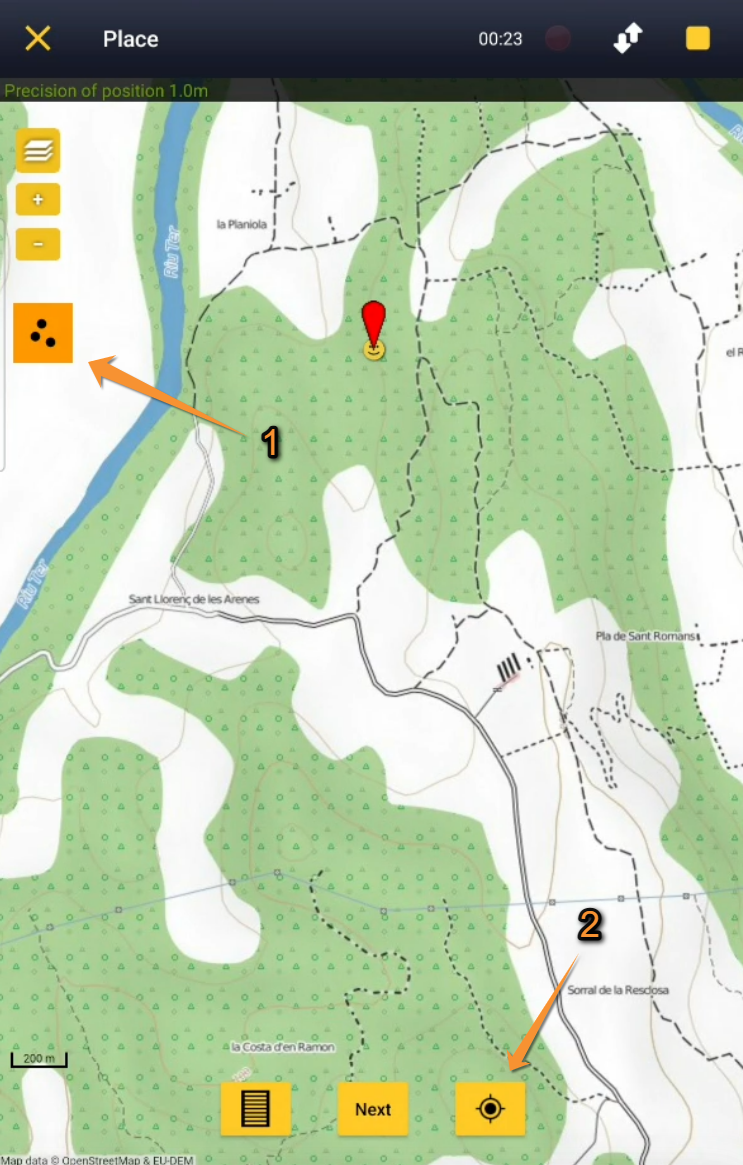
[Top to Step 2: Place]
[Back to Enter a list of precise observations]
Step 3: Species
Enter species as described in wiki section Mobile interface > Submitting records > Enter independent observations > Step 2: Species.
Step 4: Number of individuals
Enter number of individuals as described in wiki section Mobile interface > Submitting records > Enter independent observations > Number of individuals.
Step 5: Additional information
Enter any other additional information as described in wiki section Mobile interface > Submitting records > Enter independent observations > Step 4 (non mandatory fields): Additional information.
[Top to Enter a list of precise observations]
[Back to Entering records]
Ending the list
Click the stop button on top to end the list and confirm (see image).
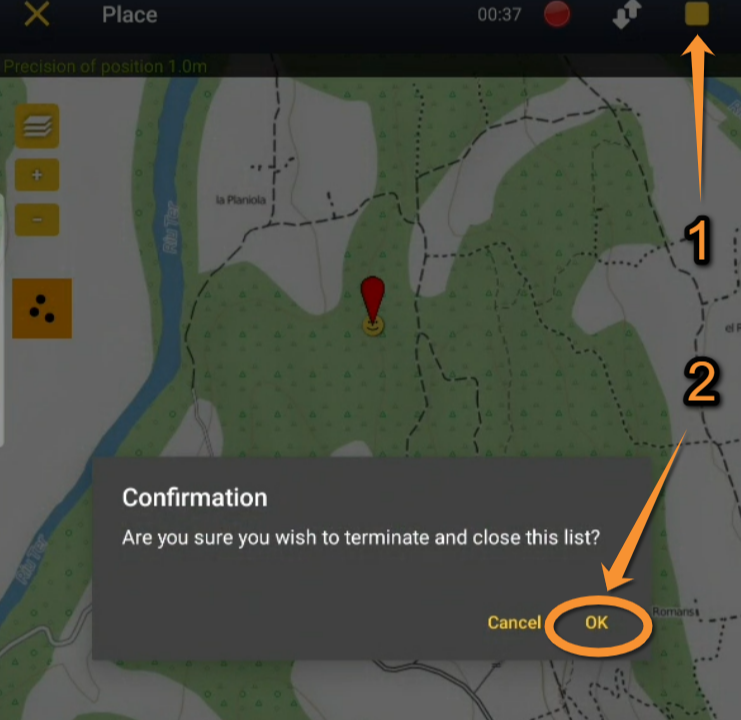
Ending list in the field.
1. Stop recording. See difference between break and stop for more information.
2. Confirm ending the list.
· Adjust starting time and ending time if necessary, for example if you forgot to stop the list when you finished recording (see image below). Otherwise, starting and ending time will be automatically detected.
· Add any comment if necessary, and
· indicate if is a
- · partial list (not all species detected were recorded) or
- · complete list (all species seen or heard were recorded). A complete list does not refer to species present but to species detected.
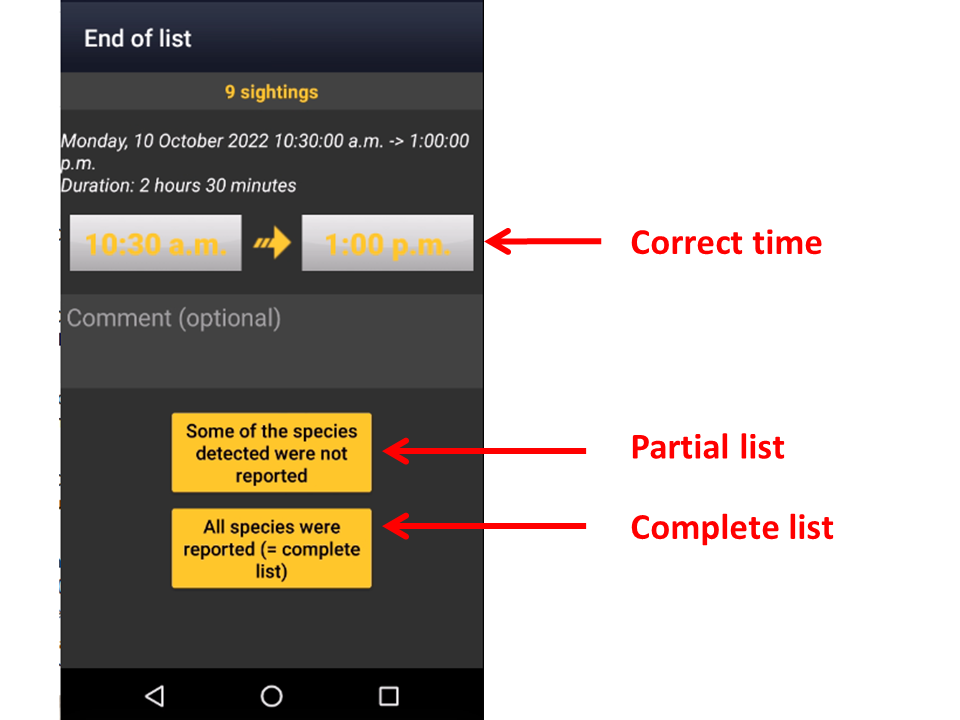
Adjusting list time.
1. Adjust time
2. Leave acomment
3. Select type of list:
· 4a Partial list.
· 4b Complete list.
If you are granted the necessary rights, you may be asked if your list belongs to a project or a protocol. If this is the case, select the project or protocol code from the expandable menu.
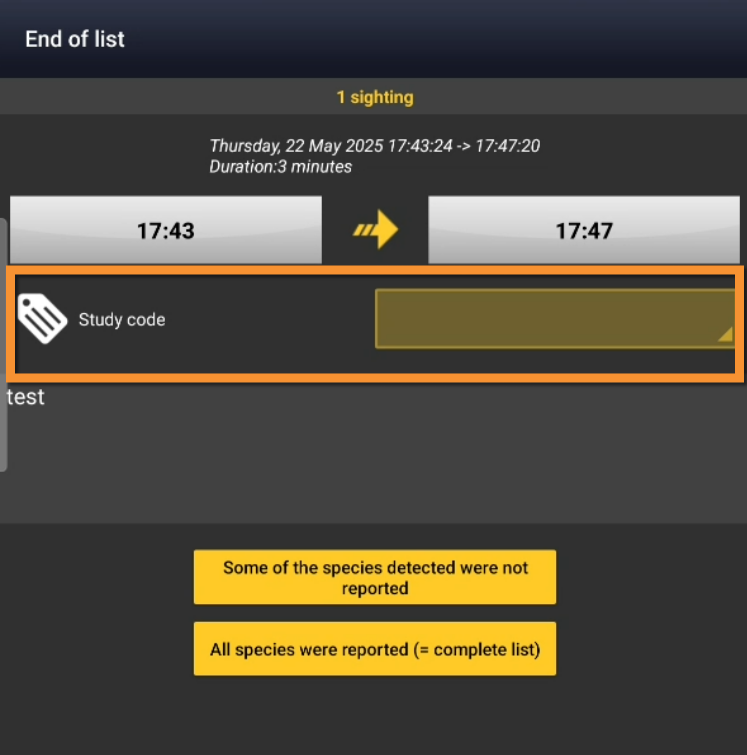
Enter code or protocol. Example.
When displaying data, observations belonging to a partial list are represented with a hollow green square, and those belonging to a complete list are indicate by a full green square. See wiki section Various > Symbols cheatsheet for more information.
[Top to ending the list]
[Top to Enter a list of precise observations]
[Back to Entering records]
Enter a simplified list of observations
Allows creating simplified lists in real time or that took place in the past.
· May not enter a precise location for each record, but enter records
- · at your position (real time) or
- · at one point (observation entered in the past).
- · at your position (real time) or
· the record gets a new precision marker called “unprecise”.
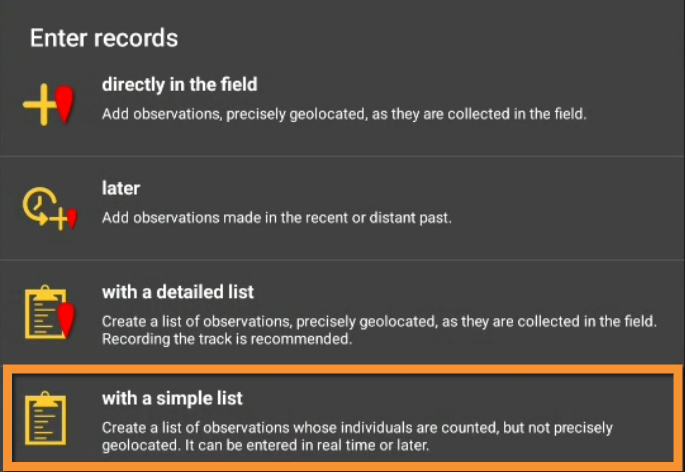
Enter a simplified list of observations.
4 Enter a simplified list of observations
-
4.1 Step 1: Date / Time
4.2 Step 2: Place
4.3 Step 3: Species
4.4 Additional information
4.5 Step 4: Ending the list
Step 1: Date / Time
By default the app shows the current date and time, which can be used as such to record a real time list.
If your observations happened in the past,
· click on the date to modify it by selecting from the expandable calendar
· click on the time to select the starting time of the list and select from the expandable clock as in Mobile interface > Submitting records > Enter previous observations > Step 1: Date / Time.
Add a comment if necessary and indicate if you want to hide the records from the public and/or record your trace. Administrators will still see them once they are synchronised.
Visit wiki section Mobile interface > Getting started > Preferences > Personalization > Keeping the trace to know more about recording your trace.
When done, click Next.
NOTE
If you change the time within 5 minutes of the given time, or do not change it at all, your list is considered a real time list and you have the option to record the trace. You will not be able to indicate the position of your observation, and it will be automatically considered to be the same as the position of your GPS.
If you change the time more than 5 minutes of the real time, your list is not considered a real time list and the option to record the trace gets unresponsive. You will be able to select the position of your observations on a map, as explained in next sub section Place.
[Top to Step 1: Date / Time]
[Back to Enter a simplified list of observations]
Step 2: Place
Option only available if you are entering a list after it occurred. That is, if you changed the time in the previous screen more than 5 minutes from the real one.
Select the position as in Mobile interface > Submitting records > Enter previous observations > Step 1: Date / Time.
Click Next when done.
NOTE:
· For a list entered later than it occurred the location will be the same for all the sightings, so the first time you select a place will be the position for all the following data you insert.
· If you are covering a big area or different ecosystems, consider doing so in separate lists.
[Top to Step 2: Place]
[Back to Enter a simplified list of observations]
Step 3: Species
Enter species as described in wiki section Mobile interface > Submitting records > Enter independent observations > Species.
For a real time list, it is now possible to enter the same species several times separately. All records are kept with their time and location (see image below).
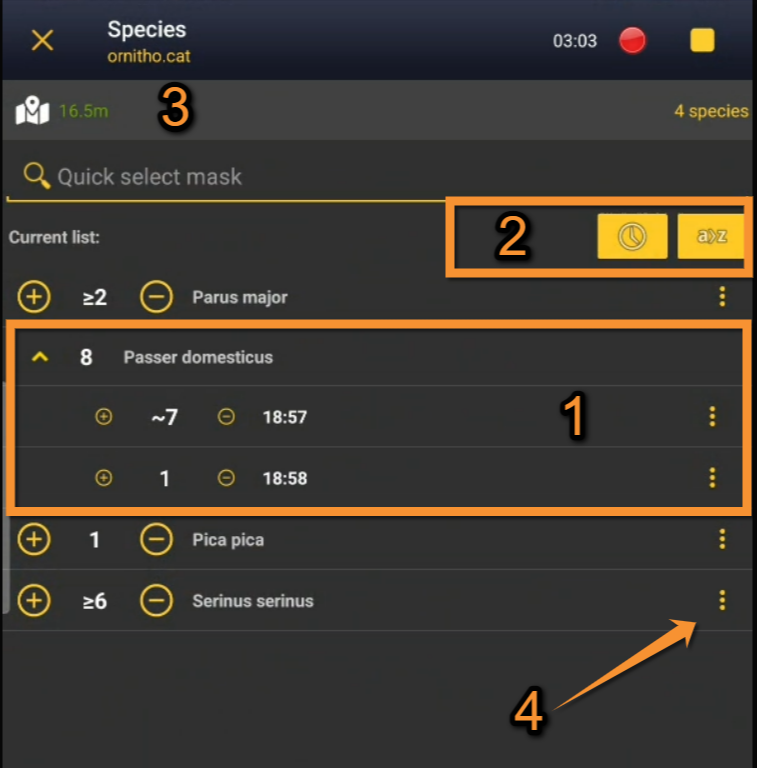
Entering species Enter a simplified list of observations.
1. Species list: Repeated species are saved separately.
2. Sort list: Click on the clock (left) to sort the list chronologically, or on the letters (right) to do so alphabetically.
3. Location and number of species: GPS precision (left) and the number of species already entered (right). Click on the map to see your location.
4. Additional information: Click the dots to open the additional information panel.
For a real or delayed list, you can also use symbols + and - to enter number of individuals (see image below). The location is the same for all individuals.

Adding/Subtracting individuals.
1. Add individuals: Click on + to add individuals to the count.
2. Subtract individuals: Click on - to subtract individuals to the count.
Additional information
You will not be prompted to enter additional information. However, you can add it after entering a record in the list or after finishing the list (see Editing records for more information).
While creating the list, click on a species name and select Edit record to access the additional information menu.
See wiki section Mobile interface > Submitting records > Additional information panel to navigate all sections in the menu.
If only the number of individuals needs to be modified, use the plus and minus signs on the left of the species name to modify the count (see image below). The new number is saved automatically.
Click on the species name and select Delete to delete the record.
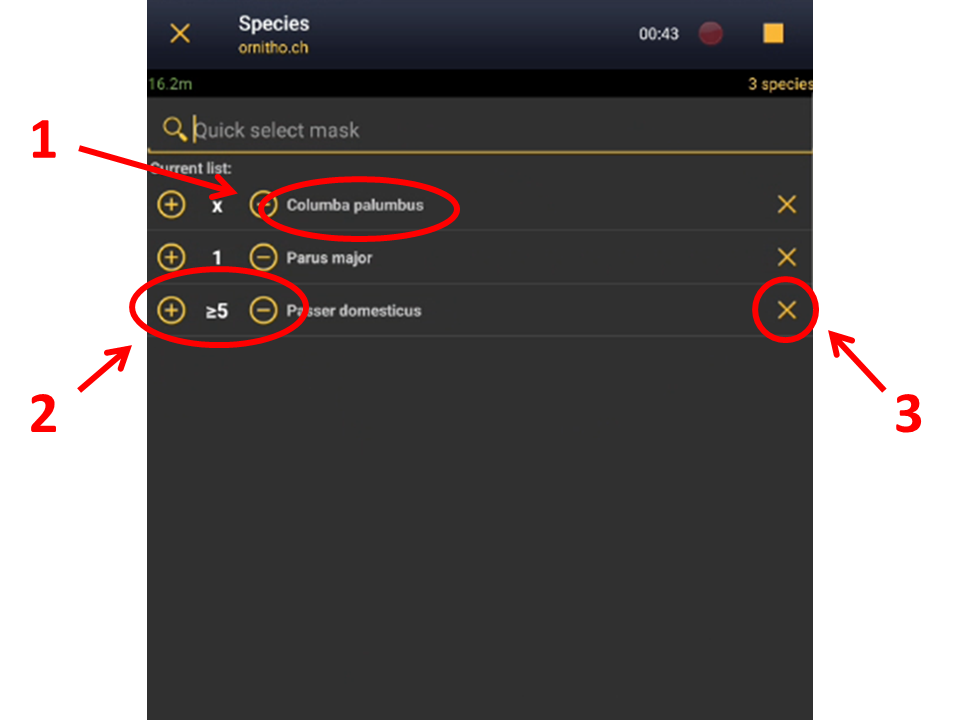
Entering additional information in with simple later.
1. Edit record: Enter additional information.
2. Display more information: See location and summary of observation.
3. Delete: Delete entry.
If your list occurs in real time, the screen will also show GPS precision (on the top left corner, in green or red) and the number of species already entered (top right corner, see image below).
If besides, you are in Africa, it will indicate in the middle the atlas grid number of the African atlas.

A real time simple list.
1. GPS precision. Click on the map to see location.
2. Number of species already entered
Step 4: Ending the list
When all records are entered,
1. click on the "stop" icon at the top right corner to finish the list, and confirm.
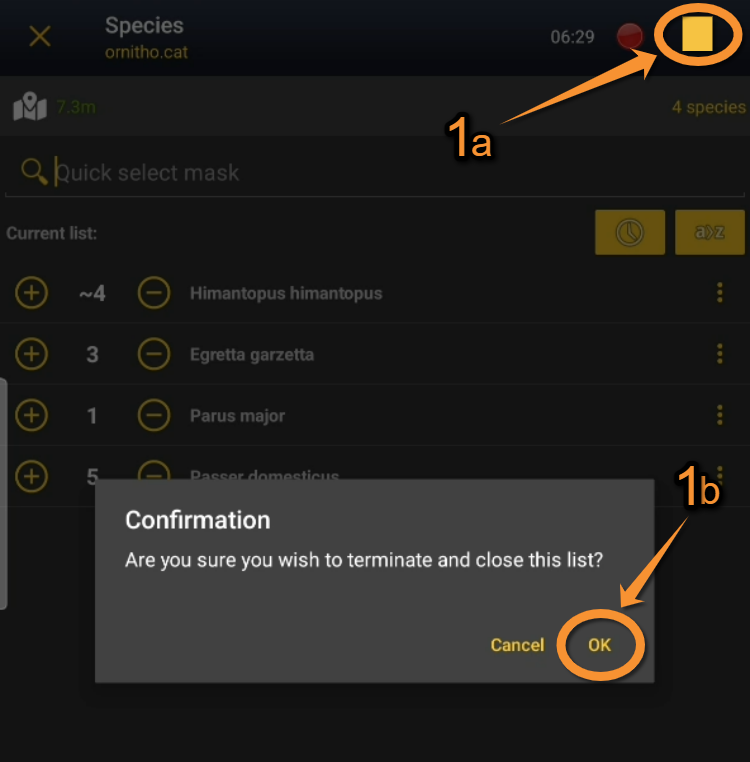
Ending Enter a simplified list of observations 1.
1a. End list
1b. Confirm
BREAK: Temporarily stop the timer to, for example, enter additional observations. Re-start the list by clicking on the white badge.
STOP: Stop the timer and close the list.
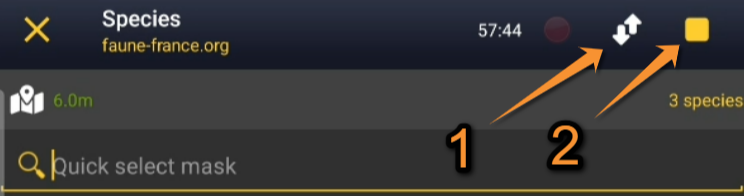
Ending Enter a simplified list of observations 1.
1. Break
2. Stop
2. Click on the time button to open an expandable clock and introduce ending time if necessary as explained in wiki section Mobile interface > Submitting records > Enter a list of precise observations > Ending the list.
3. Adjust starting time if necessary.
4. Enter/ Modify a comment if necessary.
5. Enter any other required information. It may vary from country to country.
6. Finally, indicate if you recorded all species present or only part of them (see image).
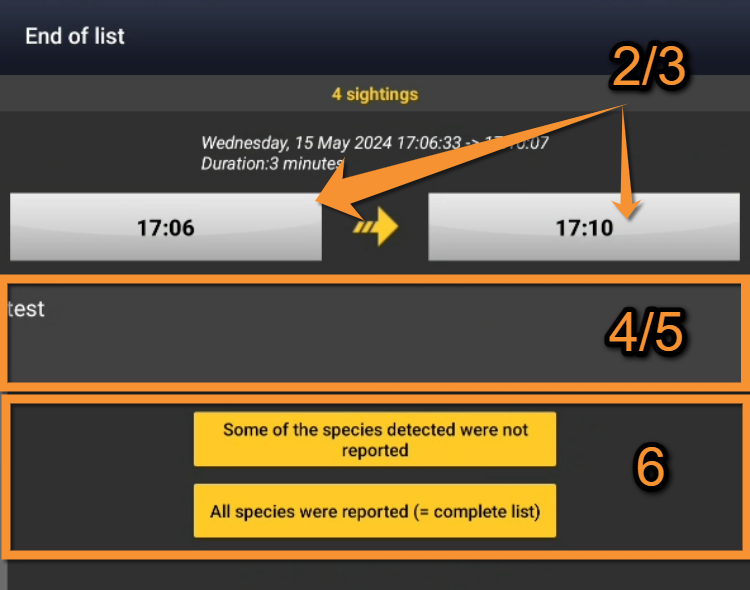
Ending Enter a simplified list of observations 2.
2/3. Adjust starting (left) and ending (right) time
4/5. Enter/Modify Comments or other information required
6. Select type of list
COMPARISON BETWEEN "A LIST OF PRECISE OBSERVATIONS" AND "A SIMPLIFIED LIST OF OBSERVATIONS"
A list of precise observations preselects date and time for you but requires you to enter the position for each record. If the position of the observation is your current position, use to be faster. It also allows entering additional information for each record within each entry.
A simplified list of observations can also be used in the field. In this case, you need to select date as well as starting and ending time. However, you will not be prompted to enter the position for each observation and the additional information menu will not be automatically displayed for each record. This saves time and reduces the chances of missing some individuals.
Use "a simplified list of observations" also in the field in real time if you do not need to get exact positions for each individual or add detailed information (as age, sex, pictures or atlas codes) for most of them.
[Top to Enter a simplified list of observations]
[Back to Entering records]
Synchronisation
Once records are entered and modified if necessary, synchronize them.
When synchronising:
· records become public*,
· validators can verify records,
· administrators can use records for planning conservation.
*If records were hidden from the public, they will not be visible to other users, but administrators will still see them, verify them and use them for conservation purposes.
To synchronise,
· click on the reminder at the bottom of the screen
· and confirm (see image below).
Once your records are synchronised, you can no longer modify them in NaturaList, but you can do so from your local portal.
See a list of local portals in the wiki section Various > Local portals and partners.
Go to wiki section Web interface > Editing records for more information on how to edit records on the web site.
If no local portal exists for the site (for example in Africa or outside Europe), go to https:data.biolovision.net to make changes.
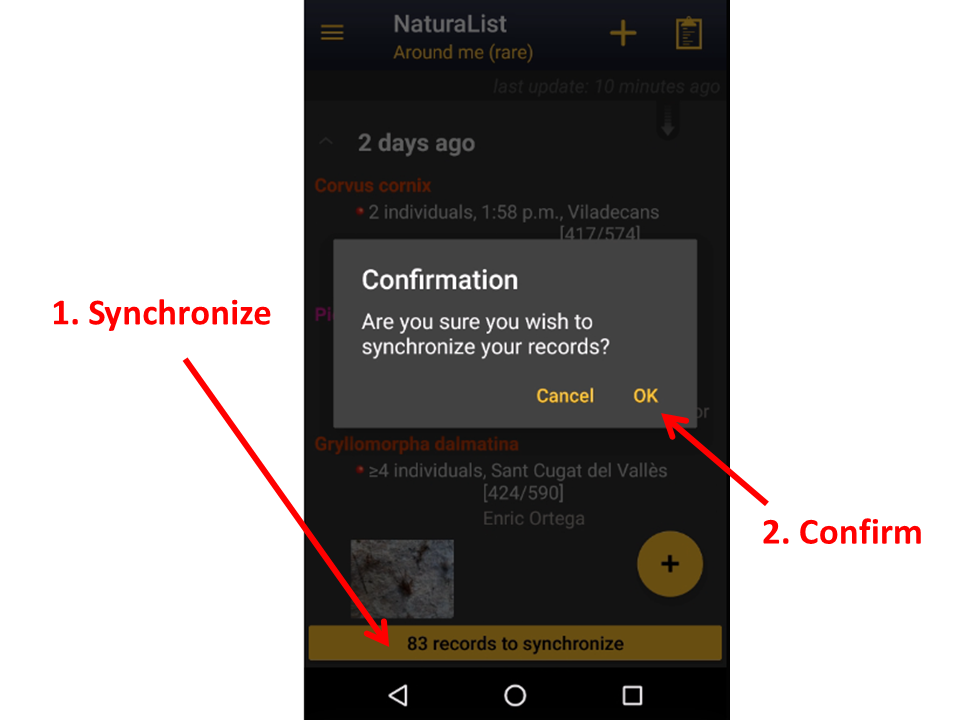
Synchronisation.
1. Synchronise
2. Confirm
Why to synchronise:
· Share your observations with fellow naturalists.
· Participate in conservation initiatives.
· Back up your records online (otherwise you may loose them if your phone crashes).
· Confirm dubious records.
[Top to Synchronisation]
[Back to Entering records]
Create an object
Record a nest, a burrow, a birdhouse, or similar object encountered on the field, and attach it to an observation.
This function is only available to users with special rights.
For detailed information, visit the wiki section Mobile interface > Create an object.
Create an object
Access it as if entering data, and click Create object (see image below).

Create an object. Main menu.
Visit wiki section Mobile interface > Create an object > Create object to know how to create an object.
Attach objects to observations
Objects can be associated to observations either before or after synchronisation.
|
Attach an object to an observation (before synchronisation). |
Attach an object to an observation (after synchronisation). |
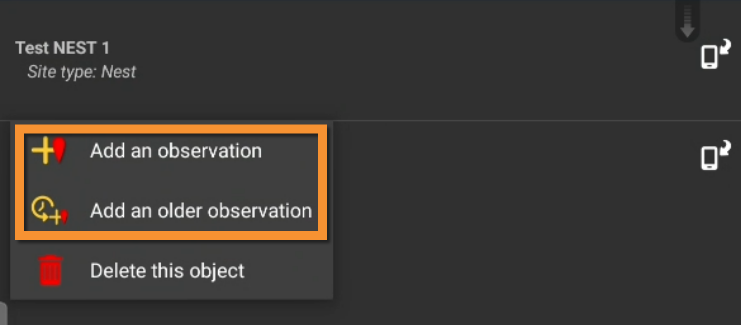
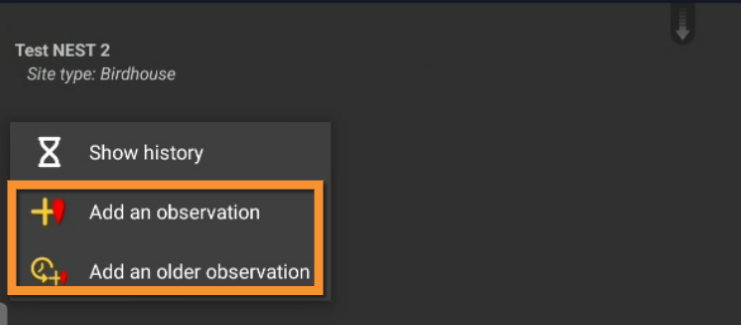
Visit wiki section Mobile interface > Create an object > Attach objects to observations to know how to associate an object to an observation, for example, a nest.
Browse created objects
Objects can be seen in NaturaList and on the local portal.

List of created objects.
1. Object pending synchronisation.
Synchronised objects do not show any icon

Browsing object in the local portal.
1. Access object
2. Access associated observation
Visit wiki section Mobile interface > Create an object > Browse objects to see your created objects.
Edit objects
Visit wiki section Mobile interface > Create an object > Edit objects to modify your objects.
Delete objects
Delete your objects directly from NaturaList.
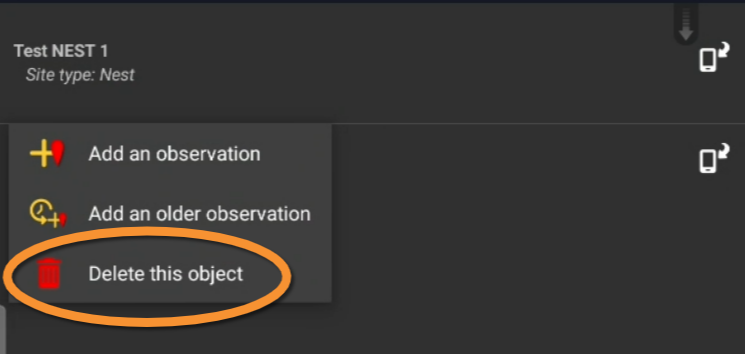
Deleting an object.
Visit wiki section Mobile interface > Create an object > Delete objects to delete your objects.
[Top to Create an object]
[Back to Entering records]
Additional information panel
Modules allowing to enter additional information to the recorded observation.
Depending on the list or the protocol used, the additional information panel (see image below) may be opened automatically while entering observations (ie. Enter independent observations) or may require the user to access it as if editing the record (ie. Enter a simplified list of observations).
Not all modules are available in all countries and lists/protocols.

Additional information panel. Example.
Expand the table below to see all available modules in the Additional information panel.
Yellow icons indicate the module has some information in it (ie. Time or Map in the list below), while white icons indicate the module does not contain any information yet.
| Additional information modules | ||||||||||
|---|---|---|---|---|---|---|---|---|---|---|
| Icon | Description | |||||||||
 |
Atlas code Add a code to indicate breeding stage. |
|||||||||
 |
Colony Add information about a colony if the individual observed is a colony breeder. |
|||||||||
 |
Comments Add a comment about the observation, and hide or show it to the public. |
|||||||||
 |
Detail Indicate the age and sex of individuals observed. |
|||||||||
 |
Direction Indicate flight direction of individuals recorded. |
|||||||||
 |
Extra protocol Add information about nests. |
|||||||||
 |
Hidden record Choose to hide or show your observation to the public. It is independent from the comment: you can hide the comment and still show the observation. |
|||||||||
 |
Map See the observation's location. |
|||||||||
 |
Media Attach an image or a sound to your record. |
|||||||||
 |
More details Indicate nesting habitat and additional information such as behaviour, migration and individual's health. |
|||||||||
 |
Mortality Add information about injuries or deaths. |
|||||||||
 |
Number of individuals Enter or modify the number of individuals and the count precision |
|||||||||
 |
Offspring Enter the number of eggs in the nest |
|||||||||
 |
Protocol |
|||||||||
 |
Ring Enter ring details if the individual/s of your observation is/are ringed. |
|||||||||
 |
Singing/Hearing contact |Click to indicate if you heard vocalisations. Yellow icons indicates there were, white icons indicate there were not. |
|||||||||
 |
Species Change species name. |
|||||||||
 |
Species list Change general information about the list the record belongs to. Click on the clock to change starting and/or ending time, enter/modify the comment, and/or check All species were recorded if all species were recorded. |
|||||||||
 |
Study code Select study code if your observation belong to any of the listed studies. |
|||||||||
 |
Time Change time by clicking on the given time. Check Do not enter to hide record's time. |
|||||||||
|
|
||||||||||
1.4 Additional information
- 1 Atlas code
2 Colony
3 Comments
4 Details (Age and Sex)
5 Direction
6 Extra protocol
7 Hidden record
8 Map
9 Media
10 More details
11 Mortality / injuries
12 Number of individuals
13 Offspring
14 Protocol
15 Ring
16 Singing/Hearing contact
17 Species
18 Species list
19 Study code
20 Time
Additional information on mapping protocols
Atlas code
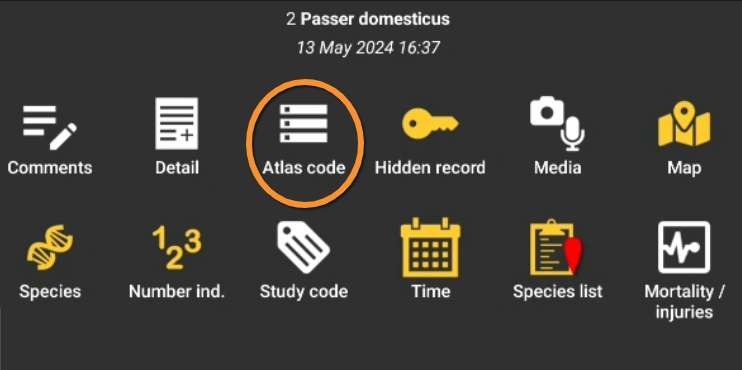
Additional information. Atlas code.
Select an atlas code, or no code.
Available atlas codes will depend on the country you chose in Preferences.
For information the coding system used is indicated at the bottom of the screen (see image below).
During the breeding season some countries may ask automatically to enter an atlas code. It is highly encouraged you do so (very useful, for example, for breeding atlas) but it is not compulsory.
Go to Menu > Preferences > Atlas code to change the code you use.
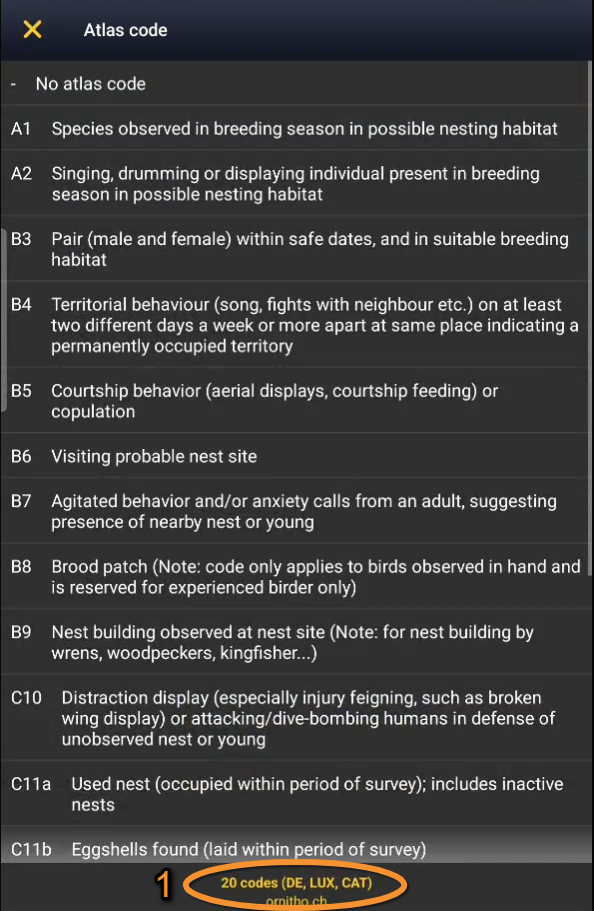
Adding an atlas code
1. Coding system in use
[Top to Atlas code]
[Top to Additional information panel]
Colony
Enter information about the breeding colony. <br/.
The Colony module may open on the additional information panel if:
· a colony breeding individual is recorded,
· the observation occurs during breeding season, and
· an atlas code indicating breeding has been selected for this sighting.
1. Enter number of pairs observed.
Modify number of individuals if necessary (see image below).
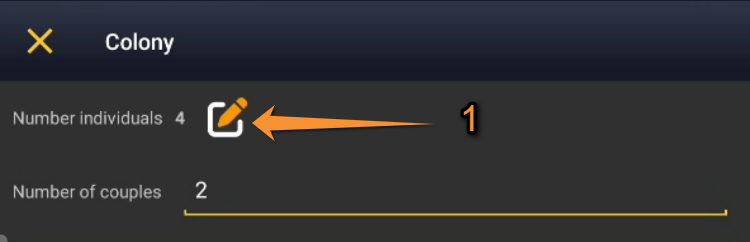
Colony module. Number of individuals.
1. Modify number of individuals.
2. Enter nest information according to nest nature (see image below):
· Natural nests
· Artificial nests
|
Natural nests. |
Artificial nests.
1. Minimum: Check to indicate they may be more nests than recorded. |
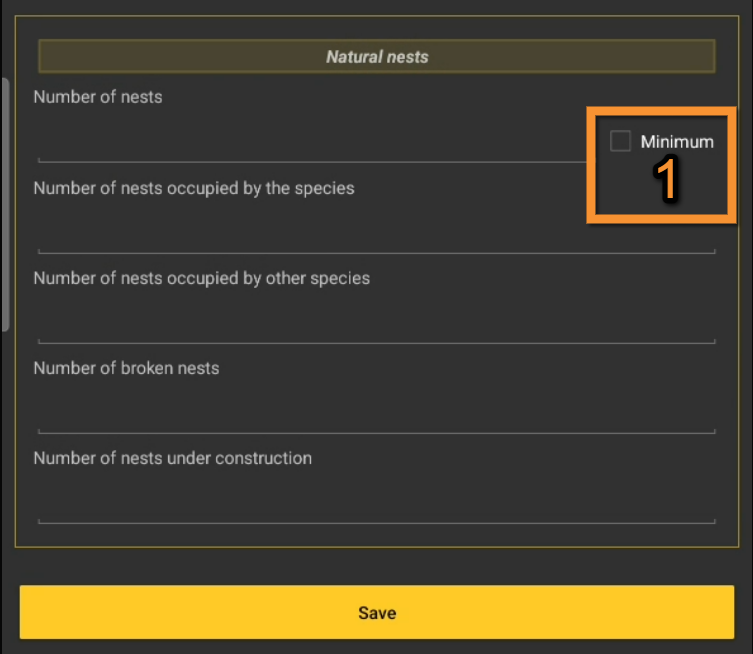
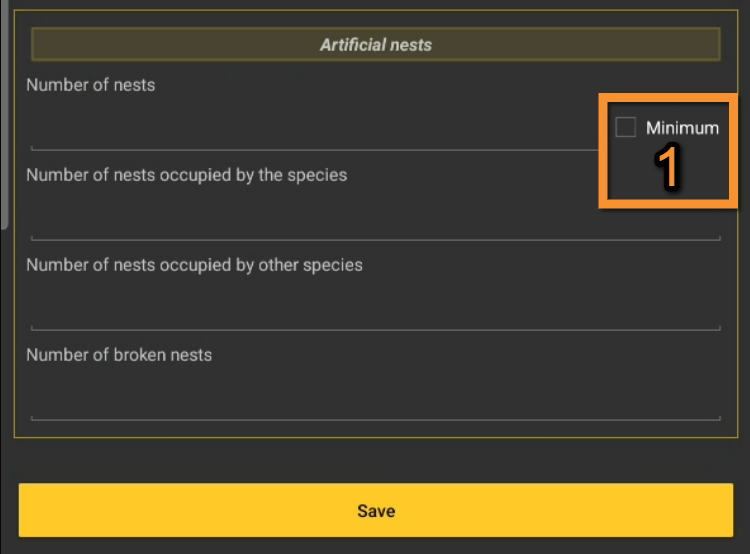
[Top to Colony]
[Back to Additional information panel]
Comments
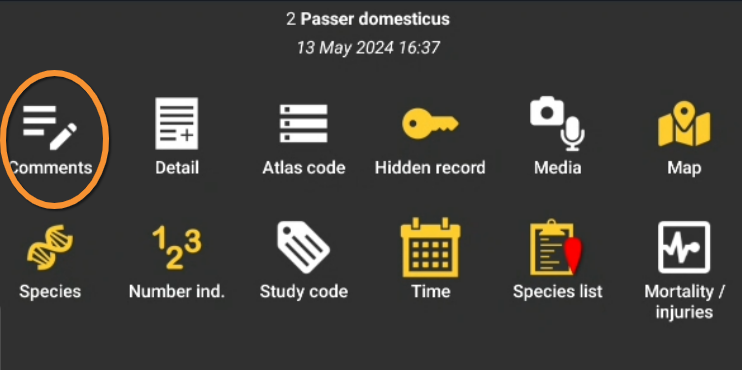
Additional information. Comments.
Leave a comment, if necessary.
It can be public or private:
· Use the top section to make it public and associated to your record. Any registered user will see it.
· Use the lower section if you want to keep your comment private. Note administrators will still see it.
To learn more about administrators, go to wiki section Local portals > Administration.
Click Save when done.
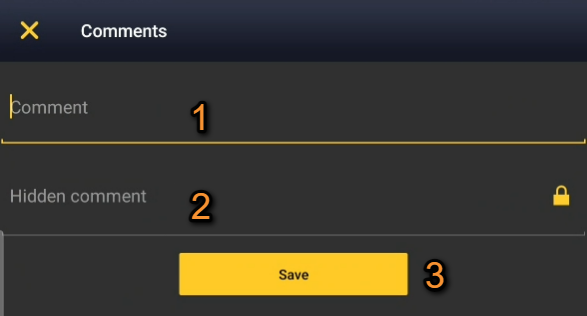
Adding comments.
1. Type a public comment
2. Type a private comment
3. Finish and continue
Validate only validates the comments.
To validate your record you will have to Save later.
[Top to Comments]
[Back to Additional information panel]
Detail (Age and sex)
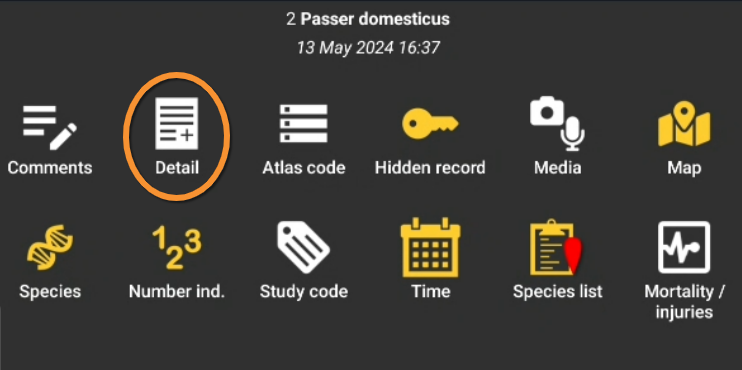
Additional information. Details.
Enter number of individuals per sex and age class.
According to the taxonomic group you are entering, fields for details differ, see image below.
For birds:
· Type number or use +1 -1 quick keys to quickly change the number.
- Key Max will count all individuals entered for this species.
- Key Max will count all individuals entered for this species.
· Select age and sex for each class.
- As data is entered, a list will appear at the bottom.
· Scroll up and down from the right hand bar to see all entries.
· Select  to delete any entry if necessary (see image below).
When done, click Add to enter a new class or finish to end.
|
Adding age and sex to a record.
1. Quick access |
Examples of Details for non-avian taxonomic groups. Orchids (left), Odonata (right). |
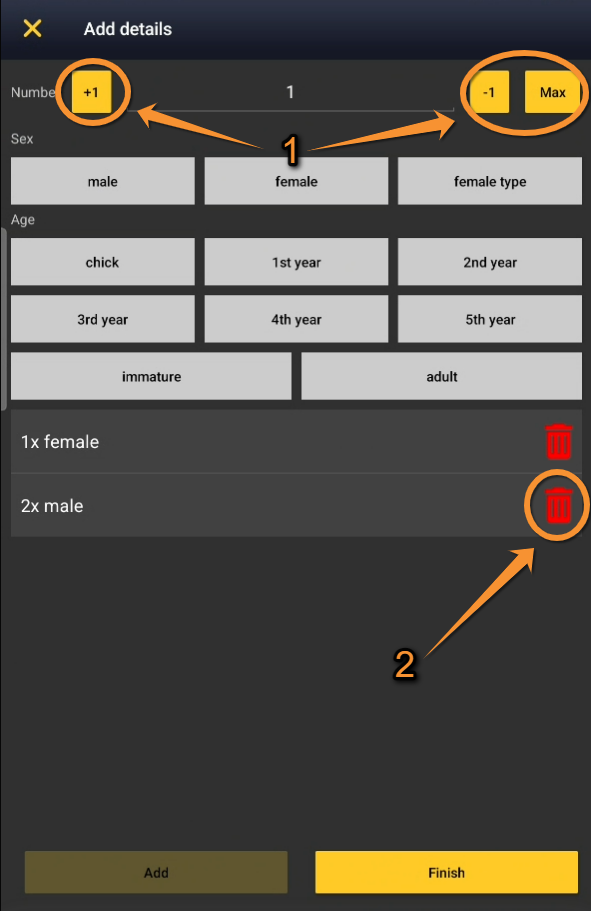

[Top to Details]
[Back to Additional information panel]
Direction
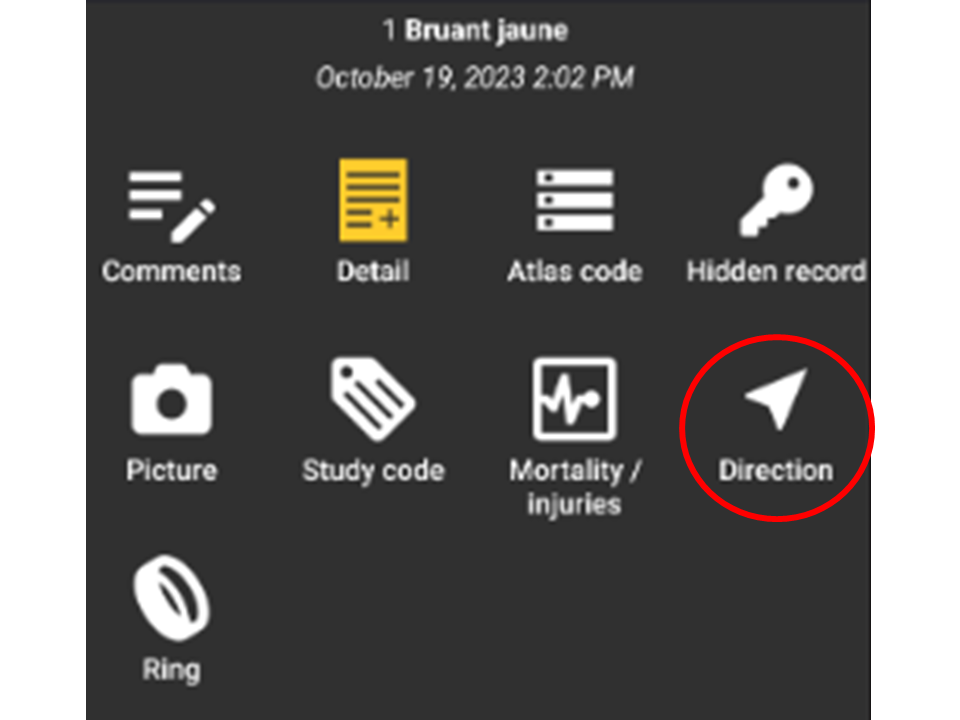
Additional information. Direction.
Click on the compass to indicate flight direction.
In the example below, the user clicked on SE.
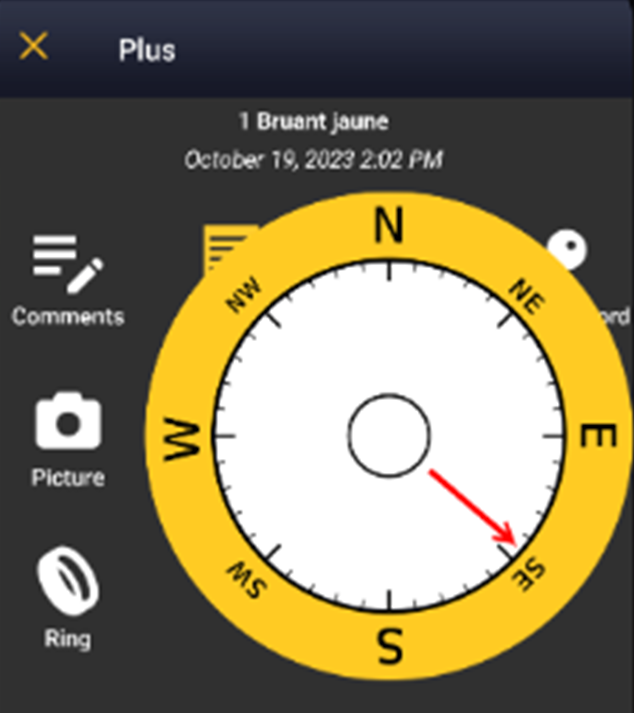
Additional information. Selecting direction.
[Top to Direction]
[Back to Additional information panel]
Extra protocol
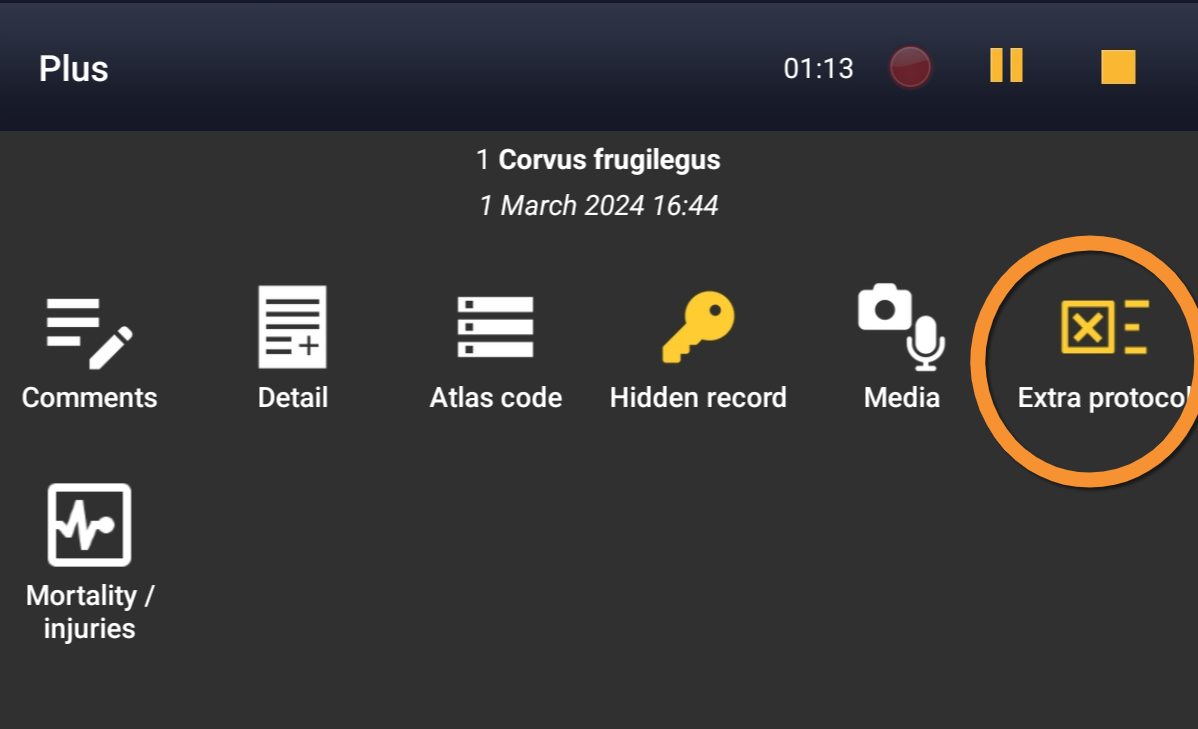
Additional information. Extra protocol.
Introduce required information about nests (see image below as an example).
This section will only appear if you are entering data into a protocol that requieres nest information. Information required may vary depending on the protocol, and may include:
· Intact nests: Type number of intact nests.
· Nest location: Click on the yellow band to see options (see image Nest location) and choose the most appropriate.
· Number of nests occupied by other species: Type number of nests occupied by other species.
· Occupied nests: Type number of occupied nests.
· Potencial breeding pairs: Type number of pairs that may be breeding.
· Suspected nests: Type number of suspected nests.
Remember fields marked with an asterisk are mandatory.
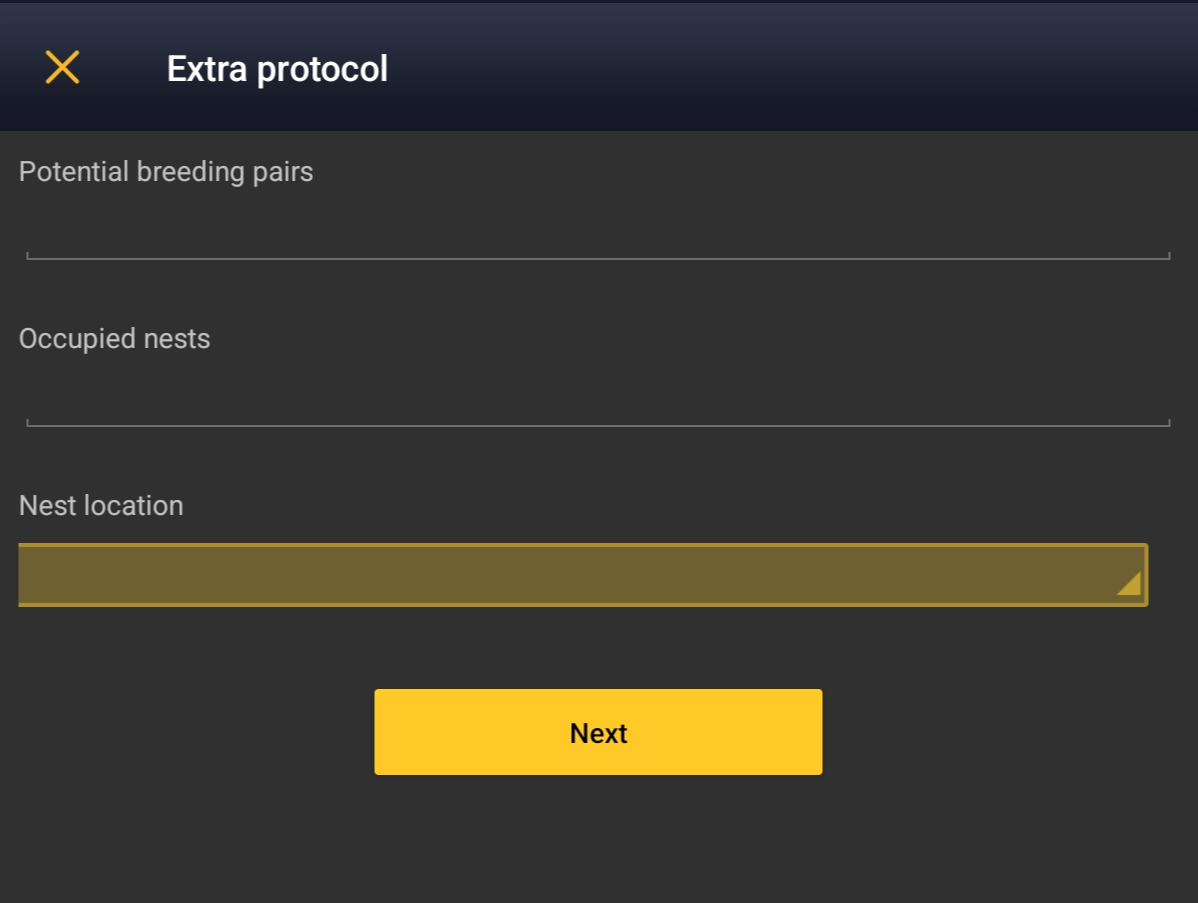
Extra protocol. Example.
[Top to Extra protocol]
[Back to Additional information panel]
Hidden record
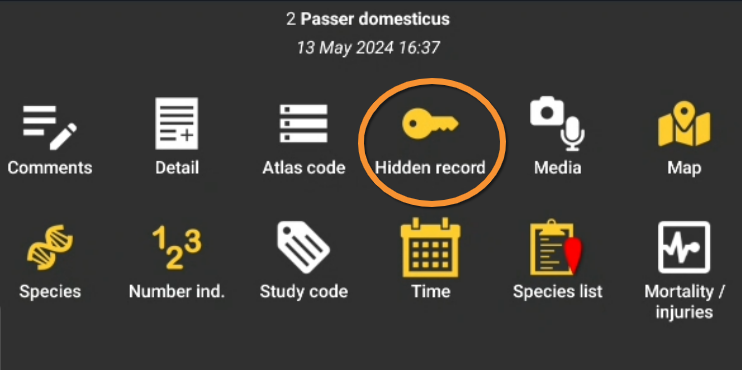
Additional information. Hidden record.
Select/unselect as needed.
Remember:
· A yellow key indicates the record will be hidden to other users, except administrators.
· Default option depends on your ‘’’Preferences’’’. Go to Menu > Preferences > Hide record to change it.
· Note some records are automatically hidden depending on the country or region your observation takes place in. Observations in countries not covered by any local partner are never automatically hidden. However, any user can hide records if they consider doing so will help protect the individuals, species or habitat.
To see which records will automatically be hidden locally, go to Web interface > Local portals > Species partially hidden.
To learn more about administrators, go to Web interface > Local portals > Administration.
[Top to Hidden record]
[Back to Additional information panel]
Map

Additional information. Map.
Click to see your observation's position.
Click
· Next to Continue, or
· "aim icon" to see your position (see image below).
Visit wiki section Mobile Interface > Navigating the map to interpret the map if necessary.

Map
1. Continue
2. Show your position
[Top to Map]
[Back to Additional information panel]
Media
REMEMBER
Adding images already on your phone directly from the gallery will automatically upload some basic information:
- Date
- Time
- Position
- Date
- Time
- Species
- Number
- Position
Attach an image or a sound to your observation, either before or after entering a sighting, from:
· the Additional information panel, or
· the main screen.
To use the Additional information menu, enter the observation first, and
1. choose Media on the additional information panel (see image below)

Attaching media from the Additional information panel.
It displays all images already attached to this record (see image as an example).
2. choose between
· Upload a file, if you have already taken them and they are stored on your phone's gallery. Pictures must be taken with your phone or inserted afterwards through a local portal. If no local portal exist, it is not currently possible to add a picture through data.biolovision.net.
· Add a photo then. If you do, do not forget to accept to upload it.
· Record a sound at the moment.

Media. Select file.
1. Upload a file: Click to upload a file already in your phone.
2. Add a photo: Click to take the picture to attach.
3. Record a sound: Click on the microphone icon (or open the three dot menu if not displayed and on Record a sound to record the sound to attach).
To use quick access keys,
· take the picture or record the sound before entering the observation, or
· select an file to upload a sound or an image file.
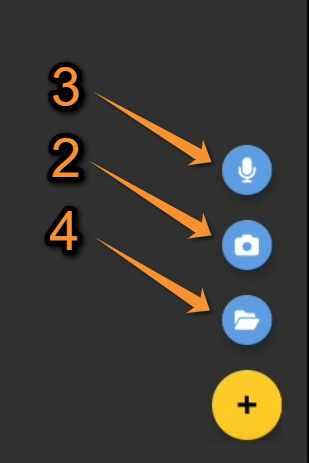
Media. Quick access.
2. Add a photo: Click to take the picture to attach.
3. Record a sound: Click to open the recorder.
4. Upload a file: Click to select a sound or image file in which to add an observation.
- Upload a file
- Upload a file
Direct access to the gallery in your phone. Choose the image or sound to attach to the observation the same way you would select any other file to attach to any platform (e-mail, whatsapp...). Some considerations must be taken into account:
· The date of the observation must match the date the file was created, if you are attaching a file to the observation you are recording. Some internal adjustments correct for differences in time zone.
· If you are attaching an observation to an already existing fiel, all information from the file (date, time...) will be automatically recorded onto the observation.
· Pictures are automatically resized to 3072 pixels on the longest side before being uploaded.
· Sound files must be maximum 16 MB to upload.
· Use the share function (instead of open) to upload more than one file at once. File information (date, time, GPS position...) of the first one will be considered the observation's information.
NOTE:
· The date of the observation must match the date the file was created.
· Pictures will be automatically resized to a maximum size of 3072 pixels before being sent.
· Sound files should be maximum 16 MB to upload.
It is also possible to attach a file by
· Open the phone's gallery,
· click on Open with, or Share and
· select NaturaList.
- Add a photo
- Add a photo
Direct access to the camera in your device. Take a picture normally and select:
· Retry to repeat it, or
· OK to upload.

Taking a picture to upload.
1. Retry: Repeat the photo.
2. OK Upload the photo.
See the images as they are attached.
Hide/show the picture only, not the data, to other users by clicking on the corresponding key or delete by clicking on the bin (see image below).
You will be able to edit it at a later stage.
When done, add another picture or close "Media" to access other sections or entering the observation.

Hiding a picture.
1. Hide/Show
2. Delete
- Use the key icon to hide the image while keeping the record visible.
- If you hide the record, the image is automatically hidden.
- Record a sound
- Record a sound
Press the microphone icon to start recording the sound. It will start recording immediately and the waveform is shown in real time.

Recording in real time.
1. Stop recording.
Press stop to stop recording, and:
· Crop the waveform, if necessary, after stooping the recording (it is only possible to crop the time axis), or
· Validate to access other sections or to enter the observation.
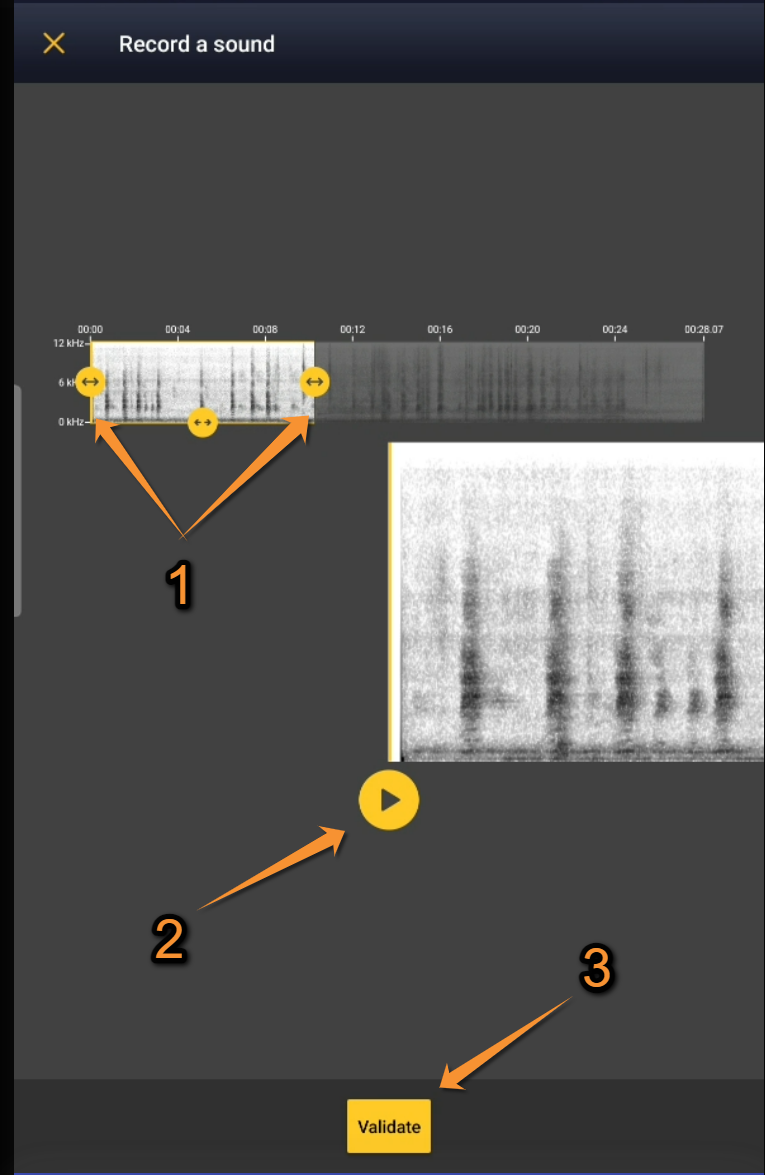
Validate recording.
1. Crop: Use arrows to cut along the time axis.
2. Play: Play recording.
3. Validate: Upload recording.
It is not currently possible to playback.
[Top to Media]
[Back to Additional information panel]
More details

Additional information. More details.
Indicate nesting habitat and additional information such as behaviour, migration and individual's health (see image as an example).
Open the expandable menu and indicate the most appropriate option to each field, if necessary.

Filling information.
1. Habitat: Click on the yellow panel to open a clickable menu and select habitat.
2. Specifications: Click on the yellow panel to open a clickable menu and select additional information (ie. behaviour, migration direction, health...).
SAVE Click save when done.
[More details]
[Back to Additional information panel]
Mortality / injuries

Additional information. Mortality / injuries.
Indicate if your observation corresponds to an injured or dead individual, and select the cause if known.
Scroll down All causes to see all options (see image Cause of injury).
Click on the category to open a panel with all possible causes and enter details (see bottom image Selecting cause of injury).
When done, click Validate.
For quick selection, the icons of the most common causes are on top (see image Cause of injury).
When done, click Save or.
Delete if necessary.
The entry can be modified later.
|
Cause of injury.
1. State of the individual |
Selecting cause of injury 1. |
Selecting cause of injury 2. |
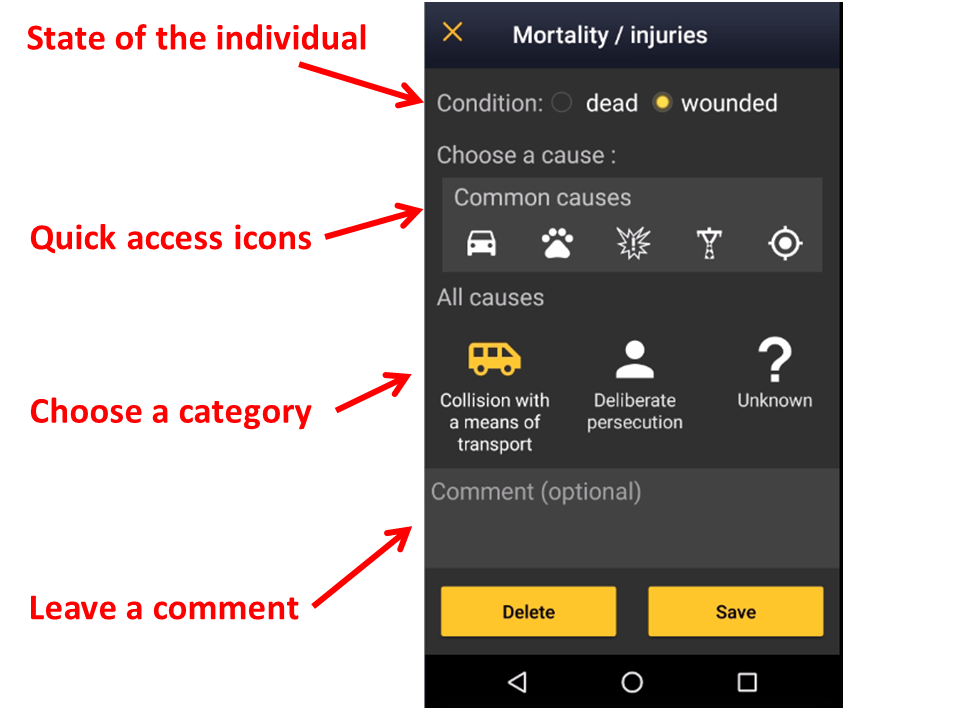

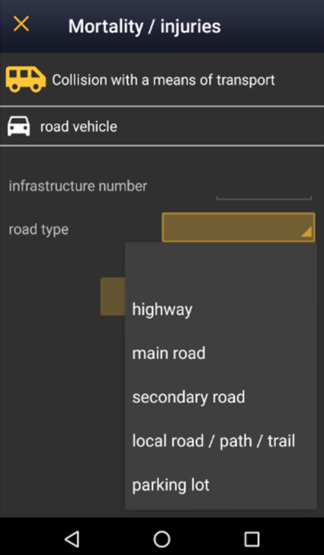
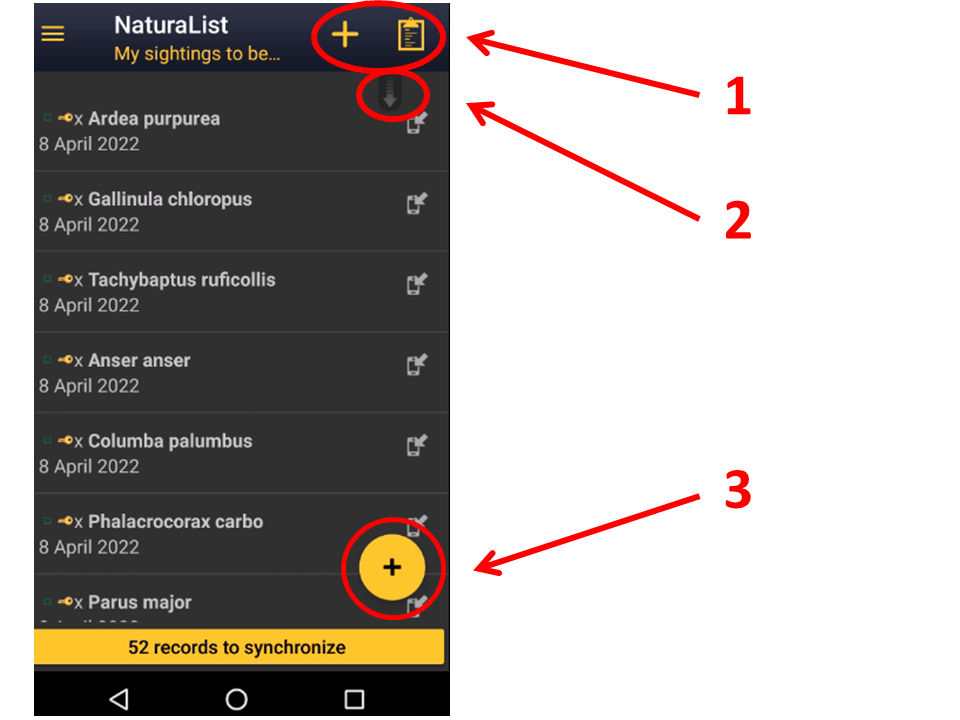

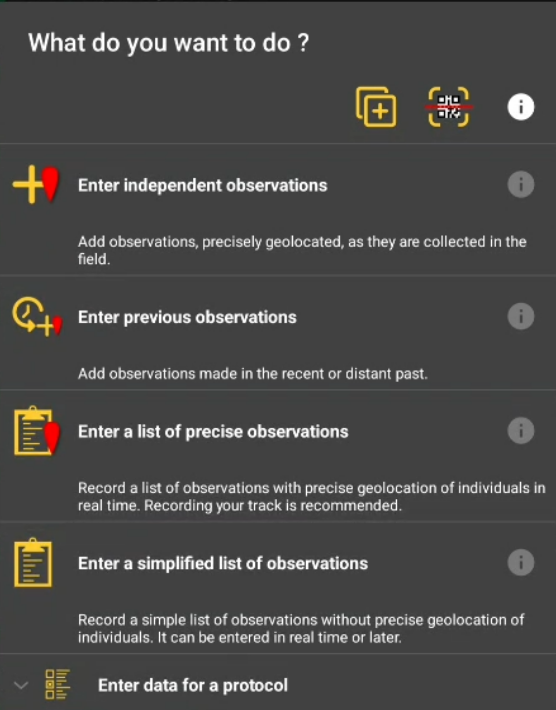
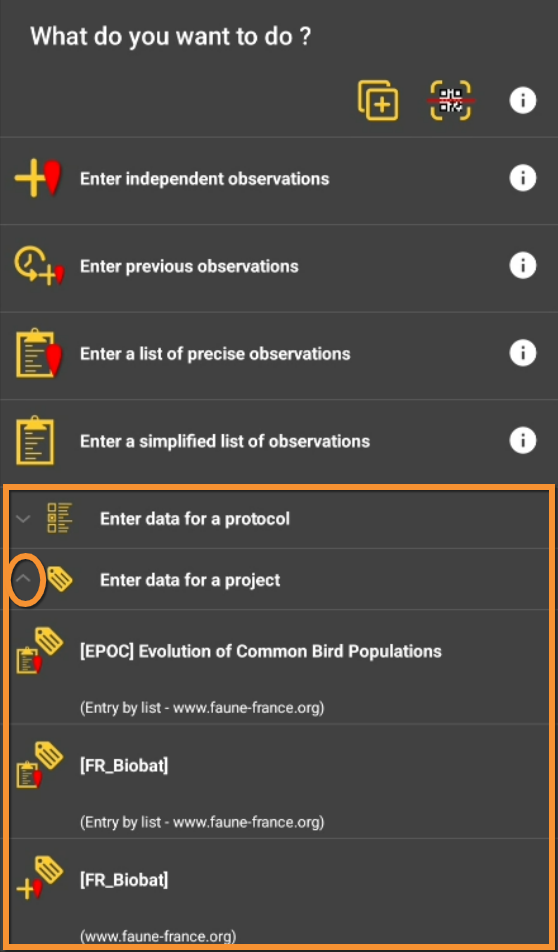
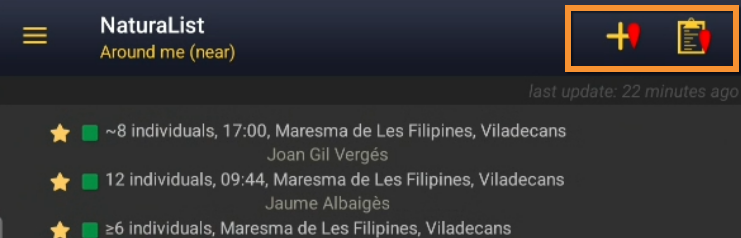

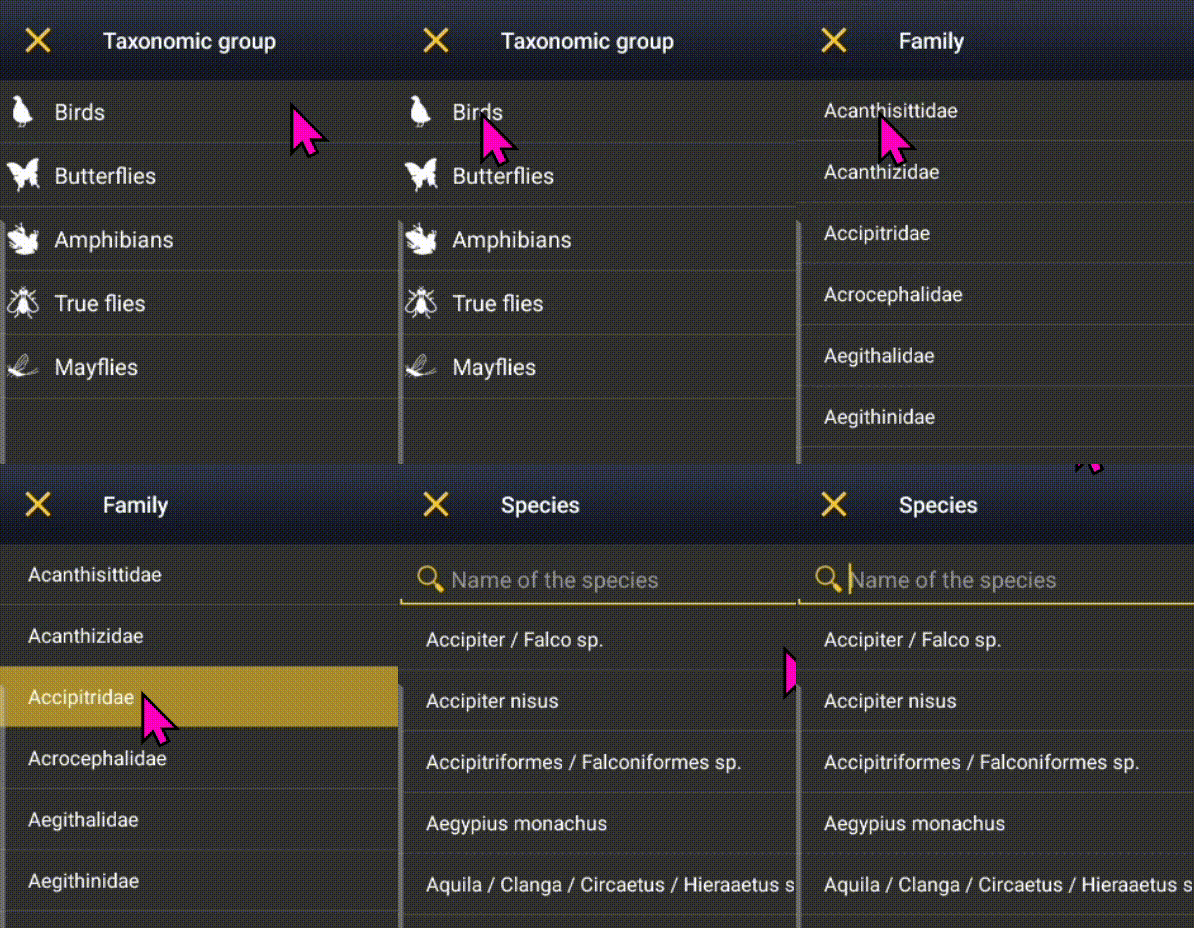





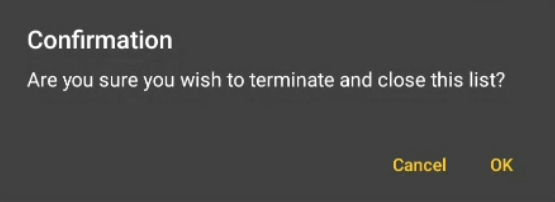


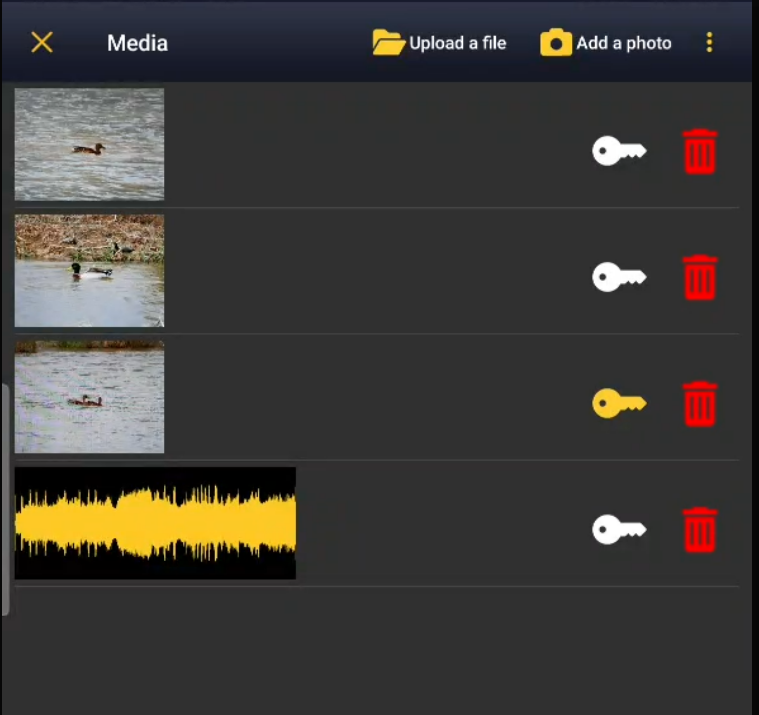



[Top to Mortality / injuries]
[Back to Additional information panel]
Number of individuals
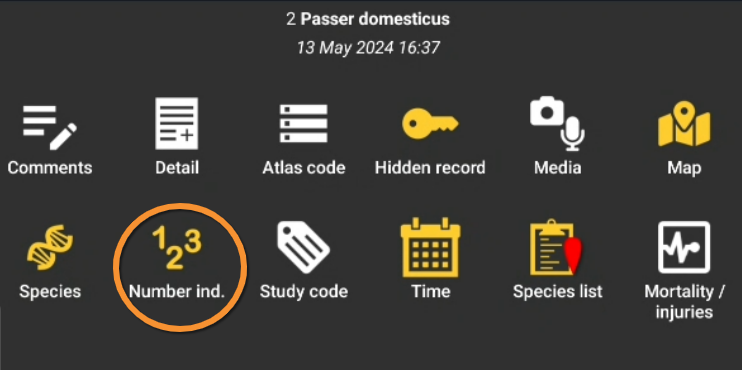
Additional information. Number of individuals.
Modify number of individuals recorded in the present entry.
Visit wiki section Mobile interface > Submitting records > Enter independent observations > Number of individuals for more information.
Entering number of individuals.
1. Approximate number
2. Exact number
3. Minimum number
4. Start a counter
[Top to Number of individuals]
[Back to Additional information panel]
Offspring
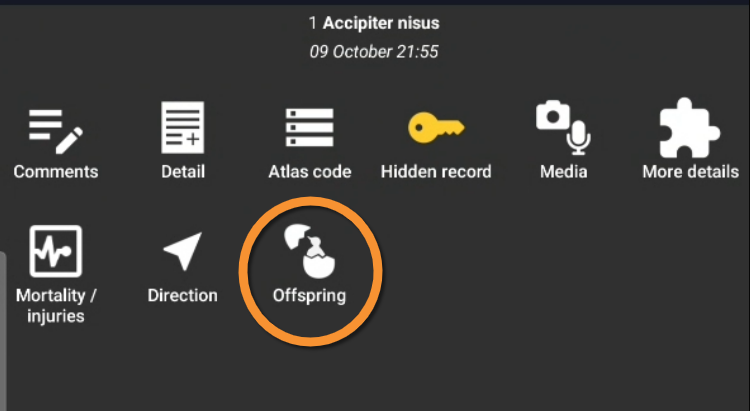
Additional information. Offspring.
1. Indicate size and status of each of the chicks on the nest,
2. Type number of eggs on the nest, and
3. Choose,
- Save to save information, or
- Delete delete offspring information.
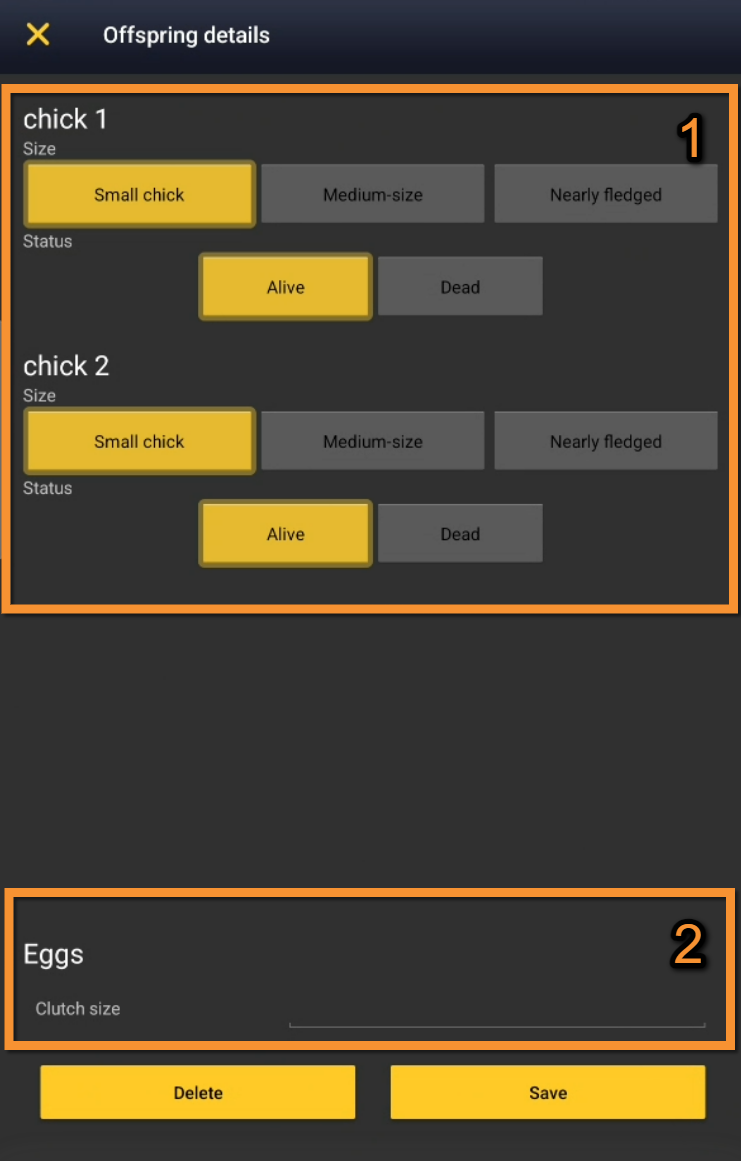
Offspring information. Example.
1. Offspring: Click on chick size and chick status for each of the chicks. Option selected is highlighted in yellow.
2. Clutch: Type number of eggs.
[Top to Offspring]
[Back to Additional information panel]
Protocol
[Top to Protocol]
[Back to Additional information panel]
Ring
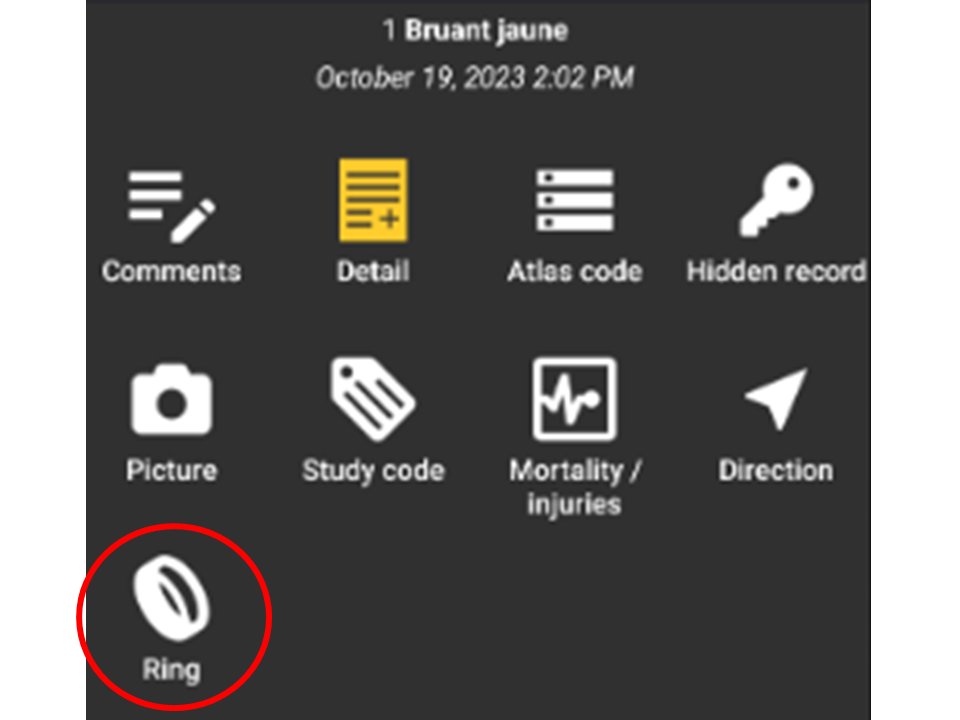
Additional information. Ring.
- 1. Select the type of marking by checking the corresponding cell, and
- 2. type the inscription on the ring.
- 3. Select
- Save to save information, or
- Delete to delete ring.
- Save to save information, or
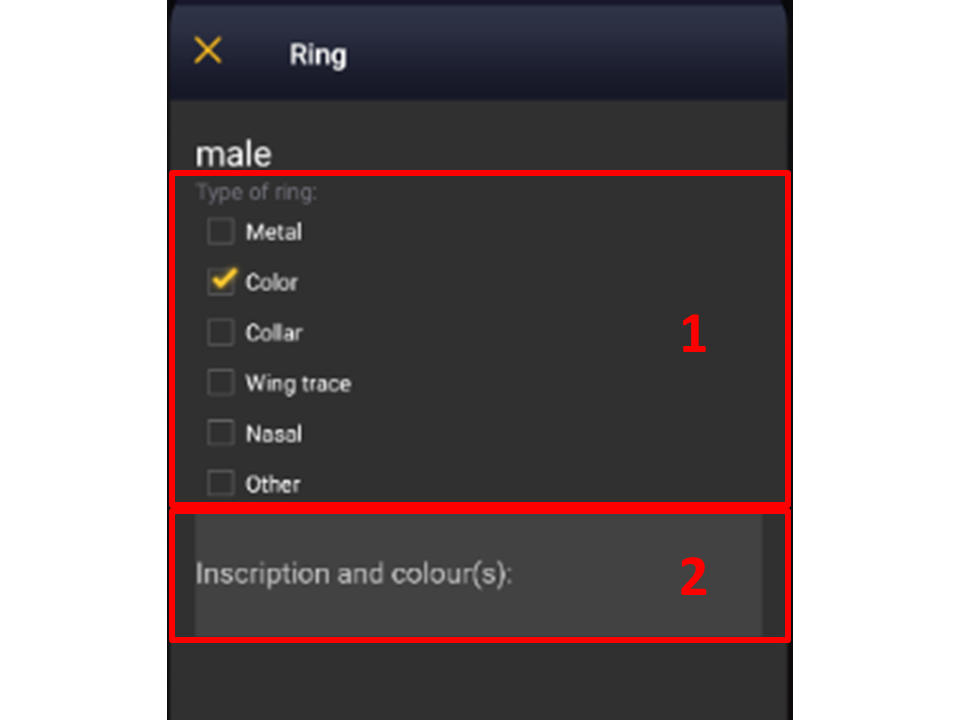
Additional information. Recording ring.
1. Type of marking: Check to indicate the type of marking you are reporting. More than once can be selected at once.
2. Inscription: Type the inscription of the ring and indicate any other important information (ie. colour, reading direction...).
[Top to Ring]
[Back to Additional information panel]
Singing/Hearing contact
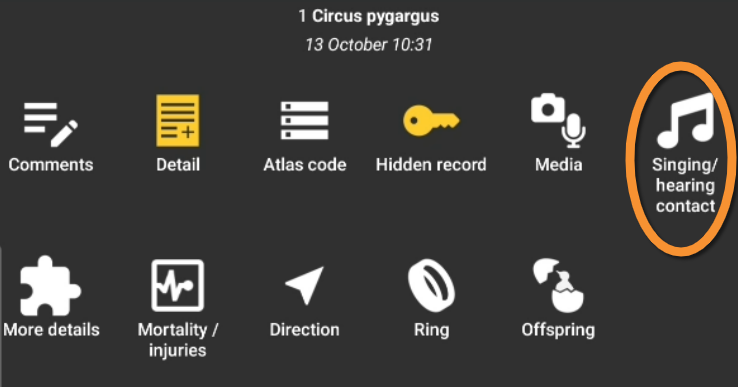
Additional information. Singing/Hearing contact.
Select/unselect as needed.
A yellow singing symbol indicates there was some vocalisations, while a white symbol indicates no vocalisations.
[Top to Singing]
[Back to Additional information panel]
Species
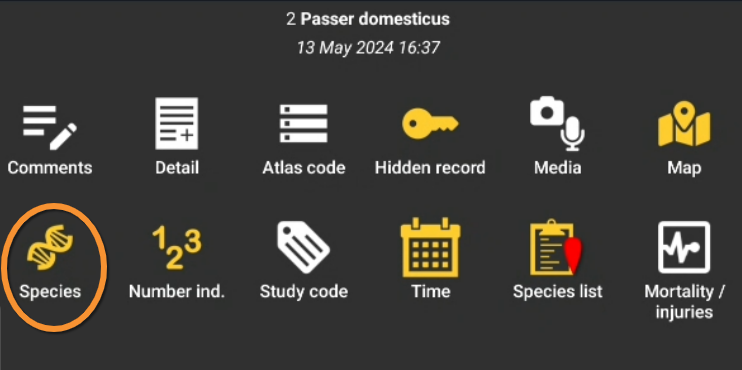
Additional information. Species.
Modify species name.
Visit wiki section Mobile interface > Submitting records > Enter independent observations > Species for more information.
[Top to Species]
[Back to Additional information panel]
Species list
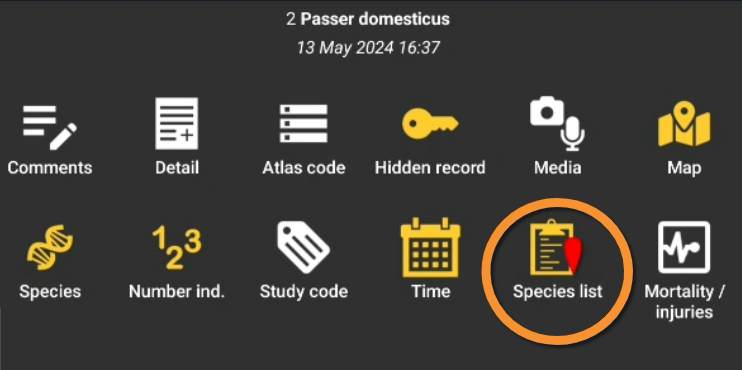
Additional information. Species list.
Modify list parameters like time, comments or type of list.
Visit wiki section Mobile interface > Submitting records > Enter a simplified list of observations > Ending the list for more information.
[Top to Species list]
[Back to Additional information panel]
Study code

Additional information. Study code.
Choose from the expandable menu the project you are collecting data to, if any. Leave blank if your data does not belong to any project.
[Top to Study code]
[Back to Additional information panel]
Time

Additional information. Time.
Modify ending time, if necessary.
Visit wiki section Mobile interface > Submitting records > Enter previous observations > Date and time to see how to modify a given time.
[Top to Time]
[Back to Additional information panel]
Entering additional information on mapping protocols
Some protocols may give you the option to enter additional information with icons when entering species and number of species (see image below).
Icons on white background represent different categories in atlas codes. These categories may have different code numbers in each country.
Icons on blue background represent different modules.

Entering additional information with icons. Example.
White background icons = Atlas codes
Blue background icons = Any other additional information fields
Atlas codes
 |
Singing, drumming or displaying male present in breeding season in possible nesting habitat. |
 |
Unidentified individual in breeding season in possible nesting habitat. |
 |
Male in breeding season in possible nesting habitat. |
 |
Female in breeding season in possible nesting habitat. |
 |
Pair observed in suitable nesting habitat in breeding season. |
 |
Agitated behaviour or anxiety calls from adults, indicating a nest or young nearby. |
 |
Recently fledged young (nidicolous species) or downy young (nidifugous species) observed. |
 |
Nest-building or excavating of nest-hole observed. |
 |
Adult carrying faecal sac or food. |
 |
Nest containing eggs or young. |
 |
No atlas code. |
Flight direction
 |
Flying direction. Press, hold and drag to indicate flying direction. If the individual is moving around without a clear direction, press icon but do not indicate flight direction. It will be represented with concentric circles (ie. single male in image below).This information can be combined with others in the list (see example below), but should be introduced first. |
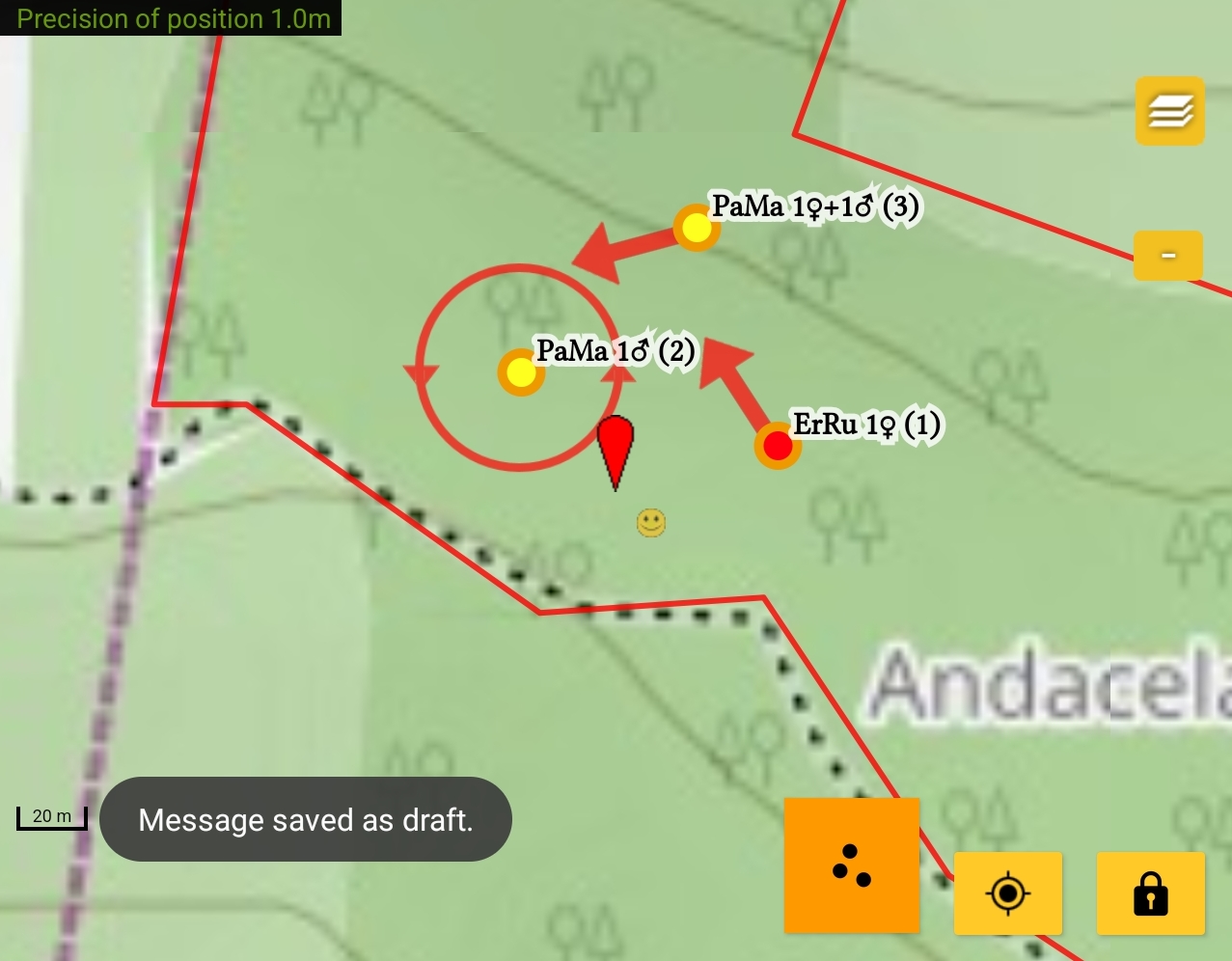
Example of information on flight direction.
Relationship between individuals
When two similar individuals are recorded nearby (ie. two singing males of the same species), click on both records to open relationship options (see image below).
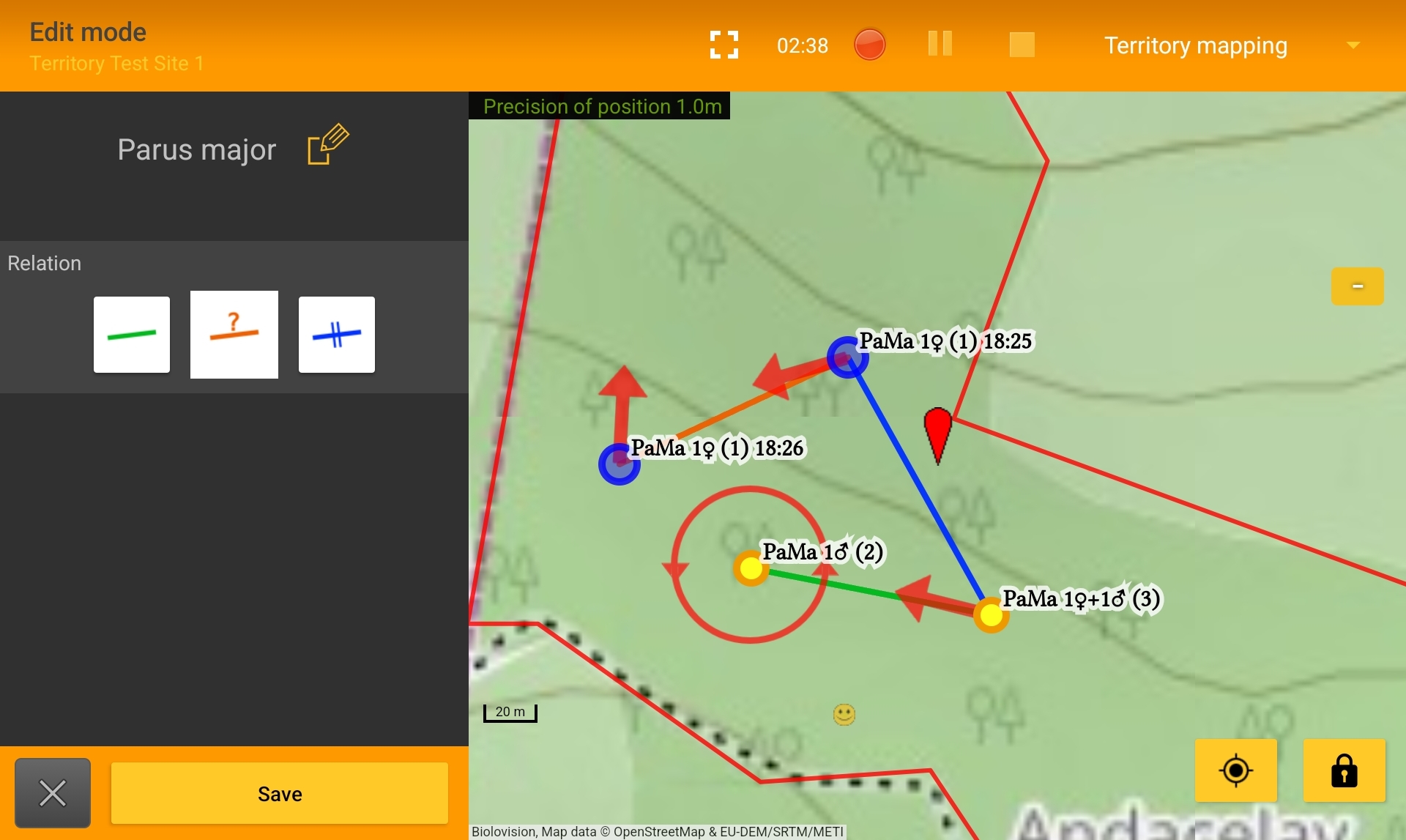
Relationship between individuals. Example.
 |
Both sightings correspond to the same individual. It is probably the same territory. It is reflected as a green line in the map. |
 |
It is unknown if both records correspond to the same individual/s. It is reflected as an orange line in the map. |
 |
Both records correspond to different individuals. It may define two different territories. It is reflected as a blue line in the map. |
Click
- Save to save and continue entering data, or
- X to close panel and continue entering data without indicating relationship.
- Save to save and continue entering data, or
To see how it will show in the web site, visit Web interface > Local portals > Protocols > Private territory mapping > Census results > Observations section.
Comments
 |
Comment.Type a comment, or a hidden comment in the corresponding fields and click Save. Visit wiki subsection Mobile interface > Submitting records > Enter independent observations > Additional information > Comments for more information. |
[Top to Entering additional information on mapping protocols]
[Back to Additional information panel]