Edit records: Difference between revisions
| (79 intermediate revisions by the same user not shown) | |||
| Line 1: | Line 1: | ||
<translate> | <translate> | ||
<!--T:1--> | <!--T:1--> | ||
<br/> | <br/> | ||
Modify (or delete) observations, lists and/or protocols recorded through NaturaList <br/> | |||
<span style="color: #000000; margin-left: 25px;"><b>· </b>on the phone, [[Edit_records#Before_synchronisation|before synchronisation]], or <br/> | |||
<span style="color: #000000; margin-left: 25px;"><b>· </b>on the web, [[Edit_records#After_synchronisation|after synchronisation]]. <br/> | |||
<br/> | |||
<br/> | |||
=Editing records= | =Editing records= | ||
<br /> | <br /> | ||
| Line 37: | Line 42: | ||
==Before synchronisation== | ==Before synchronisation== | ||
<br /> | <br /> | ||
Before synchronization, observations are stored on the mobile device and therefore can only be edited in NaturaList.<br/> | Before [[Entering_records#Synchronisation|synchronization]], observations are stored on the mobile device and therefore can only be edited in NaturaList.<br/> | ||
<br/> | <br/> | ||
| Line 44: | Line 49: | ||
<br /> | <br /> | ||
Modify the basic information you just entered by accessing the list of species in your phone. <br/> | Modify the basic information you just entered by accessing the list of species in your phone. <br/> | ||
<span style="color: #000000; margin-left: 25px;">1. Click on the list icon from the '''Place''' screen (see image below) and <br/> | <span style="color: #000000; margin-left: 25px;">1. Click on the list icon from the '''Place''' screen (see image below) when filling [[Entering_records#With_a_detailed_list|a list of precise observations]] and <br/> | ||
<span style="color: #000000; margin-left: 25px;">2. click on the record to modify it. <br /> | <span style="color: #000000; margin-left: 25px;">2. click on the record to modify it. <br /> | ||
<br /> | <br /> | ||
Records on the current list are marked with a [[Media:Line.png|vertical line]]. <br/> | |||
<br/> | |||
<!--T:8--> | <!--T:8--> | ||
| Line 122: | Line 130: | ||
See [[Entering_records#Atlas_code| Mobile interface > Submiting records > Enter independent observations > Additional information> Atlas code]] for more on atlas code.<br /> | See [[Entering_records#Atlas_code| Mobile interface > Submiting records > Enter independent observations > Additional information> Atlas code]] for more on atlas code.<br /> | ||
<br /> | <br /> | ||
<br/> | |||
[[Edit records#With the List button|[Top to With the list button]]] <br/> | |||
[[Edit records#Editing records|[Top to Editing records]]] <br/> | |||
[[#top|[Back to Edit (and deleting) records]]] <br/> | |||
<br/> | <br/> | ||
| Line 178: | Line 191: | ||
<!--T:66--> | <!--T:66--> | ||
<span id="sp summary"></span> | <span id="sp summary"></span> | ||
::'''1. Activate species summary by clicking | ::'''1. Activate species summary by clicking [[File:summary yellow.png|frameless|20px]]:''' <br/> | ||
:When active, the icon shows orange and all species entered appear on the map along with its species code and the number of individuals. If a species was not counted, it does not indicate the count. When inactive, the species summary icon shows yellow.<br/> | :When active, the icon shows [[Media:summary orange.png|orange]] and all species entered appear on the map along with its species code and the number of individuals. If a species was not counted, it does not indicate the count. When inactive, the species summary icon shows y[[Media:summary yellow.png|yellow]].<br/> | ||
:See wiki section Mobile interface > Navigating the map > [[Navigating_the_map_NaturaList#Summary_of_observations|Summary of observations]] for more information. <br/> | |||
<br/> | <br/> | ||
| Line 191: | Line 205: | ||
<span id="location"></span> | <span id="location"></span> | ||
::'''3. Modify 'Place':''' <br/> | ::'''3. Modify 'Place':''' <br/> | ||
:Move the red marker to indicate your | :Move the red marker to indicate your observation's new position and click '''Next''' to access other details. If you do not need to modify the position, click '''Next''' without moving the red marker.<br/> | ||
:See Mobile interface > [[Navigating_the_map_NaturaList|Navigating the map]] to know more about moving through the map. <br/> | |||
<br/> | <br/> | ||
| Line 197: | Line 212: | ||
<span id="other"></span> | <span id="other"></span> | ||
::'''4. Modify other details:'''<br/> | ::'''4. Modify other details:'''<br/> | ||
:Click '''Next''' to save current position and access other details for the record. If needed, modify as explained in wiki section Mobile interface > Submitting records > Enter independent observations > [[Entering_records#Step_4_(non_mandatory_fields):_Additional_information| Step 4: Additional information]]. | :Click '''Next''' to save current position and access other details for the record. <br/> | ||
:If needed, modify as explained in wiki section Mobile interface > Submitting records > Enter independent observations > [[Entering_records#Step_4_(non_mandatory_fields):_Additional_information| Step 4: Additional information]]. <br/> | |||
:To modify the species or number of individuals, see wiki section Mobile interface > Editing records > Before synchronisation > [[Edit_records#From_records_In_the_phone| For records in the phone]] for details of how to do it.<br/> | |||
<br/> | <br/> | ||
<!--T:70--> | <!--T:70--> | ||
:: Click '''Finish''' to save changes | :: Click '''Finish''' to save changes and continue entering data.<br/> | ||
<br/> | |||
[[Edit records#From the map|[Top to From the map]]] <br/> | |||
[[Edit records#Editing records|[Top to Editing records]]] <br/> | |||
[[#top|[Back to Edit (and deleting) records]]] <br/> | |||
<br/> | <br/> | ||
<span id="In the phone"></span> | |||
===From records <b>In the phone</b>=== | ===From records <b>In the phone</b>=== | ||
<br /> | <br /> | ||
Go to menu on the top left corner and select [[Search_observations#In_the_phone|'''In the phone''']] to access a list of all your observations in the phone (see image [[Media:In the phone.png|Browsing '''In the phone''']]). Click on any species name to open the menu for this record and select '''update this record''' (see image [[Media:Access list.png|Editing records from '''In the phone''']]). You will access the additional data screen from where to modify the data (see bottom image [[Media:Update a record.png|Updating a record '''In the phone''']]). <br /> | |||
1. Go to menu on the top left corner and select [[Search_observations#In_the_phone|'''In the phone''']] to access a list of all your observations in the phone (see image [[Media:In the phone.png|Browsing '''In the phone''']]). <br/> | |||
2. Click on any species name to open the menu for this record and <br/> | |||
3. select '''update this record''' (see image [[Media:Access list.png|Editing records from '''In the phone''']]). <br/> | |||
<br/> | |||
You will access the additional data screen from where to modify the data (see bottom image [[Media:Update a record.png|Updating a record '''In the phone''']]). <br /> | |||
<br /> | <br /> | ||
<!--T:18--> | <!--T:18--> | ||
<center> | <center> | ||
<div class="toc" style="border-radius:5px;background-color:#ffffff;padding-left:8px;padding-right:8px; padding-bottom:8px | {| style="text-align:left; border:0px solid black; vertical-align:top;"| | ||
[[File:Access list.png| | |- | ||
<div class="toc" style="border-radius:5px;padding-left:15px;text-align:left; font-size:12px;width: | |style="padding: 25px"| | ||
<div class="toc" style="border-radius:5px;background-color:#ffffff;width:570px;padding-left:8px;padding-right:8px;padding-bottom:8px;"> | |||
[[File:Access list.png|570px|link=https://help.biolovision.net/images/c/ca/Access_list.png]] | |||
<div class="toc" style="border-radius:5px;padding-left:15px;text-align:left; font-size:12px;width:545px;"> | |||
'''Editing records from '''In the phone'''.''' | '''Editing records from '''In the phone'''.''' | ||
</div> | </div> | ||
| Line 220: | Line 251: | ||
<b>2.</b> Edit record. <br/> | <b>2.</b> Edit record. <br/> | ||
<b>3.</b> Delete record. <br /> | <b>3.</b> Delete record. <br /> | ||
</p> | </p> | ||
</div> | |||
</div> | </div> | ||
|style="padding: 25px"| | |||
<div class="toc" style="border-radius:5px;background-color:#ffffff;width:250px;padding-left:8px;padding-right:8px;padding-bottom:8px;"> | |||
<div class="toc" style="border-radius:5px;background-color:#ffffff;padding-left:8px;padding-right:8px; padding-bottom:8px | [[File:Update a record.png|250px|link=https://help.biolovision.net/images/9/91/Update_a_record.png]] | ||
[[File:Update a record.png| | <div class="toc" style="border-radius:5px;width:225px;padding-left:15px;text-align:left; font-size:12px"> | ||
<div class="toc" style="border-radius:5px;padding-left:15px;text-align:left; font-size:12px | |||
'''Updating a record '''In the phone'''.''' | '''Updating a record '''In the phone'''.''' | ||
</div> | </div> | ||
</div> | </div> | ||
|} | |||
</center> | </center> | ||
<br/> | <br/> | ||
<br/> | <br/> | ||
<!--T:20--> | <!--T:20--> | ||
| Line 242: | Line 273: | ||
<!--T:21--> | <!--T:21--> | ||
Add or modify a comment for this record. The comment can be public (other users will see it along with your record, unless your record is hidden) or private (only you can see it). See wiki section | Add or modify a comment for this record. <br/> | ||
<br/> | |||
The comment can be <br/> | |||
<span style="color: #000000; margin-left: 25px;"><b>· </b>public (other users will see it along with your record, unless your record is hidden) or <br/> | |||
<span style="color: #000000; margin-left: 25px;"><b>· </b>private (only you can see it).<br/> | |||
See wiki section Mobile interface > Submitting records > Additional information > [[Entering_records#Comments|Comments]] for more information.<br /> | |||
<br /> | <br /> | ||
| Line 249: | Line 286: | ||
<!--T:23--> | <!--T:23--> | ||
Enter the number of | Enter the number of individuals according to their age and sex. <br/> | ||
To see how to do it, go to wiki section Mobile interface > Submitting records > Additional information > [[Entering_records#Details_(Age_and_sex)|Details]].<br /> | |||
<br /> | <br /> | ||
| Line 256: | Line 295: | ||
<!--T:25--> | <!--T:25--> | ||
Enter the atlas code for the record. Atlas codes depend on the country and you can set them in your [[Getting_started_NaturaList#Atlas_list_code| Preferences]]. Visit wiki | Enter the atlas code for the record. <br/> | ||
Atlas codes depend on the country and you can set them in your [[Getting_started_NaturaList#Atlas_list_code| Preferences]]. <br/> | |||
Visit wiki section Mobile interface > Submitting records > Additional information > [[Entering_records#Atlas_code|Atlas code]] for more detailed information.<br /> | |||
<br /> | <br /> | ||
| Line 263: | Line 306: | ||
<!--T:27--> | <!--T:27--> | ||
Select / unselect to indicate if you want your record to be visible to other users or only to you and the administrators. | Select / unselect to indicate if you want your record to be visible to other users or only to you and the administrators. <br/> | ||
Change your default option in [[Getting_started_NaturaList#Hide_record| Preferences]]. <br/> | |||
See wiki section Mobile interface > Submitting records > Additional information > [[Entering_records#Hidden_record|Hidden record]] for more information.<br /> | |||
<br /> | <br /> | ||
| Line 270: | Line 316: | ||
<!--T:29--> | <!--T:29--> | ||
Add / delete picture or sound for this | Add / delete picture or sound for this record. <br/> | ||
You can upload a picture/sound stored in your phone or take a new one. <br/> | |||
Visit wiki section Mobile interface > Submitting records > Additional information > [[Entering_records#Picture|Picture]] to know how to do it.<br /> | |||
<br /> | <br /> | ||
| Line 277: | Line 327: | ||
<!--T:31--> | <!--T:31--> | ||
Change the species position | Change the species position. <br/> | ||
See wiki section Mobile interface > Submitting records > [[Entering_records#Place|Place]] to know how. <br /> | |||
<br /> | <br /> | ||
| Line 284: | Line 336: | ||
<!--T:33--> | <!--T:33--> | ||
Change the name of the species, if necessary. Visit wiki section [[Entering_records#Species | | Change the name of the species, if necessary. <br/> | ||
Visit wiki section Mobile interface > Submitting records > [[Entering_records#Species |Species]] for more information on how to enter a species. <br /> | |||
<br /> | <br /> | ||
| Line 291: | Line 345: | ||
<!--T:35--> | <!--T:35--> | ||
Amend the number of individuals, the precision count or start a counter. See wiki section [[Entering_records#Number_of_individuals| | Amend the number of individuals, the precision count or start a counter. <br/> | ||
See wiki section Mobile interface > Submitting records > [[Entering_records#Number_of_individuals|Number of individuals]] for more information. <br /> | |||
<br /> | <br /> | ||
| Line 298: | Line 354: | ||
<!--T:37--> | <!--T:37--> | ||
Modify the date of observation | Modify the date of observation and/or the time of the observation. <br/> | ||
To modify the date: <br/> | |||
<span style="color: #000000; margin-left: 25px;">1. Click on the date button, and <br/> | |||
<span style="color: #000000; margin-left: 25px;">2. select a new date from the expandable calendar. <br/> | |||
To enter or modify the time: <br/> | |||
<span style="color: #000000; margin-left: 25px;">1. Tick '''Enter time''' to open a clock, and <br/> | |||
<span style="color: #000000; margin-left: 25px;">2. select the time from the clock.<br/> | |||
Go to Mobile interface > Submitting records > Enter previous observations > [[Entering_records#Date_/_Time|Date/Time]] to know how to use the calendar and the clock.<br /> | |||
<br /> | <br /> | ||
| Line 312: | Line 378: | ||
<!--T:39--> | <!--T:39--> | ||
Indicate / modify if an individual is wounded or dead, and select its cause if known. To know how to navigate this section, go to | Indicate / modify if an individual is wounded or dead, and select its cause if known. <br/> | ||
To know how to navigate this section, go to wiki section Mobile interface > Summitting records > Additional information > [[Entering_records#Mortality_/_injuries|Mortality / injuries]].<br /> | |||
<br /> | <br /> | ||
< | [[Edit records#In the phone|[Top to From records <b>In the phone</b>]]] <br/> | ||
[[Edit records#Editing records|[Top to Editing records]]] <br/> | |||
[[#top|[Back to Edit (and deleting) records]]] <br/> | |||
<br/> | |||
===Ending edition=== | ===Ending edition=== | ||
<br /> | <br /> | ||
When data is correct, click '''Validate''' to save the new information.<br /> | When data is correct, click '''Validate''' to save the new information.<br /> | ||
<br /> | <br /> | ||
[[Edit records#Before synchronisation|[Top to Before synchronisation]]] <br/> | |||
[[Edit records#Editing records|[Top to Editing records]]] <br/> | |||
[[#top|[Back to Edit (and deleting) records]]] <br/> | |||
<br/> | |||
==After synchronisation== | ==After synchronisation== | ||
<br /> | <br /> | ||
To synchronise records see wiki section [[Entering_records#Synchronisation| | |||
To synchronise records see wiki section Mobile interface > Submitting records > [[Entering_records#Synchronisation|Synchronisation]].<br /> | |||
<br /> | |||
<center> | |||
<div class="toc" style="border-radius: 5px; padding: 25px; text-align: left; font-family: sans-serif; color: black; width: 700px; background-color: #ffffdb"> | |||
<!-- GREEN BOX (Tips): hsl(157, 74%, 80%) | |||
YELLOW BOX (Summaries): #ffffdb" | |||
BLUE BOX (Information): hsl(201, 100%, 89%) | |||
RED BOX (Warnings): hsl(0, 77%, 78%) --> | |||
<p> | |||
<span style="color: #000000; margin-left: 25px;"><b>· </b>Synchronised records cannot be modified from NaturaList. <br/> | |||
<span style="color: #000000; margin-left: 25px;"><b>· </b>Only synchronised records can be edited from the local portal. <br/> | |||
<span style="color: #000000; margin-left: 25px;"><b>· </b>If a local portal does not exists for the location, records are saved via [https://data.biolovision.net/ data.biolovision.net] but cannot be edited. <br/> | |||
<span style="color: #000000; margin-left: 25px;"><b>· </b>Log in to the local portal with the same credentials you use in NaturaList. <br/> | |||
<span style="color: #000000; margin-left: 25px;"><b>· </b>Keep the session opened on the local portal in the device you synchronised your records from. <br/> | |||
</p> | |||
</div> | |||
</center> | |||
<br /> | <br /> | ||
After synchronisation your observations are already submitted and published in a web portal (local | |||
After synchronisation your observations are already submitted and published in a web portal ([[Local_portals_and_partners|local portals]] and [https://data.biolovision.net/ data.biolovision.net]). <br/> | |||
It is not longer possible to edit them from NaturaList. Do so from a local portal if it exists. When no local portal exists for the location, records are saved and published at [https://data.biolovision.net/ data.biolovision.net], but they cannot be edited. Do so before synchronising.<br/> | |||
<br/> | <br/> | ||
To edit (or delete) an already synchronised observation, <br/> | |||
<span style="color: #000000; margin-left: 25px;"><b>· </b>go to the local portal representing the territory the observation took place.<br/> | |||
<br/> | <br/> | ||
If | <span style="color: #000000; margin-left: 25px;"><b>A. </b>If you have an open session on the corresponding web site in the device you are using, <br/> | ||
<span style="color: #000000; margin-left: 45px;"><b>· </b>access directly the record to edit in the corresponding local portal, <br/> | |||
<span style="color: #000000; margin-left: 45px;"><b>· </b>select the record you want to modify and <br/> | |||
<span style="color: #000000; margin-left: 45px;"><b>· </b>choose [[Search_observations#Go_to_web_page|'''Go to web page''']]. <br/> | |||
<br/> | |||
<span style="color: #000000; margin-left: 25px;"><b>B. </b>If you do not currently have an open session on the corresponding web page at the device you are using, <br/> | |||
<span style="color: #000000; margin-left: 45px;"><b>· </b>A message will indicate record does not exist. <br/> | |||
<span style="color: #000000; margin-left: 45px;"><b>· </b>Go to [[Media:240220233 Go to website without logging in.png|homepage]], <br/> | |||
<span style="color: #000000; margin-left: 45px;"><b>· </b>[[Getting_started#Logging_in| log in]], <br/> | |||
<span style="color: #000000; margin-left: 45px;"><b>· </b>leave the session open by clicking on '''Store the password''' and<br/> | |||
<span style="color: #000000; margin-left: 45px;"><b>· </b>repeat process A.<br/> | |||
<span style="color: #000000; margin-left: 45px;"><b>· </b>Alternatively, search the record in the website as explained in wiki section Web interface > Browsing records > As a registered user > from Explore tab > [[Browsing_records#All_my_observations| All my observations]].<br/> | |||
<br/> | <br/> | ||
<!--T:42--> | <!--T:42--> | ||
See a list of local portals at [[Local_portals_and_partners | | See a list of local portals at Various > [[Local_portals_and_partners |Local portals]] and access the record manually as explained in [[Browsing_records#All_my_observations| All my observations]]. <br/> | ||
<br/> | <br/> | ||
<!--T:43--> | <!--T:43--> | ||
To log in into a local portal, use the same credentials you use for NaturaList. To see how to edit records from a local portal, see wiki section | To log in into a local portal, use the same credentials you use for NaturaList. <br/> | ||
To see how to edit records from a local portal, see wiki section Web interface > Local portals > [[Editing_records |Editing records]]. <br/> | |||
When no local portal exists for the area, it is impossible to edit or delete a record after synchronization. <br /> | |||
<br /> | <br /> | ||
[[Edit records#After synchronisation|[Top to After synchronisation]]] <br/> | |||
[[Edit records#Editing records|[Top to Editing records]]] <br/> | |||
[[#top|[Back to Edit (and deleting) records]]] <br/> | |||
<br/> | |||
=Editing lists= | =Editing lists= | ||
| Line 354: | Line 471: | ||
<!--T:78--> | <!--T:78--> | ||
Modify the general parameters of a list. <br/> | |||
<br/> | <br/> | ||
<span style="color: #000000; margin-left: 25px;">1. Go to any record '''In the phone''' belonging to the list, <br/> | |||
<span style="color: #000000; margin-left: 25px;">2. '''Update this record''' (see image [[Media:Access list.png|Editing records from '''In the phone''']] and <br/> | |||
<span style="color: #000000; margin-left: 25px;">3. select '''Species list''' (see image below). <br/> | |||
<br/> | |||
<!--T:79--> | <!--T:79--> | ||
<center> | <center> | ||
<div class="toc" style="border-radius:5px;background-color:#ffffff;padding-left:8px;padding-right:8px;padding-bottom:8px;width: | <div class="toc" style="border-radius:5px;background-color:#ffffff;padding-left:8px;padding-right:8px;padding-bottom:8px;width:500px;"> | ||
[[File:Modify list parameters.png| | [[File:Modify list parameters.png|500px|link=https://help.biolovision.net/images/5/5e/Modify_list_parameters.png]] | ||
<div class="toc" style="border-radius:5px;padding-left:15px;text-align:left; font-size:12px;width: | <div class="toc" style="border-radius:5px;padding-left:15px;text-align:left; font-size:12px;width:475px;"> | ||
'''Editing list parameters (Menu).''' | '''Editing list parameters (Menu).''' | ||
</div> | </div> | ||
| Line 370: | Line 492: | ||
<!--T:80--> | <!--T:80--> | ||
Enter / modify information as if [[Entering_records#Ending_the_list| ending a list]] | <span style="color: #000000; margin-left: 25px;">4. Enter / modify information as if [[Entering_records#Ending_the_list|ending a list]] <br/> | ||
<span style="color: #000000; margin-left: 25px;">5. click '''Next''' to continue editing this record or finish (see image below).<br/> | |||
<br/> | <br/> | ||
<!--T:81--> | <!--T:81--> | ||
[[File:List parameters.png| | <center> | ||
< | <div class="toc" style="border-radius:5px;background-color:#ffffff;padding-left:8px;padding-right:8px; padding-bottom:8px;width:350px;"> | ||
<p style= "text- | [[File:List parameters.png|350px|link=https://help.biolovision.net/images/b/bc/List_parameters.png]] | ||
< | <div class="toc" style="border-radius:5px;padding-left:15px;text-align:left; font-size:12px;width:325px;"> | ||
< | '''Editing list parameters.''' | ||
</div> | |||
<p style="color:black;font-size:12px;padding-left:30px;text-align:left;column-count:1;"> | |||
'''1.''' Time list started. <br /> | |||
'''2.''' Time list ended. <br/> | |||
'''3.''' Comments. <br /> | |||
'''4.''' Type of list: check if this is a complete list. <br/> | |||
</p> | |||
</div> | |||
</center> | |||
<br/> | <br/> | ||
<br/> | |||
[[Edit records#Modify list parameters|[Top to Modify list parameters]]] <br/> | |||
[[Edit records#Editing lists|[Top to Editing lists]]] <br/> | |||
[[#top|[Back to Edit (and deleting) records]]] <br/> | |||
<br/> | <br/> | ||
==Add individuals to a list== | ==Add individuals to a list== | ||
<br /> | <br /> | ||
To add data to a finished list, go to the menu on the top left corner | To add data to a finished list, <br/> | ||
<span style="color: #000000; margin-left: 25px;"><b>· </b>go to the menu on the top left corner, <br/> | |||
<span style="color: #000000; margin-left: 25px;"><b>· </b>select '''In the phone''',<br/> | |||
<span style="color: #000000; margin-left: 25px;"><b>· </b>click on any record from the list to edit,<br/> | |||
<span style="color: #000000; margin-left: 25px;"><b>· </b>select '''Add a sighting to the list''' (see below). <br/> | |||
<br/> | |||
<span style="color: #000000; margin-left: 25px;"><b>· </b>Records belonging to a list are marked with an [[Media:empty.png|empty green square]] (partial list) or a [[Media:full list.png|full green square]] (complete list) next to the name.<br/> | |||
<span style="color: #000000; margin-left: 25px;"><b>· </b>See wiki section Various > [[Symbols_cheatsheet|Symbols cheatsheet]] to see the correspondence of codes and symbols. <br /> | |||
<br /> | <br /> | ||
<!--T:47--> | <!--T:47--> | ||
[[File:Add | <center> | ||
<br /> | <div class="toc" style="border-radius:5px;background-color:#ffffff;padding-left:8px;padding-right:8px;padding-bottom:8px;width:400px;"> | ||
[[File:Add to list.gif|400px|link=https://help.biolovision.net/images/6/62/Add_to_list.gif]] | |||
<div class="toc" style="border-radius:5px;padding-left:15px;text-align:left; font-size:12px;width:375px;"> | |||
'''Adding individuals to a finished list.''' | |||
</div> | |||
</div> | |||
</center> | |||
<br/> | |||
<br/> | |||
<!--T:48--> | <!--T:48--> | ||
===Time=== | ===Time=== | ||
<br /> | <br /> | ||
Specify the time of the observation if necessary | Specify the time of the observation if necessary. <br/> | ||
To enter time, <br/> | |||
<span style="color: #000000; margin-left: 25px;"><b>· </b>Unselect '''Do not enter''' and, <br/> | |||
<span style="color: #000000; margin-left: 25px;"><b>· </b>select the new time from the expandable clock. <br/> | |||
<span style="color: #000000; margin-left: 25px;"><b>· </b>click '''Save''' when done (see image).<br /> | |||
<br /> | |||
See wiki section Mobile interface > Submitting records > Mobile interface > Submitting records > [[Entering_records#Date_/_Time|Date / Time]] for more information on how to use the expandable clock. <br/> | |||
<br /> | <br /> | ||
<!--T:49--> | <!--T:49--> | ||
[[File: | <center> | ||
<br /> | <div class="toc" style="border-radius:5px;background-color:#ffffff;padding-left:8px;padding-right:8px;padding-bottom:8px;width:300px;"> | ||
[[File:Change time.gif|300px|link=https://help.biolovision.net/images/2/24/Change_time.gif]] | |||
<div class="toc" style="border-radius:5px;padding-left:15px;text-align:left; font-size:12px;width:275px;"> | |||
'''Adding individuals to a list. Time.''' | |||
</div> | |||
</div> | |||
</center> | |||
<br/> | |||
<br/> | |||
[[Edit records#Add individuals to a list|[Top to Add individuals to a list]]] <br/> | |||
[[Edit records#Editing lists|[Top to Editing lists]]] <br/> | |||
[[#top|[Back to Edit (and deleting) records]]] <br/> | |||
<br/> | |||
=Editing Protocols= | =Editing Protocols= | ||
<br/> | <br/> | ||
| Line 420: | Line 595: | ||
==Modify protocol parameters== | ==Modify protocol parameters== | ||
<br/> | <br/> | ||
To modify the protocol general parameters, go to | |||
Modify general parameters of a protocol. <br/> | |||
<br/> | |||
To modify the protocol general parameters, <br/> | |||
<span style="color: #000000; margin-left: 25px;"><b>· </b>Open menu, <br/> | |||
<span style="color: #000000; margin-left: 25px;"><b>· </b>go to records '''In the phone''', <br/> | |||
<span style="color: #000000; margin-left: 25px;"><b>· </b>click on any record belonging to the protocol, <br/> | |||
<span style="color: #000000; margin-left: 25px;"><b>· </b>'''Update this record''' (see image [[Media:Access list.png| Editing records from '''In the phone''']], <br/> | |||
<span style="color: #000000; margin-left: 25px;"><b>· </b>select '''Protocol''' (see image below). <br/> | |||
<span style="color: #000000; margin-left: 25px;"><b>· </b>Enter / modify information and <br/> | |||
<span style="color: #000000; margin-left: 25px;"><b>· </b>click '''Next''' to modify other information for this record or finish.<br/> | |||
<br/> | <br/> | ||
| Line 426: | Line 612: | ||
<center> | <center> | ||
<div class="toc" style="border-radius:5px;background-color:#ffffff;padding-left:8px;padding-right:8px;padding-bottom:8px;width:400px;"> | <div class="toc" style="border-radius:5px;background-color:#ffffff;padding-left:8px;padding-right:8px;padding-bottom:8px;width:400px;"> | ||
[[File:Protocol parameters.png|400px]] | [[File:Protocol parameters.png|400px|link=https://help.biolovision.net/images/f/fc/Protocol_parameters.png]] | ||
<div class="toc" style="border-radius:5px;padding-left:15px;text-align:left; font-size:12px;width:375px;"> | <div class="toc" style="border-radius:5px;padding-left:15px;text-align:left; font-size:12px;width:375px;"> | ||
'''Editing protocol parameters.''' | '''Editing protocol parameters.''' | ||
| Line 433: | Line 619: | ||
</center> | </center> | ||
<br/> | <br/> | ||
<br/> | |||
[[Edit records#Editing protocols|[Top to Editing protocols]]] <br/> | |||
[[#top|[Back to Edit (and deleting) records]]] <br/> | |||
<br/> | <br/> | ||
| Line 441: | Line 631: | ||
<!--T:51--> | <!--T:51--> | ||
<center> | <center> | ||
< | <div class="toc" style="border-radius: 5px; padding: 25px; text-align: left; font-family: sans-serif; color: black; width: 300px; background-color: #ffffdb"> | ||
<!-- GREEN BOX (Tips): hsl(157, 74%, 80%) | <!-- GREEN BOX (Tips): hsl(157, 74%, 80%) | ||
YELLOW BOX (Summaries): #ffffdb" | YELLOW BOX (Summaries): #ffffdb" | ||
| Line 451: | Line 639: | ||
<!--T:52--> | <!--T:52--> | ||
<p> | <p> | ||
< | <span style="color: #000000; margin-left: 25px;"><b>· </b>Go to Menu on the top left corner. <br /> | ||
<span style="color: #000000; margin-left: 25px;"><b>· </b>Select '''In the phone'''. <br /> | |||
<span style="color: #000000; margin-left: 25px;"><b>· </b>Select the data you want to cancel. <br /> | |||
<span style="color: #000000; margin-left: 25px;"><b>· </b>Choose '''Delete'''. <br /> | |||
<span style="color: #000000; margin-left: 25px;"><b>· </b>Confirm. <br /> | |||
</p> | |||
<!--T:53--> | <!--T:53--> | ||
| Line 463: | Line 650: | ||
</center> | </center> | ||
<br /> | <br /> | ||
It is possible to delete records in NaturaList after entering them and before they have been synchronised. Once your records have been synchronised, delete them | It is possible to delete records in NaturaList after entering them and before they have been synchronised. <br/> | ||
Once your records have been synchronised, delete them from the the local portal. <br/> | |||
See wiki section Web interface > [[Deleting_records|Deleting records]].<br /> | |||
<br /> | <br /> | ||
In NaturaList, access your data like for editing and select the '''Delete''' option. You will be prompted to confirm.<br /> | |||
In NaturaList, <br/> | |||
<span style="color: #000000; margin-left: 25px;"><b>· </b>access your data like for editing and <br/> | |||
<span style="color: #000000; margin-left: 25px;"><b>· </b>select the '''Delete''' option. <br/> | |||
<span style="color: #000000; margin-left: 25px;"><b>· </b>You will be prompted to confirm.<br /> | |||
<br /> | <br /> | ||
| Line 471: | Line 664: | ||
<center> | <center> | ||
<div class="toc" style="border-radius:5px;background-color:#ffffff;padding-left:8px;padding-right:8px; padding-bottom:8px;width:400px;"> | <div class="toc" style="border-radius:5px;background-color:#ffffff;padding-left:8px;padding-right:8px; padding-bottom:8px;width:400px;"> | ||
[[File:Delete.png|400px]] | [[File:Delete.png|400px|link=https://help.biolovision.net/images/8/8c/Delete.png]] | ||
<div class="toc" style="border-radius:5px;padding-left:15px;text-align:left; font-size:12px;width:385px;"> | <div class="toc" style="border-radius:5px;padding-left:15px;text-align:left; font-size:12px;width:385px;"> | ||
'''Deleting a record.''' | '''Deleting a record.''' | ||
| Line 484: | Line 677: | ||
<br/> | <br/> | ||
< | [[Edit records#Deleting records|[Top to Deleting records]]] <br/> | ||
<br /> | [[#top|[Back to Edit (and deleting) records]]] <br/> | ||
<br/> | |||
<!--T:90--> | <!--T:90--> | ||
| Line 499: | Line 693: | ||
<!--T:93--> | <!--T:93--> | ||
<span style="color: #000000; margin-left: 25px;"><b>· </b>'''before synchronisation''', delete records from the list individually. <br/> | |||
<span style="color: #000000; margin-left: 25px;">You will be given the option to also delete the list when it contains no more records. <br/> | |||
<span style="color: #000000; margin-left: 25px;">Click '''OK''' to delete or '''Cancel''' to keep the list despite being empty (see image below).<br/> | |||
<br/> | <br/> | ||
| Line 505: | Line 701: | ||
<center> | <center> | ||
<div class="toc" style="border-radius:5px;background-color:#ffffff;padding-left:8px;padding-right:8px; padding-bottom:8px;width:400px;"> | <div class="toc" style="border-radius:5px;background-color:#ffffff;padding-left:8px;padding-right:8px; padding-bottom:8px;width:400px;"> | ||
[[File:Delete list.png|400px]] | [[File:Delete list.png|400px|link=https://help.biolovision.net/images/8/8c/Delete_list.png]] | ||
<div class="toc" style="border-radius:5px;padding-left:15px;text-align:left; font-size:12px;width:385px;"> | <div class="toc" style="border-radius:5px;padding-left:15px;text-align:left; font-size:12px;width:385px;"> | ||
'''Deleting an empty list.''' | '''Deleting an empty list.''' | ||
| Line 515: | Line 711: | ||
<!--T:95--> | <!--T:95--> | ||
<span style="color: #000000; margin-left: 25px;"><b>· </b>'''after synchronisation''', go to your local portal and use the dustbin icon (see image below). <br/> | |||
<br/> | <br/> | ||
| Line 521: | Line 717: | ||
<center> | <center> | ||
<div class="toc" style="border-radius:5px;background-color:#ffffff;padding-left:8px;padding-right:8px;padding-bottom:8px;width:600px;"> | <div class="toc" style="border-radius:5px;background-color:#ffffff;padding-left:8px;padding-right:8px;padding-bottom:8px;width:600px;"> | ||
[[File:Delete list in portal.png|600px]] | [[File:Delete list in portal.png|600px|link=https://help.biolovision.net/images/6/6c/Delete_list_in_portal.png]] | ||
<div class="toc" style="border-radius:5px;padding-left:15px;text-align:left; font-size:12px;width:585px;"> | <div class="toc" style="border-radius:5px;padding-left:15px;text-align:left; font-size:12px;width:585px;"> | ||
'''Deleting a list from the local portal.''' | '''Deleting a list from the local portal.''' | ||
| Line 530: | Line 726: | ||
<br/> | <br/> | ||
< | [[Edit records#Deleting lists|[Top to deleting lists]]] <br/> | ||
[[Edit records#Deleting records|[Top to Deleting records]]] <br/> | |||
[[#top|[Back to Edit (and deleting) records]]] <br/> | |||
<br/> | |||
==Deleting protocols== | ==Deleting protocols== | ||
<br/> | <br/> | ||
| Line 543: | Line 740: | ||
<!--T:99--> | <!--T:99--> | ||
Delete the full protocol as if it were a list. Delete first all records belonging to the protocol individually and you will have the option to delete the protocol. See wiki section [[Edit_records#Deleting_lists| Deleting lists]] for details.<br/> | Delete the full protocol as if it were a list. Delete first all records belonging to the protocol individually and you will have the option to delete the protocol. See wiki section [[Edit_records#Deleting_lists| Deleting lists]] for details.<br/> | ||
<br/> | |||
[[Edit records#Deleting records|[Top to Deleting records]]] <br/> | |||
[[#top|[Back to Edit (and deleting) records]]] <br/> | |||
<br/> | <br/> | ||
</translate> | </translate> | ||
Latest revision as of 12:12, 22 May 2026
Modify (or delete) observations, lists and/or protocols recorded through NaturaList
· on the phone, before synchronisation, or
· on the web, after synchronisation.
Editing records
It is possible to edit records at different stages: before and after synchronisation.
While entering your records, it is also possible to make minor modifications.
To modify data while entering:
· Use the back button to move to previous screens and re-enter the data. Note data is not yet saved and you loose it by going back. You need to enter it all again from the point of modification.
· Use the cross button to cancel the current record and start again. The record is not saved so rather than modifying it, you will re-start entering the observation.
· Use the add / substract function to modify the number of individuals while entering a list later.
Before synchronisation
Before synchronization, observations are stored on the mobile device and therefore can only be edited in NaturaList.
With the List button
Modify the basic information you just entered by accessing the list of species in your phone.
1. Click on the list icon from the Place screen (see image below) when filling a list of precise observations and
2. click on the record to modify it.
Records on the current list are marked with a vertical line.
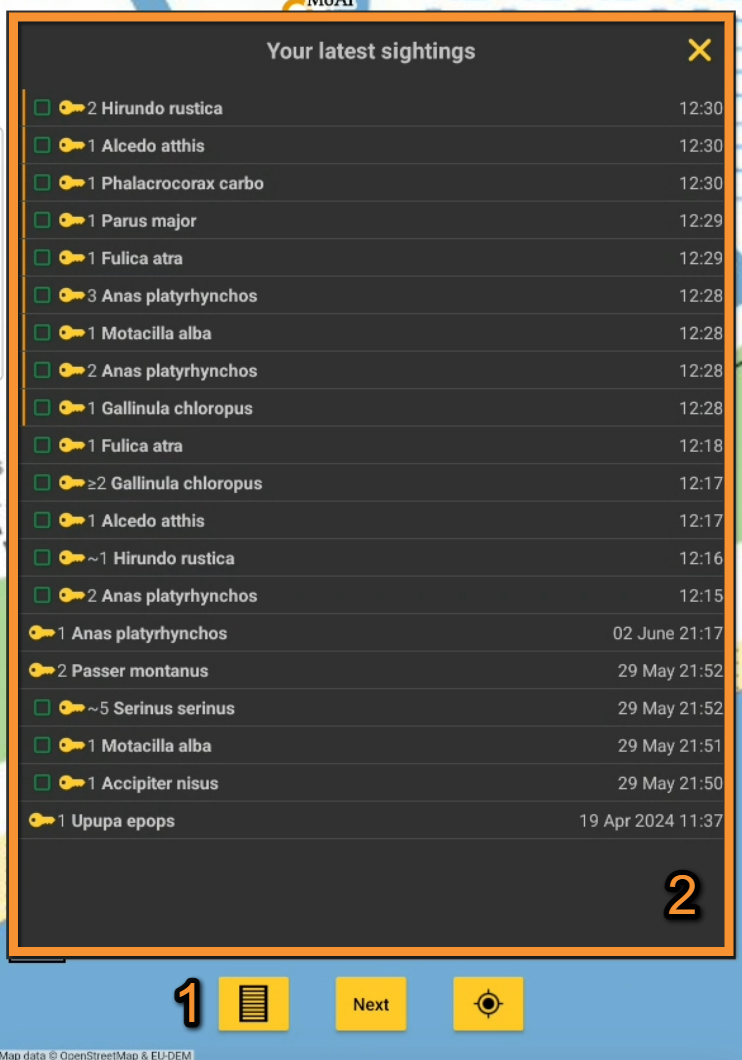
Editing from the List button.
1. Open list of records
2. Select record to edit
After selecting the record to modify,
· change the number of individuals,
· the age and sex of those individuals,
· update the atlas code, and/or
· delete the record.
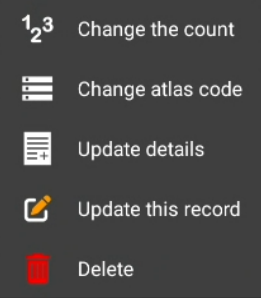
Editing records from the List button. Menu.
| . |  |
Change the count/Change number of individuals. |
| . |  |
Change atlas code. |
| . |  |
Update details/Change age and sex details.. |
| . |  |
Update this records. |
| . |  |
Delete. |
- Change the count
Change the number of individuals and/or the count precision or Start a counter.
See Mobile interface > Submitting records > Enter independent observations > Number of individuals for more information.
- Update details
Add/subtract or change the number of individuals for each sex and age class.
See wiki section Adding details for more information.
- Atlas code
Change atlas code if necessary.
See Mobile interface > Submiting records > Enter independent observations > Additional information> Atlas code for more on atlas code.
[Top to With the list button]
[Top to Editing records]
[Back to Edit (and deleting) records]
From the map
Function only available:
· Enter a list of precise observations.
· with protocols displaying maps with observations.
While entering data on a list in the field or in protocols using maps, modify records on the current list directly from the map screen between records (see image below).
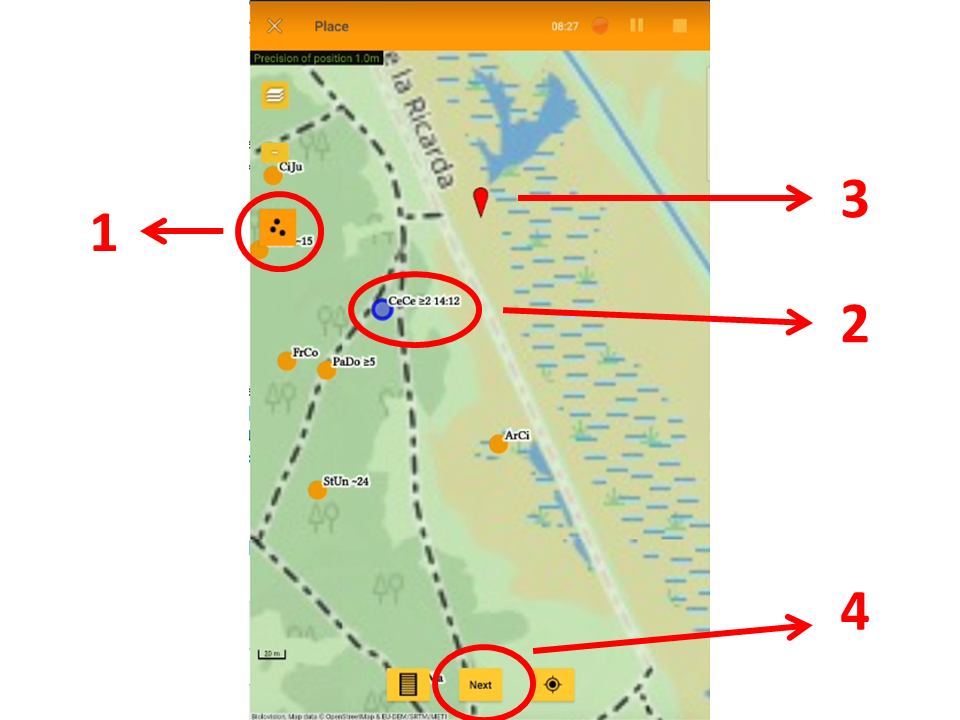
Editing records directly from the map.
1. Species summary: Activate species summary.
2. Record to modify: Click on the record to modify.
3. Modify location: Modify location.
4. Modify otehr details: Modify other details
To modify a recordː
- 1. Activate species summary by clicking
 :
:
- 1. Activate species summary by clicking
- When active, the icon shows orange and all species entered appear on the map along with its species code and the number of individuals. If a species was not counted, it does not indicate the count. When inactive, the species summary icon shows yyellow.
- See wiki section Mobile interface > Navigating the map > Summary of observations for more information.

- 2. Click on the record to modify:
- 2. Click on the record to modify:
- Click on the dot representing the observation you wish to modify. When you are able to make changes, the interface becomes orange and the dot, blue. The time of the observation is shown in the summary.
- 3. Modify 'Place':
- 3. Modify 'Place':
- Move the red marker to indicate your observation's new position and click Next to access other details. If you do not need to modify the position, click Next without moving the red marker.
- See Mobile interface > Navigating the map to know more about moving through the map.
- 4. Modify other details:
- 4. Modify other details:
- Click Next to save current position and access other details for the record.
- If needed, modify as explained in wiki section Mobile interface > Submitting records > Enter independent observations > Step 4: Additional information.
- To modify the species or number of individuals, see wiki section Mobile interface > Editing records > Before synchronisation > For records in the phone for details of how to do it.
- Click Finish to save changes and continue entering data.
- Click Finish to save changes and continue entering data.
[Top to From the map]
[Top to Editing records]
[Back to Edit (and deleting) records]
From records In the phone
1. Go to menu on the top left corner and select In the phone to access a list of all your observations in the phone (see image Browsing In the phone).
2. Click on any species name to open the menu for this record and
3. select update this record (see image Editing records from In the phone).
You will access the additional data screen from where to modify the data (see bottom image Updating a record In the phone).
|
Editing records from In the phone.
1. Access menu. |
Updating a record In the phone. |


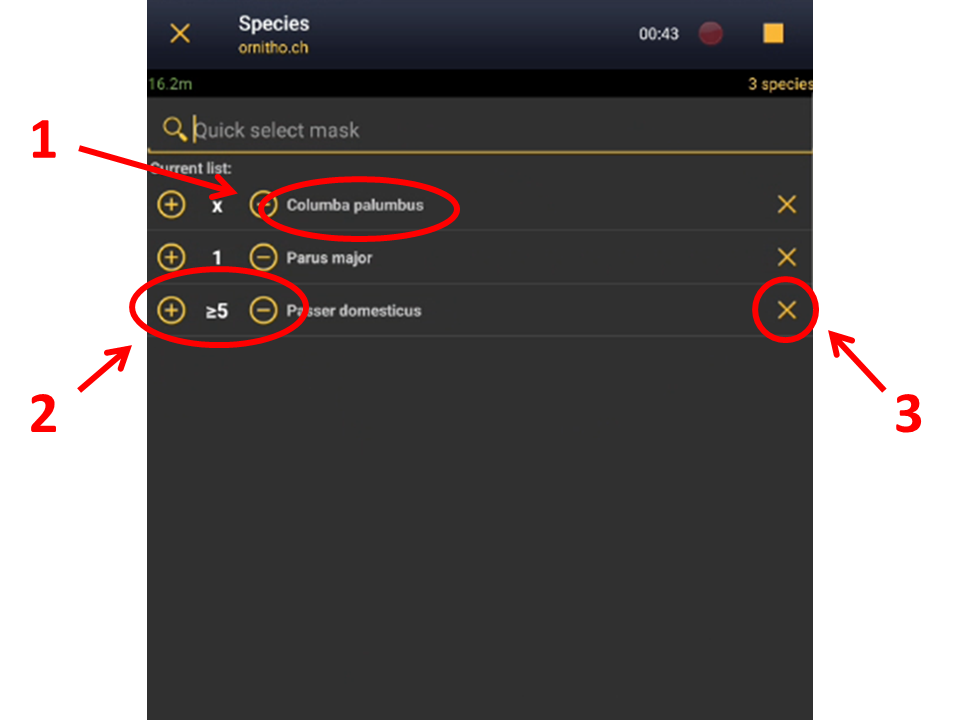
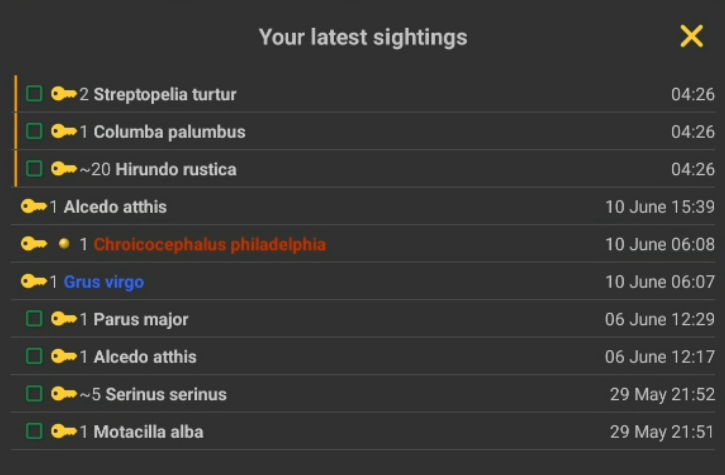


- Comments
Add or modify a comment for this record.
The comment can be
· public (other users will see it along with your record, unless your record is hidden) or
· private (only you can see it).
See wiki section Mobile interface > Submitting records > Additional information > Comments for more information.
- Detail
Enter the number of individuals according to their age and sex.
To see how to do it, go to wiki section Mobile interface > Submitting records > Additional information > Details.
- Atlas code
Enter the atlas code for the record.
Atlas codes depend on the country and you can set them in your Preferences.
Visit wiki section Mobile interface > Submitting records > Additional information > Atlas code for more detailed information.
- Hidden record
Select / unselect to indicate if you want your record to be visible to other users or only to you and the administrators.
Change your default option in Preferences.
See wiki section Mobile interface > Submitting records > Additional information > Hidden record for more information.
- Picture / sound
Add / delete picture or sound for this record.
You can upload a picture/sound stored in your phone or take a new one.
Visit wiki section Mobile interface > Submitting records > Additional information > Picture to know how to do it.
- Map
Change the species position.
See wiki section Mobile interface > Submitting records > Place to know how.
- Species
Change the name of the species, if necessary.
Visit wiki section Mobile interface > Submitting records > Species for more information on how to enter a species.
- Number of individuals
Amend the number of individuals, the precision count or start a counter.
See wiki section Mobile interface > Submitting records > Number of individuals for more information.
- Date and Time
Modify the date of observation and/or the time of the observation.
To modify the date:
1. Click on the date button, and
2. select a new date from the expandable calendar.
To enter or modify the time:
1. Tick Enter time to open a clock, and
2. select the time from the clock.
Go to Mobile interface > Submitting records > Enter previous observations > Date/Time to know how to use the calendar and the clock.
- Trace
If you checked the cell to record your trace while recording a list, click on the Trace icon and Delete the trace if necessary.
- Mortality/Injuries
Indicate / modify if an individual is wounded or dead, and select its cause if known.
To know how to navigate this section, go to wiki section Mobile interface > Summitting records > Additional information > Mortality / injuries.
[Top to From records In the phone]
[Top to Editing records]
[Back to Edit (and deleting) records]
Ending edition
When data is correct, click Validate to save the new information.
[Top to Before synchronisation]
[Top to Editing records]
[Back to Edit (and deleting) records]
After synchronisation
To synchronise records see wiki section Mobile interface > Submitting records > Synchronisation.
· Synchronised records cannot be modified from NaturaList.
· Only synchronised records can be edited from the local portal.
· If a local portal does not exists for the location, records are saved via data.biolovision.net but cannot be edited.
· Log in to the local portal with the same credentials you use in NaturaList.
· Keep the session opened on the local portal in the device you synchronised your records from.
After synchronisation your observations are already submitted and published in a web portal (local portals and data.biolovision.net).
It is not longer possible to edit them from NaturaList. Do so from a local portal if it exists. When no local portal exists for the location, records are saved and published at data.biolovision.net, but they cannot be edited. Do so before synchronising.
To edit (or delete) an already synchronised observation,
· go to the local portal representing the territory the observation took place.
A. If you have an open session on the corresponding web site in the device you are using,
· access directly the record to edit in the corresponding local portal,
· select the record you want to modify and
· choose Go to web page.
B. If you do not currently have an open session on the corresponding web page at the device you are using,
· A message will indicate record does not exist.
· Go to homepage,
· log in,
· leave the session open by clicking on Store the password and
· repeat process A.

· Alternatively, search the record in the website as explained in wiki section Web interface > Browsing records > As a registered user > from Explore tab > All my observations.
See a list of local portals at Various > Local portals and access the record manually as explained in All my observations.
To log in into a local portal, use the same credentials you use for NaturaList.
To see how to edit records from a local portal, see wiki section Web interface > Local portals > Editing records.
When no local portal exists for the area, it is impossible to edit or delete a record after synchronization.
[Top to After synchronisation]
[Top to Editing records]
[Back to Edit (and deleting) records]
Editing lists
Besides the functions already described in Editing records before synchronisation, it is possible to modify list parameters or add new individuals to an existing list.
Modify list parameters
Modify the general parameters of a list.
1. Go to any record In the phone belonging to the list,
2. Update this record (see image Editing records from In the phone and
3. select Species list (see image below).
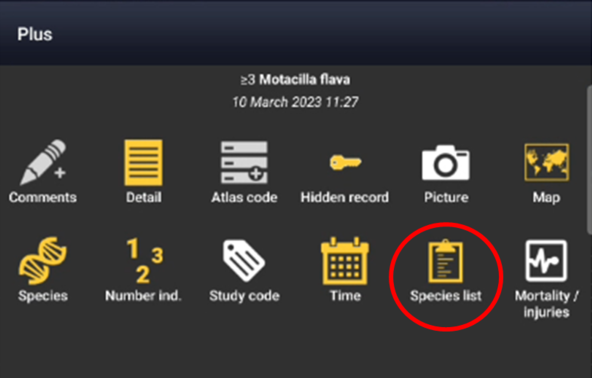
Editing list parameters (Menu).
4. Enter / modify information as if ending a list
5. click Next to continue editing this record or finish (see image below).

Editing list parameters.
1. Time list started.
2. Time list ended.
3. Comments.
4. Type of list: check if this is a complete list.
[Top to Modify list parameters]
[Top to Editing lists]
[Back to Edit (and deleting) records]
Add individuals to a list
To add data to a finished list,
· go to the menu on the top left corner,
· select In the phone,
· click on any record from the list to edit,
· select Add a sighting to the list (see below).
· Records belonging to a list are marked with an empty green square (partial list) or a full green square (complete list) next to the name.
· See wiki section Various > Symbols cheatsheet to see the correspondence of codes and symbols.


Adding individuals to a finished list.
Time
Specify the time of the observation if necessary.
To enter time,
· Unselect Do not enter and,
· select the new time from the expandable clock.
· click Save when done (see image).
See wiki section Mobile interface > Submitting records > Mobile interface > Submitting records > Date / Time for more information on how to use the expandable clock.
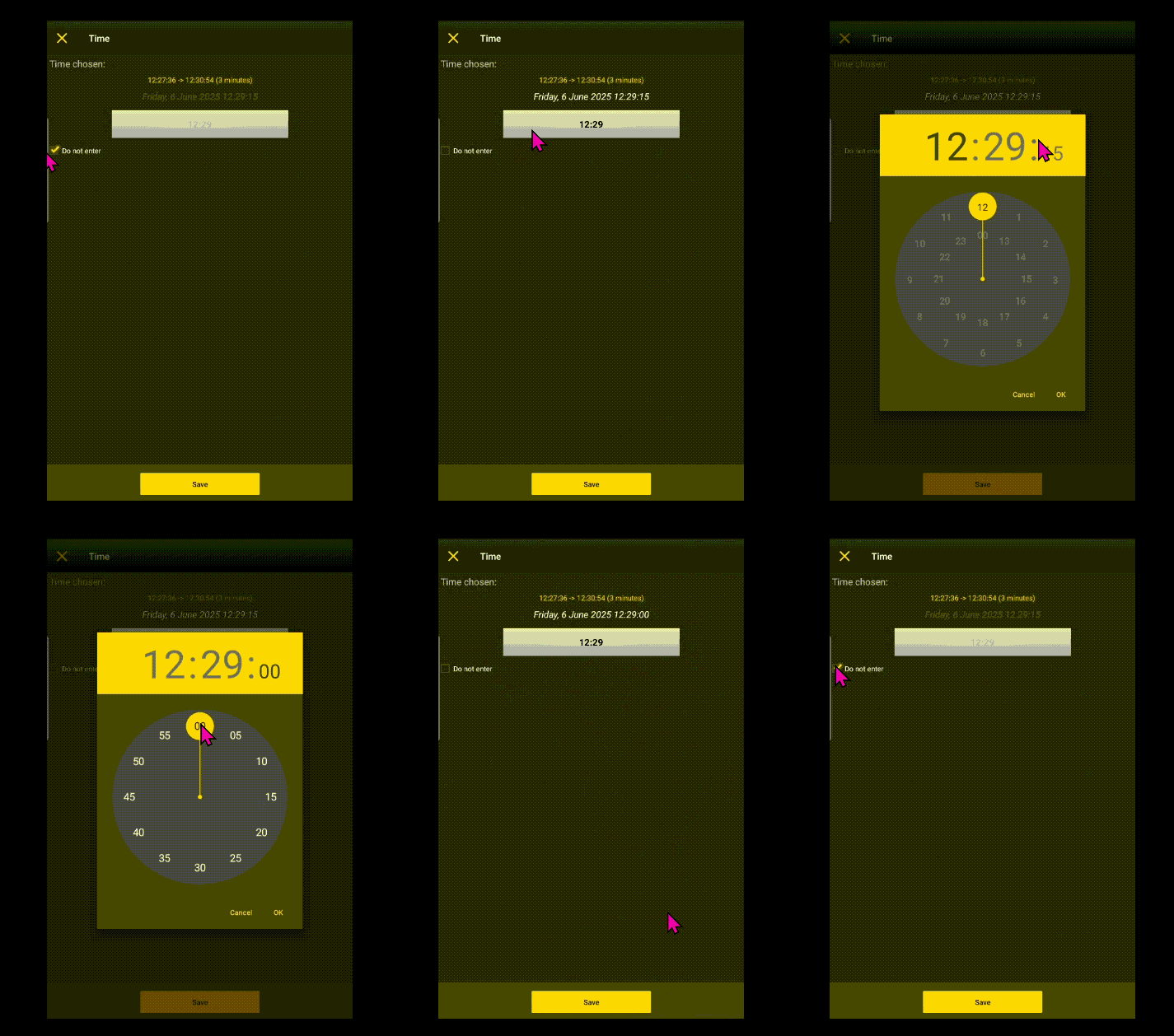
Adding individuals to a list. Time.
[Top to Add individuals to a list]
[Top to Editing lists]
[Back to Edit (and deleting) records]
Editing Protocols
Modify a record belonging to a protocol as a normal record. See wiki section Editing records for details.
Modify starting and ending time, comments and indicate if all species were recorded as if modifying a list.
Add individuals to an existing protocol as in a non-protocolled list. See wiki section Editing lists on how to do it.
Modify protocol parameters
Modify general parameters of a protocol.
To modify the protocol general parameters,
· Open menu,
· go to records In the phone,
· click on any record belonging to the protocol,
· Update this record (see image Editing records from In the phone,
· select Protocol (see image below).
· Enter / modify information and
· click Next to modify other information for this record or finish.
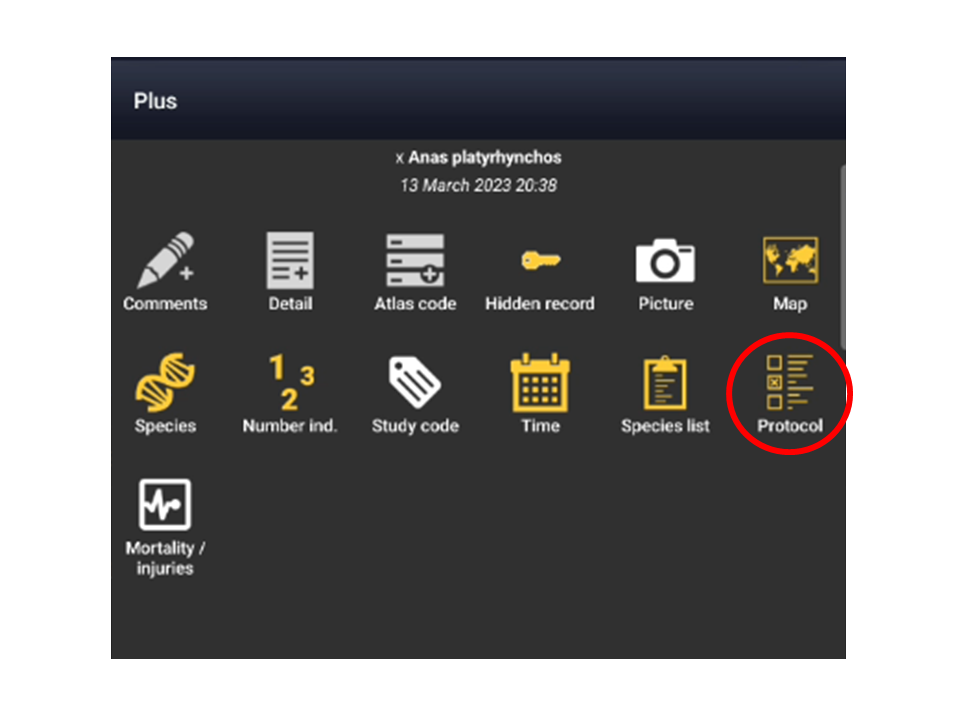
Editing protocol parameters.
[Top to Editing protocols]
[Back to Edit (and deleting) records]
Deleting records
· Go to Menu on the top left corner.
· Select In the phone.
· Select the data you want to cancel.
· Choose Delete.
· Confirm.
It is possible to delete records in NaturaList after entering them and before they have been synchronised.
Once your records have been synchronised, delete them from the the local portal.
See wiki section Web interface > Deleting records.
In NaturaList,
· access your data like for editing and
· select the Delete option.
· You will be prompted to confirm.
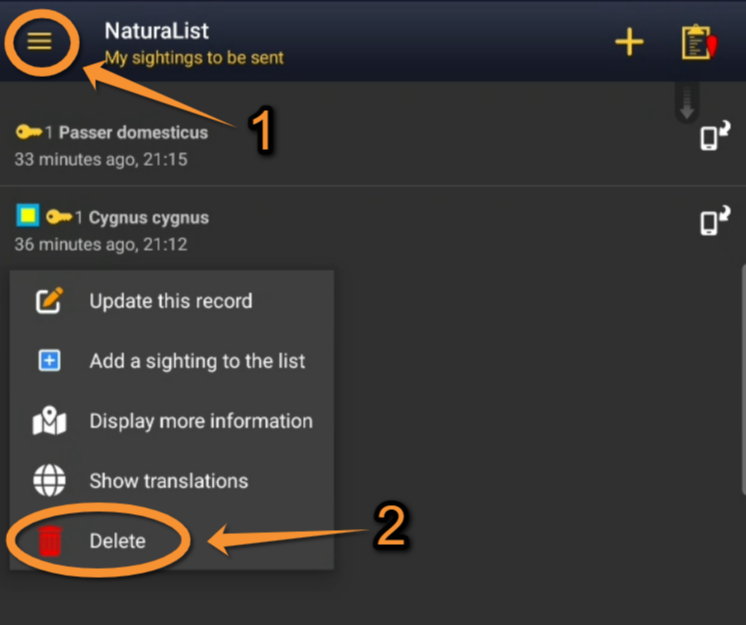
Deleting a record.
1. Access menu.
2. Delete record.
[Top to Deleting records]
[Back to Edit (and deleting) records]
Deleting lists
Delete records belonging to a list as in wiki section Deleting records.
To delete the full list
· before synchronisation, delete records from the list individually.
You will be given the option to also delete the list when it contains no more records.
Click OK to delete or Cancel to keep the list despite being empty (see image below).
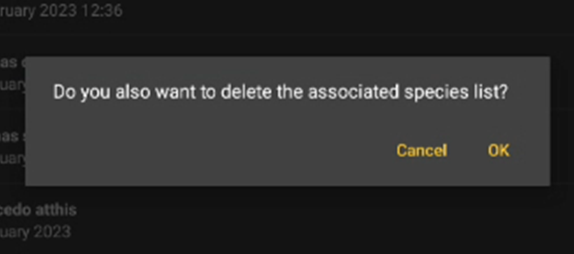
Deleting an empty list.
· after synchronisation, go to your local portal and use the dustbin icon (see image below).
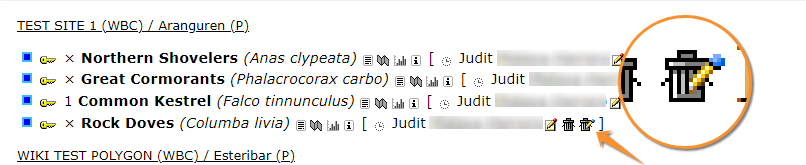
Deleting a list from the local portal.
[Top to deleting lists]
[Top to Deleting records]
[Back to Edit (and deleting) records]
Deleting protocols
Delete records belonging to a protocol as an individual record. See wiki section Deleting records on how to do it.
Delete the full protocol as if it were a list. Delete first all records belonging to the protocol individually and you will have the option to delete the protocol. See wiki section Deleting lists for details.
[Top to Deleting records]
[Back to Edit (and deleting) records]