Edit records/fr: Difference between revisions
No edit summary |
Updating to match new version of source page |
||
| Line 63: | Line 63: | ||
<br /> | <br /> | ||
=== | <div lang="en" dir="ltr" class="mw-content-ltr"> | ||
===From the map=== | |||
<br/> | |||
</div> | |||
<div lang="en" dir="ltr" class="mw-content-ltr"> | |||
<center> | |||
<table border="5" width="500px"> | |||
<tr> | |||
<td style="padding: 25px; text-align: left; font-family: sans-serif; color: black; background-color: hsl(201, 100%, 89%)"> | |||
<!-- GREEN BOX (Tips): hsl(157, 74%, 80%) | |||
YELLOW BOX (Summaries): #ffffdb" | |||
BLUE BOX (Information): hsl(201, 100%, 89%) | |||
RED BOX (Warnings): hsl(0, 77%, 78%) --> | |||
</div> | |||
<div lang="en" dir="ltr" class="mw-content-ltr"> | |||
<p> | |||
<ul> | |||
<b>Function only available:</b><br /> | |||
</div> | |||
<div lang="en" dir="ltr" class="mw-content-ltr"> | |||
*<b>with a list in the field</b>.<br /> | |||
*with protocols displaying maps with observations. | |||
</ul></p> | |||
</div> | |||
<div lang="en" dir="ltr" class="mw-content-ltr"> | |||
</td></tr></table> | |||
</center> | |||
</div> | |||
<div lang="en" dir="ltr" class="mw-content-ltr"> | |||
<br/> | |||
<br/> | |||
</div> | |||
<div lang="en" dir="ltr" class="mw-content-ltr"> | |||
While entering data on a list in the field or in protocols using maps, modify records on the current list directly from the map screen between records (see image below). <br/> | |||
<br/> | |||
</div> | |||
<div lang="en" dir="ltr" class="mw-content-ltr"> | |||
[[File:Editing from the map.png|700px|thumb|center|Editing records directly from the map.]]<br/> | |||
<br/> | |||
</div> | |||
<div lang="en" dir="ltr" class="mw-content-ltr"> | |||
To modify a recordː <br/> | |||
<br/> | |||
</div> | |||
<div lang="en" dir="ltr" class="mw-content-ltr"> | |||
::'''1. Activate species summary by clicking on the icon:''' <br/> | |||
:When active, the icon shows orange and all species entered appear on the map along with its species code and the number of individuals. If a species was not counted, it does not indicate the count. When inactive, the species summary icon shows yellow.<br/> | |||
<br/> | |||
</div> | |||
<div lang="en" dir="ltr" class="mw-content-ltr"> | |||
::'''2. Click on the record to modify:'''<br/> | |||
:Click on the dot representing the observation you wish to modify. When you are able to make changes, the interface becomes orange and the dot, blue. The time of the observation is shown in the summary.<br/> | |||
<br/> | |||
</div> | |||
<div lang="en" dir="ltr" class="mw-content-ltr"> | |||
::'''3. Modify 'Place':''' <br/> | |||
:Move the red marker to indicate your obervation's new position and click '''Next''' to access other details.. If you do not need to modify the position, click '''Next''' without moving the red marker.<br/> | |||
<br/> | |||
</div> | |||
<div lang="en" dir="ltr" class="mw-content-ltr"> | |||
::'''4. Modify other details:'''<br/> | |||
:Click '''Next''' to save current position and access other details for the record. If needed, modify as explained in wiki section Mobile interface > Submitting records > Directly in the field > [[Entering_records#Step_4_(non_mandatory_fields):_Additional_information| Step 4: Additional information]]. If you need to modify the species or number of individuals, see wiki section Mobile interface > Editing records > Before synchronisation > [[Edit_records#From_records_In_the_phone| Fr records in the phone]] for details in how to do it.<br/> | |||
<br/> | |||
</div> | |||
<div lang="en" dir="ltr" class="mw-content-ltr"> | |||
:: Click '''Finish''' to save changes. You can then continue entering data.<br/> | |||
<br/> | |||
</div> | |||
<div lang="en" dir="ltr" class="mw-content-ltr"> | |||
===From records <b>In the phone</b>=== | |||
<br /> | <br /> | ||
Go to menu on the top left corner and select [[Search_observations#In_the_phone|'''In the phone''']] to access a list of all your observations in the phone (see image [[Media:In the phone.png|Browsing '''In the phone''']]). Click on any species name to open the menu for this record and select '''update this record''' (see image [[Media:Access list.png|Editing records from '''In the phone''']]). You will access the additional data screen from where to modify the data (see bottom image [[Media:Update a record.png|Updating a record '''In the phone''']]). <br /> | |||
<br /> | <br /> | ||
</div> | |||
[[File:Access list.png|700px|thumb|center|Editer les données '''Dans le mobile'''.]] <br /> | [[File:Access list.png|700px|thumb|center|Editer les données '''Dans le mobile'''.]] <br /> | ||
| Line 118: | Line 203: | ||
Modifiez la date à laquelle l'observation a eu lieu en cliquant sur le bouton de la date, et sélectionnez une nouvelle date dans le calendrier extensible. Si vous souhaitez saisir ou modifier l'heure à laquelle l'observation a eu lieu, cochez '''Saisir l'heure''' pour ouvrir une horloge à partir de laquelle vous pouvez sélectionner l'heure. Aller à [[Entering_records#Date_/_Time| Interface mobile >Soumettre des données > Plus tard> Date/Heure]] pour savoir comment utiliser le calendrier et l'horloge.<br /> | Modifiez la date à laquelle l'observation a eu lieu en cliquant sur le bouton de la date, et sélectionnez une nouvelle date dans le calendrier extensible. Si vous souhaitez saisir ou modifier l'heure à laquelle l'observation a eu lieu, cochez '''Saisir l'heure''' pour ouvrir une horloge à partir de laquelle vous pouvez sélectionner l'heure. Aller à [[Entering_records#Date_/_Time| Interface mobile >Soumettre des données > Plus tard> Date/Heure]] pour savoir comment utiliser le calendrier et l'horloge.<br /> | ||
<br /> | <br /> | ||
<div lang="en" dir="ltr" class="mw-content-ltr"> | |||
:'''Trace''' <br/> | |||
</div> | |||
<div lang="en" dir="ltr" class="mw-content-ltr"> | |||
If you checked the cell to record your trace while recording a list, click on the '''Trace''' icon and '''Delete''' the trace if necessary. <br/> | |||
<br/> | |||
</div> | |||
:'''Mortalités/Blessures'''<br /> | :'''Mortalités/Blessures'''<br /> | ||
| Line 124: | Line 218: | ||
<br /> | <br /> | ||
=== | <div lang="en" dir="ltr" class="mw-content-ltr"> | ||
===Ending edition=== | |||
<br /> | <br /> | ||
When data is correct, click '''Validate''' to save the new information.<br /> | |||
<br /> | <br /> | ||
</div> | |||
== | <div lang="en" dir="ltr" class="mw-content-ltr"> | ||
==After synchronisation== | |||
<br /> | <br /> | ||
To synchronise records see wiki section [[Entering_records#Synchronisation|Mobile interface > Subitting records > Synchronisation]].<br /> | |||
<br /> | <br /> | ||
After synchronisation your observations are already submitted and published in a web portal (local ones and data.biolovision.net). From that point, it is no longer editable from NaturaList. To edit (or delete) an already synchronised observation, go to the local portal representing the territory the observation took place.<br/> | |||
<br/> | <br/> | ||
This option is only available when your records are already synchronised and allows you to access your records on the local website. If you have an open session on the corresponding web site in the device you are using, access directly the record to edit in the corresponding local portal, | |||
by selecting the record you want to modify from your phone and choosing [[Search_observations#Go_to_web_page|'''Go to web page''']]. <br/> | |||
<br/> | <br/> | ||
If, on the contrary, you do not currently have an open session to the corresponding web page at the device you are using, clicking on '''Go to web page''' will take you to the website but will require logging in. You will see a message saying your record does not exist. Go to homepage (see image [[Media:240220233 Go to website without logging in.png|'''Go to web page''' when not logged in]], encircled) and [[Getting_started#Logging_in| log in]]. Leave the session open by clicking on '''Store the password''' when logging in and '''Go to the web page''' from NaturaList to directly access the record to modify. Otherwise, search the record in the website as explained in wiki section Web interface > Brrowing records > As a registered user > from Expore tab > [[Browsing_records#All_my_observations| All my observations]].<br/> | |||
<br/> | <br/> | ||
</div> | |||
Voir une liste des sites locaux sous[[Local_portals_and_partners | Divers> portails locaux]] et acceder à la donnée manuellement[[Browsing_records#All_my_observations| Toutes mes observations]]. <br/> | Voir une liste des sites locaux sous[[Local_portals_and_partners | Divers> portails locaux]] et acceder à la donnée manuellement[[Browsing_records#All_my_observations| Toutes mes observations]]. <br/> | ||
| Line 146: | Line 245: | ||
<br /> | <br /> | ||
< | <div lang="en" dir="ltr" class="mw-content-ltr"> | ||
=Editing lists= | |||
= | |||
<br /> | <br /> | ||
Besides the functions already described in [[Edit_records#From_records_In_the_phone| Editing records before synchronisation]], it is possible to modify list parameters or add new individuals to an existing list. <br /> | |||
<br /> | <br /> | ||
</div> | |||
== | <div lang="en" dir="ltr" class="mw-content-ltr"> | ||
==Modify list parameters== | |||
<br/> | |||
</div> | |||
<div lang="en" dir="ltr" class="mw-content-ltr"> | |||
To modify the general parameters of a list, go to any record '''In the phone''' belonging to the list, '''Update this record''' (see image [[Media:Access list.png| Editing records from '''In the phone''']] and select '''Species list''' (see image below). <br/> | |||
<br/> | |||
</div> | |||
<div lang="en" dir="ltr" class="mw-content-ltr"> | |||
[[File:Modify list parameters.png|700px|thumb|center|Editing list parameters (Menu).]]<br/> | |||
<br/> | |||
</div> | |||
<div lang="en" dir="ltr" class="mw-content-ltr"> | |||
Enter / modify information as if [[Entering_records#Ending_the_list| ending a list]] and click '''Next''' to continue editing this record or finish (see image below).<br/> | |||
<br/> | |||
</div> | |||
<div lang="en" dir="ltr" class="mw-content-ltr"> | |||
[[File:List parameters.png|700px|thumb|center|Editing list parameters.]] | |||
<p style= "text-indent: 220px; font-size:13px">'''1.''' Time list started. | |||
<p style= "text-indent: 220px; font-size:13px">'''2.''' Time list ended. | |||
<p style= "text-indent: 220px; font-size:13px">'''3.''' Comments. | |||
<p style= "text-indent: 220px; font-size:13px">'''4.''' Type of list: check if this is a complete list. </p> | |||
<br/> | |||
<br/> | |||
</div> | |||
<div lang="en" dir="ltr" class="mw-content-ltr"> | |||
==Add individuals to a list== | |||
<br /> | <br /> | ||
To add data to a finished list, go to the menu on the top left corner and select '''In the phone'''. Click randomly any record from the list you want and select '''Add a sighting to the list''' (see image below). Records belonging to a list are marked with an empty green square (partial list) or a full green square (complete list) next to the name. See wiki section [[Symbols_cheatsheet| Various > Symbols cheatsheet]] to see the correspondence of codes and symbols. <br /> | |||
<br /> | <br /> | ||
</div> | |||
[[File:Add ind to list.png|700px|thumb|center|Ajouter des individus à une liste terminée.]] <br /> | [[File:Add ind to list.png|700px|thumb|center|Ajouter des individus à une liste terminée.]] <br /> | ||
| Line 169: | Line 300: | ||
<br /> | <br /> | ||
= | <div lang="en" dir="ltr" class="mw-content-ltr"> | ||
<br /> | =Editing Protocols= | ||
<br/> | |||
</div> | |||
<div lang="en" dir="ltr" class="mw-content-ltr"> | |||
Modify a record belonging to a protocol as a normal record. See wiki section [[Edit_records#Editing_records| Editing records]] for details.<br/> | |||
<br/> | |||
</div> | |||
<div lang="en" dir="ltr" class="mw-content-ltr"> | |||
Modify starting and ending time, comments and indicate if all species were recorded as if [[Edit_records#Modify_list_parameters| modifying a list]].<br/> | |||
<br/> | |||
</div> | |||
<div lang="en" dir="ltr" class="mw-content-ltr"> | |||
Add individuals to an existing protocol as in a non-protocolled list. See wiki section [[Edit_records#Editing_lists| Editing lists]] on how to do it. <br/> | |||
<br/> | |||
</div> | |||
<div lang="en" dir="ltr" class="mw-content-ltr"> | |||
==Modify protocol parameters== | |||
<br/> | |||
To modify the protocol general parameters, go to any record '''In the phone''' belonging to the protocol, '''Update this record''' (see image [[Media:Access list.png| Editing records from '''In the phone''']] and select '''Protocol''' (see image below). Enter / modify information and click '''Next''' to modify other information for this record or finish.<br/> | |||
<br/> | |||
</div> | |||
<div lang="en" dir="ltr" class="mw-content-ltr"> | |||
[[File:Protocol parameters.png|700px|thumb|center|Editing protocol parameters.]]<br/> | |||
<br/> | |||
</div> | |||
<div lang="en" dir="ltr" class="mw-content-ltr"> | |||
=Deleting records = | |||
<br/> | |||
<br/> | |||
</div> | |||
<center> | <center> | ||
| Line 190: | Line 356: | ||
</ul></p> | </ul></p> | ||
<div class="mw-translate-fuzzy"> | |||
</td></tr></table> | </td></tr></table> | ||
</center> | </center> | ||
| Line 197: | Line 364: | ||
<br /> | <br /> | ||
<br /> | <br /> | ||
</div> | |||
[[File:Delete.png|700px|thumb|center|Effacer une donnée.]]<br /> | [[File:Delete.png|700px|thumb|center|Effacer une donnée.]]<br /> | ||
| Line 203: | Line 371: | ||
<br /> | <br /> | ||
<div lang="en" dir="ltr" class="mw-content-ltr"> | |||
<br /> | ==Deleting lists== | ||
<br/> | |||
</div> | |||
<div lang="en" dir="ltr" class="mw-content-ltr"> | |||
Delete records belonging to a list as in wiki section [[Edit_records#Deleting_records| Deleting records]].<br/> | |||
<br/> | |||
</div> | |||
<div lang="en" dir="ltr" class="mw-content-ltr"> | |||
To delete the full list <br/> | |||
</div> | |||
<div lang="en" dir="ltr" class="mw-content-ltr"> | |||
* '''before synchronisation''', delete records from the list individually. You will be given the option to also delete the list when it contains no more records. Click '''OK''' to delete or '''Cancel''' to keep the list despite being empty (see image below).<br/> | |||
<br/> | |||
</div> | |||
<div lang="en" dir="ltr" class="mw-content-ltr"> | |||
[[File:Delete list.png|700px|thumb|center|Deleting an empty list.]]<br/> | |||
<br/> | |||
</div> | |||
<div lang="en" dir="ltr" class="mw-content-ltr"> | |||
* '''after synchronisation''', go to your local portal and use the dustbin icon (see image below). <br/> | |||
<br/> | |||
</div> | |||
<div lang="en" dir="ltr" class="mw-content-ltr"> | |||
[[File:Delete list in portal.png|700px|thumb|center|Deleting a list from the local portal.]]<br/> | |||
<br/> | |||
</div> | |||
<div lang="en" dir="ltr" class="mw-content-ltr"> | |||
==Deleting protocols== | |||
<br/> | |||
</div> | |||
<div lang="en" dir="ltr" class="mw-content-ltr"> | |||
Delete records belonging to a protocol as an individual record. See wiki section [[Edit_records#Deleting_records|Deleting records]] on how to do it.<br/> | |||
<br/> | |||
</div> | |||
<div lang="en" dir="ltr" class="mw-content-ltr"> | |||
Delete the full protocol as if it were a list. Delete first all records belonging to the protocol individually and you will have the option to delete the protocol. See wiki section [[Edit_records#Deleting_lists| Deleting lists]] for details.<br/> | |||
<br/> | |||
</div> | |||
Revision as of 09:08, 29 September 2023
Editer les données
Il est possible d'éditer les données à différents stades : avant et après la synchronisation. Lors de la saisie des données, il est également possible d'apporter des modifications mineures.
|
|


Avant la synchronisation
Avant la synchronisation, vos observations sont uniquement stockées sur votre appareil mobile et peuvent donc être éditées à partir de NaturaList.
Avec le bouton "Liste"
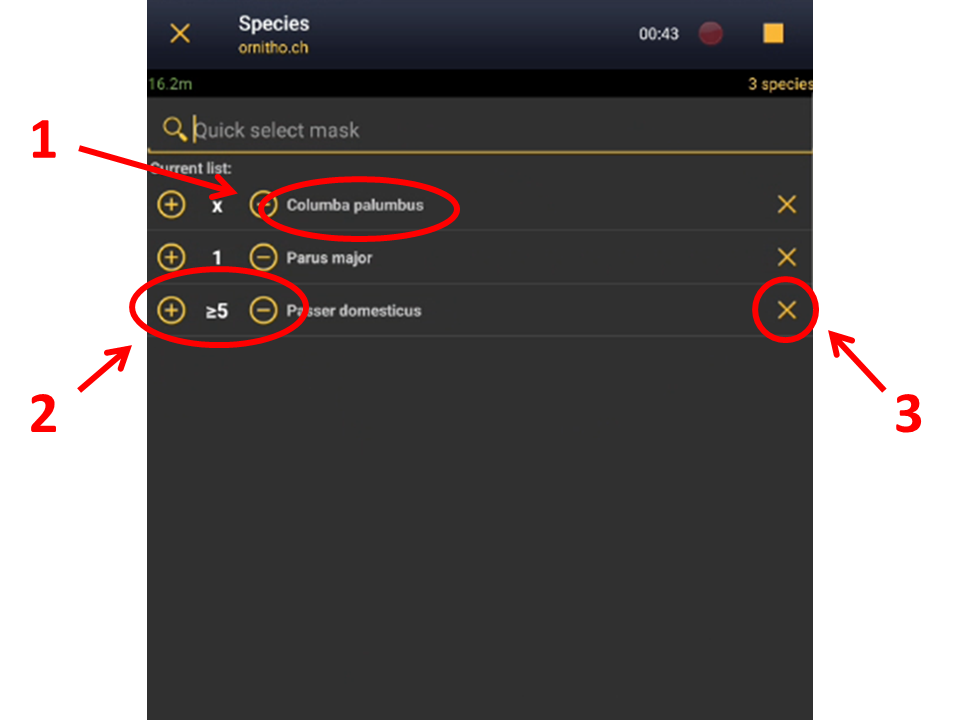
Après avoir saisi une observation, vous pouvez modifier les informations de base que vous venez de saisir en accédant à la liste des espèces dans votre téléphone. Pour ce faire, cliquez sur l'icône de la liste à partir de l'écran Place (voir image ci-dessous) et cliquez sur la fiche à modifier.

Après avoir sélectionné la donnée à modifier, vous pouvez changer le nombre d'individus, l'âge et le sexe de ces individus, ou mettre à jour le code de l'atlas (voir image). Vous pouvez également supprimer cette donnée.

- Changer le nombre
Modifier le nombre d'individus et/ou la précision du comptage ou Démarrer un compteur. Voir sous Interface mobile > Soumettre des données > Directement sur le terrain > Nombre d'individus pour plus d'informations
- Mettre à jour les détails
Ajouter/soustraire ou modifier le nombre d'individus pour chaque sexe et classe d'âge. Voir la section wiki Ajouter des détails pour plus d'informations.
- Code atlas
Changer le code atlas si nécessaire. Voir Interface mobile > Soumettre des observations > Directement sur le terrain > Information complémentaire> Code atlas pour en savoir plus sur les codes Atlas.
From the map
|
|
While entering data on a list in the field or in protocols using maps, modify records on the current list directly from the map screen between records (see image below).

To modify a recordː
- 1. Activate species summary by clicking on the icon:
- 1. Activate species summary by clicking on the icon:
- When active, the icon shows orange and all species entered appear on the map along with its species code and the number of individuals. If a species was not counted, it does not indicate the count. When inactive, the species summary icon shows yellow.
- 2. Click on the record to modify:
- 2. Click on the record to modify:
- Click on the dot representing the observation you wish to modify. When you are able to make changes, the interface becomes orange and the dot, blue. The time of the observation is shown in the summary.
- 3. Modify 'Place':
- 3. Modify 'Place':
- Move the red marker to indicate your obervation's new position and click Next to access other details.. If you do not need to modify the position, click Next without moving the red marker.
- 4. Modify other details:
- 4. Modify other details:
- Click Next to save current position and access other details for the record. If needed, modify as explained in wiki section Mobile interface > Submitting records > Directly in the field > Step 4: Additional information. If you need to modify the species or number of individuals, see wiki section Mobile interface > Editing records > Before synchronisation > Fr records in the phone for details in how to do it.
- Click Finish to save changes. You can then continue entering data.
- Click Finish to save changes. You can then continue entering data.
From records In the phone
Go to menu on the top left corner and select In the phone to access a list of all your observations in the phone (see image Browsing In the phone). Click on any species name to open the menu for this record and select update this record (see image Editing records from In the phone). You will access the additional data screen from where to modify the data (see bottom image Updating a record In the phone).


- Commentaire
Ajoutez ou modifiez un commentaire pour cet enregistrement. Le commentaire peut être public (les autres utilisateurs le verront en même temps que votre enregistrement, à moins que votre enregistrement ne soit masqué) ou privé (vous seul pouvez le voir). Voir la section wiki Interface du mobile > Soumettre des données > Information additionnelle > Commentaires pour plus d'informations.
- Détails
Indiquez le nombre d'individus en fonction de leur âge et de leur sexe. Pour voir comment procéder, consultez la section wiki Interface du mobile > Soumettre des données > Information additionnelle > Détails.
- Code atlas
Saisissez le code atlas de la donnée. Les codes atlas dépendent du pays et vous pouvez les définir dans vos Préférences. Visiter la section wiki Interface du mobile > Soumettre des données > Information additionnelle> Code atlas pour des informations plus détaillées.
- Données cachées
Sélectionner / désélectionner pour indiquer si votre donnée sera visible par les autres utilisateurs ou seulement pour vous et les administrateurs. Si vous souhaitez que cela s'applique à toutes vos observations, modifiez votre option par défaut dans les Préférences. Voir la section du wiki Interface mobile > Soumettre des données> Informations supplémentaires > Données cachées pour plus d'informations.
- Image
Ajouter / supprimer une image pour cette donnée. Vous pouvez télécharger une photo stockée dans votre téléphone ou en prendre une nouvelle. Visiter la section wiki Interface mobile > Soumettre des données> Informations supplémentaires > Image pour voir comment le faire.
- Carte
Modifier la position de l'observation comme expliqué dans la section wiki Interface mobile > Soumettre des données > Lieu.
- Espèce
Changer le nom de l'espèce, si nécessaire. Voir la section wiki Interface mobile > Soumettre des données > Espèce pour plus d'information concernant l'enregistrement d'une espèce.
- Nombre d'individus
Modifier le nombre d'individus, un comptage précis ou démarrer un compteur. Voir la section wiki Interface mobile > Soumettre des donnés > Nombre d'individus pour plus d'informations.
- Date et heure
Modifiez la date à laquelle l'observation a eu lieu en cliquant sur le bouton de la date, et sélectionnez une nouvelle date dans le calendrier extensible. Si vous souhaitez saisir ou modifier l'heure à laquelle l'observation a eu lieu, cochez Saisir l'heure pour ouvrir une horloge à partir de laquelle vous pouvez sélectionner l'heure. Aller à Interface mobile >Soumettre des données > Plus tard> Date/Heure pour savoir comment utiliser le calendrier et l'horloge.
- Trace
If you checked the cell to record your trace while recording a list, click on the Trace icon and Delete the trace if necessary.
- Mortalités/Blessures
Indiquer / modifier si un individu est blessé ou mort, et sélectionner sa cause si elle est connue. Pour savoir comment naviguer dans cette section, consultez la section wiki Interface mobile> Soumettre des données > Informations additionnelles > Mortalités/ blessures.
Ending edition
When data is correct, click Validate to save the new information.
After synchronisation
To synchronise records see wiki section Mobile interface > Subitting records > Synchronisation.
After synchronisation your observations are already submitted and published in a web portal (local ones and data.biolovision.net). From that point, it is no longer editable from NaturaList. To edit (or delete) an already synchronised observation, go to the local portal representing the territory the observation took place.
This option is only available when your records are already synchronised and allows you to access your records on the local website. If you have an open session on the corresponding web site in the device you are using, access directly the record to edit in the corresponding local portal,
by selecting the record you want to modify from your phone and choosing Go to web page.
If, on the contrary, you do not currently have an open session to the corresponding web page at the device you are using, clicking on Go to web page will take you to the website but will require logging in. You will see a message saying your record does not exist. Go to homepage (see image Go to web page when not logged in, encircled) and log in. Leave the session open by clicking on Store the password when logging in and Go to the web page from NaturaList to directly access the record to modify. Otherwise, search the record in the website as explained in wiki section Web interface > Brrowing records > As a registered user > from Expore tab > All my observations.

Voir une liste des sites locaux sous Divers> portails locaux et acceder à la donnée manuellement Toutes mes observations.
Pour vous connecter à un portail local, utilisez les mêmes identifiants que ceux que vous utilisez pour NaturaList. Pour voir comment éditer des enregistrements à partir d'un portail local, voir la section wiki Interface web > Portails locaux > Editer des données. Lorsqu'il n'y a pas pas de portail local pour la zone, il est impossible d'éditer ou de supprimer une fiche après la synchronisation.
Editing lists
Besides the functions already described in Editing records before synchronisation, it is possible to modify list parameters or add new individuals to an existing list.
Modify list parameters
To modify the general parameters of a list, go to any record In the phone belonging to the list, Update this record (see image Editing records from In the phone and select Species list (see image below).

Enter / modify information as if ending a list and click Next to continue editing this record or finish (see image below).

1. Time list started.
2. Time list ended.
3. Comments.
4. Type of list: check if this is a complete list.
Add individuals to a list
To add data to a finished list, go to the menu on the top left corner and select In the phone. Click randomly any record from the list you want and select Add a sighting to the list (see image below). Records belonging to a list are marked with an empty green square (partial list) or a full green square (complete list) next to the name. See wiki section Various > Symbols cheatsheet to see the correspondence of codes and symbols.

Heure
Précisez l'heure de l'observation si nécessaire en désélectionnant Ne pas saisir et sélectionnez la nouvelle heure à partir de l'horloge extensible comme décrit dans la section Interface mobile > Soumettre des enregistrements > Date / Heure. Enregistrer pour finir (voir l'image).

Editing Protocols
Modify a record belonging to a protocol as a normal record. See wiki section Editing records for details.
Modify starting and ending time, comments and indicate if all species were recorded as if modifying a list.
Add individuals to an existing protocol as in a non-protocolled list. See wiki section Editing lists on how to do it.
Modify protocol parameters
To modify the protocol general parameters, go to any record In the phone belonging to the protocol, Update this record (see image Editing records from In the phone and select Protocol (see image below). Enter / modify information and click Next to modify other information for this record or finish.

Deleting records
|
|
Il est possible de supprimer des données dans NaturaList après les avoir saisies et avant qu'elles n'aient été synchronisées.
Accéder à vos données comme pour l'édition et sélectionner l'option Supprimer. Le système vous demandera de confirmer.

Deleting lists
Delete records belonging to a list as in wiki section Deleting records.
To delete the full list
- before synchronisation, delete records from the list individually. You will be given the option to also delete the list when it contains no more records. Click OK to delete or Cancel to keep the list despite being empty (see image below).

- after synchronisation, go to your local portal and use the dustbin icon (see image below).

Deleting protocols
Delete records belonging to a protocol as an individual record. See wiki section Deleting records on how to do it.
Delete the full protocol as if it were a list. Delete first all records belonging to the protocol individually and you will have the option to delete the protocol. See wiki section Deleting lists for details.