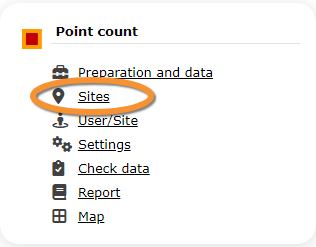
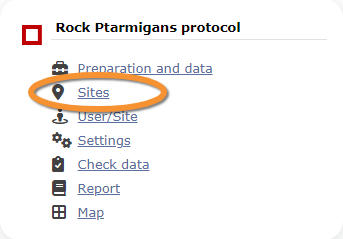
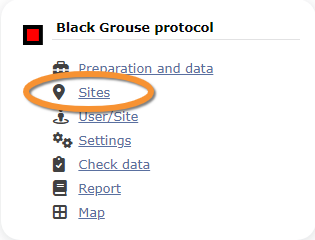
Para acceder a la gestión de un protocolo necesitas tener '''[[User_administration#Admin_users|Derechos de gestión de protocolos]]'''. Sólo los administradores de la página local puede darte acceso bajo ciertas condiciones.<br/>
Para acceder a la gestión de un protocolo necesitas tener '''[[User_administration#Admin_users|Permisos de gestión de protocolos]]'''. Sólo los administradores de la página local puede darte acceso bajo ciertas condiciones.<br/>
<br/>
<br/>
Hay dos formas de acceder a la gestión de protocolos: <br/>
Hay dos formas de acceder a la gestión de protocolos: <br/>
<br/>
<br/>
* Desde el Manú principal > Administración <br/>
* Desde el Menú principal > Administración <br/>
<br/>
<br/>
Line 19:
Line 19:
<br/>
<br/>
*Desde el Menú principal> Participar > Todos mis protocolos <br/>
*Desde el Menú principal > Participar > Todos mis protocolos <br/>
<br/>
<br/>
Ves al Menú principal > Participar > Todos mis protocolos. Se mostrarán todos los protocolos a los que tienes acceso, sea como administrador o usuario sin derechos especiales. Los usuarios sin derechos especiales también pueden acceder de esta manera pero no verán todas las acciones disponibles para ese protocolo.<br/>
Ves al Menú principal > Participar > Todos mis protocolos. Se mostrarán todos los protocolos a los que tienes acceso, sea como administrador o usuario sin permisos especiales. Los usuarios sin permisos especiales también pueden acceder de esta manera pero no verán todas las acciones disponibles para ese protocolo.<br/>
Accede a los protocolos a través del [[Media:Protocol panel.png|panel de protocolos]] o como si [[Media:Enter_data_as_if_subitting_records.png|Introdujeras observaciones]]. Visita la sección wiki Interfaz web > Página local > Protocolos > [[Protocols_web#Accessing_protocols|Acceder a protocolos]] para más información. <br/>
</td></tr></table>
<br/>
<br />
</div>
<div lang="en" dir="ltr" class="mw-content-ltr">
Los administradores y los usuarios con los permisos necesarios pueden tener formas adicionales de acceder a algunas de las funciones de los protocolos: <br/>
==Preparation and data==
<br/>
<br/>
</div>
<div lang="en" dir="ltr" class="mw-content-ltr">
<span id="Modify_protocol"></span>
[[File:Protocols. Preparation and data..png|700px|thumb|center|Protocols. Preparation and data.]]<br/>
====Cambiar el protocolo====
Modifica el protocolo desde <br/>
<br/>
<br/>
</div>
<div lang="en" dir="ltr" class="mw-content-ltr">
* '''Introducir observaciones''', como se describe en la sección wiki Interfaz web > Página local > Protocolos > Acceder a protocolos > [[Protocols_web#Modify protocol|Cambiar el protocolo]].<br/>
Identical section to the one of Waterbird Census Protocol, we took as an example, available to registered users with rights. It allows printing maps and entering observations. See wiki section Web interface > Protocols > 'Protocol name' > [[Protocols_web#Preparation_and_data|Preparation and data]] for more information. <br/>
* '''Panel de protocolos > Preparación y datos''', como se describe en la sección wiki Interfaz web > Página local > Protocolos > Acceder a protocolos > [[Protocols_web#Modify protocol|Cambiar el protocolo]].<br/>
* '''Panel de protocolos > Localidades'''. Sólo está disponible para administradores. Consulta la sección wiki Administración > Gestión de protocolos > [[Protocol_management#Sites|Localidades]] > Editar para más información. <br/>
<br/>
<br/>
</div>
<div lang="en" dir="ltr" class="mw-content-ltr">
<span id="Create_protocol"></span>
==Sites==
====Creación de protocolo====
Crear un nuevo protocolo desde <br/>
<br/>
* '''Introducir observaciones''', como se describe en la sección wiki Interfaz web > Página local > Protocolos > Acceder a protocolos > [[Protocols_web#Create protocol|Crear un protocolo]].<br/>
* '''Panel de protocolos > Localidades'''. Sólo está disponible para los administradores. Consulta la sección wiki Administración > Gestión de protocolos > [[Protocol_management#Sites|Localidades]] > +NUEVO para conocer cómo hacerlo. <br/>
- A través del [[Media:Protocol panel.png|Panel de protocolos]] > Preparación y datos > [[Media:2023-05-09 WBC Add observations.png|Añadir las observaciones]].<br/>
- A través de [[Media:Add_data_to_protocol_scheme.png|Introducir observaciones]]. Ver la sección wiki Interfaz web > Protocolos > Acceder a protocolos > [[Protocols_web#|Enviar observaciones]] para más detalles. <br/>
<br/>
<br/>
</div>
<div lang="en" dir="ltr" class="mw-content-ltr">
'''Modificar el protocolo''' <br/>
List of all existing sites allowing a protocoled data entry (here as an example the Waterbird census). Use arrows under titles to alternate between ascending and descending order (see [[Media:2023-03-27 example arrows.png|image as an example]]).<br/>
- A través del [[Media:Protocol panel.png|Panel de protocolos]] > Preparación y datos > [[Media:2023-05-09 WBC Modify the protocol.png|Cambiar el protocolo]], o [[Media:Protocol panel.png|Panel de protocolos]] > [[Media:Protocols. Sites..png|Localidades]] > Editar. <br/>
<br/>
</div>
<div lang="en" dir="ltr" class="mw-content-ltr">
'''Creación de protocolos:''' <br/>
[[File:WBC list of sites.png|700px|thumb|center|Protocols. Existing sites.]]
- A través del Panel de protocolos > [[Media:Protocols. Sites..png|Localidades]] > +NUEVO. <br/>
</div>
- A través de [[Media:Create a new protocoled census.png|Enviar observaciones]]. Consulta la sección wiki Interfaz web > Protocolos > Acceder a protocolos > [[Protocols_web#Create protocol|Creación de protocolos]] para más información.<br/><br/>
</p>
<div lang="en" dir="ltr" class="mw-content-ltr">
</td></tr></table>
<p style="margin-left:200px">
</center>
'''Reference name:''' Official name given to the study site. This is given by an administrator or user with special rights.<br/>
<br />
'''Custom name:''' A different name under which the same place may be also known, or a name easier for the user. This can be set by the user allowed for that site himself.<br/>
'''Reference locality:''' Name of the location all observations from the protocol will be associated to. <br/>
'''Municipality:''' Municipality the locality belongs to.<br/>
'''Altitude:''' Altitude associated to the locality.<br/>
</p>
<br/>
</div>
<div lang="en" dir="ltr" class="mw-content-ltr">
:'''1. Search''' <br/>
Reduce list by typing the name of a site, Locality, Municipality , or part of it, and click '''SEARCH'''.
</div>
<div lang="en" dir="ltr" class="mw-content-ltr">
When a filter is applied and you want to desactivate it, click on
[[Media:2023-03-17 Diplay full list.png|'''DISPLAY ALL''']]. <br />
</div>
<div lang="en" dir="ltr" class="mw-content-ltr">
==Preparación y datos==
:'''2. Search''' <br/>
<br/>
Select page number and/or number of items per page.<br/>
Sección idéntica a Censo de aves acuáticas que tomamos como ejemplo, disponible para usuarios registrados con derechos especiales. Permite imprimir mapas e introducir observaciones. Consulta la sección wiki Interfaz web > Protocolos > 'Nombre del protocolo' > [[Protocols_web#Preparation_and_data|Preparación y datos]] para más información. <br/>
:'''5. New site''' <br/>
<br/>
Create a new site. <br/>
</div>
<div lang="en" dir="ltr" class="mw-content-ltr">
:::1. Click '''+ NEW''' under the list. Select the site as if entering an observation (see wiki section Web interface > [[Submitting_records|Submitting records]] if necessary) and choose the new option: '''Create a protocoled census - 'Name of the Protocol'''' (here Waterbird census, see image below). <br/>
<br/>
[[File:Draw waterbird polygon.png|700px|thumb|center|Creating a new site for Waterbird census protocol]]<br/>
<br/>
</div>
<div lang="en" dir="ltr" class="mw-content-ltr">
==Localidades==
:::2. Enter a name for the new site.<br/>
<br/>
<br/>
</div>
<div lang="en" dir="ltr" class="mw-content-ltr">
<center>
[[File:Name a new WBC site.png|700px|thumb|center|Naming a new Waterbird census site.]]
'''Name of reference locality:''' Location under which all observations of the protocol will be associated to. It is created by the administrator when creating a new protocol site and cannot be changed afterwards. <br/>
1. Directamente en el mapa<b>Enviar observaciones</b> <br/>o <br/>a través de Menú > Administración > Gestión de protocolos > 'Nombre del protocolo' > [[Media:Protocols. Sites..png|Localidades]] > +NUEVO <br />
'''Reference name:''' Type a name for the new site. It can be a real name or a code, and consist on letters, numbers or a combination of both.<br/>
2. Selecciona el nuevo lugar como para [[Submitting_records|Enviar observaciones]]<br/>
'''Custom name:''' Type an additional name to the site if known. This name can be changed afterwards by the end user allocated to that site.<br/>
3. Escoge [[Media:Draw waterbird polygon.png|'''Crear un protocolo -Nombre del protocolo''']]<br/>
4. [[Media:Name a new WBC site.png|Nombre del nuevo lugar]]<br/>
5. [[Geometry_editor|Dibujar geometria]] (polígono, punto, transecto) o [[Media:2023-03-14 Importing a plygon shapefile.png|importa un fichero shape]]<br/>
::::*Draw polygon as explained in wiki section Web interface > [[Geometry_editor|Geometry editor]] or,<br/>
</div>
</div>
</center>
<br/>
<div lang="en" dir="ltr" class="mw-content-ltr">
Lista de todos los lugares que permiten introducir datos (aquí como ejemplo el Censo de aves acuáticas). Usa las flechas bajo los títulos para alternar entre orden ascendiente y descendiente (consulta [[Media:2023-03-27 example arrows.png|la imagen como ejemplo]]).<br/>
'''Nombre de referencia:''' Nombre oficial asignado al lugar de estudio. El nombre se lo da un administrador o un usuario con derechos especiales. <br/>
[[File:2023-03-14 Importing a plygon shapefile.png|700px|thumb|center|Importing a plygon shapefile.]]
'''Nombre personalizado:''' Nombre alternativo bajo el que también se conoce este lugar, o un nombre que sea más fácil para el usuario. Éste puede ser asignado por el usuario que tiene acceso a este sitio. <br/>
<p style="margin-left:200px">
'''Localidad de referencia:''' Nombre de la localidad bajo la que se asociarán todos los datos de este censo. <br/>
'''1.''' Choose datum and <br/>
'''Municipio:''' Municipio al que pertenece la localidad.<br/>
'''2.''' upload the file.<br/>
'''Altitud:''' Altitud asociada a la localidad.<br/>
'''3.''' When done, click '''IMPORT'''.<br/>
</p>
</p>
<br/>
</div>
</div>
</center>
<div lang="en" dir="ltr" class="mw-content-ltr">
:::After a new polygon is created, it is possible to export it as a shapefile to use in the future or modify. Click on the file icon under the '''Polygon''' section (see image below, encircled). If necessary, modify it and '''IMPORT''' as explained above. <br/>
<br/>
<br/>
</div>
<div lang="en" dir="ltr" class="mw-content-ltr">
[[File:Save shapefile of new WBC site.png|700px|thumb|center|Saving the shapefile of a newly created site.]]<br/>
<br/>
</div>
<div lang="en" dir="ltr" class="mw-content-ltr">
:'''1. Buscar''' <br/>
:::4. When the new site is ready you have three options: <br/>
Reduce la lista escribiendo el nombre del lugar, la Localidad, el Municipio, o parte de ellos, y clica '''BUSCAR'''.
:::: '''SAVE AND STAY''' to save the site and continue making changes, or <br/>
:::: '''SAVE AND ADD A RECORD''' to save and start entering observations or
Si hay algún filtro y quieres desactivarlo, clica en [[Media:2023-03-17 Diplay full list.png|'''MOSTRAR TODO''']]. <br />
::::
:::: '''DELETE SITE''' if needed. Note: That option is only available as long no data are linked to that site.<br />
:'''2. Buscar''' <br/>
<br/>
Selecciona el número de página y/o el número de entradas por página. <br/>
</div>
:'''3. Detalles''' <br/>
Clica para ver los detalles de los lugares seleccionados. <br/>
:'''4. Editar''' <br/>
Clica para editar los detalles de los lugares seleccionados. <br/>
<div lang="en" dir="ltr" class="mw-content-ltr">
:'''5. Lugar nuevo''' <br/>
:::The new site is now created and saved (indicated at the top of the page). You have now the option to delete the newly created site if necessary (see image [[Media:Capture 2023-03-14 WBC delete new site.png|Deleting a newly created site]]). Otherwise, go anywhere in the page or start the whole process to create other sites without loosing the new one. <br/>
Crea un nuevo lugar de estudio. <br/>
<br/>
</div>
<div lang="en" dir="ltr" class="mw-content-ltr">
:::1. Clica '''+ NUEVO''' bajo la lista. Selecciona el lugar como si introdujeras una observación (consulta la sección wiki Interfaz web > [[Submitting_records|Enviar observaciones]] si fuera necesario) y selecciona la opción nueva: '''Crear un censo con protocolo -Nombre del protocol''' (aquí censo de aves acuáticas, ver imagen siguiente). <br/>
==User/Site==
<br/>
<br/>
</div>
[[File:Draw waterbird polygon.png|700px|thumb|center|Crear un lugar de estudio nuevo para el protocolo Censo de aves acuáticas.]]<br/>
'''Crear un lugar de estudio nuevo para el protocolo de aves acuáticas.'''
</div>
</div>
<div lang="en" dir="ltr" class="mw-content-ltr">
===Access to sites===
</div>
</div>
</center>
<br/>
<div lang="en" dir="ltr" class="mw-content-ltr">
:::2. Escribe el nombre del nuevo lugar.<br/>
List of observers allowed to conduct "Name of the protocol (here Waterbird Census Protocol)" and the site/s they are assigned to. Use arrows on columns to alternate between ascending and descending order (see [[Media:2023-03-27 example arrows.png|image as an example]]).<br/>
'''Nombre de la localidad de referencia:''' Localidad bajo la que se asociarán todos los datos del protocolo. Lo crea el administrador al crear un nuevo lugar de estudio y no se puede modificar más tarde. <br/>
[[File:WBC Access to sites.png|700px|thumb|center|Protocols. Access to sites.]]
'''Nombre de referencia:''' Escribe el nombre del nuevo lugar. Puede ser un nombre real o un código, y puede estar formado por letras, números o una combinación de ambos. <br/>
<p style="margin-left:180px;margin-right:180px">
'''Nombre personalizado:''' Escribe un nombre adicional para el lugar, si se requiere. Éste nombre lo puede cambiar más tarde el usuario asignado a este sitio.<br/>
'''User name:''' Name, email address and local site user number of observer.<br/>
'''Reference name:''' Reference name of the "Name of the protocol (here Waterbird Census Protocol)" site (local official one).<br/>
</p>
</p>
</div>
</center>
<br/>
<br/>
</div>
<div lang="en" dir="ltr" class="mw-content-ltr">
:'''1. Search''' <br/>
Reduce list by typing the name of a site, user, or part of it, and click '''SEARCH'''.
</div>
<div lang="en" dir="ltr" class="mw-content-ltr">
:::3. Escoge entre: <br/>
When a filter is applied and you want to desactivate it, click on [[Media:2023-03-17 Diplay full list.png|'''DISPLAY ALL''']] to see the full list.<br />
::::*Dibujar un polígono, punto o transecto como se explica en la sección wiki Interfaz web > [[Geometry_editor|Editor de geometría]] o,<br/>
</div>
<div lang="en" dir="ltr" class="mw-content-ltr">
::::*Importar un fichero shape:<br/>
:'''2. Page and items''' <br/>
Select page number and/or number of items per page. Count indicate the total of items found for the search.<br/>
[[File:Capture 2023-09-14 at 15.50.31.png|center|thumb|600x600px|Detail for choosing page, item/page]]
:'''3. Details''' <br/>
See details of observers and their assigned site.<br/>
'''User name:''' Observer name, email address and local site user number.<br/>
'''Reference name:''' Name of site the observer has right to survey for the "Name of the protocol (here Waterbird Census Protocol)" . <br/>
'''Custom name:''' Additional name under which the site is also known.<br/>
'''8. BACK:''' Go back to main list.<br/>
'''4. EDIT:''' See Edit subsection below.<br/>
'''5. DELETE:''' Revoque observer's right to survey this site for the "Name of the protocol (here Waterbird Census Protocol)" . <br/>
</p>
</p>
</div>
</center>
<br/>
<br/>
</div>
<div lang="en" dir="ltr" class="mw-content-ltr">
:::Un polígono recién creado se puede exportar como fichero shape para usar en el futuro o se puede modificar. Clica en el icono de fichero bajo la sección de '''Polígono''' (ver la imagen siguiente, en el círculo). Si es necesario, modifícala e '''IMPORTA''' como se explica más arriba. <br/>
:'''4. Edit''' <br/>
Modify the user assigned to this site, or the site assigned to this user. <br/>
<br/>
<br/>
[[File:Capture 2023-05-25 at 9.10.26.png|center|thumb|700x700px|Protocosl. Editing User/site.]]
<p style="margin-left:180px;margin-right:180px">
'''10.''' Modify observer assigned to this site. Start typing the name of the new observer (a) and choose from the expandable panel (b).<br/>
'''11.''' Modify site assigned to the observer. Start typing the name of the new site (a) and choose from the expandable panel (b).<br/>
'''8. BACK:''' Go to previous screen without saving changes.<br/>
'''Guardando el fichero shape de un lugar acabado de crear.'''
</div>
</div>
<div lang="en" dir="ltr" class="mw-content-ltr">
:'''6. EXPORT''' <br/>
Export list as a .txt file. <br/>
</div>
</div>
</center>
<br/>
<div lang="en" dir="ltr" class="mw-content-ltr">
:::4. Cuando el nuevo lugar está creado, hay tres opciones: <br/>
:'''7. + NEW''' <br/>
:::: '''AÑADIR Y QUEDARSE EN ESTA PÁGINA''' para guardar el lugar y continuar haciendo cambios, o <br/>
Grant rights to observer to conduct "Name of the protocol (here Waterbird Census Protocol)" census on designated sites.<br/>
:::: '''AÑADIR Y GUARDAR EL TRANSECTO''' para guardar y comenzar a introducir observaciones o <br/>
::::' '''ELIMINAR LOCALIDAD''' si es necesario. Nota: esta opción solo está disponible si no hay observaciones asociadas a este sitio.<br />
<br/>
<br/>
</div>
<div lang="en" dir="ltr" class="mw-content-ltr">
:::El lugar nuevo ya está creado y guardado (se indica en la parte superior de la página). Ahora se te da la opción de eliminarlo si fuera necesario (ver la imagen [[Media:Capture 2023-03-14 WBC delete new site.png|Eliminar un lugar recién creado]]). En caso contrario, ves a cualquier punto de la página o repite todo el proceso para crear otros lugares sin perder el ya creado. <br/>
[[File:Capture 2023-03-22 .png|700px|thumb|center|Protocols. Adding new user to site.]]
<p style="margin-left:180px;margin-right:180px">
'''11.''' Select observer to grant access to a certain site. Start typing the name of the new observer (a) and choose from the expandable panel (b).<br/>
'''12.''' Select site to be assigned to the observer. Start typing the name of the new site (a) and choose from the expandable panel (b).<br/>
'''13. BACK:''' Go to previous screen without saving changes.<br/>
'''15. ADD:''' Save new addition. </p><br/>
<br/>
<br/>
</div>
<div lang="en" dir="ltr" class="mw-content-ltr">
===Administration users rights===
</div>
<div lang="en" dir="ltr" class="mw-content-ltr">
==Usuario/Localidad==
List of users and administrators with access to the "Name of the protocol (here Waterbird Census Protocol)" . Use arrows on columns to alternate between ascending and descending order (see [[Media:2023-03-27 example arrows.png|image as an example]]). <br/>
Desde "Nombre del menú del protocolo (aquí Censo de aves acuáticas)", selecciona '''Usuario / Localidad''' para asignar usuarios a los lugares de estudio. <br/>
[[File:2023-03-20 Administration user's rights protocols.png|700px|thumb|center|Users and administrators of Waterbird census protocol.]]<br/>
<br/>
<br/>
</div>
<div lang="en" dir="ltr" class="mw-content-ltr">
<span id="Access_to_sites"></span>
:'''1. Search''' <br/>
===Acceso a las localidades===
Reduce list by typing the name of a right, a user, or part of it, and click '''SEARCH'''.
</div>
<div lang="en" dir="ltr" class="mw-content-ltr">
Lista de observadores con permiso para realizar "Nombre del protocolo (en este ejemplo Censo de aves acuáticas)" y los lugares que se les han asignado. Utiliza las flechas en las columnas para alternar entre orden ascendente y descendente (ver [[Media:2023-03-27 example arrows.png|imagen como ejemplo]]).<br/>
When a filter is applied, to deactivate it, click on [[Media:2023-03-17 Diplay full list.png|'''DISPLAY ALL''']].<br />
'''Nombre de usuario:''' Nombre, dirección de correo electrónico y número de usuario.<br/>
'''Nombre de referencia:''' Nombre de referencia del lugar (nombre local oficial) de "Nombre del protocolo (en este caso Censo de aves acuáticas)".
<br/>
</p>
</div>
</center>
<br/>
:'''1. Buscar''' <br/>
Reducir la lista escribiendo el nombre del lugar, del usuario, o parte del nombre, y clica "BUSCAR".
Si se ha aplicado un filtro y quieres desactivarlo, clica en [[Media:2023-03-17 Diplay full list.png|'''MOSTRAR TODO''']] para ver la lista completa.<br />
<div lang="en" dir="ltr" class="mw-content-ltr">
:'''2. Página y entradas''' <br/>
:'''3. Details''' <br/>
Selecciona el número de página y/o el número de entradas por página. El conteo indica el número de entradas que se han encontrado.<br/>
See the rights granted to the selected observer. <br/>
'''Nombre de usuario:''' Nombre y dirección de correo electrónico del observador, y número de usuario del sitio local.<br/>
'''10. DELETE:''' Revoque observer's right to survey this site for the "Name of the protocol (here Waterbird Census Protocol)" . <br/>
'''Nombre de referencia:''' Nombre del lugar donde el observador tiene permiso para censar en el "Nombre del protocolo (en este caso Censo de aves acuáticas)" . <br/>
'''Nombre personalizado:''' Nombre adicional bajo el que también se conoce el lugar.<br/>
'''8. ATRÁS:''' Volver a la lista principal.<br/>
'''4. EDITAR:''' Consulta la subsección Editar más abajo.<br/>
'''5. ELIMINAR:''' Revocar el permiso de este observador para censar en este lugar bajo el protocolo "Nombre del protocolo ( en este caso Censo de aves acuáticas)" . <br/>
</p>
</p>
</div>
</center>
<br/>
<br/>
</div>
<div lang="en" dir="ltr" class="mw-content-ltr">
:'''4. Editar''' <br/>
:'''4. Edit''' <br/>
Modificar el usuario asignado a este lugar, o el lugar asignado a este usuario. <br/>
'''10.''' Cambiar el observador asignado a este lugar. Comienza a escribir el nombre del nuevo observador (a) y selecciona en el menú desplegable (b).<br/>
[[File:2023-03-21 user rights edit.png|700px|thumb|center|Protocols. Editing rights.]]
'''11.''' Cambiar el lugar asignado a un observador. Comienza a escribir el nombre del lugar nuevo (a) y selecciona en el menú desplegable (b).<br/>
<p style="margin-left:170px;margin-right:170px">
'''8. ATRÁS:''' Volver a la pantalla anterior sin guardar.<br/>
'''11.''' Modify observer assigned to this right. Start typing the name of the new observer (a) and choose from the expandable panel (b).<br/>
'''9. MODIFICAR:''' Guardar los cambios.<br/>
'''12.''' Modify rights assigned to the observer. Start typing the name of the new right (a) and choose from the expandable panel (b).<br/>
</p>
'''13. BACK:''' Go to previous screen without saving changes.<br/>
</div>
'''14. MODIFY:''' Save changes. </p><br/>
</center>
<br/>
<br/>
</div>
<div lang="en" dir="ltr" class="mw-content-ltr">
:'''5. Eliminar''' <br/>
:'''5. Delete''' <br/>
Revoca el permiso del usuario de censar en este lugar bajo el protocolo "Nombre del protocolo (en este caso Censo de aves acuáticas)" . <br/>
Revoque the user's right to survey this site for the "Name of the protocol (here Waterbird Census Protocol)" . <br/>
</div>
:'''6. EXPORTAR''' <br/>
Exportar la lista como fichero .txt. <br/>
<div lang="en" dir="ltr" class="mw-content-ltr">
:'''7. + NUEVO'' <br/>
:'''6. + NEW'''<br/>
Concede el permiso a un observador para censar en el lugar asignado en el protocolo "Nombre del protocolo (en este caso Censo de aves acuáticas)".<br/>
'''11.''' Selecciona el observador al que se le va a conceder permiso para censar en un lugar determinado. Comienza escribiendo el nombre del observador nuevo (a) y selecciona en el menú desplegable (b).<br/>
'''12.''' Selecciona el lugar que se va a asignar al observador. Comienza escribiendo el nombre del lugar nuevo (a) y selecciona en el menú desplegable (b).<br/>
'''13. ATRÁS:''' Volver a la pantalla anterior sin guardar.<br/>
'''15. AÑADIR:''' Guardar. <br/>
</p>
</div>
</div>
</center>
<br/>
<div lang="en" dir="ltr" class="mw-content-ltr">
<span id="Administration_users_rights"></span>
[[File:2023-03-21 user-sites new right.png|700px|thumb|center|Protocols. Adding new right.]]
===Gestión de los derechos de acceso===
<p style="margin-left:170px;margin-right:170px">
'''11.''' Select observer to grant a right. Start typing the name of the new observer (a) and choose from the expandable panel (b).<br/>
'''12.''' Select right to be assigned to the observer. Start typing the name of the new right (a) and choose from the expandable panel (b).<br/>
'''13. BACK:''' Go to previous screen without saving changes.<br/>
'''15. ADD:''' Save new addition. </p><br/>
<br/>
</div>
<div lang="en" dir="ltr" class="mw-content-ltr">
Lista de usuarios y administradores con acceso a "Nombre del protocolo (en este caso Censo de aves acuáticas)" . Utiliza las flechas en las columnas para alternar entre orden ascendente y descendente (ver [[Media:2023-03-27 example arrows.png|imagen como ejemplo]]). <br/>
:'''7. Protocol administrators'''<br/>
List of administrators of "Name of the protocol (here Waterbird Census Protocol)" and their email addresses.<br/>
'''Usuarios y administradores del protocolo (en el ejemplo, Censo de aves acuáticas).'''
</div>
</div>
</div>
</center>
<br/>
:'''1. Buscar''' <br/>
Reducir la lista escribiendo el nombre de un derecho o de un usuario, o una parte del nombre, y clica '''BUSCAR''.
<div lang="en" dir="ltr" class="mw-content-ltr">
Si se ha aplicado un filtro y quieres desactivarlo, clica en [[Media:2023-03-17 Diplay full list.png|'''MOSTRAR TODO''']] para ver la lista completa.<br/>
'''Número:''' Número para uso interno de Biolovision.<br/>
'''Nombre de usuario:''' Nombre, dirección de correo electrónica y número de usuario en el portal local del usuario que recibe el permiso. <br/>
'''Derecho concedido:''' Permiso que se le concede al usuario seleccionado.<br/>
'''8. ATRÁS:''' Volver a la lista principal.<br/>
'''9. EDITAR:''' Ver sub sección Editar más abajo.<br/>
'''10. ELIMINAR:''' Revocar el permiso del observador para censar este lugar bajo el protocolo "Nombre del protocolo (en este caso Censo de aves acuáticas)" . <br/>
</p>
</div>
</div>
</center>
<br/>
<div lang="en" dir="ltr" class="mw-content-ltr">
:'''4. Editar''' <br/>
<p>
Cambiar los permisos concedidos a un observador.<br/>
<ul>
Parametring a species list helps users to report all species for the protocol without forgetting any. It is faster for the user to enter records in the field because they only have to fill the number of individuals for mandatory species. <br/>
Please take time as an administrator to fill this section before the fieldwork season starts. <br/>
<br/>
An extended list is useful if you want to add interesting but not mandatory species to report.<br/>
'''11.''' Cambia el observador con este permiso. Comienza escribiendo el nombre del observador nuevo (a) y selecciona en el menú desplegable (b). <br/>
'''12.''' Cambia los permisos asignados a este observador. Comienza escribiendo el nombre del permiso nuevo (a) y selecciona en el menú desplegable (b).<br/>
'''13. ATRÁS:''' Volver a la pantalla anterior sin guardar.<br/>
'''14. MODIFICAR:''' Guardar cambios. <br/>
</p>
</div>
</center>
</center>
<br />
<br/>
</div>
:'''5. Eliminar''' <br/>
Revocar el permiso del usuario para censar en este lugar bajo el protocolo "Nombre del protocolo (en este caso Censo de aves acuáticas)" . <br/>
<div lang="en" dir="ltr" class="mw-content-ltr">
:'''6. + NUEVO'''<br/>
List of species designated as part of a basic or an extended list. If no species are designated as part of any list, the section appears empty but users are still asked to indicate which list they are using. Use arrows under titles to alternate between ascending and descending order (see [[Media:2023-03-27 example arrows.png|image as an example]]).<br/>
'''11.''' Selecciona el observador al que se le va a conceder el permiso. Comienza escribiendo el nombre del observador (a) y selecciona del menú desplegable (b).<br/>
[[File:2023-03-26 WBC lists.png|700px|thumb|center|Protocols. Species list.]]
'''12.''' Selecciona el permiso que se la va a conceder al observador. Comienza escribiendo el nombre del permiso (a) y selecciona del menú desplegable (b).<br/>
<p style="margin-left:170px;margin-right:170px">
'''13. ATRÁS:''' Volver a la pantalla anterior sin guardar. <br/>
'''Species:''' list of species selected to survey.<br/>
'''15. AÑADIR:''' Guardar. <br/>
'''Extended species list?:''' species belonging to an extended species list.<br/>
</p>
'''Order:''' order of appearance.<br/></p>
</div>
</div>
</center>
<br/>
<div lang="en" dir="ltr" class="mw-content-ltr">
:'''7. Administradores del protocolo'''<br/>
<p style="margin-left:170px;margin-right:170px">
Lista de administradores del protocolo "Nombre del protocolo (en este caso Censo de aves acuáticas)" y sus direcciones de correo electrónico.<br/>
<i> See [[Protocols#Ending_the_list| Ending the list in NaturaList]] to know the difference between a basic, an extended and a complete list.</i></p><br/>
<br/>
<br/>
</div>
<div lang="en" dir="ltr" class="mw-content-ltr">
:'''1. Search''' <br/>
Reduce list by typing the name of a species, or part of it, and click '''SEARCH'''.
</div>
<div lang="en" dir="ltr" class="mw-content-ltr">
When a filter is applied, to deactivate it, click on [[Media:2023-03-17 Diplay full list.png|'''DISPLAY ALL''']] to see the full list.<br />
</div>
<div lang="en" dir="ltr" class="mw-content-ltr">
==Configuración==
:'''2.''' '''Page and items''' <br />
Select page number and/or number of items per page. Count indicate the total of items found for the search.<br />
[[File:Capture 2023-09-14 at 15.50.31.png|center|thumb|600x600px|Detail for choosing page, item/page]]
Crear una lista de especies para el protocolo ayuda a los usuarios a registrar todas las especies del protocolo sin olvidarse ninguna. También es más rápido para los usuarios entrar los datos ya que tan solo tienen que introducir un número para las especies obligatorias. <br/>
<p style="margin-left:170px;margin-right:170px">
Por favor, invierte tiempo como administrador a rellenar esta sección antes de la temporada de campo. <br/>
'''10. Species:''' Modify, if necessary, the name of the specie (10a) and select from the expandable menu (10b).<br/>
'''11. Extended species list?:''' Choose if the species will be part of an extended list (YES) or a basic list (NO).<br/>
'''12. Order:''' Type the order in which the selected species will appear in the list.<br/>
'''13. BACK:''' Go back to previous screen without saving.<br/>
'''14. MODIFY:''' Save changes.<br/></p>
<br/>
<br/>
</div>
Una lista extensa es útil si quieres que se registren especies interesantes pero no obligatorias.<br/>
</ul></p>
<div lang="en" dir="ltr" class="mw-content-ltr">
</td></tr></table>
:'''5. Delete'''<br/>
</center>
Delete the specie from the list.<br/>
<br />
Lista de especies asignada a una lista básica o extensa. Si no se ha asignado ninguna especie como parte de alguna lista, la sección se muestra vacía pero los usuarios igual tienen que indicar qué tipo de lista utilizan. Utiliza las flechas bajo los títulos para alternar entre orden ascendente y descendente (ver [[Media:2023-03-27 example arrows.png|imagen como ejemplo]]).<br/>
'''Especies:''' lista de especies seleccionada para el censo.<br/>
'''¿Lista de especies extendida?:''' especies pertenecientes a una lista de especies extendida.<br/>
'''Orden:''' orden de aparición.<br/>
</p>
</div>
</div>
</center>
<br/>
<p style="margin-left:170px;margin-right:170px">
<i> Ver [[Protocols#Ending_the_list| Acabar la lista en NaturaList]] para conocer la diferencia entre las listas básica, extendida y completa.</i></p><br/>
<br/>
<div lang="en" dir="ltr" class="mw-content-ltr">
:'''1. Buscar''' <br/>
:'''6. NEW'''<br/>
Reduce la lista escribiendo el nombre de la especie, o parte de el, y clica '''BUSCAR'''.
Add a new species to the list.<br/>
Si se ha aplicado un filtro, para desactivarlo clica [[Media:2023-03-17 Diplay full list.png|'''MOSTRAR TODO''']] para ver la lista completa.<br />
:'''2.''' '''Página y entradas''' <br />
Selecciona el número de la página y/o el número de entradas por página. El contador indica el número de entradas encontradas en la búsqueda. <br/>
'''Especies:''' especie seleccionada para mostrar sus detalles o editarlos.<br/>
<p>
'''¿Lista de especies extendida?:''' Si: la especie pertenece a la lista de especies extendida / No: la especie pertenece a la lista de especies básica.<br/>
<ul>
<i> Consulta [[Protocols#Ending_the_list| Acabar la lista]] para conocer la diferencia entre las listas básica, extendida y completa.</i><br/>
<b>NOTE:</b><br />
'''Orden:''' orden de aparición.<br/>
Even when no species are dessignated as a basic or an extended list (this section remains empty), users are still asked to indicate which list they follow. <br/>
'''7. ATRÁS:''' Ir a la página anterior.<br/>
We recommend to define these lists to avoid confusion and misunderstandings among users.
'''8. EDITAR:''' Ver la subsección editar más abajo. <br/>
</ul></p>
'''9. ELIMINAR:''' Eliminar la especie de la lista. <br/>
</p>
</div>
</div>
<div lang="en" dir="ltr" class="mw-content-ltr">
</td></tr></table>
</center>
</center>
<br/>
<br/>
<br/>
:'''4. Editar'''<br/>
Modifica los detalles de la especie seleccionada.<br/>
'''10. Especies:''' Modifica, si es necesario, el nombre de la especie (10a) y selecciona en el menú desplegable (10b).<br/>
===Parameters describing the protocol===
'''11. ¿Lista de especies extendida?:''' Escoge si la especie formará parte de una lista extendida (SI) o de una lista básica (NO).<br/>
'''12. Orden:''' Escribe la posición en la lista en la que aparecerá la especie seleccionada.<br/>
'''13. ATRÁS:''' Ir a la pantalla anterior sin guardar.<br/>
'''14. MODIFICAR:''' Guardar cambios.<br/>
</p>
</div>
</div>
</center>
<div lang="en" dir="ltr" class="mw-content-ltr">
List of all parameters describing the protocol and their current status. Parameters are protocol dependent. Please refer to each individual protocol for details.<br/>
<br/>
<br/>
</div>
<div lang="en" dir="ltr" class="mw-content-ltr">
:'''5. Eliminar'''<br/>
<!--Use arrows under titles to alternate between ascending and descending order (see [[Media:2023-03-27 example arrows.png|image as an example]]).
Eliminar la especie de la lista.<br/>
</div>
<br/>
<div lang="en" dir="ltr" class="mw-content-ltr">
:'''6. NUEVO'''<br/>
Those parameters are protocol specific and are listed and described under each one separately.<br />
'''10. Especies:''' Comienza a escribir el nombre, o parte del nombre, de la especie (10a) y selecciona en el menú desplegable (10b).<br/>
:'''2. Active?''' <br/>
'''11. ¿Lista de especies extendida?:''' Indica si la especie formará parte de una lista extendida (SI) o básica (NO).<br/>
Indicates if the user will be asked to provide information about the corresponding parameter. The question will appear when filling the protocol but is not blocking if the user leave it empty.<br/>
'''12. Orden:''' Escribe la posición en la que aparecerá la especie seleccionada en la lista. <br/>
<br/>
'''13. ATRÁS:''' Ir a la pantalla anterior sin guardar.<br/>
'''15. AÑADIR:''' Añadir la especie a la lista.<br/>
</p>
</div>
</div>
</center>
<div lang="en" dir="ltr" class="mw-content-ltr">
:'''3. Mandatory?''' <br/>
Indicates if it will be mandatory to provide information regarding this parameter. The question will appear when filling the protocol and have to be answered before going next step, a warning asking to fill it appears if not answered.<br/>
<br/>
<br/>
</div>
<div lang="en" dir="ltr" class="mw-content-ltr">
<center>
:'''4. Order''' <br/>
<table class="toc" width="700px;">
Order in which the different parameters will appear at the beginning of the protocol. <br/>
Incluso si no se ha asignado ninguna especie a una lista básica o extendida (esta sección está vacía), los usuarios tendrán que indicar qué tipo de lista van a utilizar.<br/>
Recomendamos que se definan estas listas para evitar confusiones entre los usuarios.
Lista de todos los parámetros que describen el protocolo y su estado actual. Los parámetros dependen de cada protocolo. <br/>
<br/>
<div lang="en" dir="ltr" class="mw-content-ltr">
<div lang="en" dir="ltr" class="mw-content-ltr">
:'''5. Details''' <br/>
<!--Use arrows under titles to alternate between ascending and descending order (see [[Media:2023-03-27 example arrows.png|image as an example]]).<br/>
See details associated to the selected parameter. <br/>
<br/>
<br/>
</div>
</div>
<div lang="en" dir="ltr" class="mw-content-ltr">
<div lang="en" dir="ltr" class="mw-content-ltr">
[[File:2023-03-22 WBC settings details.png|700px|thumb|center|Waterbird census protocol. Parameters display.]]
<p style="margin-left:170px;margin-right:170px">
<b>BACK:</b> Go to previous screen.<br/>
<b>EDIT:</b> Edit. See corresponding sub-section below.<br/>
[[File:2023-03-22 WBC Settings edit.png|700px|thumb|center|Waterbirds census protocol. Editing parameter settings.]]
:'''1. Search''' <br/>
<p style="margin-left:170px;margin-right:170px">
Select page number and/or number of items per page. <br/>
'''8.''' Select if the user will be asked to provide information about the corresponding parameter.<br/>
<br/>
'''9.''' Select if it will be manatory to provide information regarding this parameter.<br/>
'''10.''' Type the order in which the parameter will appear at the beginning of the protocol. <br/>
'''BACK:''' Go ack to the previous screen without saving changes.<br/>
'''MODIFY:''' Save changes to the parameter.<br/>
</p><br/>
</div>
</div>
<div lang="en" dir="ltr" class="mw-content-ltr">
<div lang="en" dir="ltr" class="mw-content-ltr">
:'''7. Parameters'''<br/>
:'''2. Active?''' <br/>
List of all possible parameters admin set if those will be asked or not . List of parameters are protocol specific and listed under each specific wiki section for those protocols.<br/>
Indicates if the user will be asked to provide information about the corresponding parameter. The question will appear when filling the protocol but is not blocking if the user leave it empty.<br/>
<br /><br />-->
<br/>
</div>
</div>
<div lang="en" dir="ltr" class="mw-content-ltr">
<div lang="en" dir="ltr" class="mw-content-ltr">
===Parameters===
:'''3. Mandatory?''' <br/>
Indicates if it will be mandatory to provide information regarding this parameter. The question will appear when filling the protocol and have to be answered before going to the next step, a warning asking to fill it appears if not answered.<br/>
<br/>
<br/>
</div>
</div>
<div lang="en" dir="ltr" class="mw-content-ltr">
<div lang="en" dir="ltr" class="mw-content-ltr">
Shows the status of the [[Free area tool]] parameter for the "Name of the protocol (here Waterbird Census Protocol)" :<br/>
:'''4. Order''' <br/>
* '''YES:''' [[Free area tool]] is active. <br/>
Order in which the different parameters will appear at the beginning of the protocol. <br/>
* '''NO:''' [[Free area tool]] is inactive. <br/>
<br/>
<br/>
</div>
</div>
<div lang="en" dir="ltr" class="mw-content-ltr">
<div lang="en" dir="ltr" class="mw-content-ltr">
When active, it allows both users and administrators to see polygons that have not yet been assigned to an observer. Users can ask to be assigned to a site. See wiki section Web interace > [[Free_area_tool|Free area tool]] for details.<br/>
:'''5. Details''' <br/>
See details associated to the selected parameter. <br/>
<br/>
<br/>
</div>
</div>
<div lang="en" dir="ltr" class="mw-content-ltr">
<div lang="en" dir="ltr" class="mw-content-ltr">
[[File:2023-03-27 WBC free area tool.png|700px|thumb|center|Protocols. Free area tool.]]<br/>
'''8.''' Select if the user will be asked to provide information about the corresponding parameter.<br/>
:'''2. Edit''' <br/>
'''9.''' Select if it will be manatory to provide information regarding this parameter.<br/>
'''10.''' Type the order in which the parameter will appear at the beginning of the protocol. <br/>
'''BACK:''' Go back to the previous screen without saving changes.<br/>
'''MODIFY:''' Save changes to the parameter.<br/>
</p>
</div>
</center>
<br/>
<br/>
</div>
</div>
<div lang="en" dir="ltr" class="mw-content-ltr">
<div lang="en" dir="ltr" class="mw-content-ltr">
[[File:2023-03-27 WBC edit free area tool.png|700px|thumb|center|Protocols. Editing free area tool.]]<br/>
:'''7. Parameters'''<br/>
<br/>
List of all possible parameters admin set if those will be asked or not. List of parameters are protocol specific and listed under each specific wiki section for those protocols.<br/>
<br />
</div>
</div>
<div lang="en" dir="ltr" class="mw-content-ltr">
<div lang="en" dir="ltr" class="mw-content-ltr">
Change status if necessary and click: <br/>
:::'''Comment''' <br />
* '''BACK''' to go to previous screen without saving changes, or<br/>
* '''MODIFY''' to save changes.<br/>
<br/>
</div>
</div>
<div lang="en" dir="ltr" class="mw-content-ltr">
<div lang="en" dir="ltr" class="mw-content-ltr">
When the [[Free area tool]] is active, administrators have few more options than regular users when accessing the [[Free area tool]] as a user:<br/>
::Allows user to enter a comment if necessary. <br />
* '''[[Media:Free area tool, assigned census.png|Assigned census/Sample area]]''': list of assigned areas. <br/>
<br />
* '''[[Media:Free area tool, statistics.png| Statistics on request]]''': list of messages sent by observers. <br/>
<br/>
</div>
</div>
<div lang="en" dir="ltr" class="mw-content-ltr">
<div lang="en" dir="ltr" class="mw-content-ltr">
===Shortcuts group===
:::'''Important changes''' <br />
<br/>
</div>
</div>
<div lang="en" dir="ltr" class="mw-content-ltr">
<div lang="en" dir="ltr" class="mw-content-ltr">
List of existing shortcut groups for this protocol. <br/>
::Allows indicating if there have been major changes since last visit.<br/>
<br/>
<br />
</div>
</div>
<div lang="en" dir="ltr" class="mw-content-ltr">
<div lang="en" dir="ltr" class="mw-content-ltr">
:'''1. Search''' <br/>
:::'''Additional observer''' <br />
Reduce list by typing the name of the Shortcut group, or part of it, and click '''SEARCH'''. <br/>
<br/>
</div>
</div>
<div lang="en" dir="ltr" class="mw-content-ltr">
<div lang="en" dir="ltr" class="mw-content-ltr">
:'''2.'''
::Space to indicate if the observer has been accompanied by someone whose observations were also recorded.<br />
::'''Page and items''' Select page number and/or number of items per page. Count indicate the total of items found for the search.[[File:Capture 2023-09-14 at 15.50.31.png|center|thumb|600x600px|Detail for choosing page, item/page]]
<br />
::
<br/>
</div>
</div>
<div lang="en" dir="ltr" class="mw-content-ltr">
<div lang="en" dir="ltr" class="mw-content-ltr">
:'''3. Details'''<br/>
:::'''Ice''' <br/>
See details for the selected group.<br/>
<br/>
</div>
</div>
<div lang="en" dir="ltr" class="mw-content-ltr">
<div lang="en" dir="ltr" class="mw-content-ltr">
:'''4. Edit'''<br/>
::Indicates the percentage of water surface that is frozen. Options are:<br/>
Edit selected shortcut group.<br/>
:::: no ice <br/>
:::: 0 - 10 % <br/>
:::: 10 - 50 % <br/>
:::: 50 - 90 % <br/>
:::: 90 - 100 % <br/>
:::: 100 % <br/>
:::: Unknown
<br/>
<br/>
</div>
</div>
<div lang="en" dir="ltr" class="mw-content-ltr">
<div lang="en" dir="ltr" class="mw-content-ltr">
:'''5. Delete''' <br/>
:::'''Snow coverage''' <br/>
Delete shortcut group. <br/>
<br/>
</div>
</div>
<div lang="en" dir="ltr" class="mw-content-ltr">
<div lang="en" dir="ltr" class="mw-content-ltr">
:'''6. NEW'''<br/>
::Indicates the proportion of snow cover. Options are:<br/>
Create a new group.<br/>
:::: no snow <br/>
:::: partly covered <br/>
:::: completely covered <br/>
:::: Unknown
<br/>
<br/>
</div>
</div>
<div lang="en" dir="ltr" class="mw-content-ltr">
<div lang="en" dir="ltr" class="mw-content-ltr">
===Shortcuts===
:::'''Count type''' <br />
<br/>
[[File:Capture 2023-09-14 at 16.09.54.png|center|thumb|800x800px|Shortcuts in protocol administration part]]
List of species for which a shortcut exists.<br/>
<br/>
</div>
</div>
<div lang="en" dir="ltr" class="mw-content-ltr">
<div lang="en" dir="ltr" class="mw-content-ltr">
<p style="margin-right:220px; margin-left:220px">
::User should choose one the options:<br/>
'''Species:''' Name of species.<br/>
:::: roost count <br/>
'''Shortcuts group:''' Name of the shortcuts group.<br/>
:::: during day <br />
'''Color code:''' Colour associated to this species. User may [[Shortcuts|change it in NaturaList]] afterwards.<br/>
<br />
'''Order:''' Order this species shortcut will appear in relation to other species shortcuts in the same group.<br/>
</p><br/>
</div>
</div>
<div lang="en" dir="ltr" class="mw-content-ltr">
<div lang="en" dir="ltr" class="mw-content-ltr">
:'''1. Search''' <br/>
:::'''Count method''' <br />
Reduce list by typing the name of the group, or part of it, and click '''SEARCH'''. <br/>
<br/>
</div>
</div>
<div lang="en" dir="ltr" class="mw-content-ltr">
<div lang="en" dir="ltr" class="mw-content-ltr">
:'''2.'''
::The user indicates how they conducted the survey. Only one option is possible. Options are:<br/>
::'''Page and items''' Select page number and/or number of items per page. Count indicate the total of items found for the search.[[File:Capture 2023-09-14 at 15.50.31.png|center|thumb|600x600px|Detail for choosing page, item/page]]
:::: at ground <br/>
::
:::: on airplane <br/>
<br/>
:::: on ship <br/>
<br/>
:::: other <br/>
:::: unknown <br />
<br />
</div>
</div>
<div lang="en" dir="ltr" class="mw-content-ltr">
<div lang="en" dir="ltr" class="mw-content-ltr">
:'''3. Details'''<br/>
:::'''Optical equipment''' <br />
See details for the selected group.<br/>
<br/>
</div>
</div>
<div lang="en" dir="ltr" class="mw-content-ltr">
<div lang="en" dir="ltr" class="mw-content-ltr">
:'''4. Edit'''<br/>
::The user should indicate the equipment used for the survey. Only one option is possible. Options are: <br />
Edit selected shortcut group.<br/>
:::: None <br/>
<br/>
:::: Telescope <br/>
:::: Binoculars <br/>
:::: Unknown <br/>
<br />
</div>
</div>
<div lang="en" dir="ltr" class="mw-content-ltr">
<div lang="en" dir="ltr" class="mw-content-ltr">
:'''5. Delete''' <br/>
:::'''Coverage''' <br />
Delete shortct group. <br/>
<br/>
</div>
</div>
<div lang="en" dir="ltr" class="mw-content-ltr">
<div lang="en" dir="ltr" class="mw-content-ltr">
:'''6. NEW'''<br/>
::Serves to indicate how much of the designated polygon is covered in the survey. The user chooses between:<br/>
Create a new group.<br/>
:::: Partly <br/>
<br/>
:::: Complete <br/>
:::: Unknown <br/>
<br />
</div>
</div>
<div lang="en" dir="ltr" class="mw-content-ltr">
<div lang="en" dir="ltr" class="mw-content-ltr">
<p style="margin-right:220px;margin-let:220px">
:::'''Water level''' <br />
'''BACK:''' Go to previous sceen withot saving.<br/>
'''ADD:''' Add the new species to the list.<br/>
</p><br/>
</div>
</div>
<div lang="en" dir="ltr" class="mw-content-ltr">
<div lang="en" dir="ltr" class="mw-content-ltr">
:'''Species:''' Type the name, or part of the name, of the ew speies on the left hand field and select from the expandable menu on the right.<br/>
::Indicates the water level. Options are:<br />
<br/>
:::: Dry / Empty <br/>
:::: Low <br/>
:::: Normal <br/>
:::: High <br/>
:::: Unknown <br/>
<br />
</div>
</div>
<div lang="en" dir="ltr" class="mw-content-ltr">
<div lang="en" dir="ltr" class="mw-content-ltr">
:'''Shortcuts group:''' Type the name fo the group, or part of it, on the righthand field, and select from the expandable menu on the left hand field.<br/>
:::'''Visibility''' <br />
<br/>
</div>
</div>
<div lang="en" dir="ltr" class="mw-content-ltr">
<div lang="en" dir="ltr" class="mw-content-ltr">
:'''Color code:''' Select a colour to associate to this shortcut. Users may [[Shortcuts|change it in NaturaList]] afterwards.<br/>
::Approximate distance within which it is possible to identify species. Options are:<br />
<br/>
:::: 0-100 m <br/>
:::: 100-300 m <br/>
:::: 300-1000 m <br/>
:::: ≥ 1000 m <br/>
:::: Unknown <br/>
<br />
</div>
</div>
<div lang="en" dir="ltr" class="mw-content-ltr">
<div lang="en" dir="ltr" class="mw-content-ltr">
:'''Order:''' Type a number to indicate in which position this shortcut will appear in relation to other shortcuts in the same shortcuts group.<br/>
:::'''Waves''' <br />
<br/>
</div>
</div>
<div lang="en" dir="ltr" class="mw-content-ltr">
<div lang="en" dir="ltr" class="mw-content-ltr">
==Check data==
::Provides information about the waves. Options are: <br/>
::The user estimates how are surveying conditions overall regarding weather and disturbances, and indicate on next section the reason if surveying <br/>
<br/>
::conditions are not good. Options are:<br />
:::: Good / Normal <br/>
:::: Moderate <br/>
:::: Bad / heavely influenced <br/>
:::: Unknown <br/>
<br />
</div>
</div>
<div lang="en" dir="ltr" class="mw-content-ltr">
<div lang="en" dir="ltr" class="mw-content-ltr">
[[File:2023-03-30 WBC check data general.png|center|thumb|700x700px|Protocols. Check data.]]<br/>
:::'''Reason(s) for moderate / bad conditions''' <br />
<br/>
</div>
</div>
<div lang="en" dir="ltr" class="mw-content-ltr">
<div lang="en" dir="ltr" class="mw-content-ltr">
:'''1. Graphs''' <br/>
::If general conditions indicated above were noot good, <br/>
::clicking the yellow field the user opens an expandable menu and chooses the reason. Only one option is possible: <br />
:::: Fog <br/>
:::: Rain <br/>
:::: Wind <br/>
:::: Hunting <br/>
:::: Fishing <br/>
:::: Sport <br/>
:::: Mixed (weather) <br/>
:::: Mixed (human) <br/>
:::: Others <br/>
<br />
</div>
</div>
<div lang="en" dir="ltr" class="mw-content-ltr">
<div lang="en" dir="ltr" class="mw-content-ltr">
Scroll down to see all graphs: <br/>
:::'''Count payed''' <br/>
<br/>
</div>
</div>
<div lang="en" dir="ltr" class="mw-content-ltr">
<div lang="en" dir="ltr" class="mw-content-ltr">
:::'''Number of census''': number of census per year from last years to present.<br/>
::The user can indicate if the count is payed for or not. Only options are <br/>
:::'''Census duration''': total number of hours of survey per year, from last years to present. <br/>
:::: Yes <br/>
:::'''Average census time''': average number of minutes per survey. <br/>
:::: No <br/>
<br/>
<br/>
</div>
</div>
<div lang="en" dir="ltr" class="mw-content-ltr">
<div lang="en" dir="ltr" class="mw-content-ltr">
:'''2. Site / Observer''' <br/>
:::'''Number of persons on shore''' <br/>
Select a site and/or an observer from the expandable menu. Type the name, or part of it, if nedeed to reduce the list of options. If only a site is observed, you will see surveys from all observers; if only an observer is selected, you will see all sites the observer has access to. See image below as an example of its results. <br/>
<br/>
</div>
</div>
<div lang="en" dir="ltr" class="mw-content-ltr">
<div lang="en" dir="ltr" class="mw-content-ltr">
[[File:2023-03-30 WBC check data site-observer.png|700px|thumb|center|Protocols. Check data by selecting site and/or observer.]] <br/>
::The user can type the number of persons on shore.<br/>
<br/>
<br/>
</div>
</div>
<div lang="en" dir="ltr" class="mw-content-ltr">
<div lang="en" dir="ltr" class="mw-content-ltr">
Place pointer on any coloured square to display date of survey and number of species recorded. Click on any date to display a [[Media:Capture 2023-03-30 WBC display sp.png|list of species recorded]] on a new window.
:::'''Number of rowing boats''' <br/>
</div>
</div>
<div lang="en" dir="ltr" class="mw-content-ltr">
<div lang="en" dir="ltr" class="mw-content-ltr">
The color is linked to the number of species counted during the census.
::The user can type the number of rowing boats.<br/>
<br/>
</div>
</div>
<div lang="en" dir="ltr" class="mw-content-ltr">
<div lang="en" dir="ltr" class="mw-content-ltr">
White: = 0 specie
:::'''Number of motor boats''' <br/>
</div>
</div>
<div lang="en" dir="ltr" class="mw-content-ltr">
<div lang="en" dir="ltr" class="mw-content-ltr">
Red : =1 specie
::The user can type the number of motor boats. <br/>
</div>
<br/>
</div>
<div lang="en" dir="ltr" class="mw-content-ltr">
<div lang="en" dir="ltr" class="mw-content-ltr">
Orange to Yellow to Green: 11 level of colors according the number of species between 1 to 20.
:::'''Number of sailing boats''' <br/>
</div>
</div>
<div lang="en" dir="ltr" class="mw-content-ltr">
<div lang="en" dir="ltr" class="mw-content-ltr">
Green: = or >20 species <br />
::The user can type the number of sailing boats. <br/>
<br />
<br/>
</div>
</div>
<div lang="en" dir="ltr" class="mw-content-ltr">
<div lang="en" dir="ltr" class="mw-content-ltr">
:'''3. Period / Site''' <br/>
:::'''Number of canoes/kayaks''' <br/>
Select a count period and a region from the expandable menu to see surveys at the selected period and site. See image [[Media:2023-03-30 WBC check data site-observer.png|Waterbird census protocol. Check data by selecting site and/or observer]] as an example of results. <br/>
<br/>
</div>
</div>
<div lang="en" dir="ltr" class="mw-content-ltr">
<div lang="en" dir="ltr" class="mw-content-ltr">
:'''4. Sites without data''' <br/>
::The user can type the number of canoes/kayaks.<br/>
Select a count period and a region from the expandable menu. A list will show all sites without data for the selected period and observers assigned to each of the listed sites. Click on any observer's name to access their personal card. Check the '''e-mail''' cell (image below, A) to send a message to the observer/s at the site; or check '''check all''' on top (image below, B) to send a general message to all observers at all sites. <br/>
<br/>
<br/>
</div>
</div>
<div lang="en" dir="ltr" class="mw-content-ltr">
<div lang="en" dir="ltr" class="mw-content-ltr">
[[File:2023-03-30 WBC send mail empty census.png|700px|thumb|center|Protocols. E-mail observers of empty census.]]<br/>
:::'''Number of fishing boats''' <br/>
</div>
</div>
<div lang="en" dir="ltr" class="mw-content-ltr">
<div lang="en" dir="ltr" class="mw-content-ltr">
A message template is shown below the list, along with the email addresses receiving this message (see image below). Change recepients y selecting a new study site from the list above. Send it as it is or type a message on the designated area to personalise it. When done, click '''SEND THE REQUESTS''' to send the message. <br/>
::The user can type the number of fishing boats. <br/>
<br/>
<br/>
</div>
</div>
<div lang="en" dir="ltr" class="mw-content-ltr">
<div lang="en" dir="ltr" class="mw-content-ltr">
[[File:2023-03-30 WBC emails.png|700px|thumb|center|Protocols. Sending emails about empty sites.]]
:::'''Number of sports divers''' <br/>
<p style="margin-left:180px;margin-right:180px">
'''5.''' Type message to personalise email. <br/>
'''6.''' Message recipients.<br/> </p>
<br/>
</div>
</div>
<div lang="en" dir="ltr" class="mw-content-ltr">
<div lang="en" dir="ltr" class="mw-content-ltr">
==Report==
::The user can type the number of sports divers.<br/>
::Indicates the air temperature at the time of the count. Options are:<br/>
Select the starting and ending date using the expandable calendar on the right or typing directly dd.mm.yyyy in the corresponding field.<br/>
::::< 0°C <br/>
::::0-10°C <br/>
::::10-20°C <br/>
::::20-30°C <br/>
::::>30°C <br/>
<br/>
<br/>
</div>
</div>
<div lang="en" dir="ltr" class="mw-content-ltr">
<div lang="en" dir="ltr" class="mw-content-ltr">
:'''2. Temporal aggregation''' <br/>
:::'''Wind'''<br/>
Select aggregating criteria from the expandable menu on the right. Options are: <br/>
::: '''Day:''' Shows results per day. This is the default option. <br/>
::: '''Pentad:''' Shows results in groups of five days. <br/>
::: '''Week:''' Shows results per week. <br/>
::: '''Decade:''' Shows results in groups of ten days. <br/>
::: '''Month:''' Shows results per month.<br/>
::: '''Year:''' Shows results per year.<br>
<br/>
</div>
</div>
<div lang="en" dir="ltr" class="mw-content-ltr">
<div lang="en" dir="ltr" class="mw-content-ltr">
:'''3. Spatial aggregation''' <br/>
::Indicates the overall wind sensation. Options are:<br/>
Select spatial aggregating criteria from the expandable menu on the right. Options are: <br/>
::::Calm <br/>
::: '''Country:''' Results are grouped per area covered by the local portal. If the portal only covers part of the country, only this part is considered; if the local portal covers the whole country, all the country is considered.<br/>
::::Breeze <br/>
::: '''Kanton:''' Kantons are country-specific administrative defined areas. Their official name differs from country to country: Kreis, province, commarca, county, and so on.<br/>
::::Moderate <br/>
::: '''Municipality:''' Municipality, like kanton, is an area administratively defined and country specific.<br/>
::: '''Supersite:''' A supersite is a place that includes many other localities, and can only be used if it was previously created. <br/>
::: '''Place:''' A place is a group of Localities (see below) linked toghether within the protocol. It is either represented on the map by a yellow dot or hidden. For example, in STOC EPS census, one may have different point counts in a square. Each of the points represents a Locality, but the square with all the points is a Place. Do the search accordingly. Note sometimes Place and Locality are the same. For example, in the Common breeding bird survey, a Locality represents a transect, and there is only one transect per square.
:::
::: '''Locality:''' A Locality is the exact location a survey takes place. It may represent a point, a transect or a polygon, depending on the study, and it is represented on the map as a dot.
<br/>
<br/>
</div>
</div>
<div lang="en" dir="ltr" class="mw-content-ltr">
<div lang="en" dir="ltr" class="mw-content-ltr">
:'''4. Visualisation''' <br/>
:::'''Cloud cover''' <br/>
::: '''SHOW: '''See results on screen, or <br/>
::: '''EXPORT: '''Download results on an excel file.<br/>
::Indicates cloud cover during survey. Options are:<br/>
<p style="margin-left:180px; margin-right:180px">
::::Clear <br/>
'''2. Temporal aggregation:''' Show total numbers of individuals of the specie indicated under the first column (5) In this example, the aggregation is per week. Weeks with no data, remain empty. Use the horizontal bar at the bottom to scroll through all results. <br/>
::::Cloudy <br/>
'''3. Study site name:''' Results aggregated by place. In this example, by locality. All study sites at the selected locality appear separately. Use the vertical bar on the right to scroll through all results. <br/>
::::Very cloudy <br/>
'''5. List of species:''' List of species registered at each site. <br/>
<br/>
</p><br/>
</div>
</div>
<div lang="en" dir="ltr" class="mw-content-ltr">
<div lang="en" dir="ltr" class="mw-content-ltr">
==Map==
:::'''Rain''' <br/>
<br/>
</div>
</div>
<div lang="en" dir="ltr" class="mw-content-ltr">
<div lang="en" dir="ltr" class="mw-content-ltr">
[[File:Protocols. Map..png|700px|thumb|center|Protocols. Map.]]Display the area map by polygon.<br/>
::Indicates if there was any rain. Options are: <br/>
[[File:Capture 2023-09-14 at 16.45.45.png|center|thumb|900x900px|Map]]
::::None <br/>
<br />It displays the statistics and information for the selected area:
::::Drizzle <br/>
<br/>
</div>
</div>
<div lang="en" dir="ltr" class="mw-content-ltr">
<div lang="en" dir="ltr" class="mw-content-ltr">
1: Select area
:::'''Visibility''' <br/>
</div>
</div>
<div lang="en" dir="ltr" class="mw-content-ltr">
<div lang="en" dir="ltr" class="mw-content-ltr">
2: Point displayed
::Indicates the visibility. Options are:<br/>
::::Good <br/>
::::Regular <br/>
<br/>
</div>
</div>
<div lang="en" dir="ltr" class="mw-content-ltr">
<div lang="en" dir="ltr" class="mw-content-ltr">
3: pink point = areas where polygons are
:::'''Counting mammals''' <br/>
</div>
</div>
<div lang="en" dir="ltr" class="mw-content-ltr">
<div lang="en" dir="ltr" class="mw-content-ltr">
4: statistics concerning the area displayed.
::Indicates if the user is counter mammals they encounter. Options are: <br/>
::::No <br/>
::::Yes, but there were no sightings <br/>
::::Yes<br/>
<br/>
</div>
</div>
<div lang="en" dir="ltr" class="mw-content-ltr">
<div lang="en" dir="ltr" class="mw-content-ltr">
Select the site and see details as explained in wiki section Web interface > Protocols >"Name of the protocol "(here Waterbird census protocol) > [[Protocols_web#Map|Map]].<br />
:::'''Neutralised time''' <br/>
<br />
</div>
</div>
<div lang="en" dir="ltr" class="mw-content-ltr">
<div lang="en" dir="ltr" class="mw-content-ltr">
Functions in section 4 of image "[[:File:2023-05-17 WBC Map links.png|Protocols. Links for administrators]]". are different from those of non-administrators. <br/>
::The user can indicate the name of other observers participating in the data collection. <br />
Place the pointer on icons to see the meaning of each of them.<br/>
<br />
<br/>
</div>
</div>
<div lang="en" dir="ltr" class="mw-content-ltr">
<div lang="en" dir="ltr" class="mw-content-ltr">
::: [[File:Capture 2023-09-14 at 17.00.49.png|left|thumb]]'''Add observations:''' Add further observations to this site or any other as described in wiki section Web interface > Protocols > Preparation and data > [[Protocols_web#Add_observations|Add observations]].<br/>
:::'''Important changes since last count?''' <br />
<br/>
</div>
</div>
<div lang="en" dir="ltr" class="mw-content-ltr">
<div lang="en" dir="ltr" class="mw-content-ltr">
::: [[File:Capture 2023-09-14 at 17.01.58.png|left|thumb]]'''All site data:''' See all records associated to the site. From this screen (see image below) you can access other data as in the [[Media:Search engine example.png|Search engine tool]].<br/>
::The user can indicate if there has been any major change since their previous count, for example, some disturbance like noise or construction. <br />
<br/>
<br />
</div>
</div>
<div lang="en" dir="ltr" class="mw-content-ltr">
<div lang="en" dir="ltr" class="mw-content-ltr">
[[File:2023-03-29 WBC map add observations.png|700px|thumb|center|Protocols. Adding observations to a polygon.]]<br/>
:::'''Record the trace''' <br />
<br/>
</div>
</div>
<div lang="en" dir="ltr" class="mw-content-ltr">
<div lang="en" dir="ltr" class="mw-content-ltr">
::: [[File:Capture 2023-09-14 at 17.03.14.png|left|thumb]]'''List of records to be checked:''' See all records associated to the site needing verification. <br/>
::By checking a cell, the user can have their track recorded. <br/>
<br/>
<br/>
</div>
</div>
<div lang="en" dir="ltr" class="mw-content-ltr">
<div lang="en" dir="ltr" class="mw-content-ltr">
:'''Links for the square''' <br/>
:::'''Hide all records from the public''' <br/>
Place the pointer on icons to see the meaning of each of them.<br/>
<br/>
</div>
</div>
<div lang="en" dir="ltr" class="mw-content-ltr">
<div lang="en" dir="ltr" class="mw-content-ltr">
::: [[File:Capture 2023-09-14 at 17.04.48.png|left|thumb]]'''Modify the protocol:''' Modify the protocol as described in wiki section Web > Protocols > Preparation and data > [[/Protocols_web#Modify_the_protocol|Modify the protocol]].<br/> <br/>
::By checking the cell, the user hides all observations from the public. The observer an protocol administrators will always see them.<br/>
<br/>
<br/>
</div>
</div>
<div lang="en" dir="ltr" class="mw-content-ltr">
<div lang="en" dir="ltr" class="mw-content-ltr">
:::[[File:Capture 2023-09-14 at 17.01.58.png|left|thumb]]'''All site data:''' See all records associated to the site. From this screen (see image [[Media:2023-03-29 WBC map add observations.png|Waterbird census protocol. Adding observations to a polygon]]) you can access other data as in the [[Media:Search engine example.png|Search engine tool]].<br/>
:::'''No species were seen''' <br/>
<br/>
</div>
</div>
<div lang="en" dir="ltr" class="mw-content-ltr">
<div lang="en" dir="ltr" class="mw-content-ltr">
:::[[File:Capture 2023-09-14 at 17.03.14.png|left|thumb]]'''List of records to be checked:''' See all records associated to the site needing verification. <br/>
::Allows the user to indicate if despite visiting the site and following the guidelines, there were no records. <br/>
<br/>
<br/>
</div>
</div>
<div lang="en" dir="ltr" class="mw-content-ltr">
-->
:::[[File:Capture 2023-09-14 at 17.06.09.png|left|thumb]]'''Data visualisation:''' See all protocols associated to this site as in Web interface > Protocols > "Name of the protocol" (here Waterbird protocol) [[Protocols_web#Browse_observations| Browse observations]]. <br/>
===Parámetros===
<br/>
<br/>
</div>
<div lang="en" dir="ltr" class="mw-content-ltr">
Muestra el estatus del parámetro [[Herramienta de área libre]] para el "Nombre del protocolo (en este caso Censo de aves acuáticas)" :<br/>
:::[[File:Capture 2023-09-14 at 17.06.55.png|left|thumb]]'''Results:''' See results as described in wiki section Web interface > Protocols > Preparation and data > [[Protocols_web#Results|Results]]'''. <br/>
* '''SI:''' la [[Free area tool|Herramienta de "zonas no asignadas"]] está activa. <br/>
* '''NO:''' la [[Free area tool|Herramienta de "zonas no asignadas"]] está desactivada. <br/>
<br/>
<br/>
</div>
[[#top|[Top]]]<br/>
Cuando está activa, permite tanto a los usuarios como a los administradores ver los polígonos que todavía no se han asignado a un observador. Los usuarios pueden pedir que se les asigne un sitio. Consulta la sección wiki Interfaz web > [[Free_area_tool|Herramienta de "zonas no asignadas"]] para más información.<br/>
Cuando la [[Free area tool|Herramienta de "zonas no asignadas"]] está activa, los administradores ven más opciones que otros usuarios en acceder a la herramienta como usuarios:<br/>
* '''[[Media:Free area tool, assigned census.png|Censo asignado/Área de muestreo]]''': lista de áreas asignadas. <br/>
* '''[[Media:Free area tool, statistics.png| Petición de estadísticas]]''': lista de mensajes enviados por los observadores. <br/>
<br/>
</td></tr></table>
<br />
==Preparation and data==
===Grupo de atajos===
<br/>
<br/>
[[File:2023-05-09 WBC admin, prep and data.png|700px|thumb|center|Waterbird census protocol. Preparation and data.]]<br/>
Lista de grupos de atajo existentes para este protocolo. <br/>
<br/>
<br/>
Identical section to the one available to registered users with rights to the Waterbird Census Protocol. It allows printing maps and entering observations. See wiki section Web interface > Protools > Waterbird protocol > [[Protocols_web#Preparation_and_data|Preparation and data]] for more information. <br/>
:'''1. Buscar''' <br/>
Reduce la lista escribiendo el nombre del grupo de atajo, o una parte de éste, y clica '''BUSCAR''. <br/>
<br/>
<br/>
==Sites==
:'''2. Páginas y entradas''' <br/>
Selecciona el número de página y/o el número de entradas por página. La cuenta indica el número total de entradas que ha encontrado la búsqueda. <br/>
List of all existing sites allowing a Waterbird census. Use arrows under titles to alternate between ascending and descending order (see [[Media:2023-03-27 example arrows.png|image as an example]]).<br/>
Lista de especies para la que existe un atajo. <br/>
<br/>
<br/>
[[File:WBC list of sites.png|700px|thumb|center|Waterbird census. Existing sites.]]
'''Detalle para escoger página, entradas/página'''
</div>
</div>
</center>
<br/>
:'''3. Detail'''<br/>
:'''3. Detalles'''<br/>
Click to see details of selected site.<br/>
Ver detalles del grupo seleccionado.<br/>
<br/>
:'''4. Edit''' <br/>
:'''4. Editar'''<br/>
Click to edit details of selected site.<br/>
Editar el grupo de atajos seleccionado.<br/>
<br/>
:'''5. New site''' <br/>
:'''5. Eliminar''' <br/>
Create a new site. <br/>
Eliminar el grupo de atajos. <br/>
<br/>
:::1. Click '''+ NEW''' under the list. Select the site as if entering an observation (see wiki section Web interface > [[Submitting_records|Submitting records]] if necessary) and choose the new option: '''Create a protocoled census - Waterbird census''' (see image below). <br/>
:'''6. NUEVO'''<br/>
Crear un grupo nuevo.<br/>
<br/>
<br/>
[[File:Draw waterbird polygon.png|700px|thumb|center|Creating a new site for Waterbird census protocol]]<br/>
<p style="margin-right:220px;margin-let:220px">
'''ATRÁS:''' Ir a la pantalla anterior sin guardar.<br/>
'''AÑADIR:''' Añadir la especie nueva a la lista.<br/>
</p><br/>
:'''Especies:''' Escribe el nombre, o parte del nombre, de la nueva especie en el campo de la izquierda y selecciona en el menú desplegable de la derecha.<br/>
<br/>
<br/>
:::2. Enter a name for the new site.<br/>
:'''Grupo de atajos:''' Escribe el nombre del grupo, o parte de éste, en el campo de la derecha y selecciona en el menú desplegable de la izquierda.<br/>
<br/>
<br/>
[[File:Name a new WBC site.png|700px|thumb|center|Naming a new Waterbird census site.]]
:'''Código de color:''' Selecciona un color para asociar a este atajo. Los usuarios pueden [[Shortcuts|cambiarlo en NaturaList]] más tarde.<br/>
<br/>
<p style="margin-left:220px">
:'''Orden:''' Escribe un número para indicar en que posición aparecerá este atajo en relación a otros atajos del mismo grupo de atajos.<br/>
'''Name of reference locality:''' Location under which all observations of the protocol will be associated to. It is created by the administrator when creating a new protocol site and cannot be changed afterwards. <br/>
'''Reference name:''' Type a name for the new site. It can be a real name or a code, and consist on letters, numbers or a combination of both.<br/>
'''Custom name:''' Type an additional name to the site if known. This name can be changed afterwards by the end user.<br/>
</p>
<br/>
<br/>
:::3. Either: <br/>
::::*Draw polygon as explained in [[Geometry_editor| Geometry editor tool]] or,<br/>
::::*Import shapefile:<br/>
==Comprobar las observaciones==
<br/>
<br/>
[[File:2023-03-14 Importing a plygon shapefile.png|700px|thumb|center|Importing a plygon shapefile.]]
:::After a new polygon is created, it is possible to export it as a shapefile to use in the future or modify. Click on the file icon under the '''Polygon''' section (see image below, encircled). If necessary, modify it and '''IMPORT''' as explained above. <br/>
Visualizar un resumen de los datos del censo.<br/>
<br/>
<br/>
[[File:Save shapefile of new WBC site.png|700px|thumb|center|Saving the shapefile of a newly created Waterbird census site]]<br/>
:::: '''SAVE AND STAY''' to save the site and continue making changes, or <br/>
:::: '''SAVE AND ADD A RECORD''' to save and start entering observations.
Baja para ver todos los datos: <br/>
::::
:::: '''DELETE SITE''' if needed. Note: That option is only available as long no data are linked to that site.<br /><br />
<br/>
<br/>
:::The new site is now created and saved (indicated at the top of the page). You have now the option to delete the newly created site if necessary (see image [[Media:Capture 2023-03-14 WBC delete new site.png|Deleting a newly created site]]). Otherwise, go anywhere in the page or start the whole process to create other sites without loosing the new one. <br/>
:::'''Número de censos''': número de censos por año desde los últimos años hasta el presente.<br/>
:::'''Duración del censo''': número total de horas censadas por año, desde los últimos años hasta el presente. <br/>
:::'''Duración media del censo''': número medio de minutos por censo.<br/>
<br/>
<br/>
==User/Site==
:'''2. Localidad / Observador''' <br/>
Selecciona un lugar y/o un observador en el menú desplegable. Escribe el nombre, o parte del nombre, para reducir la lista de opciones. Si sólo se selecciona un lugar, aparecerán los censos de todos los observadores; si sólo se selecciona un observador, aparecerán todos los lugares a los que tiene acceso este observador. Ver la imagen siguiente como ejemplo de resultado.<br/>
<br/>
<br/>
[[File:WBC User Site.png|700px|thumb|center|Waterbird census. User/Site]]<br/>
'''Protocolos. Revisar datos seleccionando lugar y/u observador.'''
</div>
</div>
</center>
<br/>
<br/>
From the Waterbird census menu, select '''User / Site''' to assign users to study sites. <br/>
Pasa la punta del ratón por algún cuadrado coloreado para ver la fecha del censo y el número de especies registradas. Clica en cualquier fecha para mostrar [[Media:Capture 2023-03-30 WBC display sp.png|la lista de especies registrada]] en una nueva ventana.
<br/>
El color está relacionado con el número de especies registradas durante el censo.
Blanco= 0 especies
Rojo= 1 especie
Naranja a amarillo a verde= 11 niveles de color según el número de especies entre 1 y 20.
===Access to sites===
Verde= o >20 especies<br />
<br />
List of observers allowed to conduct Waterbird census protocols and the site/s they are assigned to. Use arrows on columns to alternate between ascending and descending order (see [[Media:2023-03-27 example arrows.png|image as an example]]).<br/>
:'''3. Período / Región''' <br/>
Selecciona un período de conteo y una región en el menú desplegable para ver los censos en la región y período seleccionados. Ver imagen [[Media:2023-03-30 WBC check data site-observer.png| Revisar datos seleccionando sitio y/u observador]] como ejemplo de resultados. <br/>
<br/>
<br/>
[[File:WBC Access to sites.png|700px|thumb|center|Waterbird census protocol. Access to sites.]]
:'''4. Localidades sin datos''' <br/>
<p style="margin-left:180px">
Selecciona un período de conteo y una región en el menú desplegable. La lista devuelve todos los lugares sin observaciones en el período seleccionado y los observadores asignados a cada lugar. Clica sobre el nombre de un observador para acceder a su ficha personal. Marca la casilla '''Correo''' (imagen siguiente, A) para enviar un mensaje al observador/es de este lugar; o marca '''Seleccionar todos'' en la parte superior (imagen siguiente, B) para enviar un mensaje general a todos los observadores de todos los lugares. <br/>
'''User name:''' Name and email address of observer.<br/>
<br/>
'''Reference name:''' Name of the Waterbird census site.<br/>
'''Protocolos. E-mail de observadores con censos vacíos.'''
</div>
</div>
</center>
<br/>
Una plantilla con el mensaje se muestra bajo la lista, junto con las direcciones de correo electrónico que recibirian el mensaje (ver la imagen siguiente). Cambia los destinatarios seleccionando un nuevo lugar de muestreo en la lista superior. Envía el mensaje como se muestra o personalízalo escribiendo en la área designada. Cuando acabes, clica '''ENVIAR PETICIONES''' para enviar el mensaje. <br/>
'''Custom name:''' Additional name under which the site is also known.<br/>
'''Protocolos. Filtrar resultados.'''
'''8. BACK:''' Go back to main list.<br/>
</div>
'''9. EDIT:''' See Edit subsection below.<br/>
</div>
'''10. DELETE:''' Revoque observer's right to survey this site for the Waterbird census protocol. <br/>
</center>
</p>
<br/>
<br/>
:'''4. Edit''' <br/>
:'''1. Filtrar fechas''' <br/>
Modify the user assigned to this site, or the site assigned to this user. <br/>
Selecciona las fechas de inicio y final en los calendarios desplegables de la derecha, o escribe la fecha directamente, en formato dd.mm.aaaa en el campo correspondiente.<br/>
<br/>
<br/>
[[File:WBC User Site edit (1).png|center|thumb|700x700px|Waterbird census protocol. Editing User/site.]]
<p style="margin-left:220px;margin-right:180px">
'''11.''' Modify observer assigned to this site. Start typing the name of the new observer (a) and choose from the expandable panel (b).<br/>
'''12.''' Modify site assigned to the observer. Start typing the name of the new site (a) and choose from the expandable panel (b).<br/>
'''13. BACK:''' Go to previous screen without saving changes.<br/>
'''14. MODIFY:''' Save changes. </p><br/>
:'''5. Delete''' <br/>
:'''2. Agregación temporal''' <br/>
Revoque the user's right to survey this site for the Waterbird census protocol. <br/>
Selecciona el criterio de agregación en el menú desplegable de la derecha. Las opciones son: <br/>
::: '''Dia:''' Muestra los resultados por dia. Es la opción por defecto. <br/>
::: '''Péntada:''' Muestra los resultados en grupos de 5 dias. <br/>
::: '''Semana:''' Muestra los resultados por semanas. <br/>
::: '''Década:''' Muestra los resultados en grupos de 10 dias. <br/>
::: '''Mes:''' Muestra los resultados por mes.<br/>
::: '''Año:''' Muestra los resultados por año.<br>
<br/>
:'''6. EXPORT''' <br/>
:'''3. Agregación espacial''' <br/>
Export list as a .txt file. <br/>
Selecciona el criterio de agregación espacial en el menú desplegable de la derecha. Las opciones son : <br/>
::: '''País:''' Los resultados se muestran agrupados por área cubierta por el portal local. Si el portal sólo cubre parte del país, sólo se muestra esta parte; si cubre todo el país, se muestra el país completo.<br/>
::: '''Comarca:''' Los cantones son áreas administrativas definidas por cada país. Su nombre oficial cambia de un país a otro: Kreis, província, comarca, etc.<br/>
::: '''Municipio:''' La municipalidad, como el cantón, es una area administrativa definida por cada país.<br/>
::: '''Supersitio:''' Un supersitio es un lugar que engloba varias localidades, y sólo puede usarse si se ha creado previamente. <br/>
::: '''Lugar:''' Un lugar es un grupo de localidades (ver más abajo) que se han unido para el protocolo. Se puede mostrar en el mapa como un punto amarillo, o no mostrar-se. Por ejemplo, en el censo STOC EPS, se pueden tener diferentes puntos de conteo en un cuadrado. Cada uno de los puntos representa una localidad, pero el cuadrado que los engloba es un Sitio. A veces el Lugar y la Localidad son lo mismo. Por ejemplo, en el censo de aves comunes reproductoras, la Localidad representa un transecto, y solo hay un transecto por cuadrado.<br/>
::: '''Localidad:''' Una localidad es el lugar exacto donde se lleva a cabo un censo. Puede representar un punto, un transecto, o un polígono, según el estudio, y se representa en el mapa con un punto.<br/>
:'''7. + NEW''' <br/>
:'''4. Visualización''' <br/>
Grant rights to observer to conduct Waterbird census on dessignated sites.<br/>
::: '''INDICAR: ''' Ver los resultados en pantalla, o <br/>
::: '''EXPORTAR: ''' Descargar los resultados en un fichero Excel.<br/>
<br/>
<br/>
[[File:Capture 2023-03-22 .png|700px|thumb|center|Waterbird census protocol. Adding new user to site.]]
'''11.''' Select observer to grant access to a certain site. Start typing the name of the new observer (a) and choose from the expandable panel (b).<br/>
[[File:2023-04-03 WBC report results.png|700px]]
'''12.''' Select site to be assigned to the observer. Start typing the name of the new site (a) and choose from the expandable panel (b).<br/>
'''2. Agregación temporal:''' Muestra el número total de individuos de la especie indicada en la primera columna (5). En el ejemplo, la agregación temporal se hace por semanas. Las semanas que no tienen datos, se muestran vacias. Utiliza la barra horizontal de la parte inferior para ver todos los resultados. <br/>
'''3. Nombre del lugar de estudio:''' Resultados agrupados por sitio. En el ejemplo, por localidad. Todos los lugares de estudio de la localidad seleccionada se muestran por separado. Utiliza la barra vertical de la derecha para ver todos los resultados. <br/>
'''5. Lista de especies:''' Lista de especies registradas en cada lugar. <br/>
</p>
</div>
</center>
<br/>
<br/>
===Administration users rights===
==Mapa==
<br/>
List of users and administrators with acces to the Waterbird census protocol. Use arrows on columns to alternate between ascending and descending order (see [[Media:2023-03-27 example arrows.png|image as an example]]). <br/>
When a filter is applied and you want to deactivate it, click on [[Media:2023-03-17 Diplay full list.png|'''DISPLAY ALL''']].<br />
Muestra las estadísticas e información para el área seleccionada: <br/>
<br/>
:'''2. Search''' <br/>
1: Área seleccionada
Select page number and/or number of items per page. <br/>
:'''3. Details''' <br/>
2: Punto mostrado
See the rights granted to the selected observer. <br/>
<br/>
[[File:2023-03-21 Sites-users, users rights, details.png|700px|thumb|center|Waterbird census protocol. Rights details.]]
3: punto rosa = áreas donde están los polígonos
<p style="margin-left:220px">
'''Number:''' File number.<br/>
4: estadísticas de la área mostrada.
'''User name:''' Name of the user receiving the right. <br/>
'''Right granted:''' Right the selected user is granted.<br/>
Selecciona el lugar y consulta los detalles como se describe en la sección wiki Interfaz web > Protocolos > "Nombre del protocolo" (aquí Censo de aves acuáticas) > [[Protocols_web#Map|Mapa]].<br />
'''8. BACK:''' Go back to main list.<br/>
<br />
'''9. EDIT:''' See Edit subsection below.<br/>
'''10. DELETE:''' Revoque observer's right to survey this site for the Waterbird census protocol. <br/>
Las funciones mostradas en la sección 4 de la imagen "[[:File:2023-05-17 WBC Map links.png|Protocolos. Enlaces para administradores]]" son diferentes de las que se muestran a los administradores.<br/>
[[File:2023-03-21 user rights edit.png|700px|thumb|center|Waterbird census protocol. Editing rights.]]
:'''Enlaces para el polígono''' <br/>
<p style="margin-left:220px;margin-right:220px">
Coloca el puntero sobre los iconos para ver qué significan.<br/>
'''11.''' Modify observer assigned to this site. Start typing the name of the new observer (a) and choose from the expandable panel (b).<br/>
'''12.''' Modify site assigned to the observer. Start typing the name of the new site (a) and choose from the expandable panel (b).<br/>
'''13. BACK:''' Go to previous screen without saving changes.<br/>
'''14. MODIFY:''' Save changes. </p><br/>
<br/>
<br/>
:'''5. Delete''' <br/>
::: [[File:Capture 2023-09-14 at 17.00.49.png|left|thumb]]'''Añadir observaciones:'' Añadir observaciones en este lugar, o cualquier otro, como se explica en la sección wiki Interfaz web > Protocolos > Preparación y datos > [[Protocols_web#Add_observations|Añadir las observaciones]].<br/>
Revoque the user's right to survey this site for the Waterbird census protocol. <br/>
<br/>
:'''6. + NEW'''<br/>
::: [[File:Capture 2023-09-14 at 17.01.58.png|left|thumb]]'''Datos de todos los lugares:''' Ver todas las observaciones asociadas al lugar. Desde esta pantalla se puede acceder a otros datos como si fuera [[Media:Search engine example.png|la herramienta de Motor de búsqueda]].<br/>
Add a new right to an observer. <br/>
<br/>
<br/>
[[File:2023-03-21 user-sites new right.png|700px|thumb|center|Waterbird census protocol. Adding new right.]]
'''11.''' Select observer to grant access to a certain site. Start typing the name of the new observer (a) and choose from the expandable panel (b).<br/>
'''13. BACK:''' Go to preious screen without saving changes.<br/>
'''Protocolos. Añadir observaciones a un polígono.'''
'''15. ADD:''' Save new addition. </p><br/>
</div>
</div>
</center>
<br/>
<br/>
:'''7. Protocol administrators'''<br/>
::: [[File:Capture 2023-09-14 at 17.03.14.png|left|thumb]]'''Lista de observaciones para revisar:''' Muestra todas las entradas asociadas con el lugar que necesitan verificación. <br/>
List of administrators of Waterbird census protocol and their email addresses.<br/>
<br/>
<br/>
==Settings==
:'''Enlaces para el cuadrado''' <br/>
<br />
Coloca el puntero sobre los iconos para conocer el significado de cada uno.<br/>
::: [[File:Capture 2023-09-14 at 17.04.48.png|left|thumb]]'''Modificar el protocolo:''' Modificar el protocolo como se describe en la sección wiki Interfaz web > Protocolos > Preparación y datos > [[/Protocols_web#Modify_the_protocol|Cambiar el protocolo]].<br/> <br/>
<br/>
<br/>
Set protocol parameters. <br/>
:::[[File:Capture 2023-09-14 at 17.01.58.png|left|thumb]]'''Datos de todos los sitios:''' Ver todas las observaciones asociadas al lugar. Desde esta pantalla (ver imagen [[Media:2023-03-29 WBC map add observations.png|Añadir observaciones a un polígono]]) se puede acceder a otros datos como en [[Media:Search engine example.png|la herramienta Motor de búsqueda]].<br/>
:::[[File:Capture 2023-09-14 at 17.03.14.png|left|thumb]]'''Lista de observaciones para revisar:''' Ver todas las observaciones que necesitan verificación.<br/>
<br/>
<br/>
===Species list===
:::[[File:Capture 2023-09-14 at 17.06.09.png|left|thumb]]'''Visualización de datos:''' Muestra todos los protocolos asociados al lugar como se describe en Interfaz web > Protocolos > "Nombre del protocolo" (aquí Censo de aves acuáticas) [[Protocols_web#Browse_observations| Consultar observaciones]]. <br/>
<br/>
<br/>
List of species designated as part of a basic or an extended list. If no species are designated as part of any list, the section appears empty but users are still asked to indicate which list they are using. Use arrows under titles to alternate between ascending and descending order (see [[Media:2023-03-27 example arrows.png|image as an example]]).<br/>
:::[[File:Capture 2023-09-14 at 17.06.55.png|left|thumb]]'''Resultados:''' Muestra los resultados como se describe en la sección wiki Interfaz web > Protocolos > Preparación y datos > [[Protocols_web#Results|Resultado de los censos]]'''. <br/>
<br/>
<br/>
[[File:2023-03-26 WBC lists.png|700px|thumb|center|Waterbird census protocol. Species list.]]
[[#top|[Arriba]]]<br/>
<p style="margin-left:210px">
'''Species:''' list of species to survey.<br/>
'''Extended species list?:''' species belonging to an extended species.<br/>
'''Order:''' order of appearance.<br/></p>
<p style="margin-left:210px">
<i> See [[Protocols#Ending_the_list| Ending the list]] to know the difference between a basic, an extended and a complete list.</i></p><br/>
<br/>
<br/>
:'''1. Search''' <br/>Reduce list by typing the name of a specie or part of it, and click '''SEARCH'''. When a filter is applied and you want to deactivate it, click on [[Media:2023-03-17 Diplay full list.png|'''DISPLAY ALL''']].
<br/>
:'''2. Search''' <br/>
<span id="Waterbird_census_admin"></span>
Select page number and/or number of items per page. <br/>
:'''3. Details''' <br/>
=Waterbird census=
See name of species, their assigned order in the lis and to which type of list they belong.<br/>
WATERBIRD
<br/>
<br/>
<br/>
[[File:2023-03-26 WBC lists details.png|700px|thumb|center|Waterbird census protocol. Details of Species list.]]
[[File:2023-05-09 WBC Admin Menu.png|700px|thumb|center|Waterbird census protocol. Administration menu.]]<br/>
<br/>
<p style="margin-left:210px">
<div class="toc" style="width:350px;"> <!-- La llargada s'ha de canviar aquí -->
[[File:2023-03-26 WBC edit species list.png|700px|thumb|center|Waterbird census protocol. Editing species lists.]]
==WATERBIRD Preparation and data==
<p style="margin-left:210px">
'''10. Species:''' Modify, if necessary, the name of the species (10a) and select from the expandable menu (10b).<br/>
'''11. Extended species list?:''' Choose if the species will be part of an extended list (YES) or a basic list (NO).<br/>
'''12. Order:''' Type the order in which the selected species will appear in the list.<br/>
'''13. BACK:''' Go back to previous screen without saving.<br/>
'''14. MODIFY:''' Save changes.<br/></p>
<br/>
<br/>
:'''5. Delete'''<br/>
[[File:2023-05-09 WBC admin, prep and data.png|700px|thumb|center|Waterbird census protocol. Preparation and data.]]<br/>
Delete the species from the list.<br/>
<br/>
<br/>
:'''6. NEW'''<br/>
Identical section to the one available to registered users with rights to the Waterbird Census Protocol. It allows printing maps and entering observations. See wiki section Web interface > Protocols > Waterbird protocol > [[Protocols_web#WBC_Preparation_and_data|Preparation and data]] for more information. <br/>
Add a new species to the list.<br/>
<br/>
<br/>
[[File:2023-03-26 WBC add new species.png|700px|thumb|center|Waterbird census protocol. Adding a new species to the list.]]
==WATERBIRD Sites==
<p style="margin-left:210px">
'''10. Species:''' Start typing the name, or part of the name, of the species (10a) and select from the expandable menu (10b).<br/>
'''11. Extended species list?:''' Choose if the species will be part of an extended list (YES) or a basic list (NO).<br/>
'''12. Order:''' Type the order in which the selected species will appear in the list.<br/>
'''13. BACK:''' Go back to previous screen without saving.<br/>
'''15. ADD:''' Add the list species to the list.<br/></p>
1. Menu > Administration > Protocol administration > Waterbird census > [[Media:Admin WBC Sites.png|Sites]] <br />
Even when no species are dessignated as a basic or an extended list (this section remains empty), users are still asked to indicate which list they follow. <br/>
2. Select new site as if [[Submitting_records|Submitting records]]<br/>
We recommend to define these lists to avoid confusion and misunderstandings among users.
3. Choose [[Media:Draw waterbird polygon.png|'''Create a protocoled census -Waterbird census''']]<br/>
</ul></p>
4. [[Media:Name a new WBC site.png|Name the new site]]<br/>
5. [[Geometry_editor#Drawing_a_polygon|Draw polygon]] or [[Media:2023-03-14 Importing a plygon shapefile.png|import shapefile]]<br/>
List of all parameters describing the protocol and their current status. Use arrows under titles to alternate between ascending and descending order (see [[Media:2023-03-27 example arrows.png|image as an example]]).<br/>
<br/>
<br/>
[[File:Waterbird census. Settings.png|700px|thumb|center|Waterbird census protocol. Settings.]] <br/>
List of all existing sites allowing a Waterbird census. <br/>
<br/>
<br/>
:'''1. Search''' <br/>
Visit wiki section Web interface > Protocols > [[Protocol_management#Sites|Sites]] for more information.<br/>
Select page number and/or number of items per page. <br/>
<br/>
<br/>
:'''2. Active?''' <br/>
==WATERBIRD User/Site==
Indicates if the user will be asked to provide information about the corresponding parameter. <br/>
<br/>
<br/>
:'''3. Mandatory?''' <br/>
[[File:WBC User Site.png|700px|thumb|center|Waterbird census. User/Site]]<br/>
Indicates if it will be mandatory to provide information regarding this parameter. <br/>
<br/>
<br/>
:'''4. Order''' <br/>
From the Waterbird census menu, select '''User / Site''' to assign users to study sites. <br/>
Order in which the different parameters will appear at the beginning of the protocol. <br/>
<br/>
<br/>
:'''5. Details''' <br/>
===WATERBIRD Access to sites===
See details associated to the selected parameter. <br/>
List of observers allowed to conduct Waterbird census protocols and the site/s they are assigned to. Use arrows on columns to alternate between ascending and descending order (see [[Media:2023-03-27 example arrows.png|image as an example]]).<br/>
<br/>
<br/>
[[File:2023-03-22 WBC settings details.png|700px|thumb|center|Waterbird census protocol. Parameters display.]]
[[File:WBC Access to sites.png|700px|thumb|center|Waterbird census protocol. Access to sites.]]
<p style="margin-left:220px">
<p style="margin-left:180px">
<b>BACK:</b> Go to previous screen.<br/>
'''User name:''' Name and email address of observer.<br/>
<b>EDIT:</b> Edit. See corresponding sub-section below.<br/>
'''Reference name:''' Name of the Waterbird census site.<br/>
</p><br/>
</p>
:'''6. Edit'''<br/>
Modify settings for the selected parameter. <br/>
<br/>
<br/>
[[File:2023-03-22 WBC Settings edit.png|700px|thumb|center|Waterbirds census protocol. Editing parameter settings.]]
:'''1. Search''' <br/>
<p style="margin-left:220px">
Reduce list by typing the name of a user, reference name site or part of it, and click '''SEARCH'''.
'''8.''' Select if the user will be asked to provide information about the corresponding parameter.<br/>
'''9.''' Select if it will be manatory to provide information regarding this parameter.<br/>
'''10.''' Type the order in which the parameter will appear at the beginning of the protocol. <br/>
'''BACK:''' Go ack to the previous screen without saving changes.<br/>
'''MODIFY:''' Save changes to the parameter.<br/>
</p><br/>
:'''7. Parameters'''<br/>
When a filter is applied and you want to desactivate it, click on [[Media:2023-03-17 Diplay full list.png|'''DISPLAY ALL''']].<br />
List of all possible parameters in Waterbird census protocols.<br/>
<br/>
:::'''Comment''' <br />
:'''2. Search''' <br/>
Select page number and/or number of items per page. <br/>
::Allows user to enter a comment if necessary. <br />
:'''3. Details''' <br/>
<br />
See details of observers and their assigned site.<br/>
<br/>
:::'''Important changes''' <br />
[[File:2023-03-17 WBC User-site details.png|700px|thumb|center|Waterbird census protocol. User/site Details.]]
<p style="margin-left:180px">
'''User name:''' Observer name and email address.<br/>
'''Reference name:''' Name of site the observer has right to survey for the Waterbird census protocol. <br/>
'''Custom name:''' Additional name under which the site is also known.<br/>
'''8. BACK:''' Go back to main list.<br/>
'''9. EDIT:''' See Edit subsection below.<br/>
'''10. DELETE:''' Revoque observer's right to survey this site for the Waterbird census protocol. <br/>
</p>
<br/>
::Allows indicating if there have been major changes since last visit.<br/>
:'''4. Edit''' <br/>
<br />
Modify the user assigned to this site, or the site assigned to this user. <br/>
<br/>
:::'''Additional observer''' <br />
[[File:WBC User Site edit (1).png|center|thumb|700x700px|Waterbird census protocol. Editing User/site.]]
<p style="margin-left:220px;margin-right:180px">
'''11.''' Modify observer assigned to this site. Start typing the name of the new observer (a) and choose from the expandable panel (b).<br/>
'''12.''' Modify site assigned to the observer. Start typing the name of the new site (a) and choose from the expandable panel (b).<br/>
'''13. BACK:''' Go to previous screen without saving changes.<br/>
'''14. MODIFY:''' Save changes. </p><br/>
:'''5. Delete''' <br/>
Revoque the user's right to survey this site for the Waterbird census protocol. <br/>
::Space to indicate if the observer has been accompanied by someone whose observations were also recorded.<br />
:'''6. EXPORT''' <br/>
<br />
Export list as a .txt file. <br/>
:::'''Ice''' <br/>
:'''7. + NEW''' <br/>
Grant rights to observer to conduct Waterbird census on dessignated sites.<br/>
<br/>
::Indicates the percentatge of water surface that is frozen. Options are:<br/>
[[File:Capture 2023-03-22 .png|700px|thumb|center|Waterbird census protocol. Adding new user to site.]]
:::: no ice <br/>
<p style="margin-left:220px;margin-right:180px">
:::: 0 - 10 % <br/>
'''11.''' Select observer to grant access to a certain site. Start typing the name of the new observer (a) and choose from the expandable panel (b).<br/>
:::: 10 - 50 % <br/>
'''12.''' Select site to be assigned to the observer. Start typing the name of the new site (a) and choose from the expandable panel (b).<br/>
:::: 50 - 90 % <br/>
'''13. BACK:''' Go to preious screen without saving changes.<br/>
:::: 90 - 100 % <br/>
'''15. ADD:''' Save new addition. </p><br/>
:::: 100 % <br/>
:::: Unknown
<br/>
<br/>
:::'''Snow coverage''' <br/>
===WATERBIRD Administration users rights===
::Indicates the proportion of snow cover. Options are:<br/>
List of users and administrators with acces to the Waterbird census protocol. Use arrows on columns to alternate between ascending and descending order (see [[Media:2023-03-27 example arrows.png|image as an example]]). <br/>
:::: no snow <br/>
:::: partly covered <br/>
:::: completely covered <br/>
:::: Unknown
<br/>
<br/>
:::'''Count type''' <br />
[[File:2023-03-20 Administration user's rights protocols.png|700px|thumb|center|Users and administrators of Waterbird census protocol.]]<br/>
<br/>
::User should choose one the options:<br/>
:'''1. Search''' <br/>
:::: roost count <br/>
Reduce list by typing the name of a user, of a right or part of it, and click '''SEARCH'''.
:::: during day <br />
<br />
:::'''Count method''' <br />
When a filter is applied and you want to deactivate it, click on [[Media:2023-03-17 Diplay full list.png|'''DISPLAY ALL''']].<br />
::The user indicates how they conducted the survey. Only one option is possible. Options are:<br/>
:'''2. Search''' <br/>
:::: at ground <br/>
Select page number and/or number of items per page. <br/>
:::: on airplane <br/>
:::: on ship <br/>
:::: other <br/>
:::: unknown <br />
<br />
:::'''Optical equipment''' <br />
:'''3. Details''' <br/>
See the rights granted to the selected observer. <br/>
<br/>
::The user should indicate the equipment used for the survey. Only one option is possible. Options are: <br />
[[File:2023-03-21 Sites-users, users rights, details.png|700px|thumb|center|Waterbird census protocol. Rights details.]]
:::: None <br/>
<p style="margin-left:220px">
:::: Telescope <br/>
'''Number:''' File number.<br/>
:::: Binoculars <br/>
'''User name:''' Name of the user receiving the right. <br/>
:::: Unknown <br/>
'''Right granted:''' Right the selected user is granted.<br/>
<br />
'''8. BACK:''' Go back to main list.<br/>
'''9. EDIT:''' See Edit subsection below.<br/>
'''10. DELETE:''' Revoque observer's right to survey this site for the Waterbird census protocol. <br/>
</p>
<br/>
:::'''Coverage''' <br />
:'''4. Edit''' <br/>
Modify the rights granted to an observer.<br/>
<br/>
::Serves to indicate how much of the designated polygon is covered in the survey. The user chooses between:<br/>
[[File:2023-03-21 user rights edit.png|700px|thumb|center|Waterbird census protocol. Editing rights.]]
:::: Partly <br/>
<p style="margin-left:220px;margin-right:220px">
:::: Complete <br/>
'''11.''' Modify observer assigned to this site. Start typing the name of the new observer (a) and choose from the expandable panel (b).<br/>
:::: Unknown <br/>
'''12.''' Modify site assigned to the observer. Start typing the name of the new site (a) and choose from the expandable panel (b).<br/>
<br />
'''13. BACK:''' Go to previous screen without saving changes.<br/>
'''14. MODIFY:''' Save changes. </p><br/>
<br/>
:::'''Water level''' <br />
:'''5. Delete''' <br/>
Revoque the user's right to survey this site for the Waterbird census protocol. <br/>
:'''6. + NEW'''<br/>
Add a new right to an observer. <br/>
<br/>
::Indicates the water level. Options are:<br />
[[File:2023-03-21 user-sites new right.png|700px|thumb|center|Waterbird census protocol. Adding new right.]]
:::: Dry / Empty <br/>
<p style="margin-left:220px;margin-right:220px">
:::: Low <br/>
'''11.''' Select observer to grant access to a certain site. Start typing the name of the new observer (a) and choose from the expandable panel (b).<br/>
:::: Normal <br/>
'''12.''' Select site to be assigned to the observer. Start typing the name of the new site (a) and choose from the expandable panel (b).<br/>
:::: High <br/>
'''13. BACK:''' Go to preious screen without saving changes.<br/>
:::: Unknown <br/>
'''15. ADD:''' Save new addition. </p><br/>
<br />
<br/>
:::'''Visibility''' <br />
:'''7. Protocol administrators'''<br/>
List of administrators of Waterbird census protocol and their email addresses.<br/>
<br/>
::Approximate distance within which it is possible to identify species. Options are:<br />
::Provides information about the waves. Options are: <br/>
Set protocol parameters. <br/>
:::: None <br/>
<br/>
:::: Small <br/>
:::: Moderate <br/>
:::: With crests <br/>
:::: Unknown <br/>
<br />
:::'''Conditions in general''' <br />
===WATERBIRD Species list===
<br/>
::The user estimates how are surveying conditions overall regarding weather and disturbances, and indicate on next section the reason if surveying <br/>
List of species designated as part of a basic or an extended list. If no species are designated as part of any list, the section appears empty but users are still asked to indicate which list they are using. Use arrows under titles to alternate between ascending and descending order (see [[Media:2023-03-27 example arrows.png|image as an example]]).<br/>
::conditions are not good. Options are:<br />
<br/>
:::: Good / Normal <br/>
:::: Moderate <br/>
:::: Bad / heavely influenced <br/>
:::: Unknown <br/>
<br />
:::'''Reason(s) for moderate / bad conditions''' <br />
[[File:2023-03-26 WBC lists.png|700px|thumb|center|Waterbird census protocol. Species list.]]
<p style="margin-left:210px">
'''Species:''' list of species to survey.<br/>
'''Extended species list?:''' species belonging to an extended species.<br/>
'''Order:''' order of appearance.<br/></p>
::If general conditions indicated above were noot good, <br/>
<p style="margin-left:210px">
::clicking the yellow field the user opens an expandable menu and chooses the reason. Only one option is possible: <br />
<i> See [[Protocols#Ending_the_list| Ending the list]] to know the difference between a basic, an extended and a complete list.</i></p><br/>
:::: Fog <br/>
:::: Rain <br/>
:::: Wind <br/>
:::: Hunting <br/>
:::: Fishing <br/>
:::: Sport <br/>
:::: Mixed (weather) <br/>
:::: Mixed (human) <br/>
:::: Others <br/>
<br />
:::'''Count payed''' <br/>
::The user can indicate if the count is payed for or not. Only options are <br/>
:::: Yes <br/>
:::: No <br/>
<br/>
<br/>
:::'''Number of persons on shore''' <br/>
:'''1. Search''' <br/>Reduce list by typing the name of a specie or part of it, and click '''SEARCH'''. When a filter is applied and you want to deactivate it, click on [[Media:2023-03-17 Diplay full list.png|'''DISPLAY ALL''']].
::The user can type the number of persons on shore.<br/>
<br/>
<br/>
:::'''Number of rowing boats''' <br/>
:'''2. Search''' <br/>
Select page number and/or number of items per page. <br/>
::The user can type the number of rowing boats.<br/>
:'''3. Details''' <br/>
See name of species, their assigned order in the lis and to which type of list they belong.<br/>
<br/>
<br/>
:::'''Number of motor boats''' <br/>
[[File:2023-03-26 WBC lists details.png|700px|thumb|center|Waterbird census protocol. Details of Species list.]]
::The user can type the number of motor boats. <br/>
<p style="margin-left:210px">
<br/>
<p style="margin-left:210px">
'''Species:''' list of species to survey.<br/>
'''Extended species list?:''' species belonging to an extended species.<br/>
<i> See [[Protocols#Ending_the_list| Ending the list]] to know the difference between a basic, an extended and a complete list.</i><br/>
'''Order:''' order of appearance.<br/>
'''7. BACK:''' Go to previous screen.<br/>
'''4. EDIT:''' See edit subsection below. <br/>
'''5. DELETE:''' Delete species from the list. <br/>
</p><br/>
:::'''Number of sailing boats''' <br/>
:'''4. Edit'''<br/>
Modify details for the selected species.<br/>
::The user can type the number of sailing boats. <br/>
<br/>
<br/>
:::'''Number of canoes/kayaks''' <br/>
[[File:2023-03-26 WBC edit species list.png|700px|thumb|center|Waterbird census protocol. Editing species lists.]]
::The user can type the number of canoes/kayaks.<br/>
<p style="margin-left:210px">
'''8. Species:''' Modify, if necessary, the name of the species (10a) and select from the expandable menu (10b).<br/>
'''9. Extended species list?:''' Choose if the species will be part of an extended list (YES) or a basic list (NO).<br/>
'''10. Order:''' Type the order in which the selected species will appear in the list.<br/>
'''7. BACK:''' Go back to previous screen without saving.<br/>
'''11. MODIFY:''' Save changes.<br/></p>
<br/>
<br/>
:::'''Number of fishing boats''' <br/>
:'''5. Delete'''<br/>
Delete the species from the list.<br/>
::The user can type the number of fishing boats. <br/>
<br/>
<br/>
:::'''Number of sports divers''' <br/>
:'''6. NEW'''<br/>
Add a new species to the list.<br/>
::The user can type the number of sports divers.<br/>
<br/>
<br/>
:::'''Number of surfers''' <br/>
[[File:2023-03-26 WBC add new species.png|700px|thumb|center|Waterbird census protocol. Adding a new species to the list.]]
::The user can type the number of surfers.<br/>
<p style="margin-left:210px">
'''8. Species:''' Start typing the name, or part of the name, of the species (10a) and select from the expandable menu (10b).<br/>
'''9. Extended species list?:''' Choose if the species will be part of an extended list (YES) or a basic list (NO).<br/>
'''10. Order:''' Type the order in which the selected species will appear in the list.<br/>
'''7. BACK:''' Go back to previous screen without saving.<br/>
'''12. ADD:''' Add the list species to the list.<br/></p>
::The user can indicate the name of other observers participating in the data collection. <br />
<p>
<br />
<ul>
<b>NOTE:</b><br />
Even when no species are dessignated as a basic or an extended list (this section remains empty), users are still asked to indicate which list they follow. <br/>
We recommend to define these lists to avoid confusion and misunderstandings among users.
</ul></p>
:::'''Important changes since last count?''' <br />
</td></tr></table>
</center>
<br/>
<br/>
::The user can indicate if there has been any major change since their previous count, for example, some disturbance like noise or construction. <br />
===WATERBIRD Parameters describing the protocol===
<br />
:::'''Record the trace''' <br />
List of all parameters describing the protocol and their current status. Use arrows under titles to alternate between ascending and descending order (see [[Media:2023-03-27 example arrows.png|image as an example]]).<br/>
::By checking a cell, the user can have their track recorded. <br/>
<br/>
<br/>
:::'''Hide all records from the public''' <br/>
[[File:Waterbird census. Settings.png|700px|thumb|center|Waterbird census protocol. Settings.]] <br/>
::By checking the cell, the user hides all observations from the public. The observer an protocol administrators will always see them.<br/>
<br/>
<br/>
:::'''No species were seen''' <br/>
:'''1. Search''' <br/>
Select page number and/or number of items per page. <br/>
::Allows the user to indicate if despite visiting the site and following the guidelines, there were no records. <br/>
<br/>
<br/>
===Parameters===
:'''2. Active?''' <br/>
Indicates if the user will be asked to provide information about the corresponding parameter. <br/>
<br/>
<br/>
Shows the status of the Free area tool parameter for the Waterbird census protocol:<br/>
:'''3. Mandatory?''' <br/>
* '''YES:''' Free area tool is active. <br/>
Indicates if it will be mandatory to provide information regarding this parameter. <br/>
* '''NO:''' Free area tool is inactive. <br/>
<br/>
<br/>
When active, it allows both users and administrators to see polygons that have not yet been assigned to an observer. Users can ask to be assigned to a site. See wiki section Web interace > [[Free_area_tool|Free area tool]] for details.<br/>
:'''4. Order''' <br/>
Order in which the different parameters will appear at the beginning of the protocol. <br/>
<br/>
<br/>
[[File:2023-03-27 WBC free area tool.png|700px|thumb|center|Waterbird census protocol. Free area tool.]]<br/>
:'''5. Details''' <br/>
See details associated to the selected parameter. <br/>
<br/>
<br/>
:'''1. Details''' <br/>
[[File:2023-03-22 WBC settings details.png|700px|thumb|center|Waterbird census protocol. Parameters display.]]
<br/>
<p style="margin-left:220px">
<b>BACK:</b> Go to previous screen.<br/>
[[File:2023-03-27 Free area tool details.png|700px|thumb|center]]
<b>EDIT:</b> Edit. See corresponding sub-section below.<br/>
<p style="margin-left:240px">
'''BACK:''' Go back to previous screen.<br/>
'''EDIT:''' Modify details. See subsection Edit below.<br/>
</p><br/>
</p><br/>
:'''2. Edit''' <br/>
:'''6. Edit'''<br/>
Modify settings for the selected parameter. <br/>
<br/>
<br/>
[[File:2023-03-27 WBC edit free area tool.png|700px|thumb|center|Waterbird census protocol. Editing free area tool.]]<br/>
[[File:2023-03-22 WBC Settings edit.png|700px|thumb|center|Waterbirds census protocol. Editing parameter settings.]]
<br/>
<p style="margin-left:220px">
'''8.''' Select if the user will be asked to provide information about the corresponding parameter.<br/>
'''9.''' Select if it will be manatory to provide information regarding this parameter.<br/>
'''10.''' Type the order in which the parameter will appear at the beginning of the protocol. <br/>
'''BACK:''' Go ack to the previous screen without saving changes.<br/>
'''MODIFY:''' Save changes to the parameter.<br/>
</p><br/>
Change status if necessary and click: <br/>
:'''7. Parameters'''<br/>
* '''BACK''' to go to previous screen without saving changes, or<br/>
List of all possible parameters in Waterbird census protocols.<br/>
::Allows user to enter a comment if necessary. <br />
<br/>
<br />
From the Waterbird census menu, select '''Check data''' to visualise a summary of survey data.<br/>
:::'''Important changes''' <br />
<br/>
[[File:2023-03-30 WBC check data general.png|center|thumb|700x700px|Waterbird census protocol. Check data.]]<br/>
::Allows indicating if there have been major changes since last visit.<br/>
<br/>
<br />
:'''1. Graphs''' <br/>
:::'''Additional observer''' <br />
Scroll down to see all graphs: <br/>
::Space to indicate if the observer has been accompanied by someone whose observations were also recorded.<br />
<br/>
<br />
:::'''Number of census''': number of census per year from 2012 to present.<br/>
:::'''Ice''' <br/>
:::'''Census duration''': total number of hours of survey per year, from 2010 to present. <br/>
:::'''Average census time''': average number of minutes per survey. <br/>
<br/>
:'''2. Site / Observer''' <br/>
::Indicates the percentage of water surface that is frozen. Options are:<br/>
Select a site and/or an observer from the expandable menu. Type the name, or part of it, if nedeed to reduce the list of options. If only a site is observed, you will see surveys from all observers; if only an observer is selected, you will see all sites the observer has access to. See image below as an example of its results. <br/>
:::: no ice <br/>
:::: 0 - 10 % <br/>
:::: 10 - 50 % <br/>
:::: 50 - 90 % <br/>
:::: 90 - 100 % <br/>
:::: 100 % <br/>
:::: Unknown
<br/>
<br/>
[[File:2023-03-30 WBC check data site-observer.png|700px|thumb|center|Waterbird census protocol. Check data by selecting site and/or observer.]] <br/>
:::'''Snow coverage''' <br/>
<br/>
Place pointer on any coloured square to display date of survey and number of species recorded. Click on any date to display a [[Media:Capture 2023-03-30 WBC display sp.png|list of species recorded]] on a new window. <br/>
::Indicates the proportion of snow cover. Options are:<br/>
:::: no snow <br/>
:::: partly covered <br/>
:::: completely covered <br/>
:::: Unknown
<br/>
<br/>
:'''3. Period / Site''' <br/>
:::'''Count type''' <br />
Select a count period and a region from the expandable menu to see surveys at the selected period and site. See image [[Media:2023-03-30 WBC check data site-observer.png|Waterbird census protocol. Check data by selecting site and/or observer]] as an example of results. <br/>
<br/>
:'''4. Sites without data''' <br/>
::User should choose one the options:<br/>
Select a count period and a region from the expandable menu. A list will show all sites without data for the selected period and observers assigned to each of the listed sites. Click on any observer's name to access their personal card. Check the '''e-mail''' cell (image below, A) to send a message to the observer/s at the site; or check '''check all''' on top (image below, B) to send a general message to all observers at all sites. <br/>
:::: roost count <br/>
<br/>
:::: during day <br />
<br />
[[File:2023-03-30 WBC send mail empty census.png|700px|thumb|center|Waterbird census protocol. E-mail observers of empty census.]]<br/>
:::'''Count method''' <br />
A message template is shown below the list, along with the email addresses receiving this message (see image below). Change recepients y selecting a new study site from the list above. Send it as it is or type a message on the designated area to personilse it. When done, click '''SEND THE REQUESTS''' to send the message. <br/>
::The user indicates how they conducted the survey. Only one option is possible. Options are:<br/>
<br/>
:::: at ground <br/>
:::: on airplane <br/>
:::: on ship <br/>
:::: other <br/>
:::: unknown <br />
<br />
[[File:2023-03-30 WBC emails.png|700px|thumb|center|Waterbird census protocol. Sending emails about empty sites.]]
:::'''Optical equipment''' <br />
<p style="margin-left:210px">
'''5.''' Type message to personalise email. <br/>
'''6.''' Message recipients.<br/> </p>
<br/>
==Report==
::The user should indicate the equipment used for the survey. Only one option is possible. Options are: <br />
::Serves to indicate how much of the designated polygon is covered in the survey. The user chooses between:<br/>
:::: Partly <br/>
:::: Complete <br/>
:::: Unknown <br/>
<br />
From the Waterbird census menu, select '''Report''' to visualise pooled results from surveys.<br/>
:::'''Water level''' <br />
<br/>
[[File:2023-03-27 WBC report, filters.png|700px|thumb|center|Waterbird census protocol. Filtering results.]]<br/>
::Indicates the water level. Options are:<br />
<br/>
:::: Dry / Empty <br/>
:::: Low <br/>
:::: Normal <br/>
:::: High <br/>
:::: Unknown <br/>
<br />
:'''1. Filter dates''' <br/>
:::'''Visibility''' <br />
Select the starting and ending date using the expandable calendar on the right.<br/>
<br/>
:'''2. Temporal aggregation''' <br/>
::Approximate distance within which it is possible to identify species. Options are:<br />
Select aggregating criteria from the expandable menu on the right. Options are: <br/>
:::: 0-100 m <br/>
::: '''Day:''' Shows results per day. This is the default option. <br/>
:::: 100-300 m <br/>
::: '''Pentad:''' Shows results in groups of five days. <br/>
:::: 300-1000 m <br/>
::: '''Week:''' Shows results per week. <br/>
:::: ≥ 1000 m <br/>
::: '''Decade:''' Shows results in groups of ten days. <br/>
:::: Unknown <br/>
::: '''Month:''' Shows results per month.<br/>
<br />
::: '''Year:''' Shows results per year.<br>
<br/>
:::'''Waves''' <br />
:'''3. Spatial aggregation''' <br/>
::Provides information about the waves. Options are: <br/>
:::: None <br/>
:::: Small <br/>
:::: Moderate <br/>
:::: With crests <br/>
:::: Unknown <br/>
<br />
::: Select spatial aggregating criteria from the expandable menu on the right. Options are:
:::'''Conditions in general''' <br />
:::::: '''Country:''' Results are grouped per area covered by the local portal. If the portal only covers part of the country, only this part is considered; if the local portal covers the whole country, all the country is considered.
:::::: '''Kanton:''' Kantons are country-specific administrative defined areas. Their official name differs from country to country: Kreis, province, commarca, county, and so on.
:::::: '''Municipality:''' Municipality, like kanton, is an area administratively defined and country specific.
:::::: '''Supersite:''' A supersite is a place that includes many other localities, and can only be used if it was previously created.
:::::: '''Place:''' A place is a group of Localities (see below) linked toghether within the protocol. It is either represented on the map by a yellow dot or hidden. For example, in STOC EPS census, one may have different point counts in a square. Each of the points represents a Locality, but the square with all the points is a Place. Do the search accordingly. Note sometimes Place and Locality are the same. For example, in the Common breeding bird survey, a Locality represents a transect, and there is only one transect per square.
::::::
:::::: '''Locality:''' A Locality is the exact location a survey takes place. It may represent a point, a transect or a polygon, depending on the study, and it is represented on the map as a dot. <br />
<br/>
:'''4. Visualisation''' <br/>
::The user estimates how are surveying conditions overall regarding weather and disturbances, and indicate on next section the reason if surveying <br/>
::: '''SHOW: '''See results on screen, or <br/>
::conditions are not good. Options are:<br />
::: '''EXPORT: '''Download results on an excel file.<br/>
:::: Good / Normal <br/>
<br/>
:::: Moderate <br/>
:::: Bad / heavely influenced <br/>
:::: Unknown <br/>
<br />
[[File:2023-04-03 WBC report results.png|700px|thumb|center|Waterbird census protocol. Report results.]]
:::'''Reason(s) for moderate / bad conditions''' <br />
<p style="margin-left:220px; margin-right:220px">
'''2. Temporal aggregation:''' Results aggregated by time. In this example, per week. Weeks with no data, remain empty. Use the horizontal bar at the bottom to scroll through all results. <br/>
'''3. Spatial aggregation:''' Results aggregated by place. In this example, by locality. All study sites at the selected locality appear separately. Use the vertical bar on the right to scroll through all results. <br/>
'''5. List of species:''' List of species registered at each site. <br/>
</p><br/>
==Map==
::If general conditions indicated above were noot good, <br/>
<br/>
::clicking the yellow field the user opens an expandable menu and chooses the reason. Only one option is possible: <br />
:::: Fog <br/>
:::: Rain <br/>
:::: Wind <br/>
:::: Hunting <br/>
:::: Fishing <br/>
:::: Sport <br/>
:::: Mixed (weather) <br/>
:::: Mixed (human) <br/>
:::: Others <br/>
<br />
[[File:2023-03-30 WBC Map main menu.png|700px|thumb|center|Waterbird census. Map.]]<br/>
:::'''Count payed''' <br/>
::The user can indicate if the count is payed for or not. Only options are <br/>
:::: Yes <br/>
:::: No <br/>
<br/>
<br/>
Select the site and see details as explained in wiki section Web interface > Protocols > Waterbird census protocol > [[Protocols_web#Map|Map]].<br/>
:::'''Number of persons on shore''' <br/>
<br/>
Functions in section 4 are different from those of non-administrators. <br/>
::The user can type the number of persons on shore.<br/>
<br/>
<br/>
[[File:2023-05-17 WBC Map links.png|700px|thumb|center|Waterbird census protocol. Links for administrators.]]<br/>
:::'''Number of rowing boats''' <br/>
<br/>
:'''Links for the polygon''' <br/>
::The user can type the number of rowing boats.<br/>
Place the pointer on icons to see the meaning of each of them.<br/>
<br/>
<br/>
::: '''Add observations:''' Add further observations to this site or any other as described in wiki section Web interface > Protocols > Preparation and data > [[Protocols_web#Add_observations|Add observations]].<br/>
:::'''Number of motor boats''' <br/>
<br/>
::: '''All site data:''' See all records associated to the site. From this screen (see image below) you can access other data as in the [[Media:Search engine example.png|Search engine tool]].<br/>
::The user can type the number of motor boats. <br/>
<br/>
<br/>
[[File:2023-03-29 WBC map add observations.png|700px|thumb|center|Waterbird census protocol. Adding observations to a polygon.]]<br/>
:::'''Number of sailing boats''' <br/>
<br/>
::: '''List of records to be checked:''' See all records associated to the site needing verification. <br/>
::The user can type the number of sailing boats. <br/>
<br/>
<br/>
:'''Links for the square''' <br/>
:::'''Number of canoes/kayaks''' <br/>
Place the pointer on icons to see the meaning of each of them.<br/>
<br/>
::: '''Modify the protocol:''' Modify the protocol as described in wiki section Web > Protocols > Preparation and data > [[/Protocols_web#Modify_the_protocol|Modify the protocol]].<br/> <br/>
::The user can type the number of canoes/kayaks.<br/>
<br/>
<br/>
:::'''All site data:''' See all records associated to the site. From this screen (see image [[Media:2023-03-29 WBC map add observations.png|Waterbird census protocol. Adding observations to a polygon]]) you can access other data as in the [[Media:Search engine example.png|Search engine tool]].<br/>
:::'''Number of fishing boats''' <br/>
::The user can type the number of fishing boats. <br/>
<br/>
<br/>
:::'''List of records to be checked:''' See all records associated to the site needing verification. <br/>
:::'''Number of sports divers''' <br/>
::The user can type the number of sports divers.<br/>
<br/>
<br/>
:::'''Data visualisation:''' See all protocols associated to this site as in Web interface > Protocols > Waterbird protocol [[Protocols_web#Browse_observations| Browse observations]]. <br/>
:::'''Number of surfers''' <br/>
<br/>
:::'''Results:''' See results as described in wiki section Web interface > Protocols > Preparation and data > [[Protocols_web#Results|Results]]'''. <br/>
::The user can type the number of surfers.<br/>
<br/>
<br/>
:::'''Additional observers'''<br />
::The user can indicate the name of other observers participating in the data collection. <br />
<br />
<!--From the Waterbird census menu, select '''Map''' to see statistics about the Waterbird census protocol. <br/>
:::'''Important changes since last count?''' <br />
<br/>
[[File:2023-03-27 WBC map.png|700px|thumb|center|Waterbird census protocol. Map.]]<br/>
::The user can indicate if there has been any major change since their previous count, for example, some disturbance like noise or construction. <br />
<br/>
<br />
:'''1. Apply filters''' <br/>
:::'''Record the trace''' <br />
Select from the expandable menus the area you would like to see data from. <br/>
::: '''1a.''' Select an area or all the territory covered by the local portal ('country'). <br/>
::By checking a cell, the user can have their track recorded. <br/>
::: '''1b.''' Select a study site. <br/>
::: '''1c.''' Select a study site. <br/>
<br/>
<br/>
:'''2. Statistics for the displayed region''' <br/>
:::'''Hide all records from the public''' <br/>
Statistics shown in this section depend on the area selected in '1', and summarise census visits to the site/s -for example, number of sites, of observers, years surveyed and number of species.<br/>
<br/>
:'''3. Map''' <br/>
::By checking the cell, the user hides all observations from the public. The observer an protocol administrators will always see them.<br/>
Search the area included in the study. If necessary, visit [[Navigating the map|wiki section to know how to navigate the map]]. Click on the desired polygon to see details (see image below). <br/>
<br/>
[[File:2023-03-29 WBC Maps.png|700px|thumb|center|Waterbird census protocol. Maps.]]<br/>
<br/>
<br/>
:::'''4. Links for the polygon''' <br/>
:::'''No species were seen''' <br/>
::Place the pointer on icons to see the meaning of each of them.<br/>
<br/>
:::: '''Add observations:''' Allows entering a new protocol visit to this site, or any other. Choose from the [[Media:2023-03-30 WBC select site.png|tabs on top]] the site to enter data to. Enter a protocol as described in wiki section Web interface > Protocols > Waterbird protocol > [[Protocols_web#Add_observations| Add observations]].<br/>
::Allows the user to indicate if despite visiting the site and following the guidelines, there were no records. <br/>
<br/>
<br/>
:::: '''All site data:''' See all records associated to the site. From this screen (see image below) you can access other data as in the [[Media:Search engine example.png|Search engine tool]].<br/>
===WATERBIRD Parameters===
<br/>
<br/>
[[File:2023-03-29 WBC map add observations.png|700px|thumb|center|Waterbird census protocol. Adding observations to a polygon.]]<br/>
Shows the status of the Free area tool parameter for the Waterbird census protocol:<br/>
* '''YES:''' Free area tool is active. <br/>
* '''NO:''' Free area tool is inactive. <br/>
<br/>
<br/>
:::: '''List of records to be checked:''' See all records associated to the site needing verification. <br/>
When active, it allows both users and administrators to see polygons that have not yet been assigned to an observer. Users can ask to be assigned to a site. See wiki section Web interace > [[Free_area_tool|Free area tool]] for details.<br/>
<br/>
<br/>
:::'''5. Links for the square''' <br/>
[[File:2023-03-27 WBC free area tool.png|700px|thumb|center|Waterbird census protocol. Free area tool.]]<br/>
::Place the pointer on icons to see the meaning of each of them.<br/>
<br/>
<br/>
:::: '''Modify the protocol:''' Modify the polygon, including limits and name, as in Administration > Protocol management > Waterbird census > [[Protocol_management#Sites|Sites]]. <br/>
:'''1. Details''' <br/>
<br/>
<br/>
::::'''All site data:''' See all records associated to the site. From this screen (see image [[Media:2023-03-29 WBC map add observations.png|Waterbird census protocol. Adding observations to a polygon]]) you can access other data as in the [[Media:Search engine example.png|Search engine tool]].<br/>
[[File:2023-03-27 Free area tool details.png|700px|thumb|center]]
<br/>
<p style="margin-left:240px">
'''BACK:''' Go back to previous screen.<br/>
'''EDIT:''' Modify details. See subsection Edit below.<br/>
</p><br/>
::::'''List of records to be checked:''' See all records associated to the site needing verification. <br/>
:'''2. Edit''' <br/>
<br/>
<br/>
::::'''Data visualisation:''' See all protocols associated to this site as in Web interface > Protocols > Waterbird protocol [[Protocols_web#Browse_observations| Browse observations]]. <br/>
[[File:2023-03-27 WBC edit free area tool.png|700px|thumb|center|Waterbird census protocol. Editing free area tool.]]<br/>
<br/>
<br/>
::::'''Results:''' See some statistics for the recorded species. They include frequency of ocurrence and donwloadable maps (see image below).<br/>
Change status if necessary and click: <br/>
* '''BACK''' to go to previous screen without saving changes, or<br/>
* '''MODIFY''' to save changes.<br/>
<br/>
<br/>
[[File:2023-03-30 WBC data visualization.png|700px|thumb|center|Waterbird census protocol. Data visualisation.]]
==WATERBIRD Check data==
<p style="margin-left:210px">
'''1.''' Select surveys to visualise.<br/>
'''2.''' Summary of results. <br/>
'''3.''' Graphical representaion of results. <br/>
:::'''Average census time''': average number of minutes per survey. <br/>
<br/>
<p style="font-size:10px">
:'''2. Site / Observer''' <br/>
<ul>
Select a site and/or an observer from the expandable menu. Type the name, or part of it, if nedeed to reduce the list of options. If only a site is observed, you will see surveys from all observers; if only an observer is selected, you will see all sites the observer has access to. See image below as an example of its results. <br/>
[[File:2023-03-30 WBC check data site-observer.png|700px|thumb|center|Waterbird census protocol. Check data by selecting site and/or observer.]] <br/>
<br/>
</td></tr></table>
Place pointer on any coloured square to display date of survey and number of species recorded. Click on any date to display a [[Media:Capture 2023-03-30 WBC display sp.png|list of species recorded]] on a new window. <br/>
<br />
==Preparation and data==
<br/>
<br/>
[[File:2023-05-22 PTM Preparation and data.png|700px|thumb|center|Private territory mapping. Preparation anda data.]]<br/>
:'''3. Period / Site''' <br/>
Select a count period and a region from the expandable menu to see surveys at the selected period and site. See image [[Media:2023-03-30 WBC check data site-observer.png|Waterbird census protocol. Check data by selecting site and/or observer]] as an example of results. <br/>
<br/>
<br/>
Identical section to the one available to registered users with rights to the Private territory mapping. See wiki section Web interface > Protocols > Private territory mapping > [[Protocols_web#Preparation_and_data_3|Preparation and data]] for more information. <br/>
:'''4. Sites without data''' <br/>
Select a count period and a region from the expandable menu. A list will show all sites without data for the selected period and observers assigned to each of the listed sites. Click on any observer's name to access their personal card. Check the '''e-mail''' cell (image below, A) to send a message to the observer/s at the site; or check '''check all''' on top (image below, B) to send a general message to all observers at all sites. <br/>
<br/>
<br/>
==Sites==
[[File:2023-03-30 WBC send mail empty census.png|700px|thumb|center|Waterbird census protocol. E-mail observers of empty census.]]<br/>
A message template is shown below the list, along with the email addresses receiving this message (see image below). Change recepients y selecting a new study site from the list above. Send it as it is or type a message on the designated area to personilse it. When done, click '''SEND THE REQUESTS''' to send the message. <br/>
<br/>
<br/>
List of all existing sites allowing a protocoled data entry. <br/>
[[File:2023-03-30 WBC emails.png|700px|thumb|center|Waterbird census protocol. Sending emails about empty sites.]]
<p style="margin-left:210px">
'''5.''' Type message to personalise email. <br/>
'''6.''' Message recipients.<br/> </p>
<br/>
<br/>
Visit wiki section Web interface > Protocols > [[Protocol_management#Sites|Sites]] for more information.<br/>
Set protocol parameters. Parameters and protocol dependent, see section [[ ]] below for parameters refering to Private territory mapping.<br/>
::: Select spatial aggregating criteria from the expandable menu on the right. Options are:
:::::: '''Country:''' Results are grouped per area covered by the local portal. If the portal only covers part of the country, only this part is considered; if the local portal covers the whole country, all the country is considered.
:::::: '''Kanton:''' Kantons are country-specific administrative defined areas. Their official name differs from country to country: Kreis, province, commarca, county, and so on.
:::::: '''Municipality:''' Municipality, like kanton, is an area administratively defined and country specific.
:::::: '''Supersite:''' A supersite is a place that includes many other localities, and can only be used if it was previously created.
:::::: '''Place:''' A place is a group of Localities (see below) linked toghether within the protocol. It is either represented on the map by a yellow dot or hidden. For example, in STOC EPS census, one may have different point counts in a square. Each of the points represents a Locality, but the square with all the points is a Place. Do the search accordingly. Note sometimes Place and Locality are the same. For example, in the Common breeding bird survey, a Locality represents a transect, and there is only one transect per square.
::::::
:::::: '''Locality:''' A Locality is the exact location a survey takes place. It may represent a point, a transect or a polygon, depending on the study, and it is represented on the map as a dot. <br />
<br/>
<br/>
Visit wiki section Web interface > Protocols > [[Protocol_management#Settings|Settings]] for general information. <br/>
:'''4. Visualisation''' <br/>
::: '''SHOW: '''See results on screen, or <br/>
::: '''EXPORT: '''Download results on an excel file.<br/>
<br/>
<br/>
===Species list===
[[File:2023-04-03 WBC report results.png|700px|thumb|center|Waterbird census protocol. Report results.]]
<p style="margin-left:220px; margin-right:220px">
'''2. Temporal aggregation:''' Results aggregated by time. In this example, per week. Weeks with no data, remain empty. Use the horizontal bar at the bottom to scroll through all results. <br/>
'''3. Spatial aggregation:''' Results aggregated by place. In this example, by locality. All study sites at the selected locality appear separately. Use the vertical bar on the right to scroll through all results. <br/>
'''5. List of species:''' List of species registered at each site. <br/>
</p><br/>
==WATERBIRD Map==
<br/>
<br/>
Create a list of species to survey. This protocol only accepts a list.<br/>
[[File:2023-03-30 WBC Map main menu.png|700px|thumb|center|Waterbird census. Map.]]<br/>
<br/>
<br/>
Visit wiki section Web interface > Protocols > Settings > [[Protocol_management#Species_list|Species list]] on how to do it.<br/>
Select the site and see details as explained in wiki section Web interface > Protocols > Waterbird census protocol > [[Protocols_web#Map|Map]].<br/>
<br/>
<br/>
===Parameters describing the protocol===
Functions in section 4 are different from those of non-administrators. <br/>
<br/>
<br/>
List of all parameters describing the protocol and their current status. Private territory mapping does not have any specific parameters; a surveyor will only be asked: <br/>
[[File:2023-05-17 WBC Map links.png|700px|thumb|center|Waterbird census protocol. Links for administrators.]]<br/>
<br/>
*'''Comments''': Users may enter comment.<br/>
:'''Links for the polygon''' <br/>
Place the pointer on icons to see the meaning of each of them.<br/>
*'''Record the trace''': Users can choose to record the trace. See wiki section Mobile interface > Protocols > Enter data > Start of list > record the trace for more information.<br/>
*'''Hide all records from the public''': Users may keep observations private. <br/>
<br/>
<br/>
===Parameters===
::: '''Add observations:''' Add further observations to this site or any other as described in wiki section Web interface > Protocols > Preparation and data > [[Protocols_web#Add_observations|Add observations]].<br/>
<br/>
<br/>
Shows the status of the Free area tool parameter for the Private territory mapping protocol.<br/>
::: '''All site data:''' See all records associated to the site. From this screen (see image below) you can access other data as in the [[Media:Search engine example.png|Search engine tool]].<br/>
<br/>
<br/>
Visit wiki section Web interface > Protocols > Settings > [[Protocol_management#Parameters|Parameters]] to learn more about protocol parameters.<br/>
[[File:2023-03-29 WBC map add observations.png|700px|thumb|center|Waterbird census protocol. Adding observations to a polygon.]]<br/>
<br/>
<br/>
==Check data==
::: '''List of records to be checked:''' See all records associated to the site needing verification. <br/>
Place the pointer on icons to see the meaning of each of them.<br/>
<br/>
<br/>
Visualise a summary of survey data.<br/>
::: '''Modify the protocol:''' Modify the protocol as described in wiki section Web > Protocols > Preparation and data > [[/Protocols_web#Modify_the_protocol|Modify the protocol]].<br/> <br/>
<br/>
<br/>
Visit wiki section Web interface > Protocols > [[Protocol_management#Check_data|Check data]] for more information. <br/>
:::'''All site data:''' See all records associated to the site. From this screen (see image [[Media:2023-03-29 WBC map add observations.png|Waterbird census protocol. Adding observations to a polygon]]) you can access other data as in the [[Media:Search engine example.png|Search engine tool]].<br/>
<br/>
<br/>
==Report==
:::'''List of records to be checked:''' See all records associated to the site needing verification. <br/>
:::'''Data visualisation:''' See all protocols associated to this site as in Web interface > Protocols > Waterbird protocol [[Protocols_web#Browse_observations| Browse observations]]. <br/>
<br/>
<br/>
Visualise pooled results from surveys.<br/>
:::'''Results:''' See results as described in wiki section Web interface > Protocols > Preparation and data > [[Protocols_web#Results|Results]]'''. <br/>
<br/>
<br/>
Visit wiki section Web interface > Protocols > [[Protocol_management#Report|Report]] for more information.<br/>
[[#top|[Top to Protocols]]]<br/>
[[Protocol_management#Waterbird_census|[Top to Waterbird census]]]<br/>
Visit wiki section Web interface > Protocol > [[Protocol_management#Map|Map]] for more information. <br/>
==OTHER MAPPING Preparation and data==
<br/>
<br/>
[[#top|[Top to Protocols]]]<br/>
[[File:2023-05-22 PTM Preparation and data.png|700px|thumb|center|Private territory mapping. Preparation anda data.]]<br/>
[[Protocol_management#Private_territory_mapping|[Top to Private territory mapping]]]<br/>
<br/>
<br/>
=Point count=
Identical section to the one available to registered users with rights to the Private territory mapping. See wiki section Web interface > Protocols > Private territory mapping > [[Protocols_web#PTM_Preparation_and_data|Preparation and data]] for more information. <br/>
[[File:PC admin prep and data.png|700px|thumb|center|Point count. Preparation and data.]]<br/>
<br/>
<br/>
Identical section to the one available to registered users with rights to the Private territory mapping. See wiki section Web interface > Protocols > Private territory mapping > [[Protocols_web#Preparation_and_data_3|Preparation and data]] for more information. <br/>
Visit wiki section Web interface > Protocols > [[Protocol_management#Sites|Sites]] for more information.<br/>
==POINT COUNT Preparation and data==
<br/>
<br/>
To create point counts at a new site: <br/>
[[File:PC admin prep and data.png|700px|thumb|center|Point count. Preparation and data.]]<br/>
<br/>
<br/>
[[File:2023-09-19 WP create site.png|700px|thumb|center|Woodpecker protocol. Creating a new site.]]<br/>
Identical section to the one available to registered users with rights to the Point count. See wiki section Web interface > Protocols > Point count > [[Protocols_web#PC_Preparation_and_data|Preparation and data]] for more information. <br/>
:<b>1.</b> Start drawing the points to survey: click on the icon and on any point of the map to create a new survey point. Active point is shown in grey (a).<br/>
:<b>2.</b> Hide survey area around the point (b): Click on any point to hide survey area around it. <br/>
Set protocol parameters. Parameters and protocol dependent, see section [[ ]] below for parameters refering to Private territory mapping.<br/>
<br/>
<br/>
Visit wiki section Web interface > Protocols > [[Protocol_management#Check_data|Check data]] for more information. <br/>
Visit wiki section Web interface > Protocols > [[Protocol_management#Settings|Settings]] for general information. <br/>
<br/>
<br/>
==Report==
===POINT COUNT Species list===
<br/>
<br/>
==Map==
Create a list of species to survey. This protocol only accepts a list.<br/>
<br/>
<br/>
Visit wiki section Web interface > Protocols > Settings > [[Protocol_management#Species_list|Species list]] on how to do it.<br/>
<br/>
[[#top|[Top to Protocols]]]<br/>
===POINT COUNT Parameters describing the protocol===
<br/>
List of all parameters describing the protocol and their current status. Private territory mapping does not have any specific parameters; a surveyor will only be asked: <br/>
*'''Comments''': Users may enter comment.<br/>
*'''Record the trace''': Users can choose to record the trace. See wiki section Mobile interface > Protocols > Enter data > Start of list > record the trace for more information.<br/>
*'''Hide all records from the public''': Users may keep observations private. <br/>
<br/>
===POINT COUNT Parameters===
<br/>
Shows the status of the Free area tool parameter for the Private territory mapping protocol.<br/>
<br/>
Visit wiki section Web interface > Protocols > Settings > [[Protocol_management#Parameters|Parameters]] to learn more about protocol parameters.<br/>
[[File:2023-10-05 admin PP, prep + data.png|700px|thumb|center|Ptarmigans Protocol. Preparation and data.]]<br/>
<br/>
Identical section to the one available to registered users with rights to the Waterbird Census Protocol. It allows printing maps and entering observations. See wiki section Web interface > Protocols > Rock Ptarmigans protocol > [[Protocols_web#Preparation_and_data|Preparation and data]] for more information. <br/>
[[File:2023-10-09 BGP Preparation and data.png|700px|thumb|center|Black Grouse Protocol. Preparation and data.]]<br/>
<br/>
Identical section to the one available to registered users with rights to the Waterbird Census Protocol. It allows printing maps and entering observations. See wiki section Web interface > Protocols > Black Grouse protocol > [[Protocols_web#Preparation_and_data|Preparation and data]] for more information. <br/>
[[File:2023-10-09 WC Prep and data.png|700px|thumb|center|Woodcock monitoring. Preparation and data.]] <br/>
<br/>
Identical section to the one available to registered users with rights to the Waterbird Census Protocol. It allows printing maps and entering observations. See wiki section Web interface > Protocols > Woodcock monitoring > [[Protocols_web#Preparation_and_data|Preparation and data]] for more information. <br/>
Para acceder a la gestión de un protocolo necesitas tener Permisos de gestión de protocolos. Sólo los administradores de la página local puede darte acceso bajo ciertas condiciones.
Hay dos formas de acceder a la gestión de protocolos:
Desde el Menú principal > Administración
Si eres administrador, ves a la sección de administración en la columna de la izquierda (ver la imagen Administración), y ves a Gestión de protocolos. Abre el panel y selecciona Gestión de protocolos (ver imagen Gestión de protocolos).
Administración.
Gestión de protocolos.
Desde el Menú principal > Participar > Todos mis protocolos
Ves al Menú principal > Participar > Todos mis protocolos. Se mostrarán todos los protocolos a los que tienes acceso, sea como administrador o usuario sin permisos especiales. Los usuarios sin permisos especiales también pueden acceder de esta manera pero no verán todas las acciones disponibles para ese protocolo.
Los administradores y los usuarios con los permisos necesarios pueden tener formas adicionales de acceder a algunas de las funciones de los protocolos:
Cambiar el protocolo
Modifica el protocolo desde
Introducir observaciones, como se describe en la sección wiki Interfaz web > Página local > Protocolos > Acceder a protocolos > Cambiar el protocolo.
Panel de protocolos > Preparación y datos, como se describe en la sección wiki Interfaz web > Página local > Protocolos > Acceder a protocolos > Cambiar el protocolo.
Panel de protocolos > Localidades. Sólo está disponible para administradores. Consulta la sección wiki Administración > Gestión de protocolos > Localidades > Editar para más información.
Creación de protocolo
Crear un nuevo protocolo desde
Introducir observaciones, como se describe en la sección wiki Interfaz web > Página local > Protocolos > Acceder a protocolos > Crear un protocolo.
Panel de protocolos > Localidades. Sólo está disponible para los administradores. Consulta la sección wiki Administración > Gestión de protocolos > Localidades > +NUEVO para conocer cómo hacerlo.
Acceso al panel de protocolos:
- A través del Menú > Participar > Todos mis protocolos.
- A través del Menú > Administración > Gestión de protocolos > Gestión de protocolos.
Sección idéntica a Censo de aves acuáticas que tomamos como ejemplo, disponible para usuarios registrados con derechos especiales. Permite imprimir mapas e introducir observaciones. Consulta la sección wiki Interfaz web > Protocolos > 'Nombre del protocolo' > Preparación y datos para más información.
Lista de todos los lugares que permiten introducir datos (aquí como ejemplo el Censo de aves acuáticas). Usa las flechas bajo los títulos para alternar entre orden ascendiente y descendiente (consulta la imagen como ejemplo).
Protocolos. Lugares existentes.
Nombre de referencia: Nombre oficial asignado al lugar de estudio. El nombre se lo da un administrador o un usuario con derechos especiales. Nombre personalizado: Nombre alternativo bajo el que también se conoce este lugar, o un nombre que sea más fácil para el usuario. Éste puede ser asignado por el usuario que tiene acceso a este sitio. Localidad de referencia: Nombre de la localidad bajo la que se asociarán todos los datos de este censo. Municipio: Municipio al que pertenece la localidad. Altitud: Altitud asociada a la localidad.
1. Buscar
Reduce la lista escribiendo el nombre del lugar, la Localidad, el Municipio, o parte de ellos, y clica BUSCAR.
Si hay algún filtro y quieres desactivarlo, clica en MOSTRAR TODO.
2. Buscar
Selecciona el número de página y/o el número de entradas por página.
3. Detalles
Clica para ver los detalles de los lugares seleccionados.
4. Editar
Clica para editar los detalles de los lugares seleccionados.
5. Lugar nuevo
Crea un nuevo lugar de estudio.
1. Clica + NUEVO bajo la lista. Selecciona el lugar como si introdujeras una observación (consulta la sección wiki Interfaz web > Enviar observaciones si fuera necesario) y selecciona la opción nueva: Crear un censo con protocolo -Nombre del protocol (aquí censo de aves acuáticas, ver imagen siguiente).
Crear un lugar de estudio nuevo para el protocolo Censo de aves acuáticas.
Crear un lugar de estudio nuevo para el protocolo de aves acuáticas.
2. Escribe el nombre del nuevo lugar.
Nombrar el nuevo lugar de estudio para el Censo de aves acuáticas.
Nombre de la localidad de referencia: Localidad bajo la que se asociarán todos los datos del protocolo. Lo crea el administrador al crear un nuevo lugar de estudio y no se puede modificar más tarde. Nombre de referencia: Escribe el nombre del nuevo lugar. Puede ser un nombre real o un código, y puede estar formado por letras, números o una combinación de ambos. Nombre personalizado: Escribe un nombre adicional para el lugar, si se requiere. Éste nombre lo puede cambiar más tarde el usuario asignado a este sitio.
3. Escoge entre:
Dibujar un polígono, punto o transecto como se explica en la sección wiki Interfaz web > Editor de geometría o,
Importar un fichero shape:
Importar polígono en fichero shape.
1. Escoge el datum y 2. carga el fichero. 3. Al acabar, clica IMPORTAR.
Un polígono recién creado se puede exportar como fichero shape para usar en el futuro o se puede modificar. Clica en el icono de fichero bajo la sección de Polígono (ver la imagen siguiente, en el círculo). Si es necesario, modifícala e IMPORTA como se explica más arriba.
Guardando el fichero shape de un lugar acabado de crear.
4. Cuando el nuevo lugar está creado, hay tres opciones:
AÑADIR Y QUEDARSE EN ESTA PÁGINA para guardar el lugar y continuar haciendo cambios, o
AÑADIR Y GUARDAR EL TRANSECTO para guardar y comenzar a introducir observaciones o
' ELIMINAR LOCALIDAD si es necesario. Nota: esta opción solo está disponible si no hay observaciones asociadas a este sitio.
El lugar nuevo ya está creado y guardado (se indica en la parte superior de la página). Ahora se te da la opción de eliminarlo si fuera necesario (ver la imagen Eliminar un lugar recién creado). En caso contrario, ves a cualquier punto de la página o repite todo el proceso para crear otros lugares sin perder el ya creado.
Usuario/Localidad
Protocolos. Usuario/Localidad.
Desde "Nombre del menú del protocolo (aquí Censo de aves acuáticas)", selecciona Usuario / Localidad para asignar usuarios a los lugares de estudio.
Acceso a las localidades
Lista de observadores con permiso para realizar "Nombre del protocolo (en este ejemplo Censo de aves acuáticas)" y los lugares que se les han asignado. Utiliza las flechas en las columnas para alternar entre orden ascendente y descendente (ver imagen como ejemplo).
Protocolos. Acceso a las localidades.
Nombre de usuario: Nombre, dirección de correo electrónico y número de usuario. Nombre de referencia: Nombre de referencia del lugar (nombre local oficial) de "Nombre del protocolo (en este caso Censo de aves acuáticas)".
1. Buscar
Reducir la lista escribiendo el nombre del lugar, del usuario, o parte del nombre, y clica "BUSCAR".
Si se ha aplicado un filtro y quieres desactivarlo, clica en MOSTRAR TODO para ver la lista completa.
2. Página y entradas
Selecciona el número de página y/o el número de entradas por página. El conteo indica el número de entradas que se han encontrado.
Detalles para escoger página, entradas/página
3. Detalles
Ver detalles de los observadores y sus lugares asignados.
Protocolos. Detalles de usuario/localidad.
Nombre de usuario: Nombre y dirección de correo electrónico del observador, y número de usuario del sitio local. Nombre de referencia: Nombre del lugar donde el observador tiene permiso para censar en el "Nombre del protocolo (en este caso Censo de aves acuáticas)" . Nombre personalizado: Nombre adicional bajo el que también se conoce el lugar. 8. ATRÁS: Volver a la lista principal. 4. EDITAR: Consulta la subsección Editar más abajo. 5. ELIMINAR: Revocar el permiso de este observador para censar en este lugar bajo el protocolo "Nombre del protocolo ( en este caso Censo de aves acuáticas)" .
4. Editar
Modificar el usuario asignado a este lugar, o el lugar asignado a este usuario.
Protocolos. Editar Usuario/localidad.
10. Cambiar el observador asignado a este lugar. Comienza a escribir el nombre del nuevo observador (a) y selecciona en el menú desplegable (b). 11. Cambiar el lugar asignado a un observador. Comienza a escribir el nombre del lugar nuevo (a) y selecciona en el menú desplegable (b). 8. ATRÁS: Volver a la pantalla anterior sin guardar. 9. MODIFICAR: Guardar los cambios.
5. Eliminar
Revoca el permiso del usuario de censar en este lugar bajo el protocolo "Nombre del protocolo (en este caso Censo de aves acuáticas)" .
6. EXPORTAR
Exportar la lista como fichero .txt.
'7. + NUEVO
Concede el permiso a un observador para censar en el lugar asignado en el protocolo "Nombre del protocolo (en este caso Censo de aves acuáticas)".
Protocolos. Añadir un usuario nuevo al lugar.
11. Selecciona el observador al que se le va a conceder permiso para censar en un lugar determinado. Comienza escribiendo el nombre del observador nuevo (a) y selecciona en el menú desplegable (b). 12. Selecciona el lugar que se va a asignar al observador. Comienza escribiendo el nombre del lugar nuevo (a) y selecciona en el menú desplegable (b). 13. ATRÁS: Volver a la pantalla anterior sin guardar. 15. AÑADIR: Guardar.
Gestión de los derechos de acceso
Lista de usuarios y administradores con acceso a "Nombre del protocolo (en este caso Censo de aves acuáticas)" . Utiliza las flechas en las columnas para alternar entre orden ascendente y descendente (ver imagen como ejemplo).
Usuarios y administradores del protocolo (en el ejemplo, Censo de aves acuáticas).
1. Buscar
Reducir la lista escribiendo el nombre de un derecho o de un usuario, o una parte del nombre, y clica 'BUSCAR.
Si se ha aplicado un filtro y quieres desactivarlo, clica en MOSTRAR TODO para ver la lista completa.
2. Buscar
Selecciona el número de página y/o el número de entradas por página.
3. Detalles
Ver los permisos concedidos al usuario seleccionado.
Protocolos. Detalles de permisos.
Número: Número para uso interno de Biolovision. Nombre de usuario: Nombre, dirección de correo electrónica y número de usuario en el portal local del usuario que recibe el permiso. Derecho concedido: Permiso que se le concede al usuario seleccionado. 8. ATRÁS: Volver a la lista principal. 9. EDITAR: Ver sub sección Editar más abajo. 10. ELIMINAR: Revocar el permiso del observador para censar este lugar bajo el protocolo "Nombre del protocolo (en este caso Censo de aves acuáticas)" .
4. Editar
Cambiar los permisos concedidos a un observador.
Protocolos. Editar permisos.
11. Cambia el observador con este permiso. Comienza escribiendo el nombre del observador nuevo (a) y selecciona en el menú desplegable (b). 12. Cambia los permisos asignados a este observador. Comienza escribiendo el nombre del permiso nuevo (a) y selecciona en el menú desplegable (b). 13. ATRÁS: Volver a la pantalla anterior sin guardar. 14. MODIFICAR: Guardar cambios.
5. Eliminar
Revocar el permiso del usuario para censar en este lugar bajo el protocolo "Nombre del protocolo (en este caso Censo de aves acuáticas)" .
6. + NUEVO
Añade un permiso nuevo a un observador.
Protocolos. Añadir un permiso nuevo.
11. Selecciona el observador al que se le va a conceder el permiso. Comienza escribiendo el nombre del observador (a) y selecciona del menú desplegable (b). 12. Selecciona el permiso que se la va a conceder al observador. Comienza escribiendo el nombre del permiso (a) y selecciona del menú desplegable (b). 13. ATRÁS: Volver a la pantalla anterior sin guardar. 15. AÑADIR: Guardar.
7. Administradores del protocolo
Lista de administradores del protocolo "Nombre del protocolo (en este caso Censo de aves acuáticas)" y sus direcciones de correo electrónico.
Configuración
Protocolos. Configuración.
Configura los parámetros del protocolo.
Lista de especies
Crear una lista de especies para el protocolo ayuda a los usuarios a registrar todas las especies del protocolo sin olvidarse ninguna. También es más rápido para los usuarios entrar los datos ya que tan solo tienen que introducir un número para las especies obligatorias.
Por favor, invierte tiempo como administrador a rellenar esta sección antes de la temporada de campo.
Una lista extensa es útil si quieres que se registren especies interesantes pero no obligatorias.
Lista de especies asignada a una lista básica o extensa. Si no se ha asignado ninguna especie como parte de alguna lista, la sección se muestra vacía pero los usuarios igual tienen que indicar qué tipo de lista utilizan. Utiliza las flechas bajo los títulos para alternar entre orden ascendente y descendente (ver imagen como ejemplo).
Especies: lista de especies seleccionada para el censo. ¿Lista de especies extendida?: especies pertenecientes a una lista de especies extendida. Orden: orden de aparición.
Reduce la lista escribiendo el nombre de la especie, o parte de el, y clica BUSCAR.
Si se ha aplicado un filtro, para desactivarlo clica MOSTRAR TODO para ver la lista completa.
2.Página y entradas
Selecciona el número de la página y/o el número de entradas por página. El contador indica el número de entradas encontradas en la búsqueda.
Detalle al escoger página, entrada/página
3. Detalles
Muestra el nombre de la especie, su orden dentro de una lista y el tipo de lista al que pertenece.
Protocolos. Detalles de Lista de especies.
Especies: especie seleccionada para mostrar sus detalles o editarlos. ¿Lista de especies extendida?: Si: la especie pertenece a la lista de especies extendida / No: la especie pertenece a la lista de especies básica. Consulta Acabar la lista para conocer la diferencia entre las listas básica, extendida y completa. Orden: orden de aparición. 7. ATRÁS: Ir a la página anterior. 8. EDITAR: Ver la subsección editar más abajo. 9. ELIMINAR: Eliminar la especie de la lista.
4. Editar
Modifica los detalles de la especie seleccionada.
Protocolos. Editar la lista de especies.
10. Especies: Modifica, si es necesario, el nombre de la especie (10a) y selecciona en el menú desplegable (10b). 11. ¿Lista de especies extendida?: Escoge si la especie formará parte de una lista extendida (SI) o de una lista básica (NO). 12. Orden: Escribe la posición en la lista en la que aparecerá la especie seleccionada. 13. ATRÁS: Ir a la pantalla anterior sin guardar. 14. MODIFICAR: Guardar cambios.
5. Eliminar
Eliminar la especie de la lista.
6. NUEVO
Añade una nueva especie a la lista.
Protocolos. Añadir una nueva especie a la lista.
10. Especies: Comienza a escribir el nombre, o parte del nombre, de la especie (10a) y selecciona en el menú desplegable (10b). 11. ¿Lista de especies extendida?: Indica si la especie formará parte de una lista extendida (SI) o básica (NO). 12. Orden: Escribe la posición en la que aparecerá la especie seleccionada en la lista. 13. ATRÁS: Ir a la pantalla anterior sin guardar. 15. AÑADIR: Añadir la especie a la lista.
NOTA:
Incluso si no se ha asignado ninguna especie a una lista básica o extendida (esta sección está vacía), los usuarios tendrán que indicar qué tipo de lista van a utilizar.
Recomendamos que se definan estas listas para evitar confusiones entre los usuarios.
Denominación
Lista de todos los parámetros que describen el protocolo y su estado actual. Los parámetros dependen de cada protocolo.
Parámetros
Muestra el estatus del parámetro Herramienta de área libre para el "Nombre del protocolo (en este caso Censo de aves acuáticas)" :
Cuando está activa, permite tanto a los usuarios como a los administradores ver los polígonos que todavía no se han asignado a un observador. Los usuarios pueden pedir que se les asigne un sitio. Consulta la sección wiki Interfaz web > Herramienta de "zonas no asignadas" para más información.
Protocolos. Herramienta de "zonas no asignadas".
1. Detalles
Protocolos. Detalles de Herramienta de "zonas no asignadas".
ATRÁS: Volver a la pantalla anterior. EDITAR: Modificar los detalles. Consulta la sub sección editar más abajo.
2. Editar
Protocolos. Editar Herramienta de "zonas no asignadas".
Cambia el estado si es necesario y clica:
ATRÁS para volver a la pantalla anterior sin guardar los cambios, o
MODIFICAR para guardar los cambios.
Cuando la Herramienta de "zonas no asignadas" está activa, los administradores ven más opciones que otros usuarios en acceder a la herramienta como usuarios:
Lista de grupos de atajo existentes para este protocolo.
1. Buscar
Reduce la lista escribiendo el nombre del grupo de atajo, o una parte de éste, y clica 'BUSCAR.
2. Páginas y entradas
Selecciona el número de página y/o el número de entradas por página. La cuenta indica el número total de entradas que ha encontrado la búsqueda.
Detalle para escoger página, entradas/página
3. Detalles
Ver detalles del grupo seleccionado.
4. Editar
Editar el grupo de atajo seleccionado.
5. Eliminar
Eliminar el grupo de atajos.
6. NUEVO
Crear un grupo nuevo.
Atajos
Lista de especies para la que existe un atajo.
Shortcuts in protocol administration part
Especies: Nombre de la especie. Grupo de atajos: Nombre del grupo de atajos al que pertenece.
'Código de color: Color asociado a esta especie. El usuario puede cambiarlo en NaturaList más adelante. Orden: Orden en el que este atajo aparecerá en relación a los atajos de otras especies dentro del mismo grupo.
1. Buscar
Reduce la lista escribiendo el nombre del grupo, o una parte de este, y clica BUSCAR.
2. Páginas y entradas
Selecciona el número de página y/o el número de entradas por página. La cuenta indica el número total de entradas que ha encontrado la búsqueda.
Detalle para escoger página, entradas/página
3. Detalles
Ver detalles del grupo seleccionado.
4. Editar
Editar el grupo de atajos seleccionado.
5. Eliminar
Eliminar el grupo de atajos.
6. NUEVO
Crear un grupo nuevo.
ATRÁS: Ir a la pantalla anterior sin guardar. AÑADIR: Añadir la especie nueva a la lista.
Especies: Escribe el nombre, o parte del nombre, de la nueva especie en el campo de la izquierda y selecciona en el menú desplegable de la derecha.
Grupo de atajos: Escribe el nombre del grupo, o parte de éste, en el campo de la derecha y selecciona en el menú desplegable de la izquierda.
Código de color: Selecciona un color para asociar a este atajo. Los usuarios pueden cambiarlo en NaturaList más tarde.
Orden: Escribe un número para indicar en que posición aparecerá este atajo en relación a otros atajos del mismo grupo de atajos.
Comprobar las observaciones
Protocolos. Comprobar las observaciones.
Visualizar un resumen de los datos del censo.
Protocolos. Comprobar las observaciones.
1. Gráficos
Baja para ver todos los datos:
Número de censos: número de censos por año desde los últimos años hasta el presente.
Duración del censo: número total de horas censadas por año, desde los últimos años hasta el presente.
Duración media del censo: número medio de minutos por censo.
2. Localidad / Observador
Selecciona un lugar y/o un observador en el menú desplegable. Escribe el nombre, o parte del nombre, para reducir la lista de opciones. Si sólo se selecciona un lugar, aparecerán los censos de todos los observadores; si sólo se selecciona un observador, aparecerán todos los lugares a los que tiene acceso este observador. Ver la imagen siguiente como ejemplo de resultado.
Protocolos. Revisar datos seleccionando lugar y/u observador.
Pasa la punta del ratón por algún cuadrado coloreado para ver la fecha del censo y el número de especies registradas. Clica en cualquier fecha para mostrar la lista de especies registrada en una nueva ventana.
El color está relacionado con el número de especies registradas durante el censo.
Blanco= 0 especies
Rojo= 1 especie
Naranja a amarillo a verde= 11 niveles de color según el número de especies entre 1 y 20.
Verde= o >20 especies
3. Período / Región
Selecciona un período de conteo y una región en el menú desplegable para ver los censos en la región y período seleccionados. Ver imagen Revisar datos seleccionando sitio y/u observador como ejemplo de resultados.
4. Localidades sin datos
Selecciona un período de conteo y una región en el menú desplegable. La lista devuelve todos los lugares sin observaciones en el período seleccionado y los observadores asignados a cada lugar. Clica sobre el nombre de un observador para acceder a su ficha personal. Marca la casilla Correo' (imagen siguiente, A) para enviar un mensaje al observador/es de este lugar; o marca Seleccionar todos en la parte superior (imagen siguiente, B) para enviar un mensaje general a todos los observadores de todos los lugares.
Protocolos. E-mail de observadores con censos vacíos.
Una plantilla con el mensaje se muestra bajo la lista, junto con las direcciones de correo electrónico que recibirian el mensaje (ver la imagen siguiente). Cambia los destinatarios seleccionando un nuevo lugar de muestreo en la lista superior. Envía el mensaje como se muestra o personalízalo escribiendo en la área designada. Cuando acabes, clica ENVIAR PETICIONES para enviar el mensaje.
Protocolos. Enviar emails sobre sitios vacíos.
5. Escribe un mensaje para personalizarlo. 6. Destinatarios del mensaje.
Informe
Protocolos. Informe.
Visualiza los resultados de los censos agrupados.
Protocolos. Filtrar resultados.
1. Filtrar fechas
Selecciona las fechas de inicio y final en los calendarios desplegables de la derecha, o escribe la fecha directamente, en formato dd.mm.aaaa en el campo correspondiente.
2. Agregación temporal
Selecciona el criterio de agregación en el menú desplegable de la derecha. Las opciones son:
Dia: Muestra los resultados por dia. Es la opción por defecto.
Péntada: Muestra los resultados en grupos de 5 dias.
Semana: Muestra los resultados por semanas.
Década: Muestra los resultados en grupos de 10 dias.
Mes: Muestra los resultados por mes.
Año: Muestra los resultados por año.
3. Agregación espacial
Selecciona el criterio de agregación espacial en el menú desplegable de la derecha. Las opciones son :
País: Los resultados se muestran agrupados por área cubierta por el portal local. Si el portal sólo cubre parte del país, sólo se muestra esta parte; si cubre todo el país, se muestra el país completo.
Comarca: Los cantones son áreas administrativas definidas por cada país. Su nombre oficial cambia de un país a otro: Kreis, província, comarca, etc.
Municipio: La municipalidad, como el cantón, es una area administrativa definida por cada país.
Supersitio: Un supersitio es un lugar que engloba varias localidades, y sólo puede usarse si se ha creado previamente.
Lugar: Un lugar es un grupo de localidades (ver más abajo) que se han unido para el protocolo. Se puede mostrar en el mapa como un punto amarillo, o no mostrar-se. Por ejemplo, en el censo STOC EPS, se pueden tener diferentes puntos de conteo en un cuadrado. Cada uno de los puntos representa una localidad, pero el cuadrado que los engloba es un Sitio. A veces el Lugar y la Localidad son lo mismo. Por ejemplo, en el censo de aves comunes reproductoras, la Localidad representa un transecto, y solo hay un transecto por cuadrado.
Localidad: Una localidad es el lugar exacto donde se lleva a cabo un censo. Puede representar un punto, un transecto, o un polígono, según el estudio, y se representa en el mapa con un punto.
4. Visualización
INDICAR: Ver los resultados en pantalla, o
EXPORTAR: Descargar los resultados en un fichero Excel.
Protocols. Report results.
2. Agregación temporal: Muestra el número total de individuos de la especie indicada en la primera columna (5). En el ejemplo, la agregación temporal se hace por semanas. Las semanas que no tienen datos, se muestran vacias. Utiliza la barra horizontal de la parte inferior para ver todos los resultados. 3. Nombre del lugar de estudio: Resultados agrupados por sitio. En el ejemplo, por localidad. Todos los lugares de estudio de la localidad seleccionada se muestran por separado. Utiliza la barra vertical de la derecha para ver todos los resultados. 5. Lista de especies: Lista de especies registradas en cada lugar.
Mapa
Protocolos. Mapa.
Muestra el mapa por lugares.
Mapa.
Muestra las estadísticas e información para el área seleccionada:
1: Área seleccionada
2: Punto mostrado
3: punto rosa = áreas donde están los polígonos
4: estadísticas de la área mostrada.
Selecciona el lugar y consulta los detalles como se describe en la sección wiki Interfaz web > Protocolos > "Nombre del protocolo" (aquí Censo de aves acuáticas) > Mapa.
Coloca el puntero sobre los iconos para ver qué significan.
'Añadir observaciones: Añadir observaciones en este lugar, o cualquier otro, como se explica en la sección wiki Interfaz web > Protocolos > Preparación y datos > Añadir las observaciones.
Datos de todos los lugares: Ver todas las observaciones asociadas al lugar. Desde esta pantalla se puede acceder a otros datos como si fuera la herramienta de Motor de búsqueda.
Protocolos. Añadir observaciones a un polígono.
Lista de observaciones para revisar: Muestra todas las entradas asociadas con el lugar que necesitan verificación.
Enlaces para el cuadrado
Coloca el puntero sobre los iconos para conocer el significado de cada uno.
Modificar el protocolo: Modificar el protocolo como se describe en la sección wiki Interfaz web > Protocolos > Preparación y datos > Cambiar el protocolo.
Lista de observaciones para revisar: Ver todas las observaciones que necesitan verificación.
Visualización de datos: Muestra todos los protocolos asociados al lugar como se describe en Interfaz web > Protocolos > "Nombre del protocolo" (aquí Censo de aves acuáticas) Consultar observaciones.
Resultados: Muestra los resultados como se describe en la sección wiki Interfaz web > Protocolos > Preparación y datos > Resultado de los censos.
Identical section to the one available to registered users with rights to the Waterbird Census Protocol. It allows printing maps and entering observations. See wiki section Web interface > Protocols > Waterbird protocol > Preparation and data for more information.
List of all existing sites allowing a Waterbird census.
Visit wiki section Web interface > Protocols > Sites for more information.
WATERBIRD User/Site
Waterbird census. User/Site
From the Waterbird census menu, select User / Site to assign users to study sites.
WATERBIRD Access to sites
List of observers allowed to conduct Waterbird census protocols and the site/s they are assigned to. Use arrows on columns to alternate between ascending and descending order (see image as an example).
Waterbird census protocol. Access to sites.
User name: Name and email address of observer. Reference name: Name of the Waterbird census site.
1. Search
Reduce list by typing the name of a user, reference name site or part of it, and click SEARCH.
When a filter is applied and you want to desactivate it, click on DISPLAY ALL.
2. Search
Select page number and/or number of items per page.
3. Details
See details of observers and their assigned site.
Waterbird census protocol. User/site Details.
User name: Observer name and email address. Reference name: Name of site the observer has right to survey for the Waterbird census protocol. Custom name: Additional name under which the site is also known. 8. BACK: Go back to main list. 9. EDIT: See Edit subsection below. 10. DELETE: Revoque observer's right to survey this site for the Waterbird census protocol.
4. Edit
Modify the user assigned to this site, or the site assigned to this user.
Waterbird census protocol. Editing User/site.
11. Modify observer assigned to this site. Start typing the name of the new observer (a) and choose from the expandable panel (b). 12. Modify site assigned to the observer. Start typing the name of the new site (a) and choose from the expandable panel (b). 13. BACK: Go to previous screen without saving changes. 14. MODIFY: Save changes.
5. Delete
Revoque the user's right to survey this site for the Waterbird census protocol.
6. EXPORT
Export list as a .txt file.
7. + NEW
Grant rights to observer to conduct Waterbird census on dessignated sites.
Waterbird census protocol. Adding new user to site.
11. Select observer to grant access to a certain site. Start typing the name of the new observer (a) and choose from the expandable panel (b). 12. Select site to be assigned to the observer. Start typing the name of the new site (a) and choose from the expandable panel (b). 13. BACK: Go to preious screen without saving changes. 15. ADD: Save new addition.
WATERBIRD Administration users rights
List of users and administrators with acces to the Waterbird census protocol. Use arrows on columns to alternate between ascending and descending order (see image as an example).
Users and administrators of Waterbird census protocol.
1. Search
Reduce list by typing the name of a user, of a right or part of it, and click SEARCH.
When a filter is applied and you want to deactivate it, click on DISPLAY ALL.
2. Search
Select page number and/or number of items per page.
3. Details
See the rights granted to the selected observer.
Waterbird census protocol. Rights details.
Number: File number. User name: Name of the user receiving the right. Right granted: Right the selected user is granted. 8. BACK: Go back to main list. 9. EDIT: See Edit subsection below. 10. DELETE: Revoque observer's right to survey this site for the Waterbird census protocol.
4. Edit
Modify the rights granted to an observer.
Waterbird census protocol. Editing rights.
11. Modify observer assigned to this site. Start typing the name of the new observer (a) and choose from the expandable panel (b). 12. Modify site assigned to the observer. Start typing the name of the new site (a) and choose from the expandable panel (b). 13. BACK: Go to previous screen without saving changes. 14. MODIFY: Save changes.
5. Delete
Revoque the user's right to survey this site for the Waterbird census protocol.
6. + NEW
Add a new right to an observer.
Waterbird census protocol. Adding new right.
11. Select observer to grant access to a certain site. Start typing the name of the new observer (a) and choose from the expandable panel (b). 12. Select site to be assigned to the observer. Start typing the name of the new site (a) and choose from the expandable panel (b). 13. BACK: Go to preious screen without saving changes. 15. ADD: Save new addition.
7. Protocol administrators
List of administrators of Waterbird census protocol and their email addresses.
WATERBIRD Settings
Waterbird census. Settings.
Set protocol parameters.
WATERBIRD Species list
List of species designated as part of a basic or an extended list. If no species are designated as part of any list, the section appears empty but users are still asked to indicate which list they are using. Use arrows under titles to alternate between ascending and descending order (see image as an example).
Waterbird census protocol. Species list.
Species: list of species to survey. Extended species list?: species belonging to an extended species. Order: order of appearance.
See Ending the list to know the difference between a basic, an extended and a complete list.
1. Search Reduce list by typing the name of a specie or part of it, and click SEARCH. When a filter is applied and you want to deactivate it, click on DISPLAY ALL.
2. Search
Select page number and/or number of items per page.
3. Details
See name of species, their assigned order in the lis and to which type of list they belong.
Waterbird census protocol. Details of Species list.
Species: list of species to survey. Extended species list?: species belonging to an extended species. See Ending the list to know the difference between a basic, an extended and a complete list. Order: order of appearance. 7. BACK: Go to previous screen. 4. EDIT: See edit subsection below. 5. DELETE: Delete species from the list.
4. Edit
Modify details for the selected species.
Waterbird census protocol. Editing species lists.
8. Species: Modify, if necessary, the name of the species (10a) and select from the expandable menu (10b). 9. Extended species list?: Choose if the species will be part of an extended list (YES) or a basic list (NO). 10. Order: Type the order in which the selected species will appear in the list. 7. BACK: Go back to previous screen without saving. 11. MODIFY: Save changes.
5. Delete
Delete the species from the list.
6. NEW
Add a new species to the list.
Waterbird census protocol. Adding a new species to the list.
8. Species: Start typing the name, or part of the name, of the species (10a) and select from the expandable menu (10b). 9. Extended species list?: Choose if the species will be part of an extended list (YES) or a basic list (NO). 10. Order: Type the order in which the selected species will appear in the list. 7. BACK: Go back to previous screen without saving. 12. ADD: Add the list species to the list.
NOTE:
Even when no species are dessignated as a basic or an extended list (this section remains empty), users are still asked to indicate which list they follow.
We recommend to define these lists to avoid confusion and misunderstandings among users.
WATERBIRD Parameters describing the protocol
List of all parameters describing the protocol and their current status. Use arrows under titles to alternate between ascending and descending order (see image as an example).
Waterbird census protocol. Settings.
1. Search
Select page number and/or number of items per page.
2. Active?
Indicates if the user will be asked to provide information about the corresponding parameter.
3. Mandatory?
Indicates if it will be mandatory to provide information regarding this parameter.
4. Order
Order in which the different parameters will appear at the beginning of the protocol.
5. Details
See details associated to the selected parameter.
Waterbird census protocol. Parameters display.
BACK: Go to previous screen. EDIT: Edit. See corresponding sub-section below.
6. Edit
Modify settings for the selected parameter.
Waterbirds census protocol. Editing parameter settings.
8. Select if the user will be asked to provide information about the corresponding parameter. 9. Select if it will be manatory to provide information regarding this parameter. 10. Type the order in which the parameter will appear at the beginning of the protocol. BACK: Go ack to the previous screen without saving changes. MODIFY: Save changes to the parameter.
7. Parameters
List of all possible parameters in Waterbird census protocols.
Comment
Allows user to enter a comment if necessary.
Important changes
Allows indicating if there have been major changes since last visit.
Additional observer
Space to indicate if the observer has been accompanied by someone whose observations were also recorded.
Ice
Indicates the percentage of water surface that is frozen. Options are:
no ice
0 - 10 %
10 - 50 %
50 - 90 %
90 - 100 %
100 %
Unknown
Snow coverage
Indicates the proportion of snow cover. Options are:
no snow
partly covered
completely covered
Unknown
Count type
User should choose one the options:
roost count
during day
Count method
The user indicates how they conducted the survey. Only one option is possible. Options are:
at ground
on airplane
on ship
other
unknown
Optical equipment
The user should indicate the equipment used for the survey. Only one option is possible. Options are:
None
Telescope
Binoculars
Unknown
Coverage
Serves to indicate how much of the designated polygon is covered in the survey. The user chooses between:
Partly
Complete
Unknown
Water level
Indicates the water level. Options are:
Dry / Empty
Low
Normal
High
Unknown
Visibility
Approximate distance within which it is possible to identify species. Options are:
0-100 m
100-300 m
300-1000 m
≥ 1000 m
Unknown
Waves
Provides information about the waves. Options are:
None
Small
Moderate
With crests
Unknown
Conditions in general
The user estimates how are surveying conditions overall regarding weather and disturbances, and indicate on next section the reason if surveying
conditions are not good. Options are:
Good / Normal
Moderate
Bad / heavely influenced
Unknown
Reason(s) for moderate / bad conditions
If general conditions indicated above were noot good,
clicking the yellow field the user opens an expandable menu and chooses the reason. Only one option is possible:
Fog
Rain
Wind
Hunting
Fishing
Sport
Mixed (weather)
Mixed (human)
Others
Count payed
The user can indicate if the count is payed for or not. Only options are
Yes
No
Number of persons on shore
The user can type the number of persons on shore.
Number of rowing boats
The user can type the number of rowing boats.
Number of motor boats
The user can type the number of motor boats.
Number of sailing boats
The user can type the number of sailing boats.
Number of canoes/kayaks
The user can type the number of canoes/kayaks.
Number of fishing boats
The user can type the number of fishing boats.
Number of sports divers
The user can type the number of sports divers.
Number of surfers
The user can type the number of surfers.
Additional observers
The user can indicate the name of other observers participating in the data collection.
Important changes since last count?
The user can indicate if there has been any major change since their previous count, for example, some disturbance like noise or construction.
Record the trace
By checking a cell, the user can have their track recorded.
Hide all records from the public
By checking the cell, the user hides all observations from the public. The observer an protocol administrators will always see them.
No species were seen
Allows the user to indicate if despite visiting the site and following the guidelines, there were no records.
WATERBIRD Parameters
Shows the status of the Free area tool parameter for the Waterbird census protocol:
YES: Free area tool is active.
NO: Free area tool is inactive.
When active, it allows both users and administrators to see polygons that have not yet been assigned to an observer. Users can ask to be assigned to a site. See wiki section Web interace > Free area tool for details.
Waterbird census protocol. Free area tool.
1. Details
BACK: Go back to previous screen. EDIT: Modify details. See subsection Edit below.
2. Edit
Waterbird census protocol. Editing free area tool.
Change status if necessary and click:
BACK to go to previous screen without saving changes, or
MODIFY to save changes.
WATERBIRD Check data
Waterbird census. Check data.
From the Waterbird census menu, select Check data to visualise a summary of survey data.
Waterbird census protocol. Check data.
1. Graphs
Scroll down to see all graphs:
Number of census: number of census per year from 2012 to present.
Census duration: total number of hours of survey per year, from 2010 to present.
Average census time: average number of minutes per survey.
2. Site / Observer
Select a site and/or an observer from the expandable menu. Type the name, or part of it, if nedeed to reduce the list of options. If only a site is observed, you will see surveys from all observers; if only an observer is selected, you will see all sites the observer has access to. See image below as an example of its results.
Waterbird census protocol. Check data by selecting site and/or observer.
Place pointer on any coloured square to display date of survey and number of species recorded. Click on any date to display a list of species recorded on a new window.
Select a count period and a region from the expandable menu. A list will show all sites without data for the selected period and observers assigned to each of the listed sites. Click on any observer's name to access their personal card. Check the e-mail cell (image below, A) to send a message to the observer/s at the site; or check check all on top (image below, B) to send a general message to all observers at all sites.
Waterbird census protocol. E-mail observers of empty census.
A message template is shown below the list, along with the email addresses receiving this message (see image below). Change recepients y selecting a new study site from the list above. Send it as it is or type a message on the designated area to personilse it. When done, click SEND THE REQUESTS to send the message.
Waterbird census protocol. Sending emails about empty sites.
5. Type message to personalise email. 6. Message recipients.
WATERBIRD Report
Waterbird census. Report.
From the Waterbird census menu, select Report to visualise pooled results from surveys.
Waterbird census protocol. Filtering results.
1. Filter dates
Select the starting and ending date using the expandable calendar on the right.
2. Temporal aggregation
Select aggregating criteria from the expandable menu on the right. Options are:
Day: Shows results per day. This is the default option.
Pentad: Shows results in groups of five days.
Week: Shows results per week.
Decade: Shows results in groups of ten days.
Month: Shows results per month.
Year: Shows results per year.
3. Spatial aggregation
Select spatial aggregating criteria from the expandable menu on the right. Options are:
Country: Results are grouped per area covered by the local portal. If the portal only covers part of the country, only this part is considered; if the local portal covers the whole country, all the country is considered.
Kanton: Kantons are country-specific administrative defined areas. Their official name differs from country to country: Kreis, province, commarca, county, and so on.
Municipality: Municipality, like kanton, is an area administratively defined and country specific.
Supersite: A supersite is a place that includes many other localities, and can only be used if it was previously created.
Place: A place is a group of Localities (see below) linked toghether within the protocol. It is either represented on the map by a yellow dot or hidden. For example, in STOC EPS census, one may have different point counts in a square. Each of the points represents a Locality, but the square with all the points is a Place. Do the search accordingly. Note sometimes Place and Locality are the same. For example, in the Common breeding bird survey, a Locality represents a transect, and there is only one transect per square.
Locality: A Locality is the exact location a survey takes place. It may represent a point, a transect or a polygon, depending on the study, and it is represented on the map as a dot.
4. Visualisation
SHOW: See results on screen, or
EXPORT: Download results on an excel file.
Waterbird census protocol. Report results.
2. Temporal aggregation: Results aggregated by time. In this example, per week. Weeks with no data, remain empty. Use the horizontal bar at the bottom to scroll through all results. 3. Spatial aggregation: Results aggregated by place. In this example, by locality. All study sites at the selected locality appear separately. Use the vertical bar on the right to scroll through all results. 5. List of species: List of species registered at each site.
WATERBIRD Map
Waterbird census. Map.
Select the site and see details as explained in wiki section Web interface > Protocols > Waterbird census protocol > Map.
Functions in section 4 are different from those of non-administrators.
Waterbird census protocol. Links for administrators.
Links for the polygon
Place the pointer on icons to see the meaning of each of them.
Add observations: Add further observations to this site or any other as described in wiki section Web interface > Protocols > Preparation and data > Add observations.
All site data: See all records associated to the site. From this screen (see image below) you can access other data as in the Search engine tool.
Waterbird census protocol. Adding observations to a polygon.
List of records to be checked: See all records associated to the site needing verification.
Links for the square
Place the pointer on icons to see the meaning of each of them.
Modify the protocol: Modify the protocol as described in wiki section Web > Protocols > Preparation and data > Modify the protocol.
Identical section to the one available to registered users with rights to the Private territory mapping. See wiki section Web interface > Protocols > Private territory mapping > Preparation and data for more information.
List of all existing sites allowing a protocoled data entry.
Visit wiki section Web interface > Protocols > Sites for more information.
OTHER MAPPING User/Site
Private territory mapping. User/Site.
From the Private territory mapping menu, select User / Site to assign users to study sites.
Visit wiki section Web interface > Protocols > User/Site
OTHER MAPPING Settings
Private territory mapping. Settings.
Set protocol parameters. Parameters and protocol dependent, see section [[ ]] below for parameters refering to Private territory mapping.
Visit wiki section Web interface > Protocols > Settings for general information.
OTHER MAPPING Species list
Create a list of species to survey. This protocol only accepts a list.
Visit wiki section Web interface > Protocols > Settings > Species list on how to do it.
OTHER MAPPING Parameters describing the protocol
List of all parameters describing the protocol and their current status. Private territory mapping does not have any specific parameters; a surveyor will only be asked:
Comments: Users may enter comment.
Record the trace: Users can choose to record the trace. See wiki section Mobile interface > Protocols > Enter data > Start of list > record the trace for more information.
Hide all records from the public: Users may keep observations private.
OTHER MAPPING Parameters
Shows the status of the Free area tool parameter for the Private territory mapping protocol.
Visit wiki section Web interface > Protocols > Settings > Parameters to learn more about protocol parameters.
OTHER MAPPING Check data
Private territory mapping. Check data.
Visualise a summary of survey data.
Visit wiki section Web interface > Protocols > Check data for more information.
OTHER MAPPING Report
Private territory mapping. Report.
Visualise pooled results from surveys.
Visit wiki section Web interface > Protocols > Report for more information.
OTHER MAPPING Map
Private territory mapping. Map.
Display the area map by polygon, and see its statistics.
Visit wiki section Web interface > Protocol > Map for more information.
Identical section to the one available to registered users with rights to the Point count. See wiki section Web interface > Protocols > Point count > Preparation and data for more information.
List of all existing sites allowing a Point count.
Visit wiki section Web interface > Protocols > Sites for more information.
POINT COUNT User/Site
Point count. User/Site.
From the Point count menu, select User / Site to assign users to study sites.
Visit wiki section Web interface > Protocols > User/Site
POINT COUNT Settings
Private territory mapping. Settings.
Set protocol parameters. Parameters and protocol dependent, see section [[ ]] below for parameters refering to Private territory mapping.
Visit wiki section Web interface > Protocols > Settings for general information.
POINT COUNT Species list
Create a list of species to survey. This protocol only accepts a list.
Visit wiki section Web interface > Protocols > Settings > Species list on how to do it.
POINT COUNT Parameters describing the protocol
List of all parameters describing the protocol and their current status. Private territory mapping does not have any specific parameters; a surveyor will only be asked:
Comments: Users may enter comment.
Record the trace: Users can choose to record the trace. See wiki section Mobile interface > Protocols > Enter data > Start of list > record the trace for more information.
Hide all records from the public: Users may keep observations private.
POINT COUNT Parameters
Shows the status of the Free area tool parameter for the Private territory mapping protocol.
Visit wiki section Web interface > Protocols > Settings > Parameters to learn more about protocol parameters.
POINT COUNT Check data
Point count. Check data.
Visualise a summary of survey data.
Visit wiki section Web interface > Protocols > Check data for more information.
POINT COUNT Report
Point count. Report.
Visualise pooled results from surveys.
Visit wiki section Web interface > Protocols > Report for more information.
POINT COUNT Map
Point count. Map
Display the area map by polygon, and see its statistics.
Visit wiki section Web interface > Protocol > Map for more information.
List of all existing sites allowing Woodpeckers' studies.
Visit wiki section Web interface > Protocols > Sites for more information.
This protocol requires 5 points:
Five study points in a Woodpecker protocol.
1. Draw point 2. Edit point 3. Locality the study area will belong to 4. Active point, either newly created or ready to edit 5. Survey area around the point. Click on any point to hide its survey area.
WOODPECKER User/Site
From the Woodpecker menu, select User / Site to assign users to study sites.
Visit wiki section Web interface > Protocols > User/Site
WOODPECKER Settings
WOODPECKER Species list
WOODPECKER Parameters describing the protocol
WOODPECKER Parameters
WOODPECKER Check data
Visualise a summary of survey data.
Visit wiki section Web interface > Protocols > Check data for more information.
WOODPECKER Report
Visualise pooled results from surveys.
Visit wiki section Web interface > Protocols > Report for more information.
WOODPECKER Map
Display the area map by polygon, and see its statistics.
Visit wiki section Web interface > Protocol > Map for more information.
Identical section to the one available to registered users with rights to the Waterbird Census Protocol. It allows printing maps and entering observations. See wiki section Web interface > Protocols > Rock Ptarmigans protocol > Preparation and data for more information.
Identical section to the one available to registered users with rights to the Waterbird Census Protocol. It allows printing maps and entering observations. See wiki section Web interface > Protocols > Black Grouse protocol > Preparation and data for more information.
Identical section to the one available to registered users with rights to the Waterbird Census Protocol. It allows printing maps and entering observations. See wiki section Web interface > Protocols > Woodcock monitoring > Preparation and data for more information.


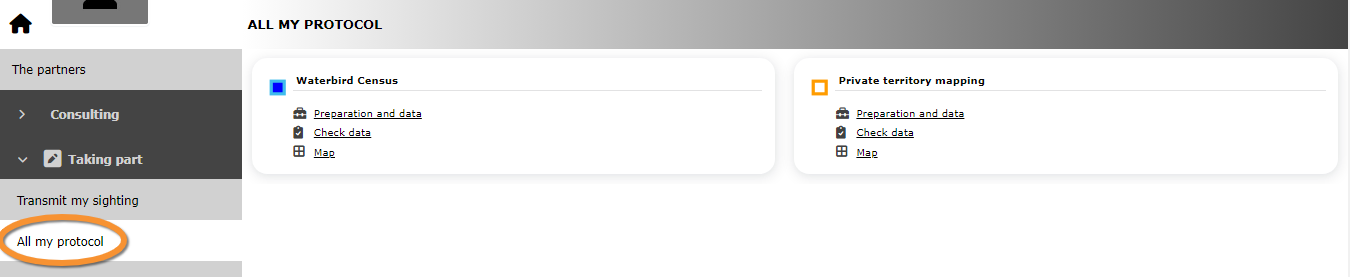


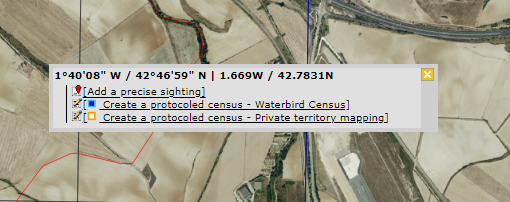
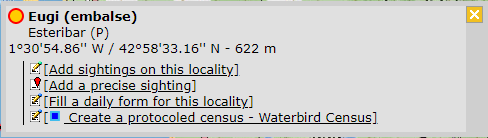


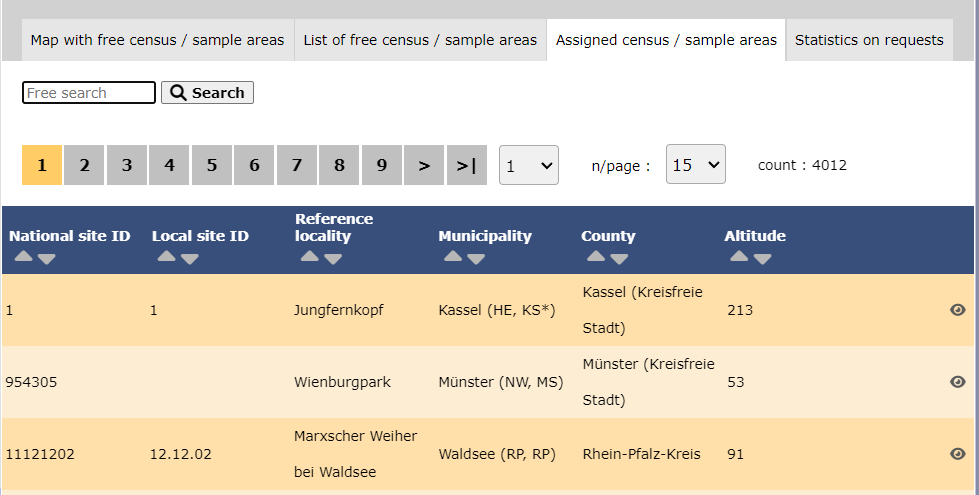


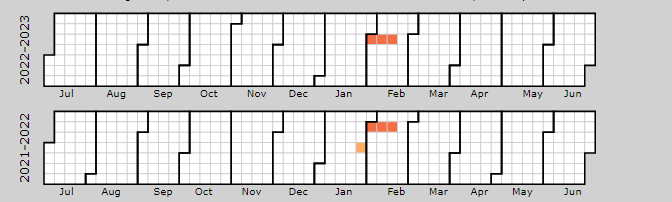
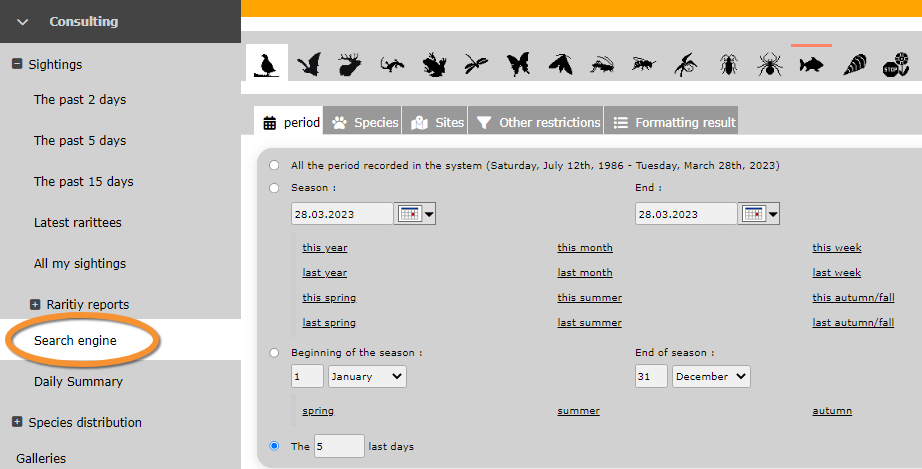


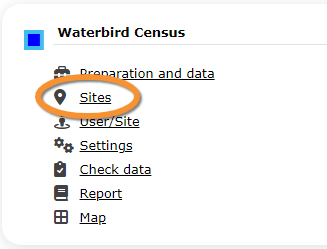


.png)