[[File:2023-05-09 WBC admin, prep and data.png|700px|thumb|center|Waterbird census protocol. Preparation and data.]]<br/>
<br/>
Identical section to the one available to registered users with rights to the Waterbird Census Protocol. It allows printing maps and entering observations. See wiki section Web interface > Protocols > Waterbird protocol > [[Protocols_web#WBC_Preparation_and_data|Preparation and data]] for more information. <br/>
List of all existing sites allowing a Waterbird census. <br/>
<br/>
Visit wiki section Web interface > Protocols > [[Protocol_management#Sites|Sites]] for more information.<br/>
<br/>
==WATERBIRD User/Site==
<br/>
[[File:WBC User Site.png|700px|thumb|center|Waterbird census. User/Site]]<br/>
<br/>
From the Waterbird census menu, select '''User / Site''' to assign users to study sites. <br/>
<br/>
===WATERBIRD Access to sites===
List of observers allowed to conduct Waterbird census protocols and the site/s they are assigned to. Use arrows on columns to alternate between ascending and descending order (see [[Media:2023-03-27 example arrows.png|image as an example]]).<br/>
<br/>
[[File:WBC Access to sites.png|700px|thumb|center|Waterbird census protocol. Access to sites.]]
<p style="margin-left:180px">
'''User name:''' Name and email address of observer.<br/>
'''Reference name:''' Name of the Waterbird census site.<br/>
</p>
<br/>
:'''1. Search''' <br/>
Reduce list by typing the name of a user, reference name site or part of it, and click '''SEARCH'''.
When a filter is applied and you want to desactivate it, click on [[Media:2023-03-17 Diplay full list.png|'''DISPLAY ALL''']].<br />
:'''2. Search''' <br/>
Select page number and/or number of items per page. <br/>
:'''3. Details''' <br/>
See details of observers and their assigned site.<br/>
<br/>
[[File:2023-03-17 WBC User-site details.png|700px|thumb|center|Waterbird census protocol. User/site Details.]]
<p style="margin-left:180px">
'''User name:''' Observer name and email address.<br/>
'''Reference name:''' Name of site the observer has right to survey for the Waterbird census protocol. <br/>
'''Custom name:''' Additional name under which the site is also known.<br/>
'''8. BACK:''' Go back to main list.<br/>
'''9. EDIT:''' See Edit subsection below.<br/>
'''10. DELETE:''' Revoque observer's right to survey this site for the Waterbird census protocol. <br/>
</p>
<br/>
:'''4. Edit''' <br/>
Modify the user assigned to this site, or the site assigned to this user. <br/>
<br/>
[[File:WBC User Site edit (1).png|center|thumb|700x700px|Waterbird census protocol. Editing User/site.]]
<p style="margin-left:220px;margin-right:180px">
'''11.''' Modify observer assigned to this site. Start typing the name of the new observer (a) and choose from the expandable panel (b).<br/>
'''12.''' Modify site assigned to the observer. Start typing the name of the new site (a) and choose from the expandable panel (b).<br/>
'''13. BACK:''' Go to previous screen without saving changes.<br/>
'''14. MODIFY:''' Save changes. </p><br/>
:'''5. Delete''' <br/>
Revoque the user's right to survey this site for the Waterbird census protocol. <br/>
:'''6. EXPORT''' <br/>
Export list as a .txt file. <br/>
:'''7. + NEW''' <br/>
Grant rights to observer to conduct Waterbird census on dessignated sites.<br/>
<br/>
[[File:Capture 2023-03-22 .png|700px|thumb|center|Waterbird census protocol. Adding new user to site.]]
<p style="margin-left:220px;margin-right:180px">
'''11.''' Select observer to grant access to a certain site. Start typing the name of the new observer (a) and choose from the expandable panel (b).<br/>
'''12.''' Select site to be assigned to the observer. Start typing the name of the new site (a) and choose from the expandable panel (b).<br/>
'''13. BACK:''' Go to preious screen without saving changes.<br/>
'''15. ADD:''' Save new addition. </p><br/>
<br/>
===WATERBIRD Administration users rights===
List of users and administrators with acces to the Waterbird census protocol. Use arrows on columns to alternate between ascending and descending order (see [[Media:2023-03-27 example arrows.png|image as an example]]). <br/>
<br/>
[[File:2023-03-20 Administration user's rights protocols.png|700px|thumb|center|Users and administrators of Waterbird census protocol.]]<br/>
<br/>
:'''1. Search''' <br/>
Reduce list by typing the name of a user, of a right or part of it, and click '''SEARCH'''.
When a filter is applied and you want to deactivate it, click on [[Media:2023-03-17 Diplay full list.png|'''DISPLAY ALL''']].<br />
:'''2. Search''' <br/>
Select page number and/or number of items per page. <br/>
:'''3. Details''' <br/>
See the rights granted to the selected observer. <br/>
<br/>
[[File:2023-03-21 Sites-users, users rights, details.png|700px|thumb|center|Waterbird census protocol. Rights details.]]
<p style="margin-left:220px">
'''Number:''' File number.<br/>
'''User name:''' Name of the user receiving the right. <br/>
'''Right granted:''' Right the selected user is granted.<br/>
'''8. BACK:''' Go back to main list.<br/>
'''9. EDIT:''' See Edit subsection below.<br/>
'''10. DELETE:''' Revoque observer's right to survey this site for the Waterbird census protocol. <br/>
</p>
<br/>
:'''4. Edit''' <br/>
Modify the rights granted to an observer.<br/>
<br/>
[[File:2023-03-21 user rights edit.png|700px|thumb|center|Waterbird census protocol. Editing rights.]]
<p style="margin-left:220px;margin-right:220px">
'''11.''' Modify observer assigned to this site. Start typing the name of the new observer (a) and choose from the expandable panel (b).<br/>
'''12.''' Modify site assigned to the observer. Start typing the name of the new site (a) and choose from the expandable panel (b).<br/>
'''13. BACK:''' Go to previous screen without saving changes.<br/>
'''14. MODIFY:''' Save changes. </p><br/>
<br/>
:'''5. Delete''' <br/>
Revoque the user's right to survey this site for the Waterbird census protocol. <br/>
:'''6. + NEW'''<br/>
Add a new right to an observer. <br/>
<br/>
[[File:2023-03-21 user-sites new right.png|700px|thumb|center|Waterbird census protocol. Adding new right.]]
<p style="margin-left:220px;margin-right:220px">
'''11.''' Select observer to grant access to a certain site. Start typing the name of the new observer (a) and choose from the expandable panel (b).<br/>
'''12.''' Select site to be assigned to the observer. Start typing the name of the new site (a) and choose from the expandable panel (b).<br/>
'''13. BACK:''' Go to preious screen without saving changes.<br/>
'''15. ADD:''' Save new addition. </p><br/>
<br/>
:'''7. Protocol administrators'''<br/>
List of administrators of Waterbird census protocol and their email addresses.<br/>
List of species designated as part of a basic or an extended list. If no species are designated as part of any list, the section appears empty but users are still asked to indicate which list they are using. Use arrows under titles to alternate between ascending and descending order (see [[Media:2023-03-27 example arrows.png|image as an example]]).<br/>
<br/>
[[File:2023-03-26 WBC lists.png|700px|thumb|center|Waterbird census protocol. Species list.]]
<p style="margin-left:210px">
'''Species:''' list of species to survey.<br/>
'''Extended species list?:''' species belonging to an extended species.<br/>
'''Order:''' order of appearance.<br/></p>
<p style="margin-left:210px">
<i> See [[Protocols#Ending_the_list| Ending the list]] to know the difference between a basic, an extended and a complete list.</i></p><br/>
<br/>
:'''1. Search''' <br/>Reduce list by typing the name of a specie or part of it, and click '''SEARCH'''. When a filter is applied and you want to deactivate it, click on [[Media:2023-03-17 Diplay full list.png|'''DISPLAY ALL''']].
<br/>
:'''2. Search''' <br/>
Select page number and/or number of items per page. <br/>
:'''3. Details''' <br/>
See name of species, their assigned order in the lis and to which type of list they belong.<br/>
<br/>
[[File:2023-03-26 WBC lists details.png|700px|thumb|center|Waterbird census protocol. Details of Species list.]]
<p style="margin-left:210px">
<p style="margin-left:210px">
'''Species:''' list of species to survey.<br/>
'''Extended species list?:''' species belonging to an extended species.<br/>
<i> See [[Protocols#Ending_the_list| Ending the list]] to know the difference between a basic, an extended and a complete list.</i><br/>
'''Order:''' order of appearance.<br/>
'''7. BACK:''' Go to previous screen.<br/>
'''4. EDIT:''' See edit subsection below. <br/>
'''5. DELETE:''' Delete species from the list. <br/>
</p><br/>
:'''4. Edit'''<br/>
Modify details for the selected species.<br/>
<br/>
[[File:2023-03-26 WBC edit species list.png|700px|thumb|center|Waterbird census protocol. Editing species lists.]]
<p style="margin-left:210px">
'''8. Species:''' Modify, if necessary, the name of the species (10a) and select from the expandable menu (10b).<br/>
'''9. Extended species list?:''' Choose if the species will be part of an extended list (YES) or a basic list (NO).<br/>
'''10. Order:''' Type the order in which the selected species will appear in the list.<br/>
'''7. BACK:''' Go back to previous screen without saving.<br/>
'''11. MODIFY:''' Save changes.<br/></p>
<br/>
:'''5. Delete'''<br/>
Delete the species from the list.<br/>
<br/>
:'''6. NEW'''<br/>
Add a new species to the list.<br/>
<br/>
[[File:2023-03-26 WBC add new species.png|700px|thumb|center|Waterbird census protocol. Adding a new species to the list.]]
<p style="margin-left:210px">
'''8. Species:''' Start typing the name, or part of the name, of the species (10a) and select from the expandable menu (10b).<br/>
'''9. Extended species list?:''' Choose if the species will be part of an extended list (YES) or a basic list (NO).<br/>
'''10. Order:''' Type the order in which the selected species will appear in the list.<br/>
'''7. BACK:''' Go back to previous screen without saving.<br/>
'''12. ADD:''' Add the list species to the list.<br/></p>
Even when no species are dessignated as a basic or an extended list (this section remains empty), users are still asked to indicate which list they follow. <br/>
We recommend to define these lists to avoid confusion and misunderstandings among users.
</ul></p>
</td></tr></table>
</center>
<br/>
<br/>
===WATERBIRD Parameters describing the protocol===
List of all parameters describing the protocol and their current status. Use arrows under titles to alternate between ascending and descending order (see [[Media:2023-03-27 example arrows.png|image as an example]]).<br/>
<br/>
[[File:Waterbird census. Settings.png|700px|thumb|center|Waterbird census protocol. Settings.]] <br/>
<br/>
:'''1. Search''' <br/>
Select page number and/or number of items per page. <br/>
<br/>
:'''2. Active?''' <br/>
Indicates if the user will be asked to provide information about the corresponding parameter. <br/>
<br/>
:'''3. Mandatory?''' <br/>
Indicates if it will be mandatory to provide information regarding this parameter. <br/>
<br/>
:'''4. Order''' <br/>
Order in which the different parameters will appear at the beginning of the protocol. <br/>
<br/>
:'''5. Details''' <br/>
See details associated to the selected parameter. <br/>
<br/>
[[File:2023-03-22 WBC settings details.png|700px|thumb|center|Waterbird census protocol. Parameters display.]]
<p style="margin-left:220px">
<b>BACK:</b> Go to previous screen.<br/>
<b>EDIT:</b> Edit. See corresponding sub-section below.<br/>
</p><br/>
:'''6. Edit'''<br/>
Modify settings for the selected parameter. <br/>
<br/>
[[File:2023-03-22 WBC Settings edit.png|700px|thumb|center|Waterbirds census protocol. Editing parameter settings.]]
<p style="margin-left:220px">
'''8.''' Select if the user will be asked to provide information about the corresponding parameter.<br/>
'''9.''' Select if it will be manatory to provide information regarding this parameter.<br/>
'''10.''' Type the order in which the parameter will appear at the beginning of the protocol. <br/>
'''BACK:''' Go ack to the previous screen without saving changes.<br/>
'''MODIFY:''' Save changes to the parameter.<br/>
</p><br/>
:'''7. Parameters'''<br/>
List of all possible parameters in Waterbird census protocols.<br/>
<br/>
:::'''Comment''' <br />
::Allows user to enter a comment if necessary. <br />
<br />
:::'''Important changes''' <br />
::Allows indicating if there have been major changes since last visit.<br/>
<br />
:::'''Additional observer''' <br />
::Space to indicate if the observer has been accompanied by someone whose observations were also recorded.<br />
<br />
:::'''Ice''' <br/>
::Indicates the percentage of water surface that is frozen. Options are:<br/>
:::: no ice <br/>
:::: 0 - 10 % <br/>
:::: 10 - 50 % <br/>
:::: 50 - 90 % <br/>
:::: 90 - 100 % <br/>
:::: 100 % <br/>
:::: Unknown
<br/>
:::'''Snow coverage''' <br/>
::Indicates the proportion of snow cover. Options are:<br/>
:::: no snow <br/>
:::: partly covered <br/>
:::: completely covered <br/>
:::: Unknown
<br/>
:::'''Count type''' <br />
::User should choose one the options:<br/>
:::: roost count <br/>
:::: during day <br />
<br />
:::'''Count method''' <br />
::The user indicates how they conducted the survey. Only one option is possible. Options are:<br/>
:::: at ground <br/>
:::: on airplane <br/>
:::: on ship <br/>
:::: other <br/>
:::: unknown <br />
<br />
:::'''Optical equipment''' <br />
::The user should indicate the equipment used for the survey. Only one option is possible. Options are: <br />
:::: None <br/>
:::: Telescope <br/>
:::: Binoculars <br/>
:::: Unknown <br/>
<br />
:::'''Coverage''' <br />
::Serves to indicate how much of the designated polygon is covered in the survey. The user chooses between:<br/>
:::: Partly <br/>
:::: Complete <br/>
:::: Unknown <br/>
<br />
:::'''Water level''' <br />
::Indicates the water level. Options are:<br />
:::: Dry / Empty <br/>
:::: Low <br/>
:::: Normal <br/>
:::: High <br/>
:::: Unknown <br/>
<br />
:::'''Visibility''' <br />
::Approximate distance within which it is possible to identify species. Options are:<br />
:::: 0-100 m <br/>
:::: 100-300 m <br/>
:::: 300-1000 m <br/>
:::: ≥ 1000 m <br/>
:::: Unknown <br/>
<br />
:::'''Waves''' <br />
::Provides information about the waves. Options are: <br/>
:::: None <br/>
:::: Small <br/>
:::: Moderate <br/>
:::: With crests <br/>
:::: Unknown <br/>
<br />
:::'''Conditions in general''' <br />
::The user estimates how are surveying conditions overall regarding weather and disturbances, and indicate on next section the reason if surveying <br/>
::conditions are not good. Options are:<br />
:::: Good / Normal <br/>
:::: Moderate <br/>
:::: Bad / heavely influenced <br/>
:::: Unknown <br/>
<br />
:::'''Reason(s) for moderate / bad conditions''' <br />
::If general conditions indicated above were noot good, <br/>
::clicking the yellow field the user opens an expandable menu and chooses the reason. Only one option is possible: <br />
:::: Fog <br/>
:::: Rain <br/>
:::: Wind <br/>
:::: Hunting <br/>
:::: Fishing <br/>
:::: Sport <br/>
:::: Mixed (weather) <br/>
:::: Mixed (human) <br/>
:::: Others <br/>
<br />
:::'''Count payed''' <br/>
::The user can indicate if the count is payed for or not. Only options are <br/>
:::: Yes <br/>
:::: No <br/>
<br/>
:::'''Number of persons on shore''' <br/>
::The user can type the number of persons on shore.<br/>
<br/>
:::'''Number of rowing boats''' <br/>
::The user can type the number of rowing boats.<br/>
<br/>
:::'''Number of motor boats''' <br/>
::The user can type the number of motor boats. <br/>
<br/>
:::'''Number of sailing boats''' <br/>
::The user can type the number of sailing boats. <br/>
<br/>
:::'''Number of canoes/kayaks''' <br/>
::The user can type the number of canoes/kayaks.<br/>
<br/>
:::'''Number of fishing boats''' <br/>
::The user can type the number of fishing boats. <br/>
<br/>
:::'''Number of sports divers''' <br/>
::The user can type the number of sports divers.<br/>
<br/>
:::'''Number of surfers''' <br/>
::The user can type the number of surfers.<br/>
<br/>
:::'''Additional observers'''<br />
::The user can indicate the name of other observers participating in the data collection. <br />
<br />
:::'''Important changes since last count?''' <br />
::The user can indicate if there has been any major change since their previous count, for example, some disturbance like noise or construction. <br />
<br />
:::'''Record the trace''' <br />
::By checking a cell, the user can have their track recorded. <br/>
<br/>
:::'''Hide all records from the public''' <br/>
::By checking the cell, the user hides all observations from the public. The observer an protocol administrators will always see them.<br/>
<br/>
:::'''No species were seen''' <br/>
::Allows the user to indicate if despite visiting the site and following the guidelines, there were no records. <br/>
<br/>
===WATERBIRD Parameters===
<br/>
Shows the status of the Free area tool parameter for the Waterbird census protocol:<br/>
* '''YES:''' Free area tool is active. <br/>
* '''NO:''' Free area tool is inactive. <br/>
<br/>
When active, it allows both users and administrators to see polygons that have not yet been assigned to an observer. Users can ask to be assigned to a site. See wiki section Web interace > [[Free_area_tool|Free area tool]] for details.<br/>
<br/>
[[File:2023-03-27 WBC free area tool.png|700px|thumb|center|Waterbird census protocol. Free area tool.]]<br/>
<br/>
:'''1. Details''' <br/>
<br/>
[[File:2023-03-27 Free area tool details.png|700px|thumb|center]]
<p style="margin-left:240px">
'''BACK:''' Go back to previous screen.<br/>
'''EDIT:''' Modify details. See subsection Edit below.<br/>
</p><br/>
:'''2. Edit''' <br/>
<br/>
[[File:2023-03-27 WBC edit free area tool.png|700px|thumb|center|Waterbird census protocol. Editing free area tool.]]<br/>
<br/>
Change status if necessary and click: <br/>
* '''BACK''' to go to previous screen without saving changes, or<br/>
From the Waterbird census menu, select '''Check data''' to visualise a summary of survey data.<br/>
<br/>
[[File:2023-03-30 WBC check data general.png|center|thumb|700x700px|Waterbird census protocol. Check data.]]<br/>
<br/>
:'''1. Graphs''' <br/>
Scroll down to see all graphs: <br/>
<br/>
:::'''Number of census''': number of census per year from 2012 to present.<br/>
:::'''Census duration''': total number of hours of survey per year, from 2010 to present. <br/>
:::'''Average census time''': average number of minutes per survey. <br/>
<br/>
:'''2. Site / Observer''' <br/>
Select a site and/or an observer from the expandable menu. Type the name, or part of it, if nedeed to reduce the list of options. If only a site is observed, you will see surveys from all observers; if only an observer is selected, you will see all sites the observer has access to. See image below as an example of its results. <br/>
<br/>
[[File:2023-03-30 WBC check data site-observer.png|700px|thumb|center|Waterbird census protocol. Check data by selecting site and/or observer.]] <br/>
<br/>
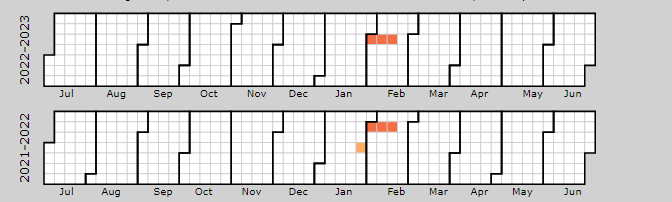
Place pointer on any coloured square to display date of survey and number of species recorded. Click on any date to display a [[Media:Capture 2023-03-30 WBC display sp.png|list of species recorded]] on a new window. <br/>
<br/>
:'''3. Period / Site''' <br/>
Select a count period and a region from the expandable menu to see surveys at the selected period and site. See image [[Media:2023-03-30 WBC check data site-observer.png|Waterbird census protocol. Check data by selecting site and/or observer]] as an example of results. <br/>
<br/>
:'''4. Sites without data''' <br/>
Select a count period and a region from the expandable menu. A list will show all sites without data for the selected period and observers assigned to each of the listed sites. Click on any observer's name to access their personal card. Check the '''e-mail''' cell (image below, A) to send a message to the observer/s at the site; or check '''check all''' on top (image below, B) to send a general message to all observers at all sites. <br/>
<br/>
[[File:2023-03-30 WBC send mail empty census.png|700px|thumb|center|Waterbird census protocol. E-mail observers of empty census.]]<br/>
A message template is shown below the list, along with the email addresses receiving this message (see image below). Change recepients y selecting a new study site from the list above. Send it as it is or type a message on the designated area to personilse it. When done, click '''SEND THE REQUESTS''' to send the message. <br/>
<br/>
[[File:2023-03-30 WBC emails.png|700px|thumb|center|Waterbird census protocol. Sending emails about empty sites.]]
From the Waterbird census menu, select '''Report''' to visualise pooled results from surveys.<br/>
<br/>
[[File:2023-03-27 WBC report, filters.png|700px|thumb|center|Waterbird census protocol. Filtering results.]]<br/>
<br/>
:'''1. Filter dates''' <br/>
Select the starting and ending date using the expandable calendar on the right.<br/>
<br/>
:'''2. Temporal aggregation''' <br/>
Select aggregating criteria from the expandable menu on the right. Options are: <br/>
::: '''Day:''' Shows results per day. This is the default option. <br/>
::: '''Pentad:''' Shows results in groups of five days. <br/>
::: '''Week:''' Shows results per week. <br/>
::: '''Decade:''' Shows results in groups of ten days. <br/>
::: '''Month:''' Shows results per month.<br/>
::: '''Year:''' Shows results per year.<br>
<br/>
:'''3. Spatial aggregation''' <br/>
::: Select spatial aggregating criteria from the expandable menu on the right. Options are:
:::::: '''Country:''' Results are grouped per area covered by the local portal. If the portal only covers part of the country, only this part is considered; if the local portal covers the whole country, all the country is considered.
:::::: '''Kanton:''' Kantons are country-specific administrative defined areas. Their official name differs from country to country: Kreis, province, commarca, county, and so on.
:::::: '''Municipality:''' Municipality, like kanton, is an area administratively defined and country specific.
:::::: '''Supersite:''' A supersite is a place that includes many other localities, and can only be used if it was previously created.
:::::: '''Place:''' A place is a group of Localities (see below) linked toghether within the protocol. It is either represented on the map by a yellow dot or hidden. For example, in STOC EPS census, one may have different point counts in a square. Each of the points represents a Locality, but the square with all the points is a Place. Do the search accordingly. Note sometimes Place and Locality are the same. For example, in the Common breeding bird survey, a Locality represents a transect, and there is only one transect per square.
::::::
:::::: '''Locality:''' A Locality is the exact location a survey takes place. It may represent a point, a transect or a polygon, depending on the study, and it is represented on the map as a dot. <br />
<br/>
:'''4. Visualisation''' <br/>
::: '''SHOW: '''See results on screen, or <br/>
::: '''EXPORT: '''Download results on an excel file.<br/>
<br/>
[[File:2023-04-03 WBC report results.png|700px|thumb|center|Waterbird census protocol. Report results.]]
<p style="margin-left:220px; margin-right:220px">
'''2. Temporal aggregation:''' Results aggregated by time. In this example, per week. Weeks with no data, remain empty. Use the horizontal bar at the bottom to scroll through all results. <br/>
'''3. Spatial aggregation:''' Results aggregated by place. In this example, by locality. All study sites at the selected locality appear separately. Use the vertical bar on the right to scroll through all results. <br/>
'''5. List of species:''' List of species registered at each site. <br/>
</p><br/>
==WATERBIRD Map==
<br/>
[[File:2023-03-30 WBC Map main menu.png|700px|thumb|center|Waterbird census. Map.]]<br/>
<br/>
Select the site and see details as explained in wiki section Web interface > Protocols > Waterbird census protocol > [[Protocols_web#Map|Map]].<br/>
<br/>
Functions in section 4 are different from those of non-administrators. <br/>
<br/>
[[File:2023-05-17 WBC Map links.png|700px|thumb|center|Waterbird census protocol. Links for administrators.]]<br/>
<br/>
:'''Links for the polygon''' <br/>
Place the pointer on icons to see the meaning of each of them.<br/>
<br/>
::: '''Add observations:''' Add further observations to this site or any other as described in wiki section Web interface > Protocols > Preparation and data > [[Protocols_web#Add_observations|Add observations]].<br/>
<br/>
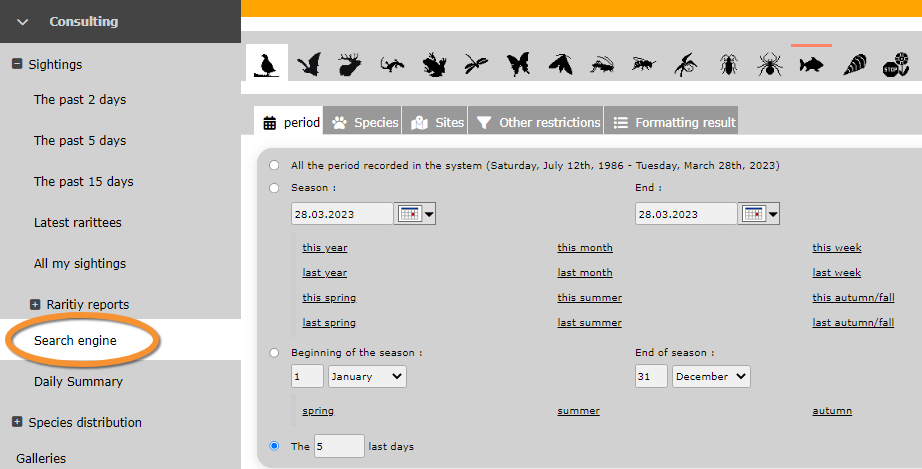
::: '''All site data:''' See all records associated to the site. From this screen (see image below) you can access other data as in the [[Media:Search engine example.png|Search engine tool]].<br/>
<br/>
[[File:2023-03-29 WBC map add observations.png|700px|thumb|center|Waterbird census protocol. Adding observations to a polygon.]]<br/>
<br/>
::: '''List of records to be checked:''' See all records associated to the site needing verification. <br/>
<br/>
:'''Links for the square''' <br/>
Place the pointer on icons to see the meaning of each of them.<br/>
<br/>
::: '''Modify the protocol:''' Modify the protocol as described in wiki section Web > Protocols > Preparation and data > [[/Protocols_web#Modify_the_protocol|Modify the protocol]].<br/> <br/>
<br/>
:::'''All site data:''' See all records associated to the site. From this screen (see image [[Media:2023-03-29 WBC map add observations.png|Waterbird census protocol. Adding observations to a polygon]]) you can access other data as in the [[Media:Search engine example.png|Search engine tool]].<br/>
<br/>
:::'''List of records to be checked:''' See all records associated to the site needing verification. <br/>
<br/>
:::'''Data visualisation:''' See all protocols associated to this site as in Web interface > Protocols > Waterbird protocol [[Protocols_web#Browse_observations| Browse observations]]. <br/>
<br/>
:::'''Results:''' See results as described in wiki section Web interface > Protocols > Preparation and data > [[Protocols_web#Results|Results]]'''. <br/>
<br/>
[[#top|[Top to Protocols]]]<br/>
[[Protocol_management#Waterbird_census|[Top to Waterbird census]]]<br/>
<br/>
=Private territory mapping=
OTHER_MAPPING
<br/>
<br/>
Private territory mapping records breeding birds within a pre-determined polygon. Data can only be entered through NaturaList. <br/>
[[File:2023-05-22 PTM Preparation and data.png|700px|thumb|center|Private territory mapping. Preparation anda data.]]<br/>
<br/>
Identical section to the one available to registered users with rights to the Private territory mapping. See wiki section Web interface > Protocols > Private territory mapping > [[Protocols_web#PTM_Preparation_and_data|Preparation and data]] for more information. <br/>
Set protocol parameters. Parameters and protocol dependent, see section [[ ]] below for parameters refering to Private territory mapping.<br/>
<br/>
Visit wiki section Web interface > Protocols > [[Protocol_management#Settings|Settings]] for general information. <br/>
<br/>
===OTHER MAPPING Species list===
<br/>
Create a list of species to survey. This protocol only accepts a list.<br/>
<br/>
Visit wiki section Web interface > Protocols > Settings > [[Protocol_management#Species_list|Species list]] on how to do it.<br/>
<br/>
===OTHER MAPPING Parameters describing the protocol===
<br/>
List of all parameters describing the protocol and their current status. Private territory mapping does not have any specific parameters; a surveyor will only be asked: <br/>
*'''Comments''': Users may enter comment.<br/>
*'''Record the trace''': Users can choose to record the trace. See wiki section Mobile interface > Protocols > Enter data > Start of list > record the trace for more information.<br/>
*'''Hide all records from the public''': Users may keep observations private. <br/>
<br/>
===OTHER MAPPING Parameters===
<br/>
Shows the status of the Free area tool parameter for the Private territory mapping protocol.<br/>
<br/>
Visit wiki section Web interface > Protocols > Settings > [[Protocol_management#Parameters|Parameters]] to learn more about protocol parameters.<br/>
[[File:PC admin prep and data.png|700px|thumb|center|Point count. Preparation and data.]]<br/>
<br/>
Identical section to the one available to registered users with rights to the Point count. See wiki section Web interface > Protocols > Point count > [[Protocols_web#PC_Preparation_and_data|Preparation and data]] for more information. <br/>
Set protocol parameters. Parameters and protocol dependent, see section [[ ]] below for parameters refering to Private territory mapping.<br/>
<br/>
Visit wiki section Web interface > Protocols > [[Protocol_management#Settings|Settings]] for general information. <br/>
<br/>
===POINT COUNT Species list===
<br/>
Create a list of species to survey. This protocol only accepts a list.<br/>
<br/>
Visit wiki section Web interface > Protocols > Settings > [[Protocol_management#Species_list|Species list]] on how to do it.<br/>
<br/>
===POINT COUNT Parameters describing the protocol===
<br/>
List of all parameters describing the protocol and their current status. Private territory mapping does not have any specific parameters; a surveyor will only be asked: <br/>
*'''Comments''': Users may enter comment.<br/>
*'''Record the trace''': Users can choose to record the trace. See wiki section Mobile interface > Protocols > Enter data > Start of list > record the trace for more information.<br/>
*'''Hide all records from the public''': Users may keep observations private. <br/>
<br/>
===POINT COUNT Parameters===
<br/>
Shows the status of the Free area tool parameter for the Private territory mapping protocol.<br/>
<br/>
Visit wiki section Web interface > Protocols > Settings > [[Protocol_management#Parameters|Parameters]] to learn more about protocol parameters.<br/>
[[File:2023-10-05 admin PP, prep + data.png|700px|thumb|center|Ptarmigans Protocol. Preparation and data.]]<br/>
<br/>
Identical section to the one available to registered users with rights to the Waterbird Census Protocol. It allows printing maps and entering observations. See wiki section Web interface > Protocols > Rock Ptarmigans protocol > [[Protocols_web#Preparation_and_data|Preparation and data]] for more information. <br/>
[[File:2023-10-09 BGP Preparation and data.png|700px|thumb|center|Black Grouse Protocol. Preparation and data.]]<br/>
<br/>
Identical section to the one available to registered users with rights to the Waterbird Census Protocol. It allows printing maps and entering observations. See wiki section Web interface > Protocols > Black Grouse protocol > [[Protocols_web#Preparation_and_data|Preparation and data]] for more information. <br/>
[[File:2023-10-09 WC Prep and data.png|700px|thumb|center|Woodcock monitoring. Preparation and data.]] <br/>
<br/>
Identical section to the one available to registered users with rights to the Waterbird Census Protocol. It allows printing maps and entering observations. See wiki section Web interface > Protocols > Woodcock monitoring > [[Protocols_web#Preparation_and_data|Preparation and data]] for more information. <br/>
To access the adminstration of a protocol you need the Protocol administrator right. Only an Admin of the Local portal can provide you such access, under certain conditions.
There are two ways to access administration of protocols:
From Main menu > Administration
If you are an administrator, go to the administration section on the left hand column (see image Administration), and scroll down to Protocol administration. Open panel and select Protocol administration (see image Protocol administration).
Administration.
Protocol administration.
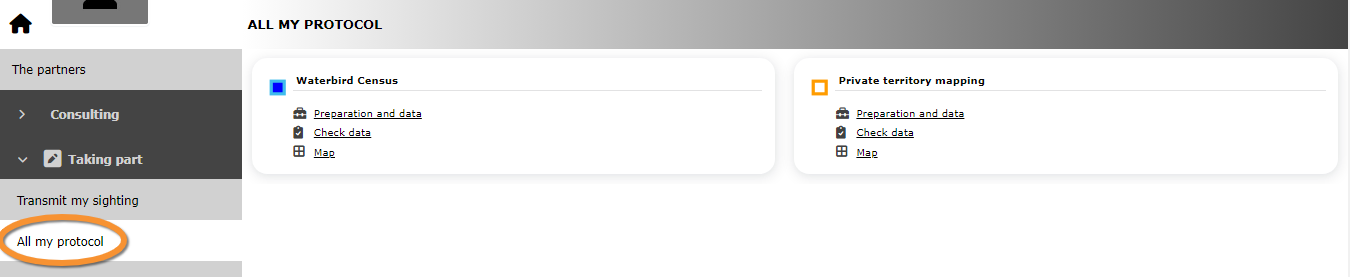
From Main menu > Taking part > All my protocol
Go to Main menu > Taking part > All my protocols. You will see all protocols you have access to, either as an administrator or otherwise. Users with no administration rights can also can also follow this path to access protocols but they are no given all options within a protocol.
Create protocol:
- Through Protocol panel > Sites > +NEW.
- Through Submitting records. See wiki section Web interface > Protocols > Accessing protocols >Create protocol for details.
Preparation and data
Protocols. Preparation and data.
Identical section to the one of Waterbird Census Protocol, we took as an example, available to registered users with rights. It allows printing maps and entering observations. See wiki section Web interface > Protocols > 'Protocol name' > Preparation and data for more information.
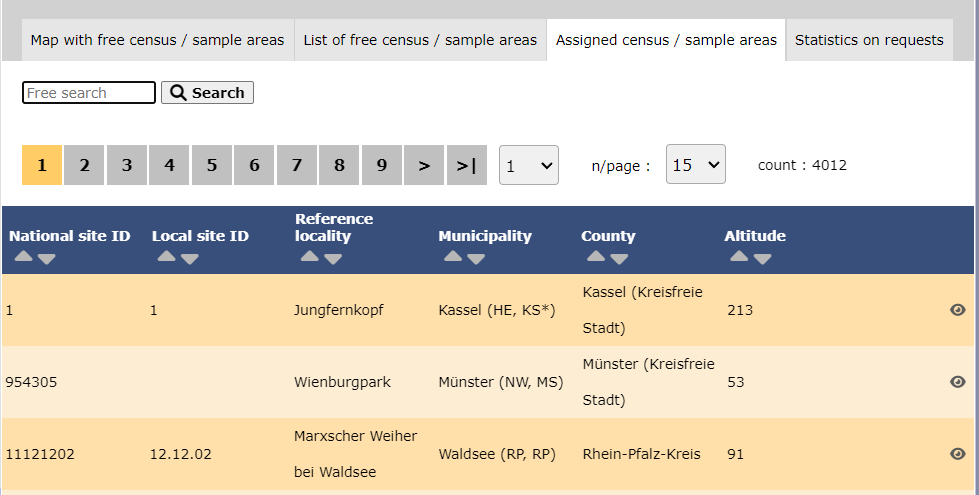
List of all existing sites allowing a protocoled data entry (here as an example, the Waterbird census). Use arrows under titles to alternate between ascending and descending order (see image as an example).
Protocols. Existing sites.
Reference name: Official name given to the study site. This is given by an administrator or user with special rights. Custom name: A different name under which the same place may be also known, or a name easier for the user. This can be set by the user allowed for that site himself. Reference locality: Name of the location all observations from the protocol will be associated to. Municipality: Municipality the locality belongs to. Altitude: Altitude associated to the locality.
1. Search
Reduce list by typing the name of a site, Locality, Municipality , or part of it, and click SEARCH.
When a filter is applied and you want to desactivate it, click on
DISPLAY ALL.
2. Search
Select page number and/or number of items per page.
3. Details
Click to see details of selected site.
4. Edit
Click to edit details of selected site.
5. New site
Create a new site.
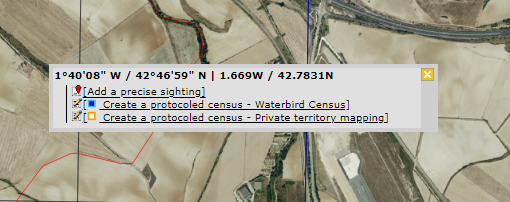
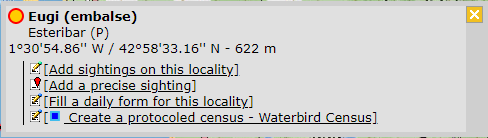
1. Click + NEW under the list. Select the site as if entering an observation (see wiki section Web interface > Submitting records if necessary) and choose the new option: Create a protocoled census - 'Name of the Protocol' (here Waterbird census, see image below).
Creating a new site for Waterbird census protocol.
2. Enter a name for the new site.
Naming a new Waterbird census site.
Name of reference locality: Location under which all observations of the protocol will be associated to. It is created by the administrator when creating a new protocol site and cannot be changed afterwards. Reference name: Type a name for the new site. It can be a real name or a code, and consist on letters, numbers or a combination of both. Custom name: Type an additional name to the site if known. This name can be changed afterwards by the end user allocated to that site.
3. Either:
Draw polygon, transect or point as explained in wiki section Web interface > Geometry editor or,
Import shapefile:
Importing a polygon shapefile.
1. Choose datum and 2. upload the file. 3. When done, click IMPORT.
After a new polygon, transect or point is created, it is possible to export it as a shapefile to use in the future or modify. Click on the file icon under the Polygon (Point, Line or Bounding box) section (see image below, encircled). If necessary, modify it and IMPORT as explained above.
Saving the shapefile of a newly created site.
4. When the new site is ready you have three options:
SAVE AND STAY to save the site and continue making changes, or
SAVE AND ADD A RECORD to save and start entering observations or
DELETE SITE if needed. Note: That option is only available as long no data are linked to that site.
The new site is now created and saved (indicated at the top of the page). You have now the option to delete the newly created site if necessary (see image Deleting a newly created site). Otherwise, go anywhere in the page or start the whole process to create other sites without loosing the new one.
User/Site
Protocols. User/Site.
From the "Name of the protocol (for example Waterbird Census Protocol)" menu, select User / Site to assign users to study sites.
Access to sites
List of observers allowed to conduct "Name of the protocol (for example Waterbird Census Protocol)" and the site/s they are assigned to. Use arrows on columns to alternate between ascending and descending order (see image as an example).
Protocols. Access to sites.
User name: Name, email address and user number of observer. Reference name: Reference name of the "Name of the protocol (here Waterbird Census Protocol)" site (local official one).
1. Search
Reduce list by typing the name of a site, user, or part of it, and click SEARCH.
When a filter is applied and you want to deactivate it, click on DISPLAY ALL to see the full list.
2. Page and items
Select page number and/or number of items per page. Count indicate the total of items found for the search.
Detail for choosing page, item/page
3. Details
See details of observers and their assigned site.
Protocols. User/site Details.
User name: Observer name, email address and local site user number. Reference name: Name of site the observer has right to survey for the "Name of the protocol (here Waterbird Census Protocol)" . Custom name: Additional name under which the site is also known. 8. BACK: Go back to main list. 4. EDIT: See Edit subsection below. 5. DELETE: Revoque observer's right to survey this site for the "Name of the protocol (here Waterbird Census Protocol)" .
4. Edit
Modify the user assigned to this site, or the site assigned to this user.
Protocols. Editing User/site.
10. Modify observer assigned to this site. Start typing the name of the new observer (a) and choose from the expandable panel (b). 11. Modify site assigned to the observer. Start typing the name of the new site (a) and choose from the expandable panel (b). 8. BACK: Go to previous screen without saving changes. 9. MODIFY: Save changes.
5. Delete
Revoque the user's right to survey this site for the "Name of the protocol (here Waterbird Census Protocol)" .
6. EXPORT
Export list as a .txt file.
7. + NEW
Grant rights to observer to conduct "Name of the protocol (here Waterbird Census Protocol)" census on designated sites.
Protocols. Adding new user to site.
10. Select observer to grant access to a certain site. Start typing the name of the new observer (a) and choose from the expandable panel (b). 11. Select site to be assigned to the observer. Start typing the name of the new site (a) and choose from the expandable panel (b). 8. BACK: Go to previous screen without saving changes. 12. ADD: Save new addition.
Administration users rights
List of users and administrators with access to the "Name of the protocol (here Waterbird Census Protocol)" . Use arrows on columns to alternate between ascending and descending order (see image as an example).
Users and administrators of protocol (in this example, Waterbird census protocol).
1. Search
Reduce list by typing the name of a right, a user, or part of it, and click SEARCH.
When a filter is applied, to deactivate it, click on DISPLAY ALL.
2. Search
Select page number and/or number of items per page.
3. Details
See the rights granted to the selected observer.
Protocols. Rights details.
Number: This is for Biolovision's internal use. User name: Name, e-mail and local site user number of the user receiving the right. Right granted: Right the selected user is granted to. 8. BACK: Go back to main list. 4. EDIT: See Edit subsection below. 5. DELETE: Revoque observer's right to survey this site for the "Name of the protocol (here Waterbird Census Protocol)" .
4. Edit
Modify the rights granted to an observer.
Protocols. Editing rights.
10. Modify observer assigned to this right. Start typing the name of the new observer (a) and choose from the expandable panel (b). 11. Modify rights assigned to the observer. Start typing the name of the new right (a) and choose from the expandable panel (b). 8. BACK: Go to previous screen without saving changes. 9. MODIFY: Save changes.
5. Delete
Revoque the user's right to survey this site for the "Name of the protocol (here Waterbird Census Protocol)" .
6. + NEW
Add a new right to an observer.
Protocols. Adding new right.
10. Select observer to grant a right. Start typing the name of the new observer (a) and choose from the expandable panel (b). 11. Select right to be assigned to the observer. Start typing the name of the new right (a) and choose from the expandable panel (b). 8. BACK: Go to previous screen without saving changes. 12. ADD: Save new addition.
7. Protocol administrators
List of administrators of "Name of the protocol (here Waterbird Census Protocol)" and their email addresses.
Settings
Protocols. Settings.
Set protocol parameters.
Species list
Parametring a species list helps users to report all species of the protocol without forgetting any. It is faster for the user to enter records in the field because they only have to fill the number of individuals for mandatory species.
Please take time as an administrator to fill this section before the fieldwork season starts.
An extended list is useful if you want to add interesting but not mandatory species to a report.
List of species designated as part of a basic or an extended list. If no species are designated as part of any list, the section appears empty but users are still asked to indicate which list they are using. Use arrows under titles to alternate between ascending and descending order (see image as an example).
Protocols. Species list.
Species: list of species selected to survey. Extended species list?: species belonging to an extended species list. Order: order of appearance.
Reduce list by typing the name of a species, or part of it, and click SEARCH.
When a filter is applied, to deactivate it, click on DISPLAY ALL to see the full list.
2. Page and items
Select page number and/or number of items per page. Count indicate the total of items found for the search.
Detail for choosing page, item/page
3. Details
See name of species, their assigned order in the list and to which type of list they belong.
Protocols. Details of Species list.
Species: species selected for details display or editing. Extended species list?: Yes: species belong to extended species list / No: species belong to basic list. See Ending the list to know the difference between a basic, an extended and a complete list. Order: order of appearance. 7. BACK: Go to previous screen. 4. EDIT: See edit subsection below. 5.DELETE: Delete species from the list.
4. Edit
Modify details for the selected species.
Protocols. Editing species lists.
10. Species: Modify, if necessary, the name of the species (10a) and select from the expandable menu (10b). 11. Extended species list?: Choose if the species will be part of an extended list (YES) or a basic list (NO). 12. Order: Type the order in which the selected species will appear in the list. 13. BACK: Go back to previous screen without saving. 14. MODIFY: Save changes.
5. Delete
Delete the species from the list.
6. NEW
Add a new species to the list.
Protocols. Adding a new species to the list.
10. Species: Start typing the name, or part of the name, of the species (10a) and select from the expandable menu (10b). 11. Extended species list?: Choose if the species will be part of an extended list (YES) or a basic list (NO). 12. Order: Type the order in which the selected species will appear in the list. 13. BACK: Go back to previous screen without saving. 15. ADD: Add the list species to the list.
NOTE:
Even when no species are designated as a basic or an extended list (this section remains empty), users are still asked to indicate which list they follow.
We recommend to define these lists to avoid confusion and misunderstandings among users.
Parameters describing the protocol
List of all parameters describing the protocol and their current status.
Use arrows under titles to alternate between ascending and descending order (see image as an example).
Protocol parameters. Settings.
1. Search
Select page number and/or number of items per page.
2. Active?
Indicates if the user will be asked to provide information about the corresponding parameter. The question will appear when filling the protocol but is not blocking if the user leave it empty.
3. Mandatory?
Indicates if it will be mandatory to provide information regarding this parameter. The question will appear when filling the protocol and have to be answered before going to the next step, a warning asking to fill it appears if not answered.
4. Order
Order in which the different parameters will appear at the beginning of the protocol.
5. Details
See details associated to the selected parameter.
Waterbird census protocol. Parameters display.
BACK: Go to previous screen. EDIT: Edit. See corresponding subsection below.
6. Edit
Modify settings for the selected parameter.
Waterbirds census protocol. Editing parameter settings.
8. Select if the user will be asked to provide information about the corresponding parameter. 9. Select if it will be manatory to provide information regarding this parameter. 10. Type the order in which the parameter will appear at the beginning of the protocol. BACK: Go back to the previous screen without saving changes. MODIFY: Save changes to the parameter.
7. Parameters
Parameters are protocol dependent. Expand the table below to see all possible parameters and the protocols they appear at. Use arrows to alternate between ascending and descending order.
Please refer to each individual protocol for details on each parameter.
Parameters
Parameter name
Description
Protocol
Additional observer(s)
To indicate if the user is accompanied by someone whose observations are also recorded.
Various: Waterbird census, Woodpeckers
Cloud cover
To indicate if there are clouds.
Various: SOCC, Waterbird census
Comment
To leave a comment.
All
Conditions in general
To indicate about surveying conditions overall regarding weather and disturbances. The user may be asked to indicate on next section the reason if surveying conditions are not good.
Various: Waterbird census, Woodpeckers
Conditions (notes)
To leave a note regarding conditions.
Woodpeckers
Count method
To indicate if the survey takes place from the ground, the air, the water, a different way, or if it is unknown.
Waterbird census
Count number
To indicate from the expandable menu the visit the data corresponds to.
Various:
Count paid
To indicate if the count is paid for or not.
Waterbird census
Count type
To indicate if it is a roost count or otherwise.
Waterbird census
Counting mammals?
To indicate if besides the compulsory taxonomic group, mammals were also counted.
SOCC
Coverage
To indicate how much of the designated survey area is covered in the survey.
Various: Waterbird census, Woodpeckers
Hide all records from the public
To check if the user wants to keep their observations private.
All
Ice
To indicate the percentage of water surface that is frozen.
Waterbird census
Important changes (since last count?)
To indicate if there have been major changes since the last visit.
Various: Waterbird census, Woodpeckers
Neutralised time
SOCC
Number of canoes/kayaks
To enter number.
Waterbird census
Number of fishing boats
To enter number.
Waterbird census
Number of fishing boats
To enter number.
Waterbird census
Number of motor boats
To enter number.
Waterbird census
Number of persons on shore
To enter number.
Waterbird census
Number of rowing boats
To enter number.
Waterbird census
Number of sailing boats
To enter number.
Waterbird census
Number of sports divers
To enter number.
Waterbird census
Number of stand up paddlers
To enter number.
Waterbird census
Number of surfers
To enter number.
Waterbird census
No species were seen
To check if the user did not detect any of the study species.
Waterbird census
Optical equipment
To indicate which equipment is used for the survey. Only one option is possible.
Waterbird census
Playback
To check the species names for which playback will be played during the survey.
Woodpeckers
Rain
To indicate if there are any rain.
Various SOCC
Reason(s) for moderate / bad conditions
To choose the reason for bad surveying conditions. Only one option is possible.
Waterbird census
Record the trace
To check if the user wants to record their track.
Various: Waterbird census, Territory mapping, Point count
Snow coverage
To indicate the proportion of snow cover.
Waterbird census
Temperature
To indicate approximate temperature.
SOCC
Visibility
To indicate the approximate distance within which it is possible to identify species, or an overall description.
Various: SOCC, Waterbird census
Water level
To indicate the water level.
Waterbird census
Waves
to indicate how the waves are.
Waterbird census
Wind
To indicate if there is any wind.
SOCC
Parameters
Shows the status of the Free area tool parameter for the "Name of the protocol (here Waterbird Census Protocol)" :
When active, it allows both users and administrators to see polygons that have not yet been assigned to an observer. Users can ask to be assigned to a site. See wiki section Web interace > Free area tool for details.
Protocols. Free area tool.
1. Details
Protocols. Free area tool details.
BACK: Go back to previous screen. EDIT: Modify details. See subsection Edit below.
2. Edit
Protocols. Editing free area tool.
Change status if necessary and click:
BACK to go to previous screen without saving changes, or
MODIFY to save changes.
When the Free area tool is active, administrators have a few more options than regular users when accessing the Free area tool as a user:
List of existing shortcut groups for this protocol.
1. Search
Reduce list by typing the name of the Shortcut group, or part of it, and click SEARCH.
2. Page and items
Select page number and/or number of items per page. Count indicates the total amount of items found for the search.
Detail for choosing page, item/page
3. Details
See details for the selected group.
4. Edit
Edit selected shortcut group.
5. Delete
Delete shortcut group.
6. NEW
Create a new group.
Shortcuts
List of species for which a shortcut exists.
Shortcuts in protocol administration part
Species: Name of species. Shortcuts group: Name of the shortcuts group. Color code: Colour associated to this species. User may change it in NaturaList afterwards. Order: Order this species shortcut will appear in relation to other species shortcuts in the same group.
1. Search
Reduce list by typing the name of the group, or part of it, and click SEARCH.
2. Page and items
Select page number and/or number of items per page. Count indicates the total of items found for the search.
Detail for choosing page, item/page
3. Details
See details for the selected group.
4. Edit
Edit selected shortcut group.
5. Delete
Delete shortcut group.
6. NEW
Create a new group.
BACK: Go to previous screen without saving. ADD: Add the new species to the list.
Species: Type the name, or part of the name, of the new speies on the left hand field and select from the expandable menu on the right.
Shortcuts group: Type the name of the group, or part of it, on the righthand field, and select it from the expandable menu on the left hand field.
Color code: Select a colour to associate to this shortcut. Users may change it in NaturaList afterwards.
Order: Type a number to indicate in which position this shortcut will appear in relation to other shortcuts in the same shortcuts group.
Check data
Protocols. Check data.
Visualise a summary of survey data.
Protocols. Check data.
1. Graphs
Scroll down to see all graphs:
Number of censuses: number of censuses per year from last years to present.
Census duration: total number of hours of survey per year, from last years to present.
Average census time: average number of minutes per survey.
2. Site / Observer
Select a site and/or an observer from the expandable menu. Type the name, or part of it, if nedeed to reduce the list of options. If only a site is observed, you will see surveys from all observers; if only an observer is selected, you will see all sites the observer has access to. See image below as an example of its results.
Protocols. Check data by selecting site and/or observer.
Place pointer on any coloured square to display date of survey and number of species recorded. Click on any date to display a list of species recorded on a new window.
The color is linked to the number of species counted during the census.
White: = 0 specie
Red : =1 specie
Orange to Yellow to Green: 11 level of colors according the number of species between 1 to 20.
Select a count period and a region from the expandable menu. A list will show all sites without data for the selected period and observers assigned to each of the listed sites. Click on any observer's name to access their personal card. Check the e-mail cell (image below, A) to send a message to the observer/s at the site; or check check all on top (image below, B) to send a general message to all observers at all sites.
Protocols. E-mail observers of empty censuses.
A message template is shown below the list, along with the email addresses receiving this message (see image below). Change recepients by selecting a new study site from the list above. Send it as it is or type a message in the designated area to personalise it. When done, click SEND THE REQUESTS to send the message.
Protocols. Sending emails about empty sites.
5. Type message to personalise email. 6. Message recipients.
Report
Protocols. Report.
Visualise pooled results from surveys.
Protocols. Filtering results.
1. Filter dates
Select the starting and ending date using the expandable calendar on the right or typing directly dd.mm.yyyy in the corresponding field.
2. Temporal aggregation
Select aggregating criteria from the expandable menu on the right. Options are:
Day: Shows results per day. This is the default option.
Pentad: Shows results in groups of five days.
Week: Shows results per week.
Decade: Shows results in groups of ten days.
Month: Shows results per month.
Year: Shows results per year.
3. Spatial aggregation
Select spatial aggregating criteria from the expandable menu on the right. Options are:
Country: Results are grouped per area covered by the local portal. If the portal only covers part of the country, only this part is considered; if the local portal covers the whole country, all the country is considered.
Canton: Cantons are country-specific administrative defined areas. Their official name differs from country to country: Kreis, province, district, commarca, county, and so on.
Municipality: Municipality, like a canton, is an area administratively defined and country specific.
Supersite: A supersite is a place that includes many other localities, and can only be used if it was previously created.
Place: A place is a group of Localities (see below) linked together within the protocol. It is either represented on the map by a yellow dot or hidden. For example, in STOC EPS census, one may have different point counts in a square. Each of the points represents a Locality, but the square with all the points is a Place. Do the search accordingly. Note sometimes Place and Locality are the same. For example, in the Common breeding bird survey, a Locality represents a transect, and there is only one transect per square.
Locality: A Locality is the exact location a survey takes place. It may represent a point, a transect or a polygon, depending on the study, and it is represented on the map as a dot.
4. Visualisation
SHOW: See results on screen, or
EXPORT: Download results on an excel file.
Protocols. Report results.
2. Temporal aggregation: Show total numbers of individuals of the specie indicated under the first column (5) In this example, the aggregation is per week. Weeks with no data, remain empty. Use the horizontal bar at the bottom to scroll through all results. 3. Study site name: Results aggregated by place. In this example, by locality. All study sites at the selected locality appear separately. Use the vertical bar on the right to scroll through all results. 5. List of species: List of species registered at each site.
Map
Protocols. Map.
Display the area map by site.
Map.
It displays the statistics and information for the selected area:
1: Select area
2: Point displayed
3: pink point = areas where polygons are
4: statistics concerning the area displayed.
Select the site and see details as explained in wiki section Web interface > Protocols >"Name of the protocol "(here Waterbird census protocol) > Map.
Place the pointer on icons to see the meaning of each of them.
Add observations: Add further observations to this site or any other as described in wiki section Web interface > Protocols > Preparation and data > Add observations.
All site data: See all records associated to the site. From this screen (see image below) you can access other data as in the Search engine tool.
Protocols. Adding observations to a polygon.
List of records to be checked: See all records associated to the site needing verification.
Links for the square
Place the pointer on icons to see the meaning of each of them.
Modify the protocol: Modify the protocol as described in wiki section Web > Protocols > Preparation and data > Modify the protocol.
List of records to be checked: See all records associated to the site needing verification.
Data visualisation: See all protocols associated to this site as in Web interface > Protocols > "Name of the protocol" (here Waterbird protocol) Browse observations.
Results: See results as described in wiki section Web interface > Protocols > Preparation and data > Results.