Edit records: Difference between revisions
| Line 1: | Line 1: | ||
=Editing records= | =Editing records= | ||
<br /> | <br /> | ||
It is possible to edit records at different stages: before and after synchronisation. While entering your records, it is also possible to make minor modifications. <br/> | It is possible to edit records at different stages: before and after synchronisation. While entering your records, it is also possible to make minor modifications. <br /> | ||
<br/> | <br /> | ||
<center> | <center> | ||
| Line 16: | Line 16: | ||
<ul> | <ul> | ||
<b>To modify data while entering:</b><br /> | <b>To modify data while entering:</b><br /> | ||
* <b>Use the [[Media:Edit with back button.png|back button]]</b> to move to previous screens and re-enter the data. Note data is not yet saved and you loose it by going back. You need to enter it all again from the point of modification.<br /> | |||
* <b>Use the [[Media:With cross button.png|cross button]]</b> to cancel the current record and start again. The record is not saved so rather than modifying it, you will re-start entering the observation.<br/> | *<b>Use the [[Media:Edit with back button.png|back button]]</b> to move to previous screens and re-enter the data. Note data is not yet saved and you loose it by going back. You need to enter it all again from the point of modification.<br /> | ||
* <b>Use the [[Media:Add info in list later.png|add / substract function]]</b> to modify the number of individuals while entering a <b>list later</b>. | *<b>Use the [[Media:With cross button.png|cross button]]</b> to cancel the current record and start again. The record is not saved so rather than modifying it, you will re-start entering the observation.<br /> | ||
*<b>Use the [[Media:Add info in list later.png|add / substract function]]</b> to modify the number of individuals while entering a <b>list later</b>. | |||
</ul></p> | </ul></p> | ||
| Line 33: | Line 34: | ||
===With the List button=== | ===With the List button=== | ||
<br /> | <br /> | ||
After entering an observation, you can modify the basic information you just entered by accessing the list of species in your phone. To do so, click on the list icon from the '''Place''' screen (see image below) and click on the record to modify. <br/> | After entering an observation, you can modify the basic information you just entered by accessing the list of species in your phone. To do so, click on the list icon from the '''Place''' screen (see image below) and click on the record to modify. <br /> | ||
<br/> | <br /> | ||
[[File:Edit as entering.png|700px|thumb|center|Editing from the <b>List</b> button.]]<br /> | |||
<br /> | |||
After selecting the record to modify, you can change the number of individuals, the age and sex of those individuals, or update the atlas code (see image). You can also delete the record.<br /> | |||
<br /> | |||
[[File:Options to change record from list.png|700px|thumb|center|Editing records from the <b>List</b> button. Menu.]]<br /> | |||
<br /> | |||
:'''Change the count''' <br /> | |||
<br/> | |||
Change the number of individuals and/or the count precision or '''Start a counter'''. See [[Entering_records#Number_of_individuals| Mobile interface > Submiting records > Directly in the field > Number of individuals]] for more information. <br /> | |||
<br/> | <br /> | ||
:'''Update details''' <br /> | |||
<br/> | |||
Add/subtract or change the number of individuals for each sex and age class. See wiki section [[Entering_records#Details_(Age_and_sex)| Adding details]] for more information. <br /> | |||
<br /> | |||
<br/> | |||
:''' | :'''Atlas code''' <br /> | ||
<br/> | |||
Change atlas code if necessary. See [[Entering_records#Atlas_code| Mobile interface > Submiting records > Directly in the field > Additional information> Atlas code]] for more on atlas code.<br /> | |||
Change atlas code if necessary. See [[Entering_records#Atlas_code| Mobile interface > Submiting records > Directly in the field > Additional information> Atlas code]] for more on atlas code.<br/> | <br /> | ||
<br/> | |||
===From records <b>In the phone</b>=== | ===From records <b>In the phone</b>=== | ||
<br /> | <br /> | ||
Go to menu on the top left corner and select [[Search_observations#In_the_phone|'''In the phone''']] to access a list of all your observations in the phone (see image [[Media:In the phone.png|Browsing '''In the phone''']]). Click on any species name to open the menu for this record and select '''update this record''' (see image [[Media:Access list.png|Editing records from '''In the phone''']]). You will access the additional data screen from where to modify the data (see bottom image [[Media:Update a record.png|Updating a record '''In the phone''']]). <br/> | Go to menu on the top left corner and select [[Search_observations#In_the_phone|'''In the phone''']] to access a list of all your observations in the phone (see image [[Media:In the phone.png|Browsing '''In the phone''']]). Click on any species name to open the menu for this record and select '''update this record''' (see image [[Media:Access list.png|Editing records from '''In the phone''']]). You will access the additional data screen from where to modify the data (see bottom image [[Media:Update a record.png|Updating a record '''In the phone''']]). <br /> | ||
<br/> | <br /> | ||
[[File:Access list.png|700px|thumb|center|Editing records from '''In the phone'''.]] <br /> | |||
<br /> | |||
[[File:Update a record.png|700px|thumb|center|Updating a record '''In the phone'''.]]<br /> | |||
<br /> | |||
:'''Comments'''<br /> | |||
[[ | Add or modify a comment for this record. The comment can be public (other users will see it along with your record, unless your record is hidden) or private (only you can see it). See wiki section [[Entering_records#Comments|Mobile interface > Submitting records > Additional information > Comments]] for more information.<br /> | ||
<br/> | <br /> | ||
:'''Detail'''<br /> | |||
<br/> | |||
Enter the number of individals according to their age and sex. To see how to do it, go to wiki section [[Entering_records#Details_(Age_and_sex)| Mobile interface > Submitting records > Additional information > Details]].<br /> | |||
<br /> | |||
<br/> | |||
:''' | :'''Atlas code'''<br /> | ||
<br/> | |||
Enter the atlas code for the record. Atlas codes depend on the country and you can set it in your [[Getting_started_NaturaList#Atlas_list_code| Preferences]]. Visit wiki secition [[Entering_records#Atlas_code| Mobile interface > Submitting records > Additional information > Atlas code]] for more detailed information.<br /> | |||
Enter the atlas code for the record. Atlas codes depend on the country and you can set it in your [[Getting_started_NaturaList#Atlas_list_code| Preferences]]. Visit wiki secition [[Entering_records#Atlas_code| Mobile interface > Submitting records > Additional information > Atlas code]] for more detailed information.<br/> | <br /> | ||
<br/> | |||
:'''Hidden record''' | :'''Hidden record'''<br /> | ||
<br/> | |||
Select / unselect to indicate if your record will be visible to other users or only to you and administrators. Change your default option at [[Getting_started_NaturaList#Hide_record| Preferences]]. See wiki section [[Entering_records#Hidden_record| Mobile interface > Submitting records > Additional information > Hidden record]] for more information.<br /> | |||
<br /> | |||
<br/> | |||
:''' | :'''Picture'''<br /> | ||
<br/> | |||
Add / delete picture for this records. You can upload a picture stored in your phone or take a new picture. Visit wiki section [[Entering_records#Picture| Mobile interface > Submitting records > Additional information > Picture]] to know how to do it.<br /> | |||
<br /> | |||
<br/> | |||
:''' | :'''Map'''<br /> | ||
<br/> | |||
Change the species position as explained in wiki section [[Entering_records#Place| Mobile interface > Submitting records > Place]]. <br /> | |||
<br /> | |||
<br/> | |||
:'''Mortality/Injuries'''<br/> | :'''Species'''<br /> | ||
Indicate / modify if an individual is wounded or dead, and select its cause if known. To know how to navigate this section, go to wiki section [[Entering_records#Mortality_/_injuries| Mobile interface > Sumitting records > Additional information > Mortality / injuries]].<br/> | |||
<br/> | Change the name of the species, if necessary. Visit wiki section [[Entering_records#Species | Mobile interface > Submitting records > Species]] for more information on how ot enter a species. <br /> | ||
<br /> | |||
:'''Number of individuals'''<br /> | |||
Amend the number of individuals, the precision count o start a conter. See wiki section [[Entering_records#Number_of_individuals| Mobile interface > Submitting records > Number of individuals]] for more information. <br /> | |||
<br /> | |||
:'''Date and Time'''<br /> | |||
Modify the date the observation took place by clicking on the date button, and select a new date from the expandable calendar. If you want to enter or modify the time the observation took place, tick '''Enter time''' to open a clock from where to select the time. Go to [[Entering_records#Date_/_Time| Mobile interface > Submitting records > Later > Date/Time]] to know how to use the calendar and the clock.<br /> | |||
<br /> | |||
:'''Mortality/Injuries'''<br /> | |||
Indicate / modify if an individual is wounded or dead, and select its cause if known. To know how to navigate this section, go to wiki section [[Entering_records#Mortality_/_injuries| Mobile interface > Sumitting records > Additional information > Mortality / injuries]].<br /> | |||
<br /> | |||
===Ending edition=== | ===Ending edition=== | ||
<br/> | <br /> | ||
When data is correct, click '''Validate''' to save the new information.<br/> | When data is correct, click '''Validate''' to save the new information.<br /> | ||
<br/> | <br /> | ||
==After synchronisation== | ==After synchronisation== | ||
| Line 117: | Line 131: | ||
To synchronise records see wiki section [[Entering_records#Synchronisation|Mobile interface > Subitting records > Synchronisation]].<br /> | To synchronise records see wiki section [[Entering_records#Synchronisation|Mobile interface > Subitting records > Synchronisation]].<br /> | ||
<br /> | <br /> | ||
After synchronisation your observations are already submitted and published, and no longer editable from NaturaList. To edit (or delete) an already synchronised observation go to the local portal representing the territory the observation took place | After synchronisation your observations are already submitted and published, and no longer editable from NaturaList. To edit (or delete) an already synchronised observation go to the local portal representing the territory the observation took place, you'll find it automatically selecting the sightings you want to modify and choose "[[Search observations#Go to webpage|Go to web page]]" option, or you can find a list of local portals at [[Local_portals_and_partners | Various > Local portals]]. | ||
To log in into the local portal use the same credentials you use for NaturaList. To see how to edit records from the local portal see wiki section [[Editing_records | Web interface > Local portals > Editing records]]. When no local portal exist for the area it is impossible to edit or delete a record after synchronization. <br /> | |||
<br /> | <br /> | ||
=Editing lists= | =Editing lists= | ||
<br/> | <br /> | ||
Besides the functions already discribed in [[Edit_records#From_records_In_the_phone| Editing records before synchronisation]], it is possible to add new individuals to an existing list. <br/> | Besides the functions already discribed in [[Edit_records#From_records_In_the_phone| Editing records before synchronisation]], it is possible to add new individuals to an existing list. <br /> | ||
<br/> | <br /> | ||
==Add individuals to a list== | ==Add individuals to a list== | ||
<br/> | <br /> | ||
To add data to a finished list, go to the menu on the top left corner and select '''In the phone'''. Click randomly any record from the list you want and select '''Add a sighting to the list''' (see image below). Records belonging to a list are marked with an empty green square next to the name. See wiki section [[Codes_and_symbols| Web interface > Codes and symbbols]] to see correspondence of codes and symbols. <br/> | To add data to a finished list, go to the menu on the top left corner and select '''In the phone'''. Click randomly any record from the list you want and select '''Add a sighting to the list''' (see image below). Records belonging to a list are marked with an empty green square next to the name. See wiki section [[Codes_and_symbols| Web interface > Codes and symbbols]] to see correspondence of codes and symbols. <br /> | ||
<br/> | <br /> | ||
[[File:Add ind to list.png|700px|thumb|center|Adding individuals to a finished list.]] <br/> | [[File:Add ind to list.png|700px|thumb|center|Adding individuals to a finished list.]] <br /> | ||
<br/> | <br /> | ||
===Time=== | ===Time=== | ||
<br/> | <br /> | ||
Especify the time of the observation if necessary by unselecting '''Do not enter''' and select the new time from the expandable clock as described in [[Entering_records#Date_/_Time| Mobile interface > Submitting records > Date / Time]]. '''Save''' when done (see image).<br/> | Especify the time of the observation if necessary by unselecting '''Do not enter''' and select the new time from the expandable clock as described in [[Entering_records#Date_/_Time| Mobile interface > Submitting records > Date / Time]]. '''Save''' when done (see image).<br /> | ||
<br/> | <br /> | ||
[[File:Add ind to list, time.png|700px|thumb|center|Adding individuals to a list. Time.]] <br/> | [[File:Add ind to list, time.png|700px|thumb|center|Adding individuals to a list. Time.]] <br /> | ||
<br/> | <br /> | ||
=Deleting records= | =Deleting records= | ||
| Line 146: | Line 162: | ||
<br /> | <br /> | ||
[[File:Delete.png|700px|thumb|center|Deleting a record.]]<br/> | [[File:Delete.png|700px|thumb|center|Deleting a record.]]<br /> | ||
<br/> | <br /> | ||
<center> | <center> | ||
| Line 160: | Line 176: | ||
<p> | <p> | ||
<ul> | <ul> | ||
* Go to Menu on the top left corner. <br /> | *Go to Menu on the top left corner. <br /> | ||
* Select '''In the phone'''. <br/> | *Select '''In the phone'''. <br /> | ||
* Choose '''Delete'''. <br/> | *Choose '''Delete'''. <br /> | ||
* Confirm. <br/> | *Confirm. <br /> | ||
</ul></p> | </ul></p> | ||
Revision as of 10:35, 30 November 2022
Editing records
It is possible to edit records at different stages: before and after synchronisation. While entering your records, it is also possible to make minor modifications.
|
|


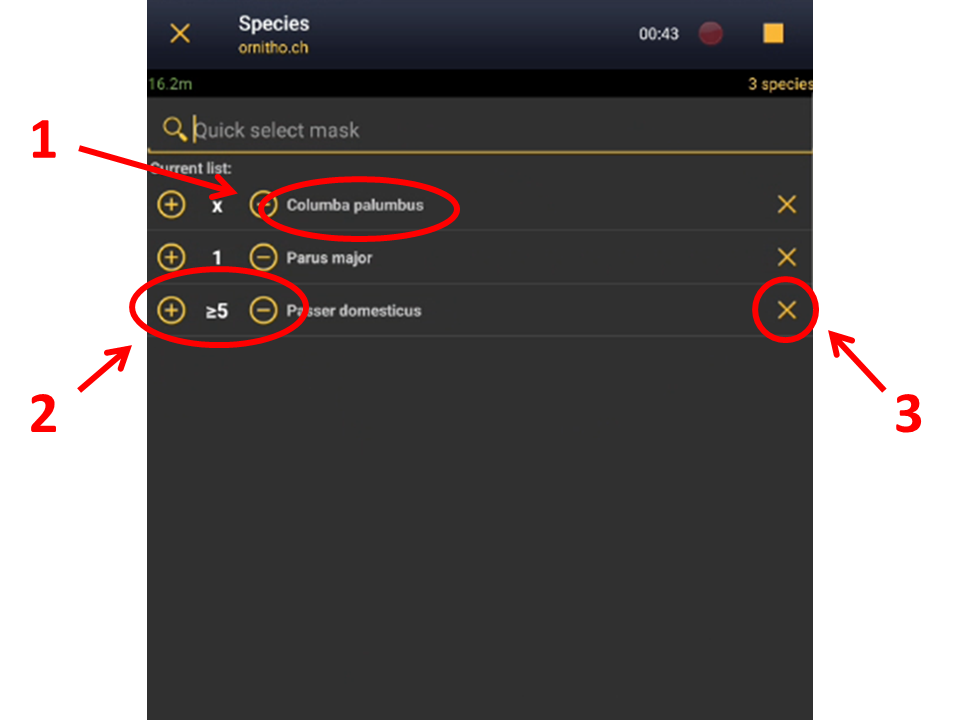
Before synchronisation
Before synchronization, your observations are solely on your mobile device and therefore can be edited from NaturaList.
With the List button
After entering an observation, you can modify the basic information you just entered by accessing the list of species in your phone. To do so, click on the list icon from the Place screen (see image below) and click on the record to modify.

After selecting the record to modify, you can change the number of individuals, the age and sex of those individuals, or update the atlas code (see image). You can also delete the record.

- Change the count
Change the number of individuals and/or the count precision or Start a counter. See Mobile interface > Submiting records > Directly in the field > Number of individuals for more information.
- Update details
Add/subtract or change the number of individuals for each sex and age class. See wiki section Adding details for more information.
- Atlas code
Change atlas code if necessary. See Mobile interface > Submiting records > Directly in the field > Additional information> Atlas code for more on atlas code.
From records In the phone
Go to menu on the top left corner and select In the phone to access a list of all your observations in the phone (see image Browsing In the phone). Click on any species name to open the menu for this record and select update this record (see image Editing records from In the phone). You will access the additional data screen from where to modify the data (see bottom image Updating a record In the phone).


- Comments
Add or modify a comment for this record. The comment can be public (other users will see it along with your record, unless your record is hidden) or private (only you can see it). See wiki section Mobile interface > Submitting records > Additional information > Comments for more information.
- Detail
Enter the number of individals according to their age and sex. To see how to do it, go to wiki section Mobile interface > Submitting records > Additional information > Details.
- Atlas code
Enter the atlas code for the record. Atlas codes depend on the country and you can set it in your Preferences. Visit wiki secition Mobile interface > Submitting records > Additional information > Atlas code for more detailed information.
- Hidden record
Select / unselect to indicate if your record will be visible to other users or only to you and administrators. Change your default option at Preferences. See wiki section Mobile interface > Submitting records > Additional information > Hidden record for more information.
- Picture
Add / delete picture for this records. You can upload a picture stored in your phone or take a new picture. Visit wiki section Mobile interface > Submitting records > Additional information > Picture to know how to do it.
- Map
Change the species position as explained in wiki section Mobile interface > Submitting records > Place.
- Species
Change the name of the species, if necessary. Visit wiki section Mobile interface > Submitting records > Species for more information on how ot enter a species.
- Number of individuals
Amend the number of individuals, the precision count o start a conter. See wiki section Mobile interface > Submitting records > Number of individuals for more information.
- Date and Time
Modify the date the observation took place by clicking on the date button, and select a new date from the expandable calendar. If you want to enter or modify the time the observation took place, tick Enter time to open a clock from where to select the time. Go to Mobile interface > Submitting records > Later > Date/Time to know how to use the calendar and the clock.
- Mortality/Injuries
Indicate / modify if an individual is wounded or dead, and select its cause if known. To know how to navigate this section, go to wiki section Mobile interface > Sumitting records > Additional information > Mortality / injuries.
Ending edition
When data is correct, click Validate to save the new information.
After synchronisation
To synchronise records see wiki section Mobile interface > Subitting records > Synchronisation.
After synchronisation your observations are already submitted and published, and no longer editable from NaturaList. To edit (or delete) an already synchronised observation go to the local portal representing the territory the observation took place, you'll find it automatically selecting the sightings you want to modify and choose "Go to web page" option, or you can find a list of local portals at Various > Local portals.
To log in into the local portal use the same credentials you use for NaturaList. To see how to edit records from the local portal see wiki section Web interface > Local portals > Editing records. When no local portal exist for the area it is impossible to edit or delete a record after synchronization.
Editing lists
Besides the functions already discribed in Editing records before synchronisation, it is possible to add new individuals to an existing list.
Add individuals to a list
To add data to a finished list, go to the menu on the top left corner and select In the phone. Click randomly any record from the list you want and select Add a sighting to the list (see image below). Records belonging to a list are marked with an empty green square next to the name. See wiki section Web interface > Codes and symbbols to see correspondence of codes and symbols.

Time
Especify the time of the observation if necessary by unselecting Do not enter and select the new time from the expandable clock as described in Mobile interface > Submitting records > Date / Time. Save when done (see image).

Deleting records
It is possible to delete records in NaturaList after entering them and before they have been synchronised. Access your data like for editing and select the Delete option. You will be prompted to confirm.

|
|
Once your records have been synchronised, delete any by accessing them through the local portal. See wiki section Web interface > Deleting records.