Browsing records: Difference between revisions
No edit summary |
|||
| (545 intermediate revisions by 3 users not shown) | |||
| Line 1: | Line 1: | ||
<br/> | <br/> | ||
[[ | |||
See records submitted by other users. Options differ on each local portal and depend on your rights, contributions and registration (see diagram below).<br /> | |||
<br/> | |||
<center> | |||
<div class="toc" style="border-radius:25px; border-color:black; padding-left:16px; padding-right:8px; padding-bottom:8px; padding-top:8px; text-align:left; background-color:rgb(37, 130, 255); width:500px;display: table-cell;"> | |||
<p style="font-size:20px; color: white; text-align:center;"> | |||
'''Registered user with special rights''' | |||
</p> | |||
<div class="toc" style="width:55px; border-radius:15px; padding-left:8px; padding-right:8px; padding-bottom:8px; padding-top:8px; text-align: center; background-color:rgb(219, 220, 255);display: table-cell; vertical-align: middle;"> | |||
<p style="font-size:12px; color: black;"> | |||
'''All data allowed with that right''' | |||
</p> | |||
</div> | |||
<div class="toc" style="width:5px; border:0px solid grey; background-color:rgb(37, 130, 255);display: table-cell;"> | |||
<p style="font-size:12px; color: black;"> | |||
| |||
</p> | |||
</div> | |||
<div class="toc" style="border-radius:25px; border-color:black; padding-left:8px; padding-right:8px; padding-bottom:8px; padding-top:8px; text-align:left; background-color:rgb(37, 130, 255); width:400px; display: table-cell;"> | |||
<p style="font-size:20px; color: white; text-align:center;"> | |||
'''Registered user with enough data''' | |||
</p> | |||
<div class="toc" style="width:55px; border-radius:15px; padding-left:8px; padding-right:8px; padding-bottom:8px; padding-top:8px; text-align: center; background-color:rgb(219, 220, 255);display: table-cell; vertical-align: middle;"> | |||
<p style="font-size:12px; color: black;"> | |||
'''All public data available via Search engine''' | |||
</p> | |||
</div> | |||
<div class="toc" style="width:2px; border:0px solid grey; background-color:rgb(37, 130, 255);display: table-cell;"> | |||
<p style="font-size:12px; color: black;"> | |||
| |||
</p> | |||
</div> | |||
<div class="toc" style="border-radius:25px; border-color:black; padding-left:8px; padding-right:8px; padding-bottom:8px; padding-top:8px; text-align:left; background-color:rgb(37, 130, 255); width:300px; display: table-cell;"> | |||
<p style="font-size:20px; color: white; text-align:center;"> | |||
'''Registered user with not enough data''' | |||
</p> | |||
<div class="toc" style="width:45px; border-radius:15px; padding-left:8px; padding-right:8px; padding-bottom:8px; padding-top:8px; text-align: center; background-color:rgb(219, 220, 255);display: table-cell;"> | |||
<p style="font-size:12px; color: black;"> | |||
'''15 Last days'''<br /> | |||
---- | |||
'''Advanced statistics''' | |||
</p> | |||
</div> | |||
<div class="toc" style="width:2px; border:0px solid grey; background-color:rgb(37, 130, 255);display: table-cell;"> | |||
<p style="font-size:12px; color: black;"> | |||
| |||
</p> | |||
</div> | |||
<div class="toc" style="border-radius:25px; border-color:black; padding-left:8px; padding-right:8px; padding-bottom:8px; padding-top:8px; text-align:left; background-color:rgb(37, 130, 255); width:200px; display: table-cell;"> | |||
<p style="font-size:20px; color: white; text-align:center;"> | |||
'''Unregistered user''' | |||
</p> | |||
<center> | |||
<div style="border-radius:5px; padding-left:20px; padding-right:20px; padding-bottom:8px; padding-top:8px; text-align:center; background-color:rgb(219, 220, 255); width:110px;"> | |||
<p style="font-size:12px; color: black;"> | |||
'''5 Last days''' <br/> | |||
---- | |||
'''Basic statistics''' | |||
</p> | |||
</div></center> | |||
</div> | |||
</div> | |||
</div> | |||
</div> | |||
</center> | |||
<br/> | |||
<br/> | |||
=As an unregistered user= | |||
<br/> | |||
All users have access to some of the records in Biolovision system, but unregistered users have limited functionality (see table below). <br/> | |||
To learn how to become a registered user, see wiki section Web interface > Getting started > [[Getting_started#Registration|Registration]].<br/> | |||
<br/><br/> | |||
<center> | |||
<div style="border: 0px solid black; width: 65%;"> | |||
<table class="wikitable sortable" style="border:1px solid black;" width="100%" align="center" ;> | |||
<tr style="padding: 25px; text-align: center; font-size: 16px; font-family: sans serif; "> | |||
<th>Name</th> | |||
<th>Unregistered user</th> | |||
<th>Registered user</th> | |||
</tr> | |||
<tr style="padding: 25px; text-align: center; font-size: 16px; font-family: sans serif; "> | |||
<td style="text-align: left">Browse records of the last 5 days</td> | |||
<td style="text-align:center; color: green;">YES</td> | |||
<td style="text-align:center; color: green;">YES</td> | |||
</tr> | |||
<tr style="padding: 25px; text-align: center; font-size: 16px; font-family: sans serif; "> | |||
<td style="text-align: left">Browse records of the last month</td> | |||
<td style="text-align:center; color: red;">NO</td> | |||
<td style="text-align:center; color: green;"> YES</td> | |||
</tr> | |||
<tr style="padding: 25px; text-align: center; font-size: 16px; font-family: sans serif; "> | |||
<td style="text-align: left">Browse own records</td> | |||
<td style="text-align:center; color: red;">NO</td> | |||
<td style="text-align:center; color: green;"> YES</td> | |||
</tr> | |||
<tr style="padding: 25px; text-align: center; font-size: 16px; font-family: sans serif; "> | |||
<td style="text-align: left">Download own records</td> | |||
<td style="text-align:center; color: red;">NO</td> | |||
<td style="text-align:center; color: green;"> YES</td> | |||
</tr> | |||
<tr style="padding: 25px; text-align: center; font-size: 16px; font-family: sans serif; "> | |||
<td style="text-align: left">Display own records on a map</td> | |||
<td style="text-align:center; color: red;">NO</td> | |||
<td style="text-align:center; color: green;"> YES</td> | |||
</tr> | |||
<tr style="padding: 25px; text-align: center; font-size: 16px; font-family: sans serif; "> | |||
<td style="text-align: left">See basic information about a record</td> | |||
<td style="text-align:center; color: green;">YES</td> | |||
<td style="text-align:center; color: green;">YES</td> | |||
</tr> | |||
<tr style="padding: 25px; text-align: center; font-size: 16px; font-family: sans serif; "> | |||
<td style="text-align: left">See detailed information about a record</td> | |||
<td style="text-align:center; color: red;">NO</td> | |||
<td style="text-align:center; color: green;">YES<sup>1</sup></td> | |||
</tr> | |||
<tr style="padding: 25px; text-align: center; font-size: 16px; font-family: sans serif; "> | |||
<td style="text-align: left">See basic statistics</td> | |||
<td style="text-align:center; color: green;">YES</td> | |||
<td style="text-align:center; color: green;">YES</td> | |||
</tr> | |||
<tr style="padding: 25px; text-align: center; font-size: 16px; font-family: sans serif; "> | |||
<td style="text-align: left">See extended statistics</td> | |||
<td style="text-align:center; color: red;">NO</td> | |||
<td style="text-align:center; color: green;">YES</td> | |||
</tr> | |||
<tr style="padding: 25px; text-align: center; font-size: 16px; font-family: sans serif; "> | |||
<td style="text-align: left">Access observer's information</td> | |||
<td style="text-align:center; color: red;">NO</td> | |||
<td style="text-align:center; color: green;">YES</td> | |||
</tr> | |||
</table> | |||
<p style="font-size:12px; text-align:left;"><sup>1</sup> Unless it is hidden by the observer or by the system. </p> | |||
</div> | |||
</center> | |||
<br/> | |||
<br/> | |||
Different pathways allow browsing records (see image below):<br/> | |||
<span style="color: #000000; margin-left: 25px;"><b>· </b>[[Browsing records#Latest 1|from latest sightings]], <br/> | |||
<span style="color: #000000; margin-left: 25px;"><b>· </b>[[Browsing records#Explore 1|from Explore tab]], or<br/> | |||
<span style="color: #000000; margin-left: 25px;"><b>· </b>[[Browsing records#Explore 1|from Search button]]. <br/> | |||
<br/> | |||
<br/> | |||
<center> | |||
<div class="toc" style="border-radius:5px;background-color:#ffffff;width:700px;padding-left:8px;padding-right:8px;"> | |||
[[File:2023-02-23 browsing as unregistered user.png|700px|link=https://help.biolovision.net/images/1/13/2023-02-23_browsing_as_unregistered_user.png]] | |||
<div class="toc" style="border-radius:5px;width:685px;padding-left:15px;text-align:left; font-size:12px;"> | |||
'''Browsing records as an unregistered user.''' | |||
</div> | |||
<p style="color:black;font-size:12px;padding-left:30px;text-align:left;column-count:2;"> | |||
'''1.''' [[Browsing records#Latest 1|Browsing records from latest sightings]].<br/> | |||
'''2.''' [[Browsing records#Explore 1|Browsing records from '''Explore''' tab]]. <br/> | |||
'''3.''' [[Browsing records#Explore 1|Browsing records from '''SEARCH''' button]]. <br/> | |||
'''4.''' [[Browsing records#Stats 1|Statistics for unregistered users]].<br/> | |||
</p> | |||
</div> | |||
</center> | |||
<br/> | |||
<br/> | |||
<span id="Stats 1"></span> | |||
<br/> | |||
<div class="conteneinfo" style="width:700px"> <!-- ajustar la mida --> | |||
<div class="conteneinfoima" style="min-width: 43px;max-width: 43px;"> <!-- no canviar les mides --> | |||
</div> | |||
<div class="conteneinfotext"> | |||
<hr class="conteneinfolinia"> | |||
Access statistics as an unregistered user at Main menu on the left column > Explore > Stats > General stats. They represent aggregated data of the number of submitted records. | |||
</div> | |||
</div> | |||
<br /> | |||
<span id="Latest 1"></span> | |||
==From latest sightings== | |||
<br/> | |||
Find a list of recent sightings on the home screen. <br/> | |||
<br/> | <br/> | ||
''' | 1. Select the taxonomic group on the horizontal bar. It lists all sightings from the selected taxonomic group starting by the most recent one. <br/> | ||
Unregistered users cannot access more detailed information than otherwise displayed here. <br /> | |||
<br /> | |||
2. Access an advanced search by clicking on '''display latest sightings''' (see image below). Access the same search tool at: <br/> | |||
<span style="color: #000000; margin-left: 25px;"><b>· </b> Main menu > '''Explore''' > '''the past 5 days''', or <br/> | |||
<span style="color: #000000; margin-left: 25px;"><b>· </b>on the '''SEARCH''' button on the main screen. <br/> | |||
Unregistered users cannot access records older than 5 days. <br /> | |||
<br /> | |||
<center> | |||
<div class="toc" style="border-radius:5px;background-color:#ffffff;width:400px;padding-left:8px;padding-right:8px;"> | |||
[[File:Anonymous search right.png|400px|link=https://help.biolovision.net/images/8/82/Anonymous_search_right.png]] | |||
<div class="toc" style="border-radius:5px;width:385px;padding-left:15px;text-align:left; font-size:12px;"> | |||
'''Browsing records as an anonymous user from 'latest sightings'.''' | |||
</div> | |||
<p style="color:black;font-size:12px;padding-left:30px;text-align:left;column-count:2;"> | |||
'''1.''' Advanced search <br/> | |||
'''2.''' Choose taxa <br/> | |||
</p> | |||
</div> | |||
</center> | |||
<br/> | |||
<br/> | |||
[[Browsing records#As an unregistered user|[Top to 'as an unregistered user']]] <br/> | |||
[[#top|[Top to Browsing records]]]<br/> | |||
<span id="Explore 1"></span> | |||
==From '''Explore''' tab or '''Search''' button== | |||
<br/> | <br/> | ||
''' | Access the section from <br/> | ||
<span style="color: #000000; margin-left: 25px;"><b>· </b>the '''Explore''' tab, and <br/> | |||
<span style="color: #000000; margin-left: 25px;"><b>· </b>from the '''Search''' button. <br/> | |||
<br/> | <br/> | ||
''' | <center> | ||
<div class="toc" style="border-radius:5px;background-color:#ffffff;padding-left:8px;padding-right:8px;width:500px;"> | |||
[[File:Explore unreg user.png|500px|link=https://help.biolovision.net/images/1/1f/Explore_unreg_user.png]] | |||
<div class="toc" style="border-radius:5px;padding-left:15px;text-align:left; font-size:12px;width:475px;"> | |||
'''Access browsing records from '''Explore''' tab and '''Search''' button.''' | |||
</div> | |||
<p style="color:black;font-size:12px;padding-left:5px;text-align:left;column-count:1;padding-right:5px;"> | |||
'''1. Explore tab:''' Open tab options and select '''the past 5 days'''. <br/> | |||
'''2. Search button:''' Click to browse records. <br/> | |||
</p> | |||
</div> | |||
</center> | |||
<br/> | |||
<br/> | <br/> | ||
Apply filters and see results underneath. Press Ctrl and a new option to select more than one option (ie. To select rare and unusual observations). Selected option are highlighted in orange.<br/> | |||
<br/> | <br/> | ||
<center> | |||
<div class="toc" style="border-radius:5px;bac kground-color:#ffffff;padding-left:8px;padding-right:8px;width:500px;"> | |||
[[File:Filters unreg.png|500px|link=https://help.biolovision.net/images/1/12/Filters_unreg.png]] | |||
<div class="toc" style="border-radius:5px;padding-left:15px;text-align:left; font-size:12px;width:475px;"> | |||
'''Select data to visualise.''' | |||
</div> | |||
<p style="color:black;font-size:12px;padding-left:30px;text-align:left;column-count:2;"> | |||
<b>1.</b> [[Browsing records#Taxonomy|Taxonomic group]] <br /> | |||
<b>2.</b> [[Browsing records#Period|Period]] <br/> | |||
<b>3.</b> [[Browsing records#Species|Species]] <br/> | |||
<b>4.</b> [[Browsing records#Site|Site]] <br /> | |||
<b>5.</b> [[Browsing records#Restriction|Restriction]] <br/> | |||
</p> | |||
</div> | |||
</center> | |||
<br/> | |||
<br/> | <br/> | ||
<span id="Taxonomy"></span> | |||
:<b>Taxonomic group</b><br/> | |||
Select the taxonomic group to visualise by selecting from the horizontal bar. Place pointer on the silhouette to see which taxa it represents. Use side arrows to slide through the full bar.<br /> | |||
<br /> | |||
<span id="Period"></span> | |||
:<b>Period</b><br/> | |||
Indicates the period of time the results will show. For unregistered users it is limited to 5 days. [[Getting_started#Registration|Register]] and/or [[Getting_started#Logging_in|log in]] to see more options.<br/> | |||
<br/> | <br/> | ||
<span id="Species"></span> | |||
:<b>Species</b><br/> | |||
Choose the level of rarity to display (see wiki section Web interface > [[Codes and symbols|Codes and symbols]]). <br /> | |||
<br /> | |||
<span id="Site"></span> | |||
:<b>Site</b><br/> | |||
Select the area to see the records by clicking on its code. Place mouse pointer on top to see which area each number represents. By default all areas are selected. To see a list of codes and their correspondence, go to wiki section Web interface > [[Codes and symbols|Codes and symbols]].<br /> | |||
<br /> | |||
<span id="Restriction"></span> | |||
:<b>Restriction</b><br/> | |||
If you wish, choose a restriction such as visualising only records with a sound or picture attached.<br /> | |||
<br /> | |||
[[Browsing records#As an unregistered user|[Top to 'as an unregistered user']]] <br/> | |||
[[#top|[Top to Browsing records]]]<br/> | |||
=As a registered user= | =As a registered user= | ||
<br/> | |||
A registered user will benefit from more possibilities of browsing records than an unregistered user, after logging in. For example, they can<br/> | |||
<span style="color: #000000; margin-left: 25px;"><b>· </b> display latest sightings of the past 15 days, <br/> | |||
<span style="color: #000000; margin-left: 25px;"><b>· </b> display new sightings for the past 5 days, <br/> | |||
<span style="color: #000000; margin-left: 25px;"><b>· </b> browse own records, <br/> | |||
<span style="color: #000000; margin-left: 25px;"><b>· </b> download own records (note only users with special rights can download other data<sup>1</sup>), <br/> | |||
<span style="color: #000000; margin-left: 25px;"><b>· </b> display own records on maps, like GoogleEarth, <br/> | |||
<span style="color: #000000; margin-left: 25px;"><b>· </b> access additional data and statistics for records and observers.<br/> | |||
<br/> | |||
Depending on the local portal you use, you may need to be an active observer with a minimum of submitted data to be allowed access to the search engine tool.<br/> | |||
<br/> | |||
To register, see wiki section Web interface > Getting started > [[Getting_started#Registration|Registration]].<br/> | |||
<br/> | |||
<p style="margin-left: 35px; font-size: 13px"><sup>1</sup><i>More information on users with special rights at Useful information > User's access rights.</i></p><br/> | |||
<br/> | |||
<div class="toc" style="width:300px;"> <!-- La llargada s'ha de canviar aquí --> | |||
<div class="mw-collapsible mw-collapsed" data-expandtext="Show" data-collapsetext="Hide" style="width:250px;margin-bottom:0px;margin-top:0px;background-color:#f7f7f7;"> | |||
'''2 As a registered user''' | |||
<div class="mw-collapsible-content" style="width:300px;background-color:#f7f7f7;"> <!-- I també cal canviar la llargada aquí --> | |||
<ol> | |||
2.1 [[Browsing_records#Latest 2|From latest sightings]]<br/> | |||
2.2 [[Browsing_records#Search 2|From Search button]]<br/> | |||
2.3 [[Browsing_records#Explore 2|From Explore tab]]<br/> | |||
<ol>2.3.1 [[Browsing_records#Database_maps|Database maps]]<br/> | |||
2.3.2 [[Browsing_records#Daily summary|Daily summary]]<br/> | |||
2.3.3 [[Browsing_records#The_past_5_days|The past 5 days]]<br/> | |||
2.3.4 [[Browsing_records#Latest_rare_sightings|Latest rare sightings]]<br/> | |||
2.3.5 [[Browsing_records#Rare_birds_map|Rare birds map]]<br/> | |||
2.3.6 [[Browsing records#My local patch|My local patch]]<br/> | |||
2.3.7 [[Browsing records#Presence maps|Presence maps]]<br/> | |||
2.3.8 [[Browsing_records#All_my_observations|All my observations]]<br/> | |||
2.3.9 [[Browsing records#Local synthesis|Local synthesis]] <br/> | |||
2.3.10 [[Browsing_records#Search_engine|Search engine]]<br/> | |||
2.3.11 [[Browsing_records#Galleries|Galleries]]<br/></ol></ol> | |||
</div> | |||
</div> | |||
</div> | |||
<br/> | |||
<span id="Latest 2"></span> | |||
==From latest sightings== | ==From latest sightings== | ||
<br/> | |||
Information on the right hand column is centred on the user's registered area, including latest sightings at the bottom of the column. <br/> | |||
<br/> | |||
A registered user can either <br/> | |||
<span style="color: #000000; margin-left: 25px;"><b>· </b>'''display latest sightings''' (for the past 15 days) or <br/> | |||
<span style="color: #000000; margin-left: 25px;"><b>· </b>'''display new sightings''' (for the last 5 days) for advanced searches (see image below, encircled). <br/> | |||
Both options lead to the search engine (see image [[Media:Image 27. Browsing records as an anonymous user from Explore tab..png|Browsing records as an anonymous user from 'Explore tab']]). <br /> | |||
<br/> | |||
<center> | |||
<div class="toc" style="border-radius:5px;background-color:#ffffff;width:400px;padding-left:8px;padding-right:8px;padding-bottom:8px;"> | |||
[[File:23022023 browsing records from latest sightings in registered users, advanced options.png|400px|link=https://help.biolovision.net/images/2/2e/23022023_browsing_records_from_latest_sightings_in_registered_users%2C_advanced_options.png]] | |||
<div class="toc" style="border-radius:5px;width:385px;padding-left:15px;text-align:left; font-size:12px"> | |||
'''Browsing records as a registered user form latest sightings. Advanced search.''' | |||
</div> | |||
</div> | |||
</center> | |||
<br/> | |||
<br/> | |||
A registered user can also access additional details for the records at this stage (see image [[Media:Additional data on right search registered.png|Browsing records as a registered user form latest sightings]]).<br /> | |||
<br /> | |||
<center> | |||
<div class="toc" style="border-radius:5px;background-color:#ffffff;width:400px;padding-left:8px;padding-right:8px;padding-bottom:8px;"> | |||
[[File:Additional data on right search registered.png|400px|link=https://help.biolovision.net/images/e/e4/Additional_data_on_right_search_registered.png]] | |||
<div class="toc" style="border-radius:5px;width:385px;padding-left:15px;text-align:left; font-size:12px"> | |||
'''Browsing records as a registered user form latest sightings.''' | |||
</div> | |||
{| style="padding-left:24px;border:0px solid black;text-align:left"> | |||
|- | |||
| <b>1. </b>|| <b>[[File:Summary of obs.png|frameless|center|100px|link=https://help.biolovision.net/images/9/98/Summary_of_obs.png]]</b>|| [[Browsing records#Summary|Summary of observation]]. <br/> | |||
|- | |||
| <b>2. </b>|| <b>[[File:Same species white.png|frameless|center|100px|link=https://help.biolovision.net/images/2/24/Same_species_white.png]]</b>|| [[Browsing records#Species_list|Sightings of the species]]. <br/> | |||
|- | |||
| <b>3. </b>|| <b>[[File:Display sighting white.png|frameless|center|100px|link=https://help.biolovision.net/images/5/5d/Display_sighting_white.png]]</b>|| [[Browsing records#Map|Map of the species]]. <br/> | |||
|- | |||
| <b>4. </b>|| <b>[[File:Stats icon white.png|frameless|center|100px|link=https://help.biolovision.net/images/3/37/Stats_icon_white.png]]</b>|| [[Browsing records#Statistics|Statistics of the species]]. <br/> | |||
|- | |||
| <b>5. </b>|| <b>[[File:App.png|frameless|center|100px|link=https://help.biolovision.net/images/2/28/App.png]]</b>|| Sighting sent from NaturaList application. Click to access information about the app. <br/> | |||
|- | |||
| <b>6. </b>|| <b>[[File:Personal web.png|frameless|center|100px|link=https://help.biolovision.net/images/d/d0/Personal_web.png]]</b>|| Link to the observer's personal website. <br/> | |||
|} | |||
</div> | |||
</center> | |||
<br/> | |||
<br/> | |||
Records needing verification, will be listed on top. <br/> | |||
<span style="color: #000000; margin-left: 25px;"><b>· </b>Click on edit to edit the observation if necessary, or <br/> | |||
<span style="color: #000000; margin-left: 25px;"><b>· </b>click bin to delete the record if it is a mistake. <br/> | |||
<br/> | |||
<div class="toc" style="border-radius:5px; background-color:#ffffff; padding-left:8px; padding-right:8px; padding-bottom:8px; margin: 0 auto; width:400px;"> | |||
[[File:Needing verification.png|400px|link=https://help.biolovision.net/images/e/e5/Needing_verification.png]] | |||
<div class="toc" style="border-radius:5px; padding-left:15px; text-align:left; font-size:12px; width:385px;"> | |||
'''Records pending verification.''' | |||
</div> | |||
<p style="color:black; font-size:12px; padding-left:5px; text-align:left; padding-right:5px; column-count:1;"> | |||
{| style="padding-left:24px; border:0px solid black; text-align:left; width:200px;"> | |||
|- | |||
| <b>. </b>|| <b>[[File:Edit icon.png|frameless|20px|link=https://help.biolovision.net/images/b/b9/Edit_icon.png]]</b>|| Edit record. <br/> | |||
|- | |||
| <b>. </b>|| <b>[[File:Delete icon.png|frameless|20px|link=https://help.biolovision.net/images/2/22/Delete_icon.png]]</b>|| Delete record. <br/> | |||
|} | |||
</p> | |||
</div> | |||
<br /> | |||
<br /> | |||
<span id="Summary"></span> | |||
'''1. Summary of observation''' <br/> | |||
Displays information associated to the concerned observation (see image below [[Media:Observations of a species.png|Summary of observation]]).<br /><br /> | |||
<center> | |||
<div class="toc" style="border-radius:5px;background-color:#ffffff;width:600px;padding-left:8px;padding-right:8px;padding-bottom:8px;"> | |||
[[File:Observations of a species.png|600px|link=https://help.biolovision.net/images/7/7a/Observations_of_a_species.png]] | |||
<div class="toc" style="border-radius:5px;width:585px;padding-left:15px;text-align:left; font-size:12px"> | |||
'''Summary of observation.''' | |||
</div> | |||
<p style="color:black;font-size:12px;padding-left:30px;text-align:left;column-count:1;padding-right:5px;"> | |||
<b>1.</b> [[Browsing records#Obs details|Sighting details]]. <br /> | |||
<b>2.</b> Observations within the same list, when a list exists. <br/> | |||
<b>3.</b> [[Browsing records#Timeline|Timeline for lists, if the sighting belongs to a list]]. <br /> | |||
</p> | |||
</div> | |||
</center> | |||
<br/> | |||
<br/> | |||
<span id="Obs details"></span> | |||
Fields provided depend on the information recorded by observer and may be: <br/> | |||
<div style="padding-left:24px;border:0px solid black;position: relative;"> | |||
<b>· </b><b>Date:</b> Date and time the observation took place. <br/> | |||
<b>· </b><span id="Timeline"></span><b>Time:</b> When the observation is part of a list, [[Media: Yellow line.png|yellow marking]] indicating the duration of the list. In [[Media: Blue time.png|blue]] when the list takes overnight. <br/> | |||
<b>· </b><b>Site:</b> Location the observation is associated to. <br/> | |||
<b>· </b><b>Altitude:</b> Altitude at which the observation was recorded.<br/> | |||
<b>· </b><b>Number:</b> Number of individuals observed. <br/> | |||
<b>· </b><b>Species:</b> Species observed.<br/> | |||
<b>· </b><b>Author:</b> Observer.<br/> | |||
<b>· </b><b>General comment:</b> Comment left by observer about the current list, when the observation belongs to a list.<br/> | |||
<b>· </b><b>Confirmed by:</b> Field used when the observation requires validation. See wiki section Various > [[Data_validation|Data validation]] for more information. <br/> | |||
<b>· </b><b>Detail:</b> Number of individuals per each age/sex category. <br/> | |||
<b>· </b><b>[[Glossary#Atlas_code|Atlas code]]:</b> Atlas code associated to the observation. See wiki section Various > [[Breeding_evidence_matching|Breeding evidence matching]] for correspondence of codes.<br/> | |||
<b>· </b><b>Protocol:</b> Name and symbol of protocol the record belongs to, when the record belongs to a protocol. Open protocol information to see details about this visit. <br/> | |||
<b>· </b><b>Permalink:</b> | |||
<div style="position: absolute;margin: -36px 0 0 84px;"> | |||
Direct link to the observation. If you want to share this observation with others, copy and paste the link to share. Depending on the portal and the rights you have as a user, you may see a + symbol under the link. This duplicates the data on your own name, but does not duplicate the position, comment and attached files. | |||
</div> | |||
</div> | |||
<br/> | |||
{| style="padding-left:24px;border:0px solid black;text-align:left"> | |||
|- | |||
| <b>· </b>|| <b>[[File:Data on the same location.png|frameless|center|100px|link=https://help.biolovision.net/images/1/1e/Data_on_the_same_location.png]]</b>|| Data on the same location: Click to see all data at this location. <br/> | |||
|- | |||
| <b>· </b>|| <b>[[File:Same species.png|frameless|center|100px|link=https://help.biolovision.net/images/8/83/Same_species.png]]</b>|| Sightings of the same species: Click to see all records of this species. <br/> | |||
|- | |||
| <b>· </b>|| <b>[[File:Display sighting.png|frameless|center|100px|link=https://help.biolovision.net/images/a/a2/Display_sighting.png]]</b>|| Display sightings of this species: Click to all records of the same species displayed on a map.<br/> | |||
|- | |||
| <b>· </b>|| <b>[[File:Stats 101.png|frameless|center|100px|link=https://help.biolovision.net/images/5/5f/Stats_101.png]]</b>|| Display stats for this species: Click to see statistics for the species. <br/> | |||
|- | |||
| <b>· </b>|| <b>[[File:Profile.png|frameless|center|100px|link=https://help.biolovision.net/images/4/49/Profile.png]]</b>|| Sightings of the same observer: Click to see sightings from this observer. <br/> | |||
|- | |||
| <b>· </b>|| <b>[[File:link.png|frameless|center|100px|link=https://help.biolovision.net/images/f/fd/Link.png]]</b>|| Open observation on a new window. <br/> | |||
|} | |||
<br/> | |||
<span id="Species_list"></span> | |||
'''2. Sightings of the species''' <br/> | |||
Direct access to all observations for this species during the past 15 days in any region. <br/> | |||
<br/> | |||
<span id="Filters"></span> | |||
Apply filters if necessary by selecting one of the tabs. Hold Ctrl to select more than one option: <br/> | |||
<span style="color: #000000; margin-left: 25px;"><b>· </b><b>My observations:</b> Lists only observations belonging to you. <br/> | |||
<span style="color: #000000; margin-left: 25px;"><b>· </b><b>News:</b> Lists only new observations: from last search to present. <br/> | |||
<span style="color: #000000; margin-left: 25px;"><b>· </b><b>With photos:</b> Lists only observations containing pictures. <br/> | |||
<span style="color: #000000; margin-left: 25px;"><b>· </b><b>With sounds:</b> Lists only observations containing sound files. <br/> | |||
<br/> | |||
Select a protocol to see only records associated to the protocol selected. <br/> | |||
<br/> | |||
<center> | |||
<div class="toc" style="border-radius:5px;background-color:#ffffff;width:500px;padding-left:8px;padding-right:8px;padding-bottom:8px;"> | |||
[[File:Display obervations for the species.png|600px|link=https://help.biolovision.net/images/5/54/Display_obervations_for_the_species.png]] | |||
<div class="toc" style="border-radius:5px;width:585px;padding-left:15px;text-align:left; font-size:12px"> | |||
'''Browsing records as a registered user from latest sightings. List.''' | |||
</div> | |||
<p style="color:black;font-size:12px;padding-left:30px;text-align:left;column-count:2;"> | |||
<b>1.</b> [[Browsing records#Filters|Apply filters]] <br /> | |||
</p> | |||
</div> | |||
</center> | |||
<br/> | |||
<br/> | |||
<span id="Map"></span> | |||
'''3. Map of the species''' <br/> | |||
All observations during the past 15 days for this species on a map. <br/> | |||
<br/> | |||
<span style="color: #000000; margin-left: 25px;"><b>· </b>Circle size indicates the number of observations at each site. <br/> | |||
<span style="color: #000000; margin-left: 25px;"><b>· </b>A hollow circle with a cross indicates an empty record (no data). <br/> | |||
<span style="color: #000000; margin-left: 25px;"><b>· </b>A hollow circle indicates this data is in the validation process. <br/> | |||
<br/> | |||
If necessary, <br/> | |||
<span style="color: #000000; margin-left: 25px;"><b>· </b>[[Browsing records#Filters|Apply filters]] or, <br/> | |||
<span id="Layers"></span> | |||
<span style="color: #000000; margin-left: 25px;"><b>· </b>Change map layer: <br/> | |||
<span style="color: #000000; margin-left: 50px;"><b>Aerial photography:</b> Silhouetted map in grey.<br/> | |||
<span style="color: #000000; margin-left: 50px;"><b>Relief map:</b> Map with relief in grey.<br/> | |||
<span style="color: #000000; margin-left: 50px;"><b>Colorized relief map:</b> Map with relief in colour.<br/> | |||
<br/> | |||
<center> | |||
<div class="toc" style="border-radius:5px;background-color:#ffffff;width:500px;padding-left:8px;padding-right:8px;padding-bottom:8px;"> | |||
[[File:Display obs of sp from right.png|600px|link=https://help.biolovision.net/images/e/e8/Display_obs_of_sp_from_right.png]] | |||
<div class="toc" style="border-radius:5px;width:585px;padding-left:15px;text-align:left; font-size:12px"> | |||
'''Browsing records as a registered user from latest sightings. Map.''' | |||
</div> | |||
<p style="color:black;font-size:12px;padding-left:30px;text-align:left;column-count:2;"> | |||
<b>1.</b> [[Browsing records#Filters|Apply filters]] <br /> | |||
<b>2.</b> [[Browsing records#Layers|Select map layer]] | |||
</p> | |||
</div> | |||
</center> | |||
<br/> | |||
<br/> | |||
<span id="Statistics"></span> | |||
'''4. Statistics for the species''' <br/> | |||
Access the same data and graphs from Main menu > Explore > Stats > Species stats > Info by species. <br/> | |||
<br/> | |||
See some examples of information you may visualise: <br/> | |||
<br/> | |||
<center> | |||
{| style="text-align:left; border:0px solid black; vertical-align:top;"| | |||
|- | |||
|style="padding: 10px"| | |||
<div class="toc" style="border-radius:5px;background-color:#ffffff;width:395px;padding-left:8px;padding-right:8px;padding-bottom:8px;"> | |||
[[File:Annual relative freq of sp.png|395px|link=https://help.biolovision.net/images/a/a7/Annual_relative_freq_of_sp.png]] | |||
<div class="toc" style="border-radius:5px;width:375px;padding-left:15px;text-align:left; font-size:12px"> | |||
'''Annual relative frequency of species''' | |||
</div> | |||
</div> | |||
|style="padding: 10px"| | |||
<div class="toc" style="border-radius:5px;background-color:#ffffff;width:350px;padding-left:8px;padding-right:8px;padding-bottom:8px;"> | |||
[[File:Relative weekly freq of sp.png|350px|link=https://help.biolovision.net/images/3/35/Relative_weekly_freq_of_sp.png]] | |||
<div class="toc" style="border-radius:5px;width:335px;padding-left:15px;text-align:left; font-size:12px"> | |||
'''Relative weekly frequency of species.''' | |||
</div> | |||
</div> | |||
|style="padding: 10px"| | |||
<div class="toc" style="border-radius:5px;background-color:#ffffff;width380px;padding-left:8px;padding-right:8px;padding-bottom:8px;"> | |||
[[File:Records by week.png|380px|link=https://help.biolovision.net/images/f/f4/Records_by_week.png]] | |||
<div class="toc" style="border-radius:5px;width:365px;padding-left:15px;text-align:left; font-size:12px"> | |||
'''Records grouped by week.''' | |||
</div> | |||
</div> | |||
|} | |||
</center> | |||
<br/> | <br/> | ||
<br/> | <br/> | ||
Visit wiki section Web interface > Local portal > Statistics > Species stats > [[Statistics#Info_by_species|Info by species]] for more information. <br/> | |||
<br/> | <br/> | ||
[[File: | '''5.''' By clicking on the observer name you can access his/her personal card and media gallery, as in wiki section Web interface > Getting started > My account > Website customisation > [[Website customisation|'''Personal card''']] (see image [[Media:Personal card.png|Birder details]]).<br /> | ||
<br /> | |||
<center> | |||
<div class="toc" style="border-radius:5px;background-color:#ffffff;width:600px;padding-left:8px;padding-right:8px;padding-bottom:8px;"> | |||
[[File:Personal card.png|600px|link=https://help.biolovision.net/images/1/1e/Personal_card.png]] | |||
<div class="toc" style="border-radius:5px;width:585px;padding-left:15px;text-align:left; font-size:12px"> | |||
'''Birder details.''' | |||
</div> | |||
</div> | |||
</center> | |||
<br/> | |||
<br/> | <br/> | ||
''' | [[Browsing records#Latest 2|[Top to 'from latest sightings']]] <br/> | ||
[[Browsing records#As a registered user|[Top to 'as a registered user']]] <br/> | |||
[[#top|[Top to Browsing records]]]<br/> | |||
<span id="Search 2"></span> | |||
==From Search button== | |||
<br/> | <br/> | ||
Availability of that option depends on Local Portal.<br/> | |||
<br/> | <br/> | ||
After registering, click on '''Search''' at the top of the home screen (see image [[Media:Search.png|Browsing records as a registered user from search button]]).<br/> | |||
This brings you to [[Browsing_records#Database_maps|Database maps]].<br /> | |||
<br /> | |||
<center> | |||
<div class="toc" style="border-radius:5px;background-color:#ffffff;width:600px;padding-left:8px;padding-right:8px;padding-bottom:8px;"> | |||
[[File:Search.png|600px|link=https://help.biolovision.net/images/9/95/Search.png]] | |||
<div class="toc" style="border-radius:5px;width:585px;padding-left:15px;text-align:left; font-size:12px"> | |||
'''Browsing records as a registered user from search button.''' | |||
</div> | |||
</div> | |||
</center> | |||
<br/> | <br/> | ||
<br/> | <br/> | ||
[[Browsing records#As a registered user|[Top to 'as a registered user']]] <br/> | |||
[[#top|[Top to Browsing records]]]<br/> | |||
<span id="Explore 2"></span> | |||
==From Explore tab== | ==From Explore tab== | ||
<br/> | <br/> | ||
<center> | |||
<div class="toc" style="border-radius:5px;background-color:#ffffff;padding-left:8px;padding-right:8px;padding-bottom:8px;width:200px;"> | |||
[[File:Explore tab.png|200px|link=https://help.biolovision.net/images/b/bf/Explore_tab.png]] | |||
<div class="toc" style="border-radius:5px;padding-left:15px;text-align:left; font-size:12px;width:175px;"> | |||
'''Explore tab.''' | |||
</div> | |||
</div> | |||
</center> | |||
<br/> | |||
<br/> | |||
<div class="toc" style="width:350px;"> <!-- La llargada s'ha de canviar aquí --> | |||
<div class="mw-collapsible mw-collapsed" data-expandtext="Show" data-collapsetext="Hide" style="width:300px;margin-bottom:0px;margin-top:0px;background-color:#f7f7f7;"> | |||
'''2.3 From Explore tab''' | |||
<div class="mw-collapsible-content" style="width:350px;background-color:#f7f7f7;"> <!-- I també cal canviar la llargada aquí --> | |||
<ol> | |||
2.3.1 [[Browsing_records#Database_maps|Database maps]]<br/> | |||
2.3.2 [[Browsing_records#Daily summary|Daily summary]]<br/> | |||
2.3.3 [[Browsing_records#The_past_5_days|The past 5 days]]<br/> | |||
2.3.4 [[Browsing_records#Latest_rare_sightings|Latest rare sightings]]<br/> | |||
2.3.5 [[Browsing_records#Rare_birds_map|Rare birds map]]<br/> | |||
2.3.6 [[Browsing records#My local patch|My local patch]]<br/> | |||
2.3.7 [[Browsing records#Presence maps|Presence maps]]<br/> | |||
2.3.8 [[Browsing_records#All_my_observations|All my observations]]<br/> | |||
2.3.9 [[Browsing records#Local synthesis|Local synthesis]] <br/> | |||
2.3.10 [[Browsing_records#Search_engine|Search engine]]<br/> | |||
2.3.11 [[Browsing_records#Galleries|Galleries]] | |||
</ol> | |||
</div> | |||
</div> | |||
</div> | |||
<br/> | |||
===Database maps=== | ===Database maps=== | ||
As in '''Search''' button (see section | <br/> | ||
<center> | |||
<div class="toc" style="border-radius:5px;background-color:#ffffff;padding-left:8px;padding-right:8px;padding-bottom:8px;width:200px;"> | |||
[[File:Database maps menu.png|200px|link=https://help.biolovision.net/images/3/38/Database_maps_menu.png]] | |||
<div class="toc" style="border-radius:5px;padding-left:15px;text-align:left; font-size:12px;width:175px;"> | |||
'''Database maps.''' | |||
</div> | |||
</div> | |||
</center> | |||
<br/> | |||
<br/> | |||
As in [[Browsing_records#From_Search_button|'''Search''' button]] above.<br /> | |||
<br/> | |||
All observations registered on the local portal are presented in overlapping layers. The user can choose which criteria to represent. <br/> | |||
<br/> | |||
<center> | |||
<div class="toc" style="border-radius:5px;background-color:#ffffff;padding-left:8px;padding-right:8px; padding-bottom:8px;width:600px;"> | |||
[[File:Database_maps._Search.png|600px|link=https://help.biolovision.net/images/2/2a/Database_maps._Search.png]] | |||
<div class="toc" style="border-radius:5px;padding-left:15px;text-align:left; font-size:12px;width:585px;"> | |||
'''Database maps. Search.''' | |||
</div> | |||
<p style="color:black;font-size:12px;padding-left:30px;text-align:left;column-count:2;"> | |||
<b>1.</b> Choose a type <br /> | |||
<b>2.</b> Choose a species <br/> | |||
<b>3.</b> Choose a colorization <br /> | |||
<b>4.</b> Choose a layer <br/> | |||
<b>5.</b> Choose a timeframe <br/> | |||
<b>6. Display </b> <br/> | |||
</p> | |||
</div> | |||
</center> | |||
<br/> | |||
<br/> | |||
Search by any of the following criteria or a combination of many:<br/> | |||
<br/> | |||
:::'''1. Choose type''' <br/> | |||
Click on the section to open a panel with possibilities. Choose if you want to visualise real time data or archive data. <br/> | |||
<br/> | |||
:::'''2. Choose a species''' <br/> | |||
Click on the section to open a panel with options. Choose which species to visualise, or select all of them, by: <br/> | |||
<span style="color: #000000; margin-left: 25px;"><b>· </b>Typing the species name on the field provided (number 7 in image below), or <br/> | |||
<span style="color: #000000; margin-left: 25px;"><b>· </b>Selecting a taxonomic group on the horizontal bar on top (8a in the image below) and selecting the species from the list below (8b in mage below). Use the arrows next to the taxonomic groups to move through all possibilities. Use the vertical bar next to species name to see the full list. See correspondence of icons by placing your pointer on top or at wiki section Various > [[Taxonomic_references|Taxonomic references]].<br/> | |||
<br/> | |||
<center> | |||
<div class="toc" style="border-radius:5px;background-color:#ffffff;padding-left:8px;padding-right:8px; padding-bottom:8px;width:600px;"> | |||
[[File:Database_maps._Species.png|600px|link=https://help.biolovision.net/images/6/6d/Database_maps._Species.png]] | |||
<div class="toc" style="border-radius:5px;padding-left:15px;text-align:left; font-size:12px;width:585px;"> | |||
'''Database maps. Species.''' | |||
</div> | |||
<p style="color:black;font-size:12px;padding-left:5px;text-align:left;column-count:1;padding-right:5px;"> | |||
<b>7.</b> Type species name. <br /> | |||
<b>8.</b> Select taxonomic group (8a) and species name (8b). <br/> | |||
</p> | |||
</div> | |||
</center> | |||
<br/> | |||
<br/> | |||
:::'''3. Choose a colorization''' <br/> | |||
Choose the significance of colour intensity. It may represent: <br/> | |||
<span style="color: #000000; margin-left: 25px;"><b>· </b>Atlas code <br/> | |||
<span style="color: #000000; margin-left: 25px;"><b>· </b>Number of species <br/> | |||
<span style="color: #000000; margin-left: 25px;"><b>· </b>Number of records <br/> | |||
<span style="color: #000000; margin-left: 25px;"><b>· </b>Number of observers <br/> | |||
<span style="color: #000000; margin-left: 25px;"><b>· </b>Number of records entered by lists <br/> | |||
<span style="color: #000000; margin-left: 25px;"><b>· </b>Date of records submission <br/> | |||
<br/> | |||
:::'''4. Choose a layer''' <br/> | |||
Choose a geographic layer to show results. <br/> | |||
<br/> | |||
See how different layers may display. In the following examples only the layer differs from each search: Departments on the left, Wetlands on the right. <br/> | |||
<br/> | |||
<center> | |||
{| style="text-align:left; border:0px solid black; vertical-align:top;"| | |||
|- | |||
|style="padding: 10px"| | |||
<div class="toc" style="border-radius:5px;background-color:#ffffff;width:380px;padding-left:8px;padding-right:8px;padding-bottom:8px;"> | |||
[[File:Results_by_departments.png|380px|link=https://help.biolovision.net/images/9/9c/Results_by_departments.png]] | |||
<div class="toc" style="border-radius:5px;width:365px;padding-left:15px;text-align:left; font-size:12px"> | |||
'''Results grouped by departments. Example.''' | |||
</div> | |||
</div> | |||
|style="padding: 10px"| | |||
<div class="toc" style="border-radius:5px;background-color:#ffffff;width380px;padding-left:8px;padding-right:8px;padding-bottom:8px;"> | |||
[[File:Results_by_wetlands.png|380px|link=https://help.biolovision.net/images/1/10/Results_by_wetlands.png]] | |||
<div class="toc" style="border-radius:5px;width:365px;padding-left:15px;text-align:left; font-size:12px"> | |||
'''Results grouped by wetlands. Example.''' | |||
</div> | |||
</div> | |||
|} | |||
</center> | |||
<br/> | |||
<br/> | |||
:::'''5. Choose a timeframe''' <br/> | |||
Choose starting and finishing date for the data to visualise. <br/> | |||
<br/> | |||
Select <br/> | |||
<span style="color: #000000; margin-left: 25px;"><b>· </b>starting and ending dates from the [[Media:Expandable_calendar.png|expandable calendar]], or <br/> | |||
<span style="color: #000000; margin-left: 25px;"><b>· </b>use [[Media:Date_quick_keys.png |quick keys]] to choose a pre-selected period of time. <br/> | |||
<br/> | |||
:::'''6. Display''' <br/> | |||
When all filters have been selected, choose '''Display''' to see the data along with its colorization legend (see example result below). <br/> | |||
<br/> | |||
<center> | |||
<div class="toc" style="border-radius:5px;background-color:#ffffff;padding-left:8px;padding-right:8px;padding-bottom:8px;width:600px;"> | |||
[[File:Display_maps._Results.png|600px|link=https://help.biolovision.net/images/7/7a/Display_maps._Results.png]] | |||
<div class="toc" style="border-radius:5px;padding-left:15px;text-align:left; font-size:12px;width:585px;"> | |||
'''Display maps. Results.''' | |||
</div> | |||
<p style="color:black;font-size:12px;padding-left:30px;text-align:left;column-count:2;"> | |||
<b>9.</b> Legend <br /> | |||
</p> | |||
</div> | |||
</center> | |||
<br/> | |||
<br/> | |||
[[Browsing records#Database maps|[Top to Database maps]]] <br/> | |||
[[Browsing records#Explore 2|[Top to 'from Explore tab']]] <br/> | |||
[[#top|[Top to Browsing records]]]<br/> | |||
<br/> | |||
===Daily summary=== | |||
<br/> | |||
Summary of all observation submitted to the local portal on the selected day. <br/> | |||
<br/> | |||
<center> | |||
<div class="toc" style="border-radius:5px;background-color:#ffffff;padding-left:8px;padding-right:8px;padding-bottom:8px;width:200px;"> | |||
[[File:Daily summary menu.png|200px|link=https://help.biolovision.net/images/4/46/Daily_summary_menu.png]] | |||
<div class="toc" style="border-radius:5px;padding-left:15px;text-align:left; font-size:12px;width:175px;"> | |||
'''Daily summary.''' | |||
</div> | |||
</div> | |||
</center> | |||
<br/> | |||
<br/> | |||
1. Select taxonomic group by clicking on the silhouette. Place mouse pointer on silhouettes to see the taxonomic group they represent. <br/> | |||
2. Select date to visualise on the clickable calendar. <br/> | |||
<br/> | |||
<center> | |||
<div class="toc" style="border-radius:5px;background-color:#ffffff;padding-left:8px;padding-right:8px; padding-bottom:8px;width:300px;"> | |||
[[File:Calendar.png|300px|link=https://help.biolovision.net/images/1/15/Calendar.png]] | |||
<div class="toc" style="border-radius:5px;padding-left:15px;text-align:left; font-size:12px;width:275px;"> | |||
'''Select date.''' | |||
</div> | |||
<p style="color:black;font-size:12px;padding-left:5px;text-align:left;column-count:1;padding-right:5px;"> | |||
<b>1.</b> Click to open calendar. <br /> | |||
<b>2.</b> Use arrows to move one day forwards/backwards at a time. <br/> | |||
</p> | |||
</div> | |||
</center> | |||
<br/> | |||
<br/> | |||
3. Select rarity level. Hold Ctrl to select more than one option.<br/> | |||
4. Select region. Hold Ctrl to select more than one option.<br/> | |||
5. Apply other filters and/or protocols, if necessary. Hold Ctrl to select more than one option. <br/> | |||
6. Use Advanced search if necessary. Direct access to [[Browsing records#Search engine|Search engine]].<br/> | |||
<br/> | |||
<center> | |||
<div class="toc" style="border-radius:5px;background-color:#ffffff;padding-left:8px;padding-right:8px; padding-bottom:8px;width:600px;"> | |||
[[File:Daily summary.png|600px|link=https://help.biolovision.net/images/7/78/Daily_summary.png]] | |||
<div class="toc" style="border-radius:5px;padding-left:15px;text-align:left; font-size:12px;width:575px;"> | |||
'''Daily summary. Search.''' | |||
</div> | |||
<p style="color:black;font-size:12px;padding-left:30px;text-align:left;column-count:2;"> | |||
<b>1.</b> Select taxonomic group. <br /> | |||
<b>2.</b> Select date. <br/> | |||
<b>3.</b> Select rarity level. <br /> | |||
<b>4.</b> Select region. <br/> | |||
<b>5.</b> Apply filters and/or select protocol.<br/> | |||
<b>6.</b> Access [[Browsing records#Search engine|Search engine]]. <br/> | |||
</p> | |||
</div> | |||
</center> | |||
<br/> | |||
<br/> | |||
7. Click on the observer's name to access observer's card. <br/> | |||
8. Click on a site to access more information about this site. <br/> | |||
<br/> | |||
<center> | |||
<div class="toc" style="border-radius:5px;background-color:#ffffff;padding-left:8px;padding-right:8px;width:600px;"> | |||
[[File:Daily results.png|600px|link=https://help.biolovision.net/images/1/1c/Daily_results.png]] | |||
<div class="toc" style="border-radius:5px;padding-left:15px;text-align:left; font-size:12px;width:575px;"> | |||
'''Daily summary. Results.''' | |||
</div> | |||
<p style="color:black;font-size:12px;padding-left:5px;text-align:left;column-count:1;padding-right:5px;"> | |||
'''7.''' Access observer's card. <br/> | |||
'''8.''' Access information about the site. <br/> | |||
</p> | |||
{| style="padding-left:5px;border:0px solid black;text-align:left; width:100%"> | |||
|- | |||
| <b>· </b>|| <b>[[File:Same species.png|frameless|center|50px|link=https://help.biolovision.net/images/8/83/Same_species.png]]</b>|| Sightings of the same species: Click to see all records of this species. <br/> | |||
|- | |||
| <b>· </b>|| <b>[[File:Stats 101.png|frameless|center|50px|link=https://help.biolovision.net/images/5/5f/Stats_101.png]]</b>|| Display stats for this species: Click to see statistics for the species. <br/> | |||
|- | |||
| <b>. </b>|| <b>[[File:Personal web.png|frameless|center|50px|link=https://help.biolovision.net/images/d/d0/Personal_web.png]]</b>|| Link to the observer's personal website. <br/> | |||
|- | |||
| <b>. </b>|| <b>[[File:Photos.png|frameless|center|50px|link=https://help.biolovision.net/images/f/fa/Photos.png]]</b>|| Access details of the record and its photographs. <br/> | |||
|} | |||
</div> | |||
</center> | |||
<br/> | |||
<br/> | |||
[[Browsing records#Daily summary|[Top to Daily summary]]] <br/> | |||
[[Browsing records#Explore 2|[Top to 'from Explore tab']]] <br/> | |||
[[#top|[Top to Browsing records]]]<br/> | |||
<br/> | <br/> | ||
===The past 5 days=== | ===The past 5 days=== | ||
<br/> | |||
See records of the past 5 days. <br/> | |||
Both registered and unregistered users can access this section. See wiki sub section Web interface > Local portals > Browsing records > As an anonymous user > [[Browsing_records#From_Explore_tab_or_Search_button|From Explore tab or Search button]] for details. <br/> | |||
<br/> | |||
<center> | |||
<div class="toc" style="border-radius:5px;background-color:#ffffff;padding-left:8px;padding-right:8px;padding-bottom:8px;width:200px;"> | |||
[[File:The past 5 days.png|200px|link=https://help.biolovision.net/images/a/a6/The_past_5_days.png]] | |||
<div class="toc" style="border-radius:5px;padding-left:15px;text-align:left; font-size:12px;width:175px;"> | |||
'''The past 5 days.''' | |||
</div> | |||
</div> | |||
</center> | |||
<br/> | |||
<br/> | |||
Change parameters to visualise:<br/> | |||
<span style="color: #000000; margin-left: 25px;"><b>· </b>taxonomic group, <br/> | |||
<span style="color: #000000; margin-left: 25px;"><b>· </b>rarity level, <br/> | |||
<span style="color: #000000; margin-left: 25px;"><b>· </b>region, and <br/> | |||
<span style="color: #000000; margin-left: 25px;"><b>· </b>apply filters if necessary, or select a particular protocol. <br/> | |||
Hold Ctrl to select more than one option. <br/> | |||
<br/> | |||
<center> | |||
<div class="toc" style="border-radius:5px;background-color:#ffffff;padding-left:8px;padding-right:8px; padding-bottom:8px;width:600px;"> | |||
[[File:Reg past 5.png|600px|link=https://help.biolovision.net/images/d/d4/Reg_past_5.png]] | |||
<div class="toc" style="border-radius:5px;padding-left:15px;text-align:left; font-size:12px;width:575px;"> | |||
'''The past 5 days as a registered user.''' | |||
</div> | |||
<p style="color:black;font-size:12px;padding-left:30px;text-align:left;column-count:2;"> | |||
<b>1.</b> Change taxonomic group. <br /> | |||
<b>2.</b> Change rarity level. <br/> | |||
<b>3.</b> Change region. <br /> | |||
<b>4.</b> Apply filters, or select protocol. <br/> | |||
<b>5.</b> Access Search engine. <br/> | |||
</p> | |||
</div> | |||
</center> | |||
<br/> | |||
<br/> | |||
By default it shows records according to the rarity level and region stated at your preferences. See wiki section Web interface > Local portals > Getting started > My account > Website customisation > [[Website customisation |'''Customise the way sightings are displayed in lists''']] to change preferences. <br/> | |||
<br/> | |||
[[Browsing records#The past 5 days|[Top to The past 5 days]]] <br/> | |||
[[Browsing records#Explore 2|[Top to 'from Explore tab']]] <br/> | |||
[[#top|[Top to Browsing records]]]<br/> | |||
<br/> | <br/> | ||
===Latest rare sightings=== | ===Latest rare sightings=== | ||
As in | <br/> | ||
As in [[Browsing_records#The_past_5_days|the past 5 days]], but showing only rare species for the pre-selected region.<br /> | |||
<br/> | |||
<center> | |||
<div class="toc" style="border-radius:5px;background-color:#ffffff;padding-left:8px;padding-right:8px;padding-bottom:8px;width:200px;"> | |||
[[File:Latest rare sightings.png|200px|link=https://help.biolovision.net/images/5/5a/Latest_rare_sightings.png]] | |||
<div class="toc" style="border-radius:5px;padding-left:15px;text-align:left; font-size:12px;width:175px;"> | |||
'''Latest rare sightings.''' | |||
</div> | |||
</div> | |||
</center> | |||
<br/> | |||
<br/> | |||
[[Browsing records#Explore 2|[Top to 'from Explore tab']]] <br/> | |||
[[Browsing records#As a registered user|[Top to 'as a registered user']]] <br/> | |||
[[#top|[Top to Browsing records]]]<br/> | |||
<br/> | <br/> | ||
===Rare birds map=== | ===Rare birds map=== | ||
<br/> | <br/> | ||
Map of rare birds. <br/> | |||
<br/> | |||
<center> | |||
<div class="toc" style="border-radius:5px;background-color:#ffffff;padding-left:8px;padding-right:8px;padding-bottom:8px;width:200px;"> | |||
[[File:Rare birds maps.png|200px|link=https://help.biolovision.net/images/0/06/Rare_birds_maps.png]] | |||
<div class="toc" style="border-radius:5px;padding-left:15px;text-align:left; font-size:12px;width:175px;"> | |||
'''Rare birds map.''' | |||
</div> | |||
</div> | |||
</center> | |||
<br/> | |||
<br/> | |||
Select data by <br/> | |||
<span style="color: #000000; margin-left: 25px;"><b>· </b>[[Browsing records#Right|using the right hand column]], or <br/> | |||
<span style="color: #000000; margin-left: 25px;"><b>· </b>[[Browsing records#Map search|clicking on the map]]. <br/> | |||
<br/> | |||
<center> | |||
<div class="toc" style="border-radius:5px;background-color:#ffffff;padding-left:8px;padding-right:8px; padding-bottom:8px;width:600px;"> | |||
[[File:Rare birds map options.png|600px|link=https://help.biolovision.net/images/f/ff/Rare_birds_map_options.png]] | |||
<div class="toc" style="border-radius:5px;padding-left:15px;text-align:left; font-size:12px;width:575px;"> | |||
'''Rare birds map. Search.''' | |||
</div> | |||
<p style="color:black;font-size:12px;padding-left:30px;text-align:left;column-count:2;"> | |||
<b>1.</b> Search sightings [[Browsing records#Right|from the list]]. <br /> | |||
<b>2.</b> Search sightings [[Browsing records#Map search|from the map]]. <br/> | |||
</p> | |||
</div> | |||
</center> | |||
<br/> | |||
<br/> | |||
Place pointer on icons to see their meaning. <br/> | |||
<br/> | |||
<span id="Right"></span> | |||
:'''Search sightings from the list''' <br/> | |||
List of all sightings registered in Biolovision for the corresponding local portal and during the timeframe selected. Sightings on the list are currently represented on the map. <br/> | |||
<br/> | |||
1. Change timeframe if necessary by holding and dragging the button. <br/> | |||
2. Click on a species name to see all records of that species. <br/> | |||
3. Click on the location name to see details of the location. <br/> | |||
4. Click on eye icon to represent on the map only the records for this species. <br/> | |||
<br/> | |||
<br/> | |||
<center> | |||
<div class="toc" style="border-radius:5px;background-color:#ffffff;padding-left:8px;padding-right:8px;width:600px;"> | |||
[[File:Rare sp from list.png|600px|link=https://help.biolovision.net/images/d/dc/Rare_sp_from_list.png]] | |||
<div class="toc" style="border-radius:5px;padding-left:15px;text-align:left; font-size:12px;width:575px;"> | |||
'''Rare birds map. Search from the list. .''' | |||
</div> | |||
<p style="color:black;font-size:12px;padding-left:5px;text-align:left;column-count:1;padding-right:5px;"> | |||
'''1.''' Change timeframe. <br/> | |||
'''2.''' See all records of this species. <br/> | |||
'''3.''' See details of the location.<br/> | |||
'''4.''' Represent the species on the map. <br/> | |||
</p> | |||
</div> | |||
</center> | |||
<br/> | |||
<br/> | |||
<span id="Map search"></span> | |||
:'''Search sightings from the map''' <br/> | |||
Map showing the location of rare birds for the corresponding local portal during the timeframe selected. <br/> | |||
1. Change timeframe by holding and dragging button on the list (see above). <br/> | |||
2. Click on any point on the map to see sightings on the selected location. <br/> | |||
3. Click on close icon to close panel. <br/> | |||
<br/> | |||
Visit wiki section Web interface > Local portals > [[Navigating_the_map|Navigating the map]] if necessary, to know how to move through the map. <br/> | |||
<br/> | |||
<center> | |||
<div class="toc" style="border-radius:5px;background-color:#ffffff;padding-left:8px;padding-right:8px;width:600px;"> | |||
[[File:Rare sp from map.png|600px|link=https://help.biolovision.net/images/f/fb/Rare_sp_from_map.png]] | |||
<div class="toc" style="border-radius:5px;padding-left:15px;text-align:left; font-size:12px;width:575px;"> | |||
'''Rare birds map. Search from the map.''' | |||
</div> | |||
<p style="color:black;font-size:12px;padding-left:5px;text-align:left;column-count:1;padding-right:5px;"> | |||
'''1.''' Change timeframe. <br/> | |||
'''2.''' See sightings at this location. <br/> | |||
'''3.''' Close details. <br/> | |||
</p> | |||
</div> | |||
</center> | |||
<br/> | |||
<br/> | |||
[[Browsing records#Rare birds map|[Top to Rare birds map]]] <br/> | |||
[[Browsing records#Explore 2|[Top to 'from Explore tab']]] <br/> | |||
[[#top|[Top to Browsing records]]]<br/> | |||
<br/> | |||
===My local patch=== | |||
<br/> | |||
1. Select region to visualise by <br/> | |||
<span style="color: #000000; margin-left: 25px;"><b>· Region: </b>Click anywhere on the map to open a list of recorded species on the selected square, or <br/> | |||
<span style="color: #000000; margin-left: 30px;">A red square indicates the area covered in the search. <br/> | |||
<span style="color: #000000; margin-left: 25px;"><b>· Municipality: </b>[[Media: Activate_municipality.png|Activate Sightings by municipality]] on the top right corner, and click anywhere on the map. <br/> | |||
<span style="color: #000000; margin-left: 30px;">A red contour indicates the municipality limits, the area covered in the search. <br/> | |||
<br/> | |||
See wiki section Web interface > Local portals > [[Navigating the map#Navigating the map|Navigating the map]] to move through the map. <br/> | |||
Click [[File: Caption_button.png|Frameless|100px|link=https://help.biolovision.net/images/e/e0/Caption_button.png]] on the top left corner to see [[Media: Sp_colour_code.png|species colour codes]], or visit wiki section Various > [[Symbols cheatsheet|Symbols cheatsheet]]. Use [[File:Times-circle-grey.png|frameless|15px]] to close panel. <br/> | |||
<br/> | |||
A pop-up window will show: <br/> | |||
<span style="color: #000000; margin-left: 25px;"><b>· </b>The latest sightings, organised by taxonomic group <br/> | |||
<span style="color: #000000; margin-left: 25px;"><b>· </b>The most common seasonal species <br/> | |||
<span style="color: #000000; margin-left: 25px;"><b>· </b>The most species <br/> | |||
<br/> | <br/> | ||
[[File: | Whenever there is no data for a specific section, it is left blank. <br/> | ||
Use [[File:Times-circle-grey.png|frameless|15px]] to close panel. <br/> | |||
<br/> | |||
<center> | |||
<div class="toc" style="border-radius:5px;background-color:#ffffff;padding-left:8px;padding-right:8px;padding-bottom:8px;width:500px;"> | |||
[[File:My_local_patch_List.png|500px|link=https://help.biolovision.net/images/a/ab/My_local_patch_List.png|Click image to enlarge]] | |||
<div class="toc" style="border-radius:5px;padding-left:15px;text-align:left; font-size:12px;width:475px;"> | |||
'''My local patch. List results.''' | |||
</div> | |||
<p style="color:black;font-size:12px;padding-left:5px;text-align:left;column-count:1;padding-right:5px;"> | |||
'''1.''' Square coordinates, or Municipality name. <br/> | |||
'''2.''' [[Browsing records#More|Search more]] to see statistics and details of your search. <br/> | |||
'''a.''' The latest sightings <br/> | |||
'''b.''' The most common seasonal species <br/> | |||
'''c.''' The most species <br/> | |||
[[File:Times-circle-grey.png|frameless|15px]] Close list <br/> | |||
</p> | |||
</div> | |||
</center> | |||
<br/> | |||
<br/> | |||
<span id="More"></span> | |||
2. Click on Search more for more details or for a specific timeframe. <br/> | |||
<br/> | |||
See <br/> | |||
<span style="color: #000000; margin-left: 25px;"><b>· </b>year a species was last observed in the selected area, during the timeframe selected, <br/> | |||
<span style="color: #000000; margin-left: 25px;"><b>· </b>conservation status of the species, <br/> | |||
<span style="color: #000000; margin-left: 25px;"><b>· </b>number of observations per each species recorded in the selected area during the timeframe selected. <br/> | |||
<br/> | |||
3. Select the period in order to get the report <br/> | |||
<span style="color: #000000; margin-left: 25px;"><b>· </b>Select a timeframe between two specific dates: the result will show only the observations recorded in the selected patch between the two specified dates. Use calendars to choose the date. <br/> | |||
<span style="color: #000000; margin-left: 25px;"><b>· </b>Select two dates for all grouped years: the result will show all observations recorded between the two dates selected for all years grouped from 2017 to the present. Use expandable menus to select dates. <br/> | |||
<br/> | |||
Click [[File:Show_report.png |frameless|120px|link=https://help.biolovision.net/images/1/11/Show_report.png]] to see results of the new search. <br/> | |||
Click [[File: Back_button.png|frameless|80px|link=https://help.biolovision.net/images/c/cc/Back_button.png]] to select a new area. <br/> | |||
<br/> | |||
<center> | |||
<div class="toc" style="border-radius:5px;background-color:#ffffff;padding-left:8px;padding-right:8px;width:800px;"> | |||
[[File:My_local_patch_search_more.png|800px|link=https://help.biolovision.net/images/5/54/My_local_patch_search_more.png|Click image to enlarge]] | |||
<div class="toc" style="border-radius:5px;padding-left:15px;text-align:left; font-size:12px;width:775px;"> | |||
'''My local patch. Search more.''' | |||
</div> | |||
<p style="color:black;font-size:12px;padding-left:5px;text-align:left;column-count:1;padding-right:5px;"> | |||
'''1.''' Square coordinates, or Municipality name. <br/> | |||
'''3a.''' Select a timeframe between two specific dates. <br/> | |||
'''3b.''' Select two dates for all grouped years. <br/> | |||
'''c.''' Map with selected area. <br/> | |||
[[File:Show_report.png |frameless|120px|link=https://help.biolovision.net/images/1/11/Show_report.png]] See results of the new search. <br/> | |||
[[File: Back_button.png|frameless|80px|link=https://help.biolovision.net/images/c/cc/Back_button.png]] Select a new area. <br/> | |||
</p> | |||
</div> | |||
</center> | |||
<br/> | |||
<br/> | |||
4. See more details regarding frequency and conservation status for the species recorded on the selected patch during the selected timeframe, both in absolute and relative numbers. <br/> | |||
<br/> | |||
<b>Summary of species</b><br/> | |||
<br/> | |||
See number of sightings, species and taxonomic groups registered in the selected and timeframe. <br/> | |||
<br/> | |||
<i>Move pointer over image to see explanation on this example.</i> <br/> | |||
<br/> | |||
<center> | |||
<table class="wikitable" style="border-collapse: separate;border-spacing: 0; border:none;padding:0;"> | |||
<tr style="vertical-align:top;"> | |||
<td style="border-radius: 5px;background-color:#ffffff;width:900px;padding-left:8px;padding-right:8px;padding-bottom:8px; position: relative;"> | |||
[[File:My_local_patch_summary_of_species.png|800px|link=https://help.biolovision.net/images/4/4d/My_local_patch_summary_of_species.png|Click image to enlarge]] | |||
<div class="toc" style="border-radius:5px;width:775px;padding-left:15px;text-align:left; font-size:12px;"> | |||
<span style="padding-left:10px;">'''My local patch. Summary of species.''' </span> | |||
</div> | |||
<!-- Absolute numbers --> | |||
<div class="dropdown9" style="border:0px solid green;width:100px;height:90px;position: absolute;top:40px;left:25px;"> | |||
<div class="dropbtn9"> </div> | |||
<div class="dropdown9-content plainlinks" style="min-width:400px;border:1px solid grey;height:150x;position: absolute; top: 0px;left:200px; width:400px;"> | |||
<span><b>Absolute numbers</b> <br /> | |||
In the area selected and during the timeframe selected, there have been a total of 37 sightings. Those recorded 26 different species from 4 different taxonomic groups. </span> | |||
</div> | |||
</div> | |||
</div> | |||
<!-- Frequencies --> | |||
<div class="dropdown9" style="border:0px solid red;width:400px;height:120px;position: absolute;top:40px;left:400px;"> | |||
<div class="dropbtn9"> </div> | |||
<div class="dropdown9-content plainlinks" style="min-width:400px;border:1px solid grey;height:240px;position: absolute; top: 0px;left:-550px; width:450px;"> | |||
<span><b>Frequencies</b> <br /> | |||
In the area selected and during the timeframe selected<br/> | |||
<b>· </b> 31 of all 37 sightings belonged to the taxonomic group Birds. All birds sightings belonged to 20 different species. <br/> | |||
<b>· </b> 4 of the 37 recorded sightings belonged to butterflies. The 4 sightings belonged to 4 different butterfly species.<br/> | |||
<b>· </b> Only 1 sighting belonged to the taxonomic group Mammals. There was only one species of mammal recorded. <br/> | |||
<b>· </b> Only 1 sighting belonged to the taxonomic group Amphibians. There was only one species of amphibians recorded.<br/> | |||
</span> | |||
</div> | |||
</div> | |||
</div> | |||
<p style="color:black;font-size:12px;padding-left:30px;text-align:left;column-count:2;"> | |||
'''a.''' Period the results refer to. <br /> | |||
</p> | |||
</td> | |||
</tr> | |||
</table> | |||
<br/> | |||
</center> | |||
<br/> | |||
<b>Conservation status in graphs</b><br/> | |||
<br/> | |||
See the conservation status of the recorded species according to different conservation lists. <br/> | |||
<br/> | |||
<i>Move pointer over image to see explanation on this example.</i> <br/> | |||
<br/> | |||
<center> | |||
<table class="wikitable" style="border-collapse: separate;border-spacing: 0; border:none;padding:0;"> | |||
<tr style="vertical-align:top;"> | |||
<td style="border-radius: 5px;background-color:#ffffff;width:500px;padding-left:8px;padding-right:8px;padding-bottom:8px; position: relative;"> | |||
[[File:My_local_patch_conservation_in_graphs.png|500px|link=https://help.biolovision.net/images/4/48/My_local_patch_conservation_in_graphs.png|Click image to enlarge]] | |||
<div class="toc" style="border-radius:5px;width: 475px;padding-left:15px;text-align:left; font-size:12px;"> | |||
<span style="padding-left:10px;">'''My local patch. Conservation status in graphs.''' </span> | |||
</div> | |||
<!-- Frequencies --> | |||
<div class="dropdown9" style="border:0px solid red;width:310px;height:220px;position: absolute;top:50px;left:70px;"> | |||
<div class="dropbtn9"> </div> | |||
<div class="dropdown9-content plainlinks" style="min-width:400px;border:1px solid grey;height:195px;position: absolute; top: 0px;left:315px; width:450px;"> | |||
<span>According to the IUCN Red List in France, in the selected area and for the timeframe indicated, users reported <br/> | |||
<b>· </b> 20 species classified as Least concern. This represent 80% of all species reported. <br/> | |||
<b>· </b> 3 species classified as Near threatened. This represents 12% of all reported species. <br/> | |||
<b>· </b> 2 species classified as Vulnerable. This represents 8% of all reported species. <br/> | |||
</span> | |||
</div> | |||
</div> | |||
</div> | |||
<p style="color:black;font-size:12px;padding-left:30px;text-align:left;column-count:2;"> | |||
'''a.''' Export results.. <br /> | |||
</p> | |||
</td> | |||
</tr> | |||
</table> | |||
<br/> | |||
</center> | |||
<br/> | |||
To export results <br/> | |||
<span style="color: #000000; margin-left: 25px;">1. Select from the expandable menu a group of species to export. <br/> | |||
<span style="color: #000000; margin-left: 25px;">2. Select type of file by clicking on icons. <br/> | |||
<br/> | |||
See wiki section Web interface > Local portals > [[Exporting your data|Exporting your data]] for more on exporting your data. <br/> | |||
See wiki section Various > [[Symbols cheatsheet|Symbols cheatsheet]] for more on available files to export. <br/> | |||
<br/> | |||
<br/> | |||
<i>Move pointer over image to see explanation on this example.</i> <br/> | |||
<br/> | |||
<center> | |||
<div class="toc" style="border-radius:5px;background-color:#ffffff;padding-left:8px;padding-right:8px;width:400px;"> | |||
[[File:My_local_patch_export.png|400px|link=https://help.biolovision.net/images/2/2b/My_local_patch_export.png|Click image to enlarge]] | |||
<div class="toc" style="border-radius:5px;padding-left:15px;text-align:left; font-size:12px;width:375px;"> | |||
'''My local patch. Export results.''' | |||
</div> | |||
<p style="color:black;font-size:12px;padding-left:5px;text-align:left;column-count:1;padding-right:5px;"> | |||
'''1.''' Select which species to export. <br/> | |||
'''2.''' Select type of file. <br/> | |||
</p> | |||
</div> | |||
</center> | |||
<br/> | |||
<br/> | |||
<b>Conservation status in lists</b><br/> | |||
<br/> | |||
See conservation status of each of the species recorded, number of records submitted, year of last records, and breeding status if known. <br/> | |||
<br/> | |||
<span style="color: #000000; margin-left: 25px;">1. Select the taxonomic group to visualise by clicking the corresponding tab. See wiki section Various > [[Taxonomic groups|Taxonomic groups]] to see what each group represents. <br/> | |||
<span style="color: #000000; margin-left: 25px;">2. Select which conservation list to visualise by [[Media: Checked_lists.png|checking the appropriate cell]]. Click [[File:Caret-right.png|frameless|20px|link=https://help.biolovision.net/images/7/79/Caret-right.png]] to open options. By default all are marked. Breeding, Date of last record and Number of data are always active.<br/> | |||
<br/> | |||
<i>Move pointer over image to see explanation on this example.</i> <br/> | |||
<br/> | |||
<center> | |||
<table class="wikitable" style="border-collapse: separate;border-spacing: 0; border:none;padding:0;"> | |||
<tr style="vertical-align:top;"> | |||
<td style="border-radius: 5px;background-color:#ffffff;width:500px;padding-left:8px;padding-right:8px;padding-bottom:8px; position: relative;"> | |||
[[File:My_local_patch_conservation_in_list.png|frameless|700px|link=https://help.biolovision.net/images/4/45/My_local_patch_conservation_in_list.png|Click image to enlarge]] | |||
<div class="toc" style="border-radius:5px;width: 675px;padding-left:15px;text-align:left; font-size:12px;"> | |||
<span style="padding-left:10px;">'''My local patch. Conservation status in lists.''' </span> | |||
</div> | |||
<!-- Visible columns --> | |||
<div class="dropdown9" style="border:0px solid red;width:310px;height:20px;position: absolute;top:70px;left:0px;"> | |||
<div class="dropbtn9"> </div> | |||
<div class="dropdown9-content plainlinks" style="min-width:400px;border:1px solid grey;height:100px;position: absolute; top: 0px;left:315px; width:350px;"> | |||
<span><b>Visible columns </b><br/> | |||
In this example, no conservation list was selected. results then, only shows breeding status, date of last sighting and number of records. <br/> | |||
</span> | |||
</div> | |||
</div> | |||
</div> | |||
<!-- Totals --> | |||
<div class="dropdown9" style="border:0px solid green;width:310px;height:20px;position: absolute;top:95px;left:0px;"> | |||
<div class="dropbtn9"> </div> | |||
<div class="dropdown9-content plainlinks" style="min-width:400px;border:1px solid grey;height:100px;position: absolute; top: -25px;left:315px; width:350px;"> | |||
<span>In the selected area, and during the timeframe selected, there was a total of 269 sightings of birds, belonging to 71 different species. <br/> | |||
Species are listed below. | |||
</span> | |||
</div> | |||
</div> | |||
</div> | |||
<!-- Accipiter nisus --> | |||
<div class="dropdown9" style="border:0px solid blue;width:685px;height:24px;position: absolute;top:145px;left:15px;"> | |||
<div class="dropbtn9"> </div> | |||
<div class="dropdown9-content plainlinks" style="min-width:400px;border:1px solid grey;height:100px;position: absolute; top: -125px;left:270px; width:350px;"> | |||
<span><b><i>Accipiter nisus</i> </b><br/> | |||
During the timeframe selected there were 3 records of <i>Accipiter nisus</i>, the last one in 2026, in the area selected. No breeding code have been reported. | |||
</span> | |||
</div> | |||
</div> | |||
</div> | |||
<!-- Aegithalos caudatus --> | |||
<div class="dropdown9" style="border:0px solid orange;width:685px;height:24px;position: absolute;top:171px;left:15px;"> | |||
<div class="dropbtn9"> </div> | |||
<div class="dropdown9-content plainlinks" style="min-width:400px;border:1px solid grey;height:100px;position: absolute; top: -151px;left:270px; width:350px;"> | |||
<span><b><i>Aegithalos caudatus</i> </b><br/> | |||
During the timeframe selected <i>Aegithalos caudatus</i> was recorded only once, in 2026, in the area selected. No breeding code have been reported. | |||
</span> | |||
</div> | |||
</div> | |||
</div> | |||
<!-- Anthus trivialis --> | |||
<div class="dropdown9" style="border:0px solid green;width:685px;height:24px;position: absolute;top:197px;left:15px;"> | |||
<div class="dropbtn9"> </div> | |||
<div class="dropdown9-content plainlinks" style="min-width:400px;border:1px solid grey;height:100px;position: absolute; top: -177px;left:270px; width:350px;"> | |||
<span><b>Anthus trivialis </b><br/> | |||
During the timeframe selected <i>Anthus trivialis</i> was recorded 4 times, the last one in 2026, in the area selected. It have been recorded as a possible breeder.. | |||
</span> | |||
</div> | |||
</div> | |||
</div> | |||
<p style="color:black;font-size:12px;padding-left:30px;text-align:left;column-count:2;"> | |||
'''1.''' Select the taxonomic group to visualise. <br/> | |||
'''2.''' Select conservation lists to visualise. <br/> | |||
<table style="width:90%; border:0px solid black; align:left; padding-left:20px;"> | |||
<tr style="padding: 25px; text-align: center; font-family: sans-serif; color: black; background-color: white"> | |||
<td style= "text-align: center;"> | |||
[[File:Caret-up.png|frameless|20px|link=https://help.biolovision.net/images/3/30/Caret-up.png]] </td> | |||
<td style= "text-align: left;"> | |||
Alternate between ascending / descending order the items on this column.</td> | |||
</tr> | |||
<tr style="padding: 25px; text-align:center; font-family: sans-serif; color: black; background-color: white"> | |||
<td style= "text-align: center;"> | |||
[[File:Caret-down.png|frameless|20px|link=https://help.biolovision.net/File:Caret-down.png]] </td> | |||
<td style= "text-align: left;"> | |||
Alternate between ascending / descending order the items on this column.</td> | |||
</tr> | |||
<tr style="padding: 25px; text-align: center; font-family: sans-serif; color: black; background-color: white"> | |||
<td style= "text-align: center;"> | |||
[[File:Arrows.png|frameless|10px|https://help.biolovision.net/images/f/f0/Arrows.png]] </td> | |||
<td style= "text-align: left;"> | |||
Organise entries according to this column.</td> | |||
</tr> | |||
<tr style="padding: 25px; text-align: center; font-family: sans-serif; color: black; background-color: white"> | |||
<td style= "text-align: center;"> | |||
<span style="color: #000000; margin-left: 5px;">[[File:Poll-grey.png|frameless|20px|link=https://help.biolovision.net/images/4/45/Poll-grey.png]] </td> | |||
<td style= "text-align: left;"> | |||
See statistics about the species.</td> | |||
</tr> | |||
</table> | |||
</p> | |||
</td> | |||
</tr> | |||
</table> | |||
<br/> | |||
</center> | |||
<br/> | |||
[[Browsing records#My local patch|[Top to My local patch]]] <br/> | |||
[[Browsing records#Explore 2|[Top to 'from Explore tab']]] <br/> | |||
[[#top|[Top to Browsing records]]]<br/> | |||
<br/> | |||
<span id="Presence maps"></span> | |||
===Presence maps=== | |||
<br/> | |||
See <br/> | |||
<span style="color: #000000; margin-left: 25px;"><b>· </b>[[Browsing records#Presence|where a species was seen]] during the timeframe selected, and/or <br/> | |||
<span style="color: #000000; margin-left: 25px;"><b>· </b>[[Browsing records#Diversity|which species are present]] in a specified area. <br/> | |||
<br/> | |||
<br/> | |||
<span id="Presence"></span> | |||
====Presence in an area==== | |||
<br/> | |||
See where a species was seen during a timeframe selected. <br/> | |||
<br/> | |||
1. Select taxonomic group by clicking the corresponding tab. <br/> | |||
:See wiki section Various > [[Symbols_cheatsheet|Symbols cheatsheet]] > Species icons for correspondence.<br/> | |||
2. Select an area unit to divide the map by choosing from the expandable menu. Choose between: <br/> | |||
<span style="color: #000000; margin-left: 25px;"><b>· </b>Grid, <br/> | |||
<span style="color: #000000; margin-left: 25px;"><b>· </b>Municipalities, or <br/> | |||
<span style="color: #000000; margin-left: 25px;"><b>· </b>Canton / Department. <br/> | |||
3. Select the species to visualise by typing the species name, or the beginning of it, on the left hand panel and/or select the species name on the expandable menu on the right. <br/> | |||
:If no species is selected, the map will show [[[[Browsing records#Diversity|all species from the taxonomic group selected]]. <br/> | |||
:Use [[File:Times-circle.png|frameless|15px|link=]] to delete the species and select a new one. <br/> | |||
<br/> | |||
<div class="contenetip" style="width:500px"> <!-- ajustar la mida --> | |||
<div class="contenetipima" style="min-width: 43px;max-width: 43px;"> <!-- no canviar les mides --> | |||
</div> | |||
<div class="contenetiptext"> | |||
<hr class="contenetiplinia"> | |||
If no species is selected, the map will return [[Browsing records#Diversity|all species in the area]]. <br/> | |||
</div> | |||
</div> | |||
<br /> | |||
4. Select type of data to visualise by clicking on tabs. Select between: <br/> | |||
<span style="color: #000000; margin-left: 25px;"><b>· </b>[[Browsing records#Presence map 1|Presence map]]: it displays Presence/Absence of the species in the different areas. <br/> | |||
<span style="color: #000000; margin-left: 25px;"><b>· </b>[[Browsing records#Atlas map 1|Atlas map]]: it displays breeding status of the species in the different areas. <br/> | |||
<span style="color: #000000; margin-left: 25px;"><b>· </b>[[Browsing records#Comparison map 1|Comparison]]: it compares sata from two different periods. <br/> | |||
5. Export results if necessary. <br/> | |||
:See wiki section Various > [[Symbols cheatsheet|Symbols cheatsheet]] to correspondence between icons and available formats. <br/> | |||
6. Select timeframe for your results. Select using <br/> | |||
<span style="color: #000000; margin-left: 25px;"><b>· </b>Year. <br/> | |||
<span style="color: #000000; margin-left: 25px;"><b>· </b>Season. <br/> | |||
<span style="color: #000000; margin-left: 25px;"><b>· </b>Month. <br/> | |||
:The current full year is selected by default. <br/> | |||
<br/> | |||
<center> | |||
<div class="toc" style="border-radius:5px;background-color:#ffffff;padding-left:8px;padding-right:8px;width:800px;"> | |||
[[File:Diversity map.png|800px|link=https://help.biolovision.net/images/9/9c/Diversity_map.png]] | |||
<div class="toc" style="border-radius:5px;padding-left:15px;text-align:left; font-size:12px;width:775px;"> | |||
'''Diversity maps. Selecting parameters.''' | |||
</div> | |||
<p style="color:black;font-size:12px;padding-left:30px;text-align:left;column-count:2;"> | |||
'''1.''' Select taxonomic group. <br/> | |||
'''2.''' Select area. <br/> | |||
'''3.''' Species: leave blank. <br/> | |||
'''4.''' Select type of data. <br/> | |||
'''5.''' Export. <br/> | |||
'''6.''' Select timeframe. <br/> | |||
</p> | |||
</div> | |||
</center> | |||
<br/> | |||
<br/> | |||
7. See results. <br/> | |||
<br/> | |||
<span id="Presence map 1"></span> | |||
::<b>Presence map</b> | |||
<br/> | |||
The map displays the areas where the selected species (or the selected taxonomic group when no species has been selected) were recorded during the timeframe selected. <br/> | |||
<span style="color: #000000; margin-left: 25px;"><b>· </b>Coloured areas indicate presence. The darker the colour, the higher number of observations. See legend for details. <br/> | |||
<span style="color: #000000; margin-left: 25px;"><b>· </b>Zoom in to see number of sightings in each area. <br/> | |||
<br/> | |||
See wiki section Web interface > Local portals > [[Navigating the map|Navigating the map]] to know how to move on the map, if necessary. <br/> | |||
<br/> | |||
<i>Move pointer on image to see details on this example</i>. <br/> | |||
<br/> | |||
<center> | |||
<table class="wikitable" style="border-collapse: separate;border-spacing: 0; border:none;padding:0;"> | |||
<tr style="vertical-align:top;"> | |||
<td style="border-radius: 5px;background-color:#ffffff;width:900px;padding-left:8px;padding-right:8px;padding-bottom:8px; position: relative;"> | |||
[[File:Presence_maps_map.png|900px|link=https://help.biolovision.net/images/1/1c/Presence_maps_map.png|Click image to enlarge]] | |||
<div class="toc" style="border-radius:5px;width:875px;padding-left:15px;text-align:left; font-size:12px;"> | |||
<span style="padding-left:10px;">'''Presence map.''' </span> | |||
</div> | |||
<!-- Map --> | |||
<div class="dropdown9" style="border:0px solid red;width:260px;height:250px;position: absolute;top:50px;left:365px;"> | |||
<div class="dropbtn9"> </div> | |||
<div class="dropdown9-content plainlinks" style="min-width:400px;border:1px solid grey;height:100px;position: absolute; top: 70px;left:-430px; width:400px;"> | |||
<span><b>Presence of species</b> <br /> | |||
There were <i>Anthus campestris</i> reported in the coloured cantons during the spring in 2023. The darker the colour, the higher the number of sightings reported.</span> | |||
</div> | |||
</div> | |||
</div> | |||
<!-- Legend --> | |||
<div class="dropdown9" style="border:0px solid blue;width:230px;height:113px;position: absolute;top:15px;left:675px;"> | |||
<div class="dropbtn9"> </div> | |||
<div class="dropdown9-content plainlinks" style="min-width:380px;border:1px solid grey;height:155px;position: absolute; top: 120px;left:-70px; width:380px;"> | |||
<span><b>Legend</b><br /> | |||
See gradation of colour indicating the amount of sightings.<br/> | |||
<b>· </b>In the canton with the lowest number of <i>Anthus campestris</i> records in the spring of 2023 there was only one record.<br/> | |||
<b>· </b>In the canton with the highest number of <i>Anthus campestris</i> records in the spring of 2023 there were 725 records. | |||
</div> | |||
</div> | |||
</div> | |||
</td> | |||
</tr> | |||
</table> | |||
<br/> | |||
</center> | |||
<br/> | |||
<span id="Atlas map 1"></span> | |||
::<b>Atlas map</b> | |||
<br/> | |||
The map displays the highest atlas code recorded in an area for the species selected (or the taxonomic group selected, if no species was selected) during the timeframe selected. <br/> | |||
<span style="color: #000000; margin-left: 25px;"><b>· </b>Coloured areas indicate the species have been reported associated to an atlas code; and colour codes indicate highest atlas code recorded. See legend for details. If n atlas code was reported, the area will remain uncoloured even if the species was recorded. <br/> | |||
<span style="color: #000000; margin-left: 25px;"><b>· </b>Zoom in to see number of sightings in each area. <br/> | |||
<br/> | |||
See wiki section Web interface > Local portals > [[Navigating the map|Navigating the map]] to know how to move on the map, if necessary. <br/> | |||
<br/> | |||
<i>Move pointer on image to see details on this example</i>. <br/> | |||
<br/> | |||
<center> | |||
<table class="wikitable" style="border-collapse: separate;border-spacing: 0; border:none;padding:0;"> | |||
<tr style="vertical-align:top;"> | |||
<td style="border-radius: 5px;background-color:#ffffff;width:900px;padding-left:8px;padding-right:8px;padding-bottom:8px; position: relative;"> | |||
[[File:Presence_maps_atlas.png|900px|link=https://help.biolovision.net/images/6/6a/Presence_maps_atlas.png|Click image to enlarge]] | |||
<div class="toc" style="border-radius:5px;width:875px;padding-left:15px;text-align:left; font-size:12px;"> | |||
<span style="padding-left:10px;">'''Atlas code map.''' </span> | |||
</div> | |||
<!-- Map --> | |||
<div class="dropdown9" style="border:0px solid red;width:260px;height:250px;position: absolute;top:50px;left:365px;"> | |||
<div class="dropbtn9"> </div> | |||
<div class="dropdown9-content plainlinks" style="min-width:400px;border:1px solid grey;height:185px;position: absolute; top: 70px;left:-430px; width:500px;"> | |||
<span><b>Atlas codes</b> <br /> | |||
Coloured areas indicate cantons were <i>Anthus campestris</i> were reported in the spring of 2023 associated to an atlas code. The colour indicates the higher breeding status recorded in each canton. If no atlas code was reported, the canton remains uncoloured even if the species is present (compare with [[Media:Presence maps map.png|Presence map]] in previous section).</span> | |||
</div> | |||
</div> | |||
</div> | |||
<!-- Legend --> | |||
<div class="dropdown9" style="border:0px solid blue;width:230px;height:105px;position: absolute;top:15px;left:673px;"> | |||
<div class="dropbtn9"> </div> | |||
<div class="dropdown9-content plainlinks" style="min-width:310px;border:1px solid grey;height:55px;position: absolute; top: 120px;left:-70px; width:310px;"> | |||
<span><b>Legend</b><br /> | |||
Colour indicates the highest atlas code reported. | |||
</div> | |||
</div> | |||
</div> | |||
</td> | |||
</tr> | |||
</table> | |||
<br/> | |||
</center> | |||
<br/> | |||
<span id="Comparison map 1"></span> | |||
::<b>Comparison</b> | |||
<br/> | |||
The map compares presence of species selected (or the taxonomic group selected, if no species was selected) between two periods for each of the areas. <br/> | |||
<span style="color: #000000; margin-left: 25px;"><b>· </b>Coloured areas indicate presence in any of the periods selected and colour codes indicate the period if was present. See legend for details. <br/> | |||
<span style="color: #000000; margin-left: 25px;"><b>· </b>Zoom in to see number of sightings in each area. <br/> | |||
<br/> | |||
See wiki section Web interface > Local portals > [[Navigating the map|Navigating the map]] to know how to move on the map, if necessary. <br/> | |||
<br/> | |||
<i>Move pointer on image to see details on this example</i>. <br/> | |||
<br/> | |||
<center> | |||
<table class="wikitable" style="border-collapse: separate;border-spacing: 0; border:none;padding:0;"> | |||
<tr style="vertical-align:top;"> | |||
<td style="border-radius: 5px;background-color:#ffffff;width:900px;padding-left:8px;padding-right:8px;padding-bottom:8px; position: relative;"> | |||
[[File:Presence_maps_comparison.png|900px|link=https://help.biolovision.net/images/a/a4/Presence_maps_comparison.png|Click image to enlarge]] | |||
<div class="toc" style="border-radius:5px;width:875px;padding-left:15px;text-align:left; font-size:12px;"> | |||
<span style="padding-left:10px;">'''Atlas code map.''' </span> | |||
</div> | |||
<!-- Map --> | |||
<div class="dropdown9" style="border:0px solid red;width:260px;height:250px;position: absolute;top:50px;left:365px;"> | |||
<div class="dropbtn9"> </div> | |||
<div class="dropdown9-content plainlinks" style="min-width:400px;border:1px solid grey;height:80px;position: absolute; top: 70px;left:-430px; width:400px;"> | |||
<span><b>Presence of species</b> <br /> | |||
There were <i>Anthus campestris</i> reported in the coloured cantons either during the spring in 2023 or in 2026, or both. </span> | |||
</div> | |||
</div> | |||
</div> | |||
<!-- Legend --> | |||
<div class="dropdown9" style="border:0px solid blue;width:180px;height:95px;position: absolute;top:15px;left:720px;"> | |||
<div class="dropbtn9"> </div> | |||
<div class="dropdown9-content plainlinks" style="min-width:380px;border:1px solid grey;height:190px;position: absolute; top: 120px;left:-70px; width:400px;"> | |||
<span><b>Legend</b><br /> | |||
<b>· </b>In 13 cantons, <i>Anthus campestris</i> was reported only in the spring in 2023. <br/> | |||
<b>· </b>In 7 cantons, <i>Anthus campestris</i> was reported only in the spring in 2026. <br/> | |||
<b>· </b>In 41 cantons, <i>Anthus campestris</i> was reported both in 2023 and 2026. In 23 of them, it was given the same highest atlas code both years; in 18, it did not. | |||
</div> | |||
</div> | |||
</div> | |||
</td> | |||
</tr> | |||
</table> | |||
<br/> | |||
</center> | |||
<br/> | |||
8. See more details. | |||
Click on any area unit to see details: <br/> | |||
<span style="color: #000000; margin-left: 25px;"><b>· </b>Number of sightings in the area, <br/> | |||
<span style="color: #000000; margin-left: 25px;"><b>· </b>observation pressure, <br/> | |||
<span style="color: #000000; margin-left: 25px;"><b>· </b>number of sightings per observer, <br/> | |||
<span style="color: #000000; margin-left: 25px;"><b>· </b>evolution of breeding status. <br/> | |||
<br/> | |||
<b>Presence details / Atlas details</b> <br/> | |||
Click on any area to see number of sightings, observation pressure and number of sightings per observer in this area. <br/> | |||
<br/> | |||
Use [[File:Poll-grey.png|frameless|20px|link=]] to other sightings of the same species. It will redirect you to the [[Browsing_records#Search_engine|Search engine]]. <br/> | |||
Use [[File:Times-circle-grey.png|frameless|20px|link=]] to close additional information panel. <br/> | |||
Use [[File: Magnifier.png|frameless|20px|link=]] to search for an observer. <br/> | |||
Use [[File: caret-down.png|frameless|20px|link=]] and [[File:Caret-up.png|frameless|20px|link=]] to organise entries in ascending / descending order. <br/> | |||
<br/> | |||
<i>Move pointer over image to see explanation on this example. </i> <br/> | |||
<br/> | |||
<center> | |||
<table class="wikitable" style="border-collapse: separate;border-spacing: 0; border:none;padding:0;"> | |||
<tr style="vertical-align:top;"> | |||
<td style="border-radius: 5px;background-color:#ffffff;width:700px;height:400px;padding-left:8px;padding-right:8px;padding-bottom:8px; position: relative;"> | |||
[[File:Presence details.png|700px|link=https://help.biolovision.net/images/5/5e/Presence_details.png]] | |||
<div class="toc" style="border-radius:5px;padding-left:15px;text-align:left; font-size:12px;width:675px;"> | |||
<span style="padding-left:10px;">'''Presence / Atlas map. Additional details.'''</span> | |||
</div> | |||
</div> | |||
<!--General information--> | |||
<div class="dropdown9" style="border:0px solid green;width:255px;height:72px;position: absolute;top:60px;left:10px;"> | |||
<div class="dropbtn9"> </div> | |||
<div class="dropdown9-content plainlinks" style="min-width:300px;width:400px;border:1px solid grey;height:100px;position: absolute; top: -10px;left: 270px;"> | |||
<span><b>General information</b> <br />During more than 6000 hours of surveys conducted in department 83 during the spring of 2023 there were 270 sightings of a single species (<i>Anthus campestris</i>).</span> | |||
</div> | |||
</div> | |||
</div> | |||
<!--Observers--> | |||
<div class="dropdown9" style="border:0px solid red;width:690px;height:120px;position: absolute;top:135px;left:8px;"> | |||
<div class="dropbtn9"> </div> | |||
<div class="dropdown9-content plainlinks" style="min-width:300px;width:500px;border:1px solid grey;height:120px;position: absolute; top: -100px;left: 250px;"> | |||
<span><b>Observers</b> <br />34 Observers submitted records of <i>Anthus campestris</i> in department 83 during the spring of 2023.<br/> Use arrows to organise entries in ascending/descending order. <br/> Use Search field to look for a particular observer. <br/></span> | |||
</div> | |||
</div> | |||
</div> | |||
<!--Lucas--> | |||
<div class="dropdown9" style="border:0px solid blue;width:665px;height:15px;position: absolute;top:260px;left:18px;"> | |||
<div class="dropbtn9"> </div> | |||
<div class="dropdown9-content plainlinks" style="min-width:300px;width:450px;border:1px solid grey;height:80px;position: absolute; top: -163px;left: 260px;"> | |||
<span><b>Observer 1</b><br />Ordering results by number of reports, Observer 1 reported 48 sightings of <i>Anthus campestris</i> in department 83 during the spring of 2023.</span> | |||
</div> | |||
</div> | |||
</div> | |||
<!--Aurélien--> | |||
<div class="dropdown9" style="border:0px solid orange;width:665px;height:15px;position: absolute;top:278px;left:18px;"> | |||
<div class="dropbtn9"> </div> | |||
<div class="dropdown9-content plainlinks" style="min-width:300px;width:450px;border:1px solid grey;height:80px;position: absolute; top: -181px;left: 260px;"> | |||
<span><b>Observer 2</b><br />Ordering results by number of reports, Observer 2 reported 31 sightings of <i>Anthus campestris</i> in department 83 during the spring of 2023.</span> | |||
</div> | |||
</div> | |||
</div> | |||
<!--Nicolas--> | |||
<div class="dropdown9" style="border:0px solid black;width:665px;height:15px;position: absolute;top:297px;left:18px;"> | |||
<div class="dropbtn9"> </div> | |||
<div class="dropdown9-content plainlinks" style="min-width:300px;width:450px;border:1px solid grey;height:80px;position: absolute; top: -200px;left: 260px;"> | |||
<span><b>Observer 3</b><br />Ordering results by number of reports, Observer 3 reported 29 sightings of <i>Anthus campestris</i> in department 83 during the spring of 2023.</span> | |||
</div> | |||
</div> | |||
</div> | |||
<p style="color:black;font-size:12px;padding-left:30px;text-align:left;column-count:2;"> | |||
<b>a.</b> Area code. <br /> | |||
<b>b.</b> General information. <br/> | |||
<b>c.</b> Number of sightings by observer. <br/> | |||
[[File:Poll-grey.png|frameless|20px|link=]] See other sightings of this species. <br/> | |||
[[File:Times-circle-grey.png|frameless|20px|link=]] Close panel. | |||
</p> | |||
</td> | |||
</tr> | |||
</table> | |||
<br/> | |||
</center> | |||
::<b>Comparison map</b> <br/> | |||
Click on any area to see breeding details.<br/> | |||
<br/> | |||
Select <br/> | |||
<span style="color: #000000; margin-left: 25px;"><b>· </b>[[Browsing records#compare atlas|Comparison tab]] to compare breeding status in the selected area between the two periods selected, or <br/> | |||
<span style="color: #000000; margin-left: 25px;"><b>· </b>[[Browsing records#breeding trends|Polygons tab]] to see breeding trends in all polygons during the timeframe selected. <br/> | |||
<br/> | |||
<span id="compare atlas"></span> | |||
<b>Comparison tab</b> | |||
<br/> | |||
See Atlas codes recorded in the area during the two periods of time selected. <br/> | |||
See wiki section Various > [[Breeding_evidence_matching|Breeding evidence matching]] for correspondence of atlas codes. <br/> | |||
See colour coding at the bottom. <br/> | |||
Use [[File:Times-circle-grey.png|frameless|20px|link=]] to close additional information panel. <br/> | |||
<br/> | |||
<i>Move pointer over image to see explanation on this example. </i><br/> | |||
<br/> | |||
<center> | |||
<table class="wikitable" style="border-collapse: separate;border-spacing: 0; border:none;padding:0;"> | |||
<tr style="vertical-align:top;"> | |||
<td style="border-radius: 5px;background-color:#ffffff;width:700px;height:400px;padding-left:8px;padding-right:8px;padding-bottom:8px; position: relative;"> | |||
[[File:Compare_atlas.png|700px|link=https://help.biolovision.net/images/8/87/Compare_atlas.png]] | |||
<div class="toc" style="border-radius:5px;padding-left:15px;text-align:left; font-size:12px;width:675px;"> | |||
<span style="padding-left:10px;">'''Comparison tab.'''</span> | |||
</div> | |||
</div> | |||
<!--General information --> | |||
<div class="dropdown9" style="border:0px solid green;width:260px;height:35px;position: absolute;top:60px;left:9px;"> | |||
<div class="dropbtn9"> </div> | |||
<div class="dropdown9-content plainlinks" style="min-width:310px;width:300px;border:1px solid grey;height:80px;position: absolute; top: 0px;left: 270px;"> | |||
<span><b>General information</b> <br />The results refer to records of <i>Anthus campestris</i> submitted during the spring of 2023 and 2026.</span> | |||
</div> | |||
</div> | |||
</div> | |||
<!--Highest atlas code --> | |||
<div class="dropdown9" style="border:0px solid red;width:220px;height:35px;position: absolute;top:125px;left:475px;"> | |||
<div class="dropbtn9"> </div> | |||
<div class="dropdown9-content plainlinks" style="min-width:300px;width:300px;border:1px solid grey;height:100px;position: absolute; top: 0px;left: -350px;"> | |||
<span><b>Highest atlas code</b> <br />The highest atlas code reported for the species selected is 14. It is the same highest atlas code for both species of 2023 and 2026.</span> | |||
</div> | |||
</div> | |||
</div> | |||
<!--Atlas code 14--> | |||
<div class="dropdown9" style="border:0px solid blue;width:680px;height:18px;position: absolute;top:189px;left:8px;"> | |||
<div class="dropbtn9"> </div> | |||
<div class="dropdown9-content plainlinks" style="min-width:300px;width:475px;border:1px solid grey;height:75px;position: absolute; top: -97px;left: 0px;"> | |||
<span>Two of the sightings of <i>Anthus campestris</i> in the spring of 2023 and two in the spring of 2026 were reported with atlas code 14. This is the highest code reported in department 83 during the spring of 2023 and 2026.</span> | |||
</div> | |||
</div> | |||
</div> | |||
<!--Atlas code 4--> | |||
<div class="dropdown9" style="border:0px solid blue;width:680px;height:18px;position: absolute;top:213px;left:8px;"> | |||
<div class="dropbtn9"> </div> | |||
<div class="dropdown9-content plainlinks" style="min-width:300px;width:475px;border:1px solid grey;height:75px;position: absolute; top: -121px;left: 0px;"> | |||
<span>87 of the sightings of <i>Anthus campestris</i> reported during the spring of 2023 had atlas code 4 associated, while in the spring of 2026 only 9 of the sightings had this code.</span> | |||
</div> | |||
</div> | |||
</div> | |||
<!--Atlas code 3--> | |||
<div class="dropdown9" style="border:0px solid blue;width:680px;height:18px;position: absolute;top:237px;left:8px;"> | |||
<div class="dropbtn9"> </div> | |||
<div class="dropdown9-content plainlinks" style="min-width:300px;width:475px;border:1px solid grey;height:75px;position: absolute; top: -145px;left: 0px;"> | |||
<span>3 of the sightings of <i>Anthus campestris</i> reported during the spring of 2023 had atlas code 3 associated. No records were reported with this code in 2026.</span> | |||
</div> | |||
</div> | |||
</div> | |||
<p style="color:black;font-size:12px;padding-left:30px;text-align:left;column-count:2;"> | |||
<b>a.</b> Area unit <br /> | |||
<b>b.</b> General information <br/> | |||
<b>c.</b> Choose tab <br/> | |||
<b>d.</b> Highest atlas code recorded. <br/> | |||
<b>e.</b> Colour codes. <br/> | |||
[[File:Times-circle-grey.png|frameless|20px|link=]] Close panel. | |||
</p> | |||
</td> | |||
</tr> | |||
</table> | |||
</center> | |||
<br/> | |||
<br/> | |||
<span id="breeding trends"></span> | |||
<b>Polygons tab</b> | |||
<br/> | |||
See evolution of breeding status in all areas covered by the local portal during the two periods of time selected. <br/> | |||
See wiki section Various > [[Breeding_evidence_matching|Breeding evidence matching]] for correspondence of atlas codes. <br/> | |||
See colour coding at the bottom. <br/> | |||
Organise results by trend or by area by selecting from the expandable menu. The area selected is highlighted in yellow. <br/> | |||
Use [[File:Times-circle-grey.png|frameless|20px|link=]] to close additional information panel. <br/> | |||
<br/> | |||
<i>Move pointer over image to see explanation on this example. </i><br/> | |||
<br/> | |||
<center> | |||
<table class="wikitable" style="border-collapse: separate;border-spacing: 0; border:none;padding:0;"> | |||
<tr style="vertical-align:top;"> | |||
<td style="border-radius: 5px;background-color:#ffffff;width:700px;height:400px;padding-left:8px;padding-right:8px;padding-bottom:8px; position: relative;"> | |||
[[File:Polygons tab.png|700px|link=https://help.biolovision.net/images/a/ac/Polygons_tab.png]] | |||
<div class="toc" style="border-radius:5px;padding-left:15px;text-align:left; font-size:12px;width:675px;"> | |||
<span style="padding-left:10px;">'''Polygons tab.'''</span> | |||
</div> | |||
</div> | |||
<!--General information --> | |||
<div class="dropdown9" style="border:0px solid green;width:275px;height:35px;position: absolute;top:60px;left:9px;"> | |||
<div class="dropbtn9"> </div> | |||
<div class="dropdown9-content plainlinks" style="min-width:310px;width:300px;border:1px solid grey;height:80px;position: absolute; top: -10px;left: 300px;"> | |||
<span><b>General information</b> <br />The results refer to records of <i>Anthus campestris</i> submitted during the spring of 2023 and 2026.</span> | |||
</div> | |||
</div> | |||
</div> | |||
<!--Trends --> | |||
<div class="dropdown9" style="border:0px solid red;width:685px;height:48px;position: absolute;top:125px;left:12px;"> | |||
<div class="dropbtn9"> </div> | |||
<div class="dropdown9-content plainlinks" style="min-width:300px;width:500px;border:1px solid grey;height:150px;position: absolute; top: 60px;left: 15px;"> | |||
<span><b>Trends summary</b> <br /><b>· </b>In 11 cantons, the highest atlas code increased from 2023 to 2026. <br/><b>· </b>In 7 cantons, the species was recorded in the spring of 2026 but not in 2023. <br/><b>· </b>In 7 cantons, the highest atlas code decreased from 2023 to 2026.<br/><b>· </b>In 13 cantons, the species was recorded in the spring of 2023 but not in 2026. <br/><b>· </b>In 23 cantons, the highest atlas code recorded was the same in both periods. </span> | |||
</div> | |||
</div> | |||
</div> | |||
<!--2B--> | |||
<div class="dropdown9" style="border:0px solid blue;width:685px;height:19px;position: absolute;top:255px;left:8px;"> | |||
<div class="dropbtn9"> </div> | |||
<div class="dropdown9-content plainlinks" style="min-width:300px;width:475px;border:1px solid grey;height:80px;position: absolute; top: -97px;left: 0px;"> | |||
<span><b>2B</b><br/>In canton 2B <i>Anthus campestris</i> was recorded with highest atlas code 4 in 2023 and 14 in 2026. This represents and increase of 14 code units. </span> | |||
</div> | |||
</div> | |||
</div> | |||
<!--04--> | |||
<div class="dropdown9" style="border:0px solid orange;width:685px;height:19px;position: absolute;top:279px;left:8px;"> | |||
<div class="dropbtn9"> </div> | |||
<div class="dropdown9-content plainlinks" style="min-width:300px;width:475px;border:1px solid grey;height:80px;position: absolute; top: -121px;left: 0px;"> | |||
<span><b>04</b><br/>In canton 04 <i>Anthus campestris</i> was recorded with highest atlas code 6 in 2023 and 14 in 2026. This represents and increase of 12 code units. </span> | |||
</div> | |||
</div> | |||
</div> | |||
<!--40--> | |||
<div class="dropdown9" style="border:0px solid green;width:685px;height:19px;position: absolute;top:303px;left:8px;"> | |||
<div class="dropbtn9"> </div> | |||
<div class="dropdown9-content plainlinks" style="min-width:300px;width:475px;border:1px solid grey;height:80px;position: absolute; top: -145px;left: 0px;"> | |||
<span><b>40</b><br/>In canton 40 <i>Anthus campestris</i> was recorded with highest atlas code 6 in 2023 and 14 in 2026. This represents and increase of 12 code units.</span> | |||
</div> | |||
</div> | |||
</div> | |||
<p style="color:black;font-size:12px;padding-left:30px;text-align:left;column-count:2;"> | |||
<b>a.</b> Area unit. <br /> | |||
<b>b.</b> General information. <br/> | |||
<b>c.</b> Choose tab. <br/> | |||
<b>d.</b> Summary of trends. <br/> | |||
<b>e.</b> Select order.<br/> | |||
<b>f.</b> Colour code.<br/> | |||
[[File:Times-circle-grey.png|frameless|20px|link=]] Close panel. | |||
</p> | |||
</td> | |||
</tr> | |||
</table> | |||
</center> | |||
<br/> | |||
<br/> | |||
<span id="Diversity"></span> | |||
====Diversity in an area==== | |||
<br/> | |||
See the existing diversity in an area. <br/> | |||
<br/> | |||
1. Select taxonomic group by clicking the corresponding tab. <br/> | |||
:See wiki section Various > [[Symbols_cheatsheet|Symbols cheatsheet]] > Species icons for correspondence.<br/> | |||
2. Select an area unit to divide the map by choosing from the expandable menu. Choose between: <br/> | |||
<span style="color: #000000; margin-left: 25px;"><b>· </b>Grid, <br/> | |||
<span style="color: #000000; margin-left: 25px;"><b>· </b>Municipalities, or <br/> | |||
<span style="color: #000000; margin-left: 25px;"><b>· </b>Canton / Department. <br/> | |||
3. <b>Do not</b> select any species. <br/> | |||
:Results will return a list of all species belonging to the taxonomic group selected.<br/> | |||
<br/> | |||
<div class="contenetip" style="width:500px"> <!-- ajustar la mida --> | |||
<div class="contenetipima" style="min-width: 43px;max-width: 43px;"> <!-- no canviar les mides --> | |||
</div> | |||
<div class="contenetiptext"> | |||
<hr class="contenetiplinia"> | |||
If a species is selected, the map will return [[Browsing records#Presence|presence of the species]]. <br/> | |||
</div> | |||
</div> | |||
<br /> | |||
4. Select type of data to visualise by clicking on tabs. Select between: <br/> | |||
<span style="color: #000000; margin-left: 25px;"><b>· </b>[[Browsing records#Presence map 2|Presence map]]: it displays Presence/Absence of the species in the different areas. <br/> | |||
<span style="color: #000000; margin-left: 25px;"><b>· </b>[[Browsing records#Atlas map 2|Atlas map]]: it displays breeding status of the species in the different areas. <br/> | |||
<span style="color: #000000; margin-left: 25px;"><b>· </b>[[Browsing records#Comparison map 2|Comparison]]: it compares sata from two different periods. <br/> | |||
5. Export results if necessary. <br/> | |||
:See wiki section Various > [[Symbols cheatsheet|Symbols cheatsheet]] to correspondence between icons and available formats. <br/> | |||
6. Select timeframe for your results. Select using <br/> | |||
<span style="color: #000000; margin-left: 25px;"><b>· </b>Year. <br/> | |||
<span style="color: #000000; margin-left: 25px;"><b>· </b>Season. <br/> | |||
<span style="color: #000000; margin-left: 25px;"><b>· </b>Month. <br/> | |||
:The current full year is selected by default. <br/> | |||
<br/> | |||
<center> | |||
<div class="toc" style="border-radius:5px;background-color:#ffffff;padding-left:8px;padding-right:8px;width:800px;"> | |||
[[File:Presence maps.png|800px|link=https://help.biolovision.net/images/2/24/Presence_maps.png]] | |||
<div class="toc" style="border-radius:5px;padding-left:15px;text-align:left; font-size:12px;width:775px;"> | |||
'''Presence maps. Selecting parameters.''' | |||
</div> | |||
<p style="color:black;font-size:12px;padding-left:30px;text-align:left;column-count:2;"> | |||
'''1.''' Select taxonomic group. <br/> | |||
'''2.''' Select area. <br/> | |||
'''3.''' Select species. <br/> | |||
'''4.''' Select type of data. <br/> | |||
'''5.''' Export. <br/> | |||
'''6.''' Select timeframe. <br/> | |||
</p> | |||
</div> | |||
</center> | |||
<br/> | |||
<br/> | |||
7. See results. <br/> | |||
<br/> | |||
<span id="Presence map 1"></span> | |||
::<b>Presence map</b> | |||
<br/> | |||
The map displays the areas where the selected species (or the selected taxonomic group when no species has been selected) were recorded during the timeframe selected. <br/> | |||
<span style="color: #000000; margin-left: 25px;"><b>· </b>Coloured areas indicate presence. The darker the colour, the higher number of observations. See legend for details. <br/> | |||
<span style="color: #000000; margin-left: 25px;"><b>· </b>Zoom in to see number of sightings in each area. <br/> | |||
<br/> | |||
See wiki section Web interface > Local portals > [[Navigating the map|Navigating the map]] to know how to move on the map, if necessary. <br/> | |||
<br/> | |||
<i>Move pointer on image to see details on this example</i>. <br/> | |||
<br/> | |||
<center> | |||
<table class="wikitable" style="border-collapse: separate;border-spacing: 0; border:none;padding:0;"> | |||
<tr style="vertical-align:top;"> | |||
<td style="border-radius: 5px;background-color:#ffffff;width:900px;padding-left:8px;padding-right:8px;padding-bottom:8px; position: relative;"> | |||
[[File:Presence_maps_map.png|900px|link=https://help.biolovision.net/images/1/1c/Presence_maps_map.png|Click image to enlarge]] | |||
<div class="toc" style="border-radius:5px;width:875px;padding-left:15px;text-align:left; font-size:12px;"> | |||
<span style="padding-left:10px;">'''Presence map.''' </span> | |||
</div> | |||
<!-- Map --> | |||
<div class="dropdown9" style="border:0px solid red;width:260px;height:250px;position: absolute;top:50px;left:365px;"> | |||
<div class="dropbtn9"> </div> | |||
<div class="dropdown9-content plainlinks" style="min-width:400px;border:1px solid grey;height:100px;position: absolute; top: 70px;left:-430px; width:400px;"> | |||
<span><b>Presence of species</b> <br /> | |||
There were <i>Anthus campestris</i> reported in the coloured cantons during the spring in 2023. The darker the colour, the higher the number of sightings reported.</span> | |||
</div> | |||
</div> | |||
</div> | |||
<!-- Legend --> | |||
<div class="dropdown9" style="border:0px solid blue;width:230px;height:113px;position: absolute;top:15px;left:675px;"> | |||
<div class="dropbtn9"> </div> | |||
<div class="dropdown9-content plainlinks" style="min-width:380px;border:1px solid grey;height:155px;position: absolute; top: 120px;left:-70px; width:380px;"> | |||
<span><b>Legend</b><br /> | |||
See gradation of colour indicating the amount of sightings.<br/> | |||
<b>· </b>In the canton with the lowest number of <i>Anthus campestris</i> records in the spring of 2023 there was only one record.<br/> | |||
<b>· </b>In the canton with the highest number of <i>Anthus campestris</i> records in the spring of 2023 there were 725 records. | |||
</div> | |||
</div> | |||
</div> | |||
</td> | |||
</tr> | |||
</table> | |||
<br/> | |||
</center> | |||
<br/> | |||
<span id="Atlas map 1"></span> | |||
::<b>Atlas map</b> | |||
<br/> | |||
The map displays the highest atlas code recorded in an area for the species selected (or the taxonomic group selected, if no species was selected) during the timeframe selected. <br/> | |||
<span style="color: #000000; margin-left: 25px;"><b>· </b>Coloured areas indicate the species have been reported associated to an atlas code; and colour codes indicate highest atlas code recorded. See legend for details. If n atlas code was reported, the area will remain uncoloured even if the species was recorded. <br/> | |||
<span style="color: #000000; margin-left: 25px;"><b>· </b>Zoom in to see number of sightings in each area. <br/> | |||
<br/> | |||
See wiki section Web interface > Local portals > [[Navigating the map|Navigating the map]] to know how to move on the map, if necessary. <br/> | |||
<br/> | |||
<i>Move pointer on image to see details on this example</i>. <br/> | |||
<br/> | |||
<center> | |||
<table class="wikitable" style="border-collapse: separate;border-spacing: 0; border:none;padding:0;"> | |||
<tr style="vertical-align:top;"> | |||
<td style="border-radius: 5px;background-color:#ffffff;width:900px;padding-left:8px;padding-right:8px;padding-bottom:8px; position: relative;"> | |||
[[File:Presence_maps_atlas.png|900px|link=https://help.biolovision.net/images/6/6a/Presence_maps_atlas.png|Click image to enlarge]] | |||
<div class="toc" style="border-radius:5px;width:875px;padding-left:15px;text-align:left; font-size:12px;"> | |||
<span style="padding-left:10px;">'''Atlas code map.''' </span> | |||
</div> | |||
<!-- Map --> | |||
<div class="dropdown9" style="border:0px solid red;width:260px;height:250px;position: absolute;top:50px;left:365px;"> | |||
<div class="dropbtn9"> </div> | |||
<div class="dropdown9-content plainlinks" style="min-width:400px;border:1px solid grey;height:185px;position: absolute; top: 70px;left:-430px; width:500px;"> | |||
<span><b>Atlas codes</b> <br /> | |||
Coloured areas indicate cantons were <i>Anthus campestris</i> were reported in the spring of 2023 associated to an atlas code. The colour indicates the higher breeding status recorded in each canton. If no atlas code was reported, the canton remains uncoloured even if the species is present (compare with [[Media:Presence maps map.png|Presence map]] in previous section).</span> | |||
</div> | |||
</div> | |||
</div> | |||
<!-- Legend --> | |||
<div class="dropdown9" style="border:0px solid blue;width:230px;height:105px;position: absolute;top:15px;left:673px;"> | |||
<div class="dropbtn9"> </div> | |||
<div class="dropdown9-content plainlinks" style="min-width:310px;border:1px solid grey;height:55px;position: absolute; top: 120px;left:-70px; width:310px;"> | |||
<span><b>Legend</b><br /> | |||
Colour indicates the highest atlas code reported. | |||
</div> | |||
</div> | |||
</div> | |||
</td> | |||
</tr> | |||
</table> | |||
<br/> | |||
</center> | |||
<br/> | |||
<span id="Comparison map 1"></span> | |||
::<b>Comparison</b> | |||
<br/> | |||
The map compares presence of species selected (or the taxonomic group selected, if no species was selected) between two periods for each of the areas. <br/> | |||
<span style="color: #000000; margin-left: 25px;"><b>· </b>Coloured areas indicate presence in any of the periods selected and colour codes indicate the period if was present. See legend for details. <br/> | |||
<span style="color: #000000; margin-left: 25px;"><b>· </b>Zoom in to see number of sightings in each area. <br/> | |||
<br/> | |||
See wiki section Web interface > Local portals > [[Navigating the map|Navigating the map]] to know how to move on the map, if necessary. <br/> | |||
<br/> | |||
<i>Move pointer on image to see details on this example</i>. <br/> | |||
<br/> | |||
<center> | |||
<table class="wikitable" style="border-collapse: separate;border-spacing: 0; border:none;padding:0;"> | |||
<tr style="vertical-align:top;"> | |||
<td style="border-radius: 5px;background-color:#ffffff;width:900px;padding-left:8px;padding-right:8px;padding-bottom:8px; position: relative;"> | |||
[[File:Presence_maps_comparison.png|900px|link=https://help.biolovision.net/images/a/a4/Presence_maps_comparison.png|Click image to enlarge]] | |||
<div class="toc" style="border-radius:5px;width:875px;padding-left:15px;text-align:left; font-size:12px;"> | |||
<span style="padding-left:10px;">'''Atlas code map.''' </span> | |||
</div> | |||
<!-- Map --> | |||
<div class="dropdown9" style="border:0px solid red;width:260px;height:250px;position: absolute;top:50px;left:365px;"> | |||
<div class="dropbtn9"> </div> | |||
<div class="dropdown9-content plainlinks" style="min-width:400px;border:1px solid grey;height:80px;position: absolute; top: 70px;left:-430px; width:400px;"> | |||
<span><b>Presence of species</b> <br /> | |||
There were <i>Anthus campestris</i> reported in the coloured cantons either during the spring in 2023 or in 2026, or both. </span> | |||
</div> | |||
</div> | |||
</div> | |||
<!-- Legend --> | |||
<div class="dropdown9" style="border:0px solid blue;width:180px;height:95px;position: absolute;top:15px;left:720px;"> | |||
<div class="dropbtn9"> </div> | |||
<div class="dropdown9-content plainlinks" style="min-width:380px;border:1px solid grey;height:190px;position: absolute; top: 120px;left:-70px; width:400px;"> | |||
<span><b>Legend</b><br /> | |||
<b>· </b>In 13 cantons, <i>Anthus campestris</i> was reported only in the spring in 2023. <br/> | |||
<b>· </b>In 7 cantons, <i>Anthus campestris</i> was reported only in the spring in 2026. <br/> | |||
<b>· </b>In 41 cantons, <i>Anthus campestris</i> was reported both in 2023 and 2026. In 23 of them, it was given the same highest atlas code both years; in 18, it did not. | |||
</div> | |||
</div> | |||
</div> | |||
</td> | |||
</tr> | |||
</table> | |||
<br/> | |||
</center> | |||
<br/> | |||
8. See more details. | |||
Click on any area unit to see details: <br/> | |||
<span style="color: #000000; margin-left: 25px;"><b>· </b>Number of sightings in the area, <br/> | |||
<span style="color: #000000; margin-left: 25px;"><b>· </b>observation pressure, <br/> | |||
<span style="color: #000000; margin-left: 25px;"><b>· </b>number of sightings per observer, <br/> | |||
<span style="color: #000000; margin-left: 25px;"><b>· </b>evolution of breeding status. <br/> | |||
<br/> | |||
<b>Presence details / Atlas details</b> <br/> | |||
Click on any area to see number of sightings, observation pressure and number of sightings per observer in this area. <br/> | |||
<br/> | |||
Use [[File:Poll-grey.png|frameless|20px|link=]] to other sightings of the same species. It will redirect you to the [[Browsing_records#Search_engine|Search engine]]. <br/> | |||
Use [[File:Times-circle-grey.png|frameless|20px|link=]] to close additional information panel. <br/> | |||
Use [[File: Magnifier.png|frameless|20px|link=]] to search for an observer. <br/> | |||
Use [[File: caret-down.png|frameless|20px|link=]] and [[File:Caret-up.png|frameless|20px|link=]] to organise entries in ascending / descending order. <br/> | |||
<br/> | |||
<i>Move pointer over image to see explanation on this example. </i> <br/> | |||
<br/> | |||
<center> | |||
<table class="wikitable" style="border-collapse: separate;border-spacing: 0; border:none;padding:0;"> | |||
<tr style="vertical-align:top;"> | |||
<td style="border-radius: 5px;background-color:#ffffff;width:700px;height:400px;padding-left:8px;padding-right:8px;padding-bottom:8px; position: relative;"> | |||
[[File:Presence details.png|700px|link=https://help.biolovision.net/images/5/5e/Presence_details.png]] | |||
<div class="toc" style="border-radius:5px;padding-left:15px;text-align:left; font-size:12px;width:675px;"> | |||
<span style="padding-left:10px;">'''Presence / Atlas map. Additional details.'''</span> | |||
</div> | |||
</div> | |||
<!--General information--> | |||
<div class="dropdown9" style="border:0px solid green;width:255px;height:72px;position: absolute;top:60px;left:10px;"> | |||
<div class="dropbtn9"> </div> | |||
<div class="dropdown9-content plainlinks" style="min-width:300px;width:400px;border:1px solid grey;height:100px;position: absolute; top: -10px;left: 270px;"> | |||
<span><b>General information</b> <br />During more than 6000 hours of surveys conducted in department 83 during the spring of 2023 there were 270 sightings of a single species (<i>Anthus campestris</i>).</span> | |||
</div> | |||
</div> | |||
</div> | |||
<!--Observers--> | |||
<div class="dropdown9" style="border:0px solid red;width:690px;height:120px;position: absolute;top:135px;left:8px;"> | |||
<div class="dropbtn9"> </div> | |||
<div class="dropdown9-content plainlinks" style="min-width:300px;width:500px;border:1px solid grey;height:120px;position: absolute; top: -100px;left: 250px;"> | |||
<span><b>Observers</b> <br />34 Observers submitted records of <i>Anthus campestris</i> in department 83 during the spring of 2023.<br/> Use arrows to organise entries in ascending/descending order. <br/> Use Search field to look for a particular observer. <br/></span> | |||
</div> | |||
</div> | |||
</div> | |||
<!--Lucas--> | |||
<div class="dropdown9" style="border:0px solid blue;width:665px;height:15px;position: absolute;top:260px;left:18px;"> | |||
<div class="dropbtn9"> </div> | |||
<div class="dropdown9-content plainlinks" style="min-width:300px;width:450px;border:1px solid grey;height:80px;position: absolute; top: -163px;left: 260px;"> | |||
<span><b>Observer 1</b><br />Ordering results by number of reports, Observer 1 reported 48 sightings of <i>Anthus campestris</i> in department 83 during the spring of 2023.</span> | |||
</div> | |||
</div> | |||
</div> | |||
<!--Aurélien--> | |||
<div class="dropdown9" style="border:0px solid orange;width:665px;height:15px;position: absolute;top:278px;left:18px;"> | |||
<div class="dropbtn9"> </div> | |||
<div class="dropdown9-content plainlinks" style="min-width:300px;width:450px;border:1px solid grey;height:80px;position: absolute; top: -181px;left: 260px;"> | |||
<span><b>Observer 2</b><br />Ordering results by number of reports, Observer 2 reported 31 sightings of <i>Anthus campestris</i> in department 83 during the spring of 2023.</span> | |||
</div> | |||
</div> | |||
</div> | |||
<!--Nicolas--> | |||
<div class="dropdown9" style="border:0px solid black;width:665px;height:15px;position: absolute;top:297px;left:18px;"> | |||
<div class="dropbtn9"> </div> | |||
<div class="dropdown9-content plainlinks" style="min-width:300px;width:450px;border:1px solid grey;height:80px;position: absolute; top: -200px;left: 260px;"> | |||
<span><b>Observer 3</b><br />Ordering results by number of reports, Observer 3 reported 29 sightings of <i>Anthus campestris</i> in department 83 during the spring of 2023.</span> | |||
</div> | |||
</div> | |||
</div> | |||
<p style="color:black;font-size:12px;padding-left:30px;text-align:left;column-count:2;"> | |||
<b>a.</b> Area code. <br /> | |||
<b>b.</b> General information. <br/> | |||
<b>c.</b> Number of sightings by observer. <br/> | |||
[[File:Poll-grey.png|frameless|20px|link=]] See other sightings of this species. <br/> | |||
[[File:Times-circle-grey.png|frameless|20px|link=]] Close panel. | |||
</p> | |||
</td> | |||
</tr> | |||
</table> | |||
<br/> | |||
</center> | |||
::<b>Comparison map</b> <br/> | |||
Click on any area to see breeding details.<br/> | |||
<br/> | |||
Select <br/> | |||
<span style="color: #000000; margin-left: 25px;"><b>· </b>[[Browsing records#compare atlas|Comparison tab]] to compare breeding status in the selected area between the two periods selected, or <br/> | |||
<span style="color: #000000; margin-left: 25px;"><b>· </b>[[Browsing records#breeding trends|Polygons tab]] to see breeding trends in all polygons during the timeframe selected. <br/> | |||
<br/> | |||
<span id="compare atlas"></span> | |||
<b>Comparison tab</b> | |||
<br/> | |||
See Atlas codes recorded in the area during the two periods of time selected. <br/> | |||
See wiki section Various > [[Breeding_evidence_matching|Breeding evidence matching]] for correspondence of atlas codes. <br/> | |||
See colour coding at the bottom. <br/> | |||
Use [[File:Times-circle-grey.png|frameless|20px|link=]] to close additional information panel. <br/> | |||
<br/> | |||
<i>Move pointer over image to see explanation on this example. </i><br/> | |||
<br/> | |||
<center> | |||
<table class="wikitable" style="border-collapse: separate;border-spacing: 0; border:none;padding:0;"> | |||
<tr style="vertical-align:top;"> | |||
<td style="border-radius: 5px;background-color:#ffffff;width:700px;height:400px;padding-left:8px;padding-right:8px;padding-bottom:8px; position: relative;"> | |||
[[File:Compare_atlas.png|700px|link=https://help.biolovision.net/File:Compare_atlas.png]] | |||
<div class="toc" style="border-radius:5px;padding-left:15px;text-align:left; font-size:12px;width:675px;"> | |||
<span style="padding-left:10px;">'''Comparison tab.'''</span> | |||
</div> | |||
</div> | |||
<!--General information --> | |||
<div class="dropdown9" style="border:0px solid green;width:260px;height:35px;position: absolute;top:60px;left:9px;"> | |||
<div class="dropbtn9"> </div> | |||
<div class="dropdown9-content plainlinks" style="min-width:310px;width:300px;border:1px solid grey;height:80px;position: absolute; top: 0px;left: 270px;"> | |||
<span><b>General information</b> <br />The results refer to records of <i>Anthus campestris</i> submitted during the spring of 2023 and 2026.</span> | |||
</div> | |||
</div> | |||
</div> | |||
<!--Highest atlas code --> | |||
<div class="dropdown9" style="border:0px solid red;width:220px;height:35px;position: absolute;top:125px;left:475px;"> | |||
<div class="dropbtn9"> </div> | |||
<div class="dropdown9-content plainlinks" style="min-width:300px;width:300px;border:1px solid grey;height:100px;position: absolute; top: 0px;left: -350px;"> | |||
<span><b>Highest atlas code</b> <br />The highest atlas code reported for the species selected is 14. It is the same highest atlas code for both species of 2023 and 2026.</span> | |||
</div> | |||
</div> | |||
</div> | |||
<!--Atlas code 14--> | |||
<div class="dropdown9" style="border:0px solid blue;width:680px;height:18px;position: absolute;top:189px;left:8px;"> | |||
<div class="dropbtn9"> </div> | |||
<div class="dropdown9-content plainlinks" style="min-width:300px;width:475px;border:1px solid grey;height:75px;position: absolute; top: -97px;left: 0px;"> | |||
<span>Two of the sightings of <i>Anthus campestris</i> in the spring of 2023 and two in the spring of 2026 were reported with atlas code 14. This is the highest code reported in department 83 during the spring of 2023 and 2026.</span> | |||
</div> | |||
</div> | |||
</div> | |||
<!--Atlas code 4--> | |||
<div class="dropdown9" style="border:0px solid blue;width:680px;height:18px;position: absolute;top:213px;left:8px;"> | |||
<div class="dropbtn9"> </div> | |||
<div class="dropdown9-content plainlinks" style="min-width:300px;width:475px;border:1px solid grey;height:75px;position: absolute; top: -121px;left: 0px;"> | |||
<span>87 of the sightings of <i>Anthus campestris</i> reported during the spring of 2023 had atlas code 4 associated, while in the spring of 2026 only 9 of the sightings had this code.</span> | |||
</div> | |||
</div> | |||
</div> | |||
<!--Atlas code 3--> | |||
<div class="dropdown9" style="border:0px solid blue;width:680px;height:18px;position: absolute;top:237px;left:8px;"> | |||
<div class="dropbtn9"> </div> | |||
<div class="dropdown9-content plainlinks" style="min-width:300px;width:475px;border:1px solid grey;height:75px;position: absolute; top: -145px;left: 0px;"> | |||
<span>3 of the sightings of <i>Anthus campestris</i> reported during the spring of 2023 had atlas code 3 associated. No records were reported with this code in 2026.</span> | |||
</div> | |||
</div> | |||
</div> | |||
<p style="color:black;font-size:12px;padding-left:30px;text-align:left;column-count:2;"> | |||
<b>a.</b> Area unit <br /> | |||
<b>b.</b> General information <br/> | |||
<b>c.</b> Choose tab <br/> | |||
<b>d.</b> Highest atlas code recorded. <br/> | |||
<b>e.</b> Colour codes. <br/> | |||
[[File:Times-circle-grey.png|frameless|20px|link=]] Close panel. | |||
</p> | |||
</td> | |||
</tr> | |||
</table> | |||
</center> | |||
<br/> | |||
<br/> | |||
<span id="breeding trends"></span> | |||
<b>Polygons tab</b> | |||
<br/> | |||
See evolution of breeding status in all areas covered by the local portal during the two periods of time selected. <br/> | |||
See wiki section Various > [[Breeding_evidence_matching|Breeding evidence matching]] for correspondence of atlas codes. <br/> | |||
See colour coding at the bottom. <br/> | |||
Organise results by trend or by area by selecting from the expandable menu. The area selected is highlighted in yellow. <br/> | |||
Use [[File:Times-circle-grey.png|frameless|20px|link=]] to close additional information panel. <br/> | |||
<br/> | |||
<i>Move pointer over image to see explanation on this example. </i><br/> | |||
<br/> | |||
<center> | |||
<table class="wikitable" style="border-collapse: separate;border-spacing: 0; border:none;padding:0;"> | |||
<tr style="vertical-align:top;"> | |||
<td style="border-radius: 5px;background-color:#ffffff;width:700px;height:400px;padding-left:8px;padding-right:8px;padding-bottom:8px; position: relative;"> | |||
[[File:Polygons tab.png|700px|link=https://help.biolovision.net/images/a/ac/Polygons_tab.png]] | |||
<div class="toc" style="border-radius:5px;padding-left:15px;text-align:left; font-size:12px;width:675px;"> | |||
<span style="padding-left:10px;">'''Polygons tab.'''</span> | |||
</div> | |||
</div> | |||
<!--General information --> | |||
<div class="dropdown9" style="border:0px solid green;width:275px;height:35px;position: absolute;top:60px;left:9px;"> | |||
<div class="dropbtn9"> </div> | |||
<div class="dropdown9-content plainlinks" style="min-width:310px;width:300px;border:1px solid grey;height:80px;position: absolute; top: -10px;left: 300px;"> | |||
<span><b>General information</b> <br />The results refer to records of <i>Anthus campestris</i> submitted during the spring of 2023 and 2026.</span> | |||
</div> | |||
</div> | |||
</div> | |||
<!--Trends --> | |||
<div class="dropdown9" style="border:0px solid red;width:685px;height:48px;position: absolute;top:125px;left:12px;"> | |||
<div class="dropbtn9"> </div> | |||
<div class="dropdown9-content plainlinks" style="min-width:300px;width:500px;border:1px solid grey;height:150px;position: absolute; top: 60px;left: 15px;"> | |||
<span><b>Trends summary</b> <br /><b>· </b>In 11 cantons, the highest atlas code increased from 2023 to 2026. <br/><b>· </b>In 7 cantons, the species was recorded in the spring of 2026 but not in 2023. <br/><b>· </b>In 7 cantons, the highest atlas code decreased from 2023 to 2026.<br/><b>· </b>In 13 cantons, the species was recorded in the spring of 2023 but not in 2026. <br/><b>· </b>In 23 cantons, the highest atlas code recorded was the same in both periods. </span> | |||
</div> | |||
</div> | |||
</div> | |||
<!--2B--> | |||
<div class="dropdown9" style="border:0px solid blue;width:685px;height:19px;position: absolute;top:255px;left:8px;"> | |||
<div class="dropbtn9"> </div> | |||
<div class="dropdown9-content plainlinks" style="min-width:300px;width:475px;border:1px solid grey;height:80px;position: absolute; top: -97px;left: 0px;"> | |||
<span><b>2B</b><br/>In canton 2B <i>Anthus campestris</i> was recorded with highest atlas code 4 in 2023 and 14 in 2026. This represents and increase of 14 code units. </span> | |||
</div> | |||
</div> | |||
</div> | |||
<!--04--> | |||
<div class="dropdown9" style="border:0px solid orange;width:685px;height:19px;position: absolute;top:279px;left:8px;"> | |||
<div class="dropbtn9"> </div> | |||
<div class="dropdown9-content plainlinks" style="min-width:300px;width:475px;border:1px solid grey;height:80px;position: absolute; top: -121px;left: 0px;"> | |||
<span><b>04</b><br/>In canton 04 <i>Anthus campestris</i> was recorded with highest atlas code 6 in 2023 and 14 in 2026. This represents and increase of 12 code units. </span> | |||
</div> | |||
</div> | |||
</div> | |||
<!--40--> | |||
<div class="dropdown9" style="border:0px solid green;width:685px;height:19px;position: absolute;top:303px;left:8px;"> | |||
<div class="dropbtn9"> </div> | |||
<div class="dropdown9-content plainlinks" style="min-width:300px;width:475px;border:1px solid grey;height:80px;position: absolute; top: -145px;left: 0px;"> | |||
<span><b>40</b><br/>In canton 40 <i>Anthus campestris</i> was recorded with highest atlas code 6 in 2023 and 14 in 2026. This represents and increase of 12 code units.</span> | |||
</div> | |||
</div> | |||
</div> | |||
<p style="color:black;font-size:12px;padding-left:30px;text-align:left;column-count:2;"> | |||
<b>a.</b> Area unit. <br /> | |||
<b>b.</b> General information. <br/> | |||
<b>c.</b> Choose tab. <br/> | |||
<b>d.</b> Summary of trends. <br/> | |||
<b>e.</b> Select order.<br/> | |||
<b>f.</b> Colour code.<br/> | |||
[[File:Times-circle-grey.png|frameless|20px|link=]] Close panel. | |||
</p> | |||
</td> | |||
</tr> | |||
</table> | |||
</center> | |||
<br/> | |||
<br/> | |||
[[Browsing records#Presence maps|[Top to Presence maps]]] <br/> | |||
[[Browsing records#Explore 2|[Top to 'from Explore tab']]] <br/> | |||
[[#top|[Top to Browsing records]]]<br/> | |||
<br/> | <br/> | ||
===All my observations=== | ===All my observations=== | ||
<br/> | |||
List of your own sightings. By default, the filter '<b>All my observations</b>' is selected. Deselect by clicking on it to see also observations by other users.<br/> | |||
<br/> | |||
<center> | |||
<div class="toc" style="border-radius:5px;background-color:#ffffff;padding-left:8px;padding-right:8px;padding-bottom:8px;width:200px;"> | |||
[[File:All my observations.png|200px|link=https://help.biolovision.net/images/6/6e/All_my_observations.png]] | |||
<div class="toc" style="border-radius:5px;padding-left:15px;text-align:left; font-size:12px;width:175px;"> | |||
'''All my observations.''' | |||
</div> | |||
</div> | |||
</center> | |||
<br/> | |||
<br/> | |||
1. Select the taxonomic group to visualise. Birds are selected by default.<br/> | |||
<span id="Timeframe 2"></span> | |||
2. Select timeframe. By default it show the last 30 days. Click on '<b>Display all</b>' to see all records on the system. <br/> | |||
<span id="Filters 2"></span> | |||
3. Apply filters if necessary by selecting from the tabs. Hold Ctrl to apply more than one filter: <br/> | |||
<span style="color: #000000; margin-left: 25px;"><b>· </b><b>My observations:</b> Lists only observations belonging to you. Selected by default.<br/> | |||
<span style="color: #000000; margin-left: 25px;"><b>· </b><b>News:</b> Lists only new observations, from your last search to present. <br/> | |||
<span style="color: #000000; margin-left: 25px;"><b>· </b><b>With photos:</b> Lists only observations containing pictures. <br/> | |||
<span style="color: #000000; margin-left: 25px;"><b>· </b><b>With sounds:</b> Lists only observations containing sound files. <br/> | |||
<br/> | |||
Select a protocol to see only records associated to the protocol selected. <br/> | |||
<br/> | |||
4. Export your data. It is only possible to export your own data. Visit wiki section Web interface > Local portals > [[Exporting your data| Exporting your data]] to know more. <br/> | |||
5. Access the [[Browsing records#Search engine|Search engine]] for a more advanced search, <br/> | |||
<br/> | |||
<center> | |||
<div class="toc" style="border-radius:5px;background-color:#ffffff;padding-left:8px;padding-right:8px;padding-bottom:8px;width:700px;"> | |||
[[File:All my observations search.png|700px|link=https://help.biolovision.net/images/3/3c/All_my_observations_search.png]] | |||
<div class="toc" style="border-radius:5px;padding-left:15px;text-align:left; font-size:12px;width:675px;"> | |||
'''All my observations. Search.''' | |||
</div> | |||
<p style="color:black;font-size:12px;padding-left:30px;text-align:left;column-count:2;"> | |||
<b>1.</b> Taxonomic group <br /> | |||
<b>2.</b> [[Browsing records#Timeframe 2|Timeframe]] <br/> | |||
<b>3.</b> [[Browsing records#Filters 2|Filters]] <br /> | |||
<b>4.</b> [[Exporting your data|Export]] <br/> | |||
<b>5.</b> [[Browsing records#Search engine|Search engine]] <br/> | |||
</p> | |||
</div> | |||
</center> | |||
<br/> | |||
<br/> | |||
Returns a list of observations, organised by date (most recent on top). <br/> | |||
Move pointer over icons to see their meaning, or visit wiki section Various > [[Symbols cheatsheet|Symbols cheatsheet]] to see correspondence. <br/> | |||
<br/> | |||
<center> | |||
<div class="toc" style="border-radius:5px;background-color:#ffffff;padding-left:8px;padding-right:8px;width:600px;"> | |||
[[File: List of observations.png|600px|link=https://help.biolovision.net/images/e/e6/List_of_observations.png]] | |||
<div class="toc" style="border-radius:5px;padding-left:15px;text-align:left; font-size:12px;width:575px;"> | |||
'''List of observations.''' | |||
</div> | |||
<p style="color:black;font-size:12px;padding-left:5px;text-align:left;column-count:1;padding-right:5px;"> | |||
<center> | |||
<table style="width:70%; border:1;"> | |||
<tr style="padding: 25px; text-align: left; font-family: sans-serif; color: black; background-color: white"> | |||
<td> | |||
[[File: Edit record icon.png|fremeless|25px|link=]] </td> | |||
<td>[[Editing_records|Edit record]]</td> | |||
</tr> | |||
<tr style="padding: 25px; text-align: left; font-family: sans-serif; color: black; background-color: white"> | |||
<td> | |||
[[File: Delete record icon.png|frameless|50px|link=]] </td> | |||
<td>[[Deleting records|Delete record]] </td> | |||
</tr> | |||
<tr style="padding: 25px; text-align: left; font-family: sans-serif; color: black; background-color: white"> | |||
<td> | |||
[[File: See records icon.png|frameless|50px|link=]] | |||
</td> | |||
<td>[[Protocols_web#Census_results|Records visualisation]] when the record belongs to a protocol</td> | |||
</tr> | |||
<tr style="padding: 25px; text-align: left; font-family: sans-serif; color: black; background-color: white"> | |||
<td> | |||
[[File: Delete list icon.png|frameless|50px|link=]] </td> | |||
<td>[[Deleting records|Delete full list]]</td> | |||
</tr> | |||
<tr style="padding: 25px; text-align: left; font-family: sans-serif; color: black; background-color: white"> | |||
<td> | |||
[[File: Mark record icon.png|frameless|50px|link=]] | |||
</td> | |||
<td>[[Data_validation#Public|Mark the record to review]]</td> | |||
</tr> | |||
<tr style="padding: 25px; text-align: left; font-family: sans-serif; color: black; background-color: white"> | |||
<td> | |||
[[File: Profile icon.png|frameless|50px|link=]] | |||
</td> | |||
<td>[[My_account_/_Changing_personal_data,_password_or_email#Profile|Observer's profile]]</td> | |||
</tr> | |||
</table> | |||
</center> | |||
<br/> | |||
</p> | |||
</div> | |||
</center> | |||
<br/> | |||
<br/> | |||
[[Browsing records#All my observations|[Top to All my observations]]] <br/> | |||
[[Browsing records#Explore 2|[Top to 'from Explore tab']]] <br/> | |||
[[#top|[Top to Browsing records]]]<br/> | |||
<br/> | |||
===Local synthesis=== | |||
<br/> | |||
See biodiversity data recorded on a specific area. The results are given as lists or local cards.<br/> | |||
<br/> | |||
1. Select taxonomic group. <br/> | |||
2. Select browsing method: <br/> | |||
<span style="color: #000000; margin-left: 25px;"><b>· </b>a. Choose a municipality. Type beginning of municipality name on the left hand field and/or select the full name on the right hand field. <br/> | |||
<span style="color: #000000; margin-left: 25px;"><b>· </b>b. Choose an area and a species. Select from the expandable menu, area on the left, and species on the right. <br/> | |||
<br/> | |||
<center> | |||
<div class="toc" style="border-radius:5px;background-color:#ffffff;padding-left:8px;padding-right:8px;width:900px;"> | |||
[[File:Local_synthesis.png|900px|link=https://help.biolovision.net/images/d/d1/Local_synthesis.png]] | |||
<div class="toc" style="border-radius:5px;padding-left:15px;text-align:left; font-size:12px;width:875px;"> | |||
'''Local synthesis.''' | |||
</div> | |||
<p style="color:black;font-size:12px;padding-left:5px;text-align:left;column-count:1;padding-right:5px;"> | |||
'''1.''' Select taxonomic group <br/> | |||
'''2a.''' Choose a municipality. Type beginning of municipality name on the left hand field and/or select the full name on the right hand field.<br/> | |||
'''2b.''' Choose an area and a species. Select from the expandable menu, area on the left, and species on the right.<br/> | |||
</p> | |||
</div> | |||
</center> | |||
<br/> | <br/> | ||
<br/> | |||
3. Click <br/> | |||
<span style="color: #000000; margin-left: 25px;"><b>· </b>List the species/List the municipality: to [[Browsing records#List|see results on a list]]. <br/> | |||
<span style="color: #000000; margin-left: 25px;"><b>· </b>Map: to [[Browsing records#Map2|see results on a map]]. <br/> | |||
<br/> | |||
<span id="List"></span> | |||
A list returns <br/> | |||
the last year each of the species was recorded in the municipality, if searching by municipality.<br/> | |||
the last year the selected species was recorded in each municipality of the area, if any, if searching by species. <br/> | |||
<br/> | |||
<i>Move pointer over images to see examples. </i><br/> | |||
<br/> | |||
<center> | |||
<table class="wikitable" style="border-collapse: separate;border-spacing: 0; border:none;padding:0;"> | |||
<tr style="vertical-align:top;"> | |||
<td style="border-radius: 5px;background-color:#ffffff;width:800px;padding-left:8px;padding-right:8px;padding-bottom:8px; position: relative;"> | |||
[[File:List_by_municipality.png|800px|link=https://help.biolovision.net/images/a/a6/List_by_municipality.png]] | |||
<div class="toc" style="border-radius:5px;width:775px;padding-left:15px;text-align:left; font-size:12px;"> | |||
<span style="padding-left:10px;">'''List choosing by municipality.'''</span> | |||
</div> | |||
<!-- Accipiter nisus --> | |||
<div class="dropdown9" style="border:0px solid green;width:790px;height:16px;position: absolute;top:213px;left:14px;"> | |||
<div class="dropbtn9"> </div> | |||
<div class="dropdown9-content plainlinks" style="min-width:350px;border:1px solid grey;height:55px;position: absolute; top: -90px;left:140px;width:505px;"> | |||
<span><i>Accipiter nisus</i> was last recorded in Valence in 2026, as a certain breeder (atlas code 4).</span> | |||
</div> | |||
</div> | |||
</div> | |||
<!-- Falconiformes/Accipitriformes --> | |||
<div class="dropdown9" style="border:0px solid red;width:790px;height:16px;position: absolute;top:233px;left:14px;"> | |||
<div class="dropbtn9"> </div> | |||
<div class="dropdown9-content plainlinks" style="min-width:200px;border:1px solid grey;height:55px;position: absolute; top: -110px;left:140px;width:505px;"> | |||
<span>An unknown species belonging to either Accipitriformes or Falconiformes was last recorded in Valence in 2024, with no atlas code. </span> | |||
</div> | |||
</div> | |||
</div> | |||
<!-- Acrocephalus arundinaceus --> | |||
<div class="dropdown9" style="border:0px solid blue;width:790px;height:16px;position: absolute;top:253px;left:14px;"> | |||
<div class="dropbtn9"> </div> | |||
<div class="dropdown9-content plainlinks" style="min-width:350px;border:1px solid grey;height:55px;position: absolute; top: -130px;left:140px;width:505px;"> | |||
<span><i>Acrocephalus arundinaceus</i> was last recorded in Valence in 2026 as a possible breeder (atlas code 2). </span> | |||
</div> | |||
</div> | |||
</div> | |||
<!-- Acrocephalus schoenobaenus --> | |||
<div class="dropdown9" style="border:0px solid yellow;width:790px;height:16px;position: absolute;top:271px;left:14px;"> | |||
<div class="dropbtn9"> </div> | |||
<div class="dropdown9-content plainlinks" style="min-width:350px;border:1px solid grey;height:55px;position: absolute; top: -148px;left:140px;width:505px;"> | |||
<span><i>Acrocephalus schoenobaenus</i> was last recorded in Valence in 2026. No atlas code recorded. </span> | |||
</div> | |||
</div> | |||
</div> | |||
<!-- Acrocephalus scirpaceus --> | |||
<div class="dropdown9" style="border:0px solid brown;width:790px;height:16px;position: absolute;top:290px;left:14px;"> | |||
<div class="dropbtn9"> </div> | |||
<div class="dropdown9-content plainlinks" style="min-width:350px;border:1px solid grey;height:55px;position: absolute; top: -166px;left:140px;width:505px;"> | |||
<span><i>Acrocephalus scirpaceus</i> was last recorded in Valence in 2026 as a probable breeder (atlas code 6). </span> | |||
</div> | |||
</div> | |||
</div> | |||
</td> | |||
</tr> | |||
</table> | |||
<br/> | <br/> | ||
</center> | |||
<center> | |||
<table class="wikitable" style="border-collapse: separate;border-spacing: 0; border:none;padding:0;"> | |||
<tr style="vertical-align:top;"> | |||
<td style="border-radius: 5px;background-color:#ffffff;width:800px;padding-left:8px;padding-right:8px;padding-bottom:8px; position: relative;"> | |||
[[File:List_by_species.png|800px|link=https://help.biolovision.net/images/3/30/List_by_species.png]] | |||
<div class="toc" style="border-radius:5px;width:775px;padding-left:15px;text-align:left; font-size:12px;"> | |||
<span style="padding-left:10px;">'''List choosing by area and species.''' </span> | |||
</div> | |||
<!-- Baix --> | |||
<div class="dropdown9" style="border:0px solid green;width:790px;height:16px;position: absolute;top:213px;left:14px;"> | |||
<div class="dropbtn9"> </div> | |||
<div class="dropdown9-content plainlinks" style="min-width:350px;border:1px solid grey;height:55px;position: absolute; top: -90px;left:140px;width:505px;"> | |||
<span><i>Acrocephalus arundinaceus</i> was last recorded in Baix in 2024, with no atlas code.</span> | |||
</div> | |||
</div> | |||
</div> | |||
<!-- Berrias-et-Casteljau --> | |||
<div class="dropdown9" style="border:0px solid red;width:790px;height:16px;position: absolute;top:233px;left:14px;"> | |||
<div class="dropbtn9"> </div> | |||
<div class="dropdown9-content plainlinks" style="min-width:200px;border:1px solid grey;height:55px;position: absolute; top: -110px;left:140px;width:505px;"> | |||
<span><i>Acrocephalus arundinaceus</i> was last recorded in Berrias-et-Casteljau in 2012, as a probable breeder (atlas code 4). </span> | |||
</div> | |||
</div> | |||
</div> | |||
<!-- Charmes-sur-Rhone --> | |||
<div class="dropdown9" style="border:0px solid blue;width:790px;height:16px;position: absolute;top:253px;left:14px;"> | |||
<div class="dropbtn9"> </div> | |||
<div class="dropdown9-content plainlinks" style="min-width:350px;border:1px solid grey;height:55px;position: absolute; top: -130px;left:140px;width:505px;"> | |||
<span><i>Acrocephalus arundinaceus</i> was last recorded in Charmes-sur-Rhône in 2020 as a possible breeder (atlas code 2). </span> | |||
</div> | |||
</div> | |||
</div> | |||
<!-- Creysseilles --> | |||
<div class="dropdown9" style="border:0px solid yellow;width:790px;height:16px;position: absolute;top:271px;left:14px;"> | |||
<div class="dropbtn9"> </div> | |||
<div class="dropdown9-content plainlinks" style="min-width:350px;border:1px solid grey;height:55px;position: absolute; top: -148px;left:140px;width:505px;"> | |||
<span><i>Acrocephalus arundinaceus</i> was last recorded in Creyseilles in 2022. No atlas code recorded. </span> | |||
</div> | |||
</div> | |||
</div> | |||
<!-- Gilherand-Granges --> | |||
<div class="dropdown9" style="border:0px solid brown;width:790px;height:16px;position: absolute;top:290px;left:14px;"> | |||
<div class="dropbtn9"> </div> | |||
<div class="dropdown9-content plainlinks" style="min-width:350px;border:1px solid grey;height:55px;position: absolute; top: -166px;left:140px;width:505px;"> | |||
<span><i>Acrocephalus arundinaceus</i> was last recorded in Gilherand-Granges in 2025 as a possible breeder (atlas code 2). </span> | |||
</div> | |||
</div> | |||
</div> | |||
</td> | |||
</tr> | |||
</table> | |||
<br/> | |||
</center> | |||
<span id="Map2"></span> | |||
A map returns the species presence on the area selected, and its breeding status when available. <br/> | |||
Coloured areas represent presence of the species. See breeding legend on the top right corner for colour correspondence. | |||
Use [[File:Compress.png|frameless|15px]] and [[File:Expand.png|frameless|15px]] to hide / show legend. <br/> | |||
See wiki section Web interface > Local portals > [[Navigating the map]] to know how to move around the map. <br/> | |||
<br/> | |||
<i>Move pointer over image to see examples. </i><br/> | |||
<br/> | |||
<center> | |||
<table class="wikitable" style="border-collapse: separate;border-spacing: 0; border:none;padding:0;"> | |||
<tr style="vertical-align:top;"> | |||
<td style="border-radius: 5px;background-color:#ffffff;width:600px;height:400px;padding-left:8px;padding-right:8px;padding-bottom:8px; position: relative;"> | |||
[[File:Choose_by_map.png|600px|link=https://help.biolovision.net/images/8/85/Choose_by_map.png]] | |||
<div class="toc" style="border-radius:5px;padding-left:15px;text-align:left; font-size:12px;width:575px;"> | |||
<span style="padding-left:10px;">'''Local synthesis. Choose by map.'''</span> | |||
</div> | |||
</div> | |||
<div class="dropdown9" style="border:0px solid green;width:100px;height:350px;position: absolute;top:45px;left:285px;"> | |||
<div class="dropbtn9"> </div> | |||
<div class="dropdown9-content plainlinks" style="min-width:300px;width:600px;border:1px solid grey;height:120px;position: absolute; top: 0px;left: -600px;"> | |||
<span><b>Presence of <i>Acrocephalus arundinaceus</i> in Ardèche</b> <br />Coloured areas indicate where the species (in this case, <i>Acrocephalus arundinaceus</i>) has ever been recorded. <br/>It breeds on red areas, it probably breeds in orange areas, it possibly breeds in yellow areas, and atlas code has not been recorded in blue areas.</span> | |||
</div> | |||
</div> | |||
</div> | |||
<div class="dropdown9" style="border:0px solid red;width:80px;height:110px;position: absolute;top:30px;left:510px;"> | |||
<div class="dropbtn9"> </div> | |||
<div class="dropdown9-content plainlinks" style="min-width:200px;width:240px;border:1px solid grey;height:50px;position: absolute; top: 120px;left: -100px;"> | |||
<span><b>Breeding legend</b> <br /><table style="border: 0px solid black; border-collapse: collapsed; padding: 0px; margin: 0px;><tr><td>Use</td><td> [[File:Compress.png|frameless|10px]]</td><td> and </td><td>[[File:Expand.png|frameless|10px]]</td><td> to hide / show legend.</td></tr></table></span> | |||
</div> | |||
</div> | |||
</div> | |||
</td> | |||
</tr> | |||
</table> | |||
<br/> | |||
</center> | |||
<br/> | |||
<br/> | |||
[[Browsing records#Local synthesis|[Top to Local synthesis]]] <br/> | |||
[[Browsing records#Explore 2|[Top to 'from Explore tab']]] <br/> | |||
[[#top|[Top to Browsing records]]]<br/> | |||
<br/> | |||
===Search engine=== | |||
<br/> | |||
Advanced search.<br/> | |||
<br/> | |||
Available through: <br/> | |||
<span style="color: #000000; margin-left: 25px;"><b>· </b>'''Menu > Explore > Search engine''', and <br /> | |||
<span style="color: #000000; margin-left: 25px;"><b>· </b>[[Media:modify search.png|'<b>Modify search</b>']] in any other search. <br/> | |||
<br/> | |||
<center> | |||
<div class="toc" style="border-radius:5px;background-color:#ffffff;width:200px;padding-left:8px;padding-right:8px;padding-bottom:8px;"> | |||
[[File:17092022WIKI seach engine.png|200px|link=https://help.biolovision.net/images/9/93/17092022WIKI_seach_engine.png]] | |||
<div class="toc" style="border-radius:5px;width:185px;padding-left:15px;text-align:left; font-size:12px"> | |||
'''Search engine.''' | |||
</div> | |||
</div> | |||
</center> | |||
<br/> | |||
<br/> | |||
1. Select taxonomic group. <br/> | |||
2. Set search parameters. <br/> | |||
3. Click <br/> | |||
<span style="color: #000000; margin-left: 25px;"><b>· </b>'<b>Search</b>' to start search, or <br/> | |||
<span style="color: #000000; margin-left: 25px;"><b>· </b>'<b>Reset</b>' to reset parameters and conduct a different search. <br/> | |||
<br/> | |||
<center> | |||
<div class="toc" style="border-radius:5px;background-color:#ffffff;padding-left:8px;padding-right:8px; padding-bottom:8px;width:600px;"> | |||
[[File:Search engine search.png|600px|link=https://help.biolovision.net/images/b/b9/Search_engine_search.png]] | |||
<div class="toc" style="border-radius:5px;padding-left:15px;text-align:left; font-size:12px;width:575px;"> | |||
'''Search engine. Parameters.''' | |||
</div> | |||
<p style="color:black;font-size:12px;padding-left:30px;text-align:left;column-count:2;"> | |||
<b>1.</b> Select [[Browsing records#Taxa|taxonomic group]] <br /> | |||
<b>2.</b> Select [[Browsing records#Parameters|searching parameters]] <br/> | |||
<b>3.</b> Start search <br /> | |||
<b>4.</b> Reset parameters <br/> | |||
</p> | |||
</div> | |||
</center> | |||
<br/> | |||
<br/> | |||
<span id="Taxa"></span> | |||
:1. '''Taxonomic group'''<br /> | |||
Select taxa to visualise from the top horizontal bar. Move along the bar to see all groups. Move the mouse pointer over the silhouettes to see correspondence.<br /> | |||
<br/> | |||
<span id="Parameters"></span> | |||
:2. '''Search parameters''' <br/> | |||
Select the corresponding tab to establish search criteria. Choose between <br/> | |||
<span style="color: #000000; margin-left: 25px;"><b>· </b>[[Browsing records#Period 2|Period]], <br/> | |||
<span style="color: #000000; margin-left: 25px;"><b>· </b>[[Browsing records#Species 2|Species]], <br/> | |||
<span style="color: #000000; margin-left: 25px;"><b>· </b>[[Browsing records#Sites 2|Sites]], <br/> | |||
<span style="color: #000000; margin-left: 25px;"><b>· </b>[[Browsing records#Other 2|Other restrictions]], and/or <br/> | |||
<span style="color: #000000; margin-left: 25px;"><b>· </b>[[Browsing records#Format 2|Formatting results]]. <br/> | |||
<br/> | |||
<span id="Period 2"></span> | |||
:::'''Period''' <br/> | |||
Select period of time to visualise. <br/> | |||
<br/> | |||
<center> | |||
<div class="toc" style="border-radius:5px;background-color:#ffffff;padding-left:8px;padding-right:8px;width:600px;"> | |||
[[File:Period.png|600px|link=https://help.biolovision.net/images/1/14/Period.png]] | |||
<div class="toc" style="border-radius:5px;padding-left:15px;text-align:left; font-size:12px;width:575px;"> | |||
'''Search engine. Period.''' | |||
</div> | |||
<p style="color:black;font-size:12px;padding-left:5px;text-align:left;column-count:1;padding-right:5px;"> | |||
'''1. data entry date:''' Tick if your search applies to date of data entry instead of date of observation.<br/> | |||
'''2. Quick selection:''' Choose any of the quick options, if desired. <br/> | |||
</p> | |||
</div> | |||
</center> | |||
<br/> | |||
<br/> | |||
<span id="Species 2"></span> | |||
:::'''Species''' <br/> | |||
Select by <br/> | |||
<span style="color: #000000; margin-left: 25px;"><b>· </b> <b>Species name:</b> start typing the species name on the left field and select from the expandable panel on the right. <br/> | |||
<span style="color: #000000; margin-left: 25px;"><b>· </b> <b>Family:</b> select from the expandable menu. <br/> | |||
<span style="color: #000000; margin-left: 25px;"><b>· </b> <b>Rarity level:</b> hold Ctrl to select more than one option. <br/> | |||
<br/> | |||
<center> | |||
<div class="toc" style="border-radius:5px;background-color:#ffffff;padding-left:8px;padding-right:8px;width:600px;"> | |||
[[File:Species 2.png|600px|link=https://help.biolovision.net/images/e/ec/Species_2.png]] | |||
<div class="toc" style="border-radius:5px;padding-left:15px;text-align:left; font-size:12px;width:575px;"> | |||
'''Search engine. Species.''' | |||
</div> | |||
<p style="color:black;font-size:12px;padding-left:5px;text-align:left;column-count:1;padding-right:5px;"> | |||
'''1. Species name''' <br/> | |||
'''2. Family''' <br/> | |||
'''3. Rarity level''' <br/> | |||
</p> | |||
</div> | |||
</center> | |||
<br/> | |||
<br/> | |||
<span id="Sites 2"></span> | |||
:::'''Sites''' <br/> | |||
Select the region to see the records from. <br/> | |||
Choose from <br/> | |||
<span style="color: #000000; margin-left: 25px;"><b>· </b>[[Browsing records#Region|<b>Geographical region</b>]]: Choose the full country (or area covered by the local portal), region/s (hold Ctrl to select more than one), a municipality or a site. <br/> | |||
<span style="color: #000000; margin-left: 25px;"><b>· </b>[[browsing records#Square|<b>Atlas square</b>]]: Choose an atlas square. Start typing the atlas square code on the left hand panel and select from the right hand panel. Options available are country specific.<br/> | |||
<span style="color: #000000; margin-left: 25px;"><b>· </b>[[Browsing records#Polygon|<b>Polygon</b>]]: Choose a user-defined area. <br/> | |||
<br/> | |||
<span id="Region"></span> | |||
<center> | |||
{| style="text-align:left; border:0px solid black; vertical-align:top;"| | |||
|- | |||
|style="padding: 10px"| | |||
<div class="toc" style="border-radius:5px;background-color:#ffffff;width:350px;padding-left:8px;padding-right:8px;padding-bottom:8px;"> | |||
[[File:Site search.png|485px|link=https://help.biolovision.net/images/c/c6/Site_search.png]] | |||
<div class="toc" style="border-radius:5px;width:460px;padding-left:15px;text-align:left; font-size:12px"> | |||
'''Search engine. Sites 1.''' | |||
</div> | |||
<p style="color:black;font-size:12px;padding-left:5px;text-align:left;column-count:1;padding-right:5px;"> | |||
'''1. Search by region:''' Hold Ctrl to select more than one region. <br/> | |||
</p> | |||
</div> | |||
|style="padding: 10px"| | |||
<div class="toc" style="border-radius:5px;background-color:#ffffff;width:350px;padding-left:8px;padding-right:8px;padding-bottom:8px;"> | |||
[[File:Atlas search.png|450px|link=https://help.biolovision.net/images/3/39/Atlas_search.png]] | |||
<div class="toc" style="border-radius:5px;width:425px;padding-left:15px;text-align:left; font-size:12px"> | |||
'''Search engine. Sites 2.''' | |||
</div> | |||
<p style="color:black;font-size:12px;padding-left:5px;text-align:left;column-count:1;padding-right:5px;"> | |||
'''2. Search by Municipality:''' First select the region from the expandable menu on the left, then the municipality from the expandable menu on the right. <br/> | |||
'''3. Search by site:''' Type name on left and [[Media:Search by site.png|select on right]].<br/> | |||
'''4. Search by atlas square:''' Type code on left and select from right.<br/> | |||
'''5. [[Browsing records#Polygon|<b>Search by polygon</b>]]<br/> | |||
</p> | |||
</div> | |||
|} | |||
</center> | |||
<br/> | |||
<br/> | |||
<span id="Square"></span> | |||
<center> | |||
<div class="toc" style="border-radius:5px; border-color:black; background-color:#ffffff;padding-left:8px;padding-right:8px; padding-bottom:8px;text-align:left; width:75%;"> | |||
<span id="Polygon"></span> | |||
<b> Search by polygon </b> <br/> | |||
<br/> | |||
1. Select the option to load the map. <br/> | |||
2. Import a polygon (see wiki section on how to import a geometry), or <br/> | |||
3. Draw a polygon to indicate the exact area of your search. Visit wiki section Web interface > Local portals > [[Navigating the map|Navigating the map]] to know to navigate through the map; and wiki section Web interface > Local portal > Geometry editor > [[Geometry_editor#Drawing_a_polygon|Drawing a polygon]] for more on drawing polygons. <br/> | |||
4. Edit/Delete the polygon if necessary. <br/> | |||
5. Save the polygon for future searches, if you wish. <br/> | |||
<br/> | |||
<center> | |||
<div class="toc" style="border-radius:5px;background-color:#ffffff;width:px;600padding-left:8px;padding-right:8px;padding-bottom:8px;"> | |||
[[File:Search by polygon.png|600px|link=https://help.biolovision.net/images/9/9d/Search_by_polygon.png]] | |||
<div class="toc" style="border-radius:5px;width:575px;padding-left:15px;text-align:left; font-size:12px"> | |||
'''Search by polygon.''' | |||
</div> | |||
<p style="color:black;font-size:12px;padding-left:30px;text-align:left;column-count:2;"> | |||
'''1.''' Load the map. <br/> | |||
'''2.''' Import a polygon. <br/> | |||
'''3.''' Draw a polygon, <br/> | |||
'''4.''' Edit/Delete the polygon. <br/> | |||
'''5.''' Save the polygon.<br/> | |||
</p> | |||
</div> | |||
</center> | |||
<br/> | |||
</div> | |||
</center> | |||
<span id="Other 2"></span> | |||
:::'''Other restrictions''' <br/> | |||
Apply other search criteria such as associated files, records awaiting confirmation, altitude, key word, atlas code, and so on.<br /> | |||
<br/> | |||
<center> | |||
<div class="toc" style="border-radius:5px;background-color:#ffffff;padding-left:8px;padding-right:8px;padding-bottom:8px;width:600px;"> | |||
[[File:Other restrictions.png|600px|link=https://help.biolovision.net/images/e/ec/Other_restrictions.png]] | |||
<div class="toc" style="border-radius:5px;padding-left:15px;text-align:left; font-size:12px;width:575px;"> | |||
'''Other restrictions. Example.''' | |||
</div> | |||
</div> | |||
</center> | |||
<br/> | |||
<br/> | |||
<span id="Format 2"></span> | |||
:::'''Formatting results''' <br/> | |||
Indicate how to visualize and/or export the results when allowed.<br/> | |||
<br/> | |||
<center> | |||
<div class="toc" style="border-radius:5px;background-color:#ffffff;padding-left:8px;padding-right:8px;padding-bottom:8px;width:700px;"> | |||
[[File:Formating results.png|700px|link=https://help.biolovision.net/images/4/45/Formating_results.png]] | |||
<div class="toc" style="border-radius:5px;padding-left:15px;text-align:left; font-size:12px;width:675px;"> | |||
'''Formatting results.''' | |||
</div> | |||
<p style="color:black;font-size:12px;padding-left:5px;text-align:left;column-count:1;padding-right:5px;"> | |||
'''1.''' By list of data. Choose the order by date ascending or descending. <br/> | |||
'''2.''' As a list of species (you can choose between systematic, alphabetical or by count order) and you can choose to have a total of data or a total of individuals.<sup>1</sup> <br/> | |||
'''3.''' Do a summary: gives you a list of species seen and numbers for each ones. <br/> | |||
'''4.''' By distribution graph: you can choose if you want to show the total of data, the total of birds or the total of number of species, and you can parameter if you want it displayed automatic or by day, pentade, decade, month or year.<br/> | |||
'''5.''' By altitude graph: you can show by altitude the total of data or the total of birds and select the section you want (from 100m to 1000m). <br/> | |||
'''6.''' By satellite picture, means by map. If no color is chosen, all the points are the same color or you can choose time progress or breeding. <br/> | |||
<br/> | |||
<sup>1</sup>''F.ex : user #1: 1 blackbird, user #2: 3 black birds, user #4: 10 black birds'' | |||
''total of data =3'' | |||
''total of individuals = 14'' | |||
<br/> | |||
</p> | |||
</div> | |||
</center> | |||
<br/> | |||
<br/> | |||
[[Browsing records#Search engine|[Top to Search engine]]] <br/> | |||
[[Browsing records#Explore 2|[Top to 'from Explore tab']]] <br/> | |||
[[#top|[Top to Browsing records]]]<br/> | |||
<br/> | |||
===Galleries=== | |||
Access the file collection, both images and sound. <br/> | |||
<br/> | |||
See wiki section Web interface > [[Gallery|Gallery]] for a full description. | |||
<br/> | |||
<br/> | |||
[[Browsing records#Explore 2|[Top to 'from Explore tab']]] <br/> | |||
[[Browsing records#As a registered user|[Top to 'as a registered user']]] <br/> | |||
[[#top|[Top to Browsing records]]]<br/> | |||
{{Examples from Faune-France}} | |||
Latest revision as of 15:13, 27 November 2026
See records submitted by other users. Options differ on each local portal and depend on your rights, contributions and registration (see diagram below).
Registered user with special rights
All data allowed with that right
Registered user with enough data
All public data available via Search engine
Registered user with not enough data
15 Last days
Advanced statistics
Unregistered user
5 Last days
Basic statistics
As an unregistered user
All users have access to some of the records in Biolovision system, but unregistered users have limited functionality (see table below).
To learn how to become a registered user, see wiki section Web interface > Getting started > Registration.
| Name | Unregistered user | Registered user |
|---|---|---|
| Browse records of the last 5 days | YES | YES |
| Browse records of the last month | NO | YES |
| Browse own records | NO | YES |
| Download own records | NO | YES |
| Display own records on a map | NO | YES |
| See basic information about a record | YES | YES |
| See detailed information about a record | NO | YES1 |
| See basic statistics | YES | YES |
| See extended statistics | NO | YES |
| Access observer's information | NO | YES |
1 Unless it is hidden by the observer or by the system.
Different pathways allow browsing records (see image below):
· from latest sightings,
· from Explore tab, or
· from Search button.
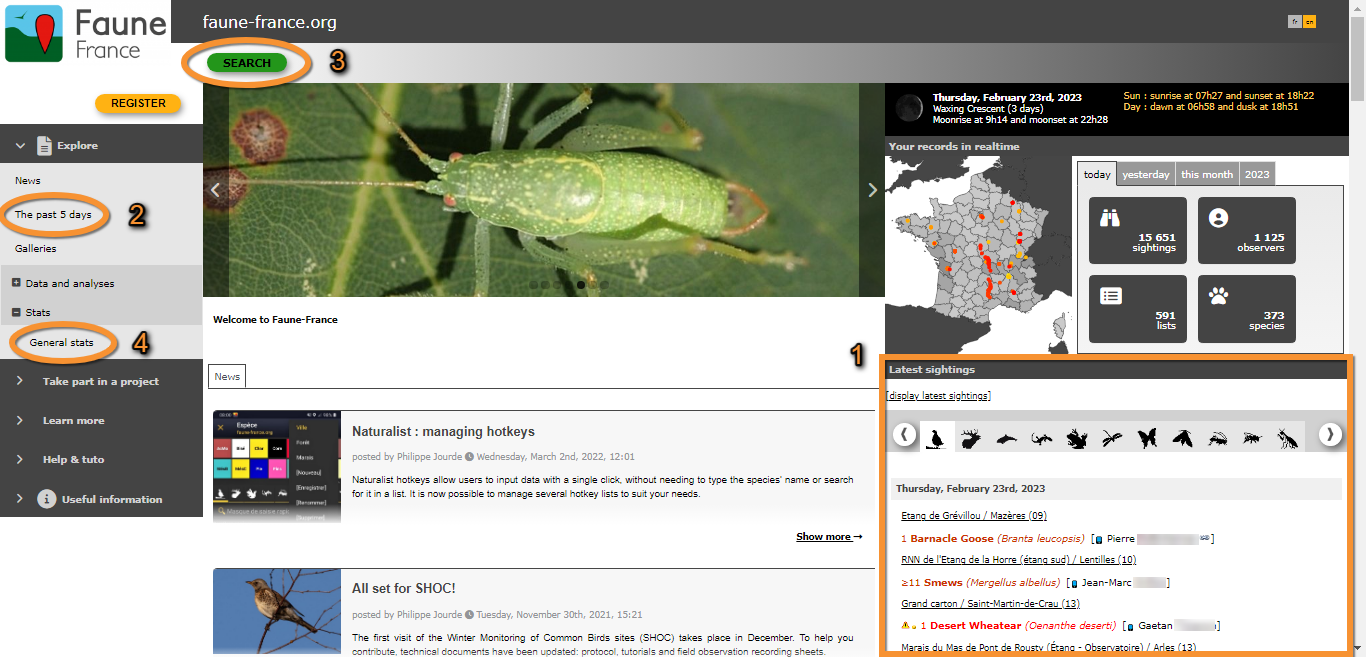
Browsing records as an unregistered user.
1. Browsing records from latest sightings.
2. Browsing records from Explore tab.
3. Browsing records from SEARCH button.
4. Statistics for unregistered users.
Access statistics as an unregistered user at Main menu on the left column > Explore > Stats > General stats. They represent aggregated data of the number of submitted records.
From latest sightings
Find a list of recent sightings on the home screen.
1. Select the taxonomic group on the horizontal bar. It lists all sightings from the selected taxonomic group starting by the most recent one.
Unregistered users cannot access more detailed information than otherwise displayed here.
2. Access an advanced search by clicking on display latest sightings (see image below). Access the same search tool at:
· Main menu > Explore > the past 5 days, or
· on the SEARCH button on the main screen.
Unregistered users cannot access records older than 5 days.
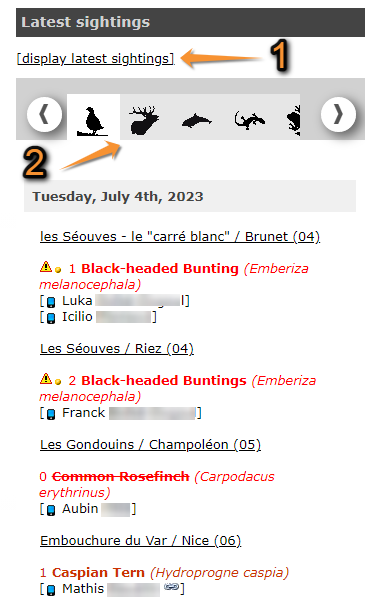
Browsing records as an anonymous user from 'latest sightings'.
1. Advanced search
2. Choose taxa
[Top to 'as an unregistered user']
[Top to Browsing records]
From Explore tab or Search button
Access the section from
· the Explore tab, and
· from the Search button.

Access browsing records from Explore tab and Search button.
1. Explore tab: Open tab options and select the past 5 days.
2. Search button: Click to browse records.
Apply filters and see results underneath. Press Ctrl and a new option to select more than one option (ie. To select rare and unusual observations). Selected option are highlighted in orange.

- Taxonomic group
Select the taxonomic group to visualise by selecting from the horizontal bar. Place pointer on the silhouette to see which taxa it represents. Use side arrows to slide through the full bar.
- Period
Indicates the period of time the results will show. For unregistered users it is limited to 5 days. Register and/or log in to see more options.
- Species
Choose the level of rarity to display (see wiki section Web interface > Codes and symbols).
- Site
Select the area to see the records by clicking on its code. Place mouse pointer on top to see which area each number represents. By default all areas are selected. To see a list of codes and their correspondence, go to wiki section Web interface > Codes and symbols.
- Restriction
If you wish, choose a restriction such as visualising only records with a sound or picture attached.
[Top to 'as an unregistered user']
[Top to Browsing records]
As a registered user
A registered user will benefit from more possibilities of browsing records than an unregistered user, after logging in. For example, they can
· display latest sightings of the past 15 days,
· display new sightings for the past 5 days,
· browse own records,
· download own records (note only users with special rights can download other data1),
· display own records on maps, like GoogleEarth,
· access additional data and statistics for records and observers.
Depending on the local portal you use, you may need to be an active observer with a minimum of submitted data to be allowed access to the search engine tool.
To register, see wiki section Web interface > Getting started > Registration.
1More information on users with special rights at Useful information > User's access rights.
2 As a registered user
-
2.1 From latest sightings
2.2 From Search button
2.3 From Explore tab
- 2.3.1 Database maps
2.3.2 Daily summary
2.3.3 The past 5 days
2.3.4 Latest rare sightings
2.3.5 Rare birds map
2.3.6 My local patch
2.3.7 Presence maps
2.3.8 All my observations
2.3.9 Local synthesis
2.3.10 Search engine
2.3.11 Galleries
From latest sightings
Information on the right hand column is centred on the user's registered area, including latest sightings at the bottom of the column.
A registered user can either
· display latest sightings (for the past 15 days) or
· display new sightings (for the last 5 days) for advanced searches (see image below, encircled).
Both options lead to the search engine (see image Browsing records as an anonymous user from 'Explore tab').
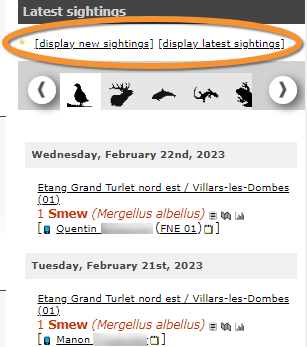
Browsing records as a registered user form latest sightings. Advanced search.
A registered user can also access additional details for the records at this stage (see image Browsing records as a registered user form latest sightings).
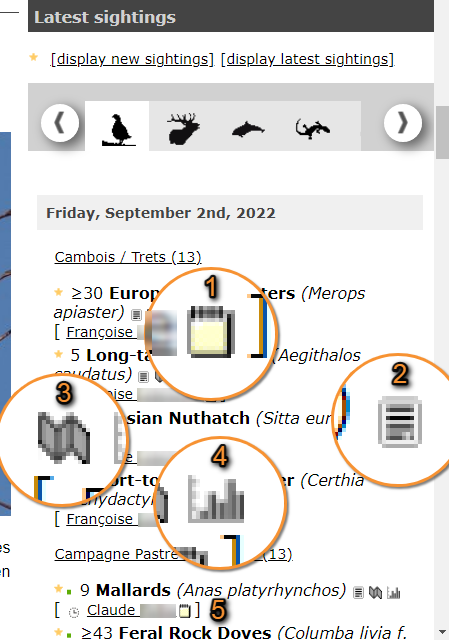
Browsing records as a registered user form latest sightings.
| 1. |  |
Summary of observation. |
| 2. |  |
Sightings of the species. |
| 3. |  |
Map of the species. |
| 4. |  |
Statistics of the species. |
| 5. |  |
Sighting sent from NaturaList application. Click to access information about the app. |
| 6. |  |
Link to the observer's personal website. |
Records needing verification, will be listed on top.
· Click on edit to edit the observation if necessary, or
· click bin to delete the record if it is a mistake.

Records pending verification.
| . |  |
Edit record. |
| . |  |
Delete record. |
1. Summary of observation
Displays information associated to the concerned observation (see image below Summary of observation).
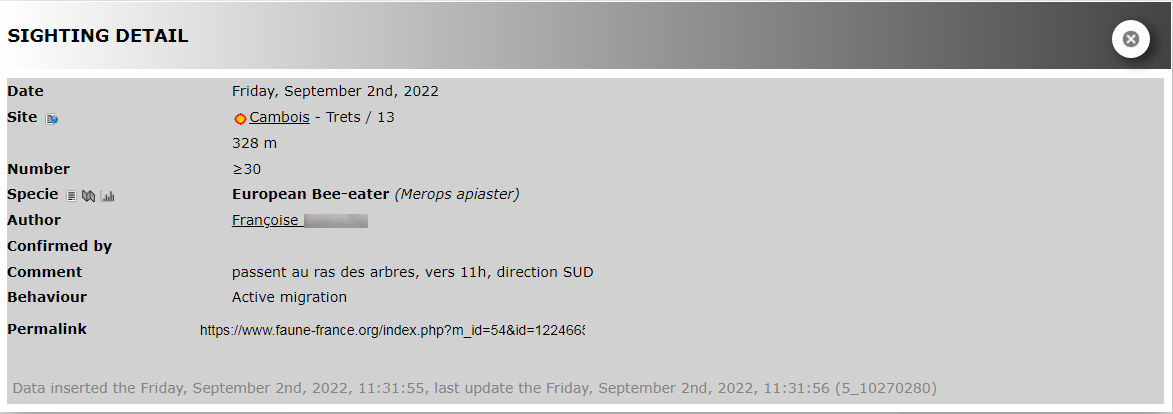
Summary of observation.
1. Sighting details.
2. Observations within the same list, when a list exists.
3. Timeline for lists, if the sighting belongs to a list.
Fields provided depend on the information recorded by observer and may be:
· Date: Date and time the observation took place.
· Time: When the observation is part of a list, yellow marking indicating the duration of the list. In blue when the list takes overnight.
· Site: Location the observation is associated to.
· Altitude: Altitude at which the observation was recorded.
· Number: Number of individuals observed.
· Species: Species observed.
· Author: Observer.
· General comment: Comment left by observer about the current list, when the observation belongs to a list.
· Confirmed by: Field used when the observation requires validation. See wiki section Various > Data validation for more information.
· Detail: Number of individuals per each age/sex category.
· Atlas code: Atlas code associated to the observation. See wiki section Various > Breeding evidence matching for correspondence of codes.
· Protocol: Name and symbol of protocol the record belongs to, when the record belongs to a protocol. Open protocol information to see details about this visit.
· Permalink:
Direct link to the observation. If you want to share this observation with others, copy and paste the link to share. Depending on the portal and the rights you have as a user, you may see a + symbol under the link. This duplicates the data on your own name, but does not duplicate the position, comment and attached files.
| · |  |
Data on the same location: Click to see all data at this location. |
| · |  |
Sightings of the same species: Click to see all records of this species. |
| · |  |
Display sightings of this species: Click to all records of the same species displayed on a map. |
| · |  |
Display stats for this species: Click to see statistics for the species. |
| · |  |
Sightings of the same observer: Click to see sightings from this observer. |
| · |  |
Open observation on a new window. |
2. Sightings of the species
Direct access to all observations for this species during the past 15 days in any region.
Apply filters if necessary by selecting one of the tabs. Hold Ctrl to select more than one option:
· My observations: Lists only observations belonging to you.
· News: Lists only new observations: from last search to present.
· With photos: Lists only observations containing pictures.
· With sounds: Lists only observations containing sound files.
Select a protocol to see only records associated to the protocol selected.
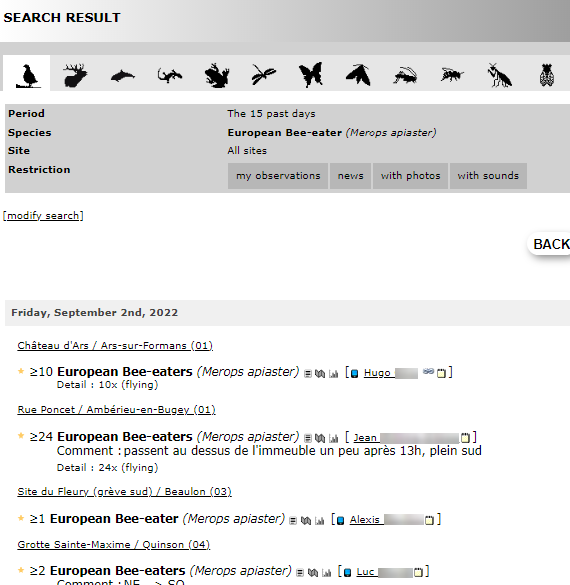
3. Map of the species
All observations during the past 15 days for this species on a map.
· Circle size indicates the number of observations at each site.
· A hollow circle with a cross indicates an empty record (no data).
· A hollow circle indicates this data is in the validation process.
If necessary,
· Apply filters or,
· Change map layer:
Aerial photography: Silhouetted map in grey.
Relief map: Map with relief in grey.
Colorized relief map: Map with relief in colour.
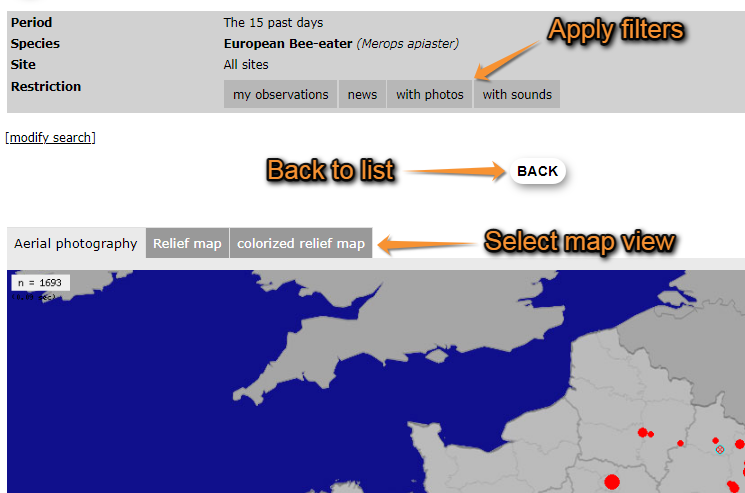
Browsing records as a registered user from latest sightings. Map.
4. Statistics for the species
Access the same data and graphs from Main menu > Explore > Stats > Species stats > Info by species.
See some examples of information you may visualise:
|
Annual relative frequency of species |
Relative weekly frequency of species. |
Records grouped by week. |
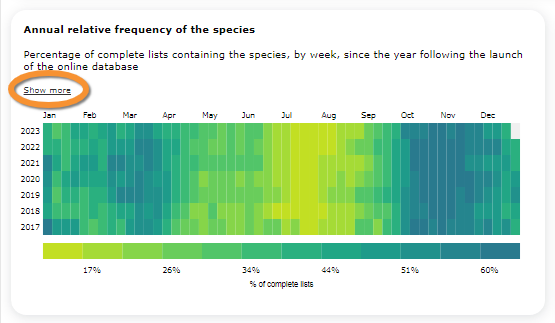
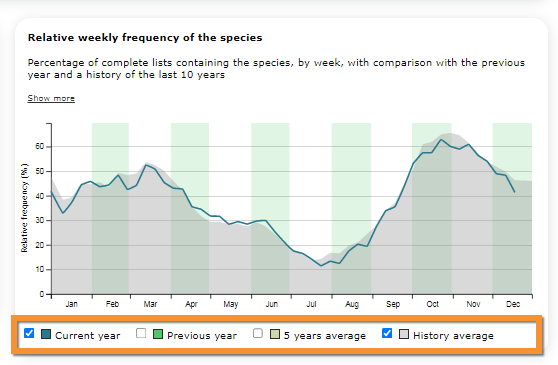

Visit wiki section Web interface > Local portal > Statistics > Species stats > Info by species for more information.
5. By clicking on the observer name you can access his/her personal card and media gallery, as in wiki section Web interface > Getting started > My account > Website customisation > Personal card (see image Birder details).

Birder details.
[Top to 'from latest sightings']
[Top to 'as a registered user']
[Top to Browsing records]
From Search button
Availability of that option depends on Local Portal.
After registering, click on Search at the top of the home screen (see image Browsing records as a registered user from search button).
This brings you to Database maps.
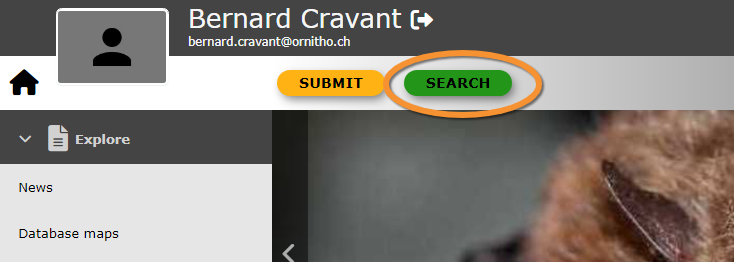
Browsing records as a registered user from search button.
[Top to 'as a registered user']
[Top to Browsing records]
From Explore tab

Explore tab.
2.3 From Explore tab
-
2.3.1 Database maps
2.3.2 Daily summary
2.3.3 The past 5 days
2.3.4 Latest rare sightings
2.3.5 Rare birds map
2.3.6 My local patch
2.3.7 Presence maps
2.3.8 All my observations
2.3.9 Local synthesis
2.3.10 Search engine
2.3.11 Galleries
Database maps

Database maps.
As in Search button above.
All observations registered on the local portal are presented in overlapping layers. The user can choose which criteria to represent.

Database maps. Search.
1. Choose a type
2. Choose a species
3. Choose a colorization
4. Choose a layer
5. Choose a timeframe
6. Display
Search by any of the following criteria or a combination of many:
- 1. Choose type
- 1. Choose type
Click on the section to open a panel with possibilities. Choose if you want to visualise real time data or archive data.
- 2. Choose a species
- 2. Choose a species
Click on the section to open a panel with options. Choose which species to visualise, or select all of them, by:
· Typing the species name on the field provided (number 7 in image below), or
· Selecting a taxonomic group on the horizontal bar on top (8a in the image below) and selecting the species from the list below (8b in mage below). Use the arrows next to the taxonomic groups to move through all possibilities. Use the vertical bar next to species name to see the full list. See correspondence of icons by placing your pointer on top or at wiki section Various > Taxonomic references.

Database maps. Species.
7. Type species name.
8. Select taxonomic group (8a) and species name (8b).
- 3. Choose a colorization
- 3. Choose a colorization
Choose the significance of colour intensity. It may represent:
· Atlas code
· Number of species
· Number of records
· Number of observers
· Number of records entered by lists
· Date of records submission
- 4. Choose a layer
- 4. Choose a layer
Choose a geographic layer to show results.
See how different layers may display. In the following examples only the layer differs from each search: Departments on the left, Wetlands on the right.
|
Results grouped by departments. Example. |
Results grouped by wetlands. Example. |


- 5. Choose a timeframe
- 5. Choose a timeframe
Choose starting and finishing date for the data to visualise.
Select
· starting and ending dates from the expandable calendar, or
· use quick keys to choose a pre-selected period of time.
- 6. Display
- 6. Display
When all filters have been selected, choose Display to see the data along with its colorization legend (see example result below).

Display maps. Results.
9. Legend
[Top to Database maps]
[Top to 'from Explore tab']
[Top to Browsing records]
Daily summary
Summary of all observation submitted to the local portal on the selected day.

Daily summary.
1. Select taxonomic group by clicking on the silhouette. Place mouse pointer on silhouettes to see the taxonomic group they represent.
2. Select date to visualise on the clickable calendar.

Select date.
1. Click to open calendar.
2. Use arrows to move one day forwards/backwards at a time.
3. Select rarity level. Hold Ctrl to select more than one option.
4. Select region. Hold Ctrl to select more than one option.
5. Apply other filters and/or protocols, if necessary. Hold Ctrl to select more than one option.
6. Use Advanced search if necessary. Direct access to Search engine.

Daily summary. Search.
1. Select taxonomic group.
2. Select date.
3. Select rarity level.
4. Select region.
5. Apply filters and/or select protocol.
6. Access Search engine.
7. Click on the observer's name to access observer's card.
8. Click on a site to access more information about this site.

Daily summary. Results.
7. Access observer's card.
8. Access information about the site.
| · | |
Sightings of the same species: Click to see all records of this species. |
| · | |
Display stats for this species: Click to see statistics for the species. |
| . | |
Link to the observer's personal website. |
| . |  |
Access details of the record and its photographs. |
[Top to Daily summary]
[Top to 'from Explore tab']
[Top to Browsing records]
The past 5 days
See records of the past 5 days.
Both registered and unregistered users can access this section. See wiki sub section Web interface > Local portals > Browsing records > As an anonymous user > From Explore tab or Search button for details.

The past 5 days.
Change parameters to visualise:
· taxonomic group,
· rarity level,
· region, and
· apply filters if necessary, or select a particular protocol.
Hold Ctrl to select more than one option.

The past 5 days as a registered user.
1. Change taxonomic group.
2. Change rarity level.
3. Change region.
4. Apply filters, or select protocol.
5. Access Search engine.
By default it shows records according to the rarity level and region stated at your preferences. See wiki section Web interface > Local portals > Getting started > My account > Website customisation > Customise the way sightings are displayed in lists to change preferences.
[Top to The past 5 days]
[Top to 'from Explore tab']
[Top to Browsing records]
Latest rare sightings
As in the past 5 days, but showing only rare species for the pre-selected region.

Latest rare sightings.
[Top to 'from Explore tab']
[Top to 'as a registered user']
[Top to Browsing records]
Rare birds map
Map of rare birds.

Rare birds map.
Select data by
· using the right hand column, or
· clicking on the map.

Place pointer on icons to see their meaning.
- Search sightings from the list
List of all sightings registered in Biolovision for the corresponding local portal and during the timeframe selected. Sightings on the list are currently represented on the map.
1. Change timeframe if necessary by holding and dragging the button.
2. Click on a species name to see all records of that species.
3. Click on the location name to see details of the location.
4. Click on eye icon to represent on the map only the records for this species.

Rare birds map. Search from the list. .
1. Change timeframe.
2. See all records of this species.
3. See details of the location.
4. Represent the species on the map.
- Search sightings from the map
Map showing the location of rare birds for the corresponding local portal during the timeframe selected.
1. Change timeframe by holding and dragging button on the list (see above).
2. Click on any point on the map to see sightings on the selected location.
3. Click on close icon to close panel.
Visit wiki section Web interface > Local portals > Navigating the map if necessary, to know how to move through the map.

Rare birds map. Search from the map.
1. Change timeframe.
2. See sightings at this location.
3. Close details.
[Top to Rare birds map]
[Top to 'from Explore tab']
[Top to Browsing records]
My local patch
1. Select region to visualise by
· Region: Click anywhere on the map to open a list of recorded species on the selected square, or
A red square indicates the area covered in the search.
· Municipality: Activate Sightings by municipality on the top right corner, and click anywhere on the map.
A red contour indicates the municipality limits, the area covered in the search.
See wiki section Web interface > Local portals > Navigating the map to move through the map.
Click  on the top left corner to see species colour codes, or visit wiki section Various > Symbols cheatsheet. Use
 to close panel.
A pop-up window will show:
· The latest sightings, organised by taxonomic group
· The most common seasonal species
· The most species
Whenever there is no data for a specific section, it is left blank.
Use to close panel.
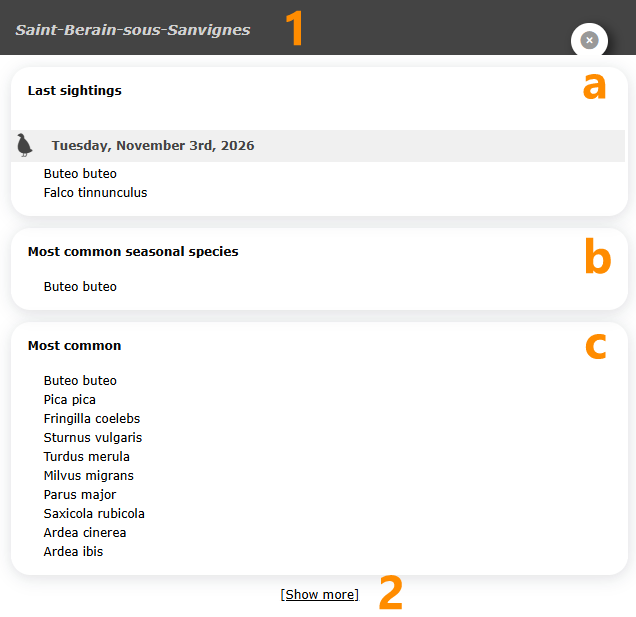
My local patch. List results.
1. Square coordinates, or Municipality name.
2. Search more to see statistics and details of your search.
a. The latest sightings
b. The most common seasonal species
c. The most species
Close list
2. Click on Search more for more details or for a specific timeframe.
See
· year a species was last observed in the selected area, during the timeframe selected,
· conservation status of the species,
· number of observations per each species recorded in the selected area during the timeframe selected.
3. Select the period in order to get the report
· Select a timeframe between two specific dates: the result will show only the observations recorded in the selected patch between the two specified dates. Use calendars to choose the date.
· Select two dates for all grouped years: the result will show all observations recorded between the two dates selected for all years grouped from 2017 to the present. Use expandable menus to select dates.
Click  to see results of the new search.
Click  to select a new area.
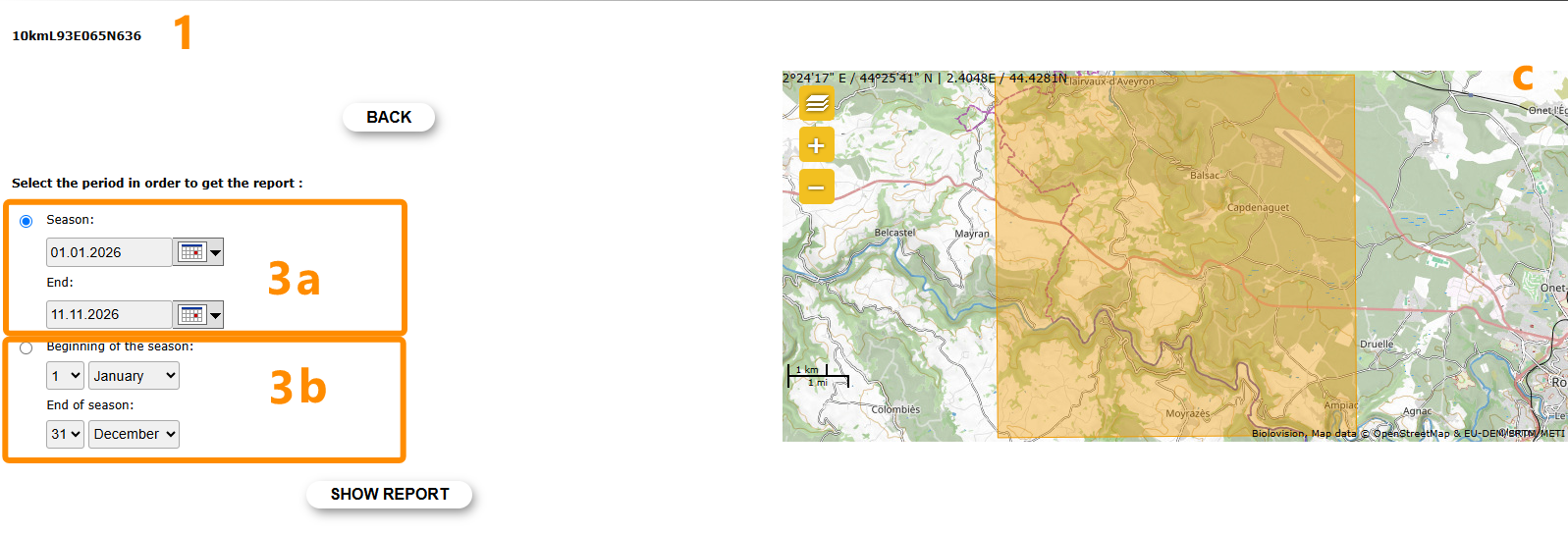
My local patch. Search more.
1. Square coordinates, or Municipality name.
3a. Select a timeframe between two specific dates.
3b. Select two dates for all grouped years.
c. Map with selected area.
See results of the new search.
Select a new area.
4. See more details regarding frequency and conservation status for the species recorded on the selected patch during the selected timeframe, both in absolute and relative numbers.
Summary of species
See number of sightings, species and taxonomic groups registered in the selected and timeframe.
Move pointer over image to see explanation on this example.
|
My local patch. Summary of species. Absolute numbers Frequencies
a. Period the results refer to. |

Conservation status in graphs
See the conservation status of the recorded species according to different conservation lists.
Move pointer over image to see explanation on this example.
|
My local patch. Conservation status in graphs. According to the IUCN Red List in France, in the selected area and for the timeframe indicated, users reported
a. Export results.. |
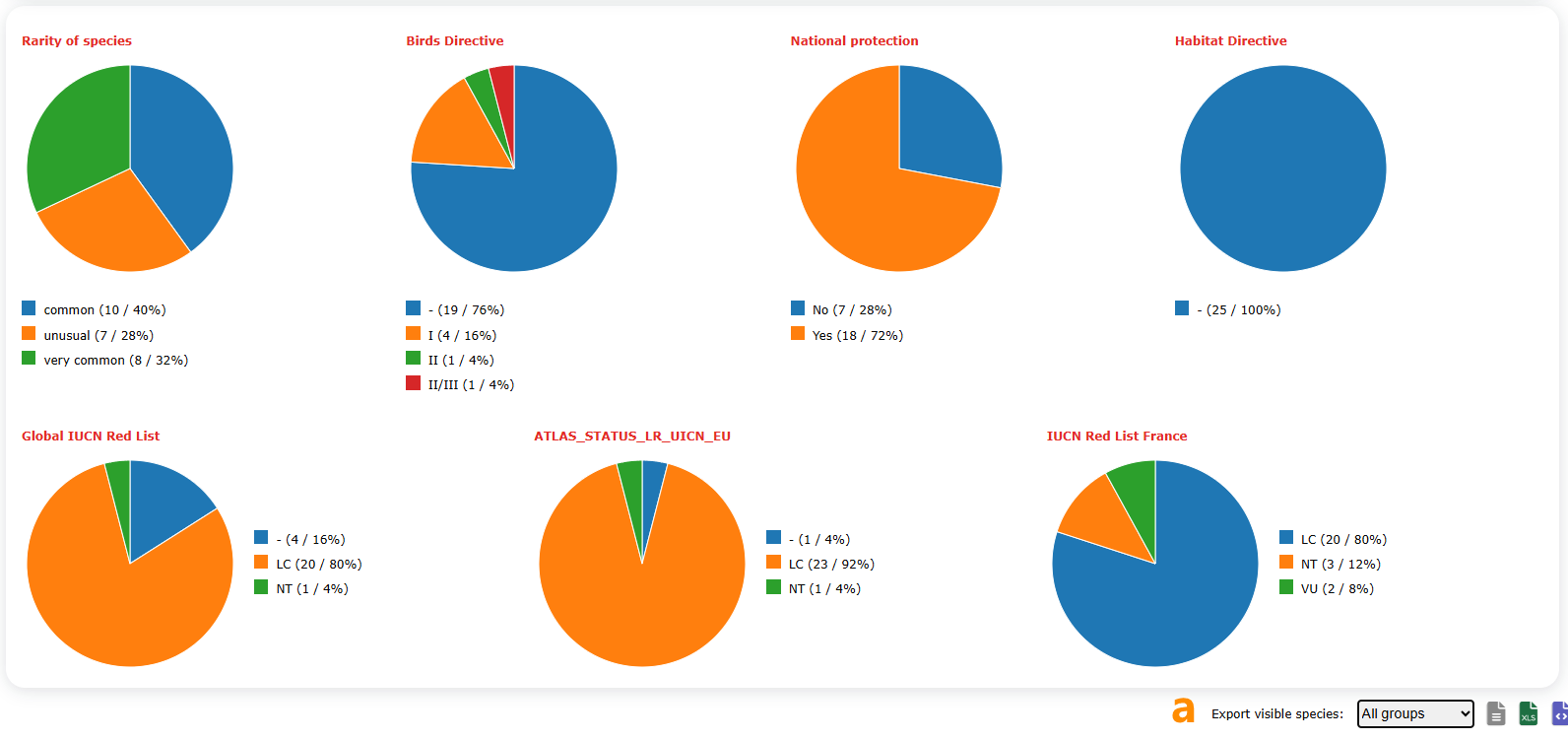
To export results
1. Select from the expandable menu a group of species to export.
2. Select type of file by clicking on icons.
See wiki section Web interface > Local portals > Exporting your data for more on exporting your data.
See wiki section Various > Symbols cheatsheet for more on available files to export.
Move pointer over image to see explanation on this example.
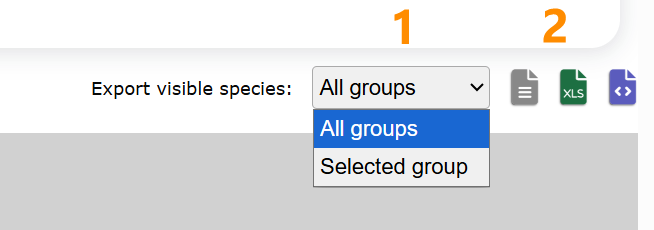
My local patch. Export results.
1. Select which species to export.
2. Select type of file.
Conservation status in lists
See conservation status of each of the species recorded, number of records submitted, year of last records, and breeding status if known.
1. Select the taxonomic group to visualise by clicking the corresponding tab. See wiki section Various > Taxonomic groups to see what each group represents.
2. Select which conservation list to visualise by checking the appropriate cell. Click  to open options. By default all are marked. Breeding, Date of last record and Number of data are always active.
Move pointer over image to see explanation on this example.
|
My local patch. Conservation status in lists. Visible columns
In the selected area, and during the timeframe selected, there was a total of 269 sightings of birds, belonging to 71 different species. Accipiter nisus Aegithalos caudatus Anthus trivialis
1. Select the taxonomic group to visualise.
|
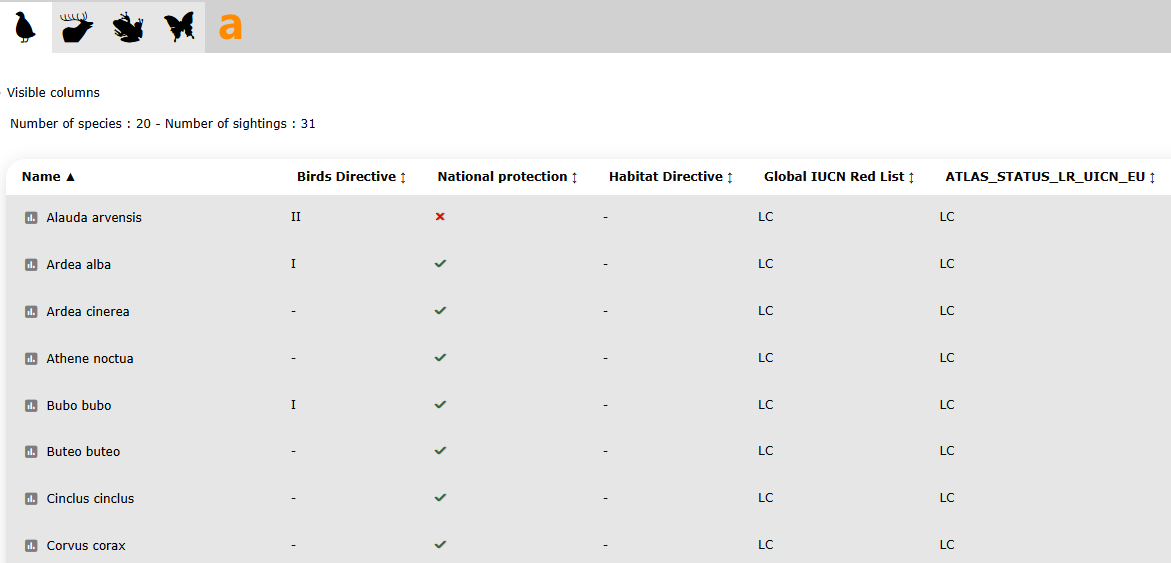




[Top to My local patch]
[Top to 'from Explore tab']
[Top to Browsing records]
Presence maps
See
· where a species was seen during the timeframe selected, and/or
· which species are present in a specified area.
Presence in an area
See where a species was seen during a timeframe selected.
1. Select taxonomic group by clicking the corresponding tab.
- See wiki section Various > Symbols cheatsheet > Species icons for correspondence.
2. Select an area unit to divide the map by choosing from the expandable menu. Choose between:
· Grid,
· Municipalities, or
· Canton / Department.
3. Select the species to visualise by typing the species name, or the beginning of it, on the left hand panel and/or select the species name on the expandable menu on the right.
- If no species is selected, the map will show [[all species from the taxonomic group selected.
- Use
 to delete the species and select a new one.
If no species is selected, the map will return all species in the area.
4. Select type of data to visualise by clicking on tabs. Select between:
· Presence map: it displays Presence/Absence of the species in the different areas.
· Atlas map: it displays breeding status of the species in the different areas.
· Comparison: it compares sata from two different periods.
5. Export results if necessary.
- See wiki section Various > Symbols cheatsheet to correspondence between icons and available formats.
6. Select timeframe for your results. Select using
· Year.
· Season.
· Month.
- The current full year is selected by default.
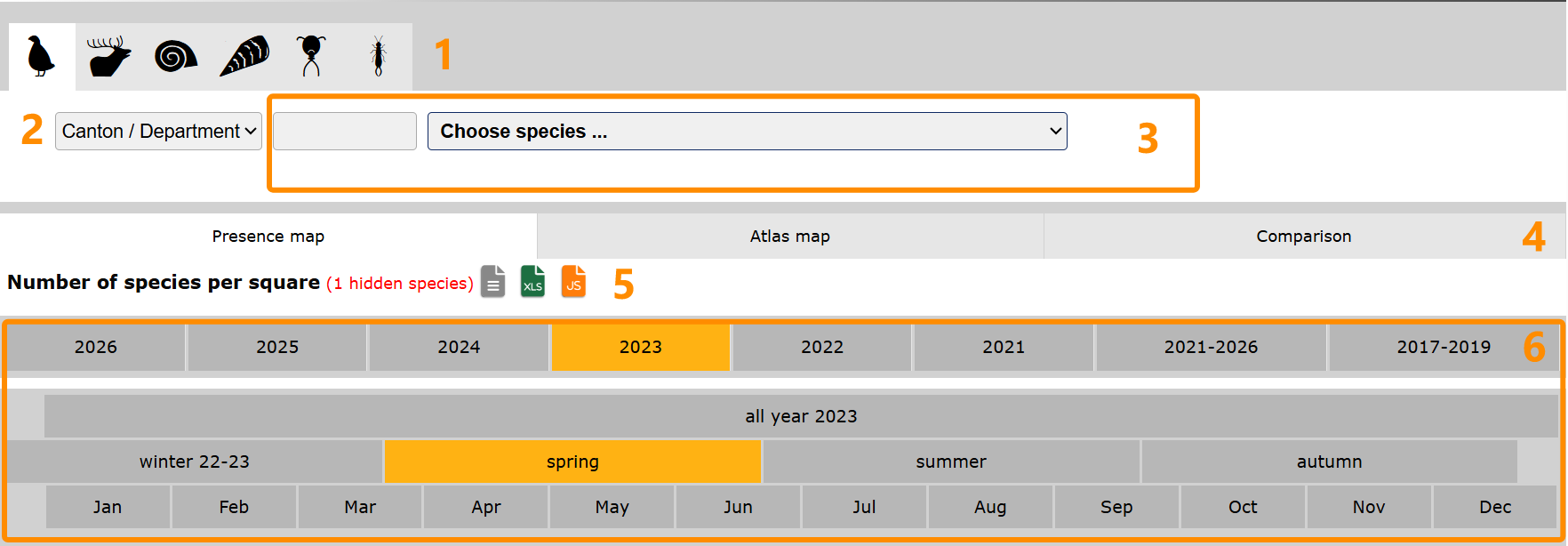
Diversity maps. Selecting parameters.
1. Select taxonomic group.
2. Select area.
3. Species: leave blank.
4. Select type of data.
5. Export.
6. Select timeframe.
7. See results.
- Presence map
The map displays the areas where the selected species (or the selected taxonomic group when no species has been selected) were recorded during the timeframe selected.
· Coloured areas indicate presence. The darker the colour, the higher number of observations. See legend for details.
· Zoom in to see number of sightings in each area.
See wiki section Web interface > Local portals > Navigating the map to know how to move on the map, if necessary.
Move pointer on image to see details on this example.
|
Presence map. Presence of species Legend |
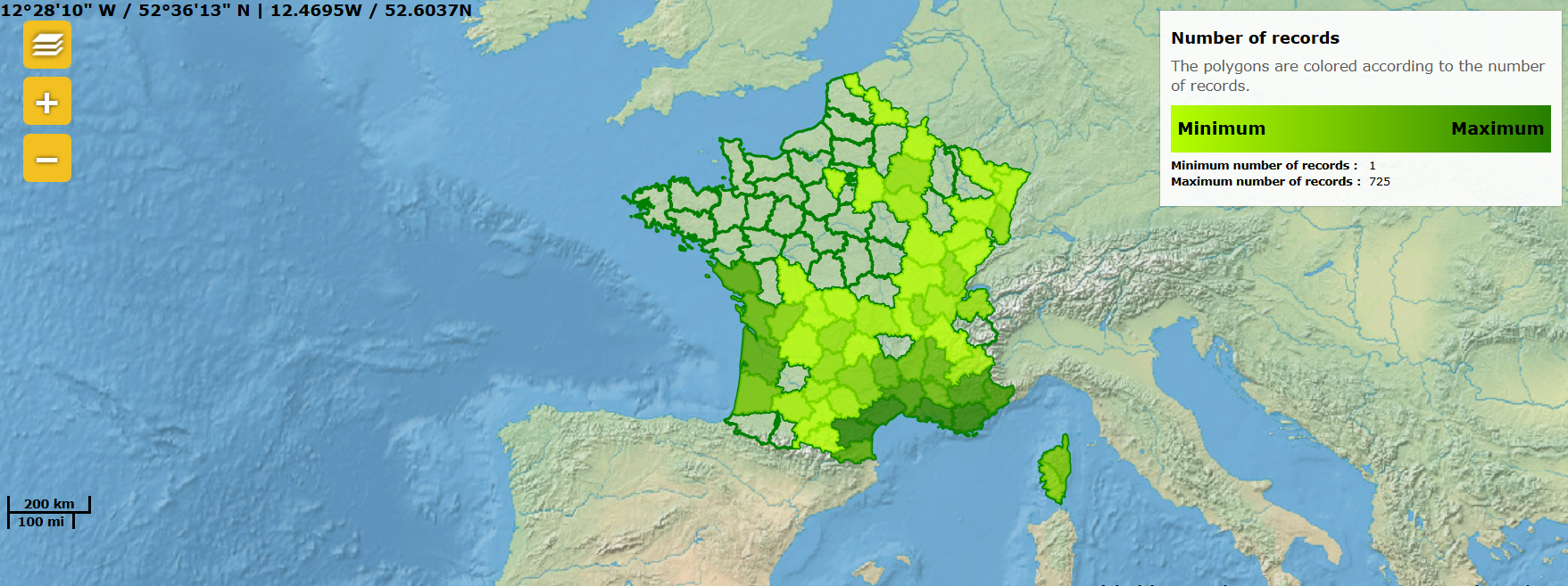
- Atlas map
The map displays the highest atlas code recorded in an area for the species selected (or the taxonomic group selected, if no species was selected) during the timeframe selected.
· Coloured areas indicate the species have been reported associated to an atlas code; and colour codes indicate highest atlas code recorded. See legend for details. If n atlas code was reported, the area will remain uncoloured even if the species was recorded.
· Zoom in to see number of sightings in each area.
See wiki section Web interface > Local portals > Navigating the map to know how to move on the map, if necessary.
Move pointer on image to see details on this example.
|
Atlas code map. Atlas codes Legend |
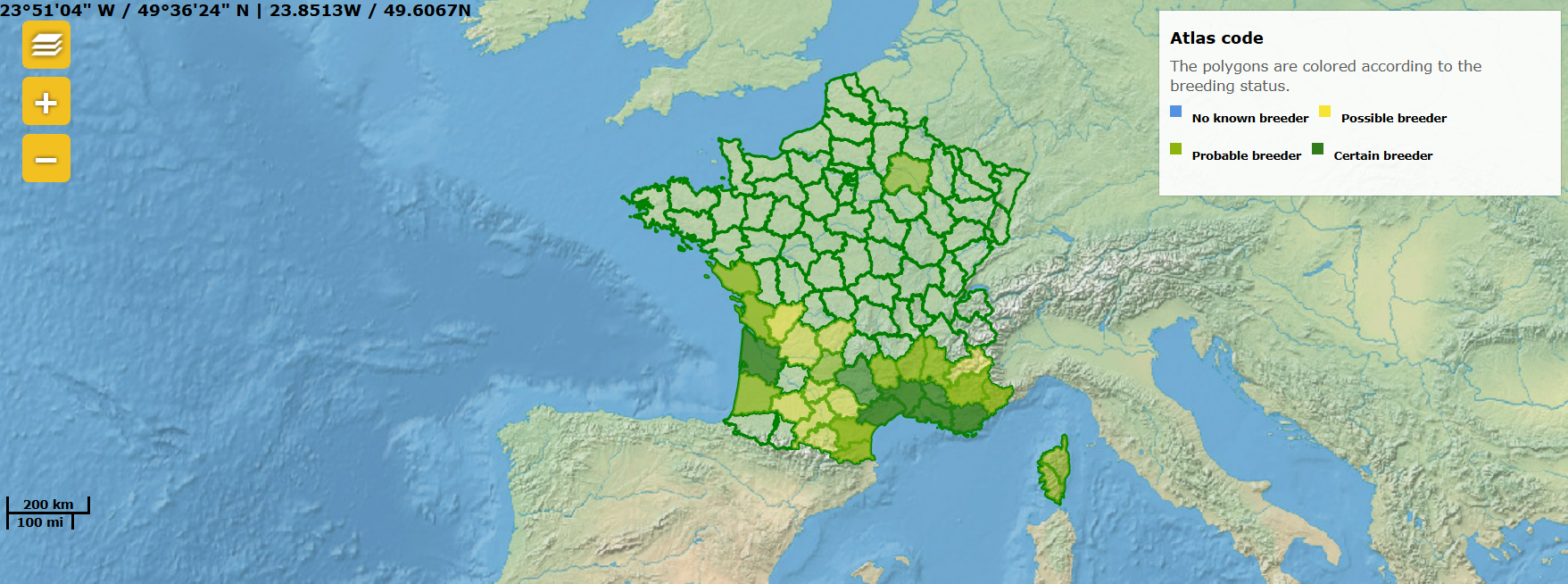
- Comparison
The map compares presence of species selected (or the taxonomic group selected, if no species was selected) between two periods for each of the areas.
· Coloured areas indicate presence in any of the periods selected and colour codes indicate the period if was present. See legend for details.
· Zoom in to see number of sightings in each area.
See wiki section Web interface > Local portals > Navigating the map to know how to move on the map, if necessary.
Move pointer on image to see details on this example.
|
Atlas code map. Presence of species Legend |
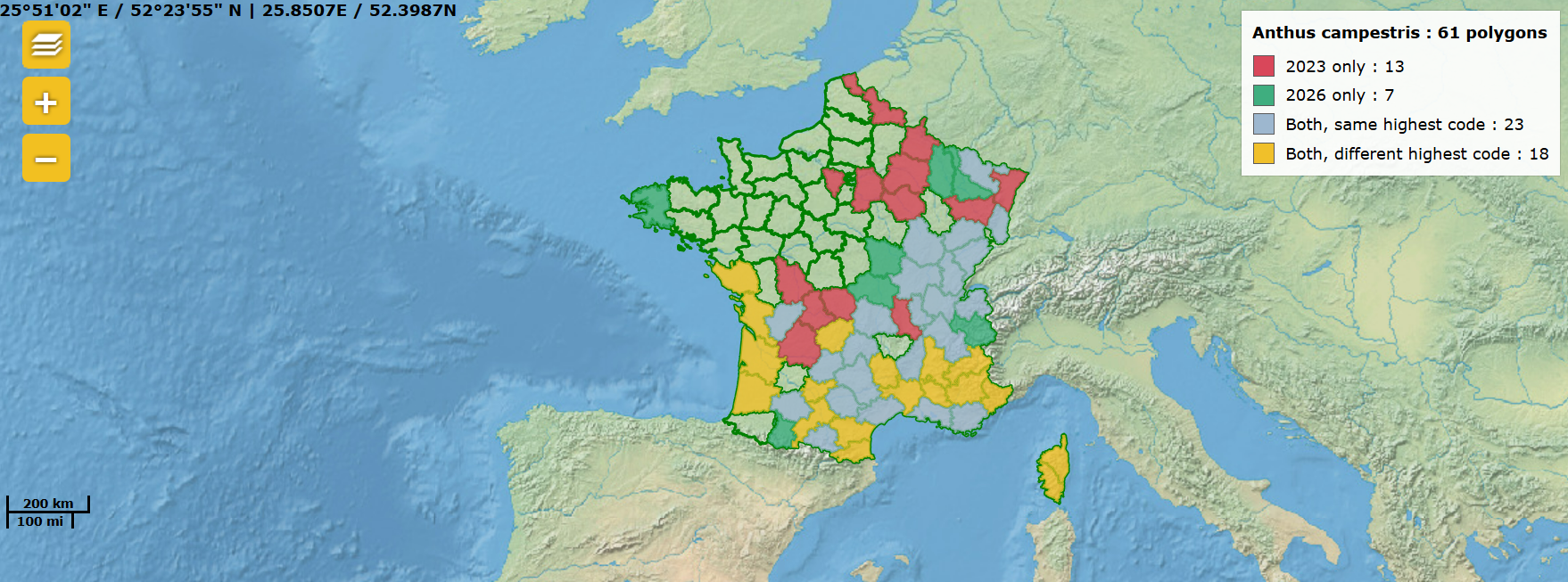
8. See more details.
Click on any area unit to see details:
· Number of sightings in the area,
· observation pressure,
· number of sightings per observer,
· evolution of breeding status.
Presence details / Atlas details
Click on any area to see number of sightings, observation pressure and number of sightings per observer in this area.
Use  to other sightings of the same species. It will redirect you to the Search engine.
Use  to close additional information panel.
Use  to search for an observer.
Use  and
 to organise entries in ascending / descending order.
Move pointer over image to see explanation on this example.
|
Presence / Atlas map. Additional details. General information Observers Observer 1 Observer 2 Observer 3
a. Area code. |
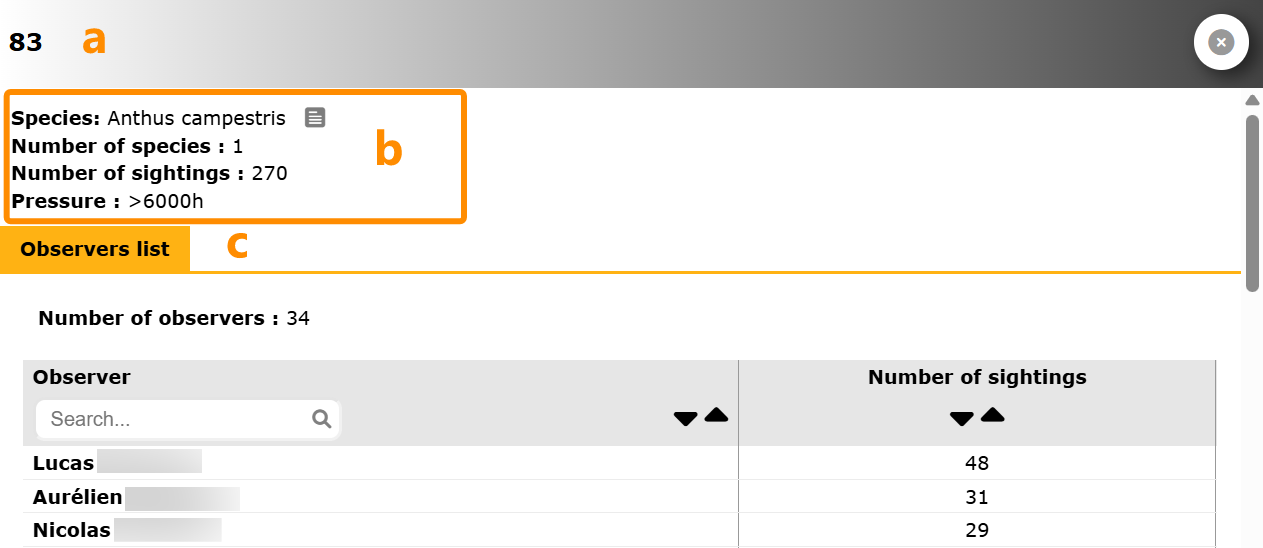
- Comparison map
- Comparison map
Click on any area to see breeding details.
Select
· Comparison tab to compare breeding status in the selected area between the two periods selected, or
· Polygons tab to see breeding trends in all polygons during the timeframe selected.
Comparison tab
See Atlas codes recorded in the area during the two periods of time selected.
See wiki section Various > Breeding evidence matching for correspondence of atlas codes.
See colour coding at the bottom.
Use to close additional information panel.
Move pointer over image to see explanation on this example.
|
Comparison tab. General information Highest atlas code Two of the sightings of Anthus campestris in the spring of 2023 and two in the spring of 2026 were reported with atlas code 14. This is the highest code reported in department 83 during the spring of 2023 and 2026. 87 of the sightings of Anthus campestris reported during the spring of 2023 had atlas code 4 associated, while in the spring of 2026 only 9 of the sightings had this code. 3 of the sightings of Anthus campestris reported during the spring of 2023 had atlas code 3 associated. No records were reported with this code in 2026.
a. Area unit |
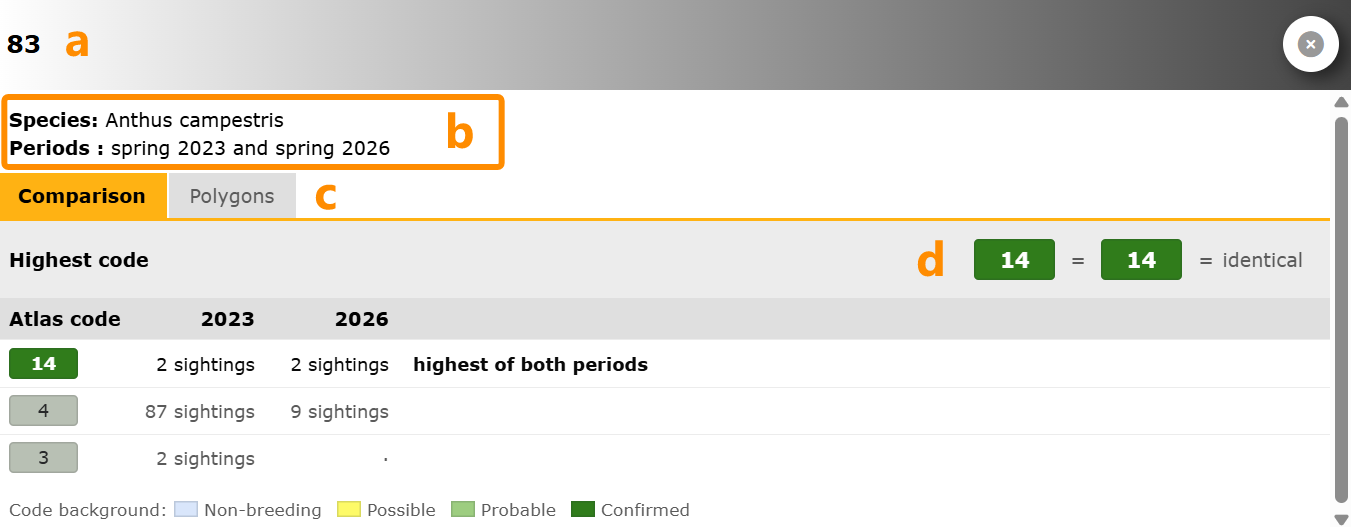
Polygons tab
See evolution of breeding status in all areas covered by the local portal during the two periods of time selected.
See wiki section Various > Breeding evidence matching for correspondence of atlas codes.
See colour coding at the bottom.
Organise results by trend or by area by selecting from the expandable menu. The area selected is highlighted in yellow.
Use to close additional information panel.
Move pointer over image to see explanation on this example.
|
Polygons tab. General information Trends summary 2B 04 40
a. Area unit. |
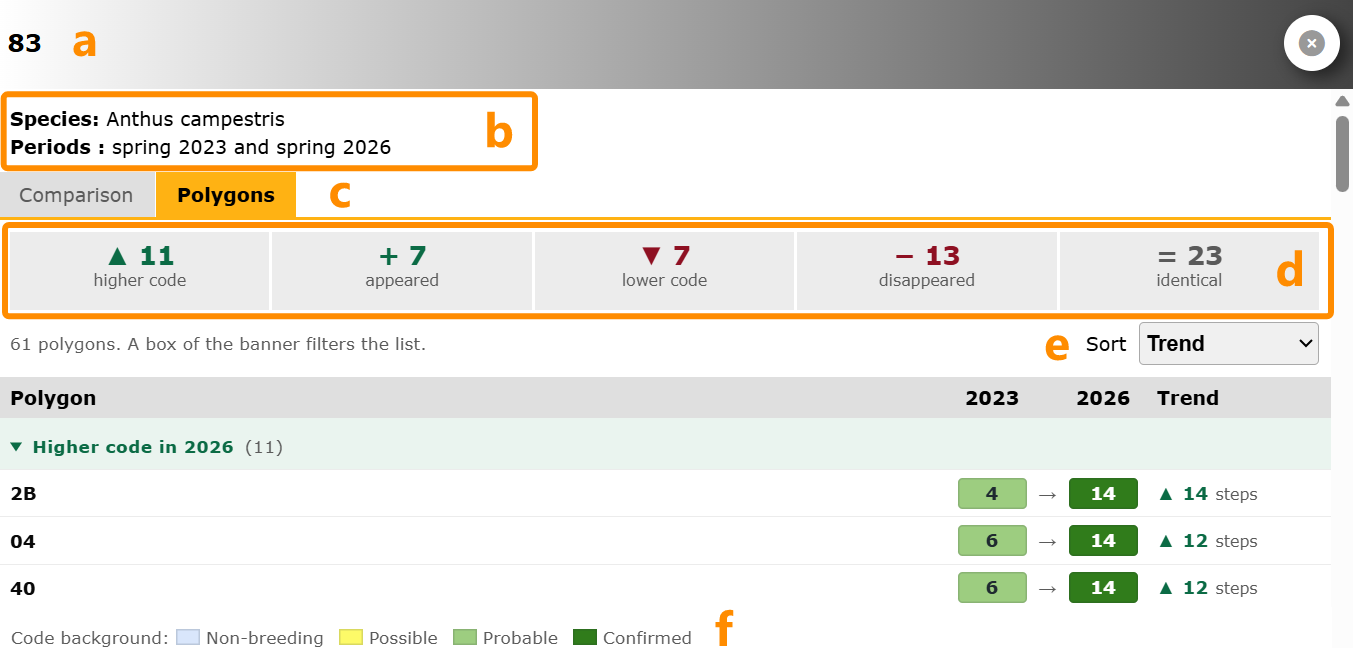
Diversity in an area
See the existing diversity in an area.
1. Select taxonomic group by clicking the corresponding tab.
- See wiki section Various > Symbols cheatsheet > Species icons for correspondence.
2. Select an area unit to divide the map by choosing from the expandable menu. Choose between:
· Grid,
· Municipalities, or
· Canton / Department.
3. Do not select any species.
- Results will return a list of all species belonging to the taxonomic group selected.
If a species is selected, the map will return presence of the species.
4. Select type of data to visualise by clicking on tabs. Select between:
· Presence map: it displays Presence/Absence of the species in the different areas.
· Atlas map: it displays breeding status of the species in the different areas.
· Comparison: it compares sata from two different periods.
5. Export results if necessary.
- See wiki section Various > Symbols cheatsheet to correspondence between icons and available formats.
6. Select timeframe for your results. Select using
· Year.
· Season.
· Month.
- The current full year is selected by default.
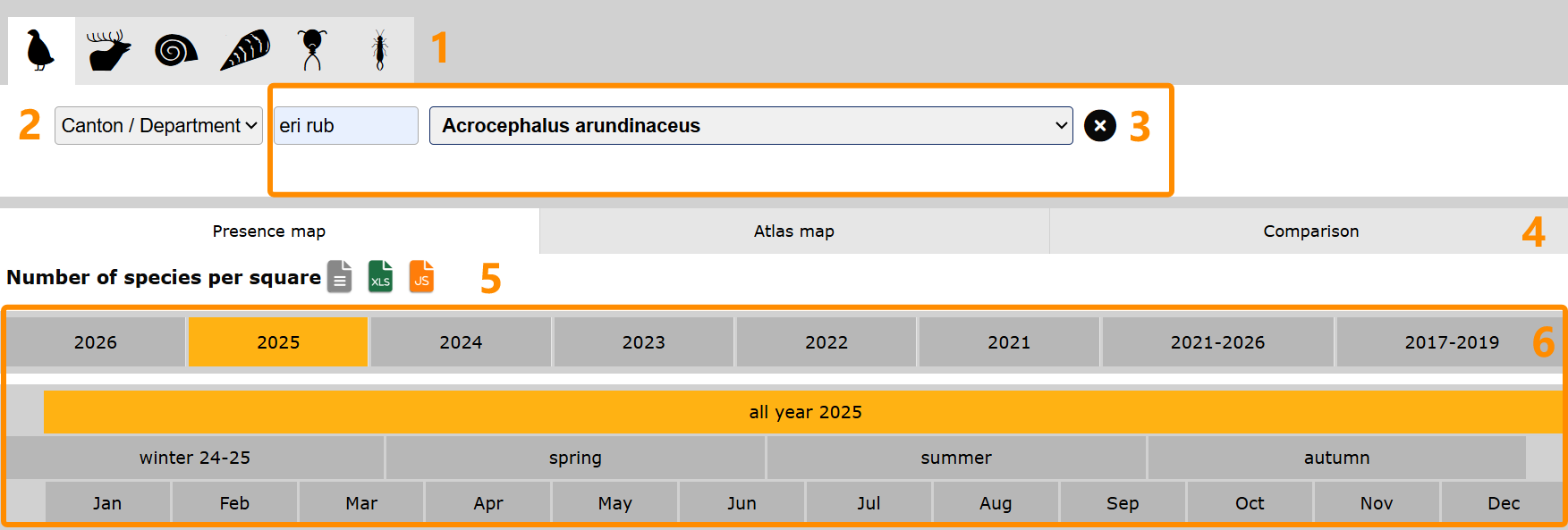
Presence maps. Selecting parameters.
1. Select taxonomic group.
2. Select area.
3. Select species.
4. Select type of data.
5. Export.
6. Select timeframe.
7. See results.
- Presence map
The map displays the areas where the selected species (or the selected taxonomic group when no species has been selected) were recorded during the timeframe selected.
· Coloured areas indicate presence. The darker the colour, the higher number of observations. See legend for details.
· Zoom in to see number of sightings in each area.
See wiki section Web interface > Local portals > Navigating the map to know how to move on the map, if necessary.
Move pointer on image to see details on this example.
|
Presence map. Presence of species Legend |
- Atlas map
The map displays the highest atlas code recorded in an area for the species selected (or the taxonomic group selected, if no species was selected) during the timeframe selected.
· Coloured areas indicate the species have been reported associated to an atlas code; and colour codes indicate highest atlas code recorded. See legend for details. If n atlas code was reported, the area will remain uncoloured even if the species was recorded.
· Zoom in to see number of sightings in each area.
See wiki section Web interface > Local portals > Navigating the map to know how to move on the map, if necessary.
Move pointer on image to see details on this example.
|
Atlas code map. Atlas codes Legend |
- Comparison
The map compares presence of species selected (or the taxonomic group selected, if no species was selected) between two periods for each of the areas.
· Coloured areas indicate presence in any of the periods selected and colour codes indicate the period if was present. See legend for details.
· Zoom in to see number of sightings in each area.
See wiki section Web interface > Local portals > Navigating the map to know how to move on the map, if necessary.
Move pointer on image to see details on this example.
|
Atlas code map. Presence of species Legend |
8. See more details.
Click on any area unit to see details:
· Number of sightings in the area,
· observation pressure,
· number of sightings per observer,
· evolution of breeding status.
Presence details / Atlas details
Click on any area to see number of sightings, observation pressure and number of sightings per observer in this area.
Use to other sightings of the same species. It will redirect you to the Search engine.
Use to close additional information panel.
Use to search for an observer.
Use and to organise entries in ascending / descending order.
Move pointer over image to see explanation on this example.
|
Presence / Atlas map. Additional details. General information Observers Observer 1 Observer 2 Observer 3
a. Area code. |
- Comparison map
- Comparison map
Click on any area to see breeding details.
Select
· Comparison tab to compare breeding status in the selected area between the two periods selected, or
· Polygons tab to see breeding trends in all polygons during the timeframe selected.
Comparison tab
See Atlas codes recorded in the area during the two periods of time selected.
See wiki section Various > Breeding evidence matching for correspondence of atlas codes.
See colour coding at the bottom.
Use to close additional information panel.
Move pointer over image to see explanation on this example.
|
Comparison tab. General information Highest atlas code Two of the sightings of Anthus campestris in the spring of 2023 and two in the spring of 2026 were reported with atlas code 14. This is the highest code reported in department 83 during the spring of 2023 and 2026. 87 of the sightings of Anthus campestris reported during the spring of 2023 had atlas code 4 associated, while in the spring of 2026 only 9 of the sightings had this code. 3 of the sightings of Anthus campestris reported during the spring of 2023 had atlas code 3 associated. No records were reported with this code in 2026.
a. Area unit |

Polygons tab
See evolution of breeding status in all areas covered by the local portal during the two periods of time selected.
See wiki section Various > Breeding evidence matching for correspondence of atlas codes.
See colour coding at the bottom.
Organise results by trend or by area by selecting from the expandable menu. The area selected is highlighted in yellow.
Use to close additional information panel.
Move pointer over image to see explanation on this example.
|
Polygons tab. General information Trends summary 2B 04 40
a. Area unit. |
[Top to Presence maps]
[Top to 'from Explore tab']
[Top to Browsing records]
All my observations
List of your own sightings. By default, the filter 'All my observations' is selected. Deselect by clicking on it to see also observations by other users.

All my observations.
1. Select the taxonomic group to visualise. Birds are selected by default.
2. Select timeframe. By default it show the last 30 days. Click on 'Display all' to see all records on the system.
3. Apply filters if necessary by selecting from the tabs. Hold Ctrl to apply more than one filter:
· My observations: Lists only observations belonging to you. Selected by default.
· News: Lists only new observations, from your last search to present.
· With photos: Lists only observations containing pictures.
· With sounds: Lists only observations containing sound files.
Select a protocol to see only records associated to the protocol selected.
4. Export your data. It is only possible to export your own data. Visit wiki section Web interface > Local portals > Exporting your data to know more.
5. Access the Search engine for a more advanced search,

Returns a list of observations, organised by date (most recent on top).
Move pointer over icons to see their meaning, or visit wiki section Various > Symbols cheatsheet to see correspondence.
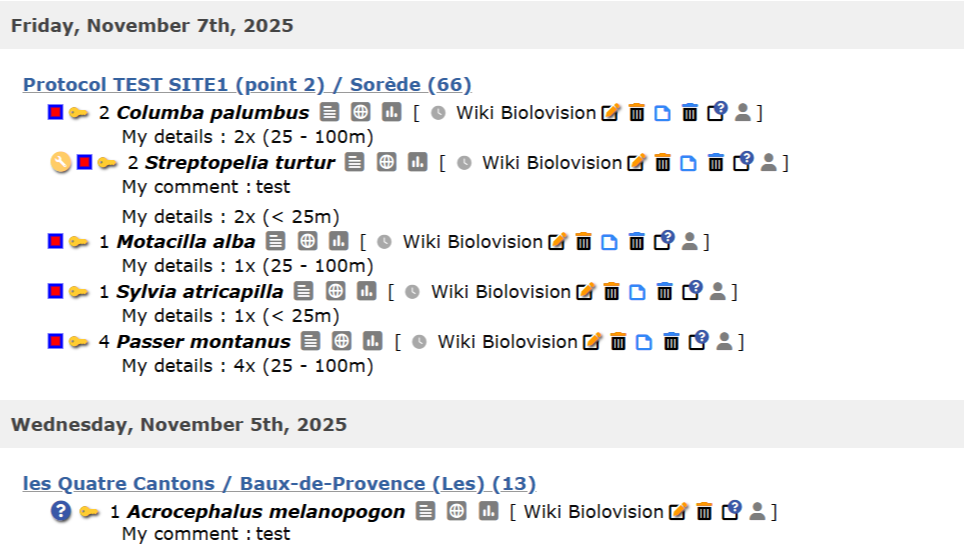
List of observations.
 |
Edit record |
 |
Delete record |
|
|
Records visualisation when the record belongs to a protocol |
 |
Delete full list |
|
|
Mark the record to review |
|
|
Observer's profile |


[Top to All my observations]
[Top to 'from Explore tab']
[Top to Browsing records]
Local synthesis
See biodiversity data recorded on a specific area. The results are given as lists or local cards.
1. Select taxonomic group.
2. Select browsing method:
· a. Choose a municipality. Type beginning of municipality name on the left hand field and/or select the full name on the right hand field.
· b. Choose an area and a species. Select from the expandable menu, area on the left, and species on the right.

Local synthesis.
1. Select taxonomic group
2a. Choose a municipality. Type beginning of municipality name on the left hand field and/or select the full name on the right hand field.
2b. Choose an area and a species. Select from the expandable menu, area on the left, and species on the right.
3. Click
· List the species/List the municipality: to see results on a list.
· Map: to see results on a map.
A list returns
the last year each of the species was recorded in the municipality, if searching by municipality.
the last year the selected species was recorded in each municipality of the area, if any, if searching by species.
Move pointer over images to see examples.
|
List choosing by municipality. Accipiter nisus was last recorded in Valence in 2026, as a certain breeder (atlas code 4). An unknown species belonging to either Accipitriformes or Falconiformes was last recorded in Valence in 2024, with no atlas code. Acrocephalus arundinaceus was last recorded in Valence in 2026 as a possible breeder (atlas code 2). Acrocephalus schoenobaenus was last recorded in Valence in 2026. No atlas code recorded. Acrocephalus scirpaceus was last recorded in Valence in 2026 as a probable breeder (atlas code 6). |
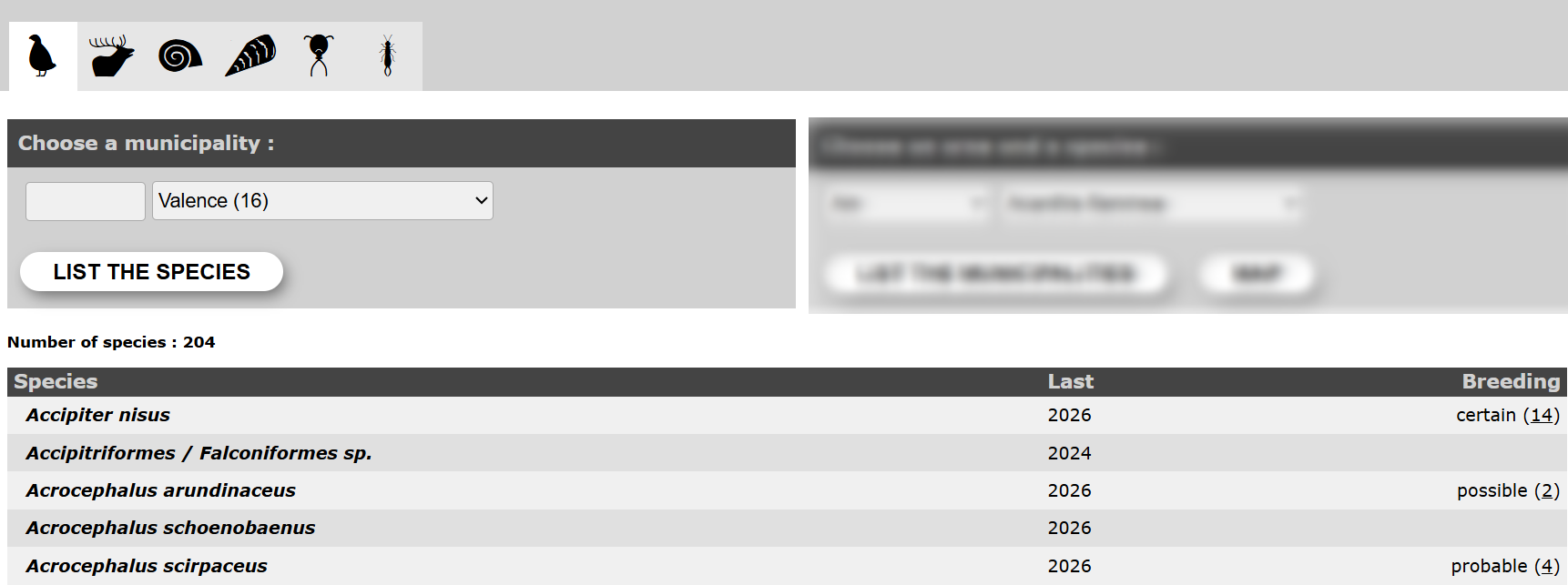
|
List choosing by area and species. Acrocephalus arundinaceus was last recorded in Baix in 2024, with no atlas code. Acrocephalus arundinaceus was last recorded in Berrias-et-Casteljau in 2012, as a probable breeder (atlas code 4). Acrocephalus arundinaceus was last recorded in Charmes-sur-Rhône in 2020 as a possible breeder (atlas code 2). Acrocephalus arundinaceus was last recorded in Creyseilles in 2022. No atlas code recorded. Acrocephalus arundinaceus was last recorded in Gilherand-Granges in 2025 as a possible breeder (atlas code 2). |
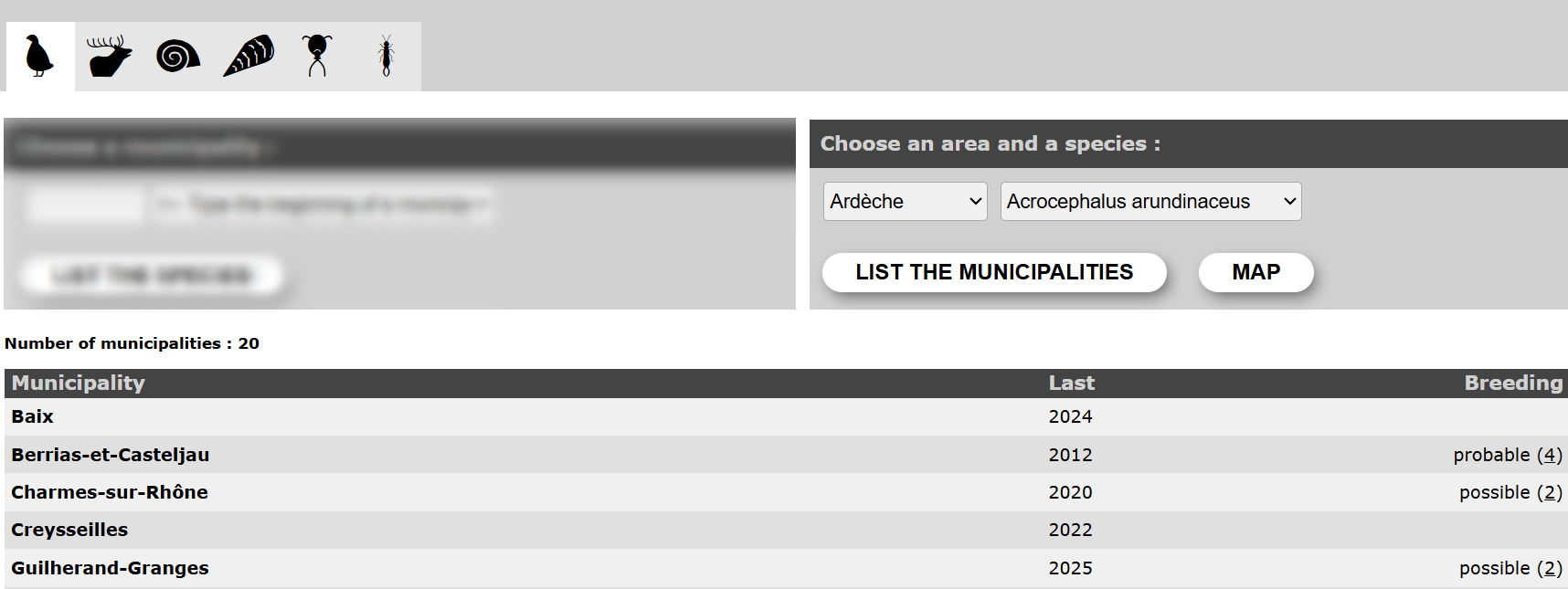
A map returns the species presence on the area selected, and its breeding status when available.
Coloured areas represent presence of the species. See breeding legend on the top right corner for colour correspondence.
Use  and
 to hide / show legend.
See wiki section Web interface > Local portals > Navigating the map to know how to move around the map.
Move pointer over image to see examples.
|
Local synthesis. Choose by map. Presence of Acrocephalus arundinaceus in Ardèche
Breeding legend
|
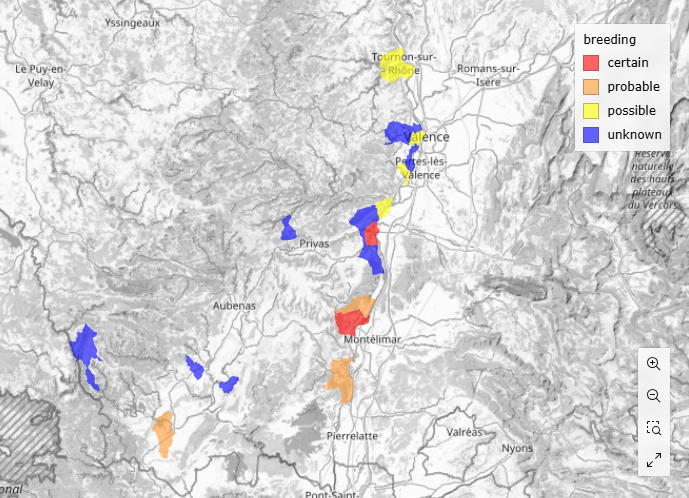
[Top to Local synthesis]
[Top to 'from Explore tab']
[Top to Browsing records]
Search engine
Advanced search.
Available through:
· Menu > Explore > Search engine, and
· 'Modify search' in any other search.
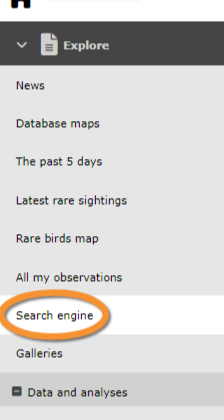
Search engine.
1. Select taxonomic group.
2. Set search parameters.
3. Click
· 'Search' to start search, or
· 'Reset' to reset parameters and conduct a different search.

Search engine. Parameters.
1. Select taxonomic group
2. Select searching parameters
3. Start search
4. Reset parameters
- 1. Taxonomic group
Select taxa to visualise from the top horizontal bar. Move along the bar to see all groups. Move the mouse pointer over the silhouettes to see correspondence.
- 2. Search parameters
Select the corresponding tab to establish search criteria. Choose between
· Period,
· Species,
· Sites,
· Other restrictions, and/or
· Formatting results.
- Period
- Period
Select period of time to visualise.

Search engine. Period.
1. data entry date: Tick if your search applies to date of data entry instead of date of observation.
2. Quick selection: Choose any of the quick options, if desired.
- Species
- Species
Select by
· Species name: start typing the species name on the left field and select from the expandable panel on the right.
· Family: select from the expandable menu.
· Rarity level: hold Ctrl to select more than one option.

Search engine. Species.
1. Species name
2. Family
3. Rarity level
- Sites
- Sites
Select the region to see the records from.
Choose from
· Geographical region: Choose the full country (or area covered by the local portal), region/s (hold Ctrl to select more than one), a municipality or a site.
· Atlas square: Choose an atlas square. Start typing the atlas square code on the left hand panel and select from the right hand panel. Options available are country specific.
· Polygon: Choose a user-defined area.
|
Search engine. Sites 1.
1. Search by region: Hold Ctrl to select more than one region. |
Search engine. Sites 2.
2. Search by Municipality: First select the region from the expandable menu on the left, then the municipality from the expandable menu on the right. |







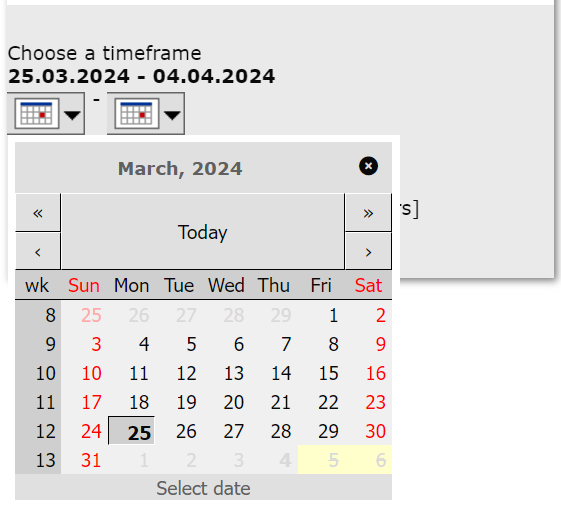
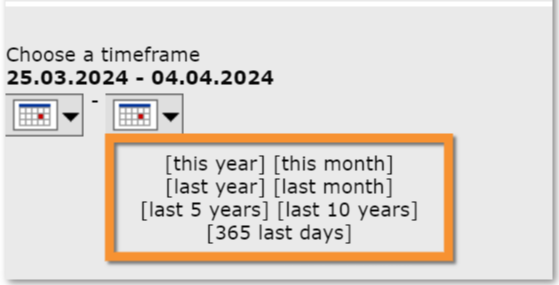

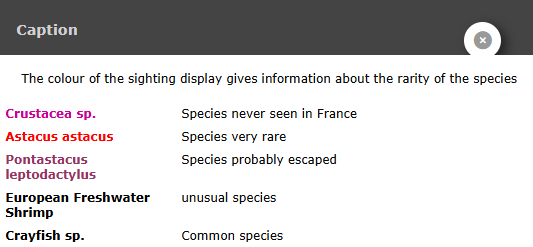



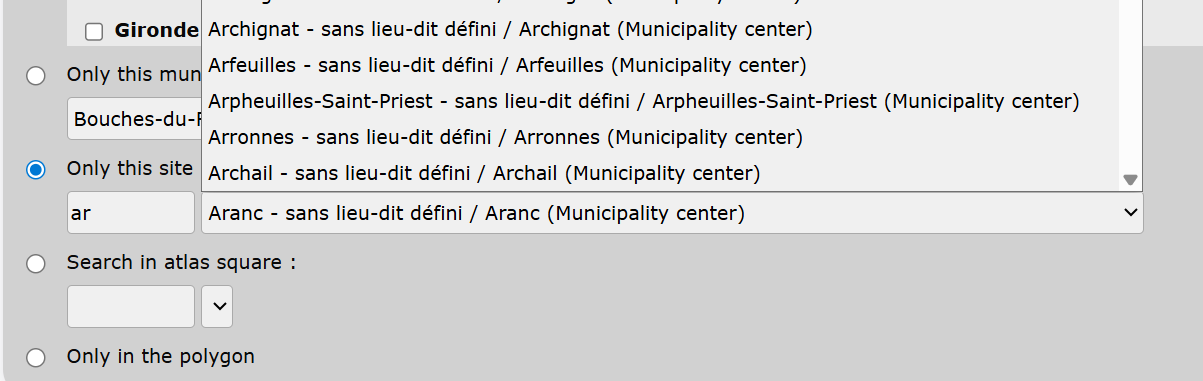
Search by polygon
1. Select the option to load the map.
2. Import a polygon (see wiki section on how to import a geometry), or
3. Draw a polygon to indicate the exact area of your search. Visit wiki section Web interface > Local portals > Navigating the map to know to navigate through the map; and wiki section Web interface > Local portal > Geometry editor > Drawing a polygon for more on drawing polygons.
4. Edit/Delete the polygon if necessary.
5. Save the polygon for future searches, if you wish.
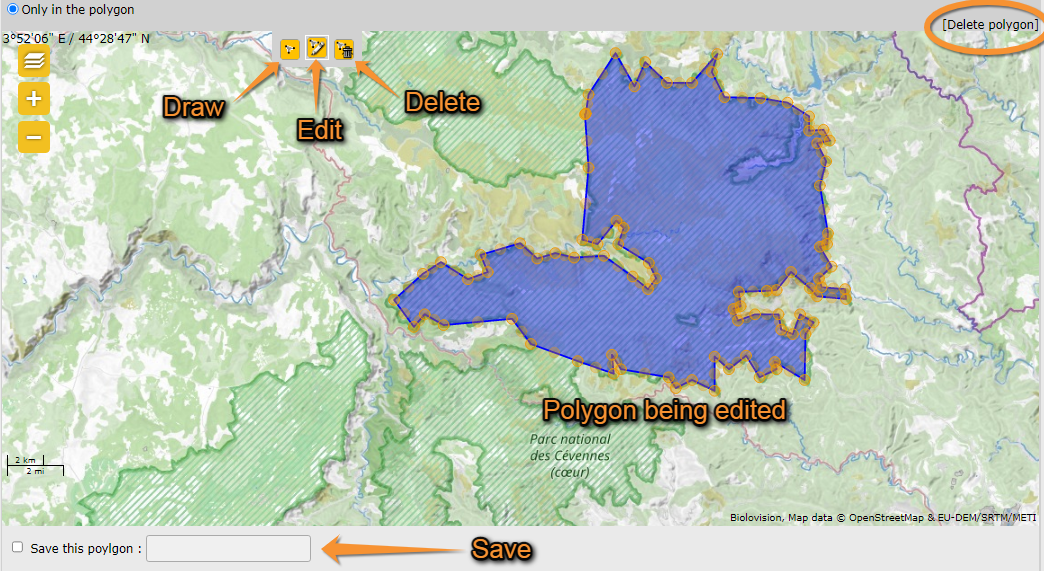
Search by polygon.
1. Load the map.
2. Import a polygon.
3. Draw a polygon,
4. Edit/Delete the polygon.
5. Save the polygon.
- Other restrictions
- Other restrictions
Apply other search criteria such as associated files, records awaiting confirmation, altitude, key word, atlas code, and so on.

Other restrictions. Example.
- Formatting results
- Formatting results
Indicate how to visualize and/or export the results when allowed.

Formatting results.
1. By list of data. Choose the order by date ascending or descending.
2. As a list of species (you can choose between systematic, alphabetical or by count order) and you can choose to have a total of data or a total of individuals.1
3. Do a summary: gives you a list of species seen and numbers for each ones.
4. By distribution graph: you can choose if you want to show the total of data, the total of birds or the total of number of species, and you can parameter if you want it displayed automatic or by day, pentade, decade, month or year.
5. By altitude graph: you can show by altitude the total of data or the total of birds and select the section you want (from 100m to 1000m).
6. By satellite picture, means by map. If no color is chosen, all the points are the same color or you can choose time progress or breeding.
1F.ex : user #1: 1 blackbird, user #2: 3 black birds, user #4: 10 black birds
total of data =3
total of individuals = 14
[Top to Search engine]
[Top to 'from Explore tab']
[Top to Browsing records]
Galleries
Access the file collection, both images and sound.
See wiki section Web interface > Gallery for a full description.
[Top to 'from Explore tab']
[Top to 'as a registered user']
[Top to Browsing records]
Note: images and examples are drawn from the French portal Faune-France. The design and position of some tools may vary slightly from portal to portal. To see a list of portals go to wiki section Local portals and partners. |