Getting started: Difference between revisions
No edit summary |
|||
| (174 intermediate revisions by 2 users not shown) | |||
| Line 1: | Line 1: | ||
<languages/> | |||
<translate> | |||
<!--T:1--> | |||
Anyone accessing the site have access to the latest news and can be informed of what, when and where some species were recorded. | |||
[[ | <!--T:2--> | ||
However, only registered users can [[Submitting records|share their observations]] to the community, or conduct more [[Browsing records|advanced searches]]. | |||
<!--T:3--> | |||
Registered users also have access to more information than unregistered users. See the table below comparing the functions available to each type of user. | |||
<!--T:4--> | |||
To become a registered user, see [[Special:MyLanguage/Getting_started#Registration| Registration]] below.<br /> | |||
<br /> | |||
<!--T:5--> | |||
<center> | |||
<table border="1" width="70%" class="wikitable sortable"> | |||
<!--T:6--> | |||
<tr style="padding: 25px; text-align: center; font-family: sans serif; "> | |||
<th>Functions</th> | |||
<th>Unregistered user</th> | |||
<th>Registered user</th> | |||
</tr> | |||
<!--T:7--> | |||
<tr style="padding: 25px; text-align: center; font-family: sans-serif; "> | |||
<td>See latest news</td> | |||
<td style="color:green">YES</td> | |||
<td style="color:green">YES</td> | |||
</tr> | |||
<!--T:8--> | |||
<tr style="padding: 25px; text-align: center; font-family: sans-serif; "> | |||
<td>See sun and moon information at registered location</td> | |||
<td style="color:red">NO</td> | |||
<td style="color:green">YES</td> | |||
</tr> | |||
<!--T:9--> | |||
<tr style="padding: 25px; text-align: center; font-family: sans-serif; "> | |||
<td>See latest records</td> | |||
<td style="color:green">YES</td> | |||
<td style="color:green">YES</td> | |||
</tr> | |||
<!--T:10--> | |||
<tr style="padding: 25px; text-align: center; font-family: sans-serif;"> | |||
<td>[[Customise website|Customise the website]]</td> | |||
<td style="color:red">NO</td> | |||
<td style="color:green">YES</td> | |||
</tr> | |||
<!--T:11--> | |||
<tr style="padding: 25px; text-align: center; font-family: sans-serif;"> | |||
<td>[[Browsing records|Browse records of the past 5 days]]</td> | |||
<td style="color:green">YES</td> | |||
<td style="color:green">YES</td> | |||
</tr> | |||
<!--T:12--> | |||
<tr style="padding: 25px; text-align: center; font-family: sans-serif; "> | |||
<td>[[Browsing records|Browse records of the past 15 days]]</td> | |||
<td style="color:red">NO</td> | |||
<td style="color:green">YES</td> | |||
</tr> | |||
<!--T:13--> | |||
<tr style="padding: 25px; text-align: center; font-family: sans-serif; "> | |||
<td>[[Browsing records|Access additional information for a record]]</td> | |||
<td style="color:red">NO</td> | |||
<td style="color:green">YES</td> | |||
</tr> | |||
<!--T:14--> | |||
<tr style="padding: 25px; text-align: center; font-family: sans-serif;"> | |||
<td>[[Browsing records|Access all records for a species for the last 5 days]]</td> | |||
<td style="color:red">NO</td> | |||
<td style="color:green">YES</td> | |||
</tr> | |||
<!--T:15--> | |||
<tr style="padding: 25px; text-align: center; font-family: sans-serif; "> | |||
<td>[[Browsing records|Access all records of a species for the last 15 days]]</td> | |||
<td style="color:red">NO</td> | |||
<td style="color:green">YES</td> | |||
</tr> | |||
<!--T:16--> | |||
<tr style="padding: 25px; text-align: center; font-family: sans-serif; "> | |||
<td>[[Browsing records|See observations on a map]]</td> | |||
<td style="color:red">NO</td> | |||
<td style="color:green">YES</td> | |||
</tr> | |||
<!--T:17--> | |||
<tr style="padding: 25px; text-align: center; font-family: sans-serif; "> | |||
<td>[[Browsing records|Access statistics for the species]]</td> | |||
<td style="color:red">NO</td> | |||
<td style="color:green">YES</td> | |||
</tr> | |||
<!--T:18--> | |||
<tr style="padding: 25px; text-align: center; font-family: sans-serif; "> | |||
<td>[[Browsing records|Quick search for rare species]]</td> | |||
<td style="color:red">NO</td> | |||
<td style="color:green">YES</td> | |||
</tr> | |||
<!--T:19--> | |||
<tr style="padding: 25px; text-align: center; font-family: sans-serif;"> | |||
<td>[[Browsing records|See rarities on a map]]</td> | |||
<td style="color:red">NO</td> | |||
<td style="color:green">YES</td> | |||
</tr> | |||
<!--T:20--> | |||
<tr style="padding: 25px; text-align: center; font-family: sans-serif; "> | |||
<td>[[Submitting records| Submit observations]]</td> | |||
<td style="color:red">NO</td> | |||
<td style="color:green">YES</td> | |||
</tr> | |||
<!--T:21--> | |||
<tr style="padding: 25px; text-align: center; font-family: sans-serif; "> | |||
<td>[[Editing records| Edit own observations]]</td> | |||
<td style="color:red">NO</td> | |||
<td style="color:green">YES</td> | |||
</tr> | |||
<!--T:22--> | |||
<tr style="padding: 25px; text-align: center; font-family: sans-serif; "> | |||
<td>Edit others' observations</td> | |||
<td style="color:red">NO</td> | |||
<td style="color:red">NO</td> | |||
</tr> | |||
<!--T:23--> | |||
<tr style="padding: 25px; text-align: center; font-family: sans-serif; "> | |||
<td>[[Editing records| Search records by atlas square or polygon]]</td> | |||
<td style="color:red">NO</td> | |||
<td style="color:green">YES</td> | |||
</tr> | |||
<!--T:24--> | |||
<tr style="padding: 25px; text-align: center; font-family: sans-serif;"> | |||
<td>Maps centered at location</td> | |||
<td style="color:red">NO</td> | |||
<td style="color:green">YES</td> | |||
</tr> | |||
<!--T:25--> | |||
<tr style="padding: 25px; text-align: center; font-family: sans-serif; "> | |||
<td>[[Exporting your data|Save and export your own records]]</td> | |||
<td style="color:red">NO</td> | |||
<td style="color:green">YES</td> | |||
</tr> | |||
<!--T:26--> | |||
<tr style="padding: 25px; text-align: center; font-family: sans-serif; "> | |||
<td>Export others' records</td> | |||
<td style="color:red">NO</td> | |||
<td style="color:red">NO</td> | |||
</tr> | |||
<!--T:27--> | |||
<tr style="padding: 25px; text-align: center; font-family: sans-serif;"> | |||
<td>See users' profile</td> | |||
<td style="color:red">NO</td> | |||
<td style="color:green">YES</td> | |||
</tr> | |||
<!--T:28--> | |||
</table> | |||
</center> | |||
<!--T:29--> | |||
<br /> | |||
<br /> | |||
<!--T:30--> | |||
Some users can have administration rights besides those of a registered user. To learn more about the rights and responsabilities of administrators, see wiki section Web interface > Administration > User administration > [[User administration|User administration]]. | |||
<!--T:31--> | |||
<br /> | |||
__TOC__ | |||
<!--T:32--> | |||
=Registration= | |||
<br /> | |||
<br /> | |||
<!--T:33--> | |||
<br/> | |||
<div class="contenesummary" style="width:550px"> <!-- ajustar la mida --> | |||
<div class="contenesummaryima" style="min-width: 43px;max-width: 43px;"> <!-- no canviar les mides --> | |||
</div> | |||
<div class="contenesummarytext"> | |||
<hr class="contenesummarylinia"> | |||
<b> TO REGISTER:</b><br /> | |||
<ul> | |||
<span style="color: #000000; margin-left: 15px;"><b>· </b>Enter to a local portal<br /> | |||
<span style="color: #000000; margin-left: 15px;"><b>· </b>Click '''Register''' ([[Media:14092022WIKI register 1.png|Step 1]])<br /> | |||
<span style="color: #000000; margin-left: 15px;"><b>· </b>Click '''Register''' ([[Media:14092022WIKI register 2.png|Step 2]])<br /> | |||
<span style="color: #000000; margin-left: 15px;"><b>· </b>Fill in the form <br /> | |||
<span style="color: #000000; margin-left: 15px;"><b>· </b>Read and accept '''Terms and conditions'''<br /> | |||
<span style="color: #000000; margin-left: 15px;"><b>· </b>Check your email inbox to receive a password<br /> | |||
<span style="color: #000000; margin-left: 15px;"><b>· </b>Register with your username (email address) and the password received<br /> | |||
<span style="color: #000000; margin-left: 15px;"><b>· </b>Start [[Submitting records|sharing your observations!]] | |||
</div> | |||
</div> | |||
<br /> | |||
<br/> | |||
<!--T:36--> | |||
Registration is free and fast. To do so, go to your local portal, or to that of any other participant organization. See a list of all organizations at wiki section [[Special:MyLanguage/Local_portals_and_partners|Various > Local partners]]. | |||
<!--T:37--> | |||
<br /> | |||
<!--T:38--> | |||
1. Click '''REGISTER''' main button.<br/> | |||
<br/> | |||
<center> | |||
<div class="toc" style="border-radius:5px;background-color:#ffffff;padding-left:8px;padding-right:8px;padding-bottom:8px;width:400px;"> | |||
[[File:14092022WIKI register 1.png|400px|link=https://help.biolovision.net/images/a/a8/14092022WIKI_register_1.png]] | |||
<div class="toc" style="border-radius:5px;padding-left:15px;text-align:left; font-size:12px;width:385px;"> | |||
'''Registration. Step 1.''' | |||
</div> | |||
</div> | |||
</center> | |||
<br/> | |||
<br/> | |||
<!--T:56--> | |||
2. Click '''Register''' link under '''LOGIN''' button.<br/> | |||
<br/> | |||
<center> | |||
<div class="toc" style="border-radius:5px;background-color:#ffffff;padding-left:8px;padding-right:8px;padding-bottom:8px;width:400px;"> | |||
[[File:14092022WIKI register 2.png|400px|link=https://help.biolovision.net/images/2/26/14092022WIKI_register_2.png]] | |||
<div class="toc" style="border-radius:5px;padding-left:15px;text-align:left; font-size:12px;width:385px;"> | |||
'''Registration. Step 2.''' | |||
</div> | |||
</div> | |||
</center> | |||
<br/> | |||
<br/> | |||
<!--T:57--> | |||
3. Fill in the form.<br/> | |||
Fields marked with an asterisk are mandatory.<br/> | |||
<br/> | |||
<!--T:58--> | |||
:'''Name'''<br /> | |||
Please enter your real name so you can get credit for your contribution. For scientific purposes contributions with no valid name linked with are unuseful. Your name will be visible along with your observations unless you indicate otherwise. To opt out tick the '''check if you want to be anonymous''' cell. Note that your real name will still be visible to administrators, as stated in Terms and Conditions.<br /> | |||
<br /> | |||
<!--T:59--> | |||
:'''Birthyear'''<br /> | |||
Please enter the real year you were born, for legal reasons and to identify users when two names are identical. It will never be public.<br /> | |||
<br /> | |||
<!--T:60--> | |||
:'''County and Municipality'''<br /> | |||
This information is most useful for you: it will target maps and important information regarding sun and moon, and latest observations automatically around your place.<br /> | |||
<br /> | |||
<!--T:61--> | |||
:'''Email'''<br /> | |||
Please enter a real and active email address. Here you will receive a password to log in, and coordinators and administrators will use it to contact you regarding confusing data. Please always keep it updated. You can change it at [[My account / Changing personal data, password or email#Email and password|Web interface > Local portals > My account > Email and Password]]. <br /> | |||
<br/> | |||
<br/> | |||
<div class="contenetip" style="width:700px"> <!-- ajustar la mida --> | |||
<div class="contenetipima" style="min-width: 43px;max-width: 43px;"> <!-- no canviar les mides --> | |||
</div> | |||
<div class="contenetiptext"> | |||
<hr class="contenetiplinia"> | |||
'''Note:'''<br/> | |||
Your registered email address will be visible to other registered users unless you opt out by ticking the corresponding cell (hides only the e-mail, not the name). Administrators would still see your address and can contact you regarding confusing records. <br /> | |||
If you decide to submit your records anonymously (neither your name nor your e-mail are visible to other users). Administrators would still see your address and can contact you regarding confusing records.<br/> | |||
</div> | |||
</div> | |||
<br /> | |||
<br/> | |||
<!--T:65--> | |||
<center> | |||
<div class="toc" style="border-radius:5px;background-color:#ffffff;padding-left:8px;padding-right:8px;padding-bottom:8px;width:700px;"> | |||
[[File:Registration form.png|700px|link=https://help.biolovision.net/images/6/69/Registration_form.png]] | |||
<div class="toc" style="border-radius:5px;padding-left:15px;text-align:left; font-size:12px;width:685px;"> | |||
'''Registration form.''' | |||
</div> | |||
</div> | |||
</center> | |||
<br/> | |||
<br/> | |||
<!--T:66--> | |||
4. Accept Terms and Conditions.<br/> | |||
Read carefully: this is your binding contract to us. You need to agree in order to continue with the registration process<br/> | |||
<br/> | |||
<!--T:67--> | |||
5. Click '''Register'''. <br/> | |||
<br/> | |||
<!--T:68--> | |||
6. You will then receive an email with your password. Please keep your Password safe. You can [[My account / Changing personal data, password or email|modify your password]] for a more memorable one (but not a simpler one).<br/> | |||
<br/> | |||
<!--T:69--> | |||
7. You can now Login in with your credentials (e-mail and password). They are valid on all our tools (UNIQUE LOGIN valid for: Local portal, data.biolovision.net, NaturaList).<br/> | |||
<br/> | |||
<br/> | |||
<div class="conteneinfo" style="width:650px"> <!-- ajustar la mida --> | |||
<div class="conteneinfoima" style="min-width: 43px;max-width: 43px;"> <!-- no canviar les mides --> | |||
</div> | |||
<div class="conteneinfotext"> | |||
<hr class="conteneinfolinia"> | |||
<b>Note:</b><br/> | |||
Make sure the e-mail containing your password does not go into your spam folder. In case of no mail received, neither in your e-mail inbox nor in your spam folder, please contact your local adminstrator or [http://support@biolovision.net support@biolovision.net]. | |||
</div> | |||
</div> | |||
<br /> | |||
<br/> | |||
<!--T:40--> | |||
<br /> | |||
<br /> | |||
---- | |||
<br /> | |||
<!--T:73--> | |||
You will be able to modify at any time your data or/and password at '''My account''' (see wiki section [[My account / Changing personal data, password or email| Web interface >Local portals > My account]]).<br /> | |||
<!--T:78--> | |||
<br /> | |||
[[Getting started#Registration|[Top to Registration]]] <br/> | |||
[[#top|[Back to Getting started]]] <br/> | |||
<br/> | |||
=Logging in= | |||
<br/> | |||
<br/> | |||
<div class="contenetip" style="width:700px"> <!-- ajustar la mida --> | |||
<div class="contenetipima" style="min-width: 43px;max-width: 43px;"> <!-- no canviar les mides --> | |||
</div> | |||
<div class="contenetiptext"> | |||
<hr class="contenetiplinia"> | |||
<b>REMEMBER:</b><br /><br /> | |||
Your USERNAME = EMAIL ADDRESS<br /><br /> | |||
UNIQUE LOGIN!: <br /> | |||
Same credentials (User name + password) to log in in any of the [[Local portals and partners#Local portals|Local portals]], [[Main_Page#Mobile_interface|Naturalist]] and [[Main_Page#data.biolovision.net|data.biolovision.net]]. | |||
</div> | |||
</div> | |||
<br /> | |||
<br/> | |||
<!--T:45--> | |||
Once you have been registered, log in to access more content: | |||
<br /> | |||
<!--T:47--> | |||
1. Access login fields by clicking '''REGISTER'''.<br/> | |||
<br/> | |||
<center> | |||
<div class="toc" style="border-radius:5px;background-color:#ffffff;padding-left:8px;padding-right:8px;padding-bottom:8px;width:400px;"> | |||
[[File:Register button for 1st step login in.png|400px|link=https://help.biolovision.net/images/3/3d/Register_button_for_1st_step_login_in.png]] | |||
<div class="toc" style="border-radius:5px;padding-left:15px;text-align:left; font-size:12px;width:385px;"> | |||
'''Register.''' | |||
</div> | |||
</div> | |||
</center> | |||
<br/> | |||
<br/> | |||
<!--T:75--> | |||
<span id="email+password"></span> | |||
2. Enter your username (this is the email address you registered with) and the password you received at this account (or the one you choose by [[My_account_/_Changing_personal_data,_password_or_email#Email_and_password | modifiying]] it).<br/> | |||
<br/> | |||
<!--T:76--> | |||
<span id="store"></span> | |||
3. If you use a secure personal device, you may choose to '''Store the password''' in order to reconnect automatically next time.<br/> | |||
<br/> | |||
<!--T:77--> | |||
<span id="log in"></span> | |||
4. Click on '''LOGIN'''.<br /> | |||
<br/> | |||
<!--T:48--> | |||
<center> | |||
<div class="toc" style="border-radius:5px;background-color:#ffffff;padding-left:8px;padding-right:8px;padding-bottom:8px;width:300px;"> | |||
[[File:14092022WIKI logging in.png|300px|link=https://help.biolovision.net/images/e/e1/14092022WIKI_logging_in.png]] | |||
<div class="toc" style="border-radius:5px;padding-left:15px;text-align:left; font-size:12px;width:285px;"> | |||
'''Logging in.''' | |||
</div> | |||
<p style="color:black;font-size:12px;padding-left:30px;text-align:left;column-count:2;"> | |||
<b>2.</b> [[Getting started#email+password|Enter credentials]] <br/> | |||
<b>3.</b> [[Getting started#store|Store password]] <br /> | |||
<b>4.</b> [[Getting started#log in|Log in]] <br/> | |||
<b>5.</b> [[Getting started#new password|Requesting a new password]] <br/> | |||
</p> | |||
</div> | |||
</center> | |||
<br/> | |||
<br/> | |||
<span id="new password"></span> | |||
===Requesting a new password=== | |||
<br/> | |||
<!--T:49--> | |||
In case you cannot remember your password, click on '''I have lost my password''' and a new password will be sent to your registered email address within minutes. Make sure you check the email address you registered with, and the spam folder within. We advise you to [[Email and password|change your password]] immediately after logging in into a more memorable one (but not a simpler one) and please keep it safely. If logging in from a safe device and connection, you can '''Store your password''' to facilitate the process next time. <br/> | |||
<br/> | |||
<br/> | |||
<div class="contenetip" style="width:700px"> <!-- ajustar la mida --> | |||
<div class="contenetipima" style="min-width: 43px;max-width: 43px;"> <!-- no canviar les mides --> | |||
</div> | |||
<div class="contenetiptext"> | |||
<hr class="contenetiplinia"> | |||
<b>Note:</b><br/> | |||
If you request a new password, you will need to select again "Store the password" to store the new one as the system stores the old one and does not update automatically. Remember to update also with NaturaList and data.biolovision.net if you use them. | |||
</div> | |||
</div> | |||
<br /><br /> | |||
[[Getting started#Logging in|[Top to Logging in]]] <br/> | |||
[[#top|[Back to Getting started]]]<br/> | |||
<br/> | |||
=Deleting your account= | |||
<br/> | |||
<br/> | |||
<div class="contenesummary" style="width:400px"> <!-- ajustar la mida --> | |||
<div class="contenesummaryima" style="min-width: 43px;max-width: 43px;"> <!-- no canviar les mides --> | |||
</div> | |||
<div class="contenesummarytext"> | |||
<hr class="contenesummarylinia"> | |||
<b>DELETING YOUR ACCOUNT</b><br/> | |||
<br/> | |||
:1. Menu > My account > [[My_account_/_Changing_personal_data,_password_or_email#Personal_data|Personal data]],<br/> | |||
:2. [[Media:Delete account.png|<b>DELETE MY ACCOUNT</b>]], <br/> | |||
:3. Read the document carefully, <br/> | |||
:4. [[Media:Delete account confirm.png|<b>CONTINUE AND DELETE MY ACCOUNT</b>]]. | |||
</div> | |||
</div> | |||
<br /> | |||
<br/> | |||
We will be sad to see you leaving, but if at any point you decide you no longer want to participate: <br/> | |||
<ul> | |||
1. Go to Menu > My account > [[My_account_/_Changing_personal_data,_password_or_email#Personal_data|Personal data]], <br/> | |||
2. Scroll to the bottom, and <br/> | |||
3. Press '''DELETE MY ACCOUNT'''. You will be asked to confirm. <br/> | |||
</ul> | |||
<br/> | |||
<center> | |||
<div class="toc" style="border-radius:5px;background-color:#ffffff;padding-left:8px;padding-right:8px;padding-bottom:8px;width:600px;"> | |||
[[File:Delete account.png|600px|link=https://help.biolovision.net/images/d/df/Delete_account.png]] | |||
<div class="toc" style="border-radius:5px;padding-left:15px;text-align:left; font-size:12px;width:575px;"> | |||
'''Deleting your account.''' | |||
</div> | |||
</div> | |||
</center> | |||
<br/> | |||
<br/> | |||
It returns a list of all sites where your personal data will be deleted (a list of all local sites you logged in with the current account). <br/> | |||
<br/> | |||
<center> | |||
<div class="toc" style="border-radius:5px;background-color:#ffffff;padding-left:8px;padding-right:8px;padding-bottom:8px;width:600px;"> | |||
[[File:Confirm deletion.png|600px|link=https://help.biolovision.net/images/c/c5/Confirm_deletion.png]] | |||
<div class="toc" style="border-radius:5px;padding-left:15px;text-align:left; font-size:12px;width:575px;"> | |||
'''Deleting account. Conditions.''' | |||
</div> | |||
<p style="color:black;font-size:12px;padding-left:30px;text-align:left;column-count:1;"> | |||
<b>1.</b> Local portals currently containing your personal data <br /> | |||
<b>2.</b> Check to accept <br/> | |||
</p> | |||
</div> | |||
</center> | |||
<br/> | |||
<br/> | |||
<ul> | |||
4. Read the document carefully and <br/> | |||
5. Confirm you understood what it implies, and the deleting button will become active: <br/> | |||
<span style="color: #000000; margin-left: 25px;"><b>· </b>All of your personal details (excluding year of birth) will be immediately and irreversibly deleted from all sites listed in the text. These are all sites you ever logged in with your current account. <br/> | |||
<span style="color: #000000; margin-left: 25px;"><b>· </b>We will only keep the year you were born, but not the day or the month of your birth. <br/> | |||
<span style="color: #000000; margin-left: 25px;"><b>· </b>We will keep all observations you submitted to our sites, either through the web, or through NaturaList. <br/> | |||
<span style="color: #000000; margin-left: 25px;"><b>· </b>Your observations will be used for scientific and conservation purposes. <br/> | |||
<span style="color: #000000; margin-left: 25px;"><b>· </b>Your observations will be used, or published, under "Anonymous" name. <br/> | |||
<span style="color: #000000; margin-left: 25px;"><b>· </b>You will no longer have access to your observations. <br/> | |||
<br/> | |||
</ul> | |||
<br/> | |||
<center> | |||
<div class="toc" style="border-radius:5px;background-color:#ffffff;padding-left:8px;padding-right:8px;padding-bottom:8px;width:600px;"> | |||
[[File:Delete account confirm.png|600px|link=https://help.biolovision.net/images/e/e3/Delete_account_confirm.png]] | |||
<div class="toc" style="border-radius:5px;padding-left:15px;text-align:left; font-size:12px;width:575px;"> | |||
'''Deleting account. Confirmation.''' | |||
</div> | |||
</div> | |||
</center> | |||
<br/> | |||
<br/> | |||
<ul>6. If you agree, press CONTINUE AND DELETE MY ACCOUNT, and your profile will be deleted <b>immediately and irreversibly</b>. <br/> | |||
</ul> | |||
<br/> | |||
<br/> | |||
<div class="contenewarning" style="width:900px"> <!-- ajustar la mida --> | |||
<div class="contenewarningima" style="min-width: 43px;max-width: 43px;"> <!-- no canviar les mides --> | |||
</div> | |||
<div class="contenewarningtext"> | |||
<hr class="contenewarninglinia"> | |||
NOTE<br/> | |||
<ul> | |||
<span style="color: #000000; margin-left: 3px;"><b>· </b> All your personal data will be deleted from our sites, except from your year of birth (day and month will be deleted). <br/> | |||
<span style="color: #000000; margin-left: 3px;"><b>· </b> Your observation will remain on our database for scientific purposes and will be published anonymously, but you will not have access to them anymore. | |||
</div> | |||
</div> | |||
<br /> | |||
<br /> | |||
[[Getting started#Deleting your account|[Top to deleting your account]]] <br/> | |||
[[#top|[Back to Getting started]]]<br/> | |||
<br/> | |||
</translate> | |||
{{Examples from Faune-France}} | |||
Latest revision as of 19:21, 23 July 2026
Anyone accessing the site have access to the latest news and can be informed of what, when and where some species were recorded.
However, only registered users can share their observations to the community, or conduct more advanced searches.
Registered users also have access to more information than unregistered users. See the table below comparing the functions available to each type of user.
To become a registered user, see Registration below.
| Functions | Unregistered user | Registered user |
|---|---|---|
| See latest news | YES | YES |
| See sun and moon information at registered location | NO | YES |
| See latest records | YES | YES |
| Customise the website | NO | YES |
| Browse records of the past 5 days | YES | YES |
| Browse records of the past 15 days | NO | YES |
| Access additional information for a record | NO | YES |
| Access all records for a species for the last 5 days | NO | YES |
| Access all records of a species for the last 15 days | NO | YES |
| See observations on a map | NO | YES |
| Access statistics for the species | NO | YES |
| Quick search for rare species | NO | YES |
| See rarities on a map | NO | YES |
| Submit observations | NO | YES |
| Edit own observations | NO | YES |
| Edit others' observations | NO | NO |
| Search records by atlas square or polygon | NO | YES |
| Maps centered at location | NO | YES |
| Save and export your own records | NO | YES |
| Export others' records | NO | NO |
| See users' profile | NO | YES |
Some users can have administration rights besides those of a registered user. To learn more about the rights and responsabilities of administrators, see wiki section Web interface > Administration > User administration > User administration.
Registration
TO REGISTER:
-
· Enter to a local portal
· Click Register (Step 1)
· Click Register (Step 2)
· Fill in the form
· Read and accept Terms and conditions
· Check your email inbox to receive a password
· Register with your username (email address) and the password received
· Start sharing your observations!
Registration is free and fast. To do so, go to your local portal, or to that of any other participant organization. See a list of all organizations at wiki section Various > Local partners.
1. Click REGISTER main button.
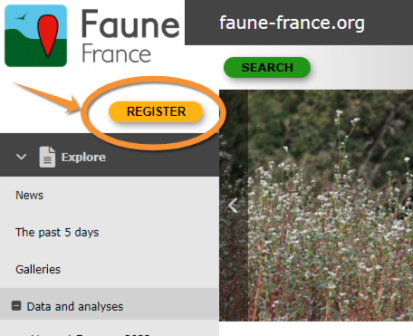
Registration. Step 1.
2. Click Register link under LOGIN button.

Registration. Step 2.
3. Fill in the form.
Fields marked with an asterisk are mandatory.
- Name
Please enter your real name so you can get credit for your contribution. For scientific purposes contributions with no valid name linked with are unuseful. Your name will be visible along with your observations unless you indicate otherwise. To opt out tick the check if you want to be anonymous cell. Note that your real name will still be visible to administrators, as stated in Terms and Conditions.
- Birthyear
Please enter the real year you were born, for legal reasons and to identify users when two names are identical. It will never be public.
- County and Municipality
This information is most useful for you: it will target maps and important information regarding sun and moon, and latest observations automatically around your place.
- Email
Please enter a real and active email address. Here you will receive a password to log in, and coordinators and administrators will use it to contact you regarding confusing data. Please always keep it updated. You can change it at Web interface > Local portals > My account > Email and Password.
Note:
Your registered email address will be visible to other registered users unless you opt out by ticking the corresponding cell (hides only the e-mail, not the name). Administrators would still see your address and can contact you regarding confusing records.
If you decide to submit your records anonymously (neither your name nor your e-mail are visible to other users). Administrators would still see your address and can contact you regarding confusing records.

Registration form.
4. Accept Terms and Conditions.
Read carefully: this is your binding contract to us. You need to agree in order to continue with the registration process
5. Click Register.
6. You will then receive an email with your password. Please keep your Password safe. You can modify your password for a more memorable one (but not a simpler one).
7. You can now Login in with your credentials (e-mail and password). They are valid on all our tools (UNIQUE LOGIN valid for: Local portal, data.biolovision.net, NaturaList).
Note:
Make sure the e-mail containing your password does not go into your spam folder. In case of no mail received, neither in your e-mail inbox nor in your spam folder, please contact your local adminstrator or support@biolovision.net.
You will be able to modify at any time your data or/and password at My account (see wiki section Web interface >Local portals > My account).
[Top to Registration]
[Back to Getting started]
Logging in
REMEMBER:
Your USERNAME = EMAIL ADDRESS
UNIQUE LOGIN!:
Same credentials (User name + password) to log in in any of the Local portals, Naturalist and data.biolovision.net.
Once you have been registered, log in to access more content:
1. Access login fields by clicking REGISTER.
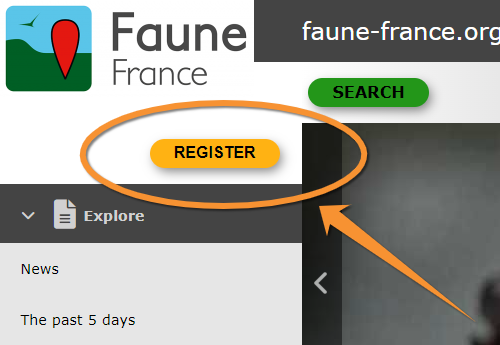
Register.
2. Enter your username (this is the email address you registered with) and the password you received at this account (or the one you choose by modifiying it).
3. If you use a secure personal device, you may choose to Store the password in order to reconnect automatically next time.
4. Click on LOGIN.



Requesting a new password
In case you cannot remember your password, click on I have lost my password and a new password will be sent to your registered email address within minutes. Make sure you check the email address you registered with, and the spam folder within. We advise you to change your password immediately after logging in into a more memorable one (but not a simpler one) and please keep it safely. If logging in from a safe device and connection, you can Store your password to facilitate the process next time.
Note:
If you request a new password, you will need to select again "Store the password" to store the new one as the system stores the old one and does not update automatically. Remember to update also with NaturaList and data.biolovision.net if you use them.
[Top to Logging in]
[Back to Getting started]
Deleting your account
DELETING YOUR ACCOUNT
- 1. Menu > My account > Personal data,
- 2. DELETE MY ACCOUNT,
- 3. Read the document carefully,
- 4. CONTINUE AND DELETE MY ACCOUNT.


We will be sad to see you leaving, but if at any point you decide you no longer want to participate:
-
1. Go to Menu > My account > Personal data,
2. Scroll to the bottom, and
3. Press DELETE MY ACCOUNT. You will be asked to confirm.

Deleting your account.
It returns a list of all sites where your personal data will be deleted (a list of all local sites you logged in with the current account).
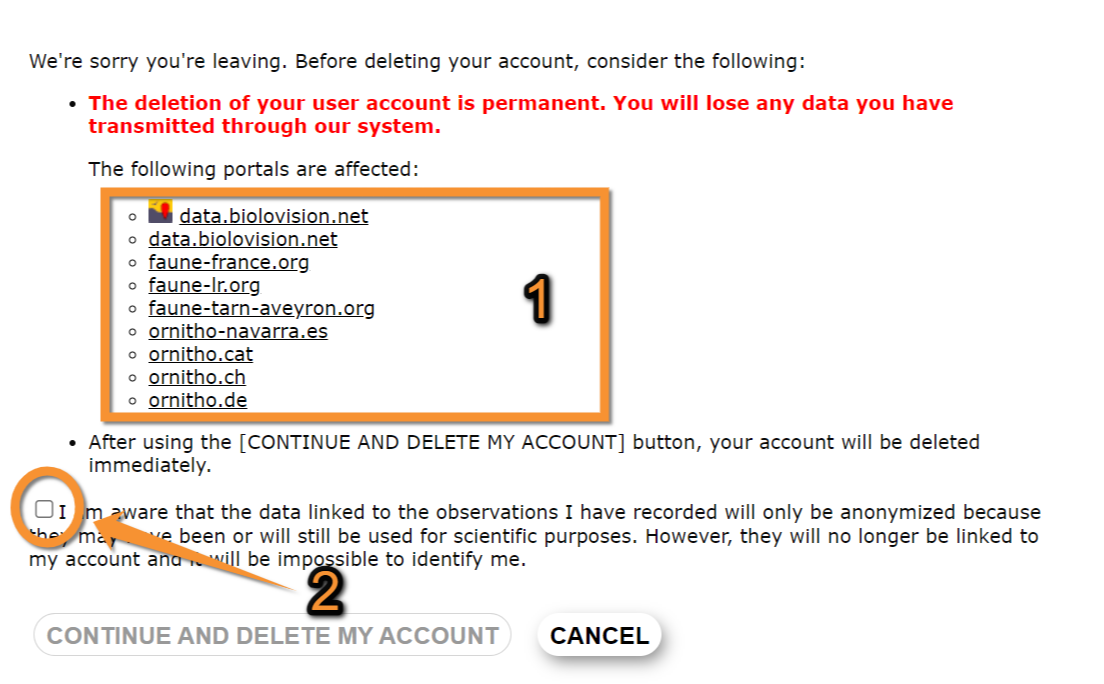
Deleting account. Conditions.
1. Local portals currently containing your personal data
2. Check to accept
-
4. Read the document carefully and
5. Confirm you understood what it implies, and the deleting button will become active:
· All of your personal details (excluding year of birth) will be immediately and irreversibly deleted from all sites listed in the text. These are all sites you ever logged in with your current account.
· We will only keep the year you were born, but not the day or the month of your birth.
· We will keep all observations you submitted to our sites, either through the web, or through NaturaList.
· Your observations will be used for scientific and conservation purposes.
· Your observations will be used, or published, under "Anonymous" name.
· You will no longer have access to your observations.

Deleting account. Confirmation.
- 6. If you agree, press CONTINUE AND DELETE MY ACCOUNT, and your profile will be deleted immediately and irreversibly.
NOTE
-
· All your personal data will be deleted from our sites, except from your year of birth (day and month will be deleted).
· Your observation will remain on our database for scientific purposes and will be published anonymously, but you will not have access to them anymore.
[Top to deleting your account]
[Back to Getting started]
Note: images and examples are drawn from the French portal Faune-France. The design and position of some tools may vary slightly from portal to portal. To see a list of portals go to wiki section Local portals and partners. |